
X Mark I Pro - Calculator CANON - Free user manual and instructions
Find the device manual for free X Mark I Pro CANON in PDF.


| Product Type | Calculator |
| Brand | Canon |
| Model | X Mark I Pro |
| Display Type | LCD |
| Number of Digits | 12 |
| Power Source | Solar cell with backup battery (LR44) |
| Dimensions (W x D x H) | 150 x 80 x 15 mm |
| Weight | 100 g |
| Color | Black with silver accents |
| Material | Plastic body |
| Basic Functions | Addition, subtraction, multiplication, division |
| Advanced Functions | Square root, percentage, memory (M+, M-, MR, MC) |
| Number of Memory Slots | 1 |
| Auto Power Off | Yes, after 5 minutes of inactivity |
| Key Type | Plastic buttons with tactile feedback |
| Protection | Sliding hard cover included |
| Warranty | 1 year limited |
| Intended Use | Office, school, home |
| Cleaning Instructions | Wipe with a soft, dry cloth; avoid solvents |
| Battery Replacement | Requires one LR44 battery; slide open battery compartment |
Frequently Asked Questions - X Mark I Pro CANON
User questions about X Mark I Pro CANON
0 question about this device. Answer the ones you know or ask your own.
Ask a new question about this device
Download the instructions for your Calculator in PDF format for free! Find your manual X Mark I Pro - CANON and take your electronic device back in hand. On this page are published all the documents necessary for the use of your device. X Mark I Pro by CANON.
USER MANUAL X Mark I Pro CANON
Display Contrast Adjustment P.2
Mode Selection....P.3
Application Function Menu P.3
Calculator Set-up Menu.... P.4
Before Using the Calculator.... P.5
Inputting Expressions and Values
Input Capacity....P.6
Input Editing P.6
Inputting and Display Result in Mathematics Mode ...... P.6
Input Range and Error Messages P.7
Order of Operations.... P.7
Calculation Stacks P.7
Error Messages and Error Locator P.7
Basic Calculations
Arithmetic Calculations P.8
Memory Calculations P.9
Fraction Calculations P.9
Percentage Calculations.... P.10
Degree-Minutes-Seconds Calculations P.10
Replay & Multi-statements.... P.10
Constant Value Calculations P.11
Metric Conversions.... P.11
Functional Scientific Calculations
Square, Root, Cube, Cube Root, Power, Power Root,
Reciprocal and Pi P.11
Logarithm, Natural Logarithm, Antilogarithm and Log ab ..... P.12
Angle Unit Conversion.... P.12
Trigonometry Calculations.... P.12
Permutation, Combination, Factorials and Random
Number Generation P.12
Least Common Multiple and Greatest Common Divisor ..... P.13
Prime Fractorization P.13
Quotient and Remainder Calculations.... P.13
Coordinate Conversion.... P.14
Absolute Value Calculation.... P.14
Engineering Notation P.14
Display Values Exchange.... P.14
Complex Number Calculations P.14
Base-n Calculations and Logical Calculations.... P.15
Statistical Calculations
Statistical Type Selection....P.16
Statistical Data Input....P.16
Editing Statistical Sample Data....P.16
Statistical Calculation Screen P.17
Statistical Menu P.17
Statistical Calculation Example....P.18
Distribution Calculations P.18
Advanced Scientific Calculations
Equation Calculations P.19-20
Solve Function P.20
CALC Function P.20
Differential Calculations P.21
Integration Calculations P.21
Matrix Calculations P.22
Vector Calculations....P.23
Inequality Calculations P.24
Ratio Calculation P.25
Function (x, y) Table Calculation P.25
Battery Replacement.....P.26
Advice and Precautions P.26
Specifications P.26
■ About Using the Manual
- This basic manual briefly introduce X Mark I Pro functions, specification and usage precautions.
- To familiar with X Mark I Pro, you can read the Calculation Examples for a series of examples, operation procedure's; and the calculation range of major functions.
Display

S : Shift key
A : Alpha key
M : Independent Memory
STO : Store Memory
RCL : Recall Memory
STAT : 1-Var & 2-Var Statistics Mode
CPLX : Complex Number Calculation Mode
MATX : Matrix Calculation Mode
VCTR : Vector Calculation Mode
EQN : Equation Calculation Mode
D : Degree Mode
R : Radian Mode
G : Gradient Mode
FIX : Fixed-decimal Setting
SCI : Scientific Notation
LINE : Line Display Mode
▲Up Arrow
Down Arrow
Disp : Multi-statements Display
Getting Started
Power On, Off
First time operation:
- Remove the battery insulation tab to load the battery.
- Press ON Shift CLR 3 = CA to initialize the calculator.
Power ON: When ON is pressed.
Power OFF: When Shift OFF are pressed.
■ Auto Power off Function:
When the calculator is not used for approximately 7 minutes, it will automatically power off.
Display Contrast Adjustment
■ Press Shift MODE 6 (6: ◀ CONT▶), to enter the Display Contrast Adjustment screen.

Press ▶ to make the display contrast darken.
Press ▶ to make the display contrast lighten.
Press CA or ON to confirm and clear the screen.
■ To initialize the LCD contrast, press Shift CLR 3 = CA outside the Display Contrast Adjustment screen.
Mode Selection
■Press MODE to enter the Calculation Mode Selection screen.
■Press ▲/ ▼ for next / previous pages.


| Operation | Mode | LCD Indicator | ||
| MODE 1 | COMP | Normal calculations | ||
| MODE 2 | CPLX | Complex number calculation | CPLX | |
| MODE 3 | STAT | Statistical and regression calculations | STAT | |
| MODE 4 | BASE | Calculations involving specific number systems | ||
| MODE 5 | EQN Equation solution EQN | |||
| MODE 6 | TABLE | Function table generation | ||
| MODE 7 | MATX | Matrix calculations MATX | ||
| MODE 8 | VCTR | Vector calculations | VCTR | |
| MODE ▼ 1 | INEQ | Inequality calculations | ||
| MODE ▼ 2 | RATIO | Ratio calculations | ||
■ The default mode is COMP mode.
Application Function Menu
The Apps menu contains mathematical functions. In each Calculation Mode, the listed functions are different.
■Press MODE and corresponding number to enter the Calculation Mode.
■Press App to enter the Apps menu.
■Press ▲/ ▼ for next / previous pages.
Calculator Set-up Menu
■Press Shift MODE to enter the Calculator Set-up Menu; press ▲ / ▼ for next / previous pages.
![1:Maths 2:Line 3:Deg 4:Rad 5:Gra 6:Fix 7:Sci 8:Norm Press [ ] or [ ] key 1:ab/c 2:d/c 3:CPLX 4:$TAT 5:Disp 6:](/content/2026/06/1296779/images/8a02a16f643839edd8924640a1cfcfb03ca06cfcf23696bc38aa0df7717f3f82.jpg)
To select the calculator input & output format [1] Maths or [2] Line
[1] Maths - (Mathematics mode): The majority of calculation input and output (e.g. Fraction, pi, square root number) are shown in Mathematics textbook format.
Mathematics mode

[2] Line – (Line mode): The majority of calculation input and output are shown in the line format. The "LINE" icon will be shown.
Line mode

For the STAT, EQN, MATX, VCTR, INEQ, RATIO mode, the Input & Display format will switch to Line mode automatically.
■To select the angle unit [3] Deg, [4] Rad or [5] Gra
[3] Deg: Angle unit in Degree
[4] Rad: Angle unit in Radian
[5] Gra: Angle unit in Gradient
9 0 ^ ° = π/2 radians = 1 0 0 grads
To select display digit or notation [6] Fix, [7] Sci or [8] Norm
[6] Fix: Fixed Decimal, [Fix 0\~9?] appears, specify the number of decimal places by pressing [0] - [9]. Example: 220 ÷ 7 = 31.4286 (FIX 4) = 31.43 (FIX 2)
[7] Sci: Scientific Notation, [Sci 0\~9?] appears, specify the number of significant digits by pressing [0] - [9].
Example: 220 ÷ 7 = 3.1429 × 101 (SCI 5)
= 3.143x10 1 (SCI 4)
[8] Norm: Exponential Notation, [Norm 1\~2?] appears, specify the exponential notation format by pressing [1] or [2].
Norm 1: Exponential Notation is automatically used for integer values with more than 10 digits and decimal values with more than TWO decimal points.
Norm 2: Exponential notation is automatically used for integer values with more than 10 digits and decimal values with more than NINE decimal places.
Example: amp; 1 ÷ 1 0 0 0 = 1 × 1 0 ^ - 3 ( Norm 1) amp; = 0. 0 0 1 ( Norm 2)
■To select the fraction format [1] a b/c or [2] d/c
[1] a b/c: specify Mixed fraction display
[2] d/c: specify Improper fraction display
To select the complex number display format [3] CLPX ([1] a+bi or [2] r<θ)
[1] a+bi: specify Rectangular Coordinates
[2] r< θ specify Polor Coordinates
■To select the statistical display format [4] STAT ([1] ON or [2] OFF)
[1] ON: Show FREQ (Frequency) Column in Statistical Data Input Screen
[2] OFF: Hide FREQ (Frequency) Column in Statistical Data Input Screen
To select the decimal point display format [5] Disp ([1] Dot or [2] Comma)
[1] Dot: specify dot format for Decimal point result display
[2] Comma: specify comma format for Decimal point result display
■To Adjust Display contrast [6] ◀ CONT ▶
Refer to the "Display Contrast Adjustment" section.
Before Using the Calculator
Check the current Calculation Mode
Be sure to check the status indicators that indicate the current calculation mode (COMP, STAT, TABLE), display formats setting and angle unit setting (Deg, Rad, Gra)
■Return to initial setup
Press Shift CLR 1 = (YES) CA to return the initial calculator setup
This action will not clear the variable memories.
■initialize the calculator
When you are not sure of the current calculator setting, you are recommended to initialize the calculator (resets calculation mode "COMP", angle unit "Degree", clears reply and variable memories), and resets LCD contrast) by performing the following key operations:
Shift CLR 3 (All) = (YES) CA.
Inputting Expressions and Values
Input Capacity
X Mark I Pro allows you to input a single calculation with up to 99 bytes. When input capacity is less than 10bytes, the input cursor will change from “I” to “■” signaling that the memory is running now.
Input Editing
■ New Input begins on the left of display. When the input data is more than 15 characters (Line Mode) / 16 characters (Maths mode), the line will scroll to the right consecutively. You can scroll back to the left by using ◀ and ▶ to review the input.
■Dmit the multiplication sign and final close parenthesis.
Example: 2 x log 100 x (1+3) = 16 ...... EX #1
*1. Omit multiplication sign (x)
- Input before an open parentheses (1) x (2+3)
- Input before scientific functions that includes parenthesis: 2 x cos(30)
- Input before Random number function Rand
- Input before Variable (A, B, C, D, X, Y, M), π, θ
*2. Scientific functions come with the open parenthesis. Example: (·) , (·) , Pol(·) , LCM(·) . You need to input the argument and the close parenthesis [ ] .
*3. Omit the last close parenthesis before the , M+, M-, Sh and STO.
■ Insert and Overwrite Input mode
In Line mode, you can use INSERT Insert or overwrite mode for inputting.
In Insert mode (Default input mode), the cursor is a vertical flashing line "I" for inserting a new character.
- In Overwrite mode, press Shift Insert key to switch the cursor to a flashing horizontal “_” and replace the character at the current cursor position.
In Mathematics mode, you can only use the insert mode.
Whenever the display format changes from Line mode to Mathematics mode, it will automatically switch to the insert mode.
■ Deleting and Correcting an Expression
In Insert mode: Move the cursor to the right of the character or function that needs to be deleted, then press DEL. In Overwrite mode: Move the cursor under the character or function being deleted, then press DEL.
Example: 1234567 + 889900
EX #2
(1) Replace an entry (1234567 → 1234560) ..... EX #2
(2) Deletion (1234567 → 134567)..... EX #3
(3) Insertion (889900 → 2889900) ...... EX #4
Inputting and Display Result in Mathematics Mode
In Mathematic Mode, the Input and display result of fraction or certain functions (log, x2 , x3 , x , √- , √[3]- , √- , x1 .10', e', Abs) is shown in Handwriting/Mathematics format.
EX #5
(1) Some input expressions cause the height of a calculation expression to be greater than one display screen. Maximum input capacity: 2 display screens (31 dots x 2).
(2) Calculator memory limits how many functions or parentheses can be input in any single expression. In this case, divide the expression into multiple parts and calculate separately.
(3) If part of the expression you input is cut off after calculation and in the result display screen, you can press ◀ or ▶ to view the full expression.
Input Range and Error Messages
■Calculation Precision, Input Range please refer to ...
EX #6
- Errors are cumulative in the case of consecutive calculations, this is also true as internal consecutive calculation are performed in the case of (x, y), x y, 3 i, x! , nPr, nCr, etc. and may become large.
■Display of results using √
Calculation results may be displayed using √ when in all of the following cases:
- When intermediate and final calculation results are displayed in the following form:
± a √ bc ± d √ ef
0 ≤ a lt; 1 0 0, 1 ≤ d lt; 1 0 0
0 ≤ b lt; 1 0 0 0, 1 lt; e lt; 1 0 0 0
1 ≤ c lt; 1 0 0, 1 ≤ f lt; 1 0 0
- When the number of terms in the intermediate and final calculation result is one or two.
Order of Operations
This calculator will automatically determine the operation priority of each individual command as EX #7
Example 1:
| (-) | 2 | x2 | = | -22=-4 | |
| ( | (-) | 2 | ) | x2 | = (-2)2=4 |
Example 2:
| 1 | ÷ | 2 | Shift | π | = | 1 ÷ 2π = 0.1591549431 |
Example 3:
| 2 | Shift | STO | (-) |
| 1 | ÷ | 2 | Alpha □ A = |
Calculation Stacks
This calculator uses memory areas, called "stacks", to temporarily store numeric value (numbers) commands (+, -, x...) and functions according to their precedence during calculations.
The numeric stack has 10 levels and command stack has 128
levels. A stack error [Stack ERROR] occurs whenever you try to perform a calculation that exceeds the capacity of stacks. Calculations are performed in sequence according to "Order
■ of Operations". After the calculation is performed, the stored stack values will be released.
Error Messages and Error locator
The calculator is locked up while an error message is shown on the display to indicate the cause of the error.
■Press CATo clear the error message, then return to the initial display of latest mode.
■Press ◀ or ▶ to display input expression with the cursor positioned next to the error.
Press ON to clear the error message, replay memory history and return to the initial display of the latest mode.
| Error Message | Cause Action | |
| Math ERROR | The intermediate or final result is outside the allowable calculation range.An attempt to perform a calculation using a value that exceeds the allowable input range.An attempt to perform an illogical operation (division by zero, etc.) | Check the input values and make sure they are all within the allowable ranges, Pay special attention to values in any using memory areas |
| Stack ERROR | The capacity of the numeric stack or operator stack is exceeded. | Simplify the calculation.Divide the calculation into two or more separate parts. |
| Syntax ERROR | An attempt to perform an illegal mathematical operation. | Pressorto display the cursor at the location of the error, make appropriate corrections |
| Insufficient MEM | The calculation result of Function Table mode parameters caused more than 30 x-values to be generated for a table | Narrow the table calculation range by changing the start, end, and step values, and try again. |
| Dimension ERROR(only in Matrix or Vector) | Under Matrix and Vector mode, the dimension(row, column) is over three.An attempt to perform an illegal matrix/vector operation. | Pressorto display the location of the cause of an error and make required corrections. |
| Can't Solve ERROR(only in SOLVE function) | The calculator could not obtain a solution. | Check for errors in the equation that you input.Input a value for the solution variable that is close to the expected solution and try again. |
| Error Message | Cause Action | |
| Variable ERROR(only in SOLVE function) | Equation is not a correct equation.Equation does not include variable X.The solution variable is not similar to the specified variable in the expression. | Under Matrix and Vector mode, the dimension (row, column) is over three.An attempt to perform an illegal matrix/vector operation.(refer to P.20) |
| Time Out ERROR(only in Differential or integration Calculations) | The current differential or integration calculation ends does not fulfill an ending condition. | The calculator could not obtain a solution.(refer P.21) |
| Argument ERROR | Improper use of an argument. | Pressorto display the location of the cause of an error and make required corrections. |
Basic Calculations
■Press MODE 1 to enter COMP mode.
During the busy calculation, the calculator shows the message [PROCESSING] (without any calculation result). Press CA key to interrupt the calculating operation.
Arithmetic Calculations

- To calculate the negative values (exclude the negative exponent) enclose then within the parentheses.
• This calculator supports 99 levels of parenthetical expression.
...... EX #8
Memory Calculations

Memory Variables
- There are 19 memory variables (0 - 9, A - F, M, X and Y), which store data, results, or dedicated values.
- Store values into memory by pressing Shift STO + Memory variable.
- Recall memory values by pressing RCL+ Memory variable.
- Memory content can be cleared by pressing 0 Shift STO + Memory variable.
Example: 23 + 7 → A (30 store into A), calculate 2 A and clear memory A ..... EX #9

Independent Memory
- Independent memory M uses the same memory area as variable M. It is convenient for calculating cumulative totals by pressing M+ (add to memory) or M- (subtract from memory).
• Memory contents are retained even when the calculator is powered off. - Clear independent memory (M) by pressing 0 Shift STO M
- Clear all memory values by pressing Shift CLR 2(MCL) = CA.
Answer Memory
- The input values or the most recent calculation result will be automatically stored into Answer memory whenever you press =, Shift =, M+, Shift M-, Shift STO. Answer memory can hold up to 18 digits.
- Recall and use the latest stored Answer memory by pressing Ans
- Answer memory is not updated when an error operation has been performed.
- Answer memory contents can be maintained even after pressing CA, changing the calculation mode, or turning off the calculator. ..... EX #10
Fraction Calculations

The calculator supports Fraction calculation and the conversions between Fraction, Decimal point, Mixed fraction and Improper fraction.
- Specify the fraction calculation result display format by selecting either mixed fraction ( 0/0 ) or improper fraction ( 1/2 ) in set-up menu.
- At the default setting, fractions are displayed as improper fractions ( 1/2 ).
- Mixed Fraction display results are only available after selecting ( ■in the setup menu.
| Improper Fraction (d/c) | Mixed Fraction (a b/c) | |
| Maths Mode | 11/3 | 32/3 |
| Line Mode | 3_|2_|311_|3 |
■Press F→to switch a calculation result between fraction and decimal format.
Press Shift to switch a calculation result between
■ improper fraction and mixed fraction format.
Result will be displayed in decimal format automatically
■ whenever the total digit of a fractional value (integer + numerator + denominator + separator marks) exceeds 10.
When a fraction calculation is mixed with decimal values, the result will be displayed in decimal format.
Fraction ↔ Decimal point conversion .... EX #11
Percentage Calculations

EX#12
Degree-Minutes-Seconds Calculations

Use degrees (hours), minutes and seconds key to perform a sexagesimal (base-60 notational system) calculation or convert the sexagesimal value into decimal value.
Degree-Minutes-Seconds←→ Decimal points..... EX #13
Replay & Multi-statements
■ Replay Memory Function
- Replay memory is only available in COMP mode.
• After the calculation is executed, the calculation input and result will be stored in the replay memory automatically. - Pressing ▼ (or ▲) can replay the performed calculation input and result history.
• After obtaining the calculation result on the display, press ▶pr ▶to edit the input expression of that result. - If the ▷ Indicator is on the right side of a calculation result display, you need to press CA and then ◀ or ▶ to scroll the calculation.
- Replay memory is cleared when you:
- Initialize calculator setting by Shift CLR 3 = CA
- Change from one calculation mode or display mode to another.
- Press ON key.
- Press Shift OFF to power off the machine.
■Multi-statements Function
- Use a colon ☐: to put two or more calculation expressions together.
- The first executed statement will have "Disp" indicator; and the "Disp" icon will disappeared after the last statement is executed. ..... EX #14
Constant Value Calculations

X Mark I Pro has total of 79 built-in constant values, you can enter (or exit) the constant value selection menu by pressing Shift C###, the following display will be shown:

- You can go to the next or previous value selection pages by pressing ▼ or ▲.
- To select a constant value simply press◀ or ▶. The selection cursor will shift left or right to underline a constant symbol and the lower line display will show the value of the underlined constant symbol.
- The underlined constant symbol will be selected as you press = .
- You can instantly get the constant value if you input the constant value item number and press = when the selection cursor is underlining 0 0. ...... EX #15
- Constant Table please refer ..... EX #16
Metric Conversions

The calculator has 170 conversion pairs which allows you to convert a number to and from the specified metric units.
- Press CONVT enter the conversion menu.
-
There are 8 category pages (distance, area, temperature, capacity, weight, energy, pressure and speed) containing 34 metric symbols, you can press ▼ or ▲ to change the category selection page.
-
In a category page, you can shift the selection cursor left or right by pressing ◀ or ▶. ...... EX #17
- Go back to the calculation mode by pressing CONVT within the category selection menu. After the base conversion unit, ▲, ▼ or CONVT keys will be invalid.
- If the converted result overflows, [ERROR] will be shown in the lower display. Press = to select the overflow value; the following scenarios are valid:
Scenario A - Keep selecting the other conversion value by pressing ◀ or ▶.
Scenario B - Clear the screen and jump out of the selection by pressing ON or CA.
Scenario C - Jump back to the previous calculation screen by pressing CONVT.
Example: Convert 10 + (5 ft2 → m2) = 10.4645152 ..... EX #18
Functional Scientific Calculations
■ Press MODE 1 to enter COMP mode.
■ = 3.1415926535897932324
e = 2.7182818284590452324
Square, Root, Cube, Cube Root, Power, Power Root, Reciprocal and Pi
EX #19
Logarithm, Natural logarithm, Antilogarithm and Log a b
EX #20
Angle Unit Conversion
The default calculator angle unit setting is "Degree". Press Shift SET-UP to enter the setup menu to change the unit to "Radian" or "Gradient";
| 1: Maths | 2: Line |
| 3: Deg | 4: Rad |
| 5: Gra | 6: Fix |
| 7: Sci | 8: Norm |
Press the corresponding number key 3, 4 or 5 for the angle unit you need. Then the display will show the D, R, G Indicator accordingly.
Convert an angle unit between "Degree", "Radian" and "Gradient" by pressing Shift
| 1:03:9 | 2:r |
Then, pressing 1, 2, or 3 will convert the displayed value into the selected angle unit. ...... EX #21
Trigonometry Calculations
Before using the trigonometric functions (except hyperbolic calculations), select the appropriate angle unit (Deg/Rad/Gra) by pressing Shift SET-UP.
| Angle Unit Setting | Angle Value Input | Input Value Range for √ form result |
| Deg | Units of 15° | |π| < 9 × 10⁹ |
| Rad | Multiples of 1/12π radians | |π| < 20π |
| Gra | Multiples of 50/3 grads | |π| < 10000 |
90° = 7/2 Radians = 100 Gradients. ..... EX #22
■Hyperbolic (sinh/ cosh/ tanh), Inverse Hyperbolic (sinh -1 /cosh -1 /tanh -1 ) functions
■Pressing hypenter sub-hyperbolic menu.
| 1:sinh | 2:cosh |
| 3:tanh | 4:sinh-1 |
| 5:cosh-1 | 6:tanh-1 |
EX #23
Permutation, Combination, Factorials and Random Number Generation
Permutation: n = n!/(n - r)!
■Combination: nCr = n!/r!(n-r)!
■Factorial : x!=x(x-1)(x-2)...(2)(1) ..... EX #24
■Random Number Generation
Shift : Generate a random number between 0.000 and 0.999. And the display result will be fraction format in Maths mode status.
Alpha Hind : Generate a random number between two specified positive integers. The entry is divided by “.” EX #25
*The value is only a sample, results will differ each time.
Least Common Multiple and Greatest Common Divisor
■LCM: Calculate the least common multiple among (maximum) three positive integers. ■GCD: Calculate the greatest common divisor among (maximum) three positive integers.
EX #26
Prime Factorization

- The factor a positive integer up to 10 digits into prime factors up to the 3 digits. Ptact Number: 0 < X < 99999\ 99999 (X is integer) - The reminder part that cannot be factored will be enclosed in parentheses on the display.
Example: 99999 99999 = 3 2 x 11 x 41 x 271 x (9091) EX #27
NOTE:
- During any calculation operations, pressing Shift [FFact] or = or ENG or *# key will exit the prime factorization result display.
- Use the setup menu to change the angle unit setting (Deg, Rad, Gra) or display digit setting (Fix, Sci, Norm).
- [Math ERROR] will be shown if decimal value, fraction, negative value calculation result, or Pol, Rec, Q...R is displayed.
Quotient and Remainder Calculations
■“Quotient” (Q) is the result of a division problem, “Remainder” (r) is the value remaining in an integer division problem.
The calculated quotient value (Q) and remainder (r) will be stored into memory variables "C" and "D" automatically assigned.
In Maths mode, press or to scroll a long calculation result.
■n Line mode, the quotient value (Q) and remainder (r) will be shown over 2 line.
■Only Quotient Value (Q) can continue to be used for the next calculation or be stored into memory variables. ..... EX #28
Coordinate Conversion
■With polar coordinates, you can calculate and Display θ within the range of -180° < θ ≤ 180° . (Same as Radian and Gradient)
In Maths mode, press or to scroll the through calculation result.
■n Line mode, (x,y) or (r, θ) will be shown over 2 lines.
■After conversion, the results will automatically be assigned to memory variables X and Y. Press RCL X or Y to show the results.


Shift PoX : Convert rectangular coordinates (x, y) to polar coordinates (r, θ); Press RCL X for r, or RCL Y for θ. ..... EX #29
Shift Rec: Convert polar coordinates (r, θ) to rectangular coordinates (x, y); Press RCL X for x, or RCL Y for y. ...... EX #30
Absolute Value Calculation
EX #31
Engineering Notation
EX #32
Display Values Exchange
In Maths mode, press ↔ D to change the calculation result value between fraction form ↔ Decimal form, π form ↔ Decimal form, √ form ↔ Decimal form.
In Line mode, press F←D to ONLY change the calculation result value between fraction form ← Decimal form, the other and √ calculation will display the decimal value only.
EX #33
NOTE:
- In some Calculation results, pressing ↔ D key will not convert the display value.
- Some display result conversion may take a long time.
Complex Number Calculations
Abs L i
Complex numbers can be expressed by rectangular form (z = a + bi) or polar form (r θ) . Where "a" is the real number part, "bi" is the imaginary number (and i is the imaginary unit equal to square root of -1, √-1 ), "r" is the absolute value, and "θ" is the argument of the complex number.

■Press MODE 2to enter CPLX mode. ■Press App to select the calculation type.
Complex Number type selection
Thre are 6 types of complex number calculations in the Complex Number Type screen. Press the number to select the type of Complex Number Calculation.
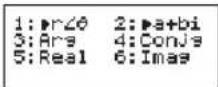
■Check the current angle unit setting (Deg, Rad, Grad).
■ [ ] indicates the display result is the imaginary number,
[ ] indicates the display value is the argument value .0
■ imaginary numbers will use up replay memory capacity.
Rectangular Form and Polar Form Conversion
Press Apps 1 can convert rectangular form complex numbers into polar form; whereas press Apps 2 will convert polar form complex number into rectangular form. ..... EX #34
Absolute Value and Argument Calculation
With the rectangular form complex number, you can calculate the corresponding absolute value (r) or argument (θ) by pressing Abs or Apps 3 respectively. ..... EX #35
Conjugate of a complex number
If the complex number is z = a + bi, the conjugate value of this complex number should be z = a - bi. ..... EX #36
Determine the Real/Imaginary of complex number EX #37
Base-n Calculations and Logical Calculations
■Press MODE 4to enter Base-n mode.
■Decimal (base 10), hexadecimal (base 16), binary (base 2), octal (base 8), or logical calculations.
■To select a specific number system in base mode, simply press
□DEC decimal [DEC], □HEHexadecimal [HEX], □BINBinary
[BIN] or □OCT Octal [OCT].
Press Appkey to perform logical calculations including: Logic connection [and] / [or], exclusive or [Xor], exclusive nor [Xnor], argument complement [Not] and negation [Neg].
If the binary or octal calculation result is more than 8 digits, [1b] / [1c] will be displayed to indicate the result has a next block. Press ▶Bik to loop between result blocks.
In Base-n mode all the scientific functions cannot be used, and you cannot input the value with decimal places or exponents.
EX #38
Base-n Transformation DEC → OCT → HEX → BIN .... EX #39
Logical Operation ..... EX #40
Statistical Calculations
Press MODE 3 to enter Statistical calculation mode; the "STAT" indicator lights up.
■Press Apps 1(Type) to select the calculation type.
Statistical Type Selection
There are 8 types of Statistical Calculation, after entering the Statistical Type Selection screen, press the number to select the type of Statistic Calculation.
| 1:SD | 2:Lin |
| 3:Quad | 4:Log |
| 5:e EXP | 6:ab EXP |
| 7:Pwr | 8:Inv |
| Pressing Key | Statistical Calculation |
| 1 (SD) One-variable statistics (x) | |
| 2 (Lin) Two-variable, Linear regression (y= A+Bx) | |
| 3 (Quad) | Two-variable, Quadratic regression (y=A +Bx + Cx 2 ) |
| 4 (Log) Two-variable, Logarithmic regression (y=AxBlnx) | |
| 5 (e EXP) Two-variable, E exponential regression (y=Ae Bx ) | |
| 6 (ab EXP) Two-variable, ab Exponential regression (y=AB x ) | |
| 7 (Pwr) Two-variable, Power regression (y=Ax B ) | |
| 8 (Inv) Two-variable, Inverse regression (Y=A+B/x) | |
Statistical Data Input
After confirmed the calculation type in the Statistical Type Selection screen or by pressing Apps 2 (Data) in the STAT mode, the following Statistical Data Input screen will be shown.

1-variable STAT 2-variable STAT
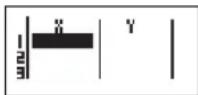

1-variable STAT "FREQ ON"
- After turning on Data Frequency in the setup menu, the "FREQ" column will be added into the above screen.
- The following are the maximum number of lines for data input.
| FREQ ON | FREQ OFFSta | |
| Single Variable (only x input) | 40 80 | |
| 2 Variable (x & y input) 26 40 | ||
istic typ
- Input expression and display result values in the Statistical Data Input screen are in Line mode (same as Comp mode with Line mode status).
- After inputted the data, press = to store the value into statistical registers and display the value (max. 6 digits) in the cell. You can press cursor key to move the cursor between each cell.
Editing Statistical Sample Data
■Replacing the Data in a Cell
(1) In the Statistical Data Input screen, move the cursor to the cell you want to edit.
(2) Input the new data value or expression, and press = .
■Deleting a Line
(1) In the Statistical Data Input screen, move the cursor to the line you want to delete.
(2) Press DEL
■Inserting a Line
(1) In the Statistical Data Input screen, move the cursor to the line that will be under the line being inserted.
(2) Press Apps 3 (Edit)
(3) Press 1 (Line)
■Deleting All STAT Data Input
(1) Press Apps 3 (Edit)
(2) Press 2 (Del-A)
Statistical Calculation Screen
■After inputting the STAT Data, press CA to enter the Statistical Calculation screen.
■Statistical Calculation screen is in Line mode for input & output display
■Use the Statistical Menu to calculate the Statistical result. (S-SUM, S-VAR, S-PTS, Reg).
Statistical Menu
In the Statistical Data Input screen or Statistical Calculation screen, press Apps to display the Statistical Menu screen.
| 1:Type | 2:Data |
| 3:Edit | 4:S-SUM |
| 5:S-VAR | 6:S-PTS |
| 7:Distr |
1-variable STAT
| 1:Type | 2:Data |
| 3:Edit | 4:S-SUM |
| 5:S-VAR | 6:S-PTS |
| 7:Distr | 8:Reg |
2-variable STAT
| DescriptionSTAT items | |
| [1] Type To enter the statistical calculation type screen | |
| [2] Data To enter the statistical data input screen | |
| [3] Edit | To enter Edit sub-menu for editing STAT editor screen contents |
| [4] S-SUM To enter S-Sum sub-menu (calculating sum) | |
| [5] S-VAR To enter S-Var sub-menu (calculating variable) | |
| [6] S-PTS To enter S-PTS sub-menu (calculating points) | |
| [7] Distr To enter Distr sub-menu (P(t), Q(t), R(t)) | |
| [8] Reg To enter Reg sub-menu (Regression calculation) | |
Statistical calculation result in [4] S-SUM, [5] S-VAR, [6] S-PTS, [8] Reg
| STATsub-menu | STAT Type | Symbol | OperationValue | |||
| S-SUM | 1 & 2 variable | Summation of all x2 value | x2 | Apps | 4 | 1 |
| STAT | Summation of all x value | x | Apps | 4 | 2 | |
| 2-variable | Summation of all y2 value | y2 | Apps | 4 | 3 | |
| STAT only | Summation of all y value | y | Apps | 4 | 4 | |
| Summation of xy pairs | xy | Apps | 4 | 5 | ||
| Summation of all x3 value | x3 | Apps | 4 | 6 | ||
| Summation of all x2y pairs | x2y | Apps | 4 | 7 | ||
| Summation of all x4 pairs | x4 | Apps | 4 | 8 | ||
| S-VAR | 1 & 2variable | Number of data sample | n | Apps | 5 | 1 |
| Mean of the x values | Apps | 5 | 2 | |||
| STAT | Population standard deviation of x | xσn | Apps | 5 | 3 | |
| Sample Standard deviation of x | xσn-1 | Apps | 5 | 4 | ||
| 2-variable | Mean of the y values | Apps | 5 | 5 | ||
| STAT only | Population standard deviation of y | yσn | Apps | 5 | 6 | |
| Sample standard deviation of y | yσn-1 | Apps | 5 | 7 | ||
| S-PTS | 1 & 2 variable | Minimum value of X | minX | Apps | 6 | 1 |
| STAT | Maximum value of X | maxX | Apps | 6 | 2 | |
| 2-variable | Minimum value of Y | minY | Apps | 6 | 3 | |
| STAT only | Maximum value of Y | maxY | Apps | 6 | 4 | |
| STAT sub-menu | STAT Type | Symbol | OperationValue | |
| Reg | For non-Quad Reg | Regression coefficient A | A | Apps 8 1 |
| Regression coefficient B | B | Apps 8 2 | ||
| Correlation coefficient r | r | Apps 8 3 | ||
| Estimated value of x | x | Apps 8 4 | ||
| Estimated value of y | y | Apps 8 5 | ||
| Reg | For Quad Reg only | Regression coefficient A | A | Apps 8 1 |
| Regression coefficient B | B | Apps 8 2 | ||
| Regression coefficient C | C | Apps 8 3 | ||
| Estimated value of x1 | x1 | Apps 8 4 | ||
| Estimated value of x2 | x2 | Apps 8 5 | ||
| Estimated value of y | y | Apps 8 6 |
Statistical Calculation Example
SD type Statistical calculation Example:
To calculate x2 , x , n, , x σn , x σn-1 , minX, maxX of data: 75, 85, 90, 77, 79 in SD mode (Freq: OFF) ..... EX #41
Quadratic Regression type Statistical Calculation Example:
ABC Company investigate the effectiveness of the advertisement expense in coded units, the following data was obtained:
| Advertisement expenses: X 18 35 40 21 19 | ||||||||
| Effectiveness: y (%) 38 54 59 40 38 | ||||||||
Please use the regression to estimate the effectiveness (estimate the value of y) if the advertisement expenses X=30, and estimate the advertisement expenses level (estimate the value of X1 , X2 ) for effectiveness y = 50. ..... EX #42
Distribution Calculations
■After sample data is entered in either Statistic (SD) or Regression (REG) mode, you can perform the normal distribution or probability distribution calculation such as P(t), Q(t) and R(t) in which t is the variate of the probabilistic experiment.

■Press Apps 7 to display the distribution calculations screen.

■Press 1 2 3 or 4 for the corresponding calculations.
| P(t): Probability below a given point x | P(t)=-∞∞1σ√2,1/τ-αsτ |  |
| Q(t): Probability below a given point x and above the mean | Q(t)=0.5-R(t). |  |
| R(t): Probability above a given point x | R(t)=1-P(t), |  |
Example: Calculate the probability distribution P(t) for the sample data: 20, 43, 26, 46, 20, 43, when x = 26. ..... EX #43
Advanced Scientific Calculations
Equation Calculations
■Press MODE 5to enter the equation mode; press for next / previous pages.


| DescriptionEquation Item | |
| [1] 2 unknown EQN | Simultaneous Linear Equations with two unknowns |
| [2] 3 unknown EQN | Simultaneous Linear Equations with three unknowns |
| [3] 4 unknown EQN | Simultaneous Linear Equations with four unknowns |
| [4] Quad EQN Quadratic Equation, degree 2 equation | |
| [5] Cubic EQNCubic Equation, degree 3 equation | |
| [6] Quartic EQNQuartic Equation, degree 4 equation | |
Simultaneous Linear Equations
Simultaneous Linear Equations with Two Unknowns:
a _ 1 x + b _ 1 y = c _ 1
a _ 2 x + b _ 2 y = c _ 2
Simultaneous Linear Equations with Three Unknowns:
a _ 1 x + b _ 1 y + c _ 1 z = d _ 1
a _ 2 x + b _ 2 y + c _ 2 z = d _ 2
a _ 3 x + b _ 3 y + c _ 3 z = d _ 3
Simultaneous Linear Equations with Four Unknowns:
a _ 1 w + b _ 1 x + c _ 1 y + d _ 1 z = e _ 1
a _ 2 w + b _ 2 x + c _ 2 y + d _ 2 z = e _ 2
a _ 3 w + b _ 3 x + c _ 3 y + d _ 3 z = e _ 3
a _ 4 w + b _ 4 x + c _ 4 y + d _ 4 z = e _ 4
Example: Solve the simultaneous equation with three unknowns: 2x + 4y - 4z = 20
2 x - 2 y + 4 z = 8
5 x - 2 y - 2 z = 2 0 ...
EX #44
Quadratic, Cubic and Quart Equations
Quadratic equation : ax2 + bx + c = 0 (a second-order polynomial equation with a single variable x)
Cubic equation : ax 3 + bx2 + cx + d = 0 (an equation with cubic polynomial)
Quart equation : ax 4 + bx3 + cx2 + dx + e = 0
Example: Solve the cubic equation 5x3 + 2x2 - 2x + 1 = 0
EX #45
For quadratic, cubic or quart equations, the variable name starts with "X1".
Solve Function

■You can solve custom calculation expressions in COMP mode. Simply input the expression with different variables and press the Shift key.
- Solves for X , for example, when an equation is input as: X = Y + 5 , X
- Solves for Y, for example, when an equation is input as: Y = X + 5 , Y
Example: A cone with height "h" and a circular base with radius "r"; find the cone volume using this formula:
V = 1/3 πr ^ 2 h [X = 1/3 πB ^ 2 C ]
Replace the variable "V" with X, variable "r" with "B", and variable "h" with "C".
■ Radius is 5cm, cone height is 20cm, calculate the cone volume. And if the cone volume is 200cm3 , with radius 2cm, calculate the cone height. ..... EX #46

! If the expression does not have the equal sign (=) and perform the Solve calculation, the calculator will transform the solution as zero (0).
! Solve function cannot be solved an equation.
! When the expression cannot be solved, [Solve ERROR] will be displayed.
CALC Function

■CALC function is a memory zone with a maximum of 79 steps to store a single calculation expression which can be recalled and calculated a number of times with different values.
■After inputting the calculation expression and pressing the calculator will request for the current value of your input variables.
■CALC function can only be used in COMP mode or CPLX mode.
Example: For the equation Y = 5x2 - 2x + 1 , calculate the value of Y if x = 5 or x = 7. ..... EX #47
! The CALC stored expression will be cleared as you start a new calculation, change into another mode, or turn off the calculator.
Differential Calculations

■Press MODE 1to enter COMP mode.
To perform a differential calculation, you have to input the expression in the form of:
Shift 4 differential expression a x )
- The differential expression must contain the variable x.
- "a" is the differential coefficient.
- "△x" is the change interval of x (calculation precision).
Example: To determine the derivative at point x = 10, x = 108 , for the function f(x) = (3x + 30) . ..... EX #48
! You can leave out the x in the differential expression and the calculator will automatically substitute a value for x .
! The smaller the entered value Δx is, the longer the calculation time will be with more accurate results, the larger the entered value Δx is, the shorter the calculation time will be with comparatively less accurate results.
! Discontinuous points and extreme changes in the value of x can cause inaccurate results or errors.
! When performing differential calculations with trigonometric functions, select radian (Rad) as the angle unit setting.
! Log a b, i\~Rand, Rec ( and Pol ( functions can not join to differential calculations.
Integration Calculations

■Press MODE 1 to enter COMP mode.
■To perform an integration calculation you are required to input following elements:
integration expression 'a' 'b', 'n')
• The integration expression has a variable x.
- "a" and "b" defines the integration range of the definite integral.
- "n" is the number of partitions (equivalent to N = 2n ).
■The integration calculation is based on Simpson's rule.
_ a ^ b f (x) dx, tol
As the number of significant digits is increased, internal integration calculations may take considerable time to complete. For some cases, even after considerable time is spent for performing a calculation, the calculation results may be erroneous. Particularly when significant digits are less than 1, an ERROR might be occurred.
Example: Perform the integration calculation for
_ 2 ^ 3 (5 x ^ 4 + 3 x ^ 2 + 2 x + 1) dx, with n = 4. ... ... . EX # 4 9
! When performing integration calculations with trigonometric functions, select radian (Rad) as the angle unit setting.
! Log a b, i\~Rand, Rec ( and Pol ( functions can not join to integration calculations.
Matrix Calculations
Before starting matrix calculations, you have to create one matrix or a maximum of four matrices named A, B, C and D at one time. The matrix dimension can be up to 4x4.
The matrix calculation results are stored into the MatAns memory automatically. You can use the matrix MatAns memory for any subsequent matrix calculations.
Creating a Matrix
Press


enter Matrix mode.

■Press CA App to use the MATX application; press for next / previous pages.


![1:Dim 2:Data 3:MatA 4:MatB 5:MatC 6:MatD 7:MatAns Press [▼] or [▲] key 1:Det 2:Trn 3:Ide 4:Adj 5:Inv](/content/2026/06/1296779/images/ae3247a5f4de4e8b6ef647fe4083322f54968d97f14e691f315339c445a35f91.jpg)
| DESCRIPTIONMATX ITEM | |
| [1] Dim | Specify the Matrix Name A to D, and specify the dimension (up to 4 x 4) |
| [2] Data | Specify the matrix A-D for editing and corresponding matrix element |
| [3] MatA to MatD | Select matrix A to D |
| [4] MatAns | Calculation Answer of Matrix & Store into MatAns |
| [5] Det | Determinate function of Matrix A-D |
| [6] Trn | Transposed data in Matrix A-D |
| [7] Ide | Identity of matrix |
| [8] Adj | Adjoint to Matrix |
| [9] Inv | Inverse of Matrix |
■Press C to exit the matrix creating screen.
Editing Matrix Data
Press CA Apps 2(Data), then specify the matrix A, B, C or D for editing and the corresponding matrix element indicator will be displayed.
■Input the new value and press ☐to confirm the edit.
■Press CA to exit the matrix editing screen.
■ Matrix Addition, Subtraction and Multiplication
Example: MatA = 1 & 2 & 3 \ 4 & 5 & 6 \ 7 & 8 & 9 , MatB = 9 & 8 & 7 \ 6 & 5 & 4 \ 3 & 2 & 1 , MatA × MatB = ?
EX #50
! Matrices which will be added, subtracted or multiplied must be the same size. An error occurs if you try to add, subtract or multiply matrices whose dimensions are different from each other. For example, you cannot add or subtract a 2 x 3 to a 2 x 2 matrix.
■ Obtain the Scalar Product of a Matrix
Each position in the matrix is multiplied by a single value, resulting in a matrix of the same size.
Example: Multiple Matrix C = 3 & -2 \ -1 & 5 by 2
■ Obtain the Determinant of a Matrix
Obtain the Determinant of a Matrix
Example: Obtain the determinant of Matrix C = 10 & -5 & 3 \ -4 & 9 & 2 \ 1 & 7 & -3
EX #52
! An error occurs if you obtain the determinant of a non-square matrix.
■ Transpose a Matrix
Transpose a Matrix
Example: Transpose Matrix B = 9 & 5 \ 6 & 2 \ 8 & 4
■ Identity of Matrix
■ Identity of Matrix Example: Identity Matrix D 1 & 0 \ 0 & 1 ..... EX #54
■ Adjoint of Matrix
■ Adjoint of Matrix
Example: Adjoint Matrix A 2 & 3 \ 4 & 5
Invert a Matrix
■ Invert a Matrix Example: Inverting Matrix C = 8 & 2 \ 3 & 6 <Result: 0.142857142 & -0.047619047 \ -0.071428571 & 0.19047619 ..... EX #56
■ Determine the Absolute value of a Matrix
Example: To determine the absolute value of the inverted Matrix C in the previous example. ..... EX #57
Vector Calculations
Before starting vector calculations, you have to create one or more vectors named A, B, C and D (maximum three vectors at one time).
The vector calculation results are stored into VctAns memory automatically. You can use the vector VctAns memory for any subsequent vector calculations.
Creating a Vector
■Press MODE 8to enter Vector mode. Vector? 1:WctA 2:WctB 3:WctC 4:WctD
■Press CA App to use the Vector tool; 1:Dim 2:Data 3:VctA 4:VctB 5:VctC 6:VctD 7:VctAns 8:Dot
| DESCRIPTIONMATX ITEM | |
| [1] Dim | Specify the Vector Name A to D, and specify the dimension (up to 3D) |
| [2] Data | Specify the Vector A-D for editing and corresponding matrix element |
| [3] VctA to VctD | Select Vector A to D |
| [4] VctAns | Calculation Answer of Vector stored into VctAns |
| [5] Dot | Input the “*” command for obtaining the dot product of a vector Outside VCTR MODE Apps |
■Press Cato exit the matrix creating screen.
Editing Vector Elements
Press CA Apps 2(data), then specify the matrix A, B, C or D for editing, and the corresponding vector element indicator will be displayed.
■Input the new value and press ☐to confirm the edit.
■Press CA to exit the vector editing screen.
■ Vector Addition and Subtraction
Example: Vector A = (9,5), Vector B = (7,3), Vector A - Vector B = ?
EX #58
! An error occurs if you try to add or subtract vectors whose dimensions are different from each other. For example Vector A (a,b,c) cannot add or subtract with Vector B (d,e).
■ Obtain the Scalar Product of a Vector
Each position in the vector is multiplied by a single value, resulting in a vector of the same size.
s × VctA (a, b) = VctB ( a x s , b x s )
Example: To Multiply Vector C = (4,5,-6) by 5 ..... EX #59
■ Calculate the Inner Product of Two Vectors
Example: Calculate the inner product of Vector A and Vector B. As Vector A = (4,5,-6) and Vector B = (-7,8,9). ..... EX #60
■ Calculate the Outer Product of Two Vectors
Example: Calculate the outer product of Vector A and Vector B. As Vector A = (4,5,-6) and Vector B = (-7,8,9). ..... EX #61
! An error occurs if you try to obtain an inner or outer product of two vectors whose dimensions are different from each other.
■ Determine the Absolute Value of a Vector
Example 1: Determine the absolute value of the Vector C. When Vector C = (4,5,-6) and is already created in the
calculator. ..... EX #62
Example 2: Based on Vector A=(-1, 0, 1) and Vector B=(1, 2, 0), determine the size of the angle θ (angle unit: Deg) and a unit 1 vector perpendicular to both A and B.
θ = (A · B)/| A | | B |, whereas θ = ^ - 1 (A · B)/| A | | B |
Unit 1 vector perpendicular to both A and B= A × B/|A × B|
Inequality Calculations
Press MODE ▼ 1(INEQ) to enter Inequality mode. Press 1, 2 or 3 to select an inequality type.

On the menu, press 1, 2, 3 or 4 to select the inequality symbol type and orientation.

■ Use the Coefficient Editor that appears to input coefficient values. To solve x-2 + 2x - 3 < 0 , for example, input the coefficients a = 1, b = 2, c = -3, by pressing 1 □ 2 □ (−) 3 □.
Example: x2 + 2x - 3 ≥ 0 ..... EX #64
The following operations are not supported by the Coefficient Editor: M+, Shift M+ M-, Shift RCL STQ Pol, Rec and multi-statements also cannot be input with the Coefficient Editor.
Press CA to return the Coefficient Editor while the solutions are displayed.
■Values cannot be converted to engineering notation on the solution screen.
■ Special Solution Display
■ "All" appears on the solution screen when the solution of an inequality is all numbers.
Example: x2 ≥ 0 ..... EX #65
■No-Solution" appears on the solution screen when no solution exists for an inequality (such as x 2 < 0)
Example: x2 + 3 ≤ 0 ...... EX #66
Ratio Calculation
■Press MODE ▼ 2(RATIO) to enter the RATIO mode. Press 1 or 2 to select the ratio type.
1:a:b=X:d 2:a:b=c:X
On the Coefficient Editor screen, input up to 10 digits for each of the required values (a, b, c, d). • To solve 3:8=X:12 for X, for example, press 1 in step 1, and then input the following for the coefficients (a=3,b=8,d=12): 3 8 12
Example: To calculate the ratio 2: 3 = 5: X ..... EX #67
The following operations are not supported by the Coefficient Editor. M+ Shift M+ M-, Shift RCL SFO, Pol, Rec and multi-statements also cannot be input with the Coefficient Editor.
■[Math ERROR] will occur if a calculation is performed while 0 is input as a coefficient.
Function (x, y) Table Calculation
■Input f(x) function to generate the function table for x & f(x).
■Steps to generate a Number Table
-
Press MODE 6to enter the Table function calculation.
-
Function Input screen
- Input function with X variable ( Alpha )X to generate the Function Table Result.
- All other variables (A, B, C, D, Y) and independent memory (M) act as the value.
- Pol, Rec, Q...r, S, functions can not be used in the Function Input screen.
• The Function Table Calculation will change X-variable.
- The input the start, end, & step information
- Input the value, press ☐ to confirm on the following screens
- Input expression and display result value in following screens are in Line mode status
- There is a maximum of 30 x-values in the function table generation. "Insufficient Error" will be shown if the start, end, step value combination is more than 30 x-values.
| You should input:-Display screen | |
| Start? Input the lower limit of X (Default =1). | |
| End? Input the upper limit of X (Default = 5).*End value must be greater than the start value. | |
| Step? Input the increment step (Default =1). | |
In the Function Table Result screen, you cannot edit the content, press CA to return to the Function Input screen.
Example: f(x) = x3 + 3x2 - 2x to generate the function table for the range 1 ≤ x ≤ 5 , incremented in steps of 1. ..... EX #68
Battery Replacement
Replace the battery immediately when the display characters are dim even with a darker LCD display contrast OR when the following message appears on the screen. Turn the calculator off and replace the lithium battery immediately.
Low Battery
Please replace the lithium battery using the following procedures,
- Press Shift off to power off the calculator.
- Remove battery cover by sliding in the direction of the arrow.
- Remove the screw that securely fixed the battery cover in place.
- Remove the old battery with ball pen or similar sharp object.
- Load the new battery with positive "+" side facing up.
- Replace the battery cover, screw, and press ON, Shift CLR 3 = CATo initialize the calculator.
Caution: Risk of explosion if battery is replaced by an incorrect type. Dispose of used battery according to the instruction.
Electromagnetic interference or electrostatic discharge may cause the display to malfunction or the contents of the memory to be lost or altered. Should this occur, press ON, Shift CR, 3 = CA to restart the calculator.
Advice and Precautions
- This calculator contains precision components such as LSI chips and should not be used in places subject to rapid variations in temperature, excessive humidity, dirt or dust, or exposed to direct sunlight.
- The liquid crystal display panel is made of glass and should not be subjected to excessive pressure.
-
When cleaning the device, do not use a damp cloth or volatile liquid such as paint thinner. Instead, use only a soft, dry cloth.
-
Do not under any circumstances dismantle this device. If you believe that the calculator is not functioning properly, either bring or mail the device together with the guarantee to a service representative of the Canon Business office.
- Never dispose the calculator improperly such as burning; it can create risks of personal injury or harm. You are suggested to dispose this product according to your national law.
- Do replace the battery once every two years even if it is not used frequently.
Battery Caution!
- Keep the battery out of the reach of children. If the battery is swallowed, contact a doctor immediately.
- Misuse of the battery may cause leakage, explosion, damages, or personal injury.
- Do not recharge or disassemble the battery, it could cause a short circuit.
- Never expose the battery to high temperatures, direct heat, or dispose by incineration.
- Never leave a dead battery in the calculator as the dead battery may leak and cause damage to the calculator.
- Continued use of the calculator in the low battery condition may result in improper operation or the stored memory may be corrupted or lost completely. Keep the written records of important data all the time; and replace the battery as soon as possible.
Specifications
Power Supply : Lithium battery (CR2032 x 1)
Power Consumption : DC 3.0V / 0.15mA
Battery Life : Approximately 2 years (Base on 1 hour operation per day)
Auto power off : Approx. 7 minutes Usable Temperature : 0° \~ 40°C (32°F \~ 104°F)
Size: 160mm (L) × 76 (W) × 11.3 (H) mm / 6-13/64" (L) × 3" (W) × 29/64" (H)
Weight: 110.5 g (3.7 oz)
*Specifications are subject to change without notice.
Canon
X Mark I Pro
USER INSTRUCTION

BENUTZERHANDBUCH
GUIDE DE L'UTILISATEUR
GUÍA DE USUARIO
MANUALE DELL'UTENE
GEBRUIKERSGIDS
BURGERVEJLEDNING
KÄYTTÖOHJEET
INSTALLATIONSGUIDE
MANUAL DO UTILIZADOR
ΟΔΗΠΕΣ ΧΡΗΣΗΣ
CANON ELECTRONIC BUSINESS MACHINES (H.K.) CO., LTD.
17/F., Ever Gain Plaza, Tower One, 82-100 Container Port Road, Kwai Chung,
New Territories, Hong Kong
CANON EUROPA N.V.
Bovenkerkerweg 59-61, P. O. Box 2262, 1180 EG Amstelveen, The Netherlands
CANON COMMUNICATION & IMAGE FRANCE S.A.
Woodhatch, Reigate, Surrey RH2 8BF, England
Help line:08705143723
CANON ITALIA S.p
Via Milano, 8, 20097 San Donato Milanese, Italy
CANON LATIN AMERICA, INC
703 Waterford Way, Suite 400, Miami, FL33126, U.S.A.
19/F., The Metropolis Tower, 10 Metropolis Drive, Hunghom, Kowloon
CANON AUSTRALIA PTY, LTD.
1 Thomas Holt Drive, North Ryde, Sydney, N.S.W. 2113, Australia
CANON DANMARK A/S
Information and Communication Systems 7, Volou Street 18346, Moschato, Athens
Tel. + 301 95 54 000 Fax + 301 95 77 963
CANON ESPAÑA SA
C/Joaguin Costa, 41 28002 Madrid, Spain
Europe, Africa and Middle East
SLOVENIJA
Canon Adria d.o.o., Dunajska cesta 128a, p.p. 581, 1521 Ljubljana
Tel.: 061/53 08 710 Fax: 061/53 08 745
MAGYARORSZÁG
Canon Hungária Kft, 1031 Budapest, Graphisoft Park 1.
(Záhony utca 7.)
Telefon: (+361) 2375900 Fax: (+361) 2375901
World Trade Center, entrance D, unit 1. 15, P a. Montreal nr. 10,
sector 1 Bucharest, Romania
phone number 40-21-224.38.54 fax number 40-21-224.42.36
e-mail: office@canon.ro
В Киеве
City, P.O. Box 500007, Dubai, U.A.E.
CANON SOUTH AFRICA PTY. LTD.
820, 16th Road Midrand South Africa


- INPUTTING EXPRESSIONS AND VALUES
- INPUT RANGE AND ERROR MESSAGES P
- BASIC CALCULATIONS
- FUNCTIONAL SCIENTIFIC CALCULATIONS
- STATISTICAL CALCULATIONS
- ADVANCED SCIENTIFIC CALCULATIONS
- FUNCTION (X, Y) TABLE CALCULATION P
- BATTERY REPLACEMENT.....P
- ADVICE AND PRECAUTIONS P
- SPECIFICATIONS P
- ABOUT USING THE MANUAL
- DISPLAY
- GETTING STARTED
- POWER ON, OFF
- FIRST TIME OPERATION
- AUTO POWER OFF FUNCTION
- DISPLAY CONTRAST ADJUSTMENT
- MODE SELECTION
- APPLICATION FUNCTION MENU
- CALCULATOR SET-UP MENU
- BEFORE USING THE CALCULATOR
- INPUT CAPACITY
- INPUT EDITING
- INSERT AND OVERWRITE INPUT MODE
- DELETING AND CORRECTING AN EXPRESSION
- INPUTTING AND DISPLAY RESULT IN MATHEMATICS MODE
- INPUT RANGE AND ERROR MESSAGES
- ORDER OF OPERATIONS
- CALCULATION STACKS
- ERROR MESSAGES AND ERROR LOCATOR
- ARITHMETIC CALCULATIONS
- MEMORY CALCULATIONS
- MEMORY VARIABLES
- INDEPENDENT MEMORY
- ANSWER MEMORY
- FRACTION CALCULATIONS
- REPLAY & MULTI-STATEMENTS
- REPLAY MEMORY FUNCTION
- MULTI-STATEMENTS FUNCTION
- CONSTANT VALUE CALCULATIONS
- METRIC CONVERSIONS
- LOGARITHM, NATURAL LOGARITHM, ANTILOGARITHM AND LOG A B
- EX
- ANGLE UNIT CONVERSION
- TRIGONOMETRY CALCULATIONS
- PERMUTATION, COMBINATION, FACTORIALS AND RANDOM NUMBER GENERATION
- RANDOM NUMBER GENERATION
- LEAST COMMON MULTIPLE AND GREATEST COMMON DIVISOR
- PRIME FACTORIZATION
- NOTE
- QUOTIENT AND REMAINDER CALCULATIONS
- COORDINATE CONVERSION
- ABSOLUTE VALUE CALCULATION
- ENGINEERING NOTATION
- DISPLAY VALUES EXCHANGE
- COMPLEX NUMBER CALCULATIONS
- COMPLEX NUMBER TYPE SELECTION
- RECTANGULAR FORM AND POLAR FORM CONVERSION
- ABSOLUTE VALUE AND ARGUMENT CALCULATION
- CONJUGATE OF A COMPLEX NUMBER
- BASE-N CALCULATIONS AND LOGICAL CALCULATIONS
- STATISTICAL TYPE SELECTION
- STATISTICAL DATA INPUT
- EDITING STATISTICAL SAMPLE DATA
- REPLACING THE DATA IN A CELL
- DELETING A LINE
- INSERTING A LINE
- DELETING ALL STAT DATA INPUT
- STATISTICAL CALCULATION SCREEN
- STATISTICAL MENU
- STATISTICAL CALCULATION EXAMPLE
- SD TYPE STATISTICAL CALCULATION EXAMPLE
- QUADRATIC REGRESSION TYPE STATISTICAL CALCULATION EXAMPLE
- DISTRIBUTION CALCULATIONS
- EQUATION CALCULATIONS
- SIMULTANEOUS LINEAR EQUATIONS
- QUADRATIC, CUBIC AND QUART EQUATIONS
- SOLVE FUNCTION
- CALC FUNCTION
- DIFFERENTIAL CALCULATIONS
- INTEGRATION CALCULATIONS
- MATRIX CALCULATIONS
- CREATING A MATRIX
- EDITING MATRIX DATA
- MATRIX ADDITION, SUBTRACTION AND MULTIPLICATION
- OBTAIN THE SCALAR PRODUCT OF A MATRIX
- OBTAIN THE DETERMINANT OF A MATRIX
- TRANSPOSE A MATRIX
- IDENTITY OF MATRIX
- ADJOINT OF MATRIX
- INVERT A MATRIX
- DETERMINE THE ABSOLUTE VALUE OF A MATRIX
- VECTOR CALCULATIONS
- CREATING A VECTOR
- EDITING VECTOR ELEMENTS
- VECTOR ADDITION AND SUBTRACTION
- OBTAIN THE SCALAR PRODUCT OF A VECTOR
- CALCULATE THE INNER PRODUCT OF TWO VECTORS
- CALCULATE THE OUTER PRODUCT OF TWO VECTORS
- DETERMINE THE ABSOLUTE VALUE OF A VECTOR
- INEQUALITY CALCULATIONS
- SPECIAL SOLUTION DISPLAY
- RATIO CALCULATION
- FUNCTION (X, Y) TABLE CALCULATION
- STEPS TO GENERATE A NUMBER TABLE
- BATTERY REPLACEMENT
- ADVICE AND PRECAUTIONS
- BATTERY CAUTION
- SPECIFICATIONS
- CANON
- X MARK I PRO
- USER INSTRUCTION
Brand : CANON
Model : X Mark I Pro
Category : Calculator