
Travel Router - Router ZOOM - Free user manual and instructions
Find the device manual for free Travel Router ZOOM in PDF.


| Product Type | Travel Router |
| Brand | Zoom |
| Model | Travel Router |
| Dimensions (approx.) | 10 x 7 x 2 cm |
| Weight (approx.) | 150 g |
| Power Supply | USB-C, 5V / 1A |
| Wi-Fi Standards | IEEE 802.11 b/g/n |
| Frequency Bands | 2.4 GHz |
| Max Speed | 300 Mbps |
| Modes | Router, Repeater, Hotspot, Access Point |
| Ethernet Ports | 1 x WAN/LAN (10/100 Mbps) |
| Security Features | WPA2-PSK, WPA3-Personal |
| VPN Compatibility | Supports PPTP, L2TP, OpenVPN |
| Setup | Web interface, mobile app |
| Cleaning | Wipe with dry cloth; avoid liquids |
| Safety | Use only provided power adapter; keep away from water |
| Spare Parts / Repairability | Not user-serviceable; contact support |
Frequently Asked Questions - Travel Router ZOOM
User questions about Travel Router ZOOM
0 question about this device. Answer the ones you know or ask your own.
Ask a new question about this device
Download the instructions for your Router in PDF format for free! Find your manual Travel Router - ZOOM and take your electronic device back in hand. On this page are published all the documents necessary for the use of your device. Travel Router by ZOOM.
USER MANUAL Travel Router ZOOM
3G Wireless-N Travel Router USER GUIDE

NOTICE
This document contains proprietary information protected by copyright, and this Manual and all the accompanying hardware, software, and documentation are copyrighted. No part of this document may be photocopied or reproduced by mechanical, electronic, or other means in any form.
The manufacturer does not warrant that the hardware will work properly in all environments and applications, and makes no warranty or representation, either expressed or implied, with respect to the quality, performance, merchantability, or fitness for a particular purpose of the software or documentation. The manufacturer reserves the right to make changes to the hardware, software, and documentation without obligation to notify any person or organization of the revision or change.
All brand and product names are the trademarks of their respective owners.
© Copyright 2009
All rights reserved.
Contents
Chapter 1. Installing the 3G Wireless-N Travel Router ....5
Package Contents....5
System Requirements.... 5
Installing the Battery....5
Powering Your Router....6
Using AC Power 6
Reading the Power Indicator (LED) 6
Using Your Router with a 3G Modem or Other Devices....7
Registering Your Product and Getting Help 8
Chapter 2. Using the Configuration Manager....9
Launching the Router's Configuration Manager....9
Chapter 3. Using the Configuration Manager's Setup Wizard....11
Changing Default Settings.... 11
Launching the Configuration Manager's Setup Wizard.... 11
Step 1. Setup Login Password 12
Step 2. Setup Time Zone....12
Step 3. WAN Type Setup .... 13
Configuring the WAN Type 13
Step 4. Wireless Settings.... 20
Step 5. Summary....23
Step 6. Finish ...... 24
Chapter 4. Wireless and Wireless Security Setup....25
WPS Configuration.... 25
Configuration Methods 25
Method One 25
Method Two 26
Method Three....26
Configuring Wireless Security Manually....27
WPA2/WPA Configuration 27
WEP Configuration.... 28
Chapter 5. Using the Configuration Manager's Advanced Program....31
Changing Default Settings 31
Online Help....32
Launching the Configuration Manager's Advanced Program.... 32
Configuring Basic Settings 33
The Basic Setup Page.... 33
The DHCP Server Page.... 35
The Wireless Setting Page 35
The Change Password Page 38
Configuring Forwarding Rules 38
The Virtual Server Page 39
The Port Triggering Page 40
The Miscellaneous Page 41
Configuring Security Settings.... 42
The Status and Packet Filters Pages.... 42
The Domain Filters Page 43
The URL Blocking Page 44
The MAC Address Control Page 45
The Miscellaneous Page 46
Configuring Advanced Settings 46
The System Log Page 47
The Dynamic DNS Page 48
The QoS Page 48
The SNMP Page....50
The Routing Table Page 51
The System Time Page.... 51
The Schedule Rule and Schedule Rule Setting Pages 52
Configuring Toolbox Settings.... 54
The System Information Page....54
The Firmware Upgrade Page 55
The Backup Setting Dialog....55
The Reset to Default Dialog 55
The Reboot Dialog....56
The Miscellaneous Page 56
Declaration of Conformity....58
Installing the 3G Wireless-N Travel Router
Package Contents
The Zoom 3G Wireless-N Travel Router package contains the Zoom 3G Wireless-N Travel Router, a Li-ion battery, an RJ-45 Ethernet cable, a 5V 2.0A Power adapter, a Quick Start installation manual, and a CD that contains additional documentation and warranty information.
If anything is missing or damaged, please contact Zoom Customer Support or your retailer or distributor.
System Requirements
The Zoom 3G Wireless-N Travel Router works with any compatible 3G USB modem with Internet service. If you'd like an up-to-date list of modems known to be compatible with the router, please go to www.zoom.com/travelrouter/comp. If you are aware of a modem that is incompatible with the router, please let us know by sending email to support@zoom.net.
The router is set up for use with computers, mobile phones, game stations, and other devices with wireless 802.11n, 802.11g, or 802.11b capability. The router comes set up for wireless with no security. If you need to set up the router for wireless security or some other reason, you'll need a computer that has an available Ethernet port and a web browser.
Installing the Battery
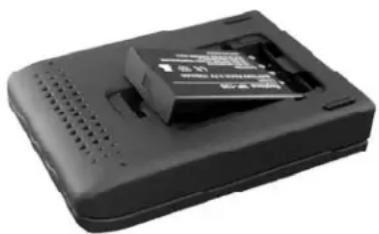
You need to install the battery one time before you use your router. To install the battery, please follow these steps:
1 Remove the battery cover on the bottom of the router and slide the Li-ion battery into the router's battery holder.
natural_image
Black rectangular electronic device with ventilation slots and a partially visible label (no readable text or symbols)2 Replace the battery cover.
Powering Your Router
If the Zoom 3G Wireless-N Travel Router's battery is charged, you can use the router without plugging it into AC power. After being fully charged, the battery will typically power the 3G router for 3 hours or more, depending on how actively you're using 3G and wireless n/g/b. When you're not using the router, you should switch it OFF.
Using AC Power
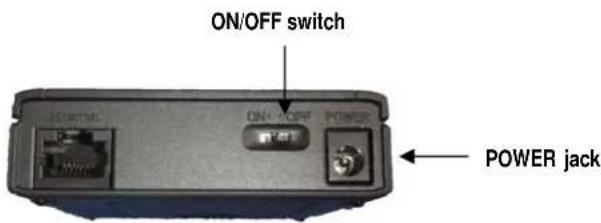
To use AC power, plug the router's power cube into an AC outlet and into the POWER jack on the back of the router.
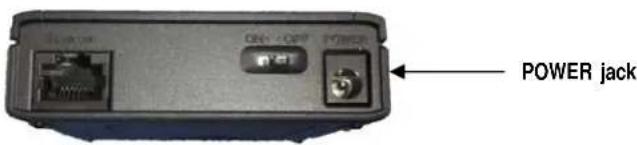
Then you can use the router AND charge the battery at the same time automatically, or you can only charge the battery. If you're only charging the battery, it's best to have the router switched OFF. Charging typically takes about 2 12 hours.
Reading the Power Indicator (LED)
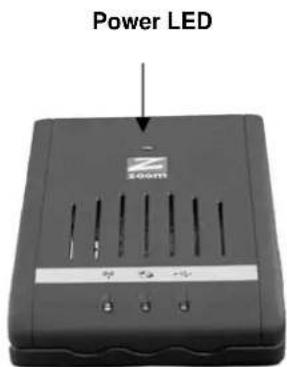
The Power indicator (LED) tells you the following when the router's power switch is ON:
• Solid Green: The power cube is plugged in and the battery is fully charged.
- Flashing Green: Power is being provided by the battery, not the power cube.
• Amber. The power cube is charging the battery.
• Red: The battery is low and the power cube is not plugged in.
Using Your Router with a 3G Modem or Other Devices
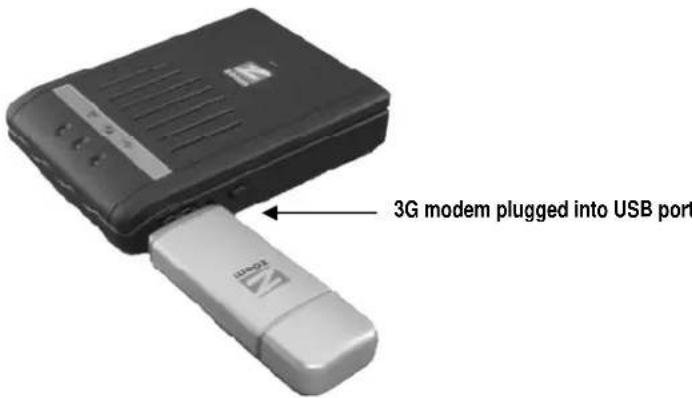
1 Plug your 3G USB modem into the router's USB port.
2 Optionally, connect the power adapter to the POWER jack on the back panel of your router and plug the other end of the power adapter into a wall outlet or power strip.
Note: If the battery is charged, you have the option of using the router without the power adapter.
3 Turn ON the router's power switch, located on the rear panel.
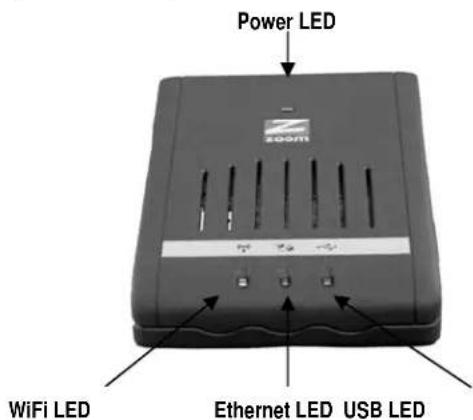
The Power LED on the router's top panel turns on, then the WiFi (left) and USB (right) LEDs blink green. The WiFi LED blinks to signify broadcast activity.
Chapter 1. Installing the 3G Wireless-N Travel Router
4 A computer, mobile phone, game station, or other device with wireless 802.11n, g, or b capability can access the Internet wirelessly through the 3G router. The router comes set up for wireless with no security. If that's okay, you simply need to go to the wireless network setup in your device, and there you need to attach to the Zoom network. For example, on Windows computers, click the wireless connection icon on the Task Bar, click Available Wireless Networks, select Zoom from the list of available wireless networks, and then make the connection.
5 The router comes set up for wireless with no security. If you want wireless security, you need to set up the 3G router and each device for the security that you want.
- If all of the devices on your network support WiFi Protected Setup (WPS), please refer to WPS Configuration on page 25 for detailed information and instructions.
- Alternately, you can use the Configuration Manager's Setup Wizard, which includes wireless setup. For more information and instructions, please refer to Chapter 3, starting on page 11.
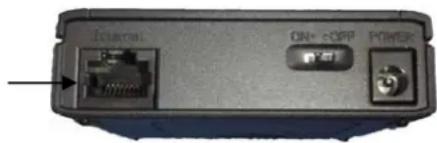
6 You can also plug a computer or other device into the router's Ethernet port. This is recommended if you're changing the router's default values, and sometimes an Ethernet connection is more convenient or secure than connecting to the router wirelessly. To connect via Ethernet, simply plug the supplied Ethernet cable between the router's Ethernet port on the back panel and your computer or other device's Ethernet port.
Ethernet port
Resetting the Router to the Factory Configuration
To reset the router to the factory default configuration, insert the blunt end of a paper clip into the RESET hole on the side panel of the router. Hold the clip in place for seven (7) seconds).
Registering Your Product and Getting Help
Zoom supports this router. If you need assistance, please contact Zoom directly. We encourage you to register your product and to notice the many support options available from Zoom. Please go to http://www.zoom.com and select Technical Support. From here you can register your new router, contact our technical support experts, use our SmartFacts ^™ intelligent database, and get warranty information. If you need to contact Zoom Customer Support, you can call us by dialing the U.S. number (617) 753 0965 or the U.K. numbers +442033180660 (London) and 441618840074 (Manchester).
2
Using the Configuration Manager
Your wireless-N travel router is preset with default values that meet the needs of most users. However, you can change these settings using the router's built-in Configuration Manager.
This chapter includes:
• Instructions for launching the Configuration Manager program
- A description of the available configuration menus and settings
Launching the Router's Configuration Manager
To launch the Configuration Manager, please follow these steps:
1 If you haven't already done so, plug the supplied Ethernet cable into the Ethernet port on the router's back panel and into your computer's Ethernet port.
2 Turn on your computer and router, then launch the computer's Web browser.
3 In the Web browser address bar, type the router's default IP address, http://192.168.1.1 and then click Enter.
When the MAIN MENU opens for the first time, it displays a System Status page that summarizes the current settings and values for your system.
| System Status [HELP] | ||
| Item | WAN Status | Sidenote |
| IP Address | 0.0.0.0 | 3G |
| Subnet Mask | 0.0.0.0 | |
| Gateway | 0.0.0.0 | |
| Domain Name Server | 0.0.0.0, 0.0.0.0 | |
| Connection Time | ||
| Wireless Modem Information | ||
| Item | Status | Sidenote |
| Card Info | N/A | |
| Link Status | Connecting... | No Modem Detected |
| Signal Strength | N/A | |
| Bytes Transmitted | 0 | |
| Bytes Received | 0 | |
| Network Name | N/A | |
| Wireless Status | ||
| Item | WLAN Status | Sidenote |
| Wireless mode | Enable | (BiON Mixed) |
| SSID | Zoom | |
4 On the Toolbar, type admin (the default password) in the System Password field, then click Login.

Note: Later, if you change the System Password, you will use the new password to log in.
When you log in, the Configuration Manager opens its Main Menu, where you can select the Setup Wizard or the Advanced configuration program to tailor the router's configuration to your needs.
Using the Configuration Manager's Setup Wizard
If you are not experienced with wireless devices and their configuration, you can use the Configuration Manager's Setup Wizard program to change the router's default settings.
This chapter includes:
- Suggestions for default settings that you might want to change
- Instructions for launching the Setup Wizard program
- A description of the available configuration menus and settings
Changing Default Settings
Here are some reasons why you might want to use the Configuration Manager:
- You want to change the login password. See Step 1. Setup Login Password on page 12 for details.
- You want to specify or change the time zone. See Step 2. Setup Time Zone on page 12 for details.
- You want to change your WAN setting. See Step 3. WAN Type Setup on page 13 for details.
- You want to enable wireless security. See Step 4. Wireless Settings on page 20 for details.
Launching the Configuration Manager's Setup Wizard
When you start the Configuration Manager (http://192.168.1.1 on your Web browser) and log in, the ADMINISTRATOR'S MAIN MENU opens.
Click Wizard on the Toolbar to launch the Setup Wizard, which will guide you through the configuration process.

The Setup Wizard page opens.
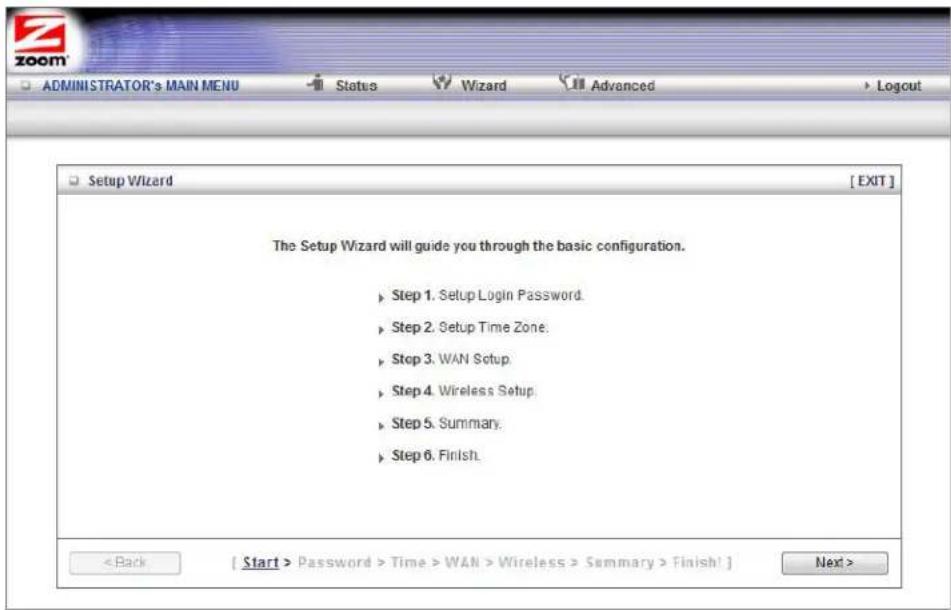
Each of the six Steps guides you in configuring a specific setting or group of settings. When you click Next or Back, you move from one step to another.
Step 1. Setup Login
To view or change configuration settings, you must enter a password. Your router has a default password (admin) that was set by the factory and that you used to access the Configuration Manager initially. If you want to keep the default password, click Next to skip this step. Otherwise, to safeguard your configuration, particularly if you make changes, we recommend that you change the login password.
1 On the Setup Login Password page, type the old password in the Old Password field.
2 Type the new password in the New Password field.
3 Type the new password in the Reconfirm field, then click Next.
Note: If you forget the new password, you won't have access to the Configuration Manager and will need to restore the device to its factory settings, thus losing any changes you made to your router's configuration. To avoid this problem, we recommend that you write the new password here and also save it in some other convenient location.
PASSWORD:
Please refer to Resetting the Router to the Default Configuration on page 8 or The Reset to Default Dialog on page 55 for more information about restoring the router's default settings.
Step 2. Setup Time Zone
The Time Zone setting is not configured initially. You can set it to your current locale and change it later, as needed, if you are traveling across time zones.
![ZOOM ADMINISTRATOR's MAIN MENU Status Wizard Advanced Setup Wizard - Setup Time Zone [EXIT] * Not yet configured! This default is GMT+00:00 < Back [ Start > Password > Time > WAN > Wireless > Summary > Finish ] Next >](/content/2026/06/1260141/images/8702eed987cb3c39a6547d38e9edc354acaff76d46b7d0e2839304e3b1b65fad.jpg)
1 To set the time zone, select the time zone that applies to your locale from the dropdown menu, then click Next.
Step 3. WAN Type Setup
The WAN Type refers to the protocol used by your Internet Service Provider in establishing your Internet connection. By default, WAN Type is set to your 3G USB modem, a wireless cellular connection.
![ZOOM ADMINISTRATOR's MAIN MENU Status Wizard Advanced Setup Wizard - Select WAN Type [EXIT] Your ISP has given you a static IP address. (Static IP Address) You obtain an IP address from your ISP automatically. (Dynamic IP Address) Your ISP uses PPPoE to connect to the Internet. (PPP over Ethernet) Your ISP uses PPTP to connect to the Internet. (PPTP) Your ISP uses L2TP to connect to the Internet. (L2TP) You want to use your cellular modem to connect to the Internet. < Back [ Start > Password > Time > WAN > Wireless > Summary > Finish! ] Next >](/content/2026/06/1260141/images/f2c23a0d10fae42f01e7b77bfd1b075ae56951764b5202206fff6c6fb7f3a592.jpg)
Configuring the WAN Type
When you select one of the WAN Type protocol settings and click Next, a new page opens where you can configure the WAN Type that you chose. Please check with your service provider if you are unsure which WAN Type to choose.
- Static IP Address - Typically you have to request and pay extra for a static IP address.
-
Dynamic IP Address - DSL modem users who do not need to enter a password and Cable modem users should choose this WAN type.
-
PPPoE - Choose this type if your ADSL connection uses PPPoE.
- PPTP - The Point to Point Tunneling Protocol is more common in corporate environments and most users will not use this setting.
- L2TP - The Layer 2 Tunneling Protocol is more common in corporate environments and most users will not use this setting.
- 3G Cellular Modem - Select this if you are using your 3G modem to connect to the Internet. (If you are using the 3G modem as the backup to a broadband modem, you'll need to use the Configuration Manager's Advanced program to configure this setup. Please refer to 3G Failover on The Basic Setup Page on page 33.)
If you select Static IP Address, Dynamic IP Address, PPPoE, PPTP, or L2TP, then the Ethernet port will be set as the WAN port. Please check with your service provider before changing the default setting and choosing an alternate.
If you accept the default setting (Cellular Modem), then the Ethernet port is set as the LAN port.
Configuring the Static IP Address
If your ISP uses Static IP addressing, select the Static IP Address button on the Select WAN Type menu. The following page opens:
![ADMINISTRATOR'S MAIN MENU Status Wizard Advanced Setup Wizard - Static IP Address [EXIT] • LAN IP Address 192.168.1.1 • Static IP Address • Static Subnet Mask • Static Gateway • Static Primary DNS • Static Secondary DNS < Back [ Start > Password > Time > WAN > Wireless > Summary > Finish! ] Next >](/content/2026/06/1260141/images/c990403003f37c79721e3378458e5c14946f8ceae4f37f57e7d9a312f04d800e.jpg)
• LAN IP Address
This is the LAN IP Address of your router. Devices behind the router use this address as their default gateway. Most users will not need to change this address.
- Static IP Address This is the IP address that is given to you by your service provider when you sign up for a Static IP address. This address identifies your 3G Wireless-N Travel Router when seen from the Internet.
- Static Subnet Mask This is the router's subnet mask. Your service provider supplies this address,
- Static Gateway This is the IP address of the ISP server. Your service provider supplies this address.
- Static Primary DNS This is the Domain Name System (DNS) server's IP address. Your service provider supplies this address.
- Static Secondary DNS This is the IP address of an alternate Domain Name System (DNS) server. Your service provider supplies this address.
Go to Step 4. Wireless Settings on page 20.
Configuring the Dynamic IP Address
If your service provider uses Dynamic IP addressing, select the Dynamic IP Address button on the Select WAN Type menu. The following page opens:
![ADMINISTRATOR'S MAIN MENU Status Wizard Advanced Setup Wizard - Dynamic IP Address [EXIT] • LAN IP Address 192.168.1.1 • Host Name (optional) • ISP registered MAC Address Clone < Back [ Start ] > Password > Time > WAN > Wireless > Summary > Finish! ] Next >](/content/2026/06/1260141/images/ed93c73846b6fc91fe5419a692451f420de9c618401b1748ab99d5fde17ee13e.jpg)
• LAN IP Address This is the LAN IP Address of your router. Devices behind the router use this address as their default gateway. Most users will not need to change this address.
- Host Name
This is the name that identifies your 3G Wireless-N Travel Router. Some service providers require a host name. Your service provider supplies this name, if needed.
• ISP registered MAC Address
This is the 12-digit Media Access Control (MAC) address of your router. Click the Clone button to get the MAC address that was registered with your service provider for your device, if needed.
Go to Step 4. Wireless Settings on page 20.
Configuring PPPoE
If your ISP uses the Point-to-Point Protocol over Ethernet, for DSL-based Internet services, you should select the PPPoE button on the Select WAN Type menu. The following page opens:
![ADMINISTRATOR'S MAIN MENU Status Wizard Advanced Logout Setup Wizard - PPP over Ethernet [EXIT] LAN IP Address 132.186.1.1 Account Password Primary DNS Secondary DNS Service Name (optional) Assigned IP Address (optional) < Back [ Start > Password > Time > WAN > Wireless > Summary > Finish] Next >](/content/2026/06/1260141/images/664ed9a96a9602a7ef82206afb6f38db15bb7867ee12060e5231d5c2e84ae993.jpg)
• LAN IP Address
This is the LAN IP Address of your router. Devices behind your router use this address as their default gateway. Most users will not need to change this address.
- Account
This is the PPPoE account name supplied by your service provider.
- Password
This is PPPoE password supplied by your service provider.
- Primary DNS
This is the Domain Name System (DNS) server's IP address. Your service provider supplies this address, if needed.
- Secondary DNS
This is the IP address of an alternate Domain Name System (DNS) server. Your service provider supplies this address, if needed.
- Service Name
This is the name assigned by your service provider to identify your service. The Service Name is optional.
- Assigned IP Address
This is the optional IP address assigned by your service provider. The Assigned IP Address is optional.
Go to Step 4. Wireless Settings on page 20.
Configuring PPTP
If you are using your router within a VPN, you might need to select the Point-to-Point Tunneling Protocol (PPTP). When you select the PPTP button on the Select WAN Type menu, the following page opens:
![ADMINISTRATOR'S MAIN MENU Status Wizard Advanced Logout Setup Wizard . PPTP [EXIT] • LAN IP Address 192.168.1.1 • IP Mode Dynamic IP Address • My IP Address • My Subnet Mask • Gateway IP • Server IP Address.Name • PPTP Account • PPTP Password < Back [ Start > Password > Time > WAN > Wireless > Summary > Finish! ] Next >](/content/2026/06/1260141/images/bd512beb58247bbeb035dac2941092692d5be1a568ca4d3fcbbf95dc13c53329.jpg)
• LAN IP Address
This is the LAN IP Address of your router. Devices behind your router use this address as their default gateway. Most users will not need to change this address.
- IP Mode
This is the mode used to generate the IP address. Select an option from the dropdown menu, based on your service provider's requirements.
- My IP Address
This is the private IP address that your service provider assigned to your router.
- My Subnet Mask This is the private subnet mask that your service provider assigned to your router.
- Gateway IP
This is the IP address of the service provider's server. Your service provider supplies this address.
• Server IP Address/Name
This is the name and IP address of the PPTP server. Your service provider supplies this information, if needed.
- PPTP Account
This is the PPTP account name that your service provider assigned to you.
- PPTP Password
This is PPTP password that your service provider assigned to you.
Go to Step 4. Wireless Settings on page 20.
Configuring L2TP
If you are using your router within a VPN, you might need to select the L2TP menu item. If you select the L2TP button on the Select WAN Type menu, the following page opens:
![ADMINISTRATOR'S MAIN MENU Status Wizard Advanced > Layout Setup Wizard - L2TP [EXIT] • LAN IP Address 192.166.1.1 • IP Mode Dynamic IP Address • IP Address • Subnet Mask • WAN Gateway IP • Server IP Address/Name • L2TP Account • L2TP Password < Back [ Start > Password > Time > WAN > Wireless > Summary > Finish! ] Nad >](/content/2026/06/1260141/images/bc44f536335d61e2bf5861f2ca0208f71aa9c379c206f51594d8ac41e5605432.jpg)
• LAN IP Address
This is the LAN IP Address of your router. Devices behind your router use this address as their default gateway. Most users will not need to change this address.
- IP Mode
This is the mode used to generate the IP address. Select an option from the dropdown menu, based on your service provider's requirements.
- IP Address
This is the IP address that identifies the L2TP server. Your service provider supplies this address.
- Subnet Mask
This is the router's subnet mask. Your service provider supplies this address. - WAN Gateway IP
This is the WAN Gateway IP address of the L2TP server. Your service provider supplies this address.
• Server IP Address/Name
This is the name and IP address of the L2TP server. Your service provider supplies this information, if needed. - L2TP Account
This is the L2TP account name or user name supplied by your service provider. - L2TP Password
This is L2TP password supplied by your service provider.
Go to Step 4. Wireless Settings on page 20.
Configuring the 3G Modem
To configure your 3G modem, select the Cellular Modem button on the Select WAN Type menu. The following page opens:
![ADMINISTRATOR'S MAIN MENU Status Wizard Advanced Logout Setup Wizard - 3G [EXIT] LAN IP Address 192.158.1.1 APN PIN Code Dialled Number Account Password < Back [ Start > Password > Time > WAN > Wireless > Summary > Finish! ] Next >](/content/2026/06/1260141/images/1ddc7e5ce618eec1fe69d94f267e483e7f88f70ec1b103e7a96020f05b8a2833.jpg)
• LAN IP Address
This is the LAN IP Address of your router. Devices behind your router use this address as their default gateway. Most users will not need to change this address.
• APN
This is the Access Point Name (APN) assigned by your service provider, if needed.
• PIN
This is the Personal Identification Number (PIN) code assigned by your service provider, if needed.
- Dialed Number
This number is assigned by your service provider, if needed.
- Account
This is the Account Name provided by your service provider, if needed.
- Password
This is the Password assigned by your service provider, if needed.
Go to Step 4. Wireless Settings.
Step 4. Wireless Settings
The Wireless Settings page lets you configure the wireless settings for your 3G router and devices. If you are happy to have no wireless security, click Next to go to Step 5. If all of your network's wireless devices are capable of WPS security setup and you want to use WPS, please go to Steps 5 and 6, then exit the Wizard and go to Chapter 4. Otherwise, continue below.
![ZOOM ADMINISTRATOR'S MAIN MENU Status Wizard Advanced > Logout Setup Wizard - Wireless settings [ EXIT ] • Wireless Module • Network ID(SSID) • Channel Enable Disable Zoom 10 < Back [ Start > Password > Time > WALL > Wireless > Summary > finish! ] Next >](/content/2026/06/1260141/images/3000d59368f373f4762ddcb9bd8d02bef28f5e2f7733f9f6fa65c8f459bd16c6.jpg)
- Wireless Module Accept the default, Enable. Click the Disable checkbox only if you do not want wireless clients to access your network.
- Network ID (SSID) refers to the Service Set Identifier for your device. By default, the SSID for the 3G Wireless-N Travel Router is Zoom. You can change the SSID to a name of your choice. The SSID can be up to 32 alphanumeric characters. If you change the name, make sure that all devices on your network use the new SSID as the access point.
- Channel refers to the wireless network channel assigned to your LAN. By default, the travel router uses channel 10.
TIP: Other wireless networks might be within range of your network. Your neighbors, for instance, may be within range. If possible, there should be at least a five-channel difference between your network and neighboring networks with strong signals. Having less than a five-channel difference may result in interference with your connection.
Wireless Security Settings
If you accepted the default to Enable the Wireless Module (on the Wireless Settings page at Step 4), the following page opens when you click Next.
![ZOOM ADMINISTRATOR'S MAIN MENU Status Wizard Advanced Setup Wizard - Wireless settings [ EXIT ] Authentication None Encryption None < Back [ Start > Password > Time > WAN > Wireless > Summary > Finishf ] Next >](/content/2026/06/1260141/images/a3cb009981e02eea6551c2da5166d4571d2b0ae0aa522bd15160a945808a16be.jpg)
Configuring Authentication and Encryption
By default, Authentication and Encryption services are not configured. You can configure both settings on the Wireless settings page.
1 To configure Authentication, select either Wired Equivalent Privacy (WEP) or WiFi Protected Access-Pre-Shared Key (WPA-PSK/WPA2-PSK) from the dropdown menu.
Important: Be aware that WEP is a basic authentication service and is not as secure as WPA-PSK/WPA2-PSK. If you have devices on your wireless network that support only WEP (for example, some gaming consoles), you will need to select WEP as your Authentication method.
WPA-PSK/WPA2-PSK Authentication
We recommend this setting if all devices on your network support either WPA or WPA2. Your router will automatically detect whether is should use WPA or WPA2.
When you select WPA-PSK/WPA2-PSK from the Authentication dropdown menu, the Encryption field expands, as shown in the following figure.
![ZOOM ADMINISTRATOR'S MAIN MENU Status Wizard Advanced Logout Setup Wizard - Wireless settings [EXIT] Authentication WPA-PSK / WPA2-PSK Encryption TKIP / AEB Prehere Key < Back [ Start > Password > Time > WAN > Wireless > Summary > Finish! ] Next >](/content/2026/06/1260141/images/95a1dd038e79e00410a2bb6da84b8dad19a1e88ed248a6d605adc6bc4950aa40.jpg)
| Field Entry | |
| Authentication | Accept WPA-PSK/WPA2 PSK as the default value. |
| Encryption | Accept the default, TKIP/AES, which supports dynamic encryption keys using TKIP or AES algorithms. Select AES if you chose WPA-PSK/WPA2-PSK for the authentication method. Select TKIP if you chose WPA-PSK /WPA2-PSK for the authentication methods. Usually WPA uses TKIP and WPA2 uses AES. |
| Preshare Key | In the Preshare Key field, enter a value for the key. The maximum value is 42 characters. The minimum value is 8 characters.Write your key in the space below for future reference, and then enter it in the Preshare Key field:——————— — — — — — — — — — — — — — — — — — — — — — — — — — — — — — — — — — — — — — — — — — — — — — — — — — — — — — — — — — — — — — — — — — — — — — — — — — — — — — — — — — — — — — — — — — — — — — — — — — — — — |
WEP Authentication and Encryption
If you have devices on your wireless network that support only WEP (for example, some gaming consoles), you will need to select WEP as your Authentication method.
When you select WEP from the Authentication dropdown menu, the Encryption field expands, as shown in the following figure.
![ZOOM ADMINISTRATOR'S MAIN MENU Status Wizard Advanced > Logout Setup Wizard - Wireless settings [ EXIT ] Authentication Encryption WEP WEP HEX HEX HEX HEX WEP Key 1 WEP Key 2 WEP Key 3 WEP Key 4 < Back [ Start > Password > Time > WAN > Wireless > Summary > Finish] Next >](/content/2026/06/1260141/images/ede646a4b7ca1461090c5fa7a4183aec1c22f0897b1123cca12f52557ff7529e.jpg)
The Summary page displays the updated configuration settings for your router and lets you accept, change, and test the configured values.
![[WAN Setting] WAN Type 3G APN PIN Code Diated Number Account Password ****** [Wireless Setting] Wireless Enable SSID Zoom Channel 10 Authentication WPA-PSK / WPA2-PSK Encryption TKIPIAES Do you want to proceed the network testing? The Ethernet Port will be used as LAN Port after saving, confirm? < Back [ Start > Password > Time > WAN > Wireless > Summary > Finish! ] Apply Settings](/content/2026/06/1260141/images/9276cbdeb1675317ba5a9308a27c3923a1f4806f4d43339489e19a8c1c2d71ed.jpg)
1 To edit your entries, click Back as many times as needed to access the page for the field(s) to be edited, then click Next to continue with your edits or to return to the updated Summary page.
2 To test the updated configuration on your network, click the checkbox next to Do you want to proceed with the network testing?
3 To use the Ethernet port as the LAN port, click the checkbox next to The Ethernet Port will be used as LAN Port after saving. Confirm? This option is only available if you are using your 3G modem as your Wan type.
4 When you're satisfied with the configured settings, click Apply Settings to save the new configuration.
Step 6. Finish
The Finish page displays the saved configuration settings for your router.
![ZOOM ADMINISTRATOR'S MAIN MENU Status Wizard Advanced Setup Wizard - Finish [EXIT] Congratulations!! The Internet connection is established. Connection information is WAN Type 3G IP Address 166.203.174.233 Subnet Mask 255.255.255.255 Gateway 10.64.64.64 DNS 209.183.33.23 209.183.35.23 < Back [ Start > Password > Time > WAN > Wireless > Summary > Finish! ] Finish](/content/2026/06/1260141/images/2c5b129ed4614f4e9dd9be63380f93a0d0356f910e52454aa211dfbf6e3039ad.jpg)
1 Click Finish to exit the Setup Wizard and return to the Main Menu.
Wireless and Wireless Security Setup
Your 3G Wireless-N Travel Router's default (factory) settings provide no wireless network security. If you don't want unauthorized wireless access to your network, we recommend that you enable wireless network security. To do this, you'll need to configure the router and each device on your network for the level of security that you want.
Before setting up wireless security you must decide which method to use.
- Use Wi-Fi Protected Setup (WPS) when all of your devices support WPS security. WPS is easy to configure. Please refer to WPS Configuration below for details.
- If you want security without using WPS, you should probably use the Setup Wizard as described in Chapter 3.
- The manual setup option is also available. Please refer to Configuring Wireless Security Manually on page 27.
WPS Configuration
You can automatically configure WPS security using the router's built-in WPS configuration program on each client device that is part of your wireless network.
Configuration Methods
WPS offers three configuration methods. Choose the method that is compatible with the hardware and software options available on your router and client device.
Note: WPS configures one client device at a time. Please repeat the configuration method for each client on your wireless network that supports WPS security.
Method One
Use this method if your router and client devices have a WPS button. This button can be either a physical button on the unit or a software button in its application.
1 Press the WPS button on your 3G router and hold it in for seven (7) seconds until the Wireless LED starts blinking rapidly.
Important! The Registrar (the device configuring the WLAN) goes into the WPS mode and the Enrollee (the device joining the WLAN) then looks for it. You should always start the Registrar first. By default your 3G Router is configured as a Registrar.
2 Click or press the WPS button on the client device.
3 Refer to your client device's documentation for further instructions, if necessary.
Method Two
Use this method if your client device already has a WPS PIN number. The client is the Enrollee.
1 If you haven't already done so, open a Web browser and type http://192.168.1.1 in the address bar.
2 When the Configuration Manager launches, log in as admin, then select Advanced > Basic Settings > Wireless to open the Wireless Setup page.
3 Click the WPS Setup button to open the Wi-Fi Protected Setup page.
4 Select PIN Code from the Config type dropdown menu.
5 Enter the PIN number from your client device.
6 Click Trigger to start the connection process on the router.
Important! You must do this within two minutes after starting the router.
7 On the 3G router, when the program displays a message that the process succeeded, click Save to save the configuration
Method Three
Use this method if your client device requests the router's PIN number. The client is the Registrar. Use this method if the client(s) are to connect to multiple access points so that a client will control the configuration instead of the router.
1 If you haven't already done so, open a Web browser and type http://192.168.1.1 in the address bar.
2 When the Configuration Manager launches, log in as admin, then select Advanced > Basic Settings > Wireless to open the Wireless Setup page.
3 Click the WPS Setup button.
4 Select Enrollee from the Config Mode dropdown menu.
5 Click Generate Pin to generate a new Pin number.
6 Enter the router's Pin Number into your client device. Refer to your client's documentation for further details.
Important! You must do this within two minutes after starting the router.
7 Click Trigger to start the connection process on the router.
8 On the 3G router, when the program displays a message that the process succeeded, click SET to keep the router from receiving new configuration parameters from another WPS Registrar.
9 Click Save to save the configuration.
Configuring Wireless Security Manually
WPA2/WPA Configuration
Wi-Fi Protected Access (WPA) is an encryption method that offers a stronger security standard than WEP.
Important! If you choose to configure your router using either WPA2 or WPA encryption, then you must configure all devices on your wireless network with the same WPA encryption method and shared key.
You can configure WPA2 or WPA encryption using the Wireless Setting Page of the Configuration Manager's Advanced program.
![ADMINISTRATOR'S MAIN MENU Status Wizard Advanced Logout BASIC SETTINGS FORWARDING RULES SECURITY SETTINGS ADVANCED SETTINGS TOOLBOX Basic Setup DHCP Server Wireless Change Password Wireless Setting [HELP] Item Setting Wireless Module Enable Disable Network ID(SSID) Zoom SSID Broadcast Enable Disable Channel 10 Wireless Mode B/G/N mixed Authentication WEP - Auto Encryption None Save Undo WPS Setup... Wireless Client List...](/content/2026/06/1260141/images/e09c1a6526c5bca0963cb7b1ef6df74ccbc9d41b68d59533ecb04404443cfaff.jpg)
| Field Entry | |
| Wireless Module | Accept the default, Enable. Click the Disable checkbox only if you do not want wireless clients to access your network. |
| Network ID (SSID) | Refers to the Service Set Identifier for your device. By default, the SSID for the 3G Wireless-N Travel Router is Zoom. You can change the SSID to a name of your choice. The SSID can be up to 32 alphanumeric characters. If you change the name, make sure that all devices on your network use the new SSID as the access point. |
| SSID Broadcast | To hide your network's SSID name, which disables automatic broadcasting of the SSID and makes the wireless access point (your router) invisible to wireless clients on the network, click the Disable radio button. |
| Channel | Refers to the wireless network channel assigned to your LAN. By default, the travel router uses channel 10. |
| Wireless Mode | Accept the default, B/G/N mixed if the client devices on your network use various wireless standards. Otherwise, select the wireless standard used by all wireless devices on your network. Having a single standard will speed up the wireless throughput. |
| Authentication | Select WPA-PSK/WPA2 PSK if your devices support both authentication methods. Optionally, select WPA-PSK or WPA2-PSK if all devices on your network support only one of the authentication methods. |
| Encryption | Select TKIP/AES, which supports dynamic encryption keys using TKIP or AES algorithms. Select AES if you chose WPA2-PSK for the authentication method. Select TKIP if you chose WPA-PSK for the authentication method. |
| Preshare Key | In the Preshare Key field enter a value for the key. The maximum value is 42 characters. The minimum value is 8 characters.Write your key in the space below for future reference, and then enter it in the Preshare Key field:______ __ __ __ __ __ __ __ __ __ __ __ __ __ __ __ __ __ __ __ __ __ __ __ __ __ __ __ __ __ __ __ __ __ __ __ __ __ __ __ __ __ __ __ __ __ __ __ __ __ __ __ __ __ __ __ __ __ __ __ __ __ __ __ __ __ __ __ __ __ __ __ __ __ __ __ __ __ __ __ __ __ __ __ __ __ __ __ __ __ __ __ __ __ __ __ __ __ __ __ __ ____ |
WEP Configuration
Wired Equivalent Privacy (WEP) is a basic encryption method that does not offer the security strength of WPA or WPA2. Use this method if some of your network's wireless devices, such as a gaming console, do not support WPA2/WPA.
Important! If you choose to configure your router using WEP encryption, then you must configure all devices on your wireless network with the same WEP encryption method and key.
You can configure WEP encryption using the Wireless Setting Page of the Configuration Manager's Advanced program.
![ADMINISTRATOR'S MAIN MENU Status Wizard Advanced Logout BASIC SETTINGS FORWARDING RULES SECURITY SETTINGS ADVANCED SETTINGS TOOLBOX Basic Setup DHCP Server Wireless Change Password Wireless Setting [HELP] Item Setting Wireless Module Enable Disable Network ID(SSID) Zoom SSID Broadcast Enable Disable Channel 10 Wireless Mode B/G/N mixed Authentication WEP -Auto Encryption None Save Undo WPS Setup... Wireless Client List...](/content/2026/06/1260141/images/cea9cad386bffdf49e8c92fe03225cc66a53e2b90e502f8df5c41bb4e4008bb7.jpg)
| Field Entry | |
| Wireless Module | Accept the default, Enable. Click the Disable checkbox only if you do not want wireless clients to access your network. |
| Network ID (SSID) | Refers to the Service Set Identifier for your device. By default, the SSID for the 3G Wireless-N Travel Router is Zoom. You can change the SSID to a name of your choice. The SSID can be up to 32 alphanumeric characters. If you change the name, make sure that all devices on your network use the new SSID as the access point. |
| SSID Broadcast | To hide your network's SSID name, which disables automatic broadcasting of the SSID and makes the wireless access point (your router) invisible to wireless clients on the network, click the Disable radio button. |
| Channel | Refers to the wireless network channel assigned to your LAN. By default, the travel router uses channel 10. |
| Wireless Mode | Accept the default, B/G/N mixed if the client devices on your network use various wireless standards. Otherwise, select the wireless standard used by all wireless devices on your network. Having a single standard will speed up the wireless throughput. |
| Authentication | Accept the default, WEP-Auto or select one of the available options. Select WEP-Open to use Open System authentication. Select WEP-Shared to use Shared Key authentication. |
| Key Format | If all the wireless devices in the network are Zoom products, select Hex. Otherwise, select ASCII. Although Zoom products support both Hex and ASCII, we recommend using Hex. |
| EncryptionWEP Key 1, 2, 3, 4 | If you selected Hex format and you chose a 128-bit key length, 26 hexadecimal values are required. Write the 26-hexadecimal key in the space below for future reference, and then enter it in the Key 1 box.____If you selected Hex format and you chose a 64-bit key length, 13 hexadecimal values are required. Write the 13-hexadecimal key in the space below for future reference, and then enter it in the Key 1 box.____If you selected ASCII format, and you chose a 128-bit key length, 13 ASCII characters are required. Write the 13-ASCII-character key in the space below for future reference, and then enter it in the Key 1 box.____If you selected ASCII format, and you chose a 64-bit key length, 5 ASCII characters are required. Write the 5-ASCII-character key in the space below for future reference, and then enter it in the Key 1 box.____ |
Click the WPS Setup button to launch the WPS program. Please refer to WPS Configuration on page 25 for more information.
Using the Configuration Manager's Advanced Program
Most users will not need to manually set up their router but if you do, you can use the Configuration Manager's Advanced program to change the router's default settings.
This chapter includes:
- Suggestions for settings that you might want to change
- A brief description of the online and context-sensitive help that is available
• Instructions for launching the Advanced program - An overview of the available configuration menus and settings
Changing Default Settings
Here are some reasons why you might want to use the Advanced program to change the router's default settings.
- You want to change wireless n/g/b settings to enable wireless security. See Configuring Security Settings on page 42 for details.
- You want to block access to certain URLs or set up Time of Day usage rules. See The URL Blocking Page on page 44 for details.
- You want to hide the SSID name so other network users cannot see your wireless network. See The Wireless Setting Page on page 35 for details.
- You want to change router settings to establish a firewall to guard against unauthorized access to your network. See The MAC Address Control Page on page 45 for details.
- You want to set up a Virtual Server or DMZ so that your games or gaming consoles can access the Internet through your router's firewall. See Configuring Forwarding Rules on page 38 for details.
-
You want your 3G connection to be terminated by the router if you haven't used the Internet for a specified period of time. The default setting is Auto Reconnect (always on). See The Basic Setup Page (Connection Control) on page 33 for details.
-
You want to connect the router to your ADSL or cable modem, using your 3G modem as a backup Internet connection. See The Basic Setup Page (3G Failover) on page 33 for details.
- You want to set up QoS on your router. See The QoS Page on page 48 for details.
- You want to back up router settings that you made using the Configuration Manager. See The Backup Setting Dialog on page 55 for details.
Online Help
The Advanced program provides both online and context-sensitive help that guides you in changing the settings on each menu.
- To access online help, click [HELP] on the menu's Toolbar. Each [HELP] page describes the fields on the active page and, when applicable, the required or recommended entries.
- The context-sensitive help automatically displays a question mark to the right of the cursor, then opens a message box in the left pane of the page. The message box contains text that describes the active field and its required or recommended entry.
Launching the Configuration Manager's Advanced Program
1 If you haven't already done so, plug the supplied Ethernet cable into the Ethernet port on the router's back panel and your computer's Ethernet port.
2 Optionally, plug the 3G USB modem into the router's USB port.
3 Turn on your computer and router, then launch your Web browser.
4 In the Web browser address bar, type the router's default IP address, http://192.168.1.1 and then click Enter to launch the Configuration Manager.
When the Configuration Manager's MAIN MENU opens, it displays a Status page that summarizes the basic settings and current values for your setup.
5 On the Toolbar, type the login password -- admin is the default password -- in the System Password field, and then click Login.

6 Click Advanced on the Toolbar to launch the Advanced program.

7 On the Basic Settings page, click one of the Toolbar buttons (Basic Settings, Forwarding Rules, Security Settings, Advanced Settings, or Toolbox).
The corresponding window opens. Each window contains a description of the configuration options at center and a configuration menu on the left pane.
Configuring Basic Settings
The Basic Settings page lists the four configuration menus on the left pane and provides a description of the configuration menus at center.
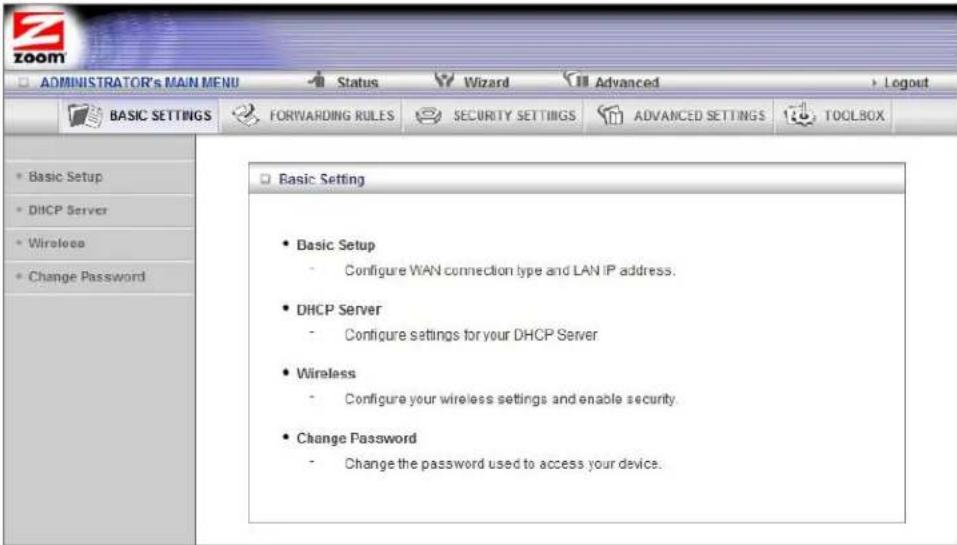
The Basic Setup Page
You can use the Basic Setup page to configure your LAN and WAN setup.
Note: The following image depicts the fields that the program displays when 3G is selected as the WAN Type. The fields will differ for each WAN Type. See the online help for a description of each WAN Type and its corresponding fields.
![ADMINISTRATOR'S MAIL MENU Status Wizard Advanced Logout BASIC SETTINGS FORWARDING RULES SECURITY SETTINGS ADVANCED SETTINGS TOOLBOX Basic Setup DISCP Server Wireless Change Password Basic Setup [HELP] Item Setting Ethernet port configuration LAN LAN IP Address 192.10.8.1.1 3G Failover Check for Wan Connection Internet host: WAN Type 3G APN (Not required by all providers) PIN Code Dialled Number Username Password Authentication Auto FOP CHAO Primary DNS Secondary DNS Connection Control Auto Reconnect (always on Maximum Idle Time 0 seconds KeepAlive Disable Use LCP Echo Request Idp-echo-intervalse 10 Idp-echo-failure.tim Save Undo](/content/2026/06/1260141/images/09e14781bef5032f21ed86ebc2f2c932289ff655b79c6d11a419ece4661d381f.jpg)
- Ethernet port configuration
Set to LAN by default. You can change this to WAN, Auto, or Off to disable the Ethernet port. Accept the default if you are using a 3G WAN Type protocol; otherwise, select WAN. Use Auto if you want the router to detect if the Ethernet connection is WAN or LAN. Off disables the Ethernet port and is not recommended.
• LAN IP Address
The local IP address of the router. 192.168.1.1, by default. All wireless or wired devices on your network must use the LAN IP address of your router as their default gateway.
• 3G Fallover
Click the WAN Connection checkbox if you want the WAN type to change to 3G wireless if the Ethernet WAN fails.
- WAN Type
Set to 3G, by default. You can choose another option from the dropdown menu, based on the WAN connection type that your service provider supports.
• APN, PIN Code, Dialed Number, Username and Password
Identifiers assigned by some service providers, if needed.
- Authentication
Set to Auto, by default. Optionally, click Password Authentication Protocol (PAP), or Challenge Handshake Authentication Protocol (CHAP), if supported by your service provider.
• Primary DNS and Secondary DNS
Identifiers for the Domain Name Servers. These identifiers are provided by your service provider.
- Connection Control
Specifies the method for connecting or disconnecting the WAN session based on network activity. Auto Reconnect (always on) is the default. Other options are Connection-on-Demand or Manual.
• Maximum Idle Time
Specifies the duration (in seconds) of inactivity before the device disconnects. The default is 0, which disables this feature.
- Keep Alive
Disabled by default. Select LCP Echo Request to keep the connection alive.
The DHCP Server Page
You can use the DHCP Server page to configure your DHCP server. If you want to change the default values, please click [HELP], which opens a page that describes each item and the recommended values.
![ADMINISTRATOR'S MAIN MENU Status Wizard Advanced Logout BASIC SETTINGS FORWARDING RULES SECURITY SETTINGS ADVANCED SETTINGS TOOLBOX Basic setup DHCP Server Wireless Change Password DHCP Server [HELP] Item Setting DHCP Server Disable®able IP Pool Starting Address 100 IP Pool Ending Address 200 Lease Time 864.00 Seconds Domain Name Save Undo More>> Clients List... Fixed Mapping...](/content/2026/06/1260141/images/42a89aafcba476dcd8ac4a449c08fdb154be8b0d51142ea67f961f780717d88a.jpg)
The Wireless Setting Page
You can use the Wireless Setting page to configure your wireless LAN setup. If you want to change the default values, please click [HELP], which opens a page that describes each item and the recommended values.
![ADMINISTRATOR'S MAIN MENU Status Wizard Advanced Logout BASIC SETTINGS FORWARDING RULES SECURITY SETTINGS ADVANCED SETTINGS TOOLBOX Basic Setup DHCP Server Wireless Change Password Wireless Setting [HELP] Item Setting Wireless Module Enable Disable Network ID(SSID) Zoom SSID Broadcast Enable Disable Channel 10 Wireless Mode B/G/N mixed Authentication WEP - Auto Encryption None Save Undo WPS Setup... Wireless Client List...](/content/2026/06/1260141/images/4556416ef3780f4381cb879821d5e8a346767862293ba05a1ebb69f8aa7a0e0a.jpg)
- Wireless Module
Accept the default, Enable. Click the Disable checkbox only if you do not want wireless clients to access your network.
• Network ID (SSID)
Refers to the Service Set Identifier for your device. By default, the SSID for the 3G Wireless-N Travel Router is Zoom. You can change the SSID to a name of your choice. The SSID can be up to 32 alphanumeric characters. If you change the name, make sure that all devices on your network use the new SSID as the access point.
- SSID Broadcast
To hide your network's SSID name, which disables automatic broadcasting of the SSID and makes the wireless access point (your router) invisible to wireless clients on the network, click the Disable radio button.
- Channel
Refers to the wireless network channel assigned to your LAN. By default, the travel router uses channel 10.
- Wireless Mode
Accept the default, B/G/N mixed if the client devices on your network use various wireless standards. Otherwise, select the wireless standard used by all wireless devices on your network. Having a single standard will speed up the wireless throughput.
- Authentication
Select an Authentication method for all devices on your wireless network. If you are using gaming devices that require WEP, then you must configure all devices with this method.
For WEP Authentication:
You can accept the default, WEP-Auto or select one of the available options. Select WEP-Open to use Open System authentication. Select WEP-Shared to use Shared Key authentication.
For WPA-PSK/WPA2-PSK Authentication:
You can select WPA-PSK/WPA2 PSK if your devices support both authentication methods. Optionally, select WPA-PSK or WPA2-PSK if all devices on your network support only one of these authentication methods.
- Encryption
Select an Encryption method that corresponds to the Authentication method that you chose.
If you chose a WPA-PSK/WPA2-PSK Authentication method:
- Accept TKIP/AES encryption (the WPA-PSK/WPA2-PSK default), which supports dynamic encryption keys using TKIP or AES algorithms, or choose one of the other options.
- Select AES if you chose WPA2-PSK for the authentication method.
- Select TKIP if you chose WPA-PSK for the authentication method.
• In the Preshare Key field, enter a 26-character key.
If you chose a WEP Authentication method:
- Select WEP-Auto encryption if you chose both WEP-Open and WEP-Shared authentication.
- Select WEP-Open to use Open System authentication.
- Select WEP-Shared to use Shared Key authentication. With Shared Key, both sender and receiver use a WEP key for authentication.
- Key Format
Select Hex if all the wireless devices in the network are Zoom products. Otherwise, select ASCII. Although Zoom products support both Hex and ASCII, we recommend using Hex.
• Encryption WEP Key 1, 2, 3, 4
If you selected Hex format and you chose a 128-bit key length, 26 hexadecimal values are required. Write the 26-hexadecimal key in the space below for future reference, and then enter it in the Key 1 box.
If you selected Hex format and you chose a 64-bit key length, 13 hexadecimal values are required. Write the 13-hexadecimal key in the space below for future reference, and then enter it in the Key 1 box.
If you selected ASCII format, and you chose a 128-bit key length, 13 ASCII characters are required. Write the 13-ASCII-character key in the space below for future reference, and then enter it in the Key 1 box.
If you selected ASCII format, and you chose a 64-bit key length, 5 ASCII characters are required. Write the 5-ASCII-character key in the space below for future reference, and then enter it in the Key 1 box.
Click WPS Setup to launch the WiFi Protected Setup (WPS) Setup program. For instructions, please refer to WPS Configuration on page 25.
The Change Password Page
You can use this page to change your login password. To view or change configuration settings, you must enter a password. Your router has a default password (admin) that was set by the factory and that you used to access the Configuration Manager initially. To safeguard your configuration, particularly if you make changes, we recommend that you change the login password.
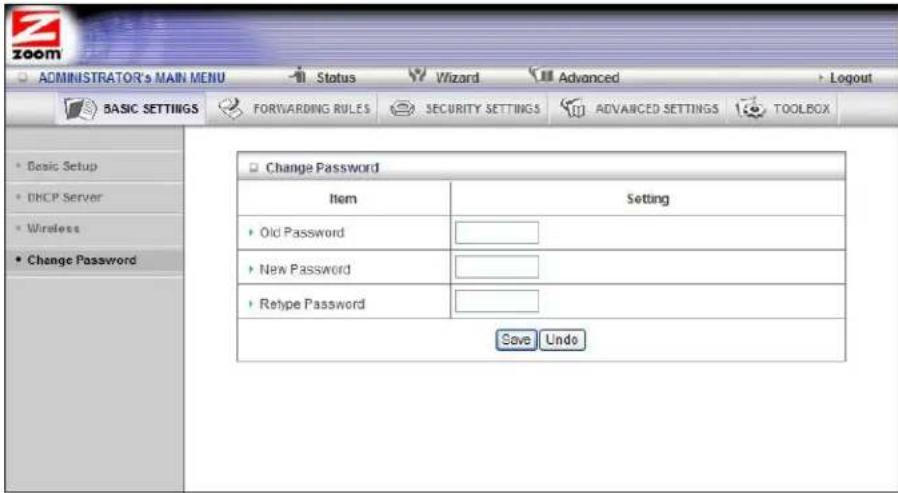
Note: If you forget the new password, you won't have access to the Configuration Manager and will need to restore the device to its factory settings thus losing any changes you made to your router's configuration. To avoid this problem, we recommend that you write the new password and save it in a convenient location.
Configuring Forwarding Rules
Many applications, such as online games, require you to allow access through your firewall to the computers or gaming devices behind your router by opening ports in order to play the online game.
The Forwarding Rules page provides different methods for allowing access to devices behind your router.
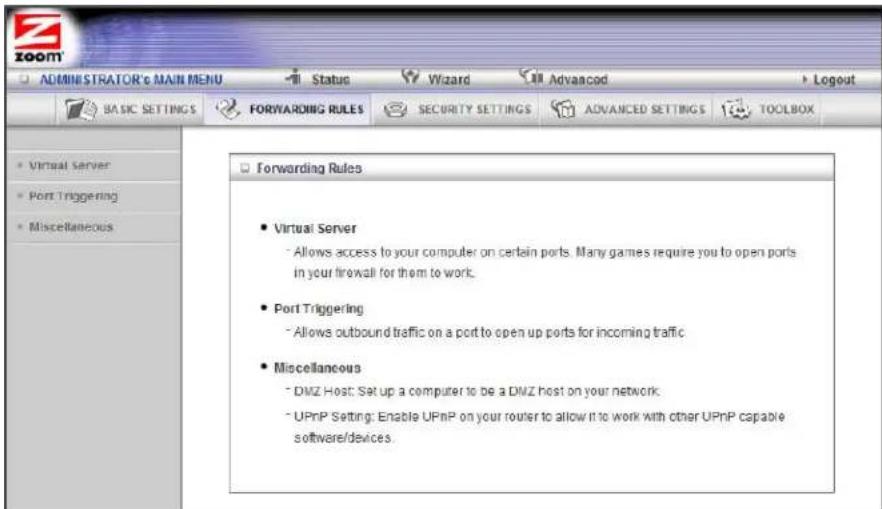
The Virtual Server Page
You can use the Virtual Server page to configure a virtual server.
Because your router's firewall filters out unrecognized packets to protect your network, all computers behind this product are invisible to the outside world. If you want, you can make some of them accessible by enabling Virtual Server mapping.
A virtual server will allow access to your computer on certain ports. A port is like a channel that is used by applications (such as games) to communicate on. For example, the directions for the game you want to play over the Internet might tell you to open port 6000.
• Service Ports
This is the port number you want to allow access to your computer on. To enter multiple ports use the dash format; for example, 2004-2009.
- Server IP
This is the IP Address of the computer or gaming device that you want to allow access to. If you do not know the IP address you can look it up by selecting Basic Settings > DHCP Server, then clicking on Client List. To make this virtual server permanent, then you should set up a fixed mapping to your computer or gaming device on the DHCP Server page. Doing this ensures that your computer will keep the same IP address
- Protocol
Select UDP, TCP, or Both depending on what type of protocol your game or application uses.
- Enable
Click to enable the Virtual Server
- Use Rule#
You can enable your virtual server for certain periods of time by assigning it a Rule #. You must first set up the appropriate Scheduling Rule. See The
Schedule Rule and Rule Setting Pages on page 52 for more information.
For example, if you have an FTP server (port 21) at 192.168.1.5, a Web server (port 80) at 192.168.1.6, and a game at 192.168.1.7, then you need, at minimum, to specify the following mapping.
| ID Service | Port Server IP | Enable | |
| 1 | 21 | 192.168.1.5 | Yes |
| 2 | 80 | 192.168.1.6 | Yes |
| 3 | 5000 | 192.168.1.7 | Yes |
The Port Triggering Page
Port triggering opens an incoming port when your computer is using a specified outgoing port for specific traffic. This provides a way for you to automate setting up a Virtual Server with some applications. You can use the Port Triggering page to configure which packets are allowed access.
![ADMINISTRATOR'S MAIN MENU Status Wizard Advanced Logout BASIC SETTINGS FORWARDING RULES SECURITY SETTINGS ADVANCED SETTINGS TOOLBOX Virtual server Port Triggering Miscellaneous Port Triggering [HELP] Popular applications -- select one-- Copy to -- ID Trigger Incoming Ports Enable 1 ________ 2 ________ 3 ________ 4 ________ 5 ________ 6 ________ 7 ________ 8 ________ Save Undo When the trigger packet is detected, the inbound packets on the specified port numbers are allowed to pass through the firewall.](/content/2026/06/1260141/images/67cfe35a8f9852b9b708b27454f7bfbcbd7bd73f90f3dd55f67c3df6b472462d.jpg)
- Trigger The outbound port number used by the application.
- Incoming Ports When the trigger packet is detected, the inbound packets sent to the specified port numbers are allowed to pass through the firewall.
- Enable Enables access for the specified application.
- Popular applications Provides a menu of applications from which to choose.
- Select an application and click Copy to add the application to your list.
- Click Save to store your selection or Undo to remove the entry.
![ADMINISTRATOR'S MAIN MENU Status Wizard Advanced Logout BASIC SETTINGS FORWARDING RULES SECURITY SETTINGS ADVANCED SETTINGS TOOLBOX Virtual server Port Triggering Miscellaneous Port Triggering [HELP] Popular applications -- select one -- -- select one -- ID Trigger Battle.net ping Ports Enable 1 ID Dialpad 2 ICU II 3 MSN Gaming Zone 3 PC-to-Phone 4 Quick Time 4 5 6 7 8 Save Undo](/content/2026/06/1260141/images/694b8ad944169f67fe6cb2495d0ad4d96d9cbb1601e351d3b5eb571d3f715a24.jpg)
The Miscellaneous Page
The Miscellaneous Page lets you set up and enable a DMZ Host on your network, and enable UPnP settings for software and devices. In this way, specific ports can open for incoming traffic that must pass through your firewall.
![ADMINISTRATOR's MAIN MENU Status Wizard Advanced Logout BASIC SETTINGS FORWARDING RULES SECURITY SETTINGS ADVANCED SETTINGS TOOLBOX Virtual Server Port Triggering Miscellaneous Miscellaneous Items [HELP] Item Setting Enable Set IP Address of DMZ Host UPnP setting Save Undo](/content/2026/06/1260141/images/34040b722c7dd663614e5fdc96aa3e5913657365af574433df07b227e81d57e0.jpg)
• Set IP Address of DMZ Host
A DMZ (Demilitarized Zone) Host is a host without the protection of the firewall. It allows a computer or gaming system to be exposed to unrestricted two-way communication for Internet games, video conferencing, Internet telephony and other special applications. . Use caution when using a DMZ because your firewall no longer protects the computer that is set up as a DMZ.
- UPnP setting
This feature is enabled by default. Games and applications that are UPnP compatible will automatically open ports for you on your router.
Configuring Security Settings
The Security Setting page lists six configuration menus on the left pane and provides a description of the configuration menus at center.
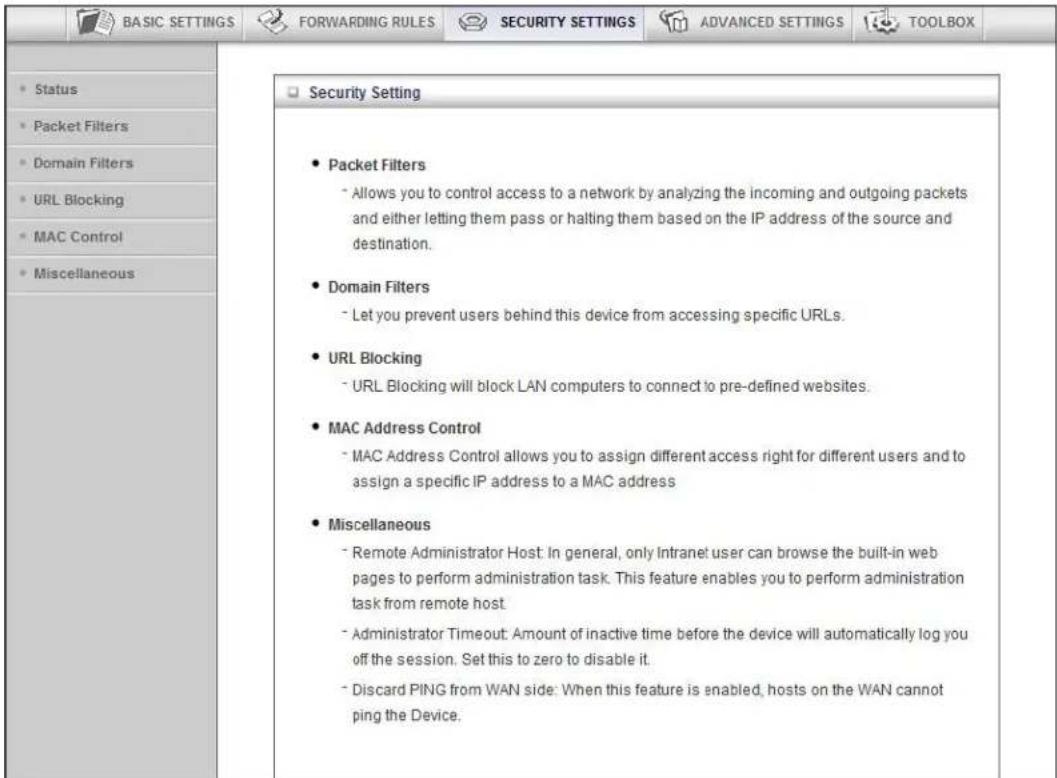
The Status and Packet Filters Pages
You can use the Status page and the Packet Filters page to control which packets are allowed or denied access. As shown on the Status page, Inbound, Outbound, and Domain filters are disabled, by default.
![ADMINISTRATOR's MAIN MENU Status Wizard Advanced Logout BASIC SETTINGS FORWARDING RULES SECURITY SETTINGS ADVANCED SETTINGS TOOLBOX Status Packet Filters Domain Filters URL Blocking MAC Control Miscellaneous Outbound Filter [Modify] Item Status Outbound Filter Disable Local Client Only Deny Remote Host Service Working Time Inbound Filter [Modify] Item Status Inbound Filter Disable Remote Host Deny Remote Host to access Service Working Time Domain Filter [Modify] Item Status Domain Filter Disable Domain Access All other Domains Yes Refresh](/content/2026/06/1260141/images/ccdaca7cd446a7f7989a01b3a07bf1446c0d2159fe97daf8e2a4c8e7be85dc54.jpg)
Filtering Policies
You can select one of the two filtering policies:
- Allow all to pass except those that match the specified rules
- Deny all to pass except those that match the specified rules
Filtering Rules
You can specify eight rules for each direction: inbound or outbound. For each rule, you can define the following:
- Source IP address
- Destination IP address
- Destination Port
- Use Rule#
For the Source or Destination IP address, you can define a single IP address (4.3.2.1). An empty field implies any IP address.
For Destination Port, you can define a single port (80) or a range of ports (1000-1999). No prefix indicates both TCP and UDP are defined. Leaving this empty implies that all port addresses apply.
Each Rule can be enabled or disabled individually.
You can use packet filters with scheduling rules for more access control flexibility.
The Domain Filters Page
You can use the Domain Filters page to enable or deny user access to specified URLs.
- Domain Filter
Use to prevent users behind this device from accessing specific URLs.
- Domain Filter Enable
Check if you want to enable the Domain Filter.
- Log DNS Query
Check if you want to log the action when someone accesses the specific URLs.
• Privilege IP Address Range
Domain filtering rules do not apply to IP addresses in this range.
- Domain Suffix
The suffix of the restricted URL; for example, xxx.com.
- Action
The action to be taken when a user accesses the restricted domain suffix URL. Check Drop to block access. Check log to record the attempted access.
- Enable
Click the checkbox to enable a rule.
The URL Blocking Page
You can use the URL Blocking page to block LAN computers from connecting to pre-defined Web sites. The major difference between Domain Filtering and URL Blocking is that Domain Filtering requires the user to input a suffix whereas URL Blocking requires the user to input a keyword only. In other words, Domain Filtering can block a specific web site, whereas URL Blocking can block hundreds of web sites by specifying a keyword.
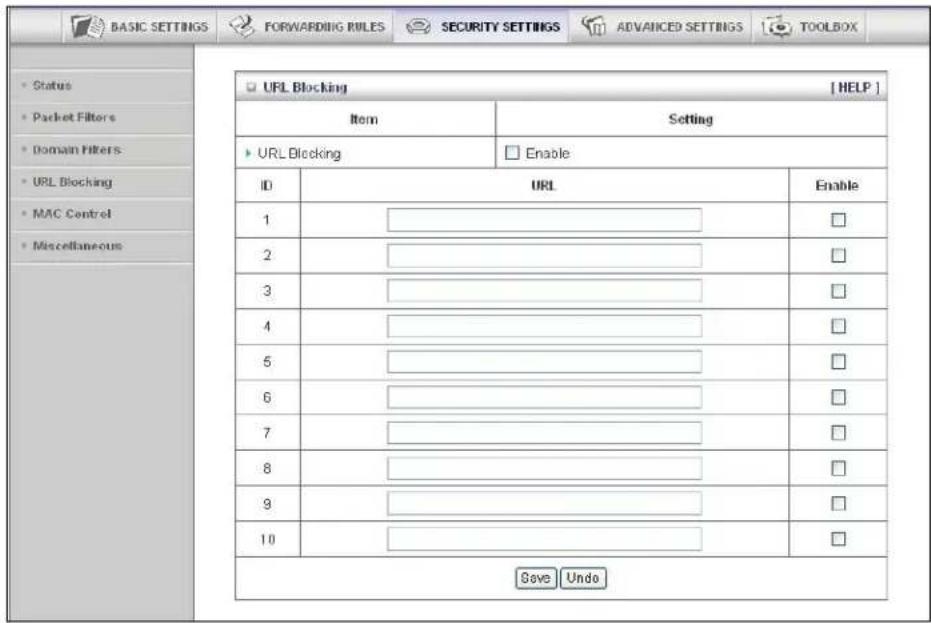
- URL Blocking Enable
Check if you want to enable URL Blocking.
- URL
If any part of the Website's URL matches the pre-defined word, the connection will be blocked. For example, you can use the pre-defined word, sex, to block all websites those URLs contain the pre-defined word, sex.
- Enable
Click the checkbox to enable each rule.
The MAC Address Control Page
You can use the MAC Address Control page to enable MAC Address control and to define connection and association rights for clients whose using IP and MAC addresses are specified.
![ADMINISTRATOR's MAIN MENU Status Wizard Advanced Logout BASIC SETTINGS FORWARDING RULES SECURITY SETTINGS ADVANCED SETTINGS TOOLBOX Status Packet Filters Domain Filters URL Blocking MAC Control Miscellaneous MAC Address Control [HELP] Item Setting MAC Address Control Enable Connection control Wireless and wired clients with C checked can connect to this device; and allow unspecified MAC addresses to connect. Association control Wireless clients with A checked can associate to the wireless LAN; and allow unspecified MAC addresses to associate. DHCP clients -- select one -- Copy to ID -- ID MAC Address IP Address C A 1 ______ ______ ______ ______ ______ ______ 2 ______ ______ ______ ______ ______ ______ 3 ______ ______ ______ ______ ______ ______ 4 ______ ______ ______ ______ ______ ______ 5 ______ ______ ______ ______ ______ ______ << Previous Next >> Save Undo](/content/2026/06/1260141/images/f3742022388bf9691be2bcdc3d538307d4639cf40161100b4112ff4994050c2d.jpg)
• MAC Address Control
Check Enable to enable MAC Address Control. All of the settings on this page will take effect only if Enable is checked.
- Connection control
Check Connection control to specify which wired and wireless clients can connect to this device. If a client is denied a connection to this device, then that client is also defined Internet access. Choose allow or deny to indicate which clients can connect to this device.
- Association control
Check Association control to specify which wireless clients can associate to the wireless LAN. If a client is not allowed to associate to the wireless LAN, then the client can't send or receive any data via this device. Choose allow or deny to indicate which clients can associate to the wireless LAN. If selected, the specified wireless client will obtain any radio connection to the access point.
- DHCP clients
Displays a list of computers that are currently connected to the router. Select a client from the menu then copy to the selected ID. The client IP and MAC addresses are written in the fields below the menus.
The Miscellaneous Page
You can use the Miscellaneous Items page to enable additional security features.
![BASIC SETTINGS FORWARDING RULES SECURITY SETTINGS ADVANCED SETTINGS TOOLBOX Status Packet Filters Domain Filters URL Blocking MAC Control Miscellaneous Miscellaneous Items [ HELP ] Item Setting Enable Administrator Time-out 300 seconds (0 to disable) Remote Administrator Host : Port / : Discard PING from WAN side Dos Attack Detection Save Undo](/content/2026/06/1260141/images/1e90d84e05b38ccf44e9a72733074aff076eade7aff78b074b005a87bc7ebc1b.jpg)
Please refer to the online help for details about each of the menu items.
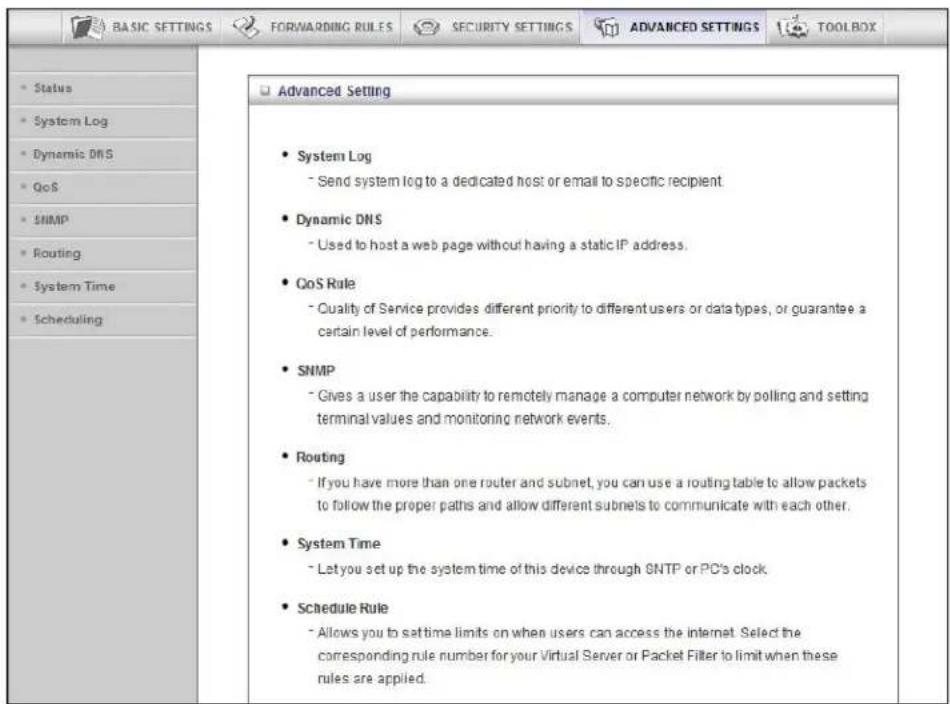
Configuring Advanced Settings
The Advanced Settings page lists eight menus on the left pane and provides a description of the configuration menus at center.
The System Log Page
You can use the System Log page to define how and where system logs will be exported via syslog (UDP) or SMTP(TCP).
![BASIC SETTINGS FORWARDING RULES SECURITY SETTINGS ADVANCED SETTINGS TOOLBOX Status System Log Dynamic DNS OoS SNMP Routing System Time Scheduling System Log [ HELP ] Item Setting Enable IP address for syslogging Email alert settings SMTP Server port SMTP Username SMTP Password E-mail addresses E-mail subject Save Undo View Log... Email Log Now](/content/2026/06/1260141/images/4fcc4f85acc82be9ff08e1228229fdc05dc611762dd4b16630c3a74186919168.jpg)
• IP Address for Syslogging
Host IP address of the destination where the Sys log will be sent. Click the Enable checkbox to set the IP Address as the destination.
- E-mail alert settings
Check Enable if you want to send syslog via email.
- SMTP Server IP and Port
Input the SMTP server IP and port; for example, mail.your_url.com or 192.168.1.100:26. If you do not specify a port number, the port value will be set to 25.
- SMTP Username and Password
Input the SMTP Username and Password.
- E-mail addresses
The email address of each syslog recipient.
• E-mail Subject
The subject of the email alert. This setting is optional.
The Dynamic DNS Page
You can use the Dynamic DNS page to define the Dynamic Domain Name Service (DDNS) that will host your server. For example, the DDNS could host your server when you want to host a website on your network but you do not have a static IP. Your DDNS provider keeps track of changes to your IP address and automatically routes users trying to access your web site to the correct location
Note: Before you enable DDNS, you must register an account with one of the DDNS servers listed in the Provider field.
![BASIC SETTINGS FORWARDING RULES SECURITY SETTINGS ADVANCED SETTINGS TOOLBOX Status System Log Dynamic DNS 0eS SNMP Routing System Time Scheduling Dynamic DNS [HELP] Item Setting DDNS Disable Enable Provider DynDNS.org(Dynamic) Host Name Username / E-mail Password / Key Save Undo](/content/2026/06/1260141/images/6eec63f3eed87f5d331570695a43c61ed3a2f5d980cd501c865428a49ac6bd41.jpg)
Your DDNS provider will provide the HostName, Username/E-mail, and Password/Key that you will enter into the fields on the Dynamic DNS page.
The QoS Page
You can use the Quality of Service (QoS) page to provide different priorities to different users or data flows, or to guarantee a certain level of performance.
![BASIC SETTINGS FORWARDING RULES SECURITY SETTINGS ADVANCED SETTINGS TOOLBOX Status System Log Dynamic DNS QoS SNMP Routing System Time Scheduling QoS Rule [HELP] Item Setting QoS Control Enable Available Upstream bandwidth kbps (Kilobte per second) ID LocalIP :Ports Remote IP :Ports QoS Priority Enable Use Rule# 1 High ▼ □ (0) Always 2 High ▼ □ (0) Always 3 High ▼ □ (0) Always 4 High ▼ □ (0) Always 5 High ▼ □ (0) Always 6 High ▼ □ (0) Always 7 High ▼ □ (0) Always 8 High ▼ □ (0) Always Save Undo](/content/2026/06/1260141/images/6a38f042f967f35d2717aec09fa683c8e493a316bf01f61768b3d4d04737d598.jpg)
- QoS Control
Click the Enable checkbox to enable QoS.
• Available Upstream bandwidth
Set the upstream speed. The best way to find your throughput is to use one of the free speed tests widely available on the Web. Some examples of sites with good speed tests are www.speedtest.net and www.speakeasy.net/speedtest. When you now your actual upstream throughput, enter it in this field. The value should be in kilobits per second (Kbps).
- Local: IP
Define the local IP address of packets.
- Local: Ports
Define the local port of packets.
- Remote: IP
Define the remote IP address of packets.
- Remote: Ports
Define the remote port of packets.
- QoS Priority
Select a value from the dropdown menu to define the priority level for the local and remote settings. Packets will be serviced based upon the priority level set. For critical applications, select High or Normal. For non-critical applications, select Low. High is the default value.
- Enable
Click the Enable checkbox to apply the settings.
- User Rule#
Select a rule from the dropdown menu to indicate when the policy applies. (0) Always is the default value.
The SNMP Page
You can use the Simple Network Management Protocol (SNMP) page to set up the capability to remotely manage a computer network by polling and setting terminal values and monitoring network events.
![BASIC SETTINGS FOR/WARDING RULES SECURITY SETTINGS ADVANCED SETTINGS TOOLBOX Status System Log Dynamic DNS CoS SNMP Routing System Time Scheduling SNMP Setting [HELP] Item Setting Enable SNMP Local Remote Get Community Set Community IP 1 IP 2 IP 3 IP 4 SNMP Version V1 V2c WAN Access IP Address Save Undo](/content/2026/06/1260141/images/53d130f0175467d1f1a54ac770aacc054589f12fdaaca0864bce07d31ea56d07.jpg)
- Enable SNMP
Click the Local, Remote, or both checkboxes to enable the SNMP function. Check Local if you want the router to respond to requests from the LAN. Check Remote if you want the router to respond to requests from the WAN.
- Get Community
Set Get Community to the GetRequest to which your device will respond.
- Set Community
Set Set Community to the SetRequest that your device will accept.
- IP 1, IP 2, IP 3, IP 4
Enter the IP address of your SNMP Management PCs. You must specify where the router should send SNMP Trap messages.
- SNMP Version
Select the SNMP Version that your SNMP Management software supports.
• WAN Access IP Address
Enter the IP address for WAN access. The default value of 0.0.0.0 indicates that every IP address can get some information about this device, using the SNMP protocol.
The Routing Table Page
You can use the Routing Table page to enable/disable both Dynamic and Static Routing. If routing is enabled, you can specify which physical interface address to use for outgoing IP data grams. If you have more than one router and subnet, you will need to define a routing table that lets packets find the proper routing path and allows different subnets to communicate with each other.
![BASIC SETTINGS FORWARDING RULES SECURITY SETTINGS ADVANCED SETTINGS TOOLBOX Status System Log Dynamic DTS 0oS SIIMP Routing System Time Scheduling Routing Table [HELP] Item Setting Dynamic Routing Disable ○RIPv1 ○RIPv2 Static Routing Disable ○Enable ID Destination Subnet Mask Gateway Hop Enable 1 □ □ □ 2 □ □ □ 3 □ □ □ □ 4 □ □ □ □ 5 □ □ □ □ 6 □ □ □ □ 7 □ □ □ □ 8 □ □ □ Save Undo](/content/2026/06/1260141/images/201f877989c0ce40a62718431ff132dbd2922b56de4f58762c32810b34be1a95.jpg)
- Dynamic Routing
The Routing Information Protocol (RIP) will exchange information about destinations for computing routes throughout the network. Please select RIPv2 only if you have different subnet in your network. Otherwise, please select RIPv1 if you need this protocol.
- Static Routing
For static routing, you can specify up to eight routing rules. You can enter the Destination IP address, Subnet Mask, Gateway, Hop for each routing rule. Click the Enable checkbox to activate the routing table entry.
The System Time Page
You can use the System Time page to set and synchronize your router with the local time zone, the Time Server and your PC.
![BASIC SETTINGS FORWARDING RULES SECURITY SETTINGS ADVANCED SETTINGS TOOLBOX Status System Log Dynamic DNS GoS SNMP Routing System Time Scheduling System Time [HELP] Item Setting Time Zone * Not yet configured! The default is GMT+00.00 Auto-Synchronization Enabie Time Server (RFC-888) Auto Save Undo Sync with Time Server Sync with my PC (Monday October 05, 2009 10:40:17)](/content/2026/06/1260141/images/f6c4ef959316c83ae7d88fceea7b652878eb194352ee3206a598c9e43849e2f1.jpg)
- Time Zone
Select the local time zone from the dropdown menu.
Click the Enable checkbox to enable this function.
Select an item from the Time Server dropdown menu to specify the server with which to synchronize. The default value is Auto.
- Click Sync with Time Server to set Date and Time by NTP Protocol.
- Click Sync with my PC to set Date and Time using your PC's Date and Time
The Schedule Rule and Schedule Rule Setting Pages
You can use the Schedule Rule and Schedule Rule Setting pages to define when services will be turned on and off based on rules that you define.
1 On the Schedule Rule page, click the Enable checkbox to enable the scheduling rules, which are defined on the Schedule Rule Setting page.
![BASIC SETTINGS FORWARDING RULES SECURITY SETTINGS ADVANCED SETTINGS TOOLBOX Status System Log Dynamic DMS DoS CHMP Routing System Time Scheduling Schedule Rule [HELP] Item Setting Schedule Enable Rule# Rule Name Action 1 New Add 2 New Add 3 New Add 4 New Add 5 New Add 6 New Add 7 New Add 8 New Add 9 New Add 10 New Add == Previous Next => Save Add New Rule...](/content/2026/06/1260141/images/e83833e4a4978e02371734838f85a89bed1f0e5033469b90aef8270157535da5.jpg)
2 Click Add New Rule to open the Schedule Rule Setting page.
![BASIC SETTINGS FORWARDING RULES SECURITY SETTINGS ADVANCED SETTINGS TOOLBOX Status System Log Dynamic BIG OnS GIMP Routing System Time Scheduling Schedule Rule Setting [HELP] Item Setting Name of Rule 1 Policy Inactivals except the selected days and hours below ID Week Day Start Time (hh:mm) End Time (hh:mm) 1 -- choose day-- 2 -- choose day-- 3 -- choose day-- 4 -- choose day-- 5 -- choose day-- 6 -- choose day-- 7 -- choose day-- 8 -- choose day-- Save Undo Back](/content/2026/06/1260141/images/4e1cf5dc3870255c4d6d5d01b410b2546461a6bbd717a0f1583eaa9cadf74f83.jpg)
3 On the Schedule Rule Setting page, specify a Rule name, a Policy that defines whether the rule is Active or Inactive, Week Day and the Start Time and End Time for each rule that you are creating.
![BASIC SETTINGS FORWARDING RULES SECURITY SETTINGS ADVANCED SETTINGS TOOLBOX Status System Log Dynamic DNS GoS SNAP Routing System Time Scheduling Schedule Rule Setting [ HELP ] Item Setting Name of Rule 1 test1 Policy Inactivate except the selected days and hours below ID Week Day Start Time (hh:mm) End Time (hh:mm) 1 Monday 09:00 10:00 2 choose day-- # 3 choose day-- # 4 choose day-- # 5 choose day-- # 6 choose day-- # 7 choose day-- # 8 choose day-- # Save Undo Back](/content/2026/06/1260141/images/d4a4eb1b269cb377f876bd38478123c97d3929f696f59457abd4333dc568468c.jpg)
4 Click Save for each rule that you create.
5 Click Back to return to the Schedule Rule page.
When the Schedule Rule page opens, the rule(s) that you created and saved appear in the Rule Name column.
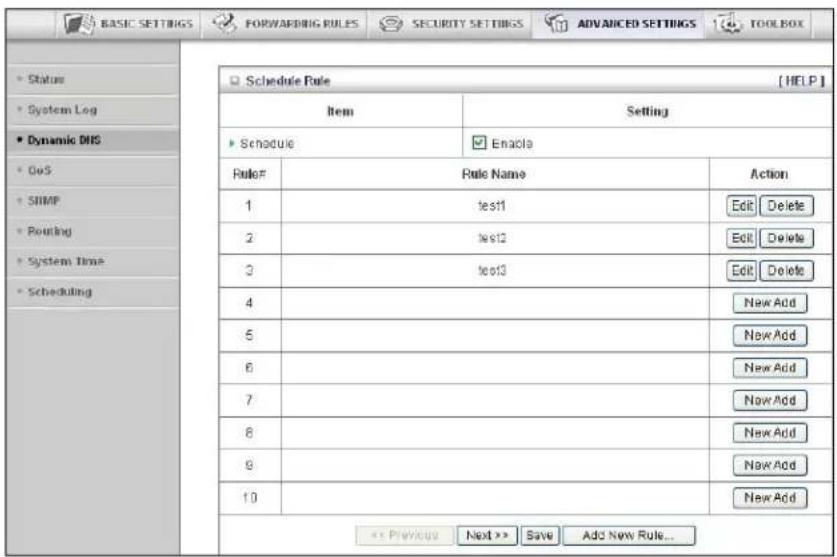
6 Click Edit to make changes to a scheduled rule.
7 Click Delete to remove a scheduled rule.
Configuring Toolbox Settings
The Toolbox Settings page lists six configuration menus on the left pane and provides a description of the configuration menus at center.
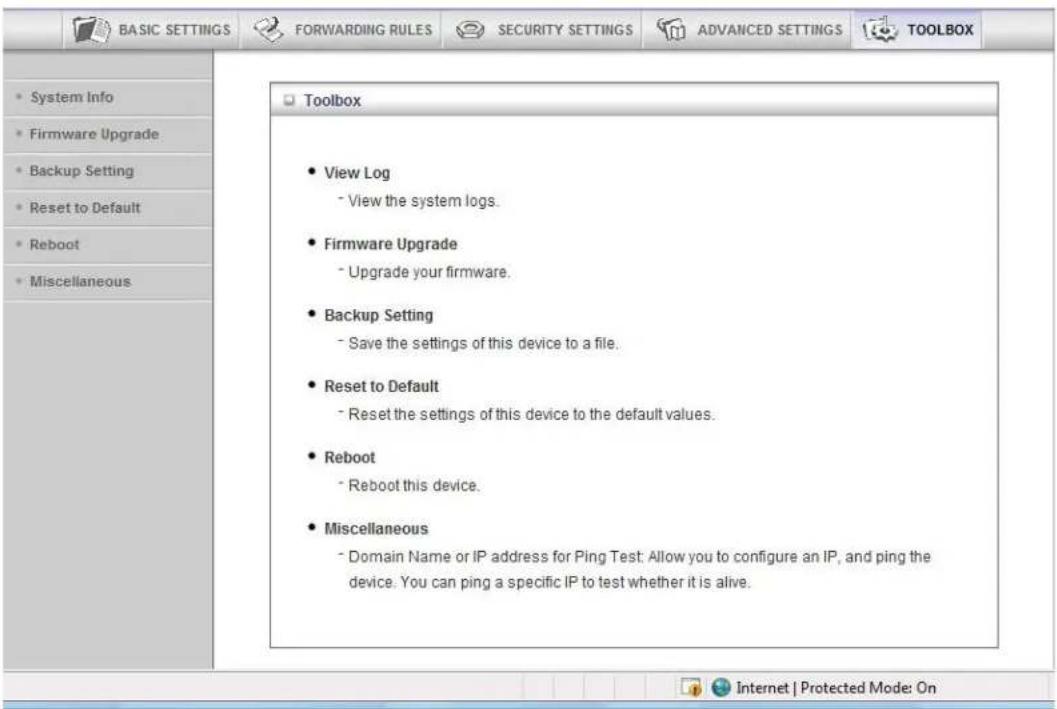
The System Information Page
You can use the System Information page to view information about your router, and to view download, and delete system logs.
The Firmware Upgrade Page
You can use the Firmware Upgrade page to get the most recent version of the router firmware, if available.
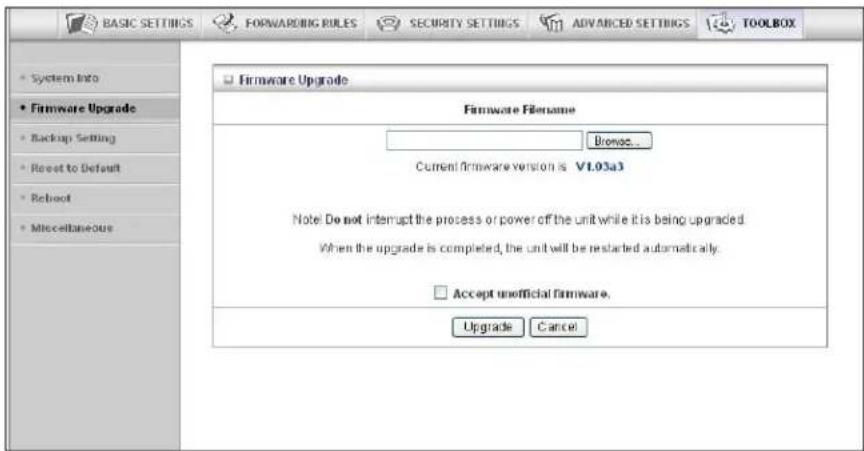
1 Click Browse to open the location where you saved the Firmware Update file that you downloaded from the Zoom web site or received via email.
2 Click Upgrade.
The Backup Setting Dialog
You can back up your router settings by clicking the Backup Setting item from the left pane of the Toolbox menu. The following dialog opens.
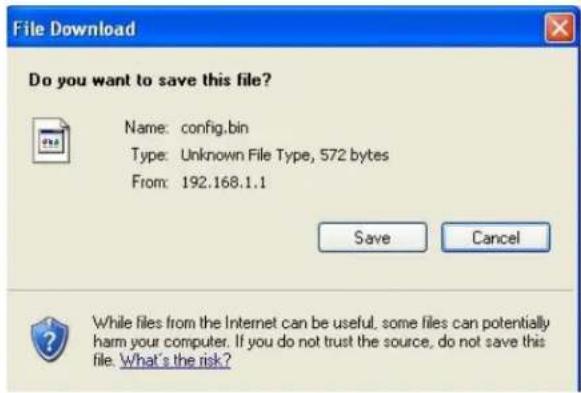
1 Click Save to write and save your router settings as a binary file.
The Reset to Default Dialog
You can reset the router to its factory settings by clicking the Reset to Default item from the left pane of the Toolbox menu. The following dialog opens.
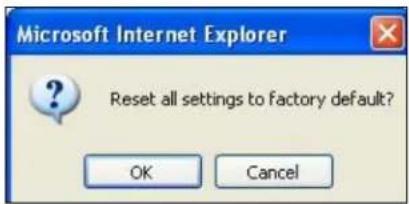
1 Click OK to reset the router.
We recommend that you back up and save your configuration first if you've made changes and want a record of that configuration
The Reboot Dialog
You can reboot the router by clicking the Reboot item from the left pane of the Toolbox menu. The following dialog opens.
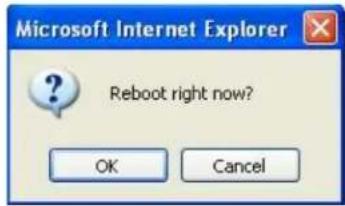
1 Click OK to reboot the router.
The Miscellaneous Page
You can use this page to Ping a remote device on your network
![BASIC SETTINGS FORWARDING RULES SECURITY SETTINGS ADVANCED SETTINGS TOOLBOX System Info Firmware Upgrade Backup Setting Reset to Default Reboot Miscellaneous Miscellaneous Items [HELP] Item Setting Domain Name or IP address for Ping Test Ping Save Undo](/content/2026/06/1260141/images/1b6b6e073b5cd7ad10382970fb906d155f5181e89ee479465d5ff63a6ea936a9.jpg)
Limited Warranty
Zoom Telephonics, Inc. (hereinafter "Zoom") warrants this product against defects in material and workmanship for a warranty period of one year. The one year warranty may be extended only by Zoom as required by local law in the country where this modem is sold by Zoom. This warranty applies to the original end-user purchaser.
For all Zoom products other than software, Zoom will, solely at its option, repair or replace this product with a functionally equivalent new or factory-reconditioned product during the warranty period. The consumer will deliver the product to Zoom. All transportation risks and costs in connection with this warranty service are the responsibility of the consumer.
Zoom will replace software at no charge if there is a defect in materials or workmanship for a period of 30 days from date of original retail purchase, provided the defective software is returned to Zoom. Shipments from Zoom will normally be via U.S. Mail. Software products supplied by Zoom are sold “as is,” without warranty, either expressed or implied, as to function, application, merchantability, performance, and quality.
Zoom is not responsible for incidental or consequential damages, and is not responsible for damages resulting from the breach of any expressed or implied warranty. Zoom is not responsible for any costs of recovering, reprogramming, or reproducing any programs or data stored or used with the Zoom products, damage to property, and to the extent permitted by law, damages for personal injury.
This warranty is in lieu of all other warranties, expressed or implied. We do not assume or authorize assumption for us of any other warranty expressed or implied. Some states and countries do not allow the exclusion or limitation of incidental or consequential damages, so the above limitation or exclusions may not apply to you.
This warranty does not apply if the Zoom product has been damaged by accident, abuse, lightning or other natural disasters, misuse or misapplication, or if it has been modified without the written permission of Zoom, or if any serial number has been removed or defaced.
This warranty shall not be applicable to the extent that any provisions of this warranty are prohibited by any federal, state, or municipal law that cannot be preempted. This warranty gives you specific legal rights, and you may also have other rights that vary from state to state or country to country.
FCC Interference Statement
This equipment has been tested and found to comply with the limits for a Class B digital device pursuant to Part 15 of the FCC Rules. These limits are designed to provide reasonable protection against radio interference in a commercial environment. This equipment can generate, use, and radiate radio frequency energy and, if not installed and used in accordance with the instructions in this manual, may cause harmful interference to radio communications. Operation of this equipment in a residential area is likely to cause interference, in which case the user, at his own expense, will be required to take whatever measures are necessary to correct the interference.
CE Declaration of Conformity
This equipment complies with the requirements relating to electromagnetic compatibility, EN 55022/A1 Class B.
Declaration of Conformity

Zoom Telephonics, Inc. 207 South Street
Boston, MA 02111 USA 617-423-1072
www.zoom.com
Brand/Marque/Marca
Zoom 3G Wireless-N Travel Router
Type/Typ/Tipo
Series 1074, Model 4506, CDM530AM
The manufacturer declares under sole responsibility that this equipment is compliant to Directive 1999/5/EC, 2004/108/EC, 2006/95/EC via the following. This product is CE marked.
For Directive 1999/5/EC, 20004/108/EC, 2006/95/EC
ETSI EN 300 328 V1.7.1:2006
EN 60950-1:2006
ETSI EN301 489-1 V1.8.1:2008
ETSI EN301 489-17V1.3.2:2008

For Directive 2004/108EC, 2006/95/EC:
EN55022:2006
EN61000-3-3:1995 + A1:2001 + A2:2005
55024:1998 + A1:2001 + A2: 2003
IEC61000-4-2: 1995 + A1:1998 + A2:2000
IEC 61000-4-3:2006
IEC 61000-4-4:2004
IEC61000-4-5:2005
TEC61000-4-6:2007
TEC61000-4-8:1993+A1:2000
IEC61000-4-11:2004

Director
Directeur
Director
Paul Prohodski
09 September 2009
1074/TF, Boston, MA, USA


- 3G Wireless-N Travel Router USER GUIDE
- NOTICE
- Contents
- Installing the 3G Wireless-N Travel Router
- Package Contents
- System Requirements
- Installing the Battery
- Powering Your Router
- Using AC Power
- Reading the Power Indicator (LED)
- Using Your Router with a 3G Modem or Other Devices
- Resetting the Router to the Factory Configuration
- Registering Your Product and Getting Help
- 2
- Using the Configuration Manager
- Launching the Router's Configuration Manager
- Using the Configuration Manager's Setup Wizard
- Changing Default Settings
- Launching the Configuration Manager's Setup Wizard
- Step 1. Setup Login
- Step 2. Setup Time Zone
- Step 3. WAN Type Setup
- Configuring the WAN Type
- Configuring the Static IP Address
- Configuring the Dynamic IP Address
- Configuring PPPoE
- Configuring PPTP
- Configuring L2TP
- Configuring the 3G Modem
- Step 4. Wireless Settings
- Wireless Security Settings
- Configuring Authentication and Encryption
- WPA-PSK/WPA2-PSK Authentication
- WEP Authentication and Encryption
- Step 6. Finish
- Wireless and Wireless Security Setup
- WPS Configuration
- Configuration Methods
- Method One
- Method Two
- Method Three
- Configuring Wireless Security Manually
- WPA2/WPA Configuration
- WEP Configuration
- Using the Configuration Manager's Advanced Program
- Online Help
- Launching the Configuration Manager's Advanced Program
- Configuring Basic Settings
- The Basic Setup Page
- The DHCP Server Page
- The Wireless Setting Page
- - Wireless Module
- • Network ID (SSID)
- - SSID Broadcast
- - Channel
- - Wireless Mode
- - Authentication
- For WEP Authentication:
- For WPA-PSK/WPA2-PSK Authentication:
- - Encryption
- - Key Format
- • Encryption WEP Key 1, 2, 3, 4
- The Change Password Page
- Configuring Forwarding Rules
- The Virtual Server Page
- • Service Ports
- - Server IP
- - Protocol
- - Enable
- - Use Rule#
- The Port Triggering Page
- The Miscellaneous Page
- • Set IP Address of DMZ Host
- - UPnP setting
- Configuring Security Settings
- The Status and Packet Filters Pages
- Filtering Policies
- Filtering Rules
- The Domain Filters Page
- The URL Blocking Page
- The MAC Address Control Page
- Configuring Advanced Settings
- The System Log Page
- The Dynamic DNS Page
- The QoS Page
- The SNMP Page
- The Routing Table Page
- The System Time Page
- The Schedule Rule and Schedule Rule Setting Pages
- Configuring Toolbox Settings
- The System Information Page
- The Firmware Upgrade Page
- The Backup Setting Dialog
- The Reset to Default Dialog
- The Reboot Dialog
- Limited Warranty
- FCC Interference Statement
- CE Declaration of Conformity
- Declaration of Conformity
Brand : ZOOM
Model : Travel Router
Category : Router