
SPC-2000 - Remote control SAMSUNG - Free user manual and instructions
Find the device manual for free SPC-2000 SAMSUNG in PDF.


| Product Type | Remote Control |
| Brand | Samsung |
| Model | SPC-2000 |
| Compatible Devices | Samsung TVs, Blu-ray players, home theater systems |
| Dimensions (approx.) | 20 x 5 x 2 cm |
| Weight (approx.) | 100 g |
| Power Source | 2 x AAA batteries (not included) |
| Battery Life (approx.) | 1-2 years under normal use |
| Key Functions | Power, Volume +/-, Channel +/-, Mute, Menu, Source, Number pad, Directional pad, Enter, Back, Exit, Guide, Info, Color buttons (A, B, C, D) |
| Wireless Technology | Infrared (IR) |
| Range | Up to 10 meters |
| Operating Temperature | 0°C to 40°C |
| Storage Temperature | -20°C to 60°C |
| Material | Plastic (ABS) |
| Color | Black |
| Cleaning Instructions | Wipe with a soft, dry cloth. Do not use liquids or abrasive cleaners. |
| Safety Precautions | Keep away from water, heat sources, and small children. Remove batteries if not used for extended periods. |
| Spare Parts Availability | Batteries are user-replaceable. For other parts, contact Samsung service center. |
| Repair Information | Refer to user manual or contact Samsung support for repairs. Do not disassemble. |
Frequently Asked Questions - SPC-2000 SAMSUNG
User questions about SPC-2000 SAMSUNG
0 question about this device. Answer the ones you know or ask your own.
Ask a new question about this device
Download the instructions for your Remote control in PDF format for free! Find your manual SPC-2000 - SAMSUNG and take your electronic device back in hand. On this page are published all the documents necessary for the use of your device. SPC-2000 by SAMSUNG.
USER MANUAL SPC-2000 SAMSUNG
natural_image
Black-and-white photo of a Samsung industrial joystick device with control knob and keypad (no visible text or symbols on device body)Network Controller SPC-2000 User Guide
Before installing and operating this product, please read this manual thoroughly.
License Agreement
All copying, reprinting, and translating to other languages of part of or all of its contents without the permission of Samsung Techwin Co., Ltd. are expressly prohibited. Samsung Techwin Co., Ltd. reserves all copyright of this user's manual.
Limited Liability
- This product is support equipment for surveillance system. Therefore, we can't compensate for material loss and/or personal injuries by robbery, fire, natural disaster or other such events.
- The specification for this product may change without prior notice for product improvement.
Warranty
Samsung Techwin is not responsible for any issues related to buying and selling this product, nor promoting specific dealers or agencies.
The product warranty does not cover the following cases:
- Product damage or malfunction caused by improper handling and/or use of the product by user.
- Damage caused by disassembly and/or alteration by the user.
- Damage caused by connecting a power supply with incorrect specifications.
- Product damage or malfunctions caused by natural disasters (fire, flood, tsunami, etc.).
- Product damage caused by using expendable parts from an unauthorized third party.
Warranty is provided only upon purchasing the product. During the warranty period, a service fee will be charged for repair and/or inspection for the product for any problems that are not covered by the warranty. After the warranty expires, a service fee will be charged for repair and/or inspection for the product for all problems.

Standards-Compliance Notice

Note: This equipment has been tested and found to comply with the limits for a Class B digital device, pursuant to part 15 of the FCC Rules. These limits are designed to provide reasonable protection against harmful interference in a residential installation. This equipment generates, uses and can radiate radio frequency energy and, if not installed and used in accordance with the instructions, may cause harmful interference to radio communications. However, there is no guarantee that interference will not occur in a particular installation. If this equipment does cause harmful interference to radio or television reception, which can be determined by turning the equipment off and on, the user is encouraged to try to correct the interference by one or more of the following measures:
• Reorient or relocate the receiving antenna.
- Increase the separation between the equipment and receiver.
- Connect the equipment into an outlet on a circuit different from that to which the receiver is connected.
- Consult the dealer or an experienced radio/TV technician for help.
CAUTION: Changes or modifications not expressly approved by the party responsible for compliance could void the user's authority to operate the equipment.

Samsung Techwin cares for the environment at all product manufacturing stages to preserve the environment, and is taking a number of steps to provide customers with more environment-friendly products. The Eco mark represents Samsung Techwin's will to create environment-friendly products, and indicates that the product satisfies the EU RoHS Directive.
Cautions Before Use

Warning
■ Please contact your vendor for product installation.
- Improper connection and/or installation of the product may cause electric shock, fire, severe injuries, and damage to property.
■ Please install the product on stable, level ground.
- Always test and verify the durability and stability of the installation location.
- Dropping the product from heights may cause product malfunction and/or cause injuries.
■ Do not disassemble or attempt to repair without consulting a professional technician.
- Neglecting this warning may cause electric shock, fire, and/or product malfunction.
■ Do not operate this product in places that are exposed to inflammable substances.
- Avoid gas and other inflammable substances that may cause fire, explosion, and other serious accidents.
■ Do not touch the power plug with wet hands.
- It may cause electric shock and possibly death.
■ Do not soak the product with water.
- If soaked, turn off the product immediately.
- If soaked, stop using the product and contact us as soon as possible.
■ Stop using the product if you detect unusual problems.
- If you detect smoke or a burning odor from the product, turn off the product immediately.
Using the product while having these problems may cause severe hardware and software damage.
■ Use only the specified voltage and current.
- Connecting the product to improper voltage and current may have risks of fire, electric shock, and/or hardware and software damage.
■ Handle the power cord with care.
- Do not damage or modify the power cord.
Do not pull the cord, expose it to excessive heat, or place heavy objects on it.
Neglecting this warning may cause fire, electric shock, and/or damage to the product.
Cautions Before Use
Caution
■ This product is designed to be used indoors.
- Do not expose it to outdoor weather conditions, water, or high humidity. Water leakage may cause corrosion and severe damage to the product.
■ Do not operate the product in places that are exposed to thick dust, smoke, or high humidity. - It may cause fire, electric shock, and/or severe damage to the product.
■ Do not operate this product at extreme temperatures.
- High and low temperatures may cause damage to the product.
- The product's operating temperature is between 0° and 40°.
■ Do not expose the product to direct sunlight.
It may cause discoloration and damage to the product.
■ Do not subject the product to shock.
- It may cause damage to the product.
Maintenance Instructions
■ To clean the controller, turn off the power and use a soft cloth to wipe off dirt.
- Do not use alcohol, benzene, or other chemicals for cleaning.
Table of Contents
● License Agreement 2
● Limited Liability 2
● Product Warranty 2
● Standards-Compliance Notice 3
● Cautions Before Use 4
● Table of Contents 6
● Product Features 7
● Part Names & Functions ......7
● Pan / Tilt / Zoom Using Joystick 8
● System Requirements 9
● Installing the Controller 9
● Calibrating the Controller ....10
● Troubleshooting ……41
● Product Specifications ....12
● Product Design 13
● Product Warranty ....14

Product Features
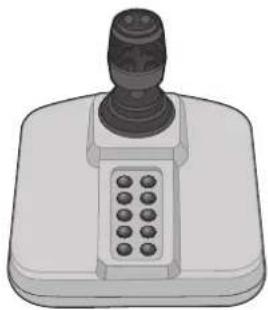
The SPC-2000 consists of a 3-axis handle for PTZ operation and 12 buttons for custom settings. The SPC-2000 helps you to control monitoring cameras more easily and accurately. It supports USB connection for convenient use in a computer environment. Connect it to the USB port on a computer that supports DirectX; you can use it immediately, without extra software installation.

Part Names & Functions
The SPC-2000 controller consists of a joystick and main unit. Pull the joystick left, right, up, or down to control the Pan and Tilt operations. To zoom in or out on the screen, rotate it. 2 buttons are on the joystick, and the remaining 10 are on the main unit. You can configure the buttons to perform functions in the pre-set settings.
natural_image
Illustration of a joystick controller with a button and keypad (no text or symbols)Pic 1. SPC-2000
Pan / Tilt / Zoom Using Joystick
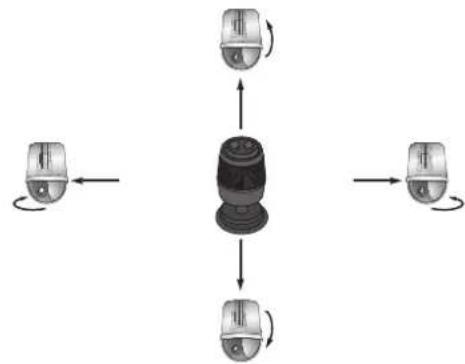
■ To pan your camera, pull the joystick left and right. To tilt, pull it up and down. The farther you move the joystick from the center, the faster the camera moves. To zoom in and out on the monitoring screen, rotate the joystick clockwise or counterclockwise. The more you rotate the joystick, the faster the zoom speed is.
flowchart
graph TD
    A["Computer Device"] --> B["Central Device"]
    B --> C["Computer Device"]
    B --> D["Computer Device"]
    B --> E["Computer Device"]
    B --> F["Computer Device"]
    style B fill:#f9f,stroke:#333,stroke-width:2px
Pic 2. Pan & Tilt Control
![[Zoom Wide Action] [Zoom Tele Action]](/content/2026/06/1258698/images/65db48437f98e1551d1b37fefcd4a559fa74bac530bf80c199d9bb99d3298483.jpg)
Pic 3. Zoom Control
System Requirements
- Windows 2000, Windows XP, Windows Vista, Windows 7
- Microsoft DirectX 7.0a or higher
- USB conversion software that detects the controller via DirectX
- 1 USB port
Installing the Controller
- Tum on your computer, and then connect the controller to the USB port.
- A window appears informing you that a new device has been detected.
- Your computer detects the controller automatically.
(If necessary, install the controller following the instructions in the installation window.) - Once the controller is detected, its name displays under the Game Controllers list in Control Panel.
[Start] → [Settings] → [Control Panel] → [Game Controllers]
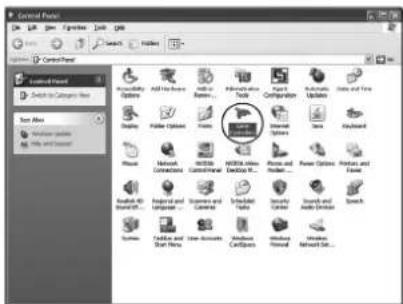
Pic 4. Control Panel
Installing the Controller
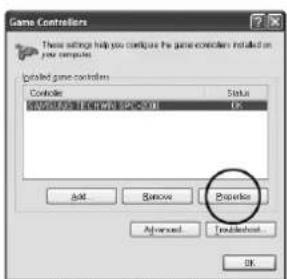
Plc 5. Game Controllers Window
Calibrating the Controller
For best results, all the axes of the controller must be calibrated.
- Go to [Start]→ [Settings] → [Control Panel] → [Game Controllers] → [Properties] → [Setup].
- Press the [Calibrate] button to run the "Device Calibration Wizard."
- Calibrate the axes following the instructions on the screen.
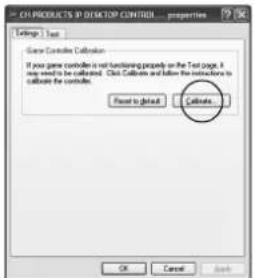
Pic 6. Controller Properties Window
Calibrating the Controller
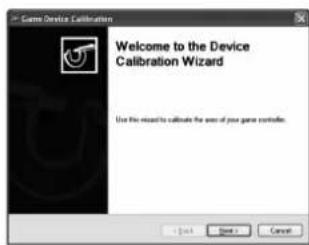
Pic 7. Device Calibration Wizard

Troubleshooting
If you experience any problem using the product, please check the following.
- If the controller does not operate properly:
- Go to [Start] → [Control Panel] → [Game Controllers], and then click the [Troubleshooting] button.
- If your computer does not detect the controller:
- Check if the operating system supports DirectX,
- Check if the computer's USB port is working properly.
- If the controller buttons are hard to press: · Check if there is anything blocking the buttons. Clean and remove any blockage.
- If the joystick is hard to move: · Check if there is anything blocking the bottom of the joystick. Clean and remove the blockage.
- If the joystick moves uncontrollably: Run the "Device Calibration Wizard".
Product Specifications
Model Name SPC-2000
| Joystick | ||
| Axis | Hall-effect 3 Axes | |
| Button | 12ca | |
| Performance | ||
| Range of Movement | X/Y-Axis | ±18° |
| Z Axis | ±40° | |
| Center | Single Spring, All Directions | |
| Minimum Power | 0.109 [N·m] | |
| Operating Power | 0.151 [N·m] | |
| Maximum Power | 0.169 [N·m] | |
| Materials | ||
| Housing | High Solidity ABS | |
| Handle | High Solidity Glass-Reinforced Nylon | |
| Cover | Thermoplastic Elastomer | |
| Knob | Stainless Steel | |
| Interface | ||
| Port | 4-pin USB Type A | |
| Software | ||
| Drivers | Standard DirectX Drivers (DirectInput) | |
| Electric Features | ||
| Operating Voltage | (DC 5 [V]), Vdd = 5 [V] (±0.5 [V]) via USB | |
| Operating Current | 32 [mA] | |
| Operating Environment | ||
| Temperature | -25°C to +70°C | |
| Miscellaneous | ||
| Power Cord Length | 2 [m] | |
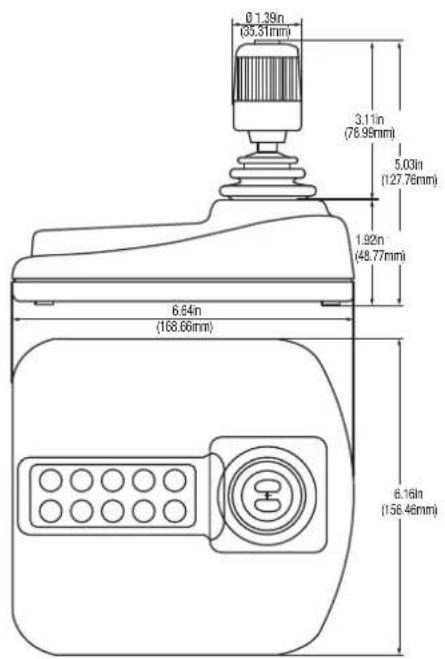
| Size | Size | 156 [mm] |
| Length | 169 [mm] | |
| Width: | 126 [mm] | |
| Weight | 440 [g] | |
| Color | Black | |

Product Design
DECLARATION OF CONFORMITY
Application of Council Directive(s) 2004 / 108 / EC
Manufacturer's Name SAMSUNGTECHWIN CO., LTD.
Manufacturer's Address SAMSUNGTECHWIN CO., LTD.
42, SUNGJU-DONG CHANGWON-CITY,
KYUNGNAM, KOREA, 641-716
European Representative Name
European Representative Address
Equipment Type/Environment Network Controller
Model Name SPC-2000
Beginning Serial NO. C5A46V3Z200001X
Year of Manufacture 2010.04.01
Conformance to EN 55022:2006
EN 50130-4:2003
We, the undersigned, hereby declare that the equipment specified above conforms to the above Directive(s).
Manufacturer SAMSUNG TECHWIN CO., LTD Legal Representative in Europe
Signature 185 Gw Signature
Full Name BONJENG GU Full Name
Position QUALITY CONTROL MANAGER Position
Place CHANGWON, KOREA Place
Date 2010.02.01 Date
MEMO
SAMSUNG TECHWIN

SALES NETWORK
• SAMSUNG TECHWIN CO., LTD.
Samsungtechwin R&D Center, 701, Sampyeong-dong, Bundang-gu, Seongnam-si, Gyeonggi-do, Korea, 463-400 TEL: +82-70-7147-8740\~60 FAX: +82-31-8018-3745
- Network Controller SPC-2000 User Guide
- License Agreement
- Limited Liability
- Warranty
- Standards-Compliance Notice
- Cautions Before Use
- Warning
- Caution
- Maintenance Instructions
- Table of Contents
- Product Features
- Part Names & Functions
- Pan / Tilt / Zoom Using Joystick
- System Requirements
- Installing the Controller
- Calibrating the Controller
- Troubleshooting
- Product Specifications
- Product Design
- DECLARATION OF CONFORMITY
- SAMSUNG TECHWIN
- SALES NETWORK
Brand : SAMSUNG
Model : SPC-2000
Category : Remote control