
P311 - Earphones ARCTIC COOLING - Free user manual and instructions
Find the device manual for free P311 ARCTIC COOLING in PDF.


User questions about P311 ARCTIC COOLING
0 question about this device. Answer the ones you know or ask your own.
Ask a new question about this device
Download the instructions for your Earphones in PDF format for free! Find your manual P311 - ARCTIC COOLING and take your electronic device back in hand. On this page are published all the documents necessary for the use of your device. P311 by ARCTIC COOLING.
USER MANUAL P311 ARCTIC COOLING
| USB charging cable P311 Protective case | User manual | ||
| User Manual |
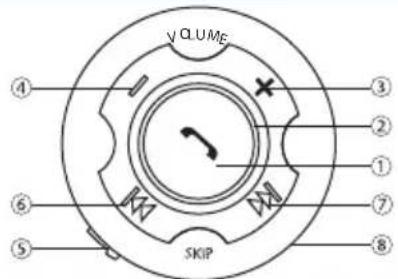
Function diagram
① Multifunction button
② LED indicator
③ Volume +
④ Volume -
⑤ Mini USB charging port
⑥ Backward
⑦ Forward
⑧ Microphone
Getting started
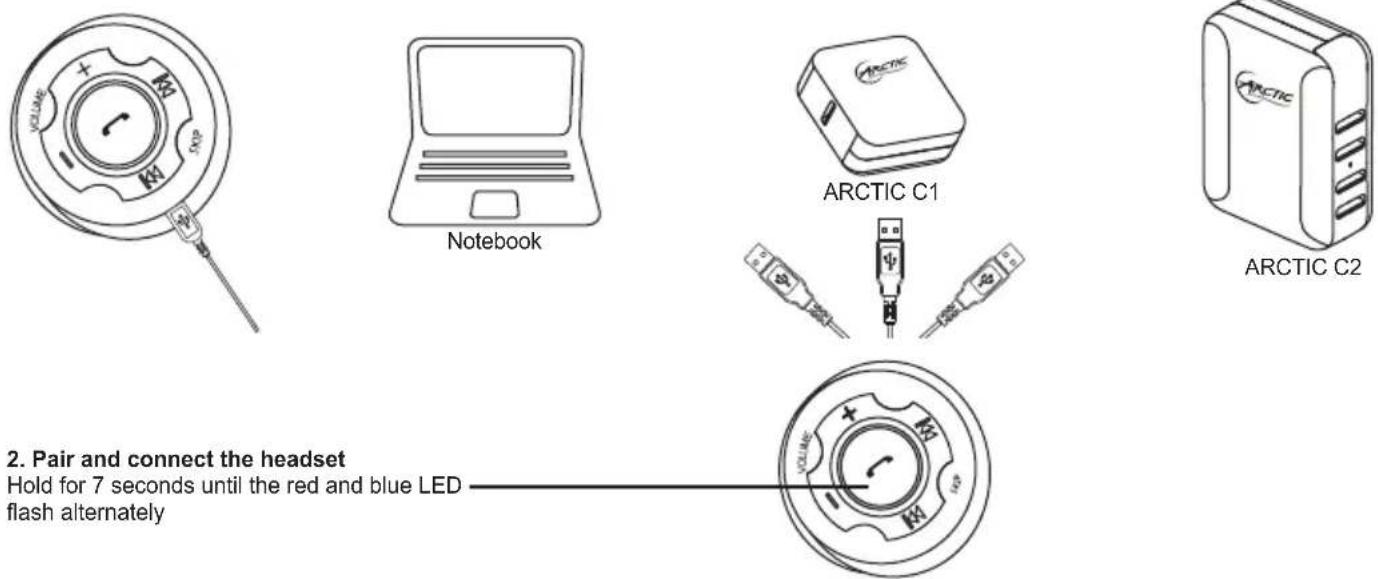
1. Charge the battery
Please make sure the battery has been fully charged and fully discharged at the first three times of use to ensure the best performance of the battery. A normal charging process takes about 2 - 3 hours.
2. Pair and connect the headset
Hold for 7 seconds until the red and blue LED flash alternately
3. Turn on Bluetooth® on your phone and pair with headset
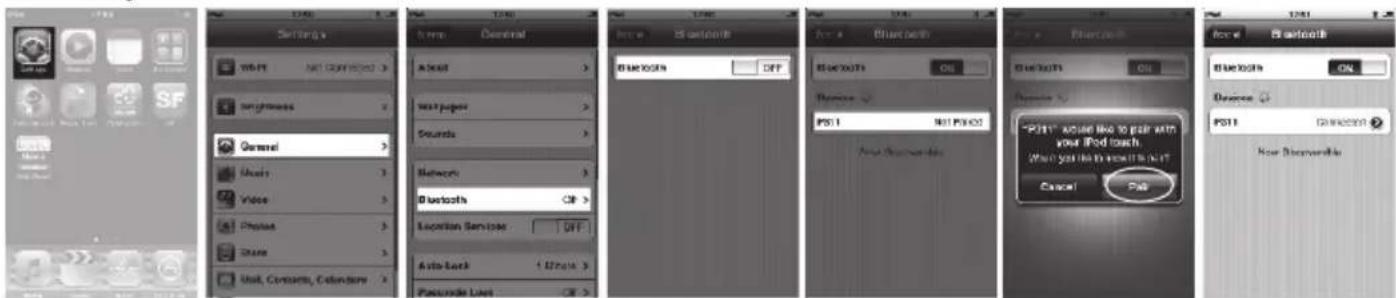
Example: iPad / iPhone / iPod Touch
Press Settings > General > Bluetooth > Bluetooth on > P311 > Pair
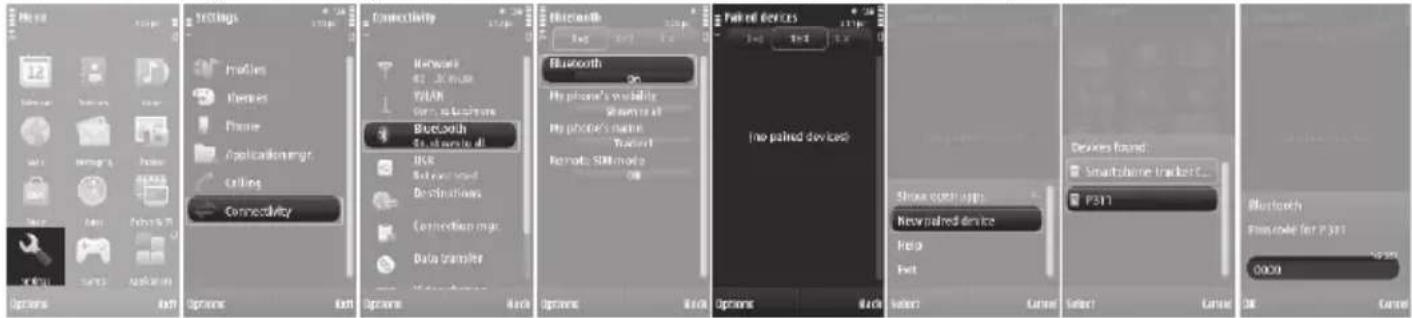
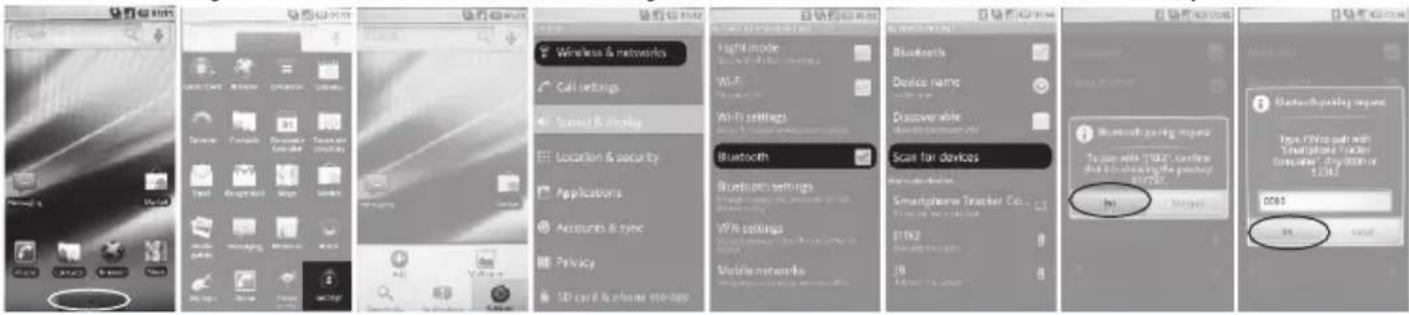
Press Menu > Settings > Connectivity > Bluetooth > Bluetooth on > Paired devices > Options > New paired device > P311 > Passcode "0000"
Example: Motorola Milestone
Press Menu > Settings > Wireless & networks > Bluetooth settings > Bluetooth on > Scan for devices > P311 > Passkey "0000"
Use P311 with Skype (Windows 7)
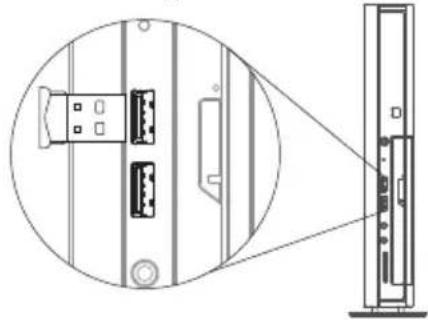
- Connect the UD1 / UD2 USB Bluetooth® Dongle (available at www.arctic.ac) to an available USB port of your computer after the installation of Bluetooth application.
natural_image
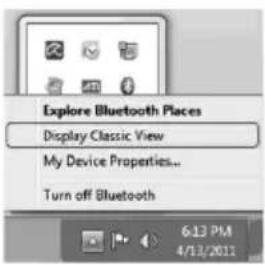
Diagram of a device rear panel with connectors and a close-up view of the front panel (no text or symbols)- To start the IVT BlueSoleil software, click the Ⓧ icon located in the system tray, select "Display Classic View" from the pop-up menu.
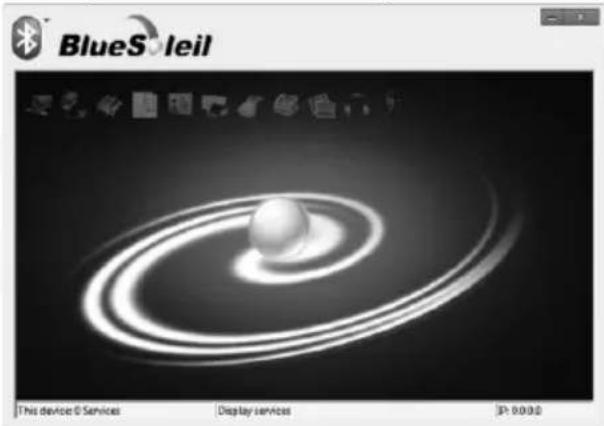
- Double click on the orange ball to start or stop searching for Bluetooth devices in range.
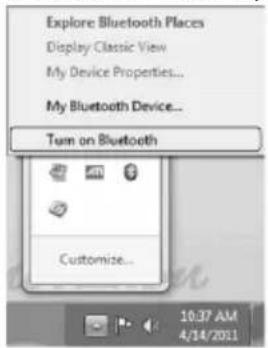
- Click on the Ⓧ icon located in the system tray and select "Turn on Bluetooth" from the pop-up menu.
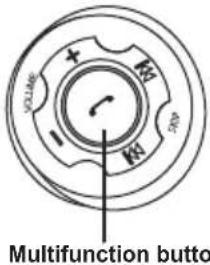
- To activate the pairing mode on your P311, hold the multifunction button for 7 seconds until the red and blue LED flash alternately.
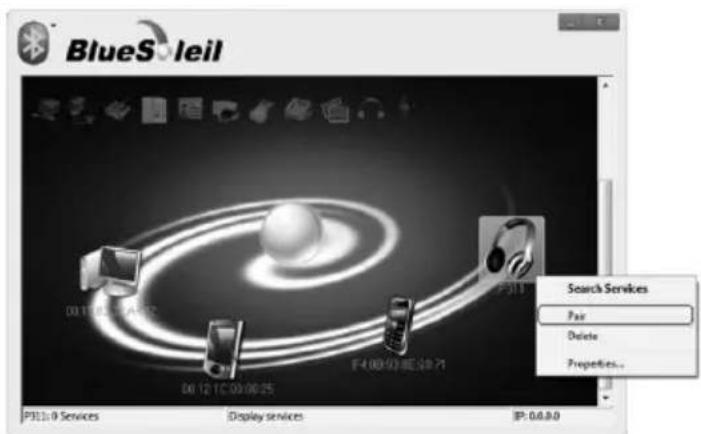
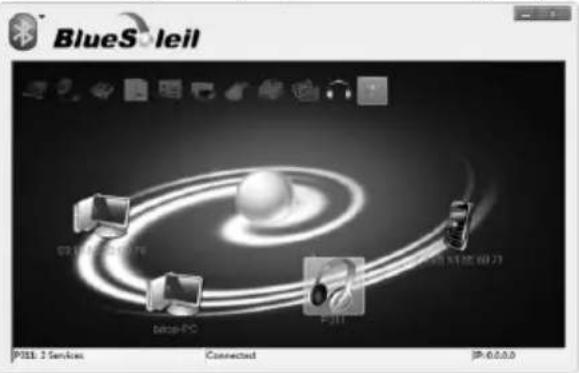
- Right click on the P311 icon and select Pair.
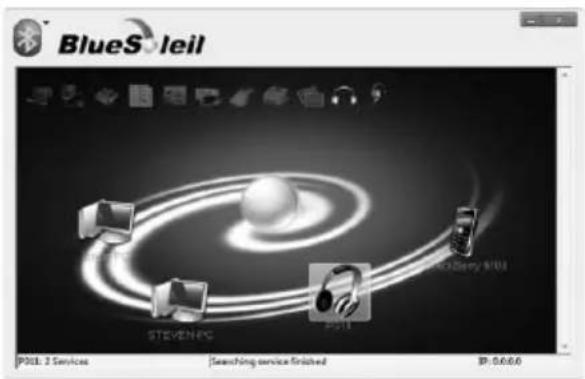
- Double click on the P311 icon to search Bluetooth services.
- Double click on the Bluetooth Headset and Microphone service icon to initiate the connection. The application will connect the headset to your PC (the 🎨 icon will become green).
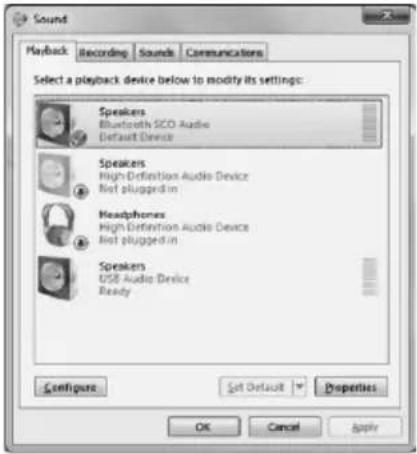
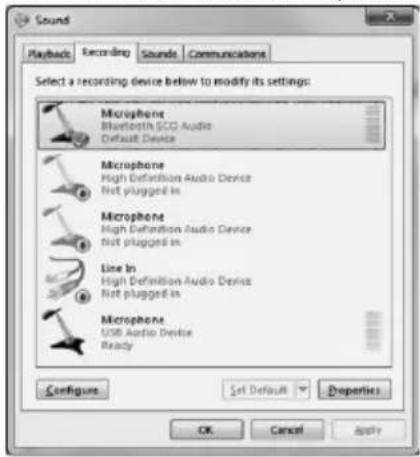
- Go to Control Panel > Hardware and Sound > Sound, and set Bluetooth SCO Audio as Default Playback and Recording Device.
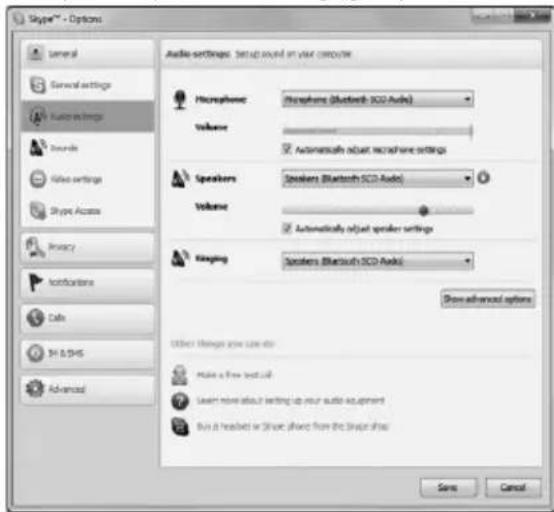
- Sign in to Skype and in the Tools menu, select Options...
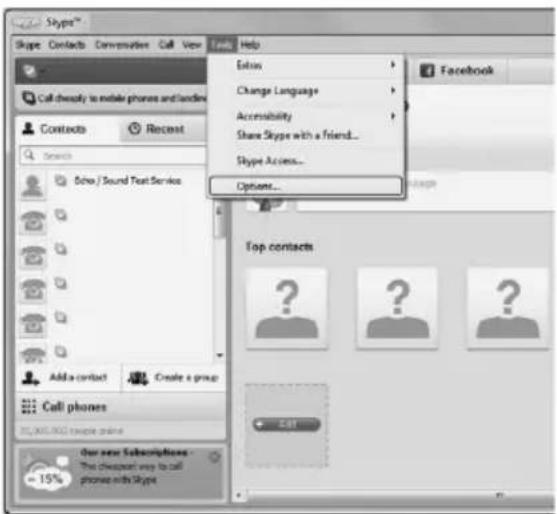
- Under Audio settings, select your Bluetooth device from Microphone, Speakers and Ringing dropdown lists.
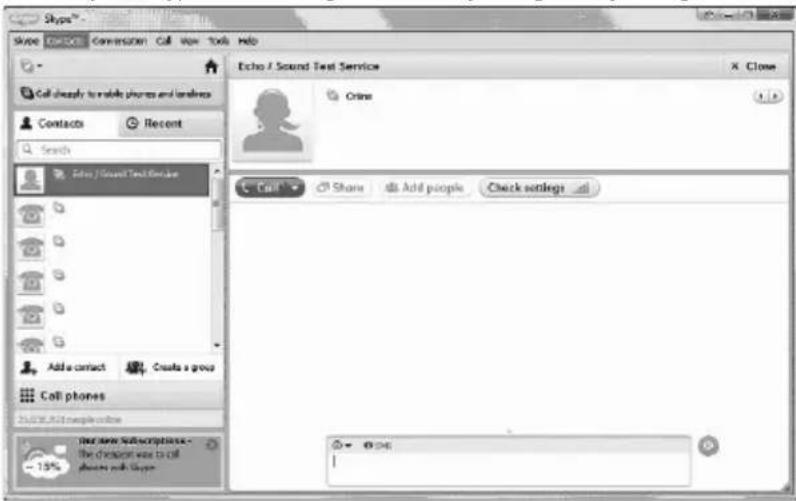
- Test your Skype audio settings are correctly configured by calling the Echo / Sound Test Service (Skype name:echo123)
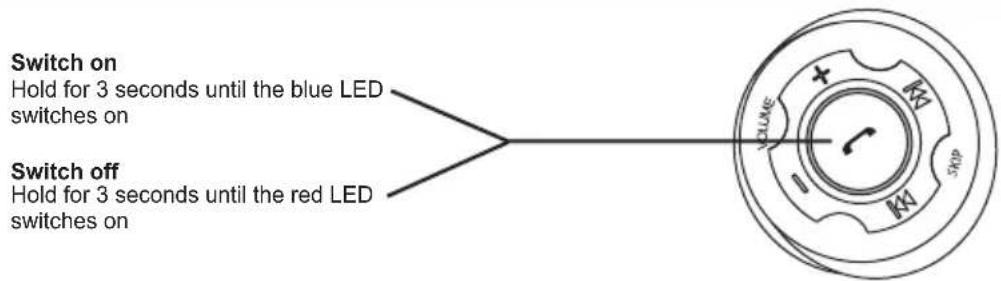
Switch the headset on or off
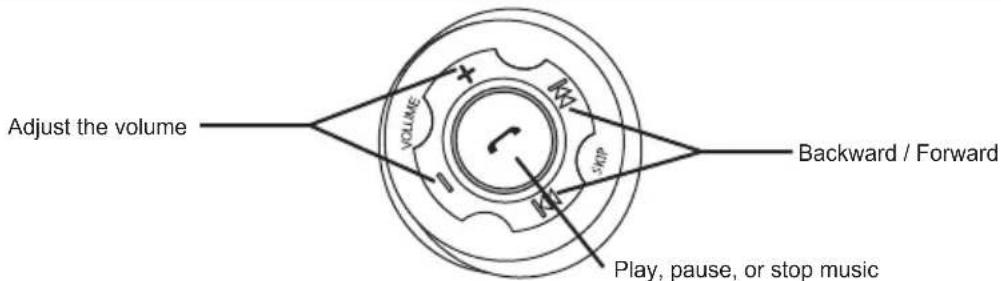
Music controls
Note: iPhone 4, iPhone 3GS, iPhone 3G, iPad, iPod touch (2nd generation), and iPod touch (4th generation) support pause, play, stop, next track and previous track for AVRCP when running the latest version of the device software.
Make and receive calls
| Function Action | |
| Make a call: Dial from your mobile phone's keypad and press “Send” or “OK”. | |
| Voice dialing: | 1) In handsfree state, enable voice recognition function of your mobile phone.2) Double press the multifunction button until you hear a beep prompt.3) Say the name of the person you wish to call loudly. |
| Answer a call: | Press once. |
| End a call: | Press once. |
| Refuse a call: | Press and hold for 2 seconds. |
| Redial the last dialed number: | Press and hold for 2 seconds. |
| Switch the call between mobile phone and headset: | In call state, press and hold for 2 seconds. |
LED indicators
| Status | Indication |
| Charging | Red LED on |
| Battery full | Red LED off |
| On | Blue LED flashes once every 7 seconds |
| Paring mode | Red and blue LED will flash alternately |
| Low battery | Red LED flashes every 30 seconds / acoustic signal |
Precautions
1) Avoid extreme volume. Long term exposure to loud music may cause hearing damage.
2) The radio waves emitted by the headset and wireless transmitter can affect the operation of nearby electronics including medical devices.
3) Keep the unit in a cool, dry place.
Warranty
This ARCTIC product includes a 2-year limited warranty. For further information, please consult warranty.arctic.ac
Brand : ARCTIC COOLING
Model : P311
Category : Earphones