
P533 Racing - Fan ARCTIC COOLING - Free user manual and instructions
Find the device manual for free P533 Racing ARCTIC COOLING in PDF.


| Product Type | Over-ear Gaming Headset |
| Brand | ARCTIC |
| Model | P533 Racing |
| Wearing Style | Circumaural, over-ear |
| Frequency Response | 20Hz – 20kHz |
| Impedance | 16 Ω |
| Sensitivity | 95dB +/- 3dB at 1kHz |
| Microphone Sensitivity | -40 +/- 3dB |
| Cable Length | 1.2 m (3.5mm plug) + 2.5 m extension cable |
| Weight | 365 g |
| Compatibility | PC, PS4, Xbox One (with adapter), Smartphones/Tablets (TRRS) |
| Connector Type | 3.5mm TRRS |
| Sidetone | Yes (configurable via Windows) |
| Warranty | 2 years limited |
| Package Contents | Headset, Extension cable, Travel case, Welcome guide |
| Certifications | CE, WEEE, RoHS |
Frequently Asked Questions - P533 Racing ARCTIC COOLING
User questions about P533 Racing ARCTIC COOLING
0 question about this device. Answer the ones you know or ask your own.
Ask a new question about this device
Download the instructions for your Fan in PDF format for free! Find your manual P533 Racing - ARCTIC COOLING and take your electronic device back in hand. On this page are published all the documents necessary for the use of your device. P533 Racing by ARCTIC COOLING.
USER MANUAL P533 Racing ARCTIC COOLING
Thank you for choosing the ARCTIC P533, authentic gaming headphones with crisp and clear sound.
In order to assist you even better, we launched a support platform for Smartphones (support.arctic.ac).
I hope you enjoy the P533 and we at ARCTIC look forward to further enriching your life with our products. If you would like to share how you use ARCTIC's products please do so at https://www.facebook.com/ARCTIC.en
ARCTIC is a fully carbon neutral company and your support helps us to compensate every kilogram of CO_2 we produce. Thank You.
Sincerely,
Magnus Huber
ARCTIC CEO
Packaging Contents
P533 x 1
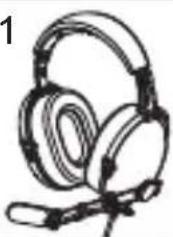
natural_image
Illustration of a pair of headphones with earbuds and headsets (no text or symbols)Extension cable x 1
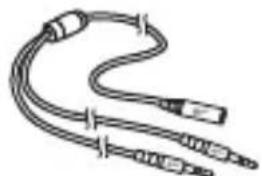
natural_image
Line drawing of a coiled electrical connector with multiple leads and connectors (no text or symbols)Travel case x 1
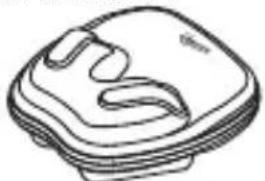
natural_image
Line drawing of a mechanical component or device with no visible text or symbolsWelcome guide x 1

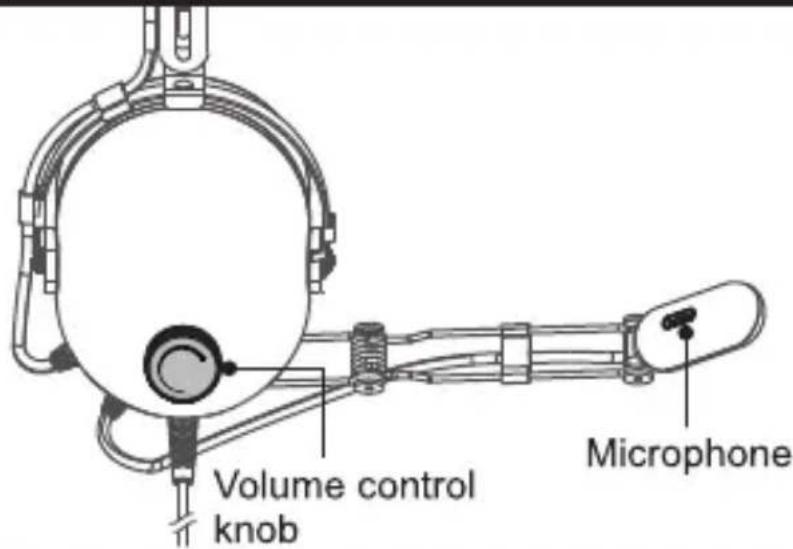
Headphone controls
How to wear the headset
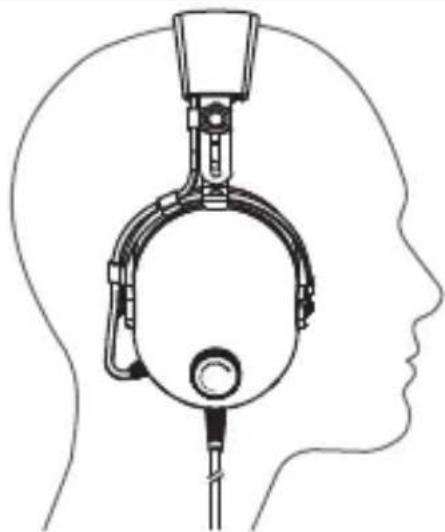
natural_image
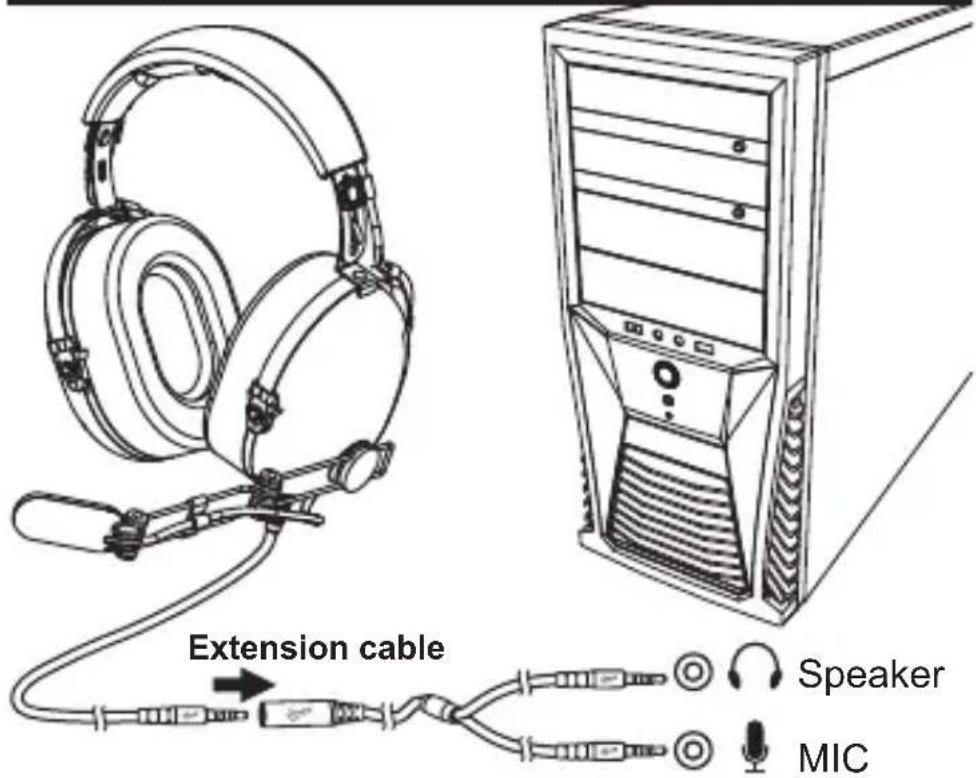
Diagram of a human head silhouette with a medical device attached, showing anatomical structure without any text or symbols.Using your P533 with computer
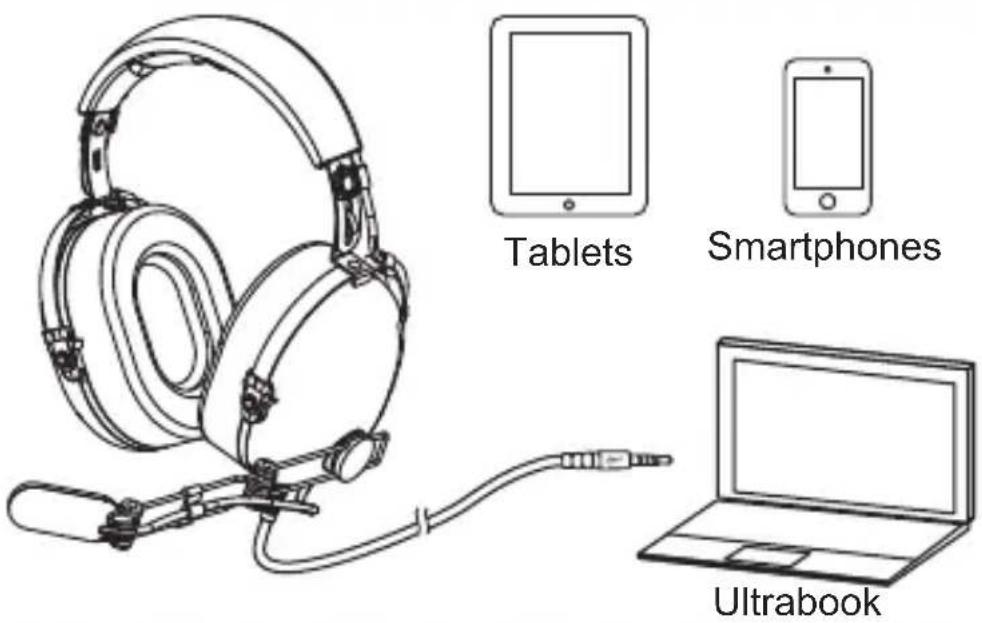
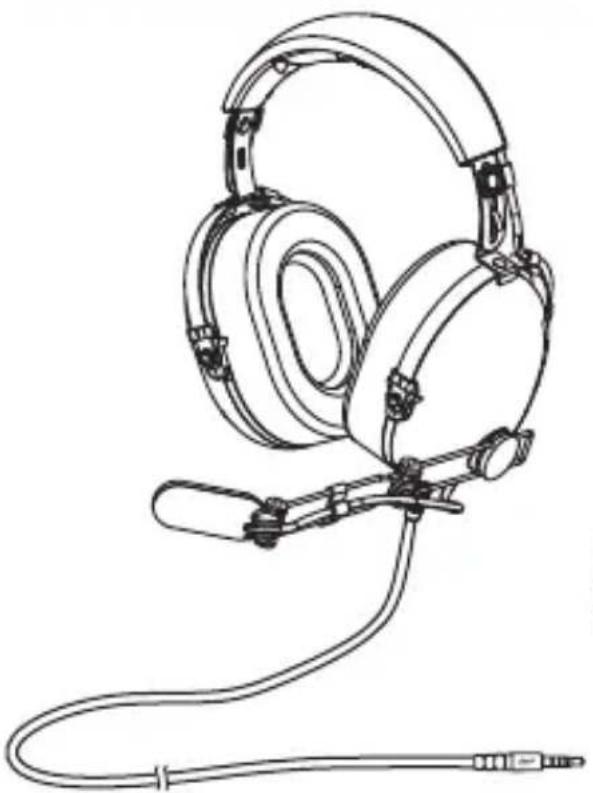
Using your P533 with smartphones / tablets / ultrabook
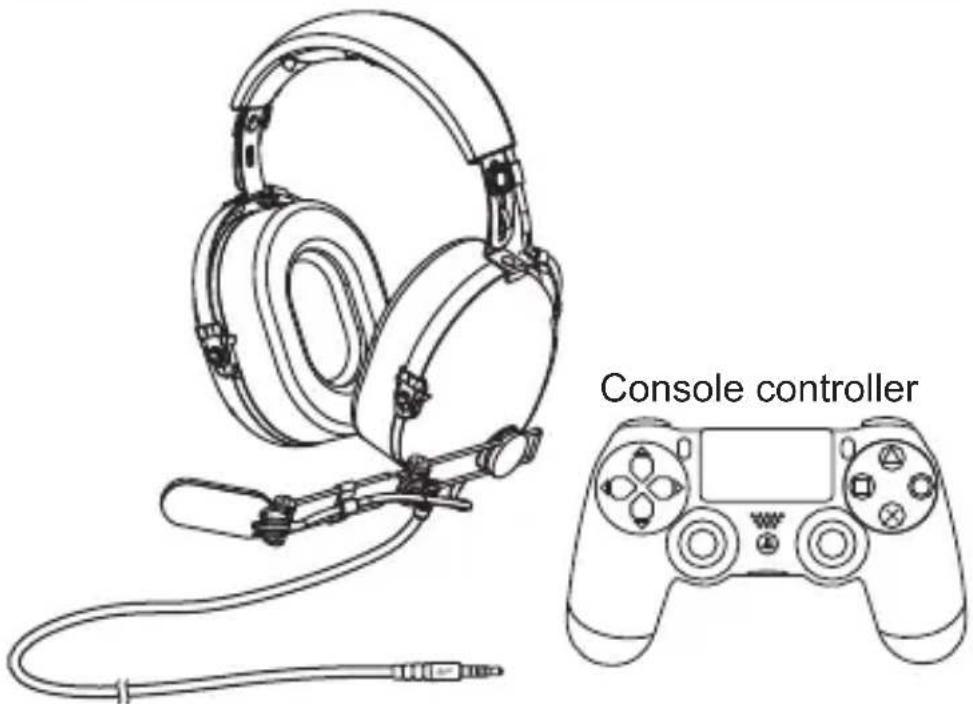
Using your P533 with PS4
-
Connect the P533 to console controller and switch on PS4. Choose the user account that you use the P533 with
-
Choose Settings > Sound and Screen > Audio Output Settings
Primary output port: DIGITAL OUT (OPTICAL)
Output to headphones: all audio
Audio format (Priority): bitstream (Dolby)
- Choose Settings > Devices> Audio Devices > Headset and Headphones
Volume control (Headphones): set to suitable volume
natural_image
Line drawing of a headset with attached microphone and cable (no text or symbols)Console controller
natural_image
Line drawing of a game controller with a small boat below (no text or symbols)Xbox One stereo headset adapter
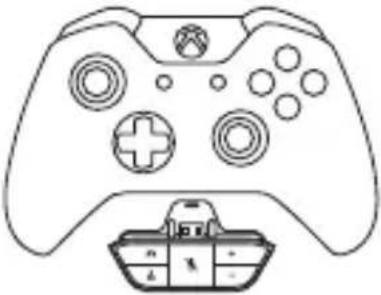
- Follow the steps at Update your Xbox One Controller to use the Stereo Headset Adapter to make sure the controller is ready to work with the stereo headset adapter (Please refer to the official Xbox website).
- Insert the stereo headset adapter into the bottom of the controller.
- Insert the 3.5mm audio plug of P533 into the bottom of the headset adapter.
- Game / Chat balance: adjust the mix of game audio versus chat audio. At default, the mix is 50/50, but you can adjust it to anywhere from 100/0 to 0/100.
- Mute: mutes your chat audio so other users can't hear you. It doesn't mute game / music / app audio. This button has an orange LED to indicate when you are muted. The LED lights up only if a headset is plugged into the adapter.
- Volume: control all audio coming to your headset, including game and chat audio. If you don't want to increase both game and chat audio at the same rate, adjust the game / chat audio balance
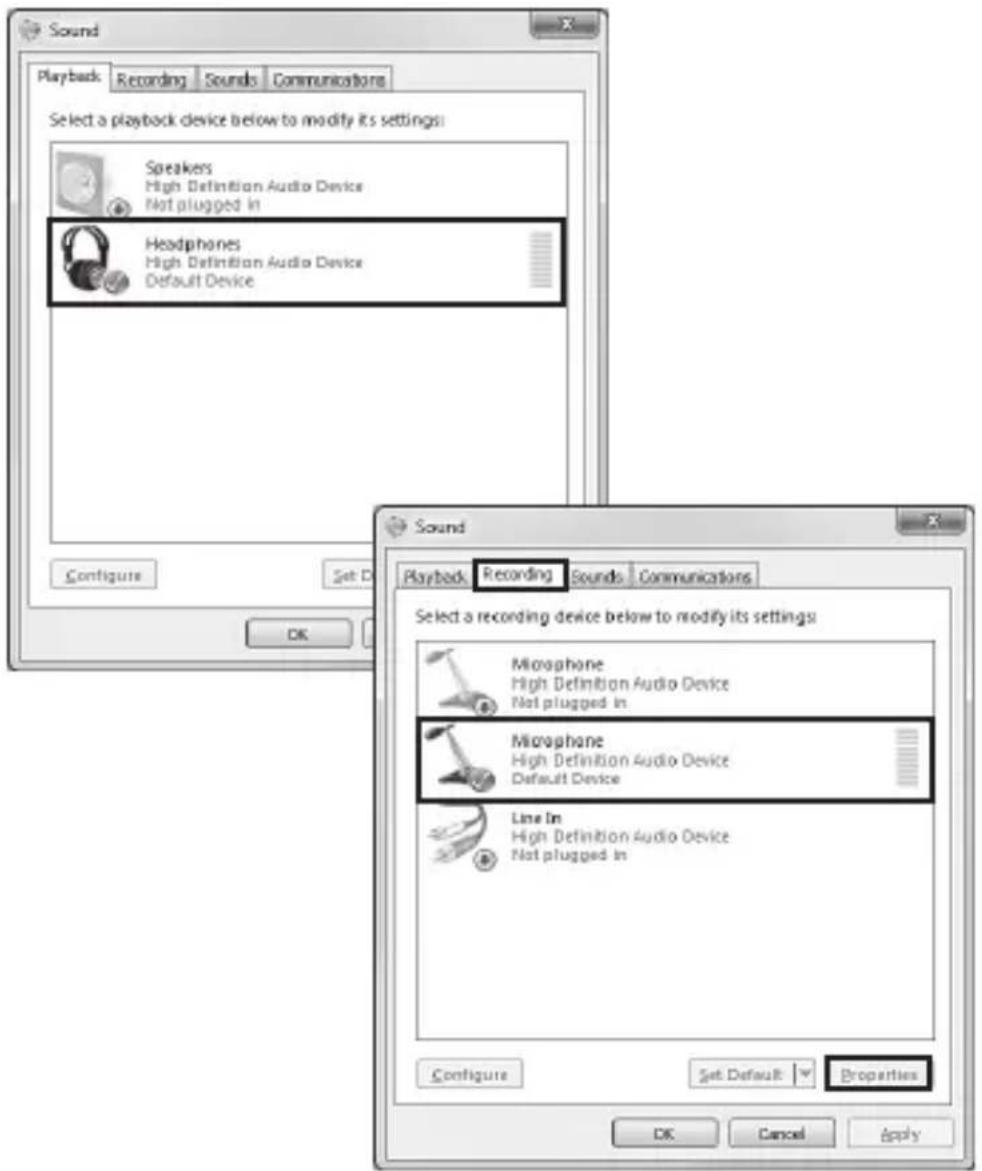
Set sidetone on Window 7 / 8.1 / 10
If you would like to hear yourself, please activate the sidetone.
- Right click on the 🔊 in the notification area on the windows taskbar and select Playback devices (instructions vary depending on your control panel view).
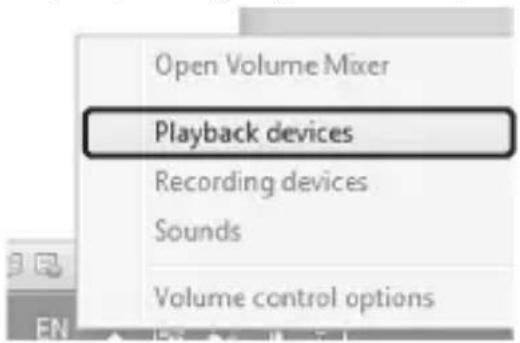
- Set Headphones (High Definition Audio Device) as default device in Playback tab if not yet done.
Click the Recording tab. Then select Microphone (High Definition Audio Device), and then click the Properties.
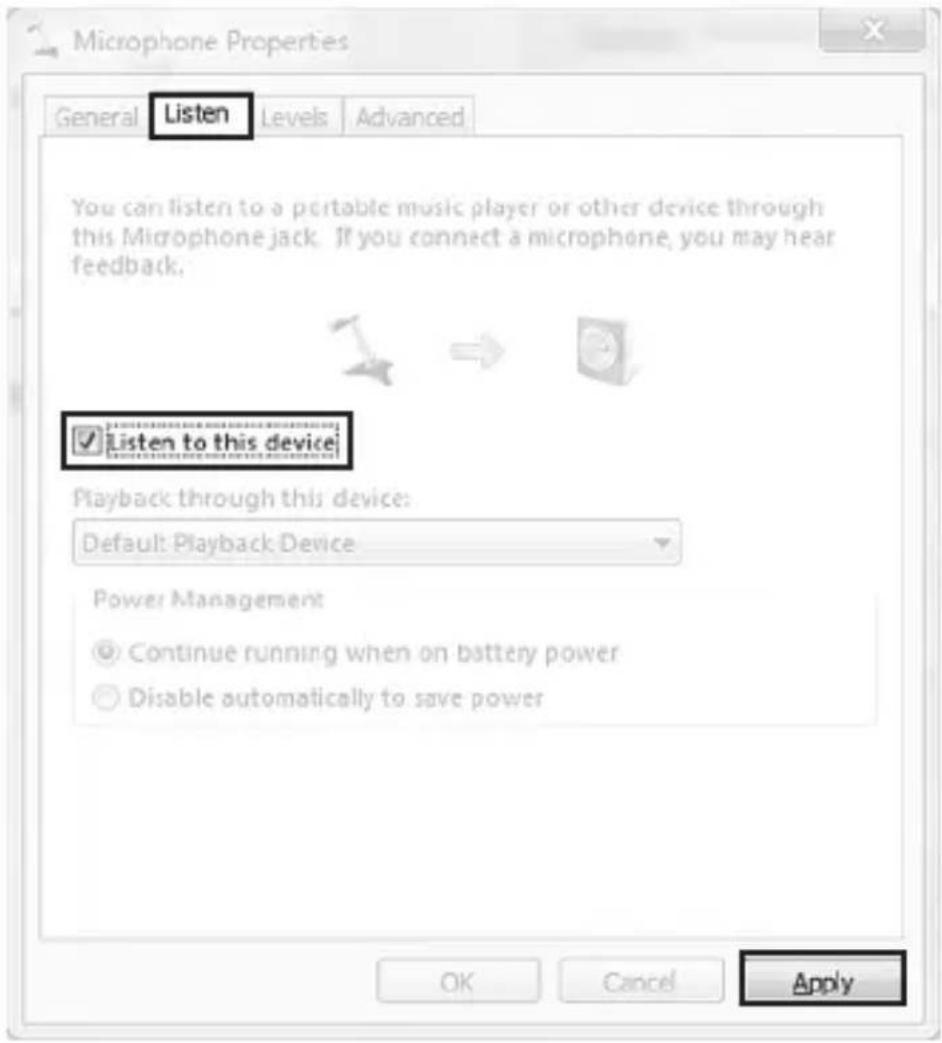
- The transmit properties window appears and click the Listen tab. Then click the Listen to this device check box and click Apply.
Cautions
Listening to music at high volume for long periods can lead to hearing problems. We do not recommend using these headphones at maximum volume, particularly for long periods of time.
| Specifications | |
| Wearing Style | Circumaural, over-ear |
| Frequency Response | 20Hz – 20kHz |
| Impedance | 16 Ω |
| Sensitivity | 95dB +/- 3dB at 1kHz |
| Microphone Sensitivity | -40 +/- 3dB |
| Cable Length | 1.2 m with a 3.5 mm plug cable2.5 m extension cable |
| Weight | 365 g |

The P533 may not be compatible to old smartphones / tablets that did not follow the TRRS audio jack standard, e.g. Samsung Galaxy S and
Samsung Galaxy S PRO. Samsung smartphones follow the TRRS audio jack standard from Samsung Galaxy S3 onwards.
Please contact us directly at eng@support.arctic.ac if your headphone does not work properly with an old smartphone.
Warranty
This ARCTIC product includes a two-year limited warranty.
For please visit http://warranty.arctic.ac




EC Declaration of Conformity
ARCTIC declares under its sole responsibility that this product is compliant with the provisions of the electromagnetic compatibility directive (2004/108/EC) and the Restriction of the use of certain hazardous substances directive (2011/65/EU). A detailed Declaration of Conformity is available at http://p533.arctic.ac#support
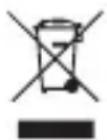
Directive 2002/96/EC about Waste of Electrical and Electronic Equipment (WEEE)
Waste of Electrical and Electronic Equipment must not be disposed of with domestic waste.
If the device cannot be used anymore, the user is legally obliged to separate it from domestic waste and hand it over to a designated collection point of his community/district.
Thereby it is guaranteed that the Waste of Electrical and Electronic Equipment is recycled properly and negative impacts for the environment are avoided.
Therefore, electronic devices are marked by this sign.
ARCTIC and the ARCTIC logo are registered trademarks of Boost Up International Limited.
© 2015 ARCTIC (HK) Ltd. All rights reserved.
No part of this manual including the products described in it, may be reproduced, transmitted, stored in a retrieval system, or translated into any language in any form or by any means, except documentation kept by the purchaser for backup purpose, without the express written permission of ARCTIC (HK) Ltd. In no event shall ARCTIC, its directors or employees be liable for any indirect damages, incidental or consequential damages arising from any defect or error in this manual or product.
- Packaging Contents
- Using your P533 with smartphones / tablets / ultrabook
- Using your P533 with PS4
- Set sidetone on Window 7 / 8.1 / 10
- Cautions
- Warranty
- EC Declaration of Conformity
- Directive 2002/96/EC about Waste of Electrical and Electronic Equipment (WEEE)
- © 2015 ARCTIC (HK) Ltd. All rights reserved.
Brand : ARCTIC COOLING
Model : P533 Racing
Category : Fan