
DM-3, DM-5, DM-650, DM-670 - Voice Recorders OLYMPUS - Free user manual and instructions
Find the device manual for free DM-3, DM-5, DM-650, DM-670 OLYMPUS in PDF.


| Product type | Digital voice recorder |
| Brand | OLYMPUS |
| Models | DM-3, DM-5, DM-650, DM-670 |
| Dimensions (W x D x H) | 113.6 mm x 45.6 mm x 15.2 mm (without protrusions) |
| Weight | 98 g (with battery) |
| Power supply | Rechargeable lithium-ion battery (LI-50B) or AC adapter (A515, 5V) |
| Internal memory | DM-5: 8 GB; DM-3: 4 GB |
| External memory | microSD / microSDHC card (512 MB to 16 GB) |
| Recording formats | Linear PCM (WAV), MP3, WMA |
| Playback formats | WAV, MP3, WMA |
| Built-in speaker | 23 mm round dynamic speaker |
| Display | 2.2-inch color TFT LCD |
| Microphone | Built-in stereo microphone + external microphone jack (3.5 mm mini-jack) |
| Main functions | Recording, playback, search by date/keyword, index marks, A-B repeat, voice control (DM-5), alarm, timer, noise reduction, voice filter |
| Connectivity | USB 2.0 (charging and data transfer), earphone jack (3.5 mm mini-jack) |
| Battery life (Li-ion) | Approx. 13 h (PCM 48 kHz recording) to 29 h (WMA LP recording) |
| Operating temperature | 0 °C to 42 °C |
| Maintenance and cleaning | Clean with a soft, dry cloth; do not use organic solvents |
| Safety | Do not use near flammable gases; keep out of reach of children; avoid shocks and moisture |
| Spare parts and accessories | LI-50B battery, A515 AC adapter, USB cable, external microphones (ME30W, ME31, ME52W, ME15, TP7), RS30W remote control, KA333 connection cable |
| General information | Free user manual downloadable in PDF format; technical support available |
Frequently Asked Questions - DM-3, DM-5, DM-650, DM-670 OLYMPUS
User questions about DM-3, DM-5, DM-650, DM-670 OLYMPUS
0 question about this device. Answer the ones you know or ask your own.
Ask a new question about this device
Download the instructions for your Voice Recorders in PDF format for free! Find your manual DM-3, DM-5, DM-650, DM-670 - OLYMPUS and take your electronic device back in hand. On this page are published all the documents necessary for the use of your device. DM-3, DM-5, DM-650, DM-670 by OLYMPUS.
USER MANUAL DM-3, DM-5, DM-650, DM-670 OLYMPUS
DETAILED INSTRUCTIONS
Thank you for purchasing an Olympus Digital Voice Recorder. Please read these instructions for information about using the product correctly and safely. Keep the instructions handy for future reference.
To ensure successful recordings, we recommend that you test the record function and volume before use.
Introduction
- The contents of this document may be changed in the future without advanced notice. Contact our Customer Support Center for the latest information relating to product names and model numbers.
- The screen and recorder illustrations shown in this manual were produced during the development stages and may differ from the actual product. The utmost care has been taken to ensure the integrity of the contents of this document. In the unlikely event that a questionable item, error, or omission is found, please contact our Customer Support Center.
- Any liability for passive damages or damage of any kind occurred due to data loss incurred by a defect of the product, repair performed by the third party other than Olympus or an Olympus authorized service station, or any other reason is excluded.
Trademarks and registered trademarks
- IBM and PC/AT are the trademarks or registered trademarks of International Business Machines Corporation.
- Microsoft, Windows and Windows Media are registered trademarks of Microsoft Corporation.
- Macintosh and iTunes are the trademarks of Apple Inc.
- microSD and microSDHC are the trademarks of SD Card Association.
- MPEG Layer-3 audio coding technology licensed from Fraunhofer IIS and Thomson.
- EUPHONY MOBILE™ is a trademark of DiMAGIC Corporation.
- DVM™ is a trademark of DiMAGIC Corporation.
- The product was developed based on noise-canceling technology under license from NEC Corporation.
- Nuance, the Nuance logo, RealSpeak and VoCon are trademarks or registered trademarks of Nuance Communications, Inc. or its subsidiaries in the United States and/or other countries.
- The Daisy OK mark is a trademark of the Daisy Consortium.
Other product and brand names mentioned herein may be the trademarks or registered trademarks of their respective owners.

DVM



EUPHONY MOBILE


| Table of contents | P.4 |
| Safety precautions | P.7 |
| Getting started | P.12 |
| Basic operations | P.39 |
| Menu setting | P.65 |
| Using the Olympus Sonority | P.109 |
| About Windows Media Player | P.138 |
| About iTunes | P.150 |
| Other features | P.154 |
| Other information | P.167 |
Introduction
INDEX 3
Safety precautions 7
Caution for usage environment 7
Handling the recorder 8
Battery handling precautions. 9
AC adapter 10
LCD monitor. 11
1 Getting started
Main features. 12
Identification of parts. 15
[Home] menu display. 16
[Recorder] mode display 17
[Music] [Podcast] mode display 18
[Audiobooks] mode display. 19
[Audio Diary] mode display. 20
Power supply 21
Inserting the battery. 21
Charge the battery 22
Charging by connecting to a computer via USB 23
Connect to the USB connecting AC adapter (optional) to charge. 24
Turning on/off the power 26
HOLD 27
Setting time and date [Time & Date]..... 28
Changing the time and date. 29
Inserting and ejecting a microSD card.....30
Inserting a microSD card 30
Ejecting a microSD card. 31
Notes on the folders 32
About the folders for voice recordings. 32
About the folder for music playback 33
About the folder for Podcast contents. 34
About the folder for electronic book contents and text files. 35
About the folder for Audible contents. 37
About the folder for picture 38
2 Basic operations
Recording 39
Recording to a recording folder 39
Specifying a keyword before recording.....40
Recommended settings by recording condition. 43
Recording from external microphone or other devices 44
Playback 46
Bookmark mode 49
Setting an index mark. 51
Clearing an index mark 51
How to begin segment repeat playback.....52
File search. 53
Opening the file search display from the [Recorder] folder. 53
File search display operations of the [Recorder] folder. 54
Opening the file search display from the [Music] folder. 56
File search display operations of the [Music] folder. 57
Erasing 60
Erasing from the file display 60
Erasing from the file list display. 61
Erasing all files in a folder 62
Erasing a folder 63
Partially erase a file 64
3 Menu setting
Menu setting method.. 65
Making settings from [Preferences] on the [Home] screen 65
Performing menu settings during recording, playback, and stop modes....66
Rec Menu 67
Play Menu 71
LCD/Sound Menu. 74
File Menu. 75
IT System Menu. 76
Setting the recording scene [Rec Scene].....80
Timer recording [Timer Rec] 81
Setting the playback scene [Play Scene].....84
Guidance [Voice Guide] 85
Alarm playback function [Alarm] 87
Moving/Copying files [File Move/Copy].....91
Dividing files [File Divide] 93
Formatting the recorder [Format] 94
Schedule settings [Audio Diary] 96
Displaying the calendar 96
Switching the calendar display. 96
Operations at the calendar display 97
Add a schedule 97
Editing the schedule. 100
Deleting a schedule. 101
Formating the schedule. 102
Viewing images (For DM-5) 103
Importing images 103
Viewing images. 104
Erasing a images 105
Using voice recognition (For DM-5) 107
Using voice control 107
Using voice commands. 108
4 Using the Olympus Sonority
Saving files in your PC............109
Operating environment. 110
Connecting to your PC. 111
Connecting to your PC. 111
Disconnecting from your PC............112
Functions available in
the Olympus Sonority 113
Installing software 115
Uninstalling software 117
Using online help 118
Running Olympus Sonority 119
Window names (Olympus Sonority) 120
Download voice files from the recorder....122
Play a voice file 124
Using the waveform editing function ....125
Using the one-touch effect function.....125
Upload voice files to the recorder. 126
About Podcast 127
Register a podcast program. 127
Update a program 128
Download the content 129
Transfer content to the recorder 130
Program guide functions 131
About DAISY (For DM-5) 132
Importing contents 133
Playing contents. 134
Transfer content to the recorder 135
Upgrade function 136
Functions available in the Olympus Sonority Plus 137
Functions available with the music editing plug-in. 137
5 About Windows Media Player
Using Windows Media Player 138
Window names 138
Copying music from CD 139
Transferring music file to the recorder.....141
Copying voice file to the CD. 144
Creating a playlist (For DM-5) 146
6 About iTunes
UsingiTunes. 150
Window names 150
Copying music from CD 151
Transferring music file to the recorder.....152
Copying voice file to the CD. 153
7 Other features
Playing songs in a particular order.....154
Creating a playlist 154
About Audio Books 157
Transfer content to the recorder 157
About Text Speech (For DM-5) 158
Transfer text file to the recorder 158
Loading Audible content 159
Installing AudibleManager 159
Adding device to AudibleManager 160
Purchasing Audible content 160
Transferring Audible content. 161
Enjoy Audible content with
the recorder 162
Audible mode. 162
Playback position and section. 163
Operating recorder in Audible mode 164
Using as external memory of the PC.....166
8 Other information
Alarm message list. 167
Troubleshooting. 168
Accessories (optional) 170
Specifications 171
Technical assistance and support. 174
Before using your new recorder, read this manual carefully to ensure that you know how to operate it safely and correctly. Keep this manual in an easily accessible location for future reference.
- The warning symbols indicate important safety related information. To protect yourself and others from personal injury or damage to property, it is essential that you always read the warnings and information provided.

Danger
If the product is used without observing the information given under this symbol, serious injury or death may result.

Warning
If the product is used without observing the information given under this symbol, injury or death may result.

Caution
If the product is used without observing the information given under this symbol, minor personal injury, damage to the equipment, or loss of valuable data may result.
Caution for usage environment
-
To protect the high-precision technology contained in this product, never leave the recorder in the places listed below, no matter if in use or storage:
-
Places where temperatures and/or humidity are high or go through extreme changes. Direct sunlight, beaches, locked cars, or near other heat sources (stove, radiator, etc.) or humidifiers.
In sandy or dusty environments.
Near flammable items or explosives. -
In wet places, such as bathrooms or in the rain. When using products with weatherproof designs, read their manuals as well.
In places prone to strong vibrations. -
Never drop the recorder or subject it to severe shocks or vibrations.
- The recorder may malfunction if it is used in a location where it is subject to a magnetic/electromagnetic field, radio waves, or high voltage, such as near a TV set, microwave, video game, loud speakers, large monitor unit, TV/radio tower, or transmission towers. In such cases, turn the recorder off and on again before further operation.
-
Avoid recording or playing back near cellular phones or other wireless equipment, as they may cause interference and noise. If you experience noise, move to another place, or move the recorder further away from such equipment.
-
Do not use organic solvents such as alcohol and lacquer thinner to clean the unit.
Recorded content in memory may be destroyed or erased by operating mistakes, unit malfunction, or during repair work.
It is recommended to back up and save important content to other media such as a computer hard disk.
Any liability for passive damages or damage of any kind occurred due to data loss incurred by a defect of the product, repair performed by the third party other than Olympus or an Olympus authorized service station, or any other reasons is excluded from the Olympus's liability.
Handling the recorder

Warning:
- Do not use the recorder near flammable or explosive gases.
- Keep young children and infants away from the recorder.
Always use and store the recorder out of the reach of young children and infants to prevent the following dangerous situations which could cause serious injury:
① Becoming entangled in the recorder strap, causing strangulation.
② Accidentally swallowing the battery, cards or other small parts.
③ Accidentally being injured by the moving parts of the recorder.
- Do not use or store the recorder in dusty or humid places.
-
Do not disassemble, repair or modify the unit yourself.
-
Use microSD/microSDHC memory cards only. Never use other types of cards.
If you accidentally insert another type of card into the recorder, contact an authorized distributor or service center. Do not try to remove the card by force. - Do not operate the unit while operating a vehicle (such as a bicycle, motorcycle, or go-cart).
Caution:
- Stop using the recorder immediately if you notice any unusual odors, noise, or smoke around it.
Never remove the batteries with bare hands, which may cause a fire or burn your hands.
- Be careful with the strap.
Be careful with the strap when you carry the recorder. It could easily catch on stray objects and cause serious damage.
- Do not leave the recorder in places where it may be subject to extremely high temperatures.
Doing so may cause parts to deteriorate and, in some circumstances, cause the recorder to catch fire. Do not use the charger or AC adapter if it is covered (such as a blanket). This could cause overheating, resulting in fire.
-
Handle the recorder with care to avoid getting a low-temperature burn.
-
When the recorder contains metal parts, overheating can result in a low-temperature burn. Pay attention to the following:
-
When used for a long period, the recorder will get hot. If you hold on to the recorder in this state, a low-temperature burn may be caused.
-
In places subject to extremely cold temperatures, the temperature of the recorder's body may be lower than the environmental temperature. If possible, wear gloves when handling the recorder in cold temperatures.
-
Do not touch the metallic parts of the recorder for a long period of time at low temperatures.
This may damage your skin. At low temperatures, handle the recorder while wearing gloves.
Battery handling precautions
Follow these important guidelines to prevent batteries from leaking, overheating, burning, exploding, or causing electrical shocks or burns.

Danger:
- The recorder uses a lithium ion battery specified by Olympus. Charge the battery with the specified AC adapter or charger. Do not use any other AC adapters or chargers.
- Batteries should never be exposed to flame, heated, short-circuited or disassembled.
- Never heat or incinerate batteries.
Take precautions when carrying or storing batteries to prevent them from coming into contact with any metal objects such as jewelry, pins, fasteners, etc. -
Never store batteries where they will be exposed to direct sunlight, or subjected to high temperatures in a hot vehicle, near a heat source, etc.
-
To prevent causing battery leaks or damaging their terminals, carefully follow all instructions regarding the use of batteries. Never attempt to disassemble a battery or modify it in any way, solder, etc.
- Do not connect the battery directly to a power outlet or a cigarette lighter of an automobile.
If battery fluid gets into your eyes, flush your eyes immediately with clear, cold running water and seek medical attention immediately.
Warning:
- Keep batteries dry at all times.
- If rechargeable batteries have not been recharged within the specified time, stop charging them and do not use them.
- Do not use a battery if it is cracked or broken.
- Never subject batteries to strong shocks or continuous vibration.
If a battery leaks, becomes discolored or deformed, or becomes abnormal in any other way during operation, stop using the recorder. - If a battery leaks fluid onto your clothing or skin, remove the clothing and flush the affected area with clean, running cold water immediately. If the fluid burns your skin, seek medical attention immediately.
-
Keep battery out of the reach of children.
-
If you notice anything unusual when using this product such as abnormal noise, heat, smoke, or a burning odor:
① remove the battery immediately while being careful not to burn yourself, and;
② call your dealer or local Olympus representative for service.

Caution:
- Please recycle batteries to help save our planet's resources. When you throw away dead batteries, be sure to cover their terminals and always observe local laws and regulations.
Always charge a battery when using it for the first time, or if it has not been used for a long period. - Rechargeable battery have limited lifetime. When the operating time becomes shorter even if the rechargeable battery is fully charged under the specified condition, replace it with a new one.
- The battery may become hot during prolonged use. To avoid minor burns, do not remove it immediately after using the recorder.
ACadapter

Danger:
- Be sure to use the AC adapter with the proper voltage (AC 100 - 240 V). Using it with other voltage levels may cause fire, explosion, overheating, electric shock or injury.
- For safety, be sure to unplug the AC adapter from the outlet before performing maintenance or cleaning. Also, never plug in or disconnect the power plug with a wet hand. This may cause electric shock or injury.

Warning:
- Do not attempt to disassemble, repair or modify the AC adapter in any way.
- Keep foreign objects including water, metal, or flammable substances from getting inside the product.
- Do not moisten the AC adapter or touch it with a wet hand.
- Do not use the AC adapter in the vicinity of flammable gas (including gasoline, benzine and lacquer thinner).
In case
...the internal parts of the AC adapter are exposed because it has been dropped or otherwise damaged:
... the AC adapter is dropped in water, or if water, metal flammable substances or other foreign objects get inside it:
... you notice anything unusual when using the AC adapter such as abnormal noise, heat, smoke, or a burning odor:
① do not touch any of the exposed parts;
② immediately disconnect the power supply plug from the power outlet, and;
③ call your dealer or local Olympus representative for servicing. Continued use of the AC adapter under these circumstances could result in electric shock, fire or injury.
Caution:
- Do not use the AC adapter if the power plug is damaged or the plug is not completely connected to the outlet. This may cause fire, overheating, electric shock, short circuit or damage.
- Unplug the AC adapter from AC outlet when not using. If this precaution is not followed, fire, overheating or electric shock may occur.
- Make sure to hold the plug when removing the power plug from the outlet. Do not bend the cord excessively or put a heavy object on it. This may cause fire, overheating, electric shock or damage.
-
If something appears to be wrong with the AC adapter, unplug the AC adapter from the outlet and consult your nearest service center. Using the AC adapter may cause fire, overheating, electric shock or injury.
-
Do not use or keep the AC adapter in very hot places, such as in direct sunlight, in a closed car on a sunny day, near a heater, on an electric carpet, etc. Do not use the AC adapter if something is covering it (such as a blanket). This may cause fire, explosion, leakage or overheating.
LCD monitor
- The LCD used for the monitor is made with high-precision technology. However, black spots or bright spots of light may appear constantly on the LCD Monitor. Due to its characteristics or the angle at which you are viewing the monitor, the spot may not be uniform in color and brightness. This is not a malfunction.
Main features
This recorder can tag recorded files or files transferred from a personal computer with keywords to manage a file database (P.75). It is possible to search for files by file date or keyword (P.53).
It features a scheduling function (P.96).
The settings and functions of this recorder can be controlled using speech recognition (P.107) (For DM-5).
- By connecting a digital camera, you can import and view images (€ P.103) (For DM-5).
This recorder can import text data and read it aloud (P.158) (For DM-5).
Supports the linear PCM format, which is capable of recording sound quality equivalent to or surpassing CD-level.
Capable of realistically recording various different sound sources.High resolution recording at a high sampling frequency equivalent or superior to that of a music CD (Sampling frequency 44.1kHz Bit count 16bit) is possible (eP.67).
Supports a wide range of recording formats. Can handle the MP3 format (MPEG-1 Audio Layer 3), and the Windows Media Audio (WMA) format (P.67).
This device can save files in a highly compressed manner, thereby allowing for extended recording times. In addition, when connected to an external device, the recorder can encode incoming analog audio signals without a PC (eP P45).
Supports high capacity recording media.
Besides the 8GB (DM-5) or 4GB (DM-3) built-in memory, you can also record onto a commercially-available microSD card (€3 P.30).
- You can playback WAV, WMA, and MP3 format files transferred from a computer in addition to files recorded by the device itself.
You can enjoy music at any time.
It has a built-in Variable Control Voice Actuator (VCVA) function (eP.69).
The Low Cut Filter minimizes air conditioner noise and other similar noises while recording (P.69).
The recording level can be adjusted automatically or manually (P.67).
A Noise Cancel function (P.71) and a Voice Filter function (P.71) cut noise and enable clear audio playback.
For WMA-format recording, you can select one of 6 recording modes such as stereo or monaural (P.67).
- Has built in recording scene setting (P.81) and playback scene setting (P.85) functions to register the recording or playback sound quality or mode according to different usages.
- You can move or copy files between the built-in memory and microSD card, and within the folders in the memory (P.91).
- You can divide files (vP.93), or delete part of a file (vP.64) recorded in PCM format in this recorder.
It has a 2.2 inch TFT color LCD panel (P.15).
It features various repeat functions (P.72, P.73). - Index mark features allow you to quickly find desired locations (P.51).
The playback speed can be controlled as preferred (P.73).
The guidance feature (in English and other languages) gives audio notification of operating conditions. Various functions can be operated easily. There is also a function to read file information aloud (P.85) (For DM-5). - You may assign your own names to folders (P.70).
- Timer recording ( ) P.81) and Alarm playback features ( ) P.87) enable automatic recording and playing at a set time.
A directional microphone feature has been included that allows switching between broad stereo recording and recording with a highly directional quality (P.68).
EUPHONY MOBILE has been included to produce a natural, realistic experience without degrading sound quality (P.71).
- Fast forward and rewind are possible at set intervals (P.73).
- Comes with "Olympus Sonority" software for Windows and Macintosh (E® P.109).
If you transfer voice files recorded with the recorder to a PC, you can easily playback, organize, and edit the files. You can perform waveform editing, file joining, and file splitting.
- The "Olympus Sonority" can be upgraded to a "Olympus Sonority", which is equipped with enhanced functionality (Option) (E & P.136).
In addition to the "Olympus Sonority" functions, editing of MP3 files and creation of music CDs can be performed.
- This recorder is compatible with USB 2.0, enabling fast data transfer to a computer.
It has a USB charging function (P.23).
It is compatible with DAISY (P.132) (For DM-5).
DAISY files can be transferred from the "Olympus Sonority" software and played from this recorder.
It is compatible with Audio Book (P.157).
It is compatible with Podcasting (P.127).
If favorite Podcast URLs are registered in the "Olympus Sonority", the latest broadcasting content will be received automatically. Open the [Podcast] folder on the recorder to quickly listen to the program (file) transferred from the "Olympus Sonority".
- Compatible with Audible broadcasting (E & P.159).
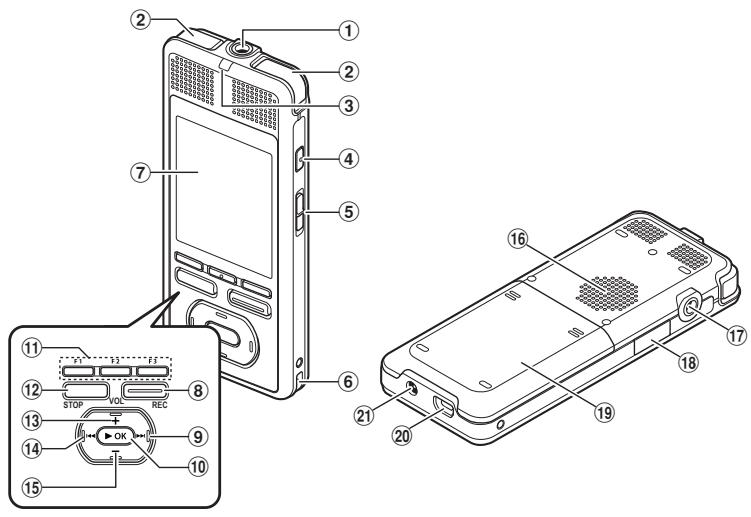
① MIC (Microphone) jack
② Built-in stereo microphone
③ LED indicator light
④ VOICE button (For DM-5) HOME button (For DM-3)
⑤ POWER/HOLD switch
⑥ Strap hole
⑦ Display(LCD Panel)
REC (Record) button
9▶l button
10 OK button (Play/Set)
1 Fn button (F1/F2/F3)
STOP button
13 + button
14 button
15 - button
⑥ Built-in speaker
⑰ EAR (Earphone) jack
18 Card cover
19 Battery cover
20 USB connector
② Power jack
[Home] menu display
When the power is turned on, the [Home] menu is displayed. The [Home] menu provides links to various functions. For more details about these functions, refer to their respective page numbers below.
![OLYMPUS DM-3, DM-5, DM-650, DM-670 - [Home] menu display - 1](/content/2025/01/125284/images/0b0e0284a4d3e24b86237e6a2068963b685f5cacc7d41f2e68a2fc4bb0bea338.jpg)
| Menu | Function |
| Recorder | Records files to one of five voice recording folders (Folder A through Folder E) (€3 P.39). Recorded files can be tagged with keywords so that the files can be managed in a database (€3 P.75). |
| Music | Manages music files imported from music software such as Windows Media Player and iTunes. This recorder can be used as a music player (€3 P.138, P.150). |
| Podcast | Manages podcasts transferred to this recorder using the supplied “Olympus Sonority” software (€3 P.127). |
| Audiobooks | Manages DAISY books (€3 P.132) (For DM-5) and Audio Books (€3 P.157) transferred to this recorder using the supplied “Olympus Sonority” software. Also manages text files (€3 P.158) (For DM-5) directly transferred to this recorder. |
| Picture | You can import images by connecting a digital camera to this recorder (€3 P.103) (For DM-5). |
| Audio Diary | Registers and manages schedules (€3 P.96). |
| Preferences | Sets various functions of the recorder. |
[Recorder] mode display
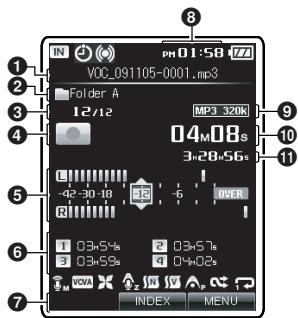
Recording display
Playback display
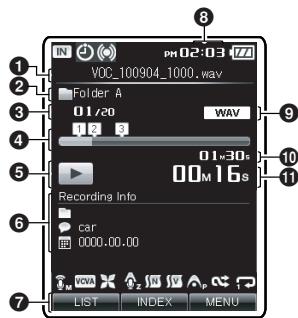
1 File name
2 Folder name
3 Current file number/ Total number of recorded files in the list
4 Recorder status indicator
Level meter
6 Index indicator
Function guide indicator
Current time
Recording mode indicator
10 Elapsed recording time
1 Remaining recording time
1 File name
2 Folder name/Keyword/Date
Current file number/Total number of recorded files in the list
4Playback position bar indicator
Recorder status indicator
Index indicator/File information indicator
Function guide indicator
Current time
9 File format
10 File length
1 Elapsed playback time
Icon display (For all modes)

Memory indicator

Timer indicator

Alarm indicator

Battery indicator

Microphone Sensitivity indicator

VCVA indicator

Low Cut Filter indicator

Zoom Mic indicator

Noise Cancel indicator

Voice Filter indicator

EUPHONY indicator

Repeat indicator

Random indicator
[Music] [Podcast] mode display
Music playback display
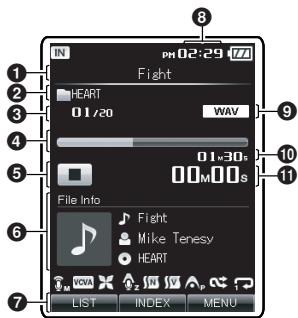
Podcast playback display
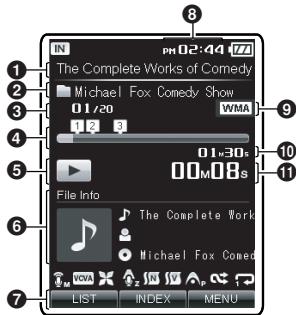
1 File name
Search category
3 Current file number/ Total number of recorded files in the list
4 Playback position bar indicator
Recorder status indicator
Information display area
Function guide indicator
Current time
9 File format
10 File length
1 Elapsed playback time
1 File name
2 Program name
3 Current file number/ Total number of recorded files in the folder
4Playback position bar indicator
Recorder status indicator
Information display area
Function guide indicator
Current time
9 File format
10 File length
1 Elapsed playback time
[Audiobooks] mode display
DAISY playback display (For DM-5)
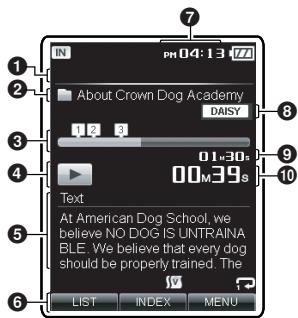
Audio book playback display
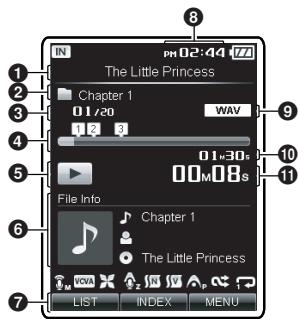
Table of contents indicator
Contents name
③Playback position bar indicator
4 Recorder status indicator
Text display area
Function guide indicator
Current time
8 File format
9 File length
10 Elapsed playback time
1 File name
2 Contents name
Current file number/Total number of recorded files in the folder
4Playback position bar indicator
Recorder status indicator
Information display area
7 Function guide indicator
Current time
9 File format
10 File length
11 Elapsed playback time
[Audiobooks] mode display
Text playback display (For DM-5)
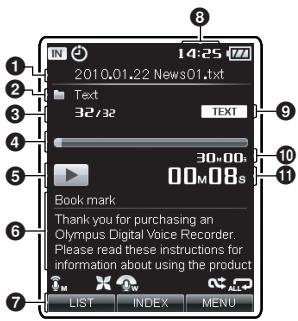
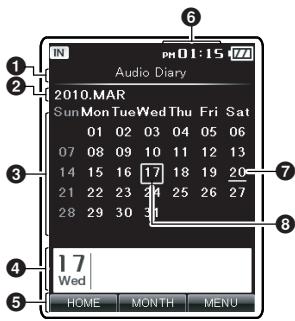
[Audio Diary] mode display
Calendar display
1 File name
2 Folder name
Current file number/Total number of recorded files in the folder
4Playback position bar indicator
Recorder status indicator
Text display area
7 Function guide indicator
Current time
9 File format
10 File length
1 Elapsed playback time
1 Title indicator
Year and month
Calendar display area
Schedule display area for selected day
Function guide indicator
Current time
7 Current day
Day registered in schedule
Inserting the battery
This recorder uses a lithium ion battery specified by Olympus (LI-50B). Do not use any other type of battery.
While pushing down on the grooves using both thumbs, slide the battery cover in the direction indicated by the arrow.
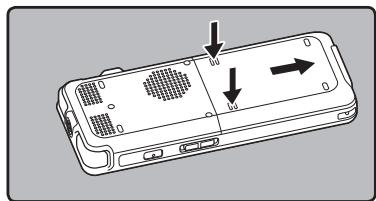
2 With the back label of the battery facing up, line up the terminals of the recorder and battery. Insert the battery by sliding in direction A while pushing down in direction B.
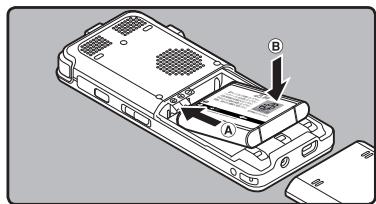
- Be careful of the direction of the battery when inserting it.
- The supplied rechargeable battery is not fully charged. Before using the unit the first time or after long periods of disuse, it is recommended that you charge it until full (e ^- P.22).
3 Close the battery cover by sliding all the way in direction B while pushing down in direction A.
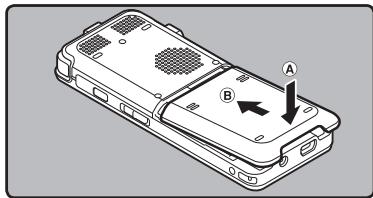
Notes
- Be sure to stop the recorder before replacing the battery. Unloading the battery while the recorder is in use may corrupt the file. If you are recording into a file and the battery runs out, you will lose your currently recorded file because the file header will not be able to close. It is crucial to change the battery once you see only one Hash mark in the battery indicator.
- The battery cover is not attached at the time of purchase.
-
Do not use too much force when inserting the battery. Use only the method listed above to install and remove the battery. Otherwise, damage may occur.
-
If it takes longer than 15 minute to replace the dead battery or if you take the battery in and out repeatedly at short intervals, you may have to reset the time when you have loaded fresh batteries (€30 P.28).
- Remove the battery if you are not going to use the recorder for an extended period of time.
- When playing a voice/music file, the recorder may be reset due to the reduction of the voltage output of the battery depending on the volume level even if [174] is displayed in the battery indicator. In this case, lower the volume of the recorder.
- When replacing rechargeable battery, be sure to use lithium ion battery (LI-50B) specified by Olympus. The use of other manufacturers' products can damage the recorder and should be avoided.
Charge the battery

Lithium ion battery is self-discharging. After unpacking this product, charge the supplied lithium ion battery before using the recorder for the first time.
Charging using AC adapter
The included AC adapter (A515) can be connected to this recorder for charging. We recommend using the AC adapter when recording or operating the recorder for long periods.
1 Connect the AC adapter in to an AC outlet.
2 Connect the AC adapter to the recorder.
- Charging has started when LED indicator light is orange and the battery indicator on the display changes to the charging indicator.
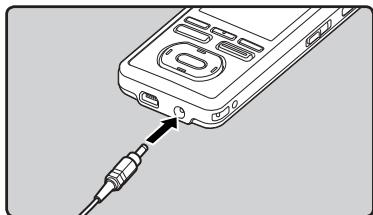
Notes
- Do not put in or take out the battery or AC adapter when the recorder power is on or when this recorder is connected to another device. It may cause problems with the values and functions set in the recorder.
- The charger can be used within the range of AC 100 V to AC 240 V (50/60 Hz). When using the charger abroad, you may need a plug adapter to convert the plug to the shape of the AC wall outlet. For details, ask at your local electrical shop or travel agent.
- Do not use travel voltage converters as they could damage your charger.
Charging by connecting to a computer via USB
You can charge the battery by connecting to a PC's USB port. When charging, be sure to correctly place the rechargeable battery (supplied) into the recorder (P.21).
1 Boot the PC.
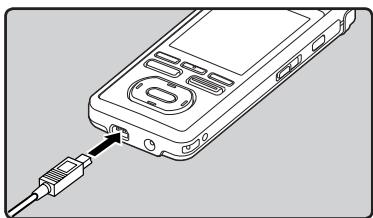
2 Connect the USB connection cable to the USB port of the PC.
3 While the recorder is during stop mode or hold mode, connect the USB cable to the connecting terminal on the bottom of this recorder.
- Charging has started when LED indicator light is orange and the battery indicator on the display changes to the charging indicator.
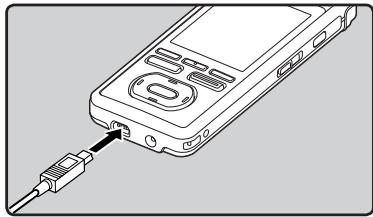
Connect to the USB connecting AC adapter (optional) to charge
It can be charged by connecting to the USB connecting AC adapter (A514) (optional). Before connecting the AC adapter, switch the USB Connection setting to [AC] (P.77).
Plug the AC adapter into AC outlet.
Plug the recorder's USB connecting cable into the AC adapter.
3 Make sure that the recorder is turned off, connect the USB cable to the connecting terminal on the bottom of this recorder.
- Charging has started when LED indicator light is orange and the battery indicator on the display changes to the charging indicator.
Notes
- The recorder cannot be charged when the PC is not turned on. Also, it may not be charged when the PC is not switched on, or when it is in the standby, hibernate or sleep mode.
- Do not charge the recorder with the USB hub connected.
-
Charging is completed when battery indication becomes [F] (charging time: approximately 3 hours *).
-
It shows the approximate time when charging the rechargeable battery fully from no remaining power at the room temperature. The charging time will be changed depending on the remaining amount and the state of battery.
-
You cannot charge when [0]^1 or [1]^2 is displayed. Charge the battery at the temperature from 5^ to 35^ ( 41^ to 95^ ).
1 [G]: When surrounding temperature is low.
2 [1]: When surrounding temperature is high.
- When using time becomes notably short even after the battery are fully charged, replace them with new ones.
- Be sure to push the USB connector all the way in. Otherwise, the recorder may not operate properly.
- Be sure to use the attached dedicated cable for the USB connection cable. If any other company's cable is used, it may cause problems. Also, please do not connect this dedicated cable to any other company's product.
Battery indicator
The battery indicator on the display changes as the battery loses power.

- When [4] appears on the display, replace the battery as soon as possible. When the battery is too weak, [1] and [Battery Low] appears on the display, the recorder shuts down.
While charging, the battery indicator constantly changes and does not show the actual amount of power remaining.
Cautions concerning the rechargeable batteries
Read the following descriptions carefully when you use the lithium ion battery (LI-50B).
Discharging:
The rechargeable batteries self-discharge while this is not in use. Be sure to charge them regularly before use.
Operating temperature:
The rechargeable batteries are chemical products. The rechargeable batteries efficiency may fluctuate even when operating within the recommended temperature range. This is an inherent nature of such products.
Recommended temperature range:
When operating appliance:
0^ - 42^ / 32^ - 107.6^
Charging:
5^ - 35^ / 41^ - 95^
Storage for a long period:
-20°C - 30°C / -4°F - 86°F
Using the rechargeable battery outside the above temperature range may result in declining efficiency and shorter battery life. In order to prevent battery leakage or rust, remove the rechargeable battery from the products when you will not be using them for a long time, and store them separately.
Notes
- This recorder is designed to fully charge batteries regardless of their energy level. However, for best results when charging newly purchased rechargeable batteries or batteries that have not been used for a long time (more than one month), it is recommended to fully charge the batteries then discharge repeatedly for 2 to 3 times.
- When disposing rechargeable batteries, always observe the local laws and regulations. Contact your local recycling center for proper disposal methods.
- If lithium ion batteries are not fully discharged, protect against short-circuiting (e.g. by taping the contacts) before disposing.
For customers in Germany:
Olympus has a contract with the GRS (Joint Battery Disposal Association) in Germany to ensure environmentally friendly disposal.
Turning on/off the power
When the recorder is not being used, turn the power off to reduce battery consumption to a minimum. Even if the power is turned off, existing data, mode settings, and clock settings will be maintained.
Turning on the power
While the recorder is turned off, slide the POWER/HOLD switch in the direction indicated by the arrow for 2 seconds or longer.
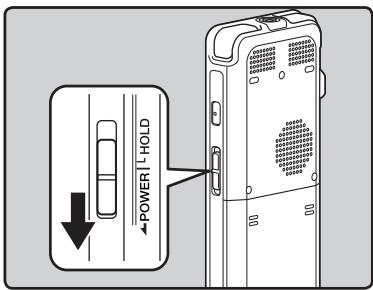
- The LED light will light up then power will be turned on and the display will turn on showing the OLYMPUS logo.
Turning off the power
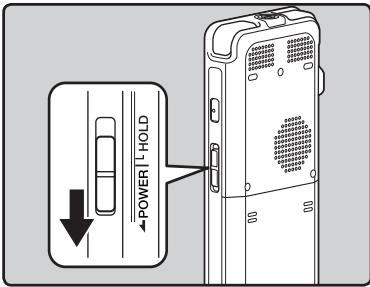
Slide the POWER/HOLD switch in the direction indicated by the arrow for 1 seconds or longer.
- The display shuts off, and the power will be turned off.
Auto Power off mode
If the recorder is on and stops for 10 minutes or longer (default setting), the recorder enters Auto Power off mode and turns off the power. You can set the time to enter power save mode from among [5minutes], [10minutes], [30minutes], [1hour], [2hour], [3hour] and [Off] (P.77).
To exit Auto Power off mode, turn on the power again.
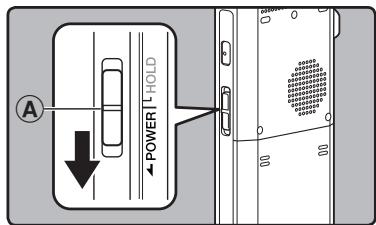
If you bring the POWER/HOLD switch to the HOLD position, the current conditions will be preserved, and all buttons and switches will be disabled. This feature is useful when the recorder has to be carried in a bag or pocket. Also, you can stop to prevent accident during recording.
Set the recorder to HOLD mode
Slide the POWER/HOLD switch to the HOLD position.
- After [Hold] appears on the display, the recorder is set to HOLD mode.
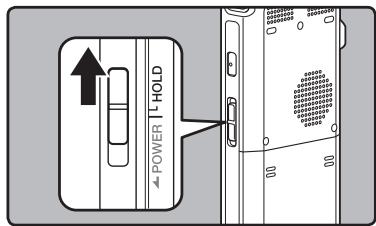
Exit HOLD mode
Slide the POWER/HOLD switch to the A position.
Notes
- If you press any button in Hold mode, the LED indicator light flashes blue but no operation is performed.
- If HOLD is applied during playback (recording), operation is disabled with the playback (recording) state unchanged (When playback has ended and the recording has ended due to the remaining memory being used up, it will stop).
Setting time and date [Time & Date]
If you set the time and date beforehand, the information when the file is recorded is automatically stored for each file. Setting the time and date beforehand enables easier file management.
![OLYMPUS DM-3, DM-5, DM-650, DM-670 - Setting time and date [Time & Date] - 1](/content/2025/01/125284/images/cc7018cb1924b0a253ddf7a9afb291749a4b7cd55b4965ff41c3d89ad0f7ec7b.jpg)
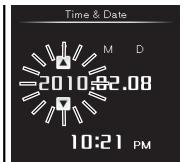
When you use this recorder for the first time after purchasing, or when you switch it on after removing the batteries for more than 15 minutes when exchanging batteries etc, the [Set Time & Date] will appear. When the "hour" is flashing, conduct the setup from Step 1.
![OLYMPUS DM-3, DM-5, DM-650, DM-670 - Setting time and date [Time & Date] - 2](/content/2025/01/125284/images/1bb42d7f038feea88483b86b9b67877408dd467cacfb2ed36a39e8588f2b3d1b.jpg)
The voice control function can be used with this setting (eP.107) (For DM-5).
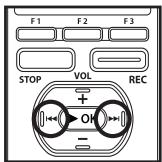
Press the or button to select the item to set.
- Select the item from the "hour", "minute", "year", "month" and "day" with a flashing point.
2 Press the + or - button to set.
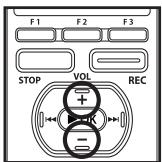
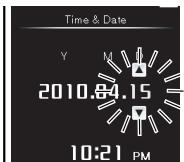
- Follow the same steps by pressing the or button to select the next item, and press the + or - button to set.
- You can select between 12 and 24 hour display by pressing the F2 (24H) button while setting the hour and minute.
Example: 10:20 P.M
10:20 PM (Initial setting)

- You can select the order of the "month", "day" and "year" by pressing the F2 (M/D/Y) button while setting them.
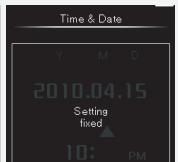
Example: April 15, 2010
2010Y4M 15D (Initial setting)


15D 4M 2010Y
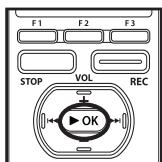
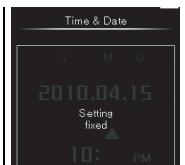
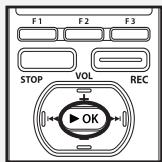
Press the OK button to complete the setting.
The clock will start from the set date and time. Press the OK button according to the time signal.
Notes
- If you press the OK button during the setup operation, the recorder will save the items that were set to that point.
- After setup, a message will sound saying that if the guidance is not required, select [Off], and the display goes into [Voice Guide] (P.85) setup. If you don't want the guidance feature, select [Off].
Changing the time and date
If the current time and date is not correct, set it using the procedure below.

The voice control function can be used with this setting (eP.107) (For DM-5).
1 Select [Time & Date] from the menu on the [System Menu].
- For details on how to enter the menu settings, please see "Menu setting method" (€aP.65).
2 Press the or button to select the item to set.
- Select the item from the "hour", "minute", "year", "month" and "day" with a flashing point.
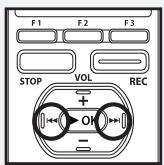
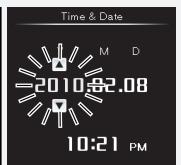
Press the + or - button to set.
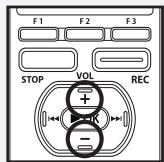
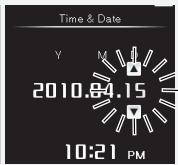
- Follow the same steps by pressing the or button to select the next item, and press the + or - button to set.
4 After the date and time have been set, press the OK button.
Inserting and ejecting a microSD card
The "microSD" indicated in the instruction manual refers to both microSD and microSDHC. This recorder can be used with commercially available microSD cards as well as the built-in memory.
Inserting a microSD card
1
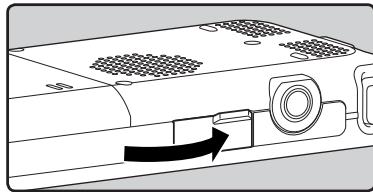
1 While the recorder is during stop mode, open the card cover.
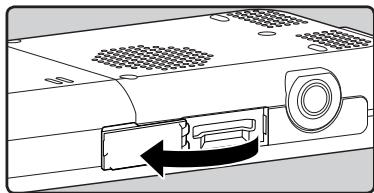
2 Face the microSD card the correct way and insert it into the card slot as shown in the diagram.
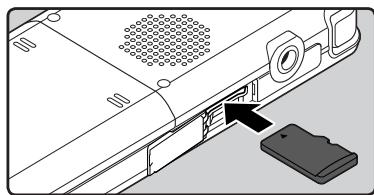
- Insert the microSD card keeping it straight.
- Inserting the microSD card the wrong way or at an angle could damage the contact area or cause the microSD card to jam.
- If the microSD card is not inserted all the way, data cannot be written to the microSD card.
3 Close the card cover securely.
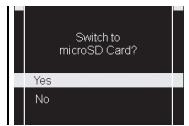
- When you insert the microSD card, the recording media changeover display will appear.
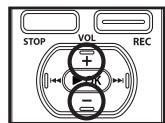
4 When you are recording to a microSD card, press the + or - button and select [Yes].
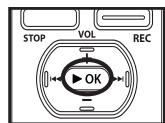
Press the OK button to complete the setting.
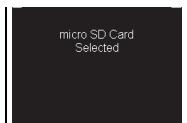
Notes
- It is possible to switch the recording media over to the built-in memory (E P.77).
- In some cases microSD card which have been formatted (initialized) by another device, such as a computer, cannot be recognized. Be sure to format them with this recorder before using (P.94).
Ejecting a microSD card
While the recorder is during stop mode, open the card cover.
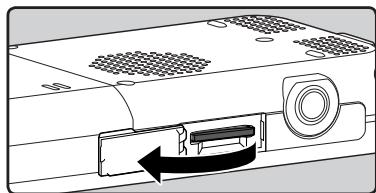
Push the microSD card inward to unlock it, and let it eject partially.

- The microSD card is visibly out of the slot and can be removed safely.
- When [Memory Select] is set to [microSD Card], [Built-in Memory Selected] will appear.
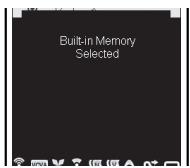
3 Close the card cover securely.
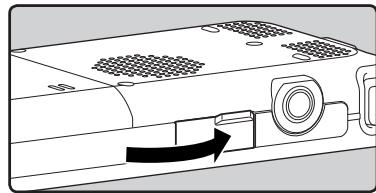
Notes
- Releasing your finger quickly after pushing the microSD card inward may cause it to eject forcefully out of the slot.
- Before inserting the microSD card, turn off the write protection function. Check the Olympus website regarding microSD cards which are confirmed operation with this recorder.
- This recorder may not recognize correctly on some microSD cards which are not compatible with this recorder.
- In the case when the microSD card cannot be recognized, remove the microSD card then put it in again to see if this recorder recognizes the microSD card.
- The processing performance reduces in a microSD card when you repeat writing and delete. In this case, format the microSD card (€5 P.94).
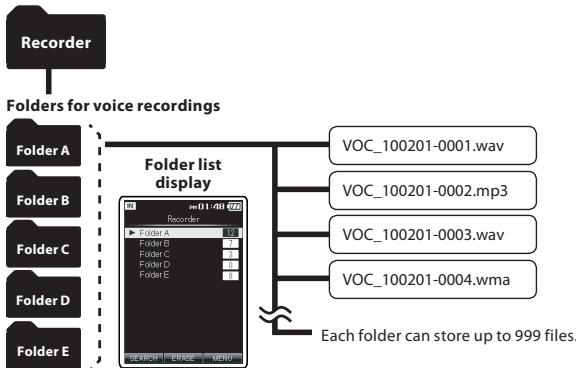
The built-in memory or the microSD card can be used for the recording media. Regardless of the recording media, voice file, music files, and contents files are separated and saved respectively into the folders organized in a branching tree-style.
About the folders for voice recordings
[ \text{[Folder A]} - \text{[Folder E]} ] within the [Recorder] folder are the folders for voice recordings. When recording with this recorder, select any one of the five folders and then record.
Note
- Files or folders located under the folder [Recorder] will not be indicated on the recorder.
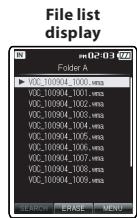
File names will be automatically created for files recorded by this recorder.
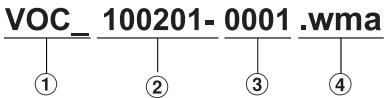
①UserID:
The user ID name that has been set on the Digital Voice Recorder. The user ID can be changed in the Olympus Sonority.
② Recording date:
The recording date is displayed using six digits.
Example: February 1, 2010 is displayed as "100201".
③ File number:
A serial number automatically assigned by a Digital Voice Recorder.
(4) Extension:
These are the file name extensions for the recording format when recording with this device.
- Linear PCM format: .wav
- MP3 format: .mp3
WMA format: .wma
About the folder for music playback
When transferring music files to the device using Windows Media Player, a folder is automatically created within the [Music] folder which has a layered structure as shown in the diagram below.
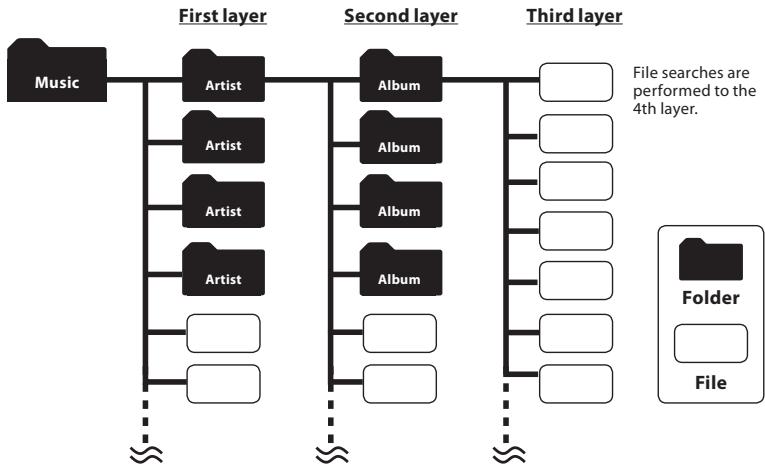
It can be stored a total of 999 files and folders in the each folders of [Music] folder.
- Up to 8000 songs can be transferred to the [Music] folder.
- Up to 1000 playlists can be transferred to the [Music] folder.
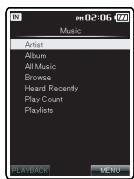
File search display
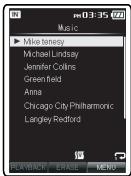
Artist list display
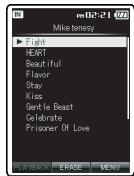
Album list display
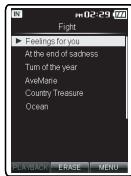
File list display
About the folder for Podcast contents
A [Podcast] folder to store podcasts is prepared in advance. Programs (files) transmitted from the "Olympus Sonority" can be played. With the recorder stopped, open the [Podcast] folder at the [Home] menu to display a list of files and folders stored in the folder. For "Podcast" please see P.127.
1
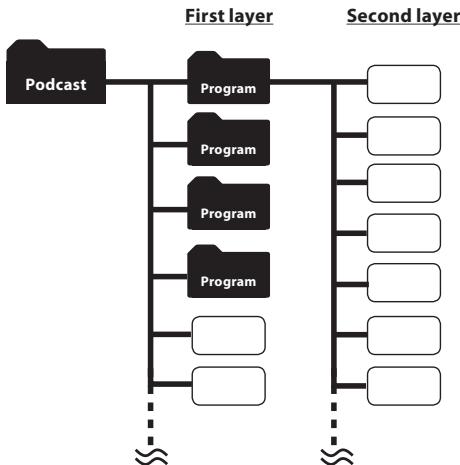
File searches are performed to the 4th layer.
- It can be stored a total of 999 files and folders in the each folders of [Podcast] folder.
- Up to 8000 files can be transferred to the [Podcast] folder.

Program list display
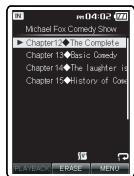
File list display
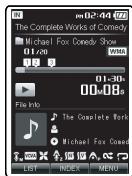
File display
About the folder for electronic book contents and text files
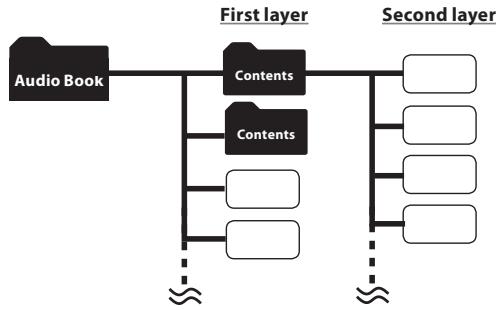
A folder to store electronic book files such as DAISY content and audiobooks is prepared in advance. Electronic book files that have been transferred to the recorder can be listened to. Furthermore, a folder to manage text data imported to the recorder is also prepared in advance. For "DAISY" please see P.132, for "Audio Book" please see P.157, for "Text Speech" please see P.158.
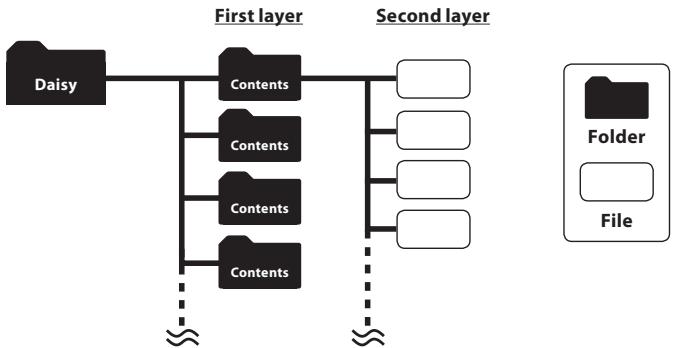
- It can be stored a total of 999 files and folders in the each folders of [Daisy] folder.
- Up to 1000 contents can be transferred to the [Daisy] folder.
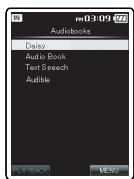
Folder list display
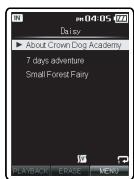
Contents list display
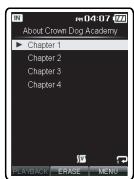
File list display
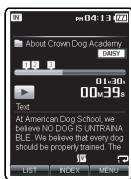
File display
1
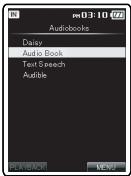
Folder list display
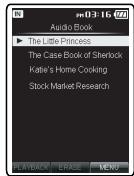
Contents list display
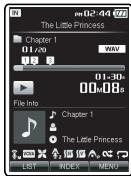
File display

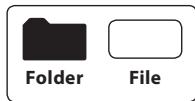
Folder

File
It can be stored a total of 999 files and folders in the each folders of [Audio Book] folder.
- Up to 1000 contents can be transferred to the [Audio Book] folder.
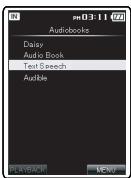
Folder list display
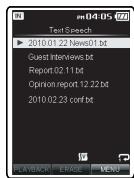
File list display
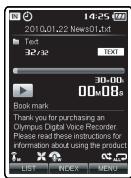
File display

Folder

File
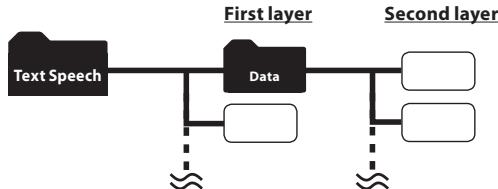
- It can be stored a total of 999 files and folders in the each folders of [Text Speech] folder.
- Up to 1000 files can be transferred to the [Text Speech] folder.
About the folder for Audible contents
Audible files can be redirected from the Audible website to the recorder using the
AudibleManager (P.159) or Windows Media Player.
When redirecting Audible files to this recorder using the AudibleManager, an [Audible] folder for playing Audible files will automatically be created in the [Audiobooks] folder, and the files stored there.
When redirecting Audible files to this recorder using the Windows Media Player, an [Artist] folder for playing will be created in the [Audiobooks] folder, just like for music files, and the files will be stored there.
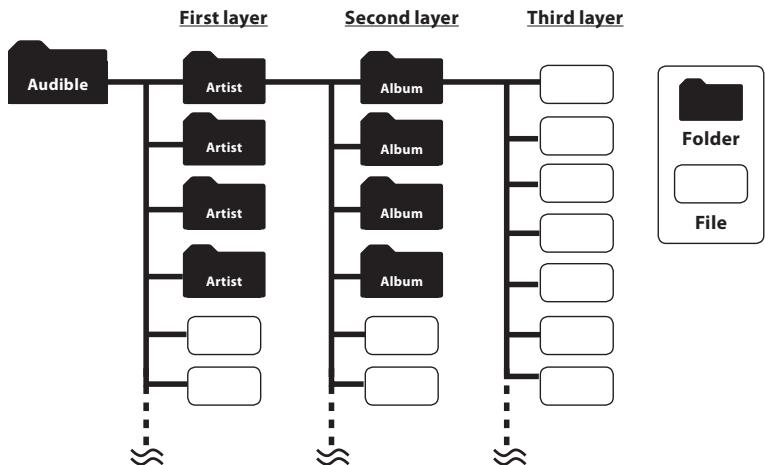
It can be stored a total of 999 files and folders in the each folders of [Audible] folder.
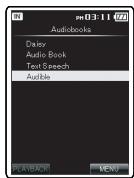
Folderlist display
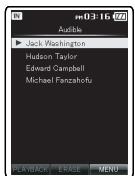
Artistlist display
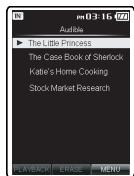
Album list display
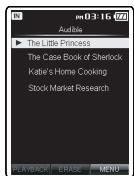
File list display
About the folder for picture
A folder to store images imported from a connected digital camera is prepared in advance. The [IMAGE] folder is managed by the dates images were taken.
For "Viewing images" please see E P.103.
1
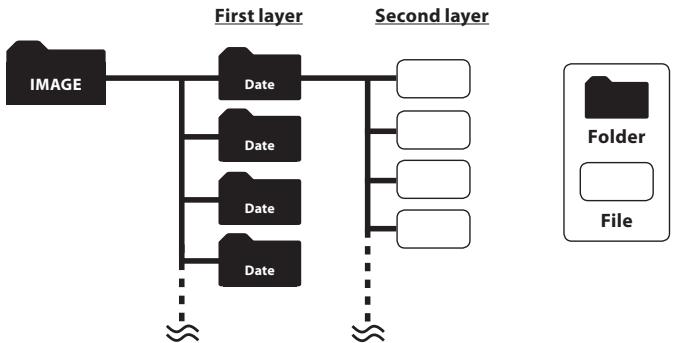
Each folder can store a total of 999 items, including files and folders.
- When the recorder displays image files, only thumbnails are displayed.
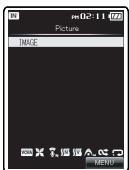
Folder display
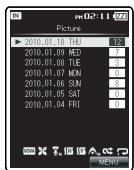
Date list display
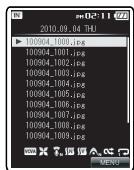
File list display
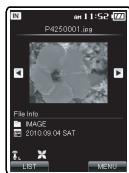
File display
Recording
Settings relating to Recording
Various recording settings can be made to match the recording environment (P.67 to P.70).
[Rec Menu] Setting Items:
| [Mic Sense] (€P.67) | Sets the sensitivity of the built-in stereo microphone. |
| [Rec Mode] (€P.67) | Sets the recording rate for each recording format. |
| [Rec Level] (€P.67) | Sets the recording level. |
| [Zoom Mic] (€P.68) | Sets the directionally of the built-in stereo microphone. |
| [Low Cut Filter] (€P.69) | This function can reduce noise from air conditioners, projectors and other similar noises. |
| [VCVA] (€P.69) | Sets the threshold level for the Variable Control Voice Actuator (VCVA). |
| [Rec Scene] (€P.80) | Saves recording settings in advance for specific recording situations. |
| [Timer Rec] (€P.81) | Sets timer recording. |
| [Folder Name] (€P.70) | You can change folder names registered in the template. |
Each audio recording is saved automatically with a generated file name (P.32).
Audio recordings can be tagged with a keyword to make file management easier (P.75).
Recording to a recording folder
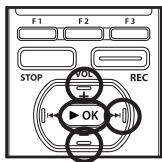
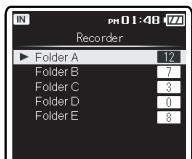
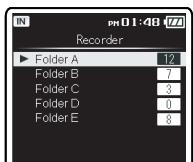
Before starting recording, select a voice recording folder between [Folder A] to [Folder E] in the [Recorder] folder. These five folders can be selectively used to distinguish the kind of recording; for example, [Folder A] might be used to store private information, while [Folder B] might be dedicated to holding business information.
1 Select the recording folder.
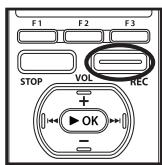
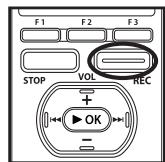
Press the REC button to start recording.
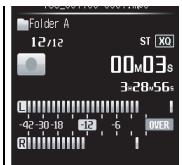
- The LED indicator light glows orange and [ ] will appear on the display.
- Turn the microphone in the direction of the source to be recorded.
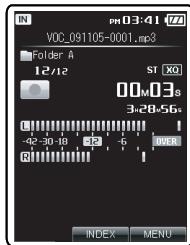
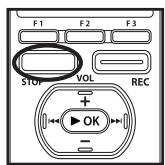
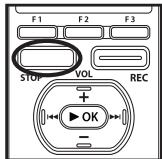
Press the STOP button to stop recording.
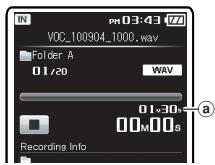
a File length
Press the REC button to start recording.
Specifying a keyword before recording
A keyword that matches the contents to be recorded can be specified before recording starts. This function is very useful for classifying recordings by keywords.
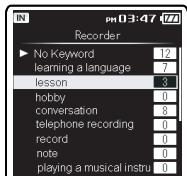
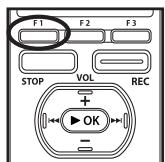
1 In the Folder list display, press F1(SEARCH) to show the Keyword search display (F5 P.53).
4 Press the STOP button to stop recording.
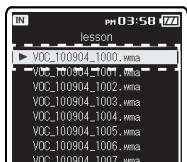
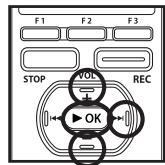
Press the + or - button to specify the desired keyword, and then press the OK or > button.
- Recorded files are automatically tagged with the specified keyword and managed using the keyword list.
- Recorded files are saved in [Folder A]. If [Folder A] is full, files are saved in [Folder B].
Notes
- When a microSD card is inserted in the recorder, be sure to confirm the recording media as either [Built-in] or [microSD] so that there is no mistake (E85 P.77).
- If the REC button is pressed when a function other than the record function is specified, [Cannot record in this folder] is displayed. Select a folder from [Folder A] through [Folder E] and start recording again.
To ensure recording from the beginning, start speaking after you see the LED indicator light on. - When remaining recording time is less than 60 seconds, the LED indicator light starts flashing. When the recording time is decreasing to 30 or 10 seconds, the light flashes faster.
- When [Folder Full] appears, the recorder will not be able to record anymore. Delete any unnecessary files before recording any further (E5 P.60).
- Recorder will not be able to record anymore when [Memory Full] appears. Delete any unnecessary files before recording any further (E5 P.60).
We recommend formatting the record media in the recorder before recording (eP.94).
Pause
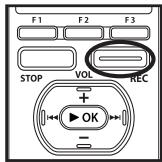
While the recorder is during recording mode, press the REC button.
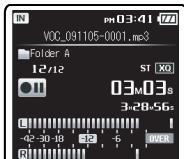
- The recorder will time out after 120 minutes when left in "Rec Pause".
Resume Recording:
Press the REC button again.
- Recording will resume at the point of interruption.
To quickly check on the recorded contents
While the recorder is during recording mode, press the OK button.
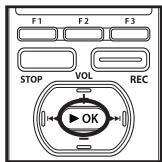
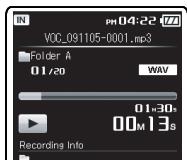
- Stop recording and the file that was just recorded will be played back.
Listening while audio is recorded
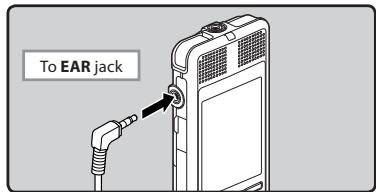
If you start recording after inserting the microphone into the EAR jack on the recorder, you can hear the sound being recorded. The recording monitor volume can be adjusted by pressing the + or - button.
Connect the earphone to the EAR jack on the recorder.
- After recording has started, you can hear the sound being recorded through the telephone.
Notes
- Recording level cannot be controlled using the volume button.
- When using the earphones, do not set the volume too high. Listening at very high volume may lead to hearing loss.
- Do not place earphones near a microphone as this may cause feedback.
- When the external speaker is connected while recording, there is a risk that audio feedback will occur.
Recommended settings by recording condition
The recorder is initially set to the [ST XQ] mode so that you can make high quality stereo recordings immediately after purchasing it. The various functions relating to recording can be configured in detail to suit the recording conditions.
The following table shows the standard recording settings with the recording environment as an example.
| Recording condition | Recommended Settings | |||
| [Rec Mode] (P.67) | [Mic Sense] (P.67) | [Low Cut Filter] (P.69) | [Zoom Mic] (P.68) | |
| Recording for conferences and other large groups. | [PCM]: [44.1kHz] [WMA]: [ST XQ] [MP3]: [320kbps] | [High] | [On] | [Wide] |
| Meetings and business negotiations with a small number of people. | [WMA]: [ST XQ] [WMA]: [ST HQ] [MP3]: [256kbps] [MP3]: [192kbps] | [Middle] | [Wide] | |
| Dictation with a lot of background noise. | [HQ] | [Low] | [Off] | |
| Music playing, wild birds singing, and railway sounds. | [PCM]: [48kHz] [PCM]: [44.1kHz] | Set the microphone sensitivity according to the volume being recorded. | [Off] | [Off] |
| Dictation in a quiet environment. | It can be used in any type of setting. Select a setting for recording. | |||
Recording from external microphone or other devices
The external microphone and other devices can be connected and the sound can be recorded. Connect as follows by the device to be used.
- Do not plug and unplug devices into the recorder's jack while it is recording.
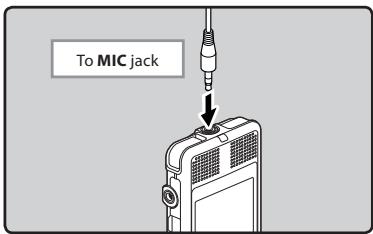
Recording with external microphone:
Connect an external microphone to the MIC jack of the recorder.
Applicable external microphones
2 channel microphone (omni-directional): ME30W
These are highly sensitive omnidirectional microphones supported by plug-in power which are well-suited to recording musical performances.
Highly sensitive noise-cancellation monaural microphone (unidirectional): ME52W
This microphone is used to record sound at a distance while minimizing surrounding noise.
Compact Gun Microphone (unidirectional): ME31
The directional microphones are useful for recordings such as outdoor recording of wild birds singing. The metal-cut body provides a sturdiness to the high rigidity.
Tie clip microphone (omni-directional): ME15
Small concealing microphone with a tie-clip.
Telephone pickup: TP7
Earphone type microphone can be plugged into your ear while phoning. The voice or conversation over the phone can be clearly recorded.
Notes
The built-in microphone will become inoperable when an external microphone is plugged into the recorder's MIC jack.
- Microphones supported by plug-in power can also be used.
- When an external monaural microphone is used while [Rec Mode] is set to a stereo recording mode, it enables recording only with the L channel microphone (P.67).
Recording the sound of other devices with this recorder:
The sound can be recorded when connecting to the audio output terminal (earphone jack) of the other device, and the MIC jack of the recorder with the connecting cord KA333 (optional) for dubbing.
Recording the sound of this recorder with other devices:
The sound of this recorder can be recorded to other devices when connected to the audio input terminal (microphone jack) of other devices and the EAR jack of this recorder, with the connecting cord KA333 (optional) for dubbing.
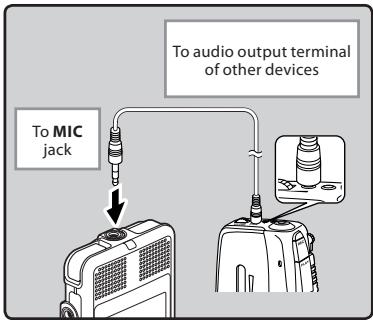
Note
- The detailed input levels cannot be adjusted with this recorder (P.67). When external devices are connected, perform a test recording and then adjust the output level for the external devices.
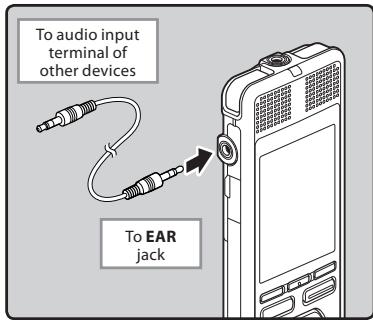
Note
- When you adjust the various sound quality settings related to playback on the recorder, the audio output signal sent out from the EAR jack will change as well (€8.5 P.71).
The recorder can playback WAV, MP3 and WMA format files. To playback a file recorded with other machines, you need to transfer (copy) it from a computer.
Settings relating to playback
A playback mode can be selected to match your objectives and preferences (€85 P.71 to P.73).
[Play Menu] Setting Items:
| [Noise Cancel] (€P.71) | If recorded audio is difficult to understand because of noisy surroundings, adjust the Noise Cancel setting level. |
| [EUPHONY] (€P.71) | Level adjustments of the [EUPHONY] setting can be set to four stages according to preference. |
| [Voice Filter] (€P.71) | The recorder has a Voice Filter Function to cut low and high frequency tones during normal, fast, or slow playback, and enable clear audio playback. |
| [Repeat] (€P.72) | The repeat playback method can be specified as desired. |
| [Random] (€P.72) | Files are searched for, selected and played at random. |
| [Play Speed] (€P.73) | Playback speed can be adjusted as necessary. |
| [Skip Space] (€P.73) | The skip interval length can be set. |
| [Play Scene] (€P.84) | Playback settings of your choice can be saved to suit different sound qualities and playback methods. |
To start playback, select the file to be played, and then press the OK button (P.53 to P.59).
![OLYMPUS DM-3, DM-5, DM-650, DM-670 - [Play Menu] Setting Items: - 1](/content/2025/01/125284/images/a0cd99d60ef59b4186374cf99ddde35b37f0b034edb0683ecd57940502ac5ad2.jpg)
![OLYMPUS DM-3, DM-5, DM-650, DM-670 - [Play Menu] Setting Items: - 2](/content/2025/01/125284/images/6fa90ab9f942ca7a2bf5aee61bd73c7b8e339da6162a7ef82cc808a06e680506.jpg)
Press the + or - button to adjust to a comfortable listening volume.
![OLYMPUS DM-3, DM-5, DM-650, DM-670 - [Play Menu] Setting Items: - 3](/content/2025/01/125284/images/d2d716187bbbdc5897bbe17e0c3a3de8d58361c291f8eb233bf8b7510cd1f0e7.jpg)
![OLYMPUS DM-3, DM-5, DM-650, DM-670 - [Play Menu] Setting Items: - 4](/content/2025/01/125284/images/4b49ec3e8a0a973c31e056e57dcc7700def7cfb2b67d2ca5f90d1463052cde1f.jpg)
- The volume can be adjusted within a range from [00] to [30].
3 Press the STOP button at any point you want to stop the playback.
![OLYMPUS DM-3, DM-5, DM-650, DM-670 - [Play Menu] Setting Items: - 5](/content/2025/01/125284/images/79c85248f64f6e38df0657166f10e94f561c031f4f09127222c193e245b93d2d.jpg)
![OLYMPUS DM-3, DM-5, DM-650, DM-670 - [Play Menu] Setting Items: - 6](/content/2025/01/125284/images/592e9c81dc02825da78744f2fa280fc7f215b612d1b5f7edffa40a15ea9ebf63.jpg)
- This will stop the file being played back midway.
Forwarding
While the recorder is during stop mode, press and hold the button.
- If you release the button, it will stop. Press the OK button to start playback from where it was stopped.
While the recorder is during playback mode, press and hold the button.
- When you release the button the recorder will resume normal playback.
- If there is an index mark in the middle of the file, the recorder will stop at that location (E. P. 51).
- The recorder stops when it reaches the end of the file. Continue pressing the button to proceed with the cue from the beginning of the next file.
Rewinding
While the recorder is during stop mode, press and hold the button.
- If you release the button, it will stop. Press the OK button to start playback from where it was stopped.
While the recorder is during playback mode, press and hold the 1 button.
- When you release the button the recorder will resume normal playback
- If there is an index mark in the middle of the file, the recorder will stop at that location (P.51).
- The recorder stops when it reaches the beginning of the file. Continue pressing the 1 button to proceed with the review from the end of the previous file.
Locating the beginning of the file
While the recorder is during stop mode or playback mode, press the button.
- The recorder skips to the beginning of the next file.
While the recorder is during playback mode, press the button.
- The recorder skips to the beginning of the current file.
While the recorder is during stop mode, press the button.
- The recorder skips to the beginning of the previous file. If the recorder stops midway of the file, return to the beginning of the file.
While the recorder is during playback mode, press the button twice.
- The recorder skips to the beginning of the previous file.
Notes
- When you skip to the beginning of the file during playback, the recorder will stop at the position of the index mark. The index mark will be skipped when you perform the operation in stop mode (E5P.51).
- When [Skip Space] set to other than [File Skip], the recorder will skip forward/ reverse the specified time, then will start playback (E5 P. 73).
Playback through earphone
An earphone can be connected to the EAR jack of the recorder for listening.
- When the earphone is used, the recorder speaker will be switched-off.
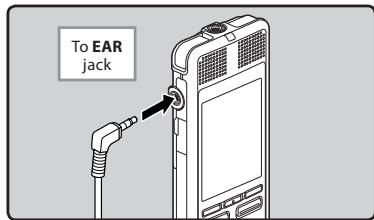
Notes
- To avoid irritation to the ear, insert the microphone after turning down the volume level.
- When you listen with the earphone during playback, do not raise the volume too much. It may cause hearing impairment and decrease in hearing ability.
Playback through Hi-fi components or Car Audio
The KA333 (optional) connects from the EAR jack of a voice recorder to the audio input of another recording device. You will also be able to use in your car via the AUX-IN connection. Additional plug adapter to convert 3.5 to 2.5 and vice versa are included.
About music file
In cases where the recorder is unable to playback music files that have been transferred to it, check to make sure that the sampling rate and bit rate are in the range where playback is possible. Combinations of sampling rates and bit rates for music files which the recorder can playback are given below.
| File format | Sampling frequency | Number of bit and Bit rate |
| WAV format | 44.1 kHz, 48 kHz | 16 bit |
| MP3 format | MPEG1 Layer3: 32 kHz, 44.1 kHz, 48 kHzMPEG2 Layer3: 16 kHz, 22.05 kHz, 24 kHz | From 8 kbps up to 320 kbps |
| WMA format | 8 kHz, 11 kHz, 16 kHz, 22 kHz, 32 kHz, 44.1 kHz, 48 kHz | From 5 kbps up to 320 kbps |
- Variable bitrate MP3 files (in which conversion bitrates can vary) may not play properly.
- This recorder does not support the Digital Rights Management system (DRM) of the Microsoft Corporation.
Bookmark mode
The recorder has the bookmark mode in the contents file of the [Podcast], Audiobooks file which is transferred to the recorder. When the recorder is in bookmark mode, it automatically memorizes the last stop position as a Playback Position. Even the recorder is stopped while a file is being played back, the last stop position is recalled from the file, and the file can be played back from that position next time.
1 Selecting the content file in the [Podcast], Audiobooks folder.
2 Press the OK button to start playback.
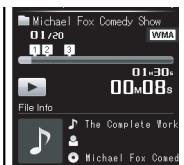
- When you play the file which you have previously played back, the playback starts from the last stop position.
3 Press the STOP button at any point you want to stop the playback.
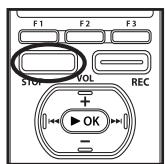
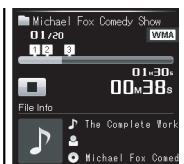
- Stop a file playback at any point. The stop position is memorized as a Playback Position in the file. In this status, even if you select an empty file, move to the other folder, or turn the recorder off, the playback starts from the last memorized position when you play the same file.
4 Playing back the contents file which has been played back halfway.
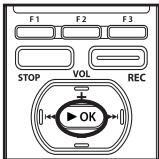
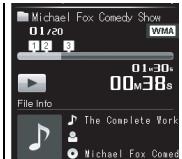
- Press the OK button to start playing back from where it was stopped.
Forwarding
While the recorder is during stop mode, press and hold the button.
When you release the button, the recorder stops. The Playback position is updated. If the OK button is pressed, playback starts from this position.
While the recorder is during playback mode, press and hold the▶▶l button.
When you release the button the recorder will resume normal playback.
- If an index mark (P.51) or Playback Position is marked in the middle of the file, the playback stops once at that position.
- The recorder stops when it reaches the end of the file. Continue pressing the button to proceed with the cue from the beginning of the next file.
Rewinding
While the recorder is during stop mode, press and hold the button.
When you release the button, the recorder stops.
The Playback position is updated. If the OK button is pressed, playback starts from this position.
While the recorder is during playback mode, press and hold the button.
When you release the button the recorder will resume normal playback.
- If an index mark (P.51) or Playback Position is marked in the middle of the file, the playback stops once at that position.
- The recorder stops when it reaches the beginning of the file. Continue pressing the button to proceed with the review from the end of the previous file.
- If the button is kept pressed while the recorder is stopped at the start of the top file, the recorder will fast rewind starting from the end of the last file.
To skip a file
While the recorder is during stop mode, press the button.
It skips to the Playback Position of the next file.
While the recorder is during stop mode, at the beginning of the file, press the button.
It skips to the Playback Position of the previous file.
While the recorder is during stop mode, in the middle of the file, press the 1 button.
It skips to the head of the file.
Locating the Beginning of the File
While the recorder is during playback, slow playback, or fast playback, press the button.
The next file is cued and playback starts at the previously set speed.
While the recorder is during playback, slow playback, or fast playback, press the button.
The file being played is cued and playback starts at the previously set speed.
While the recorder is during playback, slow playback or fast playback, press the 1 button twice.
The previous file is cued and playback starts at the previously set speed.
- If an index mark (E P.51) is marked in the middle of the file, it reproduces from the position.
- If the skip space is set at other than file skip (eP.73), the recorder will F. Skip (forward skip) or R. Skip (reverse skip) for a set time before playback.
Note
- If the file is deleted with this recorder, the playback Position information is deleted simultaneously.
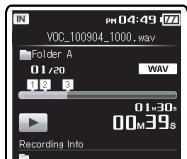
Setting an index mark
If index marks are placed, you can quickly find a location you want to listen to in fast forward and fast rewind and when cuing a file.

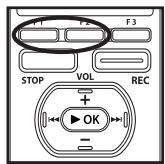
This operation can be performed when the [INDEX] function has been assigned to a Fn button (F1 or F2) (eP.76).
Press the Fn (INDEX) button during file recording, recording pause, playing, or playback pause.
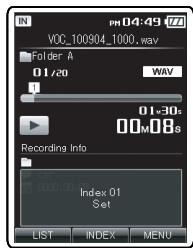
- A number and recording position appears on the display and an index mark will be placed.
- Even after an index mark is placed, recording or playback will continue so you can place index marks in other locations in a similar manner.
Clearing an index mark

This operation can be performed when the [Erase] function has been assigned to a Fn button (F1 or F2) (e- P.76).
1 Locate the index mark you want to clear.
Press the or button to select the index mark to erase.
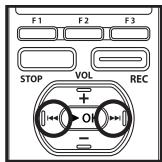
3 While the index number is displayed (approximately 2 seconds), press the Fn (ERASE) button.

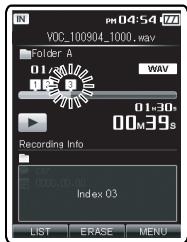
The index mark is erased.
- Index numbers after the erased index number will automatically move up.
Notes
- Up to 16 index marks can be set in a file. If you try to place more than 16 index marks, the [Index Full] message will appear for index marks.
- Index marks cannot be set or erased in a locked file (E° P.75).
How to begin segment repeat playback
This function enables repeated playback of part of the file being played.

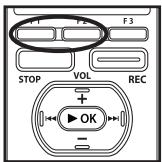
This operation can be performed when the [A-B] function has been assigned to a Fn button (F1 or F2) (e.g. P.76).
To start playback, select a file that has a segment you would like to playback repeatedly, and then press the OK button (P.53 to P.59).
Press the Fn (A-B) button at the point you want to start segment repeat playback.
- Fast forwarding and rewinding can be conducted when is flashing in the same manner as during normal playback, and you can quickly proceed as far as the end position (E83-P.47).
- When it reaches to the end of the file while [A] is flashing, the point will become the end position, and repeat playback will start.
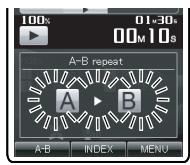
Press the Fn (A-B) button again at the position where you want to end segment repeat playback.
- The recorder repeatedly plays back the segment until the segment repeats playback is cancelled.
Cancel the segment repeat playback function
Pressing any of the following buttons will release the segment repeat playback.
a Press the STOP button
Pressing the STOP button will release segment repeat playback and stop playback.
b Press the OK button
Pressing the OK button will release segment repeat playback, and it will return to normal playback mode.
Press the F1 (CANCEL) button
Pressing the F1 (CANCEL) button will release segment repeat playback and stop playback.
This recorder manages recorded files and music files imported from a personal computer using a database. Files are automatically sorted using items such as date and keyword, which makes searching for files easier.
Opening the file search display from the [Recorder] folder
File search type:
| [Browse] Search (E&P P.54) | The folder system (Folder A to Folder E) is used to search for files. |
| [Day] Search (E&P P.54) | Files are searched for by recording date. |
| [Keyword] Search (E&P P.55) | Files are searched for by a keyword. |
Press the F1 (SEARCH) button to open the file search display.
- The search display changes every time the F1 (SEARCH) button is pressed.
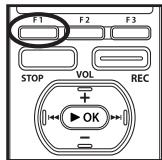
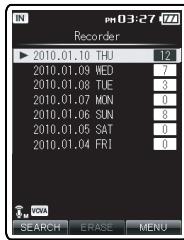
Select the type of file search. Next, proceed to "File search display operations of the [Recorder] folder".
1 From the [Home] menu display, select [Recorder], and then press the OK or button to open the folder list display.
![OLYMPUS DM-3, DM-5, DM-650, DM-670 - From the [Home] menu display, select [Recorder], and then press the OK or button to open the folder list display. - 1](/content/2025/01/125284/images/9a3fa4e843f7591a7cf1ca49489972a7009f04e6c433ea7f666ebdcea1e8b469.jpg)
![OLYMPUS DM-3, DM-5, DM-650, DM-670 - From the [Home] menu display, select [Recorder], and then press the OK or button to open the folder list display. - 2](/content/2025/01/125284/images/81d7c5232ec6c3437507f53d603f8fe6309bc3af10b93805671118151f9aef49.jpg)
File search display operations of the [Recorder] folder
When searching using the [Browse] search
Specify a folder to search for files recorded by this recorder.
① Press the + or - button to select folder, and then press the OK or > button.
![OLYMPUS DM-3, DM-5, DM-650, DM-670 - When searching using the [Browse] search - 1](/content/2025/01/125284/images/750f573f6771d4419e9c5b4f4e25a9a24e1d41037c4581fecb35e78eae7fdc59.jpg)
![OLYMPUS DM-3, DM-5, DM-650, DM-670 - When searching using the [Browse] search - 2](/content/2025/01/125284/images/91f3fad5c17f1bfcc4188fe4c9cff52ac4a6ca42fa85794131280417026b0c8a.jpg)
② Press the + or - button to select file, and then press the OK or >> button.
![OLYMPUS DM-3, DM-5, DM-650, DM-670 - When searching using the [Browse] search - 3](/content/2025/01/125284/images/2d85c2f86378cf205df3024d2555d369d3ba9fcd1282ea3daaebb8882995aa8f.jpg)
![OLYMPUS DM-3, DM-5, DM-650, DM-670 - When searching using the [Browse] search - 4](/content/2025/01/125284/images/20793095f29508f65d06144ccc61c35d51366c0fdca563e9fbb04f67d1caa6d9.jpg)
Press the OK button to start playback of the file.
When searching using the [Day] search
Search for a file using the recording date. The most recent recording date is highlighted. Highlight the desired recording date.
① Press the + or - button to select the recording date, and then press the OK or > button.
![OLYMPUS DM-3, DM-5, DM-650, DM-670 - When searching using the [Day] search - 1](/content/2025/01/125284/images/2e67cd2c3eb814f655733a4cd71e3905ac989ddb187b89b1b2d69d45219bedf4.jpg)
![OLYMPUS DM-3, DM-5, DM-650, DM-670 - When searching using the [Day] search - 2](/content/2025/01/125284/images/6be4bdaf08836bba9471fffa32b6eac262fff3450986f634796df1ce26be429d.jpg)
② Press the + or - button to select file, and then press the OK or▶▶I button.
![OLYMPUS DM-3, DM-5, DM-650, DM-670 - When searching using the [Day] search - 3](/content/2025/01/125284/images/1496edf2e26ff19e7e6d71bf9e75deb3e8bbfd9a1a35cae9643f3c50162d526d.jpg)
![OLYMPUS DM-3, DM-5, DM-650, DM-670 - When searching using the [Day] search - 4](/content/2025/01/125284/images/b3e293dbc15d55bb227d319efdc774487b633455625b772e5b80986ff4a06010.jpg)
Press the OK button to start playback of the file.
When searching using the [Keyword] search
Search for files recorded by this recorder using a keyword. Files recorded by this recorder can be tagged using a keyword for file management purposes (P.75).
① Press the + or - button to select keyword, and then press the 0K or I button.
![OLYMPUS DM-3, DM-5, DM-650, DM-670 - When searching using the [Keyword] search - 1](/content/2025/01/125284/images/c895be2dfddabaa4001555a5ac98b9471a214df3e783572d45f3faff272aa4d8.jpg)
![OLYMPUS DM-3, DM-5, DM-650, DM-670 - When searching using the [Keyword] search - 2](/content/2025/01/125284/images/6d206532494e894f1eeabcd01abe178c7aabcb464d8524ca709f849860be1a35.jpg)
② Press the + or - button to select file, and then press the OK or I button.
![OLYMPUS DM-3, DM-5, DM-650, DM-670 - When searching using the [Keyword] search - 3](/content/2025/01/125284/images/b1fbbeb9f70bc9ad81d3487ad4a917483fabd6e421e62fcd64a1646ab28cf3f7.jpg)
![OLYMPUS DM-3, DM-5, DM-650, DM-670 - When searching using the [Keyword] search - 4](/content/2025/01/125284/images/1a6e97064016da6c3e2bebb409b8fe1c6862a383f77829e536c7c650051242bd.jpg)
- Press the OK button to start playback of the file.
Opening the file search display from the [Music] folder
File search type:
| [Artist] Search (€P.57) | Files are searched for from a list of artists. |
| [Album] Search (€P.58) | Files are searched for from a list of album names. |
| [All Music] Search (€P.57) | Files are searched for from a list of all songs. |
| [Browse] Search (€P.59) | A list of all songs and albums in the [Music] folder is displayed. |
| [Heard Recently] Search (€P.58) | Files played on this recorder are displayed reverse chronological order. |
| [Play Count] Search (€P.58) | Files are displayed in order of the number of times they have been played on this recorder. |
| [Playlists] Search (€P.59) | Displays playlists transferred to the recorder. |
1 From the [Home] menu display, select [Music] folder, and then press the OK or button to open the search display.
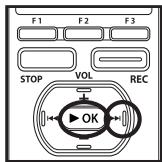
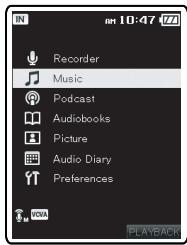
Press the + or - button to select the file search type, and then press the OK or button.
- If you make a mistake during the search, use the button to return to the previous display.
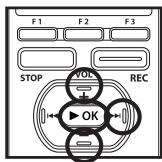
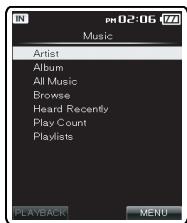
Select the type of file search. Next, proceed to "File search display operations of the [Music] folder".
File search display operations of the [Music] folder
When searching using the [Artist] search
Search for a specific artist.
① Press the + or - button to select artist, and then press the OK or▶I button.
![OLYMPUS DM-3, DM-5, DM-650, DM-670 - When searching using the [Artist] search - 1](/content/2025/01/125284/images/7069c77d66e42dbd504b6f515eb6d03f2561c840eabeb34a3704be6c36da9987.jpg)
![OLYMPUS DM-3, DM-5, DM-650, DM-670 - When searching using the [Artist] search - 2](/content/2025/01/125284/images/9f8cbd477bcd9c649aa052fbe9dcd5ec5124745866a4bd0d61cc03d74a6472f4.jpg)
② Press the + or - button to select album or song, and then press the OK or button.
![OLYMPUS DM-3, DM-5, DM-650, DM-670 - When searching using the [Artist] search - 3](/content/2025/01/125284/images/8e0f790db0c4d89a2845d03f39d9555ec3dce73912fc04531b61c37fb0ab940f.jpg)
If a song is selected, playback starts.
If an album is selected, its songs are displayed as a list.
③ Press the + or - button to select song, and then press the OK or button.
![OLYMPUS DM-3, DM-5, DM-650, DM-670 - When searching using the [Artist] search - 4](/content/2025/01/125284/images/b83d3dac8a31e882465d1edf5bf20fcd13f86801a763c8923959bdc1ae5d8507.jpg)
![OLYMPUS DM-3, DM-5, DM-650, DM-670 - When searching using the [Artist] search - 5](/content/2025/01/125284/images/20ebc6fe81a473db709c548f7127e208a30f8083f1cc80680d5a5095e51caefd.jpg)
Press the OK button to start playback of the file.
Selecting from a list of [All Music]
Files are searched for from a list of [All Music].
① Press the + or - button to select song, and then press the OK or button.
![OLYMPUS DM-3, DM-5, DM-650, DM-670 - Selecting from a list of [All Music] - 1](/content/2025/01/125284/images/0a1a8cc56d066ea2b2ba151564d0c9865502cebaabef6c15f56722421530ba38.jpg)
![OLYMPUS DM-3, DM-5, DM-650, DM-670 - Selecting from a list of [All Music] - 2](/content/2025/01/125284/images/4a9da775340dae83c23a9635572d2b5d3fbc8c15c1f474ff0900ac62cbed3600.jpg)
- Press the OK button to start playback of the file.
When searching using the [Album] search
Search by specific album.
① Press the + or - button to select album, and then press the OK or > button.
![OLYMPUS DM-3, DM-5, DM-650, DM-670 - When searching using the [Album] search - 1](/content/2025/01/125284/images/dce642688d7eb2d787ccb487b2c6a9e484359545a0b51939f7f5f7d8d14b52ea.jpg)
![OLYMPUS DM-3, DM-5, DM-650, DM-670 - When searching using the [Album] search - 2](/content/2025/01/125284/images/771e42d42715ae1c35257575883c5a27371de8f152cbd26ec899f5c6e84bf413.jpg)
② Press the + or - button to select song, and then press the OK or button.
![OLYMPUS DM-3, DM-5, DM-650, DM-670 - When searching using the [Album] search - 3](/content/2025/01/125284/images/97adff222c45469ce0e169ddbccc7365d20e763222463a493be31befd65f0541.jpg)
![OLYMPUS DM-3, DM-5, DM-650, DM-670 - When searching using the [Album] search - 4](/content/2025/01/125284/images/e9515d1f60d8baea2c59993ffd7536301e61ced29eb2d4cdbd093920f7bb9aa0.jpg)
- Press the OK button to start playback of the file.
When searching using the [Heard Recently] search
A list of recently played files is displayed in reverse chronological order.
① Press the + or - button to select song, and then press the OK or I button.
![OLYMPUS DM-3, DM-5, DM-650, DM-670 - When searching using the [Heard Recently] search - 1](/content/2025/01/125284/images/145327711199b80c0283ec1a77f91da7608d733d0a4ee1fc0549857d583fc866.jpg)
![OLYMPUS DM-3, DM-5, DM-650, DM-670 - When searching using the [Heard Recently] search - 2](/content/2025/01/125284/images/516a39ce25c2b7b32762f64db8a69af20fbcebf81c76b19d0343d48851685b7d.jpg)
Press the OK button to start playback of the file.
When searching using the [Play Count] search
A list of frequently played files is displayed in reverse chronological order.
① Press the + or - button to select song, and then press the OK or button.
![OLYMPUS DM-3, DM-5, DM-650, DM-670 - When searching using the [Play Count] search - 1](/content/2025/01/125284/images/388e9535ac5be2858732df3c752e6962f9348b6f781ad38ac46b97d71a57289a.jpg)
![OLYMPUS DM-3, DM-5, DM-650, DM-670 - When searching using the [Play Count] search - 2](/content/2025/01/125284/images/148491c0e40a5442d667e37d3df2dea53e0576080b233dcbfacc06dfb16dde5d.jpg)
Press the OK button to start playback of the file.
When searching using the [Browse] search
Browse directly from a list of all files and folders in the [Music] folder.
① Press the + or - button to select a song to be played or to select an artist, and then press the OK or >I button.
![OLYMPUS DM-3, DM-5, DM-650, DM-670 - When searching using the [Browse] search - 1](/content/2025/01/125284/images/9c9b48e9f3845e2cc449494f71702da66eaff881e99d2e430d85aaaa51dc011b.jpg)
![OLYMPUS DM-3, DM-5, DM-650, DM-670 - When searching using the [Browse] search - 2](/content/2025/01/125284/images/8667c3ed346c0a23992782eebd5d04a7c463ba5617c717bf4bdc93c2d1630234.jpg)
- If an artist is selected, songs in the folder are displayed as a list. Press the + or - button to select a song, and then press the OK or▶I button.
Press the OK button to start playback of the file.
When searching using the [Playlists] search
Select a playlist.
For details on importing playlists, please see P.146.
① Press the + or - button to select [Playlists], and then press the OK or▶I button.
![OLYMPUS DM-3, DM-5, DM-650, DM-670 - When searching using the [Playlists] search - 1](/content/2025/01/125284/images/3990256825ac790586128aef032e4a4bc2280428e1730deb87b6370c2941ee7a.jpg)
![OLYMPUS DM-3, DM-5, DM-650, DM-670 - When searching using the [Playlists] search - 2](/content/2025/01/125284/images/edfa14e8b262d39d5a8b34e62387b59f3015c518ed5dde5f9c0be21a34bd7f21.jpg)
② Press the + or - button to select a playlists, and then press the OK or button.
![OLYMPUS DM-3, DM-5, DM-650, DM-670 - When searching using the [Playlists] search - 3](/content/2025/01/125284/images/d41b3a520f846ecf86df330cb403426e4707f4722a08761ac343e9de52d4850c.jpg)
![OLYMPUS DM-3, DM-5, DM-650, DM-670 - When searching using the [Playlists] search - 4](/content/2025/01/125284/images/89f7a3124a77a19cb34f33887188b051f640fc78e9c23ba58918431135178c76.jpg)
③ Press the + or - button to select song, and then press the OK or button.
![OLYMPUS DM-3, DM-5, DM-650, DM-670 - When searching using the [Playlists] search - 5](/content/2025/01/125284/images/f2c262f7b549d9f4a7c0dedfe86adc9ab73fa622a668a6320c30d1fd21924004.jpg)
![OLYMPUS DM-3, DM-5, DM-650, DM-670 - When searching using the [Playlists] search - 6](/content/2025/01/125284/images/c5ea34b086d1edc20700b65f71da05c4cacf1c95ff059b53f0c3e2eb488a1575.jpg)
- Press the OK button to start playback of the file.
A selected file can be erased from a folder. It is also possible to erase a selected folder or all files in a folder.
Erasing from the file display
1 In the File list display, press the F3 (MENU) button.
- Files cannot be erased during playback.
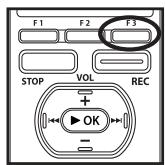
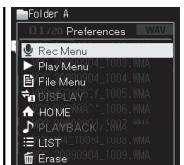
Press the + or - button to select [Erase], and then press the OK or 一 button.
![OLYMPUS DM-3, DM-5, DM-650, DM-670 - Press the + or - button to select [Erase], and then press the OK or 一 button. - 1](/content/2025/01/125284/images/69de909dbc444aaf8c5151be29d3ccbc00b8683359cfa8db577c6ca5f438c7ce.jpg)
![OLYMPUS DM-3, DM-5, DM-650, DM-670 - Press the + or - button to select [Erase], and then press the OK or 一 button. - 2](/content/2025/01/125284/images/b5da851f240bf288e794adbcee439502d04f86075d4929f8b04b7deb57994aea.jpg)
Press the ^+ button to select [File Erase], and then press the OK or I button.
![OLYMPUS DM-3, DM-5, DM-650, DM-670 - Press the ^+ button to select [File Erase], and then press the OK or I button. - 1](/content/2025/01/125284/images/614b5e29d6f1b3bfaa762eacf040a1901fe194cdf361123daf4d2353beafd8fe.jpg)
![OLYMPUS DM-3, DM-5, DM-650, DM-670 - Press the ^+ button to select [File Erase], and then press the OK or I button. - 2](/content/2025/01/125284/images/db2e9cc73a7b3bfcafc7fbbb6168c0af450e9d5b38148c4c27524859da5d835c.jpg)
4 Press the ^+ button to select [Start], and then press the OK button.
![OLYMPUS DM-3, DM-5, DM-650, DM-670 - Press the ^+ button to select [Start], and then press the OK button. - 1](/content/2025/01/125284/images/fba70547af9355c7d5adf7c38d56f73c8d0d9300aa28ee40b37b2b5e51c7dc66.jpg)
![OLYMPUS DM-3, DM-5, DM-650, DM-670 - Press the ^+ button to select [Start], and then press the OK button. - 2](/content/2025/01/125284/images/a753b4a5b690568a971040c9cf25a757050a1e951b6dd5c405ce52ba8ba17c06.jpg)
- The display changes to [Erase!] and erasing will start. [Erase Done] is displayed when the file is erased.
![OLYMPUS DM-3, DM-5, DM-650, DM-670 - Press the ^+ button to select [Start], and then press the OK button. - 3](/content/2025/01/125284/images/08fd86217ca5250d88c5a680056ab94c8c9e4b0c70e335b47e3795b5f2f804b0.jpg)
![OLYMPUS DM-3, DM-5, DM-650, DM-670 - Press the ^+ button to select [Start], and then press the OK button. - 4](/content/2025/01/125284/images/c4d61a770b0f44030290f1e2634e65628e8b101fcf7f2b31f41fe663e75f61c4.jpg)
![OLYMPUS DM-3, DM-5, DM-650, DM-670 - Press the ^+ button to select [Start], and then press the OK button. - 5](/content/2025/01/125284/images/e01f8ad189828a363bd4b6ff977227f3ca75951ce7012c1c65a0d0c14aae08f6.jpg)
Erasing from the file list display
1 Select the file to erased from the file list display.
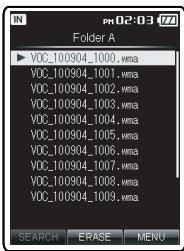
2 While the recorder is during stop mode, press the F2 (ERASE) button.
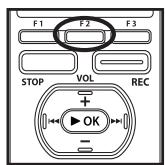
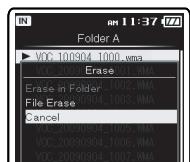
3 Press the ^+ or - button to select [File Erase], and then press the OK or button.
![OLYMPUS DM-3, DM-5, DM-650, DM-670 - Press the ^+ or - button to select [File Erase], and then press the OK or button. - 1](/content/2025/01/125284/images/b6f033f79cac498e5a48bf2d689050f7bafc3004f48c10a3b52240e9878c60f7.jpg)
![OLYMPUS DM-3, DM-5, DM-650, DM-670 - Press the ^+ or - button to select [File Erase], and then press the OK or button. - 2](/content/2025/01/125284/images/641054a9eba14f30055df322f9e89d67a160bd08cc43c0989c575f0ee27a2913.jpg)
4 Press the ^+ button to select [Start], and then press the OK button.
![OLYMPUS DM-3, DM-5, DM-650, DM-670 - Press the ^+ button to select [Start], and then press the OK button. - 1](/content/2025/01/125284/images/d9db2a0d11bf995caca91b7676d23cc0f70e1f900b3166f47adcc7364adfeeda.jpg)
![OLYMPUS DM-3, DM-5, DM-650, DM-670 - Press the ^+ button to select [Start], and then press the OK button. - 2](/content/2025/01/125284/images/3cb4413a899e4f01a33355952a6fbd844e10144243bcb5f6387d1798d334833f.jpg)
- The display changes to [Erase!] and erasing will start. [Erase Done] is displayed when the file is erased.
![OLYMPUS DM-3, DM-5, DM-650, DM-670 - Press the ^+ button to select [Start], and then press the OK button. - 3](/content/2025/01/125284/images/fd65375770d5db64b03dd75ba261aadea91ac7d3b3aa31ba32dc10a8ddabb176.jpg)
![OLYMPUS DM-3, DM-5, DM-650, DM-670 - Press the ^+ button to select [Start], and then press the OK button. - 4](/content/2025/01/125284/images/53a9c45d3cb3bc752d2edefe03ddabf9beccecb8aef0f0ab5f26aa551cdbfcd0.jpg)
Erasing All Files in a Folder
1 Select the folder to be erased from the folder list display.
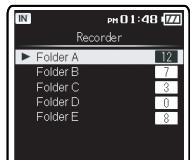
2 While the recorder is during stop mode, press the F2 (ERASE) button.
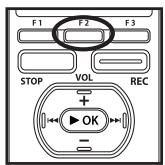
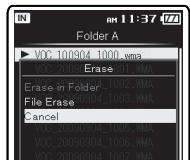
3 Press the ^+ or - button to select [Erase in Folder], and then press the 0K or I button.
![OLYMPUS DM-3, DM-5, DM-650, DM-670 - Press the ^+ or - button to select [Erase in Folder], and then press the 0K or I button. - 1](/content/2025/01/125284/images/6cd889380fbe4ab44b34f282000472282d633246f3c69f6dc172f46dd9ebae3f.jpg)
![OLYMPUS DM-3, DM-5, DM-650, DM-670 - Press the ^+ or - button to select [Erase in Folder], and then press the 0K or I button. - 2](/content/2025/01/125284/images/6a9a490d5438ee0453b9a76617832d5dc91cd52ecd9f524de959b4feac17f939.jpg)
4 Press the ^+ button to select [Start], and then press the OK button.
![OLYMPUS DM-3, DM-5, DM-650, DM-670 - Press the ^+ button to select [Start], and then press the OK button. - 1](/content/2025/01/125284/images/cbcd44d61394b876f596fd5cbd4a8342744cba7d4bf9647c4d4cf2d90504ca29.jpg)
![OLYMPUS DM-3, DM-5, DM-650, DM-670 - Press the ^+ button to select [Start], and then press the OK button. - 2](/content/2025/01/125284/images/65c1b9b7fc8139e6af05c9e63156c7fa8c0b505ffcada26b4bdf76d372cf5411.jpg)
- The display changes to [Erase!] and erasing will start. [Erase Done] is displayed when the file is erased.
![OLYMPUS DM-3, DM-5, DM-650, DM-670 - Press the ^+ button to select [Start], and then press the OK button. - 3](/content/2025/01/125284/images/41930065e2c96f793cc4b9c6975809e4d7bffcce31b266ef7a33b46b3d3de1c4.jpg)
![OLYMPUS DM-3, DM-5, DM-650, DM-670 - Press the ^+ button to select [Start], and then press the OK button. - 4](/content/2025/01/125284/images/10dfe59be9defd1fc5504713e41b4d0b7967e80cc91f022b4215f4b2a9dcc6a1.jpg)
Erasing a folder
1 Select the folder to be erased from the folder list display.

2 In the folder list display, press the F3 (ERASE) button.
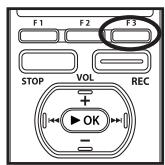
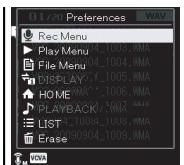
Press the + or - button to select [Erase], and then press the OK or 一 button.
![OLYMPUS DM-3, DM-5, DM-650, DM-670 - Press the + or - button to select [Erase], and then press the OK or 一 button. - 1](/content/2025/01/125284/images/1956ef7b202ff1d078293047c84241fed795477514f27744f38e8a65cefe68c6.jpg)
![OLYMPUS DM-3, DM-5, DM-650, DM-670 - Press the + or - button to select [Erase], and then press the OK or 一 button. - 2](/content/2025/01/125284/images/10a69090323084b14a8a454cee9c0d34d28f235bca36aae4c5ea2071873d87fd.jpg)
4 Press the ^+ button to select [Start], and then press the OK button.
![OLYMPUS DM-3, DM-5, DM-650, DM-670 - Press the ^+ button to select [Start], and then press the OK button. - 1](/content/2025/01/125284/images/9982a7ac1f73b50864151b1b2e752636dd478b20638dbe660bf2cccdc6ab7359.jpg)
![OLYMPUS DM-3, DM-5, DM-650, DM-670 - Press the ^+ button to select [Start], and then press the OK button. - 2](/content/2025/01/125284/images/d892184beff73218f3f0b31f2bdc8b19b23f0ebf5946af48f80cc910e40acc38.jpg)
- The display changes to [Erase!] and erasing will start. [Erase Done] is displayed when the file is erased.
![OLYMPUS DM-3, DM-5, DM-650, DM-670 - Press the ^+ button to select [Start], and then press the OK button. - 3](/content/2025/01/125284/images/279c8d07a7b0e12347cf38acbd46f2d7d271aaded13ae5bd15b800d095e3b51b.jpg)
![OLYMPUS DM-3, DM-5, DM-650, DM-670 - Press the ^+ button to select [Start], and then press the OK button. - 4](/content/2025/01/125284/images/987c754e80ff0bff7da0f9814a16430c25e2fb0be4376add4ae9502ab98256cc.jpg)
Partially erase a file
Only a PCM file recorded in the recorder can be partially erased.

This operation can be performed when the [Erase] function has been assigned to a Fn button (F1 or F2) (v^wP.76) .
1 Play the file you want to partial erase.
- Forward a file to the position that shall be erased. If the file is long, use the▶按钮 to move to the position you want to delete.
2 In the starting position of the partial erase, press the Fn (ERASE) button.
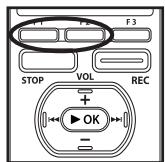
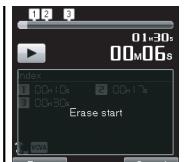
3 In the position you want to end partial erase, press the Fn (ERASE) button again.
- [Start point] and [End point] on the display flash alternatively. When the lights are flashing, playback continues and you can rewind or fast-forward as usual and fast-forward to the end of erase. If the file reaches the end during the flashing of the lights, that will be the position where erase ends.
Press the Fn (ERASE) button again.
- The display will switch to [Partial erasing!] and start the partial erase. The deletion is completed when [Partial erase completed.] is displayed.
- Playback will stop at the end location of the partial erase.
Notes
- Partial erase is not applicable to files recorded in the WMA or MP3 formats.
- The file created date will not change even if the file is partially erased.
- An erased file cannot be restored. When a microSD Card is inserted in the recorder, be sure to confirm the recording media as either [Built-in] or [microSD] so that there is no mistake.
- The locked files and files set as read-only cannot be erased (e.g. P.75).
- If an action is not selected within 8 seconds, the recorder will return to stop status.
- Never perform operations such as the following while processing, as they may damage the data. In addition, carefully check the remaining battery level in order to ensure that the battery will not run out while processing.
1 Unplugging the AC adapter while processing.
② Removing the battery while processing.
③ Remove the microSD card during processing when [microSD] is being used as the recording media. Performing any of these operations may damage the data.
- [Recorder] folder (A-E) as well as [Music], [Podcast], Audiobooks folders cannot be deleted.
Menu setting method
You can set the various functions of this recorder. You can set each menu item as follows.
Making settings from [Preferences] on the [Home] menu display
From menu on the [Home] menu display, following settings can be made: [Rec Menu], [Play Menu], [LCD/Sound Menu], and [System Menu]. You can perform various settings on this recorder before recording or playback.
1 From the [Home] menu display, select [Preferences], and then press the OK or button to open the menu item display.
![OLYMPUS DM-3, DM-5, DM-650, DM-670 - Making settings from [Preferences] on the [Home] menu display - 1](/content/2025/01/125284/images/3d4cd60a4f4097638e1ffdd61302707333a29d752515a87d10ecf9892a0b1128.jpg)
![OLYMPUS DM-3, DM-5, DM-650, DM-670 - Making settings from [Preferences] on the [Home] menu display - 2](/content/2025/01/125284/images/74ace88d121d44eb34596376fcbff0f4bc8cdb8ac97e7be4a21270235c68fa35.jpg)
Press the ^+ or - button to select a menu item, and then press the OK or button.
![OLYMPUS DM-3, DM-5, DM-650, DM-670 - Making settings from [Preferences] on the [Home] menu display - 3](/content/2025/01/125284/images/47427cb425c8d71192f88891b3e53cc2be117bd4cbfdc132c25ff40c298a0f51.jpg)
![OLYMPUS DM-3, DM-5, DM-650, DM-670 - Making settings from [Preferences] on the [Home] menu display - 4](/content/2025/01/125284/images/fa20be82db74c25d997a0880ccbe71393ff736caa95311a3535ba6d88df4ddc4.jpg)
Press the ^+ or - button to select the setting item, and then press the OK or button.
![OLYMPUS DM-3, DM-5, DM-650, DM-670 - Making settings from [Preferences] on the [Home] menu display - 5](/content/2025/01/125284/images/3cf91d83e7a27068df3513d03c2964210284b7cb3d62f8cc515dd0565716ad07.jpg)
![OLYMPUS DM-3, DM-5, DM-650, DM-670 - Making settings from [Preferences] on the [Home] menu display - 6](/content/2025/01/125284/images/a5de960f45ed6127422cf3d053f941b5f78331e489324762626010d2d9d902f9.jpg)
- Moves to the setting of the selected item.
- If you make a mistake while performing a setting, press the or F1 (BACK) button to return to the previous display.
4 Press the + or - button to change the setting, and then press the OK button to complete the setting.
![OLYMPUS DM-3, DM-5, DM-650, DM-670 - Making settings from [Preferences] on the [Home] menu display - 7](/content/2025/01/125284/images/3b96f276965f8ef3253f89c092d2cb12682a4dadb2a9df373b894da9bd351ed7.jpg)
![OLYMPUS DM-3, DM-5, DM-650, DM-670 - Making settings from [Preferences] on the [Home] menu display - 8](/content/2025/01/125284/images/fe09341243790911e8d196c4d2763f2422eb14ee61965554db2e7dbad17dbd1f.jpg)
- You will be informed that the settings have been established via the display.
Press the F3 (HOME) button to close the menu display.
Performing menu settings during recording, playback, and stop modes
Menu settings can be performed while this recorder is being operated. In addition to [Rec Menu] and [Play Menu] settings, [File Menu] settings for file management can also be performed from the menu during operation.
1 While the recorder is recording, playing back, paused, and stopped, press the F3 (MENU) button.
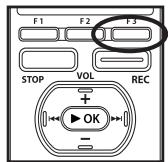
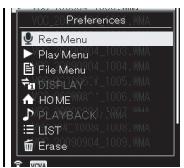
Press the + or - button to select a menu item, and then press the OK or button.
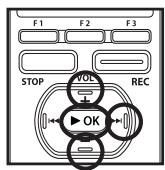
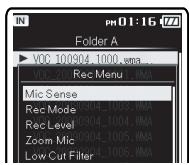
3 Press the ^+ or - button to select the setting item, and then press the OK or button.
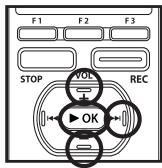
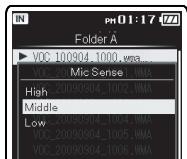
- Moves to the setting of the selected item.
If you make a mistake while performing a setting, press the! or F1 (BACK) button to return to the previous display.
Press the + or - button to change the setting, and then press OK button to complete the setting.
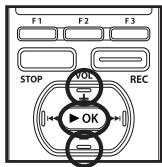

Press the F3 (CLOSE) button to close the menu display.
- When the display is in the menu display during recording or playback, pressing the F3 (CLOSE) button will allow you to return to the playback display without interrupting recording or playback.
YRec Menu
MicSense
Microphone sensitivity is adjustable to meet recording needs.
1 Select [Mic Sense] from the menu on the [Rec Menu].
2 Select [High], [Middle] or [Low].
[High]:
Highest recording sensitivity suitable for conferences with large crowds and recording audio at a distance or low volume.
[Middle]:
Suitable for recording meetings and seminars with a small number of people.
[Low]:
Lowest recording sensitivity suitable for dictation.
- When you would like to clearly record a speaker's voice, set [Mic Sense] to [Low] and hold recorder's built-in stereomicrophone close to the speaker's mouth (5-10 cm) before recording.
RecMode
The recorder can record in the linear PCM format. High resolution recording at a high sampling rate and high bit rate equivalent or superior to that of a music CD is possible. Moreover, it also supports the MP3 and WMA formats.
1 Select [Rec Mode] from the menu on the [Rec Menu].
2 Select [PCM], [MP3] or [WMA].
[PCM]:
This is an uncompressed audio format which is used for music CDs and the like.
[MP3]:
MPEG is the international standard established by a working group of the ISO (International Organization for Standardization).
[WMA]:
This is an audio compression encoding method that was developed by the Microsoft Corporation in the US.
3 Set the recording rate.
When [PCM] is selected:
[48kHz/16bit] or [44.1kHz/16bit]
When [MP3] is selected:
[320kbps] to [128kbps]
When [WMA] is selected:
[STXQ],[STHQ],[STSP],[HQ],[SP],[LP]
To record a meeting and lecture clearly, set other than [LP] in Rec Rate.
- When the external monaural microphone is used while [Rec Mode] is set to a stereo recording mode, it enables recording only with the L channel microphone.
Set the method for adjusting the recording level [Rec Level]
You can set the device to automatically or manually adjust the recording level.
1 Select [Rec Level] from the menu on the [Rec Menu].
2 Select [Manual] or [Auto].
[Manual]:
Recording is performed by manually adjusting the recording level.
[Auto]:
Recording is performed by automatically adjusting the recording level. This is useful for when you will be recording right away.
Adjust the recording level:
Press the or button while the recorder is recording or paused to adjust the recording level.
- The recording level will be automatically adjusted when the recording level is set to [Auto]. Set the recording level to [Manual] to use the recording level adjustment feature.
- When the unit is set to [Manual], the limiter function will be disabled. Distorted sound will be recorded during [OVER] is displayed. Adjust the recording level so that [OVER] is not displayed. If sound distortions do not disappear even after the recording level has been adjusted, change the setting for microphone sensitivity (P.67) and adjust the recording level again.
- [OVER] may be displayed even when the indicator of the recording level meter does not reach or is over to the right.
- Inputting a very loud sound may produce noise even when the recording level is set to [Auto].
- The level can be adjusted from [01] to [16]. The higher the number, the higher the level and the larger the indicator position on the level meter.
Zoom Mic
The directional microphone function utilizes DiMAGIC's (DiMAGIC Co., Ltd.) DiMAGIC Virtual Microphone (DVM) technology. DVM is an audio pickup system which allows you to record by focusing on sound from any direction. From expansive stereo recording to high directivity recording, DVM represents the latest in directional control methods that allow you to switch to a single exclusive microphone.
1 Select [Zoom Mic] from the menu on the [Rec Menu].
2 Select [Zoom], [Narrow], [Wide] or [Off].
[Zoom]:
Recording with monaural, however you can record high directivity sound.
[Narrow]:
Recording by a directivity stereo sound.
[Wide]:
Recording by an expansive stereo sound.
[Off]:
Disables this function.
About the Zoom Mic function:
Directivity (high)

Directivity (low)
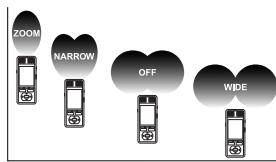
Sound collection (narrow)

Sound collection (wide)
Low Cut Filter
The recorder has a Low Cut Filter function to minimize low-frequency sounds and record voices more clearly. This function can reduce noise from air conditioners, projectors and other similar noises.
1 Select [Low Cut Filter] from the menu on the [Rec Menu].
2 Select [On] or [Off].
[On]:
Enables the Low Cut Filter function.
[Off]:
Disables this function.
VCVA
When the microphone senses that sounds have reached a preset threshold volume level, the built-in Variable Control Voice Actuator (VCVA) starts recording automatically, and stops when the volume drops below the threshold level. The VCVA feature extends recording time and conserves memory by stopping recording during silent periods, which helps the playback to be more efficient.
1 Select [VCVA] from the menu on the [Rec Menu].
2 Select [On] or [Off].
[On]:
Enables the VCVA function. Will start recording in VCVA mode.
[Off]:
Disables this function. Will resume recording in normal mode.
Adjust the start/stop actuation level:
- If the surrounding noise is loud, the starting sensitivity of the VCVA can be adjusted according to the recording situation.
Press the REC button to start recording.
- When the sound volume is lower than the preset threshold sound level, recording automatically stops after 1 sec approximately, and [Standby] flashes on the display. The LED indicator light glows orange when recording starts and flashes when recording pauses.
Press the or button to adjust the start/stop actuation level.
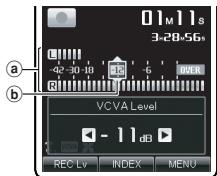
The VCVA level can be set to any of 23 different values.
- The higher the value, the more sensitive the recorder to sounds. At the highest value, even the faintest sound will activate recording.
a Level meter (varies according to the sound volume being recorded)
b Start level (moves to the right/left according to the set level)
- Press the F1 button to change the recording level (P.67) during VCVA recording. The recording level can be adjusted.
- The start/stop actuation level also varies depending on the selected microphone sensitivity mode (P.67).
- If the starting level is not adjusted within 2 seconds, the display will return to the previous.
- To ensure successful recordings, prior testing and adjustment of the start/stop actuation level is recommended.
VCVA standby monitor setting:
When [Standby] is set to [On] with the menu setting, the recording will not be output from the microphone while in VCVA standby. When you monitor your recording with the microphone connected, you can check whether VCVA is launched or not by checking if an audio is output.
[On]:
Enables the Standby Monitor function.
[Off]:
Disables this function.
RecScene
Refer to "Setting the recording scene [Rec Scene]" (E85 P.80).
Timer Rec
Refer to "Timer recording [Timer Rec]" (P.81).
Changing folder names [Folder Name]
You can change the folder names of [Folder A] to [Folder E] for audio recording into names preset in the template. You can also change folder names registered in the template with "Olympus Sonority".
1 Select [Folder Name] from the menu on the [Rec Menu].
Press the + or - button to select the folder name you want to change, and then press the OK or▶按钮.
Press the + or - button to select the folder name you want to change from the template, and then press the OK button.
Template list:
Sets a folder name from the preset template.
| Car | Train | Plane |
| Work | Interview | Business trip |
| Conference | Lecture | Class |
| Memo | Record | Telephone recording |
| Conversation | Hobby | Lesson |
| Language lesson | Music | Event |
| Folder A | Folder B | Folder C |
| Folder D | Folder E |

The voice control function can be used with this setting
(P.107) (For DM-5).
PT Play Menu
Noise Cancel
If recorded audio is difficult to understand because of noisy surroundings, adjust the Noise Cancel setting level.
1 Select [Noise Cancel] from the menu on the [Play Menu].
2 Select [High], [Low] or [Off].
[High] [Low]:
Enables the Noise Cancel function.
Noise will be reduced in the file when it's played back for better sound quality.
[Off]:
Disables this function.
EUPHONY
This recorder is equipped with "EUPHONY MOBILE", the latest in surround sound systems which combines bandwidth correction, expansion technology, and virtual acoustical source processing technology. In addition to its natural, expansive feel, the recorder is equipped with the exceptional feature wherein listeners are less prone to developing a compressed or closed-in feel, or to growing tired over extended listening.
Level adjustments of the [EUPHONY] setting can be set to four stages according to preference.
1 Select [EUPHONY] from the menu on the [Play Menu].
2 Select [Power], [Wide], [Natural] or [Off].
[Power]:
This mode focuses more on lower sound registers.
[Wide]:
This mode has an even more expansive feel.
[Natural]:
This mode achieves natural bandwidth correction and acoustical field expansion.
[Off]:
Disables this function.
Voice Filter
The recorder has a Voice Filter Function to cut low and high frequency tones during normal, fast, or slow playback, and enable clear audio playback.
1 Select [Voice Filter] from the menu on the [Play Menu].
2 Select [On] or [Off].
[On]:
Enables the Voice Filter function.
[Off]:
Disables this function.
Repeat
The repeat playback settings can be set as desired.
1 Select [Repeat] from the menu on the [Play Menu].
2 Select [1 File], [List] or [Off].
[1 File]:
A single file is played repeatedly.
[List]:
The displayed file list is played
repeatedly.
[Off]:
Disables this function.
Performing settings with Fn buttons:

This operation can be performed when the [Repeat] function has been assigned to a Fn button (F1 or F2) ( 35, P.76) .
Press the Fn (RPT) button.
Every time the Fn (RPT) button is pressed, the display switches between [ALL] and [F].
Random
The displayed file list is played repeatedly.
1 Select [Random] from the menu on the [Play Menu].
2 Select [On] or [Off].
[On]:
Enables the Random Playback function.
[Off]:
Disables this function.
Performing settings with Fn buttons:

This operation can be performed when the [Random] function has been assigned to a Fn button (F1 or F2) (e^*P.76) .
Press the Fn (RDM) button.
- If the Fn (RDM) button is pressed, [02] is displayed and a random playback is enabled.
Play Speed
The playback speed of the file can be changed between [50%] and [600%] times speed. Change the speed according to need such as listening to meeting content at a fast speed or reviewing spots that you couldn't catch in a language lesson at a slow speed.
1 Select [Play Speed] from the menu on the [Play Menu].
2 Set the playback speed. [50%] to [600%]
Performing settings with Fn buttons:

This operation can be performed when the [Play Speed] function has been assigned to a Fn button (F1 or F2) (eP.76).
Press the Fn (SPD) button.
2 Press the + or - button to specify a speed setting, and then press the OK button.
Restrictions on double speed playback:
Normal operation may not be available depending on the sampling frequency and the bit rate of the file to be played back. In such a case, reduce the speed of the fast playback.
- If [Play Speed] has been assigned in the [Fn. setting] settings (v8' P.76), use the assigned button to enter the [Play Speed] setting display.
- The [Play Speed] setting in the [Voice Guide] settings (E P.86) is disabled during file playback.
Skip Space
This function enables you to skip (forward) or reverse skip (rewind) a file being played for a set period. This function is convenient for quickly skipping to another playback position or repeatedly playing back short phrases.
1 Select [Skip Space] from the menu on the [Play Menu].
2 Select [Forward Skip] or [Reverse Skip].
3 Set the skip space.
When [Forward Skip] is selected:
- Playback starts after skipping forward the specified interval.
[File Skip] [10sec. Skip] [30sec. Skip]
[1min. Skip] [5min. Skip]
[10min. Skip]
When [Reverse Skip] is selected:
- Playback starts after skipping back the specified interval.
[File Skip] [1sec. Skip] to [5sec. Skip]
[10sec. Skip] [30sec. Skip]
[1min. Skip] [5min. Skip]
[10min. Skip]
Forward/Reverse Skip Playback:
1 Press the OK button to start playback.
2 Press the▶orI按钮.
- The recorder will skip (forward) or reverse skip (rewind) a set space and start playing back.
- If there is an index mark or a cue closer than the skip space, the recorder will forward skip/reverse skip to that position.
Play Scene
Refer to "Setting the playback scene [Play Scene]" (P.84).
YT LCD/Sound Menu
Backlight
The display will remain lit for about 10 (Initial setting) seconds when a button on the recorder is pressed.
1 Select [Backlight] from the menu on the [LCD/Sound Menu].
2 Select [Lighting Time], [Dim light Time] or [Brightness].
When [Lighting Time] is selected:
[5 seconds] [10 seconds] [30
seconds] [1minute] [Always On]
When [Dim light Time] is selected:
[30 seconds] [1minute] [2minute]
[5minute] [Always On]
When [Brightness] is selected:
Adjust the setting between [01] and [03].
Press the + or - button to change the setting, and then press OK button to confirm the setting.
Beep
The recorder beeps to alert you to button operations or warn you of errors. System sounds may be turned off.
1 Select [Beep] from the menu on the [LCD/Sound Menu].
2 Select the beep level.
Adjust the setting between [05] and [00].
LED
You can set it so the LED indicator light does not turn on.
7 Select [LED] from the menu on the [LCD/Sound Menu].
2 Select [On] or [Off].
[On]:
LED light will be set.
[Off]:
Disables this function. LED light will be cancelled.
Language(Lang)
You can select the display language for this recorder.
1 Select [Language] from the menu on the [LCD/Sound Menu].
2 Set the Language.
[English] [Français] [Deutsch] [Italiano]
[Espanol] [Pycckn]:
- The selectable language differs depending on the region.
Voice Guide
Refer to "Guidance [Voice Guide]" (P.85).
Alarm
Refer to "Alarm playback function [Alarm]" (P.87).
Y File Menu
Keyword
Voice files recorded by this recorder can be tagged with a keyword for file management. File lists can be created by keyword file searches (P.55).
1 Select the file you want to tag with a keyword (P.53 to P.59).
2 Select [Keyword] from the menu on the [File Menu].
Press the + or - button to select the desired keyword, and then press the OK button.
Keyword list:
Sets a keyword from the preset template.
| Car | Train | Plane |
| Work | Interview | Business trip |
| Conference | Lecture | Class |
| Memo | Record | Telephone recording |
| Conversation | Hobby | Lesson |
| Language lesson | Music | Event |
Erase Lock
Locking a file keeps important data from being accidentally erased. Locked files are not erased when you select to erase all files from a folder (P.60).
1 Select the file you want to file lock (P.53 to P.59).
2 Select [Erase Lock] from the menu on the [File Menu].
3 Select [On] or [Off].
[On]:
Locks the file and prevents it from being erased.
[Off]:
Unlocks the file and allows it to be erased.
File Move/Copy
Refer to "Moving/Copying files [File Move/ Copy]" (P.91).
File Divide
Refer to "Dividing files [File Divide]" (P.93).
Property
File and folder information can be confirmed from the menu display.
1 Select the file or folder with information you want to view in advance (P.53 to P.59).
2 Select [Property] from the menu on the [File Menu].
3 Set the property.
When the file is selected:
[Name] (File name), [Date] (Time stamp), [Size] (File size), [Bit Rate]1 (File format) [Artist]2 (Artist name) and [Album]2 (Album name) will appear on the display.
1 When a linear PCM format file has been selected, [Bit Rate] area displays the sampling frequency and bit rate.
*2 When a file contains no tag information, [UNKNOWN_ARTIST], [UNKNOWN_ALBUM] will appear on the display. When voice file is selected, [Artist] and [Album] will not appear on the display.
When the folder is selected:
[Name] (File name), [Folder] (Number of folder) and [File]*1 (Number of file) will appear on the display.
*1 Files which cannot be recognized by this recorder are not included in the number of files.
- Select the files for which you would like to confirm information in advance before operating the menu.
YT System Menu
Fn.setting
The Fn buttons (F1 and F2) of this recorder can be assigned to suit your desired method of use. Assigned buttons can be operated during recording and playback.
1 Select [Fn. setting] from the menu on the [System Menu].
2 Select the [F1] or [F2].
- You can assign settings to suit the way you use the recorder.
Fn button list:
Sets a Function Key from the preset template.
| Off | Repeat |
| Random | Play Speed |
| INDEX | A-B |
| Erase | DISPLAY |
| LIST |
Press the + or - button to select the item you want to assign, and then press the OK button.
- Repeat Steps 2 and 3 to continue registering the function keys.
Memory Select
When a microSD card is inserted you can select to record to either the built-in memory or to the microSD card (E P.30).
1 Select [Memory Select] from the menu on the [System Menu].
2 Select the [Built-in] or [microSD].
Auto Power Off
If the recorder remains in stop mode for over 10 minutes (Initial setting), the power will be turned off.
1 Select [Auto Power Off] from the menu on the [System Menu].
2 Select the [5minutes], [10minutes], [30minutes], [1hour], [2hour], [3hour] or [Off].
[5minutes] [10minutes] [30minutes]
[1hour] [2hour] [3hour]:
Set the length of time before the power will be turned off.
[Off]: Disables this function.
Time & Date
Refer to "Setting time and date [Time & Date]" (K-P.28).
USB Settings
You can perform two settings for connections using the supplied USB cable. [PC] is used when connecting to a computer to transfer and receive files. [AC] is used when connecting to an AC adapter (A514) (Optional) for recharging.
1 Select [USB Settings] from the menu on the [System Menu].
2 Select the [PC], [AC] or [EACH].
[PC]:
Setting for connecting to the PC using the USB cable provided.
Connected as Storage.
[AC]:
Setting for connecting to the USB connecting AC adapter (A514) (optional) using the USB cable provided. The recorder can be operated on during charging.
[EACH]:
Setting to confirm the connection method each time a USB connection is made.
Note
- The PC cannot recognize when the recorder is connected to the PC when setting for the [USB Settings] is set to [AC].
Reset Settings
This returns the functions back to their initial settings (factory default).
1 Select [Reset Settings] from the menu on the [System Menu].
Press the ^+ button to select [Start], and then press the OK button.
[Start]:
Returns the settings to their initial values.
[Cancel]:
Takes you back to the [System Menu].
Menu settings after setting reset (initial settings):
Rec Menu:
[Mic Sense] [Middle]
[Rec Mode]
[Recording format] [WMA]
[Recording rate] [STXQ]
[Rec Level] [Auto]
[Zoom Mic] [Off]
[Low Cut Filter] [Off]
[VCVA]
[On/Off] [Off]
[Standby] [Off]
[Rec Scene] [Off]
[Timer Rec] [Off]
[Folder Name] [Initial setting]
▶ Play Menu:
[Noise Cancel] [Off]
[EUPHONY] [Off]
[Voice Filter] [Off]
[Repeat] [Off]
[Random] [Off]
[Play Speed] [100]
[Skip Space]
[Forward Skip] [File Skip]
[Reverse Skip] [File Skip]
[Play Scene] [Off]
LCD/Sound Menu:
[Backlight]
[Lighting Time]
[10seconds]
[Dim light time]
[30seconds]
[Brightness]
[Level 02]
D]
ep]
[On]
nguage(Lang)]
[Volume3]
ice Guide]
[English]
[Menu Guide]
[On]
[File Guide]
[On]
[Speed]
[100]
[Volume]
[Volume 3]
[Alarm] [Off]
IT System Menu:
[Fn. setting]
[F1]
[LIST]
[F2]
[INDEX]
[Memory Select]
[Built-in]
[Auto Power Off]
[10minutes]
[USB Settings]
[PC]
Note
- After resetting the settings, the time settings and file numbers will be preserved from before the reset and will not return to their initial settings.
Memory Info.
The recordable capacity remaining and overall capacity of the recording media can be seen from the menu display.
- When no microSD card is inserted only information for the built-in memory will seen.
- The domain area which uses the administrative files which the recorder uses is included in the remaining capacity for the recording media. For microSD cards in particular, in addition to this administrative domain the administrative domain area for the microSD card is added in as well. Owing to this, the remaining capacity will be displayed as less than the card's specified capacity, yet this is not abnormal.
System Info.
You can check the recorder's information on the menu display. [Model] (Model Name), [Version] (System version) and [Serial No.] (Serial Number) appears on the display.
Format
Refer to " Formatting the recorder [Format]" (F P.94).
Setting the recording scene [Rec Scene]
The recording setting can be selected from the [Dictation], [Conference], [Lecture] templates to suit the recording scene or situation. You can also save a recording setting of your choice.
1 Select [Rec Scene] from the menu on the [Rec Menu].
- For details on how to enter the menu settings, please see "Menu setting method" (E5 P.65).
2 Select [Scene Select] or [Scene Save].
![OLYMPUS DM-3, DM-5, DM-650, DM-670 - Select [Scene Select] or [Scene Save]. - 1](/content/2025/01/125284/images/25cec3c23a4ce7fac12e7482527e91b3369610c5ddfc1c2bf7d3dff80e31b7fb.jpg)
![OLYMPUS DM-3, DM-5, DM-650, DM-670 - Select [Scene Select] or [Scene Save]. - 2](/content/2025/01/125284/images/e6932e6864c4349180761b277b2475d8ef8ef963ab6b37a7c006ec788469b563.jpg)
When [Scene Select] is selected:
① Press the + or - button to select the recording scene you want to set.
② Press the OK button to complete the selection.
- To confirm the respective recording scene settings, press the + or - button in the [Scene Select] display to select the item you want to confirm, then press the▶按钮 to confirm in the setting confirmation display. To end the setting confirmation display, press the▶ button and the display will return to the [Scene Select] display.
When [Scene Save] is selected:
Besides the [Rec Scene] templates found in the recorder, you can also save the menu settings of a recording you have set to your choice.
[Scene Save] cannot be used during recording. While the recorder is paused, enter the menu from the [Home] menu display, and then perform this setting.
① Press the + or - button to select the [User Setting] you want to save.
② Press the OK button to complete the settings.
Press the F3 (HOME) button to complete the setting.
Template for Setting a Recording scene
In [Scene Select], you can select a recording scene that is most suitable for the recording scene or situation from three templates. The recording settings for the respective recording scenes are as follows.
| Record Setting | Recording Scene | |||
| Off | Dictation | Conference | Lecture | |
| [Mic Sense] | Middle | Low | Middle | High |
| [Rec Mode] | ST XQ | HQ | ST XQ | ST XQ |
| [Rec Level] | Auto | Auto | Auto | Auto |
| [Zoom Mic] | Off | Off | Wide | Zoom |
| [Low Cut Filter] | Off | On | On | On |
| [VCVA] | Off | Off | Off | Off |
| [Standby] | Off | Off | Off | Off |
Timer recording [Timer Rec]
Timer recording is the function to execute a recording at a set time. You can program up to three desired settings (Preset 1-3) ([On/Off], [Day], [Start Time], [Stop Time], [Rec Mode], [Mic Sense], [MemorySelect], [Folder], and [Keyword]).
1 Select [Timer Rec] from the menu on the [Rec Menu].
- For details on how to enter the menu settings, please see "Menu setting method" (E&P P.65).
Press the ^+ or - button to select a preset number, and then press the OK or button.

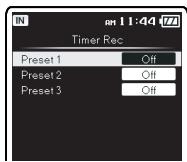
3 Press the + or - button to select the item to set, and then press the OK or button.
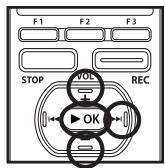
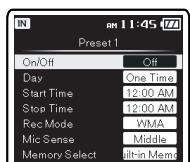
- Select items you want to set from among [On/Off], [Day], [Start Time], [Stop Time], [Rec Mode], [Mic Sense], [Memory Select], [Folder], and [Keyword].
[On/Off] setting:
① Press the + or - button to select between [On] and [Off].
![OLYMPUS DM-3, DM-5, DM-650, DM-670 - [On/Off] setting: - 1](/content/2025/01/125284/images/fde7f11ecc38a72e2bdea57abd56543d0f8540fb40f052a846044ab82b7b281a.jpg)
![OLYMPUS DM-3, DM-5, DM-650, DM-670 - [On/Off] setting: - 2](/content/2025/01/125284/images/1631ac37992d72d321196727eb3dde8efe4ce6c05bd45f5abf6d72033b9d70f0.jpg)
[On]:
Setting will be applied.
[Off]:
Setting will not be applied.
② Press the OK button to exit [On/Off] selection.
[Day] setting:
① Press the + or - button to select from [One Time], [Everyday], and [Every Week].
![OLYMPUS DM-3, DM-5, DM-650, DM-670 - [Day] setting: - 1](/content/2025/01/125284/images/460c4428712236a92e6875df350fd8c771c1627472479928e81a50de9b18601f.jpg)
![OLYMPUS DM-3, DM-5, DM-650, DM-670 - [Day] setting: - 2](/content/2025/01/125284/images/f9ce241f3922356f18488ff87ae005063e4ab13f8c73c919cc4c9e7b3b5c4439.jpg)
[One Time]:
Records only once at the specified time.
[Everyday]:
Records every day at the specified time.
[Every Week]:
Make a recording at a set time on a specified day of the week.
Select [Every Week] and press the OK button to move to the selection of [Day]. Press the + or - button to select a day of the week.
② Press the OK button to exit [Day] selection.
[Start Time] and [Stop Time] setting:
![OLYMPUS DM-3, DM-5, DM-650, DM-670 - [Start Time] and [Stop Time] setting: - 1](/content/2025/01/125284/images/80a39fb3f75b321baf30f62dbe394d35a2c152445e971bd9346f09fe9b6c051a.jpg)
The voice control function can be used with this setting (_B^*P.107) (For DM-5).
① Press the or button to select "Hour" and "Minute" in the [Start Time] and "Hour" and "Minute" in the [Stop Time].
![OLYMPUS DM-3, DM-5, DM-650, DM-670 - [Start Time] and [Stop Time] setting: - 2](/content/2025/01/125284/images/7e1732f84f34c6fb18a5ced65063e3f3cbb5f4f765f2ab8948259d560e52b336.jpg)
![OLYMPUS DM-3, DM-5, DM-650, DM-670 - [Start Time] and [Stop Time] setting: - 3](/content/2025/01/125284/images/6eb4f37bd21cb371bc35ec48406251b6c602665ddda1d4fd07fa8326c1fe918c.jpg)
(2) Press the + or - button to set.
③ Press the OK button to exit [Start Time] and [Stop Time] selection.
![OLYMPUS DM-3, DM-5, DM-650, DM-670 - [Start Time] and [Stop Time] setting: - 4](/content/2025/01/125284/images/18ed1214c55ae28f2c964bd838d12331ef5a36b56a2190e9b085200ead0deddf.jpg)
![OLYMPUS DM-3, DM-5, DM-650, DM-670 - [Start Time] and [Stop Time] setting: - 5](/content/2025/01/125284/images/8c2b4b9bacff10a59c10ea55ba2d85802e23de63630068200da0da40b6c3b2d0.jpg)
[Rec Mode] setting:
Regardless of the regular [Rec Mode] (P.67), timer recording will start in a set recording mode.
①Press the + or - button to select a recording mode.
②Press the OK or button.
![OLYMPUS DM-3, DM-5, DM-650, DM-670 - [Rec Mode] setting: - 1](/content/2025/01/125284/images/01233bbffc8e99228a31fe1ab7d8e8b062ae557ebb61eaf95c3b214faf0d935b.jpg)
![OLYMPUS DM-3, DM-5, DM-650, DM-670 - [Rec Mode] setting: - 2](/content/2025/01/125284/images/cf4eac4f17af2c80e1ce77c508f6e7cf9cfb57be76f975aaedb16bffb96a3aec.jpg)
③ Press the + or- button to select a recording rate.
④Press the OK button to exit Recording mode selection.
![OLYMPUS DM-3, DM-5, DM-650, DM-670 - [Rec Mode] setting: - 3](/content/2025/01/125284/images/ee3919c5ef5563c8f70cb59235bd8eabbffb122821405bafe0066d028e29f5c5.jpg)
![OLYMPUS DM-3, DM-5, DM-650, DM-670 - [Rec Mode] setting: - 4](/content/2025/01/125284/images/bd58447931215f793727ebf52f0aa8a073bec70008142878d00426ce15e8fd1e.jpg)
[Mic Sense] setting:
Regardless of the recorder's microphone sensitivity setting (e38 P.67), timer recording will start at a set microphone sensitivity.
① Press the + or - button to select from [High], [Middle], and [Low].
② Press the OK button to exit [Mic Sense] selection.
![OLYMPUS DM-3, DM-5, DM-650, DM-670 - [Mic Sense] setting: - 1](/content/2025/01/125284/images/5997224c21dc57c17727cc74fff072e70a1311f5b737b3867f260eb778853e5c.jpg)
![OLYMPUS DM-3, DM-5, DM-650, DM-670 - [Mic Sense] setting: - 2](/content/2025/01/125284/images/b1d7242f11d19f0335a7f0ffcac2c29de3fe48c8b68097951d76e68d755bbfb7.jpg)
[Memory Select] setting:
①Press the + or - button to select the destination to save to (Memory).
②Press the OK button to exit [Memory Select] setting selection.
![OLYMPUS DM-3, DM-5, DM-650, DM-670 - [Memory Select] setting: - 1](/content/2025/01/125284/images/2b81a0de2481ee1b6e6ba4c8a9e157125b3cf39072a866ce366ae6959c4e53d5.jpg)
![OLYMPUS DM-3, DM-5, DM-650, DM-670 - [Memory Select] setting: - 2](/content/2025/01/125284/images/f44671a287e1c151c4faf9b67da1569d4cde18c79169f5387f5ebb6325d57d86.jpg)
[Folder] setting:
①Press the + or - button to select the destination to save to (Folder).
②Press the OK button to exit [Folder] setting selection.
![OLYMPUS DM-3, DM-5, DM-650, DM-670 - [Folder] setting: - 1](/content/2025/01/125284/images/4f6ce4693af7f2db073f3ebd0c10992052952431c11945e0215b12b30dca224e.jpg)
![OLYMPUS DM-3, DM-5, DM-650, DM-670 - [Folder] setting: - 2](/content/2025/01/125284/images/d491c43a74d22b0bd8642f72dda6a0b38de150e02692f3c63584a56a32ef3d69.jpg)
[Keyword] setting:
Tag a keyword to file to be recorded using the timer.
![OLYMPUS DM-3, DM-5, DM-650, DM-670 - [Keyword] setting: - 1](/content/2025/01/125284/images/35a75ae2eaa7f47956c2a4617e0a540634d08cc55977b6ff4f77015497d5e098.jpg)
The voice control function can be used with this setting (eP.107) (For DM-5).
①Press the + or - button to select the desired keyword, and then press the OK button.
![OLYMPUS DM-3, DM-5, DM-650, DM-670 - [Keyword] setting: - 2](/content/2025/01/125284/images/f87add7770e925bbaed071291923ec78302abecd0c66cf0f1d23c9bed8c49a95.jpg)
![OLYMPUS DM-3, DM-5, DM-650, DM-670 - [Keyword] setting: - 3](/content/2025/01/125284/images/61e36adc1e449d907e40b9f0f733f9f9232609031360d02b31db5228d715a93d.jpg)
Completing the setting:

Press the F2 (G0) button to complete the setting.
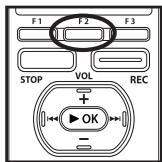
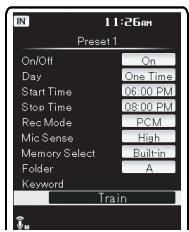
Programmed settings will be applied and the display will return to the preset number selection menu. If the [On/Off] setting is set to [On], [O] will appear on the display. (a) When setting to [On]
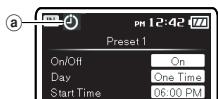
To set other preset numbers, repeat the abovementioned procedure.
When the button is pressed in the Select in Advance Menu, the settings selected can be confirmed.
Notes
- If the recorder is in use at the preset start time, the timer recording will start directly after stopping the recorder.
Even if the power is turned off or the recorder is put on Hold, timer recording will start at a specified time. - If three timer recordings have the same starting times, [Preset 1] has the highest priority and [Preset 3] has the lowest.
- If the starting time for timer recording and alarm playback (P.87) is set for the same time, timer recording will have priority.
- If the batteries run out while recording based on the timer setting, the recorder will stop recording. Check the battery power before starting the timer recording.
- If the [Time & Date] is not correct, timer recording cannot be set at the specified time, so make sure the [Time & Date] is correct before setting timer recording. If it is not correct, reset [Time & Date] (P.28).
- The recorder will record in the built-in memory [Folder A] when the microSD card is selected as the recording destination and the microSD card is not inserted during Timer Recording.
Setting the playback scene [Play Scene]
Voice files recorded in the recorder and music files downloaded from the PC can be saved in the playback settings of your choice to suit the different sound qualities and playback methods.
1 Select [Play Scene] from the menu on the [Play Menu].
- For details on how to enter the menu settings, please see "Menu setting method" (E&P P.65).
Press the + or - button to select the item to set, and then press the OK or I button.
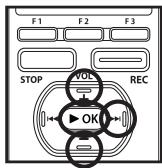
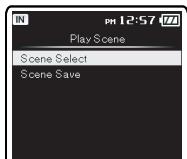
When [Scene Select] is selected:
① Press the + or - button to select the playback scene you want to set.
② Press the OK button to complete the selection.
![OLYMPUS DM-3, DM-5, DM-650, DM-670 - When [Scene Select] is selected: - 1](/content/2025/01/125284/images/4be3c049935ad7af92c09f7e5fa89fcc6e280940ec24d33fd9c28c51ad7e98b6.jpg)
![OLYMPUS DM-3, DM-5, DM-650, DM-670 - When [Scene Select] is selected: - 2](/content/2025/01/125284/images/a0dfb75570d3ed489d89522a6676b00ee1bc13336277bdba9d4564690e1e8d4e.jpg)
After purchase, all the settings from 1 to 5 of [User Setting] are the same (initial settings). Register the user settings in the [Scene Save] then select playback scene.
- To confirm the respective playback scene settings, press the + or - button in the [Scene Select] display to select the item you want to confirm, then press the▶按钮 to confirm in the setting confirmation display. To end the setting confirmation display, press the▶ button and the display will return to the [Scene Select] display.
When [Scene Save] is selected:
You can save the menu settings of a playback you have set to your choice.
① Setting the menu of a playback in the recorder to your choice.
② Press the + or - button to select the [User Setting] you want to save.
③ Press the OK button to complete the settings.
![OLYMPUS DM-3, DM-5, DM-650, DM-670 - When [Scene Save] is selected: - 1](/content/2025/01/125284/images/eb77e08bfd189c97728c701495561d0a5f4ede010757da75a21a451f8679897a.jpg)
![OLYMPUS DM-3, DM-5, DM-650, DM-670 - When [Scene Save] is selected: - 2](/content/2025/01/125284/images/b2a4b57177358d3b478a840ddf0221500afc91b45e814ebde714820b0ae518f5.jpg)
Press the F3 (HOME) button to complete the setting.
Guidance [Voice Guide]
This feature gives voice announcements of recorder operating conditions and file tag information (For DM-5). Adjust the speed and the volume of guidance announcements.
1 Select [Voice Guide] from the menu in [LCD/Sound Menu].
- For details on how to enter the menu settings, please see "Menu Setting Method" (E&P P.65).
2 Press the + or - button to select the item to set, and then press the OK or button.
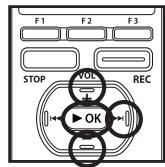
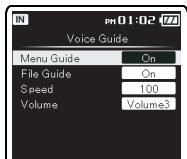
[Menu Guide] setting:
Provides voice guidance for menu settings.
① Press the + or - button to select between [On] and [Off].
[On]:
[Menu Guide] will be provided.
[Off]:
Guidance will be canceled.
②Press the OK button to exit [Menu Guide] selection.
![OLYMPUS DM-3, DM-5, DM-650, DM-670 - [Menu Guide] setting: - 1](/content/2025/01/125284/images/26f8748448411466fd34cfcc0ff8d62b0801ad56d89b1e061da075a5f927c1b7.jpg)
![OLYMPUS DM-3, DM-5, DM-650, DM-670 - [Menu Guide] setting: - 2](/content/2025/01/125284/images/25673ba87c16f7072791464f7db6484d3fb8f6f17216ecf747ce4da684b29c73.jpg)
[File Guide] setting:
Provides voice guidance for file tag information.
① Press the + or - button to select between [On] and [Off].
[On]:
[File Guide] will be provided.
[Off]:
Guidance will be canceled.
②Press the OK button to exit [File Guide] selection.
![OLYMPUS DM-3, DM-5, DM-650, DM-670 - [File Guide] setting: - 1](/content/2025/01/125284/images/173ef8494a4258c67b71348c9d57728b537d9e36b399184843890e7a2d43c111.jpg)
![OLYMPUS DM-3, DM-5, DM-650, DM-670 - [File Guide] setting: - 2](/content/2025/01/125284/images/703596d2a7aa3bb461cbafaa1d6750e789587927063699f3c6568a3676409611.jpg)
[Speed] setting:
Sets the voice guidance speed.
① Press the + or - button to set the playback speed.
②Press the OK button to exit [Speed] selection.
![OLYMPUS DM-3, DM-5, DM-650, DM-670 - [Speed] setting: - 1](/content/2025/01/125284/images/0304342f1e08019182e9627fa565733b741d942abb4b0f062fe6a70c81fbc655.jpg)
![OLYMPUS DM-3, DM-5, DM-650, DM-670 - [Speed] setting: - 2](/content/2025/01/125284/images/13d0f220919101da9922f568d3e2bb2ed68d9a374badf810155a2d1dd94cd15c.jpg)
[Volume] setting:
Sets the voice guidance volume.
① Press the + or - button to select from [Volume5], [Volume4], [Volume3], [Volume2], and [Volume1].
②Press the OK button to exit [Volume] selection.
![OLYMPUS DM-3, DM-5, DM-650, DM-670 - [Volume] setting: - 1](/content/2025/01/125284/images/301f6cd32dcd989d2fefb9a19ddea267fcabdd473e98f08228e46ecdce4c3182.jpg)
![OLYMPUS DM-3, DM-5, DM-650, DM-670 - [Volume] setting: - 2](/content/2025/01/125284/images/534cc6f5f6c943af731c76ad0c49c4b7a8dd4ab6dbf210bca3d6190f5c2160f5.jpg)
Press the F3 (HOME) button to complete the setting.
Notes
- The starting tune/closing tune when the power is turned On/Off (P.26) can be canceled if you set the guidance to [Off].
- Set the starting tune/closing tune at the guidance [Volume] setting.
- If [Play Speed] has been changed, the [Speed] setting in the [Voice Guide] settings cannot be changed.
Alarm playback function [Alarm]
The alarm playback function can be set to play a selected file at a pre-set time.
You can program up to three desired settings (Preset 1-3) ([On/Off], [Day], [Start Time], [Volume], [Alarm Sound] and [Playback File]).
1 Select [Alarm] from the menu on the [Play Menu].
- For details on how to enter the menu settings, please see "Menu setting method" (E&P P.65).
Press the + or - button to select a preset number, and then press the OK or button.
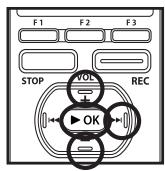
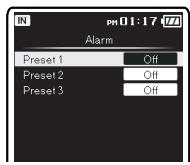
Press the + or - button to select the item to set, and then press the OK or I button.
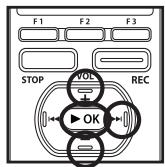
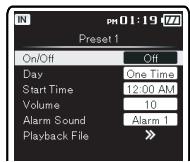
- Select items you want to set from among [On/Off] [Day] [Start Time] [Volume] [Alarm Sound] [Playback File].
[On/Off] setting:
① Press the + or - button to select between [On] and [Off].
②Press the OK button to exit [On/Off] selection.
[On]:
Setting will be applied.
[Off]:
Setting will not be applied.
![OLYMPUS DM-3, DM-5, DM-650, DM-670 - [On/Off] setting: - 1](/content/2025/01/125284/images/2b6c2c44baff345c5b5659ed1dcf2beadf3b035d9616cdeea272aad445b4edd7.jpg)
![OLYMPUS DM-3, DM-5, DM-650, DM-670 - [On/Off] setting: - 2](/content/2025/01/125284/images/22f260fa29f8fb5713a3d6fbaacae94e5772dab3fb58d8764fd98afbaf534dfe.jpg)
[Day] setting:
① Press the + or - button to select from [One Time], [Everyday], and [Every Week].
[One Time]:
Alarm Playback will be performed only once at the specified time.
[Everyday]:
Alarm Playback will be performed at the specified time every day.
[Every Week]:
Make a Alarm Playback at a set time on a specified day of the week.
![OLYMPUS DM-3, DM-5, DM-650, DM-670 - [Day] setting: - 1](/content/2025/01/125284/images/f552f4b8aad4a1c6004f10795f4619ec928194b1283fdd2abeec66debb575fbf.jpg)
![OLYMPUS DM-3, DM-5, DM-650, DM-670 - [Day] setting: - 2](/content/2025/01/125284/images/63e32238b1e41aa3c44a71e9a2d13882397244cc699c702f685ce646e53b74f9.jpg)
Select [Every Week] and press the OK or button to move to the selection of [Day]. Press the + or - button to select a day of the week.
②Press the OK button to exit [Day] selection.
[Start Time] setting:
![OLYMPUS DM-3, DM-5, DM-650, DM-670 - [Start Time] setting: - 1](/content/2025/01/125284/images/00307c761d9b1e6bac3582c3c07437cc63859e8f59e269332c981a46de87fc77.jpg)
The voice control function can be used with this setting (eP.107) (For DM-5).
① Press the or button to select "Hour" and "Minute" in the [Start Time] and "Hour" and "Minute" in the [Stop Time].
![OLYMPUS DM-3, DM-5, DM-650, DM-670 - [Start Time] setting: - 2](/content/2025/01/125284/images/a0bd4d65c98e7dd46d699f90d583089777fe7fb46ce55b6c46126dc5b2da9246.jpg)
![OLYMPUS DM-3, DM-5, DM-650, DM-670 - [Start Time] setting: - 3](/content/2025/01/125284/images/6a53223391c9953229691915e0a0c26872a25ed3ccd6af51dc7a44cae1e019c6.jpg)
② Press the + or - button to set.
③ Press the OK button to exit [Start Time] selection.
![OLYMPUS DM-3, DM-5, DM-650, DM-670 - [Start Time] setting: - 4](/content/2025/01/125284/images/7b1af3b4c69b78baa0f5ada305ff8a91ee15bbaabd85c1ce7fcaac8d4b24d309.jpg)
![OLYMPUS DM-3, DM-5, DM-650, DM-670 - [Start Time] setting: - 5](/content/2025/01/125284/images/16c0a4ef861ed53c4606eaa28276e1d8d29d68773ec905b438e74d755e3f49a9.jpg)
[Volume] setting:
① Press the + or - button to adjust the volume. Press the OK button to check the volume.
② Press the OK button to exit [Volume] selection.
![OLYMPUS DM-3, DM-5, DM-650, DM-670 - [Volume] setting: - 1](/content/2025/01/125284/images/ed503c2aa53171c451301cea009e2f6c6afdacd49e0f4035ed98b064106c4834.jpg)
![OLYMPUS DM-3, DM-5, DM-650, DM-670 - [Volume] setting: - 2](/content/2025/01/125284/images/53246a11f600a7484f96577e16784e4664dba4c9cb127a22422533badc847ce5.jpg)
[Alarm Sound] setting:
① Press the + or - button to select an alarm sound from among [Alarm1], [Alarm2] and [Alarm3]. Press the OK button to check the alarm sound.
② Press the OK button to exit [Alarm Sound] selection.
![OLYMPUS DM-3, DM-5, DM-650, DM-670 - [Alarm Sound] setting: - 1](/content/2025/01/125284/images/9051260c43c623af043fc70075320abf447d5def365ac7da79df28ae541091a0.jpg)
![OLYMPUS DM-3, DM-5, DM-650, DM-670 - [Alarm Sound] setting: - 2](/content/2025/01/125284/images/b0b282661cf02b722b40715118121682976c0785fffc019abb08d9d345104e47.jpg)
[Playback File] setting:
① Press the + or - button to select from [No File Play], [File Select].
[No File Play]: Sounds alarm only. If [No File Play] has been selected, proceed to the procedure listed under "Completing the setting". [File Select]: Plays back a selected file after the alarm.
When [File Select] is selected:
① Press the + or - button to select the memory with the file to be played as an alarm, and then press the OK or button.
![OLYMPUS DM-3, DM-5, DM-650, DM-670 - When [File Select] is selected: - 1](/content/2025/01/125284/images/ced60442e484eb3d962f68b269abeb95f2d35dca6de5f2a1c3602bd4d2d4870a.jpg)
![OLYMPUS DM-3, DM-5, DM-650, DM-670 - When [File Select] is selected: - 2](/content/2025/01/125284/images/1c19947c892d97975e9e75c367426e0e05d5ec3f832c84f30500783a274433af.jpg)
② Press the + or - button to select a folder, and then press the OK or >1 button.
![OLYMPUS DM-3, DM-5, DM-650, DM-670 - When [File Select] is selected: - 3](/content/2025/01/125284/images/91be781ba8fa9d4f9529e9923a7b93e92256385abe8abb964406edece57629e2.jpg)
![OLYMPUS DM-3, DM-5, DM-650, DM-670 - When [File Select] is selected: - 4](/content/2025/01/125284/images/5feff2e2d574548f048320ce25120e35cede5bc21010e8c6ac92061ab0e619b9.jpg)
③ Press the + or - button to select a folder, and then press the OK or >1 button.
![OLYMPUS DM-3, DM-5, DM-650, DM-670 - When [File Select] is selected: - 5](/content/2025/01/125284/images/6f9f9e8ba9cf12475ef0b73eeb953a65fea8c52fd26da112e74ff8a2dbb28b2c.jpg)
![OLYMPUS DM-3, DM-5, DM-650, DM-670 - When [File Select] is selected: - 6](/content/2025/01/125284/images/5a9f9acfdd6b60e5648227d412a8cb110557ca82f02fdb6dc6f8ea9f13b3bb43.jpg)
④ Press the + or - button to select the file to be played as an alarm, and then press the OK button.
![OLYMPUS DM-3, DM-5, DM-650, DM-670 - When [File Select] is selected: - 7](/content/2025/01/125284/images/798db81e2c0e750571b61b35df7a6adcd4944e888225b3e3c1aed3a29a3ce010.jpg)
![OLYMPUS DM-3, DM-5, DM-650, DM-670 - When [File Select] is selected: - 8](/content/2025/01/125284/images/1bcc308513c55d848c9130ec6881992cb8465e5144952f68c566b2881c8d5ae6.jpg)
Completing the setting:
Press the F2 (G0) button to complete the setting.
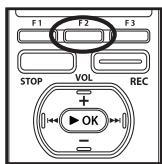
Programmed settings will be applied and the display will return to the preset number selection menu. If the [On/Off] setting is set to [On], [O] will appear on the display.
a When setting to [On]
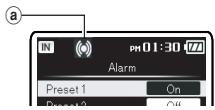
To set other preset numbers, repeat the above mentioned procedure.
When the button is pressed in the Select in Advance Menu, the settings selected can be confirmed.
Notes
- If [Everyday] is selected, the alarm will sound at the scheduled time every day unless alarm playback is canceled.
- The alarm will sound for five minutes and then stop. Even if a file is selected for Alarm Playback, it will not be automatically played when the alarm sounds.
- If three alarm playback have the same starting times, [Preset 1] has the highest priority and [Preset 3] has the lowest.
- If the recorder is in use or if operations are being performed at the scheduled time, the Alarm Playback function will not be available.
-
The alarm will sound at the scheduled time even if the power is turned off or the recorder is set to Hold mode. The recorder begins to play the selected file when you press any button, and stops playing when you press the STOP button.
-
If the selected file is moved, erased or the microSD card removed, file playback will not be performed and only the alarm will sound.
- If the starting times for timer recording and alarm playback are set for the same time, timer recording will have priority (e3P.81).
Moving/Copying files [File Move/Copy]
Files saved in the built-in memory or the microSD card can be moved or copied within the memory. Files can also be moved or copied between memory.
1 Select the folder where the file you want to move or copy is saved (P.53 to P.59).
2 Select [File Move/Copy] from the menu on the [File Menu].
- For details on how to enter the menu settings, please see "Menu Setting Method" (≡P.65).
3 Press the + or - button to select the position to move or copy the file to.
![OLYMPUS DM-3, DM-5, DM-650, DM-670 - Moving/Copying files [File Move/Copy] - 1](/content/2025/01/125284/images/b9b50339b12d4163868ac805340fc61e84ff319fc562299e4cc7452d99536b20.jpg)
![OLYMPUS DM-3, DM-5, DM-650, DM-670 - Moving/Copying files [File Move/Copy] - 2](/content/2025/01/125284/images/2062fcf2166bb2094614a0d438a06f9b0b975bd091cbfedac309dd035207f518.jpg)
4 Press the OK or button.
| [move > memory] | Move a file in the built-in memory or microSD card to another folder within the built-in memory. |
| [copy > memory] | Copy a file in the built-in memory or microSD card to another folder within the built-in memory. |
| [move > microSD] | Move a file in the built-in memory or microSD card to another folder in the microSD card. |
| [copy > microSD] | Copy a file in the built-in memory or microSD card to another folder in the microSD card. |
Press the ^+ or - button to select the number of files to move or copy.
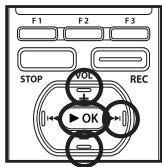
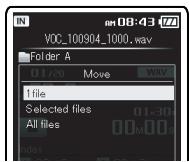
| [1file] | Select only the specified file. |
| [Selected files] | Select multiple files. |
| [All files] | Select all files in the folder. |
Press the OK or button to move to the respective setting.
When you select [1file]:
① Press the + or - button to select the file you want to move or copy.
② Press the OK button to select the file. Proceed to Step 8.
![OLYMPUS DM-3, DM-5, DM-650, DM-670 - When you select [1file]: - 1](/content/2025/01/125284/images/8e42d4680d152efc2f6c605d68c6589f84caf478a7673a8063d0950a4ef4a5b3.jpg)
![OLYMPUS DM-3, DM-5, DM-650, DM-670 - When you select [1file]: - 2](/content/2025/01/125284/images/c0cd6c73d6f8a20ea355bdaf30a8b77392dcfbd22fb9dd0cf015dbc83b043c99.jpg)
When you select [Selected files]:
① Press the + or - button to select the file you want to move or copy.
② Press the OK button to check the file(s) selected.
![OLYMPUS DM-3, DM-5, DM-650, DM-670 - When you select [Selected files]: - 1](/content/2025/01/125284/images/8d4ff393e9b8b4d001dbbe218fc394f317a55305d87d236075137db841387c9c.jpg)
![OLYMPUS DM-3, DM-5, DM-650, DM-670 - When you select [Selected files]: - 2](/content/2025/01/125284/images/cdb415f4ad1510a0da70a9f98c25d4175c8027e9f58684cc2c7def119a2d9cdc.jpg)
When you select [All files]:
When all files are selected, all the files in the folder will be automatically selected and the recorder will move to the [Folder to move] display. Proceed to Step 8.
7 Press the F2 (G0) button.
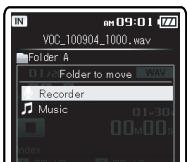
Press the▶l, |▲, + or - button to select the folder you want to move or copy the file to.
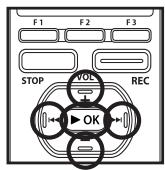
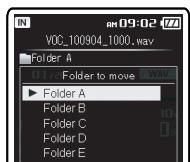
9 Press the OK button.
- [Moving!] or [Copying!] will appear on the display and moving or copying will start. During the process, the progress status will be shown in percentage. The process is completed when [File move completed] or [File copy completed] is displayed.
Notes
- The recorder cannot copy when the memory capacity is not sufficient.
- The recorder cannot move or copy when the number of file exceeds 999.
- Do not remove the battery during moving or copying. This may damage the datas.
- A file cannot be moved or copied to the same folder.
- When the operation is cancelled during moving or copying, only the file that is being moved or copied is effective, all other files will become not effective.
- Files which are locked (P.75) will remain so even after they are moved or copied.
- DRM files cannot be moved or copied.
- Files cannot be moved or copied directly under the [Recorder] folder.
Dividing files [File Divide]
Files with large capacities and long recording times can be divide so that they are easier to manage and edit.
![OLYMPUS DM-3, DM-5, DM-650, DM-670 - Dividing files [File Divide] - 1](/content/2025/01/125284/images/1d86f5fe97c915417eac119e2b9a5054956918f9774da00edf60f085486d211b.jpg)
Only PCM and MP3 files recorded on this recorder can be divide.
1 Select the file you want to divide (P.53 to P.59).
2 StartPlaybackor fast-forward the file,and stop the playback at divide position.
In the file display, the stop position becomes the divide position.
During playback, press and hold the or button to fast-forward or rewind (P.47).
- It is useful to set index marks on marking in advance at the divide position (€3 P.51).
3 Select [File Divide] from the menu on the [File Menu].
- For details on how to enter the menu settings, please see "Menu setting method" (E8-P.65).
- A file cannot be divide during an operation such as playback by the recorder.
4 Press the ^+ button to select [Start], and then press the OK button.
![OLYMPUS DM-3, DM-5, DM-650, DM-670 - Dividing files [File Divide] - 2](/content/2025/01/125284/images/8621487e9fb399e7b7f0531c115057334613eea682e1d6bcf61991db94a16ba1.jpg)
![OLYMPUS DM-3, DM-5, DM-650, DM-670 - Dividing files [File Divide] - 3](/content/2025/01/125284/images/ae0e3d2989cfbee1fc644013f0d2b640947044e4a910bf78b754f91bd3cb9239.jpg)
- [Dividing!] will be displayed and file splitting will start. Splitting is completed when [File divide completed] is displayed.
![OLYMPUS DM-3, DM-5, DM-650, DM-670 - Dividing files [File Divide] - 4](/content/2025/01/125284/images/4fbc2f8b443e484dc6ca76720721cc46c127bf86aed7483d934431e6a5698235.jpg)
![OLYMPUS DM-3, DM-5, DM-650, DM-670 - Dividing files [File Divide] - 5](/content/2025/01/125284/images/f92e7d92b8bb28e0bbe6129571503f7ca159432e1f7df06355cff827c7dd4ede.jpg)
Notes
- The file divide cannot be done when the file list is displayed.
- The recorder cannot divide files when the number of files in the folder exceeds 998.
- Locked files (P.75). cannot be divide.
After a file has been divide, the original file will be renamed [File name_1.wav] and the new file will be named [File name_2.wav] - If a file has an extremely short recording time, it may not be divide even if it is a PCM file.
- Do not remove the battery during dividing file. This may damage the data.
Formatting the recorder [Format]
![OLYMPUS DM-3, DM-5, DM-650, DM-670 - Formatting the recorder [Format] - 1](/content/2025/01/125284/images/e280f03ed271481a423a9a716b138750218621172f97ca32ceaf9d44fb967a95.jpg)
If you format the recorder, all files will be removed and all function settings will return to defaults except date and time settings. Transfer any important files to a computer before formatting the recorder.
1 Select [Format] from the menu on the [System Menu].
- For details on how to enter the menu settings, please see "Menu setting method" (E8-P.65).
2 Press the + or - button to select the recording media to format, and then press the OK or button.
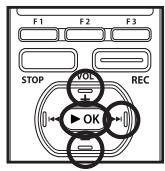
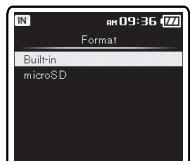
Press the ^+ button to select [Start], and press the OK button.
![OLYMPUS DM-3, DM-5, DM-650, DM-670 - Press the ^+ button to select [Start], and press the OK button. - 1](/content/2025/01/125284/images/a21126c4037348ef7ecdab561e363611a1989818ac3055ffbd759dd314954819.jpg)
![OLYMPUS DM-3, DM-5, DM-650, DM-670 - Press the ^+ button to select [Start], and press the OK button. - 2](/content/2025/01/125284/images/e6a53eece9f9322b2ab8194ff0dcd6cae64fbc40143cfad6f615ad9b8675f755.jpg)
After the [Data will be cleared] message is on for two seconds, [Start], [Cancel] will turn on.
4 Press the ^+ button again to select [Start], and then press the OK button.
![OLYMPUS DM-3, DM-5, DM-650, DM-670 - Press the ^+ button again to select [Start], and then press the OK button. - 1](/content/2025/01/125284/images/2b58c52e01f626a8dfe478981c8400b1cfa3a4e3d4e6d6e96bb348334508e1db.jpg)
![OLYMPUS DM-3, DM-5, DM-650, DM-670 - Press the ^+ button again to select [Start], and then press the OK button. - 2](/content/2025/01/125284/images/0b2a258d40dca69e5499b6db0c8d6f56149e8cca5d0523c82f5af6f8268d5987.jpg)
- Formatting begins and [ Formatting !] flashes on the display.
- [Format Done] appears when formatting ends.
![OLYMPUS DM-3, DM-5, DM-650, DM-670 - Press the ^+ button again to select [Start], and then press the OK button. - 3](/content/2025/01/125284/images/0904284853b180ffc917bb6f7f803d775d78d48b83aec8dd0c245b708d8bbe6e.jpg)
![OLYMPUS DM-3, DM-5, DM-650, DM-670 - Press the ^+ button again to select [Start], and then press the OK button. - 4](/content/2025/01/125284/images/84fa05ab37043bfb5b22c2e8d7278281d80f34df366067057ba5abfbeb0afa51.jpg)
Notes
- When an microSD card is inserted in the recorder, be sure to confirm the recording media as either [Built-in] or [microSD] so that there is no mistake (W-P.77).
- Never perform operations such as the following while processing, as they may damage the data. In addition, carefully check the remaining battery level in order to ensure that the battery will not run out while processing.
1 Unplugging the AC adapter while processing.
② Removing the battery while processing.
③ Remove the microSD card during processing when [microSD] is being used as the recording media. Performing any of these operations may damage the data.
- Never format the recorder from a PC.
- When the recorder is formatted, all the saved data, including locked files and read-only files, are erased.
- When returning the settings for the functions to their initial settings, use [Reset Settings] (vP.78).
- Formatting on the recorder will be Quick Format. If you format the microSD card, information of file management is refreshed and the data inside the microSD card is not deleted completely. Formatting or deleting the contents of the microSD card or built-in memory does not completely erase the data. When you dispose of media, we recommend that you take measures to prevent the loss of sensitive data, such as destroying the media before disposal.
This recorder has a calendar function. Simple scheduling can be performed.
Displaying the calendar
1 From the [Home] menu display select Audio Diary], and then press the OK or button.
- A monthly calendar display is displayed.
![OLYMPUS DM-3, DM-5, DM-650, DM-670 - From the [Home] menu display select Audio Diary], and then press the OK or button. - 1](/content/2025/01/125284/images/80c571ce5e2164b9f1b406ebe2cbea74a5734aa74336527858a8261e8779742d.jpg)
![OLYMPUS DM-3, DM-5, DM-650, DM-670 - From the [Home] menu display select Audio Diary], and then press the OK or button. - 2](/content/2025/01/125284/images/d40ec32ab7654f5028a5f5f5410377a4f62490d6246deaea773c3e26167f1b63.jpg)
![OLYMPUS DM-3, DM-5, DM-650, DM-670 - From the [Home] menu display select Audio Diary], and then press the OK or button. - 3](/content/2025/01/125284/images/b39229a3210ae4d1a461cc302e8e37be870e5fc2e334d63ac0ed6f9d5466a54a.jpg)
![OLYMPUS DM-3, DM-5, DM-650, DM-670 - From the [Home] menu display select Audio Diary], and then press the OK or button. - 4](/content/2025/01/125284/images/529e9d056558d4a96b1720b86de4e204a269aa84c40b2f466f04f74b480bd884.jpg)
Note
- The calendar does not display national holidays.
Switching the calendar display
It is possible to switch the calendar screen between a monthly, weekly, and daily display.
In the calendar display, press the F3 (MENU) button.
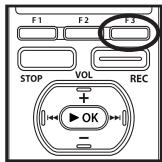
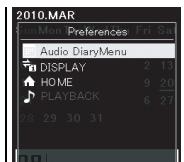
Press the + or - button to select [DISPLAY], and then press the OK button.
The calendar display switches to a weekly display.
![OLYMPUS DM-3, DM-5, DM-650, DM-670 - Press the + or - button to select [DISPLAY], and then press the OK button. - 1](/content/2025/01/125284/images/02808f6a80fe26a314e17a9691294190bc110c11cfea8d36bd2b84c83f32529d.jpg)
![OLYMPUS DM-3, DM-5, DM-650, DM-670 - Press the + or - button to select [DISPLAY], and then press the OK button. - 2](/content/2025/01/125284/images/a277bcacfa720f251ddaa2f943de1a3cd96a2d0fde5d93abf969856502b2d5d9.jpg)
- From the weekly display, move the cursor to the day you want to display. Press the OK button to switch to the daily display.
- If the calendar function is exited, the monthly display is displayed the next time the calendar display is opened.
Operations at the calendar display
Operations at the monthly display:
| [F1] button | The display returns to the [Home] menu display. |
| [F2] button | Changes the month that is displayed. At the popup menu display, press the + or - button to select the previous or next month. |
| [F3] button | The menu will appear on the display. |
Operations at the weekly display:
| [F1] button | The display returns to the [Home] menu display. |
| [F2] button | Disables this function. |
| [F3] button | The menu will appear on the display. |
Operations at the daily display:
| [F1] button | The display returns to the weekly display. |
| [F2] button | Displays the details of the daily schedule. |
| [F3] button | The menu will appear on the display. |
Add a schedule
From the calendar display, press the , 1 4 + or - button to select the date to which you want to add a schedule, and then press the F3 (MENU) button.
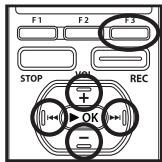
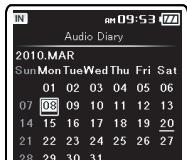
2 Select [Audio DiaryMenu], and then press the OK or button.
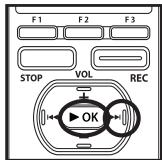
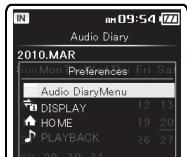
Press the + or - button to select [New], and then press the OK or I button.
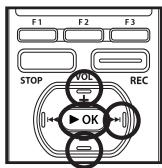
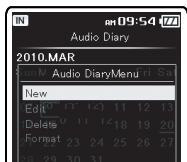
4 Move the cursor to the item you want to set, and then press the OK or button.
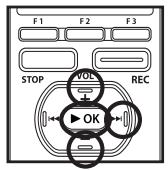
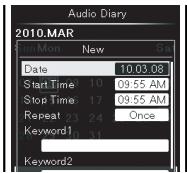
[Date] setting:

The voice control function can be used with this setting (eP.107) (For DM-5).
① Press the▶, I, + or - button, set the "Year", "Month", and "Date". Press the OK button.
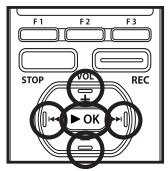
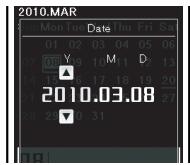
[Start Time] and [Stop Time] setting:

The voice control function can be used with this setting (eP.107) (For DM-5).
① Press the I, , + or - button, set the "Hour" and "Minute" in the [Start Time] or [Stop Time]. Press the OK button.
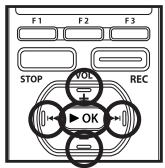
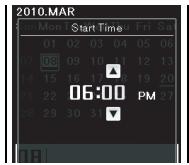
[Repeat] setting:
① Press the + or - button to select the item to set, and then press the OK button.
- You can specify the event frequency from [One Time], [Everyday], [Every Week], [Every Month], and [Every Year].
![OLYMPUS DM-3, DM-5, DM-650, DM-670 - [Repeat] setting: - 1](/content/2025/01/125284/images/9754be96475c884a94043348e68dbfc351478dd6e2d1acdf14e9005c27f45a50.jpg)
![OLYMPUS DM-3, DM-5, DM-650, DM-670 - [Repeat] setting: - 2](/content/2025/01/125284/images/57d74b6ae6d8038a5aa4f2e6a573f4978aef7c8afd8199198a1144c8004fcafd.jpg)
[Keyword] setting:
![OLYMPUS DM-3, DM-5, DM-650, DM-670 - [Repeat] setting: - 3](/content/2025/01/125284/images/a24eb2e15331283803990cd429ad5faa1b366f87f5a9a9597fc0b3154f2f097a.jpg)
The voice control function can be used with this setting (eP.107) (For DM-5).
① Press the + or - button to select the desired keyword, and then press the OK.
![OLYMPUS DM-3, DM-5, DM-650, DM-670 - [Repeat] setting: - 4](/content/2025/01/125284/images/3b173cfbe74d85e1d78b68f8233c5260950d6df376f60f1b6b8f9b38e6f513b2.jpg)
![OLYMPUS DM-3, DM-5, DM-650, DM-670 - [Repeat] setting: - 5](/content/2025/01/125284/images/abefd29842dd86c3742f94ff18fbc46e00145fc3ce9f80b838363a842cbfaa0f.jpg)
Keyword list:
Sets a keyword from the preset template.
| Car | Train | Plane |
| Bus | Work | Interview |
| Business trip | Conference | Lecture |
| Class | Memo | Record |
| Telephone recording | Diary | Conversation |
| Favorites | School | Hospital |
| Hobby | Meal | Shopping |
| Travel | Lesson | Learning a language |
| Drive | Sport | Camping |
| Music | Family | Kids |
| Partner | Friend | Event |
| Holiday | Date | Birthday |
| Payday |
[Alarm] setting:
① Press the + or - button to select [Alarm] setting, and then press the OK button.
[Off]:
Disables this function.
[1] to [3]:
Select the alarm sound for the alarm notification.
![OLYMPUS DM-3, DM-5, DM-650, DM-670 - [Alarm] setting: - 1](/content/2025/01/125284/images/55f0e5f0b50f6df006cbd9944861bb8ae9ca8be70d8dfef9b3b10d54da8bb4f6.jpg)
![OLYMPUS DM-3, DM-5, DM-650, DM-670 - [Alarm] setting: - 2](/content/2025/01/125284/images/2a4694b2e5dfb9b187f24857ba62199f2f931251774e70f83325af17672611f4.jpg)
Completing the setting:
Press the F2 (G0) button to complete the setting.
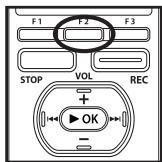
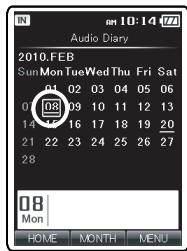
A day with a schedule is underlined.
Note
- A maximum of 1000 events can be scheduled.
Editing the schedule
The details of scheduled events can be edited.
From the calendar display, press the 1 1 + or - button to select the day of the event you want to edit, and then press the OK button.
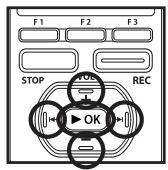
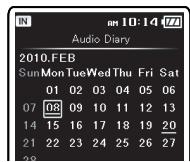
Press the + or - button to select [Edit], and then press the OK or I button.
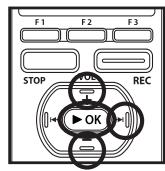
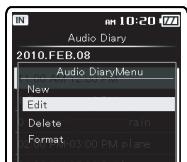
- For the procedure for changing event details, please see "Add a schedule".
Press the + or - button to select the event you want to edit, and then press the F3 (MENU) button.
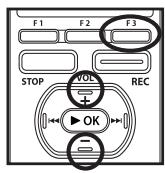
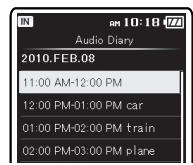
3 Select [Audio DiaryMenu], and then press the OK or button.
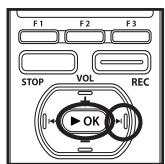
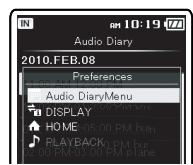
Deleting a schedule
Delete the contents of a scheduled event.
From the calendar display, press the 1 1 + or - button to select the day of the event you want to delete, and then press the OK button.
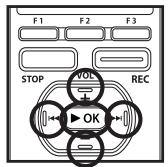
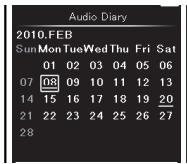
4 Press the ^+ or - button to select [Delete], and then press the OK or 口 button.
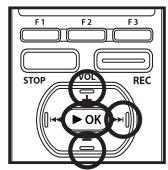

Press the ^+ button to select [Start], and then press the OK button.
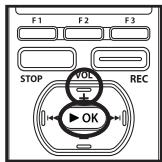
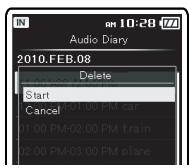
- A single scheduled event is deleted.
Press the + or - button to select the event you want to delete, and then press the F3 (MENU) button.
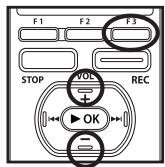
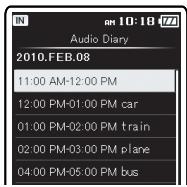
3 Select [Audio DiaryMenu], and then press the OK or button.

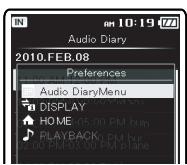
Formatting the schedule
Register to remove all the contents of schedule to initialize.
1 From the [Home] menu display select Audio Diary], and then press the OK or button.
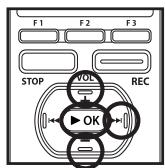
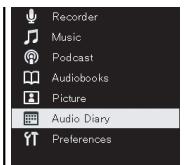
Press the + or - button to select [Format], and then press the OK or▶▶ button.

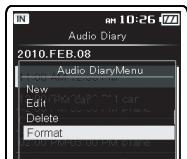
Press the ^+ button to select [Start], and then press the OK button.
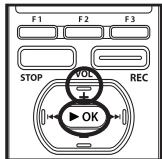

In the calendar display, press the F3 (MENU) button.
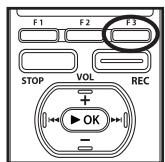
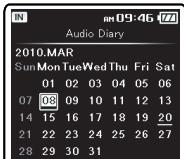
- [Format Done] appears when formatting ends.
3 Select [Audio DiaryMenu], and then press the OK or button.
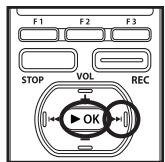
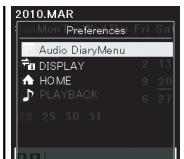
This recorder can connect to a digital camera and import images.

To see a list of recommended external devices (digital cameras) that can connect to this recorder, please visit our web site.
Importing images
1 From the [Home] menu display, select [Picture], and then press the OK or button.
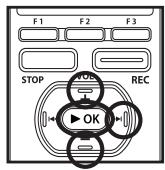
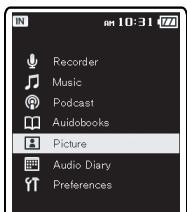
Press the ^+ or - button to select [Import], and then press the OK or button.
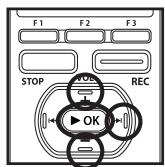
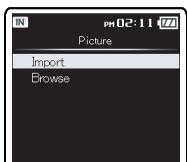
Press the ^+ or - button to select [microSD] or [USB], and then press the OK or button to set (complete) the media you want to import.
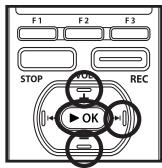
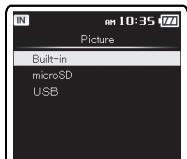
- JPEG image files located in the DCIM folder can be imported.
| [microSD] | Import images stored on a microSD card to this recorder. |
| [USB] | Import images stored on a connected digital camera to this recorder. |
Press the + or - button to select [Built-in] or [microSD], and press the OK or button to set (complete) the memory for importing destination.
Press the ^+ button to select [OK], and then press the OK button.
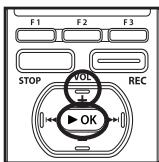
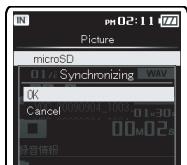
The display changes to [Synchronizing] and import starts.
Viewing images
1 From the [Home] menu display, select [Picture], and then press the OK or button.
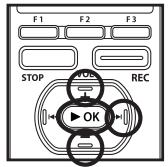
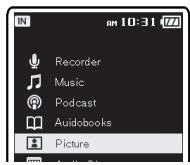
Press the + or - button to select [Browse], and then press the OK or▶▶l button.
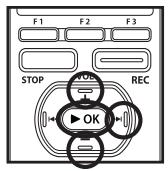
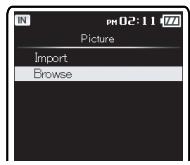
3 Press the + or - button to select [Built-in], [microSD] or [USB], and then press the OK or button.
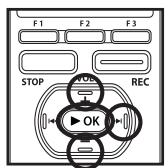
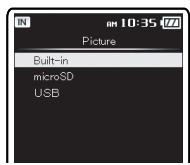
4 Select [IMAGE] folder, and then press the OK or button.
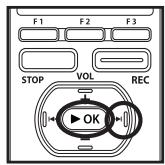
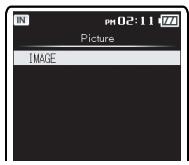
- Dates on which images were taken are displayed as a list.
Press the ^+ or - button to select a date images were taken, and then press the OK or I button.
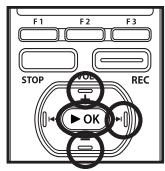
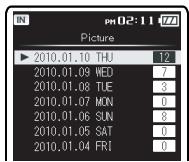
6 Press the ^+ or - button to select a image file, and then press the OK or button.
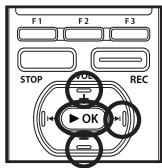
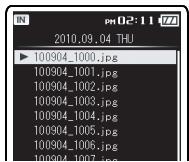
7 Press the or button to move to the next image file.
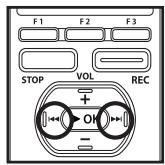
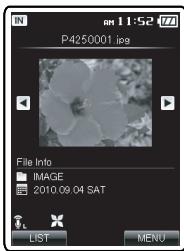
Erasing a images
From the [Home] menu display, select [Picture], and then press the OK or button.
![OLYMPUS DM-3, DM-5, DM-650, DM-670 - From the [Home] menu display, select [Picture], and then press the OK or button. - 1](/content/2025/01/125284/images/66ba94e2e2c015f7cd5210e4c8d22beaf82056807104c16f73762b04356c18f3.jpg)
![OLYMPUS DM-3, DM-5, DM-650, DM-670 - From the [Home] menu display, select [Picture], and then press the OK or button. - 2](/content/2025/01/125284/images/64f3e4a0360688e2d08556b2d1668cd2671bf1c22032961ef0e355e0d9a1affa.jpg)
Press the + or - button to select [Browse], and then press the OK or▶▶ button.
![OLYMPUS DM-3, DM-5, DM-650, DM-670 - Press the + or - button to select [Browse], and then press the OK or▶▶ button. - 1](/content/2025/01/125284/images/57b055b0e070672ca49ce07632956652c3aafa6f93f4c3e497089652278b6450.jpg)
![OLYMPUS DM-3, DM-5, DM-650, DM-670 - Press the + or - button to select [Browse], and then press the OK or▶▶ button. - 2](/content/2025/01/125284/images/3709aa82bb1ad3ad44dc811425035421a044cbaf6f8a8d8cfb3656a7d3be6b70.jpg)
3 Press the ^+ or - button to select [Built-in], [microSD] or [USB], and then press the OK or 1 button.
![OLYMPUS DM-3, DM-5, DM-650, DM-670 - Press the ^+ or - button to select [Built-in], [microSD] or [USB], and then press the OK or 1 button. - 1](/content/2025/01/125284/images/6da9236d99e38362179f242e0c7edab5b6dd64e189941378b8f0997d01fddb12.jpg)
![OLYMPUS DM-3, DM-5, DM-650, DM-670 - Press the ^+ or - button to select [Built-in], [microSD] or [USB], and then press the OK or 1 button. - 2](/content/2025/01/125284/images/d131f345fedfe06484c39c47883584cfbb7d9afd2717ee9c9587c7846813d98c.jpg)
4 Select [IMAGE] folder, and then press the OK or button.
![OLYMPUS DM-3, DM-5, DM-650, DM-670 - Select [IMAGE] folder, and then press the OK or button. - 1](/content/2025/01/125284/images/08c005c8914c5a398535b3b5e5ffede76f77829429466f270cbe9ad66f2459ea.jpg)
- Dates on which images were taken are displayed as a list.
![OLYMPUS DM-3, DM-5, DM-650, DM-670 - Select [IMAGE] folder, and then press the OK or button. - 2](/content/2025/01/125284/images/3b1f2e8ec5fac9c029a7d82b3aa63a1340ecbb7a5bc037fe18d430208c602c35.jpg)
Press the ^+ or - button to select a date images were taken, and then press the 0K or I button.
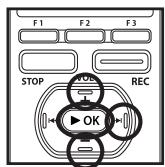
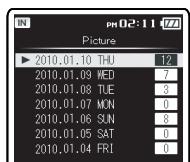
6 Press the + or - button to select the image file you want to erase, and then press the F2 (ERASE) button.
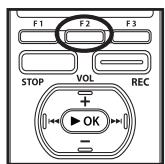
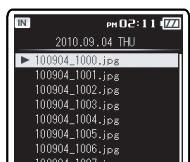
7 Press the ^+ or - button to select [File Erase], and then press the OK or button.
![OLYMPUS DM-3, DM-5, DM-650, DM-670 - Press the ^+ or - button to select [File Erase], and then press the OK or button. - 1](/content/2025/01/125284/images/484cb2eec0659c5d28e12e0b31312511b7c2ce6dc57ff335ca56d06891bbc57f.jpg)
![OLYMPUS DM-3, DM-5, DM-650, DM-670 - Press the ^+ or - button to select [File Erase], and then press the OK or button. - 2](/content/2025/01/125284/images/46c021223015ff965d06f82262c0302f2b815e9665e55b3ea372f92444c93a68.jpg)
Press the ^+ button to select [Start], and then press the OK button.
- The display changes to [Erase!] and erasing will start. [Erase Done] is displayed when the file is erased.
- For details on how to erase a file, please see "Erasing from the file list display" (E&P P. 61), "Erasing All Files in a Folder" (E&P P. 62), "Erasing a folder" (E&P P. 63).
Using voice recognition (For DM-5)
This recorder is equipped with a voice recognition function. This function allows complicated key inputs such as date and time settings, keyword entry, and folder name changes to be performed by voice. In addition, it is possible to use voice command shortcuts to jump to the various modes and menu settings of the [Home] menu display.
Using voice control

When the [mark] mark is displayed at the menu setting screen, press and hold the VOICE button while saying the setting you want to enter.
- The following explanation of the voice control function provides examples of actual operations that can be performed using this recorder.
| [Time&Date] Using voice recognition for time entry | When you are setting the “hour”, “minute”, “year”, “month”, and “day” in the [Time & Date] settings, say the “year”, “month” and “day” or “time” you want to enter. Example: When entering February 10, 2010 February 10, 2010 10:20 AM |
| [Timer Rec] Using voice recognition for time entry | When entering the [Start Time] and [Stop Time] in the [Timer Rec] settings, say the times. Example: When the start time is 9:30 9:30 AM Example: When the end time is 11:00 11:00 AM |
| [Timer Rec] Using voice recognition for keyword entry | Say a "Keyword" that is in the template. Example: When setting "Conference". Conference |
| [Folder Name] Using voice recognition for settings | When changing a [Folder Name], say a "word" in the template. Example: When changing the name to "Work". Work |
| [Alarm] Using voice recognition for time entry | When setting the [Start Time] setting in the [Alarm] settings, say the "time". Example: When the start time is 6:30 6:30 AM |
| [Schedule Setting] Using voice recognition for time entry | When entering the [Start Time] and [Stop Time] while [Add Schedule] settings, say the "times". Example: When the start time is 9:30 9:30 AM Example: When the end time is 11:00 11:00 AM |
| [Schedule Setting] Using voice recognition for keyword entry | Say a "Keyword" that is in the template. Example: When setting "Conference". Conference |
Using voice commands
1 While the recorder is paused at the [Home] menu display, press the VOICE button and say a voice command word.
- Voice commands cannot be used when [Recorder] mode is running or during an operation.
Voice commands list:
| Recorder | Music | Podcast |
| Picture | Book | Schedule |
| Preferences | Audible |
- The following explanation of the voice command function provides examples of actual operations that can be performed using this recorder.
| Transition to each mode | Except for recorder mode, say the name of the mode you want to launch to jump to that mode. Example: When jumping to [Music] mode Music The mode changes to [Music] mode. |
Saving files in your PC
By being connected to a PC, the recorder enables you to do the following:
- Playback voice files on your PC (P.124). Voice files recorded using the recorder can be played using the "Olympus Sonority" software included on the provided CD-ROM (P.113) or "Windows Media Player" (P.138).
- Voice files recorded on the recorder can be played and managed on the PC using the "Olympus Sonority".
- Using the "Windows Media Player", the stored WMA or MP3 files on your PC can be transferred and played back on this recorder (es-r P.141).
- If an upgrade (Option) to the "Olympus Sonority Plus" is executed or a Music Editing Plug-in is added (Option), various additional functions can be utilized (P.136).
Precautions on using the recorder connected to a PC
- When you are downloading a file from the recorder or uploading a file to the recorder, do not remove the USB cable even if the screen is indicating you can. Data is still being transferred while the LED indicator light is blinking. When removing the USB cable, be sure to follow the description in P.111. If the USB cable is removed before the drive is stopped, data may not be successfully transferred.
-
On a PC, do not format the drive of the recorder. Initialization is not successfully achieved on a PC. For initialization, follow the instructions in the [Format] display of the recorder (P.94).
-
Folder (directory) names displayed by file management tools such as Explorer in Microsoft Windows and Finder in Macintosh are different from the folder names that can be set with the recorder or the "Olympus Sonority".
- If folders or files stored on the recorder are moved or renamed by using a file management tool in Windows or Macintosh, the order of files may be changed or files may become unrecognizable.
- Data can be written or uploaded to the recorder even though the attribute of the recorder drive is shown as Read-only by the operating system of the PC.
- As the noise may cause adverse effects on electronics devices nearby the recorder, unplug the external microphone and earphone when you connect the recorder to a PC.
Important notice on the explanation of software functions
Function items that can be used in Windows will be displayed as Windows and function items that can be used in Macintosh will be displayed as Macintosh. Items that only have Windows or Macintosh indicated can only be supported by the target system.
Windows
Operating System:
Microsoft® Windows XP Service Pack 2, 3
Microsoft® Windows XP Professional x64
Edition Service Pack 2
Microsoft® Windows Vista Service Pack 1, 2 (32bit/64bit)
Microsoft® Windows 7 (32bit/64bit)
CPU:
32 bits (x86) of 1GHz and above or 64 bits (x64) processor
RAM:
512 MB or more
Hard drive space: 300 MB or more
Drive:
CD-ROM, CD-R, CD-RW, DVD-ROM drive
Browser:
Microsoft Internet Explorer 6.0 later
Display:
1024 x 768 pixels or more, 65,536 colors or more (1,6770,000 colors or more is recommended)
USB port:
One or more free ports
Others:
Audio device
- Environment where the Internet can be utilized.
Macintosh
Operating System:
Mac OS X 10.4.11 - 10.6
CPU:
PowerPC G5 or Intel Multicore Processor 1.5 GHz and above
RAM:
512 MB or more
Hard drive space:
300 MB or more
Drive:
CD-ROM, CD-R, CD-RW, DVD-ROM drive
Browser:
Macintosh Safari 2.0 later
Display:
1024 x 768 pixels or more, 32,000 colors or more (1,6770,000 colors or more is recommended)
USB port:
One or more free ports
Others:
Audio device
- Environment where the Internet can be utilized (Quick Time version 7.2 or more is recommended).
Notes
Windows:
- The support service will not cover if your PC has been updated from Windows 95/98/Me/2000 to Windows XP/Vista/7.
- Any failure on a self-modified PC will not be covered under the operational warranty.
Macintosh:
Some functions in "Olympus Sonority" require QuickTime 7.2 and above. The latest version of QuickTime can be obtained from the MacOS Software Update.
Connecting to your PC
Windows
Macintosh
Turn the recorder's power ON.
2 Connect the USB connection cable to the USB port of the PC.
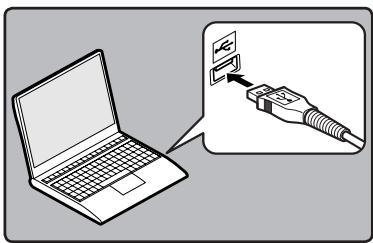
3 Make sure that the recorder is stopped, and then connect the USB cable to the connecting port on the bottom of this recorder.
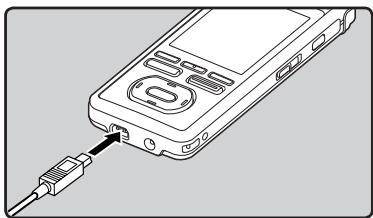
- [Remote (Storage)] is displayed on recorder if the USB cable is connected.
- When the recorder is using the USB connection setting, it will not be connected to the PC when [AC] is selected. Select [PC] in the USB connection setting (P.P.77).
Windows:
When you connect the recorder to a Windows and open [My Computer], it will be recognized by the drive name of the product name. If a microSD card is inserted, [Removable Disc] will be displayed.
Macintosh:
When you connect the recorder to a Mac OS, it will be recognized by the drive name of the product name on the desktop. If a microSD card is inserted, [NO NAME] will be displayed.
Notes
- Be sure to use the included dedicated cable for the USB connecting cable. If any other company's cable is used, it will be the cause trouble. Also, please do not connect this dedicated cable to any other company's product.
- When connecting the recorder through an USB hub the operation may become unstable. In such cases, refrain from using a USB hub.
Disconnecting from your PC
Windows
7 Click [ ] on the task bar located at the lower-right corner of the screen. Click [Safely remove USB Mass Storage Device].
- The drive letter will differ depending on the PC being used.

2 Confirm that the recorder LED indicator light is gone before disconnecting the USB cable.
- The LED indicator light will light up (orange) in case of charging, however you can still disconnect the USB cable in such condition.
Macintosh
1 Move the drive icon for this recorder that is appear on the desktop to the garbage bin by Drag & Drop it.
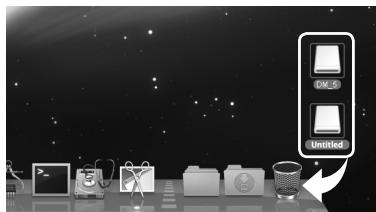
2 Confirm that the recorder LED indicator light is gone before disconnecting the USB cable.
- The LED indicator light will light up (orange) in case of charging, however you can still disconnect the USB cable in such condition.
Notes
- NEVER disconnect the USB cable while the LED indicator light is flashing. If you do, the data will be destroyed.
- When the recorder is connected to a PC, the power will be supplied from the USB cable.
Refer to the user's manual for your PC regarding the USB port on your PC. - Be sure that you connect the USB cable either directly to the USB port on your PC.
- Be sure to push the cable connector all the way in. Otherwise, the recorder may not operate properly.
- Cancel Hold mode.
Functions available in the Olympus Sonority
Various functions such as file management and editing are installed in the "Olympus Sonority". For information on operating procedures and detailed settings, please refer to the respective items on online help (e 密 P.118).
Waveform editing function
Using the Waveform Editing Function Tab, you can easily process the voice data. In the Waveform Editing Mode, you can also delete unnecessary parts, paste and re-save the data.
One-touch effect function
Using the One-touch Effect Function, you can easily apply special effects to the voice file and carry out noise reduction in any specified area.
Send voice files with E-mail
Voice files are stored in the [Message] folder on the hard disk. Voice file can be sent as an E-mail attachment.
Changing user ID
The user ID will be automatically given to files that are recorded with the recorder.
Changing a folder name
You can change a folder name. A folder name can be up to 62 characters long and cannot use \/.:*?''<>|.
When changing the folder name using an OS in a language not supported by the main device, the words may sometimes be garbled.
Editing file comments
It is possible to add comments to the files downloaded from the recorder by using the "Olympus Sonority".
Changing the file format to other format*
The current saved file format can be changed to other formats.
Joining files*
In "Olympus Sonority", designated multiple voice files can be joined and one voice file can be created.
Splitting files*
One designated voice file can be split into the two files in "Olympus Sonority".
Import files using Olympus Sonority
- Import Podcast content from the Internet to a computer.
Please see "About Podcast" (P.127) for details. -
Import DAISY content from the Internet to a computer.**
Please see "About DAISY (For DM-5)" (P.132) for details. -
Changing to a MP3 format upgrade to the "Olympus Sonority Plus" is necessary (P.136).
** DAISY 2.0/2.02 content is supported (P. 132).
Before you connect the recorder to your PC and use it, you must first install the "Olympus Sonority" software from the included Software CD.
Be sure to confirm the following before installation:
- Exit all running applications.
- You need to log on as an Administrator.
Windows
1 Insert "Olympus Sonority" into the CD-ROM drive.
- The installation program will start automatically. Once the program starts, jump to step 4. If it does not, follow the procedures in steps 2 and 3.
2 Opening contents in the CD-ROM with [Explorer].
3 Double-click [Setup] in the CD-ROM.
4 When the "Olympus Sonority" launch screen is displayed, click the desired language to select it.
5 When [Olympus Sonority Setup] is clicked, the Installer Opening display will start up. Follow the Installer Wizard instructions.
![OLYMPUS DM-3, DM-5, DM-650, DM-670 - When [Olympus Sonority Setup] is clicked, the Installer Opening display will start up. Follow the Installer Wizard instructions. - 1](/content/2025/01/125284/images/ef5e222d25638f1054162e4f2451ad4a36a8ee38dd0c1f1ee1aa6579f36edc1c.jpg)
6 Confirm your acceptance of the terms of the Licensing Agreement.
- You must accept the terms of the Licensing Agreement to install "Olympus Sonority". After checking the [Agree] box, click [Next].
7 [Registration of User Registration Information]
- Please enter your name, company name and serial number which is listed on the separate sheet. Click [Next] after entering.
8 [Select Setup Type]
- The installation destination can be changed. Click [Next] if you do not want to change (Select [Custom] if you want to change).
9 [Start Installation]
- Click [Install] to start installing. Do not carry out other operations before the installation is completed and the [Complete] display is displayed.
10 [Installation Complete]
- When the installation is completed, the completed [Install Shield] display will be displayed.
To connect the recorder to a PC, refer to "Connecting to your PC" (P.111), to start up the Olympus Sonority, refer to "Running Olympus Sonority" (P.119).
Macintosh
7 Insert "Olympus Sonority" into the CD-ROM drive.
- Proceed to step 3 when the content of CD-ROM is displayed, and go to step 2 and 3 when nothing is displayed.
2 Opening contents in the CD-ROM with [Finder].
3 Double-click [Setup] in the CD-ROM.
4 When the "Olympus Sonority" launch display is displayed, click the desired language to select it.
5 When [Olympus Sonority Setup] is clicked, the installer opening display will start up. Follow the Installer wizard instructions.
6 Confirm your acceptance of the terms of the licensing agreement.
- You must accept the terms of the licensing agreement to install "Olympus Sonority". After checking the [Agree] box, click [Next].
[Changing the Installation Destination]
- The installation destination can be changed. Click [Next] if you do not want to change (Select [Change Installation Destination] if you want to change).
8 [Start Installation]
- When the installation is completed, the completed [Installer] display will be displayed.
To connect the recorder to a PC, refer to "Connecting to Your PC" (P.111), to start up the "Olympus Sonority", refer to "Running Olympus Sonority" (P.119).
After starting up the "Olympus Sonority", the serial number entry dialog box will appear. Serial number which is listed on the separate sheet. After entering, click [OK] and the "Olympus Sonority" will start up.
To uninstall any of the software component of the "Olympus Sonority" software installed on your PC, follow the steps below.
Windows
1 Exit "Olympus Sonority".
2 Select [Start] from [Control Panel] menu.
3 Click [Add/Remove programs] in the control panel window.
4 When the installed application list is displayed, select [Olympus Sonority].
5 Click [Change/Remove].
6 Confirmation of deleting the file.
- Click the [OK] button to start uninstalling. An additional message may appear, if so, read it carefully and follow the instructions given.
When the [Maintenance Complete] display is displayed, click [Finish] to complete uninstalling.
Macintosh
1 Exit "Olympus Sonority".
2 Open [Finder] and double-click the [SonorityUninstaller pkg] in the application folder.
3 The Uninstaller will start up. Follow the wizard instructions.
4 When the administrator password is asked, enter the password then click [OK].
5 Uninstall will start and when [Successful] is displayed, click [Close].
Files left after uninstallation
The voice files you made are stored in the [MESSAGE] folder. If you don't need them, delete them.
You can confirm the location of the [MESSAGE] folder by clicking [Options] in the [Tools] menu before uninstalling.
Windows Macintosh
To open Online Help, you have the following options.
- While "Olympus Sonority" is running, select [Contents] from the [Olympus Sonority Help] menu.
Search by Contents
1 Once the Online Help display appears, click the Contents tab.
Double-click the icon of the desired topic heading.
Double-click the icon of the desired topic.
- An explanation of the topic is displayed.
Downloading All Files
Downloading Files in a Specified Folder

Making a New Recording
念 Editing a File
Managing Files and Folders
Various Uses
Device Management Functions
Troubleshooting
Appendix
Index
Olympus Sol
What Olympus
Olympus Sonority is audio files with an C Browsing screen, wl which is used to edit The Browsing scree audio files between and tone control wl and join audio files. The Waveform Editi adding a recording, the Browsing and E editing of audio files Olympus Sonority h
Search by Keyword
1 Open Online Help and click the [Index] item.
- Matching keywords are located automatically.
2 Click keyword.
- An explanation of the topic is displayed.
Device Management Functions
Troubleshooting
Appendix
Index
The Waveform Edit adding a recording, the Browsing and E editing of audio files Olympus Sonority h
Browning Screen
Olympus Sonority Help
Index
A-2
Automatic Starting Changing the Setting of Automatic Starting of Olympus Sonority (C)
Columns to Display Changing Display Files Columns
Comment
Customize
Associating a Comment with an Audio File
Customizing the Tool Bar
Remaining a Folder in a Recordset Configuring a Recordset (Olympus Operating software with the aim of refreshing Recordset Firmware)
(5) Sonority Plus )Buttons on a Recorder
Device
2
- For more information on menus and operations, refer to Online Help. You will be able to use Online Help after Olympus Sonority is installed.
By connecting the recorder to your PC, you can automatically start the application.
Windows
Disabling automatic start
1 Right click on the [ ] of the taskbar on the lower right of the display, and select [Setting].
- The application which enables setting will be displayed by dialog.
2 Click the [√] of the [Olympus Sonority].
- The check mark on [Olympus Sonority] disappears. For automatic start, select and click "Olympus Sonority" to reinstate again.
Manual start
1 Start Windows.
2 Click the [Start] button, select [All Programs], then [Olympus Sonority].
After start up, a icon will be displayed in task bar in the bottom right of the display.
Macintosh
Disabling automatic start
From the menu bar, click [ ] → [System Environment Setting] → [ ].
- The setting dialog box will appear.
2 Turn the automatic start up in the setting check box to [OFF].
Manual start
From Finder, double-click [Application] [Olympus Sonority] [Olympus Sonority].
- When starting up for the first time, the serial number registration dialog box will appear.
2 Enter the Serial Number.
- For the product serial number, refer to the serial number on the separate sheet.
The information display area will appear if the serial number is correct.
Notes
- You cannot run more than one "Olympus Sonority" program or multiple copies of the same program simultaneously.
- When other applications such as DSS Player, etc. are opened, close these applications first before starting up the "Olympus Sonority".
Olympus Sonority browse screen
This is the main screen of the "Olympus Sonority" (The display screen is the display screen in Windows).
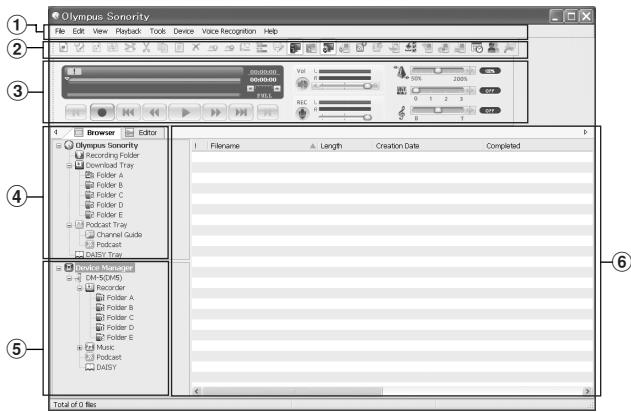
① Menu Bar
The OS standard menu bar.
② Tool Bar
Tool Bar to be used in the Browse Screen will be displayed.
③Playback Control Bar
Used to play selected files in the File Display Area.
(4) Main Tree View
Files downloaded from the recorder, files recorded in the "Olympus Sonority", etc., and folders containing voice/music files managed by the PC's "Olympus Sonority" will be displayed.
⑤ Device Tree View
Folders in the connected device will be displayed.
⑥ File List Display Area
Detailed information of the folders selected in the Main Treeview or Device Treeview and all voice files in the recorder will be displayed. The Information Display Area (Initial Setting) will be displayed when the "Olympus Sonority" is started up, and the basic information of the "Olympus Sonority" can be displayed, updated and upgraded (64 P.136).
Olympus Sonority information display area
"Olympus Sonority" Information Display Area Update of the "Olympus Sonority" and confirmation and update of the firmware of the connected recorder can be carried out. Upgrade to the "Olympus Sonority Plus" and registration of Podcast programs can also be carried out.
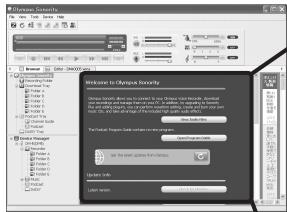
When the "Olympus Sonority" is started up for the first time, Information Display Area will be displayed in the File List Display Area in the Browse Screen.
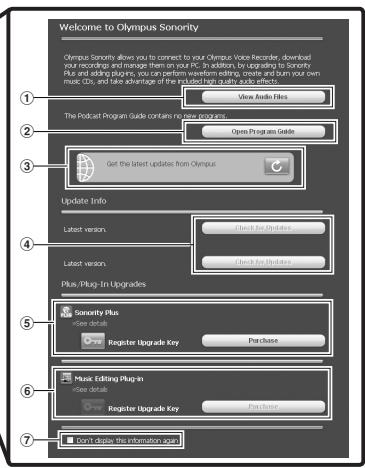
① Audio File List
Selects Folder A in the Main Treeview and displays the File List Display Area.
② Opening the Program Guide
Displays the latest information on the Podcast Program Guide.
③ Updating latest information
Updates the latest information from Olympus.
Viewing updated information
Confirms the updated information of the "Olympus Sonority" and recorder that is connected.
⑤ Registering the Upgrade Key Number
Registers the purchased upgrade key number.
⑥ Upgrade
Select the upgrade you want to purchase. When upgrade is completed, the button will be replaced by the upgrade key.
⑦ Display/Hide
Select to show or hide the Information Display Area the next time "Olympus Sonority" is started. When hide is selected, the File List Display Area (E5P.120) will be shown.
Windows Macintosh
There are 3 download options to transfer voice files from the recorder to the PC:
Download Selected Files
Download Folders
Download All
The following is an explanation of [Download Selected Files]. For explanations of [Download Folders] and [Download All], refer to Online Help (P. 118).
Download Selected Files
1 Select the folder.
- From the Device Tree View, select the folder that contains the voice file you would like to download. The illustration shows that [Folder A] has been selected.
2 Select the voice file.
- Select the voice file you want to download from the File List Display Area.
To select more than one file:
Windows:
Hold either the [Ctrl] or [Shift] key and select files.
Macintosh:
Hold either the [Command] key and select files.
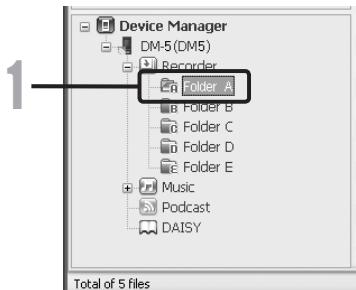
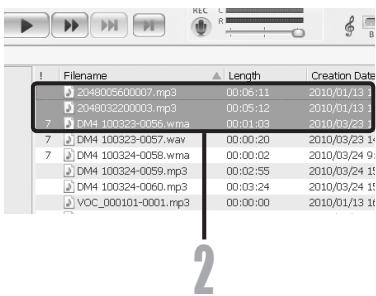
3 Download the voice file.
- From the [Device] Menu, select [Download Selected Files] or click on the Tool Bar.
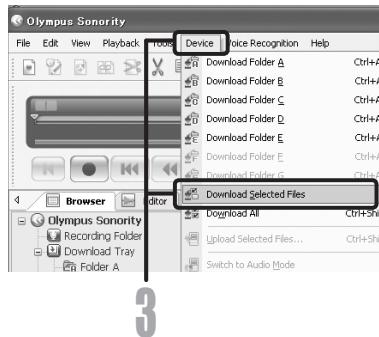
4 Download complete.
- Do not disconnect the USB cable while the LED indicator light on the recorder is flashing. Disconnecting the USB cable when the LED indicator light is flashing will result in data loss or corruption (P.112).
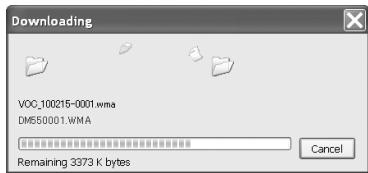
Notes
- NEVER disconnect the USB while the LED indicator light is flashing. If you do, the data will be destroyed.
Depending on the size of the voice file and your PC, it may take some time to download the files. - The downloaded files will be stored in the download tray folder that corresponds to the folder in the recorder.
(Example: A voice file downloaded from [Folder A] will be stored in download [Folder A] on the Main Treeview.)
- When the same file name already exists, the new file is saved with another file name only when the contents are different. When the contents are the same, it will not be downloaded.
Windows
Macintosh
1 Select the folder.
- Select the folder that contains the voice file you would like to play.
2 Select the voice file.
- Select the file to playback from the File List Display Area.
3 Play the voice file.
- Click the [play] button of the Play Control Bar.
Other playback control such as Rewind, Fast Forward, Stop, Speed Control, Volume Control, Time Axis and Index Skip are available from the Play Control Bar.
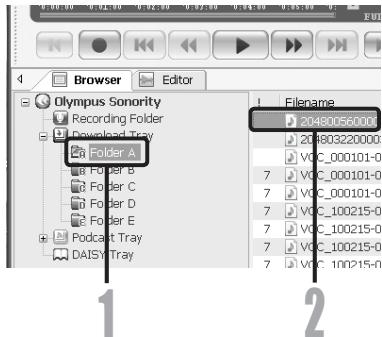
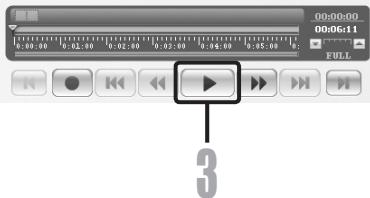
Using the waveform editing function
Windows
Macintosh
You can use the Waveform Editing Tab in the "Olympus Sonority" to easily process voice data. In the Waveform Editing Mode, you can also delete unnecessary parts, paste and re-save the data.
- The waveform editing screen will appear and the waveform will be displayed.
2 Drag and select the waveform you want to delete.
- Selected parts will become grey in the waveform display.
3 Select [Cut] from the [Edit] Menu.
- The selected waveforms will be deleted.
4 Click on any waveform display part.
- Selected waveforms in the waveform display will become grey.
5 Select [Paste] from the [Edit] Menu.
- The waveforms that were cut previously will be inserted in the part selected.
6 Click the Write Track Zone [ ]
- The Save dialog box will appear.
Using the one-touch effect function
Windows
Macintosh
Using the one-touch effect function, you can easily apply special effects to the voice file. Here we show you how to carry out noise reduction in a specified area.
1 From the Browse screen, select the file you want to edit, select [File] [Edit].
- The waveform editing screen will appear and the waveform will be displayed.
Drag and select the waveform part you want to apply special effects on.
- Selected parts will become grey in the waveform display.
3 Press the noise reduction adjustment button [ ]
- Noise will be removed from the selected part.
4 Click the start location of the selected part and press the button on the Playback Control Bar.
- The part where noise has been reduced will start to play.
Windows
Macintosh
"Olympus Sonority" has a feature to enable you to upload files from your PC to the recorder.
1 Select the folder.
- Select the folder that contains the voice file to upload from the Main Tree View.
2 Select the voice file.
- Select the file you want to transmit from the File List Display Area.
3 Select the folder to upload.
- From the [Device] menu select [Upload Selected Files] or click the Upload icon [ ] Once the folder list box where the file is to be uploaded is displayed, select the folder from which the file is to be uploaded.
4 Upload the voice file.
- Click [OK] to upload the voice file to the recorder.
5 Upload complete.
- Once the transmission screen closes and the LED indicator light on the recorder is OFF, upload is completed.
You can also transmit a file by selecting the file you want to transmit from the File List Display Area, and then drag and drop it in the Device Treeview folder (move the mouse while pressing the left mouse button, and release the button at the destination).
Notes
- NEVER disconnect the USB while the LED indicator light is flashing. If you do, the data will be destroyed.
- When the same file name already exists in the folder on the recorder, the new file is saved with another file name only when the contents are different. If contents are the same, it will not be uploaded.
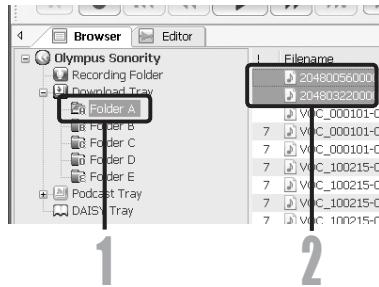
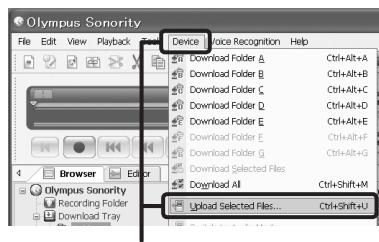
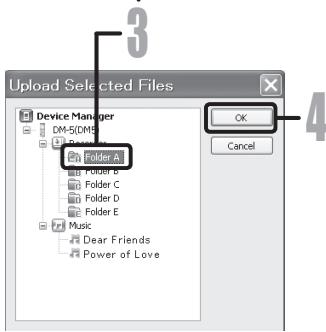
Register a podcast program
Windows
You can either drag and drop the Podcast Program Icon to retrieve Podcast contents or search and retrieve it by registering the content address.
This function is not supported in Macintosh. Use iTunes, etc. to retrieve Podcast contents.
1 Start Olympus Sonority.
2 Open a web browser and go to a Podcasting site.
3 Drag the Podcast registration icon and drop it in the [Podcast] folder in Olympus Sonority.
- Podcast registration icons differ depending on Podcasting sites. Please check each Podcasting site for details.
4 Program registration will complete.
- When a program is registered, a list of broadcasting content provided by the program will appear in the [Podcast] folder's list view. By default, the latest content at the time of registration will be automatically downloaded.
Note
- About the file format which can be played back with the recorder, refer to P.48.
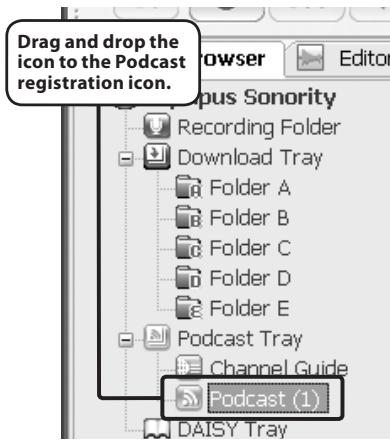
Update a program
Windows
By default, programs registered in "Olympus Sonority" will be automatically updated. To change update intervals, go to [Tools] menu then [Options], and change them in the Options dialog's Podcast tab. Please see the Online Help for details (e 串 P.118).
If you don't want to update programs automatically, you can update the using the following procedure.
Program registration, update and download functions are not available in Macintosh. Use iTunes or other applications for these functions.
1 Select the [Podcast] folder.
2 Select a program you want to update.
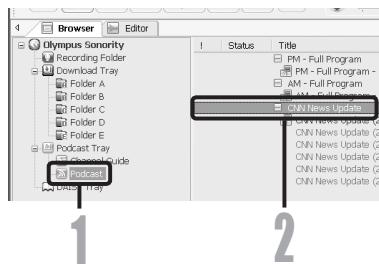
3 Select [Update Podcast] from the [Tools] Menu or press the [ ] in the Tool Bar.
- Updating program starts. Once the program has been updated the new content will be displayed in gray. The content displayed in gray has not yet been downloaded onto a computer.
![OLYMPUS DM-3, DM-5, DM-650, DM-670 - Select [Update Podcast] from the [Tools] Menu or press the [ ] in the Tool Bar. - 1](/content/2025/01/125284/images/fbb8c8ff3164dd79bbabb0fa3a93f33382b59989a09d6ec033003623f2b7f59c.jpg)
3
Download the content
Windows
By default, if new content is found when a program is updated, the latest content will be automatically downloaded. This setting can be changed by selecting [Tools] then [Options] and going to the Options dialog's Podcast tab. Please see the Online Help for details (eP P.118).
If you want to download manually, the content can be downloaded with the procedure described below.
Program registration, update and download functions are not available in Macintosh. Use iTunes or other applications for these functions.
1 Select the [Podcast] folder.
![OLYMPUS DM-3, DM-5, DM-650, DM-670 - Select the [Podcast] folder. - 1](/content/2025/01/125284/images/67bc94d631b0aa790625cb5e18c76077d53d983bc63b725fcc4a236a4058447b.jpg)
2 Click the [Download] button of the content you want to download.
- Content downloading will start. The status is displayed by the percentage while contents are being downloaded.
![OLYMPUS DM-3, DM-5, DM-650, DM-670 - Click the [Download] button of the content you want to download. - 1](/content/2025/01/125284/images/b94db0bb5b4a4bb5838acf3b86ba801f665b09121d83eaa656befa4f372f9792.jpg)
3 Download will complete.
- Downloaded content can be played and transferred to the recorder.
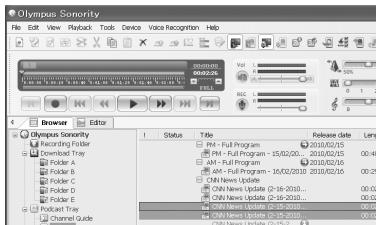
Transfer content to the recorder
Windows Macintosh
In the default setting, the content automatically transferred into the [Podcast] folder on the recorder when the recorder connects to a computer. This setting can be changed by selecting [Tools] under [Options], and by selecting the [Podcast] tab displayed on the Option dialog box. Please see the Online Help (E&P P.118) for details.
If you want to transfer content manually, follow the procedure below.
Podcast contents registered in iTunes, etc. can be transmitted to this recorder by dragging and dropping it in the recorder's [Podcast] folder.
1 Select the [Podcast] folder.
2 Select the content you want to transfer, and drag it to the [Podcast] folder of the recorder and drop it.
Content transfer will start. A progress window will appear during transfer.
3 Transfer will complete.
- Content transferred to the recorder will have an icon [ ] indicating a completed transfer.
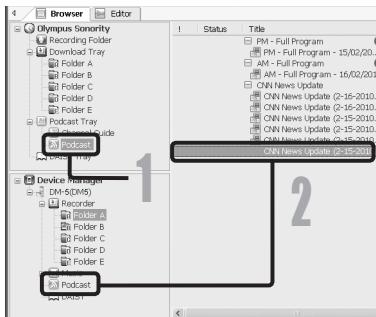
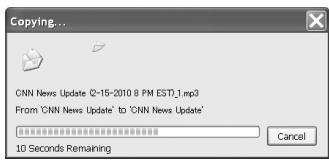
Note
- NEVER disconnect the USB while the LED indicator light is flashing. If you do, the data will be destroyed.
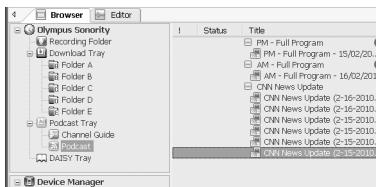
Program guide functions
Windows
OLYMPUS related podcast programs can be easily registered and new contents can be automatically downloaded on the "Olympus Sonority". New contents can also be redirected to the recorder by just connecting to the PC.
Program guide functions are not available for Macintosh.
To register programs
1 Click [Channel Guide] in the online service of the Main Tree View.
Information of programs registered online will be displayed.
2 Click the program you desire from the program list.
- Detailed information on the program will be displayed in the Program Details View.
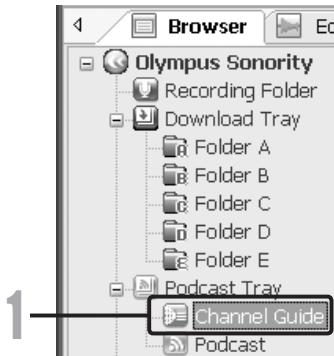
3 Click [Subscribe] to register on the podcast.
- Once the program is registered, the contents broadcast by the program will be displayed in the ListView of the [Podcast] folder. Under the initial settings, the latest contents being broadcast will be automatically downloaded during registration.
![OLYMPUS DM-3, DM-5, DM-650, DM-670 - Click [Subscribe] to register on the podcast. - 1](/content/2025/01/125284/images/725d8e3111b0bf297963f182976d4131ef707b13cff8ecb658208a3f170bdaed.jpg)
Windows
Macintosh
What does DAISY stand for?
DAISY stands for Digital Accessible Information System. Originally intended as a replacement for audio tapes for visually impaired people, the books and information are now used by people with various reading disabilities. DAISY is a worldwide accessible information system developed and maintained by the Daisy Consortium, an international collaborative development organization.
What is multimedia DAISY?
While listening to audio via computer, it is possible to simultaneously view drawings and pictures. Since the portion being read is highlighted, it is possible to know what section is being read. It is also possible to change the speed of the audio and jump to different pages. There are children and students studying with multimedia DAISY as learning materials.
How do you play multimedia DAISY?
After installing the "Olympus Sonority" software supplied with this recorder onto a computer (E8 P.115), select the [DAISY tray] folder from the browser window, and then press the play button to experience multimedia DAISY. During playback, it is possible to skip text and headings, as well as quickly jump to a section by clicking it. If a bookmark is set in advance, it is also possible to start playback from that position at any time. For more details, please see "Playing contents" (E8 P.134).
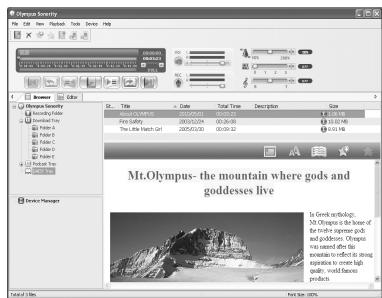
Detailed information about DAISY
For more detailed information about DAISY, please visit the following web page.
Official web page of the Daisy Consortium.
Importing contents
DAISY book content can be imported into "Olympus Sonority". The content can be played by selecting it from the [DAISY tray]. Import and playback are possible with Version 2.0/2.02 DAISY content.
1 Place a DAISY file or folder with DAISY files on the desktop of the computer.
2 Start "Olympus Sonority".
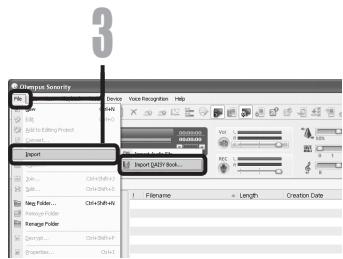
3 From the [File] menu of "Olympus Sonority", select [Import], and then [Import DASY book].
- A file dialog box is displayed.
4 Select the DAISY file to be imported and then click [Open].
- Import starts.
- Imported files are displayed as a list.
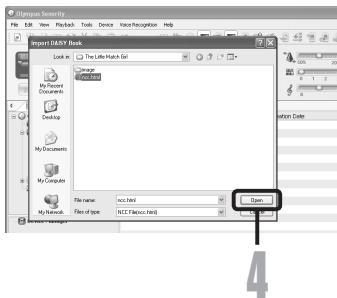
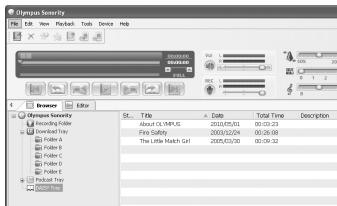
Playing contents
7 Click [DAISY tray].
- A list of DAISY books registered in "Olympus Sonority" is displayed.
![OLYMPUS DM-3, DM-5, DM-650, DM-670 - Click [DAISY tray]. - 1](/content/2025/01/125284/images/795ba661c6946d755cf5cc398f1ecd70a6913d5b85b8aee53e1cdda69e3f214c.jpg)
2 From the list, click the title you wish to play.
- A file import window is displayed.
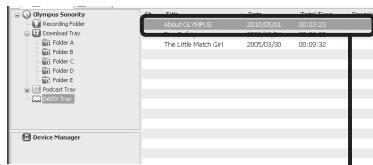
2
3 From the playback control bar, click [Play) to play the DAISY content.
- The DAISY content starts playing.
- Using the [==] or [==] button, you can skip to the previous or next section.
- Click the [ ] button to display the table of contents.
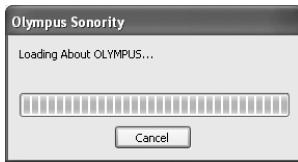
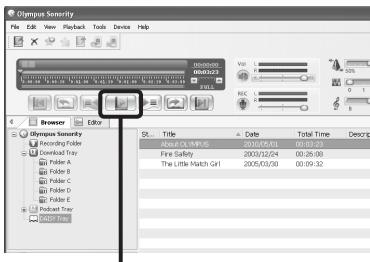
3
Transfer content to the recorder
1 Connect the recorder to a PC, and start Olympus Sonority.
- A device tree is displayed in Device Manager.
2 Select the content you want to transfer.
- Select the file you want to download from the File List Display Area.
To select more than one file:
Windows:
Hold either the [Ctrl] or [Shift] key and select files.
Macintosh:
Hold either the [Command] key and select files.
3 From the [Device] menu in "Olympus Sonority", select [Upload DASY book].
- The transfer of content starts. A progress window is displayed while content is being transferred.
4 Transfer will complete.
- Content transferred to the recorder will have an icon indicating a completed transfer.
- Bookmarks for DAI SY books set in "Olympus Sonority" can also be used on the recorder.
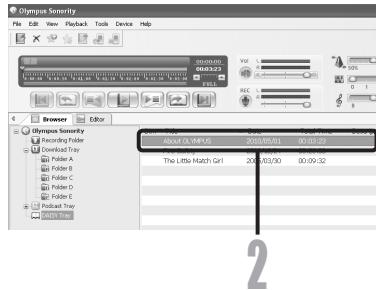
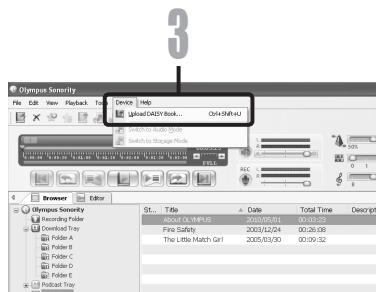
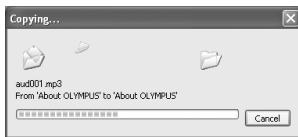
Note
- NEVER disconnect the USB while the LED indicator light is flashing. If you do, the data will be destroyed.
Windows Macintosh
The "Olympus Sonority" can be upgraded to the Plus Version (Optional) to expand and improve its functions. In addition, in the "Olympus Sonority Plus", you can purchase a Music Editing Plug-in to enjoy high-quality effect editing. To add a Music Editing Plugin, you will need to upgrade the "Olympus Sonority Plus".
Purchase and upgrade
To purchase "Olympus Sonority Plus" and to upgrade from "Olympus Sonority" is shown in the following procedures.
1 Start the "Olympus Sonority".
Please see P.119 for the starting method.
2 Select [Purchase Olympus Sonority Plus] in the [Help] Menu or click the [ ] button in the Tool Bar.
- The web browser will start and the purchase site of the "Olympus Sonority Plus" will be displayed. Please operate according to guidance on the screen. When the purchase procedure is completed, the Upgrade Key will be issued by mail.
3 Select [Upgrade to Olympus Sonority Plus] from the [Help] menu.
- The [Upgrade to Olympus Sonority Plus] dialog will be displayed.
4 In the [Upgrade to Olympus Sonority Plus] dialog, enter the Upgrade Key of your purchase, and click the [OK] button.
- When starting the application next time, "Olympus Sonority" will be upgraded to "Olympus Sonority Plus".
Upgrading to Olympus Sonority Plus
Click the root of the Main Treeview, [Olympus Sonority], in the Browse Screen to display the Information Screen. You can confirm that the upgrade key is registered. In addition, when [Version Information] in the [Help] Menu is selected, the upgrade key registered in "Olympus Sonority Plus" will be displayed. The Music Editing Plug-in includes more than 20 types of effect functions and spectrum analyzer functions. For details, please refer to the Online Help (€5 P. 118).
Notes
- To purchase the Upgrade Key, it requires an environment where the Internet can be utilized.
- Please see the details in the website regarding the purchase of the Upgrade Key.
Functions available in the Olympus Sonority Plus
Besides the usual functions, the "Olympus Sonority Plus" also includes various functions to edit music files. For information on operating procedures and detailed settings, please refer to the Online Help (eP P.118).
MP3 editing
MP3 file and tag editing and writing function.
Creating music CD
Function to create music CD from voice files registered in the CD writable folder.
Recorder menu setting
Function for settings in this recorder (detailed settings such as recording mode, alarm setting, timer recording, etc.).
Functions available with the music editing plug-in
By purchasing a music editing plug-in, you can add high-quality functions to expand the music editing range in the "Olympus Sonority Plus". For detailed purchasing method and operating procedures, please refer to the Online Help (https://p.118).
Effect functions
You can use more than 20 high-quality effect functions to edit your music files.
Spectrum analyzer
Displays in the Waveform Display Screen the waveform distribution of an voice file being played in the real time.
Besides unrestricted track editing
It also removes the restriction on the number of tracks that can be edited.
About Windows Media Player
Using Windows Media Player
Music files that have been imported to your computer from music CDs and acquired over the Internet can be transferred to and played back with this recorder. It supports WAV, MP3, and WMA format music files.
By using Windows Media Player, music files from music CDs can be converted (ripped (_a^a) P.139).
Download Audible content available from the Audible web site for a fee to a computer.
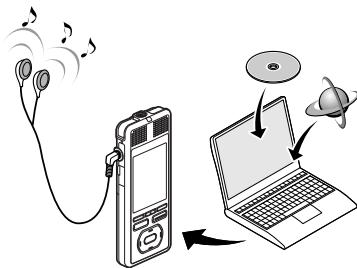
Window names
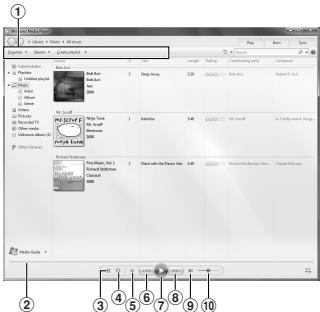
Windows Media Player 12
① Features taskbar
② Seek slider
③ Shuffle button
④ Repeat button
⑤ Stop button
(6) Previous button
⑦ Play button
⑧ Next button
9 Mute button
Volume slider
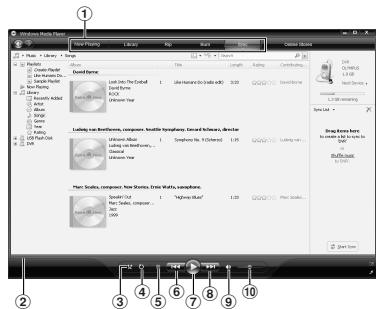
Windows Media Player 11
(1) Features taskbar
② Seek slider
③ Shuffle button
④ Repeat button
⑤ Stop button
(6) Previous button
⑦ Play button
⑧ Next button
9 Mute button
Volume slider
Copying music from CD
Windows Media Player 12
1 Insert CD into the CD-ROM drive, and start Windows Media Player.
2 From the Features taskbar, click [Rip CD] menu.
- If Internet connectivity is available, CD information is searched.
3 Put a check mark on the music file that you want to copy.
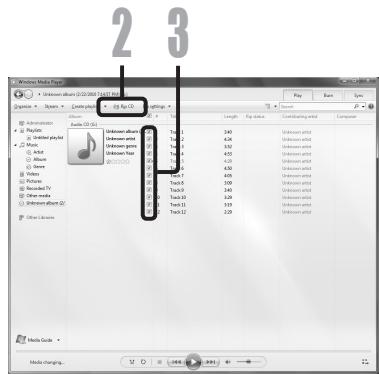
4 Click [Start Rip].
- Files copied to a PC are stored in WMA format. Music files copied are categorized by artist, album, genre, etc. and added to the play list.
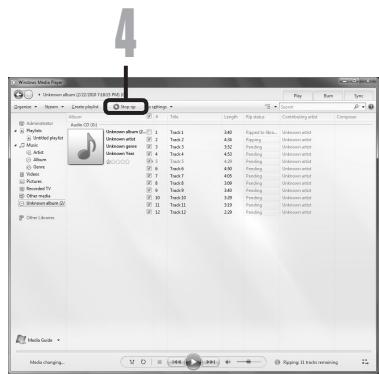
Windows Media Player 11
Insert CD into the CD-ROM drive, and start Windows Media Player.
2 From the Features taskbar, click [Rip] menu.
- After clicking [Rip] menu, click [View Album Info] for Windows Media Player 10 as necessary.
- If Internet connectivity is available, CD information is searched.
Put a check mark on the music file that you want to copy.
4 Click [Start Rip].
For Windows Media Player 10 Click [Rip Music].
- Files copied to a PC are stored in WMA format. Music files copied are categorized by artist, album, genre, etc. and added to the play list.
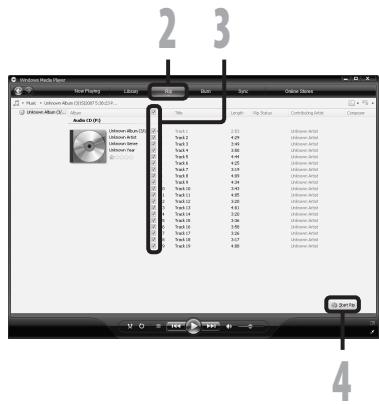
Transferring music file to the recorder
You can transfer the music files saved in your PC to this recorder. For how to copy the music files from the CD to your PC, please see "Copying music from CD" (E3 P.139).
Windows Media Player 12
1 Connect the recorder to a PC, and start Windows Media Player.
2 From the [Organize] menu, click [Options]. At the Options dialog box, click the [Devices] tab.
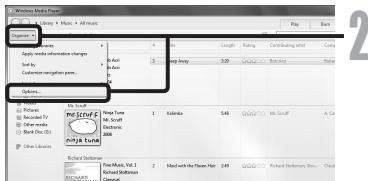
3 From the Devices list, select [DM_5(or 3)], and then click [Properties].
- Click on the [Create folder hierarchy on device] to check. If you uncheck and synchronize the file, it will be transferred under the folder [Home], and the file will not be indicated. 1 2
- The folder with artist name or album name is automatically created. This will make you find the file you want to listen to more easily.
1 If [Create folder hierarchy on device] is checked by default, click to uncheck the box once, and click it again to check.
2 After the synchronous transfer to the recorder, a file named "WMPIinfo.xml" is created. If you delete this file, the *1 may need to be set again.
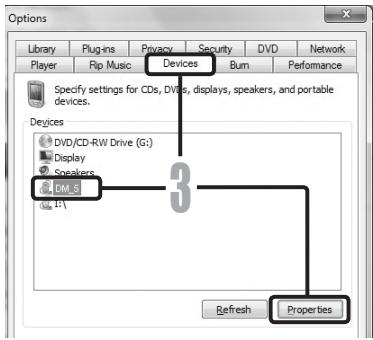
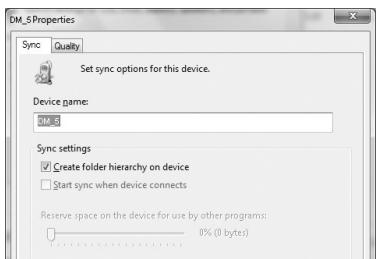
4 Select the desired category from [Library] on the left, and select music files or albums to transfer to the recorder, and Drag & Drop them in [Sync list] on the right.
5 Click [Start sync].
- The file is transferred to the recorder.
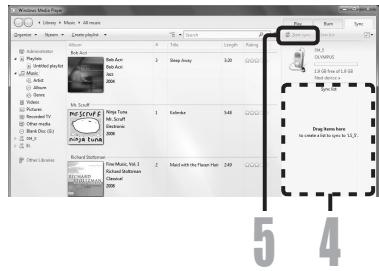
Note
Refer to the online help of Windows Media Player for details.
Windows Media Player 11
1 Connect the recorder to a PC, and start Windows Media Player.
2 From the Features taskbar, click [Sync].
3 Click [Sync] menu again to select [DVR] [Advanced Options] [Set Up Sync], and set as follows.
- Click on the [Create folder hierarchy on device] to check. If you uncheck and synchronize the file, it will be transferred under the folder [Home], and the file will not be indicated. 12
- The folder with artist name or album name is automatically created. This will make you find the file you want to listen to more easily.
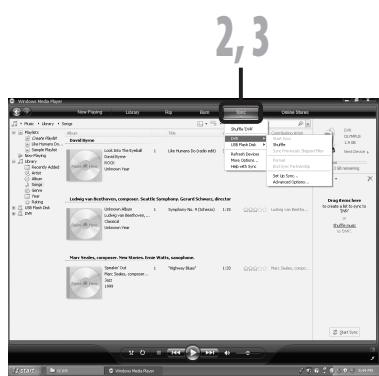
1 If [Create folder hierarchy on device] is checked by default, click to uncheck the box once, and click it again to check.
2 After the synchronous transfer to the recorder, a file named "WMInfo.xml" is created. If you delete this file, the *1 may need to be set again.
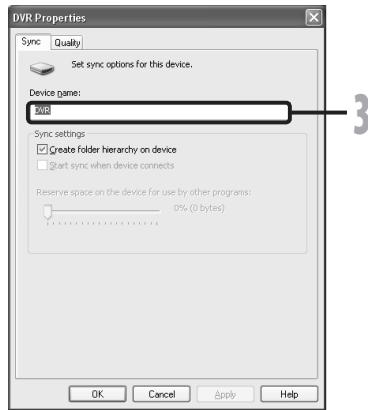
4 Select the desired category from [Library] on the left, and select music files or albums to transfer to the recorder, and Drag & Drop them in [Sync List] on the right.
5 Click [Start Sync].
The file is transferred to the recorder.
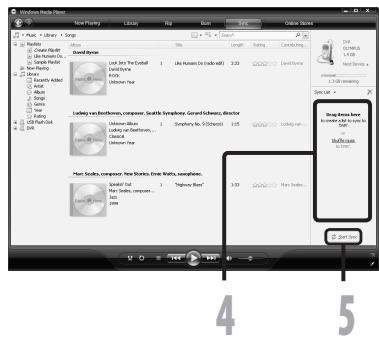
Notes
Refer to the online help of Windows Media Player for details.
- To transfer the files by using Windows Media Player 9 or 10, check the Olympus website.
- If the music files are transferred to the recorder until it reaches to the maximum memory, the message [Can't make the system file. Connect to PC and delete unnecessary file] may appear on this recorder's display. In such a case, erase the files to make free space (hundreds of KB to dozens of MB depending on the music file sizes) for the management file (The more capacity for the management file will be necessary as the number of the music files increases).
Copying voice file to the CD
You can transfer the voice files in the recorder to your PC and copy them to CD. For how to copy the voice files from the recorder to your PC, please see "Download voice files from the recorder" (E:\P.122).
Windows Media Player 12
1 Insert the blank CD-R/RW into the CD-R/RW drive, and start Windows Media Player.
2 From the Features taskbar, click the [Burn] menu.
3 Select the desired category from [Library] on the left, and select voice files or albums to copy to the CD-R/RW, and Drag & Drop them in [Burn list] on the right.
4 Click the [Burn] tab, and select [Data CD or DVD] or [Audio CD].
When [Audio CD] is selected:
- A file is converted and copied in CD in order to play it by the audio equipment which can play CD-R/RW. When [Data CD or DVD] is selected:
- Copying files with the format to be recorded.
5 Click [Start burn].
![OLYMPUS DM-3, DM-5, DM-650, DM-670 - When [Audio CD] is selected: - 1](/content/2025/01/125284/images/5ed854b28234e486c1489758b00e220467fdf949757093573b66ddfeb4a521e5.jpg)
Windows Media Player 11
Insert the blank CD-R/RW into the CD-R/RW drive, and start Windows Media Player.
2 From the Features taskbar, click the [Burn] menu.
3 Select the desired category from [Library] on the left, and select voice files or albums to copy to the CD-R/RW, and Drag & Drop them in [Burn List] on the right.
4 Click the [Burn] menu again, and select [Audio CD] or [Data CD].
When [Audio CD] is selected:
When [Data CD] is selected:
- A file is converted and copied in music CD in order to play it by the audio equipment which can play CD-R/RW.
- Copying files with the format to be recorded.
5 Click [Start Burn].
![OLYMPUS DM-3, DM-5, DM-650, DM-670 - When [Data CD] is selected: - 1](/content/2025/01/125284/images/d6acf8798a840d6e6214fb48b8f1c104147dea13fd4254c494aef48eab422713.jpg)
Note
Refer to the online help of Windows Media Player for details.
Creating a playlist (For DM-5)
You can create playlists using Windows Media Player. If you save the playlist to the [Music] folder on this recorder, you can play songs in the desired order.
Windows Media Player 12
1 Connect the recorder to a PC, and start Windows Media Player.
- If the player is in Now Playing mode, click [Go to Library] on the upper right corner of the window.
2 Click the [Play] tab to open the list window.
- If it is necessary to delete list window content before creating a playlist, click (Clear list) from the icon.
3 From the music titles displayed in the library window, click the title you wish to add to the playlist. Next, drag the title to the list window on the right side of the window.
![OLYMPUS DM-3, DM-5, DM-650, DM-670 - Click the [Play] tab to open the list window. - 1](/content/2025/01/125284/images/0e6bcfafca2ae03a2d270c9770ccbab25a570ea1ce7d4c9e4ae479e46ecad5e5.jpg)
![OLYMPUS DM-3, DM-5, DM-650, DM-670 - Click the [Play] tab to open the list window. - 2](/content/2025/01/125284/images/27e68868a6ba80c398b794f9fa7eac84a9b7809e0d66846cbe45ad006ec1a7bc.jpg)
In the list window, arrange the titles in the order you want to.
![OLYMPUS DM-3, DM-5, DM-650, DM-670 - Click the [Play] tab to open the list window. - 1](/content/2025/01/125284/images/3b11cb24b45b5b756f8b5c55f850db95240f5c496d9c6cf8dfee173a7e72d207.jpg)
5 From the top of the list window, click the [Listoptions] (▶) button. From the menu that displays, select [Save list as].
6 At the [Save As] display, enter a file name and then select the [MUSIC] folder of the recorder as [Destination]. Click [Save].
![OLYMPUS DM-3, DM-5, DM-650, DM-670 - Click the [Play] tab to open the list window. - 2](/content/2025/01/125284/images/7d16deed73f964bae8d7f9a668ac7a049ec16a831b10aed1564eb553230c3c44.jpg)
7 Click the [Sync] tab. Drag the saved checklist to the synchronization list window on the right side of the window.
8 Click [Start sync].
![OLYMPUS DM-3, DM-5, DM-650, DM-670 - Click the [Play] tab to open the list window. - 3](/content/2025/01/125284/images/feee0182070cd7cdd6cc8f3711927b418131e8808b1a304b31682f13e540f5f9.jpg)
Windows Media Player 11
Connect the recorder to a PC, and start Windows Media Player.
2 While the library window displayed, click [Library] and then [Create playlist].
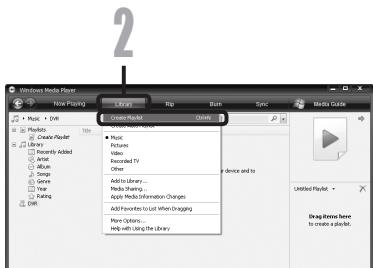
3 From the music titles displayed in the library window, click the title you wish to add to the playlist. Next, drag the title to the list window on the right side of the window.
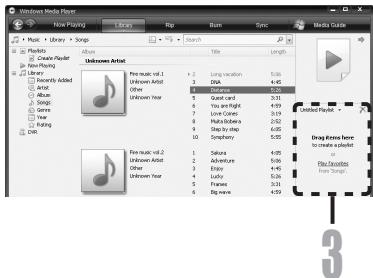
4 Click [Untitled playlist]. From the menu that displays, select [Save Playlist As].
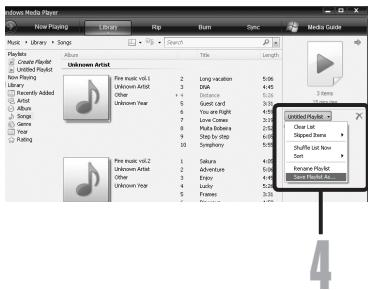
5 At the [Save As] display, enter a file name and then select the [MUSIC] folder of the recorder as [Destination]. Click [Save].
6 Click the [Sync] tab. Drag the saved playlist to the synchronization list window on the right side of the window.
7 Click [Start Sync].
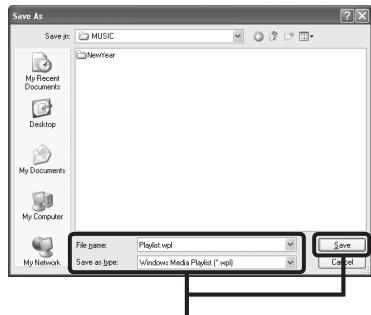
5 6
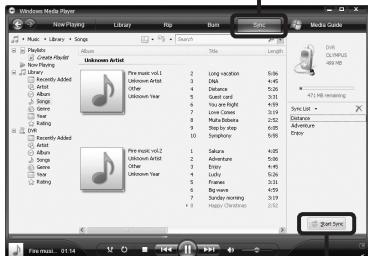
Notes
- Songs in the built-in memory of the recorder and songs on external memory cannot be mixed in the same playlist.
- If the music files on the PC are not arranged as shown on P.154 (the default ripping configuration), it may not be possible to play the playlist correctly.
About iTunes
Using iTunes
Music files that have been imported to your computer from music CDs and acquired over the Internet can be transferred to and played back with this recorder.
By using iTunes, music files from music CDs can be converted (ripped) (P.151).
Window names
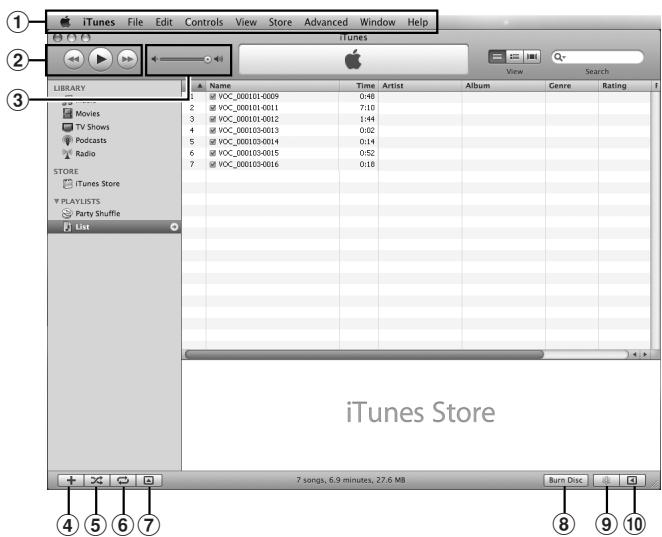
(1) Features taskbar
② Rewind button/Playback, Pause button/Fast Forward button
③ Volume slide
④ Playlist addition button
⑤ Shuffle button
⑥ Repeat button
⑦ Display change button
⑧ Disc create button
⑨ Genius button
10 Genius side button
Copying music from CD
1 Insert the CD into the CD-ROM drive, and start iTunes.
2 Click [iTunes] [Preferences].
3 Click [Advanced] tag.
4 Click [Importing] to set the file format and bit rate for copying music files to your PC, and click OK.
This recorder is compatible with music files in the MP3 and WAV formats (eP48).
[Import Using]:
Set the file format for copying music file from a CD. Please select [MP3] or [WAV].
[Setting]:
Set the bit rate for copying music file from a CD. You can select a bit rate between [128], [160] and [192].
Put a check mark on the music files that you want to copy.
6 Click [Import CD].
![OLYMPUS DM-3, DM-5, DM-650, DM-670 - [Setting]: - 1](/content/2025/01/125284/images/35ce8b9cc67a94cb6c5c6de983c9ff28cd1b64184caa1506c5736ebb07fd3c5d.jpg)
![OLYMPUS DM-3, DM-5, DM-650, DM-670 - [Setting]: - 2](/content/2025/01/125284/images/b4c6eb818b2203d8c2f5407327d97641d8df6bc005296ebc65d494669a44132a.jpg)
Transferring music file to the recorder
You can transfer the music files saved in your PC to this recorder. For how to copy the music files from the CD to your PC, please see "Copying music from CD" (eP P.151).
1 Connect the recorder to a PC, and start iTunes.
2 Select the play list to be transferred to the recorder, and put the check marks on the music files that you want to transfer.
- The order of music pieces can be changed by Drag & Drop of the music file in the play list displayed.
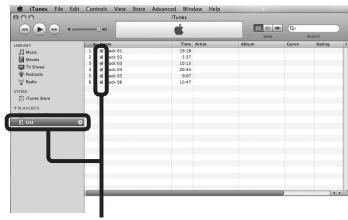
2
3 Double-click the corresponding drive with the recorder, and open [Music] folder.
- When you connect the recorder to a Mac OS, it will be recognized by the drive name of the product name on the desktop.
- Copy to [Music] folder of the recorder when transferring the music file.
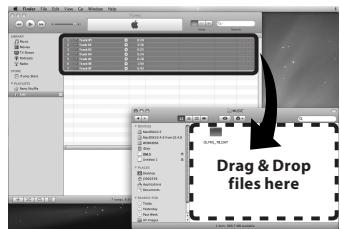
4 Select the desired files, and Drag & Drop them to [Music] folder.
Note
- Music files in the AAC format purchased from a music distribution service such as the iTunes Store cannot be played by this recorder.
Copying voice file to the CD
You can transfer the voice files in the recorder to your PC and copy them to CD. For how to copy the voice files from the recorder to your PC, please see "Download voice files from the recorder" (P.122).
1 Insert the CD-R/RW into the CD-R/RW drive, and start iTunes.
2 Select the desired playlist, and put a check mark on the voice files to copy to the CD-R/RW.
3 Click [Burn Disc]
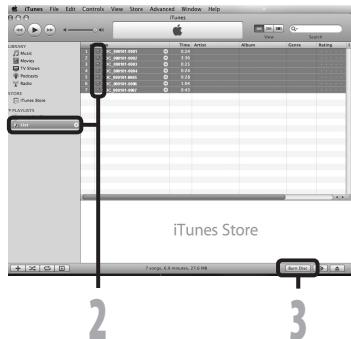
4 To set the CD format for copying voice files to CD-R/RW, and click [OK].
When [Audio CD] is selected:
A file is converted and copied in music CD in order to play it by the audio equipment which can play CD-R/RW.
When [MP3 CD] is selected:
Copying in MP3 format.
When [Data CD or DVD] is selected:
Copying files with the format to be recorded.
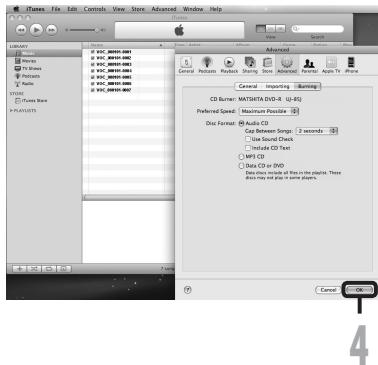
Other features
Playing songs in a particular order
Lists created and saved as a file on a computer are called playlist files. By transferring a playlist file to the [Music] folder of this recorder, it is possible to play songs in a particular order.
- With playlists, it is possible to play multiple songs on this recorder in a freely determined order.
- This recorder supports .m3u playlist files.
Creating a playlist
This section explains the procedure to create, transfer, and play a playlist. This explanation will use the files and folders shown in the [Music] folder below and play the files in order from (1) to (8).
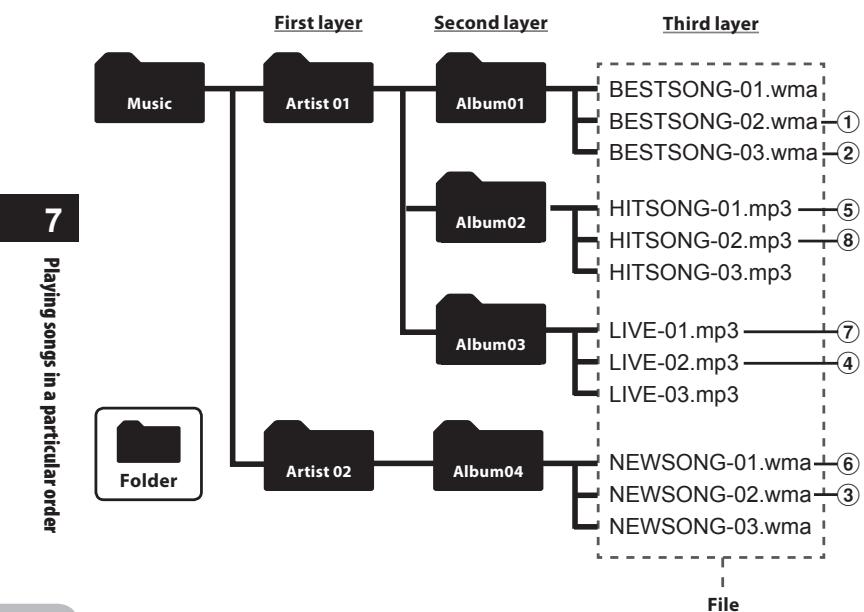
Windows
1 Click the [Start] button, select [Programs] [Accessories] [Notepad].
- Notepad opens.
2 Enter the names of files in the [Music] folder in the order you want them to be played.
- The file names in the playlist are entered in the following manner: Drive letter (F):\Folder name\File name.
- The easiest way to ensure that the file names are entered correctly is to open the properties for the file you want to enter into the play list, copy the file name, and then paste that name into the playlist being created in Notepad.
- If there are too many characters, playback may not be possible. As a guide, try to keep entries on a single line to within 256 characters.
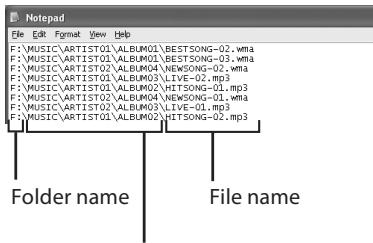
When there are layers of folders, use the "\" mark to indicate the layers when entering information.

Instead of the drive letter "F", any single half-width character can be used.

A maximum of 999 songs can be entered into a single play list.
3 From the [File] menu, select [Save As]. Enter a file name followed by the extension“.m3u” and then save the file.
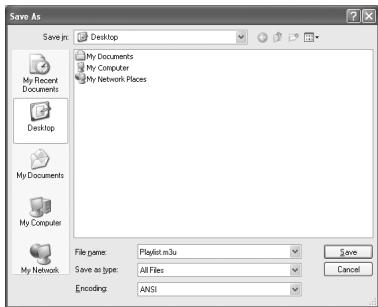
4 Drag the saved playlist file to the [Music] folder of the recorder to transfer it to the recorder.
- Transfer the playlist file to the top level (first layer) of the [Music] folder. For more details about file transfers, please see "Transferring music file to the recorder" (v35-P.141).
- For more details about playing transferred playlists, please see "File search" (E&P P.53)
Note
- Playing files in a specified order using playlists is limited to files in the [Music] folder (for music playback).
Windows Macintosh
Audio Books are books that can be listened to. Digital audiobooks can be played anytime and anywhere on players such as this recorder. Audio Books can be enjoyed in various ways. For example, they can be listened to while moving by train, doing housework and jogging.
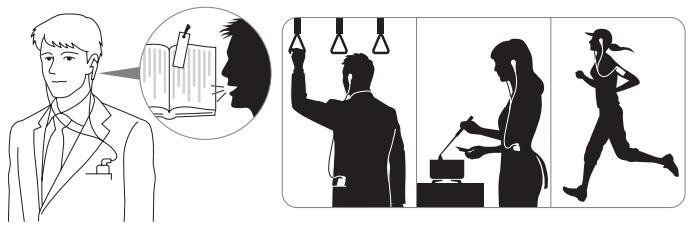
Transfer content to the recorder
1 Connecting the recorder to your PC (P.111).
2 Select the content you want to transfer, and drag it to the [AUDIOBOOK] folder of the recorder and drop it with Explorer or Finder.
The file is transferred to the recorder.
3 Disconnect the USB cable and select [Audio Book] from [Audiobooks] in the menu setting screen.
- Transferred file list will appear.
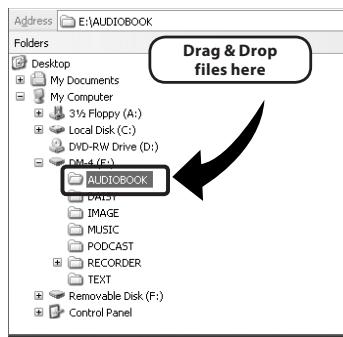
Notes
- NEVER disconnect the USB while the LED indicator light is flashing. If you do, the data will be destroyed.
- Audiobooks using the Digital Rights Management system (DRM) of the Microsoft Corporation are not supported.
- This recorder can play files in MP3 and WMA formats.
About Text Speech (For DM-5)
Windows
Macintosh
If a text file is transferred to this recorder and played, the text file can be read aloud. This recorder can read aloud text created in various situations and can be used to confirm or review audio content.
Transfer text file to the recorder
1 Connecting the recorder to your PC (P.112).
2 Select the content you want to transfer, and drag it to the [TEXT] folder of the recorder and drop it with Explorer or Finder.
The file is transferred to the recorder.
3 Disconnect the USB cable and select [Text Speech] from [Audiobooks] in the menu setting screen.
- Transferred file list will appear.
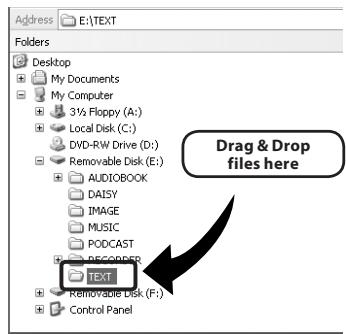
Notes
- NEVER disconnect the USB while the LED indicator light is flashing. If you do, the data will be destroyed.
- This recorder can play file format, which consists of only character data text file (.txt) only.
Windows
Use the AudibleManager to load Audible content onto the recorder.
Playback, management, and transfer of Audible content to the recorder can be done using the AudibleManager.
Installing AudibleManager
When AudibleManager is not installed on a computer, install the AudibleManager according to the procedure described below.
1 Access one of Audible web sites from the web browser and download the AudibleManager.
http://www.audible.com/ (United States)
http://www.audible.co.uk
(United Kingdom)
http://www.audit.fr (France)
http://www.audible.de (Germany)
2 Start up the downloaded executable file.
- The AudibleManager Setup screen will be displayed. Select the name of the device in use (OLYMPUS DM-5/3) and click the [Install] button.
3 When the [AudibleManager License Agreement] is displayed, click the [I Accept] button.
4 Installation starts.
- Wait until process has been completed. Once the installation has been completed AudibleManager starts up automatically.
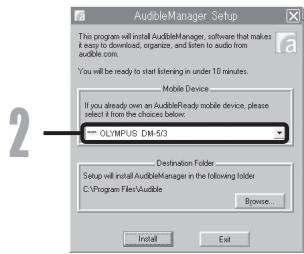
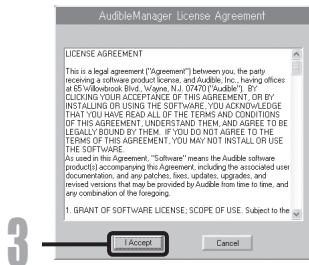
Adding device to AudibleManager
If AudibleManager has already been installed, add a device in order to handle the recorder in the AudibleManager. Follow the procedure described below.
1 Select [Add New Device] in the [Devices] menu.
2 When the dialog box displays, verify the internet connection and click the [Yes] button.
3 When the dialog box is displayed, check the name of the device in use (DM-5/3) and click the [OK] button.
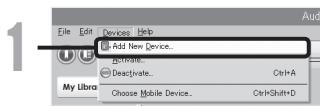
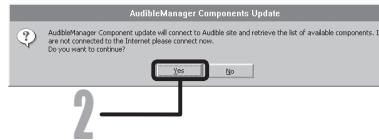
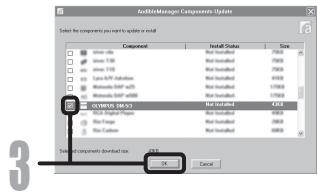
4 Installation starts.
- Wait until the process has been completed. Once the installation has been completed, AudibleManager restarts.
Verify that the device in use has been added to the [Mobile Devices] menu.
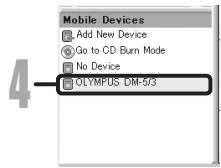
Purchasing Audible content
Audible content can be purchased from the Audible web site. Access to the Audible web site using web browser and download the content by following the purchase procedures described on the web site.
With the existing setting, content downloads to the Library folder in the AudibleManager. When download has been completed, the AudibleManager starts up and purchased content displays on the contents list in the Library.
Windows
Audible content can be transferred into the [Audible] folder on the recorder by following the procedure described below.
1 Connect the recorder to a computer.
2 Select [Library] in the [Audible Folders] tree listing.
- A list of content stored in the [Library] displays on the right side.
3 Select the content to be transferred to the recorder and click the [Add to Device] button.
4 When the [Activate Your Device] entry screen is displayed, enter the user name and password for Audible and click the [OK] button.
5 The transfer begins.
- Wait until the transfer of the content has been completed. When it has been completed, the transferred content is displayed in the contents listing of the device. Also, the transferred content is displayed in the Library.
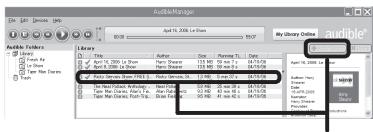
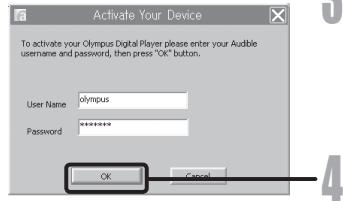
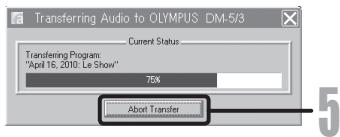
Notes
- When a content file is transferred to the recorder, a [.pos] file will be automatically created for each content file in the Audible folder.
- When the [^*.pos] file is deleted, using Explorer, the stored Playback Position will be deleted. The next time the file is selected, playback starts from the beginning of the file.
- When a content file is transferred to the recorder, a system file will be created as a hidden file inside the Audible folder. When this file is deleted using Explorer, it is no longer possible to playback the Audible content.
Enjoy Audible content with the recorder
Audible content that has been transferred into the [Audible] folder on the recorder from a computer can be enjoyed with an exclusive mode optimally suited for the operation of Audible content.
Audible mode
When you select the [Audible] folder in the [Audiobooks] folder, the recorder automatically switches to the Audible mode. The Audible mode is an exclusive mode for enjoying Audible content (modes 3, and 4 formats*) transferred from a computer. The operating method for Audible mode differs from when other folders on the recorder are selected (Normal mode). Please see the "Operating recorder in Audible mode" (P.164) for details.
File Display screen in Audible mode
In the Audible mode, play mode becomes the file setting regardless of the menu settings and the recorder stops after playing back one file. In addition, icons (AA3, AA4) which indicate Audible files are also displayed on the File display screen.
(a) Audible file indicator

Re-playable Audible files
Files of modes 3 and 4 formats can be played back in the Audible mode. Only those Audible files that have an [.aa] extension are displayed in the Audible mode (in the Audible folder on the recorder).
| Re-playable Audible files formats * | |
| Mode | Codec |
| 3(▲▲) | ACELP (16kbps) |
| 4(▲▲) | MP3 (32kbps) |
Playback position and section
In the Audible mode, the starting position can be moved easily by referring to the Playback Position which is the positional information stored from previous stops for each file, and by referring to "Section" where the content distributor has preset the position.
Playback position
The Playback Position (positional information) is stored in the [.pos] file, which is created automatically by the recorder for each Audible content file ([.aa] file).
The Playback Position is initially located at the beginning of the file, and the stop position will be updated by playback or the use of S. Play (slow playback)/F. Play (fast playback).
Press the or button to move the stop position while the recorder is stopped. ThePlayback Position will not be updated.
Section
Up to a maximum 100 divisions (chapters of a story or segments of news) are set arbitrarily for each file by the distributor of the content.
Notes
- When a content file is transferred to the recorder, a [.pos] file will be automatically created for each content file in the Audible folder.
- You can not set the Index marks in the Audible mode.
- When the [· ,pos] file is deleted, using Explorer, the stored Playback Position will be deleted. The next time the file is selected, playback starts from the beginning of the file.
- When a content file is transferred to the recorder, a system file will be created as a hidden file inside the Audible folder. When this file is deleted using Explorer, it is no longer possible to playback the Audible content.
Operating recorder in Audible mode
The operating method on the recorder is different in the Audible mode when the [Audible] folder or Audible file is selected, then while in the Normal mode.
Forwarding
Press and hold the button while the recorder is stopped.
When the button is released fast forwarding stops. The Playback Position is not updated. When the OK button is pressed playback resumes from that position.
Press and hold the button while playing a file.
When you release the button the recorder will resume normal playback.
If the starting position of a section (P.163) and the playback position are in the middle of a file, the recorder stops at that position.
- When the button is held down while the recorder is stopped, the recorder moves to the end of the file and then stops.
If the button is still held down, the recorder moves to the next file and continues fast forwarding from the beginning of the file. After fast forward reaches the end of the last file, the recorder stops at the beginning of the last file.
- When the button is held down during playback and the end of the file is reached, the recorder goes back to the beginning of the file and stops.
Rewinding
Press and hold the button while the recorder is stopped.
When the button is released fast rewinding stops. The Playback Position is not updated. When the OK button is pressed playback resumes from that position.
Press and hold the button while playing a file.
When the button is released playback resumes from that position.
- If the starting position of a section (P.163) and the playback position are in the middle of a file, the recorder stops at that position.
- When the 14 button is held down while the recorder is stopped, the recorder returns to the beginning of the file and then stops. If the 14 button is still held down, the recorder moves back to the end of the previous file and continues fast rewinding.
- When the l button is held down during playback and the recorder reaches the beginning of the file, the recorder starts playback from the beginning of that file.
- If the 14 button is kept pressed while the recorder is stopped at the start of the top file, the recorder will fast rewind starting from the end of the last file.
File Skip and Section Skip
Press the button while the recorder is stopped.
The recorder skips to a playback position or the starting position of a section, whichever is closer in the file, and stops.
After a stop position, if there is no playback position, or a starting position of a section, the recorder will skip to a playback position in the next file and stop.
Press the button when the recorder has stopped at the beginning of a file.
The recorder skips to the Playback Position of the previous file and then stops.
Press the button if the recorder has not stopped at the beginning of a file.
The recorder skips to a playback position or the starting position of a section, whichever is closer in the file, and stops.
Press the button during playback.
The recorder skips three seconds forward, or to the starting position of the next section, whichever is closer, and starts to playback the file. After reaching the end of the file the recorder stops at the beginning of the file. The Playback Position is updated to the beginning position of the file at this time.
Press the 1 button during playback.
The recorder skips three seconds back, or to the starting position of the current section, whichever is closer, and starts to playback the file. When the recorder reaches the beginning of a file the file plays from the beginning.
- The [Skip Space] (E&P P.73) setting is invalid in the Audible mode.
Using as external memory of the PC
In addition to its uses as an IC recorder and a music player, this recorder can also be used as external memory for a computer by storing data from a computer and reading it back out. With the recorder connected to your PC, you can download data from the memory to your PC and upload data stored on your PC to the memory.
Windows
1 Connecting the recorder to your PC (P.111).
2 Open the Explorer window.
3 Open the product name folder.
- When you open [My Computer], it will be recognized by the drive name of the product name.
4 Copy the data.
5 Disconnect the recorder from the PC (P.112).
Macintosh
7 Connecting the recorder to your PC (v3 P.111).
- When you connect the recorder to a Mac OS, it will be recognized by the drive name of the product name on the desktop.
Double-click the product name icon on the desktop.
3 Copy the data.
4 Disconnect the recorder from the PC (P.112).
Note
- While transmitting data, [Busy] is displayed, and the LED indicator light flashes. NEVER disconnect the USB while the LED indicator light is flashing. If you do, the data will be destroyed.
Alarm message list
| Message | Meaning | Explanation | Action |
| [Battery Low] | Low battery power. | Battery power is getting low. | Charge the battery. If you run out of battery soon after the charge, the battery life has ended. Replace with new battery (€P.21). |
| [File Protected] | Erase-locked. | Tried to delete a locked file. | Unlock the file (€P.75). |
| [Cannot record in this folder] | Not an audio-recording folder. | Recording has been attempted with a [Music], [Podcast], [Audiobooks](Daisy, Audio Book, Text Speech, Audible) folder. | Select a folder from [Folder A] through to [Folder E] and try recording again (€P.32). |
| [Index Full] | Index full. | The file is full of index marks (maximum of 16 marks). | Erase index marks that are no longer required (€P.51). |
| [Folder Full] | Folder full. | The folder is full of files (maximum of 999 files). | Erase unnecessary files (€P.60). |
| [Memory Error] | Error in the memory. | Error in the memory. | This is a malfunction, so go to the store where you purchased the recorder or an Olympus service station for repair (€P.174). |
| [Card Error] | Error in the memory. | microSD card is not recognized correctly. | Remove the microSD card then put it again (€P.30 to P.31). |
| [Licence Mismatch] | Illegally copied file. | The music files copied illegally. | Erase the file (€P.60). |
| [Memory Full] | Zero remaining memory. | No remaining memory. | Erase unnecessary files (€P.60). |
| [No File] | No file. | No files were found in the folder. | Select another folder (€P.53 to P.59). |
| [Format Error] | Formatting error. | There was an error while formatting the recorder's memory. | Reformat the memory (€P.94). |
| [Can't make the system file. Connect to PC and delete unnecessary file] | The management file cannot be created. | The file for management cannot be created due to a shortage of capacity for remaining memory. | Connect the recorder to a computer and delete any unnecessary files. |
| [Cannot play this file] | File which cannot be played. | Incompatible format. | Please confirm the file that can be played on this recorder (€P.48). |
| [Please Select The File] | Unselected File | File is not selected. | Please select a file then carry out the operation (== P.53 to P.59). |
| [Same folder. Can't be moved(copied).] | File cannot be moved (copied). | Attempting to move (copy) into the same folder. | Please select another folder. |
| [Same files. Can't be moved(copied).] | File cannot be moved (copied). | File in the destination with the same name, or file with DRM. | Please select another file. |
| [This file can't be divided.] | File which cannot be split. | Attempting to split a file besides the PCM files recorded in this recorder. | Please select another file. |
Troubleshooting
| Symptom | Probable cause | Action |
| Nothing appears on the display | The battery is not loaded properly. | Check the direction of the battery. (±° P.21). |
| Battery power is getting low. | Charge the battery (±° P.21 to P.25). | |
| The power is off. | Turn the power on (±° P.26). | |
| Won’t start | Battery power is getting low. | Replace with new battery (±° P.21 to P.25). |
| The power is off. | Turn the power on (±° P.26). | |
| The recorder is in HOLD mode. | Release the recorder from HOLD (±° P.27). | |
| Unable to record | Low remaining memory. | Erase unnecessary files (±° P.60). |
| The maximum number of files has been reached. | Change to the another folder (±° P.32, P.38). | |
| No playback tone heard | The earphone is connected. | Unplug the earphones to use the internal speaker. |
| The volume level is set to [00]. | Adjust the volume level (±° P.46). | |
| Recording level too low | The recording level has not been adjusted. | Adjust the recording level and then try recording once more (±° P.67). |
| The microphone sensitivity is too low. | Set the microphone sensitivity to [High] or [Middle] mode and try again (±° P.67). | |
| This could potentially be because the output level for the connected external devices are too low. | Adjust the output level for the connected devices. | |
| Voice files are not recorded in stereo | The connected external microphone is monaural. | When recording while an external monaural microphone is connected, sound will only be recorded by the L-channel. |
| [Rec Mode] is set to a monaural recording mode. | Set [Rec Mode] to the stereo recording mode (€P.67). | |
| Cannot find the recorded Voice File | Wrong folder. | Switch to the correct folder (€P.32, P.38). |
| Noise heard during playback | The recorder was shaken during recording. | — |
| The recorder was placed near a cell phone or fluorescent lamp while recording or during playback. | Move the recorder. | |
| Unable to erase the file | The file is locked. | Unlock the file (€P.75). |
| The file is read-only. | Unlock the file or cancel the read-only setting of the file on the PC. | |
| Unable to erase the folder | There are files which cannot be recognized with the recorder. | Connect the recorder to PC for erasing files. |
| Noise is audible through the recording monitor | Acoustic feedback is occurring. | When the built-in speaker amps and the like are connected there is a risk that audio feedback will occur while recording. It is recommended that you use earphones for the recording monitor. |
| Conduct adjustments like separating the earphones from the microphone further, do not point the microphone at the earphones, lower the volume on the recording monitor, and so on. | ||
| Unable to set index marks | The maximum number of marks has been reached. | Erase unnecessary marks (€P.51). |
| The file is locked. | Unlock the file (€P.75). | |
| The file is read-only. | Unlock the file or cancel the read-only setting of the file on the PC. | |
| Cannot charge | Contains battery other than the specified battery. | Please insert the chargeable battery provided. |
Accessories exclusive to the Olympus IC recorder can be purchased directly from Online Shop on our company's website. Sales of accessories are different according to the country.
- USB connecting AC adapter: A514 DC5V AC adapter for USB connection
2 channel microphone (omni-directional): ME30W
Two ME30 monaural microphones come in a set with a miniature tripod and a connection adapter. These are highly sensitive omni-directional microphones supported by plug-in power which are well-suited to recording musical performances.
- Compact Gun Microphone (unidirectional): ME31
The directional microphones useful for recordings such as outdoor recording of wild birds singing. The metal-cut body provides a sturdyness to the high rigidity.
Highly sensitive noise-cancellation monaural microphone (unidirectional): ME52W
This microphone is used to record sound at a distance while minimizing surrounding noise.
- Tie clip microphone (omni-directional): ME15
Small concealing microphone with a tie-clip.
- Exclusive remote control set: RS30W
When the receiver is plugged into the REMOTE jack the recorder's recording and stop functions can be operated through the remote control. The receiving position can be adjusted, thereby allowing you to operate the recorder from various different angles.
- Telephone pickup: TP7
Earphone type microphone can be plugged into your ear while phoning. The voice or conversation over the phone can be clearly recorded.
- Connecting cord: KA333
Connecting cord which has stereo mini-plugs (Ø3.5) with resistance at both ends. Use to connect from the earphone jack output of the recorder to the microphone input jack when recording. Converting plug adapters (PA331/PA231) which convert to the monaural mini plug (Ø3.5) or monaural mini plug (Ø2.5) are also enclosed.
Lithium ion battery: LI-50B
This lithium ion rechargeable battery is manufactured by Olympus. It is best paired with the LI-50C battery charger.
General points
Recording medium:
Built-in memory
DM-5:8GB
DM-3:4GB
microSD card (512 MB to 16 GB)
Recording format:
Linear PCM (Pulse Code Modulation)
MP3 (MPEG-1 Audio Layer3)
WMA (Windows Media Audio)
Input level:
[Mic Sense]:[Middle] - 60 dBv
Maximum working output:
280 mW (8Ω speaker)
Maximum headphone output:
≤ 150 mV (according to EN 50332-2)
Wide band characteristic headphone output:
75mV≤ (according to EN 50332-2)
Speaker:
Built-in 0 23 mm round dynamic speaker
MICjack:
3.5 ~mm mini-jack, impedance 2.2 k
EAR jack:
0 3.5 mm mini-jack, impedance 8 Ω or more
Input power requirement:
Battery: Lithium ion battery
External power supply: AC adapter(A515)
5V
External dimensions:
113.6 mm × 45.6 mm 15.2 mm
(without protrusions)
Weight:
98 g (including battery)
Operating temperature:
0^ - 42^
Overall frequency response
During recording or playback mode:
Linear PCM format
| Recording mode | Overall frequency response |
| 48 kHz | 40 Hz to 23 kHz |
| 44.1 kHz | 40 Hz to 21 kHz |
MP3 format
| Recording mode | Overall frequency response |
| 320 kbps | 40 Hz to 20 kHz |
| 256 kbps | 40 Hz to 20 kHz |
| 192 kbps | 40 Hz to 19 kHz |
| 128 kbps | 40 Hz to 17 kHz |
WMA format
| Recording mode | Overall frequency response |
| ST XQ | 40 Hz to 19 kHz |
| ST HQ | 40 Hz to 16 kHz |
| ST SP | 40 Hz to 9 kHz |
| HQ | 40 Hz to 13 kHz |
| SP | 40 Hz to 8 kHz |
| LP | 40 Hz to 3 kHz |
Built-in stereo microphone (During recording mode):
DM-5:70 Hz to 20 kHz
DM-3:70Hz to 20kHz
However, when recording by the MP3 format or the WMA format, the upper limit value of the frequency response depends on each recording mode (see above diagram).
Guide to recording times
Linear PCM format:
| Recording mode | Built-in memory (4 GB)(DM-3) | Built-in memory (8 GB)(DM-5) | microSD card | ||
| 1 GB | 2 GB | 4 GB | |||
| 48 kHz | 5h.15min. | 11h.05min. | 1h.15min. | 2h.45min. | 5h.30min. |
| 44.1 kHz | 5h.45min. | 12h.05min. | 1h.20min. | 3h. | 6h. |
MP3 format:
- The above values are strictly rough guides.
- Variations in the available recording time will arise as there may be differences in the available memory depending on the microSD card.
- Caution is required, since the differences in the available recording time will increase when the bit count and bit rate are low.
- Available recording time may be shorter if many short recordings are made (The displayed available recording time and recorded time are approximate indications).
Maximum recording time per file
Linear PCM format:
| 48 kHz | 3h. |
| 44.1 kHz | 3h.20min. |
MP3 format:
- The maximum capacity for a single file is limited to approx. 4 GB for WMA and MP3.
- The size limit for a file in the Linear PCM format is approx. 2 GB.
Guide to battery life
Lithium ion battery:
| Recording mode | Built-in stereo microphone (During recording mode) | Built-in speakers (During playback mode) | Earphone Playback |
| PCM 48kHz | 13h. | 12h. | 20h. |
| MP3 128kbps | 25h. | 12h.30min. | 20h. |
| ST XQ | 24h. | 12h.30min. | 21h. |
| LP | 29h. | 13h. | 22h. |
Notes
- The above values are strictly rough guides.
- Battery life is measured by Olympus. It varies greatly according to the type of battery used and the conditions of use.
Specifications and design are subject to change without notice.
Technical assistance and support
The following are contact information for technical support for Olympus recorders and software only.
- Technical Hotline Number in the U.S. and Canada
1-888-553-4448
- User Support E-mail address in the U.S. and Canada
distec@olympus.com
Technical Hotline Number in Europe
Toll free number: 00800 67 10 83 00
available for Austria, Belgium, Denmark, Finland, France, Germany, Italy, Luxemburg,
Netherlands, Norway, Portugal, Spain, Sweden, Switzerland, United Kingdom
Charged numbers for the Rest of Europe
+491805671083
+4940237734899
- User Support E-mail address in Europe
dss/support@olympus-europa.com
For customers in Europe

"CE" mark indicates that this product complies with the European requirements for safety, health, environment and customer protection.

This symbol [crossed-out wheeled bin WEEE Annex IV] indicates separate collection of waste electrical and electronic equipment in the EU countries. Please do not throw the equipment into the domestic refuse. Please use the return and collection systems available in your country for the disposal of this product. Applicable Product : DM-5/DM-3, AC adapter

This symbol [crossed-out wheeled bin Directive 2006/66/EC Annex II] indicates separate collection of waste batteries in the EU countries. Please do not throw the batteries into the domestic refuse. Please use the return and collection systems available in your country for the disposal of the waste batteries.
OLYMPUS
OLYMPUS IMAGING CORP.
Shinjuku Monolith, 3-1 Nishi-Shinjuku 2-chome, Shinjyuku-ku, Tokyo 163-0914, Japan. Tel. +81 (0)3-3340-2111
http://www.olympus.com
OLYMPUS IMAGING AMERICA INC.
3500 Corporate Parkway, P.O. Box 610, Center Valley, PA 18034-0610, U.S.A. Tel. 1-888-553-4448
http://www.olympusamerica.com
OLYMPUS EUROPA HOLDING GMBH
(Premises/Goods delivery) Wendenstrasse 14-18, 20097 Hamburg, Germany. Tel. +49 (0)40-237730
(Letters) Postfach 10 49 08. 20034 Hamburg, Germany.
http://www.olympus-europa.com
- DETAILED INSTRUCTIONS
- Introduction
- Trademarks and registered trademarks
- Getting started
- Basic operations
- Menu setting
- Using the Olympus Sonority
- About Windows Media Player
- About iTunes
- Other features
- Transferring Audible content. 161
- Enjoy Audible content with
- Using as external memory of the PC.....166
- Other information
- Danger
- Warning
- Caution
- Caution for usage environment
- Handling the recorder
- Warning:
- Caution:
- Battery handling precautions
- Danger:
- ACadapter
- In case
- LCD monitor
- Main features
- [Home] menu display
- [Recorder] mode display
- Recording display
- Playback display
- Icon display (For all modes)
- [Music] [Podcast] mode display
- Music playback display
- Podcast playback display
- [Audiobooks] mode display
- DAISY playback display (For DM-5)
- Audio book playback display
- Text playback display (For DM-5)
- [Audio Diary] mode display
- Calendar display
- Inserting the battery
- Notes
- Charge the battery
- Charging using AC adapter
- Charging by connecting to a computer via USB
- Connect to the USB connecting AC adapter (optional) to charge
- Battery indicator
- Cautions concerning the rechargeable batteries
- Discharging:
- Operating temperature:
- Recommended temperature range:
- For customers in Germany:
- Turning on/off the power
- Turning on the power
- Turning off the power
- Slide the POWER/HOLD switch in the direction indicated by the arrow for 1 seconds or longer.
- Auto Power off mode
- Set the recorder to HOLD mode
- Slide the POWER/HOLD switch to the HOLD position.
- Exit HOLD mode
- Slide the POWER/HOLD switch to the A position.
- Setting time and date [Time & Date]
- Press the or button to select the item to set.
- Press the + or - button to set.
- Press the OK button to complete the setting.
- Changing the time and date
- Select [Time & Date] from the menu on the [System Menu].
- Press the or button to select the item to set.
- Press the + or - button to set.
- After the date and time have been set, press the OK button.
- Inserting and ejecting a microSD card
- Inserting a microSD card
- Ejecting a microSD card
- While the recorder is during stop mode, open the card cover.
- Push the microSD card inward to unlock it, and let it eject partially.
- Close the card cover securely.
- About the folders for voice recordings
- Note
- About the folder for music playback
- About the folder for Podcast contents
- About the folder for electronic book contents and text files
- About the folder for Audible contents
- About the folder for picture
- Recording
- Settings relating to Recording
- [Rec Menu] Setting Items:
- Recording to a recording folder
- Select the recording folder.
- Press the REC button to start recording.
- Press the STOP button to stop recording.
- Specifying a keyword before recording
- In the Folder list display, press F1(SEARCH) to show the Keyword search display (F5 P.53).
- Press the STOP button to stop recording.
- Press the + or - button to specify the desired keyword, and then press the OK or > button.
- Pause
- While the recorder is during recording mode, press the REC button.
- Resume Recording:
- Press the REC button again.
- To quickly check on the recorded contents
- While the recorder is during recording mode, press the OK button.
- Listening while audio is recorded
- Connect the earphone to the EAR jack on the recorder.
- Recommended settings by recording condition
- Recording from external microphone or other devices
- Recording with external microphone:
- Applicable external microphones
- channel microphone (omni-directional): ME30W
- Highly sensitive noise-cancellation monaural microphone (unidirectional): ME52W
- Compact Gun Microphone (unidirectional): ME31
- Tie clip microphone (omni-directional): ME15
- Telephone pickup: TP7
- Recording the sound of other devices with this recorder:
- Recording the sound of this recorder with other devices:
- Settings relating to playback
- [Play Menu] Setting Items:
- Forwarding
- While the recorder is during stop mode, press and hold the button.
- While the recorder is during playback mode, press and hold the button.
- Rewinding
- While the recorder is during stop mode, press and hold the button.
- While the recorder is during playback mode, press and hold the 1 button.
- Locating the beginning of the file
- While the recorder is during stop mode or playback mode, press the button.
- While the recorder is during playback mode, press the button.
- While the recorder is during stop mode, press the button.
- While the recorder is during playback mode, press the button twice.
- Playback through earphone
- Playback through Hi-fi components or Car Audio
- About music file
- Bookmark mode
- While the recorder is during stop mode, press and hold the button.
- While the recorder is during playback mode, press and hold the button.
- To skip a file
- While the recorder is during stop mode, press the button.
- While the recorder is during stop mode, at the beginning of the file, press the button.
- While the recorder is during stop mode, in the middle of the file, press the 1 button.
- While the recorder is during playback, slow playback, or fast playback, press the button.
- While the recorder is during playback, slow playback, or fast playback, press the button.
- While the recorder is during playback, slow playback or fast playback, press the 1 button twice.
- Setting an index mark
- Clearing an index mark
- How to begin segment repeat playback
- Press the Fn (A-B) button again at the position where you want to end segment repeat playback.
- Cancel the segment repeat playback function
- Pressing any of the following buttons will release the segment repeat playback.
- Opening the file search display from the [Recorder] folder
- File search type:
- Press the F1 (SEARCH) button to open the file search display.
- From the [Home] menu display, select [Recorder], and then press the OK or button to open the folder list display.
- File search display operations of the [Recorder] folder
- When searching using the [Browse] search
- When searching using the [Day] search
- When searching using the [Keyword] search
- Opening the file search display from the [Music] folder
- File search display operations of the [Music] folder
- When searching using the [Artist] search
- Selecting from a list of [All Music]
- When searching using the [Album] search
- When searching using the [Heard Recently] search
- When searching using the [Play Count] search
- When searching using the [Playlists] search
- Erasing from the file display
- In the File list display, press the F3 (MENU) button.
- Press the + or - button to select [Erase], and then press the OK or 一 button.
- Press the + button to select [File Erase], and then press the OK or I button.
- Press the + button to select [Start], and then press the OK button.
- Erasing from the file list display
- Select the file to erased from the file list display.
- While the recorder is during stop mode, press the F2 (ERASE) button.
- Press the + or - button to select [File Erase], and then press the OK or button.
- Erasing All Files in a Folder
- Select the folder to be erased from the folder list display.
- Press the + or - button to select [Erase in Folder], and then press the 0K or I button.
- Erasing a folder
- In the folder list display, press the F3 (ERASE) button.
- Partially erase a file
- Play the file you want to partial erase.
- In the starting position of the partial erase, press the Fn (ERASE) button.
- In the position you want to end partial erase, press the Fn (ERASE) button again.
- Press the Fn (ERASE) button again.
- Menu setting method
- Making settings from [Preferences] on the [Home] menu display
- Performing menu settings during recording, playback, and stop modes
- YRec Menu
- MicSense
- RecMode
- Set the method for adjusting the recording level [Rec Level]
- Adjust the recording level:
- Press the or button while the recorder is recording or paused to adjust the recording level.
- Zoom Mic
- Select [Zoom Mic] from the menu on the [Rec Menu].
- Select [Zoom], [Narrow], [Wide] or [Off].
- About the Zoom Mic function:
- Low Cut Filter
- VCVA
- Adjust the start/stop actuation level:
- VCVA standby monitor setting:
- RecScene
- Timer Rec
- Changing folder names [Folder Name]
- Template list:
- PT Play Menu
- Noise Cancel
- Select [Noise Cancel] from the menu on the [Play Menu].
- Select [High], [Low] or [Off].
- EUPHONY
- Select [EUPHONY] from the menu on the [Play Menu].
- Select [Power], [Wide], [Natural] or [Off].
- Voice Filter
- Select [Voice Filter] from the menu on the [Play Menu].
- Select [On] or [Off].
- Repeat
- Performing settings with Fn buttons:
- Random
- Play Speed
- Restrictions on double speed playback:
- Skip Space
- When [Forward Skip] is selected:
- When [Reverse Skip] is selected:
- Forward/Reverse Skip Playback:
- Press the OK button to start playback.
- Press the▶orI按钮.
- Play Scene
- YT LCD/Sound Menu
- Backlight
- Beep
- LED
- Language(Lang)
- Voice Guide
- Alarm
- Y File Menu
- Keyword
- Keyword list:
- Erase Lock
- File Move/Copy
- File Divide
- Property
- When the file is selected:
- When the folder is selected:
- YT System Menu
- Fn.setting
- Fn button list:
- Memory Select
- Auto Power Off
- Time & Date
- USB Settings
- Reset Settings
- Menu settings after setting reset (initial settings):
- Rec Menu:
- ▶ Play Menu:
- LCD/Sound Menu:
- IT System Menu:
- Memory Info.
- System Info.
- Format
- Setting the recording scene [Rec Scene]
- Select [Rec Scene] from the menu on the [Rec Menu].
- Select [Scene Select] or [Scene Save].
- When [Scene Select] is selected:
- When [Scene Save] is selected:
- Press the F3 (HOME) button to complete the setting.
- Template for Setting a Recording scene
- Timer recording [Timer Rec]
- Select [Timer Rec] from the menu on the [Rec Menu].
- Press the + or - button to select a preset number, and then press the OK or button.
- Press the + or - button to select the item to set, and then press the OK or button.
- [On/Off] setting:
- [Day] setting:
- [Start Time] and [Stop Time] setting:
- [Rec Mode] setting:
- [Mic Sense] setting:
- [Memory Select] setting:
- [Folder] setting:
- [Keyword] setting:
- Completing the setting:
- Setting the playback scene [Play Scene]
- Select [Play Scene] from the menu on the [Play Menu].
- Press the + or - button to select the item to set, and then press the OK or I button.
- Guidance [Voice Guide]
- Select [Voice Guide] from the menu in [LCD/Sound Menu].
- Press the + or - button to select the item to set, and then press the OK or button.
- [Menu Guide] setting:
- [File Guide] setting:
- [Speed] setting:
- [Volume] setting:
- Alarm playback function [Alarm]
- Select [Alarm] from the menu on the [Play Menu].
- Press the + or - button to select a preset number, and then press the OK or button.
- [Start Time] setting:
- [Alarm Sound] setting:
- [Playback File] setting:
- When [File Select] is selected:
- Press the F2 (G0) button to complete the setting.
- Moving/Copying files [File Move/Copy]
- Press the OK or button.
- When you select [1file]:
- When you select [Selected files]:
- When you select [All files]:
- Press the F2 (G0) button.
- Press the▶l, |▲, + or - button to select the folder you want to move or copy the file to.
- Press the OK button.
- Dividing files [File Divide]
- Formatting the recorder [Format]
- Select [Format] from the menu on the [System Menu].
- Press the + or - button to select the recording media to format, and then press the OK or button.
- Press the + button to select [Start], and press the OK button.
- Press the + button again to select [Start], and then press the OK button.
- Displaying the calendar
- From the [Home] menu display select Audio Diary], and then press the OK or button.
- Switching the calendar display
- In the calendar display, press the F3 (MENU) button.
- Press the + or - button to select [DISPLAY], and then press the OK button.
- Operations at the calendar display
- Operations at the monthly display:
- Operations at the weekly display:
- Operations at the daily display:
- Add a schedule
- [Repeat] setting:
- [Alarm] setting:
- Editing the schedule
- Deleting a schedule
- Formatting the schedule
- Importing images
- Viewing images
- Press the or button to move to the next image file.
- Erasing a images
- From the [Home] menu display, select [Picture], and then press the OK or button.
- Press the + or - button to select [Browse], and then press the OK or▶▶ button.
- Press the + or - button to select [Built-in], [microSD] or [USB], and then press the OK or 1 button.
- Select [IMAGE] folder, and then press the OK or button.
- Press the + or - button to select a date images were taken, and then press the 0K or I button.
- Press the + or - button to select the image file you want to erase, and then press the F2 (ERASE) button.
- Press the + or - button to select [File Erase], and then press the OK or button.
- Press the + button to select [Start], and then press the OK button.
- Using voice recognition (For DM-5)
- Using voice control
- When the [mark] mark is displayed at the menu setting screen, press and hold the VOICE button while saying the setting you want to enter.
- Using voice commands
- While the recorder is paused at the [Home] menu display, press the VOICE button and say a voice command word.
- Voice commands list:
- Saving files in your PC
- Precautions on using the recorder connected to a PC
- Important notice on the explanation of software functions
- Windows
- Operating System:
- CPU:
- RAM:
- Drive:
- Browser:
- Display:
- USB port:
- Others:
- Macintosh
- Hard drive space:
- Windows:
- Macintosh:
- Connecting to your PC
- Disconnecting from your PC
- Functions available in the Olympus Sonority
- Waveform editing function
- One-touch effect function
- Send voice files with E-mail
- Changing user ID
- Changing a folder name
- Editing file comments
- Changing the file format to other format*
- Joining files*
- Splitting files*
- Import files using Olympus Sonority
- Insert "Olympus Sonority" into the CD-ROM drive.
- Opening contents in the CD-ROM with [Explorer].
- Double-click [Setup] in the CD-ROM.
- When the "Olympus Sonority" launch screen is displayed, click the desired language to select it.
- When [Olympus Sonority Setup] is clicked, the Installer Opening display will start up. Follow the Installer Wizard instructions.
- Confirm your acceptance of the terms of the Licensing Agreement.
- [Registration of User Registration Information]
- [Select Setup Type]
- [Start Installation]
- [Installation Complete]
- Insert "Olympus Sonority" into the CD-ROM drive.
- Opening contents in the CD-ROM with [Finder].
- When the "Olympus Sonority" launch display is displayed, click the desired language to select it.
- [Changing the Installation Destination]
- [Start Installation]
- Files left after uninstallation
- Windows Macintosh
- Search by Contents
- Olympus Sol
- What Olympus
- Search by Keyword
- Olympus Sonority Help
- Index
- Disabling automatic start
- Manual start
- Olympus Sonority browse screen
- Olympus Sonority information display area
- Download Selected Files
- Select the folder.
- Select the voice file.
- Download the voice file.
- Download complete.
- Play the voice file.
- Using the waveform editing function
- Using the one-touch effect function
- Select the folder to upload.
- Upload the voice file.
- Upload complete.
- Register a podcast program
- Update a program
- Select the [Podcast] folder.
- Select a program you want to update.
- Select [Update Podcast] from the [Tools] Menu or press the [ ] in the Tool Bar.
- Download the content
- Click the [Download] button of the content you want to download.
- Download will complete.
- Transfer content to the recorder
- Select the content you want to transfer, and drag it to the [Podcast] folder of the recorder and drop it.
- Transfer will complete.
- Program guide functions
- To register programs
- Click [Channel Guide] in the online service of the Main Tree View.
- Click the program you desire from the program list.
- Click [Subscribe] to register on the podcast.
- What does DAISY stand for?
- What is multimedia DAISY?
- How do you play multimedia DAISY?
- Detailed information about DAISY
- Importing contents
- Playing contents
- Click [DAISY tray].
- From the list, click the title you wish to play.
- From the playback control bar, click [Play) to play the DAISY content.
- Connect the recorder to a PC, and start Olympus Sonority.
- Select the content you want to transfer.
- To select more than one file:
- From the [Device] menu in "Olympus Sonority", select [Upload DASY book].
- Transfer will complete.
- Purchase and upgrade
- Start the "Olympus Sonority".
- Select [Purchase Olympus Sonority Plus] in the [Help] Menu or click the [ ] button in the Tool Bar.
- Select [Upgrade to Olympus Sonority Plus] from the [Help] menu.
- In the [Upgrade to Olympus Sonority Plus] dialog, enter the Upgrade Key of your purchase, and click the [OK] button.
- Upgrading to Olympus Sonority Plus
- Functions available in the Olympus Sonority Plus
- MP3 editing
- Creating music CD
- Recorder menu setting
- Functions available with the music editing plug-in
- Effect functions
- Spectrum analyzer
- Besides unrestricted track editing
- About Windows Media Player
- Using Windows Media Player
- Window names
- Copying music from CD
- Windows Media Player 12
- Windows Media Player 11
- Transferring music file to the recorder
- Copying voice file to the CD
- When [Audio CD] is selected:
- When [Data CD] is selected:
- Creating a playlist (For DM-5)
- Connect the recorder to a PC, and start Windows Media Player.
- Click the [Play] tab to open the list window.
- About iTunes
- Using iTunes
- [Import Using]:
- [Setting]:
- Other features
- Playing songs in a particular order
- Creating a playlist
- Drag the saved playlist file to the [Music] folder of the recorder to transfer it to the recorder.
- About Text Speech (For DM-5)
- Transfer text file to the recorder
- Installing AudibleManager
- Access one of Audible web sites from the web browser and download the AudibleManager.
- Start up the downloaded executable file.
- When the [AudibleManager License Agreement] is displayed, click the [I Accept] button.
- Installation starts.
- Adding device to AudibleManager
- Purchasing Audible content
- Enjoy Audible content with the recorder
- Audible mode
- File Display screen in Audible mode
- Re-playable Audible files
- Playback position and section
- Playback position
- Section
- Operating recorder in Audible mode
- File Skip and Section Skip
- Using as external memory of the PC
- General points
- Overall frequency response
- Guide to recording times
- Linear PCM format:
- MP3 format:
- Maximum recording time per file
- Guide to battery life
- Lithium ion battery:
- Technical assistance and support
- For customers in Europe
- OLYMPUS
- OLYMPUS IMAGING CORP.
- OLYMPUS IMAGING AMERICA INC.
- OLYMPUS EUROPA HOLDING GMBH
Brand : OLYMPUS
Model : DM-3, DM-5, DM-650, DM-670
Category : Voice Recorders