
STU-500 Sign & Save - Graphic tablet WACOM - Free user manual and instructions
Find the device manual for free STU-500 Sign & Save WACOM in PDF.


| Product Type | Signature Pad / Graphic Tablet |
| Brand | Wacom |
| Model | STU-500 Sign & Save |
| Display Size | 5.0 inches (diagonal) |
| Display Type | Monochrome LCD with LED backlight |
| Resolution | 640 x 480 pixels |
| Input Method | Electromagnetic resonance pen (battery-free) |
| Pressure Sensitivity | None (on/off switching) |
| Interface | USB 2.0 (Type B) |
| Power Supply | USB powered (5V, 500mA) |
| Dimensions (W x D x H) | 180 x 140 x 30 mm (7.1 x 5.5 x 1.2 inches) |
| Weight | Approx. 300 g (0.66 lbs) |
| Pen Tip | Replaceable, standard Wacom tip (STU series) |
| Compatible Operating Systems | Windows XP/Vista/7/8/10; macOS 10.5+; Linux (via SDK) |
| Main Functions | Electronic signature capture, annotation, data entry |
| Security Features | Secure hash algorithm (SHA-1) for signature data |
| Maintenance & Cleaning | Clean with a soft, dry cloth; avoid liquids |
| Safety Precautions | Do not disassemble; keep away from moisture and extreme temperatures |
| Spare Parts & Repairability | Replacement pens and tips available; no user-serviceable internal parts |
| General Information | Designed for secure electronic signatures in business and government applications |
Frequently Asked Questions - STU-500 Sign & Save WACOM
User questions about STU-500 Sign & Save WACOM
0 question about this device. Answer the ones you know or ask your own.
Ask a new question about this device
Download the instructions for your Graphic tablet in PDF format for free! Find your manual STU-500 Sign & Save - WACOM and take your electronic device back in hand. On this page are published all the documents necessary for the use of your device. STU-500 Sign & Save by WACOM.
USER MANUAL STU-500 Sign & Save WACOM
LCD Signature Tablet
型號/Model: STU-500
CONTENTS
INTRODUCTION AND OVERVIEW 2
PRECAUTIONS ON USE AND HANDLING 3
Connecting the tablet 5
Power supply 5
Software / Driver 5
Service 5
Replacing the pen tip 5
Caring for your LCD signature tablet 6
Specification 7
Reuse, recycling, and recovery. 8
Radio and television interference 8
CE declaration 8
Federal Communications Commission (FCC) notice 9
INTRODUCTION AND OVERVIEW
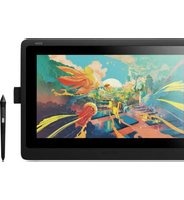
The Wacom® STU-500 LCD signature tablet combines the benefits of a liquid crystal display (LCD) with the control, comfort, and productivity of Wacom's cordless, battery-free pen technology. This gives you a direct pen-on-screen interface that leads to a truer pen-on-paper writing experience.
The basic components of the LCD signature tablet include a Wacom pen tablet internally mounted behind a 5" diagonal TFT monochrome LCD display, and a Wacom pen.
The LCD signature tablet is equipped with a USB and RS-232C interfaces.
PRECAUTIONS ON USE AND HANDLING
Be sure to follow all instructions, cautions, and warnings found within this guide. Failure to do so could cause the loss of data or damage to your computer. Failure to do so could also void your warranty, in which case Wacom shall have no responsibility to repair or replace the product.
Usage
WARNING
Do not use the STU-500 LCD signature tablet in a facility control system that requires extremely high reliability; it may cause other electronic devices to malfunction, or other devices may cause the LCD signature tablet to malfunction. Where use is prohibited, power off the STU-500 to prevent the possibility of it causing other electronic devices to malfunction. Wacom does not accept any liability for direct or consequential damages.
For details, please refer to your Warranty located at the end of this guide.
Environment
Temperature and humidity
- Operating temperature and humidity: 5° to 35°C , 20 to 80% RH
- Storage temperature and humidity: -10° to 60°C , 20 to 90% RH
CAUTION
Do not use or store the LCD signature tablet where:
- Temperature changes are severe or exceed specifications (e.g., outdoors or inside a vehicle).
- The LCD signature tablet and pen are exposed to direct sunlight or heat from an appliance, or are exposed to water or any other kind of liquid.
Do not use the LCD signature tablet in a dusty environment; this may damage the unit.
Handling
WARNING
If using a power adapter with the STU-500, only use the power adapter that designed for use with the STU-500.
If a different type of power adapter is used, the LCD signature tablet will not work properly or may be damaged. Using a different type of power adapter also has the potential to result in fi re. Use of a different power adapter will void your warranty.
When not using the LCD signature tablet for long periods of time, unplug the power adapter from the AC outlet.
Handling
WARNING
High Voltage. Do not open or disassemble the STU-500 LCD signature tablet. There is a risk of electrical shock when the casing is open. This will also void your warranty and Wacom shall have no responsibility to repair or replace the product.
If the LCD screen has been damaged, DO NOT touch any liquid that may be leaking from it; this liquid is an irritant. In case of contact with skin, eyes, or mouth, rinse immediately with running water for at least 15 minutes or more. If contact is made with the eyes or mouth, also consult a physician.
Prevent children from swallowing the pen tip. The pen tip may accidentally be pulled out if children are biting on them.
CAUTION
Do not disassemble the pen. This may cause the device to malfunction. In this case, Wacom shall have no responsibility to repair or replace the product.
Do not scratch the display screen. Avoid placing sharp objects on the display screen surface.
Avoid intensive shock or vibration to the STU-500 or the pen. Hitting or dropping the LCD signature tablet may damage the display screen or other components.
Do not put heavy articles on the LCD signature tablet or push against it with a strong force; This may damage the display screen.
Do not place heavy articles on the STU-500 cabling, repeatedly bend the cables sharply, or apply heavy stress to the cable connectors; this may damage the unit or cabling.
If the pen tip becomes sharp or angular, it may damage the coating on the display screen. Please replace the pen tip if necessary.
Do not use any organic solvent (e.g., alcohol) or even mild detergent to clean the display screen. Use of these cleaners can damage the coating on the screen.
Please note that damage of this kind is not covered by the manufacturer's warranty.
- To clean the display screen, use an anti-static cloth or a slightly damp cloth. When cleaning, apply only a light amount of pressure to the display screen and do not make the surface wet.
- To clean the LCD signature tablet casing or pen, use a soft cloth with mild detergent (such as dish washing liquid) diluted with water.
Do not expose the STU-500 to high voltage electrostatic discharges or to a build-up of an electrostatic charge on the LCD screen. This may result in a temporary blotching of the LCD monitor. If blotching occurs, leave the STU-500's display on and the blotching should disappear within a few hours.
Wacom LCD signature tablet products comply with the European Union RoHS Directive 2002/95/EC (RoHS Directive).
Connecting the tablet
The STU-500 can be connected to a host computer via a USB or serial cable. However, do not connect both USB and serial cables simultaneously. Consult your Wacom Signature Solution Partner for the STU-500 and host computer connection.
Power supply
The STU-500 is designed to be powered by your computer's USB port. In most cases, the USB cable will provide sufficient power to operate the STU-500, but in some cases the optional AC adapter power supply may need to be attached to the STU-500.
For example, when devices other than the STU-500 are connected, the host computer may not provide sufficient power. In that case, connect and use the optional AC adapter. Also, when you connect this unit with the host computer via a serial cable, the optional AC adapter is required.
Software / Driver
Wacom does not provide any driver or application software for the STU-500.
Any application needed to connect and run the STU-500 as a signature capturing device must be delivered by a third party.
Service
The STU-500 is part of a complete solution that has been delivered by a third party. Please contact your Wacom Signature Solution Partner for any support.
Replacing the pen tip
The pen tip (nib) can wear with normal use. In the unlikely case that the nib gets too short or develops a sharp edge, you can replace it with spare nibs.
For replacement of the pen tips please contact your Wacom Signature Solution Partner. The spare part number for the pen nibs is PSI-A007.
Caring for your LCD signature tablet
Keep the pen and your LCD signature tablet LCD screen surface clean. Dust and dirt particles can stick to the pen and cause wear to the display screen surface. Regular cleaning will help prolong the life of your LCD screen surface and pen. Keep the tablet and pen in a clean, dry place and avoid extremes in temperature. Room temperature is best. The STU-500 and pen are not made to come apart. Taking apart the product will void your warranty.
Cleaning
To clean the LCD signature tablet casing or the pen, use a soft, damp cloth; you can also dampen the cloth using a very mild soap diluted with water. Do not use paint thinner, benzine, alcohol, or other solvents to clean the unit casing or pen.
To clean the display screen, use an anti-static cloth or a slightly damp cloth. When cleaning, apply only a light amount of pressure to the display screen and do not make the surface wet. Do not use detergent to clean the display screen; this may damage the coating on the screen. Please note that damage of this kind is not covered by the manufacturer's warranty.
Specification
Model/Brand STU-500
Dimensions (W x H x D) 160 x 182.5 x 24.6 mm
Weight 0.4 kg
Operating Condition 5 to 35 degrees C, Humidity: 20% to 80% (no condensation)
Storage Condition -10 to 60 degree C, Humidity: 20% to 90% (no condensation)
Safety & Regulation Compliance VCCI Class B, FCC Part15B class B, Subpart C, CE, CB, C-tick, CCC
Compatibility Windows 98SE/Me/NT4/2000/XP/Vista
Cable USB cable or RS-232C cable
Cover plate Tempered Glass with AG coating etching
Power Supply Input: 100-240 VAC 60/50 Hz, Output: 5 VDC
(external AC adapter)
Power Management USB BUS powert
Power Consumption With AC Adaptor: 2.6 W
(with AC adaptor) (With USB BUS Power: under 2.5W)
DISPLAY
Display Panel Monochrome a-Si TFT 640 x 480
Number of pixels 640 x 480
Display Area 101.76 (W) x 76.32 (H) (mm)
Pixel Pitch 0.159 (W) x 0.159 (H) (mm)
Viewing Angles @ CR>=2 60 deg
(horizontal/vertical)
Display Color (Display: White) Xw:0.320.35 0.38 Yw:0.350.38 0.41
Contrast Ratio 12 (typ.)
(Display: White/Black)
Display Response Time (Tr + Tf) Display: White → Black: 6 ms (typ.)
Black → White: 12 ms (typ.)
TABLET
Technology Electro-magnetic resonance technology
Active Area 103.76 x 78.32 [mm]
Resolution 0.01 [mm] (2540 [ppi])
Coordinate Accuracy ±0.5 [mm] (tilted ±50° from vertical)
Reading Height 5 [mm] or more (Height from the protective plate)
Accuracy Assurance Height 0 [mm] (Height from the protective plate)
Report Rate (max) 200 pps
Maximum Pen Tilt Range Up to 50° from vertical
Pressure sensitivity 512 levels
Interface Full speed USB or Rs-232C (Max 115kbps)
Pen and pen stand UP
Reuse, recycling, and recovery.

You are urged to recycle this product when replacing it with a newer product or when it has outlived its useful life by bringing it to an appropriate collection point for recyclable materials in your community or region. By doing this, you can help improve the environment of your community as well as minimize the potential negative effects created should any hazardous substance that may possibly be present within waste material reach the environment during the disposal process.
Within the European Union, users are required not to dispose of Waste Electrical and Electronic Equipment (WEEE) as unsorted municipal waste, according to the Directive 2002/96/EC of the European Parliament and of the Council of 27 January 2003, or the corresponding local laws of the Member States. Products for which this is applicable will be marked with the WEEE symbol shown at the beginning of this note unless this is not feasible because of the size or the function of the product. Wacom products are subject to the Directive 2002/96/EC and therefore you should always collect them separately and bring them to the appropriate collection point in your community or region.
Radio and television interference
The equipment described in this manual generates, uses, and can radiate radio-frequency energy. If it is not installed and used properly – that is, in strict accordance with applicable instructions – it may cause interference with radio and television reception.
CE declaration
The STU-500 has been tested and found to comply to the following harmonized European Norms:
• EN 55024: 1998+A1:2001+A2:2003 (electromagnetic immunity)
• EN 55022: 1998+A1:2000+A2:2003, Class B (electromagnetic emissions)
• EN 61000-3-2: 2000, Class A (electromagnetic emissions)
• EN 61000-3-3: 1995+A1:2001 (electromagnetic emissions)
The Wacom power adapters have been tested by their manufacturers and found to comply to the following harmonized European Norms:
• EN 55024: 1998+A1:2001+A2:2003 (electromagnetic immunity)
• EN 55022: 1998+A1:2000+A2:2003 (electromagnetic emissions)
• EN 61000-3-2: 2000(electromagnetic emissions)
• EN 61000-3-3: 1995+A1: 2001 (electromagnetic emissions)
Based on the results of these tests, Wacom declares that the above mentioned device conforms to the Directive 2004/108/EC.
The device must be installed and operated always in strict accordance to the instructions given in this manual.
Any changes or modifications to this product that were not specifically authorized by Wacom will invalidate this declaration.
Federal Communications Commission (FCC) notice
This device complies with Part 15 of the FCC Rules. Operation is subject to the following two conditions: (1) this device may not cause harmful interference, and (2) this device must accept any interference received, including interference that may cause undesired operation.
This equipment has been tested and found to comply with the limits for a Class B digital device, pursuant to Part 15 of FCC Rules. These limits are designed to provide reasonable protection against harmful interference in a residential installation.
This equipment generates, uses and can radiate radio frequency energy and, if not installed and used in accordance with the instructions, may cause harmful interference to radio communications. However, there is no guarantee that interference will not occur in a particular installation.
You can determine whether the equipment is causing interference by powering it off. If the interference stops, it was probably caused by the equipment.
If the equipment does cause interference to radio or television reception, you may be able to correct the interference by using one or more of the following measures:
- Rotate the television or radio antenna until the interference stops.
- Move the equipment farther away from the television or radio.
- Plug the equipment and computer into an outlet that is on a different circuit from the television or radio.
If necessary, consult your Wacom dealer or an experienced radio/television technician for help.
Changes or modifications to this product not authorized by Wacom could void the FCC Certifi cation and negate your authority to operate the product.
INDUSTRY CANADA (CANADA ONLY)
Industry Canada, Class B
"This Class (B) digital apparatus complies with Canadian ICES-003"
FCC-Hinweis (Federal Communications Commission) 8
FCC-Hinweis (Federal Communications Commission)
精确感应高度 0 [mm] (Height from the protective plate)
最高报告速率 200 pps
笔最大倾斜范围 最大垂直50°
压力感应 512级


- LCD SIGNATURE TABLET
- CONTENTS
- INTRODUCTION AND OVERVIEW
- PRECAUTIONS ON USE AND HANDLING
- USAGE
- WARNING
- ENVIRONMENT
- TEMPERATURE AND HUMIDITY
- CAUTION
- DO NOT USE OR STORE THE LCD SIGNATURE TABLET WHERE
- HANDLING
- CONNECTING THE TABLET
- POWER SUPPLY
- SOFTWARE / DRIVER
- SERVICE
- REPLACING THE PEN TIP
- CARING FOR YOUR LCD SIGNATURE TABLET
- CLEANING
- SPECIFICATION
- MODEL/BRAND STU-500
- DISPLAY
- TABLET
- REUSE, RECYCLING, AND RECOVERY
- RADIO AND TELEVISION INTERFERENCE
- CE DECLARATION
- FEDERAL COMMUNICATIONS COMMISSION (FCC) NOTICE
- INDUSTRY CANADA (CANADA ONLY)
- FCC-HINWEIS (FEDERAL COMMUNICATIONS COMMISSION)
Brand : WACOM
Model : STU-500 Sign & Save
Category : Graphic tablet