ManualGo.com
KRF-V6400D - Audio/Video Amplifier KENWOOD - Free user manual and instructions
Find the device manual for free KRF-V6400D KENWOOD in PDF.


Download the instructions for your Audio/Video Amplifier in PDF format for free! Find your manual KRF-V6400D - KENWOOD and take your electronic device back in hand. On this page are published all the documents necessary for the use of your device. KRF-V6400D by KENWOOD.
USER MANUAL KRF-V6400D KENWOOD
Before use [| Safety precautions À Caution : Read this page carefully to ensure safe operation. Units are designed for operation as follows. Australia... Europe AC 240 V only AC 230 V only
TO PREVENT FIRE OR ELECTRIC SHOCK, DO NOT EXPOSE THIS APPLIANCE TO RAIN OR MOISTURE.
LITERATURE ACCOMPANYING THE APPLIANCE. Information on Disposal of Old Electrical and Electronic Equipment and Batteries (applicable for EU countries that have adopted separate waste collection systems) Products and batteries with the symbol (crossed- out wheeled bin) cannot be disposed as household waste. Old electrical and electronic equipment and batteries should be recycled at a facility capable of handling these items and their waste byproducts. Contact your local authority for details in locating a recycle facility nearest to you. Proper recycling and waste disposal will help conserve resources whilst preventing detrimental effects on our health and the environment. Pb Notice:The sign "Pb" below the symbol for batteries indicates that this battery contains lead. 2 krF-v6400D/kRF-V5450D I B60-5810-08 00 _ENindd 2
Unpack the unit carefully and make sure that all the accessories are present. FM indoor antenna (1)
- Batteries are attached to the packing material.
If any accessories are missing, or ifthe unit is damaged or fails to operate, notify your dealer immediately. If the unit was shipped 0 you directly, notify your shipper immediately. Kenwood recommends that you retain the original carton and packing materials in case you need to move or ship the unit in the future. Keep this manual handy for future reference. Maintenance ofthe unit When the front panel or case becomes dirty, wipe with a soft, dry cloth. Do not use thinner, benzine, alcohol, etc. for these agents may cause discoloration. In regard to contact cleaner Do not use contact cleaners because it could cause à malfunction. Be specially careful not to use contact cleaners containing oil, for they may deform the plastic component.
À Cau Read Instructions - Allthe safety and operating instructions should be read before the product is operated. Retain Instructions - The safety and operating instructions should be retained for future reference. Heed Warnings - All warnings on the product and in the operating instructions should be adhered to. Follow Instructions - All operating and use instructions should be followed.
1. Cleaning - Unplug this product from the wall outlet before
cleaning. Do not use liquid cleaners or aerosol cleaners. Use à damp cloth for cleaning.
2. Attachments - Do not use attachments not recommended by
the product manufacturer as they may cause hazards.
3. Water and Moisture - This product shall not be exposed to
dripping and splashing - for example, near à bath tub, wash bowl, kitchen sink, or laundry tub; in a wet basement; or near a swimming pool; and the like. Do not place an object containing liquid, such as a flower vase, on the appliance.
4. Accessories - Do not place this product on an
unstable cart, stand, tripod, bracket, or table. The product may fall, causing serious injury to a child or adult, and serious damage to the product. Use only with a cart, stand, tripod, bracket, or table recommended by the manufacturer. Any mounting of the product should follow the manufacturer instructions, and should use à mounting accessory recommended by the manufacturer. À product and cart combination should be moved with care. Quick stops, excessive force, and uneven surfaces may cause the product and cart combination to overturn.
5. Ventilation - Slots and openings in the cabinet are provided for
ventilation and to ensure reliable operation of the product and to protect it from overheating, and these openings must not be blocked or covered. The openings should never be blocked by placing the product on a bed, sofa, rug, or other similar surface. This product should not be placed in a built-in installation such as a bookcase or rack unless proper ventilation is provided or the manufacturer instructions have been adhered to.
6. Power Sources - This product should be operated only from the
type of power source indicated on the product. If you are not sure of the type of power supply to your home, consult your product dealer or local power company.
7. CAUTION - polarization - This product may be equipped
with à polarized alternating-current line plug (a plug having one blade wider than the other). This plug will fit into the power outlet only one way. This is a safety feature. f you are unable to insert the plug fully into the outlet, try reversing the plug. If the plug should still fail to fit, contact your electrician to replace your obsolete outlet. Do not defeat the safety purpose of the polarized plug.
8. Power Cord Protection - Power-supply cords should be routed
50 that they are not likely to be walked on or pinched by items placed upon or against them, paying particular attention to cords at plugs, convenience receptacles, and the point where they exit from the product.
9. Lightning - For added protection for this product during à
lightning storm, or when itis left unattended and unused forlong periods oftime, unplug it from the wall outlet and disconnect the antenna or cable system. This will prevent damage to the product due to lightning and power-line surges. 10.0verloading - Do not overload wall outlets, extension cords, or integral convenience receptacles as this can result in a risk of fire or electric shock. 11.0bject and Liquid Entry - Never push objects of any kind into this product through openings as they may touch dangerous voltage points or short-out parts that could result in a fire or electric shock. Never spill liquid of any kind on the product. B60-5810-08 00 _ENindd 3 n :Read this page carefully to ensure safe opera 12.Servicing - Do not attempt to service this product yourself as opening or removing covers may expose you to dangerous voltage or other hazards. Refer all servicing to qualified service personnel. 13.Damage Requiring Service - Unplug this product from the wall outlet and refer servicing to qualified service personnel underthe following conditions: a) When the power-supply cord or plug is damaged, b)f liquid has been spilled, or objects have fallen into the product, €) Ifthe product has been exposed to rain or water, d)if the product does not operate normally by following the operating instructions. ellf the product has been dropped or damaged in any way, and #) When the product exhibits a distinct change in performance — this indicates a need for service. g) fan abnormal sell or smoke is detected. 14.Replacement Parts - When replacement parts are required, be sure the service technician has used replacement parts specified by the manufacturer or have the same characteristics as the original part. Unauthorized substitutions may result in ire, electric shock, or other hazard. 15.Safety Check - Upon completion of any service or repairs to this product, ask the service technician to perform safety checks to determine that the product is in proper operating condition. 16.Wall or Ceiling Mounting - This product should be mounted to à wall or ceiling only as recommended by the manufacturer. 17.Heat - This product should be situated away from heat sources such as radiators, heat registers, stoves, or other products that produce heat. Do not place a flaming object, such as a candle or lantern, or near the product. 18.Power Lines - An outside antenna system should not be located in the vicinity of overhead power lines or other electric light or power circuits, or where it can fall into such power lines or circuits. When installing an outside antenna system, extreme care should be taken to keep from touching such power lines or circuits as contact with them might be fatal. 19.Outdoor Antenna Grounding - If an outside antenna or cable System is connected to the product, be sure the antenna or cable system is grounded so as to provide some protection against voltage surges and built-up static charges. Article 810 of the National Electrical Code, ANSI/NFPA 70, provides information with regard to proper grounding of the mast and supporting structure, grounding ofthe lead-in wire to an antenna discharge unit, size of grounding conductors, location of antenna-discharge unit, connection to grounding electrodes, and requirements for the grounding electrode. EXAMPLE OF ANTENNA GROUNDING AS PER NATIONAL ELECTRICAL CODE L. ANTENNA
1. Item 7 is not required except for grounded or polarized equipment
2. Item 19 complies with UL in the U.S.A.
- Before use [| Â\To ensure safety, read the items carrying this marl carefully. Before use ANSafety precautions Unpacking ANIMPORTANT SAFETY INSTRUCTIONS . Contents Special Features How to read this manua NOuRBUWNN Names and functions of parts … Connections Notes on connections … Speaker placement . Connecting components equipped terminals . g a video player. g an audio player Turning this unit ON Setup Speaker setup (Easy Setup). Speaker setup (Detailed Setup). Speaker setup flow Speaker configuration Speaker Level Speaker Distance Crossover LFE (Low Frequency Effect) Level Lip Sync (KRF-V6400D only) HDMI setup. HDMI setup flow Audio Out Lip Sync (KRF-V6400D only) HDMI Link Power Control Playing music or movie Preparation for playing music or movi Turning on the power Setting the speaker system Selecting the input mode g the input source in the o (STRAIGHT DECODE mode). Listening to music with PURE AUDIO MODE Æ Ker-v6400D/kRF-V5450D I B60-5810-08 00 _ENindd 4 Surround effects Listen mode … About indicators Surround play using the listen mode Checking the current input signal Listening to radio broadcasts Tuning into a radio station . Using RDS (Radio Data System) RDS Auto Memory
- Presetting radio stations manually Receiving preset stations in order (P.CALL) …. 36 Tuning by program type (PTY search) Using the DISPLAY key. Sound adjustment Adjusting the sound . ACTIVE EQ mode Bass Boost Adjusting the Tone Adjustments according to the playing source Speaker level adjustment Input level adjustment Midnight mode Panorama mode Dimension Center width Center image Convenient functions Convenient functions … Display dimmer adjustment Listening with headphones Muting the sound Remote control operations for Kenwood DVD players. Troubleshooting Troubleshootin Resetting the unit Glossary . Specifications p. 39
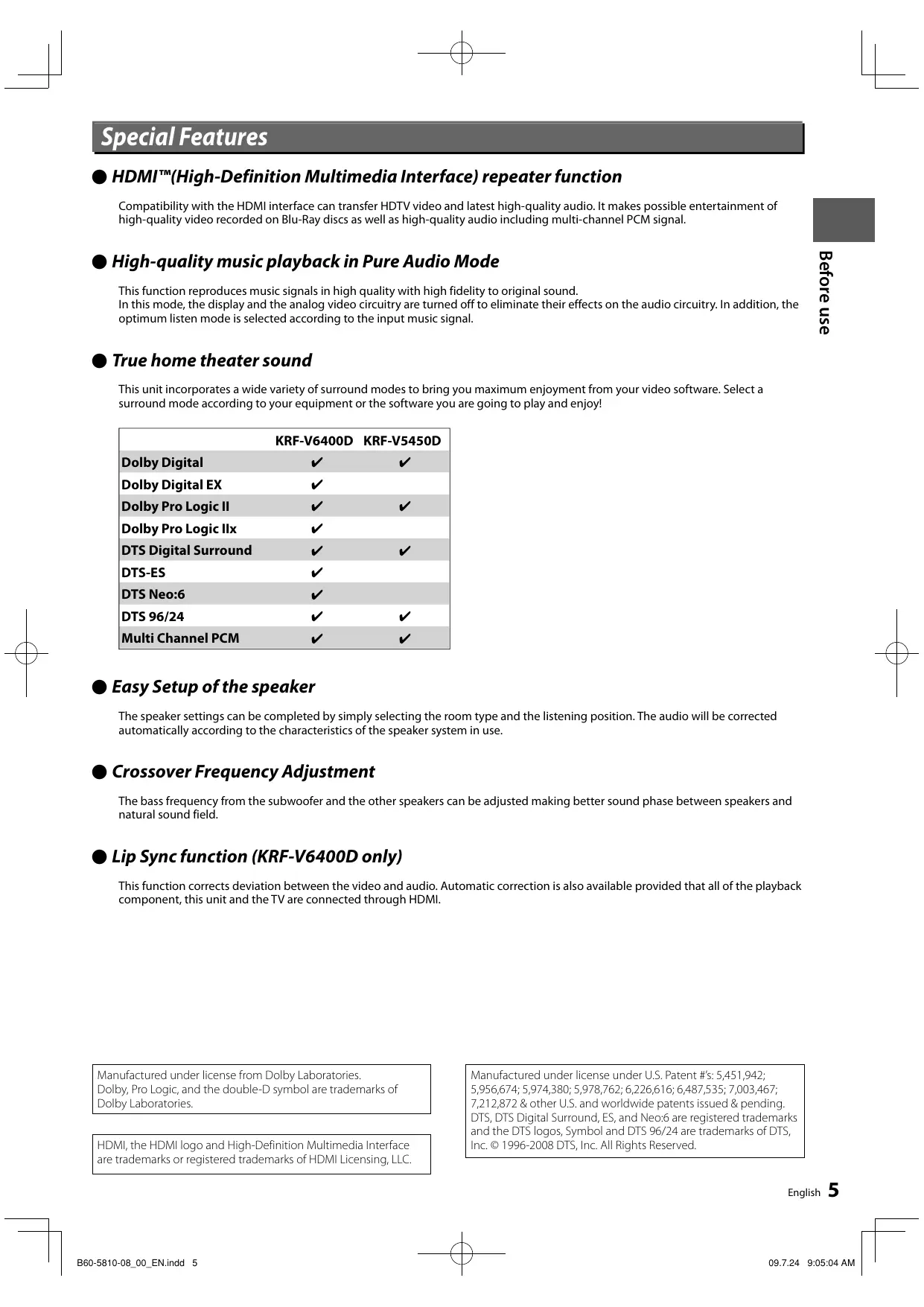
Special Features © HDMI""(High-Definition Multimedia Interface) repeater function Compatibility with the HDMI interface can transfer HDTV video and latest high-quality audio. lt makes possible entertainment of high-quality video recorded on Blu-Ray discs as well as high-quality audio including multi-channel PCM signal. © High-quality music playback in Pure Audio Mode This function reproduces music signals in high quality with high fidelity to original sound. In this mode, the display and the analog video circuitry are tumed off to eliminate their effects on the audio circuitry. In addition, the optimum listen mode is selected according to the input music signal. osn 2103g E @ True home theater sound This unit incorporates a wide variety of surround modes to bring you maximum enjoyment from your video software. Select a surround mode according to your equipment or the software you are going to play and enjoy!
@ Easy Setup of the speaker The speaker settings can be completed by simply selecting the room type and the listening position. The audio will be corrected automatically according to the characteristics of the speaker system in use. @ Crossover Frequency Adjustment The bass frequency from the subwoofer and the other speakers can be adjusted making better sound phase between speakers and natural sound field. © Lip Sync function (KRF-V6400D only) This function corrects deviation between the video and audio. Automatic correction is also available provided that all of the playback component, this unit and the TV are connected through HDMI. Manufactured under license from Dolby Laboratories Manufactured under license under US. Patent #5: 5,451,942; Dolby, Pro Logic, and the double-D symbol are trademarks of 5,956,674; 5,974,380; 5,978,762; 6,226,616; 6487,535; 7,003,467; Dolby Laboratories, 7,212,872 &other US. and worldwide patents issued & pending DTS, DITS Digital Surround, ES, and Neo are registered trademarks and the DTS logos, Symbol and DTS 96/24 are trademarks of DTS, HDMI, the HDMI logo and High-Definition Multimedia Interface Inc. © 1996-2008 DITS, Inc. All Rights Reserved. are trademarks or registered trademarks of HDMI Licensing, LLC. Engish 5 I B60-5810-08 00 _ENindd 5 | 09.7.24 9:05:04 AM Il
Before use How to read this manual The operating instructions given in this manual assume that the user mainly operates the receiver using the remote control unit. When the same operation is also available on the main unit, the operating method is indicated in illustrations. The [VOLUME CONTROL], [MULTI CONTROL] and [INPUT SELECTOR] knobs on the main unit are operated by tuning the knobs clockwise or counterclockwise. Speaker setup (Detailed Setup ES] ‘The detailed settings allow you to enjoy full performance ofthe recelver according to the environment of your listening room. For creating the best listening environment, Kenwood recommends t0 perform the setup at the listening position. —SETUP — MULTI CONTROL
Speaker setup flow Speaker settings consist of 6 elements. Î Enterthe Detailed Setup mode. This icon indicates that the function can be operated (or recommended to operate) only with the unit displayed with the icon. En rainunt LÉ remote conrotuni The knob on the main unit is pointed with an arrow to indicate that it can be turned in either direction. The keys and controls used in the operations described in each section are indicated with their names. The descriptions ofthe functions available only on the remote control unit are accompanied only with the illustration of the remote control unit. The descriptions of the functions available only on the main unit are accompanied only with the illustration of the main unit. D 4 ISETUP) Elements Display Settng room EVENE pe dune sed use sue The names ofthe operated keys orknobs are enclosed inside brackets. Playback VOLUME CONTROL — VOLUME 4/7 L__ input source keys T Select a source. Use the Input source keys on the remote control unit to select source Or use INPUT SELECTORIknob or {AV AUX] Key on the main unie. Example: Display when HDMI 1 input source selected Start playback from the selected source. Sete pate fon exc When a key is used to select Speaker el venons ue Œ SSP mis PSE" per and he istengpostion Ses te lotte ass ces pre fom he speed SP Coser COSSOUER… EU Te Rrquendes boue Hagen the a ditbud to her sean and ubnooft DUR 2 set each item. See the followings for each setup item.
differ from the actual view or operation 6 Kar-v6400D/KRF-V5450D B60-5810-08_ 00 _ENindd 6 an option, the list of options is shown in the form of a table. D TAVOLUME 2 /v] Jo adjust the volume. Enjoy various surround effects. You can enjoy a variety oflisten modes. (See <Surround Play using the listen mode> {32 ‘The surround effects can be fine tuned according to the selected input source. (See <Adjustments according to the playing source> {3} This icon indicates supplementary information, restrictions in operation or tips on operation. This icon indicates that the description continues on the next page. +_Inthis manual, KRF-V6400D is used for the illustrations of front panel and rear panel. + The illustrations of the main unit display panel and the examples of operations are shown for the purpose of explanation and may
asn 210}2g [| Names and functions of parts Main unit AJ 9 9 (a) 9 O © Jess © (D (Power) key Standby indicator Press to switch this unit ON or to put it to standby. The standby indicator lights in the standby mode. © nisplay © indicators HDMI LINK READY indicator Lights up when the HDMI link is on. STRAIGHT DECODE indicator Lights up when STRAIGHT DECODE mode is on. ACTIVE EQ indicator Lights up when ACTIVE EQ mode is on. © Remote sensor © VOLUME CONTROL knob © PHONES jack Use for headphone listening. © SPEAKERS ON/OFF key —[25] Press to turn the speakers ON/OFF. © LISTEN MODE knob -G2 Turn to select the listen mode. © MULTI CONTROL knob Turn to select a setting item. @ SETUP key -2 Press to set up this unit.
I B60-5810-08 00 _ENindd 7 Ne &? POSE D @ @ EASY SETUP key Bral Use for Easy Setup of the speakers. © SOUND key 59 Use to adjust the sound quality and ambience effects. @ HDMI SETUP key -c Use for HDMI Setup. © BAND key -59 Press to select the broadcasting band. © AUTO/MONO key -59 Press to switch the radio tuning mode between auto tuning and manual tuning. © STRAIGHT DECODE key _ —[2?) Press to switch the STRAIGHT DECODE mode ON/OFF. © DIMMER key - Press to switch the brightness ofthe display and indicators. @ INPUT MODE key -c Press to select the input mode. © ACTIVE EQ key -54 Press to switch the ACTIVE EQ function ON/OFF. @ INPUT SELECTOR knob Turn to select the input source.
@ PURE AUDIO MODE key Press to switch the PURE AUDIO MODE ON/OFF. @ AV AUX key Press to switch the input source to AV AUX. @ Av AUX jacks Connect a video camera, videogame machine, etc.
Standby mode While the standby indicator is lit, a small amount of power is supplied to the system to back up the memory. This is called standby mode. Under the condition, the system can be turned ON by the remote control unit. English 7
© AUTO MEMORY key Use for auto memory of RDS and FM radio stations. AUDIO key Use to operate the Kenwood DVD player* © MEMORY key -5 Press to preset radio stations in memory. REPEAT key Use to operate the Kenwood DVD player.* © DISPLAY key Press to display the type of surround format. -B2 Press to display RDS information.
© PTYkey Press to Fearch a radio station bye program type. SUBTITLE key Use to operate the Kenwood DVD player.* © Numeric keys Use to recall a preset radio station. —[35] Use to operate the Kenwood DVD player* © LISTEN MODE keys -m Press to switch the listen mode. © PURE AUDIO MODE key —[30) Press to switch the PURE AUDIO MODE function ON/OFF. © AIVI<I> keys ENTER key TOP MENU key MENU key RETURN key ON SCREEN key Use to operate the Kenwood DVD player* © ukey Use to operate the Kenwood DVD player* BAND key 5 Press to select the broadcasting band. »>/Hkey Use to operate the Kenwood DVD player* AUTO/MONO key - Press to switch the radio tuning mode between auto tuning and manual tuning. key Use to operate the Kenwood DVD player.* © P.CALL æ4/>» keys Press to recall a preset radio station. -G9 Use to operate the Kenwood DVD player* © ORECEIVER key Use to turn this unit on and off. ODvDkey Press to Suite the Kenwood DVD player ON/OFF. @ ACTIVE EQ key -G9 Press to switch the ACTIVE EQ function ON/OFF.
09.7.24 9:05:05 AM Il
© DIMMER key -G2 Press to Suit the brightness of the display and indicators. @ BASS BOOST key -c Press to enhance bass sound. © TONE key -59 Press to adjust the tone. © SOUND key -G9 Press to adjust sound quality and acoustic field. @ SETUP key -29 Press to set up this unit. © HDMI SETUP key -29 Use for HDMI Setup. © MULTI CONTROL v/A keys Press to select a setting item. @ VOLUME A/V keys @ MUTE key -G2 Press to mute the sound temporarily. @ TUNING <4/>> keys Press to select a radio station. [33] Use to operate the Kenwood DVD player* @ input source keys Press to select the input source. Kenwood DVD player, see <Remote control operations æ +_* For how to be able to use the keys to operate the for Kenwood DVD players>. —| Operation Operate the remote control unit by pointing it to the remote sensor ofthis unit. When this units in standby mode (which is indicated by lighting ofthe standby indicator), pressing the [(1) RECEIVER] key turns this unit ON. Pressing the [(|) RECEIVER] key again turns this unit OFF (standby mode). When operating the connected components, always press the input source key of the component you need to operate first to swith the remote control unit to the selected input source mode, and then press the keys of the corresponding operation. Operating range (Approx.) Standby indicator Remote sensor 30° 30° & RECEIVER I B60-5810-08 00 _ENindd 9 | 09.7.24 9:05:06 AM Il Loading batteries 1 Remove the cover. osn 2103g E Insert two (R03) batteries following the polarity indications. 3 Close the cover. + The supplied batteries may have shorter lives than # ordinary batteries due to use during operation checks. + When the remote-controllable distance gets shorter than before, replace both batteries with new ones ANCAUTION Do not leave the battery near fire or under direct sunlight. A fire, explosion or excessive heat generation may result. English 9
Names and functions of parts Display SP (speaker) Lights up when the front speakers are on. Before use [| PTY Lights up when searching a radio station by program type. AUTO DETECTindicator __ RDS : " Lights up when receiving an Lights up when the input RDS station. mode is set to"AUTO". AUTO Band indicators Lights up when the tuning Lights up the selected mode is"AUTO". broadcast band indicator. Character display (se PTY RDS () 1 Eu LFE SE DIGITAL DSP MODE DTS-ES MUTE TONE s DOLBY DIGITAL EX DISCRETE 61
HE | PROLOGIG NEO: MATRIX 1
Input channel indicators Listen mode/Input signal The indicators corresponding to the input channels (audio format indicators signal) used in the currently played music/video light up. ST. Lights up when stereo broadcasting is tuned. TUNED Lights up when a radio station is tuned. TONE Lights up when the tone setting is on. L MUTE Blinks when muting ison. L_ cup Lights up when the input level is too high. 10 xr.v64000xRF.v5450D I B60-5810-08_ 00 _ENindd 10 |
09.7.24 9:05:06 AM Il
Notes on connections ACAUTION Do not connect the power cord to a wall outlet until all connections are completed. When connecting the related system components, be sure to refer to the instruction manuals supplied with the components you are connecting. + Be sure to remove the power cord from the AC outlet & before plugging or unplugging any connection cords. Plugging/unplugging connection cords without disconnecting the power cord can cause malfunctions and may damage the unit Be sure to insert all connection cords securely. their connections are imperfect, the sound and video may not be produced or there will be noise interference. IFthis unit is installed in the proximity of a source of magnetism such as a magnet, color irregularities due to interference with the speakers may be observed on the TV monitor screen. Be careful in the installation. Microcomputer malfunction If operation is not possible or an erroneous display appears, even though all connections have been made properly, reset the microcomputer by referring to <Resetting the unit>. — [45 ANCAUTION The power of this equipment will not be completely cut off from the wall outlet when the power switch is turned off. Install the equipment so that the wall outlet is easily accessible and, in case of emergency, immediately unplug the power cord from the wall outlet. ANCAUTION Be sure to adhere to the following, or proper ventilation will be blocked causing damage or fire hazard. + Do not install the unit on the rear, side or top panel. + Do not cover the unit with a cloth or install the unit on a carpet or mattress. Do not install the unit in a poorly ventilated place. Leave some space around the unit (from the largest outside dimension including projection) equal to or greater than, shown below. Top panel : 50 cm Side panel : 10 cm Back panel : 10 cm B60-5810-08 00 ENindd 11 Speaker placement Front speaker Front speaker (LE TE 1) 2: ÿ Surround speaker Subwoofer Surround speaker
Surround Back speaker (6.1ch) {KRF-V6400D oniy) Front speakers Install in the front left and right positions. Symmetrical installation is ideal. The front speakers are always used regardless ofthe listen mode. Center speaker Install in the front center position. This speaker improves the acoustic image positioning and reproduction of sound movement. Surround speakers Install straight on or slightly behind the left and right of the listening position, at in an as high as possible height (ideally one meter above the height of the listener‘s ears). Symmetrical installation is ideal. The surround speakers reproduce the feeling of movement and presence of sound. Subwoofer In general, install on the front center position near the front speakers. The subwoofer reproduces the powerful bass effects. As itis less directional to other speakers, it can be installed so that the bass can be reproduced best according to the listening room layout. Surround Back speaker (KRF-V6400D only) Install on the rear of the listening position, at the same height as the surround speakers. + Ideal surround play is possible when all of the speakers # above are installed. the center speaker and/or the subwoofer is not installed, the system optimizes playback according to the current system by assigning the sound of absent channels to other speakers KRF-V5450D Up to two subwoofers can be connected to KRF-V5450D. See <Connecting speakers> =[18] for how to connect the subwoofers suolj>auuoy English 11
Connecting components equipped with HDMI terminals The HDMI connection can transfer both the video and audio signals through a single HDMI cable. It makes possible entertainment of high-quality video recorded on Blu-ray discs as well as high-quality audio including multi-channel PCM audio. The HDMI connection also enables interlocking of the power of the TV with that of this unit and adjustment of the volume of this unit from the TV. (See <HDMI setup> —[26).) T Using an HDMI cable, connect the HDMI input terminal (HDMI 1] or [HDMI 2] terminal) of this unit to the HDMI output terminal of a playback component such as a Blu-ray disc player. 2 Using another HDMI cable, connect the [HDMI MONITOR OUT] terminal of this unit to the HDMI input terminal oftheTV monitor. Connections
igital Tuner and etc. Using the HDMI function The HDMI setup is required to use the HDMI function. See <HDMI setup> -[26]. Flow of video signal The digital video signal input from the HDMI input terminal is output only at the HDMI monitor output terminal. Flow of audio signal The digital audio signal input from the HDMI input terminal is output at the speakers connected to this unit. lt can also be output at the TV monitor connected to this unit according to the HDMI setup. (See <HDMI setup> —[26].) 12 kr.v64000xRF.v5450D I B60-5810-08 00 _ENindd 12 | Blu-ray Disc Player An HDMI/DVI converter cable is necessary to connect à & TV monitor with a DVI input terminal, The TV monitor also needs to be compatible with HDCP (High-bandwidth Digital Contents Protection). Note that the video may be unable to be monitored depending on the combined components. Use an HDMI-certified category 2 cable (High Speed HDMI* Cable) for the connection. When components are connected through the HDMI connection, it takes a certain period before the video/audio are output because they need mutual authentication. IFthe video and/or audio are not output normally, turn all ofthe connected components off then on, and try again. Ifthe resolution of the incoming video signal is different from that of the TV, no video is output. In this case, adjust the resolution on the connected component.
Connecting a TV Monitor 1 Connect the TV monitor by selecting one of the desired method from connections r [C] shown below. For the video and audio connections of the connected component, see the description on the page for the connected components. 2 5 output the audio of the TV monitor from the speakers connected to this unit: Use connection [E] (analog). # + The HDMI video cannot be viewed unless the TV monitor is equipped with the HDMI terminal suor>euuoy [|
+ ? D Connecting a CD player 1 Connect the audio line: Connection [B] (digital) or [A] (analog). Connections [|
Connecting a DVD player 1 Connect the audio line: Connection [B] (digital) or [A] (analog). 2 Connect the video line: Connection [C]. 3 Connect the TV monitor. Connect as shown in <Connecting a TV Monitor> — suor>euuoy [| éè à Ë
DVD player + When the connected DVD player and/or TV monitor have the HDMI terminals, it is recommended to use the HDMI connection. (See <Connecting components equipped with HDMI terminals> —[14)) English 15 I B60-5810-08 00 _ENindd 15 | 09.7.24 9:05:09 AM Il
Connecting a video player 1 Connect the audio line: Connection [B] (digital) or [A] (analog). 2 Connect the video line: Connection [C]. 3 Connect the TV monitor. | Connect as shown in <Connecting a TV Monitor> -[15].
U (Analog) OUT (AUDIO) DVD Recorder, etc. + When the connected Video player and/or TV monitor have the HDMI terminal, it is recommended to use the HDMI connection. (See & <Connecting components equipped with HDMI terminals> —(12]) 16 xrr.v64000xRF.v5450D I B60-5810-08_ 00 _ENindd 16 | 09.7.24 9:05:10 AM Il
Connecting an audio player
AUDIO OUT LI ET Cassette deck and etc.
Connecting to the [AV AUX] jacks A component that is usually not connected to this unit, such as a portable video camera, can be connected to the [AV AUX] jacks on the front panel of this unit.
Portable video camera, game player and etc. English 17 I B60-5810-08 00 _ENindd 17 d 097.24 9:05:11 AM Il
HA - Powered Subwoofer Fight TE Front speakers dh }, Subwoofer Center speaker Surround Back speaker Right Left Surround speakers + Speaker impedance : 6 - 160 & + Never short circuit the + and - speaker cords, +_Ifthe left and right speakers are connected inversely or the speaker cords are connected with reversed polarity. the sound will be unnatural with ambiguous acoustic imaging. Be sure to connect the speakers correctly + KRF-V5450D Subwoofer sound comes out at the both Subwoofer terminals (SPEAKERS and PREOUT) simultaneously. 18 xr.v64000xRF.v5450D B60-5810-08 00 _ENindd 18 | 097.24 9:05:12 AM Il
How to connect the wire to terminals How to connect the wire to terminals {Screw type terminal) (KRF-V6400D only) {Push type terminal) À Strip the vinyl coating ofthe wire by a length of À Strip the vinyl coating ofthe wire by a length of about 1 cm. about 1 cm. ECO ane ee [a] 2 Loosen the knob. 2 Push the lever. S
3 imsertthe wire. Insert until the metallic conductor becomes invisible. Insert until the metallic conductor becomes invisible. Æ release the lever. Æ righten the knob. a f English 1 9 I B60-5810-08 00 _ENindd 19 | 09.7.24 9:05:13 AM Il
Connecting antennas The broadcast reception cannot be made unless the antennas are connected. Connect the antennas correctly as instructed below. FM indoor antenna Fix on a wall etc. reception condition. The provided antenna is intended for temporary use in indoors. To obtain stable FM reception, it is recommended to use an outdoor antenna. Be sure to disconnect the indoor antenna when an outdoor antenna is installed. ha good Connections
Ç—«(n TT: ra AM loop antenna Install in a position as apart as possible from this unit, the TV monitor, er cord, and place in an personal computer, speaker cords and FM antenna adapter {commercially availabl DRE)" FM outdoor antenna {commercially available) orientation that can offer the best reception condition. AM loop antenna FM indoor antenna 1 Attach to the stand. 2 Push the lever. DA An)
2 Fix the antenna on the wall. FM outdoor antenna Lead the 750 coaxial cable connected to the FM outdoor antenna into the room and connect it to the FM 750 terminal. A\Caution for outdoor antenna installation Since antenna installation necessitates skill and experience, always consult your dealer before installation. The antenna should be placed at a distance from the power distribution wires. Otherwise, an electric shock accident may occur ifthe antenna falls down.
suor>euuoy [| T after completing all ofthe necessary connections, connect the power cord to a wall power outlet. The standby indicator on the front panel lights red to indicate the standby mode. 2 Press the [() (Power)] key of this unit or the IC RECEIVER] key of the remote control unit to turn this unit ON. The standby indicator on the front panel goes out and the display panel lights up. To turn this unit OFF (standby mode) Press the [(1) (Power)] key of this unit or the [(|) RECEIVER] key of the remote control unit. > Engish 21 I B60-5810-08 00 ENindd 21 | 097.24 9:05:14 AM Il
I B60-5810-08 00 _ENindd 22 Speaker setup (Easy Setup) Reference for listening room size The speaker settings can be completed by simply selecting the room type and listening position. The audio will be corrected automatically according to the characteristics of the speaker system in use. If more detailed speaker settings are required, use the procedure in <Speaker setup (Detailed Setup)> -[23]. 3m (9°10-3/8") ::Oo EASY SETUP MULTI CONTROL 1 Press [EASY SETUP] to enter the Easy Setup mode. 2 setthe listening room size. Use [MULTI CONTROL] to select your room type.
IEASY SETUP] 3 select the listening position. Use [MULTI CONTROL] to select your listening position. LIN
IEASY SETUP] The unit exits the Easy Setup mode, and the speakers are set up as shown below. Subwoofer =b ON Front speaker => Avarage size Center speaker =+ Avarage size Surround speaker =+ Avarage size Surround Back speaker =b OFF Subwoofer Re-mix =} ON For details on the setting contents, see <Speaker setup (Detailed Setup)> [25]. & + Easy setup with may not be appropriate with certain speaker systems or listening environment. In this case, go through <Speaker setup (Detailed Setup}>. Easy setup can set only the 5.1 channel system For KRF-V6400D : Ifthe setup for 6.1-channel system is required, go through <Speaker setup (Detailed Setup}> Surround Back speaker : KRF-V6400D only Subwoofer Re-mix: Mixes the bass tone of other channels to the subwoofer channel
Speaker setup (Detailed Setup) The detailed settings allow you to enjoy full performance ofthe Speaker configuration receiver according to the environment of your listening room. For creating the best listening environment, Kenwood Select the use of each speaker and its size. recommends to perform the setup at the listening position. 1 Enter the Detailed Setup mode. ISETUP]
Use [MULTI CONTROL v/A] to select the speaker andits use or size. D À Speaker setup flow ISETUP] Speaker settings consist of 6 elements. Repeat the above operations until all of the speakers have been set up. 1 Enter the Detailed Setup mode. ISETUP] Speaker Display Setting "SUBWON" Subwooferis connected D 4 Shea "SUBW OFF" Subwoofer is not connected Use [MULTI CONTROL v/A] to select an item to set. free PERNT LG" Large size font speaker PHRNTNNL Average size front speaker c > À "ONTR LRG Large size center speaker ISETUP] Center speaker MONTRNML Average size center speaker PONTROFF" Center speaker is not connected Elements Display Setting PSURR LRG" Large size sumound speaker Selects whether each speaker channel is Speaker figuration "SPSEUP es ce Suround speaker SURRNNL Average ie suround speaker a Ses the pur leo SURR OFF Suround speakers are not connected. Speaker Leel ESTTONE speaker su Large ie suround back speaker is . : connected [6 1h) Speaker Distance "DISTANCE" Ste tance betueen each Suround Back speaker speaker and te steing potion FD) “ESNA Average ze suround back speaer Sete lover limit ofthe bass connected (6 1) frequencis reproduced fm the speakers ETE Suround back spears not connected. Cossoier reossouege to NL inthe SESETUP The PRMX ON Subiooferre-mixis on. frquencis belon te feguency set here SubiooferRe-mie are distbuted 0 oterspeakers 'hose PRMOFF" Subooferre-mixis off setto"LAG" and the subuooer) elec the level ofbess audio +! Mixes the bass tone of other channels to the subwoofer enhacenent channel Low Frequency Eee ge Lou Frequency ect channel deves Lee Separate non-drecional bass signal ta 3 Go to the next setting. the subwoofer for more dynamic deep bass sound fes. Li Sync ps Adusstie deviaionin me between AKRE-V6400D on) the video and audio ET Bit the Detalled Setup mode 2 Set each item. See the followings for each setup item. Continued C2) English 23 B60-5810-08 00 _ENindd 23 M: 09.7.24 9:05:16 AM
Speaker setup (Detailed Setup) + Reference for speaker size "LRG'(Large) A speaker with a sufficient bass reproduction capability (a speaker with a large woofer or a large cabinet size) A speaker with a lower bass reproduction capability than the “LRG' speakers (the bass frequencies will be output from the speakers set to "LRG” and the subwoofer). If you cannot identify the size of a speaker, it is recommended to set it to "NML" When "SUBW OFF" is selected, the front speakers are automatically set to "FRNT LARG For "FRNT LRG' selection, no sound will be heard from subwoofer even it is set to ON. If you set the Subwoofer Remix to "RMX ON", you will be able to hear sound from the subwoofer. When in STEREO mode, the sound goes directly to front speakers. IF"FRNT NML' is selected, "LRG" cannot be selected for the other speakers. IF"CNTR NML' or "CNTR OFF" is selected, "SURR LARG cannot be selected. IF"SURR OFF" is selected, no surround back speaker can be selected. IF"SURR NML' is selected for surround speakers, "8S LARG" cannot be selected for the surround back speaker. "NML'(Normal) Setup Speaker Level Adjust the volume level of the speakers so that all of them are approximately identical. 1 Select "TEST TONE". ISETUP]
[MULTI CONTROL v/A] D À ISETUP] 2 select the testtone output method. [MULTI CONTROL v/A] ISETUP] Display Setting ur" The test tone is heard from the speakers one after another with AUTO 2 seconds each ANUN You can select the speaker channel from which the tes tone is output: 24 krr.v6400D/kRF-V5450D B60-5810-08 00 _ENindd 24 Ü 3 adjust the volume level of each speaker. If you select "AUTO" When you hear the test tone from the speaker which you wish to adjust, use [MULTI CONTROL w/A] and adjust the volume ofthe test tone. When you finish adjusting, press ISETUP]. If you select "MANUAI Use [MULTI CONTROL v/A] to adjust its volume level and press [SETUP]. You will hear the test tone from the next speaker. Channel indicator to be adjusted blinks. 4 üoto the next setting. Speaker Distance Sets the distance between each speaker and the listening position. The actual distances should be measured before starting this setup. Distances of speakers peter input channel Distance from the indicator listening position Front speaker ef) L Center speaker c L Front speaker (right) 8 7 Sumound speaker (right) Rs" Surround Back speaker pe {KRF-V6400D on) Suound speaker (et) 1 Sübnoofer sw" 1 Select "DISTANCE" ISETUP]
ISETUP] 2 setthe distance. Refer to the table above for the distance from each speaker to this unit. Adjustment starts from front left speaker. Use [MULTI CONTROL v/A] to set the distance.
ISETUP] The distance can be set in the range of 0.3 to 9.0 meters (1 to 30.0 ft) in 0.3-meter (1-feet) increments.
3 repeat step 2 for each speaker untilthe distances ofall speakers are set. Æ Go to the next setting. Crossover The crossover frequency is the lower limit ofthe bass frequencies reproduced from the speakers set to "NML' in the <Speaker configuration>. The frequencies below the set crossover frequency are output from other speakers (those set to "LRG" and the subwoofer). 1 Select "CROSSOVER". ISETUP]
ISETUP] 2 Set the crossover frequency. Use [MULTI CONTROL v/A] to select crossover frequency. ISETUP] The frequency is selected from 40, 60, 80, 100, 120, 150 and 200Hz. 3 Gotothe next setting. I B60-5810-08 00 _ENindd 25 LFE (Low Frequency Effect) Level Low frequency effect signal is used exclusively for giving the field effect of bass tone in the Dolby Digital and DTS signal. 1 Select "LFE LVL". ISETUP]
ISETUP] 2 Set the LFE level. Use [MULTI CONTROL v/A] to select the LFE level.
ISETUP] The level is adjusted from OdB to -10dB in1dB step decrements. 3 Gotothe next setting. Lip Sync (KRF-V6400D only) Ifthe monitored video is delayed in time with respect to the audio from the speakers, the audio output timing can be delayed. 1 Select "LIP SYNC". ISETUP]
[MULTI CONTROL v/A] ISETUP] 2 setthe delay time. Use [MULTI CONTROL v/A] to select the delay tit ISETUP] The delay time is adjusted from Oms to 300ms in 10ms step. 3 Press [SETUP] to exit the setup mode. Engish 25
The HDMI setup is required to use the component connected to Audio Out the HDMI terminal or to use the HDMI control functions. This function selects whether the output destination of the audio . ) input is the TV or this unit. è O 1 Select "AUDIO OUT".
ER coco o [HDMI SETUP] ALRORMHOLIE —_ > À MULTI CONTROL HDMI SETUP Use [MULTI CONTROL v/A]. | | emo LL: IHDMI SETUP] È 2000 & ooeell ppm serup 2 setthe HDMI audio output destination. oodo IMULTI CONTROL v/A] Sr -— MULTI CONTROL PE vla D À to) IHDMI SETUP] HDMI setup flow CE) eg) au" Output the auto fm the spears connected to his unit The HDMi control functions can be set. ve Output the audi fm the TV connected t this uni T Enter the HDMI Setup mode. 3 Gotothe next setting. IHDMI SETUP] D à IF'TV" is selected and the audio is not output or is interfered with by noise, set the audio output ofthe Use [MULTI CONTROL v/A] to select an item to set. player component to PCM. + If"TV'is selected, adjust the volume on TV. IHDMI SETUP] Display Setting AUDIO OUT" Sets the HDMI audio output destination. Adjusts the devition in time between LI SYNC LKRF-V6400D any) the output audio and video. Sets whether or not the HDMI contrl CHNSET functions are used. « ï Interlocks power ON-OFF of components POER CONTROL" means of HDMI control. rer Ets the HDMI Setup mode. *1 This item can be set when "LINK SET" is set to "ON". 2 Set each item. See the followings for each HDMI control item. 26 xrr.v6400D/KRF-v5450D B60-5810-08_ 00 _ENindd 26 | 09.7.24 9:05:18 AM
Lip Sync (KRF-V6400D only) HDMI Link Ifthe monitored video is delayed in time with respect to the audio from the speakers, the audio output timing can be delayed. 1 Select "LIP SYNC". [HDMI SETUP]
[HDMI SETUP] 2 Set the HDMI audio delay. This function selects whether or not the volume control and input selection of this unit are interlocked with the operations of the connected components. 1 Select "LINK SET". [HDMI SETUP]
[HDMI SETUP] 2 Set the HDMI link on or off. [MULTI CONTROL v/A] — [MULTI CONTROL v/A] vw EE 5 F CINE One [HDMI SETUP] — [HDMI SETUP] Display Setting uro Correct the deviation in time betieen the output audio and psy ES) video automatic. PL ON" he HDMI control functions are use. ue los the user to corect the devitio in time between the PUNK OFF" The HDMI control functions ar not used. MANUA output audio and video manual. “pe The denaion in time between the output audio and videos When "LINK ON" is selected, the "HDMI LINK READY" not correcte. When “MANUAL' is selected, use [MULTI CONTROL v/A]to select the audio delay time and press [HDMI SETUP] to enter the setting. The delay time is adjusted from Oms to 300ms in 10ms step. 3 Go to the next setting. +_Ifthe TVin use is not compatible with "AUTO", select "MANUAL" B60-5810-08 00 _ENindd 27
indicator on the front panel lights up. °[00:::::0e 3 if"Lnk ON" is set, proceed to the <Power Control> setup. Power Control This function selects whether or not the power status of this unit is interlocked with the power ON/OFF and start of playback of the connected components. 1 Set the HDMI power control on or off. [MULTI CONTROL v/A] » À [HDMI SETUP] Display Setting pARON" urming the TV ON/OFF also turns this unit ON/OFF with an interlcked operation. ARE The poser ON/OFE status ofthis unit is not interlocked th the power ON/OFF status ofthe TV. English 27
Preparation for playing music or movie INPUT SELECTOR Selecting the input mode a [. When playing a component connected to the digital input D] O O terminal (CD, VIDEO or DVD) or the HDMI input terminal (HDMI = — 1 or HDMI 2), set the input mode to match the type of the audio see SC RS OX input. 1 Use [INPUT SELECTOR] to select "HDMI 1", "HDMI
= EX 4 ", . & LISTEN MODE INPUT MODE 2", "DVD", "VIDEO" or "CD" input source. SPEAKÈRS ONOFF 1 2 press INPUT MODE] to select the input mode. ane — (D RECEIVER Each press switches the mode as follows. 000e When in HDMI 1 or HDMI 2 input source 0000 Display Setting 6000 The digital andanaloginpus ar suiched automatically auro according tte iput signal. When a digl input is detected, @ LISTEN MODE —en _ the decode mode is also switched according to the signal type = {Hut-channel PCM/DolbyDigal/DTS). © The input mode is fed at digital to accelerate te input signal E processing and elimiate lack of audio at te beginning of 5 "MANUAL ployhade M The decade mode s ao fned according to the pe fthe LT Signal t be played Ë [— Input source keys When in DVD, VIDEO or CD input source £ Display Setting & The digital andanalog input ar suiched automatically & Turningonthe power M according tte iput signal. When a digl input is detected, the decode mode is als suitched according a the signal type 1 | {PCHM/Dolby Digta/DTS) Turn the connected monitor and player component The input made is feat digital to acclerte te input signal ON. processing and eliminate lack of audio at the beginning of "MANUAL' playback The decade mode also fned according to the type ofthe signal to be played 2 press 1 RECEIVER] (remote control unit) or {main unit) to turn on the unit. The input mad is fxed at analog FANALOG This is selected for playback of analog player components Setting the speaker system Emrf #1 This cannot be selected when in DTS play mode. Press [SPEAKERS ON/OFF] to select the speaker & + The'AUTO DETECT'indicator lights when "AUTO" is system(s) to be used. selected "SP" indicator lights up when turning on the speaker system. [ =
+ _Ifthe audio is lost as a result of change in the input signal while "MANUAL' is selected, press [LISTEN MODE] 28 Krr.v6400D/kRF-v5450D I B60-5810-08_ 00 _ENindd 28 | 09.7.24 9:05:20 AM Il
Playback Monitoring the input source in VOLUME CONTROL the original sound (STRAIGHT DECODE mode) The signal input from a source can be output directly without any sound field effect added to it. .(00:::::Qolt
INPUT SELECTOR AV AUX ©
: 00::;:10e STRAIGHT DECODE 1 Select a source. 2 Start playback from the selected source.
H— VOLUME 4/7 © 3 Press [STRAIGHT DECODE]. S When STRAIGHT DECODE mode is enabled, the listen mode @ is selected automatically according to the input signal. 3 Input source keys "’STRAIGHT DECODE" indicator lights up. &
A 3 À select a source. & [2 [©] © El Use the Input source keys on the remote control unit to e = A CL select a source. Asecse eo re Or use [INPUT SELECTOR] knob or [AV AUX] key on the main o0:::::0® 7 unit, 0 Ô ®) Example: Display when HDMI 1 input source is selected Q ec] n TT To cancel ds miidiiil Doi em Press [STRAIGHT DECODE]. STRAIGHT DECODE mode is also canceled when [LISTEN 2 start playback from the selected source. MODE] is operated. . + _Ifthe input signal uses a number of channels larger than 3 use VOLUME AVI t0 adjust the volume. À” Snenunber at speater nue the canada automatically according to the available speakers. & Enjoy various surround effects. You can enjoy a variety of listen modes. (See <Surround play using the listen mode> -[32).) The surround effects can be fine tuned according to the selected input source. (See <Adjustments according to the playing source> — The AV AUX input cannot be selected with the [INPUT & SELECTOR] knob of this unit. This input should be selected using the [AV AUX] on this unit or the [AV AUX] key on the remote control unit. English 29 I B60-5810-08 00 _ENindd 29 | 097.24 9:05:21 AM Il
Listening to music with PURE AUDIO MODE PURE AUDIO MODE turns the display and analog video circuitry {other than HDMI) off to eliminate their effects on the audio circuitry. This mode thereby makes it possible to enjoy audio with higher quality and higher fidelity to the original sound. A ———® 1::::Q lé
Ing music or movie T select the music source you want to listen to. Play 2 start playback from the selected source. 3 Press [PURE AUDIO MODE]. When PURE AUDIO MODE is enabled, the listen mode is selected automatically according to the input signal. "PURE AUDIO MODE" indicator lights up, the display will be turned off, and no video signal is output to the TV monitor. [__— No video signal to the TV monitor. Except the HDMI video signal)
indicator lights up. The display is turned off è O © ESS > To cancel Press [PURE AUDIO MODE]. PURE AUDIO MODE is also canceled when the [LISTEN MODE] or [STRAIGHT DECODE] key is operated. + _ The video other than the HDMI input video cannot be monitored when PURE AUDIO MODE is selected. 30 krr.v64000/kRF-v5450D I B60-5810-08 00 _ENindd 30 |
09.7.24 9:05:22 AM Il
The listen modes provided with this unit allow you to enjoy various surround effects with various video software. To enjoy the surround audio in the best condition, it is required to set up the speakers in advance. 6.1ch surround sound system {KRF-V6400D only) 5.1ch surround sound system 2ch stereo sound system © EC) @ EC) =Q Ci ÿe
Listen mode - Stereo + DSP mode (Arena, Jazz Club, Theater, Stadium, Disco) L: Front Left speaker Subwoofer Center speaker sy>aye punouns [| R: Front Right speaker a > LS: Surround Left speaker RS: Surround Right speaker BS: Surround Back speaker About indicators Listen mode/Input signal format indicators The indicator for the selected listen mode lights up. The "DIGITAL" indicator also lights up when the input is a digital signal. sp PTY RDS À GR) ; [
Input channel indicators These indicators show the input channels used with the playing music and video. + These indicators do not show the channels selected in the current listen mode. + The'LF£"indicator lights when the LFE channel signal is input. The LFE level can be adjusted. (See <LFE (Lowr Frequency Effect) Level> [25] ) + The"S" indicator lights when the surround signal consists B60-5810-08 00 _ENindd 31 of a single channel Engish 31
Surround play using the listen mode Checking the current input signal Select the listen mode according to the source being played back.
| LISTEN MODE —ÿerr Preparations + Turn the components to be used ON. + Complete <Speaker setup>. + Select the source you wish to play back with surround sound, Select the input mode -[2 {When the input mode is set to "AUTO" (i the "AUTO DETECT" indicator is lit), the listen mode matching the input signal type and speaker setup are selected automatically. Noise may be produced when a DTS source is played by selecting the analog input.) Surround effects À start playing the selected source. 2 Use [LISTEN MODE] to select the listen mode. Each press switches the listen mode. 32 kar.v6a0on/krr-v5450D I B60-5810-08 00 _ENindd 32 The type and number of channels ofthe audio signal input can be checked. CD OQ DISPLAY I
T press DISPLAY]. The type oflisten mode and its number of input channels are displayed for a few seconds. Example: Display with DTS 5.1-channel input + After displaying the type of listen mode and its number of & input channels, the display will switch back to the input source name This function is not available when in Tuner source. GE]
ning into a radio station This unit can store up to 40 stations in the memory and recall them by one-touch operation. Radio stations can be classified into RDS (Radio Data System) stations and other stations. To listen to or store RDS stations in the preset memory see <Using RDS (Radio Data System)> - [34]. Be sure to connect antennas to receive radio broadcasts. (See <Connecting antennas> —[20) BAND ô 0) .|(0Q:: Go.
CCI —TUNING TUNER—e so] <> IFsss 1 Set the input source to TUNER. 2 Use [BAND] to select the broadcast band. Each press switches the band as follows: @AM 4 Use [TUNING -«-4/»>-»] to select the station. "TUNED" lights when a broadcast is being received. "ST" lights when a broadcast is being received in stereo.
3 Use [AUTO/MONO] to select the tuning method. Each press switches the tuning method as follows: Setting Operation Indicator Auto tuning Thenext stations tuned automatically "AL Manual tuning Select station manual AUTO" notit Normally, set to "AUTO" (auto tuning). Ifthe radio waves are weak and there is a lot of interference, switch to manual tuning. (With manual tuning, stereo broadcasts will be received in monaural.) I B60-5810-08 00 _ENindd 33
Using RDS (Radio Data System) RDS is a system that transmits useful information (in the form of digital data) for FM broadcasts along with the broadcast signal. Tuners and receivers designed for RDS reception can extract the information from the broadcast signal for use with various functions, such as automatic display of the station name. Before using a function utilizing the RDS, be sure to perform the RDS Auto Memory operation by referring to the description in <RDS Auto Memory>. RDS functions: RDS AUTO MEMORY function Automatically selects and stores up to 40 RDS stations in the preset memory. If fewer than 40 RDS stations have been stored in the preset memory, regular FM stations will be stored in the remaining places. PS (Program Service) Name Display Automatically displays the station name transmitted by the RDS station. PTY (Program TYpe) identification Search Automatically tunes to a station that is currently broadcasting the specified program type (genre). RT (Radio Text) function Displays the radio text data transmitted by some RDS stations when you press [DISPLAY]. There is "NO RT' display if no text data is transmitted. The "RDS" indicator lights up when an RDS broadcast (signal) is received. FT ® + Some functions and function names may differ for certain countries and areas. Listening to radio broadcasts [| 34 kar.véa0on/krr-v5450D B60-5810-08 00 _ENindd 34 RDS Auto Memory This function automatically stores up to 40 RDS stations in the preset memory. In order to use the PTY function, the RDS stations must be stored in the preset memory using the RDS AUTO MEMORY function. AUTO MEMORY —er 1 © CIS) rer-[2852 T press TUNER] to select the tuner. 2 Press [BAND] to set the broadcast band to "FM". 3 Press [AUTO MEMORY] to start auto memory. After a few minutes, up to 40 RDS stations are preset in order from channel "01". Stations already stored in the preset memory may be replaced by RDS stations. (Le, Ifthe RDS AUTO MEMORY function detects 15 RDS stations, the stations currently preset at numbers 01-15 will be replaced by the RDS stations.)
Presetting radio stations manually The RDS auto memory function assigns preset numbers to RDS stations starting from preset number "1" Therefore, be sure to execute the RDS auto memory function before using the following operations to manually store AM stations and other FM stations, and RDS stations. See <RDS Auto Memory>. MEMORY -Î — MULTI CONTROL vla T rune in the station you want to store. 2 Press [MEMORY] while receiving the station. Numeric keys 1] TUNER--9 000 fees T Press [TUNER] to select tuner as the source. 2 Enter the number of the preset station you want to receive (up to "40" preset numbers). Press the Numeric keys in the following order: For preset No.15: [+10] and [5] For preset No.20: [+10], [+10] and [0] EG]
Proceed to step 3 within 20 seconds. If more than 20 seconds elapse, press [MEMORY] again. 3 use MULTI CONTROL v/a 1 to select one ofthe station presets (1 - 40). Æ Press [MEMORY] to confirm the setting. Repeat steps 1 to 4 to store as many stations as necessary. If you store a station at a previously used preset, the previous station will be replaced by the new one. I B60-5810-08_ 00 _ENindd 35 | 09.7.24 9:05:25 AM Il
+ _IFyou make a mistake entering a two digit number, press & [#10] repeatedly to return to the original display and start again sisepeoiq oipei o} Bulua}s1] E Engish 35
to radio broadcasts [| ening List Receiving preset stations in order (P.CALL) T press [TUNER] to select tuner as the source. 2 Use [P.CALL -@-«/»>-1] to select the desired station. Each time you press the key, another preset station is received in order. Holding down the [P.CALL -@-4/#»1] lets you skip through the presets, receiving each preset station at 0.5 second intervals. 36 xrr.v6400/kRr-v5450D I B60-5810-08 00 _ENindd 36 Tuning by program type (PTY search) This function lets you set the tuner to automatically search for stations which are currently broadcasting the type of program (genre) you want to listen to. Under certain receiving conditions, it may take more than 1 minute to complete the search.
vla Preparations + Execute the RDS auto memory procedure. + Set the broadcast band to FM. + Tune to an RDS station. 1 Press [PTY] to activate the PTY search mode. CET
When an RDS broadcast is received, the program type is shown on the display. If no PTY data is available, or if the station is not an RDS station, "NONE" is displayed. 2 white the "PTY" indicator is lit, use [MULTI CONTROL v/A] to select the program type of your choice. Program type Display | Program type Pop Music “POP [Weather Rock Music FROCKM" | Finance Easy Music “EASY M | Children's Program Light Classical Music "LIGHT M | Social Mais Serious assical Music "CLASSICS" | Religion Other Music “OHERM" | Phone m News CHEN" [vel Curent Mars FRFARS" [Leisure Information “F0” Jazz Music Sport “SPORT | County Music Education PEDUCAIE" | National Music Drama “DRAMA | Oldies Music Guture CULTURE" | Folk Music Science "SCIENCE" | Documentary "DOCUMENT" Varied Speech “VARED"
09.7.24 9:05:26 AM Il
3 press IPTY]to start searching. Example: Searching for a Rock Music broadcast. Display while searching. Blinks
FÈnE © © RE © © Display when a station is received. Goes out Station name display No sound is heard while "PTY" is blinking. Ifthe desired program type cannot be found, "NO PROG is displayed, then after several seconds the display returns to the original display. To select another program type Repeat steps 1, 2 and 3. I B60-5810-08 00 _ENindd 37 Pressing [DISPLAY] changes the contents of the display. Each press switches the display mode as follows: (DPS (Program Service) name display @RT (Radio Text) display Frequency display © PS (Program Service) name display The station name is displayed automatically when an RDS broadcast is received. If no PS data was sent, "NO PS" is displayed. @ RT (Radio Text) display Text data accompanying the RDS broadcast scrolls across the display. "NO RT' is displayed if the current RDS station does not provide RT data. @ Frequency display Displays the frequency of the current station. sisepeoiq oipei o} Bulua}s1] E
o v/A ACTIVE EQ mode The optimum acoustic field effect can be selected according to the purpose of playback. Sound adjustment [| Bass Boost S The Bass Boost can be adjusted when the input signal is a PCM or analog signal and the listen mode of this unit is set to "STEREO", and also ACTIVE EQ mode is set to "OFF". Press [BASS BOOST]. Press the key once to select the maximum (+10) lowr frequency emphasis setting. TONE will automatically be turned ON. To cancel Press [BASS BOOST] again. Adjusting the Tone S The tone level can be adjusted when the input signal is a PCM or analog signal and the listen mode of this unit is set to "STEREO", and also ACTIVE EQ mode is set to "OFF". T press [TONEL. 2 select whether or not the tone level is to be adjusted. Use [MULTI CONTROL v/A] to select "TONE ON" or "TONE OFF". Press [ACTIVE EQ]. Each press switches the mode as follows: D À [TONE] Display Setting ACTIVE EQ MUSIC" Effect when listening to music. Display Setting ACTIVE EQ CINEMA" Efective when watching a movie. 'TONE ON" The tone level can be adjusted. Go to step 3 after setting, ACTIVE EQ GAME" Effective when playing à game. “TONE OFF The tone level i not adjusted. ACTIVE EQ OFF Active EQ function s of. "ACTIVE EQ' indicator lights up.
38 kar.v6a0on/krr-v5450D I B60-5810-08 00 _ENindd 38 3 Adjust the level of "BASS" (low frequencies). Use [MULTI CONTROL w/A] to adjust the level. [TONE] The level is adjusted from -10 to +10. Æ ndjust the level of "TREB" (high frequencies). Use [MULTI CONTROL v/A]to adjust the level.
[TONE] The level is adjusted from -10 to +10.
Adjustments according to the playing source The audio can be adjusted as desired according to the source Speaker level adjustment being played. The output level from the desired speaker channels can be fine adjusted according to the properties of each source. o Q——— The adjustment is oniy temporary for the current mput selection. The value will return automatically to the original setup value T press [SOUND] repeatediy to select the speaker to when the power is turned on/off or when the input selection is MULTI CONTROL SOUND adjust ("C","RS","BS", "LS" or "SW"). ° changed. ee — MULTI CONTROL CS ï Fenal = 1 Press [SOUND] to enter the surround adjustment mode. 3 repeat steps 1 and 2 to adjust the level of other speakers. Each press switches the mode as follows. Note that some items are not displayed depending on Input level adjustment speaker settings and listen mode. © Analog source only Display Setting item Range Ifthe input level of an analog source signal is too high, the CLIP Center speaerleel 0 - +088 indicator wil light to indicate. Adjust the input level. Surround Right speaker level ms g fase Surround Back speaker level -10 - +10d8 * ns S Suround Left speaker level 10 = +108 “ SW Subioofer ave! 10 = +108 T press [SOUNDI repeatediy to select "INPUT". £& INPUT" Input level -6,-3,0 Il * S Midnight mode ON° "OFF 3 [ CEX: F 5 Panorama mode "OFF : & p n . à DIMENSION"__ Dimension 4 2 use MULTI CONTROL v/A 1 to adjust the input CENTER WIDTH" Center With | level. CENTER IMAG Center Image E] Dre 1 CCE: F PUISQUE Er he adjustment mode. { l 1 name *! The adjustment is only temporary for the current input selection. The value will return automatically to the original setup value when the power is turned on/off or when the input selection is changed *2 Analog source only
- Dolby Digital and DTS mode only
- Pro Logic 1! Music mode and Pro Logic IIx Music mode only
Sound adjustment [| Adjustments according to the playing source Midnight mode Dimension © Dolby Digital and DTS mode only When watching movies at night, you might not be able to raise the volume as loud as normal. Midnight mode compresses the dynamic range of previously specified heavy sound passage of the Dolby Digital and DTS mode sound track (like scenes with sudden increases in volume) to minimize the difference in volume between the scenes with heavy sound passage and scenes with normal sound passage. This makes it easy to hear all ofthe sound track, even when listening at low volumes. 1 Press [SOUND] repeatedly to select "NIGHT".
e Pro Logic IIx Music and Pro Logic Il Music mode only The center of the acoustic field can be moved toward the front or rear. 1 Press [SOUND] repeatedly to select "DIMENSION". ( Sin 2 Use [MULTI CONTROL v/A]to move the acoustic field to the front or rear. Dimension indicator 2 Use [MULTI CONTROL v/A] to select "ON" or "OFF". Display Setting AIGHT ON Miigt mode is on PAIGHTOFF" Miigt mode is of.
Panorama mode Some Dolby Digital or DTS software may not be compatible with the Midnight mode Pro Logic IIx Music and Pro Logic Il Music mode only The acoustic field ofthe front channels can be expanded till the field of surround channels, which makes it possible to create sound expansion in the front of the listener. 1 Press [SOUND] repeatedly to select "PANORAMA". 2 Use [MULTI CONTROL v/A] to select "ON" or "OFF". Display Setting “PANORAMA ON" PANORAMA mode is on. PANORAMA OFF" PANORAMA modes of. [ De 7 E, 40 Krr.v6400D/kRF-V5450D I B60-5810-08 00 _ENindd 40 Sound center moved toward the front Sound center moved toward the rear Center width e Pro Logic IIx Music and Pro Logic Il Music mode only The center channel audio can be distributed to the front left and right speakers to enhance the width of the sound in front of the listener. 1 Press [SOUND] repeatedly to select "CENTER WIDTH".
2 Use [MULTI CONTROL v/A]to move the acoustic field to the left or right. Center width indicator When the indicator extends to the left and right wider, more part ofthe center channel audio is distributed to the front left and right speakers.
This setup is not available when the center speaker setup is "OFF".
Center image © DTS Neo:6 Music mode only The output level ofthe center speaker can be adjusted. 1 Press [SOUND] repeatedly to select "CENTER IMAGE". 2 Use MULTI CONTROL v/a 1 to adjust the center speaker output.
More part ofthe center channel audio is right speakers as the number increases. tributed to the front left and &# + This setup is not available when the center speaker setup is "OFF". I B60-5810-08 00 ENindd 41 d jueuwujsnfpe punos E Engish 41
VOLUME 4/v CIISS—MUTE Display dimmer adjustment The dimmer function lets you select the brightness of the display and indicators of this unit. You might find this useful if you darken your room to watch movies or listen to music. Press [DIMMERI]. The brightness of the display changes among the three available settings. Select the brightness level you find most pleasing. Slightiy dark @Dark Normal & + The brightness of the LED indicators changes in 2 levels. 42 krr.v6400D/kRF-V5450D I B60-5810-08 00 _ENindd 42 T press ISPEAKERS ON/OFF] so that the speaker indicator goes off. Make sure the "SP" indicator is tured off. [ -E-E If you turn off all of the speakers when in surround mode, the surround mode will be canceled as well resulting in stereo playback. 2 connect headphones to the PHONES] jack. 8 [7 ©] è 0 3 ndjust votume. Muting the sound S Press [MUTE]. "MUTE" indicator blinks.
To cancel Press [MUTE] again so that the "MUTE" dicator goes off. MUTE can also be deactivated by adjusting volume.
097.24 9:05:31 AM Il
Remote control operations for Kenwood DVD players The remote control of this unit can control Kenwood DVD players directly without using the remote control supplied with the DVD player. Compatible DVD player models DV-4900, DV-40708, DV-2070, DV-203, DVF-9010, DVF-K7010, DVF-5010, DVF-R9030, DVF-R7030, DVF-3530, DV-402, DV-5900, DV-5700, DVF-R9050, DVF-J6050, DV-505, DV-503, DV-502, DVF-3550, DVF-3050, DVF-R4050, DVF-605, DV-6050, DVF-R5060, DVF-3060, DVF-3060K, DV-705, DVF-R5070, DVF-3070, DVF-3080, DVF-N7080, DVF-8100, DVF-3200, DVF-3250, DVF-3300, DVF-3400, DVF-5400, DVF-3500 and DVF-5500. How to operate the DVD player with the remote control T press 1) DVD] to turn the DVD player on. 2 Press IDVDI to operate the functions ofthe DVD player. Pressing [DVD] allows you to control the connected Kenwood DVD player with this remote control unit. 3 press each key for DVD player operation. Refer to the operation manual of the DVD players for the detailed operating instructions. To return to the receiver operation mode, press other Input source key.) DVD player operation keys I B60-5810-08 00 _ENindd 43 Numeric keys DVD (Step 2) AUDIO SUBTITLE ne — TOP MENU 1 ENTER —1 A(Cursor 1) V(Cursor 4) &(Cursor =+) <(Cursor +=) RETURN 11 (Pause) DIU (> Play) = (Stop) 144 (Skip) Le: REPEAT. PES PC ID) © 1 Se
Amplifier Symptom Cause Remedy No sound from the speakers. The speaker cords are disconnected. Conect pop ring to < Connect ee VOLUME is set to the minimum position. AAdjustthe volume to à proper level. MUTE is ON. um OFF the MUTE. —L92 The SPEAKERS switches are set to OFF. Set the SPEAKERS switch to ON. — 128 The input source selection à incorrect Select the input source you want to play. The input mode is not set properh Select the optimum input mode by referting to <Selecting the input mode>. -L2 Audi signal may not be output depending on the onnecting method and connected components, Refer to the instruction manuals that come with the connected components. The standbyindicator blinks and sound is not output. Speaker cord are short-cruited. Tum the power off, eliminate the shart-circuiting, then tum on the power again. Ithe standby indicator still blinks after eliminating the Short-drcuiting, there may be an internal defect, Switch it off, unplug the power card and call for service Sounds not output from one ofthe speaker. The speaker cord disconnected Connect it properly referring to <Connecting speakers>. Ge] --[8) The speaker not setup core Set it up properly referring to <Speaker setup>. After setting, confirm that the test tone is output. “2-08 09 Some speakers do not output audio depending on the isten mode. Sounds not output from the suround speaker and/or the center speaker, or their sound is verysoft. The surround speaker cords and/or the center speaker cord is disconnected. Connect it properly referring to <Connecting speakers>. -Ge]--[8) The audio cannot be played in the desied signal format {Dolby Digital or DIS) Digital connection is necessary to play the Dolby Digital, or DTS input signal in the input signal format. Conf that the input signal is connected to the digital input or HDMI input terminal by refeing to <Connections>. [00 - -[20 The payer component is not et for digital output: Conf the audio output setup ofthe player component by refering toits instruction manual. Wihen playing à Dolby Digital or DIS source, the sound is cut off soon after it starts. There are many posible causes or this problem, depending on he player used Setthe input mode to" MANUAL before starting playback ofthe Dolby Digital or DTS source. 28) No sound is produced during playback from a DVD player. The input mode is set to "MANUAL" Press the [INPUT MODE] key to select to "AUTO". [28 A video source cannot be recorded normally. The sofa is copy-guarded Copy-guarded video software cannot be recorded. The audio of a digital broadcast cannot be switched. The audio of certain broadcasts cannot be switched with this unit. Switch the audio on the digital tuner. The video i not output ri disturbed The video component is not connected proper}. Connect it properly by referring to < Connections >. -Cin --20 Ithe video component is connected to this unit through HDMI connection, the digital video signal input from the HDMI input terminals is output only at the HDMI monitor output terminal Video signal may not be output depending on the connecting method and connected components, Refer to the instruction manuals that come with the connected components. The input of the TV monitor is not set property Confim the input setup ofthe TV monitor A non NTSC/PAL video signal input. Se he video setup ofthe video plyer component to NTSC/PAL. Ref to the instruction manual of the video player component, PURE AUDIO MODE is set to "ON". KPURE AUDIO MODE is setto*ON', the video crcuïtry à switched offand only the input HDMI video can be output. Set PURE AUDIO MODE t “OFF.
Tuner Symptom Quse Remedy Radio stations cannot be received. No antenna is connected Connect an antenna (20 The broadcast band is not set property. Setthe broadcast band proper. -& The frequency ofthe desired station is ot tune. une in the frequency ofthe desired station. [33 Interference Noise due to ignition of an automobile. Install the outdoor antenna away from the road. Noise due to interference from an electric appliance. um offthe power to the appliance. Noise due to a nearby TV set. Install the unit farther away from the TV. Remote control unit Symptom Quse Remedy Remote control operation not possible The remote control is not set to the source operation mode you wish to control Press the appropriate Input Source key to select the source you wish to control The remote control has not been changed to the operation mode for the Kenwood DVD player you wish to control Press the [DVD] key to activate the operation mode for the component you want to control before operation. [45] Batteries are exhausted. Replace with new batteries. - The remote control unit is too far away from the main Operate the remote control unit within the controllable system, controlling angle is too large, or there is an range. [0 obstacle between this unit and the remote. There is an obstacle between this unit and the remote control unit. Remove the obstacle. Resetting the unit Ithe unit is completely inoperable, the display is not normal or a problem cannot be solved even after checking the list in <Troubleshooting», it is required to reset the the unit. While holding down [(D)] key on the unit, unplug the power cord and plug it back in. Please note that resetting the unit will clear the contents of the memory and return the unit to the state it was in when it left the factory. B60-5810-08 00 _ENindd 45 BunoousajqnoiL Engish 45
Troubleshooting Dolby Digital Digital multi-channel audio standard developed by Dolby Laboratories. It supports transmission and recording of high- quality digital audio signals from monaural up to 5.1 channels using an amount of data that is a fraction of the PCM audio format. The main features of Dolby Digital include: Downmixing optimized for monaural, stereo and Pro Logic configurations as well as or playback of 6.1-channel audio. +_ Transfer of information related to the dynamic range and the conversation level adjustment. + Wide range of operating bit rates. Dolby Digital EX/Dolby EX These extensions of Dolby Digital add the surround back channel to the Dolby Digital channels to deliver a surround effect with enhanced presence and listener envelopment. Dolby Pro Logic Il This is a matrix decoding technology developed by Dolby Laboratories. it generates 5-channel surround audio with rich feeling of presence from any stereo source, delivering an excellent multidimensional sound field effect even from an ordinary stereo music content including CD music. lt offers three modes including the Movie mode optimized for movie playback, the Music mode for music playback and the Game mode for game play. Dolby Pro Logic lIx Matrix decoding technology developed by improving Dolby Pro Logic Il. It accepts any stereo or 5.1-channel audio input and generates 7.1-channel surround audio with a more natural, smoother surround sound field. It also offers three modes optimized for each source content, including the Movie mode for movie playback, the Music mode for music playback and the Game mode for game play. DTS Digital Surround Digital surround format developed by DTS Corporation. lt features low compression rate and high sound quality, and is capable of reproducing max. 5.1 channels. DTS-ES This is a 6.1-channel audio technology developed by adding the surround back channel to DTS Digital Surround. The signal of this format can also be played on existing DTS 5.1- channeel components. DTS-ES consists of two types, which are DTS ES Matrix and DTS-ES Discrete 6.1. DTS-ES Matrix With this format, the audio for the surround back channel added to the DTS 5.1-channel audio is allocated to the two surround channels during recording. When the signal is decoded, the audio for the surround back channel is restored from the surround channels to deliver the 6.1-channel audio. 46 xrr.v61000/KRF-V5450D B60-5810-08 00 _ENindd 46 DTS-ES Discrete With this format, the audio for the surround back channel added to the DTS 5.1-channel audio is recorded in an independent channel. DTS Neo:6 This is a matrix decoding technology developed by DTS Corporation, capable of delivering max. 6.1 channels from any 2-channel source. It includes two modes, including the DTS Neo:6 CINEMA mode optimized for movie playback and the DTS Neo:6 MUSIC mode optimized for music playback. DTS 96/24 5.1-channel digital audio format developed as an evolution ofthe DTS 5.1-channel format. It enables high-quality playback with 96 kHz sampling frequency and 24-bit quantization (the signal of this format can also be reproduced on existing DTS 5.1-channel player components). PCM PCM (Pulse Code Modulation) is a method of encoding audio signal digitally without compression. DSP mode The DSP mode produces the feeling of presence by using the DSP (Digital Signal Processor) to create reverberation, without spoiling the sound quality of the original signal. The DSP mode is particularly effective when used with stereo program sources. It offers 5 different mode (Arena, Jazz club, Theater, Stadium and Disco). HDMI HDMI (High-Definition Multimedia Interface) is a standard developed based on DVI (Digital Visual Interface) and features the capability of transferring both non-compressed digital video and multi-channel digital audio through a single cable. This unit is compatible with the HDMI optional functions listed below. + Deep Color Video signals with a larger number of bits per color component than ordinary 8 bits, such as the 10-bit and 12-bit signals can be transferred to achieve richer expression of gradations. +xwColor A larger variety of colors, or about 180% more colors than the number of colors of sRGB color space, can be reproduced. : Lip Sync The video and audio are synchronized in the monitor by. detecting the delay of monitored video automatically.
DVI DV! (Digital Visual Interface) is the standard for connection between PC and display. HDCP HDCP (High-bandwidth Digital Contents Protection) is copyright protection technology for prevention of illegal duplication of video contents. It is used in encryption of digital interfaces such as DVI and HDMI. Bunoousa|qnoiL E | "xvColor" and "x vColor' logo are trademarks of Sony Corporation. | Engish 47 B60-5810-08 00 _ENindd 47 d 09.7.24 9:05:32 AM
B60-5810-08 00 _ENindd 48 AUDIO section Rated output power during STEREO operation (63 Hz- 20 kHz, 0.7% T.H.D, at 6 0) Effective output power during STEREO operation RMS (1 kHz, 10% T.H.D, at 6 Q) Effective power output during SURROUND operation FRONT {1 kHz, 0.7 %T.H.D. at 6 0 one channel driven) {1 kHz, 10% T.H.D. at 6 Q one channel driven) CENTER {1 kHz, 0.7 %T.H.D. at 6 Q one channel driven). {1 kHz, 10 %T.H.D. at 6 Q one channel driven). SURROUND {1 kHz, 0.7 %T.H.D. at 6 Q one channel driven). {1 kHz, 10 % T.H.D. at 6 Q one channel driven) SURROUND BACK (KRF-V6400D only) {1 kHz, 0.7 %T.H.D. at 6 Q one channel driven) {1 kHz, 10% T.H.D. at 6 Q one channel driven) SUBWOOFER (KRF-V5450D only) (100 Hz, 0.7 %T.H.D. at 6 Q one channel driven) (100 Hz, 10 %T.H.D. at 6 N one channel driven) Total harmonic distorti .05 % (1 kHz, 50 W, 6 0) Frequency response (IHF'66)
Signal to noise ratio (IHF'66) DVD, VIDEO, CD, AUX .. Input sensitivity / impedance DVD, VIDEO, CD, AUX .. AV AUX 10 Hz-70 kHz, +0 dB 3.0 dB Output level /impedance
Tone control +10 dB (at 100 Hz) +10 dB (at 10 kHz) VIDEO section Video format. PAL /NTSC VIDEO input sensitivity /impedance (DVD, VIDEO, AV AUX) Composit 1Vp-p/75Q VIDEO output level / impedance (MONITOR) Composits 1Vp-p/75Q HDMI section HDMI input terminal HDMI output terminal. HDMI 1, HDMI 2 MONITOR OUT FM tuner section Tuning frequency range. 87.5 MHz - 108.0 MHz AM tuner section Tuning frequency range. 531 kHz- 1,602 kHz General Power consumption Standby power consumption (HDMI Link : Off) Dimensions W:440 mm (17-5/16") 159 mm (6-1/4") KRF-V6400D D: 372 mm (14-5/8") KRF-V5450D D: 362 mm (14-1/4") f Weight (net) + Kenwood follows a policy of continuous acvancements & in development. For this reason specifications may be changed without notice + The full performance may not be exhibited in an extremely cold location (under a water-freezing temperature). KENWOOD | 09.7.24 9:05:32 AM For your records Record the serial number, found on the back of the unit, in the spaces designated on the warranty card, and in the space provided below. Refer to the model and serial numbers whenever you call upon your dealer for information or service on this product. Model Serial Number