ManualGo.com
KRF-V7090D - Audio/Video Amplifier KENWOOD - Free user manual and instructions
Find the device manual for free KRF-V7090D KENWOOD in PDF.


Download the instructions for your Audio/Video Amplifier in PDF format for free! Find your manual KRF-V7090D - KENWOOD and take your electronic device back in hand. On this page are published all the documents necessary for the use of your device. KRF-V7090D by KENWOOD.
USER MANUAL KRF-V7090D KENWOOD
KRF-V7090D INSTRUCTION MANUAL KENWOOD CORPORATION About the supplied remote control Compared to standard remote controls, the remote control supplied with this model has several operation modes. These modes enable the remote control unit to control other KENWOOD DVD players In order to effectively use the remote control it is important to read the operating instructions and obtain à proper understanding of the remote control and how to switch its operation modes (etc.} Using the remote control without completely understanding its design and how to switch the operation modes may result in incorrect operations. OUoLEv] DIGITAL-EX 6CH INPUT B60-5536-10 01 (CS) (E) TONVASA ONVITVLI SANVTHAG3N — SIVÔNVHI HSTION3
Before applying the power À Caution : Read this page carefully to ensure safe operation. Units are designed for operation as follows. U.S.A. and Canada Australia Europe . Other countrie: AC 120 V only AC 240 V only AC 230 V only C 110-120 / 220-240 V switchable Safety precautions ENGLISH
DO NOT EXPOSE THIS APPLIANCE TO
RAIN OR MOISTURE. Q CAUTION CAUTION: TO REDUCE THE RISK OF ELECTRIC SHOCK, DO NOT REMOVE COVER (OR BACK). NO USER-SERVICEABLE PARTS INSIDE. REFER SERVICING TO QUALIFIED SERVICE PERSONNEL. WITHIN AN EQUILATERAL TRIANGLE, IS INTENDED TO ALERT THE USER TO THE PRESENCE OF UNINSULATED
“DANGEROUS VOLTAGE" WITHIN THE PRODUCT'S
ENCLOSURE THAT MAY BE OF SUFFICIENT MAGNITUDE à TO CONSTITUTE À RISK OF ELECTRIC SHOCK TO L4 PERSONS. ; THE LIGHTNING FLASH WITH ARROWHEAD SYMBOL, How to use this manual This manual is divided into four sections, Preparations, Operations, Remote Control, and Additional Information: Preparations Shows you how to connect your audio and video components to this model and prepare the surround processor Since this model works with all your audio and video components, kindly follow the instructions in this manual for the correct connections Operations Shows you how to operate the various functions available on this model Remote Control Shows you how to operate other components using the remote control, as well as a detailed explanation of all remote control operations. Once you have setup the remote control, you'll be able to operate both this model and your KENWOOD DVD player using the remote control supplied with this model Additional Information Shows you additional information such as “In case of difficulty" {troubleshooting) and “Specifications” Maintenance of the unit When the front panel or case becomes dirty, wipe with a soft, dry cloth. Do not use thinner, benzine, alcohol, etc. for these agents may cause discoloration TRIANGLE IS INTENDED TO ALERT THE USER TO THE
T7] | *5536/01-09/EN 2 In regard to contact cleaner Do not use contact cleaners because it could cause à malfunction. Be specially careful not to use contact cleaners containing oil, for they may deform the plastic component 052.8, 4:00 PM
T7] | *5536/01-09/EN 3 Before applying the power Contents Caution : Read the pages marked /\ carefully to ensure safe operation. À Before applying the power À Safety precautions. How to use this manual Unpacking Preparing the remote control Special features Names and functions of parts . Main Unit Remote control unit NOBTEENNR Setting up the system Connecting the terminals 9 Connecting a DVD player (6-channel input). 10 Connecting audio components 11 Connecting video components 12 Digital connections 13 Preparations Connecting video components (COMPONENT VIDEO) 14 Connecting the speakers 15 Connecting to the AV AUX jacks 16 Connecting the antennas Preparing for surround sound Speaker settings Normal playback. Preparing for playback 20 Listening to a source component 20 Input level adjustment (analog sources only). 21 Adjusting the sound 21 Recording 2 Recording audio {analog sources) 2 Recording video 2 Recording audio (digital sources) 23 Listening to radio broadcasts Tuning (non-RDS] radio stations 24 Operations Using RDS (Radio Data System) 24 Presetting radio stations manually 25 Receiving preset stations 25 Receiving preset stations in order (P.CALL … 25 Using the RDS DISP (Display) key 26 Presetting RDS stations (RDS AUTO MEMORY] 26 Tuning by Program TYpe (PTY search} 27 Ambience effects Surround modes Surround play DVD 6-channel playback 32 Convenient functions Adjusting the sound Display dimmer adjustment 34 Sleep timer 34 Remote Basic remote control operations for KENWOOD Control DVD players DVD player operation keys 36 Additional In case of difficulty. Informations À\ Specifications 052.9, 0:47 PM HSTION3
Before applying the power Unpacking Unpack the unit carefully and make sure that all accessories are present. FM indoor antenna (1) mn: AM loop antenna (1) Remote control unit (1) RC-RO731E SON) any accessories are missing, or if the unit is damaged or fails to operate, notify your dealer immediately. If the unit was shipped to you directly, notify your shipper immediately. Kenwood recommends that you retain the original carton and packing materials in case you need to move or ship the unit in the future Keep this manual handy for future reference. Batteries (RO3/AAA) (2)
T7] | *5536/01-09/EN a Preparing the remote control Loading the batteries © Remove the cover. © Insert the batteries. © Close the cover. + Insert two AAA-size (R03) batteries as indicated by the polarity markings. Operation When the standby indicator is lit, the power turns ON when you press the RECEIVER ON key on the remote control. When the power comes ON, press the key you want to operate Operating range Remote sensor {Approx.)
Infrared ray system + When pressing more than one remote control key successively, press the keys securely by leaving an interval of 1 second or more between keys: Notes The supplied batteries may have shorter lives than ordinary batteries due to use during operation checks When the remote-controllable distance gets shorter than before, replace both batteries with new ones. Placing the remote sensor in direct sunlight, or in direct light from a high frequency fluorescent lamp may cause a malfunction In such a case, change the location of the system installation to prevent malfunction 052.8, 4:00 PM
Before applying the power Special features True home theater sound
This model incorporates a wide variety of surround modes to bring you maximum enjoyment from your video software. Select a surround mode according to your equipment or the software you are going to play and enjoy! + Dolby Digital EX + Dolby Pro Logic IIx, Dolby Pro Logic II Dolby Digital DTS-ES DTS Neo:6 DTS 96/24 DTS DSP Mode ACTIVE EQ ACTIVE EQ mode will produce à more dynamic sound quality in any condition. You can enjoy a more impressive sound effect when ACTIVE EQ is turned on. GAME mode function Go) When you connect a game machine to the AV AUX jacks on the front panel, the input selector of the receiver switches automatically to "GAME" and the optimum sound field for enjoying games is set This feature improves your convenience in playing video games IR (InfraRed) remote control In addition to the basic receiver operations, this IR remote control supplied can also control KENWOOD DVD players directly without using the DVD Special features. RDS (Radio Data System) tuner This model is equipped with an RDS tuner that provides several convenient tuning functions: RDS Auto Memory, to automatically preset up to 40 RDS stations broadcasting different programs; station name display, to show you the name of the current broadcast station: and PTY search to let you tune stations by program type. PTY (Program TYpe) search Tune the stations by specifying the type of program you want to hear. T7] | *5536/01-09/EN 5 HSTION3 052.8, 4:01 PM | [
Names and functions of parts Main unit Speaker MUTE CLIP Input mode Listen mode indicators indicators _indicator _indicator_indicators SLEEP indicator RDS indicators “input channel indicators Input channel indicators light up according to the incoming audio signals. "S" indicator will Fght up Srseo neo
Output channel indicators
Be 1|. .[ . [sss & ps (O@es © (POWER ON/STANDBY) ke - Üse to turn the power ON/STANDBY. Standby indicator © SPEAKERS A/B keys Ga Use to turn the A/B speakers on or off © ACTIVE EQ key -09 Use to select ACTIVE EQ setting. © BASS BOOST key Use to select BASS BOOST setting. © Surround LED (lighting-emitting diode) indicators DSP mode indicator -G1 Lights when the receiver is in the DSP mode. 96kHz fs mode indicator Lights when the receiver is in the 96kHz LPCM playback mode ACTIVE EQ mode indicator Lights when the receiver is in the ACTIVE EQ mode. DOLBY DIGITAL mode Ë Lights when the receiver is in the Dolby Digital mode DTS mode indicator Lights when the receiver is in the DTS mode. LOUDNESS indicator Lights when the LOUDNESS is ON © LOUDNESS key Use to switch the status of LOUDNESS. Standby mode © DSP key Use to select any of the DSP mode © STEREO key Use to switch the listen mode to STEREO. © INPUT MODE key Use to select the Input mode. © DIMMER key Use to select the REC MODE. Use to adjust the brightness of the display. -Ga ® VOLUME CONTROL knob © MUTE key Use to temporarily mute the sound © PHONES jack Use for headphone listening © Input Selector keys -20 {DVD/6CH, CD/DVD, PHONO, TUNER, VIDEO 1, VIDEO 2, VIDEO 3, MD/TAPE) Use to select the input sources. © SOUND key Use to adjust the sound quality and the ambience effects © BAND key Use to select the broadcast band @ AUTO/MONO key Use to select the auto or manual tuning mode. , à à © © TONE key Use to switch the status of TONE control © MEMORY key à Use to store radio stations in the preset memory and to start the Auto Memory. @ SETUP key - Use to select the speakers’ settings etc. @ A/V keys - Use for selection adjustments during sount set up and preset channel functions. @ MULTI CONTROL knob Use to control a variety of settings. @ LISTEN MODE knob Use to select the listening mode @ AV AUX (S VIDEO, VIDEO, L-AUDIO-R) jacks © AV AUX/GAME key Use to switch the input to AV AUX or GAME While the standby indicator is lit, a small amount of power is supplied to the system to back up the memory. This is called standby mode. Under the condition, the system can be turned ON by remote control uni
T7] | *5536/01-09/EN 6
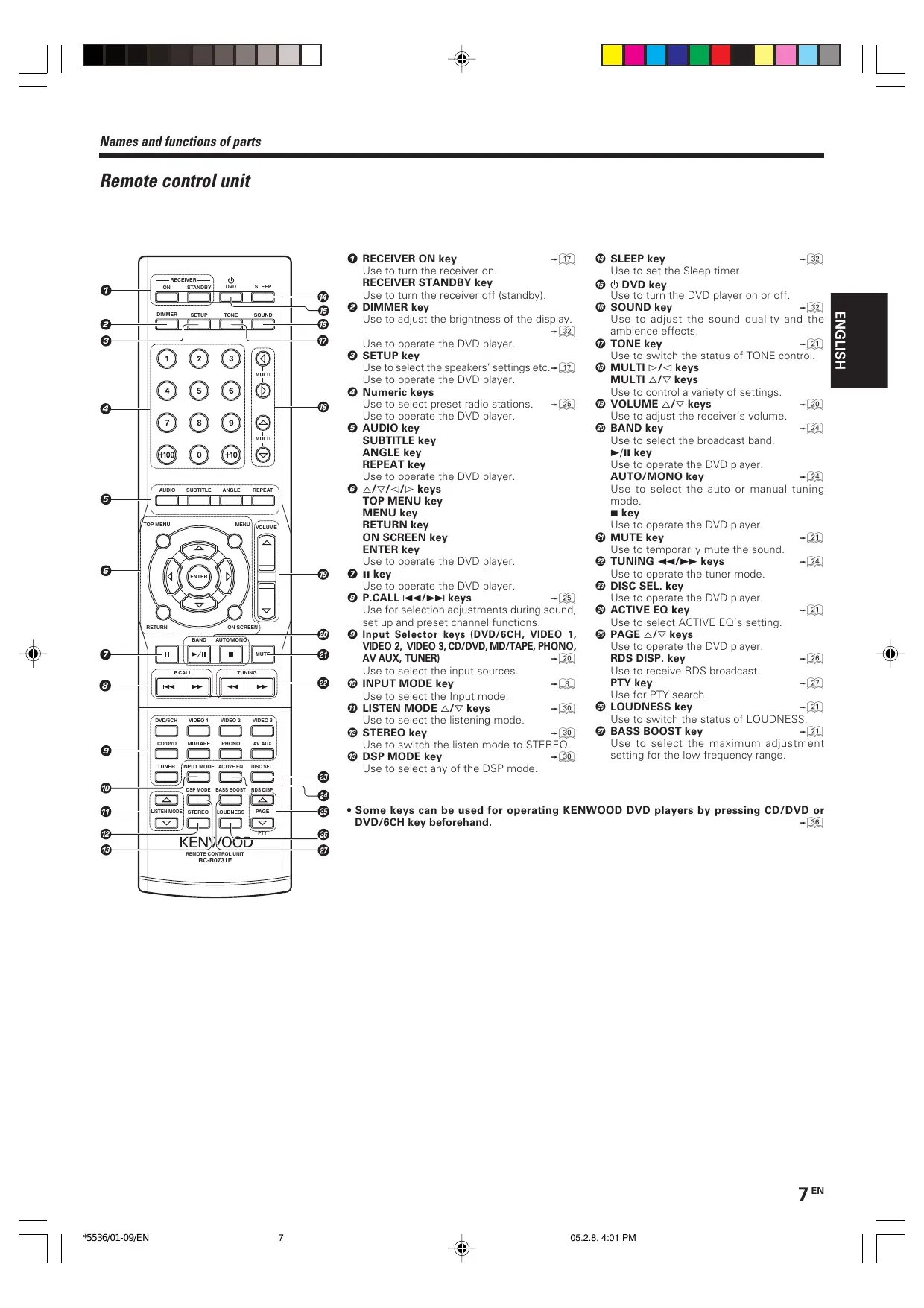
Names and functions of parts Remote control unit
e Ge me me Au ° ESS S e ol) IR: e EC, 1 CO © 8 | “oo 1e T7] | *5536/01-09/EN © RECEIVER ON key Use to turn the receiver on RECEIVER STANDBY key Use to turn the receiver off (standby). © DIMMER key Use to adjust the brightness of the display.
Use to operate the DVD player © SETUP key Use to select the speakers’ settings etc.[i Use to operate the DVD player © Numeric keys Use to select preset radio stations. Use to operate the DVD player © AUDIO key SUBTITLE key ANGLE key REPEAT key Use to operate the DVD player © a/vI<t- keys TOP MENU key MENU key RETURN key ON SCREEN key ENTER key Use to operate the DVD player © key Use to operate the DVD player © P.CALL H44/»>1 keys 05 Use for selection adjustments during sound, set up and preset channel functions. © Input Selector keys (DVD/6CH, VIDEO 1, VIDEO 2, VIDEO 3, CD/DVD, MD/TAPE, PHONO,
Use to select the input sources. © INPUT MODE key Use to select the Input mode. ® LISTEN MODE A/V keys Use to select the listening mode @ STEREO key Use to switch the listen mode to STERE @ DSP MODE key Use to select any of the DSP mode -B9 @ SLEEP key -59 Use to set the Sleep timer. © W DVD key Use to turn the DVD player on or off. © SOUND key -G2 Use to adjust the sound quality and the ambience effects @ TONE key Use to switch the status of TONE control. © MULTI :-/< keys MULTI 4/V keys Use to control a variety of settings. © VOLUME /V keys Use to adjust the receiver's volume © BAND key Use to select the broadcast band key Use to operate the DVD player AUTO/MONO key Use to select the auto or manual tuning mode mkey Use to operate the DVD player @ MUTE key Use to temporarily mute the sound @ TUNING <4/>> keys Use to operate the tuner mode @ DISC SEL. key Use to operate the DVD player @ ACTIVE EQ key Use to select ACTIVE EQ's setting © PAGE A/V keys Use to operate the DVD player RDS DISP. key Use to receive RDS broadcast PTY key Use for PTY search © LOUDNESS key Use 10 switch the status of LOUDNESS. @ BASS BOOST key - Use to select the maximum adjustment setting for the low frequency range. HSTION3
+ Some keys can be used for operating KENWOOD DVD players by pressing CD/DVD or DVD/6CH key beforehand.
ENGLISH Setting up the system Make connections as shown in the following pages. When connecting the related system components, be sure to refer to the instruction sanuals supplied with the components you are connecti Do not connect the power cord to a wall outlet until all connections are completed. Notes
1. Be sure to insert all connection cords securely. their connections are
imperfect, sound may not be produced or there will be noise inference Be sure to remove the power cord from the AC outlet before plugging or unplugging any connection cords. Plugging/unplugging connection cords without disconnecting the power cord can cause malfunctions and may damage the unit Do not connect power cords from components whose power consumption is larger than what is indicated on the AC outlet at the rear of this unit Analog connections Audio connections are made using RCA pin cords. These cables transfer stereo audio signal in an “analog” form. This means the audio signal corresponds to the actual audio of two channels. These cables usually have 2 plugs on each end, one red for the right channel and one white for the left channel. These cables are usually packed together with the source unit, or are available at your local electronics retailer. Microcomputer malfunction If operation is not possible or an erroneous display appears, even though all connections have been made properly, reset the microcomputer referring to ‘In case of difficulty" -G2 Memory back up function Please note that the following items will be deleted from the unit's memory if the power cord is disconnected from the AC outlet for approximately 1 day. + Power mode + Input selector settings + Speaker ON/OFF + Volume level + BASS, TREBLE, INPUT level
+ Dimmer level + Listen mode setting + Speaker settings + Distance setting + Input mode setting + Sound mode settings + Broadcast band + Frequency setting + Preset stations + Tuning mode + ACTIVE EQ mode + GAME mode setting CAUTION The powerin this equipment will not be completely eut off from the wall outlet when the power switch is turned off. Install the equipment so that the wall outlet is easily accessible and, in case of emergency, immediately unplug the power cord from the wall outlet gen Input mode settings CD/DVD, VIDEO 2, VIDEO 3 and DVD/6CH inputs each include jacks for digital audio input and analog audio input. The initial factory settings for audio signal playback for CD/DVD, DVD/6CH and VIDEO 2 and VIDEO 3 are FULL AUTO. After completing connections and turning on this model, follow the steps below. INPUT MODE
LISTEN MODE Input Selector keys © Use the Input Selector keys to select CD/DVD, VIDEO 2, VIDEO 3 or DVD/6CH. @ Press the INPUT MODE key. Each press switches the setting as follows: In DTS play mode @ FULL AUTO (digital input, analog input) @ DIGITAL MANUAL (digital input) In CD/DVD, VIDEO 2, VIDEO 3 or DVD/6CH play mode @ FULL AUTO (digital input, anelog input} @ DIGITAL MANUAL (digital input) 6CH INPUT (DVD/6CH input only) @ ANALOG {analog input) Auto detect: In FULL AUTO mode l'AUTO DETECT' indicator lights up), the receiver detects the digital or analog input signals automatically. The receiver will select the input mode and listening mode auto- matically during playback to match the type of input signal (Dolby Digital, PCM, DTS) and the speaker setting The "DIGITAL" indicator lights up when a digital signal is detected. The "DIGITAL! indicator is extinguished when no digital signal is detected Fixed to digital input: Select this mode if you want to keep the decoding condition (Dolby Digital, DTS, PCM, etc.] in the current listen mode When DIGITAL MANUAL mode is selected, the set listen modes maybe changed automatically depending on the inputsignal. [36] Fixed to analog input: Select this setting to play analog signals from a VCR, etc. If the INPUT MODE key is pressed quickly, sound may not be produced. Press the INPUT MODE key again
Setting up the system Connecting the terminals © Loosen. © Strip coating.
© insert. © Strip coating.
© Return the lever. RE:
+ Never short circuit the + and - speaker cords. + If the left and right speakers are connected inversely or the speaker cords are connected with reversed polarity, the sound will be unnatu- ral with ambiguous acoustic imaging. Be sure to connect the speakers correctiy. Speaker impedance After confirming the speaker impedance indications printed on the rear panel of this model, connect speakers with matching impedance ratings. Using speakers with a rated impedance other than that indicated on the rear panel of this model could result in malfunctions or damage to the speakers or this model Speaker placement Center Speaker
Subwoofer VE Front Speakers Listening \ /Surrouna Æ7 E \ “Surround Back — Left Speaker
“Surround Back Speaker
- For Surround Back Speaker, you may place either two Surround Back Speakers (Surround Back Left Speaker and Surround Back Right Speaker) for 7.1 channel surround sound system or one Surround Back Speaker for 6.1 channel surround sound system — Surround Back Right Speaker Front (left and right) Speakers Place atthe front left and right of the listening position. Front speakers are required for all surround modes: Center Speaker Place front and center. This speaker stabilizes the sound image and helps recreate sound motion. Required for surround playback Surround (left and right) Speakers Place at the direct left and right, or slightly behind, the listening position at even heights, approximately 1 meter above the ears of the listeners. These speakers recreate sound motion and atmosphere. Subwoofer Usually, place the subwoofer in the front center position in the listening room, near one of the front speakers near the center speaker. (Since the subwoofer has less directivity than other speak- rs, it can be placed almost in any position that can offer the best low frequency reproduction according to the room layout} Surround Back Speaker/s Place the surround back speaker behind the listening position, at the same height as the left and right surround speakers. + Although the ideal surround system consists of all the speakers listed above, if you don't have a center speaker or a subwoofer, you can divide those signals between the available speakers in the speaker settings steps to obtain the best possible surround reproduction from the speakers you have available F HSTION3 T7] | *5536/01-09/EN 9 052.8, 4:01 PM
Setting up the system Connecting a DVD player (6-channel input) If you have connected a DVD player to this model with digital connection, be sure to read the ‘Input mode settings” section carefully. os ETTIELL] TD © © 6 © | 66e) ENGLISH CH TELE VDEOS For COMPONENT VIDEO ( connection -[ti] $
Setting up the system Connecting audio components + The earth terminal with the # symbol is used for noise reduction of record player. It is not for safety earth oocooo 16666
DVD Player or CD Player Record Player Moving coil (MC) cartridge record player cannot be used directly from this model unit. It can only be used when another equalizer amplifier is connected CAUTION Top panel : 50 cm Side panel : 10
Be sure to adhere to the following, or proper ventilation will be blocked causing damage or fire hazard. + Do not place any object impairing heat radiation onto the top of the unit + Leave a space around the unit (from the largest outside dimension including projection) equal or greater than, shown below. Back panel : 10 em T7] | *5536/10-16/EN
CN | | Setting up the system Connecting video components S Video Jacks r Y Y NT 9 9 HD
Use the S VIDEO Jacks to make connections to video components S VIDEO IN/OUT Jacks. + If you use the S VIDEO jecks to connect your video Playback components, be Sure to use the $ VIDEO jacks when connecting Your monitor and video recording components.
LU Es IN = ==TGUT Video Audio L OUT] pVD Player or LD Player OUT Video Audio our OUT À ob Player or LD Player fe Video Audio A video component with digital audio outputs should be connected to the VIDEO 2 or VIDEO 3 jacks. 12° T7] | *5536/10-16/EN 12 052.8, 11:50 AM
Setting up the system Digital connections The digital in jacks can accept DTS, Dolby Digital, or PCM signals. Connect components capable of outputting DTS, Dolby Digital, or standard PCM (CD) format digital signals If you have connected any digital components to this model, be sure to read the “Input mode settings” section carefully. _ ALT] 0000/338 eee ec» 666 mm coosse cee et COAXIAL DIGITAL
(AUDIO) CAT VIDEOS Optical fiber cable OUT (AUDIO) Optical fiber cable OPTICAL DIGITAL OUT (AUDIO) OPTICAL DIGITAL Component with DTS, Dolby Digital, or PCM
Connect the video signal and analog audio signals to the VIDEO 3 jacks (See “Connecting video compo- nents") a]
DVD Player or CD Player Component with DTS, Dolby Digital, or PCM RF digital l demodulator (Commercially available)
Connect the video signal and analog audio signals to the VIDEO 2 jacks {See “Connecting video compo nents PCM OUT eo LL] è LD Player HSTION3
To connect an LD player with a DIGITAL RF OUT, connect the LD player to the RF digital demodulator (Commercially available). Next, connect the DIGITAL OUT jacks of the demodulator to the DIGITAL IN jacks of this model Connect the video signal and analog audio signals to the VIDEO 2 or VIDEO 3 jacks. (See “Connecting video components”) T7] | *5536/10-16/EN 052.8, 11:50 AM 13"
Setting up the system Connecting video components (COMPONENT VIDEO) If you have connected this model to a video component with COMPONENT jacks, you can get a better picture quality than by connecting to the S-VIDEO jacks
T = = Y OUT Video Recorder, DVD Recorder, Satellite Cable Tuner & Game Player (with component jacks) CR OUT GOUT | El Emme n YOUT | When connecting the TV to the COMPONENT jacks, be sure to connect all the other components to the COMPONENT jacks. |
T7] | *5536/10-16/EN 14 052.8, 11:50 AM
Setting up the system Connecting the speakers Surround Back Speaker/s When connecting a single Surround Back Speaker connect it to SURROUND BACK L terminals and se- lect “SB LARGEx1” or “SB NORMALx1" at Speaker settings. - Surround Speakers Left Right Right Left Subwoofer 20° Sn Le PA Powered
ee che OW® Right Left eo ==) Front Speakers 8 : Cent. (©) Speaker Right Left Front Speakers À HSTION3 + To make sure that each speaker has been connected properly, pay attention to the test tone from each speaker. Refer to “E3 Adjust the speaker volume level." ce + When you wish to connect the second pair of Front speakers or to connect the speakers in a different room to this unit, use the SPEAKERS FRONT B terminals for connection. | *5536/10-16/EN 15 d 05.2.8, 8:20 PM
ENGLISH Setting up the system Connecting to the AV AUX jacks The AV AUX jacks are convenient for connection of video components such as a camcorder or a video game
Connecting the antennas The broadcast reception cannot be made unless the antennas are connected. Connect the antennas correctly as instructed below. AM Loop Antenna Place the supplied loop antenna as far as possible from the receiver, TV set, speaker cords and power cord, and adjust the direction for best reception.
© @0® à NS . LS S VIDEO cord VIDEO OUT lideo game, Camcorder, S VIDEO OUT | other VCR or Portable | AUDIO OUT MD Player + This model has a game function which is convenient for using game equipment. I is recommended that the game equipment be connected to AV AUX jacks and the game mode be turned ON. 2)
- To select the soures connected to the AV AUX jacks press AV AUX/GAME key. + When you connect the audio source such as the MD player, you do not need to connect the video cable. + When you connect the unit and the component with the S VIDEO cord, you can get better picture quality.
T7] | *5536/10-16/EN 16 AM Antenna Terminal connections © Push lever. @ Insert cord.
% TT FM Indoor Antenna The supplied indoor antenna is for temporary use only. For stable signal reception we recommend using an outdoor antenna. Disconnect the indoor antenna when you connect one outdoors. © Release lever. Lun FM Antenna Terminal connections Insert cord.
FM Outdoor Antenna Lead the 75Q coaxial cable connected to the FM outdoor antenna into the room and connect it to the 75Q FM terminal
Preparing for surround sound Speaker settings To enable you to obtain optimum enjoyment from the receiver's listening modes, make sure to complete the speaker settings (Subwoofer, Front, Center, Surround and Surround Back Speakers) as described below. o SETUP MULTI CONTROL AIV RECEIVER ON 51 souno SETUP fl SL _ MULTI AV, 8eeb Turn on the power to this receiver by pressing the (POWER ON/STANDBY) key or RECEIVER ON key. If you want to use the remote control unit, press the VIDEO 1, VIDEO 2, VIDEO 3, MD/TAPE, PHONO, AV AUX or TUNER key on the remote control unit to set it to the receiver control mode. A Press the SETUP key to enter the SETUP mode. Use the NIV keys or MULTI </t- keys forthe following displays. SP SETUP CROSSOVER TEST TONE SP DISTANCE LFE LEVEL DISP MODE EXIT The flow of the SETUP is as follows El I 1 FES (NE Lserup f |EROSSOVER| LToNE f IpisTancE Sanboer Pie EM Font FRE:60Hz Center Cener ë Û Bronight Fred ao s FE rang Sursund N Surround Right FREG:100z SA À ia Surbuné Sn Eur rredhane SE fpromiern a {Surround Back Left Cr ke î SuroiraLet î Suoer
| L [os [TE | LeT | Luone f Luever | Den Balcor Dep Listen 553617-27/EN 17 E Select a speaker system. © Select the SP SETUP and press the SETUP key again so that the subwoofer setting indication “SUBW ON” appears.
2 SUBW OFI ubwoofer setting mode to the receiver is ON. ubwoofer setting mode ta the receiver is OFF. + The initial setting is “SUBW ON” + When the setting “SUBW OFF” is selected, the Front Speakers are automatically set to “FRNT LARGE” and the procedure skips to step + When Subwoofer output sound is required, select “FRNT NORMAL", or select both “FRNT LARGE" and “SW RE-MIX ON” © Press the À key or MULTI - key to accept the setting. + The front speakers setting indication “FRNT” appears. pare AT y E BOBFRNT = HüRHALE © Use the MULTI CONTROL knob or MULTI A/Y keys to select the appropriate front speakers setting. D FRNT NORMAL _ : Average size Front Speakers are con nected to the receiver. 2 FRNTLARGE : Large size Front Speakers are connected to the receiver. © Press the À key or MULTI > key to accept the setting. + The Center Speaker setting indication “CNTR” appears. © Use the MULTI CONTROL knob or MULTI A/Y keys to select the appropriate Center Speaker setting. H you selected “FRNT LARGE” as the Front Speakers setting, D CNTR NORMAL : An average size Center Speaker is con- nected to the receiver. 2 CNTR LARGE : A large size Center Speaker is connected to the receiver. 5 CNTR OFF : Center Speaker setting mode to the re- ceiver is OFF. If you selected “FRNT NORMAL” as the Front Speakers setting, D CNTR NORMAL : An average size Center Speaker is connected to the receiver : Center Speaker setting mode to the receiver is OFF. 2 CNTR OFF © Press the À key or MULTI L- key again to accept the setting. + The Surround Speaker setting indication “SURR" appears: Continued to next page.
ENGLISH Preparing for surround sound © Use the MULTI CONTROL knob or MULTI A/Y to select the appropriate Surround Speaker setting. If you selected “FRNT LARGE" as the Front Speaker setting, D SURR NORMAL: Average size Surround Speakers are con- nected to the receiver. à SURR LARGE arge size Surround Speakers are connected to the receiver 3 SURR OFF : Surround Speaker setting mode to the receiver is OFF. If you selected “FRNT NORMAL" as the Front Speaker setting,
Average size Surround speakers are connected to the receiver : Surround speaker setting mode to the receiver is OFF. 2 SURR OFF + When the setting “SURR OFF” is selected, the procedure skips to step @ © Press the À key or MULTI t- key again to accept the setting. + The Surround Back Speaker setting indication “SB” appears. © Use the MULTI CONTROL knob or MULTI A/ keys to select appropriate Surround Back Speaker setting. If you selected “SURR LARGE” as the Surround Speaker setting, D SB NORMALX1 : À single average size Surround Back Speaker is connected to the receiver. 2 SB NORMALx2 : À pair of average size Surround Back Speak- ers are connected to the receiver. : A single large size Surround Back Speaker is connected to the receiver. : À pair of large size Surround Back Speak- ers are connected to the receiver. : Surround Back Speaker setting mode to the receiver is OFF. D SB LARGEx1 © SB LARGEx2 5 SB OFF If you selected “SURR NORMAL” as the Surround Speaker setting, D SB NORMALx1 : À single average size Surround Back Speaker is connected to the receiver. 2 SB NORMALX2 : À pair of average size Surround Back Speak- ers are connected to the receiver. : Surround Back Speaker setting mode to the receiver is OFF > SB OFF ® Press the À key or MULTI t- key again to accept the setting. + The Subwoofer remix setting indication “SW RE-MIX" appears. @ Use the MULTI CONTROL knob or MULTI A/ keys to select the appropriate Subwoofer re-mix setting. D SW RE-MIX ON : Subwoofer re-mix setting mode to the receiver is ON à SW RE-MIX OFF : Subwoofer re-mix setting mode to the receiver is OFF. + lfSubwoofer is turned off or “FRNT NORMAL" is selected at the Front Speaker setting, Subwoofer re-mix setting is not visible © Press the SETUP key again to return to the main setup displays. 18* T7] | *5536/17-27/EN 18 1 Select the CROSSOVER frequency. CROSSOVER function is to adjust the receiver's audio output character- istics with the speakers’ characteristics which differs depending on the size of the speakers. You will be able to enjoy a more natural and dynamic sound experience even with small size speakers. © Press the A/V keys or MULTI </E- keys to select the CROSS- OVER and press the SETUP key. © Use the MULTI CONTROL knob or MULTI A/Y keys to select the CROSSOVER frequency. ) FREQ. : 40Hz > FREQ. : 60Hz ) FREQ. : 80Hz > FREQ. : 100Hz ) FREQ. : 120Hz ) FREQ. : 150Hz
ZIN + CROSSOVER function will not be available when "LARGE" is selected for all the speakers and “SW RE-MIX OFF" is selected in step EL.
© Press the SETUP key again to return to the main setup displays. BE Adjust the speaker volume level. From your usual listening position, adjust the volume levels. The volume levels from each speaker should be the same + The receiver enters the speaker volume level adjustment mode + Indicators appear only for the channels of the speakers selected in step © Pressthe \/V keys or MULTI </1- keys to select the TEST TONE. © Press the SETUP key for the following displays:
© The selection of AUTO/MANUAL TEST TONE is done by the MULTI CONTROL knob or MULTI A/V keys. Press the SETUP key again to begin TEST TONE. Use the MULTI CONTROL knob or MULTI A/V keys to adjust the volume level of the test tone output from the speaker channel to be adjusted. For AUTO selection, the test tone is heard from the speakers in the following sequence for 2 seconds each starting from the Front Left speaker.
SUBW sL SBL SBR + If you have selected “SB NORMALx1" or "SB LARGEx1”, SBR” and "SBL" are not appeared but “SB” is appeared on the Display. The channel indication blinks while the test tone is being output: SF ; \l/ SA A ee +16dE TTTIN + If the speaker setting selects are OFF, the speaker level settings are reset For MANUAL selection, press the A/V keys or MULTI </t- keys each time to select the speaker channel. © Press the SETUP key again. + The test tone is turned off and return to the main setup displays. 052.8, 11:57 AM
T7] | *5536/17-27/EN 19 Preparing for surround sound @ put the distance to the speakers. A Select the display mode. + Indicators appear only for the channels of the speakers selected © Press the A/V keys or MULTI </1- keys to select the DISP in step @ MODE. © Press the A/V keys or MULTI </1> keys to select the SP e ee MULTI CONTROL knob or MULTI A/V keys to select DISTANCE on setup displays and press the SETUP key again. the display mode. © Measure the distance from the listening position to each of D DISP SELECTOR : Displays the current input selector the speakers. 2 DISP LISTEN: Displays the current listen mode dot dou the distanog to eh ot Ah spostors. matos E LAIT #72 g istance to Front Left Speaker feet (meters) —Ù _ _ Distance to Center Speaker (C) feet (meters) DISPLSELECTOR— | Distance to Front Right Speaker (R} feet (meters) Ty S E Distance to Surround Right (SR) feet (meters) DTA 2 Distance to Surround Back Right (SBR) feet (meters} ï ï Distance to Surround Back (SB) feet (meters) © Press the SETUP key again to accept the setting. Distance to Surround Back Left (SBL) feet (meters} © Use the À key or MULTI '- key to select EXIT. Distance to Surround Left (SL) feet (meters) = ra Distance to Subwoofer (SW) feet Imeters) CRT +1f you have selected “SB NORMALx1” or “SB LARGEx1”, Ë ESIT “SBR" and "SBL" are not appeared but “SB” is appeared on the Display. © Press the SETUP key to exit the SETUP mode. © Use the A/V keys or MULTI </5- keys to select the speakers and the MULTI CONTROL knob or MULTI A/Y keys to adjust the distance to the Front Speakers. The speaker indicator to be adjusted blinks. Indication in feet Indication in meters + The allowable setting range is 1 to 30 feet (0.3 to 9.0 m), adjustable in 1 foot (0.3 m) increments. © Repeat steps © to input the distance for each of the speakers. © Press the SETUP key again to return to main setup displays. + The speakers you have selected should appear on the display. Confirm that all the speakers have been correctly selected Adjust the LFE LEVEL (Low Frequency Effects). © Press the A/V keys or MULTI </1- keys to select the LFE LEVEL. © Use the MULTI CONTROL knob or MULTI A/7 keys to adjust the LFE LEVEL. 8 6e NZ
«The LFE LEVEL can be adjusted from OdB to -10dB in 1dB decrements. © Press the SETUP key again to return to main setup displays. 19" 052.8, 11:57 AM | [
ENGLISH Normal playback Preparing for playback Some preparatory steps are needed before starting playback © (POWER ON/STANDBY) r— INPUT MODE
Turning on the receiver © Turn on the power to the related components. © Turn on the power to this receiver by pressing the © (POWER ON/STANDBY) key. Selecting the input mode If you have selected a component connected ta the CD/DVD, VIDEO 2, VIDEO 3 or DVD/6CH jacks, make sure that the input mode setting is correct for the type of audio signal to be used Selecting the speaker system Press the SPEAKERS key to select the speaker system to be used. AON Sound from the speakers connected to the SPEAKERS A terminals on the rear panel BON Sound from the speakers connected to the SPEAKERS B terminals on the rear panel. No sound will be heard from the subwoofer. A#B ON : Sound from both the speakers connected to the SPEAKERS A and B terminals on the rear panel A#B OFF: No sound from the speakers. The display segments are different depending on the type of input signal. The indicator for the speakers vou want to use should be lit + Selecting “6CH INPUT" by pressing the INPUT MODE key, whereby "DVD/6CH" is the input source will cause SPEAKERS A to be selected automatically. + When the SPEAKERS B is turned ON, the Listen mode will be switched to STEREO
Input Selector keys AV AUX/GAME — VOLUME 4/7 Input Selector keys Use the Input Selector keys or AV AUX/GAME key to select the source you want to listen to. Selecting a source using each key. TUNER CD/DVD MD/TAPE VIDEO 1 VIDEO 2 VIDEO 3 DVD/6CH PHONO AV AUX [GAME] (or AV AUX) B Start playback from the selected source. E Use the VOLUME CONTROL knob or VOLUME A/V keys to adjust the volume. Set up the AV AUX jacks on the front panel Perform the setup for convenience of playing a video game using the receiver © Use the AV AUX/GAME key or Input Selector keys to select “AV AUX [GAME] ” (or “AV AUX") @ Press and hold the AV AUX/GAME key for more than 2 seconds for the following selections; D AV AUX [GAME] : When the connected game player is turned ON, the input selector is switched automati- cally to “AV AUX IGAME]". In addition, the ACTIVE EQ function is switched to “ACTIVE EQ GAME", and the Listen mode is switched to the appropriate mode for games. 2 AV AUX : The game mode is switched off + The game mode is not activated if no video signal is input to the VIDEO of S-VIDEO jack in the AV AUX jack section 052.8, 11:57 AM
Normal playback Input level adjustment (analog sources only) MULTI CONTROL
Input Selector keys Input level adjustment (analog sources only) If the input level of an analog source signal is too high, the CLIP indicator will blink to indicate the source signal. Adjust the input level 8 o88 St Ca:
© Use the Input Selector keys to select the source of which the input level you want to adjust + You can store a separate input level for each input source. @ Press the SOUND and A/V keys or MULTI </t- keys repeatediy until the “INPUT ication appears. © Use the MULTI CONTROL knob or MULTI A/Y keys to adjust the input level. CECH 8 708 mer _RN est TMELIT — + The adjustment mode is displayed for approximately 20 seconds. + The input level may be adjusted to any one of three settings OdB, -3dB, and -6dB. (The initial setting is OdB.)
© Press the SOUND key again to return to the input indication. T7] | *5536/17-27/EN 21 Adjusting the sound
VOLUME 4/7 MUTE Ses — ACTIVE EQ BASS BOOST Soi LOUDNESS Adjusting the TONE You can adjust the sound quality when the receiver is in the PCM stereo and analog stereo mode © Press the TONE key to select the TONE mode. © Use the MULTI CONTROL knob or MULTI A/V keys to select TONE ON/OFF. 5 8; _ TOHE DE © When in TONE ON selection, press the TONE key for the follow ing displays. BASS _: Select this to adjust the low frequency range TREBLE: Select this to adjust the high frequency range. © Use the MULTI CONTROL knob or MULTI A/ keys to adjust the sound quality. 5 Ge NZ >
+ The bass and treble levels are adjustable from -10 to n in 2 step increments. + The adjustment item is displayed for approximately 20 seconds + This function is available only for speakers connected to FRONT A terminals. Adjusting the LOUDNESS mode You can adjust the Loudness function which controls the low volume settings to maintain the music's richness. The adjustment can be made when the receiver is in the PCM stereo and analog stereo mode. Press the LOUDNESS key to turn the LOUDNESS setting ON. + This function is available only for speakers connected to FRONT A terminals. To cancel Press the LOUDNESS key again so that the “LOUDNESS" indicator goes off. 21° 052.8, 11:57 AM
Normal playback One-touch low frequency emphasis (BASS BO0ST) You can adjust the sound quality when the receiver is in the PCM stereo and analog stereo modes. Press the BASS BOOST key. + Press the key once to select the maximum (+10) low frequency emphasis setting + This key does not function when the receiver is in the sound quality or ambience effects adjustment mode. + This function is available only for speakers connected to FRONT A TZ terminals. A Switching back to the previous setting F Press the BASS BOOST key again. Muting the sound The MUTE key lets you mute the sound of the speakers. Press the MUTE key. Blinks DES To cancel Press the MUTE key again so that the “MUTE” indicator goes off. + MUTE ON can also be deactivated by turning the VOLUME CON- TROL knob or pressing VOLUME A/v keys ACTIVE EQ mode You can enjoy a more impressive sound effect when ACTIVE EQ is turned ON. Press the ACTIVE EQ key for the following selections; D ACTIVE EQ MUSIC : Effective when listening to music. {The ACTIVE EQ indicator lights up.) 2 ACTIVE EQ CINEMA : Effective when watching movie. {The ACTIVE EQ indicator lights up.) © ACTIVE EQ GAME : Effective when playing video game. {The ACTIVE EQ indicator lights up.)
4) ACTIVE EQ OFF : The ACTIVE EQ function is turned OFF.
{The ACTIVE EQ indicator goes off.} + “ACTIVE EQ" will scroll from right to left. + ACTIVE EQ function will not be available when in REC MODE, or when searching or presetting radio stations. Listening with headphones © Connect headphones to the PHONES jack. + The sounds from all speakers are cut off. © Use the VOLUME CONTROL knob or VOLUME A/V keys to adjust the volume. 22°" 2553617-27EN 2 CHER DIM | Recording Recording audio (analog sources) Input Selector. keys Recording a music source © Use the Input Selector keys to select the source (other than “MD/ TAPE") you want to record. © Set the MD or TAPE recorder to record. © Start playback, then start recording. Recording video © Use the Input selector keys to select the video source (other than “VIDEO 1") you want to record. © Set the video recorder connected to VIDEO 1 to record. + Select the REC MODE to record a digital input source. © Start playback, then start recording. + Recording may not be normal for some video software. This is due to the copy guard condition: ] 05.28, 8:26 PM
Recording Recording audio (digital sources) Switch on the REC MODE to record a digital input source Usually use the REC MODE AUTO to record audio input sources. When the digital mode changes during recording in the REC MODE AUTO, the audio input source may be interrupted momentarily Recording music in REC MODE AUTO or MANUAL DIMMER
Input Selector keys © Use the Input Selector keys to select the source (CD/DVD, DVD/ 6CH, VIDEO 2, VIDEO 3) you want to record. © Set the MD or TAPE recorder to record. © Press and hold the DIMMER key for more than 2 seconds to select the REC MODE AUTO or MANUAL. D REC MODE off : The digital input record mode is switched off : The digital input signals (DTS, Dolby Digi- tal, or PCM) are identified automatically and converted into stereo signals that are ready for recording. 3 REC MODE MANUAL : The input signal type at the moment this mode is selected is held throughout this mode. à REC MODE AUTO + When the REC MODE MANUAL is selected, the digital input signal is converted to stereo signals (down-mix]. But once the digital signal is changed to other signal, no signal is output. When the REC MODE AUTO is selected, the digital input signal is converted to stereo signals even if the digital signal is changed. *5536/17-27/EN 28 For REC MODE AUTO :
CD DUT © Start playback, then start recording. M-REC + Ifthe audio reproduction stops in the middle due to change in the input signals, etc., press the DIMMER key. 23" 052.8, 11:57 AM HSTION3
Listening to radio broadcasts This model can store up to 40 stations in the memory and recall them by one-touch operation Radio stations can be classified into RDS (Radio Data System) stations and other stations. To listen to or store RDS stations in the preset memory see “Using RDS (Radio Data System)" Tuning (non-RDS) radio stations
m em © FH108. 08 MHETT + Normally, set to "AUTO" (auto tuning). Ifthe radio waves are weak and there is a lot of interference, switch to manual tuning. (With manual tuning, stereo broadcasts will be received in monaural.} E use the MULTI CONTROL knob or MULTI A/V keys, or TUNING «4 /»» keys to select the station. "STEREO" lights when a broadcast is being received in stereo. FH10G. 58 MHz: *TUNED" is displayed when a station is received Auto tuning _: The next station is tuned automatically. Manual tuning : Turn the knob or use the MULTI A/V keys to select the desired station. 24" *5536/17-27/EN 24 Using RDS (Radio Data System) RDS is a system that transmits useful information (in the form of digital data) for FM broadcasts along with the broadcast signal. Tuners and receivers designed for RDS reception can extract the information from the broadcast signal for use with various functions, such as automatic display of the station name RDS functions: PTY (Program TYpe Identification) Search Automatically tunes to a station that is currently broadcasting the specified program type (genre) PS (Program Service Name) Display Automatically displays the station name transmitted by the RDS station. RDS AUTO MEMORY function Automatically selects and stores up to 40 RDS stations in the preset memory. If fewer than 40 RDS stations have been stored in the preset memory, regular FM stations will be stored in the remaining places. Radio Text function Displays the radio text data transmitted by some RDS stations when you press the RDS DISP (display) key. There is “NO RT”_ if no text data is transmitted. The “RDS” indicator lights up when an RDS broadcast (signal) is received SG MHz
o wa FH 92. Note Some functions and function names may differ for certain countries and areas. Before using a function utilizing the RDS, be sure to perform the RDS Auto Memory operation by referring to the description in “Presetting RDS stations (RDS AUTO MEMORY)" Gé) 052.8, 11:57 AM
Listening to radio broadcasts Presetting radio stations manually The RDS auto memory function assigns preset numbers to RDS stations Starting from preset number “1”. Therefore, be sure to execute the RDS auto memory function before using the following operations to manually store AM stations and other FM stations, and RDS stations. See “Presetting RDS stations (RDS AUTO MEMORY) k MULTI CONTROL
(0 0 ofel (0 0 ol) MULTI A/v TUNER Tune to the station you want to store. A Press the MEMORY key while receiving the station. Blinks for 20 seconds Lights for 20 seconds
BE MHTE) xl / ZA MIE. Proceed to step E within 20 seconds. {If more than 20 seconds elapse, press the MEMORY key again). E use the MULTI CONTROL knob or MULTI A/Ÿ keys to select one of the station presets (1 — 40). E Press the MEMORY key again to confirm the setting. + Repeat steps 8, A, &, and E to store as many stations as necessary. + If you store a station at a previously used preset, the old station will be replaced by the new one T7] | *5536/17-27/EN
Numeric keys HSTION3 TUNER Press the TUNER key to select tuner as the source. À £nter the number of the preset station you want to receive (up to “40"). Press the Numeric keys in the following order: oO] + If you make a mistake entering a two digit number, press the +10 key repeatedly to return to the original display and start again For “15”, press For “20”, press 56 Nbre
33 FH Far CHE Receiving preset stations in order (P.CALL)
TUNER — Press the TUNER key to select the tuner as the source. A use the P.CALL44/»: keys to select the desired station. + Each time you press the key, another preset station is received in order Pressing the P.CALL >» does the following: C 01 —+ 02 —+ 08 + Pressing the P.CALL #4 does the following: (0208 + SB— 8940 Holding down the P.CALL +44 or »>1 keys, lets you skip through the presets, receiving each preset station at 0.5 second inter- vals. 250 ..—+ 38 — 39 — 40
Listening to radio broadcasts Using the RDS DISP (Display) key
F 5 2 — RDS DISP. Pressing the RDS DISP. key changes the contents of the display. Each press switches the display mode as follows : D PS (Program Service name) display 2 RT (Radio Text) display Frequency display © PS (Program Service name) display The station name is displayed automatically when an RDS broadcast is received. If no PS data was sent, "NO PS" is displayed 5: = = ml “1 HIGHHÉY = à © RT (Radio Text) display : bé Text data accompanying the RDS broadcast scrolls across the display. "NO RT" is displayed if the current RDS station does not provide RT data. 5 Sc = = ve
© Frequency display : Displays the frequency of the current station 5 Se = 51 FIGE. 66 MHze 26°" T7] | *5536/17-27/EN 26 Presetting RDS stations (RDS AUTO MEMORY) This function automatically stores up to 40 RDS stations in the preset memory. In order to use the PTY function, the RDS stations must be stored in the preset memory using the RDS AUTO MEMORY function
e | : 3 © Ole TUNER MEMORY Press the TUNER key to enter tuner mode. A use the BAND key to set the broadcast band to “FM”. E Press the MEMORY key continuously for more than 2seconds will start AUTO MEMORY. Ep NN Î 7 ZT AUTO MEMORY TITTANS + After a few minutes, up to 40 RDS stations are preset in order from channel “01” + Stations already stored in the preset memory may be replaced by RDS stations. (Le., Ifthe RDS AUTO MEMORY function detects 15 RDS stations, the stations currently preset at numbers 01-15 will be replaced by the RDS stations.) 05.28, 11:58 AM
Listening to radio broadcasts Tuning by Program TYpe (PTY search) This function lets you set the tuner to automatically search for stations which are currently broadcasting the type of program (genre) you want to listen to. Under certain receiving conditions, it may take more than 1 minute to complete the search. booe! boool 8920 — MULTI «77 TUNING 4» Ese PTY Preparations + Execute the RDS auto memory procedure. + Set the broadcast band to FM + Tune to an RDS station. Press the PTY key to activate the PTY search mode. Light up 8 a!
HEUS When an RDS broadcast is received, the program type is shown on the display. If no PTY data is available, or if the station is not an RDS station, “NONE” is displayed A Wüile the “PTY” indicator is lit, use the MULTI A/V keys or TUNING «<« /w» keys select the program type of your choice. Program type table Program Type Name _ Display Program Type Name Display Pop Music POP M Weather WEATHER Rock Music ROCK M | Finance. FINANCE. Easy Music EASY M Children's Program CHILDREN Light Clessieal Music LIGHT M | Social Affairs SOCIAL Serious Classical Music CLASSICS | Religion RELIGION Other Music OTHER M | Phone In PHONE IN News NEWS Travel TRAVEL Current Affairs AFFAIRS | Leisure LEISURE Information INFO Jazz Muse JAZZ Sport. SPORT. Country Musie COUNTRY Education EDUCATE | National Music NATION M Drama DRAMA Oidies Music OLDIES Cuture CULTURE | Fok Music FOLK M Science SCIENCE | Documentery DOCUMENT Vared Speech VARIED T7] | *5536/17-27/EN 27 E Press the PTY key to start searching. EXAMPLE : Searching for a Pop Music broadcast. Display while searching, Blinks RE Cr 4 D POP m Program type name display 5 Display when a station is received. Goes out 8 So T XL. EC FM Station name display + No sound is heard while "PTY is blinking + I£the desired program type cannot be found, “NO PROGRAM" is displayed, then after several seconds the display returns to the original display. To select another program type. Repeat steps 0, E and ©.
ENGLISH Ambience effects This receiver is equipped with listening modes that allow you to enjoy an enhanced sonic ambience with a variety of video sources. In order to obtain the optimum effect from the surround modes, make sure to input the proper speaker settings beforehani Surround modes The below speaker placements are for 5.1 channel surround sound system which are; + Dolby Digital + Dolby Pro Logic II +DTS + DTS 96/24 + DVD 6-channel The below speaker placements are for 6.1 channel surround sound system which are; + Dolby Digital EX *DTS-ES + Neo:6 + DSP mode co ECO) Q 9 No Surround Back speaker The below speaker placements are for 7.1 channel surround sound system which is; + Dolby Pro Logic IIx © ECO)
With Surround Back speaker D ECO)
With Surround Back Left and Right speakers 28EN T7] | *5536/28-34/EN 28 L Front Left Speaker sw Subwoofer c Center Speaker R Front Right Speaker sL Surround Left Speaker sR Surround Right Speaker sB Surround Back Speaker sBL Surround Back Left Speaker SBR Surround Back Right Speaker Manufactured under license from Dolby Laboratories. "Dolby", “Pro Logic”, "Surround EX" and the double-D symbol are trade- marks of Dolby Laboratories *DTS", "DTS-ES”, "Neo:6" and TM *DTS 96/24" are trademarks of Digi- dtsE =s tal Theater Systems, Inc. 241Nn20S Even if the speaker configuration is different from above, this receiver will let you enjoy Dolby Digital and DTS sources in a suitable condition for every speaker configuration: 052.8, 0:01 PM
CN | | Ambience effects Dolby Digital The Dolby Digital surround format lets you enjoy up to 5.1 channels of digital surround sound from Dolby Digital pe ram sources {such as Laserdisc or DVD software marked DU] ) Compared with previous Dolby surround, Dolby Digital provides even better sound quality, greater spatial accuracy, and improved dynamic range. Dolby Digital EX Dolby Digital EX is an extension of Dolby Digital technology, Dolby Digital EX creates six full-bandwidth output channels from 6.1- channel sources. This is done using a matrix decoder that derives three surround channels from the two in the original recording. This is achieved by using three different surround signals, sur- round left, surround right, and surround back, each driving its own array of speakers. Think of it as adding a center channel for the rear speakers, which give more diffuse and natural surround effect, even if you wanted the ability to completely encircle the audience with sound, positioning sound effects exactly where they would be heard in real life. For best results, Dolby Digital EX should be used with movie soundtracks recorded with Dolby Digital Sur- round EX which contain a digital flag that will automatically activate this feature. However, for titles released prior to late 2001, this feature has to be activated manually. Although Dolby Digital soundtracks incorporate a separate low frequency channel, connecting a subwoofer will also improve deep bass performance in the other surround modes. The indication "LFE” appears in the display when a signal is being input for this channel. Dolby Pro Logic 11x and Dolby Pro Logic II Dolby Pro Logic II was designed specifically to provide a new sense of spatiality, directionality and articulation of sounds from Dolby Surround encoded sources (such as video and Laserdisc software marked DOevammms). This is achieved with an intelli- gent, built-in feedback logic design, a matrix surround decoding and the decoding of stereo, full bandwidth surround outputs. Dolby Pro Logic IIx enhanced Dolby Pro Logic Il's features. It creates 6.1 channel and 7.1 channel surround sound from stereo or 5.1 channel signals. This feature provides you an astonishing ambience effect which makes you feel you are surrounded by natural sound. Especially 7.1 channel surround sound can produce real back sound from Surround Back speakers The Pro Logic IIx modes programmed into this model are "MOVIE", “MUSIC” and “GAME”. The Pro Logic II modes programmed into this model are “MOVIE”, “MUSIC”, "GAME" and “PRO LOGIC" The “MOVIE” mode has preset characteristics to produce à calibrated, high-level surround sound playback while the “MU- SIC" mode has user-adjustable characteristics to offer the three optional controls, like “Dimension”, “Center Width” and Pan- orama” modes to allow optimization of the soundfields as desired. The “Dimension” control allows the user to gradually adjust the soundfield either towards the front or towards the rear; the “Center Width” control allows various adjustment of the left- center-right speakers’ balance; the “Panorama” mode extends the front stereo image to include the surround speakers for an exciting “wraparound” effect with side wall imaging. The “GAME” mode provides surrounded and exciting sound when you enjoy game or TV. Especially in Pro Logic IIx “GAME” mode, base sound not only from Front and Center but also from Surround channel is added to Subwoofer. This provides ever more dynamic surround effects. DTS The DTS multi-channel audio format is available on CD, LD and DVD software. DTS is a strictly digital format and cannot be decoded inside most CD, LD or DVD players. For this reason, if you attempt to listen to DTS encoded software through the analog output of your new CD, LD or DVD player, you will experience digital noise in most cases. This noise can be quite loud if the analog output is connected directly to a high power amplification system. Proper measures for playing the digital output as de- scribed below should be taken to avoid this situation. To enjoy DTS Digital Surround playback, an external 5.1 channel DTS Digital Surround decoder system or an amplifier with a built-in DTS Digital Surround decoder must be connected to the digital output (S/P DIF, AES/EBU or TosLink) of a CD, LD or DVD player All models are incorporated with the DTS decoder DTS-ES DTS-ES (Digital Theater System-Extended Surround) presents 6.1 channels surround system with additional Surround Back channel which evolved from the conventional 5.1 channels surround system. DTS-ES format that was recorded in DVD, CD or LD comprises of two modes. DTS-ES Discrete 6.1 produces the discrete surround back which is completely independent and DTS- ES Matrix 6.1 produces the surround back which synthesised within the left and right surround channels using matrix technol- ogy. DTS-ES has perfect compatibility with the conventional 5.1 channels surround system. 6.1 channels surround with an addi- tional surround back presents a more natural presence and sur- round effects by increasing the impression of the sound image from back. Programs which are recorded using DTS-ES technol- ogy consist of information flags which will be able to control the Discrete and Matrix mode. Thus, it can automatically select the best matched mode. Neo:6 Neo:6 is a new technology which was developed by DTS. It can produce high grade 6 channels surround with an astonishing fidelity from 2 channels content. Neo:6 has 2 modes, "CINEMA" mode is for movie playback and MUSIC" mode is for music playback. DTS 96/24 DTS 96/24 made it possible to achieve a wide frequency range of over 40 kHz by increasing the sampling frequency to 96 or 88.2 kHz. Moreover, DTS 96/24's ability of 24 bit resolution offers the same frequency band and dynamic range as 96 kHz/24 bit PCM DTS 96/24 is, as with conventional DTS Surround, compatible with multi-channels. Therefore, sources recorded using DTS 96/24 technologies can be played in high sampling frequency, multi- channel audio with ordinary DVDs and CDs. DTS has a “.1" or “LFE" channel. The indication "LFE" appears in the display when a signal is being input for this channel Note LFE = Low Frequency Effects. This channel delivers separate non-directional bass signals to the subwoofer for more dynamic deep bass sound effects. T7] | *5536/28-34EN 29 29\ 052.8, 0:01 PM HSTION3
ENGLISH Ambience effects
DSP mode The DSP mode lets you add the atmosphere of a live concert or hall to almost any type of program source. These modes are particu- larly effective when used with stereo program sources, like CD. television, and FM radio. You might enjoy trying the ARENA, JAZZ CLUB, THEATER, STADIUM or DISCO mode the next time you watch a concert or sporting event! What's DSP mode? DSP stands for Digital Signal Processor. The way a sound is heard in an actual environment depends on à variety of different factors. One of the most important is rever- beration (the act of decaying elements of sound echoing in various places). The DSP modes produce the feeling of presence by using the DSP to create reverberation, without spoiling the sound quality of the original signal DVD 6-channel mode Using a DVD player or the like equipped with six (5.1) output channels and this model, you can enjoy multi-channel encoded DVD source material in all its splendor. Since the source signals are digital and each channel is input independently, the resulting sound quality, sense of spaciousness, and dynamic range are superb The indication 6CH INPUT” appears in the display during DVD 6- channel mode selection. 30°" T7] | *5536/28-34/EN 80 Surround play The DTS compatible models can reproduce a CD, DVD, or LD carrying the DTS mark. Dolby Digital can be used when playing DVD or LD software bearing the D0Ea#] mark and Dolby Digital format digital broadcasts (etc.}. Dolby Pro Logic can be used when playing video, DVD, or LD software bearing the DOlesaremes] mark STEREO DSP — | ç— INPUT MODE Dlôsse
Input Selector keys LISTEN MODE Input Selector keys gr INPUT MODE = — DSP MODE STEREO Preparations + Turn ON related components + Complete “Preparing for surround sound” (speaker settings). [2] + Use the Input Selector keys to select the component you wish to play back with surround sound
- Use the INPUT MODE key to select the input mode [analog or digital for the source you wish to play back. Noise will be produced when a DTS source is played by selecting the analog input Start playing the video software. A use the LISTEN MODE knob or LISTEN MODE 1/5 keys to select the listening mode. The listening mode settings are stored separately for each input. 1f the input mode is set to full auto ("AUTO DETECT” lights), the receiver selects the optimal listening mode automatically based on the type of input signal and the speaker settings Each turn of the LISTEN MODE knob or press of the LISTEN MODE A/v keys switches the setting as listed below. The listening mode settings are different depending on the type of input signal. Dolby Digital Surround EX compliant dise : Dolby Digital Surround EX compliant disc contains identification signals. When you choose FULL AUTO during “Input mode set- tings” (-LE2), this amplifier detects the identification signals and selects an optimum LISTEN mode automatically. Sometimes we find some discs which are Dolby Digital Surround EX compliant dises but do not contain the identification signals. In this case, select one of the LISTEN modes which are for 6.1 or 7.1 channel surround mode 052.8, 8:46 PM
This mode can be selected only when 2 channel stereo signal comes in.) When you select DOLBY DIGITAL “DOLBY DIGITAL" will be displayed. 8 SDOLEY DIGITAL When the DTS or DTS-ES (matrix or discrete) signal is input : DTS-ES Mtrx 6.1 : DTS-ES MATRIX 6.1 channel surround
@ DTS-ES Dsert 6.1 : DIS-ES DISCRETE 6.1 channel surround GDTS DTS 5.1 channel surround. @ DTS+NEO:6 Cin _ : DTS+Neo:6 surround CINEMA mode. NEO:6 CINEMA NEO:6 MUSIC DTS 96/24 STEREO : Neo:6 surround CINEMA mode." : Neo:6 surround MUSIC mode." : DTS 96/24 playback mode : Normal stereo playback This mode can be selected only when 2 channel stereo signal comes in.) When the analog signal or the digital signal (except for Dolby Digital or DTS signal) is input : ® PLIx MOVIE: Pro Logic Ix surround MOVIE mode. @ PLix MUSIC : Pro Logic Ix surround MUSIC mode. @ PLIx GAME Pro Logic IIx surround GAME mode. PLII MOVIE Pro Logic Il surround MOVIE mode © PLII MUSIC Pro Logic Il surround MUSIC mode @PLI GAME : Pro Logic Il surround GAME mode ® PRO LOGIC: Pro Logic surround, @ NEO:6 CINEMA : Neo:6 surround CINEMA mode @ NEO:6 MUSIC : Neo:6 surround MUSIC mode 10 STEREO : Normal stereo playback. + Dolby Digital or DTS signal having more channels than the maximum number of playback channels available using the receiver's current settings is input, downmixing is performed to match the number of available channels. T7] | *5536/28-34EN si E 05P mode. DSP can produce these effects without spoiling the sound quality of the original music or video source: This mode can be selected when digital signals other than Dolby Digital or DTS, or analog signal come in © Pressing the DSP key or DSP MODE key will display the current DSP MODE status. © Each press of the key will switch to the next status as shown D ARENA : DSP surround ARENA mode 2 JAZZ CLUB DSP surround JAZZ CLUB mode D THEATER DSP surround THEATER mode # STADIUM DSP surround STADIUM mode: 5 DISCO : DSP surround DISCO mode: + The DSP mode selection is displayed for approximately 3 seconds. E Adjust the volume. Switching the LISTEN mode to STEREO temporarily Pressing the STEREO key changes the currently selected LISTEN mode into STÉREO. lt will be changed back to the original LISTEN mode by pressing the STEREO key again. + If the power is turned off and turned back on, or the input selector is switched to another and switched back, the LISTEN mode wil be back to the original one Notes + Depending on the type of the signal or speaker setting, some listening modes cannot be selected + When playback is started, the sound may be cut or interrupted before the input source is confirmed as Dolby Digital + To enjoy Dolby Digital surround (as well as all the other listening modes) from à single component, be sure to use a Dolby Digital compatible source component
Ambience effects DVD 6-channel playback Using a DVD player or the like equipped with six (5.1) output channels and the receiver, you can enjoy surround sound playback Connecting a DVD player which can decode the surround signal itself is also acceptable VOLUME
- INPUT MODE CONTROL
ü __, É — À |: o FA —— | éés 8 Joss 5228 O Oloes DVD/6CH VOLUMEA/7 onat) EE) DVD/6CH —2e= INPUT MODE —©5 == ® Preparations + Connect your DVD player to the DVD/6CH jacks of the receiver + Turn on all other components that will be used. + Complete “Preparing for surround sound” Use the DVD/6CH key to select “DVD/6CH” as the input source. A Select "6CH INPUT" by pressing the INPUT MODE key. + If speaker system B is on when “6CH INPUT" is selected as the input mode, it switches off and speaker system À turns on automatically. E Start playback of the DVD software. U Adjust the volume. *t is not possible to adjust the volume level or sound quality (SETUP, SOUND, LISTEN MODE, ACTIVE EQ, STEREO, DSP MODE, LOUDNESS and TONE key will not be functional) of the channels separately when the receiver is in the 6CH INPUT mode Adjust the volume with the controls of the DVD player For the powered subwoofer, you can adjust the volume of the subwoofer using the subwoofer's own volume control 32EN T7] | *5536/28-34/EN
Convenient functions Adjusting the sound You can make further adjustments to the sound while listening to playback in the surround mode
= SLEEP SOUND cool o00b DIMMER MULTI A/v, <i> o00Ù) LISTEN MODE —— — STEREO AIY © Press the SOUND key and then use the A/V keys or MULTI </c- keys until the desired item appears in the display. Each time you press the A/V keys or MULTI </&- keys, the menu changes as follows: Note that some items are not displayed depending on speaker settings and listening modes. D CNTR (Center speaker level adjustment}* 2 SR (Surround Right speaker level adjustment)* 3 SB (Surround Back speaker level adjustment}* ® SBR (Surround Back Right speaker level adjustment)* © SBL (Surround Back Left speaker level adjustment)* © SL (Surround Left speaker level adjustment)* D SUBW (Subwoofer level adjustmenti* ® INPUT {Input level adjustment - analog mode only} 9 MIDNIGHT (Midnight mode ON/OFF - Dolby Digital and DTS mode only) 5 PANORAMA (Panorama mode ON/OFF)* * 1 DIMENSION (Dimension adjustment)* * 12 CENTER WIDTH {Center width adjustment}* * 5 CENTER IMAGE (Center image adjustment - Neo:6 Music mode only} i DUAL MONO (Dual Mono selection - Dolby Digital mode only) The adjustment is only temporary for the current input selection. The value will return automatically to the original setup value when the power is tumed on/off Pro Logic Ix Music and Pro Logic Il Music mode only. + If you have selected “SB NORMALx1" or “SB LARGEx1”, "SBR and "SBL" are not appeared but "SB” is appeared on the Display. © Use the MULTI CONTROL knob or MULTI A/V keys to adjust the setting as desired. + The adjustment item is displayed for approximately 20 seconds: © Press the SOUND key again to return to the input indication. 052.8, 0:02 PM
Convenient functions Midnight mode (Dolby Digital and DTS mode only) When watching movies at night , you might not be able to raise the volume as loud as normal. Midnight mode compresses the dynamic range of previously specified heavy sound passage of the Dolby Digital and DTS sound track (like scenes with sudden increases in volume) to minimize the difference in volume between the scenes with heavy sound passage and scenes with normal sound passage. This makes it easy to hear all of the sound track, even when listening at low volumes. © Press the SOUND key, then press the A/V keys or MULTI </:- keys until “MIDNIGHT” appears on the display. + This can be selected onty if CD/DVD, DVD/6CH, VIDEO 2 or VIDEO 3 is selected as the source and the input signal is set to "DOLBY DIGITAL" or “DTS" @ Use the MULTI CONTROL knob or MULTI A/V keys to select the ON or OFF setting. 8 SBMIDNIGHT = DoFF + The adjustment item is displayed for _ » seconds. + Some Dolby Digital or DTS software may not be compatible with the Midnight mode: © Press the SOUND key again to return to the input indication. Panorama mode [Pro Logic IIx Music mode and Pro Logic I Music mode only) When listening to music, you will be able to enjoy the “wrap-around" sound effect when you adjust the panorama mode © Press the SOUND key, then press the A/V keys or MULTI </:- keys until “PANORAMA” appears on the display. © Use the MULTI CONTROL knob or MULTI A/Y keys to select PANORAMA ON or OFF. D PANORAMA ON: PANORAMA mode is ON 2 PANORAMA OFF : PANORAMA mode is OFF. goes \1/ 8 00 PANORAMA ZONE © Press the SOUND key again to return to the input indication. T7] | *5536/28-34EN 88 Dimension mode (Pro Logic 1x Music mode and Pro Logic I Music mode only) When listening to music with certain recordings, you will also be able to achieve suitable balance from al the speakers by adijusting the dimension mode © Press the SOUND key, then press the A/V keys or MULTI </:- keys until “DIMENSION" appears on the display. © Use the MULTI CONTROL knob or MULTI A/V keys to adjust the soundfield towards the rear or the front. Soundfield is adjusted towards the front. Bœog6, us a we Es e mOREAR---2-- BF RHT
Soundfield is in neutral position. Eœds ns 8 moREñR---E---FENT
Soundfield is adjusted towards the rear. 8 MORE ARE x FRNT © Press the SOUND key again to return to the input indication. Center Width mode (Pro Logic I1x Music mode and Pro Logic II Music mode only) Center width adjustment allows you to enjoy an enhanced sound when listening to music through center image from only center speaker, or left and right speakers or various combinations adjustments © Press the SOUND key, then press the A/V keys or MULTI </:- keys until “CENTER WIDTH” appears on the display. + The CENTER WIDTH indication scrlls across the display. + When the center speaker is switched OFF, this mode will not be effective @ Use the MULTI CONTROL knob or MULTI A/Y keys to adjust the left-center-right output. Center image will be heard from center speaker only. Center image will be heard from left and right speakers oniy.
C] we] 2eSSSSReRenmmE + When in other position, center image from center speaker, left and right speakers can be heard simultaneously with various combination. © Press the SOUND key again to return to the input indication. 33" 052.8, 0:02 PM HSTION3
ENGLISH Convenient functions Center Image mode (Neo:6 Music mode only) In the CENTER IMAGE setting mode of the Neo:6 MUSIC listen mode, itis possible to enhance the center channel audio by adjusting the center Signal component. © Press the SOUND key, then press the A/V keys or MULTI </t keys until “CENTER IMAGE” appears on the display. CECH 8 ose
+ When the center speaker is switched OFF, this mode will not be effective @ Use the MULTI CONTROL knob or MULTI A/ keys to adjust the left-center-right output.
8 we |. ee DEEE FE + Adjust the center component level © Press the SOUND key again to return to the input indication. Dual Mono mode (Dolby Digital mode only) When the Dolby Digital source have Multiplex sound, you can select Main / Sub sound for Audio output © Press the SOUND key, then press the A/V keys or MULTI </:- keys until “DUAL MONO” appears on the display. + This can be selected only if CD/DVD, DVD/6CH, VIDEO 2 or VIDEO 3 is selected as the source and the LISTEN mode is set to “DOLBY DIGITAL." © Use the MULTI CONTROL knob or MULTI A/ keys for the following selection. : Multiplex Main channel output. : Multiplex Sub channel output Display dimmer adjustment The dimmer function lets you select the brightness of the receiver's display. You might find this useful if you darken your room to watch movies or listen to music. If you want to use the remote control unit, press the VIDEO 1, VIDEO 2, VIDEO 3, MD/TAPE, PHONO, AV AUX or TUNER key on the remote control unit to set it to the receiver control mode. Each time you press the DIMMER key, the display brightness changes among the three available settings. Select the brightness level you find most pleasing. EXIT F] Sleep timer The sleep timer function turns the receiver OFF (to the standby mode) automatically when the set timer period has elapsed. The sleep timer period can be set in 10-minute steps up to 90 minutes. Press the SLEEP key repeatedly until the desired period before turning the receiver OFF (standby mode] is displayed. + Each press increments the sleep timer period by 10 minutes. 5 Main + Sub _: Multiplex Main + Sub channel output 20 + Le 80 + 90 + 10 20 > 2 Stereo : Main channel from the left speaker 10-20 — 80.70 — 80 — 90 — Cancel —+ 10 — 20 — … 1 Sub channel from the right speaker The “SLEEP” indicator lights up me 4e Dune amer se
+ The adjustment item is displayed for approximately 20 seconds © Press the SOUND key again to return to the input indication. S6kHz LPCM playback The receiver is compatible with the 96kHz LPCM playback. To play a 96kHz DVD, set the listen mode other than DSP mode. (6kHz fs indicator lights up) + When in FULL AUTO input mode and the listen mode is set to DSP mode, the listen mode will automatically be STEREO. + When in DIGITAL MANUAL input mode and the listen mode is set to DSP mode, “96kHz LPCM" will appear in the display and no sound can be heard from the speakers. Use the LISTEN MODE knob, LISTEN MODE key or STEREO key to select STEREO mode to output sound from the speakers. 34" T7] | *5536/28-34/EN a “18 + Pressing the SLEEP key after the sleep timer has started allows you to check the remaining time period. + To cancel the sleep timer, turn the receiver OFF (standby mode) or press the SLEEP key repeatedly until the Sleep timer indicator disappears. 052.8, 0:02 PM
Basic remote control operations for KENWOOD DVD players DVD player operation keys The remote control of this unit can control KENWOOD DVD players directly without using the remote control supplied with the DVD player DV-4900, DV-4070B, DV-2070, DV-203, DVF-9010, DVF-K7010, DVF-5010, DVF-R9030, DVF-R7030, DVF-3530, DV-402, DV-5900, DV-5700, DVF-R9050, DVF-J6050, DV-505, DV-503, DV-502, DVF-3550, DVF-3050, DVF-R4050, DVF-605, DV-6050, DVF-R5060, DVF-3060, DVF-3060K, DV-705, DVF-R5070, DVF-3070, DVF-3080, DVF-N7080, DVF-8100, DVF-3200 and DVF-3250. How to operate the DVD player with the remote control
1. Press the © DVD key to turn the DVD player on.
2. Press the CD/DVD key or DVD/6CH key to operate the functions of the DVD player
3. Press each key for DVD player operation. Refer to the instruction manual of the DVD players for the detailed operating instructions (To return to the receiver operation mode, press other Input Selector key.) ENGLISH DVD player operation keys You can perform these basic operations using the keys described below when connected to KENWOOD DVD player. DIMMER SETUP Numeric keys (Select tracks)
In case of difficulty Resetting the Microcomputer The microcomputer may malfunction (unit cannot be operated, or shows an erroneous display) if the power cord is unplugged while the power is ON, or due to some other external factor. If this key. happens, execute the following procedure to reset the microcomputer and return the unit to its normal operating Unplug the power cord from the wall outlet, then plug it back in while holding down the & (POWER ON/STANDBY) condition. + Please note that resetting the microcomputer will clear the contents of the memory and returns the unit to the state it was in when it left the factory. Amplifier Symptom Cause Remedy No sound from the speakers. + The speaker cords are disconnected + VOLUME is set to the minimum position: + MUTE is ON + The SPEAKERS switches are set to OFF. + Headphones are connected to the PHONES jack. Connect them properly referring to *Connecting the speakers” -c + Adjust the volume to a proper level + Tum OFF the MUTE. + Set the SPEAKERS switches to ON. + Unplug the headphones plug, The STANDBY indicator blinks and sound is not output. + Speaker cords are short-circuited + Turn the power off, eliminate the short- cireuiting, then turn on the power again Sound is not output from one of the speakers.
- The speaker cord is disconnected + The speaker is not set up correctiy, + Connect it properly referring to “Connecting the speakers" 06 + Set it up properly referring to Speaker set- tings” e Sound is not output from the surround speakers and / or the center speaker, or their sound is very small. + The surround speaker cords and/or the center speaker cord is disconnected + The speaker is not set up correct, + A surround mode has not been engaged! + The surround and/or center volume controls are set to the minimum level + Connect it properly referring to “Connecting the speakers" 0e + Set it up properly referring to “Speaker set- tings” -G2 + Select a surround mode + Adjust the speaker levels using the test tone -Gû A humming noise is generated when the PHONO input selector is selected. + The audio cord from the record player is not connected to the PHONO jacks. «The record player is not grounded. + Insert the audio cord plugs securely into the PHONO jacks. + Connect the grounding wire to the GND terminal on the rear panel. When playing a Dolby Digital source signal using a DVD player, the sound is cut off soon after it starts. + There are many possible causes for this problem, depending on the type of DVD player used + Set the input mode to digital manual before starting playback of the Dolby Digital source
No sound is produced during playback from a DVD player. + The input mode is set to digital manual + Press the INPUT MODE key to select to full auto mode - A video source cannot be recorded normally. + The software is copy-guarded + Copy-guarded video software cannot be recorded. Tuner Symptom Cause Remedy Radio stations cannot be received. + No antenna is connected
- The broadcast band is not set properly. + The frequency of the desired station is not tuned. + Connect an antenna + Set the broadcast band properly. + Tune the frequency of the desired station Interference. + Noise due to ignition noise from an automobile + Noise due to interference from an electric appliance. + Noise due to a nearby TV set. + Install the outdoor antenna away from the road. + Turn off the power to the appliance + Install this model farther away from the TV. A station which was preset cannot be received by pressing the corresponding numeric key. + The preset station belongs to a frequency that cannot be received. + The preset memory was cleared because the power cord had been unplugged for a long period of time + Preset a Station with a receivable frequency, + Preset the station again T7] | *5536/35-A0/EN 87
ENGLISH In case of difficulty Remote control unit Symptom Cause Remedy Remote control operation is not possible. + The remote control unit is set to the DVD player operation mode. + Batteries are exhausted. + The remote control unit is too far away from the main system, controlling angle is too large, or there is an obstacle between this model and the remote. + The remote control has not been set to the operation mode for the KENWOOD DVD player you wish to control + Press any of the Input Selector keys to select the appropriate operation mode: + Replace with new batteries + Operate the remote control unit within the controllable range + Press the CD/DVD key or DVD/6CH key to activate the operation mode for the component you want to control before operation. — 38eN T7] | *5536/35-A0/EN 88 052.8, 0:06 PM
#4 : Caution : Read this page carefully to ensure safe Specifications À D raton AUDIO section DIGITAL AUDIO section Rated power output during STEREO operation IEC (20 Hz - 20 kHz, 0.09% T.H.D., at 6 Q) DIN (1 kHz at 6 Q) Effective power output during STEREO operation RMS (1 kHz, 10% T.H.D., at 6 Q) 150 W+ 150 W Effective power output during SURROUND operation FRONT 120 Hz - 20 kHz, 0.09 % T.H.D., at 6 © one channel driven) 100 W + 100 W 120 W +120 W {1 kHz, 0.7 % T.H.D., at 6 © one channel driven) {1 kHz, 10 % T.H.D., at 6 Q one channel driven) . CENTER 120 Hz - 20 kHz, 0.09 % T.H.D., at 6 © one channel driven) 150 W + 150 W {1 kHz, 0.7 % T.H.D., at 6 © one channel driven) {1 kHz, 10 % T.H.D., at 6 Q one channel driven) . SURROUND (20 Hz - 20 kHz, 0.7 % T.H.D., at 6 Q one channel driven) {1 KHz, 0.7 % {1 kHz, 10 % TH.D., a 6 Q one channel driven) … SURROUND BACK (20 Hz - 20 kHz, 0.7 % T.H.D., at 6 Q one channel driven) 100 W + 100 W {1 kHz, 0.7 % T.H.D., at 6 © one channel driven) .. 120 W + 120 W {1 kHz, 10 % T.H.D., at 6 © one channel driven) … 150 W + 150 W Total harmonic distortion 0.009 % (1 kHz, 50 W, 6 Q) Frequency response CD/DVD PHONO ‘RIAA! response Maximum input level PHONO (MM) Signal to noise ratio (IHF'66) PHONO (MM) CD/DVD Input sensitivity / impedance PHONO (MM) CD/DVD, MD/TAPE, AV AUX, VIDEO 1, VIDEO 2, VIDEO 3, DVD/6CH 500 mV / 47 kQ 150 W + 150 W 10 Hz - 100 kHz, +0 dB - -3.0 dB 40 Hz - 20 kHz, +1.5 dB - -3.0 dB 40 mV, 1 % TH.D., at 1 kHz Output level / impedance MD/TAPE REC . PRE OUT (SUBWOOFER) Tone control BASS TREBLE Loudness control VOLUME at -30 dB level 500 mV /1kQ .1V/1kQ #10 dB (at 100 Hz) #10 dB (at 10 kHz) +6 dB (100 Hz) Sampling frequency . .. 32 kHz, 44.1 kHz, 48 kHz, 96 kHz Input level / impedance / wave length Optical (-15 dBm - -24 Em), 660 nm +30 nm Coaxial 0.5 Vp-p/75Q VIDEO section VIDEO inputs / outputs VIDEO (composite) . 1 Vp-p/750 S VIDEO inputs outputs S VIDEO (luminance signal) S VIDEO (chrominance signal) … COMPONENT VIDEO inputs/ outputs COMPONENT VIDEO (luminance signal) COMPONENT VIDEO (CB/CR-signal cn 1 Vp-p/75Q
1 Vp-p/75Q 07 Vp-p/75Q FM tuner section Tuning frequency range Usable sensi MONO 1.3 UV (75 Q)/ 13.2 dBf (40 kHz dev, S/N 26 dB) STEREO 45 UV (75 Q)/ 42.1 dBf (40 + 6 kHz dev, S/N 46 dB) Total harmonic distortion MONO (1 kHz, 40 kHz dev) . STEREO (1 kHz, 40 + 6 kHz dev) Signal to noise ratio (DIN weighted at 1 kHz) MONO 65 dB (65.2 dB: STEREO . 60 dB (65.2 dB: Stereo separation (1 kHz Selectivity (DIN +300 kHz) . . Frequency response (30 Hz - 15 kHz) .
87.5 MHz - 108.0 MHz
0.2% (65.2 dBi 0.8% (65.2 dBf input) +0.5 dB, -3.0 dB AM tuner section Tuning frequency range . Usable sensitivity (30% mo Signal to noise ratio (30% mod, 400 Hz) 50 dB (60 dBuV EMF input) 531 kHz — 1,602 kHz ) 16 HV / (600 pV/m) GENERAL Power consumption Standby Power consumption . AC outlet 300 W . Less than 1.5 W . (total 90 W max.) W : 440 mm (17-5/16") H : 159 mm (6-1/4") : 392 mm (15-7/16") .. 11.9 kg (26.2 Ib) Weight (Net) Notes 1. KENWOOD follows a policy of continuous advancements in development. For this reason specifications may be changed without notice:
2. The full performance may not be exhibited in an extremely cold location (under a water-freezing temperature)
T7] | *5536/35-A0/EN ET 39" 052.8, 0:06 PM HSIION3
ENGLISH 40" T7] | *5536/35-A0/EN 40 For your records Record the serial number, found on the back of the unit, in the spaces designated on the warranty card, and in the space provided below. Refer to the model and serial numbers whenever you call upon your dealer for information or service on this product Model Serial Number 052.8, 0:06 PM