181 SCAN - Printer KYOCERA - Free user manual and instructions
Find the device manual for free 181 SCAN KYOCERA in PDF.


User questions about 181 SCAN KYOCERA
0 question about this device. Answer the ones you know or ask your own.
Ask a new question about this device
Download the instructions for your Printer in PDF format for free! Find your manual 181 SCAN - KYOCERA and take your electronic device back in hand. On this page are published all the documents necessary for the use of your device. 181 SCAN by KYOCERA.
USER MANUAL 181 SCAN KYOCERA
This Operation Guide mentions that 181 is a 18 ppm (prints per minute) machine and 221 is a 22 ppm (prints per minute) machine.
Note
This Operation Guide contains information that corresponds to using both the inch and metric versions of this machine.
This Operation Guide shows messages of the inch version. When using the metric version, see the messages of the inch version for reference. With regard to the messages in the text, if a message has only the difference of upper- and lower-case spelling, we show only the message of the inch version. When there is even a slight difference in the message, we have listed the information for the inch version followed, in brackets, by the corresponding information for the metric version.
Trademark Information
- Microsoft, Windows, Windows NT and Internet Explorer are registered trademarks of Microsoft Corporation of America and other countries.
- Windows Me, Windows Server and Windows XP are trademarks of Microsoft Corporation.
- Ethernet is a registered trademark of Xerox Corporation.
- IBM and IBM PC/AT are trademarks of International Business Machines Corporation of America.
- Adobe and Acrobat are registered trademarks of Adobe Systems Incorporated.
- PaperPort is a registered trademark of ScanSoft Inc. of America and other countries.
All other company and product names contained in this Operation Guide are trademarks or registered trademarks of their respective companies. The designations ^TM and ^® will not be used in this Operation Guide.
All rights reserved. No part of this material may be reproduced or transmitted in any form or by any means, electronic or mechanical, including photocopying, recording or by any information storage and retrieval system, without permission in writing from the Publisher.
Legal Restriction On Copying
• It may be prohibited to copy copyrighted material without permission of the copyright owner.
- It is prohibited under any circumstances to copy domestic or foreign currencies.
- Copying other items may be prohibited.
About this Operation Guide
This Operation Guide is meant to be read when the Scanner Interface Card is installed and your copier is to be used as a network scanner. It explains set-up procedures and other related operation on the machine.
As the required set-up in order to use the copier as a scanner may differ depending upon the environment in use in the connected computer, please read those sections related to your specific computer environment and perform the appropriate set-up procedures explained there.
This Operation Guide should also be read and used together with the appropriate Operation Guide
Using the Operation Guide (On-Line Manual)
The CD-ROMs included with this product contain the Operation Guide
The Operation Guide
- Introduction of the network scanner system
- Explanation of setting procedures when using an Internet Web browser
- Explanation of setting procedures at the scanner
- Explanation of attached utilities:
Scanner File Utility
Address Book
Address Editor
TWAIN Source
Opening the On-Line Manual
Carry out the following procedures in order to open and view the On-Line Manual.
1 Insert the appropriate CD-ROM into the CD-ROM drive of your computer. The Main Menu screen for set-up will appear automatically.
2 Click on [Documents] under the [Main Menu] in order to access the desired On-Line Manual for viewing.
Note Adobe Acrobat Reader must be installed in your computer in order to access the On-Line Manual. The Adobe Acrobat Reader software is included on the CD-ROMs contained with this product and can be installed from there directly onto your hard disk.
Important:
The use of scanned legally copyrighted materials, such as documents, musical scores, pictures, woodblock prints, maps, drawings and photographs, for any intent other than your own personal or home use, or other such purpose, is prohibited under the copyright law without prior permission from the legal copyright owner.
Simply scanning the following items may result in legal penalty:
Bank notes, coins, government-issue securities, national bonds, local bonds, foreign currencies and securities, unused postage stamps, government post cards, government stamps, and securities regulated by the liquor tax law.
Other items that you should also not scan:
It is additionally recommended that you do not attempt to scan government-issue passports, or licenses, permits, ID cards, securities, commuter tickets, passes, books of tickets and meal coupons issued by public organizations or private parties.
Getting connected
The following procedures are required in order to use this machine as a scanner.
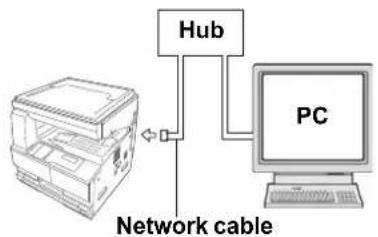
Connect the scanner to your computer
flowchart
graph TD
    Hub["Hub"] --> PC["PC"]
    PC --> NetworkCable["Network cable"]
    NetworkCable --> Hub
Connecting the scanner to your computer network with a network cable (100BASE-TX and 10BASE-T) page 2-2

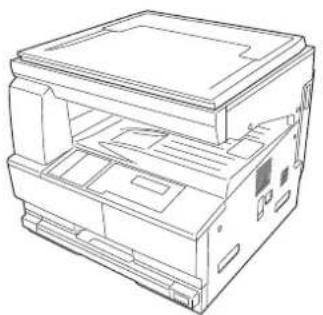
Perform the required operation at the scanner
natural_image
Line drawing of a multi-layered electronic device casing with internal compartments (no text or symbols)Basic scanner settings page 2-3 (register the host name and IP address, etc.)
Date/time and time difference settings page 2-4

Perform the required operation at your computer
text_image
PCRegistering and editing user information
Registers users (transmitters) who use the scanner.
See the Online Manual
Installing the various software (included on the enclosed CD-ROM disk)
Scanner File Utility
Saves the scanned image as a data file on your computer.
TWAIN Source
Enables you to operate scanning from a TWAIN-compatible application.
Address Book
A personal address book that you can access from the scanner's operation panel.
Address Editor (Management Tool)
Enables you to register and edit the shared Address Book, make network-related settings and change various default settings.
Refer to the On-Line Manual

You're now ready to scan!
Table of contents
1 Preparations 1-1
Names of parts 1-1
Main body 1-1
Operation Panel 1-2
Accessories 1-3
Utilities and other software (the main content of the included CD-ROMs) 1-3
Required items 1-3
2 Set-up 2-1
Setting up the scanner 2-1
Outline and network configuration 2-1
Connecting the scanner to your computer network 2-2
Network (TCP/IP) settings 2-3
User registration 2-4
Date/Time and Time Difference 2-4
Other settings 2-5
Setting up the scanner software 2-6
System requirements 2-6
Installing the software 2-6
Installing the utilities 2-7
Installing the TWAIN source 2-8
3 Performing the Required Operation at the Scanner 3-1
Scanning under the Scan to PC and Send E-mail functions 3-1
Before using the Scan to PC function 3-1
Before using the Send E-mail function 3-1
How to scan under Scan to PC and Send E-mail 3-1
Sending information 3-3
Scanning with TWAIN 3-4
When performing the scanning operation at the scanner 3-4
When performing the scanning operation at your computer 3-5
Scan setting 3-6
1 Preparations
Names of parts
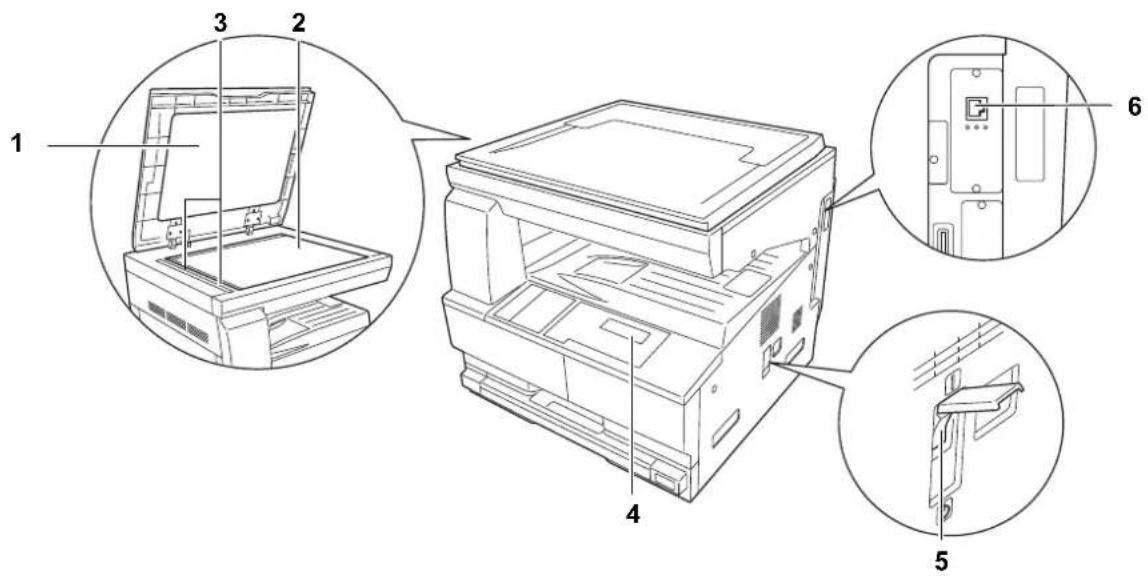
Main body
text_image
Technical diagram of a printer with numbered parts and exploded views, showing internal structure and assembly details.1 Original cover — Open and close this cover when setting an original on the platen.
2 Platen — Set the original to be scanned face-down in the left-rear portion of the platen.
3 Original size indicator lines — Be sure to align the original with these lines when setting an original on the platen.
4 Operation panel — Perform operations here.
5 Main switch — Turn this switch ON (|) when using the scanner.
6 Scanner interface connector — Use to connect the scanner to the computer network with a 10BASE-T or 100BASE-TX cable.
Important! NEVER attempt to remove the Scanner Interface Card.
Operation Panel
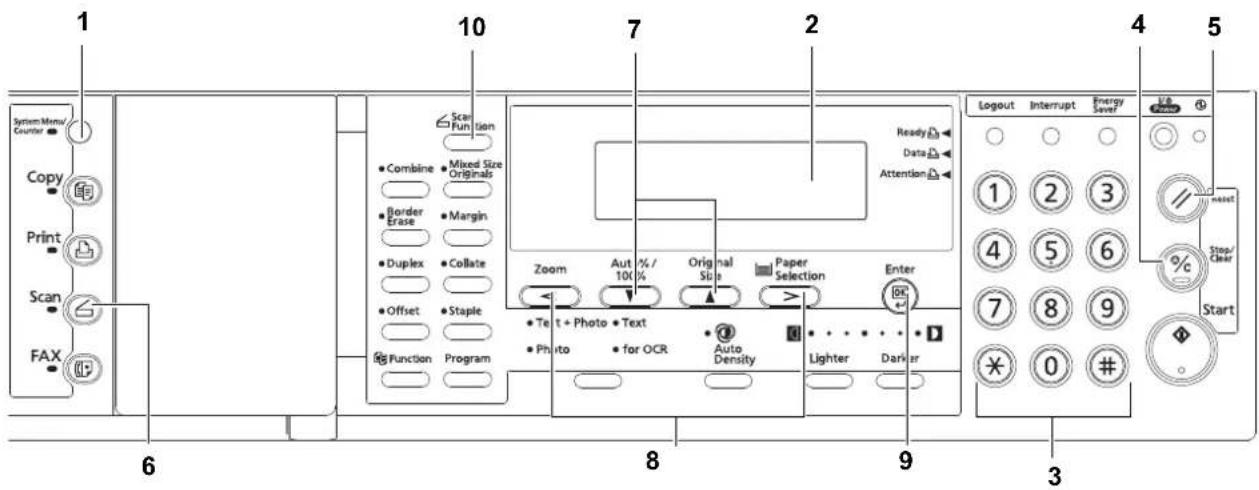
text_image
1 System Menu/ Counter Copy Print Scan FAX 6 10 7 2 4 5 Ready Data Attention Zoom Auto 100 % Original Size Paper Selection Enter Text + Photo + Text Photo for OCR Auto Density Lighter Darker 9 3 Logout Interrupt Energy Save 1 2 3 4 5 6 7 8 9 * 0 # Start1 System Menu/Counter key — Press this key when you want to set the network address, the date/time, and the time difference of this scanner.
2 Message display — Indicates the scanner condition or setting values.
3 Numeric key — Press these keys when you want to enter a desired value directly. If there is a number in front of the selection item, you can select the item with these Numeric keys.
4 Stop/Clear key — Press this key when you want to cancel setting and return to the previous screen.
5 Reset key — Press this key when you want to cancel initial setting change or date/time setting.
6 Scanner key — Press this key when you want to switch the machine to the scanner mode. When the scanner mode is selected, the scanner indicator will light up.
7 △ and ▽ cursor keys — Press these keys to select an item in various settings.
8 < and > cursor keys — Press these keys to change the date/time setting.
9 Enter (OK) Key — Press this key when you want to register a setting. Press this key when scanning is completed
10 Scan Function Key — The following settings can be adjusted.
- Resolution
- F i l e F o r m a t
- Original Type
- Mixed Size Originals
- Border Erase
- Original Orientation
- Continuous Scan
- Output Per Page
Accessories
Prior to using the scanner for the first time, verify that the following accessories are included with this product.
• 1 CD-ROM (Product Library)
• 1 CD-ROM (TWAIN application)
- Operation Guide
Utilities and other software (the main content of the included CD-ROMs)
CD-ROM (Product Library)
- Scanner File Utility
- TWAIN Source
- A d d r e s s B o o k
- Address Editor
• KM-NET VIEWER - KX Driver
- FAX Driver
- Release Note
Note Refer to the On-Line Manual
Required items
You must have on hand one of the following cables as appropriate to your computer network environment.
• 100BASE-TX cable (shielded type)
• 10BASE-T cable (shielded type)
Note Be absolutely sure that the 10BASE-T or 100BASE-TX cable that you use is a shielded cable.
2 Set-up
Setting up the scanner
Outline and network configuration
Example of transmission modes for data scanned using the Scan System and the required software. The software indicated in the thick-lined balloons is included with this product. Install the software that is appropriate to your operating environment and needs.
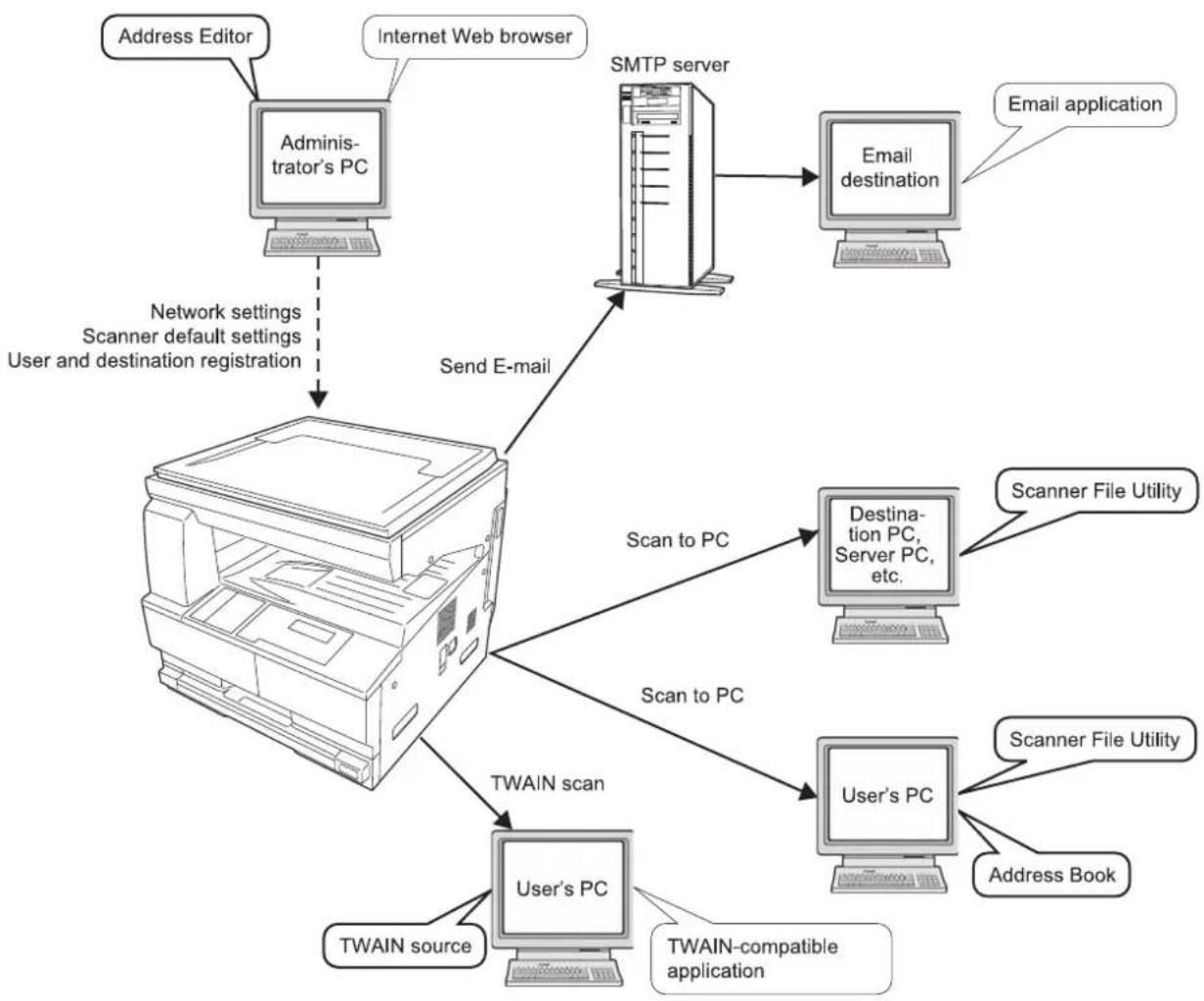
flowchart
graph TD
    A["Address Editor"] --> B["Administrator's PC"]
    C["Internet Web browser"] --> B
    D["SMTP server"] --> E["Email destination"]
    F["Email application"] --> E
    G["Network settings\nScanner default settings\nUser and destination registration"] --> H["Computer"]
    I["Scan to PC"] --> J["Destination PC, Server PC, etc."]
    K["TWAIN source"] --> L["User's PC"]
    M["TWAIN-compatible application"] --> L
    N["Scan to PC"] --> O["User's PC"]
    P["Scanner File Utility"] --> Q["User's PC"]
    R["Address Book"] --> S["User's PC"]
    T["Send E-mail"] --> U["Computer"]
    V["TWAIN scan"] --> W["User's PC"]
Note Refer to the On-Line Manual
Connecting the scanner to your computer network
1 Turn the main switch located on the right side of the scanner OFF.

natural_image
Diagram of a device with an open socket and internal components, showing directional arrows (no text or symbols)Caution ALWAYS turn the main switch to the scanner OFF BEFORE connecting the network cable.
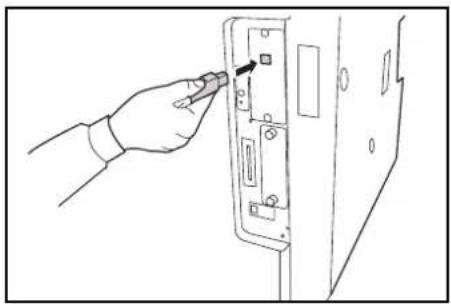
2 Connect a 10BASE-T or 100BASE-TX cable to the scanner interface connector located at the back side of the right side of the scanner.
natural_image
Line drawing of a hand inserting a component into a device panel (no text or symbols)Important! NEVER attempt to remove the Scanner Interface Card.
3 Turn the main switch to the scanner back ON ( | ).

natural_image
Diagram showing a device inserting into a folder with arrows indicating direction (no text or symbols present)Network (TCP/IP) settings
This section explains the procedures to set the network address for the scanner.
Notes
- The network address that should be set here will differ depending upon your network environment. Check with your network administrator BEFORE performing this setting.
- If you are using a DHCP server to set the network addresses, you will not need to change the IP address and the subnet mask because the DHCP has been enabled (ON) as the factory default setting.
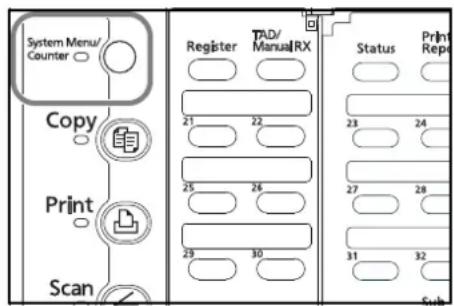
1 Press the System Menu/Counter key to display the Default setting screen.
text_image
System Menu/ Counter Copy Print Scan Register 21 22 25 26 29 30 PAD/ Manual RX Status 23 24 27 28 31 32 Print Rep Sub2 Use the ▲ and ▼ keys to move → to select Scan default and then press the Enter key. The password entry screen will appear.

text_image
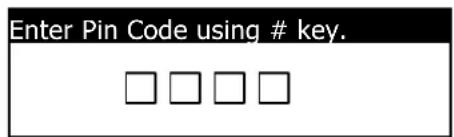
Default setting / Counter Copy default Machine default Scan default3 Enter the four-digit management code using the numeric keys. The password at the factory default setting is 1800 for the 18 ppm model and 2200 for the 22 ppm model.
text_image
Enter Pin Code using # key. □ □ □ □Notes • If the management code matches, the screen will change to the Scanner setting screen. • Four-digit management code can be changed. Refer to the Operation Guide of machine.
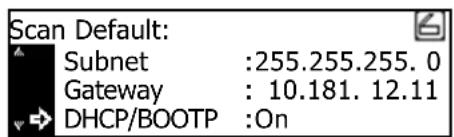
4 Use the ▲ and ▼ keys to move → to select DHCP and then press the Enter key. Screen will change to the DHCP/BOOTP setting screen.
text_image
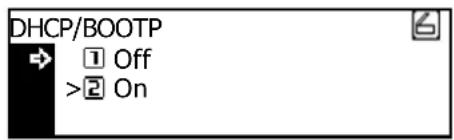
Scan Default: Subnet :255.255.255.0 Gateway : 10.181. 12.11 DHCP/BOOTP :On5 Use the ▲ and ▼ keys to move ⇒ to select 1 off and then press the Enter key. Screen will return to the Scanner setting screen of Step 4.
text_image
DHCP/BOOTP 1 Off >2 OnNote If you are using a DHCP server, select 2 On. In this case, even if you enter each IP address and subnet mask manually, the entered settings will be ignored.
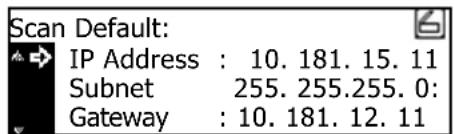
6 Use the ▲ and ▼ keys to move ⇒ to select IP address and then press the Enter key. Screen will change to the IP address setting screen.
text_image
Scan Default: IP Address : 10. 181. 15. 11 Subnet 255. 255.255. 0: Gateway : 10. 181. 12. 117 Enter the IP address by every three digits with Numeric keys. Press > key to move to the following three digits. Check the entered IP address and then press the Enter key if it is correct. Screen will return to the Scanner setting screen of Step 6.
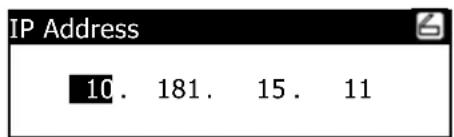
text_image
IP Address 10. 181. 15. 118 In the same manner, set Subnet for subnet mask and Gateway for gateway addresses.
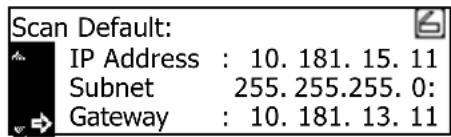
text_image
Scan Default: IP Address : 10. 181. 15. 11 Subnet 255. 255.255. 0: Gateway : 10. 181. 13. 119 Once it is complete to enter all network addresses and returned to the Scanner setting screen of Step 7, use the ▲ and ▼ keys to move → to select End and then press the Enter key.
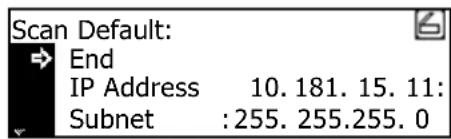
text_image
Scan Default: End IP Address 10.181.15.11: Subnet :255.255.255.0Note In a network environment with RARP, select RARP and then select On on the Scanner setting screen. In this case, you will not need to set the IP address manually.
10 For other network settings, use a web browser or Address Editor.
User registration
To use the scanner, user registration is needed in addition to the network setting. User (transmitter) registration is performed from a web browser or Address Editor. For details, see the Online Manual
Date/Time and Time Difference
Sets the required area information for the Send E-mail function. The time of day when email is sent from the scanner is included in the header of that email message as the transmission time. Perform the following procedure in order to set the date and time in your area, as well as the time difference to GMT (Greenwich Mean Time).
1 Press the System Menu/Counter key.
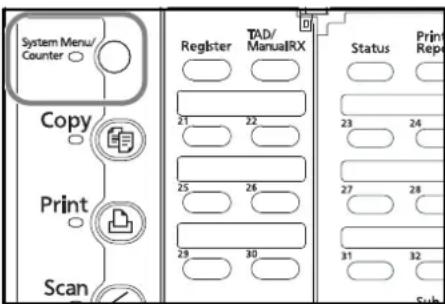
text_image
System Menu/ Counter Copy Print Scan Register TAD/ ManualRX Status Print Rep 21 22 23 24 25 26 27 28 29 30 31 32 Sub2 Use the ▲ and ▼ keys to move → to select Machine Default and press the Enter key. The password entry screen will appear.
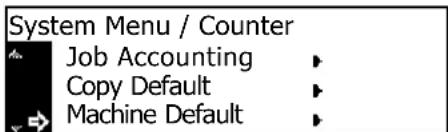
text_image
System Menu / Counter Job Accounting Copy Default Machine Default3 Enter the four-digit management code using the numeric keys. The management code at the factory default setting is 1800 for the 18 ppm model and 2200 for the 22 ppm model.
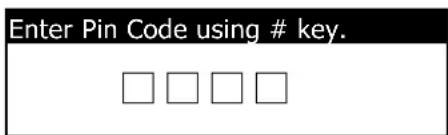
text_image
Enter Pin Code using # key. □ □ □ □4 Use the ▲ and ▼ keys to move → to select Date/Time and press the Enter key.
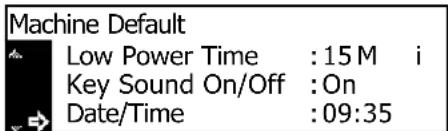
text_image
Machine Default Low Power Time : 15 M i Key Sound On/Off : On Date/Time : 09:355 Use the ▲ and ▼ keys to move to select the item to be changed and use the < and > keys to select the desired setting.
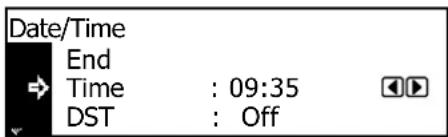
text_image
Date/Time End Time : 09:35 DST : OffNote Set the time difference and then the date and time.
6 After completing the settings, move to select End and press the Enter key. The settings will be registered.
Date/Time
End
Time : 09:35
DST : OFF
Note If you change both the summer time and date/time settings, the summer time setting will be ignored.
Other settings
It is possible to change certain default settings for the scanner function. Refer to the Online Manual for details on each setting.
Setting up the scanner software
System requirements
| PC IBM PC/AT or compatible | |
| OS Windows 2000 (Service Pack 2 or later), Windows XP,Windows Server 2003 or Windows Vista | |
| System environment CPU Pentium 133 MHz or faster | |
| RAM 64 MB or more | |
| HDD 20 MB or more | |
| Recommended environment CPU Celeron 500 MHz or faster | |
| RAM 128 MB or more | |
| HDD 300 MB or more | |
| CD-ROM drive 1 drive | |
| Ethernet cable 10BASE-T or 100BASE-TX | |
Installing the software
There are three main functions available with this network scanner. Perform the following procedure in order to install into your computer the required utility that is appropriate to the application and operating system in use in your computer.
Scan to PC
Stores the image data of scanned originals as a file in a desired folder on your computer. Install the Scanner File Utility into the corresponding computer in order to use this function.
Note • Registration of the save folder in your computer, as well as registration in the scanner of the destination is required.
- For information on making settings from an Internet Web browser, as well as for each utility, refer to the On-Line Manual
Send E-mail
Sends the image data of scanned originals to the desired receiver as a file attached to an email message.
Note Registration in the scanner of the corresponding SMTP server settings is required. For information on making settings from an Internet Web browser, as well as for each utility, refer to the On-Line Manual
TWAIN
Connects to the scanner from the TWAIN-compatible application according to the procedures of that particular application. Install the TWAIN Source on the computer that contains the application in order to use this function.
Installing the utilities
The following utilities are contained on the CD-ROM that is included with this product.
Note Refer to the On-Line Manual
- Scanner File Utility
- Address Book
- Address Editor (Management Tool)
1 Run Windows.
Quit all other applications that may be open.
2 Insert the CD-ROM that is included with the scanner into the CD-ROM drive of your computer.
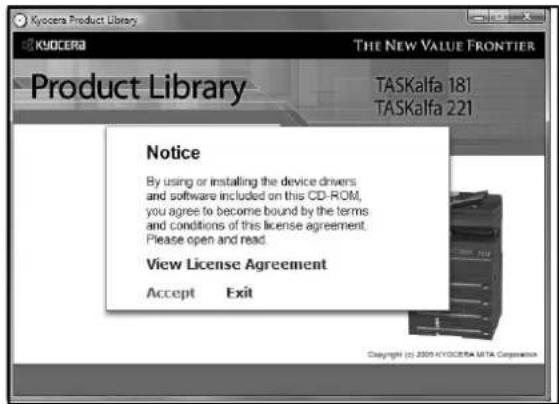
3 The License Agreement will be displayed. If you agree with the conditions contained therein, click Accept.
If this screen does not appear after you insert the CD-ROM, open the CD-ROM window to access its contents and double-click on the [setup.exe] file.
text_image
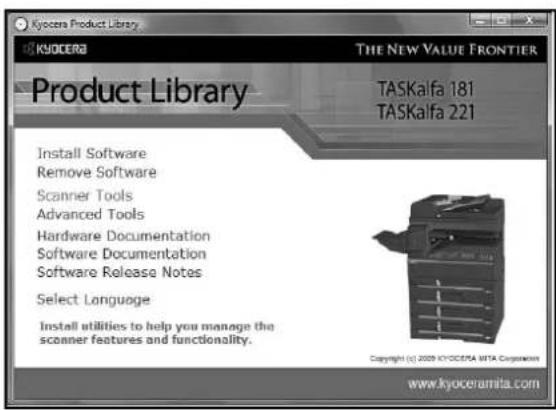
Kyocera Product Library KYOCERA THE NEW VALUE FRONTIER Product Library TASKalfa 181 TASKalfa 221 Notice By using or installing the device drivers and software included on this CD-ROM, you agree to become bound by the terms and conditions of this license agreement. Please open and read. View License Agreement Accept Exit Copyright (c) 2009 KYOCERA META Corporation4 Click Scanner Tools on the Main Menu.
text_image
Kyocera Product Library KYOCERA THE NEW VALUE FRONTIER Product Library TASKalfa 181 TASKalfa 221 Install Software Remove Software Scanner Tools Advanced Tools Hardware Documentation Software Documentation Software Release Notes Select Language Install utilities to help you manage the scanner features and functionality. Copyright (c) 2020 KYOCERA MTA Corporation www.kyoceramita.com5 Click on the name of the utility that you want to install. The installation window for that utility will appear. Follow the instructions on screen in order to install the selected utility.
Installing the TWAIN source
In order to scan originals using PaperPort, TWAIN Source must be installed PRIOR to installing the PaperPort application.
1 Run Windows.
Quit all other applications that may be open.
2 Insert the CD-ROM that is included with the scanner into the CD-ROM drive of your computer.
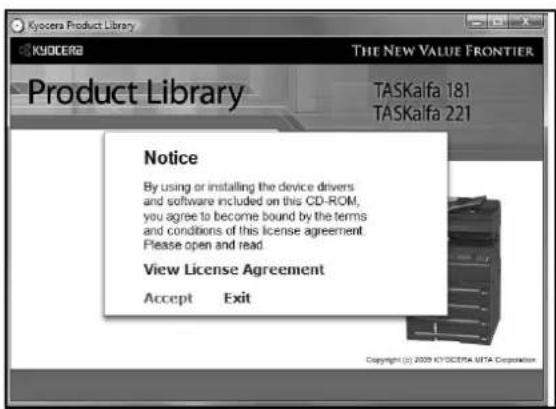
3 The License Agreement will be displayed. If you agree with the conditions contained therein, click Accept.
If this screen does not appear after you insert the CD-ROM, open the CD-ROM window to access its contents and double-click on the [setup.exe] file.
text_image
Kyocera Product Library THE NEW VALUE FRONTIER Product Library TASKalfa 181 TASKalfa 221 Notice By using or installing the device drivers and software included on this CD-ROM, you agree to become bound by the terms and conditions of this license agreement. Please open and read. View License Agreement Accept Exit Copyright (c) 2029 KYOCERA UTA Corporation4 Click Scanner Tools on the Main Menu.

text_image
Kyocera Product Library KYOCERA THE NEW VALUE FRONTIER Product Library TASKalfa 181 TASKalfa 221 Install Software Remove Software Scanner Tools Advanced Tools Hardware Documentation Software Documentation Software Release Notes Select Language Install utilities to help you manage the scanner features and functionality. Copyright (c) © 2020 KYOCERA MITA Corporation www.kyoceramila.com5 Click TWAIN Source in the Main Menu.

text_image
Kyocera Product Library KYOCERA THE NEW VALUE FRONTIER Product Library TASKalfa 181 TASKalfa 221 Scanner Tools TWAIN Source Scanner File Utility Address Book Address Editor TWAIN Source is necessary to establish TWAIN communication with the scanner. Copyright (© 2008 KYOCERA MITA Corporation) Back www.kyoceramita.com6 The Model Select window will appear. Select the model of the scanner that you are using.
7 When the installation window appears, follow the instructions on screen in order to install the TWAIN Source.
3 Performing the Required Operation at the Scanner
Scanning under the Scan to PC and Send E-mail functions
Before using the Scan to PC function
When performing the Scan to PC function, perform the following settings in advance.
1 Install the Scanner File Utility in the destination computer.
2 Run the Scanner File Utility and register the destination folder for the scanned image data.
3 Register the IP address, the registration name, and the destination number of the destination computer in the scanner using a web browser or Address Editor.
Note Be sure to enter the same number in the Save folder No. field here as the save folder number (001 – 100) that was registered in the Scanner File Utility.
Refer to the On-Line Manual
Before using the Send E-mail function
Register the destination name and the email address in the scanner using a web browser or Address Editor.
How to scan under Scan to PC and Send E-mail
1 Press the Scan key to display the Select Scanner Function screen.

text_image
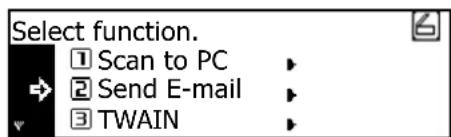
Print Scan FAX 25 26 29 30 Duplex TX Polling Broadcast 27 28 31 32 Delayed TX Sub Address Conf'klient Check Current Status2 Use the ▲ and ▼ keys to select 1 Scan to PC (SEND TO PC) or 2 Send E-mail.
text_image
Select function. ① Scan to PC ② Send E-mail ③ TWAIN3 Use the ▲ and ▼ keys to move → to select your user name and press the Enter key.
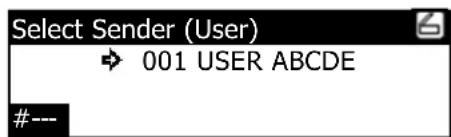
text_image
Select Sender (User) → 001 USER ABCDE #---Notes
- If a password has been registered for the selected user, you must enter the password. Enter the password using the numeric keys and press the Enter key.
- If your user name is not displayed even if the ▲ and ▼ keys are pressed, use a web browser or AddressEditor to check to see if your user name has been registered.
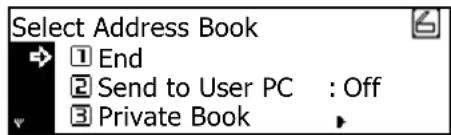
4 Use the ▲ and ▼ keys to move → to select the desired destination. An item can be selected from Send to User PC (SEND TO USER PC), Private Book, and Common Book. Select the desired item and press the Enter key.
When storing data in the PC of the transmitter (user):
Move to select 2 Send to User PC (SEND TO USER PC) and press the Enter key.
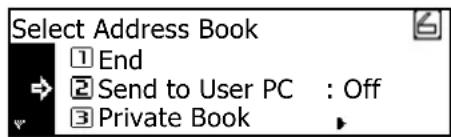
text_image
Select Address Book ① End ② Send to User PC : Off ③ Private BookNote When registering a transmitter (user), you must set the IP address of the computer.
When selecting a destination (receiver) from the private address book:
- Move to select 3 Private Book and press the Enter key.

text_image
Select Address Book ① End ② Send to User PC : Off ③ Private Book- Move to select the desired destination and press the Enter key.
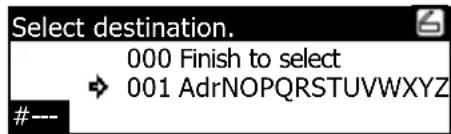
text_image
Select destination. 000 Finish to select → 001 AdrNOPQRSTUVWXYZ #---Notes • If a password has been registered for the selected destination, you must enter the password. Enter the password using the numeric keys and press the Enter key.
- When you enter a displayed number using the numeric keys, the confirmation screen will appear. When you press the EnterEnter key, the destination will be selected.
- For the private address book, AddressBook must be started in the computer of the transmitter (user).
- If you have selected the destination, move to select 000 Finish to select (000 SELECT. COMPLETE) and press the Enter key.

text_image
Select destination. 000 Finish to select 001 AdrNOPQRSTUVWXYZ #---When selecting a destination (receiver) from the common address book:
Move to select 4 Common Book and press the Enter key.
Operate in a similar way to the procedure for the private address book.
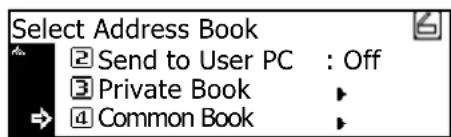
text_image
Select Address Book ② Send to User PC : Off ③ Private Book ④ Common BookNotes • For the common address book, the destinations must be set with a web browser or AddressEditor.
- Up to 20 destinations can be selected at the same time.
5 Finally move to select 1 End and press the Enter key. The scanner setting screen will appear. See Scan setting on page 3-6.
text_image
Select Address Book ► 1 End ► 2 Send to User PC : Off ► 3 Private Book ►Sending information
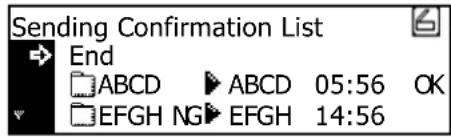
The history of sending with the Send E-mail and Scan to PC functions is displayed.
Press the Scanner key, use the ▲ and ▼ keys to move → to select 4 Sending Information (SEND INFORMATION), and press the Enter key.
text_image
Sending Confirmation List End ABCD ABCD 05:56 OK EFGH NG EFGH 14:56The sending confirmation list will be displayed. For more details of the history, move to select the desired history and press the Enter key.
Scanning with TWAIN
The following explains the settings that need to be made in the scanner in order to scan using the TWAIN function.
When performing the scanning operation at the scanner
1 Press the Scan key to display the Select Scanner Function screen.

text_image
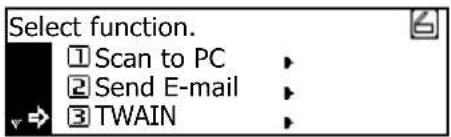
Print Scan FAX 25 26 29 30 Duplex TX Polling Broadcast 27 28 31 32 Delayed TX Sub Addn Confidential Check Current Status2 Use the ▲ and ▼ keys to move → to select 3 TWAIN and press the Enter key. The TWAIN Mode screen will appear.
text_image
Select function. ① Scan to PC ② Send E-mail ③ TWAIN3 Set the original that you want to scan.

natural_image
Line drawing of a hand holding a paper with a small object inside, viewed through a window frame (no text or symbols)4 Run the TWAIN Source in the corresponding application. The main dialogue box for the TWAIN Source will appear. Make any settings that you want, click on the [Connect] button in the dialogue box and, once the connection to the scanner is made, click on the [Scan] button. Scanning will begin.
When performing the scanning operation at your computer
1 Run the TWAIN Source in the corresponding application. The main dialogue box for the TWAIN Source will appear. Make any settings that you want, and put a check mark in the [Waiting Scan] checkbox.
2 Click on the [Connect] button in the main dialogue box and, once the connection to the scanner is made, click on the [Scan] button.
Note Putting a check mark in the [Waiting Scan] checkbox will allow you to start the actual scanning operation by pressing the Start key at the scanner.
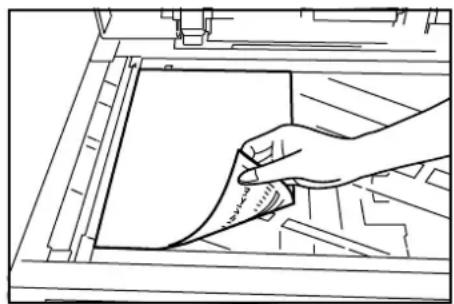
3 Set the original that you want to scan in the scanner and press the Start key. Scanning will begin.
natural_image
Line drawing of a hand holding a sheet of paper over a document, with no visible text or symbolsNotes • Scan settings can also be made on the operation panel of the scanner. Change any settings there that you want.
- If you enter different settings in your computer and in the scanner, the settings made on the operation panel of the scanner will take priority.
Scan setting
The scan setting screen is displayed when scanning originals. To carry out the various settings, perform the following procedures. After completing the scan settings, if you set an original in the scanner and press the Start key, scanning will start.

text_image
J Copy Print Scan FAX F Scan Function Combine • Mixed Size Originals Border Erase • Margin Duplex • Collate Offset • Staple Function Program D E G Ready Data Attention Zoom Auto% / 100% Original Size Paper Selection Enter Text + Photo • Text Photo • for OCR Auto Density Lighter Darker C A B I K Logout Interrupt Energy Save 1 2 3 4 5 6 7 8 9 ¥ 0 # H Reset Stop/Clear StartA Auto Density key — Press this key to select the automatic exposure setting.
B Image concentration adjustment key — Press these keys to select an exposure level.
Notes • 7 levels in the normal mode.
- If the automatic exposure mode is set, all the exposure indicators are off.
C Original Image Type key — Press this key to select the original image type.
Note The Photo mode cannot be selected with the Send E-mail function.
D Original Size key — Press this key to specify the original size.
E Paper Selection key — Press this key to specify the transmission (image) size. The scanned original image will be automatically reduced or enlarged to the specified size.
F Scanner Function key — The following settings can be adjusted.
- Resolution
- File Format
- Original Type
- Mixed Size Originals
- Border Erase
- Original Orientation
- Continuous Scan
- Output Per Page
Note For details on each setting, see the Online Manual.
G Enter (OK) key — Press this key to confirm the setting in various setting screens.
H Start key — Press this key to start scanning.
I Stop/Clear key — Press this key to stop scanning, clear an entered value or return to the previous screen.
J Scanner key — Press this key to display the Scanner Function screen.
K Reset key — If you select this key to cancel scan setting, the scan setting screen will appear.
1 After completing the setting, display the scan setting screen.

text_image
Ready to scan. 100% Auto Auto PDF A4 A4 600dpi2 Set the original.
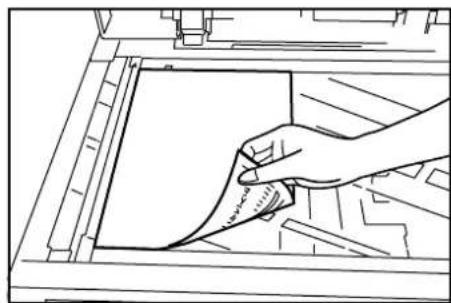
natural_image
Line drawing of a hand holding a paper over a document inside a machine (no text or symbols visible)3 Press the Start key. Scanning the original starts.
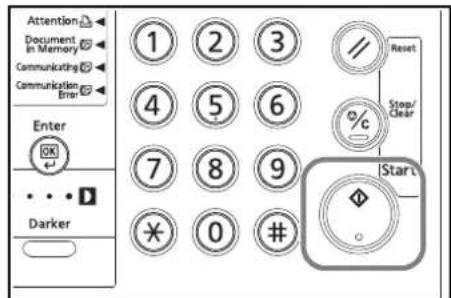
text_image
Attention Document in Memory Communicating Communication Error Enter OK ... Darker ① ② ③ ④ ⑤ ⑥ ⑦ ⑧ ⑨ * 0 # // Reset Stop/ Clear %c Start4 When Continue scan (MULTIPLE SCAN) is set On on the scan setting screen, the screen will appear to select whether to continue scanning originals or not when scanning is complete.
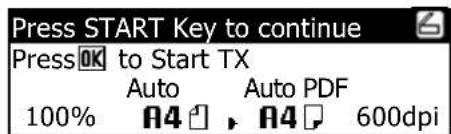
text_image
Press START Key to continue Press OK to Start TX Auto Auto PDF 100% A4 , A4 600dpiNotes
- To continue scanning, set the next original, change the settings as needed, and press the Start key.
- Press the Enter (OK) key when you want to complete scanning originals.
- When you want to cancel all scanned copies, press the Stop/Clear key. Screen will return to the scan setting screen of Step 1.
MEMO
PASSIONATE PEOPLE. FROM ALL OVER THE WORLD.


KYOCERA MITA EUROPE B.V.
EUROPEAN HEADQUARTERS
Bloemlaan 4
2132 NP Hoofddorp
The Netherlands
Phone: +31 20 654 0000
Fax: +31 20 653 1256
www.kyoceramita-europe.com
KYOCERA MITA Europe B.V., Amsterdam (NL)
(Europe, Middle East & North Africa)
Bloemlaan 4
2132 NP Hoofddorp
The Netherlands
Phone: +31 20 654 0000
Fax: +31 20 653 1256
www.kyoceramita-europe.com
AUSTRIA
KYOCERA MITA AUSTRIA GmbH
Eduard Kittenberger Gasse 95
A-1230 Wien
Phone: +43 1 86 338 0
Fax: +43 1 86 338 400
www.kyoceramita.at
BELGIUM
S.A. KYOCERA MITA Belgium N.V.
Sint-Martinusweg 199-201
BE-1930 Zaventem
Phone: +32 2 720 9270
Fax: +32 2 720 8748
www.kyoceramita.be
DENMARK
KYOCERA MITA Denmark A/S
Ejby Industrivej 1
DK-2600 Glostrup
Phone: +45 70 22 3880
Fax: +45 45 76 3850
www.kyoceramita.dk
FINLAND
KYOCERA MITA Finland OY
Kirvesmiehenkatu 4
FI-00880 Helsinki
Phone: +358 9 4780 5200
Fax: +358 9 4780 5390
www.kyoceramita.fi

FRANCE
KYOCERA MITA France S.A.
KYOCERA MITA South Africa (Pty) Ltd.
527 Kyalami Boulevard, Kyalami
Business Park · ZA-1685 Midrand
Phone: +27 11 540 2600
Fax: +27 11 466 3050
www.kyoceramita.co.za

SPAIN
8 Beacontree Plaza, Gillette Way,
Reading, Berkshire RG2 OBS
Phone: +44 1189 311 500
Fax: +44 1189 311 108
www.kyoceramita.co.uk
2-28, 1-Chome, Tamatsukuri, Chuo-ku,
Osaka 540-8585, Japan
Phone: +81 6 6764 3555
Fax: +81 6 6764 3980
www.kyoceramita.com

USA
KYOCERA MITA America, INC.
(Head office)
225 Sand Road, P.O. Box 40008
Fairfield, New Jersey 07004-0008, USA
www.kyoceramita.com/us
KYOCERA CORPORATION

JAPAN
KYOCERA CORPORATION
(Corporate Headquarters)
6 Takeda Tobadono-cho, Fushimi-ku
Kyoto 612-8501, Japan
Phone: +81 75 604 3500
Fax: +81 75 604 3501
www.kyocera.co.jp

KYOCERA