i1237 - Printer POLAROID - Free user manual and instructions
Find the device manual for free i1237 POLAROID in PDF.


User questions about i1237 POLAROID
0 question about this device. Answer the ones you know or ask your own.
Ask a new question about this device
Download the instructions for your Printer in PDF format for free! Find your manual i1237 - POLAROID and take your electronic device back in hand. On this page are published all the documents necessary for the use of your device. i1237 by POLAROID.
USER MANUAL i1237 POLAROID
12.0 Megapixel Digital Camera i1237
User Guide

natural_image
Black Polaroid digital camera with visible lens and control buttons (no text-heavy elements)Questions? Need Some Help?
This manual should help you understand your new product.
If you still have questions, call our help line found on the insert with this icon:

or visit www.polaroid.com/support.
- About this Manual....7
Copyright 7
Federal Communications Commission (FCC) Compliance 7
Declaration of Conformity 8
Trademark Recognition 8
- Safety and Handling Precautions 8
Camera Information 8
Battery Information 9
2 Introduction ...... 10
- Camera Features 10
- Package Contents 11
- Camera Views.... 12
- Camera Buttons.... 13
- Navigation Control 13
- Camera Memory.... 15
Internal memory ....15
External storage....15
3 Getting Started.... 16
- Attaching the Wrist Strap 16
- Inserting the Battery.... 16
- Inserting an SD/SDHC Memory Card 17
- Turning the Power On and Off 18
- Initial Settings 18
Setting the Language 18
Setting the Date & Time 18
- Modes.... 19
Record mode 19
Playback mode 19
Switching between Record mode and Playback Mode 19
Selecting the Record mode options section 19
4 Using the LCD Screen 20
- LCD Screen Layout 20
Record Mode Screen Layout 20
Playback Mode Screen Layout 22
Changing the LCD Screen Display 25
5 Recording Photos, Videos and Voices 27
• Taking Photos 27
- Using the Image Stabilizer 28
- Setting the Zoom Control 28
- Using Flash 29
- Setting the Focus Mode 30
• Using the Function Manual 30
My Mode 31
Resolution 31
Quality 32
EV Compensation.... 32
White Balance 33
ISO 34
Metering.... 34
Color Mode 35
• Using the Record Manual 36
- Setting Scene Mode 36
Using Smile Capture Mode 39
Using Intelligent Scene Mode 40
Using Blink Detection Mode 42
Using Aperture Priority Mode 43
Using Shutter Priority Mode 43
Using Manual Exposure Mode 44
- Setting the Drive Mode 45
- Setting the AEB 46
- Setting the AF Area 46
- Setting the AF Lamp 47
- Setting Sharpness 47
Polaroid i1237 Digital Camera User Guide
www.polaroid.com
- Setting Saturation 48
- Setting Contrast 48
- Setting the Digital Zoom 49
- Setting the Date Stamp 49
- Setting the Auto Review.... 50
- Recording Movies....51
Setting Movie Size 51
YouTube Mode 51 - Recording Voices. 53
6 Playback 54
- Viewing in Single Navigation.... 54
- Viewing Thumbnails.... 54
- Zooming images 55
- Playing Movies 56
- Playing Voice Recording.... 57
- Playing Voice Memo 58
- Deleting an Image/Video/Audio 58
Using the Delete Button 58
- Setting Playback Menu 59
- Setting Slideshow....60
- Deleting Files 61
To delete a photo/video/audio clip 61
To delete a single file.... 61
To delete attached voice memo 62
To delete multiple files 63
To delete all files.... 63
- Protecting/Unprotecting Files 63
To protect files....63
To protect/unprotect a single file 63
To protect/unprotect multiple files.... 64
To protect all files 64
To unprotect files.... 64
- Red-Eye Correction....65
• Voice Memo.... 66
- Photo Editing 66
- Trim....68
- Resize 69
- Setting Startup Image....70
- Setting DPOF....70 To set DPOF on a single image/all image....71 To reset DPOF....71
- PictBridge 71
7 Using the Setup Menu.... 72
- Setting Sounds 72
- Setting Power Save 73
- Setting LCD Save....73
- Setting Date & Time 74
- Setting Language 74
- Setting File Numbering 74
- Setting TV Out 75
- Setting LCD Brightness 75
- Setting Battery Type 75
- Setting Memory Kit 75
- Reset All 76
8 Installing the Software onto a Computer 77
- Installing the Software....77
- Software Included with Your Camer 78
- Fast and Easy YouTube™ Upload 79
- System Requirements....79
- Uninstalling Polaroid i1037 Camera Driver.... 80
9 Making Connections 81
- Connecting the Camera to a TV 81
To connect your camera to a TV 81 - Connecting the Camera to a PC 81
- Connecting the Camera to a Printer 82
10 Appendix 83
- About Folder and File Names 83
Polaroid i1237 Digital Camera User Guide 5
www.polaroid.com
Folder Structure....83
File Naming 83
11 Troubleshooting 85
12 Getting Help....86
- Polaroid Online Services 86
- ArcSoft Software Help....86
13 Specifications....87
- Specifications....87
- Camera Default Settings.... 89
1 Preface
- About this Manual
This manual is designed to assist you in using your new digital camera. All information presented is as accurate as possible but is subject to change without notice.
Copyright
This manual contains proprietary information protected by copyright. All rights are reserved. No part of this manual may be reproduced by any mechanical, electronic or other means, in any form, without prior written permission of the manufacturer.
© Copyright 2009
Federal Communications Commission (FCC) Compliance
This equipment has been tested and found to comply with the limits for a Class B digital device, pursuant to Part 15 of the FCC Rules. These limits are designed to provide reasonable protection against harmful interference in a residential installation. This equipment generates, uses, and can radiate radio frequency energy and, if not installed and used in accordance with the instructions, may cause harmful interference to radio communications. However, there is no guarantee that interference will not occur in a particular installation. If this equipment does cause harmful interference to radio or television reception, which can be determined by turning the equipment off and on, the user is encouraged to try to correct the interference by one or more of the following measures:
- Reorient or relocate the receiving antenna.
- Increase the distance between the equipment and the receiver.
- Connect the equipment to an outlet on a circuit different from that to which the receiver is connected.
- Consult the dealer or an experienced radio/TV technician for help.
Polaroid i1237 Digital Camera User Guide
www.polaroid.com
Warning: A shielded-type power cord is required in order to meet FCC emission limits and to prevent interference to radio and television reception. Use only shielded cable to connect I/O devices to this equipment. Any changes or modifications not expressly approved by the manufacturer may void your warranty and service agreement.
Declaration of Conformity
This device complies with Part 15 of the FCC rules. Operation is subject to the following conditions:
- This device may not cause harmful interference.
- This device must accept any interference received, including interference that may cause undersired operation.
Trademark Recognition
Windows 98/2000/ME/XP are registered trademarks of Microsoft Corporation in the United States and/or other countries. Windows is an abbreviated term referring to the Microsoft Windows Operation System. All other companies or product names are trademarks or registered trademarks of their respective companies.
• Safety and Handling Precautions
Camera Information
- Do not disassemble or attempt to service the camera yourself.
- Do not expose the camera to moisture, or extreme temperatures.
- Allow the camera to warm up when moving from cold to warm temperatures.
- Do not touch the camera's taking.lens.
- Do not expose the lens to direct sunlight for extended periods.
- Do not use abrasive chemicals, cleaning solvents or strong detergents to clean the product. Wipe the product with a slightly damp soft cloth.
Battery Information
- Turn off the camera before installing or removing batteries..
- Use only the provided batteries or type of battery and charger that came with your camera. Using other types of batteries, or charger may damage the equipment and invalidate the warranty.
- If applicable, when using Li-ion battery in this product, ensure that they are inserted correctly. Inserting the battery upside down can cause damage to the product and possibly cause an explosion.
- When the camera is used for an extended period of time, it is normal for the camera body to feel warm.
- Download all pictures and remove the batteries from the camera if you are going to store the camera for a long period of time.
- Ensure you select the correct battery type in the setup menu and use a fully charged or fresh battery.
- There is a risk of damaging the product or personal injury if the battery is replaced by an incorrect type. Dispose of used batteries properly.
Need help with your digital camera?
Call our toll-free customer service number. Look for the insert with this icon:
Or visit www.polaroid.com.

2 Introduction
Congratulations on the purchase of your new Polaroid digital camera. This manual provides you step-by-step instructions on how to use your camera, and is intended for your reference only.
- Camera Features
• 12 megapixels resolution
- Up to 3x optical zoom and 5x digital zoom
• 1/2.3 inch CCD image sensor
• 2.7 inch color LCD display
• 32MB internal flash memory with optional external SD/SDHC card
• Supports up to 4GB of SD card, and up to 32GB of SDHC card
- Sleek metallic finish
- Easy-to-use button interface
- DCF, DPOF, PictBridge compatibility
- Slideshow feature to review your pictures and movies
• A/V output to view your pictures and movies on your TV
- USB port to transfer photos and movies to your PC
Need help with your digital camera?
Call our toll-free customer service number. Look for the insert with this icon:
Or visit www.polaroid.com.

• Package Contents
Please check the contents of your camera package. It should contain:
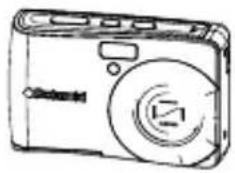
natural_image
Line drawing of a digital camera with lens and screen (no text or symbols)i1237
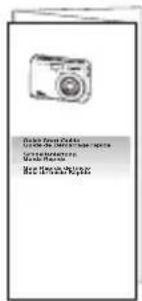
text_image
Glohe Tousu Picta Cuiy de Dettee Supp. Parle Lette Supp. Parle Glohe Picta Glohe Tousu Supp. ParleQuick Start Guide
The CD-ROM includes
Polaroid i1237 Camera Driver (PC) ArcSoft MedialImpression™: (PC/Mac) ArcSoft Print Creations® (PC/Mac) Adobe® Acrobat® Reader™ (PC/Mac) User Guide (in PDF format)
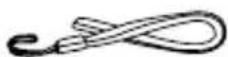
Wrist Strap

2 x AA Batteries
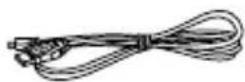
USB Cable
- Camera Views
- Shutter button
- Flash
- Self-timer LED
- Image Stabilizer Button
- Power button
- Speaker
- USB/AV port
- Lens
- Microphone
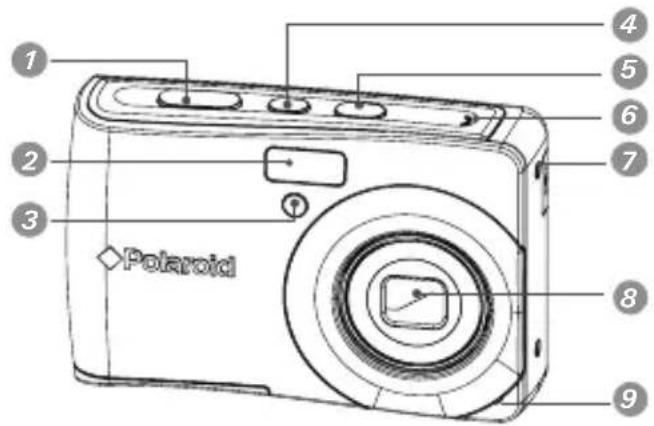
text_image
1 2 3 Polaroid 4 5 6 7 8 9- Zoom out / Thumbnail button
- Playback mode button
- Power / Auto Focus LED
- Macro / Left button
- Stop / Down button
- Menu button
- Zoom in button
- Wrist strap holder
- Play / Pause / Up button
- Flash / Right button
- Set / Display button
- Mode / Scene button
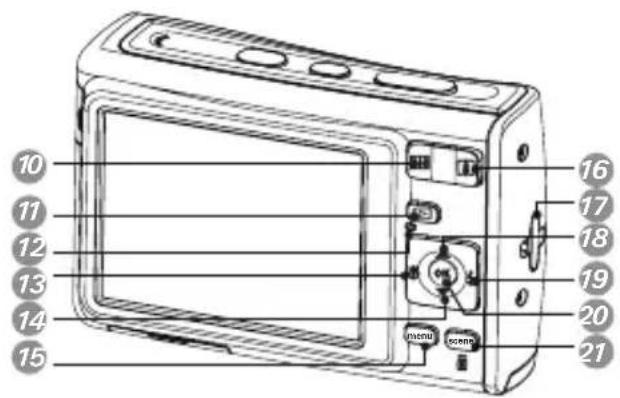
text_image
10 11 12 13 14 15 16 17 18 19 20 21- SD card door
- Tripod socket
- Battery Door

text_image
Diagram of a portable electronic device with labeled ports and components- Camera Buttons
Your camera is equipped with different buttons for ease of use.
| Button Description | |
| Power Press to turn the power on or off. | |
| Image Stabilizer | The image stabilizer sets the optimal ISO value according to light levels to compensate for camera shake.Press to set stabilizer on/off. |
| Shutter Press to capture an image or start/stop recording a video or audio clip. | |
| Play | If the camera is turned off, press and hold to turn on camera in Playback mode.If the camera is turned on, press to toggle camera between the Playback or Record mode. |
| Zoom Press the zoom buttons to change zoom magnification.. | |
| Menu Press to enter the menu. | |
| Function/Delete | In the Record mode, press to enter function menu.In the Playback mode, press to delete an image, video or audio clip. |
- Navigation Control
The 4-way Navigation Control and the OK button allows you to access the various menus available from the On Screen Display (OSD). You can configure a wide range of camera settings to ensure the best results for your photos and videos. Further functions of these buttons are as follows:

text_image
Face Tracking/ Rotate Button Macro Button SET Button Flash Button Display Button| Button Usage | |
| OK 1. Confirms a selection when using the OSD menus. | |
| Flash/ Right | 1. In the Record mode, press to scroll through the flash mode options(Auto, Anti Red-eye, Fill, Slow Sync and Off)2. In the Playback mode, press to view the next image, video or audio clip.3. In the Playback Video mode, press to fast forward video playback4. In the Menu, press to enter the submenu or to navigate through the menu selections. |
| Macro/ Left | 1. In the Record mode, press to turn on/off Macro.2. In the Playback mode, press to view the previous image, video or audio clip.3. In the Playback Video mode, press to rewind video playback4. In the Menu, press to exit a submenu or to navigate through the menu selections. |
| Up/Face Tracking/ Rotate | 1. In the Menu, press to navigate through the menu and submenu selections.2. In the Record mode, press to turn the face tracking function on or off.3. In the Playback Video/ Audio mode, press to Start/Pause video or audio playback.4. In the Playback photo mode, press to rotate the image clockwise 90 degrees with each press of the button. This feature is applicable for still images only. |
| Display/ Down | 1. In the Playback mode, press to change the LCD screen display to show or hide OSD icons.2. In the Record mode, press to change LCD screen display to show or hide OSD icons and guide lines.3. In the Menu, press to navigate through the menu and submenu selections.4. In the Playback Video/ Audio mode, press to stop video/audio playback. |
- Camera Memory
Internal memory
Your camera has 32MB of internal memory. Users can store images up to 10MB. If there is no memory card inserted in the camera, all images, videos and audio clips recorded are automatically stored in the internal memory.
Expanding Your Camera's Memory
Your camera supports SD cards of up to 4GB in size. It also supports SDHC card with a maximum capacity of 32GB. If there is a memory card inserted in the SD card slot, the camera automatically saves all images, videos and audio clips in the external storage card.

NOTE:
- Not all cards may be compatible with your camera. When purchasing a card, please check the card's specifications and take the camera with you. Polaroid branded memory cards are recommended.
3 Getting Started
- Attaching the Wrist Strap

text_image
Diagram showing cable connection with labeled component and directional arrow indicating rotation or movement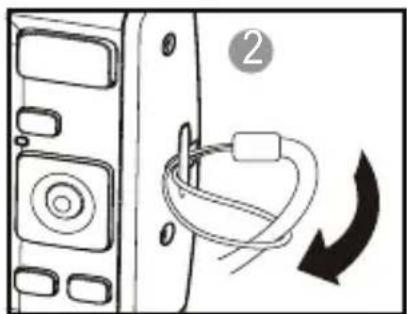
natural_image
Diagram of a device with a cable and arrow indicating rotation (no text or symbols)- Inserting the Battery
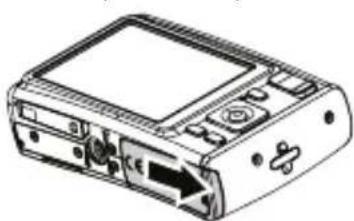
Follow these instructions to insert the AA battery into the battery compartment. Please read "Battery Information" on page 9 before inserting/removing the battery.
- Open the battery door by following the illustration below.
natural_image
Line drawing of a portable electronic device with ports and a central screen (no text or symbols)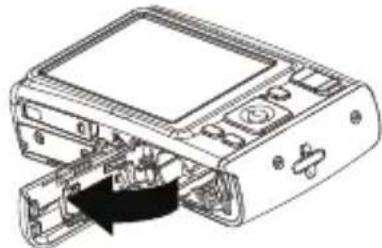
natural_image
Technical line drawing of a computer case with an open door and internal components (no text or symbols)- Insert the batteries into the compartment as shown in the illustration.

natural_image
Diagram of a device with two batteries and an open rear panel, showing internal components (no text or symbols)- Flip the door back into place as shown in the illustration and slide the locking tab in the direction of the arrow.

natural_image
Technical line drawing of a computer monitor with an open rear panel and internal components (no text or symbols)
natural_image
Diagram of a portable electronic device with a scroll wheel and control panel (no text or symbols)- Inserting a SD/SDHC Memory Card
Expand your camera's memory by using SD or SDHC memory cards. Your camera supports SD cards of up to 4GB and SDHC cards of up to 32GB in size.
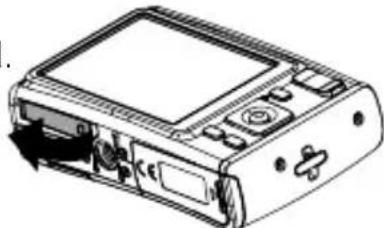
Follow these instructions to insert the SD/SDHC card.
- Make sure the power is off before inserting a SD/SDHC memory card.
-
Swing on the SD card door in the direction of the arrow and flip the door open.
-
Insert the SD/SDHC card into the memory card slot label side up.
-
Push the SD/SDHC card into the memory slot until it clicks into place.
-
Close the SD card door as shown in the illustration.
To remove the SD/SDHC card, gently push the card inward with your finger and release it. Pull out the card carefully.
natural_image
Line drawing of a portable electronic device with control panel and scroll (no text or symbols)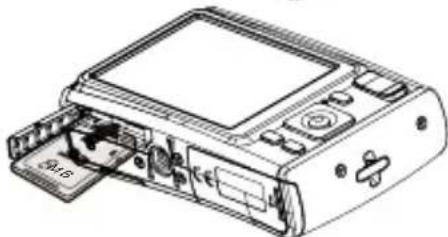
natural_image
Technical line drawing of a computer case with internal components and a partially open slot (no text or symbols)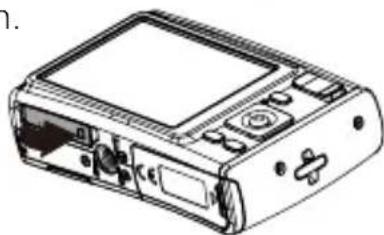
natural_image
Line drawing of a portable electronic device with ports and control buttons (no text or symbols)- Turning the Power On and Off
There are two ways to turn on the camera:
- Press and hold the Power button. The start up image displays briefly and the startup sound plays if enabled. The zoom lens extends and the camera is turned on in the Record mode.
- Press and hold the Playback button. The camera is turned on in Playback mode. The zoom lens is not extended.
To turn off the camera, press the Power button.
See "Modes" on page 19 to know more about Record and Playback mode.
- Initial Settings
When you turn on your camera for the very first time, you will be asked to establish the initial settings of your camera.
When you turn the Power button on, the Language Menu is displayed on the LCD screen for you to setup your display language.
Setting the Language
-
Press ▲ or ▼ to move through the selections.
-
Press OK to select your language.
Setting the Date & Time
-
Press ▲ or ▼ to change the value of the date and time.
-
Press OK to apply.
-
If necessary, press MENU to close the menu.
Now, you are ready to start taking photos and videos.

NOTE:
- Holding down ▲ or ▼ changes the values continuously.
- If the battery is removed for more than 48 hours, the Date & Time will have to be reset.
- Modes
Your camera has two modes:
Record mode
- Set to the Record mode to capture still images, record videos and audio clips.
- Record mode can be further set to mode options like auto, movie and scene selection modes. See “Selecting the Record mode options” below.
Playback mode
- Set your camera to Playback mode to view and edit captured images and playback videos and audio clips. You can also attach a voice memo to still images in this mode.
When you turn on your camera using the Power button, you are automatically in the Record mode.
Switching between Record mode and Playback Mode Press the Play button to switch between Record and Playback modes.
Selecting the Record mode options section
Maximize the quality and ease of use of your camera by using the different mode options. The mode options allow you to capture images with preset
settings according to the scene conditions.
- Set the camera to Record mode.
- Press MENU to launch Record Mode Menu.
- Select Record Mode by pressing the DISP button
once, and press ↩ to enter its submenu.
-
Select a mode
-
Press the OK button to confirm your selection..
| Record Mode | P |
| Drive Mode | OFF |
| AEB | OFF |
| AF Area | |
| AF Lamp | AFF |
| Sharpness |

NOTE:
- For more information, see "Using the Record Menu" on page 37.
- Use the 4-way navigation control to move through the menu selections.
4 Using the LCD Screen
The high resolution 2.7" LCD display shows all important information regarding your cameras' settings as well as the visual image of your photo or video. This display is called the On Screen Display or OSD.
- LCD Screen Layout
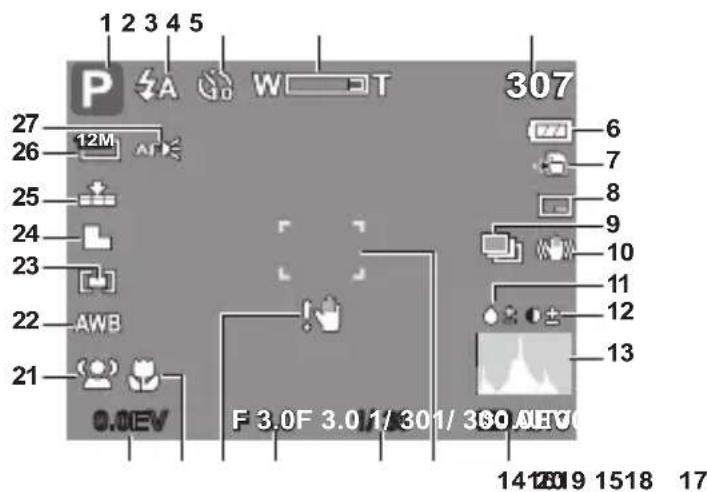
The following illustrations shows the LCD screen layout and the icon descriptions.
Record Mode Screen Layout
text_image
1 2 3 4 5 P A W T 307 27 12M 26 25 24 23 22 AWB 21 0.0EV F 3.0F 3.0/1/301/360 A/HV 14 15 18 17| No. | Item | Description |
| 1 | Record Mode | Indicates the current record mode settings. |
| 2 | Flash | Indicates flash settings. |
| 3 | Self-timer / Burst | Indicates drive mode settings. |
| 4 | Zoom Indicator | Displays zoom. |
| 5 | Shots available | Indicates the remaining shots available. |
| No.Item | Description | |
| 6 Battery Indicates battery power level. | ||
| 7 Storage media Indicates current storage media in use. | ||
| 8 Date stamp Indicates whether the date stamp is enabled. | ||
| 9 AEB Indicates whether the AEB function is enabled. | ||
| 10 Stabilizer Indicates whether the image stabilizer function is enabled. | ||
| 11 Saturation Displays saturation settings. | ||
| 12 Contrast Displays contrast settings. | ||
| 13 Histogram Graphic display of ISO settings. | ||
| 14 ISO Displays ISO settings. | ||
| 15 Focus area Use to frame subject you wish to capture. | ||
| 16 Shutter speed Displays shutter speed settings. | ||
| 17 Aperture size Displays aperture settings. | ||
| 18 | Shake warning | Indicates that the camera is recommending that you enable the image stabilizer feature. |
| 19 Macro | Indicates macro is enabled. | |
| 20 Exposure | Displays exposure value settings. | |
| 21 Face tracking Indicates whether the face tracking is enabled. | ||
| 22 White balance | Displays white balance settings. | |
| 23 Metering | Displays metering settings. | |
| 24 Sharpness | Displays sharpness settings. | |
| 25 Quality | Displays quality settings. | |
| 26 Resolution | Displays resolution settings. | |
| 27 AF lamp | Indicates AF lamp is enabled. | |
Playback Mode Screen Layout
The Playback mode display varies depending on the type of file being viewed.
Playback mode display of still images:

text_image
1 2 3 4 5 10 12M 9 SET 8 27/27 6 7 ISO 400 CEV AWB A F 3.0F 3.0 1/300 EV 2009/01/01 01:57| No. | Item | Description |
| 1 | Playback mode | Indicates playback mode. |
| 2 | Protect | Indicates the file is protected. |
| 3 | Audio clip | Indicates a file has a voice memo. |
| 4 | Button intro | Indicates the button to press on the camera to play a movie or audio file. |
| 5 | File no. / Total no. | Indicates the file number and the total number of files in the memory card. |
| 6 | Battery | Indicates battery power level. |
| 7 | Storage media | Indicates where images (data) are stored. |
| 8 | Recording information | Displays recording information of the file. |
| 9 | DPOF | Indicates the file is marked for printing. |
| 10 | Resolution | Displays image size. |
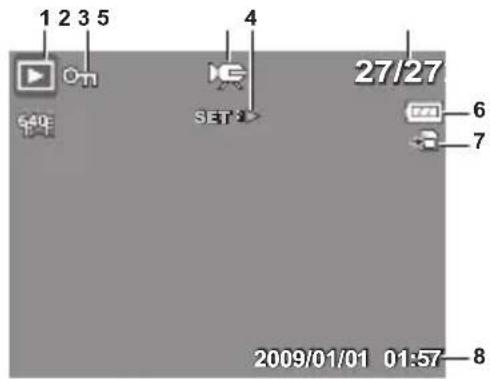
Playback mode of videos:
text_image
1 2 3 5 4 27/27 6 7 2009/01/01 01:57-8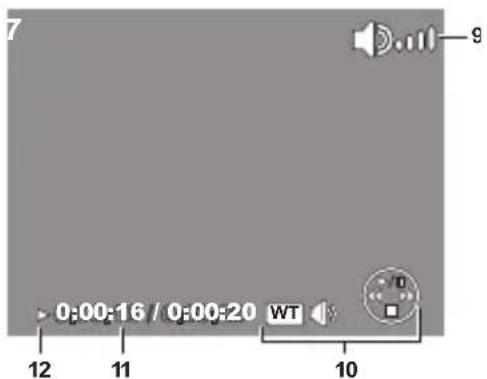
text_image
0:00:16 / 0:00:20 WT 12 11 10 9| No. Item Description | ||
| 1 Playback mode Indicates playback mode. | ||
| 2 Protect | Indicates the file is protected. | |
| 3 Movie clip | Indicates the file is a movie. | |
| 4 Button intro | Indicates the button to press on the camera to play a movie or audio file. | |
| 5 File no. / Total no. | Indicates the file number and the total number of files in the memory card. | |
| 6 Battery Indicates battery power level. | ||
| 7 Storage media Indicates where images (data) are stored. | ||
| 8 Recording information | Displays recording information of the file. | |
| 9 Volume Indicates volume settings. | ||
| 10 Key indicator | Indicates the buttons to press on the camera to apply the functions. | |
| 11 | Playing status | Displays playing status. |
| 12 | Played time | Indicates played time. |
Playback mode of audio clips:

text_image
1 2 4 3 27/27 5 6 2009/01/01 0:57—7 11 10 9 ▶ 0:00:16 / 0:00:20 WT| No. Item Description | ||
| 1 Play back mode Indicates playback mode. | ||
| 2 Protect | Indicates the file is protected. | |
| 3 Button intro | Indicates the button to press on the camera to play a movie or audio file. | |
| 4 File no. / Total no. | Indicates the file number and the total number of files in the memory card. | |
| 5 Battery Indicates battery power level. | ||
| 6 Storage media Indicates where images (data) are stored. | ||
| 7 Recording information | Displays recording information of the file. | |
| 8 Volume Indicates volume settings. | ||
| 9 Key indicator | Indicates the buttons to press on the camera to apply the functions. | |
| 10 Playing status Displays playing status. | ||
| 11 Played time | Indicates played time. | |
Changing the LCD Screen Display
The type of information displayed on the LCD screen can be changed using the DISP button.
Press the DISP button repeatedly to change the LCD display from one type to another.
In Record Mode, the LCD display can be changed into any of the following:
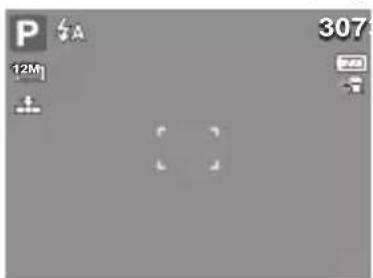
natural_image
Grayscale image with no discernible text, symbols, or identifiable objectsOSD on

text_image
P 12M AVB AVB 0.0EV0.0EV 307 ISO AUTOFull OSD on
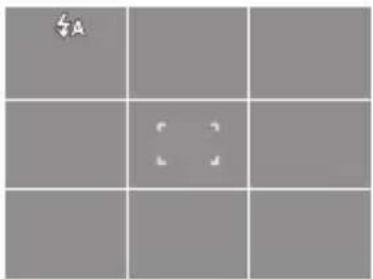
text_image
A
natural_image
Pure graphical elements with no text, numbers, or symbols visibleffo DSOno senil ediuG

NOTE:
- The OSD information may vary depending on the record mode type.
- Use the "Guide lines" to properly align your image for capture.
In Playback mode, the LCD display can be changed into any of the following:
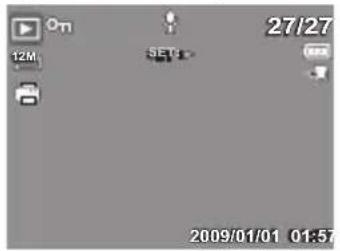
text_image
27/27 12M SET: 2009/01/01 01:57OSD on Full OSD on

text_image
12M SET3 ISO 400 0EV F 3.0 1/301 27/27 0/01 01:57 2009/01/01 01:57
text_image
SERT 1/01 01:57O
SD off

NOTE:
LCD display cannot be changed for the following situations:
- Manual exposure mode
• Recording movie or audio clips - Playing movie or audio clips
- Playing slideshow
Need help with your digital camera?
Call our toll-free customer service number. Look for the insert with this icon:
Or visit www.polaroid.com.

5 Recording Photos, Videos and Voices
- Taking Photos
Now that you are familiar with your camera, you are now ready to take your photos.
Taking photos with your camera is very simple.
-
Turn on the camera by pressing the Power button. By doing this, your camera is set to Record mode.
-
Frame your shot using the focus frame on the LCD display. See illustration on the right.
-
Press the shutter button halfway down. The camera automatically adjusts the focus and exposure. When the camera is ready to take the photo, the focus frame turns green, the shutter speed and aperture value are displayed. (When the focus frame is in red and the operation LED blinks, the subject is not in focus. Release the shutter button, recompose the scene and press the shutter button halfway to reset the focus.)

text_image
P A 12M AFS AWB 0.0EV0.0EV ISO AUTO 307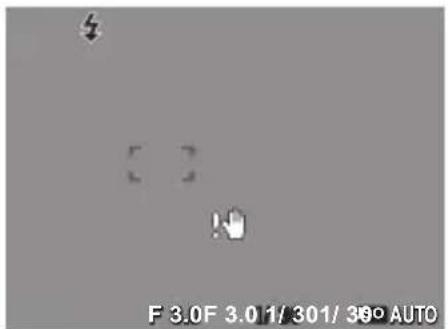
text_image
F 3.0F 3.01/ 301/ 350 AUTO- Press the Shutter button all the way down to capture your image.
When the shake warning icon 🤗 appears, hold the camera steady, with your arms at your side or use a tripod to stabilize the camera to prevent a blurry image. You may need to turn on the camera's flash or enable the Image Stabilizer feature to get a better picture.
• Using the Image Stabilizer
The Image Stabilizer function prevents blurred images caused by shaking. This function is only available if ISO is set to Auto. See "ISO" on page 35 on how to adjust the ISO settings.

text_image
Image Stabilization ButtonTo activate Stabilizer
- Press the Stabilizer button on top of your camera to enable/disable the stabilizer.
- Setting the Zoom Control
Your camera features up to 3x optical zoom and up to 5x of digital zoom. Optical zoom is achieved by mechanically adjusting the lens while digital zoom is activated through the menu settings.
To adjust the optical zoom:
-
Press the Zoom button to zoom in or zoom out an image.
-
The zoom indicator appears on the LCD display.

text_image
Press to zoom out. —— W | T —— Press to zoom in. Zoom buttonsTo adjusts the digital zoom:
-
Activate digital zoom.
-
Rotate the zoom control right to optically zoom in an image to its maximum until it stops.
-
Release the zoom control.
-
Rotate the zoom control right again to switch to digital zoom automatically.
Zooming continues.

text_image
Optical zoom Digital zoom P A W C U T 307 x5.0x5.0 12M AI K 4WR 0.0EV0.0EV IsoAUTO
NOTE:
• Digital zoom is not activated in recording movies.
- Using Flash
When taking pictures in difficult lighting conditions, use the Flash to get the correct exposure. This function cannot be activated when recording movies or continuous shooting.
To activate the Flash
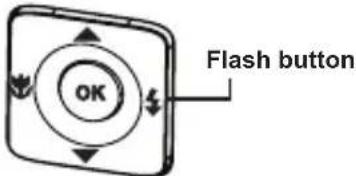
- Press the Flash/Right button on your camera repeatedly until your desired flash mode is displayed on the LCD display.
text_image
OK Flash buttonYour camera is equipped with five flash modes:
A Auto. The flash fires automatically whenever extra lighting is needed.
Red-eye reduction. The flash fires twice to reduce the red-eye effect.
Always on. The flash always fires when you press the shutter button regardless of lighting conditions.

text_image
Auto flash is enabled. P A 307 12M^4 SL Slow sync. The flash fires with a delay and uses slow shutter speed.
Off. The flash is turned off.
NOTE:
- Flash function is only available in shooting still images but not available in Burst and AEB modes.
- Do not charge the flash while pressing the zoom button. Charge the flash after releasing the zoom button if necessary.
- Setting the Focus Mode
This function allows users to define the type focus when recording a still image or a movie clip.
To set the Focus mode
- Press the Macro button repeatedly until the desired focus mode icon is displayed on the lower left corner of the LCD display.

text_image
Macro button OKYour camera supports the four focus modes:
Normal. With normal focus, the focus range starts from 0.4m(1.31ft). When the camera is set to Normal mode, there is no icon displayed on the screen.
Macro. This mode is designed for close-up photography. If Macro is enabled, you can capture the detail and sharpness of a very close image. (Please refer to page 88 for the macro focus range).

text_image
P 307 12M Macro enabledPF Pan Focus. When Pan Focus is set, the camera focuses on every object. INF Infinity. When Infinity is set, the camera focuses on distant objects.
• Using the Function Menu
The Function Menu is used to adjust capture settings in Record Mode. It contains My Mode, Resolution, Quality, EV Compensation, White Balance, ISO, Metering, and Color Mode.
Press the FUNC button of your camera to launch the Function Menu. Press the FUNC button again to close the menu.
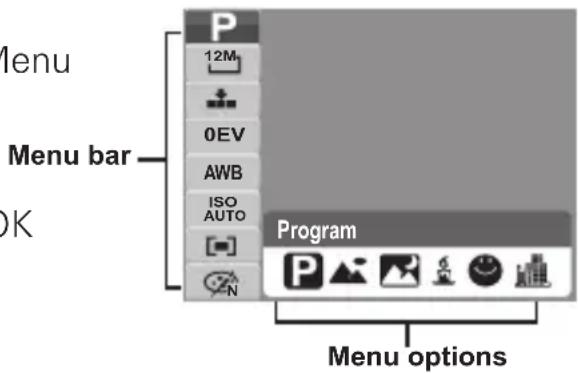
- The Menu bar displays the current status of your camera settings. Only the available functions for the settings are shown as icon on the menu bar.
- The available options for each item on the menu bar are shown in the Menu options.
- Use the or key to move through the menu selections then press the OK button to save and apply changes.
- My Mode
The My Mode function displays the 6 most recent modes used in order. When you move through the different modes in the menu options, the items on the menu bar changes to the corresponding available settings.
- Resolution
The Resolution function is used to set the resolution before you capture the image. Changing the resolution affects the number of images that can be stored in your memory card. The higher the resolution, the more memory space is required. The table below shows the resolution values for still images.
| Icon | Pixel Size | Icon | Pixel Size |
| 12M | 4000 x 3000 | 3M | 2048 x 1536 |
| 3:2 | 4000 x 2672 | 16:9HD | 1920 x 1080 |
| 8M | 3264 x 2448 | VGA | 640 x 480 |
| 5M | 2592 x 1944 |
text_image
Menu Menu bar OK Program Menu options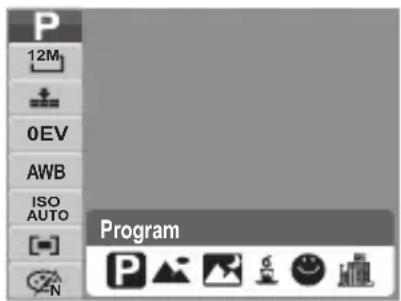
text_image
P 12M 0EV AWB ISO AUTO Program P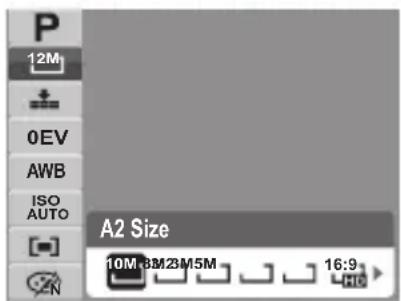
text_image
P 12M 0EV AWB ISO AUTO A2 Size 10M 3M23M5M 16:9 N• Quality
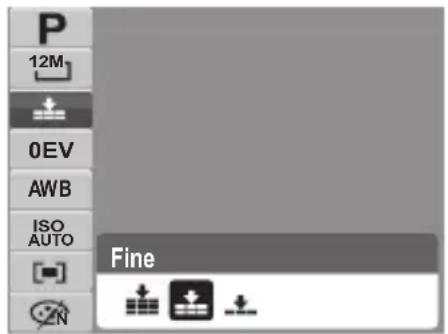
The quality determines the amount of compression applied to your photos. More compression results in a more detailed image. However, the higher the quality, the more memory space is required in your memory card.
- EV Compensation
EV stands for Exposure Value. In difficult lighting conditions, the auto exposure function of your camera may be misled into giving the wrong readings. The EV Compensation function allows you to adjust the exposure value and correctly expose your images. Available for still images only.
text_image
P 12M 0EV AWB ISO AUTO ZN Fine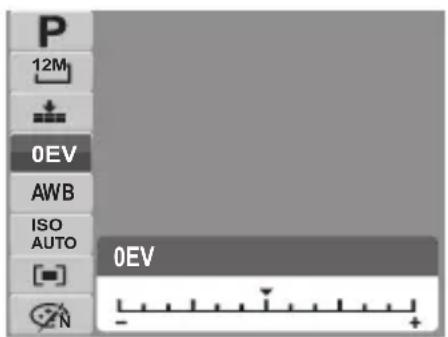
text_image
P 12M 0EV AWB ISO AUTO 0EV - +- To adjust EV settings, press the 🔊 or ➕ keys to increase/decrease the value. As you adjust the settings, the LCD display displays the adjusted image when applying these EV settings. Press the OK button to save and apply changes.
- The available settings are: OEV, +0.3EV, +0.7EV, +1.0EV, +1.3EV, +1.7EV, +2.0EV, -0.3EV, -0.7EV, -1.0EV, -1.3EV, -1.7EV, -2.0EV.
- White Balance
The White Balance function allows you to adjust the camera setting according to the lighting in your scene when recording still images and movies.
- As you move through each selection, you can see the preview on the LCD display.

text_image
P 12M 0EV AWB ISO AUTO Auto AWB| IconItemDescription | ||
| AWB | Auto The camera automatically adjusts the white balance.This should be used for most photographic scenes. | |
 | Daylight Ideally used for bright sunny conditions. | |
 | Cloudy Ideally used for cloudy conditions. | |
 | Tungsten | Ideally used for indoor photos with tungsten or halogen lighting without a flash. |
 | Flourescent 1 | Ideally used for indoor photos with reddish fluorescent lighting conditions. This is considered “warm” lighting. |
 | Flourescent 2 | Ideally used for indoor photos with bluish fluorescent lighting conditions. This is considered “cool” lighting. |
 | Custom | Used when light source cannot be specified.Press the shutter button on the camera to automatically adjust the appropriate white balance setting according to the scene. |
• ISO
The ISO function lets you adjust the ISO sensitivity in recording still images depending on the lighting levels of your surroundings.
- Use a higher ISO setting in dim conditions and a lower ISO setting in brighter conditions.
- As you move through the selections, the preview on the LCD display changes.
- Available settings are: Auto, 50, 100, 200, 400, 800, 1600,3200 (3M, 16:9<2M>, VGA), 6400 (16:9 <2M>, VGA).

text_image
P 12M 0EV AWB ISO AUTO Auto ISO ISO ISO ISO ISO AUTO 50 100 200 400 800
NOTE:
If the ImageStabilizer is enabled, ISO is automatically set to Auto and cannot be adjusted. To adjust ISO, disable Stabilizer first.
- Metering
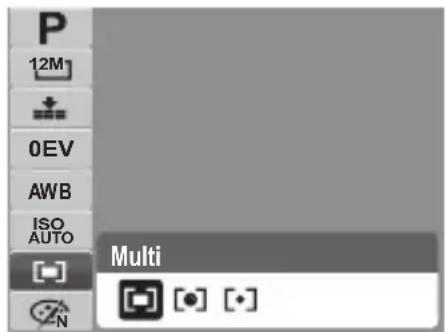
The Metering function lets you select the area of the subject or frame by which the camera measures light to record still images or movies.
- As you move through the selections, the preview on the LCD display changes.
text_image
P 12M 0EV AWB ISO AUTO Multi N| Icon Item Description | ||
| Multi | The camera measures the exposure readings from multiple points in the subject area. | |
| Center | The camera measures the average light from the entire frame but gives more importance to the values near the center. | |
| Spot | The camera selects the exposure value based on the center of your picture. | |
- Color Mode
The Color Mode function lets you record still images or movies and apply different colors or tones for a more artistic effect.
- As you move through the selections, the preview on the LCD display changes.

text_image
P 12M 0EV AWB ISO AUTO Normal V S R GBW| Icon Item Description | ||
 | Normal The camera | records normally. |
 | Vivid | The camera captures the image with more contrast and saturation emphasizing bold colors |
 | Sepia Images are captured in sepia tones. | |
 | B&W Images are captured in black and white. | |
 | Vivid Red | Captured image becomes reddish. Ideally used to record images like flowers and cars to make them more vivid. |
 | Vivid Green | Captured image becomes greenish. Ideally used to record images like mountains and lawns to make them more vivid. |
 | Vivid Blue | Captured image becomes bluish. Ideally used to record images like the sky and the ocean, to make them look more vivid. |
• Using the Record Menu

If you are in Record mode, you can access the Record menu simply by pressing the MENU button on your camera.
MENU
When the menu is displayed, use the 4-way navigation control and the OK button to move through menu selections and apply your desired settings. To close the menu anytime, press the menu button again.
- Record Menu
The Record menu allows you to change modes, and setup other capture settings. To go to Record Menu:
Set the camera to Record mode. See "Switching between Record Mode and Playback Mode" on page 20.
- Press ☐ to launch Record Menu
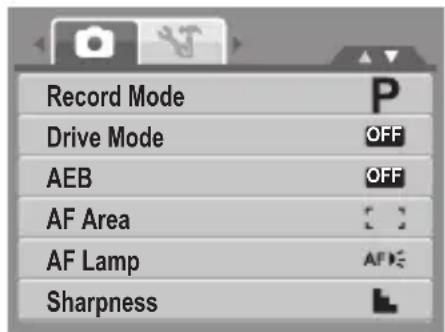
text_image
Record Mode Drive Mode AEB AF Area AF Lamp Sharpness- Use the ▲r ▼ keys to move through the menu selections.
- To select an item, press
- Press the OK button to save and apply settings.
- Setting the Scene Mode
Setting the Scene mode allows you to capture images with the cameras' presets according to the scenes or environment.
- From the Record Menu, press to select Record Mode.
- Use the navigation controls to move

text_image
Record Mode Drive Mode AEB AF Area AF Lamp Sharpnessthrough the selection.
3. Press the OK button to save and apply changes.
The table below shows the available scene mode settings.
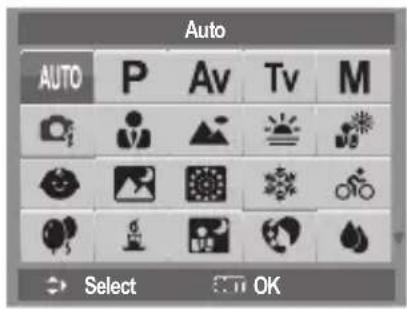
text_image
Auto AUTO P Av Tv M Select OK| Icon.ItemDescription | ||
| AUTO | Auto The simplest | way to shoot most images. Settings are adjusted automatically. |
 | Program The camera | automatically adjusts for suitable shooting settings like shutter speed and aperture values. |
 | Aperture Priority This feature lets users adjust for the aperture value and the camera automatically selects the shutter speed to match the brightness. See “Using Aperture Priority Mode” on page 44. | |
 | Shutter Priority This feature lets users adjust the shutter speed and the camera automatically selects the aperture value to match the brightness. | |
| [4YY0] | Manual Exposure | This feature lets users adjusts the shutter speed and aperture value to correctly expose your images. |
 | Intelligent Scene The camera detects the shooting conditions and automatically switches to the appropriate scene mode. | |
 | Portrait The camera blurs the background to focus on the subject in the foreground. | |
 | Landscape This feature is used to emphasize wide scenic views. | |
 | Sunset This feature enhances the red hue for capturing sunset images. | |
 | Backlight This feature is used to capture the image of a backlit subject by changing the camera's metering. | |
 | Kids This feature is | used to capture still images of moving kids. |
 | Night Scene | This feature is used to capture images with night scenery background. |
 | Fireworks This feature slows shutter speed to capture fireworks explosions. | |
 | Snow This feature is used for snow scenes. | |
 | Sports This feature captures still images in high speed movements. | |
 | Party This feature is used for wedding or indoor party settings. | |
 | Candlelight This feature is used to capture warm candle light effects. | |
 | Night Portrait This feature is used to capture portrait pictures with night or dark background. | |
 | Soft Skin This feature enhances skin tone and facial skin appears smooth. | |
 | Soft Flowing Water | This feature enhances smooth effects like water or silk. |
 | Food | This feature is used to capture images of food. The increased saturation in this mode makes the captured image more enticing. |
 | Building | This feature enhances the edges of captured images. |
 | Text | This feature enhances the black and white contrast normally used when capturing text images. |
 | Auction | Pictures taken in Auction mode are automatically saved under a specific folder named “_AUCT”. |
 | Smile Detection This | feature uses smile tracking to automatically detect smiling faces to capture. When smiles are detected, it continuously captures the image. |
 | Blink Detection | This feature detects if the subject blinked their eye when the image is captured and gives the user an option whether to save it or not. |
 | Pre-composition | This feature captures a image temporarily as a reference. Review the temporary image, when satisfied, take another picture to capture you final image. |
 | Love Portrait | This feature uses face tracking to auto detect faces to capture portraits photos without the help of others. When more than two faces are detected, AF is automatically activated. The camera starts a count down and captures a picture in two seconds. |
 | Camcorder This mode is used to record movie clips. | |
 | Voice Recorder This mode is used to record audio clips. | |
After selecting the scene mode, the selected mode, except Voice Rec, will be added to the forefront in MyMode of Function Menu. See “Using the Function Menu” on page 31.
Using Smile Capture Mode
The Smile Capture mode uses smile tracking to automatically capture images. This feature is most useful in capturing different angles and smiles of moving people. When capturing an image with more than one person, the camera detects the smile of the closest person in the center of the screen.
To activate Smile Capture
- Select from the Scene Mode submenu.
- Focus the camera on the subject to capture.
- The smile capture icon blinks every second and the white focus frame turns green to denote camera activity.
- When a smile is detected, the camera will automatically take a shot of the image.
The camera displays a white frame when a face is detected.
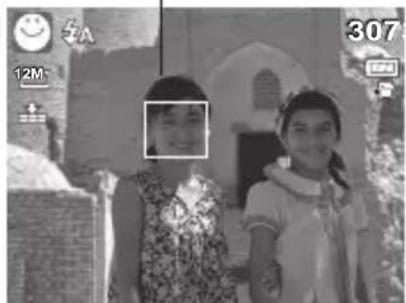
text_image
5A 12M 307
NOTE:
When capturing an image with several faces, face tracking function may take up more time tracking faces for the first time.
Using Intelligent Scene Mode
With the Intelligent Scene Mode, the camera automatically detects the shooting conditions and switches to the appropriate scene and settings when aiming on a subject. This feature is most useful for novice users to capture great images even without basic knowledge of photography.
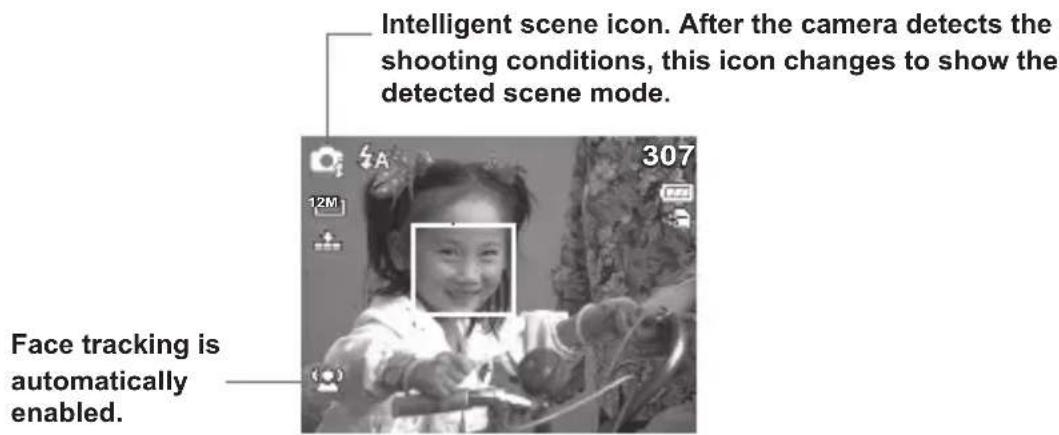
text_image
Intelligent scene icon. After the camera detects the shooting conditions, this icon changes to show the detected scene mode. Face tracking is automatically enabled.To activate Intelligent Scene
- Select from the Scene Mode submenu.
- Focus the camera on the subject to capture.
- The camera detects the shooting conditions and switches to the appropriate scene mode.
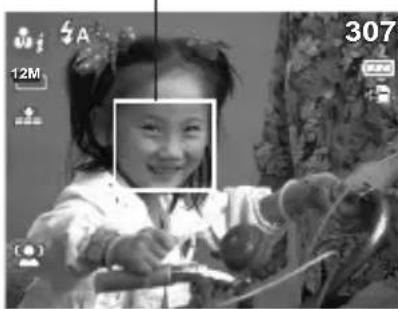
- Press the shutter button halfway down to allow the camera to focus on the subject. The frame turns green to indicate focus is set.
- Press the shutter button to take the shot.
The camera displays a solid white frame when a face is detected.
natural_image
Black-and-white photo of a smiling girl riding a bicycle, with no visible text or symbols in the main image area.
NOTE:
When Intelligent Scene function is enabled, icons will be displayed even in the Guideline, or No Display modes are enabled when the shutter button is pressed halfway down.
The table below shows the modes supported by Intelligent scene:
| Icon. Intelligent Scene Modes | Description | |
 | Portrait This mode is set when a face is detected. | |
 - - | Landscape This mode is set when:There is no face detected.The focus distance is more than 1.5 meters.The EV setting is greater than 11 or 10.5. | |
 | Sunset This mode is automatically set when sunset lighting is detected. | |
 - - | Macro This mode is set when:There is no face detectedThe focus distance is within the macro range.This mode can only be detected when you half press the shutter button. | |
 - - | Blacklight This mode is set when a face is detected with an EV setting greater than 2.5. | |
 | Backlight Portrait | This mode is set when a face is detected with an EV setting greater than 2.5. |
 | Night Scene This mode is set when:There is no face detected.The focus distance is more than 1.5 meters.The EV setting is lower than 5 or 4.5. | |
 | Night Portrait This mode is set when a face is detected with an EV setting lower than 5 or 4.5. | |
Using Blink Detection Mode
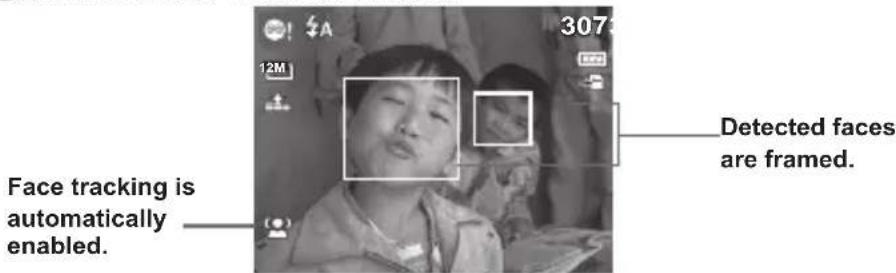
The Blink Detection mode tracks faces and determines when a captured image has subjects with closed eyes. After shooting, when the camera detects that the subject has blinked, a menu selection appears to ask the user whether to save the image or not. This feature saves time in managing photos to be stored or deleted.
To activate Blink Detection
- Select from the Scene Mode submenu.
text_image
Face tracking is automatically enabled. 307 Detected faces are framed.-
Press the shutter button halfway down to allow the camera to focus on the subject. The frame turns green to indicate focus is set.
-
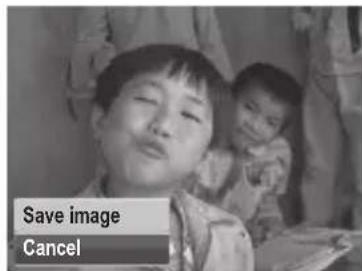
Press the shutter button to capture the image. The image is automatically saved unless the camera detects that the subject has blinked. In this case, the screen on the right is displayed.
-
Select Save Image to save or Cancel to discard.
text_image
Save image Cancel• Using Aperture Priority Mode
With Aperture Priority mode, users can adjust the aperture value and the camera automatically sets the shutter speed to match the brightness.
To activate Aperture Priority
- Select from the Scene Mode submenu.
- Press SET button to enter the adjust mode.
- Use the DISP keys to select the aperture value options.
- Press the shutter button to capture the image.

text_image
Av $A 12M 307 SET: Adjust F 3.0 F 3.0 Displays the aperture value• Using Shutter Priority Mode
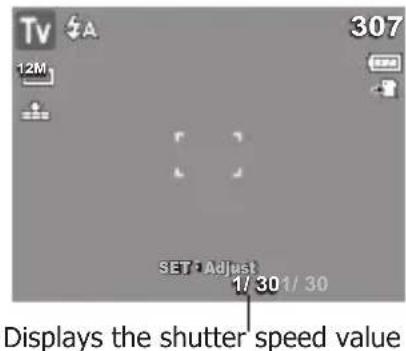
With Shutter Priority mode, users can adjust the shutter speed and the camera automatically sets the aperture value to match the brightness.
To activate Shutter Priority
- Select from the Scene Mode submenu.
- Press SET button to enter the adjust mode.
- Use the ☐ or ☑ keys to select the shutter speed options.
- Press the shutter button to capture the image.
text_image
TV 12M 307 SET Adjust 1/ 30 1/ 30 Displays the shutter speed value• Using Manual Exposure Mode
With Manual Exposure mode, users can manually adjust the shutter speed and the aperture value.
To activate Manual Exposure
-
Select Mom the Scene Mode submenu.
-
Press OK button to enter the adjust mode.
-
Use the ⚪ or ↕ keys to select the shutter speed options or use the ▲or ▼ keys to select the aperture value options.
-
use the ▲ or ▼ keys to increase or decrease the aperture or shutter speed values.
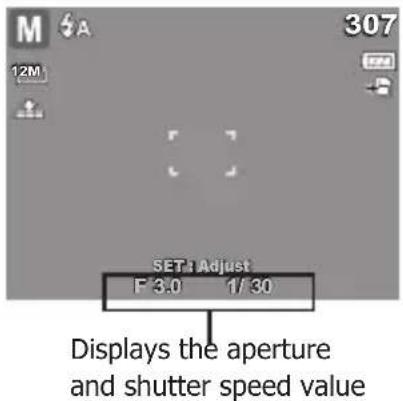
text_image
M 307 12M SET: Adjust F 3.0 1/30 Displays the aperture and shutter speed value-
Use the OK button to switch between aperture and shutter speed adjustment and vice versa.
-
Press the shutter button to capture the image.

NOTE:
When you press the shutter button halfway down, the difference between the correct and selected exposure is displayed in red. This indicates that you must make an adjustment to either shutter speed or aperture size to obtain a good photo.
- Setting the Drive Mode
Your camera features a Self-timer and Burst settings which can be set in the Drive mode function in the Record Menu. The Self-timer allows you to take photos after a pre-defined delay. While Burst lets you take consecutive shots. This function is only available in recording still images. The Drive mode setting is automatically set to off when youturn off the camera.
To set the Drive Mode
- From the Record menu, select Drive Mode.
- Use the ▲ or ▼ keys to go through the selection.
- Press the OK button to save and apply changes.

text_image
Record Mode Drive Mode OFF AEB OFF AF Area AF Lamp APX Sharpness
text_image
Record Mode 10 sec. 2 sec. Double Burst OFF Off SharpnessThe table below shows the available Drive mode settings.
| IconItemDescription | ||
| 10 Sec Self-timer | Sets a 10-second delay to capture image after pressing the shutter button. | |
| 2 Sec Self-timer | Sets a 2-second delay to capture image after pressing the shutter button. | |
| Double Self-timer | Performs delay and capture twice:• Performs a 10-second delay, then captures the image.• Performs another 2-second delay then captures the image again. | |
| Burst | Press and hold the shutter button down to capture images continuously. Release the shutter button to stop. | |
| Off Captures an image without time delay. | ||
- Setting the AEB
AEB stands for Automatic Exposure Bracketing. This feature captures the same image with 3 different exposure settings.
- As you move through the selection, the preview on the LCD display changes.
To set AEB
- From the Record menu, select AEB.
- Use the ▲ or ▼ keys to go through the selection.
- Press the OK button to save and apply changes.

text_image
Record Mode Drive Mode OFF AEB ON On A OFF Off AF Lamp Sharpness- Setting the AF Area
AF stands for Automatic Focus. This feature determines the area on which the camera focuses.
To set AF Area
- From the Record menu, select AF Area.
- Use the ▲ or ▼ keys to go through the selection.
- Press the OK button to save and apply changes.
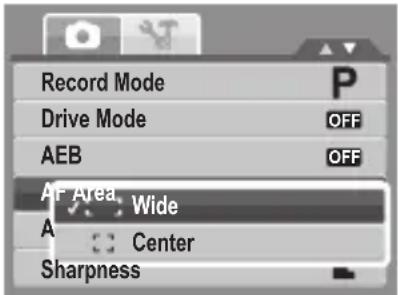
text_image
Record Mode Drive Mode AEB AF Area Wide A Center SharpnessThe table below shows the available AF area settings.
| Icon Item Description | ||
| Wide The camera automatically selects focus area within the wide frame. | ||
| Center The focus area is fixed on the center. | ||
- Setting the AF Lamp
The AF Lamp function allows you to record images even in low light conditions. If AF Lamp is set to Auto, the AF lamp located in the front of the camera, see "Front View" on page 12, emits an red light by pressing the shutter button halfway down allowing the camera to set the focus easily.
To set AF Lamp
- From the Record menu, select AF Lamp.
- Use the ▲ or ▼ keys to go through the selection.
- Press the OK button to save and apply changes.
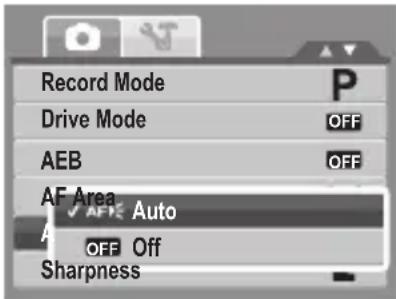
text_image
Record Mode Drive Mode AEB AF Area ✓ Auto A OFF Off Sharpness- Setting Sharpness
This function allows you to enhance or soften finer details of your photos.
To set Sharpness
- From the Record menu, select Sharpness.
- Use the ▲r ▼ keys to go through the selection.
- Press the OK button to save and apply changes.
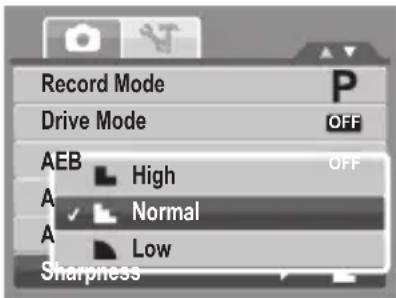
text_image
Record Mode Drive Mode OFF AEB High OFF A Normal A Low SharpnessThe table below shows the available AF area settings.
| Icon Item Description | ||
| High Sharpens the image. | ||
| Normal Normal sharpness. | ||
| Low Softens the image. | ||
- Setting Saturation
The Saturation function lets you adjust the color saturation in your photos. Use a higher saturation setting for rich colors and a lower saturation setting for more natural tones.
To set Saturation
- From the Record menu, select Saturation.
- Use the ▲ or ▼ keys to go through the selection.
- Press the OK button to save and apply changes.
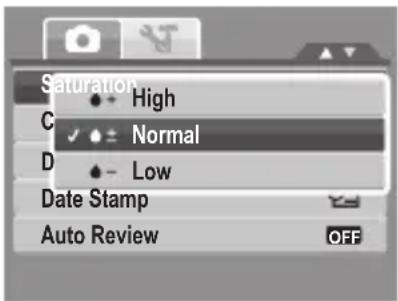
text_image
Saturation High Normal Low Date Stamp Auto Review OFFThe table below shows the available Saturation settings.
| Icon Item Description | ||
| High Enhances saturation. | ||
| Normal Normal saturation is applied. | ||
| Low Reduces saturation. | ||
- Setting Contrast
This function allows you to adjust the contrast of your photos.
To set Contrast
- From the Record menu, select Contrast.
- Use the ▲ or ▼ keys to go through the selection.
- Press the OK button to save and apply changes.

text_image
Saturation Contrast High D Normal D Low Auto Review- Setting the Digital Zoom
This feature controls the digital zoom mode of your camera.
Your camera enlarges an image using the optical zoom first. When the zoom scale exceeds 5x, the camera uses digital zoom.

NOTE:
Using digital zoom may have an effect on the image quality of you picture.
To set Digital Zoom
-
From the Record menu, select Digital Zoom.
-
Use the ▲ or ▼ keys to go through the selection.
-
Press the OK button to save and apply changes.
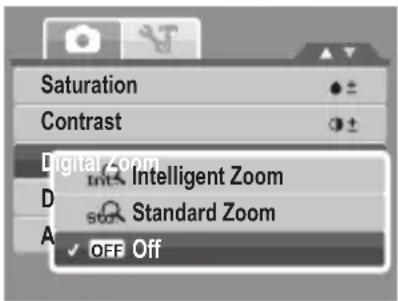
text_image
Saturation Contrast Digital Zoom Intelligent Zoom Standard Zoom OFF OffThe table below shows the available Saturation settings.
| IconItemDescription | ||
 | Intelligent Zoom | Enlarges the image digitally with almost no distortion. This feature is available for still images only. |
 | Standard Zoom | Enlarges all image sizes up to a maximum of 5x in playback, but the image quality deteriorates. |
 | Off Uses the optical zoom only. | |

NOTE:
- Digital Zoom is not available in Smile Capture, Video, and Voice Recording modes.
- The maximum Intellect zoom scale varies depending on the image type and resolution.
- Setting the Date Stamp
The Date Stamp function allows you to add the recorded date and time (when they were taken) on your photos.
The recorded date and time are based on your camera's clock settings.
Once date and time are stamped on a photo, they can no longer be edited or deleted.
Limitations of Date Stamp functions are as follows:
• Available for still images only.
- May slow down AEB/ continuous shooting when Date Stamp is enabled in /AEB/ Burst mode.
- If Date Stamp is enabled, digital zoom is automatically turned off.
- In vertical or rotated images, the date and time on your photos still appear horizontally.
To set Date Stamp
- From the Record menu, select Date Stamp.
- Use the ▲ or ▼ keys to go through the selection.
- Press the OK button to save and apply changes.
- Setting the Auto Review
The Auto Review function lets you view the captured image right after shooting it.
If Auto review is On, the camera will display the captured image for 1 second on the LCD display.
To set Auto Review
- From the Record menu, select Auto Review.
- Use the ▲ or ▼ keys to go through the selection.
- Press the OK button to save and apply changes.
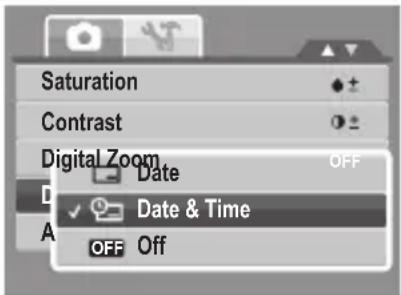
text_image
Saturation Contrast Digital Zoom Date Date & Time OFF Off
text_image
Saturation Contrast Digital Zoom Date Stamp Auto Review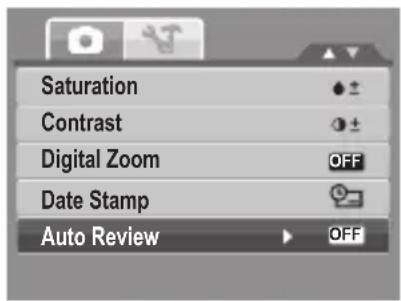
text_image
Saturation Contrast Digital Zoom Date Stamp Auto Review
text_image
Saturation Contrast Digital Zoom OFF Date Stamp ON On ✓ OFF Off- Recording Movies
You can record movies with the camera, the available recording time depends on the capacity of the memory card. Videos can be recorded until the maximum memory capacity has been reached. However the length of a single video may be limited depending on the camera model.
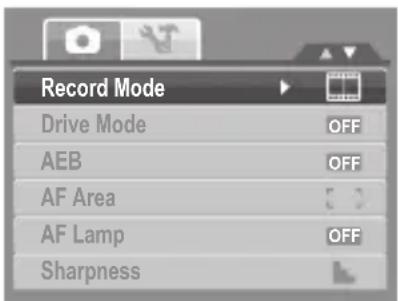
- From the Record mode menu, select Movie.
- Focus your camera on the subject that you want to take.
- Press the Shutter button to start recording.
- Use the control to zoom in and
zoom out an image.
- To stop recording, press the Shutter button.
text_image
Record Mode Drive Mode OFF AEB OFF AF Area AF Lamp OFF Sharpness
NOTE:
- Sound cannot be recorded while pressing the control.
- When the maximum capacity for a single video has been reached, simply press the shutter button again to continue recording.
- Digital zoom is not available in movie recording.
- Power save is not available in movie recording or pause recording.
- The camera will automatically stop recording when the memory capacity is full.
Setting Movie Size
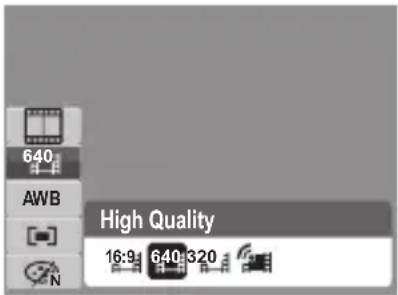
The Movie Size function icon appears only in Movie Mode. Use this function to adjust the resolution and quality of movie clips.
To set the Movie Size:
- In the Movie mode press the FUNC key.
- Press the DISP button to select the resolution.
- Use the ⚪ or ⚣ to select your movie's resolution.
- Press the OK button to confirm your choice.
text_image
640 AWB High Quality 16:9 640 320The table below shows the available size and corresponding image quality settings.
| Icon. Frame Size Description | ||
 | 720 x 400 HDTV | |
 | 640 X 480 High | Quality |
 | 320 X 240 Normal | |
 | 640 X 480 YouTube Mode | |
To set other movie mode settings, please refer to "Using the Function Menu" on page 31.
YouTube Mode
YouTube Mode allows you to record movies with predefined video settings to easily upload to the YouTube website.
YouTube supports two file upload standards:
- Single File Uploader. The maximum movie file size is up to 100 MB.
- YouTube Uploader. The maximum movie file size is up to 1 GB.
Most uploaded movie length ranges within 5 minutes, although you can upload a maximum movie length of 10 minutes.
Therefore when you record using the YouTube mode, the following standards are followed:
- Recorded movies are set to YouTube standard resolution of 640 X 480.
- Recording automatically stops when the file reaches 100 MB.
Recorded movies in the YouTube mode are stored following the DCF rule, however movies are saved in a specific folder named “_UTUBE”. For more details, please refer to “Folder Structure” on page 84.
- To record a YouTube movie, select from the Movie Size function. Available recording time for a YouTube movie is up to 10 minutes.
- Recording Voices
- From the Record mode menu, select Voice. The Voice Recording screen layout is displayed on the LCD display.
- Press the Shutter button to start recording.
- Press the Shutter button to stop recording.

natural_image
Monochrome image of a vintage microphone on a stand, no text or symbols visible
NOTE:
Voice recording will automatically stop when the maximum memory capacity is full.
6 Playback
View images, videos and audio clips through your camera's Playback mode.
• Viewing in Single Navigation
The Single navigation mode displays the images one by one on the LCD display. To view images/videos/audio clips, follow the steps below.
- Press the Play button to set or turn on the camera to Playback mode.
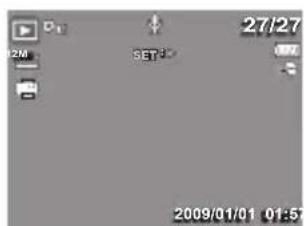
- The LCD screen displays an image. To understand the icons and other information on the screen, please see "Playback Mode Screen Layout" on page 23.
Still Image Movie Audio Clip
text_image
27/27 SET 0 2M 000 2009/01/01 01:57
natural_image
Grayscale landscape photo with hills and water, no visible text or symbols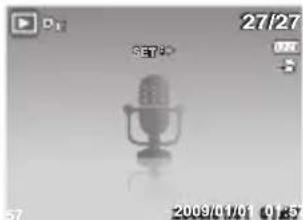
natural_image
Monochrome image of a vintage microphone on a screen, no visible text or symbols- Touch ↘ or ↕ to view next/previous image/video/voice recording.
- To play a video or a voice recording, touch the▲ key. See "Playing Movies" on page 57 and "Playing Voice Recording" on page 58 for more details.
- Viewing Thumbnails
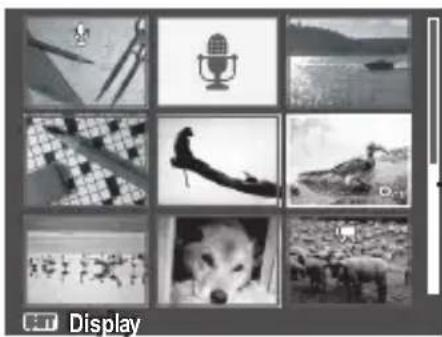
- Press the W button twice to view 9-image thumbnails.
- Touch or to view next/previous page.
- Touch the OK button to select the image and view it normally.
natural_image
Grid of nine black-and-white photos showing various objects and scenes, including a microphone, bird, dog, and landscape (no text or symbols)Scroll bar. If scroll bars appear, it indicates that the screen can be scrolled.
Thumbnail view
Thumbnail icons
When you view the thumbnails, some images may contain icons. These icons indicate the type of file or recording.
| Icon. Type Description | ||
 | Voice Memo Indicates that a voice memo is attached to the image. | |
 | Movie Indicates a recorded movie. The displayed image is the first frame of the movie clip. | |
 | Locked File Indicates that the image has been locked. Locked files cannot be edited or deleted. | |
 | Voice Record Indicates a voice recording file. | |
 | File Error Indicates an error file. | |
- Zooming Images
The zoom view function works with still images only.
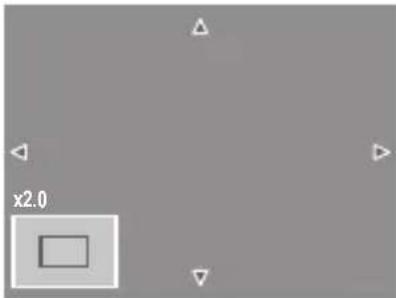
- In normal view, press the T button repeatedly until the desired zoom view.
- The 4 arrows on the LCD display indicate that the image is zoomed in.
- You can zoom view an image of up to 12X.
natural_image
Gray square with a small inner rectangle and directional arrows, no text or symbols present.- Use the navigation controls to view the zoomed image.
- Press the Play button to close zoom view.

NOTE:
For 320 x 240 resolution images, you can only zoom in up to 6X.
- Playing Movies
-
Set the camera to Playback mode.
-
Use the navigation controls to scroll through the saved images. A movie clip has a movie icon displayed on screen. See picture on the left.
-
Press the key to play the movie.
-
During playback, press the ⏻ or ⏲ keys to fast forward or rewind the movie. The camera supports forward and rewind speed of up to 4x.
-
During playback, use the to control volume. Press the T button to increase volume. Press the W button to decrease volume.
-
Press the ▲ key to pause playback. Press the ▲ key again to resume. When paused, the play info will remain on screen except WT.
-
To view the movie frame by frame (forward or backward), press the ▲ key to pause playback, then press the ⏻ or ⚡ keys.
-
Press the ▼ key to stop the playback. The LCD display displays the movie frame image in Single navigation mode.

NOTE:
- The play info, except the WT icon, will be displayed when the movie is paused, during REW/FF or frame by frame modes.
• Volume cannot be adjusted when paused or during REW/FF modes.

text_image
On IE 27/27 SET :> 2009/01/01 01:57
natural_image
Black-and-white landscape photo of a desert dune with mountainous background and speaker icon (no readable text or symbols)• To capture screenshot image from a movie clip
-
During playback of movie, press the ▲ey to pause playback on your desired movie frame to capture.
-
Press the Shutter button to capture screenshot.
-
The camera will automatically stop playback. The LCD display displays the captured image in Single navigation mode.

text_image
Capture photo 0:00:16 / 0:00:20
NOTE:
This feature does not function when the memory card is full or the folder cannot be created. The icon does not appear on the screen either.
- Playing Voice Recording
-
Put the camera into Playback mode.
-
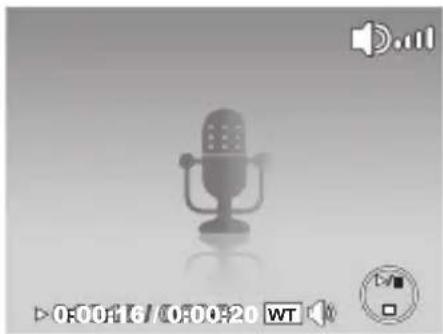
Use the navigation controls to scroll through the saved images. When viewing a voice recording file, the LCD display displays the screen layout of Audio clips. See picture on the right..
-
Press the key to play the voice recording.
natural_image
Illustration of a microphone on a plain background with no visible text or symbols-
During playback, use the 📄 to control volume. The volume icon appears on the screen. Press the T button to increase volume. Press the W button to decrease volume.
-
Press the ▲ key to pause playback. Press the ▲ key again to resume. When paused, the play info will remain on screen except WT.
-
Press the ▼ key to stop the playback. The LCD display displays the image in Single navigation mode.Single navigation mode.

NOTE:
Volume cannot be adjusted during pause or REW/FF modes.created.
- Playing Voice Memo
Voice memo is recorded and attached separately to a captured image. See "Voice Memo" on page 67 on how to record voice memo.
- Set the camera to Playback mode.
-
Use the navigation controls to scroll through the saved images. An image file with voice memo has a voice memo icon located on the top center of the LCD display. See picture onthe right.
-
Press the key to play the voice recording.

text_image
27/27 ISO 400 0EV F 3.0 1/301 AWB A 2009/01/01 01:57-
During playback, use the 📄 to control volume. The volume icon appears on the screen. Press the T button to increase volume. Press the W button to decrease volume.
-
Press the ▲ key to pause playback. Press the ▲ key again to resume. When paused, the play info will remain on screen except WT.
-
Press the ▼ key to stop the playback. The LCD display displays the image in Single navigation mode.Single navigation mode.

NOTE:
Volume cannot be adjusted when you pause the voice memo.
- Deleting an Image/Video/Audio
There are two ways to delete an image/video/audio:
• Using the Delete button, or
- Using Playback Menu Delete settings. See "Deleting Files" on page 61.
Using the Delete Button

Use the Delete button on your camera to delete or mark an image
FUNC
video audio clip for deletion.
- Set the camera to Playback mode.
-
View images/videos/audio clips in Single navigation mode.
-
Use the ↓ or ↕ keysto scroll the display.
-
When the desired image/video/audio clip is displayed on the LCD display, press the Delete button.
-
A confirmation selection appears on screen.
-
Select Delete.
-
Press the OK button to delete.
-
The next image is displayed on the LCD display. To delete another file, use the ▲ or ▼ keys to scroll through the images/videos/audio clips. Then, repeat steps 4 to 7.
-
To close the Delete function and go back to viewing insingle navigation mode, select Cancel.

text_image
Delete Cancel- Setting Playback Menu
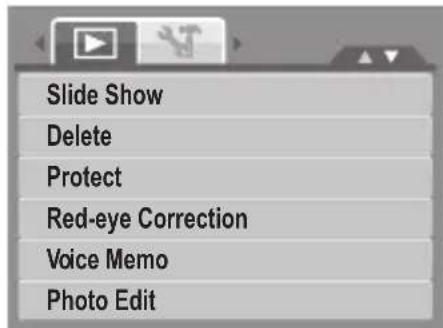
The Playback menu allows you to edit images, delete files, records voice memo, and setup other playback settings.
To go to Playback Menu:
- Set the camera to Playback mode.

-
Press MENU to launch the Playback Menu.
-
Use the ▲ or ▼ keys to go through the selection.
-
To select a menu, press for the OK button.
text_image
Slide Show Delete Protect Red-eye Correction Voice Memo Photo Edit-
Change the submenu settings using the 4-way navigation control.
-
Press the OK button to save and apply settings.
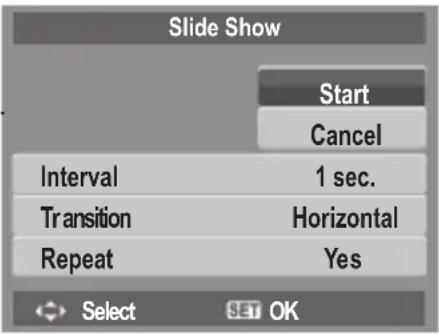
- Setting Slideshow
The Slideshow function allows you to view all stored photos/videos in still image format in a continuous sequence.
To view slideshow:
- From the Playback menu, select Slideshow. The Slideshow menu appears.
- Set the slideshow settings.
- Select Start, then press the OK button to start the slideshow.
- During slideshow, press the OK button to pause slideshow.
- Use the ▲r ▼ keys t to move through the options. Select whether to Continue or Exit the slideshow.
- Press the OK button to apply selected option.
To view slideshow:
- From the Slideshow menu, use the ▲▼ keys t to move through the selections.
- Select Interval setting. Press the ⏻ or ↕ keys to adjust. Choose among the available interval settings: 1 sec., 3 sec., 5 sec., and 10 sec.
-
Select Transition setting. Press the ⏻ or ⏻ keys to adjust. Choose among the available transition settings:
-
Horizontal
- Shrink
- Fade
-
Random
-
Select Repeat setting. Press the 🔊 or ➕ keys to adjust. Available settings are: Yes, No.
text_image
Slide Show Start Cancel Interval 1 sec. Transition Horizontal Repeat Yes Select SET OK- Deleting Files
The Delete function lets you remove unwanted files in the internal memory or on the memory card. Protected files cannot be erased, to delete, unprotect the file first. See “Protecting/Unprotecting Files” on page 64.
To delete a photo/video/audio clip:
- From the Playback menu, select Delete.
-
The Delete submenu is displayed on the LCD display. Select available settings:
-
Single. Select one file to delete.
• Voice Only. Delete only the attached voice memo, the image is retained in the memory. - Multi. Select multiple files to delete at the same time.
- All. Delete all files.

text_image
Slide Show Delete Single Voice Only Multi All Photo EditTo delete a single file:
- Select Single in the Delete submenu, the images are displayed on the LCD display single navigation mode.
- Use the ⏻ or ⏻ keys to scroll the display.
- When the desired image/video/audio clip is displayed on the LCD display, select Delete.
- Press the OK button to delete.
- The next image is displayed on the LCD display. To delete another file, use the 7 or 9 keys to scroll through the images/videos/audio clips. Repeat steps 3 to 7.
- To close the Delete function and go back Playback menu, select Cancel.

text_image
Delete CancelTo delete attached voice memo:
- Set the camera to Playback mode.
- View images/videos/audio clips in Single navigation mode.
-
Use the ⚪ or ⚣ keys to scroll until the desired image with voice memo is displayed on the screen.
-
Press ☐ to launch the Playback Menu.
-
Use the ▲ or ▼ keys to move through the Playback menu selections then select Delete.
-
From the Delete submenu, select Voice only.
-
A confirmation selection appears, select Delete.
-
Press the OK button to delete the attached voice memo and go back to Playback mode.

NOTE:
The Voice Only submenu is disabled if the current image displayed, at the time you access the Delete menu, does not have any attached voice memo.
To delete multiple files:
-
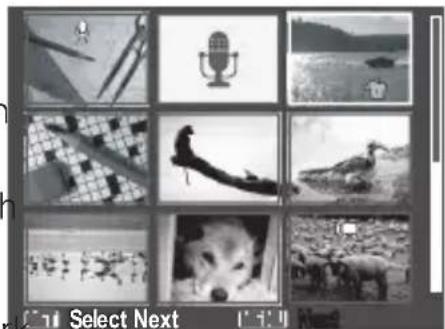
Select Multi in the Delete submenu, the images are displayed in thumbnail view on the LCD display.
-
Use the navigation control to move through the files.
-
When the desired image/video/audio clip is highlighted, press the OK button to mark image/video/audio clip for deletion.
-
Repeat step 3 until all desired images for deletion are marked.
-
Press the MENU button. A confirmation selection appears.
-
Select Yes to confirm.
-
Press the OK button to delete marked files.
text_image
Select Next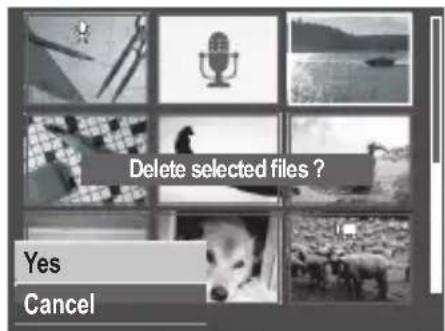
text_image
Delete selected files ? Yes CancelTo delete all files:
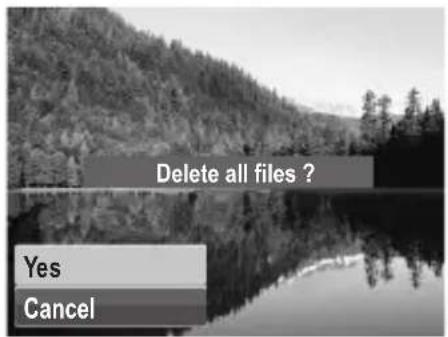
- Select All in the Delete submenu. A confirmation message appears.
- Select Yes.
- Press the OK button to delete all files.
text_image
Delete all files ? Yes Cancel- Protecting/Unprotecting Files
The Protect function lets you lock a file to protect it from being modified or accidentally erased. A protected file has a lock icon when viewed on Playback mode.
To protect files:
- From the Playback menu, select Protect.
-
The Protect submenu is displayed on the LCD display. Select available settings:
-
Single. Select one file to Lock.
- Multi.Select multiple files from the thumbnail view to lock.
- Lock All. Lock all files.
- Unlock All. Unlock all files.
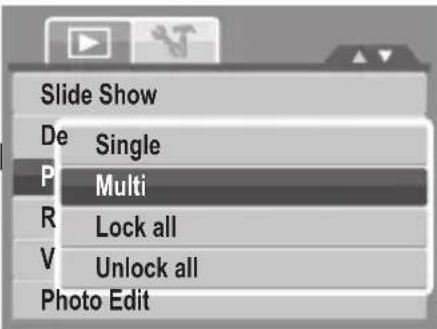
text_image
Slide Show De Single P Multi R Lock all V Unlock all Photo EditTo protect/unprotect a single file:
- Select Single in the Protect submenu, the images are displayed on the LCD display single navigation mode.
- Use the or keys to scroll
- When the desired file is displayed on the LCD display, select Lock/Unlock.
- Press the OK button to protect/unprotect the file and go back to Playback mode.

text_image
in Lock ExitTo protect/ unprotect multiple files
- Select Multi in the Protect submenu, the images are displayed in thumbnail view on the LCD display.
- Use the navigation control to move through the files.
- When the desired file is highlighted, press the OK button to mark/unmark the file clip for protection.
- Repeat step 3 until all desired files to protect are marked.
- Press the MENU button. A confirmation selection appears.
- Select Yes.
- Press the OK button to lock files and go back to Playback mode.
To protect all files
- Select Lock all in the Protect submenu. A confirmation message appears.
- Select Yes.
- Press the OK button to Lock all protected files.
To unprotect all files
- Select Unlock all in the Protect submenu. A confirmation message appears.
- Select Yes.
- Press the OK button to unlock all protected files.

natural_image
Grid of nine black-and-white photos showing animals, landscapes, and scenes (no text or symbols)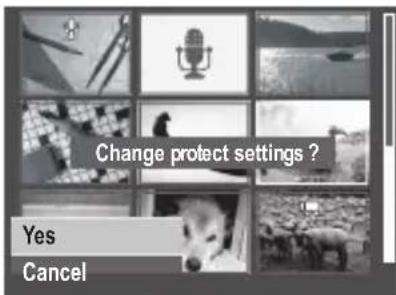
text_image
Change protect settings ? Yes Cancel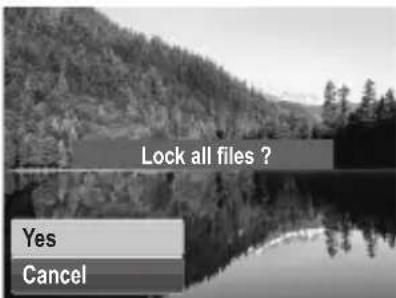
text_image
Lock all files ? Yes Cancel
text_image
Unlock all files ? 00:00:53/00:01: Yes Cancel• Red-Eye Correction
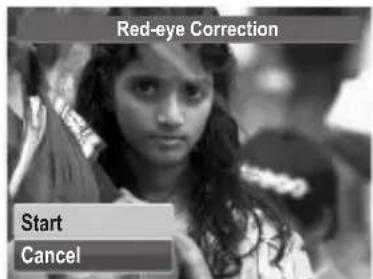
The Red-Eye Correction function is used to reduce red-eye in captured images. This function is only available for still images. Red-eye correction can be applied to an image several times, but the quality may gradually deteriorate.
To activate Red-Eye Correction:
- Set the camera to Playback mode.
- Press the ↘ or ↕ keys to scroll and select an image.
- Press the MENU button to launch the Playback menu.
- Select Red Eye Correction.
- Select Start.
- Press the OK button to start correction.
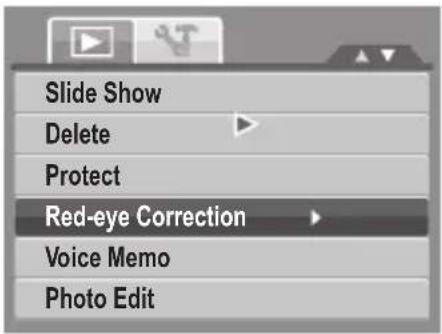
text_image
Slide Show Delete Protect Red-eye Correction Voice Memo Photo Edit7 petS6 dna 5 spetS
text_image
Red-eye Correction Start Cancel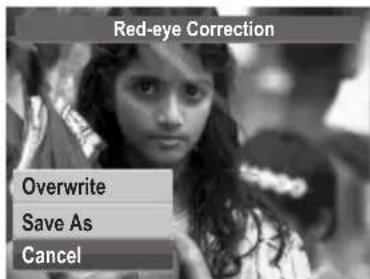
text_image
Red-eye Correction Overwrite Save As Cancel- After completing Red eye correction, a menu selection appears. Select whether to:
• Overwrite. Save and replace the old file with the new one.
- Save As. Save the new file as a new one.
- Cancel. Cancel red eye correction.
- Press the OK button to save/cancel changes.
- Voice Memo
The Voice Memo function allows you to record and attach a voice memo to a saved image. You can record a maximum of 30 seconds of Voice memo per image. This function is only available in still images.
To record voice memo:
- Set the camera to Playback mode.
- Press the ↘ or ↕ keys to scroll and select an image.
- Press the MENU button to launch the Playback menu.
- Select Voice Memo.
- Select Start, then press the OK button to start recording.

text_image
Slide Show Delete Protect Red-eye Correction Voice Memo Photo Edit
natural_image
Black-and-white landscape photo of a forested hillside with a calm lake reflecting the water, no visible text or symbols.Time left (n seconds) for recording.
- Select Stop, then press the OK button to stop recording.

NOTE:
When you record voice memo to an image with an existing voice memo, the old recording is automatically changed to the new one.
- Photo Editing
The Photo Edit function lets you adjust edit still images to apply different colors or tones for a more artistic effect. Edited photos in this function is saved as a new file.
To activate Photo Editng:
- Set the camera to Playback mode.
- Press the or keys to scroll and select an image to edit.
- Press the MENU button to launch the Playback menu.
- Select Photo Edit. The Photo Edit submenu appears.

text_image
Slide Show Delete Protect Red-eye Correction Voice Memo Photo Edit
text_image
Photo Edit Normal- Press the 🎨 or ↕ keys to scroll and select an option. As you move through the selection, the preview on the LCD display changes.
The following table shows the available settings.
| Icon.Type | Description | |
| Normal No effect is added to the image. | ||
| Sepia Image is saved with a sepia tone. | ||
| B&W Image is saved in black and white. | ||
| Negative Image appears to be the opposite of the original image. | ||
| Mosaic Image is saved with mosaic tiles. | ||
| Vivid Red | Image is saved with reddish tint. | |
| Vivid Green | Image is saved with greenish tint. | |
| Vivid Blue | Image is saved with bluish tint. | |
- Trim
The Trim function allows you to trim an image to another image size. This function is only available for still images.
To trim an image:
- Set the camera to Playback mode.
- Press the ⚪ or ⚣ keys to scroll and select an image to trim.
- Press the MENU button to launch the Playback menu.
- Select Trim. The Trim screen layout is displayed on the LCD display.
- Use the control to change size.
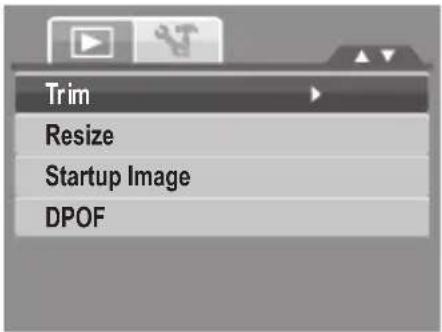
text_image
Trim Resize Startup Image DPOF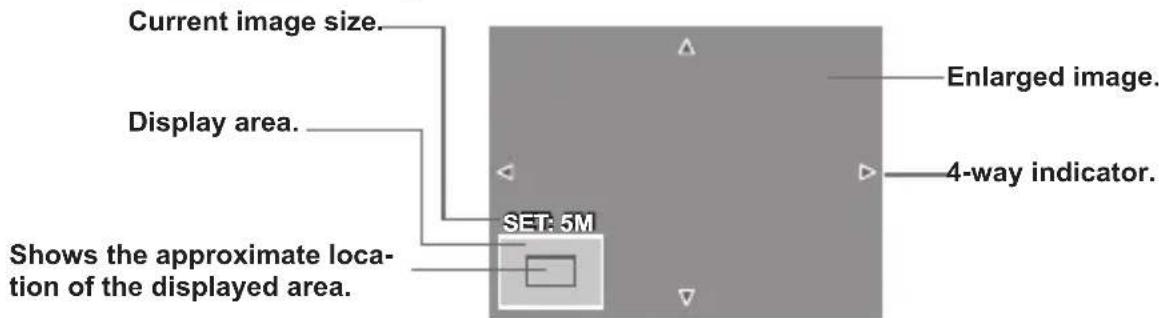
text_image
Current image size. Display area. Shows the approximate location of the displayed area. SET: 5M Enlarged image. 4-way indicator.-
Use the navigation controls to move the image.
-
Press the OK button to apply changes. A menu selection appears.
-
Select whether to:
• Overwrite. Save and replace the old file with the new one.
- Save As. Save the new file as a new one.
- Cancel. Cancel trim.
- Press the OK button to save/cancel changes.
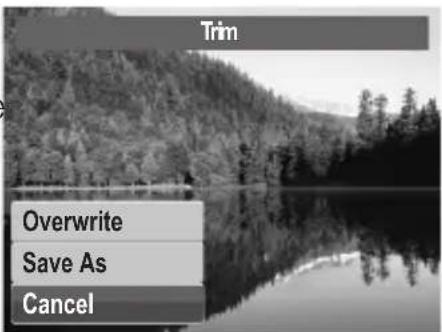
text_image
Trim Overwrite Save As Cancel
NOTE:
- Trim function is not available for photos with image size set to VGA.
- All images will be trimmed in 4:3 ratio regardless of its original image ratio.
- Resize
The Resize function allows you to change the image resolution of large images to smaller ones. This function is only available for still images.
To resize an image:
- Set the camera to Playback mode.
-
Press the 🔊 or ➕ keys to scroll and select an image to resize.
-
Press the MENU button to launch the Playback menu.
-
Select Resize. The Resize submenu is displayed on the LCD display.
-
Select size among: 8M, 5M, 3M, and VGA Available size settings may vary depending on original image size. Unavailable settings appear as gray icons in Resize submenu.
-
After selecting size, a menu selection appears. Select whether to:
• Overwrite. Save and replace the old file with the new one.
- Save As. Save the new file as a new one.
- Cancel. Cancel resize.
- Press the OK button to save/cancel changes.
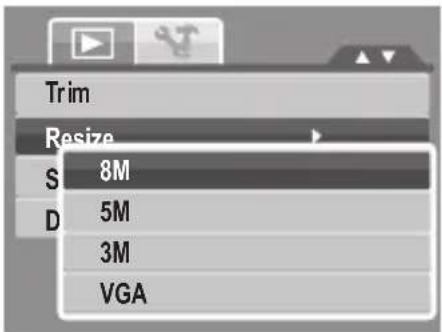
text_image
Trim Resize 8M 5M 3M VGA
text_image
Resize Overwrite Save As Cancel
NOTE:
Resize function is not available for photos with image size set to VGA.
- Setting Startup Image
The Startup Image function allows you to setup a startup image when you turn on your camera. Startup Image
-
Press the MENU button to launch the Playback menu.
-
Select Startup Image. The menu selection appears.
-
Select options:
• System. Use camera default image.
- My Photo. Use the 🔊 or ➕ keys to scroll and select desired image.
- Off. Disable the startup image.
- Press the OK button to apply changes.

NOTE:
The startup image will still be displayed startup even if the selected image was deleted.
- Setting DPOF
The Digital Print Order Format (DPOF) function allows you to mark still images in your memory card for printing and allows you to specify the number of copies that you want to print at a later date. When all images to be printed are marked, take the memory card to a digital printing service, or use a DPOF compatible printer.
To set DPOF
- Press the MENU button to launch the Playback menu.
-
Select Startup Image. The submenu appears. Available settings are as follows:
-
Single. Select a single image to mark.
• All. Mark all images in the memory card.
- Reset. Reset all DPOF settings to initial default settings.

text_image
Startup Image System My Photo Off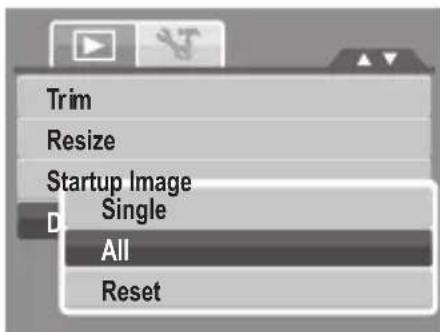
text_image
Trim Resize Startup Image Single All ResetTo set DPOF on a single image/all images:
- Select Single or All on the DPOF submenu.
- For single image, use the 🎨 or ➕ keys to scroll and select an image to mark for printing.
- Specify the number of copies. Use the ▲or ▼ to increase/decrease number.
- Press the FUNC button to toggle between turning on/off the date stamp.
- Press the OK button to save DPOF settings.
To reset DPOF
- Select Reset on the DPOF submenu. A confirmation message appears.
- Select Yes.
- Press the OK button to reset DPOF settings.
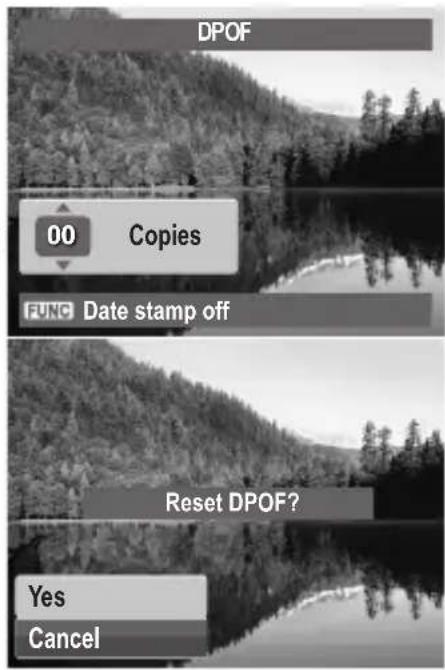
text_image
DPOF 00 Copies FUNC Date stamp off Reset DPOF? Yes Cancel
NOTE:
You can specify up to 99 copies for DPOF. If you specify 0 copies, the DPOF setting of that image is automatically disabled.
- PictBridge
The PictBridge function allows you to print images captured by your camera without connecting the camera to a PC. Print images with a PictBridge compatible printer directly.
To activate PictBridge:
Connect your camera to a PictBridge compatible printer using the USB cable. See illustration below.
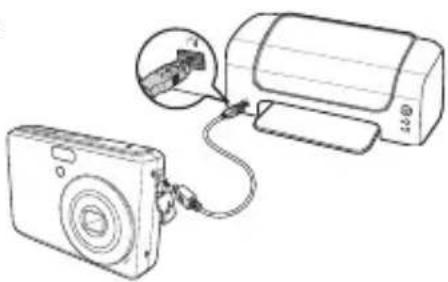
natural_image
Diagram showing a digital camera connected to a printer, with an inset close-up of the printer's cable (no text or symbols present)
NOTE:
If the printer does not support date stamp, the date stamp function will be disabled in PictBridge.
7 Using the Setup Menu
You can access the Setting menu whether you are in Record or Playback mode. The Setting menu allows you to configure general camera settings.
To go to Setting Menu:
- Press ☐ to launch the Record/Playback Menu.
- Use the ↕ or ↖ keys to change the menu tab to Setup → menu.
- Use the ▲ or ▼ keys to move through the menu selections.
- To select an item, press the OK button or ✦.
-
Press the OK button to save and apply settings.
-
Change the submenu settings using the 4-way navigation control.

text_image
Sounds Power Save 1min LCD Save OFF Date & Time Language File Numbering- Setting Sound
Use the Sound menu function to control the sounds produced by the camera.
- From the Setting menu, select Sound.
- Adjusts sound settings.
- Press the SET button to apply changes.
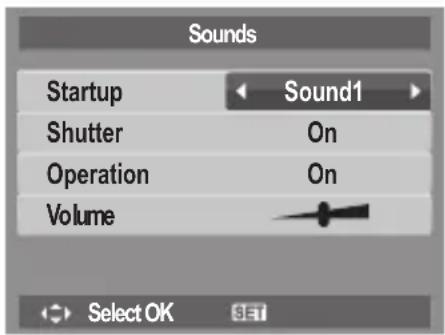
text_image
Sounds Startup Sound1 Shutter On Operation On Volume Select OK SET| Item Available Settings Description | ||
| Startup | Sound 1, Sound 2, Sound 3, Off | Selects the startup sound when camera is turned on. |
| Shutter On, Off | Enables or disables shutter sound when shutter button is pressed. Shutter sound is not available when recording movies or voice clips. | |
| Operation On | Off Enables or disables operation sound. | |
| Volume 0-4 | Adjusts volume. | |
- Setting Power Save
The Power Save function allows you to set an idle time after which the camera automatically sets to sleep mode to save power. After a minute of being in the sleep mode, the camera eventually turns off power.
Available settings are: 1 min., 3 min., and 5 min.
This function is not available in the following instances:
• Recording a movie or audio file
- Playing a slideshow/movie/audio file
• Using the USB connector.
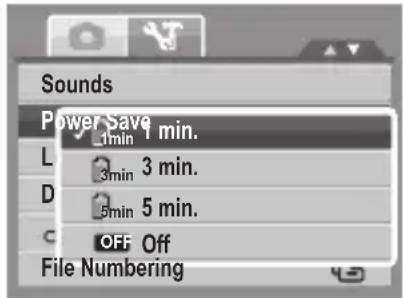
text_image
Sounds Power Save 1 min. L 3 min. 3 min. D 5 min. 5 min. OFF Off File Numbering- Setting LCD Save
Enable the LCD Save function to automatically decrease the LCD brightness to conserve battery power. When the camera is idle for 20 seconds, the LCD darkens. Press any button to resume to normal brightness.
- The camera is idle when no buttons are pressed. LCD Save, though enabled, does not function during movie playback, slideshow, and video recording.
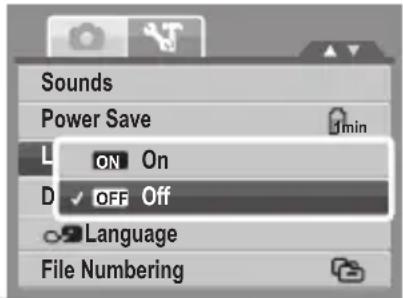
text_image
Sounds Power Save L ON On D OFF Off Language File Numbering- Setting Date & Time
Use the Date & Time function to set the date and time of your camera. This function is useful in attaching date stamps on captured images. Your camera uses a 24-hour time format.
-
Press the navigation controls to adjust date and time value. By holding down the ▲ or ▼ keys, the numeric values changes continuously.
-
Touch OK to apply changes.
- Setting Language
The Language function allows you to choose the language of the on screen display (OSD) menu.
-
Use the navigation control to scroll through the list and select the desired language.
-
Press the OK button to confirm and apply settings.
- Setting File Numbering
This function allows you to select the method in which to assign file numbers to images. Available settings are:
- Series. Assigns number to files in sequence even if the folder is changed.
- 0001 Reset. Starts from 0001 each time the folder is changed.
To understand folder and file structure of your camera, see "About Folder and File Names" on page 84.
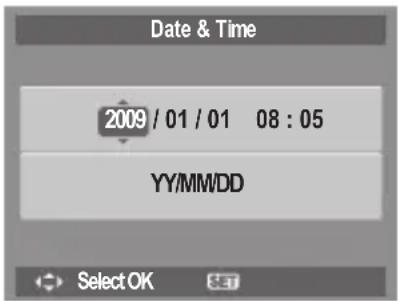
text_image
Date & Time 2009 / 01 / 01 08 : 05 YY/MM/DD Select OK SET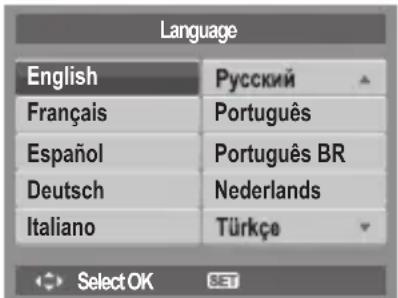
text_image
Language English Français Español Deutsch Italiano Русский Português Português BR Nederlands Türkçe Select OK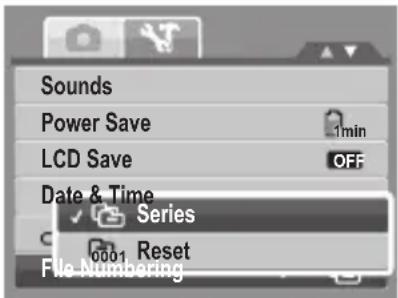
text_image
Sounds Power Save 1min LCD Save OFF Date & Time Series 0001 Reset File Numbering- Setting TV Out
Use the TV Out function to adjusts video output signal to accommodate different regional settings. If TV out is not set correctly, the image may not
display properly on TV.
Available settings are:
- NTSC. Applicable in Japan, USA, Canada, Taiwan and others.
- PAL PAL. Applicable in Europe, Asia (excluding Taiwan), Oceania and others.
- Setting LCD Brightness
Use the LCD Brightness function to control the LCD brightness. Available settings are:
• Bright. Enhances LCD brightness.
• Normal. Normal LCD brightness.
- Setting Battery Type
Use this function to select the battery type used for the camera. Note: It is important to select the correct battery type in the SETUP menu for this product.
- Setting Memory Kit
Use this function to manage contents of the internal memory or memory card.
Available settings are:
- Format. Select to format the currently used memory (internal camera or SD card).
- Copy to Card. Select to copy all files stored in the internal memory to the memory card.
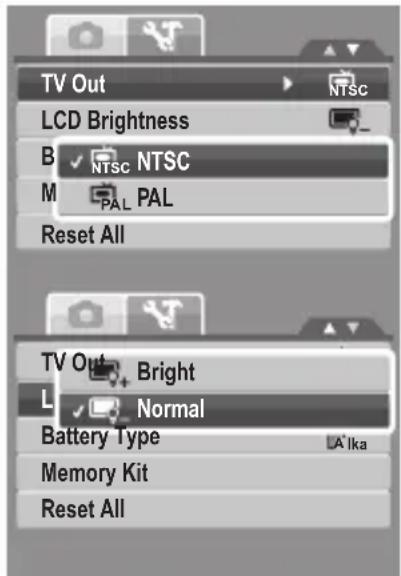
text_image
TV Out LCD Brightness B NTSC NTSC M PAL PAL Reset All TV Out Bright L Normal Battery Type Memory Kit Reset All
text_image
TV Out Alka Alkaline NiMH NiMH Li Lithium Oxy Oxyride
text_image
TV Out LCD Brightness Battery Type Format Copy to Card Reset All
NOTE:
- If there is a memory card inserted in the memory slot, the camera automatically saves all files to the memory card.
- If there is no memory card or the internal memory is empty, the Copy to Card function is disabled.
- Reset All
Use this function to reset the camera to its factory settings. However, the following settings are exceptions and not affected by Reset.
- Date and Time
- Language
- TV Out
- Custom White Balance data
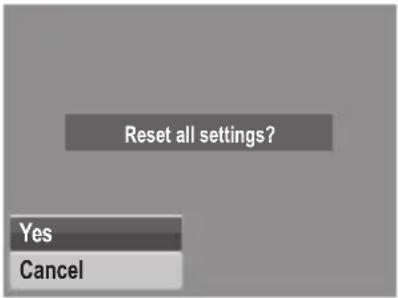
text_image
Reset all settings? Yes CancelNeed help with your digital camera?
Call our toll-free customer service number. Look for the insert with this icon:
Or visit www.polaroid.com.

8 Installing the Software onto a Computer
- Installing the Software
For Windows® Users:


NOTE:
- If you don't know how to install the software, please read the "Read Me" file on the CD first.
- Windows 98SE needs to install your digital camera Driver for the Mass Storage function. After the installation, please restart your computer before connecting your camera to the computer.
- Windows Me, 2000, XP, and Vista do not need to install the driver. Plug in the camera to the computer to transfer or edit your photos and video clips.
-
For better quality graphics and sound when watching your video clips on the computer, it is recommended to install DirectX version 9.0 or above. To download, visit www.microsoft.com
-
Before you begin, close all other software applications open on your computer.
- Insert the camera CD into your computer CD-ROM drive.
- The CD User Interface screen will automatically launch. (If the setup screen does not appear after loading the CD, you can open Windows Explorer, double click on the "INSTALL-E.exe" in the CD folder to start the setup.
- Click on each software interface button in turn and follow the on-screen instructions.
For Macintosh Users:

- Before you begin, close all other software applications open on your computer.
-
Insert the CD supplied into the computer CD-ROM Drive.
-
Double click the CD-ROM icon "Polaroid".
- Install the software included.
- Software Included with Your Camera
The i1237 software CD contains the following software:
Polaroid Digital Camera Driver
Driver is ready for Windows 98se Users only. Your computer need to be installed this driver to gain camera's mass storage function in Windows 98se.
ArcSoft MedialImpression™:
Manages your media for you, and gives you tons of fun and exciting ways to create and share projects featuring your photo, video, and music files. Edit, enhance and add creative effects to your photos. Create your own movies or photo slide shows, complete with soundtrack. Upload your files easily to YouTube™! Or share them through simple email attachments or popular photo printing.
ArcSoft Print Creations™:
A family of fun and easy print-project software that brings out the creativity in you.
Print Creations brings together ArcSoft's latest printing applications into one great user experience. Starting from the Print Creations Launch Pad, you can access any of ArcSoft's great new printing applications including: Greeting Card, Photo Calendar, Album Page and more. Projects can be printed at home or saved as image files for sharing with family and friends by email or the web.
Each unique print-project software comes packed with a full set of professionally designed templates and layouts for all occasions and in all kinds of styles. You can personalize the designs with your own digital pictures and text.
Adobe® Acrobat® Reader™ .PDF File Reading Software
Adobe® Acrobat® Reader™ lets you view and print Adobe Portable Document format (PDF) files on all major computer platforms, as well as fill in and submit
Adobe PDF forms online.

NOTE:
- Please access http://www.arcsoft.com/ to learn more about ArcSoft software.
- ArcSoft MediaImpression & PrintCreations don't support Windows 98se/Me.
- Fast and Easy YouTube™ Upload
- Install ArcSoft software on included CD-ROM.
- Download movie files from your digital camera to your computer.
- Open ArcSoft software and select "Video".
- Select the movie file you want to upload and click "Upload to YouTube" icon.
- Enter your YouTube account information. If you do not have a YouTube account, visit www.youtube.com http://www.youtube.com/ to register for a free account.
• System Requirements
In order to get the most out of your camera, your computer must meet the following system requirements:
For Windows:
• Windows 98se/Me/2000/XP/Vista
- Processor:Pentium III 1G or above
• Memory: 512MB or above
• HDD space: 500 MB or above
• 16 bit color display display
- Microsoft DirectX 9.0C
• USB port and CD-ROM drive
For Macintosh
• Power Mac G3 or later
• Mac OS 10.3-10.5
• Memory: 256MB or above
Polaroid i1237 Digital Camera User Guide
www.polaroid.com
• HDD space: 500MB or above
• USB port and CD-ROM drive
- Uninstalling Polaroid i1237 Camera Driver For Windows® Users only
- Open Add/Remove Program Properties in Control Panel and select "Polaroid Digital Camera" program, then click "Add/Remove" button.
- The confirmation dialogue box appears, please click "Yes" to confirm removing the camera driver.
- The un-installation program runs automatically, please restart your computer when it is finished.
Need help with your digital camera?
Call our toll-free customer service number. Look for the insert with this icon:
Or visit www.polaroid.com.

9 Making Connections
You can connect your camera to:
• TV
- Computer
- Printer
- Connecting the Camera to a TV
To connect your camera to a TV:
- Turn on the camera.
- Set the TV out to match TV's video out format. See "Setting TV Out" on page 76.
- Connect the USB/AV 3-in-1 cable to the USB port on the bottom of your camera.
- Connect the other end of the cable to the TV's AV input port.
- The LCD screen turns black and all images and video clips are displayed on the TV.

text_image
Diagram showing a camera connected to a computer via audio cable, with an inset image of video audio components.- Connecting the Camera to a PC
You can transfer photos, videos and adio files to your PC.
- Connect the camera to a PC using the USB cable.
- Turn on the camera.
- The PC detects the connection. The camera's internal memory and memory card display as removable drives in the file manager. No image is displayed on the

natural_image
Line drawing of a desktop computer connected to a tower via cable, showing internal components (no text or symbols)LCD display.
- Connecting the Camera to a Printer
You You can print your photos directly using a PictBridge compatible printer.
- Turn on your camera.
- Set PictBridge settings.
- Connect the camera to the printer using the USB cable.

natural_image
Diagram showing a camera connected to a printer with cable, highlighting a device component (no text or symbols present)For more details on how to print photos, see "PictBridge" on page 72.
10 Appendix
- About Folder and File Names
Your camera automatically creates specific directory of folders in the internal memory or memory cards to organize captured images, videos and audio files.
Folder Structure
Your camera creates three directory names:
- DICAM. All captured images, videos and audio files are stored in this folder except for files recorded using the Auction or YouTube mode.
- _AUCT. Captured images using the Auction mode are saved in this folder.
- _UTUBE. Captured videos using the YouTube mode are saved in this folder.
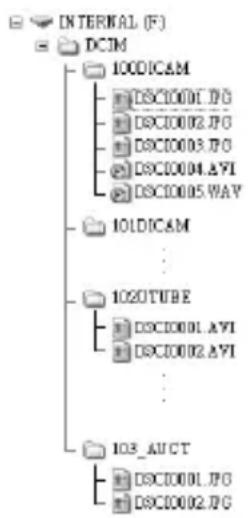
text_image
INTERNAL (F) DCIM 100DICAM DSC1000L.JPG DSC10002.JPG DSC10003.JPG DSC10004.AVI DSC10005.WAY 10LDICAM ... 102OTUBE DSC1000L.AVI DSC10002.AVI ... 103_AUCT DSC1000L.JPG DSC10002.JPGFolder names begin with a 3-digit number from 100 to 999 and followed by "DICAM" or " _AUCT" or " _UTUBE". Each folder holds up to 9999 files. If new files are saved, a new folder named in sequence will be automatically created.
File Naming
File names begin with "DSCI" and followed by a 4-digit number that increases in sequence. File numbering starts from 0001 when a new folder is created. If the highest folder number is 999 and the highest file number exceeds 9999, the camera will display the warning message "Folder cannot be created."
Polaroid i1237 Digital Camera User Guide
www.polaroid.com
When this happens, try one of the following ways:
- Reset the file number.
- Plug in a new memory card.

NOTE:
Do not change the folder and file names in the memory card using your PC. It may be unable to playback the data using the camera.
Need help with your digital camera?
Call our toll-free customer service number. Look for the insert with this icon:
Or visit www.polaroid.com.

11 Troubleshooting
| Problem Cause and/or Action | |
| Camera does not turn on. | The battery may be depleted.. Charge or replace the battery. |
| Camera turns off automatically. | Press any button except the Power button to turn on the camera. |
| LCD turns blank. Press any button except the Power button to turn on the LCD. | |
| Empty battery icon is displayed on the LCD, then the camera turns off. | The battery is depleted.. Charge or replace the battery. |
| LCD screen displays 'No image'. | There are no image files on the memory card. Image file format may not be supported. |
| LCD screen displays 'Not available for this file'. | Function is only available for specific file types. File format is not supported. |
| LCD screen displays 'Memory full'. | Memory card is full. Replace the memory card with a new one or delete unnecessary images. |
| LCD screen displays 'File locked' | This file is locked. Unlock the file. See "Protecting/Unprotecting Files" on page 64. |
| LCD screen displays 'Card locked'. | The memory card is protected. Remove the card and slide the write-protect switch to its unlock position. |
| LCD screen displays 'Format error'. | The memory card is protected. Remove the card and slide the write-protect switch to its unlock position. |
| LCD screen displays 'Copy error'. | The memory card is protected. Remove the card and slide the write-protect switch to its unlock position.The memory card is full. Replace card or delete unnecessary files. |
| No image displays on the TV screen | Incorrect TV-out type was selected. Set the correct TV-out type to match your TV system. |
| The lens stays out and does not retract. | Do not force the lens to go back in. The type of the battery used may be incorrect or the battery power level is too low. Change the battery or charge the battery before using the camera. |
12 Getting Help
- Polaroid Online Services
Website: http://www.polaroid.com
- ArcSoft Software Help
For United States
ArcSoft HQ Support Center
(Fremont, CA 94538)
Tel.: 1-510-979-5599
Fax: 1-510-440-7978
E-mail: support@arcsoftsupport.com
Web: http://www.arcsoft.com/en/support/
For Latin America
E-mail:latinsupport@arcsoftsupport.com
For Europe
ArcSoft Europe Support Center
(Ireland)
Tel.: +353-(0) 61-702087
Fax: +353-(0) 61-702001
E-mail: eurosupport@arcsoft.com
For China
ArcSoft China Support Center
(Hangzhou)
Tel.: +86-571-88210575
E-mail: support@arcsoft.com.cn
Web: http://www.arcsoft.com.cn/new/support
For Japan
ArcSoft Japan Support Center (Tokyo)
Tel.: +81-3-5795-1392
Fax: +81-3-5795-1397
E-mail: support@arcsoft.jp
Web: http://www.arcsoft.jp
For Taiwan
ArcSoft Taiwan Support Center (Taiwan)
Tel.: +886-(0) 2-2506-9355
Fax: +886-(0) 2-2506-8922
E-mail: support@arcsoft.com.tw
Web: www.arcsoft.com.tw
Visit http://www.arcsoft.com for technical support and frequently asked questions (FAQ's).
text_image
Get to the™ Fun Faster(c)2009 Polaroid by Alblights reserved
"Polaroid" and "Polaroid and Pixel" are trademarks of PLR IP Holdings, LLC, used under license.
13 Specifications
- Specifications
| Sensor 12 Megapixels CC | D, Size: 1/2.3 |
| Lens | Focal Length: f = 6.2 - 18.6 mm,3X optical zoom, 5x digital zoom |
| LCD Display Display: 2.7" | color LCD |
| Focus Range | Normal: 80cm - InfinityMacro Wide: 5cm - 100cmTele: 30 - 100cm |
| OSD Language | English, French, Spanish, German, Italian, Russian, Portuguese, BrazilPortuguese, Dutch, Turkish, Polish, Hungarian, Romanian, Czech,Bulgarian, Croatian, Slovak, Slovenian, Greek, Swedish, Norwegian,Finnish, Danish, Arabic, Indonesian, Malay, Thai, Japanese, Korean,Simplified Chinese, Traditional Chinese |
| Aperture F = 3.0 - 5.6 | |
| Shutter | Type: Mechanical and ElectronicShutter Speed:Auto: 1 - 1/2,000 sec.Manual: 8 - 1/2,000 sec.Night: 8 - 1/2,000 sec.Fireworks: 2 sec. |
| File Format | Still Image: EXIF 2.2 compatible format (JPEG compression)Video: AVI (MJPEG)Audio: WAV |
| ISO | Auto, 50, 100, 200, 400, 800, 1600,3200 (3M, 16:9<2M>, VGA),6400 (16:9<2M>, VGA) |
| ExposureCompensation | -2EV to + 2EV (1/3EV steps) |
| Metering Multi, Center, Spot | |
| Flash Mode Auto, Red-eye | Reduction, Forced On, Slow Sync, Forced Off |
| Photo Edit | Normal, B&W, Sepia, Negative, Mosaic, Vivid Red, Vivid Green, Vivid Blue |
| Driver Mode 10 sec., 2 sec., Double, Burst, Off | |
| Scene Modes | Auto, Program, Aperture Priority, Shutter Priority, Manual Exposure, Intelligent Scene, Portrait, Landscape, Sunset, Backlight, Kids, Night Scene, Fireworks, Snow, Sports, Party, Candlelight, Night Portrait, Soft Skin, Soft Flowing Water, Food, Building, Text, Auction, Smile Detection, Blink Detection, Pre-Composition, Love Portrait, Movie, Voice Rec |
| Resolution | Still Image: 12M (4000 X 3000), 3:2 (4000 X 2672), 8M (3264 X 2448), 5M (2592 X 1944), 3M (2048 X 1536), HD (1920 x 1080), VGA (640 X 480) |
| Movie Clip Size: 16:9, 640 X 480, 320 X 240, YouTube | |
| White Balance. | Auto, Daylight, Cloudy, Tungsten, Fluorescent 1, Fluorescent 2, Custom |
| Effect Normal, Vivid, Sepia, B&W, Vivid Red, Vivid Green, Vivid Blue | |
| Storage | Internal memory: 32MB flash memoryExternal memory: SD (up to 4GB), SDHC card (up to 32GB guaranteed) |
| TV system NTSC, PAL | |
| Interface USB / AV OUT | |
| Battery 2 x AA battery | |
| OperatingTemperature 0°C - 40°C | |
| Operating Humidity 0% - 90% | |
| Microphone Built-in | |
| Speake Built-in | |
| Dimensions 92 X 60.5 X 25.03 mm | |
| Weight 120g (w/o battery) | |
- Camera Default Setting
| Camera Mode Description Default | |
| Still Image Mode Image Resolution 12M | |
| Quality Fine | |
| Metering Multi | |
| White Balance for Pictures Auto | |
| ISO Auto | |
| Effect Normal | |
| AF Area wide | |
| Flash Intensity Auto | |
| EV Compensation 0EV | |
| Photo Frame N/A | |
| Sharpness Normal | |
| Saturation Normal | |
| Contrast Normal | |
| Date Stamp | Off |
| Focus Mode | Normal |
| Drive Mode | Off |
| Flash | Auto |
| AF Lamp | Auto |
| Video Mode Video | Size 640 X 480 | |
| Quality N/A | ||
| Frame Rate N/A | ||
| White Balance Auto | ||
| Effect Normal | ||
| Sharpness N/A | ||
| Saturation N/A | ||
| Contrast N/A | ||
| Focus Mode Normal | ||
| Setup Mode Auto | Review On | |
| Digital Zoom Auto | ||
| System Sound Sound 1 | ||
| LCD Brightness. Normal | ||
| Power Save | 1min | |
| Date & Time YY/MM/DD | ||
| TV Out NTSC | ||
| Hot Key | N/A | |
| Startup Image | Yes | |
| Reset | Cancel | |
| Language | English | |
| Playback Mode | Protect | Yes |
| Slide Show | Start |
Questions? Need some help?
This manual should help you understand your new product. If you have questions, call our customer service help number. Look for the insert with this icon:
or visit www.polaroid.com.
US0709
Part No.: UMI1237US001
GET TO THE FUN FASTER™
More fun is just a click away!
natural_image
Red and white photo printer with printed cards, no visible text or symbols on the device itself.Polaroid PoGo™ Instant Mobile Printer

natural_image
Black Polaroid digital camera with visible lens and screen (no text or symbols on device body)Polaroid PoGo™ Instant Digital Camera

Polaroid PoGo™ 2" x 3" ZINK Photo Paper™

natural_image
Group photo of people wearing colorful headscarves and posing with thumbs up (no visible text or symbols)Digital Photo Frames

Digital Cameras

natural_image
Digital HD remote camera with Polaroid logo and LCD screen (no visible text or symbols on device body)Digital HD Camcorders
natural_image
Black CRT monitor displaying a colorful beach scene with colorful houses under a cloudy sky (no text or symbols visible)LCD TVs
natural_image
Orange portable electronic device with a photo of a woman kissing, no visible text or symbols on the device itself.Portable DVD Players

Blu-ray™ and DVD Players
Visit www.polaroid.com to learn more about the latest Polaroid products.

Polaroid
©2008 Polymed
"Released" and "Released and Proof" are underestimates of BURP Holdtowers, LLC, used under license.
Products, features, specifications, appearances, and pros are subject to change without effects. All products subject to availability