
MID1028 PNE02.133 - Tablet POLAROID - Free user manual and instructions
Find the device manual for free MID1028 PNE02.133 POLAROID in PDF.


| Product Type | Touchscreen Tablet |
| Brand | Polaroid |
| Model | MID1028 PNE02.133 |
| Dimensions (L x W x H) | 26.5 x 17.5 x 1.0 cm |
| Weight | 550 g |
| Screen | 10.1-inch capacitive touchscreen LCD |
| Screen Resolution | 1024 x 600 pixels |
| Processor | Quad-core 1.2 GHz processor |
| RAM Memory | 1 GB |
| Internal Storage | 16 GB (expandable via microSD) |
| Operating System | Android 4.4 KitKat |
| Connectivity | Wi-Fi 802.11 b/g/n, Bluetooth 4.0 |
| Front Camera | 0.3 MP (VGA) |
| Rear Camera | 2 MP |
| Battery | Lithium-ion 5000 mAh, battery life up to 6 hours |
| Power Supply | AC adapter 5V/2A |
| Sensors | Accelerometer, gyroscope |
| Main Functions | Web browsing, video playback, games, Android apps |
| Maintenance and Cleaning | Clean with a soft, dry cloth. Do not use chemical products. |
| Safety | Use in a dry environment, avoid shocks and exposure to water. |
| Spare Parts and Repairability | Non-removable battery. For repairs, contact an authorized service. |
Frequently Asked Questions - MID1028 PNE02.133 POLAROID
User questions about MID1028 PNE02.133 POLAROID
0 question about this device. Answer the ones you know or ask your own.
Ask a new question about this device
Download the instructions for your Tablet in PDF format for free! Find your manual MID1028 PNE02.133 - POLAROID and take your electronic device back in hand. On this page are published all the documents necessary for the use of your device. MID1028 PNE02.133 by POLAROID.
USER MANUAL MID1028 PNE02.133 POLAROID
Manual_Dutch, 70g书纸, 135x102mm, 钉装

Polaroid
natural_image
Black-and-white photo of a person in motion, possibly dancing or performing a ride (no visible text or symbols)
natural_image
Black-and-white photo of a woman with arms outstretched, wearing a decorative necklace and jacket (no visible text or symbols)
CASS902PR001 headset
SUPMIDPR001 _Montagebeugel
Beginnen
Over toepassingen
natural_image
Black-and-white photo of a person in motion, possibly dancing or performing a ride (no visible text or symbols)
natural_image
Black-and-white photo of a woman with arms outstretched, wearing a decorative necklace and jacket (no visible text or symbols)
Questions ? Need some help ? This manual will help you enjoy your new product

If you still have questions, call our help line: 00800-34448378

Or visit us at: www.polaroid.com
Table of Contents
Table of Contents.....P1
Features.....P2
Unit at a Glance ......P3
Getting Started.....P4-P5
About Applications.....P5-P6
Preinstalled Applications.....P6
Connect to a Wi-Fi network.....P7-P8
Optional Connections.....P9
Specifications.....P10
Troubleshooting.....P10-P11
Marking.....P12-P19
Features
Browse the Web.
Visit your favorite websites
Check your e-mail
Keep in touch with friends and family
Watch YouTube™ videos
Browse the world's most popular video-sharing community
Read your favorite books
Download thousands of books with the included E-book reader *
Discover thousands of apps for Android™
Games, applications, and more with marketplace(need for customer installed)
Connect to the Internet wirelessly
High-speed Wi-Fi 802.11 b/g/n networking
Enjoy your media library anywhere
Portable powerhouse plays popular music, video, and photo formats
microSD memory card reader
Increase your storage capacity (up to 32 GB supported)
Built-in camera
Convenient front-facing camera(0.3MP)
Automatic orientation detection
Read any way you want; the display adjusts automatically!
Reading books in the ePub format requires the included E-book reader application.
Requires optional HDMI cable
(Type A-to-Type C). 1080p HD video playback requires a video file encoded at 1080p.
Streaming video quality will be affected by the source, and the quality and condition of your network connection.
Unit at a Glance
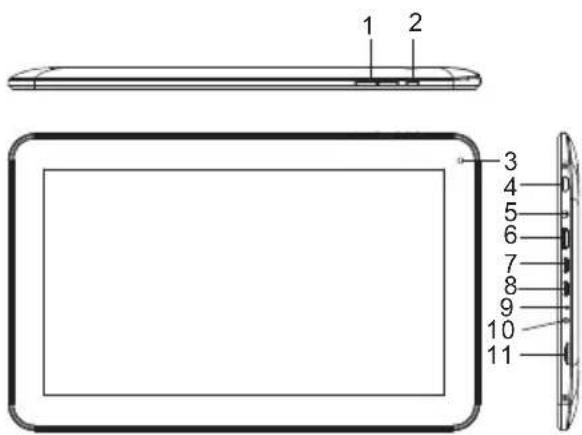
- VOL-/VOL+
Press VOL- to decrease the volume level.
Press VOL+ to increase the volume level.
- Back
Press to return to the previous screen.
If the keyboard is on the screen, Press to close the keyboard.
- Camera
Use it to take pictures or capture videos.
- Power
Press to turn the unit on, or to turn the screen on or off.
Press and hold to access the Power Off menu.
- Headphone
Audio output connection for headphones.
- HDMI
Connect to a TV or other displays.
7.USB HOST
Connect to a USB device.
8.USB OTG
Connect to a USB device or a computer to transfer data (e.g. music, videos, photos, files).
- Reset
Reset the tablet.
- Adapter In
Charge and power the tablet with adapter.
11.microSD
Load external microSD memory cards here.
Accessories:
CASS902PR001 headphone
SUPMIDPR001_car holder
Getting Started
Turning the Tablet on or off
To turn the tablet on:
Press and hold the Power key until the LCD screen turns on. Wait until the Home screen appears; the tablet is now ready for use.
To turn the tablet off:
- Press and hold the Power key until the Device Options menu appears.

- Touch ok the screen to turn off the tablet.
Turning the Screen On or off (Standby)
When the tablet is on, you can turn off the screen to conserve battery power. Simply press the Power key once to turn the screen off. Press the Power key again to turn the screen back on.
To conserve battery power, the screen can be set to turn off automatically when the tablet is not in use (between 15 seconds and 30 minutes). This Screen timeout option can be found in the Display menu.
Getting Started Unlocking the Screen
When the screen turns off, you will have to unlock the screen
when you turn it back on.
To unlock the screen, drag the lock icon across the screen towards the lock icon.

About Applications
To open an application, touch the application icon on the home screen or in the Launcher where you can tap the icon right up on the home screen to get in..
Launcher screen:
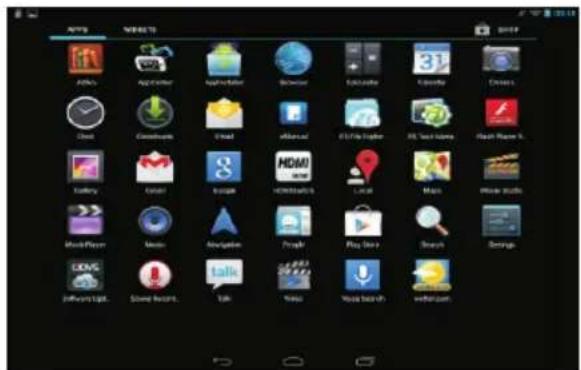
The screen shown above is for illustrative purposes only. Reserves the right to modify and improve the final list of applications available on the tablet.
About Applications
Preinstalled Applications
Some applications have been installed on your tablet for your convenience.
These applications include:

Browse the web.

Perform simple mathematical operations.

Take pictures or videos with the frontfacing camera.

Check your e-mail.

Play music.

Access the Settings menu to adjust the tablet's options.
Preinstalled Applications Installing Applications
You can also download an install additional applications from the device's applications marketplace, the web browser, or other sources.
The tablet must be set to allow installation of applications from non-Market sources. The Unknown sources option can be set in the Application settings menu.
Connect to a Wi-Fi network
The Notification bar displays icons that indicate your tablet's Wi-Fi status.

Notification that an open Wi-Fi network is in range.

Connected to a Wi-Fi network (waves indicate connection strength).
[no icon] There are no Wi-Fi networks in range, or the Wi-Fi radio is off.
1. Turn on the Wi-Fi radio if it is not already on. To turn on Wi-Fi:
a.Go to the Home screen: Press the Home key. b.Open the Settings menu: tap the icon right up on the home screen to get into the launcher, then touch Settings icon. c.Open the Wireless & networks menu: Slide the icon to ON status.

When Wi-Fi is on, the tablet will look for and display a list of available Wi-Fi networks.
If a network that you have connected to previously is found, the tablet will connect to it. If you don't see your network in the list, you can force the tablet to re-scan. To scan for networks, tap the Menu key, and then touch Scan.
Connect to a Wi-Fi network
2. Select an available Wi-Fi network to connect to:
In the same Wi-Fi settings menu above, touch a network in the list.
If the network is open, the tablet will prompt you to confirm connection to the network. Touch Connect to confirm.
If the network is secured (as indicated by a Lock icon), the tablet will prompt you to enter a password or other credentials. Touch the Wireless password box to show the on-screen keyboard and then use it to enter the password. Touch Connect to confirm.

When you have successfully connected to a Wi-Fi network, the Notifications bar at the low of the screen will show a Wi-Fi signal indicator.
Optional Connections
Connecting to a Computer
Connect the tablet to a computer to transfer files.
- Connect your tablet to the computer.
With the included USB cable: Plug the small end of the cable into the USB 2.0 high speed connector of the tablet. Plug the large end of the cable into an available USB 2.0 high speed port on the computer.
- When your tablet is connected, slide up the USB icon right down on the screen and then touch icon USB connected.

- Mount the storage.
Touch button Turn on USB storage to mount the tablet's built-in storage. When it is mounted, you can copy files to or from your tablet.
Connecting to a Computer
To connect the tablet to the TV:
- Plug the small end of the HDMI cable into the mini HDMI connector on the tablet.
- Plug the large end of the HDMI cable into the HDMI port on the TV.
- Turn on the TV, and set its display mode to the HDMI port that the tablet is connected to.
If you need help setting the display mode of the TV, please refer to the documentation provided by the TV manufacturer. If there is no sound from the tablet on your TV, you may need to set the HDMI switch settings, on the TV.
Specifications
| Processor | Amlogic 8061-106 1.5GHz(cortex A9) |
| RAM | 1GB DDR3 |
| Storage | 8 GB(option) flash built-in; microSD card slot (max.32GB supported)Flash memory free for user: about 6.4 GB |
| Display | 10.1"TFT LCD( ), Capcitive touchscreen1024x600 |
| Wi-Fi Networking | IEEE 802.11 b/g/n |
| Audio Output | 3.5mm headphone |
| PC Interface | MICRO USB |
| Additional Features | Built-in microphoneFront facing camera(0.3MP)1X1W speaker |
| Operating System | AndroidTM 4.2 |
| Power | Rechargeable Li-poly battery powerAdapter(DC 5V, )2A |
| Playback Time(hours) | Up to 8 hours music,3.5 hours video,4.5 hours web browsing |
Music was tested with a 128 kbps MP3 file; video was tested with a 1920x1080 MPEG-4/AVC file; browsing was tested with the screen brightness set to default. Actual playback results may vary.
Troubleshooting
1. Device can not connect to Wi-Fi
- Ensure the wireless network is working by testing it using another wireless device.
- Ensure the device and the wireless router is within the range of the wireless network and to be connected too. Walls or other obstructions will reduce the possible distances between wireless devices.
- Ensure the security password is correct.
2. Device doesn't turn on
- You can not turn on the device when the battery charge is below the critical level, situation so please charge the battery.
- Press the RESET button on the top of the device to restart is.
- Check if the adaptor is connected correctly.
3. Heat Issues
- When running many applications, or setting the screen on highest brightness, or when being charged, this device can get quite hot. This is normal and should not cause any inconvenience when in use.
4. System has anomalies and doesn't work correctly
- Installing some third-party applications may cause the system not operate correctly. Press the RESET button or press system reset to resolve this issue.
Troubleshooting
5. Cannot set E-mail or registration application
- Make sure that the MID is connected to a Wi-Fi network and can connect to the Internet.
- your E-mail settings have been entered correctly for the account being accessed.
- Make sure your system time and local time are correct.
6. Can not record
- Press the RESET button on the top of the device, then check if the record function works correctly.
7. The stand-by time of the device is too short
- The duration of the lithium battery varies with environmental temperature changes and the service conditions. If the environment temperature is too low or too high, the duration of the battery will be affected. It is recommended to use this device at normal temperature.
- Battery life is dependent on using status. High volume, WIFI, and the frequent use may cause the battery to be drained at a higher rate.
8. No sound via earphone
- Please check if the volume setting is 0.
- Please check if audio file is broken, and try to play another audio file to confirm. If the audio file is broken, it may cause critical noise or static.
9. The color distortion of video or picture display
- Press the RESET button on the top of the device to resolve this issue.
10. Can not copy files
- Please check if the device is connected to the computer correctly.
- Please check if the memory space is full.
- Please check if the USB cable is broken.
11. No sound or no image via HDMI Output.
- Please check if the device is connected to HDMI cable correctly, and the TV setting of HDMI port is correct.
- Please check if the HDMI cable is broken.
- Press the RESET button on the top of the device, then check if the HDMI output function works correctly.
12. Other troubles
Please follow up the next step to fix the other troubles before you return the MID/Tablet PC to us:
Marking
PLR IP Holdings, LLC, its licensees and affiliates, fully support all electronic waste initiatives. As responsible stewards of the environment, and to avoid violating established laws, you should properly dispose of this product in compliance with all applicable regulations, directives or other governances in the area where you reside. Please check with local authorities or the retailer where you purchased this product to determine a location where you can appropriately dispose of the product.
THE DISPOSAL OF ELECTRICAL AND ELECTRONIC EQUIPMENT WASTE PRODUCTS ON THE PART OF FINAL USERS IN THE EUROPEAN UNION
This symbol on the product or on the container indicates that this product cannot be eliminated with the general waste. The user is responsible for eliminating this kind of waste by throwing them away at a “recycling point” specifically for electrical and electronic waste. Selective collection and electrical equipment recycling contribute to preserve
natural resources and warrant waste recycling to protect environment and health. In order to receive further information about electrical and electronic waste collecting and recycling, contact your Local Council, the service of household waste or the establishment where the product was acquired.

To avoid possible hearing damage, do not listen at high audio volume for long periods of time
Polaroid and Polaroid & Pixel, are trademarks of PLR IP Holdings, LLC, used under license. All other trademarks are the property of the respective owner, who has not sponsored, endorsed or approved this product. PLR IP Holdings, LLC does not manufacture this product or provide any Manufacturer's warranty or support.
Marking
Copyright © 2014. All rights reserved. This product is manufactured, distributed, and sold by Market Maker Brand Licensing, 79 route nationale 7, 69570 Dardilly, France
For warranty information and technical support, please call 00800-34448378 or visit www.polaroid.com or www.mms-support.net
Product features, specifications and appearances are subject to change without notice.
Lithium-ion polymer battery 3.7V/5000mAh
Power : DC 5V 2 A
Adaptor technical data :
Input : AC100-240V 50/60Hz 0.18A
Output : DC 5V 2 A
Flash memory free for user: about 6.4 GB
Safety Precautions
Read these safety instructions before using your device and store them for possible future reference. Always follow these basic safety precautions when using your Tablet. This reduces the risk of fire, electric shock, and injury.
BATTERY, CHARGER, AND OTHER ACCESSORIES
- If the charger cord is damaged, have it repaired by the manufacturer, its service or a similarly qualified person in order to avoid any hazard.
- The power supply must be replaced by a new one in case of malfunction, because this power supply is not repairable.
- The socket-outlet shall be installed near the equipment and shall be easily accessible
- The charger is not intended for use by persons (including children) with reduced physical, sensory or mental capacity. Persons who have not read the manual, unless they have received explanations by a person responsible for their safety and supervision should not use this unit.
- Children should be monitored to ensure that they do not play with the charger.
- The charger should always be readily accessible.
Marking
- The device should not be exposed to dripping or splashing water.
- No objects filled with liquids such as vases shall be placed on the device.
- Always leave a minimum distance of 10 cm around the unit to ensure sufficient ventilation.
- Naked flame sources, such as candles, should not be placed on top of the device.
- The device is intended for use only in a temperate climate.
- CAUTION: Danger of explosion if battery is incorrectly replaced or not replaced by the same type or equivalent.
- The battery should not be exposed to excessive heat such as sunshine, fire or similar.
- Different types of batteries, new and used batteries should not be mixed.
- The battery must be installed according to the polarity.
- If the battery is worn, it must be removed from the product.
- The battery must be disposed of safely. Always use the collection bins provided (check with your dealer) to protect the environment.
- At full volume, prolonged listening to the portable audio device may damage the user's hearing and cause hearing troubles (temporary or permanent deafness, hearing drone, tinnitus, hyperacusis).
So we recommend not to listen the portable audio device at high audio volume and no more than one hour per day at medium audio volume.
Safety Instructions
WITCH OFF IN RESTRICTED AREAS
Switch the phone off where the use of mobile telephones is not allowed or where there is a risk of causing interference or danger, for example on board an aircraft, near medical equipment, fuel, chemicals or blasting sites.
ROAD SAFETY COMES FIRST
Check the current laws and regulations regarding the use of mobile phones in the areas where you drive.
Marking
- Do not handle the telephone when driving.
- Concentrate fully on the driving
- Use a hands-free kit whenever possible
·Leave the road and park up before making or receiving a call, if the driving conditions allow.
- Radio signals could affect some of the car's electronic systems such as the audio stereo and alarm systems.
- If the car is equipped with an airbag, do not hinder its deployment with fixed or wireless equipment. This could result in serious injury due to inadequate performance.
INTERFERENCE
All wireless devices are susceptible to interference which may affect their performance.
AUTHORISED PERSONNEL
Only qualified people are authorized to install or repair this product
ACCESSORIES
Only use batteries, chargers and other accessories which are compatible with this
equipment. Do not connect incompatible products.
KEEP THE EQUIPMENT DRY
This equipment is not water proof. Keep it dry.
CHILDREN
Keep your phone in a safe place, out of the reach of young children. The telephone contains small parts that may present a choking hazard.
EMERGENCY CALLS
Emergency numbers may not be available on all cellular networks. Therefore you shouldn't solely depend on the mobile phone to make an emergency call.
Check with your local service provider.
Precautions for use
This mobile phone meets guidelines concerning the exposure to radio waves.
Marking
Your mobile phone is a radio transmitter and receiver. It was designed to meet the limits recommended by international guidelines to limit the exposure to radio waves. These guidelines were developed by and independent scientific organization, The ICNIRP; and include safety margins designed to ensure the protection of all, regardless of age and health.
The recommendations on exposure guidelines for mobile phones employ a unit of measure known as the Specific absorption rate or SAR. The SAR limit defined in the ICNIRP recommendations is 2.0 watts/kilogram (W/kg) averaged over 10 grams of tissue. In tests to determine the SAR, the equipment is used in standard usage positions at its highest certified power level in all tested frequency bands. The actual SAR level of a device in use may be lower than the maximum value because the equipment is designed to only use the necessary power required to reach the network. That amount changes depending on a number of factors such as the distance from a network base station.
Radio frequency interference
Radio frequency output from electronic devices can interfere with other electronic equipment and cause malfunctions. Although this phone has been designed in accordance with EU regulations on radio frequency emission, telephone wireless transmitters and electrical circuits can cause interference with other electronic equipment. We therefore recommend taking the following precautions:
Aircraft: Wireless equipment can cause interference in aircraft.
Turn off your telephone before boarding the aircraft Do not use on the ground until allowed to do so by the flight crew.
Vehicles: Telephone radio frequency emissions can affect the electronic systems of motor vehicles. In relation to your vehicle, check with the manufacturer or dealer.
Marking
Medical implants :
Medical equipment manufacturers recommend a minimum distance of 15 centimeters between a wireless device and an implanted medical device such as a pacemaker or defibrillator to avoid any interference with the medical device. It is recommended that people fitted with such devices :
-Always keep wireless equipment more than 15cm away from the medical device.
-Never carry wireless equipment in a breast pocket.
-Place such equipment at the opposite ear to the medical device.
-Turn off the wireless equipment if they think it is interfering with their device
-Follow the instructions provided by the medical implant manufacturer.
If you are fitted with a medical implant and have any questions related to the use of your mobile/wireless equipment, you should consult your doctor.
Hearing :
Warning: Using a headset risks not be able to correctly hear outside sounds. Do not use a headset when it could endanger your safety. Some mobile devices can interfere with the proper operation of hearing aids.
Other medical devices: Radio transmitting equipment including mobile phones may interfere with the proper operation of insufficiently protected medical equipment.
Consult a doctor or the medical equipment manufacturer to find out out whether the equipment is sufficiently protected from external radio wave signals. Turn of your device where required by regulations, particularly in hospitals.
Health facilities: Hospitals and health facilities may be using equipment which is particularly sensitive to external radio frequency emissions. Turn off the telephone when staff or notices tell you to.
Blasting sites and marked areas :
Marking
Turn off your device in potentially explosive areas. Follow all official instructions. Sparks in such areas can cause an explosion or a fire, resulting in serious injury or death. Turn off your equipment in petrol/gas stations, especially when near the fuel pumps. Strictly follow usage restrictions in fuel depots, chemical plants or in places using explosives.
Potentially explosive areas are often, but not always, clearly signed. These include areas where it is normally considered advisable to turn of vehicle engines, the area below deck on ships, chemical storage or transfer plants, and areas where the air contains chemical products or particles, such as grain, dust and metal powder. Check with the makers of LPG (such as propane or butane) vehicles that the device can be used safely in their vicinity.
All our phones conform to international standards and regulations, and if need be national ones, with a view to limiting user exposure to electromagnetic fields. These standards and regulations were adopted after the completion of extensive scientific research. This research established no link between the use of the mobile phone and any
adverse effects on health if the device is used in accordance with standard practices.
However if you would like to reduce the level of exposure to radio frequency radiation you can follow the following rules :
- Call when reception conditions are good to lessen the amount of radiation. To do this, avoid calling from underground car parks or when travelling by train or car.
- Call when the telephone connection is at its best (displayed by maximum bars of network reception)
- Use a hands-free kit to ensure the phone is kept away from pregnant women'sbellys and adolescents' lower abdomens.
Operating environment
This equipment conforms to the recommendations on the exposure to radio waves when it is used in its normal position next to the ear or at a minimal distance of 1.5cm. When a case, belt clip or holder is used to carry the phone on the body, these should not contain metal and should position the equipment slightly away from the body.
Marking
Sending data files or messages requires a good quality network connection. The sending of files or messages can be delayed until such a connection becomes possible. Follow the instructions according to the delay as the transmission hasn't been achieved.
EC Compliance Statement
Hereby, Market Maker Brand Licensing declares that the appliance, regarding to this user manual, complies with the essential requirements and other relevant provisions of Directive 1999/5/CE. The declaration of conformity can be viewed at the following address:
Market Maker Brand Licensing
81 RTE NATIONALE 7
69570 DARDILLY
Android is a trademark of Google Inc.

HIGH-DEFINITION MULTIMEDIA INTERFACE
The terms HDMI and HDMI High-Definition Multimedia Interface, and the HDMI logo are trademarks or registered trademarks of HDMI Licensing LLC in the United States and other countries.

Polaroid

Questions ? Need some help ? This manual will help you enjoy your new product

If you still have questions, call our help line: 00800-34448378

Or visit us at: www.polaroid.com
Manual_French, 70g书纸, 135x102mm, 钉装

Polaroid
natural_image
Black-and-white photo of a person in motion, possibly dancing or performing a ride (no visible text or symbols)
natural_image
Black-and-white photo of a woman with arms outstretched, wearing a decorative necklace (no visible text or symbols)
Applications
Consulter vos e-mails.

Market Maker Brand Licensing
81 ROUTE NATIONALE 7
69570 DARDILLY
natural_image
Black-and-white photo of a person in motion, possibly dancing or performing a ride (no visible text or symbols)
natural_image
Black-and-white photo of a woman with arms outstretched, wearing a decorative necklace and jacket (no visible text or symbols)
Optionale Anschlüsse....S. 9
Über Apps
Optionale Anschlüsse
- Polaroid
- Beginnen
- Over toepassingen
- Table of Contents
- Features
- Unit at a Glance
- Getting Started
- Turning the Tablet on or off
- Turning the Screen On or off (Standby)
- Getting Started Unlocking the Screen
- About Applications
- Preinstalled Applications
- Preinstalled Applications Installing Applications
- Connect to a Wi-Fi network
- Turn on the Wi-Fi radio if it is not already on. To turn on Wi-Fi:
- Select an available Wi-Fi network to connect to:
- Optional Connections
- Connecting to a Computer
- To connect the tablet to the TV:
- Troubleshooting
- Device can not connect to Wi-Fi
- Device doesn't turn on
- Heat Issues
- System has anomalies and doesn't work correctly
- Cannot set E-mail or registration application
- Can not record
- The stand-by time of the device is too short
- No sound via earphone
- The color distortion of video or picture display
- Can not copy files
- No sound or no image via HDMI Output.
- Other troubles
- Marking
- Safety Precautions
- BATTERY, CHARGER, AND OTHER ACCESSORIES
- Safety Instructions
- WITCH OFF IN RESTRICTED AREAS
- ROAD SAFETY COMES FIRST
- INTERFERENCE
- AUTHORISED PERSONNEL
- ACCESSORIES
- KEEP THE EQUIPMENT DRY
- CHILDREN
- EMERGENCY CALLS
- Precautions for use
- Radio frequency interference
- Hearing :
- Operating environment
- EC Compliance Statement
- Applications
- Über Apps
- Optionale Anschlüsse
Brand : POLAROID
Model : MID1028 PNE02.133
Category : Tablet