ColorShot - Printer POLAROID - Free user manual and instructions
Find the device manual for free ColorShot POLAROID in PDF.


User questions about ColorShot POLAROID
0 question about this device. Answer the ones you know or ask your own.
Ask a new question about this device
Download the instructions for your Printer in PDF format for free! Find your manual ColorShot - POLAROID and take your electronic device back in hand. On this page are published all the documents necessary for the use of your device. ColorShot by POLAROID.
USER MANUAL ColorShot POLAROID
ColorShot Printer User Guide
Polaroid
System requirements ....3
The printer 4
CONNECT THE PRINTER....6
Position the printer 6
Before you begin 7
Connect the cables 7
INSTALL THE SOFTWARE ....9
PRINT TEST IMAGES ....15
Start up your imaging software .....16
Load the film 16
Check the printer settings .....18
Print KIDS.TIF 18
Print FLOWERS.TIF .....20
TROUBLESHOOTING .....22
Technical Support .....22
Enabling USB 24
Recommended monitor setting .....26
Recommended video accelerator setting ....26
If installation is unsuccessful .....27
To uninstall IQA and the ColorShot driver . . .28
Reconnection note .....29
Polaroid Offices and Service Centers .....29
Index 35
INTRODUCTION
This Polaroid® ColorShot™ Installation Guide covers connecting the printer, installing the software, and printing test images. For detailed information on using the printer and all the features and options in the print driver, as well as full troubleshooting information, please refer to the Polaroid ColorShot User's Guide (CSguide.pdf).
System requirements
- A PC-compatible computer with a Pentium® processor (or later) and a USB (Universal Serial Bus) connector*
- Microsoft® Windows® 95 operating system, Version B (see page 24)
- 16MB RAM (minimum); 32MB RAM (recommended)
-
50MB free hard disk space (minimum); more space required when printing multiple copies (10+)
-
A VGA 640 x 480 color monitor, 256 colors minimum, 16-bit recommended (see page 26 for advice on setting your monitor and video accelerator)
- A CD-ROM drive, 2x speed (minimum); 4x or faster (recommended)
* Note: Microsoft USB software is not compatible with early versions of Toshiba's Infinia In-Touch™ modules, and installing the software on Toshiba Infinia systems which include such modules will render such Infinia systems inoperable.
INTRODUCTION (CONT.)
The printer
natural_image
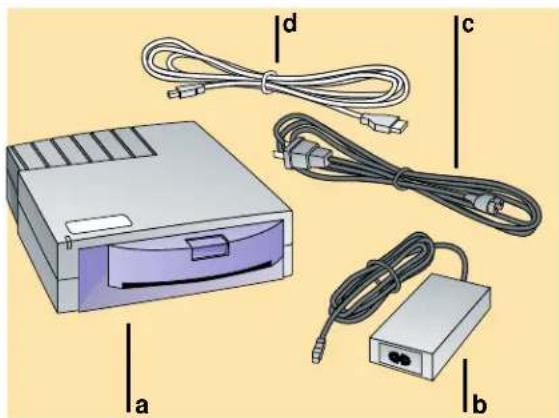
Illustration of electronic devices including a power adapter, cable, and connector (no text or symbols)a. Printer
b. Power adapter
c. Power cord
d. USB cable
e. Printer software (not shown)
FRONT OF PRINTER

text_image
c dbaa. Power/Printer busy LED
b. Film door
c. Film door latch
d. Film ejection slot
INTRODUCTION (CONT.)
BACK OF PRINTER
text_image
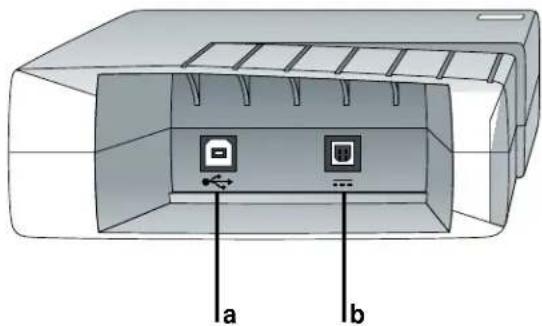
a ba. USB connector
b. Power connector
Note: If any of these components is missing, contact your dealer.
USB CABLE

natural_image
Illustration of a USB cable with two connectors labeled a, b, and c (no text or symbols beyond labels)a. USB cable
b. Computer connector
c. Printer connector
Position the printer
Place the printer horizontally, on a flat surface near your computer. (Do not position the printer vertically.)

The Polaroid ColorShot printer is a “plug-and-play” device. Leave your computer on when you connect the printer. When the printer is connected to your computer and plugged into a power supply, the system detects the new hardware and prompts you to install the software. Follow the detailed installation instructions in the next section carefully.
Before you begin
- Your computer should be USB-ready. If you are not sure, see the section Enabling USB on page 24.
- Note the drive letter for your CD-ROM drive: To find it, click My Computer on the desktop and note which drive has the CD-ROM icon.
- Insert the Polaroid ColorShot CD ROM into the CD-ROM drive.
- Be sure your monitor and video accelerator card are set properly (see page 26).
Connect the cables
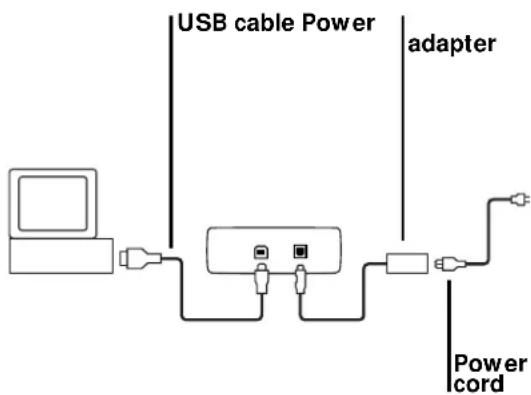
1 Connect the power cord to the power adapter.
2 Connect the power adapter into the connector on the printer.
text_image
USB cable Power adapter Power cord3 Connect the power cord to a grounded outlet. When the unit is plugged in, the LED on the front of the unit lights to indicate power is on. Note: The power is now on to the printer. There is no on/off switch.
4 Connect the USB cable into a USB connector on the back of the computer, or into another hubbed USB device. (Polaroid ColorShot has to be at the end of the device chain.)
5 While watching the computer screen, connect the USB cable to the back of the printer.
6 The system detects the printer as soon as you connect it and prompts you to install the software. See the next section, Install the software.

natural_image
Illustration of hands connecting a USB cable to a computer monitor (no text or symbols visible)As soon as you connect the printer, the screen displays "Building driver information database." The Update Device Driver Wizard is displayed. Click Next to continue.
Important: For successful installation, read each screen carefully before proceeding to the next step. See the detailed instructions that follow.
Note: As part of the installation, Adobe® Acrobat™ Reader and the two .pdf files of the user manuals are installed on your hard drive, in the ColorShot folder: CSinstal.pdf (this manual), and CSguide.pdf (the User's Guide). Three sample images are also installed in the ColorShot folder, in .tif and .bmp formats: kids, flowers, and test.
INSTALL THE SOFTWARE (CONT.)
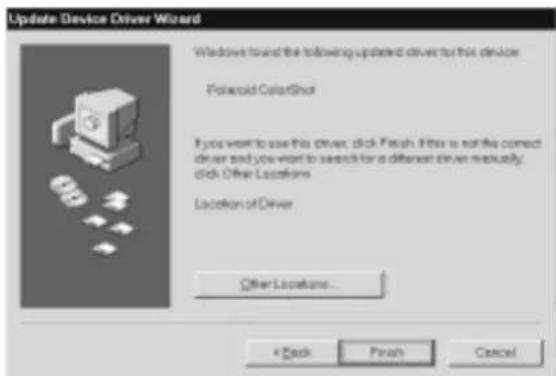
1 The system locates the device and displays the name: Polaroid ColorShot. If you do not see the name Polaroid ColorShot, be sure the CD is in the CD-ROM drive. Click Finish.
text_image
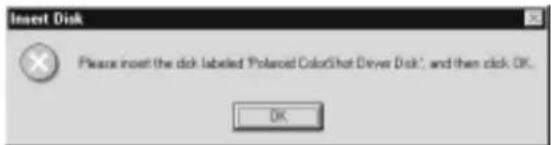
Update Device Driver Wizard Windows found the following updated driver to this device: Polaroid ColorShot If you want to use this driver, click Finish. If this is not the correct driver and you want to search for a different driver manually, click Other Locations. Location of Driver Other Locations... + Back Finish Cancel2 The screen prompts you to insert the disk; disregard it and click OK.
text_image
Insert Disk Please insert the disk labeled 'Polaroid ColorShot Driver Disk', and then click OK. OKINSTALL THE SOFTWARE (CONT.)
3 In the Copy Files From list, press the Delete key to delete the highlighted text, then type the drive letter for your CD-ROM drive (for example, D:\ or E:).

text_image
Copying Files... The file 'ICONLIB.DLL' on Polaroid ColorShot Driver Disk could not be found. Insert Polaroid ColorShot Driver Disk into the drive selected below, and click OK. Copy files from: c:\windows\OPTIONS\CABS OK Cancel Skip File Details... Browse...4 Click OK to begin installation.
5 The Add Printer Wizard is displayed. Scroll down the list of printer ports and select the USB port and Polaroid printer. Important: Do not select the default port, LPT1. Click Next.

text_image
Add Printer Wizard Click the port you want to use with this printer, and then click Next. Available ports: COM2 Communications Port FAC Microsoft Fax Monitor PLE Created as file on disk LPT1 Privacy Port MCFAX: Unknown local port make: Unknown local port PUB: Microsoft Fax Monitor USB Potential Consulted Add Port... Configure Port Next > CancelINSTALL THE SOFTWARE (CONT.)
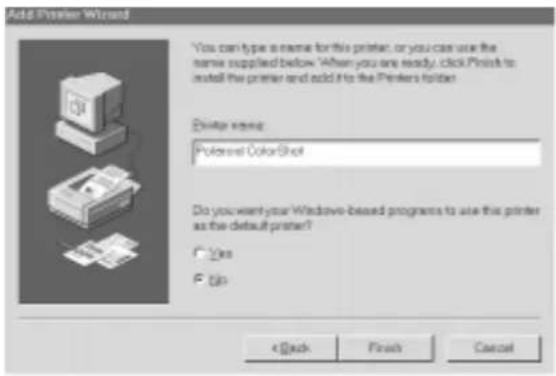
6 The Add Printer Wizard displays "Polaroid ColorShot" for the Printer name. If you have a paper printer you normally print to, do not select ColorShot as your default printer. Click Finish once.
text_image
Add Printer Wizard *You can type a name for this printer, or you can use the name supplied below. *When you are ready, click Print to install the printer and add it to the Printers folder. Printer name: Powered ColorShot Do you want your Windows-based programs to use this printer as the default printer? OK Cancel < Back Finish CancelImportant: The computer takes a few moments to install the driver. Although there is no status bar or wait icon displayed during this process, installation is proceeding!
INSTALL THE SOFTWARE (CONT.)
7 If the print driver is not available in the same language as the operating system, the screens appear in English. If you prefer another language, click the list and choose from French, German, Italian or Spanish:

text_image
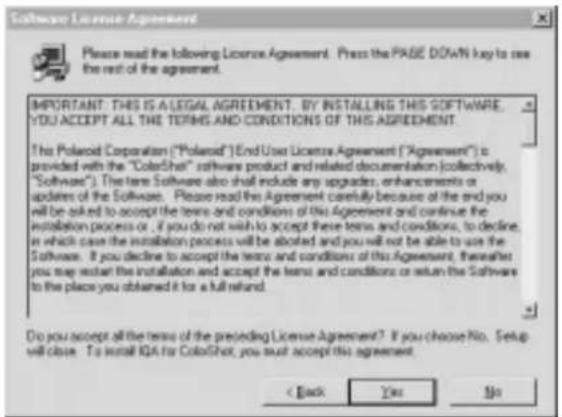
Choose Setup Language Select the language for this installation from choices below. English (United States) OK Cancel8 Click OK. The License Agreement is displayed.
text_image
Software License Agreement Please read the following License Agreement. Press the PAGE DOWN key to use the rest of the agreement. IMPORTANT: THIS IS A LEGAL AGREEMENT. BY INSTALLING THIS SOFTWARE. YOU ACCEPT ALL THE TERMS AND CONDITIONS OF THIS AGREEMENT. The Polaroid Corporation ("Polaroid") End-Use License Agreement ("Agreement") is provided with the "ColorShot" software product and related documentation (collectively, "Software"). The term Software also shall include any upgrades, enhancements or updates of the Software. Please read this Agreement carefully because at the end you will be asked to accept the terms and conditions of this Agreement and continue the installation process or . If you do not wish to accept these terms and conditions, to decline, in which case the installation process will be aborted and you will not be able to use the Software. If you decline to accept the terms and conditions of this Agreement, thereafter you may restart the installation and accept the terms and conditions or return the Software to the place you obtained it for a full refund. Do you accept all the terms of the preceding License Agreement? If you choose No. Setup will close. To install IQA for ColorShot, you must accept this agreement. < Back Yes No9 If you click Yes to accept the License Agreement, installation proceeds.
INSTALL THE SOFTWARE (CONT.)
10When installation is complete, click the first checkbox to see the Readme file, click the second checkbox to start Acrobat Reader, or leave them blank to return to Windows. Click Finish.

text_image
Setup Complete Setup has finished installing IQA for ColorShot on your computer. Setup can now launch the ReadMe file. Uncheck the option below to skip the ReadMeFile. ✓ Yes, I want to view the ReadMe file. ✓ Yes, I want to launch the Acrobat (tm) Reader installer Click Finish to complete install. To get the most how your new printer be used to install the companion programs on the accompanying CD. Finish- Readme: The Readme file contains last-minute tips and news about your printer. - Acrobat Reader: Use Adobe Acrobat Reader to read and print the user manuals, CSinstal.pdf (this manual) and CSguide.pdf. The files are located in the ColorShot directory on your C drive, and on the Polaroid ColorShot CD ROM.
IMPORTANT REMINDER
If you have not already done so, check your monitor and video accelerator card settings; see page 26 for details.
To be sure the printer is properly connected and to acquaint yourself with the print driver, we recommend you use the following tutorial to print two test images. The images are located in the Samples folder within the ColorShot folder on your hard drive.
When printing the test images, keep all the print properties at the default settings. To configure the print driver for your own use, see the detailed descriptions of Print Properties in the Polaroid ColorShot User's Guide (CSguide.pdf).
Start up your imaging software
1 Insert the MGI PhotoSuite™ CD into your CD-ROM drive.
2 Follow the instructions on the screen to install the software.
3 Start up MGI PhotoSuite.
Note: Be sure Brightness, Enhance Colors and Adjust Colors (on the Image menu) are at their neutral settings. If this is the first time you have used MGI PhotoSuite, these sliders will already be at their neutral settings.
Load the film
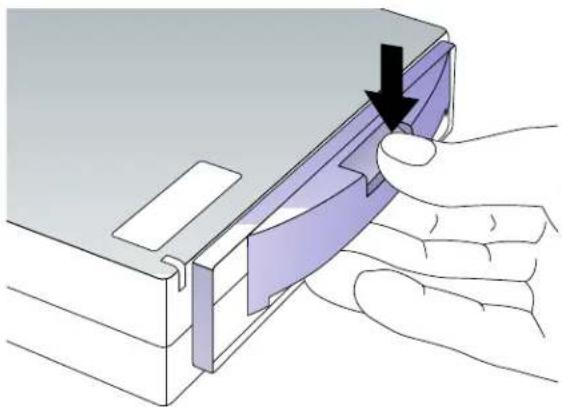
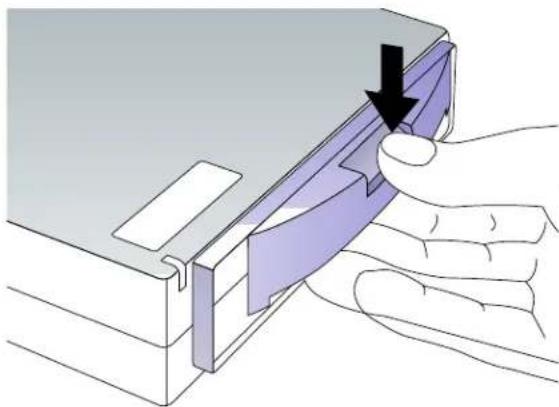
1 Press and hold down the door latch. Pull open the film door.
natural_image
Illustration of a hand inserting a card into a device (no text or symbols present)PRINT TEST IMAGES (CONT.)
2 Remove the Polaroid ColorShot film from the foil package and insert it into the tray, with the film cover facing up and the wide plastic border nearest the door. The film cover protects the light-sensitive material beneath it.
3 Slide the film tray in until it latches shut.
Warning: After the first picture, do not open the film tray until the film pack is empty. Doing so ruins the top picture in the pack.

text_image
Film coverCheck the printer settings
1 From Windows, go to Start and select Settings. Select the Printers folder and open it.
2 Double-click the ColorShot Printer icon inside the folder.
3 The Polaroid ColorShot status box is displayed. This message box displays the print queue.
4 If you want to change any settings, click Properties on the Printer menu. After making changes, click OK.
5 Close the Printers window.
Print KIDS.TIF
1 Open the image KIDS.TIF in the Samples folder, located in the ColorShot folder on your hard drive.
2 Click Printer Setup on the File menu.
3 Select Polaroid ColorShot as the printer and select Portrait orientation. Click OK.
4 Click the Print Preview icon on the toolbar to display the MGI PhotoSuite preview screen.
5 Click Size to Fit. Size to Fit

PRINT TEST IMAGES (CONT.)
6 Click the Printer icon in the Print Preview screen.

7 Click OK to print the image.
8 The ColorShot preview screen is displayed. Click the printer icon in the Preview tool bar to begin printing. If this is your first print of the film pack, the printer will eject the film cover first. In a few moments, the printer will eject KIDS.TIF.

natural_image
Two children walking on a sandy beach holding fish, with water and shoreline in background (no text or symbols visible)KIDS.TIF, in portrait orientation
Print FLOWERS.TIF
1 To print the second test image, open the image FLOWERS.TIF in the Samples folder, located in the ColorShot folder on your hard drive.
2 Click Printer Setup on the File menu.
3 Select Polaroid ColorShot as the printer and select Landscape orientation. Click OK.
4 Click the Print Preview icon on the toolbar to display the MGI PhotoSuite preview screen.

5 Click Size to Fit.
6 Click the Printer icon in the Print Preview screen.
7 Click OK to print the image.
8 The ColorShot preview screen is displayed. Click the printer icon in the Preview tool bar to begin printing. In a few moments, the printer will eject FLOWERS.TIF.

PRINT TEST IMAGES (CONT.)

natural_image
Field of white and purple cloac flowers under a clear blue sky (no text or symbols visible)FLOWERS.TIF, in landscape orientation
Technical Support
If the printer is not operating properly and you cannot resolve it with the troubleshooting information in this manual or the User's Guide (CSguide.pdf), contact Polaroid Technical Support.
MGI PhotoSuite: If you need help with MGI PhotoSuite, check the on-line help in PhotoSuite for information on obtaining product support from MGI.
TROUBLESHOOTING (CONT.)
WITHIN THE U.S.A.
Call us toll-free from within the continental U.S.A. at 1-800-432-5355, Monday through Friday, 8 a.m. to 8 p.m., Eastern Time. We offer a variety of Customer Support services; call us for details and applicable fees.
You may also write to National Digital Imaging Support, Polaroid Corporation, 201 Burlington Road, 1-2A, Bedford, MA 01730. Fax: 1-781-386-9688.
OUTSIDE THE U.S.A
Contact the nearest Polaroid Service Center. See the list on pages 29 - 34.
INTERNET SUPPORT
Technical Support is also available over the Internet. Connect to our web site at http://www.polaroid.com.
Enabling USB
If your system does not respond when you connect the printer, your system may not be compatible with USB, or USB may not be enabled. Take the following steps.
1 Be sure you are connected to a USB port on your computer.

2 Be sure your operating system is compatible:
- Highlight the My Computer icon.
- Click the right mouse button and choose Properties from the menu.
- On the General tab, check the version number of Microsoft Windows 95. A "B" or later after the number (for example, 4.00.950 B) designates that your system can install OSR 2.1, a system upgrade required for the USB connector. This upgrade is provided on the ColorShot CD; see the next step for installation instructions.
Note: If you do not have a "B" after the number, your computer will not accept the USB supplement. Contact your computer manufacturer.
TROUBLESHOOTING (CONT.)
3 To install the USB supplement:
- Be sure the USB cable is not connected to the printer.
- Click My Computer icon, then click the CD-ROM drive icon. (The Polaroid CD should be in the drive).
- Click the USB Supplement folder.
- Click DetroitR. The USB supplement is installed.
4 After installing the supplement, you need to enable USB in the system BIOS:
- Restart the computer and press the key shown on the screen to run Setup before Windows 95 starts up, to get to the system BIOS.
• Refer to your computer manual for
details on how to enable the USB port in the system BIOS. For example, this option may be located in Integrated Peripherals, Advanced Chip Set, PCI Plug and Play, or under another heading.
5 If you are still unable to install the printer driver after following these steps, contact your computer manufacturer.
Recommended monitor setting
We recommend you adjust your monitor for the highest available resolution. To do so:
1 Click the right mouse button on the desktop and select Properties.
2 Select the Settings tab.
3 Set Color Palette to 16 bit or higher.
4 Move the slide control under Desktop area to the right, to the highest resolution available; 800 x 600 is recommended. Click OK and close windows as necessary.
Recommended video accelerator setting
Note: Intel recommends that you set your video accelerator card to the basic setting when connected to a USB device, for smoother, more reliable communication with your printer. This setting does not slow down your system in any way. To do this:
1 Double-click the My Computer icon on your desktop.
2 Double-click the Control Panel folder.
3 Double-click the System icon.
4 Select the Performance tab.
TROUBLESHOOTING (CONT.)
5 Click the Graphics button under Advanced Settings.
6 Move the slide control until Basic is indicated. Click OK twice and close windows as necessary.
If installation is unsuccessful
The Polaroid ColorShot printer must be installed as a plug-and-play device. If you use Add/Remove Programs or Add Printer to install the software (or if you interrupt the installation process), your Windows registry may be corrupted. To solve this problem, try the following:
1 Disconnect the USB cable from the back of the printer.
2 Insert the Polaroid ColorShot CD-ROM into the CD-ROM drive.
3 Double-click the My Computer icon.
4 Double-click the CD-ROM icon.
5 Click Recover Plug and Play using the right mouse button.
6 Select Install and follow the instructions for Quick Installation.
To uninstall IQA and the ColorShot driver
Be sure the print queue is empty. If not, delete all jobs in the queue.
1 Restart your computer.
2 Disconnect the USB cable from the back of the printer.
3 Double-click the My Computer icon.
4 Double-click Control Panel folder.
5 Double-click Add/Remove Programs.
6 On the Install/Uninstall tab, highlight Polaroid IQA for ColorShot in the list. Click the Add/Remove button.
7 Click Yes to confirm the removal.
8 Click Yes to the Remove Shared File? prompts.
9 When the uninstall is complete, click OK.
10Close windows until you return to the Control Panel.
11 Double-click Printers.
12Select the Polaroid ColorShot with the right mouse button.
13Select Delete from the drop-down menu. Click Yes as necessary to confirm the deletion.
14Close all windows.
15If you want to reinstall the driver, check the printer folder and be sure there is no icon for the Polaroid printer before you reconnect the printer. If there is, repeat steps 10 through 14.
Reconnection note
Your system or hub may have several USB ports. If you connect the printer into a port other than the one used at original installation, the system prompts you to reinstall the software. Follow the instructions on the screen to reinstall the software and specify the current USB port when prompted.
Polaroid Offices and Service Centers
Australia
Polaroid Australia Pty. Ltd.
13-15 Lyonpark Road
P.O. Box 163
North Ryde, NSW 2113
Tel.: (02) 950 7000
Fax: (02) 887 2209
Belgique/ België
Polaroid (Belgium) N.V. - S.A.
Polaroid Canada Inc.
350 Carlingview Drive
Etobicoke, Ontario M9W 5G6
Toll free: 1-800-268-6970
Danmark
Polaroid a.s.
Blokken 75
3460 Birkerød
Tlf.: 80011887
Deutschland
Polaroid GmbH
Sprendlinger Landstrasse 109
63069 Offenbach
Tel.: 06995096056
España
Polaroid (France) S.A.
B.P. 7
78996-Elancourt Cédex
Tel.: 0141913810
Hong Kong
Polaroid (Far East) Ltd.
32/F Windsor House
311 Gloucester Road
Causeway Bay
Tel.: (852) 2894 0333
Italia
Mori Building, No. 30
2-2 Toranomon 3-chome
Minato-ku, Tokyo (105)
Tel.: 81-3-3438-8811
Fax: 81-3-3433-3537
México
Polaroid New Zealand Ltd.
Camera Services
24-26 Anzac Avenue
Auckland
Tel.: (09) 377 3773
Norge
Polaroid (Norge) A/S
Polaroid Caribbean Corporation
Centro de Seguros
Ave. Ponce de León 701,
Miramar, Santurce 00907
Tel.: (809) 725-6240
Fax: (809) 725-5462
Schweiz/ Suisse/ Svizzera
Polaroid AG
Hardturmstrasse 133
8037 Zürich
Polaroid Export Operations
Wheathampstead House
Codicote Road
Wheathampstead
Hertfordshire AL4 8SF
Tel.: 0181 308 6508 (U.K.)
(44) 181 308 6593 (Export)
U.S.A.
Polaroid Corporation
Technical Support
Toll free: 1-800-432-5355
INDEX
A
Adobe Acrobat Reader, 9, 14
C
cable connection, 7 - 8 CD-ROM drive letter, 7, 11 CD-ROM drive requirements, 3 ColorShot CD-ROM, inserting, 7 ColorShot printer illustrated, 4 - 5 plugging in, 8 positioning, 6 computer requirements, 3 Csguide.pdf, 2, 9 Csinstal.pdf, 9
E
enabling USB, 24 - 25
F
film cover, 17 film door latch, 4 film door, 4 film ejection slot, 4 film loading, 16 - 17 FLOWERS.TIF, printing, 20 - 21
|
installing software, 9 - 14 problems with, 27 internet support, 23
K
KIDS.TIF, printing, 18 - 19
L
language choice for setup, 13
LED on ColorShot, 4, 8
License Agreement, 13
loading film, 16 - 17
M
memory requirements, 3
MGI PhotoSuite, 16
technical support, 22
Microsoft Windows, 3
monitor
requirements, 3
setting, 26
P
plug-and-play, 6
Polaroid Offices and Service Centers, 29 - 34
Polaroid Technical Support, 22 - 23
power adapter, 4, 7
power connector, 5
power cord, 4, 7, 8
power on, 8
print queue, 18
printer port selection, 11
printer settings, checking, 18
printing test images, 15 - 21
R
RAM requirements, 3
Readme file, 14
reconnecting the printer, 29
S
sample images, 9, 15
Samples folder, 15
Service Centers, 29 - 34
system requirements, 3
T
technical support, 22 - 23
test image, printing, 15 -21
U
uninstalling software, 28
USB (Universal Serial Bus), 3
cable, 4, 5, 8
connector, 5
enabling, 24 - 25
software supplement, 24 - 25
V
video accelerator setting, 26
W
Windows. See Microsoft
Note: Polaroid Corporation reserves the right to make changes or improvements in the product described in this manual at any time and without notice.
"Polaroid", "Polaroid ColorShot", and "IQA" are trademarks of Polaroid Corporation. All other product names may be the property of their respective owners.
3/98
Compatible imaging applications .....3
System requirements 4
Registration 4
Polaroid ColorShot film .....5
The printer 6
Load the film 8
CONFIGURE THE DRIVER ....9
Check the printer settings .....10
Set Properties ...... 10
Details tab 10
Graphics tab ....11
Device Options tab 14
PRINTING 16
Using the preview .....17
Tips on resizing your image .....18
Start printing .....20
Handling the print .....22
Removing an empty film pack .....22
TROUBLESHOOTING .....23
Technical Support .....23
Cleaning the rollers .....25
Cleaning the printer .....26
Loading a partially used pack .....26
Increasing printer performance .....27
Picture and printer problems .....28
Printing test images .....31
Reconnection note 35
Limited Equipment Warranty 36
FCC Compliance 38
Polaroid Offices and Service Centers .....40
Index 45
The Polaroid® ColorShot™ Digital Photo Printer is a compact desktop printer designed to output digital images from your PC-compatible computer onto Polaroid ColorShot self-developing color film.
This manual (CSguide.pdf) describes the use of the ColorShot printer and the print driver. It also includes tips for best printing results, and a full troubleshooting guide. For information on connecting the printer, installing the software, and printing test images, refer to the Polaroid ColorShot Installation Guide (CSinstal.pdf).
INTRODUCTION (CONT.)
The Polaroid ColorShot can print images from many Microsoft® Windows® 95 applications, and is ideal for printing:
- Images downloaded from the Internet using a browser
- Images taken with a digital camera
- Images from a Photo CD
- Any digitized image on your computer, such as a scanned image
The printer is simple to load. When you initiate a print command, the printer automatically ejects the picture. The image appears within seconds and develops into a fully saturated color photograph within minutes.
Compatible imaging applications
ColorShot is compatible with most popular imaging applications, such as:
- Adobe PhotoDeluxe™ V2.0
- Adobe Photoshop® V4.0
- Corel Draw™ V7.0
- Corel PhotoPaint™ V7.0
• Deneba Canvas™ v5.02
• MGI PhotoSuite™ V8.05 - Micrographx Picture Publisher™ V6.0
- PhotoMAX™ V1.0
- Polaroid Before & After Lite™
For an updated list, see the Polaroid web page (http://www.polaroid.com).
System requirements
For details, see the Polaroid ColorShot Installation Guide (CSinstal.pdf).
- A PC-compatible computer with a Pentium processor (or later) and a USB (Universal Serial Bus) connector*
- Microsoft Windows 95 operating system, Version B
- 16MB RAM (minimum); 32MB RAM (recommended)
- 50MB free hard disk space (minimum); more space required when printing multiple copies (10+)
- A VGA 640 x 480 color monitor, 256 colors minimum, 16-bit recommended (see the Installation Guide, CSguide.pdf, for advice on setting
your monitor and video accelerator)
- A CD-ROM drive, 2x speed (minimum); 4x or faster (recommended)
* Note: Microsoft USB software is not compatible with early versions of Toshiba's Infinia In-Touch™ modules, and installing the software on Toshiba Infinia systems which include such modules will render such Infinia systems inoperable.
Registration
Please complete and return the registration card so we can put you on our mailing list. We will keep you informed of the latest product developments, so you can get the best and most effective results from your printer.
Polaroid ColorShot film
The printer uses Polaroid ColorShot film to create instant color pictures featuring highly saturated, continuous-tone colors. Unlike other Polaroid film, this specially-made pack does not contain a battery. A finished print is automatically ejected from the printer. Each pack produces ten pictures.
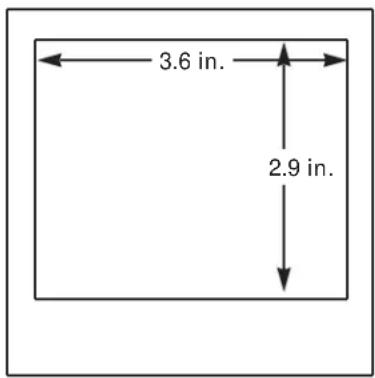
The picture size is approximately 4x4 inches (10.2 x 10.2 cm) with an image area of 3.6 x 2.9 in. (9.1 x 7.4 cm). The aspect ratio is approximately 6:5. Images with a resolution of 580 (horizontal) x 480 (vertical) with 24-bit color resolution (8 bits each for R, G and B) are printed directly.
text_image
3.6 in. 2.9 in.The printer

natural_image
Illustration of a portable electronic device with labeled components (a, b, c, d) and cable connectors (no text or symbols beyond labels)a. Printer
b. Power adapter
c. Power cord
d. USB cable
e. Printer software (not shown)
FRONT OF PRINTER
text_image
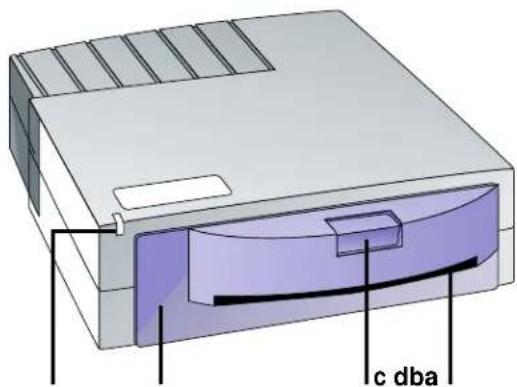
c dbaa. Power/Printer busy LED
b. Film door
c. Film door latch
d. Film ejection slot
Note: If any of these components is missing, contact your dealer.
INTRODUCTION (CONT.)
INSIDE PRINTER
natural_image
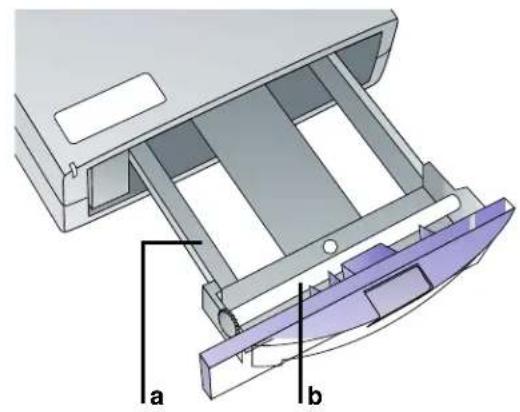
3D diagram of a mechanical device with labeled parts (a and b), showing internal structure without any text or symbols beyond labels.a. Film tray
b. Processing rollers
BACK OF PRINTER

text_image
a ba. USB connector
b. Power connector
INTRODUCTION (CONT.)
Load the film
1 Press and hold down the door latch. Pull open the film door.
natural_image
Illustration of a hand inserting a card into a device, showing the card being inserted (no text or symbols present)2 Remove the Polaroid ColorShot film from the foil package and insert it into the tray, with the film cover fac-
ing up and the wide plastic border nearest the door. The film cover protects the light-sensitive material beneath it.

text_image
Film cover3 Slide the film tray in until it latches shut.
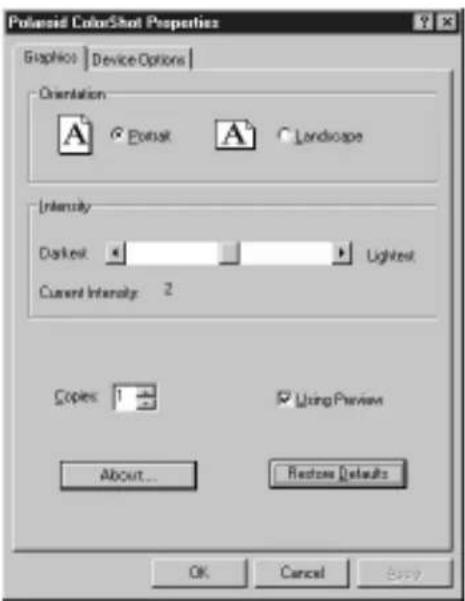
You can configure the driver for each image before printing by using the Properties dialog box. Here you can select paper orientation, use controls to lighten or darken the print, and apply Polaroid's patented image enhancement technology (IQA™). Here you also choose the Preview option and film type.
See the following for details.
Check the printer settings
1 From Windows, go to Start and select Settings. Select the Printers folder and open it.
2 Double-click the ColorShot Printer icon inside the folder.
3 The Polaroid ColorShot status box is displayed. This message box displays the print queue.
4 If you want to review the settings, click Properties on the Printer menu. Click OK.
5 Close the Printers window.
Set Properties
1 Display the Polaroid ColorShot Properties dialog box as described in the previous section. Note: You can also click the Properties button from within an application (typically in the Page Setup or Print dialog box), but not all the tabs are displayed.
2 Click a tab to make your selections, as described below.
Details tab
On the Details tab, be sure you selected the USB port (not an LPT port) for the ColorShot printer. Note: If you ever change to another USB port, you can select it here.
CONFIGURE THE DRIVER (CONT.)
Graphics tab
text_image
Powered ColorShot Properties Graphics | Device Options | Orientation A Forest A Landscape Intensity Darkest Lightest Current Intensity 2 Copies 1 Using Preview About... Restore Defaults OK Cancel BuyORIENTATION
Select a default orientation. You can override this choice for the current image from within the application.
- Select Portrait if your image is vertical. The image is rotated 90 degrees on the Polaroid film, for a better fit.
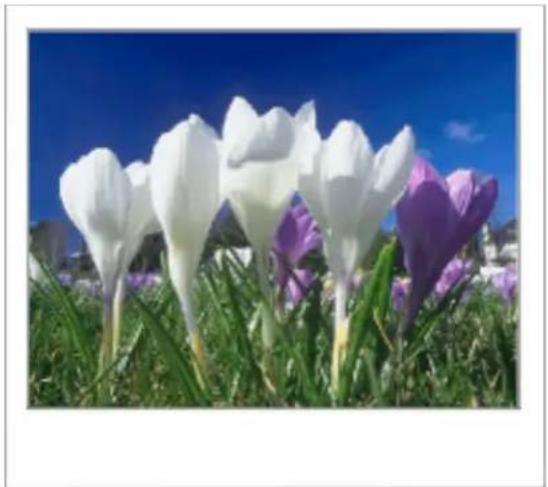
- Select Landscape if your image is horizontal. The image is printed with the wide white border at the bottom.
Note: The following sample images are copied to your hard drive (ColorShot folder) during installation They can be printed out as a test; see pages 31 – 34.
CONFIGURE THE DRIVER (CONT.)

natural_image
Two children walking on a sandy beach with fish, no visible text or symbolsPortrait orientation (KIDS.TIF)
natural_image
Field of white and purple cloac flowers under a clear blue sky (no text or symbols visible)Landscape orientation: (FLOWERS.TIF)
CONFIGURE THE DRIVER (CONT.)
INTENSITY

text_image
Intensity Darkest Lightest Current Intensity: 2The Intensity control offers five settings, from darkest to lightest. Slide the control toward Darkest to make the image darker on film, or toward Lightest to make the image lighter on film. (Some film packs may require an adjustment to compensate for a slight speed variation.) Leave it at the center setting, 2, unless needed.
COPIES
Select the number of of copies to print.

USING PREVIEW
Click to see a preview of the image before
Using Preview
printing. The Preview screen allows you to magnify the image and scroll to display the portion you want to print. If you do not need to see a preview, turn it off for faster printing.
ABOUT
Click to display version numbers and copyright
About...
information for the software.
RESTORE DEFAULTS
Click to recall the default settings.
Restore Defaults
CONFIGURE THE DRIVER (CONT.)
Device Options tab

text_image
Polaroid ColorShot Properties Graphics Device Options Film Type: Polaroid ColorShot Image Enhancement ✓ IQA Technology Restore Defaults OK Cancel ApplyFILM TYPE
Click the Film Type arrow to display a drop-down list of film types. Select the film type that is currently loaded.
IMAGE ENHANCEMENT
IQA (Image Quality Assurance) Technology is a Polaroid-patented image enhancement software designed to produce brighter colors in images that have not been previously enhanced.
CONFIGURE THE DRIVER (CONT.)
- Turn on IQA Technology for general photographic images that have been scanned using default settings, or images that have not had any color correction or image processing applied.
- Turn off IQA for images obtained from the Internet, and for images that have been color-corrected in an image-editing application such as MGI PhotoSuite™ or Adobe Photoshop®. Also, turn off IQA for business graphics with ramped backgrounds and images that contain important details (such as medical images).
If you want to see the effect this feature has, print an image with and without it for comparison.
RESTORE DEFAULTS
Click to recall the default settings.

D isplay an image on the screen. Select Print on the File menu and click the OK button in the ColorShot Print dialog box to begin printing the current image. If you selected Using
Preview on the Device Options dialog box, a preview appears first.

natural_image
Field of white and purple corks against a clear blue sky (no text or symbols visible)See the next section, Using the preview.
Using the preview
Important: What you see on the preview is what you will get on the print. The Preview screen includes some tools to resize/crop the image. For best results, however, you should resize your image in your imaging application. See Tips on resizing your image on page 18.
FILM COUNTER

In the toolbar, the preview screen also displays the number of pictures you have left in the current film pack. It counts down from ten to one, and resets automatically when you load a new pack of film.
PRINTING THE FULL IMAGE
The default setting prints the full image, which may result in borders on the top and bottom or on the sides, depending on the aspect ratio of the image.
ZOOMING AND SCROLLING
You can zoom in on the image with the magnifier tool and use the scroll bars to crop the image to your liking. A zoom out tool is provided to return the image to the original size.
THE TOOL BAR

Printer icon: Click to start printing.

Plus magnifying glass (zoom-in tool): Multiple-click to make the image larger, in small increments.

Minus magnifying glass (zoom-out tool): Multiple-click to undo a zoom in.

Click the Cancel icon to exit without printing.
Tips on resizing your image
- If your image is a horizontal scene, choose Landscape orientation on the Graphics tab for a better fit.
- If your image is a vertical scene, choose Portrait orientation on the Graphics tab for a better fit.
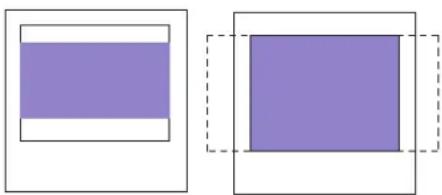
- If your image does not have the correct proportions for the ColorShot film (even after the appropriate orientation has been selected), you can reproduce the entire image with borders, or crop the image to fit. See the following illustrations.
PRINTING (CONT.)
LANDSCAPE ORIENTATION
natural_image
Two geometric shapes: a solid purple rectangle inside a larger white rectangle, with dashed outlines (no text or symbols)Entire image Cropped image
PORTRAIT ORIENTATION

natural_image
Two geometric shapes: a vertical purple rectangle inside a square and a solid purple rectangle inside a dashed border (no text or symbols)Entire image Cropped image
You can enlarge your image and select a crop by using the scroll bars in the ColorShot Print Preview Screen. For the best control over image size, however, we recommend that you resize your image in your imaging application before printing.
In Adobe Photoshop (and other applications that allow you to specify image size in dots-per-inch and pixels), set your image to 580 x 480 pixels (3.625 x 3.0 in.) and to 160 dpi.
In MGI PhotoSuite and other applications that do not allow you to specify your image size in terms of dpi and pixels, use the Fit To Page or Size To Fit option.
Start printing
To start printing the current image, click the printer icon on the preview tool bar (if Using Preview is checked), or click OK in the ColorShot dialog box (if Using Preview is not checked).
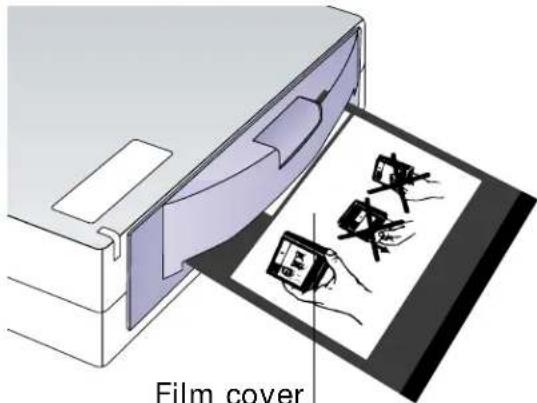
Note: If this is the first image in a pack, the protective film cover ejects first.
Warning: After the first picture, do not open the film tray until the film pack is empty. Doing so ruins the top picture in the pack.
text_image
Film coverPRINTING (CONT.)
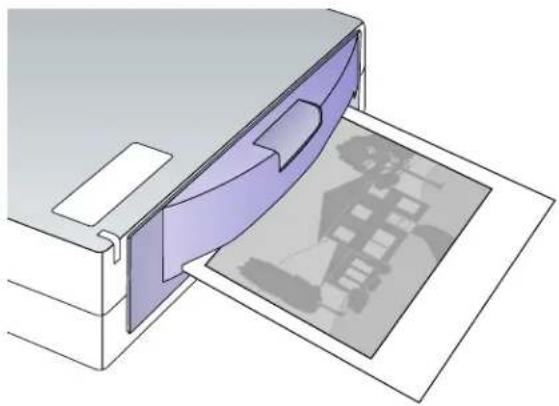
Once the image is sent, the power LED flashes slowly while printing. The print automatically ejects when it is ready (in about 10 to 20 seconds).
Once ejected, the image starts to appear right away, and appears fully developed in about 10 minutes.
Note: See Increasing printer performance on page 27 for tips on how to speed up printing.
natural_image
Diagram showing a printer or printer interacting with a printed image, no text or symbols presentHandling the print
The print is dry as soon as it is ejected and can be handled immediately; however, for the first few minutes, do not shake or bend the print. Handle it gently, by the wide white border only. Allow several minutes for the print to develop fully saturated colors.
Removing an empty pack
The screen displays an “out of film” message when the pack is empty.
1 Press the door latch and pull open the tray.
2 Remove the empty pack and reload a fresh pack as described in Load the film on page 8.
Technical Support
If the printer is not operating properly and you cannot resolve it with the troubleshooting information in this manual or the Installation Guide (CSinstal.pdf), contact Polaroid Technical
Support.
MGI PhotoSuite: If you need help with MGI PhotoSuite, check the on-line help in PhotoSuite for information on obtaining product support from MGI.
TROUBLESHOOTING (CONT.)
WITHIN THE U.S.A.
Call us toll-free from within the continental U.S.A. at 1-800-432-5355, Monday through Friday, 8 a.m. to 8 p.m., Eastern Time. We offer a variety of Customer Support services; call us for details and applicable fees.
You may also write to National Digital Imaging Support, Polaroid Corporation, 201 Burlington Road, 1-2A, Bedford, MA 01730. Fax: 1-781-386-9688.
OUTSIDE THE U.S.A
Contact the nearest Polaroid Service Center. See the list on pages 40 – 44.
INTERNET SUPPORT
Technical Support is also available over the Internet. Connect to our web site at http://www.polaroid.com.
Cleaning the rollers
For best results, clean the rollers before loading a fresh pack of film. If dirt or dust accumulates on the print rollers, it can result in a repeated pattern on your pictures, as illustrated.
1 Open the door and remove the pack. Note: If there is a partially loaded pack in the printer, you will lose the top frame when you reload that pack. See Loading a partially used pack on page 26. (Handle the pack carefully to avoid exposing the frames beneath the top frame.)
natural_image
Nighttime outdoor scene with a red barn, white fence, and silhouetted trees under a cloudy sky (no text or symbols visible)
natural_image
Illustration of hands installing or adjusting a device component (no text or symbols visible)2 Turn the rollers with one hand. With the other hand, use a clean, lint-free tissue to wipe the full length of the steel rollers located just inside the door. Use a damp cloth if necessary, then wipe the rollers dry.
Cleaning the printer
Wipe the surface with a damp cloth. Do not use aromatic solvents such as acetone, MEK, strong detergent solutions, or abrasives of any sort.
Loading a partially used pack
If you load a partially used pack, the printer assumes a full pack is loaded and the software gives you an incorrect picture count. Keep track of the number of exposures manually.
Note: The top frame acts as a film cover. It will be ejected when you initiate your first print command.
Increasing printer performance
To optimize speed and performance, try the following:
- Increase the amount of RAM in your computer.
- Increase the available hard disk space.
- Decrease the size of your image files, if possible (the larger the file, the longer it takes to print).
- Close other applications and documents that are open while you are trying to print.
Picture and printer problems
Problem Solution
Print is too dark. Intensity may be set too low. Increase
intensity in the Graphics tab of the Properties dialog box, in the print driver.
Your original may be dark. Try lightening it in a photo-editing application, or try applying IQA, which is on the Device Options tab of the Properties dialog box, in the print driver.
Print is not what you expected Print out the sample images provided (in color, brightness, or some other on the Polaroid ColorShot CD ROM for
imaging characteristic). comparison; see
Printing test images on
page 31 for details.
TROUBLESHOOTING (CONT.)
| The picture has a blue tint. The film may be too cold. Let the pack warm up to room temperature before using, if it has been refrigerated or stored in a cold environment. Film should be between 55 and 95°F (13 and 35°C) for best results. | |
| Print has a large spot or repeated spots details on cleaning them. | Print rollers are dirty. See page 25 for |
| Print has an area that did not Check your film packaging for details on develop how to return defective film. | |
| Two prints came out one after the You loaded a partial pack. The top pic-other, and the first one is all gray. ture acts as a film cover to protect the other frames from exposure, and it is ejected at the first print command. | |
TROUBLESHOOTING (CONT.)
- Some of the edges of the image are Resize the image in an image-editing cropped off in the picture, or application. See also Tips on resizing
- The print has borders you did not your image on page 18. Be sure to expect, or check Using Preview on the Graphics
- The printer creates multiple tab to preview what will appear in the partial prints for one image (tiling). print before it is printed.
The green power light is blinking. This is normal while printing. It should stop flashing when printing is done.
Imaging application cannot Check the video accelerator setting; communicate with the print driver see the Installation Guide for details. (Print dialog box or preview screen If problem persists, call Polaroid does not appear). Technical Support; see page 23.
The film counter in the preview Loading a partially used pack or opening window is not accurate. the film tray results in an inaccurate film count. The counter resets when you load a new film pack.
Printing test images
1 Start up MGI PhotoSuite and be sure all options are set to their default settings.
2 Be sure all the ColorShot Properties are set to their default settings (see Configure the driver for details):
- Graphics tab: Portrait Orientation; Intensity set to 2 and Using Preview checked.
- Device Options tab: The correct film type selected and IQA Technology checked.
PRINT KIDS.TIF
1 Open the image KIDS.TIF in the Samples folder in the ColorShot folder on your hard drive.
2 Click Printer Setup on the File menu.
3 Select Polaroid ColorShot as the printer and select Portrait orientation. Click OK.
4 Click the Print Preview icon on the toolbar (the fourth from the the left).
5 Click Size To Fit.


6 Click the Printer icon in the Print Preview screen.

TROUBLESHOOTING (CONT.)
7 Click OK to print the image.
8 The ColorShot preview screen is displayed. What you see in the preview box is what will appear in the print. Click the printer icon in the Preview tool bar to begin printing.
If this is your first print of the film pack, the printer will eject the film cover first. In a few moments, the printer will eject KIDS.TIF.

natural_image
Two children walking on a sandy beach holding fish, with water and waves in the background (no text or symbols visible)KIDS.TIF, in portrait orientation
PRINT FLOWERS.TIF
1 To print the second test image, open the image FLOWERS.TIF, also located in the Samples folder.
2 Click Printer Setup on the File menu.
3 Select Polaroid ColorShot as the printer and select Landscape orientation. Click OK.
4 Click the Print Preview icon on the toolbar (the fourth from the left).

5 Click Size To Fit.

6 Click the Printer icon in the Print Preview screen.

7 Click OK to print the image.
8 The ColorShot preview screen is displayed. What you see in the preview box is what will appear in the print. Click the printer icon in the Preview tool bar to begin printing.
TROUBLESHOOTING (CONT.)
In a few moments, the printer will eject FLOWERS.TIF.

natural_image
Field of white and purple corks against a clear blue sky (no text or symbols visible)FLOWERS.TIF, in landscape orientation
If the two sample images print correctly (as shown in the preview and in this manual), then the printer and printer driver are working properly. If you are having a problem printing from your imaging application or you are getting unexpected results with your own images, check the settings in your imaging application.
Reconnection note
Your system or hub may have several USB ports. If you connect the printer into a port other than the one used at original installation, the system prompts you to reinstall the software. If this happens, click cancel at the prompt to reinstall, and plug the printer into the previously used port. Alternatively, you can reinstall the software and specify the new USB port when prompted. Follow the instructions on the screen to reinstall the software.
Limited Equipment Warranty
Polaroid Corporation warrants your Polaroid COLORSHOT printer against defects in manufacture for a period of 90 days from the date of purchase. To verify the warranty period, you should keep the sales slip or other proof of the purchase date.
Should this product, or any component or accessory included with it, become defective at any time during the warranty period, Polaroid Corporation will, at its discretion, either replace or repair this item, without charge, provided the product is returned to a designated servicing location (prepaid and insured). Please return the product in its original packaging.
This Limited Warranty does not apply to product damage resulting from accident, incorrect installation, unauthorized modification, misuse or abuse.
Warning: Opening the printer housing voids the warranty.
Outside the U.S.A. and Canada
Refer to the registration card for local warranty conditions.
THIS WARRANTY EXCLUDES ALL INCIDENTAL AND CONSEQUENTIAL DAMAGES AND DOES NOT AFFECT YOUR STATUTORY RIGHTS.
TROUBLESHOOTING (CONT.)
REPAIR
Within the U.S.A. and Canada: Before you return your equipment for repair, please call Polaroid Customer Service from within the U.S.A. at 1-800-432-5355, Monday through Friday, 8 a.m. to 8 p.m., Eastern Time. In Canada, call 1-800-268-6970. We can help you determine what is at fault, and advise you on how and where to get service in the quickest and most convenient way.
Outside the U.S.A.: Contact the nearest Polaroid Service Center. See the list of addresses on pages 40 – 44.
NOTES
- There are no user serviceable parts inside the unit. Refer servicing to qualified service personnel.
- Polaroid Corporation reserves the right to make changes in the product described in this manual at any time and without notice.
FCC Compliance
Product: The Polaroid COLORSHOT Digital Photo Printer
Marketed by: Polaroid Corporation, 575 Technology Square, Cambridge, MA 02139 U.S.A. Telephone: 1-800-432-5355
This device complies with part 15 of the FCC Rules. Operation is subject to the following two conditions: (1) This device may not cause harmful interference, and (2) this device must accept any interference received, including interference that may cause undesired operation.
FCC NOTICE: RADIO AND TELEVISION INTERFERENCE
Note: This equipment has been tested and verified for compliance with the limits for a Class B digital device pursuant to Part 15 of the FCC rules. These limits are designed to provide reasonable protection against harmful interference in a residential installation. This equipment generates, uses and can radiate radio frequency energy and, if not installed and used in accordance with the instructions, may cause harmful interference to radio communication. However, there is no guarantee that interference will not occur in a particular installation. If this
TROUBLESHOOTING (CONT.)
equipment does cause harmful interference to radio or television reception, which can be determined by turning the equipment off and on, the user is encouraged to try to correct the interference by one or more of the following measures:
• Reorient the receiving antenna
- Increase the separation between the equipment and the receiver
- Connect the equipment into an outlet on a circuit different from that to which the receiver is connected
- Consult the dealer or an experienced radio TV technician for help.
Changes and modifications not expressly approved by the manufacturer or registrant of this equipment can void your authority to operate this equipment under Federal Communications Commission rules.
TROUBLESHOOTING (CONT.)
Polaroid Offices and Service Centers
Australia
Polaroid Australia Pty. Ltd.
13-15 Lyonpark Road
P.O. Box 163
North Ryde, NSW 2113
Tel.: (02) 950 7000
Fax: (02) 887 2209
Belgique/ België
Polaroid (Belgium) N.V. - S.A.
Polaroid Canada Inc.
350 Carlingview Drive
Etobicoke, Ontario M9W 5G6
Toll free: 1-800-268-6970
TROUBLESHOOTING (CONT.)
Danmark
Polaroid a.s.
Blokken 75
3460 Birkerød
Tlf.: 80011887
Deutschland
Polaroid GmbH
Sprendlinger Landstrasse 109
63069 Offenbach
Tel.: 06995096056
España
Polaroid (France) S.A.
B.P. 7
78996-Elancourt Cédex
Tel.: 0141913810
Hong Kong
Polaroid (Far East) Ltd.
32/F Windsor House
311 Gloucester Road
Causeway Bay
Tel.: (852) 2894 0333
Italia
Mori Building, No. 30
2-2 Toranomon 3-chome
Minato-ku, Tokyo (105)
Tel.: 81-3-3438-8811
Fax: 81-3-3433-3537
México
Polaroid New Zealand Ltd.
Camera Services
24-26 Anzac Avenue
Auckland
Tel.: (09) 377 3773
TROUBLESHOOTING (CONT.)
Norge
Polaroid (Norge) A/S
Polaroid Caribbean Corporation
Centro de Seguros
Ave. Ponce de León 701,
Miramar, Santurce 00907
Tel.: (809) 725-6240
Fax: (809) 725-5462
Schweiz/ Suisse/ Svizzera
Polaroid AG
Hardturmstrasse 133
8037 Zürich
Polaroid Export Operations
Wheathampstead House
Codicote Road
Wheathampstead
Hertfordshire AL4 8SF
Tel.: 0181 308 6508 (U.K.)
(44) 181 308 6593 (Export)
U.S.A.
Polaroid Corporation
Technical Support
Toll free: 1-800-432-5355
INDEX
A
About box, 13
Adobe Photoshop, 15, 19
applications, 3
B
blue tint in pictures, 29
C
cancel printing icon, 18
CD-ROM requirements, 4
cleaning
the printer, 26
the rollers, 25 - 26
ColorShot film, 5, 8
ColorShot printer, described, 2
communication problems, 30
compatible applications, 3
components, missing, 6
computer requirements, 4
configuring the driver, 9 - 15
Copies, number of, 13
cropping the image, 19
D
Darkest, 13
Details tab, 10
Device Options tab, 14
digital camera, 3
dirty rollers, 25, 29
disk space requirements, 4
E
empty film pack, 22
F
FCC compliance, 38 - 39
film count, 26 inaccurate, 30
film counter, 17
film cover, 8, 20
film door latch, 6, 8
film door, 6, 8
film ejection, 21 slot for, 6
film pack empty, 22 partially used, 26
film tray, 7
Film Type box, 14
film, 5 defective, 29 partial pack, 29
FLOWERS.TIF, 12 printing, 31 - 32
G
Graphics tab, 11
|
Image Enhancement, 14
image resolution, 5
image sizing, 19
image, cropping, 19
images, 3
imaging applications, 3
Intensity control, 13, 28
internet, 3
support, 24
IQA Technology
checkbox, 14
described, 15
K
KIDS.TIF, 12
KIDS.TIF, printing, 31 - 32
L
landscape orientation, 11
LED, 6, 21, 30
Lightest, 13
loading film, 8
partial pack, 26
M
manuals, described, 2
MGI PhotoSuite, 15, 19
support, 23
Microsoft Windows, 3, 4
monitor requirements, 4
0
orientation, 11
out of film, 22
photo CD, 3
PhotoShop. See Adobe Photoshop
PhotoSuite. See MGI PhotoSuite
picture cropping, 30
picture problems, 28 - 31
Polaroid Offices and Service Centers, 40 - 44
Polaroid technical support, 23
portrait orientation, 11
power adapter, illustrated, 6
power connector, 7
power cord, illustrated, 6
Preview in ColorShot, 16
Preview, using the feature, 17
Print command, 16
ejection, 21
handling, 22
queue, 10
size of, 5
with spots, 29
printer
cleaning, 26
illustrated, 6 - 7
performance, increasing, 27
problems, 28 - 31
reconnecting, 35
settings, checking, 10
printing, 16 - 22
icon, 18
starting, 20
test images, 31 - 34
the full image, 17
with borders, 17
problems, troubleshooting, 28 - 31
processing rollers, 7
cleaning, 25 - 26
product registration, 4
properties, 10
R
RAM requirements, 4
reconnecting the printer, 35
registration, product, 4
repair, 37
requirements, system, 4
resizing your image, 18
Restore Defaults button, 13, 15
rollers. See processing rollers
S
sample images,
illustrated, 12
using, 34
scrolling the image, 17
Service Centers, 40 - 44
speeding up printing, 27
system requirements, 4
T
technical support, 23
MGI, 23
over internet, 24
Polaroid, 23, 24
temperature, 29
test image, printing, 31 - 34
tool bar (Preview), 18
troubleshooting guide, 28 - 31
U
USB cable, 6
USB connector, 7
USB port, changing, 10
Using Preview checkbox, 13, 16
V
video accelerator setting, 30
W
warranty, 36
Windows. See Microsoft
Z
zoom-out tool, 18
zoom-in tool, 18
zooming, 17
Note: Polaroid Corporation reserves the right to make changes or improvements in the product described in this manual at any time and without notice.
“Polaroid”, “Polaroid ColorShot”, and “IQA” are trademarks of Polaroid Corporation. All other product names may be the property of their respective owners.
3/98