
FX - Dishwasher Hobart - Free user manual and instructions
Find the device manual for free FX Hobart in PDF.


| Product Type | Mobile Phone (Feature Phone) |
| Brand | Sharp (Hobart label assumed) |
| Model | FX / STX-2 |
| Network Technology | GSM / GPRS / EDGE / UMTS (3G) |
| SIM Card | AT&T SIM (standard size) |
| Display | Touch screen, QWERTY keyboard |
| Battery | Removable Lithium-ion, rechargeable |
| Battery Life | Up to 5 hours talk time, up to 14 days standby (estimated) |
| Camera | Rear camera with camcorder |
| Storage | microSD up to 32 GB, internal phone memory |
| Connectivity | Bluetooth, USB 2.0, 3.5mm headset jack (assumed) |
| Messaging | SMS, MMS, Email, IM (AIM, Windows Live, Yahoo) |
| Music Player | Supports AAC, AAC+, eAAC+, MP3, WMA, 3GP, MP4, M4A |
| Dimensions | Approx. 4.5 x 2.0 x 0.7 in (114 x 51 x 18 mm) |
| Weight | Approx. 4.5 oz (128 g) with battery |
| Special Features | Mobile TV, AT&T Navigator GPS, Social Net, Video Share |
| Carrier | AT&T (United States) |
Frequently Asked Questions - FX Hobart
User questions about FX Hobart
0 question about this device. Answer the ones you know or ask your own.
Ask a new question about this device
Download the instructions for your Dishwasher in PDF format for free! Find your manual FX - Hobart and take your electronic device back in hand. On this page are published all the documents necessary for the use of your device. FX by Hobart.
USER MANUAL FX Hobart
User Manual
CHAPTER 1. BEFORE USING YOUR SHARP FX
PACKAGE CONTENTS 10
HANDSET DESCRIPTION 11
THE FUNCTION KEYS 12
DISPLAY INDICATORS....13
BATTERY USAGE 16
BATTERY INSTALLATION....16
BATTERY REMOVAL....16
BATTERY CHARGING....17
USING THE AT&T SIM CARD 18
INSERTING THE AT&T SIM CARD....18
REMOVING THE AT&T SIM CARD 19
USING THE microSD CARD 19
INSERTING THE microSD CARD 19
REMOVING THE microSD CARD 20
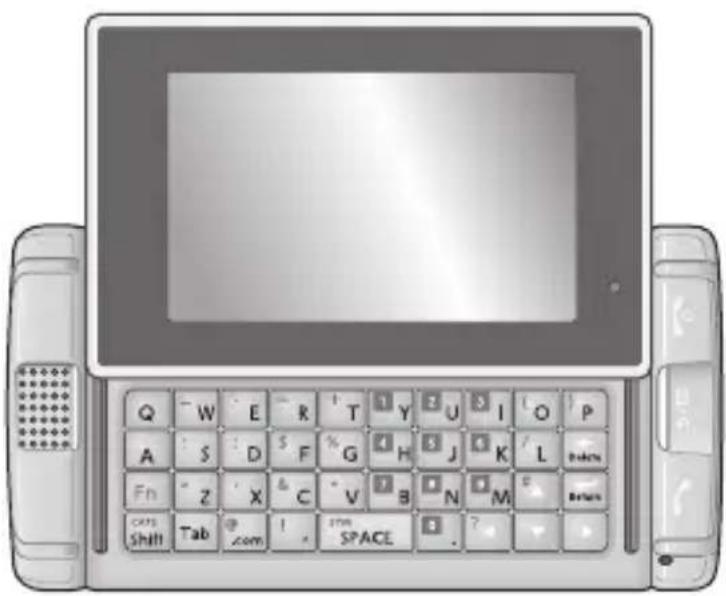
USING THE QwERTY KEYBOARD....21
PROPER HOLDING POSITION 23
CORRECT/INCORRECT FINGER POSITION 23
BATTERY HANDLING INFORMATION....24
IEEE STANDARD FOR RECHARGEABLE BATTERIES FOR CELLULAR TELEPHONES ...... 24
COPYRIGHT & PATENT 25
SOFTWARE COPYRIGHT NOTICE....25
VOLUME ADJUSTMENT 37
MAKING AN INTERNATIONAL CALL 37
DURING A CALL 38
MUTE (UNMUTE) 38
SPEAKERPHONE 38
RECENT CALLS 38
FIND NAME....38
MESSAGING....39
BLUETOOTH 39
EMERGENCY CALLING 40
911 IN LOCK MODE 40
911 USING ANY AVAILABLE SYSTEM 40
VIDEO SHARE 41
START A VIDEO SHARE CALL 41
VIDEO SHARE CALL RECEIVING 41
END A VIDEO SHARE CALL....42
CHAPTER 3. MEMORY FUNCTION
STORING A PHONE NUMBER 44
ENTERING LETTERS, NUMBERS & CHARACTERS 46
USING THE PROGRAM GUIDE ....61
wANT MORE? 64
MESSAGING 65
CREATE NEW MESSAGE....65
INBOX 66
OUTBOX....67
SENT 68
DRAFTS 68
IM 69
EMAIL 71
TABLE OF CONTENTS
VOICE MAIL 72
AT&T SOCIAL NET 73
APPCENTER....74
SHOP RINGTONES 74
SHOP GAMES....74
SHOP GRAPHICS 74
SHOP MULTIMEDIA....75
SHOP APPLICATIONS....75
MEDIA NET HOME 75
AT&T GPS....76
AT&T NAVIGATOR 76
SHOP GPS APPS 77
WHERE....77
ALLSPORT GPS 77
LOOPT....78
AT&T FAMILYMAP 78
AT&T MUSIC 79
MUSIC PLAYER....79
SHOP MUSIC 82
AT&T RADIO 82
MUSIC ID 82
MUSIC VIDEOS 83
COMMUNITY 83
MUSIC APPS....84
YPMOBILE 85
ADDRESS BOOK 86
FIND NAME 86
ADD NEW....92
FACEBOOK 94
PICDIAL....95
MOBILE VIDEO 96
MOBILE VIDEO OPTIONS....96
TABLE OF CONTENTS
MY STUFF 97
ONLINE LOCKER....97
RINGTONES & AUDIO 97
PICTURES 98
VIDEOS....99
OTHER FILES....100
GAMES 101
APPLICATIONS 102
BROwSER 102
MOBILE BANKING....104
MY CAST wEATHER 105
FUNSCREENZ 105
MOBILE TV 105
RECENT HISTORY 106
SETTINGS 107
DISPLAY 107
DATE & TIME....109
PHONE 110
CALL....113
SECURITY 116
APPLICATIONS 120
XT9 SETTINGS 122
SOFTWARE UPDATE 123
VIDEO SHARE SETTINGS ....123
USER DEFINED 124
MY ACCOUNT 125
TOOLS 126
TO DO 126
wORLD TIME....126
NOTEPAD 127
UNIT CONVERTER 128
VOICE MEMO....128
TABLE OF CONTENTS
STOPwATCH....129
CALENDAR 130
ALARM CLOCK 132
CALCULATOR 133
CALCULATOR 133
TIP CALCULATOR 133
SOUND PROFILE 134
BLUETOOTH ....135
CAMERA 138
CAMERA 138
CAMCORDER 139
CHAPTER 6. PC CONNECTIVITY
PC CONNECTIVITY ....142
SETTING UP THE BLUETOOTH MODE FOR THE SHARP FX 142
PAIRING THE SHARP FX WITH A PC 142
DIAL-UP NETWORKING 143
PAIRING A BLUETOOTH HEADSET TO THE SHARP FX 144
DIAL-UP NETWORKING VIA USB 145
MUSIC SYNC 146
MASS STORAGE DEVICE....147
CHAPTER 7. SAFETY INFORMATION
SAFETY 150
SAFETY INFORMATION FOR wIRELESS HANDHELD PHONES 150
HEARING AID COMPATIBILITY WITH MOBILE PHONES ....154
SAFETY INFORMATION FOR FCC RF EXPOSURE 155
SAR INFORMATION....156
FDA CONSUMER UPDATE 158
EMERGENCY CALLS 166
COMPLIANCE WITH OTHER FCC REGULATIONS ....168
GENERAL SAFETY 169
TABLE OF CONTENTS
ANTENNA 170
BATTERY....170
ADAPTER/CHARGER....172
GAMES....173
RECYCLE YOUR CELL PHONE! 174
FCC COMPLIANCE INFORMATION 175
wARRANTY 177
MANUFACTURER'S WARRANTY.... 177
Model : STX-2
Devices purchased for use on AT&T's system are designed for use exclusively on AT&T's system. You agree that you won't make any modifications to the Equipment or programming to enable the Equipment to operate on any other system. A voice plan is required on all voice-capable devices, unless specifically noted otherwise in the terms governing your agreement. Some devices or plans may require you to subscribe to a data plan.
Your phone is designed to make it easy for you to access a wide variety of content. For your protection, AT&T wants you to be aware that some applications that you enable may involve the location of your phone being shared. For applications available through AT&T, AT&T offers privacy controls that let you decide how an application may use the location of your phone and other phones on your account. However, AT&T's privacy tools do not apply to applications available outside of AT&T. Please review the terms and conditions and the associated privacy policy for each location-based service to learn how location information will be used and protected.
Your phone may be used to access the Internet and to download, and/or purchase goods, applications, and services from AT&T or elsewhere from third parties. AT&T provides tools for you to control access to the Internet and certain Internet content. These controls may not be available for certain devices which bypass AT&T controls.
A&T may collect certain types of information from your device when you use AT&T services to provide customer support and to improve its services. For more information on AT&T's Privacy Policy, visit att.com/privacy.
CHAPTER 1. BEFORE USING YOUR SHARP FX
This chapter provides important information about your SHARP FX handset including:
Package Contents
Handset Description
Battery Usage
Using the AT&T SIM Card
Using the microSD Card
Using the QwERTY Keyboard
Proper Holding Position
Battery Handling Information
Copyright & Patent
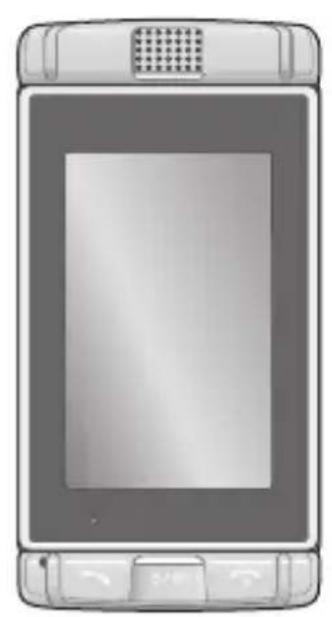
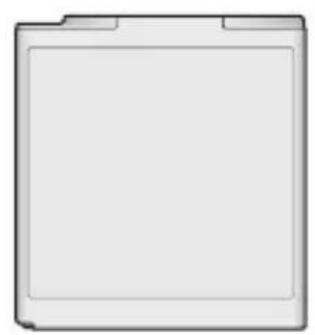
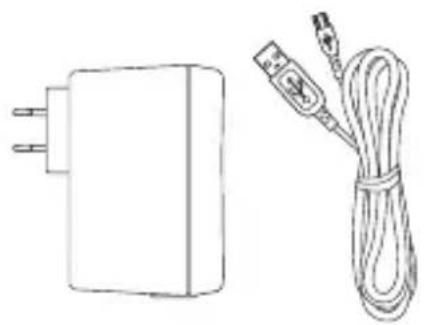
This package should include all of the items pictured below.
If any are missing or different, immediately contact the retailer where you purchased the phone.
natural_image
Front view of a generic electronic device with a screen and antenna (no visible text or symbols)Handset
natural_image
Blank white rectangular object with rounded corners and a small protrusion at the top (no text or symbols)Standard Battery
CD with Owners Manual

natural_image
Line drawing of a white power strip connected to a coiled cable with two USB connectors (no text or symbols)Quick Start Guide AC Charger/Data Cable
THE FUNCTION KEYS
| KEY Descriptions | |
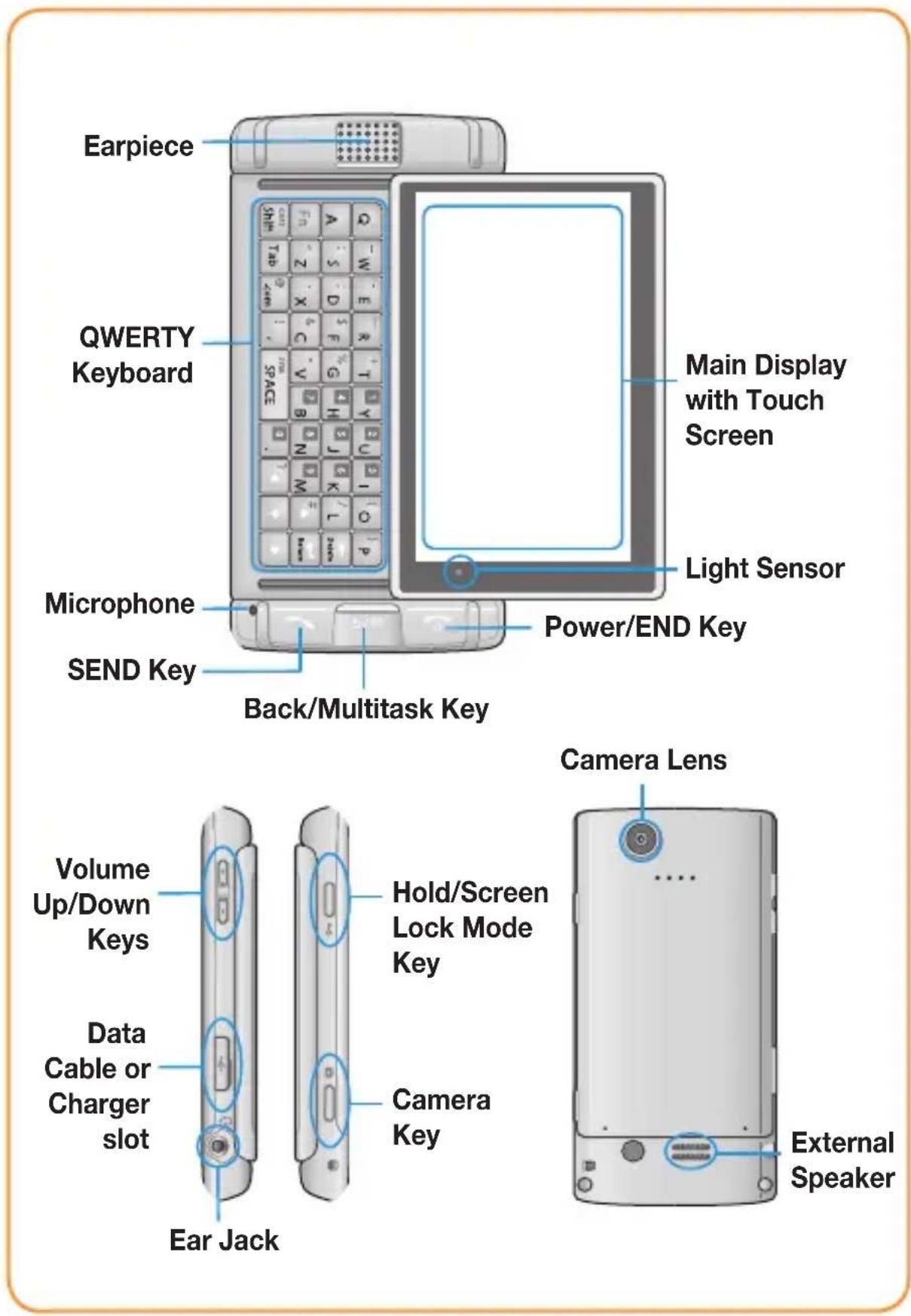
 | Send KeyPress to make or receive a call, or in idle mode press to access the All Calls List. |
 | Power/END KeyPress and hold to turn the phone on/off.Press to terminate a call or to return to idle mode. |
 | Back/Multitask KeyPress and hold to launch the Quick List which includes Main Menu, Call, Messaging, Browser, and Music Player.Press to return to the previous screen. |
 | Hold/Screen Lock Mode KeyQuickly press to lock the screen. |
| [2YKW] | Camera KeyPress : Starting Camera Function.Press & Hold : My Stuff (Pictures). |
 | Side Volume KeyPress up or down to adjust the ringer volume in standby mode or adjust the voice volume during a call. The volume key can also be used to scroll up or down to navigate through the different menu options. Press to mute the incoming call ringer. |
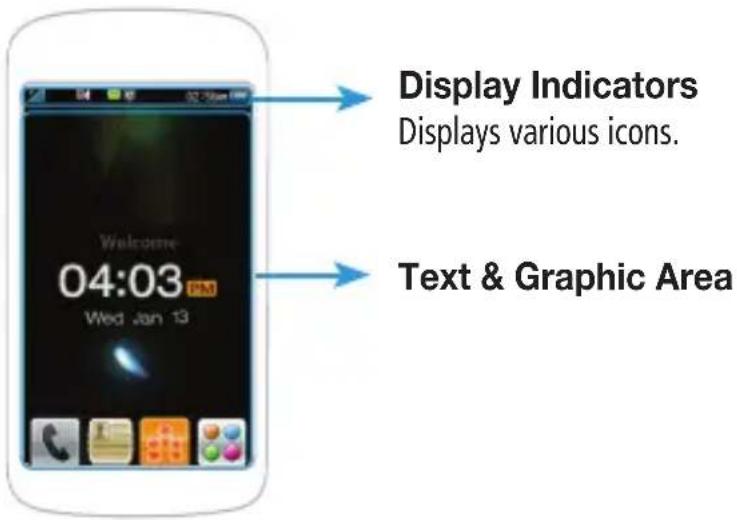
DISPLAY INDICATORS
The idle mode display appears when you are not on a call or using the menu. You must be in idle mode to dial a phone number.
 | Signal StrengthCurrent signal strength: the more lines, the stronger the signal. |
 | GPRS Signal StrengthGPRS network service is available. |
 | EDGE Signal StrengthEDGE network service is available. |
 | 3G Signal Strength3G (UMTS) network service is available. |
 | 3G+ Signal Strength3G+(HSDPA) network service is available. |
 | No ServiceThe phone cannot receive a signal from the system. |
 | Airplane ModeIndicates that Airplane mode is active. |
 | Mobile TV |
 | BatteryBattery charging level — the more blocks, the stronger the charge. |
 | Battery ChargingIndicates that the battery is charging. |
 | Missed Call |
 | Data Call |
 | Calling |
 | Calling + Data Call |
 | Call Forwarding / Call Forwarding+Missed |
 | TTYIndicates that your SHARP FX is active in TTY mode. |
 | Alarm OnAppears when an alarm is set. |
 | Scheduler OnAppears when a Scheduler event is set. |
 | Alarm + SchedulerIndicates that Alarm and Scheduler modes are both active. |
 | Profile Icon StatusIndicates that the Meeting, Headset or Outdoor mode is active. |
 | Silent AllPhone is set to Silent - no sound will be made to notify you of incoming calls or messages. |
 | Vibrate AllPhone will vibrate to notify you of an incoming call. |
 | Bluetooth OnIndicates that Bluetooth mode is active. |
 | Bluetooth ConnectedIndicates that Bluetooth is connected. |
 | USB ConnectedIndicates USB Connected. |
 | SD CardIndicates a SD card is inserted. |
 | Music PlayerIndicates that the Music player is active. |
 | Secure WAP ConnectedIcons indicate a Secure WAP connection. |
 | Message Icon StatusIcons indicate Text message, MMS message, Voice Mail,WAP push, OTA, text message+voice, MMS message+voice,WAP push+voice, MMS noti+voice, Email+voice, MMS sending, and MMS retrieving. You're also notified by a visual and audible alert. |
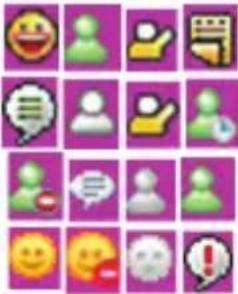 | IMIcons indicate Yahoo IM, MSN IM, AIM IM, AOL Away, AOL Message, AOL Offline, AOL Online, Windows Live Away,Windows Live Busy, Windows Live New Message, Windows Live Offline, Windows Live Online, Yahoo Available, YahooBusy, Yahoo Invisible, and Yahoo Message |
BATTERY INSTALLATION
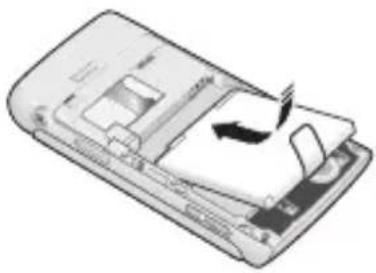
- Make sure that your device is turned off, then remove the back cover.
- Align the battery's exposed gold contacts with the battery connectors inside the battery compartment.
- Insert the contact side of the battery first and then gently push the battery into place.
natural_image
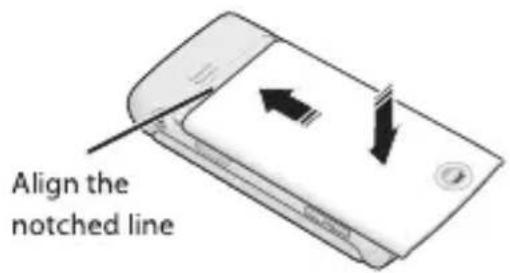
Diagram of a mobile phone casing with an internal panel and directional arrow indicating movement (no text or symbols)- Replace the battery cover by aligning the notched line with the end cover and sliding it back into place.
BATTERY REMOVAL
- Make sure that your device is turned off, and then remove the back cover.
- Lift the tab of the battery to remove the battery.

natural_image
Diagram of a smartphone showing the internal components and a black arrow pointing to a screen (no text or symbols present)Note
If the battery is not correctly placed in the compartment, the handset will not turn on and/or the battery may detach during use.
BATTERY CHARGING
POWER CONNECTION
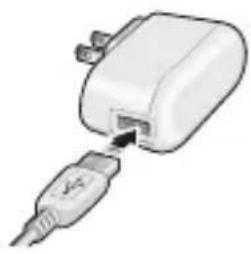
- Plug the USB cable into the AC Charger port.
- Plug the AC Charger into a standard outlet.
- To access the charging port located on the left side of your SHARP FX, as seen on page 11, open the flap and plug the other end of the AC Charger into the charging port. The battery must be installed for the phone to work properly.
- The USB icon on the USB cable should always be face-up on the same side as the display screen when it is inserted into the SHARP FX phone. See the diagram to the right for proper positioning and insertion of the AC Charger adapter into the phone. You should never force the AC Charger adapter into the phone.
Note
natural_image
Illustration of a white electrical plug with a cable inserted, showing internal components (no text or symbols)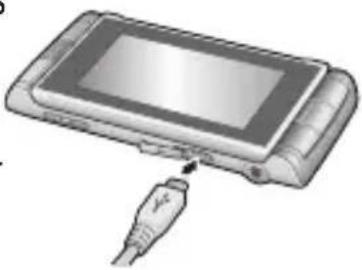
natural_image
Illustration of a handheld electronic device with a cable inserted (no text or symbols visible)- When you charge the battery with the phone powered off, you will see a charging status screen. You cannot operate the phone until it is powered on.
- The battery is not charged at the time of purchase.
• Fully charge the battery before use. - It is more efficient to charge the battery with the handset powered off.
- The battery must be connected to the phone in order to charge it.
- Battery operating time gradually decreases over time.
- If the battery fails to perform normally, you may need to replace the battery. Please refer to the Manufacturer's Warranty on page 177 for further information.
INSERTING THE AT&T SIM CARD
You'll always need an AT&T SIM card to use your mobile phone. This contains important information about your mobile phone and network. The message "Insert SIM Card" appears when the AT&T SIM card is not installed. Please take care of your AT&T SIM card and don't keep it near magnetic and/or electronic devices, as this can interfere with data storage and network operations.
-
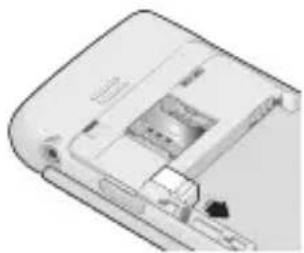
Make sure that your device is turned off, and then remove the back cover.
-
Lift the battery out of the device. Slide the tab to unlock.
-
Locate the SIM card slot, then insert the SIM card with its gold contacts facing down and its cut-off corner facing out the card slot.
natural_image
Diagram of a device with internal components and a small arrow pointing to a component (no text or symbols visible)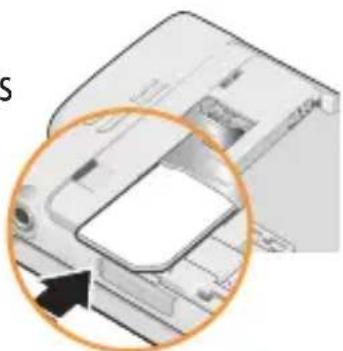
natural_image
Diagram of a printer or printer with an arrow pointing to the cover area, no visible text or symbols.-
Slide the SIM card completely into the slot. Slide the tab to lock the SIM card.
-
Replace the back cover.
REMOVING THE AT&T SIM CARD
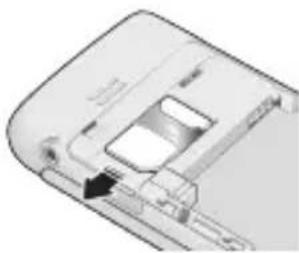
- Make sure that your device is turned off, and then remove the back cover.
- Lift the battery out of the device.
- Press down the tab in front of the SIM card slot opening with your finger.
- Slide the SIM card out from the slot with your finger. And slide tab.
natural_image
Pure technical diagram of a mechanical component without any text, numbers, or symbolsINSERTING THE microSD CARD
The microSD card stores sounds, images, photos and videos, music, and other files. To install your microSD card:
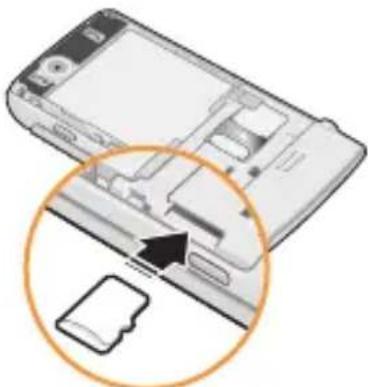
- Make sure that your device is turned off, and then remove the back cover.
- Locate the microSD card slot on the upper part of the exposed right panel.
- Insert the microSD card into the slot with its gold contacts facing down until it clicks into place.
- Replace the back cover.
natural_image
Diagram of a smartphone showing internal components and a close-up of a small physical device (no text or symbols present)REMOVING THE microSD CARD
To remove the microSD card:
- Make sure that your device is turned off, and then remove the back cover.
- Press it to eject it from the slot, and then remove it.

natural_image
Diagram showing two views of a device casing before and after assembly, with arrows indicating direction (no text or symbols present)Note
- A microSD card with over 32 GB of storage capacity will not work with this phone.
- Forcing the microSD card out before pushing to release it may cause the card or slot to break.
USING THE QWERTY KEYBOARD
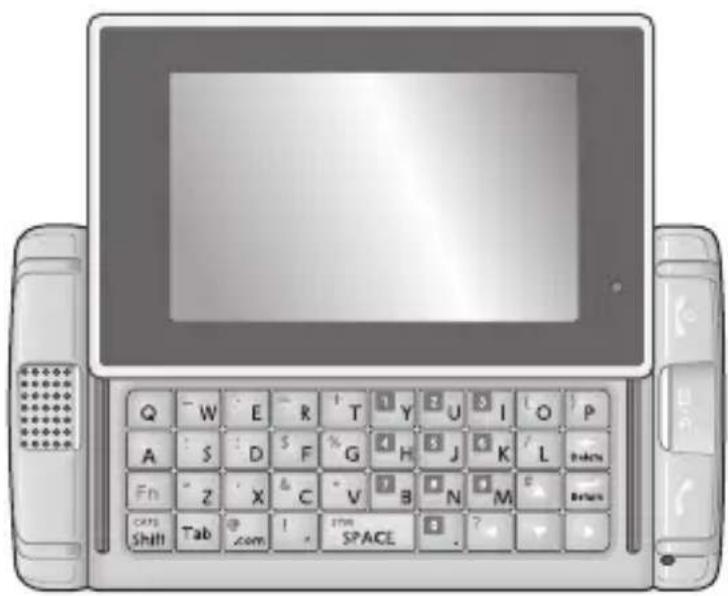
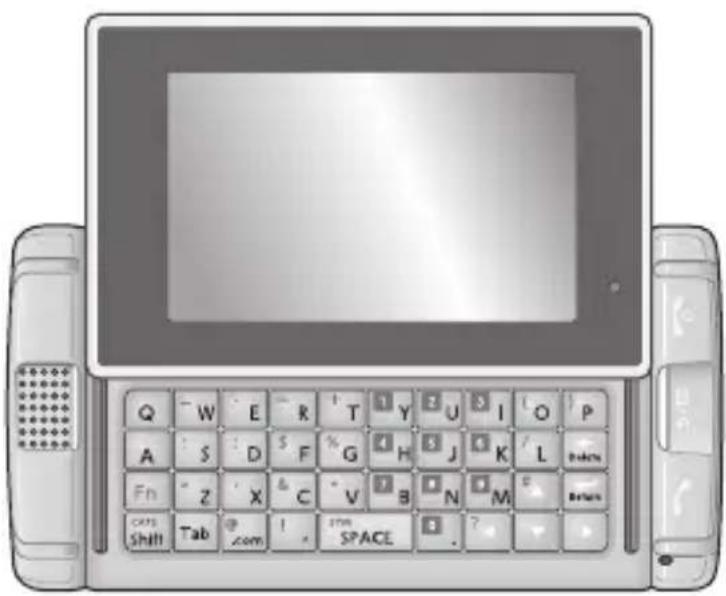
Your SHARP FX features a specifically designed QWERTY Keyboard that provides a superior typing experience for easy and comfortable texting for SMS or e-mail messages, notes, and other functions. You can use all of the phone functions with the keyboard either closed or open. When you open the keyboard you have the extra benefit of a full messaging keyboard.
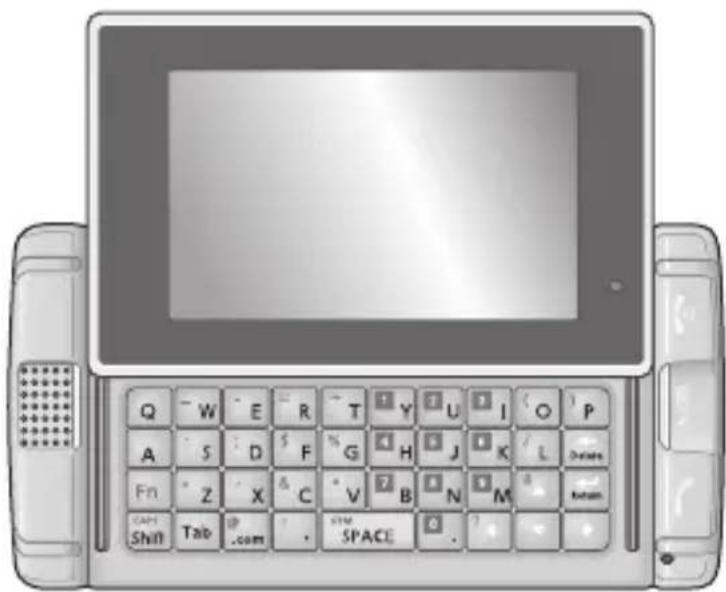
 | CAPS/Shift KeyTo type upper-case letters, hold down the CAPS/Shift key and then press one or more letter keys. To type upper-case letters continuously, use the CAPS-LOCK mode. To change to the CAPS-LOCK mode, press the Fn Key then the CAPS/Shift Key. Once the CAPS-LOCK mode is set, you can type upper-case letters only. To deactivate, press the Fn Key then the CAPS/Shift Key. |
 | Return KeyPress the Enter key to insert a line break. |
USING THE QWERTY KEYBOARD
 | Fn KeyTo type the special characters or numbers that appear in Skyblue on the keys, press the applicable key while holding down the Fn key.To type special characters or numbers consecutively, use the FN-LOCK mode. To change to the FN-LOCK mode, double-tap the Fn key. You can type special characters or numbers only in this mode. To deactivate, double-tap the Fn key again. To access other special characters that do not appear on the keyboard, press Fn Key + SYM/SPACE Key. |
 | Delete KeyPress the Delete Key to delete a character to the left of the text cursor. Press and hold to delete the entire entry. |
 | Tab KeyPress the Tab Key to easily navigate between multiple windows. |
 | SYM/SPACE KeyPress the SYM/SPACE Key to type a blank space.Press the Fn Key + SYM/SPACE Key, to open the Symbol Pad. |
 | Arrow KeyPress the arrow keys for directional movement. |
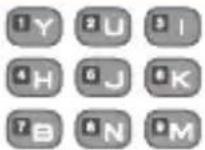 | Numeric KeyPress the Fn Key + Corresponding Key to enter the number. |
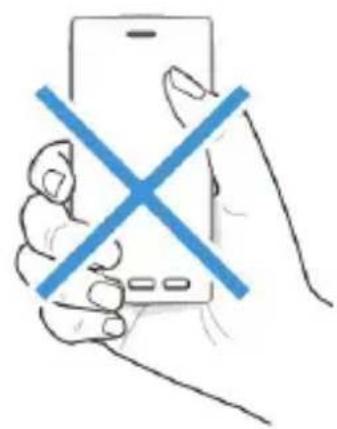
CORRECT/INCORRECT FINGER POSITION
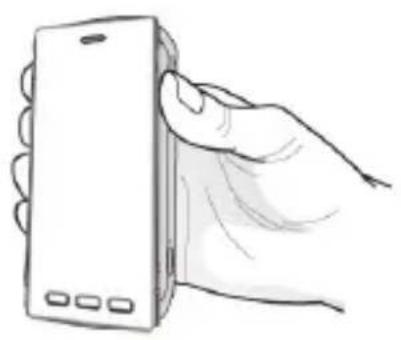
natural_image
Hand holding a smartphone with a scroll wheel (no text or symbols visible)CORRECT FINGER POSITION
natural_image
Hand holding a smartphone with a blue X symbol crossed out (no text or symbols present)INCORRECT FINGER POSITION
Note
Your SHARP FX is equipped with an antenna. For optimal call quality, hold the phone by the gripped edges on the side and avoid touching the top and bottom of the phone.
IEEE STANDARD FOR RECHARGEABLE BATTERIES FOR CELLULAR TELEPHONES
- Do not disassemble or open, crush, bend or deform, puncture, or shred.
- Do not modify or remanufacture, attempt to insert foreign objects into the battery, immerse or expose to water or other liquids, or expose to fire, explosion, or other hazard.
- Only use the battery for the system for which it was specified.
- Only use the battery with a charging system that has been qualified with the system per this standard. Use of an unqualified battery or charger may present a risk of fire, explosion, leakage, or other hazard.
- Do not short circuit a battery or allow metallic or conductive objects to contact the battery terminals.
- Replace the battery only with another battery that has been qualified with the system per this standard. Use of an unqualified battery may present a risk of fire, explosion, leakage, or other hazard.
- Promptly dispose of used batteries in accordance with local regulations.
- Battery usage by children should be supervised.
- Avoid dropping the phone or battery. If the phone or battery is dropped, especially on a hard surface, and the user suspects damage, take it to a service center for inspection.
- Improper battery use may result in a fire, explosion, or other hazard.
SOFTWARE COPYRIGHT NOTICE
All Intellectual Property, as defined below, owned by or which is otherwise the property of Sharp or its respective suppliers relating to the Sharp Phone, including but not limited to, accessories, parts, or software relating there to (the "Phone System"), is proprietary to Sharp and protected under federal laws, state laws, and international treaty provisions. Intellectual Property includes, but is not limited to, inventions (patentable or unpatentable), patents, trade secrets, copyrights, software, computer programs, and related documentation and other works of authorship. You may not infringe or otherwise violate the rights secured by the Intellectual Property. Moreover, you agree that you will not (and will not attempt to) modify, prepare derivative works of, reverse engineer, decompile, disassemble, or otherwise attempt to create source code from the software. No title to or ownership in the Intellectual Property is transferred to you. All applicable rights of the Intellectual Property shall remain with Sharp and its suppliers.
MEMO
natural_image
Blank white image with a thin brown border (no text, symbols, or markings)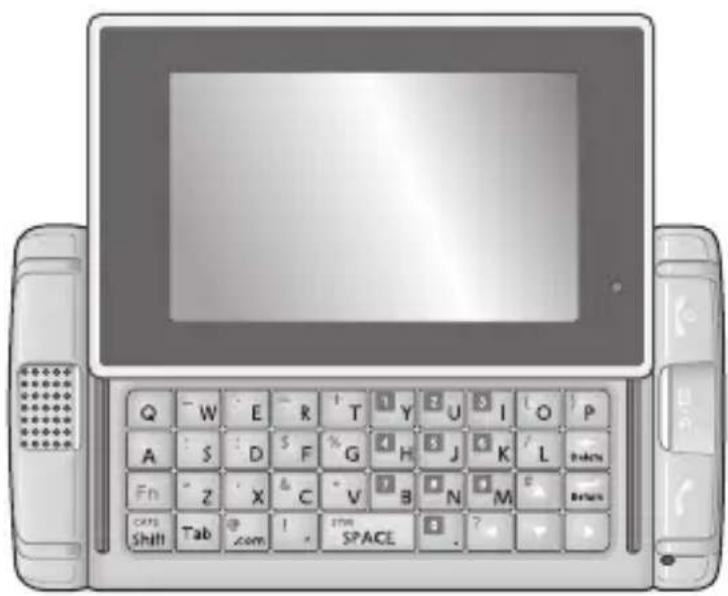
This chapter addresses and explains the basic features of your SHARP FX including:
Turning the Phone On/Off
Touch Screen Lock Mode
Using the Multitask Key
Idle Screen
4 way SWIPE Navigation
Using the Touch Screen
Menu Summary
Basic Functions
During a Call
Emergency Calling
Video Share
- To turn on the phone, press and hold the Power/END Key for a few seconds until the AT&T animation appears and the melody begins to play.
- To turn off the power, press and hold the Power/END Key 📋 for a few seconds.
- Power off AT&T animation appears and the melody begins to play.
Pressing the Side Lock Key temporarily turns off the display and locks your device. You will still be able to receive messages and calls while your device is in Lock Mode. To wake up your device, press the Lock Icon on the screen then touch and drag toward down the Falling Key. Or, simply open the QWERTY Keyboard.
Note
Your device automatically goes into lock mode when you leave it idle after 1 minute after the backlight set time runs out. To change this time go to Menu icon , Drag toward the left then tap Settings icon, select Display > Auto Lock, select the time you prefer then tap Save on your touch screen.
USING THE MULTITASK KEY
In Idle mode, pressing and holding Back/Multitask Key 📋 allows you to quickly access frequently used programs and functions including Call, Mobile Web, Messaging, Music Player, Main Menu and Home.
IDLE SCREEN
From the Idle screen, you can access Call, Address book, AT&T Social Net (User Defined) and Main Menu.
From the Landscape mode screen, you can access Inbox, AT&TSocial Net, Mobile Email, IM, Mobile Web, Address Book and More.
4 WAY SWIPE NAVIGATION
The 4 way Swipe Navigation option is another way to access applications from the idle mode without navigating through the main menu icons and sub menus. From the Idle screen, Touch and Drag toward the Left, you can access IM menu, Touch and Drag toward the Right, you can access Mobile Web menu, Touch and Drag toward the Up, you can access My Stuff menu, Touch and Drag toward the Down, you can access AT&T Social Net menu.
Note
After the phone have been Screen Unlock or power on, 4 way Swipe Navigation indicator automatically appears a few seconds on the Idle screen and then disappears.
• Make sure your hands are clean and dry.
- You do not need to press hard on the touch keys to make them work.
- Do not subject the product to severe impact, as this may damage the touch key sensors.
- Use the tip of your finger to press exactly on the touch key you want, being careful not to touch the keys for other functions.
- Touch keys may not work normally if a mobile phone case or plastic cover is covering them. Also, touch keys may not work if you are wearing gloves.
- Keep metal and other conductive materials away from the surface of the touch keys, as contact with them may result in an error.
TO OPEN A SCREEN MENU ITEM:
- Tap any application or sub menu item.
TO USE THE SCROLL BAR:
- Tap and hold the scroll bar and drag up or down. On some screens such as web pages, you can also scroll side to side.
- You may touch and drag text on the screen up or down in the direction you want to move it, or use your finger to quickly flick the text in the direction you want it to move.
TO RETURN TO THE PREVIOUS SCREEN:
- Tap the Back icon ← .
MAKING A CALL WITH THE SCREEN DIAL BUTTON
- Simply touch the screen dial button with your finger to enter the phone number then tap Call or press the SEND Key.
TO RETURN TO THE IDLE SCREEN:
- Press the Power/END Key multiple times to close all the running applications.
CENTER MENU
1. Mobile TV
2. Messaging
Create New Message
Inbox
Outbox
Sent
Drafts
IM
Voice Mail
3. AT&T Social Net
4. Mobile Web
5. AppCenter
6. AT&T GPS
AT&T Navigator
Shop GPS Apps
Where
AllSport GPS
Loopt
AT&T FamilyMap
7. AT&T Music
Music Player
Now Playing
All Music
Albums
Artists
Playlists
Genres
Settings
Shop Music
AT&T Radio
Music ID
Music Videos
Community
Music Apps
8. YPmobile
9. Address Book
LEFT MENU
1. Mobile Email
2. IM
3. Facebook
4. PicDial
5. Mobile Video
6. My Stuff
Online Locker
Ringtones & Audio
Pictures
Videos
Other Files
7. Games
Shop Games
Diner Dash Flo on the Go
Luxor Quest
PAC-MAN
Tetris
Uno
8. Applications
Shop Applications
AllSport GPS
AppCenter
AT&T FamilyMap
AT&T Navigator
AT&T Radio
AT&T Social Net
FunScreenz
Instant Messaging
Loopt
Mobile Banking
Mobile Email
Mobile Web
MobiVJ
MusicID 2
My-Cast Weather
PicDial
WHERE
YPmobile
Mobile TV
Mobile Video
Video Share
Browser
9. Recent History
All Calls
Received Calls
Dialed Calls
Missed Calls
RIGHT MENU
1. Settings
Display
Wallpaper
Style
Greeting Banner
Backlight
Theme
Auto Lock
Date & Time
Time Zone Update
Date Format
Time Format
Phone
Language
Network Profile
USB Connection Mode
Memory Meter
Phone Information
Call
Answer Mode
Auto Redial
Minute Minder
Call Forwarding
Call Waiting
Caller ID
TTY
Security
Phone Lock
PIN Code Request
Change Phone Password
Change PIN Code
FDN
Master Reset
Master Clear
Applications
Messaging Settings
Browser Settings
Address Book Settings
Camera Settings
XT9 Settings
Word Prediction
Spell Correction
Word Completion
Software Update
Continue Update
Check for Update
Video Share Settings
Audio Alerts
Auto Record
Services
Save to
User Defined
2. My Account
3. Tools
To Do
World Time
Notepad
Unit Converter
Voice Memo
Stopwatch
4. Calendar
5. Alarm Clock
6. Calculator
Calculator
Tip Calculator
7. Sound Profile
General
Outdoor
Meeting
Headset
Airplane Mode
8. Bluetooth
Bluetooth
Search Device
Paired Device List
Device Visibility
My Device Name
My Device Info
Primary Storage
9. Camera
Camera
Camcorder
LANDSCAPE MODE MENU
1. Inbox
2. AT&T Social Net
3. Mobile Email
4. IM
5. Mobile Web
6. Address Book
7. More
Call
Mobile TV
AppCenter
AT&T GPS
AT&T Music
YPmobile
PicDial
Mobile Video
My Stuff
Games
Applications
Recent History
Settings
My Account
Tools
Calendar
Alarm Clock
Calculator
Sound Profile
Bluetooth
Camera
MAKING A CALL
MAKE A CALL FROM DIALPAD
- In Idle mode, tap the Call icon
- On the Phone keypad, simply touch the number key with your finger to enter the phone number. If you tap a wrong number, tapClear, at the bottom right of the screen, to erase a number. To erase the entire number, press and hold Clear.
- Tap Call on your device to place the call or press the SEND Key
MAKE A CALL FROM PHONE BOOK
- In Idle mode, tap the Address Book icon 📄 . Your Phone Book list appears.
- Tap and hold the scroll bar and drag up or down with your finger.
- Tap the desired contact in the Phone Book list, then tap the phone number that you want to call.
- To place the call, tap Call or press the SEND Key
MAKE A CALL FROM CALL HISTORY
- In Idle mode, press the SEND Key
- You can select to view different types of calls including: All Calls, Received Calls, Dialed Calls and Missed Calls.
- Select the desired contact or phone number, then tapCall or press the SEND Key.
ANSWERING CALLS
- When your SHARP FX rings or vibrates, tap Answer or press the SEND Key to answer the incoming call. (Depending on your phone's settings, you may also answer incoming calls by opening the phone or by pressing any digit key.)
To ignore incoming calls, tap Ignore or press the Power/END Key
WAIT/PAUSE FEATURE
Pauses are used for automated systems (i.e., Voicemail, calling cards). Insert a pause after a phone number then enter another group of numbers. The second set of numbers is dialed automatically after the pause. This feature is useful for dialing into systems that require a code.
-
To insert a wait/pause, enter a phone number then press and hold the * button until "T" appears, or press and hold the # button until "P" appears.
-
Type "P": When you call automated systems (like banking services), you are often required to enter a password or account number. Instead of manually entering the numbers each time.
-
Type "T." A two second pause stops the calling sequence for two seconds and then automatically sends the remaining digits.
-
TapCall or press the SEND Key to dial.
3-WAY CALLING
With 3-Way Calling, you can talk to two people at the same time. When using this feature, the normal airtime rates will be applied for each of the two calls.
- Enter the number you wish to call then tap Call or press the SEND Key
- Once you have established the connection, enter the second number you wish to call then tap Call or press the SEND Key ☐.
- When you're connected to the second party, tap the 3-Way call icon again to begin your 3-Way call.
CALLER ID FUNCTION
Identifies caller by displaying their phone number. If the caller's name and number are already stored in your phone book, their name will appear.
Note
This is a system dependent feature. Please contact your service provider for details.
CALL WAITING FUNCTION
Notifies you of an incoming call when you are already on a call by sounding a beep tone and displaying the caller's phone number.
- To answer another call while on the phone, tap Call or press the SEND Key.
This places the first call on hold. To switch back to the first caller, tap Call or press the SEND Key 📋 again.
Note
Call Waiting is a system dependent feature. Please contact your service provider for details.
VOLUME ADJUSTMENT
- In idle mode, press the Side Volume Key up or down to adjust the volume of the ringer, key beep, and earpiece. Choose from "General", "Outdoor", "Meeting", "Airplane", "Vibrate", "Silent" or "Level 1 \~ Level 7".
Note
- To adjust the conversation phone volume, you must do it during a call. Adjusting the volume at another time will affect the ring, notification, and Music sound levels.
- When you activate Vibrate mode, the sound will automatically be muted and your device will vibrate when an incoming call is received.
MAKING AN INTERNATIONAL CALL
- Press and hold the O Key on the Phone keypad until the "+" sign appears. The "+" replaces the international prefix of the country that you are calling.
- Enter the full phone number you want to dial, then tap Call or press the SEND Key.
MUTE (UNMUTE)
If you press Mute during a call, the person you are speaking with cannot hear you or any sounds from your side of the conversation. However, you can still hear them. To activate Mute during a call, tapMute.
• To deactivate, tap Unmute.
- The phone will automatically unmute in "Emergency Call" or "Callback Mode".
SPEAKERPHONE
- To activate the speakerphone while in answering or calling modes, tap SPK On/Off (Calling Mode) located in the bottom middle of the screen.
RECENT CALLS
To view your Recent Call List during a call:
- Tap Options, then tap Recent Calls.
FIND NAME
To select a phone number in your internal Contact List:
- Tap Options, then tap Find Name.
MESSAGING
To send a text message during a call:
- Tap Options, then tap Messaging.
BLUETOOTH
To connect to a Bluetooth-enabled device, such as a wireless headset (sold separately):
- Tap Options, then tap Bluetooth.
The 911 feature puts the phone in the Emergency Call Mode when you dial the preprogrammed emergency number 911. It also operates in Lock Mode and outside the service area.
911 IN LOCK MODE
The 911 call service is available even in Lock Mode.
- Tap Emergency icon > Tap 911.
- The call connects.
- When the call ends, the phone returns to Lock Mode.
911 USING ANY AVAILABLE SYSTEM
- Enter "911", then tap Call.
- The call connects.
- The phone maintains Emergency Mode and the phone can receive an incoming call from any available system. However, it can't make a call.
Note
The 911 call does not appear in the Emergency call list.
Share events the moment they happen. Video Share allows you to stream one-way live or pre-recorded video while on a mobile-to-mobile voice call. Video Share is a one-way video, two-way audio connection. Only the sender is charged.
START A VIDEO SHARE CALL
- Make a normal voice call.
- Once the call is connected, if Video Share is available, the Video Share button appears on each device. The button will only appear if both parties are in 3G coverage and have a Video Share feature.
- Tap the Video Share button to invite the called party to view video from your device.
- Your device will initiate the video and send an invitation to the connected party to accept the video stream.
VIDEO SHARE CALL RECEIVING
- When receiving a Video Share invitation, the name or number of the person initiating the call will appear on the screen with the prompt "...wants to share video with you".
- Tap Yes and the Video Share session will begin automatically.
END A VIDEO SHARE CALL
- To end a Video Share session and continue the voice call, tap the Stop button and continue talking.
- To end both the Video Share session and the voice call, tap the END button.
Note
Only the person who initiated the Video Share is charged.
Note
Both devices must be provisioned for Video Share and be in 3G service areas (a 3G icon must appear by the signal bars prior to a call being placed).
CHAPTER 3. MEMORY FUNCTION
This chapter addresses memory functions including:
Storing a Phone Number
Entering Letters, Numbers & Characters
Making a Call From the Contact List
The phone book stores up to 500 entries.
- In Idle mode, tap the Call icon
- From the Phone Screen, enter the phone number, then tap Options > Save Contact.
- Tap "Phone ("New Entry" or "Existing Entry")" or "SIM ("New Entry" or "Existing Entry").
- If "Existing Entry" is selected, your contact list is displayed. Choose the entry to add the number, then tap Done. Select the Number Type you are adding from the icon list. Tap Save. Tap Primary Number, then tap Done to save contact.
-
If "New Entry" is selected, the New entry icon list appears. Tap to choose the Number Type you are adding. Enter a name by tapping the "First Name" and "Last Name" fields. To change the input mode, tap Options. Tap to enter information in other fields for the contact, including "Mobile", "No Group" and "Ringtone".
-
Phone number: To insert another phone number for the contact, enter the phone number. Tap to select type (Mobile, Mobile (Work), Home, Work, FAX, Other) of phone number.
- Group: To set a group for the contact, highlight the Group Name. Tap to select "No Group", "Business", "Family" or "Friends".
- Ringtone: To set a ringtone for the contact, highlight a Ringtone. Tap to select "AT&T Ringtone", "Basic Ringtone", "Happiness", "All Around", "Giselle", "House Shock", "Piano Roll", "Smooth Touch" or "Some People Know and Sweet".
Tap Options then the Add Optional Field to access the following options:
- Mobile
- Mobile (Work)
• Home
• Work
• FAX - Other
• E-mail - URL
- Instant Message
- Picture
- Birthday
- Company
- Job Title
- Address
-
Memo
-
To store the entry in your contact list, tapSave.
ENTERING LETTERS, NUMBERS & CHARACTERS
The input mode will automatically be activated when it is necessary to enter letters and numbers. There are 4 available modes: Alphabet mode (Abc/ABC), Numeric mode (123), Symbol mode (Symbols) and Emoticon mode (Emoticons). The input mode indicator appears on the lower portion of the display when letters and numbers are entered.
| Tap Options | To change the entry mode - [Abc] [123] [Symbols] [Emoticons] |
| Tap Del | Tap to delete a character. Tap and hold to delete the entire entry. |
| Tap abc icon | Tap to select a letter case of the standard text input. [Abc], [ABC] and [abc] indicate the standard text input. Tap to change mode. |
| Tap 📄 icon | Tap to accept a word and add a space. |
USING THE QWERTY KEYBOARD
Your device has a specifically designed QWERTY Keyboard that provides a superior typing experience on this small handheld device for easy and comfortable input. You can use all of the handset functions with the keyboard either closed or open. When you open the keyboard you have the extra benefit of a full messaging keyboard.
The handheld includes a fully-functional QWERTY Keyboard you can use to compose text for email messages, notes, and so on.
| Using the QWERTY Keyboard: | |
| Tap Options | To change the entry mode - [Symbols] [Emoticon] |
| Press Delete Key← | Press to delete a character. Press and hold to delete the entire entry. |
| PressSYM/SPACE KeySYMSPACE | Press the Space key to type a blank space. |
| Press CAPS KeyCAPSShift | To type upper-case letters, hold down the CAPS key and then press one or more letter keys. To return to typing lower-case letters, press and release the CAPS key and then press a letter key. |
| Press Fn KeyFn | To type the number or symbol printed in Skyblue at the top of a key, hold down the Skyblue-colored Fn key and then press one or more letter keys. To return to typing letters, press and release the Fn key and then press a letter key. To write in numbers or symbols printed in Skyblue at the top of a key only, press the Fn key twice. |
Note
For best performance in low-light environments, your handset includes a backlight feature that can illuminate both the display and the keyboard so you can keep reading and typing.
STANDARD INPUT MODE
Use the QWERTY Keyboard to enter letters, numbers and characters.
- Enter letters using the keypad. To change the input mode, tap Options.
- To enter a space, press the SYM/SPACE Key.
- To delete one letter, press the Delete Key. To delete the entire entry, press and hold the Delete Key.
NUMERIC MODE
To enter numbers:
- Press the Fn Key.
- To enter a number, press the corresponding key. To enter numbers consecutively, double-press the Fn Key.
SYMBOL MODE
To enter symbols:
- Tap Options > Symbols.
- Tap the ◀/▶ keys to locate the symbol you want to enter then press Done.
EMOTICON MODE
To enter Emoticons:
- Tap Options > Emoticons.
- Tap the ◀/▶ keys to locate the Emoticon you want to enter then press Done.
ONE-TOUCH DIALING
Ideal for frequently dialed numbers, this feature allows entries in your contact list to be dialed via the keypad with only one key press.
ONE-TOUCH DIALING
2-9: Press and hold the corresponding memory number for more than 1 second.
Note
- If no phone number is stored in the location entered, "Empty Speed Dial Assign Now?" will appear on the screen.
- Location 1 is reserved for voicemail. Location 2-9 are unassigned. To assign a speed dial location, please see page 89.
CHAPTER 4
SHARP FX TIPS & TRICKS
CHAPTER 4. SHARP FX TIPS & TRICKS
SHARP FX Tips & Tricks
- To access the Quick Menu from idle mode, press and drag your finger up and down or left and right to scroll.
- For optimal touch screen performance, use the tip of your finger to touch the center of a touch key. A light tap will do. (Do not use a foreign object or your fingernail on the screen.)
- Press and drag your finger up or down to scroll.
To return to the previous screen tap the BACK icon ← . - When scrolling on the text screen, if you want to scroll down, swipe your finger upward on the touch screen, if you want to scroll up, swipe your finger downward on the touch screen, if you want to scroll towards the right, swipe your finger to the left, if you want to scroll towards the left, swipe your finger to the right, or use your finger to quickly flick the text in the direction you want it to move. You can also navigate through text and applications using the up and down arrows on your QWERTY Keyboard.
- You may also scroll through the text screen by pressing the Volume Up/Down key on the side of your SHARP FX. This allows for a page scroll.
MESSAGING TIPS
- To access the message menu from idle mode, tap theMenu icon , the Messaging icon then select Create New Message. Input your message, then Tap To, input the phone number then tap Send. You may also switch back and forth by pressing the Tab keyon your keyboard.
- To add media to your message, tapAdd Media, and select from an Image, Video or Audio.
BROWSING TIPS
- To access the Mobile Web from idle mode, tap the Menu icon, then tap Mobile Web icon.
- To increase or decrease the size of the onscreen text, Tap and select your viewing size.
MUSIC TIPS
- To listen to music on your device, insert your microSD™ card (gold contacts facing up towards the screen) with music saved on it into the slot at the upper part of the exposed right panel of the phone. From idle mode, tap the Menu icon , tap AT&T Music, select Music Player from the list, then choose your song.
- To adjust the volume, press the Volume Up/Down Keys located on the upper left side of your SHARP FX.
CAMERA TIPS
- To take a picture, press the Side Camera Key or, in Idle mode, tap the Menu icon , Drag toward the left and select Camera > Camera. Rotate the phone horizontally. Press the Side Camera Key to take the picture.
- To record video, in Idle mode, tap the Menu icon 📄, Drag toward the left and select Camera > Camcorder. Rotate the phone horizontally. Press the Side Camera Key 🌐 to start/stop recording.
- For quick access to camcorder from camera screen (or vice versa) tap the top right icon - or - .
- To adjust the brightness, use the controls on the lower right bottom icon + icon or -icon of the display.
- To zoom in or out of a photo, tap the T icon or the W icon that appears in the lower left corner of the display. The zoom function will only work on the camera if the resolution is set to 640 X 480 or 320 X 240, and on the camcorder if the resolution is set to 176 X 144.
- To send a picture or video via message after taking it, tap the Envelope icon that appears in the middle of the bottom of the display
GENERAL TIPS
- To turn your SHARP FX on/off, press the Power/END Key
- Quickly pressing the Side Lock Key temporarily turns off the display and locks your device. Unlock the device, simply open the QWERTY Keyboard.
- To personalize your SHARP FX, in idle mode, tap theMenu icon then tapAppCenter icon. From here, you can shop for and download ringtones, games, graphics, multimedia files, applications and videos.
- To access turn-by-turn voice and on-screen driving directions, in idle mode, tap the Menu icon then tap AT&T GPS icon Tap AT&T Navigator then follow the on-screen directions.
- To stay organized and on schedule with time-saving tools including a calendar, alarm clock and calculator, tap the Menu icon, Drag toward the left then tap Calendar icon or Alarm Clock icon or Calculator icon.
- To watch news, sports, weather and entertainment clips on the go, tap the Menu icon 📁, Drag toward the right then tap Mobile Video icon. You are then taken to your default Cellular Video homepage.
MEMO

natural_image
Blank white image with a thin brown border (no text, symbols, or markings)
CHAPTER 5. MENU FUNCTION
This chapter addresses accessing the menu and using its functions and features to customize your SHARP FX.
Mobile TV
Messaging
AT&T Social Net
AppCenter
AT&T GPS
AT&T Music
YPmobile
Address Book
PicDial
Mobile Video
My Stuff
Games
Applications
Recent History
Settings
My Account
Tools
Calendar
Alarm Clock
Calculator
Sound Profile
Bluetooth
Camera
The AT&T Mobile TV (Mobile TV) service allows you to watch an exciting lineup of live, simulcast or time-shifted full-length episodes of entertainment, news, sports, and kids' programming from some of the most popular networks, including ABC Mobile, Adult Swim Mobile, CBS Mobile, CNBC, CNN Mobile Live, COMEDY CENTRAL, Crackle Movies, Disney Channel, ESPN MobileTV, FOX Mobile, FOX News, msnbc, MTV, NBC 2Go, and nickelodeon.

Note
Programming and available networks are subject to change. Mobile TV services may require separate subscription and activation fees. Contact AT&T for details.
GETTING STARTED
- In Idle mode, tap the Menu icon then tap Mobile TV icon. — OR —
Select the Mobile TV Icon to be one of the four Home screen icons. In Idle mode, tap the Menu icon 📄, Drag toward the left, tap Settings icon then select User Defined> Mobile TV.
Note
The first time you launch Mobile TV, the device plays an introductory video, followed by the Welcome screen for subscription.
SUBSCRIBING TO AT&T MOBILE TV
You must be in an AT&T Mobile TV coverage area to subscribe.
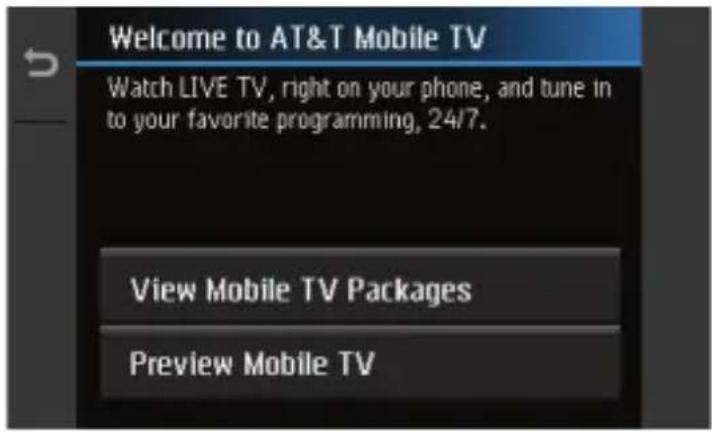
- Tap View Mobile TV Package to view available Mobile TV packages and pricing.
— OR —
If if you want to trial the service, select Preview Mobile TV and watch the Mobile TV Preview channel. You can view the available Mobile TV Packages each time you launch Mobile TV.
- Review the basic package information and tap Continue. If you agree to the Terms and Conditions, tap Agree.
- Confirm your package subscription and tap Submit. Package costs are automatically added to your monthly bill.
- TapClose to return to the Mobile TV Player and to begin viewing content immediately.
USING THE MOBILE TV PLAYER
Navigate the Mobile TV Player and Program Guide using swipes, tap arrow buttons, or the keyboard arrow keys.

• To change channels on the Mobile TV Player, you can:
- Swipe up or down on the display.
- Tap the Up/Down arrow buttons.
- Press the keyboard Up/Down arrow keys.
- Other available Mobile TV Player tap buttons:
- Accesses and displays the Program Guide
- i Displays information about current programs
- ✗ Exits Mobile TV
- Plays the channel above
- Views the program in full-screen mode
- Plays the channel below
Note
When viewing a program, the touch icons and program information disappear after a few seconds. Simply tap anywhere on the screen for the icons to reappear. While in the Mobile TV application, you will receive visual notifications for incoming calls or calendar/alarm events. For all other incoming alerts, you will receive an audible tone.
ACTIVATING FULL-SCREEN MODE

natural_image
Nighttime baseball match scene with player in white jersey (number 28) shooting while catcher crouks on pitch, no visible text or signageTo resize the onscreen video window to fill the entire screen, tap from a current onscreen program. The Mobile TV Player icons and program title information are not visible in full-screen mode. Tapping the screen displays the icons and program title information, and the video resizes to the default viewing size.
USING THE PROGRAM GUIDE
The Program Guide lists all the scheduled programs and their respective channel names, program titles, descriptions, and program times.
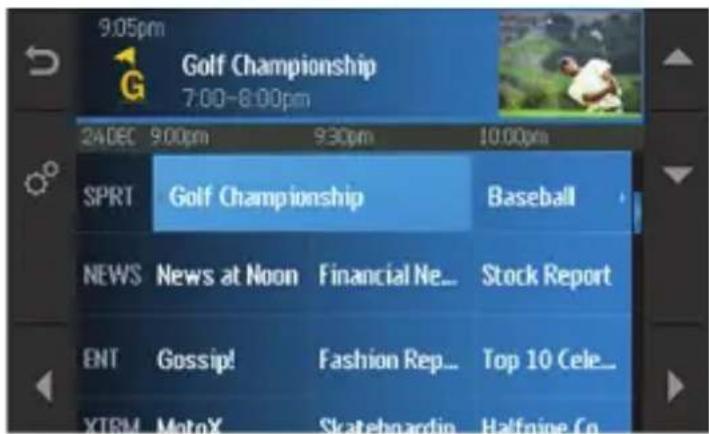
Tap a current program title from within the Program Guide to launch that program. Tap a future program title from within the Program Guide
to display program information. If you select a program on a channel that is not included in your subscription package, you can add that package immediately by tapping Press here for subscription info and following the prompts.
• To navigate through the Program Guide, you can:
- Swipe up/down or left/right on the display.
- Tap the Up/Down or the Left/Right arrow buttons.
- Press the keyboard Up/Down or Left/Right arrow keys.
- Other available Program Guide tap buttons:
- Returns to the previous screen
- Highlights the item below
- Launches the Options menu
- Highlights the item to the left
- Highlights the item above
- Highlights the item to the right
ACTIVATING FULL-SCREEN MODE
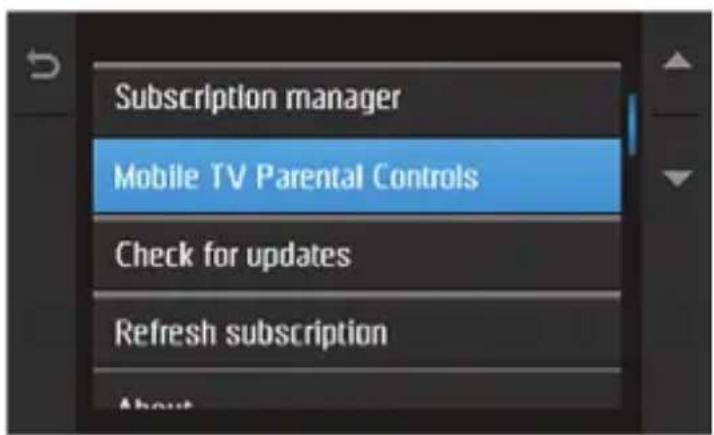
- From the Program Guide screen, tap

- Options include: Subscription manager, Mobile TV Parental Controls, Check for updates, Refresh subscription, and About.
SUBSCRIPTION MANAGER
The Subscription manager allows you to edit or cancel your subscription, as well as view memory usage and the terms of agreement.
MOBILE TV PARENTAL CONTROLS
Mobile TV parental controls limit access to specific rated programs.
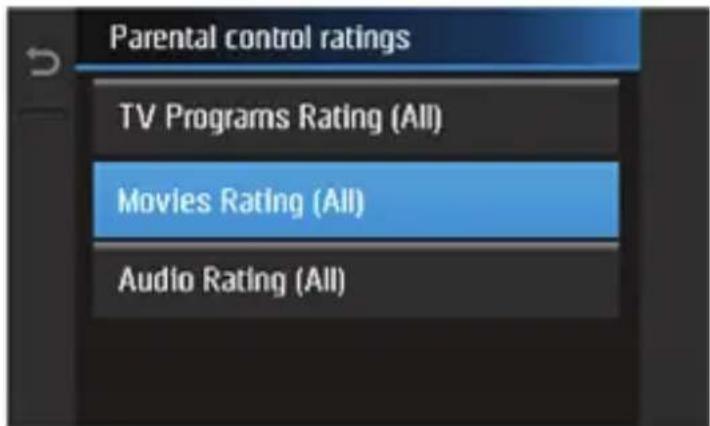
- From the Options menu, tap Mobile TV Parental Controls.
- Tap Parental control on/off and tap On.
- Use the onscreen keypad to create a 4-digit PIN. This PIN is required to delete, modify, or add programming packages to your subscription.
- Tap OK.
- Re-enter the 4-digit PIN, and tap OK to store the new PIN.
- Tap Parental control ratings, and select the rating levels for TV, movies, and music.
After settings are confirmed, the service assesses a program's rating before allowing it to be viewed. When a selected program exceeds the set rating, you are prompted to enter your PIN to facilitate viewing. Keep your PIN in a safe place, and do not share it with unauthorized parties. If you forget your PIN, contact AT&T customer service for assistance.
CHECK FOR UPDATES
The system searches for updates to your Mobile TV service and automatically downloads any new software.
REFRESH SUBSCRIPTION
Refresh your subscription if you have more than one Mobile TV-enabled phone and you switch your SIM card between phones. The Mobile TV service checks your records to verify that you are receiving the correct package.
ABOUT
This option displays the current version of the Mobile TV service operating on your phone.
WANT MORE?
For more information about AT&T Mobile TV, visit www.att.com/mobiletv.
Note
Service is not available everywhere. All programming is subject to change. All sports programming is subject to blackout restrictions.
CREATE NEW MESSAGE
To send a new message:
-
In Idle mode, tap the Menu icon , tap the Messaging icon then select Create New Message.
-
Input your message.
From the Message screen, tap Options to choose from:
- Symbols: Allows you to enter symbols.
- Emoticon: Allows you to enter emoticons.
- Add Contacts: Allows you to insert contact information into the message.
- Sending Settings:
- Priority: Select "High", "Normal" or "Low". - Validity Period: Select "1 Hour", "2 Hours", "1 Day", "1 Week" or "Maximum".
- Delivery Report: Select "On" or "Off".
- Read Report: Select "On" or "Off".
The "Priority" and "Validity Period" menus only appear when you create an MMS message.
- Add Format: Allows you to access the Text Templates, Subject, vCard and vCalendar.
- Default Slide Duration: Enter the slide duration time. (1\~30sec)
- Save as Draft: To save a message to "Drafts" folder.
- Add Slide: Allows you to add a slide to your message.
- Preview: To preview a created MMS message.
The "Default Slide Duration", "Save as Drafts" and "Preview" menus only appear when you create an MMS message.
From the Message screen, tap Add Media to add an Image, Video or Audio file to your message:
- TapTo, input the phone number.
From the To screen, tap Options to choose from:
- Recent Message: Look up a number from your recent message list.
- Recent Calls: Look up a number from your recent call list.
- Change to To: Tap to access the "To" field.
- Change to Cc: Tap to access the "Cc" field.
- Change to Bcc: Tap to access the "Bcc" field.
You may also add a number from your address book by tapping Contacts and looking up a phone number from your Contact List.
The "Sending Settings" and "Preview" menus only appear when you create messages.
4. To send the message, tapSend.
INBOX
The Inbox manages received messages.
- Slide open the QWERTY Keyboard. Tap theInbox icon.
From the Inbox screen, tap Options to choose from:
- Delete Read Messages: Delete all Read messages.
- Select & Delete: "Delete selected messages?" > Yes or No.
-
Delete All: "Delete all Messages?" will appear. TapYes or No.
-
Tap a message. The message is displayed. To reply to the message, tap Reply, to delete it, tap Delete.
From the Inbox screen, tap Options to choose from:
- Reply: Replies to the message.
• Forward: Send the message to another person. - Save Contact: Save the phone number in contacts.
- Extract data: Extract phone number, e-mail, URL included in the message.
- Save Item: Select to save a graphic, sound or other object included in MMS.
• Information: To show received message information.
The "Reply", "Save item", and "Information" menus only appear when you receive MMS messages.
OUTBOX
- In Idle mode, tap the Menu icon , tap Messaging icon then select Outbox.
- To delete a message, tapOptions. TapSelect & Delete or Delete All > Yes or No.
- Tap a message. The message is displayed.
From the Outbox screen, tap Options to choose from:
- Play: To play Outbox MMS message.
- Edit: Change the recipient's number or a message.
• Information: To show Outbox message information. - Error Status: To show send Error message information.
The "Play", "Error Status" and "Information" menus only appear when you receive MMS message.
- To resend the message, tapResend.
SENT
- In Idle mode, tap the Menu icon , tap Messaging icon then select Sent.
- To delete a message, tapOptions. TapSelect & Delete or Delete All > Yes or No.
- Tap a message. The message is displayed. To forward the message to another recipient, tap Forward. To delete the message, tap Delete.
DRAFTS
- In Idle mode, tap the Menu icon , tap Messaging icon then select Drafts.
- To delete a message, tapOptions. TapSelect & Delete or Delete All > Yes or No.
- Tap a message. The message is displayed.
From the Drafts screen, tap Options to choose from:
- Symbols: Allows you to enter symbols.
- Emoticon: Allows you to enter emoticons.
- Add Contacts: Allows you to insert contact information into the message.
- Add Format: Allows you to access the Text Templates, Subject, vCard and vCalendar.
- Default Slide Duration: Enter the slide duration time. (1\~30sec)
-
Save as Drafts: To save a message to "Drafts" folder.
-
Sending Settings:
- Priority: Select "High", "Normal" or "Low".
- Validity Period: Select "1 Hour", "2 Hours", "1 Day", "1 Week" or "Maximum".
- Delivery Report: Select "On" or "Off".
- Read Report: Select "On" or "Off".
The "Priority" and "Validity Period" menus only appear when you create an MMS message. - Add Slide: Allows you to add a slide to your message.
- Preview: Allows you to preview a created MMS message.
From the Drafts screen, tap Add Media to allows you to insert image, videos and/or audio to your message.
4. To send message, tap Send.
IM
IM allows you to use your AIM, Windows Live and Yahoo! Messenger on your SHARP FX. You can exchange messages with your friends and check their online status while you're away from the computer.
SET UP IM
- Slide open the QWERTY Keyboard. Tap the IM icon.
- Tap the IM community service you want to use.
SIGN IN
- Tap and type your existing ID.
- Tap the password field and type your password.
-
Tap Sign In.
-
A list of contacts appear on the screen.
- Tap Options to change your status or add a contact. You can sign in to multiple communities.
- To sign into another community, tap the other IM community service you want to use.
- Tap and type your existing ID.
- Tap the password field and type your password.
SEND IM
- Select a contact who you want to send an IM.
- Type your message in the input field, then tap Send.
- Tap Options to insert emoticon or quick text.
RECEIVE IM
- Select a conversation that you want to join. Once you're signed in, you can receive an IM even if you are not in the IM menu.
SIGN OUT
- Tap the IM community service you want to sign out of.
- Tap Options > Exit > Sign Out.
Allows you to access your Yahoo! Mail, AOL Mail, AIM Mail, Windows Live Hotmail, AT&T Mail, Gmail and Other provider's accounts on your SHARP FX.
-
In Idle mode, tap the Menu icon , tap Messaging icon then select Email.
-
Tap the email provider you want to use.
SIGN IN
- Tap and type your existing email ID.
- Tap the password field and type your password.
- Tap Sign In.
- You can choose Inbox, Drafts, Sent and Trash.
- Tap Options to select Read, Delete or Compose New.
OPENING AN EMAIL
-
Tap Read after highlighting the email subject line you want to open by scrolling the bar.
-
Once the email opens, tap Options to "Reply", "Forward", "Delete".
DELETING AN EMAIL
-
Tap the email you want to delete by scrolling.
-
Tap Options > Delete
VOICE MAIL
Voicemail allows callers to leave voice messages in your voice mailbox, and lets you review, play, and delete your voice messages any time you are in your Carrier's network coverage area.
- In Idle mode, press and hold Back/Multitask Key 5/20 , select Messaging icon then select Voice Mail. Or, tap the Menu icon , tap Messaging icon then select Voice Mail. Or, from the phone screen, tap and hold the 1 key on the dial pad.
AT&T SOCIAL NET
Allows you to access your favorite social networks such as Facebook, Twitter, Myspace, and the News.
- Slide open the QWERTY Keyboard. Tap the AT&T Social Net icon.
The AppCenter topics covered in this section are shopping for Ringtones, Games, Graphics, Multimedia, Applications, Themes, Videos and MEdia Net Home.
SHOP RINGTONES
This menu option connects to AT&T's ringtone download site.
- In Idle mode, tap the Menu icon , tap AppCenter icon then select Ringtones.
SHOP GAMES
This menu option connects to AT&T's game download site. This allows users to download the various games by connecting to the Internet. Downloaded games appear in your Games folder.
- In Idle mode, tap the Menu icon , tap AppCenter icon then select Games.
SHOP GRAPHICS
This menu option connects to AT&T's graphic download site, where you can shop for images. Downloaded graphics appear in your Graphics folder.
- In Idle mode, tap the Menu icon , tap AppCenter icon then select Color Graphics.
SHOP MULTIMEDIA
This allows you to connect to AT&T's multimedia download site where you can shop for multimedia (video) files. Downloaded files appear in your Videos folder.
- In Idle mode, tap the Menu icon , tap AppCenter icon then select Videos.
SHOP APPLICATIONS
This allows you to connect to AT&T's application download site where you can shop for applications. Downloaded files appear in your Applications folder.
- In Idle mode, tap the Menu icon , tap AppCenter icon then select Cool Tools/Apps
MEDIA NET HOME
The MEdia Net Home menu option allows you to quickly access your MEdia Net homepage using the built-in browser. This page gives you quick access to information such as local weather, sports scores, horoscope information and quick links to the previously mentioned shopping sites.
- In Idle mode, tap the Menu icon , tap AppCenter icon then select MEdia Net Home.
AT&T NAVIGATOR
AT&T Navigator, with GPS enabled directions, is the fastest way to get where you are going - whether across town or across the country. You can always find your way with turn-by-turn voice and on-screen directions. Find whatever you need on the road, including restaurants, and business listings. Get where you're going faster! Save your favorite locations, get traffic updates, and one-click re-routing.
- In Idle mode, tap the Menu icon then tap AT&T GPS icon.
- Select AT&T Navigator.
- Select the Drive To option.
- Select the address option and choose the Type it option.
- Enter the address for your desired destination and select Done. AT&T GPS Navigator™ will validate the address and generate your route.
GPS works on a separate satellite signal than your wireless carrier. For best results when using GPS services:
- Be outdoors and have a clear view of the sky. Hold the phone without blocking the antenna.
- StartAT&T GPS and select a Drive Toroute before driving to acquire the initial GPS signal.
- Keep the device turned on to optimize subsequent uses of GPS.
- In some cases, acquiring the initial position may take up to 2-3 minutes.
SHOP GPS APPS
Follow the onscreen prompts to purchase additional GPS Applications.
- In Idle mode, tap the Menu icon then tap AT&T GPS icon.
- Select Shop GPS Apps.
WHERE
WHERE™ is a downloadable mobile application that uses your current location (obtained via the built-in GPS) to help you find places of interest, things to do, and local information while you're on the go.
- In Idle mode, tap the Menu icon then tap AT&T GPS icon.
- Select Where
ALLSPORT GPS
The AllSport GPS application turns your phone into a GPS trainer for biking, running, walking and other sports activities. It provides you with a complete solution for tracking and improving your performance. You can record time, speed, calories burned and distance traveled; view speed and elevation profiles; analyze your trips on the web with statistics, maps and graphs; and more! Start AllSport GPS, enter your login and other settings, and select an activity from the main menu (e.g. Running). When the phone has acquired the GPS signal, press Start and begin your workout! While working out, you can see your distance, time, pace (or speed), and calories burned displayed dynamically on the phone. At the end of your workout, press Stop. The application will automatically upload the workout data to your web account for analysis. You can also immediately review your workout on the phone.
- In Idle mode, tap the Menu icon then tap AT&T GPS icon.
- Select AllSport GPS.
LOOPT
Tap in to your social scene with Loopt, the ultimate social networking tool. See where your friends are and what they're doing through detailed, interactive maps on your cell phone. Stay connected - share your location, photos, or comments with your friends, favorite web communities, social networks, or blogs. Find new nearby places and events, recommended by your friends. Make it public or keep it private, you decide.
- In Idle mode, tap the Menu icon then tap AT&T GPS icon.
- Select Loopt.
AT&T FAMILYMAP
AT&T FamilyMap is a GPS (Global Provisioning System) application that enables you to view the location of a family member's phone on a map, along with the address, surrounding landmarks (like schools or hospitals), and the accuracy of the GPS location. Satellite and interactive street maps are available to view locations. Alerts can also be scheduled. AT&T FamilyMap locates the phone by the SIM in the device. The device must be turned on and within AT&T coverage area in order to be located.
- In Idle mode, tap the Menu icon then tap AT&T GPS icon.
- Select AT&T FamilyMap.
MUSIC PLAYER
The built in Music Player is an application that can play music files. The music player supports files with extensions AAC, AAC+, eAAC+, MP3, WMA, 3GP, MP4(Audio only), and M4A. Launching the Music Player allows you to navigate within your Music Player folders and select playback material.
-
In Idle mode, tap the Menu icon , tap AT&T Music icon then select Music Player.Menu options include:
-
Now Playing: Opens the current play list.
- All Music: View all the music stored on your SHARP FX and/or memory card.
• Albums: View all your music by album.
• Artists: View all your music by artist. - Playlists: Create your own playlists by choosing songs from the All Songs menu list.
- Genres: View all your music by genres.
- Settings
- Play Via: Tap "Phone" or "Bluetooth".
- ShuffleTap "On" or "Off".
- Repeat: Tap "All", "One" or "Off".
- Equalizer: Tap "Off", "flat", "band", "dance", "fullbass", "fullbass_treble", "full_treble", "laptop", "large_hall", "live", "party", "pop", "Reggae", "Rock", "ska", "soft", "soft_rock" or "techno".
Note
Copyrights of music files may be protected by copyright and intellectual property laws. Therefore, it may be required to obtain necessary permissions or licenses before you can reproduce or copy the materials. In some countries, national law prohibits copying of copyrighted materials for personal archive as well. Prior to downloading or copying the files, please ensure that you adhere to the applicable laws and laws of corresponding countries or regions regarding the Terms of Use of materials.
TRANSFERRING MUSIC FROM THE DIGITAL MUSIC STORES
In order to download music from the computer to your handset, a microSD card and USB data cable are required. These items are sold separately; go to www.wireless.att.com/cell-phone-service/accessories/.
- Using your computer, open your preferred Windows Media Digital Rights Management (WMDRM) PC music management client.
- Download the selected song to your library.
Note
If the music file is protected, Media Player will block the playing or synching of that file.
- Verify the pre-insertion of the microSD card into the handset. For more information, refer to "Inserting the microSD Card" on page 19.
- Use the USB adapter cable to connect the handset to the target PC. When an active connection has been established, a USB icon 📋 appears on the phone.
Note
If the target computer does not detect the newly connected handset or provide an MTP Player dialog window on the PC screen, please follow steps 6 - 9.
-
In Idle mode, tap the Menu icon 📄, Drag toward the left, tap Settings icon then select Phone > USB Connection Mode > Mass Storage. For more information, refer to "USB Connection Mode" on page 111.
-
Once the USB connection has been established, the handset displays "Connected" and the computer screen then shows your device. If the detection occurs, skip to step 8.
- Locate the song on your computer and using your right mouse button, click Copy.
- Open the Removable Disk drive corresponding to the microSD card location on the phone.
- Open the Music folder (ex:\Audio\Music) you wish to upload from the handset.
- Using your right mouse button, click Paste. This step begins the download process.
Note
The Music Player does not necessarily support all features of a particular file format nor all the variations of those formats. The Music Player includes support for Windows Media Digital rights Management (WMDRM) which allows you to play some purchased or subscription content. Copyright protections may prevent some images, music (including ringtones) and other content from being copied, modified, transferred or forwarded.
SHOP MUSIC
AT&T Music can be used to shop for ringtones, Answer Tones™ and songs from some of your favorite music stores.
- In Idle mode, tap the Menu icon , tap AT&T Music icon then select Shop Music.
AT&T RADIO
By selecting AT&T Radio a preinstalled java application is launched which allows the user to listen to dozens of channels of digital radio. Get unlimited access to commercial-free music, the latest Hip Hop, R&B, Rock, Jazz, Country anywhere you go.
- In Idle mode, tap the Menu icon , tap AT&T Music icon then select AT&T Radio
MUSIC ID
MusicID is an application which uses the onboard microphone to analyze a song sample and then compare it to a remote database of songs. Once the application completes the analysis of the song sample, it then provides you with the name of the song, artist and album art as well as opportunities to buy related content.
-
In Idle mode, tap the Menu icon , tap AT&T Music icon then select Music ID.
-
Follow the on-screen prompts. Menu options include:
-
Identify Song: Allows you to find out information of unidentified music by sending it to the web. If the web identifies the song, it returns with relevant information of the song.
• Explore - My Songs
- My Account
MUSIC VIDEOS
Selecting Music Video from the AT&T Music sub menu launches unlimited popular music videos from your mobile phone. Simply click on a video and begin watching!
- In Idle mode, tap the Menu icon , tap AT&T Music icon then select Music Videos.
COMMUNITY
The Community is a place where you can find a listing of various fan sites that provide sound clips, wallpapers, bios, discographies, and other information about an artist.
- In Idle mode, tap the Menu icon , tap AT&T Music icon then select Community.
MUSIC APPS
The Music Applications option accesses the internet to provide Music tools for your handset. Services provided on this site may include AT&T Radio, MobiVj, Music ID, MobiRadio, Billboard Mobile Channel, MobiTV, Live TV, and MobiTV en Español.
- In Idle mode, tap the Menu icon , tap AT&T Music icon then select Music Apps.
YPMOBILE
Selecting YELLOWPAGES.COM Mobile from the Games & Apps sub menu launches a preinstalled java application.
The Yellowpages Mobile application provides quick and ready access to businesses, map locations, and storage of your favorite searches (My Place). This application allows you to tap into local businesses, locations, and events, connecting you to your search in real-time.
- In Idle mode, tap the Menu icon then tap the YPmobile icon.
The address book stores up to 500 entries, each of which can be assigned to a group. Entries can be retrieved by name or group.
- In Idle mode, tap the Menu icon then tap the Address Book icon.
FIND NAME
You can retrieve an entry by name and call the primary number by simply pressing the SEND Key 📄. You can review all the entries stored in your contacts list or quickly find an entry by entering a name or its character string.
- Enter a name or scroll through the alphabetical list. If more than one contact is listed, highlight the contact you want.
- Tap the contact. The contact information is displayed.
- To edit the contact information, tap Edit. The Edit Contact screen will appear with the selected contact information shown. See page 44 for "Storing a Phone Number".
- To save the entry, tapSave. To return to the previous page, tap the BACK icon ← at the top of the page.
-
TapOptions to access the following options:
-
Group List
- Speed Dial List
- Copy to
- Delete Contact
• Service Dial Number - My Number
- Settings
GROUP LIST
This menu allows you to manage group information. By default, there are 4 existing groups: "No Group," "Business," "Family" and "Friends." You can also configure a ring tone for a group so that the group ring tone sounds when a call from a specific contact address within that group arrives and there is no ring tone configured for the specific contact address. A maximum of 20 groups is allowed.
- In Idle mode, tap Address Book icon > Options > Group List.
Add new group
- Tap Add New to add a new group name. Tap Phone or SIM.
- Input a new group name.
- To save a new group, tap Save.
Setting a ringer type for a group
- Select an existing group name.
- Tap Options > Set Group Ringtone.
- Tap "AT&T Ringtone", "Basic Ringtone", "Happiness", "All Around", "Giselle", "House Shock", "Piano Roll", "Smooth Touch" or "Some People Know and Sweet".
- Tap Save.
Change group name
- Select the group you want to rename from among the new groups you have added.
- Tap Options > Rename Group.
- Input a new group name.
- To change the name, tap Save.
Delete group
- Select an existing group name. Only new groups you added can be changed.
- Tap Options > Delete Group.
- "Delete Group" will appear. Tap Yes or No.
SPEED DIAL LIST
This menu allows you to configure the speed dial numbers. You can select a number from 2 to 9 as a speed dial. You can configure speed dial numbers for any of the 8 numbers for a specific contact address so that a contact address may have multiple speed dial numbers.
- In Idle mode, tap Address Book icon > Options > Speed Dial List.
- To assign a phone number to a location, select the location.
Note
"Empty" appears if the location is available.
- Tap a name from your contact list. If the contact has more than one number saved, tap the correct number for the Speed Dial location.
- You will see the contact name next to the Speed Dial location number in the Speed Dial lists.
- To reset the speed dial locations, tap Reset All. "Reset all speed dial?" will appear. Tap Yes or No.
- Tap the speed dial # location.
To call the contact, tap Call.
To change the speed dial location, tap Switch, then tap the new speed dial location.
To reset a specific speed dial location, tap Reset.
COPY TO
This menu allows you to copy all of the information from your SIM card to your handset and vice versa. If a name is duplicated during the copying operation, the information is also duplicated. Options include:
- Phone to SIM: You can copy the entry from the handset memory to the SIM card (not all the data will be copied).
-
SIM to Phone: You can copy the entry from the SIM card to the phone memory.
-
In Idle mode, tap Address Book icon > Options > Copy to
-
Tap "Phone -> SIM" or "SIM -> Phone".
-
Tap the contact you want to copy, tapCheckor Uncheck Or, tapAll
-
To copy all phone numbers, tap Copy.
-
“Copy selected contacts?” will appear. TapYesor No
DELETE CONTACT
To delete an entry:
-
In Idle mode, tapAddress Book icon > Options> Delete Contact.
-
Tap the contact you want to delete, tapCheckor Uncheck Or, tapAll
-
To delete all phone numbers, tapDelete
-
"Delete selected contacts?" will appear. Tap Yesor No
SERVICE DIAL NUMBER
You can view the list of Service Dialing Numbers (SDN) assigned by your network provider. Such numbers could include the emergency, directory assistance and voice mail numbers.
- In Idle mode, tap Address Book icon > Options > Service Dial Number.
- Scroll through the available numbers.
MY NUMBER
To view your phone number:
-
In Idle mode, tap Address Book icon > Options > My Number. Your phone number will appear next to 1.
-
Tap 2 (empty), 3 (empty) or 4 (empty). Enter the additional information, then tap Save.
-
To return to the previous page, tap the BACK icon ← at the top of the page. The Name or Data you enter now will appear instead of 2 (empty), 3 (empty) or 4 (empty).
SETTINGS
To select your address settings:
- In Idle mode, tap Address Book icon > Options > Settings.
Tap Options to access the following options:
- Save Location: Tap "Always Ask", "Phone" or "SIM" then tapSave.
• View: Tap "All", "Phone" or "SIM" then tapSave. - Memory Status: Displays the current status of the phone memory and the SIM card.
- SIM Number Type: Tap Add. Input the new number then tap Save.
- Change Hidden key: Input the new hidden key. (This is used to Lock your SIM Card address book. The default hidden key code is "00000000". Please contact AT&T Customer Service for your Hidden Key code.)
ADD NEW
Adds a new entry.
- Tap Add New, then tap Phone or SIM.
- When adding a new contact to your address book you may choose to save the information in either the Phone or SIM memory. Saving a contact in the Phone location allows you to add additional fields such as number type (mobile, home, etc.), email, picture, etc. Please note, some of these options may not be available when storing on the SIM, such as adding a picture or ringtone.
- Fill in the fields as they are selected.
Phone Book fields(Phone):
- First Name: Enter first name >Done.
- Last Name: Enter last name > Done.
• Number Type: Select number type, then input the number > OK. - No Group: Tap "No Group", "Business", "Family" or "Friends".
Tap Add New. > Input the new group name > Save.
- Ringtone: Tap "AT&T Ringtone," Basic Ringtone","Happiness","All Around","Giselle","House Shock","Piano Roll","Smooth Touch" or "Some People Know and Sweet">Save.
Tap Options to access the following options:
Add Optional Field, Delete Optional Field
- To save the entry, tap Save. To return to the previous page, tap the BACK icon ← at the top of the screen.
Note
See page 44 for more detailed information about storing a number.
Phone Book fields(SIM):
- Name: Enter first name > Done.
• Phone Number: Input the number> OK. - No Group: Tap "No Group", "Business", "Family" or "Friends". Tap Add New. > Input the new group name > Save.
Tap Options to access the following options:
Add Optional Field, Delete Optional Field, Save as Hidden Entry
Facebook is a social networking website that is operated and privately owned by Facebook, Inc.[1] Users can add friends and send them messages, and update their personal profiles to notify friends about themselves. Additionally, users can join networks organized by city, workplace, and school or college. The website's name stems from the colloquial name of books given at the start of the academic year by university administrations with the intention of helping students to get to know each other better.
- In Idle mode, tap the Menu icon 📁, Drag toward the right then tap Facebook icon.
PICDIAL
This Windows Mobile feature allows you to automatically see your friends' Facebook/MySpace profile pics/status whenever they call.
Oh yeah, and when your friends update their profile pics, it automatically updates on your phone; pretty cool huh? PicDial also gives you a "Favorites Screen," a grid with friends' profile pics and their most recent status updates.
1.) Check out at picdial.com to learn more 2.) Download PicDial to your phone 3.) Go through the setup wizard and be sure to remember your username/password that is sent to you through text after the download. The username/password are required to log into our website and give you access to your address book for an easy way to associate profile pics with your friends. 4.) We recommend that you go to picdial.com and visit the supported phone section. Select your phone to see if there are any settings you need to change to get the most out of PicDial. 5.) You may notice some of your friends have pics on your Favorite Screen and some do not. Log into the website or select a contact from the Favorite Screen to search for their profile picture by entering their name and/or e-mail address. 6.) If you want to update your picture/status message, you can do so through the "Menu" option. To invite more friends to join PicDial, go to the "Menu" option and select "Invite Friends." Enjoy!!!
- In Idle mode, tap the Menu icon , tap Drag toward the right then tap PicDial icon.
Your SHARP FX is equipped with a browser which allows you to access the Internet and upload media files directly to your phone which can be played using the built-in Media Player. Accessing the browser is data intensive and additional charges may apply.
MV brings you quick, on-demand access to news, sports, weather and entertainment video clips. Catch up on TV's hottest shows, funniest comedians, biggest headlines and latest sports scores. You can even personalize your homepage for quick access to your favorites. In addition, the MV service automatically streams localized weather information to your personalized "News & Weather" page each and every day.
- In Idle mode, tap the Menu icon 📁, Drag toward the right then tap Mobile Video icon. You are then taken to your default Mobile Video homepage.
- Highlight the desired media clip or select from one of the available categories and tap the screen.
MOBILE VIDEO OPTIONS
- In Idle mode, tap the Menu icon 📁, Drag toward the right, tap Mobile Video icon then tap the screen.
ONLINE LOCKER
- In Idle mode, tap the Menu icon 📄, Drag toward the right, tap My Stuff icon then select Online Locker.
RINGTONES & AUDIO
If user adds there own ringtones max size is 300kb.
-
In Idle mode, tap the Menu icon 📄, Drag toward the right, tap My Stuff icon then select Ringtones & Audio.
-
Tap Phone or SD Card.
Tap Options to access the following options:
- Copy to SD Card: To copy the selected ringtone or audio.
- Move to SD Card: To move the selected ringtone or audio.
- Delete Multimedia: To delete a selected ringtone or audio.
Note
When accessing ringtones or audio files from your SD card, the file must be placed in the Audio folder under Media on your card.
- Tap AT&T Ringtone, Basic Ringtone, Happiness, All Around Giselle, House Shock, Piano Roll, Smooth Touchor Some People Know and Sweet
Tap Options to access the following options:
- Send Via: Send a Multimedia Message or using Bluetooth.
- Assign: Select "Incoming Call" or "Alarm Tone".
-
Rename: To rename a selected ringtone or audio.
-
To play, tapPlay.
-
To delete a ringtone or audio file, tapDelete, "Delete item?" will appear. TapYes or No. Only ringtones you have downloaded or recorded sounds can be deleted.
PICTURES
-
In Idle mode, tap the Menu icon 📄, Drag toward the right, tap My Stuff icon then select Pictures.
-
Tap Phone or SD Card.
Tap Options to access the following options:
- Copy to SD Card: To copy the selected image.
- Move to SD Card: To move the selected image.
-
Delete Multimedia: To delete a selected image.
-
Tap Illusion, Circles, AT&T Globe, Water Splash, White Lamp, Smoke Cloud, White Roseor Sandy Beach.
Tap Options to access the following options:
- Send Via: Send a Multimedia message, Online Locker or using Bluetooth.
- Assign to Wallpaper: To set wallpaper image.
-
Rename: To rename a selected image.
-
To preview an image, tapPreview.
Tap Options to access the following options:
- Send Message: Send a Multimedia message.
- Send to Online Locker: Send a Multimedia message, using Online Locker.
- Send Via Bluetooth: Send a Multimedia message, using Bluetooth.
- Delete Multimedia: To delete a selected image.
- Assign to Wallpaper: To set wallpaper image.
- Rename: To rename a selected image.
-
Zoom: Allows you to magnify the current viewing image.
-
To delete an image, tapDelete. "Delete item?" will appear. TapYes or No. Only images you have downloaded or taken pictures can be deleted.
VIDEOS
-
In Idle mode, tap the Menu icon 📄, Drag toward the right, tap My Stuff icon then select Videos.
-
Tap Phone or SD Card.
Tap Options to access the following options:
- Copy to SD Card: To copy the selected video clip.
- Move to SD Card: To move the selected video clip.
-
Delete Multimedia: To delete a selected video clip.
-
Tap the video you want to view.
Tap Options to access the following options:
- Send Via: Send a Multimedia message, Online Locker or using Bluetooth.
• Video Share Call: To make a Video Share or Voice calling. (This option will only appear if both parties are in 3G coverage and have a Video Share feature.) -
Rename: To rename a selected video clip.
-
Tap Play, to play a video.
- To delete a video, tapDelete. "Delete item?" will appear. TapYes or No.
OTHER FILES
This feature provides additional storage of other miscellaneous file types that may not fit into any of the previous categories.
- In Idle mode, tap the Menu icon 📄, Drag toward the right, tap My Stuff icon then select Other Files.
GAMES
The Games menu option allows you to access games that are on the phone and also shop for games using AppCenter. You can download new games and then save them to the Games folder.
- In Idle mode, tap the Menu icon 📁, Drag toward the right, tap Games icon.
- Tap the game you want to play then follow the on-screen directions.
BROWSER
ATT HOME
ATT Home is one of the services provided by AT&T and it gives you access to all the cool things you can do with your wireless phone. Once connected, the homepage is displayed. The content depends on the service provider.
With ATT Home you can access your local weather, news & entertainment, sports scores, tones, games, apps, and much more.
FAVORITES
While navigating through either the Internet or the ATT Home pages, you can bookmark a site to quickly and easily access it at a future time. The URL addresses of the bookmarked sites are stored in the Favorites folder, where you can either use the 6-preset URL addresses or store your own favorite URL addresses.
-
In Idle mode, tap the Menu icon , Drag toward the right, tap Applications icon then select Browser > Favorites.
-
Tap a bookmark item on the Favorite list. The preset URLs include:
-
My Account
- Chat
- News
- Sports
- Weather
- Cellular Video
Tap Options to access the following options:
- Add Folder: Allows you to add a new folder to your Favorites List.
- Add Favorite: Allows you to add a new URL address to your Favorites List.
-
Delete All: "All Items will be deleted. Delete all?" will be display >Yes or No.
-
TapGo to launch the website.
Tap Options to access the following options:
- Send: Send the URL address via text message.
ENTER URL
- In Idle mode, tap the Menu icon 📄, Drag toward the right, tap Applications icon then select Browser > New URL.
- Enter the URL address using the keypad. To change the input mode to Symbols, tap Options.
- TapGo to go there directly.
HISTORY
The History list provides you with a list of the most recently visited web sites. These entries can be used to return to previously unmarked web pages.
- In Idle mode, tap the Menu icon 📄, Drag toward the right, tap Applications icon then select Browser > History.
- Tap a website on the History list.
- To clear the History, tap Delete All. "All Items will be deleted. Delete all?" will appear. Tap Yes or No.
SETTINGS
-
In Idle mode, tap the Menu icon 📄, Drag toward the right, tap Applications icon then select Browser > Settings. Select from the following options:
-
Help: Displays the browser version and copyright information about the browser.
• Certificates: Accesses certificate information from your SHARP FX. - Preferences: Changes the settings for the web browser to suit your preference.
• Clear Cache: Clears the cache.
• Clear Cookies: Clears saved cookies. - Clear History: Clears the list of recently visited URLs.
- Clear Auto-complete: Clear automatically fills in characters for browser recognized words.
MOBILE BANKING
Mobile Banking is an application that allows you to quickly and easily access your financial accounts. You can check account balances, view and pay bills and review your transactions.
-
Access your bank's Online Banking site and enroll in Mobile Banking.
-
In Idle mode, tap the Menu icon 📄, Drag toward the right then tap Applications icon and select Mobile Banking.
-
Enter the Initiation Code, provided during your bank enrollment, into the required field.
-
Establish a six-digit PIN to unlock the application. This is your personal code providing you future access to the Mobile Banking application.
MY CAST WEATHER
This is a user-friendly application which runs on your mobile phone giving you access to all the weather information you need. You can check current and predicted National Weather Service data for your immediate location, your travel destination, or virtually anywhere else in the continental U.S.
- In Idle mode, tap the Menu icon , Drag toward the right then tap Applications icon and select My Cast Weather.
FUNSCREENZ
Trick out your phone with wallpapers custom-designed by you! Type in your own text and choose from thousands of backgrounds to personalize. Simply choose a wallpaper, add text and share! Can't find what you want? Submit a request and we'll make it for you. New & hot personalized wallpapers each week. FunScreenz is for the guy or gal that wants it ALL!
- In Idle mode, tap the Menu icon 📄, Drag toward the right then tap Applications icon and select FunScreenz.
MOBILE TV
- In Idle mode, tap the Menu icon 🎨, Drag toward the right then tap Applications icon and select Mobile TV. -OR- In Idle mode, tap the Menu icon 🎨 then tap Mobile TV icon.
RECENT HISTORY
- In Idle mode, tap the Menu icon 📄, Drag toward the right then tap Recent History icon.
- Tap the icons for All Calls, Received Calls, Dialed Calls or Missed Calls across the top of the screen.
Tap Options to access the following options:
- Call Timer: Shows the total length of time for the Last Call, Received Calls, Dialed Calls, All Calls and Life Time.
- Data Counter: Shows the total length of time for All Data Calls, Sent Data Calls or Received Data Calls.
- Select & delete: "Delete Selected Items?" will appear. Tap Yes or No.
-
Delete all: "Delete all logs?" will appear. TapYes or No.
-
Tap the call log you want to view.
- To delete a call log, tap Delete. "Delete Call log?" will appear. Tap Yes or No.
DISPLAY
WALLPAPER
Allows you to choose the kind of background to be displayed on the phone.
- In Idle mode, tap the Menu icon 📄, Drag toward the left, tap Settings icon then select Display > Wallpaper.
- Tap Phone or SD Card.
- Tap "Illusion \~ Sandy Beach". If you have taken any pictures and saved them to your device, they will appear here as well.
- Tap Save.
STYLE
Allows you to choose how the Idle screen will appear.
- In Idle mode, tap the Menu icon 📄, Drag toward the left, tap Settings icon then select Display > Style.
- Scroll through the styles by tapping
. - Tap Save.
GREETING BANNER
The greeting is your personal label for your SHARP FX. It appears on the main screen along the top of the display.
-
In Idle mode, tap the Menu icon 📄, Drag toward the left, tap Settings icon then select Display > Greeting Banner.
-
Current greeting text filed is displayed. Tap Del to delete the greeting, then use the on-screen keypad to enter a new greeting. Tap Options to change the input mode.
- Tap "On" or "Off".
- Tap Save.
BACKLIGHT
Turn on the backlight on the display and keypad for easy viewing in dark places.
DISPLAY
- In Idle mode, tap the Menu icon 📄, Drag toward the left, tap Settings icon then select Display > Backlight > Display.
- Tap "5 secs", "10 secs", "20 secs", "1 min" or "3mins".
- Tap Save.
KEYPAD
- In Idle mode, tap the Menu icon 📄, Drag toward the left, tap Settings icon then select Display > Backlight > Keypad.
- Tap "5 secs", "10 secs", "20 secs" or "Always off".
- Tap Save.
THEME
-
In Idle mode, tap the Menu icon 📄, Drag toward the left, tap Settings icon then select Display > Theme.
-
Tap "White" or "Black".
- Tap Save.
AUTO LOCK
- In Idle mode, tap the Menu icon , Drag toward the left, tap Settings icon then select Display > Auto Lock.
- Tap "Off", "1 min", "2 mins" or "5 mins".
- Tap Save.
SWIPE ANIMATION
- In Idle mode, tap the Menu icon 📄, Drag toward the left, tap Settings icon then select Display > Swipe Animation.
- Tap "Off", "1 min", "2 mins" or "5 mins".
- Tap Save.
DATE & TIME
Allows you to change the date and time settings.
TIME ZONE UPDATE
Select Auto Update to set the phone to automatically update the time and date according to the current local time zone. Select Manually to update the information (Time, Date, Daylight Saving) yourself.
-
In Idle mode, tap the Menu icon, Drag toward the left, tap Settings icon then select Date & Time> Time Zone Update.
-
Tap "Auto Update" or "Manually".
- Tap Save.
DATE FORMAT
To select a date format:
- In Idle mode, tap the Menu icon 📄, Drag toward the left, tap Settings icon then select Date & Time> Date Format.
- Tap "DAY MMM DD", "MMM DD DAY", "DAY MMM,DD,YYYY" or "YYYY,MMM,DD DAY".
- Tap Save.
TIME FORMAT
To select a time format:
- In Idle mode, tap the Menu icon 📄, Drag toward the left, tap Settings icon then select Date & Time> Time Format.
- Tap "12 Hour" or "24 Hour".
- Tap Save.
PHONE
LANGUAGE
Selects the language in which text is displayed on the screen.
-
In Idle mode, tap the Menu icon 📄, Drag toward the left, tap Settings icon then select Phone > Language.
-
Tap "English" or "Spanish".
- Tap Save.
NETWORK PROFILE
To set the network profile.
- In Idle mode, tap the Menu icon 📄, Drag toward the left, tap Settings icon then select Phone > Network Profile.
- Tap one of these options: MEdia Net, Video Share
- To delete all network profile, tapDelete All. "Delete All?" will appear. TapYes or No.
- TapAdd to add a new network profile.
• Title: Enter a profile title name.
- Auth Type: Select the type of authentication used for this WAP connection: None, PAP or CHAP.
- Username: Enter the Username access name.
- Password: Set the connection protocol used by the WAP browser: WAP, HTTP, or Other.
- APN: Set the connection protocol used by the WAP browser: wap or cingular.
5. Tap Save.
USB CONNECTION MODE
To set the USB connection mode:
-
In Idle mode, tap the Menu icon 📄, Drag toward the left, tap Settings icon then select Phone > USB Connection Mode.
-
Tap "Music Sync", "Mass Storage" or "Data Service".
-
Music Sync: You can connect to MS Music player and download it on the device SD Card only. It does not require a modem driver and MS Music automatically supports it.
- Mass Storage: You can use this as same as a USB memory stick so you can download to your PC contents that are on the SD card. It requires a modem driver.
-
Data Service: Dial up network. It needs modem driver to use it.
-
Tap Save.
MEMORY METER
To view your SHARP FX's memory meter:
- In Idle mode, tap the Menu icon 📄, Drag toward the left, tap Settings icon then select Phone > Memory Meter.
- Tap "Phone" or "SD Card".
- Your SHARP FX's Games & Apps, Music & Ringtones, Graphics & Videos and MMS information are displayed.
- If you are sure you want to format the microSD Card, tapFormat. "Formatting will delete all data. Format now?" will be displayed. Tap Yes or No.
Note
The formatting procedure erases all the data on the microSD card, after which the files CANNOT be retrieved. To prevent the loss of important data, please check the contents before you format the card.
PHONE INFORMATION
To display your SHARP FX's information:
- In Idle mode, tap the Menu icon 📄, Drag toward the left, tap Settings icon then select Phone > Phone Information.
- Your SHARP FX's My Mobile Number, IMEI, S/W Ver, H/W Ver, CMF Ver, Config Version, Network band, Manufacturer, Model and JAVA Information are displayed.
CALL
ANSWER MODE
This feature allows you to select the answer mode.
-
In Idle mode, tap the Menu icon , Drag toward the left, tap Settings icon then select Call > Answer Mode.
-
Tap "Any Key" or "Talk Key".
-
Any Key: Press any key to answer an incoming call.
-
Talk Key: Press talk key to answer a call.
-
Tap Save.
AUTO REDIAL
Automatically redials a phone number after a set time interval.
-
In Idle mode, tap the Menu icon 📄, Drag toward the left, tap Settings icon then select Call > Auto Redial.
-
Tap "On" or "Off".
3. Tap Save.
MINUTE MINDER
This option allows you to specify whether the phone will beep every minute during an outgoing call to keep you informed of the length of the call.
- In Idle mode, tap the Menu icon , Drag toward the left, tap Settings icon then select Call > Minute Minder.
- Tap "On" or "Off".
- Tap Save.
CALL FORWARDING
When this network service is activated, you can direct your incoming calls to another number, for example, to your voice mailbox number. For details, contact your service provider. Select one of the divert options, for example, select Busy to divert voice calls when your number is busy or when you reject incoming calls.
- In Idle mode, tap the Menu icon, Drag toward the left, tap Settings icon then select Call > Call Forwarding.
-
Tap Unconditional, If Busy, If No Reply or If Not Reachable.
-
Activate: To activate Call Forwarding and enter a forwarding number.
- Deactivate: To deactivate Call Forwarding.
-
Check Status: To check if the function is active or not.
-
Tap Deactivate All to cancel all active Call Forwarding options.
CALL WAITING
Call Waiting will notify you of a new incoming call while you have a call in progress.
-
In Idle mode, tap the Menu icon 📄, Drag toward the left, tap Settings icon then select Call > Call Waiting.
-
Tap All Call, Voice Call or Data Call.
• Activate: To activate call waiting.
- Deactivate: To deactivate call waiting.
- Check Status: To check if the function is active or not.
CALLER ID
To select if your phone number will appear when making a call:
-
In Idle mode, tap the Menu icon 📄, Drag toward the left, tap Settings icon then select Call > Caller ID.
-
Tap Show My Number, Hide My Number or Network.
• Show My Number: Caller ID appears.
- Hide My Number: Caller ID does not appear.
• Network: Caller ID is dependent on Network Setting.
TTY
Allows you to attach a TTY device enabling you to communicate with parties also using a TTY device. A phone with TTY support is able to translate typed characters to voice. Voice can also be translated into characters and then displayed on the TTY.
-
In Idle mode, tap the Menu icon , Drag toward the left, tap Settings icon then select Call > TTY.
-
Tap "TTY Full", "TTY + Talk", "TTY + Hear" or "TTY Off":
-
TTY Full: Users who cannot talk and hear send and receive a text message through TTY equipment.
- TTY + Talk: Users who can talk but cannot hear receive a text message and send voice messages through TTY equipment.
- TTY + Hear: Users who can hear but cannot talk send a text message and receive voice messages through TTY equipment.
-
TTY Off: Normal users send and receive without TTY equipment.
-
Tap Save.
SECURITY
Prevents others from using the phone without permission and allows access to security features only after inputting a password.
PHONE LOCK
Turn on the lock to prevent the phone from being used without entering the password first.
- In Idle mode, tap the Menu icon 📄, Drag toward the left, tap Settings icon then select Security > Phone Lock.
- Tap "On" or "Off".
- Tap Save.
- When locking the device for the first time, enter "0000" to lock. See the following page for instructions on how to change your password.
PIN CODE REQUEST
When the PIN code request feature is set to "On", you must enter your PIN each time you switch the phone on. Consequently, any person who does not have your PIN cannot use your SHARP FX without your approval.
- In Idle mode, tap the Menu icon 📄, Drag toward the left, tap Settings icon then select Security > PIN Code Request.
- Tap "On" or "Off".
- Tap Save.
- See the following page for instructions on how to change your PIN password.
Please contact AT&T Customer Service for your SIM PIN code.
CHANGE PHONE PASSWORD
- In Idle mode, tap the Menu icon , Drag toward the left, tap Settings icon then select Security > Change Phone Password.
- Enter your New Password > Done, then enter your Verify Password > Done. Enter your Current Password > Done.
CHANGE PIN CODE
To change your PIN code:
- In Idle mode, tap the Menu icon, Drag toward the left, tap Settings icon then select Security > Change PIN Code.
- Tap PIN1 or PIN2.
FDN
This allows you to restrict your outgoing calls to selected phone numbers, if this function is supported by your SIM card. The PIN2 code is required.
-
FDN On: You can only call phone numbers stored in the FDN List. You must enter your PIN2.
• FDN Off: You can call any number. -
In Idle mode, tap the Menu icon 📄, Drag toward the left, tap Settings icon then select Security > FDN.
-
Tap FDN or FDN List.
- FDN: Tap "On" or "Off" >Save. - FDN List: TapAdd New. Enter a "Name" and "Phone Number" > Save. Tap Options to access the following options: Add Contacts, Recent Calls
MASTER RESET
Performing a Master Reset restores (default pin number : 0000) the settings (e.g.: Audio, Display, Language, Date & Time, Bluetooth Settings) stored in the handset memory to default values.
-
In Idle mode, tap the Menu icon 📄, Drag toward the left, tap Settings icon then select Security > Master Reset.
-
"All setting reset to factory defaults continue?" will appear. Tap Yes or No
MASTER CLEAR
Performing a Master Clear deletes downloaded/user created contents (e.g.: images, videos) from your device and the External Memory card.
- Handset
- Deletes all downloaded/user created Images, Videos & Sounds from the Handset Memory.
- Restores Personal Information stored in the handset memory (e.g.: address book, messages, tasks, alarm, Scheduler) to default values.
-
Restores the settings stored in the handset memory to default values.
• Memory Card: Deletes all contents from the External Memory Card. -
In Idle mode, tap the Menu icon 📄, Drag toward the left, tap Settings icon then select Security > Master Clear.
-
"All settings reset to factory defaults and all user data (including SD card) will be deleted. Continue?" will appear. TapYes or No.
Note
All data will be lost when using this function.
APPLICATIONS
MESSAGING SETTINGS
To select your message settings:
- In Idle mode, tap the Menu icon 📄, Drag toward the left, tap Settings icon then select Applications > Messaging Settings.
- Text Message
- Message Center Number: If you want to send a text message, you can get the address of the SMS center by using this menu.
- Email Gateway: You can send the text message to an Email Address via this gateway.
- Text Templates: View and edit the template messages or create new messages.
- Multimedia Message
- Slide Duration: Tap "2 Sec", "5 Sec" or "10 Sec" >Save.
- Priority: Tap "High", "Normal" or "Low" >Save.
- Validity Period Tap "1 Hour", "2 Hours", "1 Day", "1 Week" or "Maximum" > Save.
- Automatic Download: Tap "On" or "Off" > Save.
- Delivery Receipt: Tap "Always Send" or "Don's Send" >Save.
- Read Receipt: Tap "Always Send", "Don's Send" or "Prompt" >Save.
- Message Center: Tap "Name", "MMSC URL", "MMSC PROXY", MMSC PORT" or "Network Profile". Tap Add to set a new Message Center. Enter the Message Center informations > Save.
• Voicemail: To change user voice mail number.
- Auto Erase: Tap "On" or "Off" >Save.
BROWSER SETTINGS
To view and/or edit your Browser settings:
- In Idle mode, tap the Menu icon 📁, Drag toward the left, tap Settings icon then select Applications > Browser Settings.
- Tap Mobile Web>Activate. Select a connection profile to be used when connecting to the Internet.
- To create a new connection, tap Add.
• Account Name: Enter a account name.
- Homepage: Enter the URL address of the page to be used as your homepage.
- Proxy Address: Set the proxy server address.
- Port Number: Set the proxy server port.
• Network Profile: Select a network profile to be used when connecting to the internet.
- Save: Save edited connection profile.
- Activate: Activate current connection profile.
- Delete: Delete connection profile.
ADDRESS BOOK SETTINGS
To select your Address Book settings:
-
In Idle mode, tap the Menu icon 📋, Drag toward the left, tap Settings icon then select Applications > Address Book Settings.
-
Save Location: Tap "Always Ask", "Phone" or "SIM" >Save.
• View: Tap "All", "Phone" or "SIM" >Save. - Memory Status: Check the current status of the external memory card in this menu.
-
SIM Number Type: Tap Add Input the new number then tap Save.
-
Change Hidden Key: Input the new hidden key. (The default hidden key code is "00000000". Please contact AT&T Customer Service for your Hidden Key code.).
- AT&T Address Book: Tap "Auto Sync On" or "Auto Sync Off" >Save.
• SIM Mgmt - About
CAMERA SETTINGS
- In Idle mode, tap the Menu icon 📋, Drag toward the left, tap Settings icon then select Applications > Camera Settings.
- Camera
- Resolution: Tap "1600 x 1200", "1280 x 960", "640 x 480" or "320 x 240" > Save.
- Quality: Tap "Economy", "Normal" or "Fine" > Save.
- Save to:Tap "Phone Memory" or "SD Card" > Save.
- Camcorder
- Resolution: Tap "320 x 240" or "176 x 144" > Save.
- Quality: Tap "Economy", "Normal" or "Fine" > Save.
- Save to: Tap "Phone Memory" or "SD Card" > Save.
XT9 SETTINGS
XT9 is a predictive text input mode which displays a word candidate list as you enter the first few characters so you just select the word that you want.
-
In Idle mode, tap the Menu icon 📄, Drag toward the left, tap Settings icon then select XT9 Settings.
-
Tap "Word Prediction", "Spell Correction" or "Word Completion".
-
Tap "On" or "Off".
4. Tap Save.
SOFTWARE UPDATE
This menu is used to resume a postponed software update. If new software exists, the AT&T server notifies devices using a WAP push message. Before updating new software after downloading it from the AT&T server, you can decide whether you would like to postpone the operation. Reminder times can be set to 30 minutes, 1 hour, and 4 hours. When the time is up, you will be prompted again or you can resume the postponed operation using this menu at any time.
-
In Idle mode, tap the Menu icon 📁, Drag toward the left, tap Settings icon then select Software Update.
-
Continue Update: This menu is used to resume a postponed software update.
- Check for Update: "Check the AT&T server for a new software update?
The software update process will not delete any personal data on your SHARP FX." will appear.
Tap OK or No.
VIDEO SHARE SETTINGS
The Video Share feature allows you to share live or recorded video during a voice call.
- In Idle mode, tap the Menu icon 📄, Drag toward the left, tap Settings icon then select Video Share Settings.
- Tap "Audio Alerts", "Auto Records", "Services" or "Save to".
• Audio Alerts: Allows you to turn On or Off the Video Share Alerts which displays a message and a tone.
• Auto Record: Allows you to turn On or Off the Auto Record which records the Video Share call.
• Services: Allows you to turn the Video Share Service On or Off.
- Save to: To select save to "Phone Memory" or "SD Card".
-
Tap "On" or "Off".
-
Tap Save.
USER DEFINED
User Defined (appears in the lower part 3rd icon of the display) gives you information at a glance and provides easy access to frequently used phone's features, such as Mobile TV, Messaging, AT&T Social Net, Mobile Web, AppCenter, AT&T GPS, AT&T Music, YPmobile, Mobile Email, IM, Facebook, PicDial, Vobile Video, My Stuff, Games, Applications, Recent History, Settings, My Account, Tools, Calendar, Alarm Clock, Calculator, Sound Profile, Bluetooth, Camera.
-
In Idle mode, tap the Menu icon 📄, Drag toward the left, tap Settings icon then select User Defined
-
Select the features you want to place. > Save.
-
Selected the features are displayed at the lower part 3rd icon of the screen in idle screen.
MY ACCOUNT
- In Idle mode, tap the Menu icon 📄, Drag toward the left then tap My Account icon.
TO DO
This feature allows you to save and manage a to do list.
-
In Idle mode, tap the Menu icon , Drag toward the left, tap Tools icon then select To Do.
-
Tap Add to set a new To Do item. Enter the following fields:
-
Title: Enter the title> Save.
- Due Date: Tap to choose a date in the Scheduler.
- Notes: Enter the summary> Save.
- Priority: Tap "High", "Normal", "Low" >Save.
-
Status: Tap"In Progress", "Completed" > Save.
-
Tap Save.
Tap Options to access the following options:
- Select & Delete: "Delete Selected Items?" will appear. Tap Yes or No.
- Delete All: "Delete all To Do?" will appear. Tap Yes or No.
WORLD TIME
The World Time function provides time information on major cities worldwide.
-
In Idle mode, tap the Menu icon 📄, Drag toward the left, tap Tools icon then select World Time.
-
Tap Set, then tap ◀ / ▶ to choose a city. Tap Country & City, to view city list.
DST: Specifies whether the current time of the selected place is adjusted to Daylight Savings Time.
- Tap Done.
- Tap Delete All to delete world time. "Delete all Items?" will appear. Tap Yes or No.
NOTEPAD
To access the notepad:
- In Idle mode, tap the Menu icon 📄, Drag toward the left, tap Tools icon then select Notepad.
ADD MEMO
- TapAdd to add a new memo.
- Input the memo then tap Save.
- Tap Delete All to delete the memos. "Delete All?" will appear. Tap Yes or No.
VIEW MEMO
- The list of all memos, in saved order is displayed.
- Tap a memo.
EDIT MEMO
- The list of all memos, in saved order is displayed.
- Tap a memo.
- Tap Edit to edit the memo > Save.
DELETE MEMO
- The list of all memos, in saved order is displayed.
- Tap a memo.
- Tap Delete. "Delete this memo?" will appear. TapYes or No.
UNIT CONVERTER
This function converts any measurement into a unit you want. There are 5 types of units that can be converted: Distance, Area, Volume, Mass and Temperature.
-
In Idle mode, tap the Menu icon, Drag toward the left, tap Tools icon then select Unit Converter.
-
Unit: Tap "Distance", "Area", "Volume", "Mass" or "Temperature" Done.
- Input: Tap "mm", "cm", "m", "km", "in", "ft", "yd" or "mi" Done.
- Output: Tap "mm", "cm", "m", "km", "in", "ft", "yd" or "mi" Done
- Distance: Allows to "mm", "cm", "m", "km", "in", "ft", "yd", "mi".
- Area: Allows to "m2", "a", "ft2", "yd2", "acre".
• Volume: Allows to "cm3", "m3", "liter", "in3", "ft3", "yd3", "gal". - Mass: Allows to "mg", "g", "kg", "ton", "oz", "lb".
-
Temperature: Allows to "C", "F".
-
To reset unit converter, tapReset.
VOICE MEMO
Voice Memo allows you to record a reminder message that can be up to 4 minutes. To record a memo:
-
In Idle mode, tap the Menu icon 📄, Drag toward the left, tap Tools icon then select Voice Memo.
-
To record a voice memo, tap Start. To pause/resume a voice memo, tap Pause/Resume.
-
To stop recording a voice memo, tapStop > Save.
-
Save: The saved memo appears in the My Stuff folder. (Menu icon > Drag toward the right > My Stuff > Ringtones & Audio)
- Save & Send Msg: To save and send the memo in a message.
- Cancel: To cancel voice memo.
STOPWATCH
You can simultaneously time up to 10 different events.
-
In Idle mode, tap the Menu icon, Drag toward the left, tap Tools icon then select Stopwatch.
-
To measure a time period:
-
To start, tap Start
- To stop timing, tapStop.
To continue timing, tap Continue. - TapLap to save the time at one instance. You can show up to 10 times.
- To stop the stopwatch, tapStop.
• To review the results, scroll through the list. - To reset it, tap Reset.
CALENDAR
Sets an event and reminds you of that event.
- In Idle mode, tap the Menu icon 📋, Drag toward the left then tap Calendar icon.
ADD NEW EVENT
- Tap to choose a date in the Scheduler. TapAdd to add an event to the Scheduler.
• Title: Enter the event title >Save.
- Start: Enter the start date >Done.
- Time: Enter the time. TapAMPM > Done.
• End: Enter the end date >Done.
- Time: Enter the time. TapAM PM > Done.
- Notes: Enter the Summary> Save.
- Location: Enter the location> Save.
- Alarm: Tap "Off", "On Time", "15 Min Before.", "1 Hour Before.", "1 Day Before.", "2 Days Before." or "1 Week Before." > Save.
- Repeat: Tap "Once", "Daily", "Mon to Fri", "Mon to Sat", "Weekly", "Monthly" or "Annually"> Save.
- Tap Save.
- The date of the event will be marked on your Calendar.
- Tap ◀ / ▶ to select a date in the Calendar, then tap to view the event for that day.
- TapAdd to add an event to the Scheduler.
Tap Options to access the following options:
- Select & Delete: "Delete Selected Items?" will appear. TapYes or No.
-
Delete All: "Delete all Items?" will appear. TapYes or No.
-
Tap event to see the details for the event.
- TapEdit to edit the event, then tap Save to save the event.
- TapDelete to delete event in the Scheduler. "Delete Schedule?" will appear. TapYes or No.
TODAY SCHEDULER
To view the today's event:
- TapToday.
ALARM CLOCK
The alarm function allows you to set up multiple separate alarms. You can also set the time, repetition interval and alarm sound.
-
In Idle mode, tap the Menu icon 📋, Drag toward the left then tap Alarm Clock icon.
-
Tap Add to set a new alarm.
-
Set: Tap "On" or "Off" >Done.
• Time: Enter the time. TapAMPM > Done. - Repeat: Tap "Once", "Mon to Fri", "Mon to Sat", "Sat to Sun" or "Daily" > Done.
- Snooze: Tap "5 min", "10 min", "15 min" or "20 min" >Done.
-
Ringtone: Tap a ringtone for the alarm sound.
-
Tap Save.
-
To delete all the alarms, tap Delete All. "Delete all Items?" will appear. Tap Yes or No.
CALCULATOR
The calculator allows you to perform general mathematical functions, such as addition, subtraction, multiplication and division.
- In Idle mode, tap the Menu icon 📄, Drag toward the left, tap Calculator icon then select Calculator.
- Enter the numbers to get the value you want. To view the result, tap 0 key >= . To clear the fields and start over again, tap C.
TIP CALCULATOR
This feature allows you to quickly and easily calculate the tip amount based on the total bill as well as the split of the total bill based on the number of people.
- In Idle mode, tap the Menu icon 📄, Drag toward the left, tap Calculator icon then select Tip Calculator.
- Tap Billfield, enter the amount of the bill then tap Done.
- Tap Tips field, enter the percentage of the tip, then tap Done.
- Tap Personsfield, enter the number of people splitting the bill, then tap Done
- The amount that each person pays appears in the Each Pays field.
SOUND PROFILE
-
In Idle mode, tap the Menu icon , Drag toward the left then tap Sound Profile icon.
-
Tap General, Outdoor, Meeting or Headset.
-
Call Alert Type: Tap Ring, Vibrate, Ring & Vibrate, Ring After Vibrate or Silence > Save.
- Ring Tone: TapPhone or SD Card. Tap AT&T Ringtone, Basic Ringtone, Happiness, All Around, Giselle, House Shock, Piano Roll, Smooth Touch or Some People Know and Sweet > Save.
- Ring Volume: Tap Off or Volume 1 \~ Volume 6, Vol.Max >Save.
- Message Alert Type: Tap Ring Once, Ring Periodically, Ring & Vibrate or Silent > Save.
- Message Tone: Tap Tone 1, Tone 2, Others or Off >Save.
- keypad & Touch Volume: Tap Off or Volume 1 \~ Volume 6, Vol.Max > Save.
-
Multimedia Volume: Tap Off or Volume 1 \~ Volume 6, Vol.Max >Save.
-
Tap Airplane Mode. This allows you to use only the phone's features that do not require the use of the wireless network when you are in an airplane or in places where the wireless network is prevented. If you set the flight mode on, the flight mode icon will be displayed on the screen instead of the network signal icon. Tap On or Off> Save.
-
On: You cannot make (or receive) any calls, including emergency calls, or use other features that require network coverage.
-
Off: You can deactivate the flight mode.
-
Tap Vibrate or Silence > Tap On or Off > Save.
BLUETOOTH
Your SHARP FX has built-in Bluetooth wireless technology, which makes it possible for you to connect your SHARP FX wirelessly to a hands free device, PC or PDA. Only one of the devices registered in your SHARP FX can be connected at a time. (To make a connection to the same type of device or change Bluetooth preferences, disconnect the existing device first.)
You can have a conversation via a cordless Bluetooth hands-free phone or browse the Internet, wirelessly connected via a mobile phone. MobiTV or XMRadio is supported through Only Stereo Bluetooth, A2DP Music Playing is available.
We recommend that your SHARP FX and the Bluetooth device you are communicating with be no more than 10 meters apart. The connection may be improved if there are no solid objects in between your SHARP FX and the other Bluetooth device.
BLUETOOTH
-
In Idle mode, tap the Menu icon, Drag toward the left, tap Bluetooth icon then select Bluetooth.
-
Tap "On" or "Off".
SEARCH DEVICE
Searches for Bluetooth devices in possible range.
- In Idle mode, tap the Menu icon , Drag toward the left, tap Bluetooth icon then select Search Device.
PAIRED DEVICE LIST
This function allows you to view the list of all devices that are paired with your SHARP FX at once.
- In Idle mode, tap the Menu icon 📁, Drag toward the left, tap Bluetooth icon then select Paired Device List.
DEVICE VISIBILITY
Selecting "On" exposes your SHARP FX to other Bluetooth devices. Selecting "Off" shows your SHARP FX only to already paired devices.
-
In Idle mode, tap the Menu icon, Drag toward the left, tap Bluetooth icon then select Device Visibility.
-
Tap "On" or "Off".
MY DEVICE NAME
Allows you to change the handset's name that can be seen by other Bluetooth devices.
-
In Idle mode, tap the Menu icon , Drag toward the left, tap Bluetooth icon then select My Device Name.
-
Input your device name.
-
Tap Save.
MY DEVICE INFO
To view your Device Address, S/W Version, H/W Version and Supported Service information:
- In Idle mode, tap the Menu icon 📁, Drag toward the left, tap Bluetooth icon then select My Device Info.
PRIMARY STORAGE
Allows you to change the primary storage that can be seen by other Bluetooth devices.
-
In Idle mode, tap the Menu icon 📄, Drag toward the left, tap Bluetooth icon then select Primary Storage.
-
Tap "Phone Memory" or "SD Card".
CAMERA
Taking pictures with your SHARP FX's built-in camera is as simple as choosing a subject, pointing the lens and pressing a button.
-
In Idle mode, tap the Menu icon 📋, Drag toward the left, tap Camera icon then select Camera or press Side Camera Key 🌐.
-
Point the camera lens at your subject. You can check the picture framing through the display screen.
To zoom in or out of a photo, tap the T icon or the W icon that appears in the lower left corner of the display. The zoom function will only work on the camera if the resolution is set to 640 X 480 or 320 X 240.
Tap Options to choose from:
• View Photos: The list of the photos in the currently selected memory appears.
• Video Share Call: To make a Video Share or Voice calling.
- Self Timer: To select self timer "0ff", "5secs" or "10secs".
- White Balance: Allows you to select the white balance mode to adjust the color balance of photos. Adjust by tapping the ◀ / ▶ and selecting from "Fluorescent", "Daylight", "Cloudy", "Automatic" or "Incandescent".
- Image Effect: Tap◀ / ▶ to select from "Gray", "Negative", "Sepia" or "No Effect".
- Fun Frame: Highlight a fun frame from the list.
- Resolution: To select resolution "1600x1200", "1280x960", "640x480", "320x240".
- Shutter Sound: To select Shutter Sound "On" or "Off".
• Quality: To select Quality "Economy", "Normal" or "Fine".
- Save to: To select save to "Phone Memory", "SD Card".
-
Press the Side Camera Key to take the picture.
-
After taking the picture it will be displayed.
To save the picture, press the Camera icon at the bottom left of the screen.
To take another picture without saving the picture you just took, press the Trash Can icon at the bottom right of the screen.
To send the picture to someone, press the Envelope icon or Snapfish icon in the middle of the bottom of the screen.
CAMCORDER
Taking video with your SHARP FX's built-in camera is as simple as choosing a subject, pointing the lens and pressing a button.
- In Idle mode, tap the Menu icon 📄, Drag toward the left, tap Camera icon then select Camcorder.
To zoom in or out of a camcorder, tap the T icon or the W icon that appears in the lower left corner of the display. The zoom function will only work on the camcorder if the resolution is set to 176 X 144.
Tap Options to choose from:
• View Videos: The list of the videos in the currently selected memory appears.
• Video Share Call: To make a Video Share or Voice calling.
- Image Effect: Tap◀ / ▶ to select from "Gray", "Negative", "Sepia" or "No Effect".
- Resolution: To select resolution "320x240" or "176x144".
- Quality: To select Quality "Economy", "Normal" or "Fine".
- Save to: To select save to "Phone Memory" or "SD Card".
- Press the Side Camera Key to take the camcorder.
-
To stop recording, press the Side Camera Key To Pause/Resume recording, tap Pause/Resume.
-
After taking the video it will be displayed.
To save the video, tap Video icon at the bottom left of the screen.
To take another video without saving the video you just took, tap the Trash Can icon at the bottom right of the screen.
To send the video to someone, tap the Envelope icon in the middle of the bottom of the screen.

CHAPTER 6. PC CONNECTIVITY
PC Connectivity
SETTING UP THE BLUETOOTH MODE FOR THE SHARP FX
TURNING ON BLUETOOTH
To enable Bluetooth:
- In Idle mode, tap the Menu icon , Drag toward the left, tap Bluetooth icon then select Bluetooth > Select Bluetooth On/Off.
- Select On. You can see the Bluetooth icon at the top of the screen.
MAKING THE SHARP FX VISIBLE TO A PC
This step enables your PC to find the SHARP FX when searching for Bluetooth devices.
- In Idle mode, tap the Menu icon 📄, Drag toward the left, tap Bluetooth icon then select Bluetooth.
- Select "Device Visibility On/Off".
- Select On.
PAIRING THE SHARP FX WITH A PC
To pair your device with a PC:
- If your PC supports Bluetooth, you can find the Bluetooth icon in the tray icons.
- Click the right button of your mouse on the Bluetooth icon.
-
Select "Bluetooth Settings".
-
On the "Bluetooth Settings" window, click "New Connection" to start "Add New Connection Wizard".
- Click the "Next" button on the "Add New Connection Wizard" window to search for the Bluetooth device.
- After searching, "SHARP FX" or the name you assigned to your device will appear.
- Select "SHARP FX" (or the name you assigned to your device) and click the "Next" button.
- Enter the PIN number then click "OK" button.
- Click the "Yes" button.
- Enter the same PIN number you entered in step 8.
- Click the "Next" button, if you do not need to set additional modem settings.
- Pairing is complete and the new modem will be installed.
- "Add New Connection Wizard" will use Dial Up Networking to automatically configure the SHARP FX. Enter the Dial Up name and the connection number *99#.
DIAL-UP NETWORKING
First, connect the SHARP FX to your PC using Data service mode.
-
On your PC, select Start > All Programs > Accessories > Communications > Network connections.
-
In the network connection window, right click on New Connection Wizard.
- Follow the instructions in the dialog boxes.
Select Qualcomm HS USB modem. To view this option, your device should be connected to the PC. If the device is not connected correctly, the above option will be skipped to the following screen. In case this option is skipped, you can change this option in the start up screen using the properties button described in step #6.
- Click the properties button to select the current configuration. The Qualcomm HS USB modem should be selected.
- Dial Up Networking set-up is complete.
- The DUN icon is located on the "Bluetooth Settings" window or the properties of "My Network Places".
- To access Data service(DUN), click the DUN icon.
PAIRING A BLUETOOTH HEADSET TO THE SHARP FX
- Turn on Bluetooth on your SHARP FX.
- Change your Bluetooth headset to connection mode. This will vary by manufacturer.
- Once connected, select 'Search Device' on the Bluetooth menu.
- After searching, a list of Bluetooth devices will appear.
-
Select your headset.
-
Enter the "Pass Code" for the headset, located in the headset User's Manual (if Bluetooth Headset support 2.1 version, Tap Yes on the screen with the prompt "Bluetooth Headset name Pair?").
- Tap "Yes" or "No" on the screen with prompt "Authorize device?".
DIAL-UP NETWORKING VIA USB
Your device can be used as a network device for Internet sharing. You can share files with a computer or use an Internet connection, etc.
- Before you connect the device, set your device to Data Service Mode. To do this, tap theMenu icon , Drag toward the left, tap Settings icon then select Phone> USB Connection Mode > Data Service > Save.
- Connect your SHARP FX to your PC with a USB cable.
Note
You will need a USB Driver to connect your PC. The Dial-Up Networking via USB feature must first be disabled before initiating a USB connection with the phone. Prior to connecting the USB cable to the phone, install the latest version of the USB Driver.
- Execute the Dial up application you created.
- Click "Properties" for modem setting.
- "PHD HS-USB Modem 9002" will appear. Check it as modem.
- Enter *99#.
- Click "OK".
- Click "Dial" to connect. "User name" and "Password" are not used for a UMTS connection.
MUSIC SYNC
This phone communicates with a computer via Music Sync.
Note
To transfer music to your device, you will need:
- Windows Media® Player 10 (or higher) installed on your PC. You can download this at: http://www.microsoft.com/mediaplayer.
-
You will need a microSD card to use Music Sync. If you attempt to connect to Music Sync without a card, "SD not found, cannot access to Music Sync" will appear.
-
Before you connect the device, set your device to Music Sync Mode. To do this tap the Menu icon 📄, Drag toward the left, tap Settings icon then select Phone > USB Connection Mode > Music Sync > Save. For more information, please refer to "USB Connection Mode" on page 111.
-
Connect the SHARP FX to your PC with a USB cable.
-
Open Windows Media® Player on your PC.
-
Click "Media Library", then highlight the music you want to copy.
-
Right-click on it, then click "Add to Playlist".
-
Click "Sync List" (The songs will appear in the "Sync List" pane on the right).
-
Click "Start Sync".
MASS STORAGE DEVICE
Your device can be used as an external memory device.
- Before you connect the device, set your device to Mass Storage Mode. To do this, tap theMenu icon , Drag toward the left, tap Settings icon then select Phone> USB Connection Mode > Mass Storage > Save.
Note
You will need a microSD card to use Mass Storage. If you attempt to connect to Mass Storage via USB without a card, "SD not found, cannot access to Mass Storage" will appear.
- Connect the SHARP FX to your PC with a USB cable.
- "Found New Hardware USB Modem" will appear on the screen.
- Select "My Computer" on the PC.
- The phone's memory card will be listed under "Devices with Removable Storage" in the same location as an optical drive.
- File explorer will open in a new window.
- Drag and drop the desired files content from the PC window to the "Storage Card" window.
Removeable Disk Folder Structure:
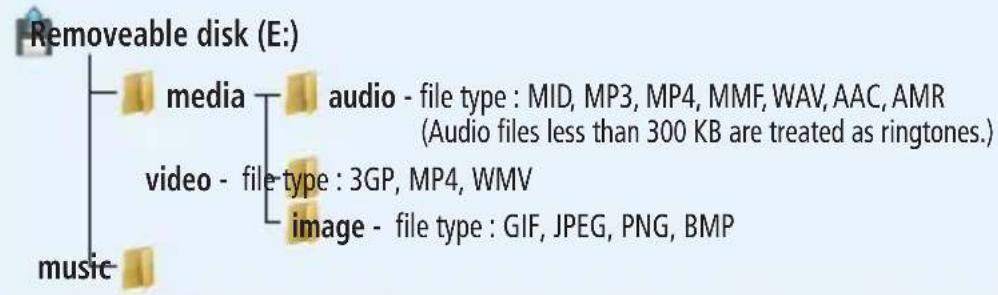
flowchart
graph TD
    A["Removeable disk (E:)"] --> Bmedia
    A --> Cvideo
    A --> Dmusic
    B --> E["audio - file type : MID, MP3, MP4, MMF, WAV, AAC, AMR\n(Audio files less than 300 KB are treated as ringtones.)"]
    C --> F["video - file type : 3GP, MP4, WMV"]
    C --> G["image - file type : GIF, JPEG, PNG, BMP"]
Note
- If you don's place the file in a proper folder, the file won't be displayed (but it is existing).
-
When microSD Card is not exist, Download media Save to Internal Memory.
-
Disconnect the device from the cable.
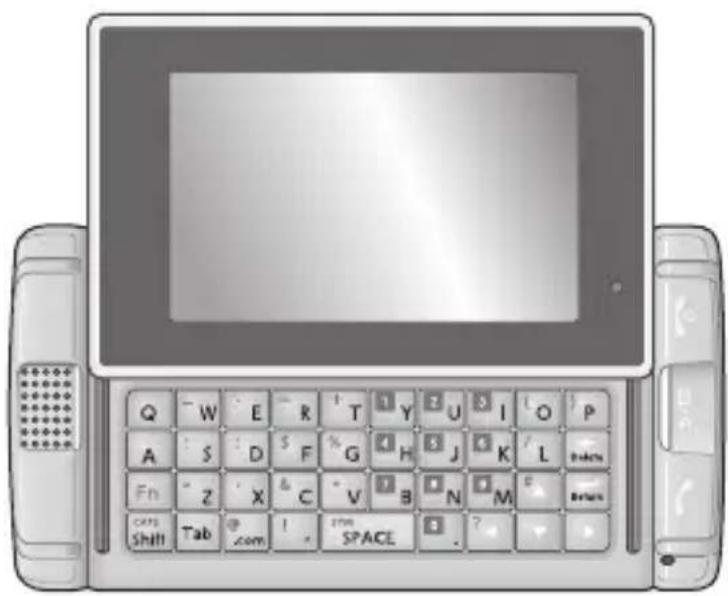
CHAPTER 7. SAFETY INFORMATION
Read this information before using your handheld portable Cellular Telephone.
Safety
warranty
SAFETY INFORMATION FOR WIRELESS HANDHELD PHONES
Read This Information Before Using Your Handheld Portable Cellular Telephone
DRIVING SAFETY
Talking on the phone while driving is extremely dangerous and is illegal in some states. Remember, safety comes first. Check the laws and regulations on the use of phones in the areas where you drive. Always obey them. If you must use your SHARP FX while driving, please:
- Give full attention to driving. Driving safely is your first responsibility.
- Use hands-free operation and/or one-touch, speed dialing, and auto answer modes.
- Pull off the road and park before making or answering a call.
An air bag inflates with great force. DO NOT place objects, including either installed or portable wireless equipment, in the area over the air bag or in the air bag deployment area. If in-vehicle wireless equipment is improperly installed and the air bag inflates, serious injury could result.
WARNING!: Failure to follow these instructions could lead to serious personal injury and possible property damage.
ELECTRONIC DEVICES
Your wireless handheld portable telephone is a low power radio transmitter and receiver. When it is ON, it receives and also sends out radio frequency (RF) signals.
Most modern electronic equipment is shielded from RF energy. However, certain electronic equipment may not be shielded against the RF signals from your wireless phone. Therefore, use of your SHARP FX must be restricted in certain situations.
PACEMAKERS
The Health Industry Manufacturers Association recommends that a minimum separation of six (6") inches be maintained between a handheld wireless phone and a pacemaker to avoid potential interference with the pacemaker. These recommendations are consistent with the independent research by and recommendations of Wireless Technology Research.
Never come closer than six (6) inches to a person with a heart pacemaker implant when using your SHARP FX. Doing so could result in interference with the function of the pacemaker.
Persons with pacemakers:
- ALWAYS keep the phone more than six inches from your pacemaker when the phone is turned on.
- Do not carry the phone in a breast pocket.
- Use the ear opposite the pacemaker to minimize the potential for interference.
- If you have any reason to suspect that interference is taking place, turn your SHARP FX OFF immediately.
HEARING AIDS
Some digital wireless phones may interfere with some hearing aids. In the event of such interference, you may want to consult your service provider (or call the customer service line to discuss alternatives).
OTHER MEDICAL DEVICES
If you use any other personal medical device, consult the manufacturer of your device to determine if they are adequately shielded from external RF energy. Your physician may be able to assist you in obtaining this information.
HOSPITALS AND HEALTH CARE FACILITIES
Turn your SHARP FX OFF in health care facilities when any regulations posted in these areas instruct you to do so. Hospitals or healthcare facilities may be using equipment that could be sensitive to external RF energy.
VEHICLES
RF signals may affect improperly installed or inadequately shielded electronic systems in motor vehicles. Check with the manufacturer or its representative regarding your vehicle. You should also consult the manufacturer of any equipment that has been added to your vehicle.
POSTED FACILITIES
Turn your SHARP FX OFF where posted notices so require.
AIRCRAFT
FCC regulations prohibit using your SHARP FX while in the air. Turn your phone OFF before boarding an aircraft. Always request and obtain prior consent and approval of an authorized airline representative before using your phone aboard an aircraft. Always follow the instructions of the airline representative whenever using your phone aboard an aircraft, to prevent any possible interference with airborne electronic equipment.
BLASTING AREAS
To avoid interfering with blasting operations, turn your SHARP FX OFF when in a "blasting area" or in areas posted "Turn off two-way radio". Obey all signs and instructions.
POTENTIALLY EXPLOSIVE ATMOSPHERES
Turn your SHARP FX OFF when in any area with a potentially explosive atmosphere and obey all signs and instructions. Sparks in such areas could cause an explosion or fire resulting in bodily injury or even death.
Areas with a potentially explosive atmosphere are often, but not always, clearly marked. They include fueling areas such as gas stations: below deck on boats: fuel or chemical transfer or storage facilities: vehicles using liquefied petroleum gas (such as propane or butane): areas where the air contains chemicals or particles, such as grain, dust, or metal powders: and any other area where you would normally be advised to turn off your vehicle's engine.
HEARING AID COMPATIBILITY WITH MOBILE PHONES
When some mobile phones are used near some hearing devices (hearing aids and cochlear implants), users may detect a buzzing, humming, or whining noise. Some hearing devices are more immune than others to this interference noise, and phones also vary in the amount of interference they generate.
The wireless telephone industry has developed ratings for some of their mobile phones, to assist hearing device users in finding phones that may be compatible with their hearing devices. Not all phones have been rated. Phones that are rated have the rating on their box or a label on the box.
The ratings are not guarantees. Results will vary depending on the user's hearing device and hearing loss. If your hearing device happens to be vulnerable to interference, you may not be able to use a rated phone successfully. Trying out the phone with your hearing device is the best way to evaluate it for your personal needs.
M-Ratings: Phones rated M3 or M4 meet FCC requirements and are likely to generate less interference to hearing devices than phones that are not labeled. M4 is the better/higher of the two ratings.
T-Ratings: Phones rated T3 or T4 meet FCC requirements and are likely to be more usable with a hearing device's telecoil ("T Switch" or "Telephone Switch") than unrated phones. T4 is the better/higher of the two ratings. (Note that not all hearing devices have telecoils in them.)
Hearing devices may also be measured for immunity to this type of interference. Your hearing device manufacturer or hearing health professional may help you find results for your hearing device.
The more immune your hearing aid is, the less likely you are to experience interference noise from mobile phones.
SAFETY INFORMATION FOR FCC RF EXPOSURE
Warning! Read this information before using your SHARP FX.
In August 1996 the Federal Communications Commission (FCC) of the United States with its action in Report and Order FCC 96-326 adopted an updated safety standard for human exposure to radio frequency electromagnetic energy emitted by FCC regulated transmitters. Those guidelines are consistent with the safety standard previously set by both U.S. and international standards bodies. The design of this phone complies with the FCC guidelines and these international standards.
BODY-WORN OPERATION
This device was tested for typical body-worn operations with the back of the phone kept 2.0 cm from the body. To maintain compliance with FCC RF exposure requirements, use only belt-clips, holsters or similar accessories that maintain a 2.0 cm separation distance between the user's body and the back of the phone, including the antenna. The use of belt-clips, holsters and similar accessories should not contain metallic components in its assembly. The use of accessories that do not satisfy these requirements may not comply with FCC RF exposure requirements, and should be avoided.
For more information about RF exposure, please visit the FCC website at www.fcc.gov.
SAR INFORMATION
THIS MODEL PHONE MEETS THE GOVERNMENT'S REQUIREMENTS FOR EXPOSURE TO RADIO WAVES.
Your wireless phone is a radio transmitter and receiver. It is designed and manufactured not to exceed the emission limits for exposure to radiofrequency (RF) energy set by the Federal Communications Commission of the U.S. Government. These limits are part of comprehensive guidelines and establish permitted levels of RF energy for the general population. The guidelines are based on standards that were developed by independent scientific organizations through periodic and thorough evaluation of scientific studies. The standards include a substantial safety margin designed to assure the safety of all persons, regardless of age and health.
The exposure standard for wireless mobile phones employs a unit of measurement known as the Specific Absorption Rate, or SAR. The SAR limit set by the FCC is 1.6 W/kg. * Tests for SAR are conducted with the phone transmitting at its highest certified power level in all tested frequency bands. Although the SAR is determined at the highest certified power level, the actual SAR level of the phone while operating can be well below the maximum value. This is because the phone is designed to operate at multiple power levels so as to use only the power required to reach the network. In general, the closer you are to a wireless base station antenna, the lower the power output. Before a phone model is available for sale to the public, it must be tested and certified to the FCC that it does not exceed the limit established by the government adopted requirement for safe exposure.
The tests are performed in positions and locations (e.g., at the ear and worn on the body) as required by the FCC for each model. The highest SAR value (GSM850) for this model phone when tested for use at the ear is 0.468W/Kg and when worn on the body, as described in this user guide, is 1.18W/Kg. (Body-worn measurements differ among phone models, depending upon available accessories and FCC requirements). While there may be differences between the SAR levels of various phones and at various positions, they all meet the government requirement for safe exposure.
The FCC has granted an Equipment Authorization for this model phone with all reported SAR levels evaluated as in compliance with the FCC RF exposure guidelines. SAR information on this model phone is on file with the FCC and can be found under the Display Grant section of http://www.fcc.gov/oet/fccid after searching on APYNAR0068.
Additional information on Specific Absorption Rates (SAR) can be found on the Cellular Telecommunications & Internet Association (CTIA) website at http://www.phonefacts.net.
* In the United States and Canada, the SAR limit for mobile phones used by the public is 1.6 watts/kg (W/kg) averaged over one gram of tissue. The standard incorporates a substantial margin of safety to give additional protection for the public and to account for any variations in measurements.
| Head | Body | |
| GSM 850 0.468 | W/kg 1.18 W/kg | |
| GSM 1900 0.365 | W/kg 0.433 W/kg | |
| WCDMA 850 0.294 | W/kg 0.407 W/kg | |
| WCDMA 1900 0.455 | W/kg 0.289 W/kg |
FDA CONSUMER UPDATE

U.S. Food and Drug Administration Cell Phone Facts Consumer Information on Wireless Phones
1. What kinds of phones are the subject of this update?
The term “wireless phone” refers here to handheld wireless phones with built-in antennas, often called “cell,” “mobile,” or “PCS” phones. These types of wireless phones can expose the user to measurable radiofrequency energy (RF) because of the short distance between the phone and the user’s head. These RF exposures are limited by Federal Communications Commission safety guidelines that were developed with the advice of FDA and other federal health and safety agencies. When the phone is located at greater distances from the user, the exposure to RF is drastically lower because a person’s RF exposure decreases rapidly with increasing distance from the source. The so-called “cordless phones,” which have a base unit connected to the telephone wiring in a house, typically operate at far lower power levels, and thus produce RF exposures well within the FCC’s compliance limits.
2. Do wireless phones pose a health hazard?
The available scientific evidence does not show that any health problems are associated with using wireless phones. There is no proof, however, that wireless phones are absolutely safe. Wireless phones emit low levels of radiofrequency energy (RF) in the microwave range while being used. They also emit very low levels of RF when in the standby mode. Whereas high levels of RF can produce health effects (by heating tissue), exposure to low level RF that does not produce heating effects causes no known adverse health effects.
Many studies of low level RF exposures have not found any biological effects. Some studies have suggested that some biological effects may occur, but such findings have not been confirmed by additional research. In some cases, other researchers have had difficulty in reproducing those studies, or in determining the reasons for inconsistent results.
3. What is FDA's role concerning the safety of wireless phones?
Under the law, FDA does not review the safety of radiation-emitting consumer products such as wireless phones before they can be sold, as it does with new drugs or medical devices. However, the agency has authority to take action if wireless phones are shown to emit radiofrequency energy (RF) at a level that is hazardous to the user. In such a case, FDA could require the manufacturers of wireless phones to notify users of the health hazard and to repair, replace or recall the phones so that the hazard no longer exists.
Although the existing scientific data do not justify FDA regulatory actions, FDA has urged the wireless phone industry to take a number of steps, including the following:
- Support needed research into possible biological effects of RF of the type emitted by wireless phones:
- Design wireless phones in a way that minimizes any RF exposure to the user that is not necessary for device function: and
- Cooperate in providing users of wireless phones with the best possible information on possible effects of wireless phone use on human health
FDA belongs to an interagency working group of the federal agencies that have responsibility for different aspects of RF safety to ensure coordinated efforts at the federal level. The following agencies belong to this working group:
• National Institute for Occupational Safety and Health
• Environmental Protection Agency
• Federal Communications Commission
• Occupational Safety and Health Administration
• National Telecommunications and Information Administration
The National Institutes of Health participates in some interagency working group activities, as well.
FDA shares regulatory responsibilities for wireless phones with the Federal Communications Commission (FCC). All phones that are sold in the United States must comply with FCC safety guidelines that limit RF exposure. FCC relies on FDA and other health agencies for safety questions about wireless phones.
FCC also regulates the base stations that the wireless phone networks rely upon. While these base stations operate at higher power than do the wireless phones themselves, the RF exposures that people get from these base stations are typically thousands of times lower than those they can get from wireless phones. Base stations are thus not the primary subject of the safety questions discussed in this document.
4. What are the results of the research done already?
The research done thus far has produced conflicting results, and many studies have suffered from flaws in their research methods. Animal experiments investigating the effects of radiofrequency energy (RF) exposures characteristic of wireless phones have yielded conflicting results that often cannot be repeated in other laboratories. A few animal studies, however, have suggested that low levels of RF could accelerate the development of cancer in laboratory animals.
However, many of the studies that showed increased tumor development used animals that had been genetically engineered or treated with cancer-causing chemicals so as to be pre-disposed to develop cancer in the absence of RF exposure. Other studies exposed the animals to RF for up to 22 hours per day. These conditions are not similar to the conditions under which people use wireless phones, so we don’t know with certainty what the results of such studies mean for human health. Three large epidemiology studies have been published since December 2000. Between them, the studies investigated any possible association between the use of wireless phones and primary brain cancer, glioma, meningioma, or acoustic neuroma, tumors of the brain or salivary gland, leukemia, or other cancers. None of the studies demonstrated the existence of any harmful health effects from wireless phone RF exposures. However, none of the studies can answer questions about long-term exposures, since the average period of phone use in these studies was around three years.
5. What research is needed to decide whether RF exposure from wireless phones poses a health risk?
A combination of laboratory studies and epidemiological studies of people actually using wireless phones would provide some of the data that are needed. Lifetime animal exposure studies could be completed in a few years. However, very large numbers of animals would be needed to provide reliable proof of a cancer promoting effect if one exists. Epidemiological studies can provide data that is directly applicable to human populations, but 10 or more years' follow-up may be needed to provide answers about some health effects, such as cancer. This is because the interval between the time of exposure to a cancer-causing agent and the time tumors develop - if they do - may be many, many years.
The interpretation of epidemiological studies is hampered by difficulties in measuring actual RF exposure during day-to-day use of wireless phones. Many factors affect this measurement, such as the angle at which the phone is held, or which model of phone is used.
6. What is FDA doing to find out more about the possible health effects of wireless phone RF?
FDA is working with the U.S. National Toxicology Program and with groups of investigators around the world to ensure that high priority animal studies are conducted to address important questions about the effects of exposure to radiofrequency energy (RF).
FDA has been a leading participant in the World Health Organization International Electromagnetic Fields (EMF) Project since its inception in 1996. An influential result of this work has been the development of a detailed agenda of research needs that has driven the establishment of new research programs around the world. The Project has also helped develop a series of public information documents on EMF issues.
FDA and the Cellular Telecommunications & Internet Association (CTIA) have a formal Cooperative Research and Development Agreement (CRADA) to do research on wireless phone safety. FDA provides the scientific oversight, obtaining input from experts in government, industry, and academic organizations. CTIA-funded research is conducted through contracts to independent investigators. The initial research will include both laboratory studies and studies of wireless phone users. The CRADA will also include a broad assessment of additional research needs in the context of the latest research developments around the world.
7. What steps can I take to reduce my exposure to radiofrequency energy from my wireless phone?
If there is a risk from these products--and at this point we do not know that there is--it is probably very small. But if you are concerned about avoiding even potential risks, you can take a few simple steps to minimize your exposure to radiofrequency energy (RF). Since time is a key factor in how much exposure a person receives, reducing the amount of time spent using a wireless phone will reduce RF exposure.
- If you must conduct extended conversations by wireless phone every day, you could place more distance between your body and the source of the RF, since the exposure level drops off dramatically with distance. For example, you could use a headset and carry the wireless phone away from your body or use a wireless phone connected to a remote antenna.
Again, the scientific data do not demonstrate that wireless phones are harmful. But if you are concerned about the RF exposure from these products, you can use measures like those described above to reduce your RF exposure from wireless phone use.
8. What about children using wireless phones?
The scientific evidence does not show a danger to users of wireless phones, including children and teenagers. If you want to take steps to lower exposure to radiofrequency energy (RF), the measures described above would apply to children and teenagers using wireless phones. Reducing the time of wireless phone use and increasing the distance between the user and the RF source will reduce RF exposure. Some groups sponsored by other national governments have advised that children be discouraged from using wireless phones at all.
For example, the government in the United Kingdom distributed leaflets containing such a recommendation in December 2000. They noted that no evidence exists that using a wireless phone causes brain tumors or other ill effects. Their recommendation to limit wireless phone use by children was strictly precautionary: it was not based on scientific evidence that any health hazard exists.
9. Do hands-free kits for wireless phones reduce risks from exposure to RF emissions?
Since there are no known risks from exposure to RF emissions from wireless phones, there is no reason to believe that hands-free kits reduce risks. Hands-free kits can be used with wireless phones for convenience and comfort. These systems reduce the absorption of RF energy in the head because the phone, which is the source of the RF emissions, will not be placed against the head. On the other hand, if the phone is mounted against the waist or other part of the body during use, then that part of the body will absorb more RF energy. Wireless phones marketed in the U.S. are required to meet safety requirements regardless of whether they are used against the head or against the body. Either configuration should result in compliance with the safety limit.
10. Do wireless phone accessories that claim to shield the head from RF radiation work?
Since there are no known risks from exposure to RF emissions from wirelessphones, there is no reason to believe that accessories that claim to shield the head from those emissions reduce risks. Some products that claim to shield the user from RF absorption use special phone cases, while others involve nothing more than a metallic accessory attached to the phone.
Studies have shown that these products generally do not work as advertised. Unlike “hand-free” kits, these so-called “shields” may interfere with proper operation of the phone. The phone may be forced to boost its power to compensate, leading to an increase in RF absorption. In February 2002, the Federal Trade Commission (FTC) charged two companies that sold devices that claimed to protect wireless phone users from radiation with making false and unsubstantiated claims. According to FTC, these defendants lacked a reasonable basis to substantiate their claim.
11. What about wireless phone interference with medical equipment?
Radiofrequency energy (RF) from wireless phones can interact with some electronic devices. For this reason, FDA helped develop a detailed test method to measure electromagnetic interference (EMI) of implanted cardiac pacemakers and defibrillators from wireless telephones. This test method is now part of a standard sponsored by the Association for the Advancement of Medical Instrumentation (AAMI). The final draft, a joint effort by FDA, medical device manufacturers, and many other groups, was completed in late 2000. This standard will allow manufacturers to ensure that cardiac pacemakers and defibrillators are safe from wireless phone EMI.
FDA has tested hearing aids for interference from handheld wireless phones and helped develop a voluntary standard sponsored by the Institute of Electrical and Electronic Engineers (IEEE). This standard specifies test methods and performance requirements for hearing aids and wireless phones so that that no interference occurs when a person uses a “compatible” phone and a “compatible” hearing aid at the same time. This standard was approved by the IEEE in 2000.
FDA continues to monitor the use of wireless phones for possible interactions with other medical devices. Should harmful interference be found to occur, FDA will conduct testing to assess the interference and work to resolve the problem.
Updated July 29, 2003
For more information, please visit the FDA website at http://www.fda.gov/cellphones.
EMERGENCY CALLS
Never rely solely upon your wireless phone for essential communications (e.g., medical emergencies), if it can be avoided, since a wireless phone requires a complex combination of radio signals, relay stations and landline networks for its operation. Consequently, emergency calls may not always be possible under all conditions on all wireless phone systems. Your wireless phone, however, may sometimes be the only available means of communication at the scene of an accident. When making an emergency call, always give the recipient all necessary information as accurately as possible. Never terminate an emergency call until you have received clearance to do so.
FCC ENHANCED 911 (E911) RULES
Background
The Federal Communications Commission (FCC) requires wireless carriers to transmit specific latitude and longitude location (Automatic Location Identification = ALI) information as well as "911" calls to Public Safety Answering Points (PSAPs) to identify the location of the caller in case of emergency.
Generally, the rules require that carriers identify an E911 caller's location within 50 meters of the actual location for 67 percent of calls and within 150 meters of the actual location for 95 percent of calls. SHARP FX's ALI Capability.
The SHARP FX is an ALI-capable phone equipped with a GPS (Global Positioning System) receiver supporting a satellite-based GPS ALI-capable network to comply with the FCC's ALI requirements.
The network compliance with the above FCC requirements is dependent on: (a) the use of digital technology by the wireless network: (b) GPS satellite signals being able to reach the handset (such transmissions do not always work indoors, for example): and (c) handset signals reaching wireless “base stations” (atmospheric and environmental conditions may cause variations in handset receiving signal strength).
Also the transmission of the ALI information is subject, in part, to system constraints within the wireless network to which the E911 signal is transmitted and over which SHARP FX has no control.
Finally, customers are advised that the SHARP FX's ALI capability is to be used for E911 purposes only.
This feature allows you to place an emergency call even if your phone is in "Phone Lock" or "Restrict" mode when you dial the preprogrammed emergency number, 911, #911, or *911. It also operates in out-of-service areas. The phone maintains the emergency mode until you press the Power/END Key after disconnecting an emergency call. In emergency call mode, the phone can receive an incoming call from any available system.
To call "911" in "Phone Lock" or "Restrict" mode.
- In Idle mode, tap Call icon 📞, tap "9 Key", "1 Key", "1 Key".
- TapCall or the SEND Key "911" and "Emergency call" will appear on the screen.
COMPLIANCE WITH OTHER FCC REGULATIONS
OPERATING PROCEDURES
Never violate any of the following Rules and Regulations of the FCC when using your Cellular Phone. Such violations are punishable by fine, imprisonment or both.
- Never use obscene, indecent, or profane language.
- Never use your Cellular Phone to send false distress calls.
- Never wiretap or otherwise intercept a phone call, unless you have first obtained the consent of the parties participating in the call.
- Never make any anonymous calls to annoy, harass, or molest other people.
- Never charge another account without authorization, to avoid payment for service.
- Never willfully or maliciously interfere with any other radio communications.
- Never refuse to yield the line when informed that it is needed for an Emergency Call. Also, never take over a line by stating falsely that it is needed for an emergency.
GENERAL SAFETY
PRECAUTIONS
Your Handheld Portable Telephone is a high quality piece of equipment. Before operating, read all instructions and cautionary markings on the product, battery and adapter/charger.
Failure to follow the directions below could result in serious bodily injury and/or property damage due to battery liquid leakage, fire or rupture.
- DO NOT use or store this equipment in a place where it will be exposed to high temperatures, such as near an open flame or heat-emitting equipment.
- DO NOT drop your device or subject it to severe shock. When not using, lay down the unit to avoid possible damage due to instability.
- DO NOT use it or store it where fluids such as water can splash onto it. Raindrops, water spray, juice, coffee, steam, perspiration, etc. will also cause malfunctions.
• DO NOT use unauthorized accessories. - DO NOT disassemble the phone or its accessories. If service or repair is required, return unit to an authorized Personal Communications Devices cellular service center. If unit is disassembled, the risk of electric shock or fire may result.
- DO NOT drop your device or subject it to severe impacts. Bending the body and pushing the display or keys with extreme force could damage the device.
- DO NOT carry your device in your back pocket as it could break when you sit down. The display is made of glass and is particularly fragile.
- Your device contains exposed magnets, which may cause damage to credit cards, magnetic ID cards, and other magnetically encoded materials. Do not place these or other items that are sensitive to magnetic fields near the exposed magnets. For example, do not place your device in the same pocket as your credit card or hotel key.
ANTENNA
ANTENNA SAFETY
Use only the supplied or an approved replacement antenna. Unauthorized antennas, modifications, or attachments could impair call quality, damage the phone, or result in violation of FCC regulations. Please contact your local dealer for replacement antenna.
Do not use the phone with a damaged antenna. If a damaged antenna comes into contact with the skin, a minor burn may result. Please contact your local dealer for replacement antenna.
BATTERY
BATTERY SAFETY
Your device uses a removable and rechargeable lithium ion battery. Please contact customer service for assistance should you need a replacement battery.
DO's
- Only use the battery and charger approved by the manufacturer.
-
Only use the battery for its original purpose.
-
Try to keep batteries in a temperature between 41°F (5°C) and 95°F (35°C).
- If the battery is stored in temperatures above or below the recommended range, give it time to warm up or cool down before using.
- Completely drain the battery before recharging. It may take one to four days to completely drain.
- Store the discharged battery in a cool, dark, and dry place.
- Purchase a new battery when its operating time gradually decreases after fully charging.
- Properly dispose of the battery according to local regulations.
DON'Ts
- Don't attempt to disassemble the battery – it is a sealed unit with no serviceable parts.
- Don't expose the battery terminals to any other metal object (e.g., by carrying it in your pocket or purse with other metallic objects such as coins, clips and pens). This can short circuit and critically damage the battery.
- Don't leave the battery in hot or cold temps. Otherwise, it could significantly reduce the capacity and lifetime of the battery.
- Don't dispose of the battery into a fire.
- If you find the battery charger heating, smelling unusually, or smoking, disconnect the battery charger from the AC outlet, turn your device off, and remove the battery from your phone immediately.
- It is normal the battery charger becomes warm while charging the battery.
Lithium ion batteries are recyclable. When you replace your built-in battery, please request the repair center to recycle the battery in accordance with RBRC standards. When disposing of the battery by yourself, please call RBRC at (800) 822-8837 for proper disposal tips. Never touch any fluid that might leak from the built-in battery. Such liquid when in contact with the eyes or skin, could cause injury to the skin or eyes. Should the liquid come into contact with the eyes, irrigate the eyes thoroughly with clean water and immediately seek medical attention. In the event the liquid comes into contact with the skin or clothing, wash it away immediately with clean water.
ADAPTER/CHARGER
CHARGER
The charger designed by Sharp for this unit requires the use of a standard 120 V AC power source for its operation.
- Never attempt to disassemble or repair a charger.
- Never use a charger if it has a damaged or worn power cord or plug. Always contact a Personal Communications Devices authorized service center, if repair or replacement is required.
- Never alter the AC cord or plug on your charger. If the plug will not fit into the available outlet, have a proper outlet installed by a qualified electrician.
- Never allow any liquids or water to spill on the charger when it is connected to an AC power source. Always use the authorized Personal Communications Devices charger to avoid any risk of bodily injury or damage to your cellular phone or battery.
- Never attempt to connect or disconnect the charger with wet hands. Always unplug the charger from the power source before attempting any cleaning. Always use a soft cloth dampened with water to clean the equipment, after it has been unplugged.
Handling the cord on this product or cords associated with accessories sold with this product, will expose you to lead, a chemical known to the State of California to cause birth defects or other reproductive harm. Wash hands after handling. Always disconnect the charger from the power source when it is not in use.
GAMES
SEIZURES/BLACKOUTS
Warning
A very small percentage of individuals may experience epileptic seizures when exposed to certain light patterns or flashing lights. Exposure to certain patterns or backgrounds on a computer screen, or while playing video games, may induce an epileptic seizure in these individuals. Certain conditions may induce previously undetected epileptic symptoms even in persons who have no history of prior seizures or epilepsy.
If you, or anyone in your family, have an epileptic condition, consult your physician prior to playing. If you experience any of the following symptoms while playing a video or computer game -- dizziness, altered vision, eye or muscle twitches, loss of awareness, disorientation, any involuntary movement, or convulsions -- IMMEDIATELY discontinue use and consult your physician before resuming play.
Repetitive Motion Injuries
When you play games on your phone, you may experience occasional discomfort in your hands, arms, shoulders, neck, or other parts of your body. Follow these instructions to avoid problems such as tendonitis, carpal tunnel syndrome, or other musculoskeletal disorders:
• Take a minimum 15-minute break every hour of game playing.
- If your hands, wrists, or arms become tired or sore while playing, stop and rest for several hours before playing again.
- If you continue to have sore hands, wrists, or arms during or after play, stop playing and see a doctor.
RECYCLE YOUR CELL PHONE!
Carriers marketing this cell phone have an in-store phone take-back program. Consumers can drop off their used wireless devices to specified carrier retail outlets for recycling purposes. For a list of carrier members and collection sites, visit the cellular industry's recycling website www.recyclewirelessphones.com.
To mail in your old wireless device to Personal Communications Devices for recycling purposes, simply package your old wireless device and any accessories (including discharged batteries) in appropriate shipping materials and mail to:
For Recycling Personal Communications Devices LLC 555 Wireless Blvd. Hauppauge, NY 11788 Wireless phones also can be donated to the Wireless Foundation's DONATE A PHONE® CALL TO PROTECT® campaign. This charitable cause collects wireless phones to benefit victims of domestic violence. All donated phones are tax deductible. You may mail the phone to: CALL TO PROTECT, 2555 Bishop Circle, West Dexter, MI 48130.
-OR-
Drop the phone off at a local collection center. For a list of collection centers, visit www.wirelessfoundation.org/CalltoProtect/dropoff.cfm Before returning any wireless device for recycling purposes, please remember to terminate your service on the device, clear the device of any stored information and remove the device's SIM card, if it has one (please contact your wireless provider to find out if your device contains a SIM card and for assistance on how to remove it).
RECYCLING INFORMATION
The RBRC™ Battery Recycling Seal on the Lithium-ion (Li-ion) battery/battery pack indicates Personal Communications Devices, LLC is voluntarily participating in an industry program to collect and recycle these battery/battery packs at the end of their useful life, when taken out of service in the United States or Canada. The RBRC™ program provides a convenient alternative to placing Li-ion batteries into the trash or municipal waste stream, which is illegal in some areas. Please call 1-800-822-8837 for information on Li-ion battery recycling in your area. Personal Communications Devices, LLC involvement in this program is part our commitment to preserving our environment and conserving our natural resources. (RBRC™ is a trademark of the Rechargeable Battery Recycling Corporation.)

FCC COMPLIANCE INFORMATION
This device complies with Part 15 of FCC Rules.Operation is subject to the following two conditions:
(1) This device may not cause harmful interference, and
(2) This device must accept any interference received.
Including interference that may cause undesired operation.
INFORMATION TO USER
This equipment has been tested and found to comply with the limits for a Class B digital device, pursuant to part 15 of the FCC Rules. These limits are designed to provide reasonable protection against harmful interference in a residential installation. This equipment generates, uses and can radiate radio frequency energy and, if not installed and used in accordance with the instructions, may cause harmful interference to radio communications. However, there is no guarantee that interference will not occur in a particular installation.
If this equipment does cause harmful interference to radio or television reception, which can be determined by turning the equipment off and on, the user is encouraged to try to correct the interference by one or more of the following measures:
- Reorient or relocate the receiving antenna.
- Increase the separation between the equipment and receiver.
- Connect the equipment into an outlet on a circuit different from that to which the receiver is connected.
- Consult the dealer or an experienced radio/ tv technician for help.
CAUTION: The user who makes changes or modifications to the unit without the express approval by the manufacturer will void user authority to operate the equipment.
MANUFACTURER'S WARRANTY
12 MONTH LIMITED WARRANTY
Personal Communications Devices, LLC. (the Company) warrants to the original retail purchaser of this handheld portable cellular telephone, that should this product or any part thereof during normal consumer usage and conditions, be proven defective in material or workmanship that results in product failure within the first twelve (12) month period from the date of purchase, such defect(s) will be repaired or replaced (with new or rebuilt parts) at the Company's option, without charge for parts or labor directly related to the defect(s).
The antenna, keypad, display, rechargeable battery and battery charger, if included, are similarly warranted for twelve (12) months from date of purchase.
This Warranty extends only to consumers who purchase the product in the United States or Canada and it is not transferable or assignable.
This Warranty does not apply to:
(a) Product subjected to abnormal use or conditions, accident, mishandling, neglect, unauthorized alteration, misuse, improper installation or repair or improper storage;
(b) Product whose mechanical serial number or electronic serial number has been removed, altered or defaced.
(c) Damage from exposure to moisture, humidity, excessive temperatures or extreme environmental conditions;
(d) Damage resulting from connection to, or use of any accessory or other product not approved or authorized by the Company;
(e) Defects in appearance, cosmetic, decorative or structural items such as framing and non-operative parts;
(f) Product damaged from external causes such as fire, flooding, dirt, sand, weather conditions, battery leakage, blown fuse, theft or improper usage of any electrical source.
The Company disclaims liability for removal or reinstallation of the product, for geographic coverage, for inadequate signal reception by the antenna or for communications range or operation of the cellular system as a whole.
When sending your wireless device to Personal Communications Devices for repair or service, please note that any personal data or software stored on the device may be inadvertently erased or altered. Therefore, we strongly recommend you make a back up copy of all data and software contained on your device before submitting it for repair or service. This includes all contact lists, downloads (i.e. third-party software applications, ringtones, games and graphics) and any other data added to your device. In addition, if your wireless device utilizes a SIM or Multimedia card, please remove the card before submitting the device and store for later use when your device is returned, Personal Communications Devices is not responsible for and does not guarantee restoration of any third-party software, personal information or memory data contained in, stored on, or integrated with any wireless device, whether under warranty or not, returned to Personal Communications Devices for repair or service.
To obtain repairs or replacement within the terms of this Warranty, the product should be delivered with proof of Warranty coverage (e.g. dated bill of sale), the consumer's return address, daytime phone number and/or fax number and complete description of the problem, transportation prepaid, to the Company at the address shown below or to the place of purchase for repair or replacement processing. In addition, for reference to an authorized Warranty station in your area, you may telephone in the United States (800) 229-1235, and in Canada (800) 465-9672 (in Ontario call 416-695-3060).
THE EXTENT OF THE COMPANY'S LIABILITY UNDER THIS WARRANTY IS LIMITED TO THE REPAIR OR REPLACEMENT PROVIDED ABOVE AND, IN NO EVENT, SHALL THE COMPANY'S LAIBILITY EXCEED THE PURCHASE PRICE PAID BY PURCHASER FOR THE PRODUCT.
ANY IMPLIED WARRANTIES, INCLUDING ANY IMPLIED WARRANTY OF MERCHANTABILITY OR FITNESS FOR A PARTICULAR PURPOSE, SHALL BE LIMITED TO THE DURATION OF THIS WRITTEN WARRANTY. ANY ACTION FOR BREACH OF ANY WARRANTY MUST BE BROUGHT WITHIN A PERIOD OF 18 MONTHS FROM DATE OF ORIGINAL PURCHASE. IN NO CASE SHALL THE COMPANY BE LIABLE FOR AN SPECIAL CONSEQUENTIAL OR INCIDENTAL DAMAGES FOR BREACH OF THIS OR ANY OTHER WARRANTY, EXPRESS OR IMPLIED, WHATSOEVER. THE COMPANY SHALL NOT BE LIABLE FOR THE DELAY IN RENDERING SERVICE UNDER THIS WARRANTY OR LOSS OF USE DURING THE TIME THE PRODUCT IS BEING REPAIRED OR REPLACED.
No person or representative is authorized to assume for the Company any liability other than expressed herein in connection with the sale of this product.
Some states or provinces do not allow limitations on how long an implied warranty lasts or the exclusion or limitation of incidental or consequential damage so the above limitation or exclusions may not apply to you. This Warranty gives you specific legal rights, and you may also have other rights, which vary from state to state or province to province.
IN USA: Personal Communications Devices, LLC.
555 Wireless Blvd.
Hauppauge, NY 11788
(800) 229-1235
IN CANADA: PCD Communications Canada Ltd.
5535 Eglinton Avenue West Suite #234
Toronto, ON M9C 5K5
(800) 465-9672
SAFETY INFORMATION
Read this information before using your handheld portable Cellular Thelephone.
Safety Warranty

TABLE OF CONTENTS
SAFETY
SAFETY INFORMATION FOR WIRELESS HANDHELD PHONES .... 1
HEARING AID COMPATIBILITY WITH MOBILE PHONES 5
SAFETY INFORMATION FOR FCC RF EXPOSURE 6
SAR INFORMATION 7
FDA CONSUMER UPDATE 9
EMERgENCY CALLS 17
COMPLIANCE WITH OTHER FCC REgULATIONS 19
gGENERAL SAFETY 20
ANTENNA 21
bATTERY....21
ADAPTER/CHARgER 23
gAMES....24
RECYCLE YOUR CELL PHONE! 25
FCC COMPLIANCE INFORMATION 26
WARRANTY
MANUFACTURER'S WARRANTY 28
SAFETY INFORMATION FOR WIRELESS HANDHELD PHONES
Read This Information Before Using Your Handheld Portable Cellular Telephone
DRIVING SAFETY
Talking on the phone while driving is extremely dangerous and is illegal in some states. Remember, safety comes first. Check the laws and regulations on the use of phones in the areas where you drive. Always obey them. If you must use your Sharp FX while driving, please:
- Give full attention to driving. Driving safely is your first responsibility.
- Use hands-free operation and/or one-touch, speed dialing, and auto answer modes.
- Pull off the road and park before making or answering a call.
An air bag inflates with great force. DO NOT place objects, including either installed or portable wireless equipment, in the area over the air bag or in the air bag deployment area. If in-vehicle wireless equipment is improperly installed and the air bag inflates, serious injury could result.
WARNING!: Failure to follow these instructions could lead to serious personal injury and possible property damage.
ELECTRONIC DEVICES
Your wireless handheld portable telephone is a low power radio transmitter and receiver. When it is ON, it receives and also sends out radio frequency (RF) signals.
Most modern electronic equipment is shielded from RF energy. However, certain electronic equipment may not be shielded against the RF signals from your wireless phone. Therefore, use of your Sharp FX must be restricted in certain situations.
PACEMAKERS
The Health Industry Manufacturers Association recommends that a minimum separation of six (6") inches be maintained between a handheld wireless phone and a pacemaker to avoid potential interference with the pacemaker. These recommendations are consistent with the independent research by and recommendations of Wireless Technology Research.
Never come closer than six (6) inches to a person with a heart pacemaker implant when using your Sharp FX. Doing so could result in interference with the function of the pacemaker.
Persons with pacemakers:
- ALWAYS keep the phone more than six inches from your pacemaker when the phone is turned on.
- Do not carry the phone in a breast pocket.
- Use the ear opposite the pacemaker to minimize the potential for interference.
- If you have any reason to suspect that interference is taking place, turn your Sharp FX OFF immediately.
HEARING AIDS
Some digital wireless phones may interfere with some hearing aids. In the event of such interference, you may want to consult your service provider (or call the customer service line to discuss alternatives).
OTHER MEDICAL DEVICES
If you use any other personal medical device, consult the manufacturer of your device to determine if they are adequately shielded from external RF energy. Your physician may be able to assist you in obtaining this information.
HOSPITALS AND HEALTH CARE FACILITIES
Turn your Sharp FX OFF in health care facilities when any regulations posted in these areas instruct you to do so. Hospitals or healthcare facilities may be using equipment that could be sensitive to external RF energy.
VEHICLES
RF signals may affect improperly installed or inadequately shielded electronic systems in motor vehicles. Check with the manufacturer or its representative regarding your vehicle. You should also consult the manufacturer of any equipment that has been added to your vehicle.
POSTED FACILITIES
Turn your Sharp FX OFF where posted notices so require.
AIRCRAFT
FCC regulations prohibit using your Sharp FX while in the air. Turn your phone OFF before boarding an aircraft. Always request and obtain prior consent and approval of an authorized airline representative before using your phone aboard an aircraft. Always follow the instructions of the airline representative whenever using your phone aboard an aircraft, to prevent any possible interference with airborne electronic equipment.
BLASTING AREAS
To avoid interfering with blasting operations, turn your Sharp FX OFF when in a "blasting area" or in areas posted "Turn off two-way radio". Obey all signs and instructions.
POTENTIALLY EXPLOSIVE ATMOSPHERES
Turn your Sharp FX OFF when in any area with a potentially explosive atmosphere and obey all signs and instructions. Sparks in such areas could cause an explosion or fire resulting in bodily injury or even death.
Areas with a potentially explosive atmosphere are often, but not always, clearly marked. They include fueling areas such as gas stations: below deck on boats: fuel or chemical transfer or storage facilities: vehicles using liquefied petroleum gas (such as propane or butane): areas where the air contains chemicals or particles, such as grain, dust, or metal powders: and any other area where you would normally be advised to turn off your vehicle's engine.
HEARING AID COMPATIBILITY WITH MOBILE PHONES
When some mobile phones are used near some hearing devices (hearing aids and cochlear implants), users may detect a buzzing, humming, or whining noise. Some hearing devices are more immune than others to this interference noise, and phones also vary in the amount of interference they generate.
The wireless telephone industry has developed ratings for some of their mobile phones, to assist hearing device users in finding phones that may be compatible with their hearing devices. Not all phones have been rated. Phones that are rated have the rating on their box or a label on the box.
The ratings are not guarantees. Results will vary depending on the user's hearing device and hearing loss. If your hearing device happens to be vulnerable to interference, you may not be able to use a rated phone successfully. Trying out the phone with your hearing device is the best way to evaluate it for your personal needs.
M-Ratings: Phones rated M3 or M4 meet FCC requirements and are likely to generate less interference to hearing devices than phones that are not labeled. M4 is the better/higher of the two ratings.
T-Ratings: Phones rated T3 or T4 meet FCC requirements and are likely to be more usable with a hearing device's telecoil ("T Switch" or "Telephone Switch") than unrated phones. T4 is the better/higher of the two ratings. (Note that not all hearing devices have telecoils in them.)
Hearing devices may also be measured for immunity to this type of interference. Your hearing device manufacturer or hearing health professional may help you find results for your hearing device.
The more immune your hearing aid is, the less likely you are to experience interference noise from mobile phones.
SAFETY INFORMATION FOR FCC RF EXPOSURE
Warning! Read this information before using your Sharp FX.
In August 1996 the Federal Communications Commission (FCC) of the United States with its action in Report and Order FCC 96-326 adopted an updated safety standard for human exposure to radio frequency electromagnetic energy emitted by FCC regulated transmitters. Those guidelines are consistent with the safety standard previously set by both U.S. and international standards bodies. The design of this phone complies with the FCC guidelines and these international standards.
BODY-WORN OPERATION
This device was tested for typical body-worn operations with the back of the phone kept 2.0 cm from the body. To maintain compliance with FCC RF exposure requirements, use only belt-clips, holsters or similar accessories that maintain a 2.0 cm separation distance between the user's body and the back of the phone, including the antenna. The use of belt-clips, holsters and similar accessories should not contain metallic components in its assembly. The use of accessories that do not satisfy these requirements may not comply with FCC RF exposure requirements, and should be avoided.
For more information about RF exposure, please visit the FCC website at www.fcc.gov.
SAR INFORMATION
THIS MODEL PHONE MEETS THE GOVERNMENT'S REQUIREMENTS FOR EXPOSURE TO RADIO WAVES.
Your wireless phone is a radio transmitter and receiver. It is designed and manufactured not to exceed the emission limits for exposure to radiofrequency (RF) energy set by the Federal Communications Commission of the U.S. Government. These limits are part of comprehensive guidelines and establish permitted levels of RF energy for the general population. The guidelines are based on standards that were developed by independent scientific organizations through periodic and thorough evaluation of scientific studies. The standards include a substantial safety margin designed to assure the safety of all persons, regardless of age and health.
The exposure standard for wireless mobile phones employs a unit of measurement known as the Specific Absorption Rate, or SAR. The SAR limit set by the FCC is 1.6 W/kg. * Tests for SAR are conducted with the phone transmitting at its highest certified power level in all tested frequency bands. Although the SAR is determined at the highest certified power level, the actual SAR level of the phone while operating can be well below the maximum value. This is because the phone is designed to operate at multiple power levels so as to use only the power required to reach the network. In general, the closer you are to a wireless base station antenna, the lower the power output. Before a phone model is available for sale to the public, it must be tested and certified to the FCC that it does not exceed the limit established by the government adopted requirement for safe exposure.
The tests are performed in positions and locations (e.g., at the ear and worn on the body) as required by the FCC for each model. The highest SAR value (GSM 850) for this model phone when tested for use at the ear is 0.468W/Kg and when worn on the body, as described in this user guide, is 1.18W/Kg. (Body-worn measurements differ among phone models, depending upon available accessories and FCC requirements). While there may be differences between the SAR levels of various phones and at various positions, they all meet the government requirement for safe exposure.
The FCC has granted an Equipment Authorization for this model phone with all reported SAR levels evaluated as in compliance with the FCC RF exposure guidelines. SAR information on this model phone is on file with the FCC and can be found under the Display Grant section of http://www.fcc.gov/oet/fccid after searching on APYNAR0068.
Additional information on Specific Absorption Rates (SAR) can be found on the Cellular Telecommunications & Internet Association (CTIA) website at http://www.phonefacts.net.
* In the United States and Canada, the SAR limit for mobile phones used by the public is 1.6 watts/kg (W/kg) averaged over one gram of tissue. The standard incorporates a substantial margin of safety to give additional protection for the public and to account for any variations in measurements.
| Head | Body | |
| GSM 850 0.468 | W/kg 1.18 W/kg | |
| GSM 1900 | 0.365 W/kg 0.433 W/kg | |
| WCDMA 850 0.294 | W/kg 0.407 W/kg | |
| WCDMA 1900 0.455 | W/kg 0.289 W/kg |
FDA CONSUMER UPDATE

U.S. Food and Drug Administration Cell Phone Facts Consumer Information on Wireless Phones
1. What kinds of phones are the subject of this update?
The term “wireless phone” refers here to handheld wireless phones with built-in antennas, often called “cell,” “mobile,” or “PCS” phones. These types of wireless phones can expose the user to measurable radiofrequency energy (RF) because of the short distance between the phone and the user’s head. These RF exposures are limited by Federal Communications Commission safety guidelines that were developed with the advice of FDA and other federal health and safety agencies. When the phone is located at greater distances from the user, the exposure to RF is drastically lower because a person’s RF exposure decreases rapidly with increasing distance from the source. The so-called “cordless phones,” which have a base unit connected to the telephone wiring in a house, typically operate at far lower power levels, and thus produce RF exposures well within the FCC’s compliance limits.
2. Do wireless phones pose a health hazard?
The available scientific evidence does not show that any health problems are associated with using wireless phones. There is no proof, however, that wireless phones are absolutely safe. Wireless phones emit low levels of radiofrequency energy (RF) in the microwave range while being used. They also emit very low levels of RF when in the standby mode. Whereas high levels of RF can produce health effects (by heating tissue), exposure to low level RF that does not produce heating effects causes no known adverse health effects.
Many studies of low level RF exposures have not found any biological effects. Some studies have suggested that some biological effects may occur, but such findings have not been confirmed by additional research. In some cases, other researchers have had difficulty in reproducing those studies, or in determining the reasons for inconsistent results.
3. What is FDA's role concerning the safety of wireless phones?
Under the law, FDA does not review the safety of radiation-emitting consumer products such as wireless phones before they can be sold, as it does with new drugs or medical devices. However, the agency has authority to take action if wireless phones are shown to emit radiofrequency energy (RF) at a level that is hazardous to the user. In such a case, FDA could require the manufacturers of wireless phones to notify users of the health hazard and to repair, replace or recall the phones so that the hazard no longer exists.
Although the existing scientific data do not justify FDA regulatory actions, FDA has urged the wireless phone industry to take a number of steps, including the following:
- Support needed research into possible biological effects of RF of the type emitted by wireless phones:
- Design wireless phones in a way that minimizes any RF exposure to the user that is not necessary for device function: and
- Cooperate in providing users of wireless phones with the best possible information on possible effects of wireless phone use on human health
FDA belongs to an interagency working group of the federal agencies that have responsibility for different aspects of RF safety to ensure coordinated efforts at the federal level. The following agencies belong to this working group:
• National Institute for Occupational Safety and Health
• Environmental Protection Agency
• Federal Communications Commission
• Occupational Safety and Health Administration
• National Telecommunications and Information Administration
The National Institutes of Health participates in some interagency working group activities, as well.
FDA shares regulatory responsibilities for wireless phones with the Federal Communications Commission (FCC). All phones that are sold in the United States must comply with FCC safety guidelines that limit RF exposure. FCC relies on FDA and other health agencies for safety questions about wireless phones.
FCC also regulates the base stations that the wireless phone networks rely upon. While these base stations operate at higher power than do the wireless phones themselves, the RF exposures that people get from these base stations are typically thousands of times lower than those they can get from wireless phones. Base stations are thus not the primary subject of the safety questions discussed in this document.
4. What are the results of the research done already?
The research done thus far has produced conflicting results, and many studies have suffered from flaws in their research methods. Animal experiments investigating the effects of radiofrequency energy (RF) exposures characteristic of wireless phones have yielded conflicting results that often cannot be repeated in other laboratories. A few animal studies, however, have suggested that low levels of RF could accelerate the development of cancer in laboratory animals.
However, many of the studies that showed increased tumor development used animals that had been genetically engineered or treated with cancer-causing chemicals so as to be pre-disposed to develop cancer in the absence of RF exposure. Other studies exposed the animals to RF for up to 22 hours per day. These conditions are not similar to the conditions under which people use wireless phones, so we don't know with certainty what the results of such studies mean for human health. Three large epidemiology studies have been published since December 2000. Between them, the studies investigated any possible association between the use of wireless phones and primary brain cancer, glioma, meningioma, or acoustic neuroma, tumors of the brain or salivary gland, leukemia, or other cancers. None of the studies demonstrated the existence of any harmful health effects from wireless phone RF exposures. However, none of the studies can answer questions about long-term exposures, since the average period of phone use in these studies was around three years.
5. What research is needed to decide whether RF exposure from wireless phones poses a health risk?
A combination of laboratory studies and epidemiological studies of people actually using wireless phones would provide some of the data that are needed. Lifetime animal exposure studies could be completed in a few years. However, very large numbers of animals would be needed to provide reliable proof of a cancer promoting effect if one exists. Epidemiological studies can provide data that is directly applicable to human populations, but 10 or more years' follow-up may be needed to provide answers about some health effects, such as cancer. This is because the interval between the time of exposure to a cancer-causing agent and the time tumors develop - if they do - may be many, many years.
The interpretation of epidemiological studies is hampered by difficulties in measuring actual RF exposure during day-to-day use of wireless phones. Many factors affect this measurement, such as the angle at which the phone is held, or which model of phone is used.
6. What is FDA doing to find out more about the possible health effects of wireless phone RF?
FDA is working with the U.S. National Toxicology Program and with groups of investigators around the world to ensure that high priority animal studies are conducted to address important questions about the effects of exposure to radiofrequency energy (RF).
FDA has been a leading participant in the World Health Organization International Electromagnetic Fields (EMF) Project since its inception in 1996. An influential result of this work has been the development of a detailed agenda of research needs that has driven the establishment of new research programs around the world. The Project has also helped develop a series of public information documents on EMF issues.
FDA and the Cellular Telecommunications & Internet Association (CTIA) have a formal Cooperative Research and Development Agreement (CRADA) to do research on wireless phone safety. FDA provides the scientific oversight, obtaining input from experts in government, industry, and academic organizations. CTIA-funded research is conducted through contracts to independent investigators. The initial research will include both laboratory studies and studies of wireless phone users. The CRADA will also include a broad assessment of additional research needs in the context of the latest research developments around the world.
7. What steps can I take to reduce my exposure to radiofrequency energy from my wireless phone?
If there is a risk from these products--and at this point we do not know that there is--it is probably very small. But if you are concerned about avoiding even potential risks, you can take a few simple steps to minimize your exposure to radiofrequency energy (RF). Since time is a key factor in how much exposure a person receives, reducing the amount of time spent using a wireless phone will reduce RF exposure.
- If you must conduct extended conversations by wireless phone every day, you could place more distance between your body and the source of the RF, since the exposure level drops off dramatically with distance. For example, you could use a headset and carry the wireless phone away from your body or use a wireless phone connected to a remote antenna.
Again, the scientific data do not demonstrate that wireless phones are harmful. But if you are concerned about the RF exposure from these products, you can use measures like those described above to reduce your RF exposure from wireless phone use.
8. What about children using wireless phones?
The scientific evidence does not show a danger to users of wireless phones, including children and teenagers. If you want to take steps to lower exposure to radiofrequency energy (RF), the measures described above would apply to children and teenagers using wireless phones. Reducing the time of wireless phone use and increasing the distance between the user and the RF source will reduce RF exposure. Some groups sponsored by other national governments have advised that children be discouraged from using wireless phones at all.
For example, the government in the United Kingdom distributed leaflets containing such a recommendation in December 2000. They noted that no evidence exists that using a wireless phone causes brain tumors or other ill effects. Their recommendation to limit wireless phone use by children was strictly precautionary: it was not based on scientific evidence that any health hazard exists.
9. Do hands-free kits for wireless phones reduce risks from exposure to RF emissions?
Since there are no known risks from exposure to RF emissions from wireless phones, there is no reason to believe that hands-free kits reduce risks. Hands-free kits can be used with wireless phones for convenience and comfort. These systems reduce the absorption of RF energy in the head because the phone, which is the source of the RF emissions, will not be placed against the head. On the other hand, if the phone is mounted against the waist or other part of the body during use, then that part of the body will absorb more RF energy. Wireless phones marketed in the U.S. are required to meet safety requirements regardless of whether they are used against the head or against the body. Either configuration should result in compliance with the safety limit.
10. Do wireless phone accessories that claim to shield the head from RF radiation work?
Since there are no known risks from exposure to RF emissions from wirelessphones, there is no reason to believe that accessories that claim to shield the head from those emissions reduce risks. Some products that claim to shield the user from RF absorption use special phone cases, while others involve nothing more than a metallic accessory attached to the phone.
Studies have shown that these products generally do not work as advertised. Unlike “hand-free” kits, these so-called “shields” may interfere with proper operation of the phone. The phone may be forced to boost its power to compensate, leading to an increase in RF absorption. In February 2002, the Federal Trade Commission (FTC) charged two companies that sold devices that claimed to protect wireless phone users from radiation with making false and unsubstantiated claims. According to FTC, these defendants lacked a reasonable basis to substantiate their claim.
11. What about wireless phone interference with medical equipment?
Radiofrequency energy (RF) from wireless phones can interact with some electronic devices. For this reason, FDA helped develop a detailed test method to measure electromagnetic interference (EMI) of implanted cardiac pacemakers and defibrillators from wireless telephones. This test method is now part of a standard sponsored by the Association for the Advancement of Medical Instrumentation (AAMI). The final draft, a joint effort by FDA, medical device manufacturers, and many other groups, was completed in late 2000. This standard will allow manufacturers to ensure that cardiac pacemakers and defibrillators are safe from wireless phone EMI.
FDA has tested hearing aids for interference from handheld wireless phones and helped develop a voluntary standard sponsored by the Institute of Electrical and Electronic Engineers (IEEE). This standard specifies test methods and performance requirements for hearing aids and wireless phones so that that no interference occurs when a person uses a “compatible” phone and a “compatible” hearing aid at the same time. This standard was approved by the IEEE in 2000.
FDA continues to monitor the use of wireless phones for possible interactions with other medical devices. Should harmful interference be found to occur, FDA will conduct testing to assess the interference and work to resolve the problem.
Updated July 29, 2003
For more information, please visit the FDA website at http://www.fda.gov/cellphones.
EMERGENCY CALLS
Never rely solely upon your wireless phone for essential communications (e.g., medical emergencies), if it can be avoided, since a wireless phone requires a complex combination of radio signals, relay stations and landline networks for its operation. Consequently, emergency calls may not always be possible under all conditions on all wireless phone systems. Your wireless phone, however, may sometimes be the only available means of communication at the scene of an accident. When making an emergency call, always give the recipient all necessary information as accurately as possible. Never terminate an emergency call until you have received clearance to do so.
FCC ENHANCED 911 (E911) RULES
Background
The Federal Communications Commission (FCC) requires wireless carriers to transmit specific latitude and longitude location (Automatic Location Identification = ALI) information as well as "911" calls to Public Safety Answering Points (PSAPs) to identify the location of the caller in case of emergency.
Generally, the rules require that carriers identify an E911 caller's location within 50 meters of the actual location for 67 percent of calls and within 150 meters of the actual location for 95 percent of calls. Sharp FX's ALI Capability.
The Sharp FX is an ALI-capable phone equipped with a GPS (Global Positioning System) receiver supporting a satellite-based GPS ALI-capable network to comply with the FCC's ALI requirements.
The network compliance with the above FCC requirements is dependent on: (a) the use of digital technology by the wireless network: (b) GPS satellite signals being able to reach the handset (such transmissions do not always work indoors, for example): and (c) handset signals reaching wireless “base stations” (atmospheric and environmental conditions may cause variations in handset receiving signal strength).
Also the transmission of the ALI information is subject, in part, to system constraints within the wireless network to which the E911 signal is transmitted and over which Sharp FX has no control.
Finally, customers are advised that the Sharp FX's ALI capability is to be used for E911 purposes only.
This feature allows you to place an emergency call even if your phone is in "Phone Lock" or "Restrict" mode when you dial the preprogrammed emergency number, 911, #911, or *911. It also operates in out-of-service areas. The phone maintains the emergency mode until you press the Power/END Key after disconnecting an emergency call. In emergency call mode, the phone can receive an incoming call from any available system.
To call "911" in "Phone Lock" or "Restrict" mode.
- In Idle mode, tap Call icon , tap "9 Key", "1 Key", "1 Key".
- TapCall or the SEND Key "911" and "Emergency call" will appear on the screen.
COMPLIANCE WITH OTHER FCC REGULATIONS
OPERATING PROCEDURES
Never violate any of the following Rules and Regulations of the FCC when using your Cellular Phone. Such violations are punishable by fine, imprisonment or both.
- Never use obscene, indecent, or profane language.
- Never use your Cellular Phone to send false distress calls.
- Never wiretap or otherwise intercept a phone call, unless you have first obtained the consent of the parties participating in the call.
- Never make any anonymous calls to annoy, harass, or molest other people.
- Never charge another account without authorization, to avoid payment for service.
- Never willfully or maliciously interfere with any other radio communications.
- Never refuse to yield the line when informed that it is needed for an Emergency Call. Also, never take over a line by stating falsely that it is needed for an emergency.
GENERAL SAFETY
PRECAUTIONS
Your Handheld Portable Telephone is a high quality piece of equipment. Before operating, read all instructions and cautionary markings on the product, battery and adapter/charger.
Failure to follow the directions below could result in serious bodily injury and/or property damage due to battery liquid leakage, fire or rupture.
- DO NOT use or store this equipment in a place where it will be exposed to high temperatures, such as near an open flame or heat-emitting equipment.
- DO NOT drop your device or subject it to severe shock. When not using, lay down the unit to avoid possible damage due to instability.
- DO NOT use it or store it where fluids such as water can splash onto it. Raindrops, water spray, juice, coffee, steam, perspiration, etc. will also cause malfunctions.
• DO NOT use unauthorized accessories. - DO NOT disassemble the phone or its accessories. If service or repair is required, return unit to an authorized Personal Communications Devices cellular service center. If unit is disassembled, the risk of electric shock or fire may result.
- DO NOT drop your device or subject it to severe impacts. Bending the body and pushing the display or keys with extreme force could damage the device.
-
DO NOT carry your device in your back pocket as it could break when you sit down. The display is made of glass and is particularly fragile.
-
Your device contains exposed magnets, which may cause damage to credit cards, magnetic ID cards, and other magnetically encoded materials. Do not place these or other items that are sensitive to magnetic fields near the exposed magnets. For example, do not place your device in the same pocket as your credit card or hotel key.
- Using this device for long periods of time (e.g., playing games) may cause the device and the battery charger to get warm. If you feel the device or the battery charger is too warm, avoid sustained contact with exposed skin otherwise this might cause discomfort, or eventually a burn.
ANTENNA
ANTENNA SAFETY
Use only the supplied or an approved replacement antenna.
Unauthorized antennas, modifications, or attachments could impair call quality, damage the phone, or result in violation of FCC regulations.
Please contact your local dealer for replacement antenna.
Do not use the phone with a damaged antenna. If a damaged antenna comes into contact with the skin, a minor burn may result. Please contact your local dealer for replacement antenna.
BATTERY
BATTERY SAFETY
Your device uses a removable and rechargeable lithium ion battery. Please contact customer service for assistance should you need a replacement battery.
DO's
- Only use the battery and charger approved by the manufacturer.
-
Only use the battery for its original purpose.
-
Try to keep batteries in a temperature between 41^ (5°C) and 95^ (35°C).
- If the battery is stored in temperatures above or below the recommended range, give it time to warm up or cool down before using.
- Completely drain the battery before recharging. It may take one to four days to completely drain.
- Store the discharged battery in a cool, dark, and dry place.
- Purchase a new battery when its operating time gradually decreases after fully charging.
- Properly dispose of the battery according to local regulations.
DON'Ts
- Don't attempt to disassemble the battery – it is a sealed unit with no serviceable parts.
- Don't expose the battery terminals to any other metal object (e.g., by carrying it in your pocket or purse with other metallic objects such as coins, clips and pens). This can short circuit and critically damage the battery.
- Don't leave the battery in hot or cold temps. Otherwise, it could significantly reduce the capacity and lifetime of the battery.
- Don't dispose of the battery into a fire.
- If you find the battery charger heating, smelling unusually, or smoking, disconnect the battery charger from the AC outlet, turn your device off, and remove the battery from your phone immediately.
- It is normal the battery charger becomes warm while charging the battery.
Lithium ion batteries are recyclable. When you replace your built-in battery, please request the repair center to recycle the battery in accordance with RBRC standards. When disposing of the battery by yourself, please call RBRC at (800) 822-8837 for proper disposal tips. Never touch any fluid that might leak from the built-in battery. Such liquid when in contact with the eyes or skin, could cause injury to the skin or eyes. Should the liquid come into contact with the eyes, irrigate the eyes thoroughly with clean water and immediately seek medical attention. In the event the liquid comes into contact with the skin or clothing, wash it away immediately with clean water.
ADAPTER/CHARGER
CHARGER
The charger designed by Sharp for this unit requires the use of a standard 120 V AC power source for its operation.
- Never attempt to disassemble or repair a charger.
- Never use a charger if it has a damaged or worn power cord or plug. Always contact a Personal Communications Devices authorized service center, if repair or replacement is required.
- Never alter the AC cord or plug on your charger. If the plug will not fit into the available outlet, have a proper outlet installed by a qualified electrician.
- Never allow any liquids or water to spill on the charger when it is connected to an AC power source. Always use the authorized Personal Communications Devices charger to avoid any risk of bodily injury or damage to your cellular phone or battery.
- Never attempt to connect or disconnect the charger with wet hands. Always unplug the charger from the power source before attempting any cleaning. Always use a soft cloth dampened with water to clean the equipment, after it has been unplugged.
Handling the cord on this product or cords associated with accessories sold with this product, will expose you to lead, a chemical known to the State of California to cause birth defects or other reproductive harm. Wash hands after handling. Always disconnect the charger from the power source when it is not in use.
GAMES
SEIZURES/BLACKOUTS
Warning
A very small percentage of individuals may experience epileptic seizures when exposed to certain light patterns or flashing lights. Exposure to certain patterns or backgrounds on a computer screen, or while playing video games, may induce an epileptic seizure in these individuals. Certain conditions may induce previously undetected epileptic symptoms even in persons who have no history of prior seizures or epilepsy.
If you, or anyone in your family, have an epileptic condition, consult your physician prior to playing. If you experience any of the following symptoms while playing a video or computer game -- dizziness, altered vision, eye or muscle twitches, loss of awareness, disorientation, any involuntary movement, or convulsions -- IMMEDIATELY discontinue use and consult your physician before resuming play.
Repetitive Motion Injuries
When you play games on your phone, you may experience occasional discomfort in your hands, arms, shoulders, neck, or other parts of your body. Follow these instructions to avoid problems such as tendonitis, carpal tunnel syndrome, or other musculoskeletal disorders:
• Take a minimum 15-minute break every hour of game playing.
- If your hands, wrists, or arms become tired or sore while playing, stop and rest for several hours before playing again.
- If you continue to have sore hands, wrists, or arms during or after play, stop playing and see a doctor.
RECYCLE YOUR CELL PHONE!
Carriers marketing this cell phone have an in-store phone take-back program. Consumers can drop off their used wireless devices to specified carrier retail outlets for recycling purposes. For a list of carrier members and collection sites, visit the cellular industry's recycling website www.recyclewirelessphones.com.
To mail in your old wireless device to Personal Communications Devices for recycling purposes, simply package your old wireless device and any accessories (including discharged batteries) in appropriate shipping materials and mail to:
For Recycling Personal Communications Devices LLC 555 Wireless Blvd. Hauppauge, NY 11788 Wireless phones also can be donated to the Wireless Foundation's DONATE A PHONE® CALL TO PROTECT® campaign. This charitable cause collects wireless phones to benefit victims of domestic violence. All donated phones are tax deductible. You may mail the phone to: CALL TO PROTECT, 2555 Bishop Circle, West Dexter, MI 48130.
-OR-
Drop the phone off at a local collection center. For a list of collection centers, visit www.wirelessfoundation.org/CalltoProtect/dropoff.cfm Before returning any wireless device for recycling purposes, please remember to terminate your service on the device, clear the device of any stored information and remove the device's SIM card, if it has one (please contact your wireless provider to find out if your device contains a SIM card and for assistance on how to remove it).
RECYCLING INFORMATION
The RBRC™ Battery Recycling Seal on the Lithium-ion (Li-ion) battery/battery pack indicates Personal Communications Devices, LLC is voluntarily participating in an industry program to collect and recycle these battery/battery packs at the end of their useful life, when taken out of service in the United States or Canada. The RBRC™ program provides a convenient alternative to placing Li-ion batteries into the trash or municipal waste stream, which is illegal in some areas. Please call 1-800-822-8837 for information on Li-ion battery recycling in your area. Personal Communications Devices, LLC involvement in this program is part our commitment to preserving our environment and conserving our natural resources. (RBRC™ is a trademark of the Rechargeable Battery Recycling Corporation.)

FCC COMPLIANCE INFORMATION
This device complies with Part 15 of FCC Rules.Operation is subject to the following two conditions:
(1) This device may not cause harmful interference, and
(2) This device must accept any interference received.
Including interference that may cause undesired operation.
INFORMATION TO USER
This equipment has been tested and found to comply with the limits for a Class B digital device, pursuant to part 15 of the FCC Rules. These limits are designed to provide reasonable protection against harmful interference in a residential installation. This equipment generates, uses and can radiate radio frequency energy and, if not installed and used in accordance with the instructions, may cause harmful interference to radio communications. However, there is no guarantee that interference will not occur in a particular installation.
If this equipment does cause harmful interference to radio or television reception, which can be determined by turning the equipment off and on, the user is encouraged to try to correct the interference by one or more of the following measures:
- Reorient or relocate the receiving antenna.
- Increase the separation between the equipment and receiver.
- Connect the equipment into an outlet on a circuit different from that to which the receiver is connected.
- Consult the dealer or an experienced radio/ tv technician for help.
CAUTION: The user who makes changes or modifications to the unit without the express approval by the manufacturer will void user authority to operate the equipment.
MANUFACTURER'S WARRANTY
12 MONTH LIMITED WARRANTY
Personal Communications Devices, LLC. (the Company) warrants to the original retail purchaser of this handheld portable cellular telephone, that should this product or any part thereof during normal consumer usage and conditions, be proven defective in material or workmanship that results in product failure within the first twelve (12) month period from the date of purchase, such defect(s) will be repaired or replaced (with new or rebuilt parts) at the Company's option, without charge for parts or labor directly related to the defect(s).
The antenna, keypad, display, rechargeable battery and battery charger, if included, are similarly warranted for twelve (12) months from date of purchase.
This Warranty extends only to consumers who purchase the product in the United States or Canada and it is not transferable or assignable.
This Warranty does not apply to:
(a) Product subjected to abnormal use or conditions, accident, mishandling, neglect, unauthorized alteration, misuse, improper installation or repair or improper storage;
(b) Product whose mechanical serial number or electronic serial number has been removed, altered or defaced.
(c) Damage from exposure to moisture, humidity, excessive temperatures or extreme environmental conditions;
(d) Damage resulting from connection to, or use of any accessory or other product not approved or authorized by the Company;
(e) Defects in appearance, cosmetic, decorative or structural items such as framing and non-operative parts;
(f) Product damaged from external causes such as fire, flooding, dirt, sand, weather conditions, battery leakage, blown fuse, theft or improper usage of any electrical source.
The Company disclaims liability for removal or reinstallation of the product, for geographic coverage, for inadequate signal reception by the antenna or for communications range or operation of the cellular system as a whole.
When sending your wireless device to Personal Communications Devices for repair or service, please note that any personal data or software stored on the device may be inadvertently erased or altered. Therefore, we strongly recommend you make a back up copy of all data and software contained on your device before submitting it for repair or service. This includes all contact lists, downloads (i.e. third-party software applications, ringtones, games and graphics) and any other data added to your device. In addition, if your wireless device utilizes a SIM or Multimedia card, please remove the card before submitting the device and store for later use when your device is returned, Personal Communications Devices is not responsible for and does not guarantee restoration of any third-party software, personal information or memory data contained in, stored on, or integrated with any wireless device, whether under warranty or not, returned to Personal Communications Devices for repair or service.
To obtain repairs or replacement within the terms of this Warranty, the product should be delivered with proof of Warranty coverage (e.g. dated bill of sale), the consumer's return address, daytime phone number and/or fax number and complete description of the problem, transportation prepaid, to the Company at the address shown below or to the place of purchase for repair or replacement processing. In addition, for reference to an authorized Warranty station in your area, you may telephone in the United States (800) 229-1235, and in Canada (800) 465-9672 (in Ontario call 416-695-3060).
THE EXTENT OF THE COMPANY'S LIABILITY UNDER THIS WARRANTY IS LIMITED TO THE REPAIR OR REPLACEMENT PROVIDED ABOVE AND, IN NO EVENT, SHALL THE COMPANY'S LAIBILITY EXCEED THE PURCHASE PRICE PAID BY PURCHASER FOR THE PRODUCT.
ANY IMPLIED WARRANTIES, INCLUDING ANY IMPLIED WARRANTY OF MERCHANTABILITY OR FITNESS FOR A PARTICULAR PURPOSE, SHALL BE LIMITED TO THE DURATION OF THIS WRITTEN WARRANTY. ANY ACTION FOR BREACH OF ANY WARRANTY MUST BE BROUGHT WITHIN A PERIOD OF 18 MONTHS FROM DATE OF ORIGINAL PURCHASE. IN NO CASE SHALL THE COMPANY BE LIABLE FOR AN SPECIAL CONSEQUENTIAL OR INCIDENTAL DAMAGES FOR BREACH OF THIS OR ANY OTHER WARRANTY, EXPRESS OR IMPLIED, WHATSOEVER. THE COMPANY SHALL NOT BE LIABLE FOR THE DELAY IN RENDERING SERVICE UNDER THIS WARRANTY OR LOSS OF USE DURING THE TIME THE PRODUCT IS BEING REPAIRED OR REPLACED.
No person or representative is authorized to assume for the Company any liability other than expressed herein in connection with the sale of this product.
Some states or provinces do not allow limitations on how long an implied warranty lasts or the exclusion or limitation of incidental or consequential damage so the above limitation or exclusions may not apply to you. This Warranty gives you specific legal rights, and you may also have other rights, which vary from state to state or province to province.
IN USA: Personal Communications Devices, LLC.
555 Wireless Blvd.
Hauppauge, NY 11788
(800) 229-1235
IN CANADA: PCD Communications Canada Ltd.
5535 Eglinton Avenue West Suite #234
Toronto, ON M9C 5K5
(800) 465-9672

- User Manual
- CHAPTER 1. BEFORE USING YOUR SHARP FX
- CHAPTER 3. MEMORY FUNCTION
- TABLE OF CONTENTS
- CHAPTER 6. PC CONNECTIVITY
- CHAPTER 7. SAFETY INFORMATION
- DISPLAY INDICATORS
- BATTERY INSTALLATION
- BATTERY REMOVAL
- Note
- BATTERY CHARGING
- POWER CONNECTION
- INSERTING THE AT&T SIM CARD
- REMOVING THE AT&T SIM CARD
- INSERTING THE microSD CARD
- REMOVING THE microSD CARD
- USING THE QWERTY KEYBOARD
- CORRECT/INCORRECT FINGER POSITION
- IEEE STANDARD FOR RECHARGEABLE BATTERIES FOR CELLULAR TELEPHONES
- SOFTWARE COPYRIGHT NOTICE
- MEMO
- USING THE MULTITASK KEY
- IDLE SCREEN
- WAY SWIPE NAVIGATION
- TO OPEN A SCREEN MENU ITEM:
- TO USE THE SCROLL BAR:
- TO RETURN TO THE PREVIOUS SCREEN:
- MAKING A CALL WITH THE SCREEN DIAL BUTTON
- TO RETURN TO THE IDLE SCREEN:
- CENTER MENU
- Mobile TV
- Messaging
- AT&T Social Net
- Mobile Web
- AppCenter
- AT&T GPS
- AT&T Music
- YPmobile
- Address Book
- LEFT MENU
- Mobile Email
- IM
- PicDial
- Mobile Video
- My Stuff
- Games
- Applications
- Recent History
- RIGHT MENU
- Settings
- My Account
- Tools
- Calendar
- Alarm Clock
- Calculator
- Sound Profile
- Bluetooth
- Camera
- LANDSCAPE MODE MENU
- Inbox
- AT&T Social Net
- Mobile Email
- IM
- Mobile Web
- Address Book
- More
- MAKING A CALL
- MAKE A CALL FROM DIALPAD
- MAKE A CALL FROM PHONE BOOK
- MAKE A CALL FROM CALL HISTORY
- ANSWERING CALLS
- WAIT/PAUSE FEATURE
- 3-WAY CALLING
- CALLER ID FUNCTION
- CALL WAITING FUNCTION
- VOLUME ADJUSTMENT
- MAKING AN INTERNATIONAL CALL
- MUTE (UNMUTE)
- SPEAKERPHONE
- RECENT CALLS
- FIND NAME
- MESSAGING
- BLUETOOTH
- IN LOCK MODE
- USING ANY AVAILABLE SYSTEM
- START A VIDEO SHARE CALL
- VIDEO SHARE CALL RECEIVING
- END A VIDEO SHARE CALL
- ENTERING LETTERS, NUMBERS & CHARACTERS
- STANDARD INPUT MODE
- NUMERIC MODE
- SYMBOL MODE
- EMOTICON MODE
- ONE-TOUCH DIALING
- CHAPTER 4
- SHARP FX TIPS & TRICKS
- CHAPTER 4. SHARP FX TIPS & TRICKS
- MESSAGING TIPS
- BROWSING TIPS
- MUSIC TIPS
- CAMERA TIPS
- GENERAL TIPS
- CHAPTER 5. MENU FUNCTION
- GETTING STARTED
- SUBSCRIBING TO AT&T MOBILE TV
- USING THE MOBILE TV PLAYER
- ACTIVATING FULL-SCREEN MODE
- USING THE PROGRAM GUIDE
- SUBSCRIPTION MANAGER
- MOBILE TV PARENTAL CONTROLS
- CHECK FOR UPDATES
- REFRESH SUBSCRIPTION
- ABOUT
- WANT MORE?
- CREATE NEW MESSAGE
- To send the message, tapSend.
- INBOX
- OUTBOX
- SENT
- DRAFTS
- To send message, tap Send.
- IM
- SET UP IM
- SIGN IN
- SEND IM
- RECEIVE IM
- SIGN OUT
- OPENING AN EMAIL
- DELETING AN EMAIL
- VOICE MAIL
- AT&T SOCIAL NET
- SHOP RINGTONES
- SHOP GAMES
- SHOP GRAPHICS
- SHOP MULTIMEDIA
- SHOP APPLICATIONS
- MEDIA NET HOME
- AT&T NAVIGATOR
- SHOP GPS APPS
- WHERE
- ALLSPORT GPS
- LOOPT
- AT&T FAMILYMAP
- MUSIC PLAYER
- TRANSFERRING MUSIC FROM THE DIGITAL MUSIC STORES
- SHOP MUSIC
- AT&T RADIO
- MUSIC ID
- MUSIC VIDEOS
- COMMUNITY
- MUSIC APPS
- YPMOBILE
- GROUP LIST
- Add new group
- Setting a ringer type for a group
- Change group name
- Delete group
- SPEED DIAL LIST
- COPY TO
- DELETE CONTACT
- SERVICE DIAL NUMBER
- MY NUMBER
- SETTINGS
- ADD NEW
- PICDIAL
- MOBILE VIDEO OPTIONS
- ONLINE LOCKER
- RINGTONES & AUDIO
- PICTURES
- VIDEOS
- OTHER FILES
- GAMES
- BROWSER
- ATT HOME
- FAVORITES
- ENTER URL
- HISTORY
- MOBILE BANKING
- MY CAST WEATHER
- FUNSCREENZ
- MOBILE TV
- RECENT HISTORY
- DISPLAY
- WALLPAPER
- STYLE
- GREETING BANNER
- BACKLIGHT
- KEYPAD
- THEME
- AUTO LOCK
- SWIPE ANIMATION
- DATE & TIME
- TIME ZONE UPDATE
- DATE FORMAT
- TIME FORMAT
- PHONE
- LANGUAGE
- NETWORK PROFILE
- Tap Save.
- USB CONNECTION MODE
- MEMORY METER
- PHONE INFORMATION
- CALL
- ANSWER MODE
- AUTO REDIAL
- Tap Save.
- MINUTE MINDER
- CALL FORWARDING
- CALL WAITING
- CALLER ID
- TTY
- SECURITY
- PHONE LOCK
- PIN CODE REQUEST
- CHANGE PHONE PASSWORD
- CHANGE PIN CODE
- FDN
- MASTER RESET
- MASTER CLEAR
- APPLICATIONS
- MESSAGING SETTINGS
- BROWSER SETTINGS
- ADDRESS BOOK SETTINGS
- CAMERA SETTINGS
- XT9 SETTINGS
- Tap Save.
- SOFTWARE UPDATE
- VIDEO SHARE SETTINGS
- USER DEFINED
- MY ACCOUNT
- TO DO
- WORLD TIME
- NOTEPAD
- ADD MEMO
- VIEW MEMO
- EDIT MEMO
- DELETE MEMO
- UNIT CONVERTER
- VOICE MEMO
- STOPWATCH
- CALENDAR
- ADD NEW EVENT
- TODAY SCHEDULER
- ALARM CLOCK
- CALCULATOR
- TIP CALCULATOR
- SOUND PROFILE
- SEARCH DEVICE
- PAIRED DEVICE LIST
- DEVICE VISIBILITY
- MY DEVICE NAME
- MY DEVICE INFO
- PRIMARY STORAGE
- CAMERA
- CAMCORDER
- SETTING UP THE BLUETOOTH MODE FOR THE SHARP FX
- TURNING ON BLUETOOTH
- MAKING THE SHARP FX VISIBLE TO A PC
- PAIRING THE SHARP FX WITH A PC
- DIAL-UP NETWORKING
- PAIRING A BLUETOOTH HEADSET TO THE SHARP FX
- DIAL-UP NETWORKING VIA USB
- MUSIC SYNC
- To transfer music to your device, you will need:
- MASS STORAGE DEVICE
- SAFETY INFORMATION FOR WIRELESS HANDHELD PHONES
- DRIVING SAFETY
- ELECTRONIC DEVICES
- PACEMAKERS
- HEARING AIDS
- OTHER MEDICAL DEVICES
- HOSPITALS AND HEALTH CARE FACILITIES
- VEHICLES
- POSTED FACILITIES
- AIRCRAFT
- BLASTING AREAS
- POTENTIALLY EXPLOSIVE ATMOSPHERES
- HEARING AID COMPATIBILITY WITH MOBILE PHONES
- SAFETY INFORMATION FOR FCC RF EXPOSURE
- BODY-WORN OPERATION
- SAR INFORMATION
- THIS MODEL PHONE MEETS THE GOVERNMENT'S REQUIREMENTS FOR EXPOSURE TO RADIO WAVES.
- FDA CONSUMER UPDATE
- What kinds of phones are the subject of this update?
- Do wireless phones pose a health hazard?
- What is FDA's role concerning the safety of wireless phones?
- What are the results of the research done already?
- What research is needed to decide whether RF exposure from wireless phones poses a health risk?
- What is FDA doing to find out more about the possible health effects of wireless phone RF?
- What steps can I take to reduce my exposure to radiofrequency energy from my wireless phone?
- What about children using wireless phones?
- Do hands-free kits for wireless phones reduce risks from exposure to RF emissions?
- Do wireless phone accessories that claim to shield the head from RF radiation work?
- What about wireless phone interference with medical equipment?
- EMERGENCY CALLS
- FCC ENHANCED 911 (E911) RULES
- Background
- COMPLIANCE WITH OTHER FCC REGULATIONS
- OPERATING PROCEDURES
- GENERAL SAFETY
- PRECAUTIONS
- ANTENNA
- ANTENNA SAFETY
- BATTERY
- BATTERY SAFETY
- DO's
- DON'Ts
- ADAPTER/CHARGER
- CHARGER
- SEIZURES/BLACKOUTS
- Warning
- Repetitive Motion Injuries
- RECYCLE YOUR CELL PHONE!
- -OR-
- RECYCLING INFORMATION
- FCC COMPLIANCE INFORMATION
- INFORMATION TO USER
- MANUFACTURER'S WARRANTY
- MONTH LIMITED WARRANTY
- SAFETY INFORMATION
- SAFETY
- WARRANTY
Brand : Hobart
Model : FX
Category : Dishwasher