USER MANUAL BD7004 MARANTZ
natural_image
Pure diagram of a CD-ROM drive system without any text, labels, or symbols
marantz®
Blu-ray / DVD Player
BD7004
User Guide
ENGLISH DEUTSCH FRANÇAIS ITALIANO ESPAÑOL NEDERLANDS SVENSKA
□ SAFETY PRECAUTIONS

CAUTION
RISK OFELECTRICSHOCK DO NOTOPEN

CAUTION:
TO REDUCE THE RISK OF ELECTRIC SHOCK, DO NOT REMOVE COVER (OR BACK). NO USER-SERVICEABLE PARTS INSIDE. REFER SERVICING TO QUALIFIED SERVICE PERSONNEL.

The lightning flash with arrowhead symbol, within an equilateral triangle, is intended to alert the user to the presence of uninsulated "dangerous voltage" within the product's enclosure that may be of sufficient magnitude to constitute a risk of electric shock to persons.

The exclamation point within an equilateral triangle is intended to alert the user to the presence of important operating and maintenance (servicing) instructions in the literature accompanying the appliance.
WARNING:
TO REDUCE THE RISK OF FIRE OR ELECTRIC SHOCK, DO NOT EXPOSE THIS APPLIANCE TO RAIN OR MOISTURE.
CLASS 1 LASER PRODUCT
LUOKAN 1 LASERLAITE
KLASS 1 LASERAPPARAT
"CLASS 1 LASER PRODUCT"
ADVARSEL:
USYNLIG LASERSTRÄLINGVED ÅBNING, NÅR SIKKERHEDSAFBRYDERE ER UDE AF FUNKTION. UNDGÅ UDSAETTELSE FOR STRÅLING.
VAROITUS!
LAITTEEN KÄYTTÄMINEN MUULLA KUINTÄSSÄ
KÄYTTÖOHJEESSA MAINITULLATAVALLA SAATTAA
ALTISTAA KÄYTTÄJÄNTURVALLISUUSLUOKAN 1
YLITTÄVALLE NÄKYMÄMTTÖMÄLLE LASERSÄTEILYLLE.
OM APPARATEN ANVÄNDS PÅ ANNAT SÄTTÄN I DENNA
BRUKSANVISNING SPECIFICERATS, KAN ANVÄNDAREN
UTSÄTTAS FÖR OSYNLIG LASERSTRÄLNING SOM
ÖVERSKRIDER GRÄNSEN FÖR LASERKLASS 1.
WARNING:

ATTENZIONE: QUESTO APPARECCHIO E' DOTATO DI DISPOSITIVO OTTICO CON RAGGIO LASER.
L'USO IMPROPRIO DELIAPPARECCHIO PUO' CAUSARE PERICOLOSE ESPOSIZIONI A RADIAZIONII
IMPORTANT SAFETY INSTRUCTIONS
- Read these instructions.
- Keep these instructions.
- Heed all warnings.
- Follow all instructions.
- Do not use this apparatus near water.
- Clean only with dry cloth.
- Do not block any ventilation openings. Install in accordance with the manufacturer's instructions.
- Do not install near any heat sources such as radiators, heat registers, stoves, or other apparatus (including amplifiers) that produce heat.
-
Protect the power cord from being walked on or pinched particularly at plugs, convenience receptacles, and the point where they exit from the apparatus.
-
Only use attachments/accessories specified by the manufacturer.
-
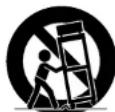
Use only with the cart, stand, tripod, bracket, or table specified by the manufacturer, or sold with the apparatus. When a cart is used, use caution when moving the cart/apparatus combination to avoid injury from tip-over.
-
Unplug this apparatus during lightning storms or when unused for long periods of time.
-
Refer all servicing to qualified service personnel.
Servicing is required when the apparatus has been damaged in any way, such as power-supply cord or plug is damaged, liquid has been spilled or objects have fallen into the apparatus, the apparatus has been exposed to rain or moisture, does not operate normally, or has been dropped.
-
Batteries shall not be exposed to excessive heat such as sunshine, fire or the like.
CAUTION:
To completely disconnect this product from the mains, disconnect the plug from the wall socket outlet. The mains plug is used to completely interrupt the power supply to the unit and must be within easy access by the user.
VORSICHT:
USE OF CONTROLS OR ADJUSTMENTS OR PERFORMANCE OF PROCEDURES OTHER THAN THOSE SPECIFIED HEREIN MAY RESULT IN HAZARDOUS RADIATION EXPOSURE.
THIS PRODUCT SHOULD NOT BE ADJUSTED OR REPAIRED BY ANYONE EXCEPT PROPERLY QUALIFIED SERVICE PERSONNEL.
SVENSKA NEDERLANDS ESPAÑOL ITALIANO FRANÇAIS DEUTSCH ENGLISH
NOTE ON USE / HINWEISE ZUM GEBRAUCH / OBSERVATIONS RELATIVES A L'UTILISATION / NOTE SULL'USO / NOTAS SOBRE EL USO / ALVORENS TE GEBRUIKEN / OBSERVERA ANGÄENDE ANVÄNDNINGEN

- Avoid high temperatures.
Allow for sufficient heat dispersion when installed in a rack.
• Handle the power cord carefully
Hold the plug when unplugging the cord.
- Keep the unit free from moisture, water, and dust.

* (For apparatuses with ventilation holes)
- Do not obstruct the ventilation holes.
- Do not let foreign objects into the unit
- 12. The net profit in billions of dollars is not yet subject to applicable

- Do not let insecticides, benzene, and thinner come in
contact with the unit.
- Never disassemble or modify the unit in any way.
- In line that appears to have a bit of byjgarden there.
CAUTION:
- The ventilation should not be impeded by covering the ventilation openings with items.
such as newspapers, tablecloths, curtains, etc.
- Too kind of large sources, such as lighted cable, should be placed on the unit
• No baked name sources, such as illuminated candies, should be placed. Observe and fellow local regulations regarding battery disposal
• Observe and follow local requirements regarding battery.
- Do not expose the unit to dripping or splashing fluids.
• Do not place objects filled with liquids, such as vases, on the unit.
ACHTUNG
- From plausions, late semi-iruses and biggated concordents, liquids, cold and cold-fed fluids.
PRECAUCIÓN:
We declare under our sole responsibility that this product, to which this declaration relates, is in conformity with the following standards: EN60065, EN55013, EN55020, EN61000-3-2 and EN61000-3-3. Following the provisions of 2006/95/EC and 2004/108/EC Directive.
A NOTEABOUT RECYCLING:
This product's packaging materials are recyclable and can be reused. Please dispose of any materials in accordance with the local recycling regulations.
When discarding the unit, comply with local rules or regulations.
Batteries should never be thrown away or incinerated but disposed of in accordance with the local regulations concerning battery disposal.
This product and the supplied accessories, excluding the batteries, constitute the applicable product according to the WEEE directive.
HINWEIS ZUM RECYCLING:
Installation Location 2
Cautions on Installation 2
Cautions on Handling 2
Dew Warning 2
Avoid the Hazards of Electrical Shock and Fire 2
Before Using 2
About Copyright 2
Features 3
Supplied Accessories 3
About Discs ....3
Disc Handling 3
Cleaning Discs 3
playable Discs and Files 4
Unplayable Discs 5
Colour Systems 5
Region Codes 5
Structure of Disc/SD Memory Card Contents 5
Symbols Used in this User Guide 5
About the Remote Control 6
Loading the Batteries 6
Using a Remote Control 6
Changing the Signal Code of a Remote Control 6
Part Names and Functions 7
Front Panel 7
Rear Panel 7
Remote Control 8
Front Panel Display 9
Adjusting the Brightness of the Display 9
Examples of Displays during Operation 10
Connections
Connecting to a TV 12
Connecting to a Display Device with HDMI Cable 12
Connecting to a Display Device and an Amplifier/
Receiver with HDMI Cable 12
HDMI Output Mode and Actual Output Signals 13
Audio Setting 14
Digital Connection to an AV Amplifier with
Built-in Decoder 14
Connection to a Device with 2-channels of Analogue
Audio Inputs 15
Surround Connections to a Device with 7.1/5.1-channels
of Analogue Audio Inputs 15
Network Connection with LAN 16
Connecting the AC cord 16
Playback
Turning the Power On 17
Direct Playback 17
Operations Using Disc Menu, Title Menu, and
Popup Menu 18
Playing Back a VR mode DVD-RW/-R 18
Pause 18
Resume Playback 18
Fast Forward / Fast Reverse Playback 19
Slow Forward Playback 19
Step by Step Playback 19
Dialogue Speed 19
Repeat Playback 20
A-B Repeat 20
Programme Playback 20
PIP (Picture in Picture) (BONUSVIEW) Setting 20
Random Playback 21
Zoom 21
Camera Angle 22
Search 22
On-Screen Display 23
Selecting the Format of Audio and Video 24
Selecting Audio Streams/Channels 24
Selecting Subtitle Language 25
Virtual Surround 25
Pure Direct Mode 25
Setting the BD Audio Mode 25
Adjusting the Picture 26
Playing Back an Audio CD or a Disc with DivX*/MP3/
Windows Media™ Audio/JPEG File 26
Kodak Picture CD 28
Reading the SD Memory Card 28
Enjoying BD-Live Discs with Internet 29
Function Setup
Using the Setup Menu 30
Quick 30
Custom 30
Network Connection ....39
Connection Test 39
Enable(Easy) 39
Enable(Custom) 39
Disable 41
Network Update ....41
Initialise 42
Others
Trademark Information 43
Explanation of Terms 43
Index 46
Troubleshooting 47
Language Code 48
Specifications 49
Introduction
Important
Use only discs marked with logos listed on page 4.
Power Supply
The main power supply is engaged when the main plug is plugged in a 110-240V, 50/60Hz AC outlet. To operate the unit, press [POWER ON] or to turn on the unit.
Warning
To avoid fire or electric shock, do not expose this unit to rain or moisture.
WARNING:
LIVE PARTS INSIDE.
DO NOT REMOVE ANY SCREWS.
Installation Location
For safety and optimum performance of this unit:
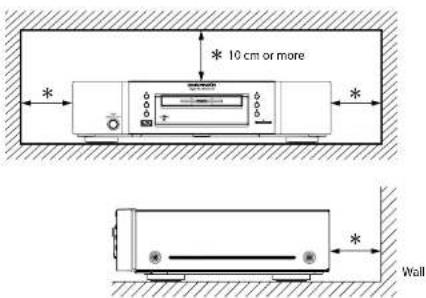
- Do not stand the unit up vertically. Install the unit in a horizontal and stable position. Do not place anything directly on top of the unit. Do not place the unit directly on top of the TV.
- Shield it from direct sunlight and keep it away from sources of intense heat. Avoid dusty or humid places. Avoid places with insufficient ventilation for proper heat dissipation. Do not block the ventilation holes on the sides of the unit. Avoid locations subject to strong vibration or strong magnetic fields.
- Be sure to remove a disc and unplug the AC cord from the outlet before carrying the unit.
Non-use periods - Turn off the unit when it is not in use. Unplug the unit from the household AC outlet if it is not to be used for a long time. Unplug the unit during lightning storms.
Please read this user guide carefully before using the unit, and keep it for future reference.
Cautions on Installation
Noise or disturbance of the picture may be generated if this unit or any other electronic equipment using microprocessors is used near a tuner or TV.
If this happens, take the following steps:
• Install this unit as far as possible from the tuner or TV.
- Set the antenna wires from the tuner or TV away from this unit's AC cord and input/output connection cords.
- Noise or disturbance tends to occur particularly when using indoor antennas or 300Ω/ohms feeder wires. We recommend using outdoor antennas and 75Ω/ohms coaxial cables.
Note
- For heat dispersal, do not install this equipment in a confined space such as a book case or similar unit.
text_image
10 cm or more
* Wall
Cautions on Handling
●Cautions on using mobile phones.
Using a mobile phone near this unit may result in noise. If so, move the mobile phone away from this unit when it is in use.
Check once again that all connections are correct and that there are no problems with the connection cables. Always set the power operation button to the standby position before connecting and disconnecting connection cables.
●Sufficiently ventilate the place of installation.
If the unit is left in a room full of the smoke from cigarettes, etc., for long periods of time, the surface of the optical pickup could get dirty, in which case it will not be able to read the signals properly.
Dew Warning
Moisture condensation may occur inside the unit when it is moved from a cold place to a warm place, or after heating a cold room or under conditions of high humidity. Do not use the unit at least for 2 hours until its inside is dry.
Avoid the Hazards of Electrical Shock and Fire
- Do not handle the AC cord with wet hands.
Do not pull on the AC cord when disconnecting it from AC wall outlet. Grasp it by the plug.
If, by accident, water is spilled on this unit, unplug the AC cord immediately and take the unit to our authorised service centre for servicing.
Before Using
Pay attention to the following before using this unit:
●Moving the unit.
To prevent short-circuits or damaged wires in the connection cables, always unplug the power supply cord and disconnect the connection cables between all other audio components when moving the unit.
●Store the user guide in a safe place.
After reading the user guide, store it in a safe place as it could come in handy in the future.
- Whenever is in the STANDBY state, the unit is still connected to AC line voltage.
Please be sure to unplug the cord when you leave home for, say, a vacation.
- Note that the illustrations in these instructions may differ from the actual unit for explanation purposes.
About Copyright
Unauthorised copying, broadcasting, public performance and lending of discs are prohibited.
This product incorporates copyright protection technology that is protected by U.S. patents and other intellectual property rights. Use of this copyright protection technology must be authorised by Macrovision, and is intended for home and other limited viewing uses only unless otherwise authorised by Macrovision. Reverse engineering or disassembly is prohibited.
U. S. Patent No's, 6,836,549; 6,381,747; 7,050,698; 6,516,132 and 5,583,936.
Features
●PIP (Picture in Picture) (BONUSVIEW) Setting
Some BD-Video have the PIP (picture-in-picture) function which enables you to display the secondary video in the primary video. You can call up the secondary video by pressing [MODE] whenever the scene contains the secondary video.
●Pure Direct
The sound quality of analogue audio output is improved by stop output of video signals, etc.
●On-Screen Display
Information about the current operation can be displayed on a screen, allowing you to confirm the currently active functions (such as programme playback) using the remote control.
●Picture Control
Picture control adjusts the picture quality of the specific display.
●DRC (Dynamic Range Control)
Use this procedure to set the dynamic range of the output signals when playing back BD/DVD/AVCHD recorded in Dolby Digital/Dolby Digital Plus/Dolby TrueHD.
●Playing Back the Contents in SD Memory Card
- You can playback AVCHD, MP3, Windows Media™ Audio, or JPEG stored in an SD Memory Card.
- You can store picture-in-picture commentary, subtitles or other extras for BD-ROM ver. 2 (Profile 2.0/ Profile 1.1) files in an SD Memory Card and playback with the BD-ROM.
●Playing Back AVCHD Files
This unit supports playback of AVCHD format files (new format for high definition video camcorders) recorded on disc/SD card. Your high definition personal archive is playable in HD quality.
●Playing Back DivX® File
You can enjoy DivX ^® files which are recorded on BD-RE/-R, DVD-RW/-R or CD-RW/-R.
- Official DivX® Certified product
- Plays all versions of DivX ^60 video (including DivX ^60 6/DivX ^89 HD) with standard playback of DivX ^60 media files.
●Playing Back an MP3 File
You can enjoy MP3 files which are recorded on BD-RE/-R, DVD-RW/-R, CD-RW/-R or SD Memory Card.
●Playing Back Windows Media™ Audio File
You can enjoy Windows Media™ Audio files which are recorded on BD-RE/-R, DVD-RW/-R, CD-RW/-R or SD Memory Card.
●Displaying a JPEG picture
Kodak Picture CD can be played back. Still images stored in JPEG format on BD-RE/-R, DVD-RW/-R, CD-RW/-R or SD Memory Card can also be played back.
●BD-J Application
- With some BD that supports Java applications (BD-J), you can enjoy interactive function (e.g. game).
BD-Live
BD-Live (BD-ROM version 2 Profile 2.0) that allows interactive functions to be used when this unit is connected to the Internet in addition to the BONUSVIEW function. The various functions differ depending on the disc.
●Analogue 7.1ch Surround Output
This player is equipped with analogue 7.1-channel surround audio out jacks for playback.
●x.v.Color
This unit supports playback of video contents on discs recorded with "x.v.Color" technology. To watch this video content with the "x.v.Color" space, a TV or other display device supporting both video image reproduction using "x.v.Color" standard and capability of manual switching of its colour space setting is required. Please refer to the user guide of your display device for further information.
Supplied Accessories
Please check to make sure the following items are included with the main unit in the carton.
remote control (RC006BD) "R6" (AA) batteries x2


AC cord (1.6m) user guide


RCA audio cable (1.0m) RCA video cable (1.0m)


About Discs
Disc Handling
- Handle the discs so that fingerprints and dust do not adhere to the surfaces of the discs.
- Always store the disc in its protective case when it is not used.
- Note that discs with special shapes cannot be played on this product. Do not attempt to play back such discs, as they may damage the unit.
Cleaning Discs
- When a disc becomes dirty, clean it with a cleaning cloth. Wipe the disc from the centre to out. Do not wipe in a circular motion.
- Do not use solvents such as benzine, thinner, commercially available cleaners, detergent, abrasive cleaning agents or antistatic spray intended for analogue records.
Introduction Introduction
playable Discs and Files
| This unit is compatible to play back the following discs. |
| To play back a BD or DVD, make sure that it meets the requirements for region codes and colour systems as described on page 5. You can play back discs that have the following logos on the disc. Other disc types are not guaranteed to play back. |
playable discs Logos
| Blu-ray Disc |
| - BD - V i de o |
| - BD-RE (ver. 2.1) |
| (Recorded in BDMV format) |  |
| - BD-R (ver. 1.1/ 1.2/ 1.3) |
| (Recorded in BDMV format) |
| (Unclosed discs may not be played back.) |
| DVD-Video |  |  |
| DVD-RW (Finalised discs only) |  |  |
| DVD-R DVD-R DL (Finalised discs only) |  |  |
| CD-DA (audio CD) |  |
| CD-RW |  |  |
| CD-R |  |  |
| Kodak Picture CD |  |
| DTS-CD (5.1 Music Disc) | — |
playable files Logos Media
| AVCHD |  | DVD-RW/-RSD Memory Card(including SDHC)miniSD CardmlcroSD Card |
| DivX® |  | BD-RE/-RDVD-RW/-RCD-RW/-R |
| MP3 | — | BD-RE/-RDVD-RW/-RCD-RW/-RSD Memory Card(including SDHC)miniSD CardmicroSD Card |
| Windows MediaTMAudio | |
| JPEG | — |
Note
- ABOUT DIVX VIDEO: DivX ^® is a digital video format created by DivX, Inc. This is an official Divx Certified device that plays DivX video. Visit www.divx.com. for more information and software tools to convert your files into DivX video.
- ABOUT DIVX VIDEO-ON-DEMAND: This DivX Certified ^® device must be registered in order to play DivX Video-on-Demand (VOD) content. To generate the registration code, locate the DivX VOD section in the device setup menu. Go to vod.divx.com with this code to complete the registration process and learn more about DivX VOD.
- Discs containing the DivX ^ files with the DivX ^ GMC (Global Motion Compensation) playback feature, which is DivX ^ supplemental function, cannot be played back on this unit.
- This unit cannot play back the disc contents protected by Windows Media™ Digital Rights Management (DRM).
- "WMA" (Windows Media™ Audio) is an audio codec developed by Microsoft® In the United States of America.
Readable cards Playable files / data
| SD Memory Card (8MB - 2GB) AVCHD, MP3, Windows MediaTM |
| SDHC Memory Card (4GB - 8GB) | Audio, JPEG, Picture-In-picture commentary, subtitles or other extras for BD-ROM ver. 2 (Profile |
| miniSD Card (8MB - 2GB) |
| microSD Card (8MB - 2GB) | 2.0/ Profile 1.1) |
Note for SD Memory Cards
- Do not remove the SD Memory Card or turn the unit to the standby mode while the contents of the card is in playback. It may result in malfunction or loss of the card's data.
- Please keep the SD Memory Cards in their cases when you are not using them.
- Do not try to open or modify the card.
- Do not touch the terminal surface with your fingers or any metals.
- Do not attach additional labels or stickers to cards.
- Do not remove the label of the SD Memory Cards.
• This unit supports SD Memory Card with FAT12/FAT16 file system, and SDHC Memory Card with FAT32 file system.
- This unit may not read the SD Memory Cards formatted on computer. If that is the case, please reformat the SD Memory Cards on this unit and try again.
• This unit does not support mini SDHC and micro SDHC
Memory Card.
- For miniSD Card and microSD Card adapter is necessary.


- Portions of this product are protected under copyright law and are provided under license by ARIS/SOLANA/4C.
ENGLISH
Unplayable Discs
The following discs will not play back on this unit.
• BD-RE (ver. 1.0) (BD-disc with cartridge)
- BD-RE (ver. 2.1) (Recorded in BDAV format)
- BD-R (ver. 1.1/ 1.2/ 1.3) (Recorded in BDAV format)
- BD that contains AVCHD files
- Multi-session burn BD/DVD with DivX ^® files
- Multi-session burn BD-RE/-R with MP3/Windows Media™ Audio/JPEG files
• BD/DVD hybrid disc (e.g. Total HI Def hybrid disc)
- BD - Video that does not include "B" on its reg
- DVD-Video that does not include either "2" nor "ALL" on its region code.
• DVD-ROM/RAM (For DVD-ROM discs, data files in DivX ^® 3.11, 4.x, 5.x and 6.x can be played)
• DVD-RW/-R recorded in non-compatible recording format
- CD-ROM (Data files in DivX® 3.11, 4.x, 5.x and 6.x can be played)
• CDV (Only the audio part can be played)
- CD-G (Only the audio signals can be output)
• Compact Disc-Interactive (CD-I)
• Video Single Disc (VSD)
• Video CD, Super Video CD
- Super audio CD (Only the sound on the CD layer can be heard. The sound on the high-density super audio CD layer cannot be heard.)
·DVD-Audio
·HDDVD
• Disc with recording area less than 55mm in diameter
• Unauthorised disc (Pirated disc)
• Unfinalised disc
Colour Systems
BD and DVD are recorded in different colour systems throughout the world. The most common colour system, used primarily in the U.K. and other EU countries, is PAL. This unit uses the PAL system. However, it is also possible to play back BD and DVD using other colour systems, such as NTSC.
Region Codes
This unit has been designed to play back BD with region B and DVD-Video with region 2. You cannot play back BD or DVD-Video that are labelled for other regions. Look for the symbols on the right on your BD or DVD-Video. If these region symbols do not appear on your BD or DVD-Video, you cannot play back the disc in this unit. The letter or number inside the globe refers to region of the world. A BD or
DVD-Video labelled for a specific region can only play back on the unit with the same region code.
BD-Video


Structure of Disc/SD Memory Card Contents
The contents of disc are generally divided into titles. Titles may be further subdivided into chapters.
BD/DVD/AVCHD
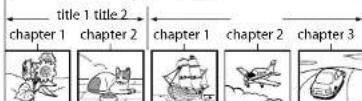
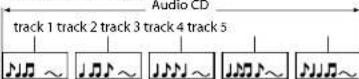
Audio CDs are divided into tracks.
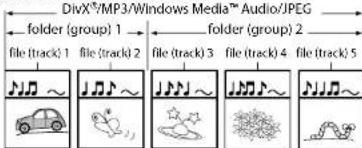
Data discs or SD Memory Cards containing DivX ^® (in discs only)/MP3/Windows Media ^™ Audio/JPEG are divided into folders, and the folders are subdivided into files.
text_image
DivX®/MP3/Windows Media™ Audio/JPEG
folder (group) 1
file (track) 1 file (track) 2
file (track) 3 file (track) 4 file (track) 5
Symbols Used in this User Guide
To specify for which media type each function is, we put the following symbols at the beginning of each item to operate.
Symbol
Description
BD-V
Description refers to BD-Video and BD-RE (ver. 2.1)/BD-R (ver. 1.1/ 1.2/ 1.3) recorded in BDMV format
DVD-V
Description refers to DVD-Video and DVD-RW/-R recorded in video mode
DVD-VR
Description refers to DVD-RW/-R recorded in VR mode
CD
Description refers to audio CD and DTS-CD
AVCHD
Description refers to DVD-RW/-R and SD Card with AVCHD files
DivX®
Description refers to BD-RE/-R, DVD-RW/-R and CD-RW/-R with DivX ^® files
MP3
Description refers to BD-RE/-R, DVD-RW/-R, CD-RW/-R and SD Memory Card with MP3 files
WMA
Description refers to BD-RE/-R, DVD-RW/-R, CD-RW/-R and SD Memory Card with Windows Media™ Audio files
JPEG
Description refers to BD-RE/-R, DVD-RW/-R, CD-RW/-R and SD Memory Card with JPEG files
If you do not find any of the symbols listed above under the function heading, the operation is applicable to all media.
<>: Buttons on the main unit
[ ] : Buttons on the remote control
Buttons on the main unit and remote control
Introduction Introduction
About the Remote Control
Loading the Batteries
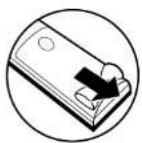
①Open the battery compartment cover.
③Close the cover.
②Insert two "R6" (AA) batteries, with each one oriented correctly.

Cautions on Batteries
- Use "R6" (AA) batteries in this remote control.
- Replace the batteries with new ones approximately once a year, though this depends on the frequency with which the remote control is used.
- If the remote control does not operate within a close proximity of the main unit, replace the batteries with new ones, even if less than a year has passed.
• The included batteries serve only for verifying operation. Replace them with new batteries as soon as possible.
- When inserting the batteries, be careful to do so in the proper direction, following the ④ and marks in the remote control's battery compartment.
• To prevent damage or battery fluid leakage:
Do not mix a new battery with an old one.
- Do not mix two different types of batteries such as alkaline and manganese.
- Do not short-circuit, disassemble, heat or dispose of batteries in flames.
- Remove the batteries when not planning to use the remote control for a long period of time.
- If the batteries should leak, carefully wipe off the fluid from the inside of the battery compartment, then insert new batteries.
Using a Remote Control
Keep in mind the following when using the remote control:
- Make sure that there are no obstacles between the remote control and infrared sensor window on the unit.
- Remote operation may become unreliable if strong sunlight or fluorescent light is shining on infrared sensor window of the unit.
- Remote control for different devices can interfere with each other. Avoid using remote control for other equipment located close to the unit.
- Replace the batteries when you notice a fall off in the operating range of the remote control.
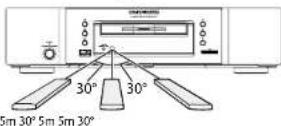
- The maximum operable ranges from the unit are as follows.
- Line of sight: approx. 5m
- Either side of the centre: approx. 5m within 30°
Changing the Signal Code of a Remote Control
To avoid the other Marantz's BD players responding the remote signal of this unit, you can change the signal code of the remote control. If the signal code of the remote control does not match to the signal code of the unit, you cannot control the unit with the remote control.
■Change the signal code of the unit
1) In stop mode, press [SETUP].
2) Use [◀/▶] to select CUN TON, then press [ENTER].
3) Use [◀/▶] to select other, then press [ENTER].
4) Use [/] to select "Remote Control Setting".
5) Press [ENTER] to select "BD1" or "BD2".
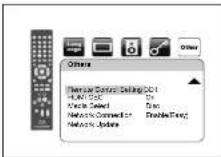
6) Press [SETUP] to exit.
6
ENGLISH
- At this point the new signal code of the unit is effective. Please change the signal code of the remote control to match to the signal code of the unit with following procedure.
■Change the signal code of the remote control
Set to "BD1":
Press and hold down both ■ and [1] on the remote control for at least five seconds.
Set to "BD2":
Press and hold down both ■ and [2] on the remote control for at least five seconds.
- If the signal code does not match, the signal code of the remote control will be displayed on the front panel display.
- The default setting and the setting after you change the batteries is "BD1".
- If the code setting on the unit is "BD1", and the setting on the remote control is "BD2", "BD2" is shown on the front panel display.
*Button illustrations used in this manual for operation explanation are for the Remote Control Unit. You can operate the unit using the button of the same name on the front panel of the unit.
ENGLISH
Introduction Introduction
Part Names and Functions
Front Panel
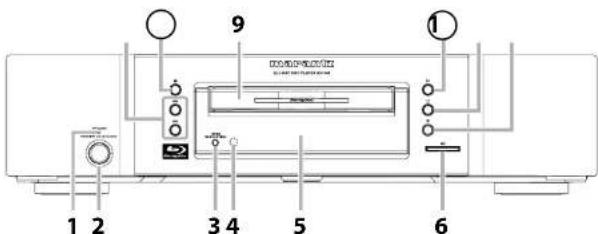
text_image
1
2
3 4
5
6
9
①
The unit can also be turned on by pressing the buttons with circled numbers.
1. STANDBY Indicator
This indicator lights up in red in standby mode and turns off when the power is on.
Press to turn on the unit, or to turn the unit to the standby mode. (In standby mode, this unit still consumes small amount of power. To completely shut down the unit, you must unplug the AC cord.)
-
HDMI RESOLUTION button
Press to set the HDMI jack's video signal output mode.
-
Infrared sensor window
Receives signals from your remote control so that you can control the unit from a distance
5. Display
Refer to "Front Panel Display" on page 9.
6. SD card slot
Insert an SD Memory Card, and play back the contents in it.
Press to skip down/up titles/chapters/tracks/files.
Press to open or close the disc tray.
9. Disc tray
Place a disc when opening the disc tray.
Press to start or resume playback.
Press to stop playback.
Press to pause playback.
Rear Panel

text_image
1
2
3
4
5
6
7
8
9
10
1. AC Inlet (AC IN)
Use to connect the AC cord to supply the power.
2. DIGITAL OUT (COAXIAL) jack
Use digital audio coaxial cable to connect to an AV receiver, Dolby Digital decoder or other device with a digital audio coaxial input jack.
3. COMPONENT VIDEO OUT jacks
Use a component video cable to connect to a display device with component input jacks.
4. VIDEO OUT jack
Use an RCA video cable to connect to a TV monitor, AV receiver or other device.
5. FLASHER IN / OUT jacks
This Input terminal is equipped for controlling this unit by the external Infrared (IR) control device. Connect the IR control signal from a Keypad, IR repeater, etc. The Output terminal repeats the IR signal which was fed into the IR Flasher Input terminal for another device.
6. 2ch AUDIO OUT jacks
Use an RCA audio cable to connect these jacks to the 2-channel audio input jacks of your amplifier with 2-channel input terminals.
7.7.1ch AUDIO OUT jacks
Use an RCA audio cable to connect these jacks to the 7.1-channel audio input jacks of your amplifier with 7.1-channel input terminals.
8. NETWORK terminal
Use to connect a telecommunications equipment with LAN cable.
9. HDMI OUT jack
Use an HDMI cable to connect to a display with an HDMI input jack.
10. Control connector (RS-232C)
This is a terminal for future system extension.
Note
- Do not touch the inner pins of the jacks on the rear panel. Electrostatic discharge may cause permanent damage to the unit.
Remote Control
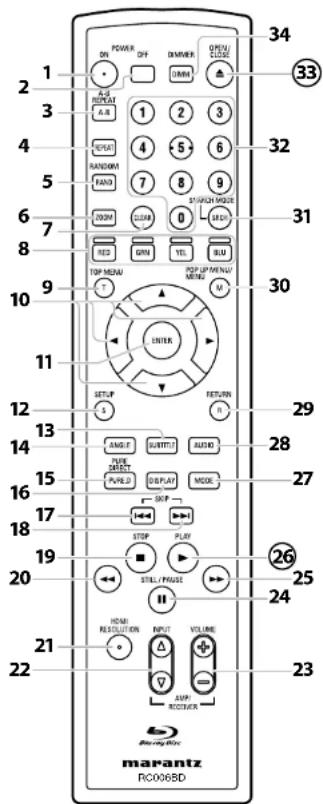
text_image
POWER OFF DIMMER OFF/CLUB
1
2
3
4
5
6
7
8
9
10
11
12
13
14
15
16
17
18
19
20
21
22
34
33
32
31
30
29
28
27
26
25
24
23
MARantz
RC006BD
The unit can also be turned on by pressing the buttons with circled numbers.
- Press to turn the unit on.
- Press to turn the unit to standby mode.
- Press to mark a segment between A and B for A-B repeat playback.
- Press to select the repeat mode.
- Press to display the random playback screen for shuffling the playback order of tracks/files.
- During playback, press to enlarge the picture on the screen.
- Press to clear the information once entered, to clear the marker settings, or to cancel the programming for CD, etc.
- Press to select item on some BD menus.
- When file list / thumbnail list is shown, press to switch between pages.
- Press to display the top menu.
- Press to select items or settings.
- Press to confirm or select menu items.
- Press to display the setup menu.
- Press to display the subtitle menu.
- Press to access various camera angles on the disc.
- Press to rotate the JPEG/Kodak Picture images clockwise by 90 degrees.
- Press to stop output of video signals, etc., and output only the analogue audio signals to achieve high quality sound from analogue audio outputs.
- Press to display the On-Screen display menu.
- During playback, press to return to the beginning of the current title, chapter, track or file.
- During playback, press to skip the next chapter, track or file.
- Press to stop playback.
- Press to exit from the title menu.
• During playback, press to fast reverse the playback.
- Press to set the HDMI jack's video signal output mode.
• These buttons are used to switch the input when using one of the supported Marantz amplifiers. However, this function may not work with some of the older models.
- This button can be used to adjust the volume of devices compatible with Marantz amplifiers that come with a remote controller.
- Press to pause playback.
- When playback is in pause, press repeatedly to forward the playback step by step.
- During playback, press to fast forward the playback.
- When playback is in pause, press to slow forward the playback.
- Press to start playback or resume playback.
- During playback, press to display the picture adjustment menu, and dialogue speed.
- During the JPEG playback, press to display menus for changing the visual effect for switching the image or changing the size of the image.
- In stop mode with BD inserted, press to display a menu for setting the BD audio mode.
- During playback of BD, DVD, audio CD, AVCHD, DivX ^ , MP3 or Windows Media™ Audio, press to display a menu for setting the virtual surround.
- During BD playback, press to turn the picture-in-picture feature on or off (only applicable to BD-Video which supports the PIP (BONUSVIEW) function).
- In stop mode with audio CD, or disc with MP3, Windows Media™ Audio, JPEG files inserted, press to display menus for programme and random playback.
- Press to display the audio menu.
- Press to return to the previously displayed menu screen.
- Press to display the pop-up menu/disc menu/file list.
- Press to change "Original" and "Playlist" on the TV screen.
- Press to display the search menu.
ENGLISH
ENGLISH
Introduction Introduction
- Number buttons
- Press to enter the title/chapter/track/file numbers.
- OPEN/CLOSE ▲ button
- Press to open or close the disc tray.
- DIMMER button
- Press to adjust the brightness of the front panel display.
Note
• [ZOOM] is not available for BD and AVCHD.
- [RANDOM] is not available for BD, DVD, AVCHD and DivX ^® .
Front Panel Display
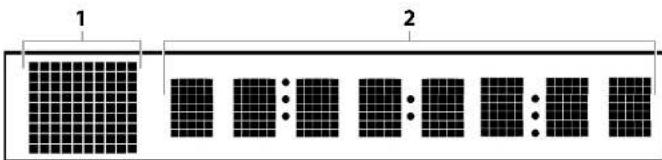
text_image
1
2
* Brightness of the display can be adjusted. Refer to "Panel Display" in "Function Setup" on page 37.
1) Displays playback status icon. Refer to the table below.
2) Displays various kinds of information such as title number, elapsed time, repeat mode, etc.
| Playback status icon | Mode |
| Disc SD Memory Card |
| | Playback is in progress |
| | Stop mode |
| | Pause mode |
| | Fast forward mode |
| | Fast reverse mode |
| (for AVCHD only) | Slow forward mode |
| Appears while repeat function is set |
djusting the Brightness of the Display
You can adjust the brightness of the display by the pressing [DIMMER] repeatedly. The brightness changes as bright dimmer auto each time you press [DIMMER]. If you select auto, the display gets dimmer during playback.
Note
[ DIMMER ] is not available when the setup menu is displayed.
Introduction Introduction
Examples of Displays during Operation
| Display Description |
| MARANTZ | Power on |
| -OFF- | Standby mode |
| OPEN | Tray open |
| CLOSE | Tray is closing |
| LOADING | Loading the disc |
| NO DISC | No disc inserted |
| ---- ---- ---- ---- ---- ---- | This unit cannot read the disc or SD Memory Card inserted. |
| STOP | Stop mode |
| 480i | HDMI output mode (480i) is selected. |
| 576i | HDMI output mode (576i) is selected. |
| 480P | HDMI output mode (480p) is selected. |
| 576P | HDMI output mode (576p) is selected. |
| 720P | HDMI output mode (720p) is selected. |
| 1080i | HDMI output mode (1080i) is selected. |
| 1080P | HDMI output mode (1080p) is selected. |
| 1080P24 | HDMI output mode (1080p24 frame) is selected. |
| Source D | HDMI output mode (Source Direct) is selected. |
| Normal | Pure direct mode is set to pure direct off. |
| VideoOff | Pure direct mode is set to video signal off. |
| Disp.Off | Pure direct mode is set to front panel display off. |
| All Off | Pure direct mode is set to video signal and front panel display off. |
| HDCP NOK | Appears when the connected display device or other device does not support HDCP. |
Note
- When playing back the disc that contains more than 100 titles, display of the chapter and time on the front panel display will be moved a few dots to the right.
Connections
Connect the BD7004 as follows before using. Make connections according to the equipment you are connecting.
Some BD7004 settings may be necessary depending on the connection method. Check each connection item for more information.
1 Home theater playback
- Playing back using multi-channel system
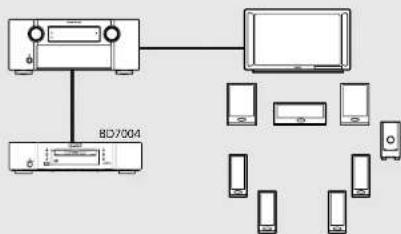
flowchart
graph TD
    A["Audio Device"] --> B["Computer Monitor"]
    A --> C["Audio System"]
    B --> D["Mobile Phone 1"]
    B --> E["Mobile Phone 2"]
    B --> F["Mobile Phone 3"]
    B --> G["Mobile Phone 4"]
    C --> H["BDC7004"]
Multi-channel Audio + Video
• HDMI connection
"Connecting to a Display Device and an Amplifier/Receiver with HDMI Cable" (page 12)

Multi-channel Audio
• Digital audio connection
"Digital Connection to an AV Amplifier with Built-in Decoder" (page 14)
• Analogue 7.1 or 5.1ch connection
"Surround Connections to a Device with 7.1/5.1-channels of Analogue Audio Inputs" (page 15)
Video
- Connecting to a TV : page 12
(VIDEO OUT/COMPONENT VIDEO OUT)
2 Playing back with a direct connection to a TV

Audio + Video
- Connecting to a Display Device with HDMI Cable : page 12
Audio
- Connecting to a TV (2ch AUDIO OUT) : page 12
Video
- Connecting to a TV :page 12
(VIDEO OUT/COMPONENT VIDEO OUT)
3 Playing back 2-channel audio
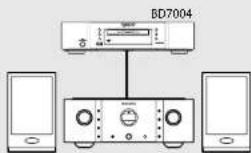
• 2ch audio connection
"Connection to a Device with 2-channels of Analogue Audio Inputs" (page 15)
4 Using BD-Live function or updating the software version of BD7004
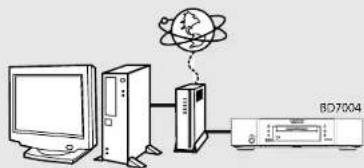
text_image
Diagram showing connection between a computer, tower, and server with a globe icon above the tower
• NETWORK connection
"Network Connection with LAN" (page 16)
- Connecting the AC cord: page 16
Connections
Connections
Connecting to a TV
Make one of the following connections, depending on the capabilities of your existing device.
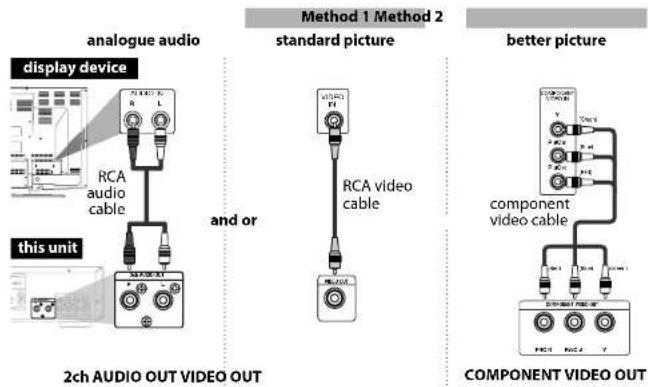
Supplied cables used in this connection are as follows:
• RCA audio cable (L/B) x 1
• RCA video cable x 1
Please purchase the rest of the necessary cables at your local store.
Note
- Connect this unit directly to the TV. If the RCA audio/video cables are connected to a VCR, pictures may be distorted due to the copy protection system.
- If the display device to which the player is to be connected is compatible with progressive scan video, connect to the component video input.
- This unit's COMPONENT VIDEO OUT jacks are compatible for 480i/576i/480p/576p/720p/1080i video resolution. If the connected display device is not compatible for 480p/576p/720p/1080i video resolution, set "Component Output" to "480i/576i".
- If the picture is not output properly to the display device because of the "HDMI Video Resolution" or "Component Output" setting, press and hold ▶ on the front panel for more than 5 seconds. The "HDMI Video Resolution" setting will be reset to the default automatically.
- If you are using HDMI connection and set "HDMI Video Resolution" to "Source Direct", "1080p" or "1080p24", picture may not be output properly to the display device. In that case, set "HDMI Video Resolution" to "480l/576l", "480p/576p", "720p" or "1080l".
Connecting to a Display Device with HDMI Cable
Connecting this unit to device with an HDMI jack using an HDMI cable enables digital transfer of both digital video signals and multi-channel audio signals.
After making the connection, please make HDMI settings on setup menu according to your display device. Refer to pages 31-33.
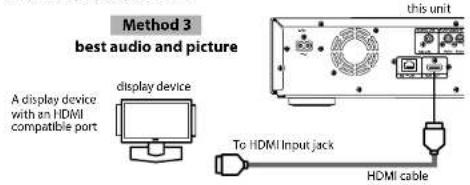
Cables not included.
Please purchase the necessary cables at your local store. Use a cable on which the HDMI logo is indicated (a certified HDMI product) for connection to the HDMI connector. Normal playback may not be possible when using a cable other than one on which the HDMI logo is indicated (a non-HDMI-certified product).
Connecting to a Display Device and an Amplifier/Receiver with HDMI Cable
Connecting this unit to display device and an amplifier/receiver with an HDMI jack using HDMI cables enables digital surround sound with high quality video.
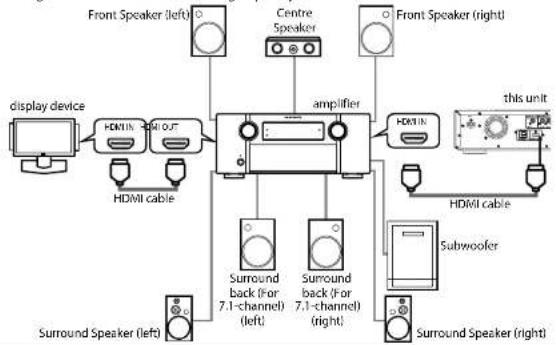
flowchart
graph TD
    A["display device"] --> B["HDMI cable"]
    B --> C["amplifier"]
    C --> D["Front Speaker (left)"]
    C --> E["Centre Speaker"]
    C --> F["Front Speaker (right)"]
    C --> G["Subwoofer"]
    G --> H["HDMI cable"]
    H --> I["this unit"]
    C --> J["Surround back (for 7.1-channel) (left)"]
    C --> K["Surround back (for 7.1-channel) (right)"]
    C --> L["Surround Speaker (left)"]
    C --> M["Surround Speaker (right)"]
Cables not included.
Please purchase the necessary cables at your local store.
ENGLISH
Connections Connections
HDMI Output Mode and Actual Output Signals
Press [HDMI RESOLUTION] to select the HDMI output mode. HDMI video resolution changes as following.
Front Panel Display HDMI Video Resolution
| 480i ^-1 | 480 Interlaced |
| 576i | 576 Interlaced |
| Press [HDMI RESOLUTION] ↓ |
| 480P ^-1 | 480 Progressive |
| 576P | 576 Progressive |
| Press [HDMI RESOLUTION] ↓ |
| 720P | 720 Progressive |
| Press [HDMI RESOLUTION] ↓ |
| 1080i | 1080 Interlaced |
| Press [HDMI RESOLUTION] ↓ |
| 1080P | 1080 Progressive |
| Press [HDMI RESOLUTION] ↓ |
| 1080P24 | 1080 Progressive 24 frame |
| Press [HDMI RESOLUTION] ↓ |
| Source D | Source Direct |
| Press [HDMI RESOLUTION] ↓ |
*1 "480l" and "480p" will be displayed only when an NTSC disc or a1080p/24 frame material is being played back.
Note
- You can change the HDMI output mode with [HDMI RESOLUTION] during playback as well. (This is not available during BD/AVCHD playback.)
- Video and audio signals may be distorted temporarily when switching to/from the HDMI output mode.
- You can also change the HDMI output mode from "HDMI Video Resolution" in the "Video" menu on the setup menu. Refer to page 32.
- In order to get natural and high quality film reproduction of 24-frame film material, use HDMI cable (High Speed HDMI cable is recommended) and select "1080p24", "Auto" or "Source Direct" if the connected display device is compatible with 1080p24 frame input.
- If the disc contains 1080p24 frame material, 60-frame or 50-frame image will be output unless "1080p24" is selected.
- For AVCHD and DivX ^® , 24-frame film material will be output as 60 frame, even if the connected device is compatible with 1080p24 frame input and "HDMI Video Resolution" is set to "1080p24", "Auto" or "Source Direct".
- When "HDMI Video Resolution" is set to "1080p", "1080p24" or "Source Direct", the "Component Output" will be set to "480i/576i" automatically.
- If the video is not properly from HDMI OUT Jack after you set the "HDMI Video Resolution" setting, change the HDMI video resolution to the compatible resolution by pressing
[HDMI RESOLUTION] or press and hold ▶ on the front panel for more than 5 seconds to reset the setting.
- "HDMI Deep Color" is available only when the display device is connected by HDMI cable and supports HDMI Deep Color.
- For "Auto" in "HDMI Deep Color", using the High Speed HDMI cable is recommended.
Connections
Connections
Audio Setting
When using HDMI connections make the "HDMI Audio Out" settings in the "Audio" menu on the setup menu according to the specifications of the device or monitor to be connected.
| Device to be connected "HDMI Audio Out" setting | Output HDMI audio signal |
| Device compatible with DTS, DTS-HD, Dolby Digital, Dolby Digital Plus or Dolby TrueHD decoding | HDMI Multi(Normal) Dolby | Digital, Dolby Digital Plus, Dolby TrueHD, DTS, or DTS-HD bitstream are output from HDMI OUT. Make the speaker settings on the connected AV amplifier, etc. |
| Device compatible with 3 or more channels of audio Inputs (not DTS, DTS-HD, Dolby Digital, Dolby Digital Plus or Dolby TrueHD compatible) | HDMI Multi(LPCM) Multi-channel audio signals are output from the HDMI OUT. Make the speaker settings with the speaker setting items appear after you select "HDMI Multi(LPCM)". Refer to page 33. |
| Device compatible with 2-channel audio input or device not compatible with audio input | HDMI 2ch Down-mixed 2-channel audio signals are output from HDMI OUT. |
| HDMI connection to a display device, and digital audio connection (coaxial) to an AV amplifier. | Audio Mute HDMI audio will be muted, and Dolby Digital/DTS bitstream or PCM will be output from DIGITAL OUT depending on the "Digital Out" setting. Refer to page 15. |
■Audio signals output from HDMI OUT
| Disc type Audio recording format | "HDMI Audio Out" setting |
| HDMI Multi(Normal) H | HDMI Multi(LPCM) HDMI 12ch |
| BD-Video | Dolby Digital | Dolby Digital | Multi PCM | 2ch Downmix PCM |
| Dolby Digital Plus | Dolby Digital Plus*1 | Multi PCM*4 | 2ch Downmix PCM*4 |
| Dolby TrueHD | Dolby TrueHD*2 | Multi PCM*5 | 2ch Downmix PCM*5 |
| DTS | DTS | Multi PCM | 2ch Downmix PCM |
| DTS-HD | DTS-HD*3 | Multi PCM*9 | 2ch Downmix PCM*6 |
| PCM | Multi PCM | Multi PCM | 2ch Downmix PCM |
| DVD-Video | Dolby Digital | Dolby Digital | Multi PCM | 2ch Downmix PCM |
| DTS | DTS | Multi PCM | 2ch Downmix PCM |
| PCM | 2ch PCM | 2ch PCM | 2ch PCM |
| MPEG | MPEG | Multi PCM | 2ch Downmix PCM |
| DTS-CD | DTS | Multi PCM | 2ch Downmix PCM |
| AVCHD | Dolby Digital | Dolby Digital | Multi PCM | 2ch Downmix PCM |
| PCM | Multi PCM | Multi PCM | 2ch Downmix PCM |
| DivX® | Dolby Digital | Dolby Digital | Multi PCM | 2ch Downmix PCM |
| MP3/ MP2 2ch PCM 2ch PCM 2ch PCM |
| Disc type | Audio recording format | “HDMI Audio Out” setting |
| HDMI Multi(Normal) | HDMI Multi(LPCM) | HDMI 2ch |
| audio CD/ MP3/ Windows MediaTM Audio | 2ch PCM | 2ch PCM | 2ch PCM |
- If "BD Audio Mode" is set to "HD Audio Output" or the BD title does not have secondary or interactive audio, the audio will be output as shown in the table.
- If the "BD Audio Mode" is set to "Mix Audio Output" and the BD title has secondary or interactive audio, the audio will be output as follows:
*1 Dolby Digital or Multi PCM (Only the independent substream is decoded.)
^x2 Dolby Digital or Multi PCM (Only the Dolby Digital substream is decoded.)
^+3 DTS or Multi PCM (Only the core substream is decoded.)
^4 As shown in the table (Only the independent substream is decoded.)
^5 As shown in the table (Only the Dolby Digital substream is decoded.)
^x8 As shown in the table (Only the core substream is decoded.)
- If the connected device is not compatible with the HDMI BITSTREAM, audio will be output as Multi PCM or 2ch Downmix PCM depending on the capability of the connected device, even if you select "HDMI Multi(Normal)" in "HDMI Audio Out" setting. Refer to page 33.
Copyright protection system
To play back the digital video Images of a BD/DVD via an HDMI connection, it is necessary that both the unit and the display device (or an AV amplifier) support a copyright protection system called HDCP (high-bandwidth digital content protection system). HDCP is copy protection technology that comprises data encryption and authentication of the connected AV device. This unit supports HDCP. Please read the user guide of your display device (or AV amplifier) for more information.
* HDMI: High-Definition Multimedia Interface
Note
- When using HDCP-incompatible display device, the image will not be viewed properly.
• The audio signals from the HDMI jack (including the sampling frequency, the number of channels and bit length) maybe limited by the device that is connected.
- Among the monitors that support HDMI, some do not support audio output (e.g. projectors). In connections with device such as this unit, audio signals are not output from the HDMI output jack.
Digital Connection to an AV Amplifier with Built-in Decoder
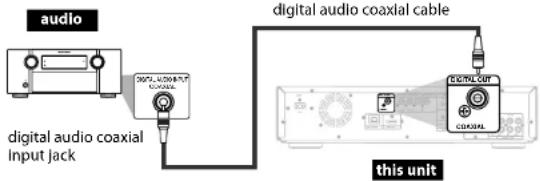
text_image
audio
digital audio coaxial
input jack
digital audio coaxial cable
this unit
ENGLISH
ENGLISH
Connections Connections
■Audio signals output from DIGITAL OUT (COAXIAL)
When both HDMI and DIGITAL OUT is connected to other devices, the audio signals currently output from the HDMI OUT will be output from the DIGITAL OUT jack as well, except that HDMI 2ch signal will be output from HDMI OUT jack, when connected device does not support Dolby Digital and DTS.
When HDMI is not connected or the "Audio Mute" is selected in "HDMI Audio Out" setting, the audio signals output from DIGITAL OUT changes depending on the "Digital Out" setting. Refer to the following table.
To set "Digital Out", press [SETUP], then select "Quick" → "HDMI Audio Out" → "Audio Mute" or "Custom" → "Audio" → "HDMI Audio Out" → "Audio Mute".
Disc type Audio recording format "Digital Out" setting
| | Bitstream LPCM | |
| BD-Video | Dolby Digital Dolby Digital | 2ch Downmix PCM | |
| Dolby Digital Plus | Dolby Digital | 2ch Downmix PCM^*1 |
| Dolby TrueHD | Dolby Digital | 2ch Downmix PCM^*2 |
| DTS | DTS | 2ch Downmix PCM |
| DTS-HD | DTS | 2ch Downmix PCM^*3 |
| PCM | 2ch Downmix PCM | 2ch Downmix PCM |
| DVD-Video | Dolby Digital Dolby Digital | 2ch Downmix PCM | |
| DTS | DTS | 2ch Downmix PCM |
| PCM | 2ch PCM | 2ch PCM |
| MPEG | MPEG | 2ch Downmix PCM |
| DTS-CD | DTS | 2ch Downmix PCM |
| AVCHD | Dolby Digital Dolby Digital | 2ch Downmix PCM | |
| PCM | 2ch Downmix PCM | 2ch Downmix PCM |
| DivX^® | Dolby Digital Dolby Digital | 2ch Downmix PCM | |
| MP3/ MP2 | 2ch PCM | 2ch PCM |
| audio CD/ MP3/ Windows MediaTM Audio | 2ch PCM | 2ch PCM |
- This table applies only when HDMI is not connected or the "Audio Mute" is selected in "HDMI Audio Out" setting.
- If "BD Audio Mode" is set to "HD Audio Output" or the BD title does not have secondary or Interactive audio, the audio will be output as shown in the table.
- If the "BD Audio Mode" is set to "Mix Audio Output" and the BD title has secondary or interactive audio, the audio will be output as follows:
*1 Only the independent substream is decoded.
^*2 Only the Dolby Digital substream is decoded.
^x3 Only the core substream is decoded.
Note
- In order to output PCM signal from DIGITAL OUT jack while outputting the HDMI audio signal, set "BD Audio Mode" to "Mix Audio Output" and set "HDMI Audio Out" to "HDMI Multi(LPCM)".
Cables not included.
Please purchase the necessary cables at your local store.
Connection to a Device with 2-channels of Analogue Audio Inputs

text_image
audio
Stereo component
Audio IN
L
R
RCA audio cable
this unit
Supplied cables used in this connection are as follows:
- RCA audio cable (L/R) x 1
Note
When connecting to a 2-channel audio stereo device, use the 2ch AUDIO OUT jacks. If the 7.1ch AUDIO OUT jacks are used, set "7.1ch Audio Out" in the "Audio" menu to "2 Channel" (Refer to page 34). For software recorded in multi-channel, analogue signals that have been down-mixed into 2 channels are output. (For sources which are prohibited from down-mixing, only the FL/FR signals are output.)
Analogue 7.1ch/5.1ch audio signals can be output from 7.1ch AUDIO OUT jacks.
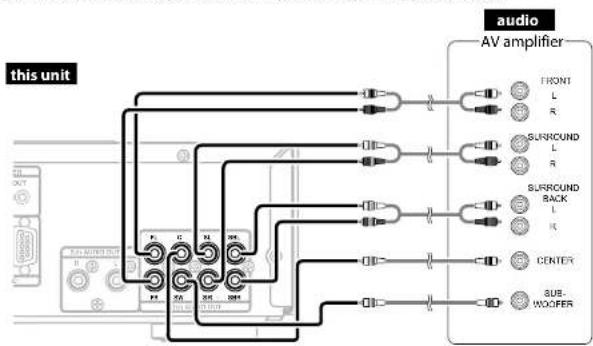
flowchart
graph TD
    A["AV amplifier"] --> B["FRONT L R"]
    A --> C["SURROUND L R"]
    A --> D["SURROUND BACK L R"]
    A --> E["CENTER"]
    A --> F["SUE-WOOPER"]
    G["this unit"] --> H["AC/DC"]
    H --> I["AC/DC"]
    I --> J["AC/DC"]
    J --> K["AC/DC"]
    K --> L["AC/DC"]
    L --> M["AC/DC"]
    M --> N["AC/DC"]
    N --> O["AC/DC"]
    O --> P["AC/DC"]
    P --> Q["AC/DC"]
    Q --> R["AC/DC"]
    R --> S["AC/DC"]
    S --> T["AC/DC"]
    T --> U["AC/DC"]
    U --> V["AC/DC"]
    V --> W["AC/DC"]
    W --> X["AC/DC"]
    X --> Y["AC/DC"]
    Y --> Z["AC/DC"]
Connections
Connections
Supplied cables used in this connection are as follows:
• RCA audio cable (L/R) x 1
Please purchase the rest of the necessary cables at your local store.
Note
- If you connect to 5.1-channel surround system, do not connect to SBR/SBL (surround back R/L) jacks, then set "Surround Back" in "Speaker Configuration" to "None".
Network Connection with LAN
- You can use a disc which offers BD-Live function by connecting the unit to the Internet. (For BD-Live information, please refer to page 29.)

flowchart
graph TD
    A["Telecommunications equipment (modem, etc.)"] --> B["LAN"]
    B --> C["LAN cable"]
    C --> D["WAN LAN"]
    D --> E["12345"]
    E --> F["LAN cable"]
    F --> G["..."]
    H["Internet"] --> B
    I["Hub or broadband router"] --> D
    J["this unit"] --> K["Data transfer"]
No supplied cables are used in this connection:
Please purchase the necessary cables at your local store.
Note
- After connecting to the Internet, set up necessary network settings.
- Do not insert any cable other than a LAN cable to the NETWORK terminal to avoid damaging the unit.
- If your telecommunications equipment (modem, etc.) does not have broadband router functions, connect a broadband router.
- If your telecommunications equipment (modem, etc.) has broadband router functions but there is no vacant port, use a hub.
- For a broadband router, use a router which supports 10BASE-T/100BASE-TX.
- Do not connect your PC directly to the NETWORK terminal of this unit.
Connecting the AC cord
After you made all necessary connections, connect the AC cord to the AC IN. Then connect the AC cord to the AC outlet.

text_image
AC outlet
110-240V, 50/60 Hz
AC cord
Supplied cables used in this connection are as follows:
- AC cord x 1
Note
- Insert the plugs securely. Incomplete connections will result in the generation of noise.
Playback
Disc playback
■Direct Playback (BD/DVD-Video/AVCHD) : page 17
■Playing Back a VR mode DVD-RW/-R: page 18
■Playing Back an Audio CD or a Disc with
DivX®/MP3/Windows Media™ Audio/JPEG
File: page 26
Kodak Picture CD : page 28
SD Card playback
■Reading the SD Memory Card : page 28
Operations Using Disc Menu, Title Menu, and Popup Menu : page 18
NOTE
• may appear at the top-right on the screen when the operation is prohibited by the disc or this unit.
- During the playback of 2-layered disc, pictures may stop for a moment. This happens when the 1st layer switches to the 2nd layer. This is not a malfunction.
- The operation may vary when you play back with disc menu. Refer to the manual accompanying the disc for details.
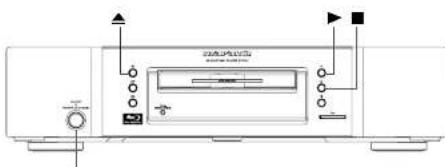
natural_image
Line drawing of a CD-ROM front panel with indicator lights and control buttons (no text or symbols)
< >: Buttons on the main unit
[ ] : Buttons on the remote control
Button name only:
Buttons on the main unit and remote control
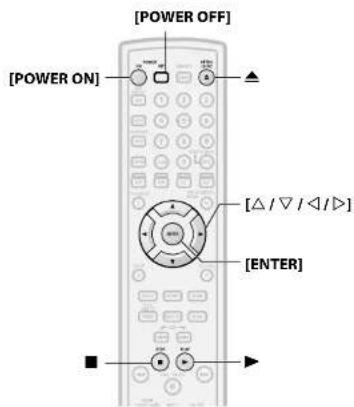
text_image
[POWER OFF]
[POWER ON]
[△ / ▽ / △ / ▶]
[ENTER]
Turning the Power On
Press [POWER ON] or to turn on the unit.
The standby indicator turns off when the power is on.
■Turning the unit to the standby mode
Press [POWER OFF] or to turn the unit to the standby mode.
The standby indicator lights red.
Note
- Power continues to be supplied to some of the circuitry even when the power is in the standby mode. When leaving home for long periods of time or when travelling, unplug the AC cord from the AC outlet.
Direct Playback
BD-V DVD-V DVD-VR AVCHD
1 Turn on the power of this unit. (Refer to "Turning the Power On" on this page.)
2 Turn on the display device and select the appropriate input on the device to which the unit is connected.
3 Press ▲ to open the disc tray.
4 Place the disc on the disc tray with its label side facing up.
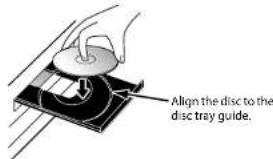
text_image
Align the disc to the
disc tray guide.
Press ▲ to close the disc tray.
It may take a while to load the disc.
Some discs may start playback automatically.
6 Press▶ to start playback.
Menu screen may appear.
In this case, use [///] to select the desired item, then press [ENTER].
7 Press ■ once to stop playback temporarily.
Refer to "Resume Playback" on page 18.
To eject the disc:
Press ▲ to open the disc tray, then remove the disc before turning the unit to the standby mode.
Playback Playback
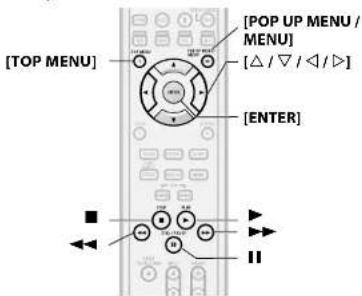
text_image
[TOP MENU]
[POP UP MENU / MENU]
[△/▽/△/▽]
[ENTER]
■
■
■
II
Operations Using Disc Menu, Title Menu, and Popup Menu
BD-V DVD-V AVCHD
Many of BD and DVD disc contains Disc menu (DVD), Title menu (BD/DVD/AVCHD) or Pop-up menu (BD-Video) which describes the contents of the disc, or a disc menu, which guides you through the available functions in the disc. The contents of the menus may differ depending on the discs.
1) Press [POP UP MENU / MENU].
• The disc menu will appear.
2) Use [///] to select an item, then press [ENTER].
Title menu (BD/DVD/AVCHD)
1) Press [TOP MENU].
2) Use [///] to select an item, then press [ENTER].
- This is a special feature available for some BD. When you press [POP UP MENU / MENU], a menu pops out on the screen while the contents still play back.
1) During BD playback, press [POP UP MENU / MENU].
2) Use [///] to select an item, then press [ENTER].
Note
- If the feature is not available, may appear on the TV screen.
- Contents of menus and corresponding menu operations may vary among discs. Refer to the manual accompanying the disc for details.
• BD/DVD/AVCHD menu varies depending on discs.
Playing Back a VR mode DVD-RW/-R
DVD-VR
When you are playing back a VR mode DVD-RW/-R, you can choose "Original" or "Playlist" if the disc contains a "Playlist".
1) In stop mode, press [POP UP MENU / MENU] to call up the DVD menu.
2) Use [◀/▶] to select "Original" or "Playlist".
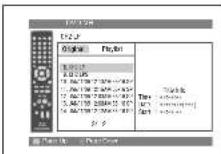
3) Use [/] to select desired title, then press▶ or [ENTER].
Note
- "Original" is the title which is actually recorded on the disc.
- Playlist is edited version of the Original.
- If the disc does not contain Playlist, Playlist will not be displayed on the DVD menu.
Pause
1) During playback, press II.
Playback will be paused.

2) Press▶ to return to normal playback.
Note
- For BD, DVD and DivX®, set "Still Mode" to "Field" in the "Video" menu if pictures in the pause mode are blurred (refer to page 32).
Resume Playback
1) During playback, press ■.
- Resume message will appear on the screen.
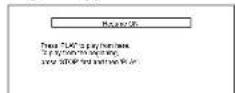
2) Press ▶.
In a few seconds, playback will resume from the point at which it stopped last. To cancel the resume playback and start playing back the disc from the beginning, press ■ again while the playback is stopped.
Note
- For MP3, Windows Media™ Audio or JPEG, playback will resume from the beginning of the current file.
- The resume information will be saved even when the power is in standby mode.
- If you open the disc tray or press ■ again in stop mode, the resume information will be cleared.
- Resume playback may not be available for the BD that supports Java applications (BD-J).
- In the "SD Card" mode, the resume information will be cleared when:
- the SD Memory Card is removed.
- the unit is turned to the standby mode.
Playback Playback
Fast Forward / Fast Reverse Playback


1) During playback, press ◀◀ or ▶▶ repeatedly to select a desired forward or reverse speed.
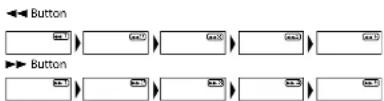
2) Press▶ to return to normal playback.
- For BD, DVD and AVCHD, speed changes in 5 different levels. For audio CD, DivX®, MP3 and Windows Media™ Audio, speed changes in 3 different levels.
- For audio CD, MP3 and Windows Media™ Audio, sound will be output at any speed of fast forward and reverse search.
Note
- For MP3 and Windows Media™ Audio, fast forward/fast reverse search between different files are not available.
- For audio CD, fast forward/fast reverse search between different tracks are not available during the programme and random playback.
- For some e ^B class fast forward/fast reverse search may not function.
Slow Forward Playback

1) During playback, press II.
2) Press ▶▶.
- Slow motion playback will begin and sound will be muted.
3) Press▶▶ repeatedly to select a desired speed.
- Slow forward speed changes in 3 different levels.


4) Press▶ to return to normal playback.
Note
- Set "Still Mode" to "Field" in the "Video" menu if pictures in the slow playback mode are blurred (refer to page 32).
- Slow reverse is not available.
Step by Step Playback

1) During playback, press II.
- Playback will pause and sound will be muted. The disc advances frame by frame each time is pressed.

2) Press▶ to return to normal playback.
Note
- Set "Still Mode" to "Field" in the "Video" menu if pictures in the pause mode are blurred (refer to page 32).
- Only step by step forward is available.
text_image
[A-B REPEAT]
[REPEAT]
[RANDOM]
[CLEAR]
[YEL]
[BLU]
[△/▽/▽/▽/▽/▽/▽/▽/▽/▽/▽/▽/▽/▽/▽/▽/▽/▽/▽/▽/▽/▽/▽/▽/▽/▽/▽/▽/▽/▽/▽/▽/▽/▽/▽/▽/▽/▽/▽/▽/▽/▽/▽/▽/▽/▽/▽/▽/▽/▽/▽/○
[ENTER]
[RETURN]
[MODE]
Dialogue Speed

This function plays back approximately at 1.3 times of normal playback while keeping the sound output. This function is available only on discs recorded in the Dolby Digital format.
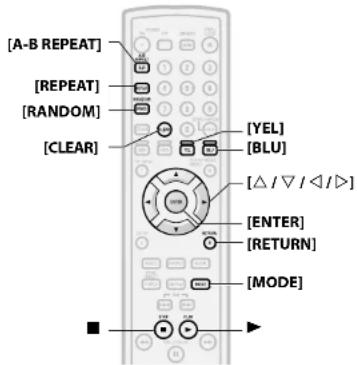
1) During playback, press [MODE] repeatedly until the dialogue speed setting appears.

2) Press [ENTER] or [◀/▶] to switch ⌘ (x1.3), or off.
"Off": Plays back in normal speed.
“” : Plays back approximately at 1.3 times of normal playback.
3) Press ▶ to return to normal playback.
Note
- Every time you press ■, the setting will be turned "Off".
- Subtitle can be viewed during this function.
- Picture adjustment, and audio language setting cannot be changed during this function.
• Virtual surround does not function during this function.
• This function may not work at some points on a disc.
- During this function, Multi/2ch PCM will be output from HDMI output, 2ch PCM will be output from digital audio output, or 2ch analogue sound will be output from analogue audio out.
Playback Playback
Repeat Playback
Available repeat function may vary depending on the discs.
1) During playback, press [REPEAT] repeatedly until desired repeat mode appears on the screen.
The following repeat modes are available.
Repeat mode Available media
| Chapter repeat | BD-V | DVD-V | DVD-VR |
| The current chapter will be played back repeatedly. | AVCHD | | |
| Title repeat | BD-V | DVD-V | DVD-VR |
| The current title will be played back repeatedly. | AVCHD | | |
| Track repeat | CD | DivX ^ | MP3 |
| The current track or file will be played back repeatedly. | WMA | JPEG | |
| Group repeat | DivX ^ | MP3 | WMA |
| The current folder will be played back repeatedly. | JPEG | | |
| All repeat | DVD-VR | CD | DivX ^ |
| All titles, tracks or files in the media will be played back repeatedly. | MP3 | WMA | JPEG |
A-B Repeat
BD-V DVD-V DVD-VR CD AVCHD DivX®
Desired section can be played back repeatedly.
1) Press [A-B REPEAT] at the desired starting point A.
2) Press [A-B REPEAT] at the desired ending point B.
• The repeat sequence begins.
3) Press [A-B REPEAT] to exit the sequence.
Note
- The chapter/title/track/group repeat setting will be cleared when moving to other chapter, title, track/file or folder.
- Repeat playback does not function during A-B repeat playback.
- Repeat chapter/title is not available with some scenes.
- A-B Repeat can only be set within the current title or current track/file.
• A-B Repeat is not available with some scenes.
- To cancel the A point which was set, press [CLEAR].
- A-B Repeat playback does not function during chapter, title, track, group or all repeat playback.
- For some files, A-B Repeat playback may not function.
You can programme the disc to play back in your desired order.
1) In stop mode, press [MODE].
• The programme screen will appear.
2) Use [/] to select a track/file, then press [ENTER].
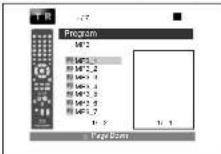
- For MP3, Windows Media™ Audio, and JPEG, use [△ / ▽] to select a folder, then press [ENTER] first, and then use [△ / ▽] to select a track/file, then press [ENTER].
- Press [CLEAR] to erase the last track/file of the programme.
- Select "All Clear" at the bottom of the list to erase all the tracks/files in the programme.
The programmed track/file is displayed in the right hand screen.
- If the entire programme cannot be displayed on the screen, "▼" or "▲" appears.
- Use [< / >] to go back forward between the hierarchy of folders.
- If eight or more tracks/files were set in a programme, use [YEL]/[BLU] to see all the tracks/files.
3) Press ▶ to start programme playback.
• Programme playback will start.
Note
- During the programme playback, press ■ once to set the resume point, and then press ▶ to resume the programme playback from where ■ was pressed (audio CD) or from beginning of the file where ■ was pressed (MP3, Windows Media™ Audio, or JPEG).
- During the programme playback, press ■ twice to display the programme screen. To go back to the normal programme playback, press [RETURN] to exit from the programme screen, then press ▶.
- Your programme is still stored until either the disc tray is open or power is turned to the standby mode.
• Up to 99 tracks/files can be entered.
- To repeat the current track/file in the programme, press [REPEAT] repeatedly until "Track" appears during play back. To repeat the entire programme press [REPEAT] repeatedly until "All" appears during playback.
- Even if an inserted disc contains mixed MP3 and Windows Media™ Audio files, programme function allows 99 files in combination of MP3 and Windows Media™ Audio files.
- The total number of selected tracks for the programme playback will be displayed in the front panel display.
- Playback from a desired track/file and random playback are not available during programme playback.
PIP (Picture in Picture) (BONUSVIEW) Setting
BD-V
Some BD-Video have the PIP (picture-in-picture) function which enables you to display the secondary video in the primary video. You can call up the secondary video by pressing [MODE] repeatedly whenever the scene contains the secondary video.
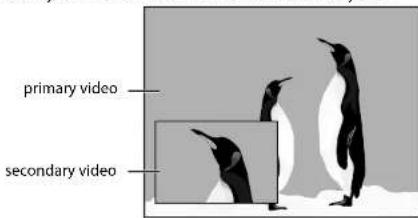
text_image
primary video
secondary video
ENGLISH
Playback Playback
1) During playback, press [MODE] repeatedly until the PIP setting appears.
- PIP information will appear.
2) Use [ / ] to select the secondary video you want.
• The secondary video will be displayed and the secondary audio will be output.
3) Press [RETURN] or [MODE] to remove the PIP information.
Note
- The secondary audio will not be output when the secondary audio is set to "Off" or when "BD Audio Mode" is set to "HD Audio Output". Refer to "Setting the BD Audio Mode" on page 25.
Random Playback
CD
MP3
WMA
JPEG
This function shuffles the play back order of tracks/files.
1) In stop mode, press [RANDOM].

text_image
TR
--14
Duration Total 0.5pt
CD: 16
1 2 = 0
2 3 = 8
3 4 = 10
4 5 = 12
5 6 = 14
6 7 = 16
1 - 2
Page Down
Example: audio CD>
2) Press▶ to start random playback.
Note
- During the random playback, press ■ once to set the resume point, and then press ▶ to resume the random playback from where ■ was pressed (audio CD) or from beginning of the file where ■ was pressed (MP3, Windows Media™ Audio, or JPEG).
- During the random playback, press ■ twice to display the random playback screen. To cancel the random playback, press [RANDOM] when the random playback screen is displayed.
- To repeat the current track/file in the random selection, press [REPEAT] repeatedly until "Trackk" appears during
playback. To repeat the entire random selection press [REPEAT] repeatedly until "All" appears during
playback.
- You cannot go back to the previous track/file during random playback.
- For a disc containing mixed MP3 and Windows Media™ Audio files, random playback of those files will be performed.
text_image
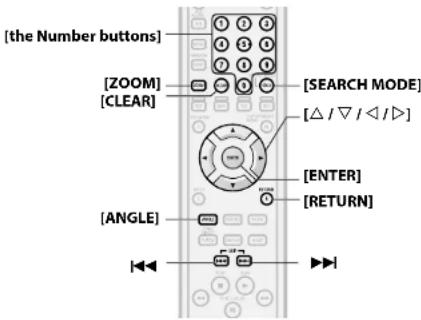
[the Number buttons]
[ZOOM]
[CLEAR]
[SEARCH MODE]
[△ / ▽ / ◀ / ▶]
[ENTER]
[RETURN]
[ANGLE]
▶▶
Zoom
DVD-V DVD-VR DivX® JPEG
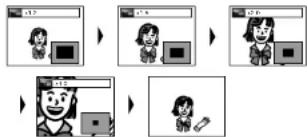
This function allows you to enlarge the video image and to pan through the zoomed image.
1) Press [ZOOM] during playback.
- Playback will continue.
2) Press [ZOOM] repeatedly to select a desired zoom factor: x1.2, x1.5, x2.0, x4.0 or off.
- "x4.0" zoom is not available for DivX® and JPEG.
flowchart
graph TD
    A["初始图像"] --> B["输入图像"]
    B --> C["处理步骤1"]
    C --> D["输出图像"]
    D --> E["结束"]
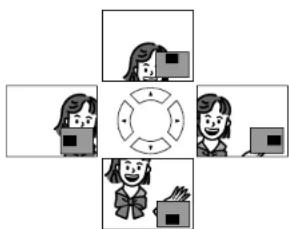
3) Use [///] to move the zoomed picture across the screen.
natural_image
Four-panel diagram showing a central circular arrangement of people with devices, no text or symbols present.
4) Press [ZOOM] repeatedly to exit zoom mode.
Playback Playback
Note
- For BD and AVCHD, zoom function is not available.
- Zoom function does not work while disc menu is shown.
- Navigation screen is not available on JPEG.
- You cannot pan through the zoomed picture on some JPEG files.
- For some DVD, "x4.0" zoom is not available.
- For D:\Files with small image, zoom function is not available.
- F or Div ^9 depending on the size of the image, some zoom factor may not be available.
- F or Div ^® when changing the zoom factor or moving the zoom position, the screen may become black for a moment. This is not a malfunction.
Camera Angle
BD-V DVD-V
Some BD and DVD contain scenes which have been shot simultaneously from various angles. You can change the camera angle when appears on the screen.
1) Press [ANGLE] during playback.
The selected angle will be displayed on the display bar at the top of the screen.
2) Use [/] to select your desired angle.
Note
- If the "Angle Icon" setting is "Off" in the "Others" menu, will not appear. Refer to page 37.
Search
■ Using |◀◀ /▶▶|
1) Press▶▶ to skip to the next chapter, track or file during playback.
To go back to the previous chapter, track or file, press twice in quick successions.
Note
- If title contains no chapters, |◀◀ /▶▶ changes the title.
■Using [SEARCH MODE]
By using the [SEARCH MODE], you can select following search options.
| Search mode | Available media |
| Title / Chapter search | BD-VDVD-VRAVCHD |
| Track Search | CDDivX ^ MP3WMAJPEG |
| Time Search | BD-VDVD-VRCDAVCHDDivX ^ |
| Marker Search | BD-VDVD-VRAVCHD |
1) Select a type of search by pressing [SEARCH MODE].
- Every time you press [SEARCH MODE], type of search changes.
2) Enter the desired chapter, track, file, title number or time to search for using [the Number buttons].
• Chapter, title, track or time search will start.
e.g.
- For the disc with less than 10 titles, press the title number directly.
- For discs with 10 or more but less than 100 titles, to play back a single-digit title, press [0] first, then the title number (e.g. for title 3, press [0], [3]). To play back a double-digit title, press the title number.
- For discs with 100 or more titles, to play back a single or a double-digit title, press [0] first, then the title number (e.g. for title 3, press [0], [0], [3] and for title 26, press [0], [2], [6]). To play back a triple-digit title, press the title number.
Note
- During programme and random playback, search functions are not available except the search using |◀◀/▶▶|.
- Time search function is available only in the same track, file or title.
- For some DivX ^ files, time search may not function.
- For BD and AVCHD, chapter and time search are available only during playback.
Marker search
This feature allows you to assign a specific point on a title or track to be called back later.
1) During playback, press [SEARCH MODE] repeatedly until marker setting appears.
2) Use [ / ] to select a marker number (1-9).

3) When the disc reaches the point you want to set a marker, press [ENTER].
• The title or track and elapsed playback time will appear on the screen.
4) Press [SEARCH MODE] or [RETURN] to exit.
5) To return to the marker later, call the marker setting by pressing [SEARCH MODE] repeatedly during playback or in stop mode, and use [◀/▶] to choose a desired marker, then press [ENTER].
Note
- Opening the disc tray, turning the unit to the standby mode or selecting "AC" at step 2) and pressing [ENTER] will erase all markers.
- To clear a marker, use [◀/▶] to select the marker number to be cleared and press [CLEAR].
- You can mark up to 9
- For BD-Video and AVCHD, marker search between different titles is not available.
- For BD and AVCHD, you can return to the maker only during playback.
ENGLISH
Playback Playback

text_image
[TOP MENU]
[△/▽/▽/▽]
[SUBTITLE]
[DISPLAY]
[POP UP MENU / MENU]
[ENTER]
[AUDIO]
On-Screen Display
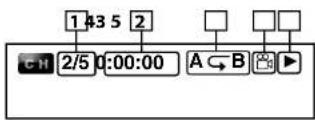
You can check information about the current disc by pressing [DISPLAY].
To call the On-Screen Display, press [DISPLAY] during playback. Each time you press [DISPLAY], the information changes. Depending on the media, available information varies.
BD-V AVCHD
OFF → Title/Chapter information → Title information (elapsed time) → Title information (remaining time) → HDMI information → OFF
DVD-V DVD-VR
OFF → Chapter information (elapsed time)
→ Chapter information (remaining time) → Title information (elapsed time) → Title information (remaining time)
→ Bit rate information → HDMI information → OFF
CD
OFF (Track information (elapsed time)) Track information (remaining time) Disc information* (elapsed time) Disc information* (remaining time) OFF (Track information (elapsed time)) (* not available during the programme/random playback)
DivX®
OFF → File information (elapsed time) → File information (remaining time) → File name information → HDMI information → OFF
MP3
OFF (File information (elapsed time)) → File name information
→ OFF (File information (elapsed time))
WMA
OFF (File information (elapsed time)) → File name information
→ Tag information (title name) → Tag information (artist name)
→ OFF (File information (elapsed time))
JPEG
OFF → File information → File name information → OFF
</p>
<p><img alt="" src="images/8e62d0ed5bd8411f78c76232d002fe4da909884c6435fb64ccea0ea70c88c82d.jpg" /></p>
<p>1 Current chapter number/total number of chapters<br />
2 Elapsed time/remaining time of the current chapter<br />
3 Current repeat setting (Only when repeat setting is active)<br />
(C: Chapter repeat, T: Title repeat, AB : A-B repeat)</p>
<p>4 Indicates that the multi camera angle images are available on the scene
5 Current playback status
6 Current title number</p>
<h1 id="title-information">■Title information</h1>
<p><img alt="" src="images/4dcc21f7cfc5e8ca8768b5ba27f594091f08d0bad3c8a6bc46217aa904bb20ce.jpg" /></p>
<p>7 Current title number/total number of titles
8 Elapsed time/remaining time of the current title</p>
<p>23</p>
<p>ENGLISH</p>
<h1 id="bit-rate-information">Bit rate information</h1>
<p><img alt="" src="images/9339aaf7e4b867d7e53eed0ba36bc8c92f8e3eb1fbe8dd48c4b4504e9eee3d80.jpg" /></p>
<p><For VR mode DVD-RW/-R></p>
<p><img alt="" src="images/0366b42224697cf915a11476e071f2f719be01d929101296a34435ba1dc1b585.jpg" /></p>
<p>9 Bit rate (the amount of video data currently being read)
10 Layer number (Only for 2-layered discs)
(L0: Layer 0 is played back. L1: Layer 1 is played back)
11 Type of title (ORG: original, PL: playlist)</p>
<h1 id="trackfile-information">Track/File information</h1>
<p><img alt="" src="images/5559d159fa136a7dbadb0b7f31ad9694683594209e7d8abc1deefbce2f9e2906.jpg" /></p>
<p>12 Current track (file) number/total number of track (file)
13 Elapsed time/remaining time of the current track (file)
14 Indication of SD Memory Card playback
15 Current repeat setting (Only when repeat setting is active)
(T: Track/file repeat, G: Group repeat, A: All repeat)</p>
<h1 id="disc-information">Disc information</h1>
<p><img alt="" src="images/3cc47344b6453a4394ff347667d83dbce48ead4e24602dd77dcc7a6118456241.jpg" /></p>
<p>16 Current track number/Total number of tracks
17 Elapsed time/remaining time of the current disc</p>
<h1 id="playback-playback-4">Playback Playback</h1>
<h1 id="file-name-information">■File name information</h1>
<p><img alt="" src="images/03cdc06e6c334fbb2519e4b430855db96c9e7b40c8f49f2d605aad319942d11c.jpg" /></p>
<h1 id="18-media-icon-and-file-name">18 Media icon and File name</h1>
<p><img alt="" src="images/2e19474c113b16500c255ae622a54f0881f28575779ac4c11515fc64c25d8108.jpg" /></p>
<p>DivX ^® file</p>
<p><img alt="" src="images/c3245b0986acfc3eddb8701f67e6ab77ff728940f71cd7d0fc42142304e793ba.jpg" /></p>
<p>: MP3 file</p>
<p><img alt="" src="images/4d69b6b702e845ac8d85d547c285548da812f5cce83b0e5d06dffab0b324abfc.jpg" /></p>
<p>Windows Media™ Audio file</p>
<p><img alt="" src="images/c61e3231a73641debb27908c4ad28fd68a38cda156aa32c233420bc3913fb9ea.jpg" /></p>
<p>: JPEG file</p>
<h1 id="tag-information">Tag information</h1>
<p><img alt="" src="images/f59fca194cba9c40b2fd3fff63616421cef7752b4464ce66f54fd194c29b0053.jpg" /></p>
<details>
<summary>flowchart</summary>
<pre><code class="language-mermaid">graph TD
A["19"] --> B["TITLE"]
B --> C["DISPLAY"]
D["20"] --> E["ARTIST NAME"]
</code></pre>
</details>
<p>19 Title name based on tag information of current Windows Media™ Audio file</p>
<p>[20] Artist name based on tag information of current Windows Media™ Audio file</p>
<h1 id="hdmi-information">HDMI information</h1>
<p><img alt="" src="images/05dd80e8468f4861feaee0755f71e6e582ab4b7f7dddc8d2e3f13a8d92ee019e.jpg" /></p>
<details>
<summary>flowchart</summary>
<pre><code class="language-mermaid">graph TD
A["Video Info"] --> B["YCbCr / 1080i"]
C["Audio Info"] --> D["Dolby Digital"]
E["Max Channel"] --> F["6ch"]
B --> G["21"]
D --> H["22"]
F --> I["23"]
F --> J["24"]
</code></pre>
</details>
<p>21HDMI video format <br />
22 Resolution of the HDMI output image <br />
23HDMI audio format <br />
24 Maximum numbers of audio channels that can be accepted by the connected device</p>
<h1 id="note-34">Note</h1>
<p>- If HDMI is not connected, “—” will be displayed for HDMI information.</p>
<h1 id="selecting-the-format-of-audio-and-video">Selecting the Format of Audio and Video</h1>
<h1 id="selecting-audio-streamschannels">Selecting Audio Streams/Channels</h1>
<p>BD-V DVD-V DVD-VR CD AVCHD DivX® Some discs or SD Cards with AVCHD files contain multiple audio streams. Those are often in different audio languages or audio formats. For BD, available audio varies depending on the "BD Audio Mode" setting. Refer to page 25 for more information.</p>
<h1 id="bd-v-2">BD-V</h1>
<p>1) During playback, press [AUDIO].</p>
<p>2) Use [/] to select "Primary" or "Secondary" audio to set, then press [ENTER].</p>
<p><img alt="" src="images/99c3a93d28cebd3655cc5f91b5cabeafaa5038a6873ba467de7fe764800e264e.jpg" /></p>
<p>"Primary": Sets the audio for the main picture. <br />
"Secondary": Sets the audio for the sub-picture. When sub-picture is on, the "Secondary" audio will be output with the sub-picture. <br />
- In order to listen to the secondary audio, the "BD Audio Mode" must be set to "Mix Audio Output". Refer to page 25. <br />
3) Use [/] to select your desire audio stream/channel.
4) Press [AUDIO] to exit.</p>
<h1 id="dvd-v-dvd-vr-cd-avchd-divx">DVD-V DVD-VR CD AVCHD DivX®</h1>
<p>1) During playback, press [AUDIO]. <br />
2) Use [△/▽] to select your desired audio stream/channel.</p>
<p><img alt="" src="images/3c4d464d7160567361fce881a881f63369bf2aecd20976be5b33931ed0f1c68c.jpg" /></p>
<p>ENO</p>
<p>Dolby D</p>
<p>3/2.1ch</p>
<p>48k</p>
<p>1</p>
<p>- For audio CD, you can select following options.</p>
<p>"Stereo": Both right and left channels are active (stereo) <br />
"1-ch": Only left channel is active <br />
"R-ch": Only right channel is active</p>
<p>3) Press [AUDIO] to exit.</p>
<h1 id="note-35">Note</h1>
<ul>
<li>For VR mode DVD-RW/-R with MTS (Multi-channel Television Sound) system, you can switch between "1.Main" (main audio), "1. Sub" (sub audio), and "1.Main/Sub" (main and sub audio). </li>
<li>For some BD, secondary audio will be output even when sub-picture is off. <br />
• The sound mode cannot be changed during playback of discs not recorded in multiple sound. </li>
<li>Some discs allow to change audio language setting on the disc menu. (Operation varies between discs. Refer to the manual accompanying the disc.) </li>
<li>Pressing [AUDIO] may not work on some discs with multiple audio Streams/Channels (e.g. DVD which allow to change audio setting on the disc menu). </li>
<li>If you choose a language that has a 3-letter-language code, the code will be displayed every time you change the Audio Language setting. If you choose any other Languages, “---” will be displayed instead (refer to page 48). </li>
<li>Audio Language selection cannot be made during dialogue speed (refer to page 19). </li>
<li>If the disc has no audio language, "Not Available" will be displayed. </li>
<li>For discs with DivX ^® files, only MP3, MP2 or Dolby Digital audio is displayed. Other audio will be displayed with “—”. </li>
<li>For DTS-CD (5.1 music disc), "DTS" will be displayed. (Selecting audio streams or channels is not available.)</li>
</ul>
<h1 id="english-3">ENGLISH</h1>
<p>Playback Playback</p>
<h1 id="selecting-subtitle-language">Selecting Subtitle Language</h1>
<h1 id="bd-v-dvd-v-avchd-divx">BD-V DVD-V AVCHD DivX®</h1>
<p>BD, DVD-Video, AVCHD and DivX ^® may have subtitles in 1 or more languages. Available subtitle languages can be found on the disc case. You can switch subtitle languages anytime during playback.</p>
<h1 id="bd-v-3">BD-V</h1>
<p>1) During playback, press [SUBTITLE]. <br />
2) Use [/] to select "Primary Subtitle", "Secondary Subtitle" or "Subtitle Style", then press [ENTER].</p>
<p><img alt="" src="images/b093f90ed744ccfc90f6b2da8354c798fcd348e8d3340026eed42350ddd5d18e.jpg" /></p>
<p>Primary Subtitle</p>
<p>Secondary Subtitle</p>
<p>Subtitle Style</p>
<p>2 ENG/11</p>
<p>2 ENG/11</p>
<p>2/25</p>
<p>"Primary Subtitle": Sets the subtitle for the main picture. <br />
"Secondary Subtitle": Sets the subtitle for the sub-picture. <br />
"Subtitle Style": Sets style of the subtitle. <br />
3) Use [ / ] to select your desired subtitle. <br />
4) Press [SUBTITLE] to exit.</p>
<h1 id="dvd-v-avchd">DVD-V AVCHD</h1>
<p>DivX®</p>
<p>1) During playback, press [SUBTITLE]. <br />
2) Use [ / ] to select your desired subtitle.</p>
<p><img alt="" src="images/cf514662c47ecaa7807790204cf95a2c321de1bc0c6b5f286eb7bdfb2954dddd.jpg" /></p>
<p>ENG 13</p>
<p>[EMPTY]</p>
<p>◆</p>
<p>3) Press [SUBTITLE] to exit.</p>
<h1 id="note-36">Note</h1>
<ul>
<li>Some discs will only allow you to change the subtitle from the disc menu. Press [TOP MENU] or [POP UP MENU / <br />
MENU] to display the disc menu. </li>
<li>If 4-digit language code appears in the subtitle menu, refer to "Language Code" on page 48. </li>
<li>If the disc has no subtitle language or subtitle style, "Not Available" will be displayed. </li>
<li>For DivX ^ , the screen only displays the number of subtitle languages.</li>
</ul>
<p><img alt="" src="images/7bdce3d43906c8bc4e795c9fc384177cdf55306100e8c58cba7e1c58c887798a.jpg" /></p>
<details>
<summary>text_image</summary>
[Δ/∇/◄/►]
[ENTER]
[RETURN]
[PURE DIRECT]
[MODE]
</details>
<h1 id="virtual-surround">Virtual Surround</h1>
<h1 id="bd-v-dvd-v-dvd-vr-cd-avchd-divx">BD-V DVD-V DVD-VR CD AVCHD DivX®</h1>
<h1 id="mp3-wma">MP3 | WMA</h1>
<p>You can enjoy stereo phonic virtual space through your existing 2-channel stereo system.</p>
<p>1) During playback, press [MODE] repeatedly until the virtual surround setting appears.</p>
<p><img alt="" src="images/da25a133fb4106ad16433830ef6e6f5727d073deee04e62fa06e80a3a60345f8.jpg" /></p>
<p>[NO TEXT]</p>
<p>2) Use [/] to select "1" (Natural effect), "2" (Emphasised effect) or "Off". <br />
3) Press [RETURN] to exit.</p>
<h1 id="note-37">Note</h1>
<ul>
<li>Select virtual surround "Off" or lower the volume if the sound is distorted. </li>
<li>This function cannot be used during dialogue speed (refer to page 19). </li>
<li>For the virtual surround, audio signal will always be 2-channel PCM.</li>
</ul>
<h1 id="pure-direct-mode">Pure Direct Mode</h1>
<h1 id="bd-v-dvd-v-dvd-vr-cd-avchd-divx-2">BD-V DVD-V DVD-VR CD AVCHD DivX®</h1>
<h1 id="mp3-wma-2">MP3 WMA</h1>
<p>Use this function to shut down unused circuitry to achieve high quality analogue sound. <br />
1) Press [PURE DIRECT] repeatedly to select your desired pure direct mode.</p>
<p>- Each time you press [PURE DIRECT], the pure direct mode changes as "Normal" "VideoOff" "Disp.Off" "All Off" "Normal". The modes will be displayed on the front panel display.</p>
<h1 id="video-audio-outputs-for-each-mode">Video / audio outputs for each mode</h1>
<p>"Normal": Normal playback mode (pure direct mode is off).</p>
<p>"VideoOff": Video signal will not be output. <br />
"Disp.Off": Circuitry for front panel display and indicators will be shut down. <br />
"All Off": Video signal will not be output and circuitry for front panel display and indicators will be shut down.</p>
<h1 id="note-38">Note</h1>
<ul>
<li>If you turn off the unit or put this unit to standby mode, the pure direct mode will go back to "Normal". </li>
<li>[PURE DIRECT] is not available when the setup menu is displayed.</li>
</ul>
<h1 id="setting-the-bd-audio-mode">Setting the BD Audio Mode</h1>
<h1 id="bd-v-4">BD-V</h1>
<p>BD audio mode is to choose between two ways; you could output the secondary and Interactive audio accompanied by the primary audio or you could output the primary audio only. Depending on the setting of the mode, Dolby Digital, DTS, Dolby Digital Plus, Dolby TrueHD, or DTS-HD output changes between Multi PCM and bitstream.</p>
<p>1) In stop mode with BD inserted, press [MODE]. <br />
2) Use [ / ] to select desired setting.</p>
<h1 id="mix-audio-output">■"Mix Audio Output"</h1>
<p>If it is available, BD-Video's secondary and interactive audio will be output with the primary audio.</p>
<p>• The secondary audio is the audio for the sub picture (Director's comment etc.) and the interactive audio is the audio for the interactive application (Button click sounds etc.).</p>
<h1 id="hd-audio-output">■"HD Audio Output"</h1>
<p>Only the primary audio will be output. Set this mode in order to output Dolby Digital, Dolby Digital Plus, Dolby TrueHD, DTS or DTS-HD sound of BD through HDMI connection.</p>
<p>3) Press [RETURN] to exit.</p>
<p>- You can also set "BD Audio Mode" from the setup menu. Refer to page 33.</p>
<h1 id="note-39">Note</h1>
<p>- Refer to pages 14 - 15 for more information of audio settings.</p>
<h1 id="playback-playback-5">Playback Playback</h1>
<h1 id="adjusting-the-picture">Adjusting the Picture</h1>
<h1 id="bd-v-dvd-v-dvd-vr-avchd-divx">BD-V DVD-V DVD-VR AVCHD DivX®</h1>
<p>You can adjust the picture quality and store the setting you have adjusted on memory 1-5.</p>
<p>1) During playback, press [MODE] repeatedly until the picture adjustment menu appears.</p>
<p>• Picture adjustment menu:</p>
<p><img alt="" src="images/11dad157021954b804e62e8dab54924f509db6e080486cf0e011099b4b6dc1b2.jpg" /></p>
<p>Memory 1</p>
<p>2) Use [/] to select a memory from "Memory 1" to "Memory 5" to store your setting, then press [ENTER].</p>
<p>3) Use [/] to select an item to be adjusted, then use [/] to adjust the setting.</p>
<p><img alt="" src="images/a65c36a0ed4c50807f0eb292be67c16722020678246965b046aa129ae10ae738.jpg" /></p>
<p>m = 311</p>
<p>2.1</p>
<p>1.Contrast</p>
<ol>
<li>Noise Reduction</li>
</ol>
<p>1</p>
<p>DII</p>
<table><tr><td colspan="2">Item Description</td><td>Adjustment range (* : Default setting)</td></tr><tr><td>Contrast</td><td>Adjusts the difference between the bright and dark parts of the picture.</td><td>-7 to +7 (0*)</td></tr><tr><td>Brightness</td><td>Adjusts the brightness of the picture.</td><td>0 to +15 (0*)</td></tr><tr><td>Sharpness</td><td>Adjusts the sharpness of the picture.</td><td>-6 to +6 (0*)</td></tr><tr><td>Gamma Correction</td><td>Changes the amount of gamma correction to adjust overall brightness of a picture. Make dark/ bright section easier to see.</td><td>0 to +5 (0*)</td></tr><tr><td>Color</td><td>Adjusts the balance between green and red.</td><td>-7 to +7 (0*)</td></tr></table>
<table><tr><td colspan="2">Item Description</td><td>Adjustment range (* : Default setting)</td></tr><tr><td rowspan="4">Noise Reduction(Not available for BD/AVCHD)</td><td rowspan="4">Reduces the noise of the playback picture.</td><td>Off*</td></tr><tr><td>+1: Execute MPEG noise reduction which reduce the block noise and mosquito noise on the subtitle on movie.</td></tr><tr><td>+2: Execute 3D noise reduction which detect and delete the noise by comparing each picture frames.</td></tr><tr><td>+3: Execute both MPEG noise reduction and 3D noise reduction.</td></tr></table>
<p><img alt="" src="images/975e657775c004349a6113113270c7f4b753725b064e7bea94cc965fdcb6a6bf.jpg" /></p>
<details>
<summary>text_image</summary>
[YEL]
[BLU]
[△/▽/▽/▽]
[ENTER]
</details>
<h1 id="playing-back-an-audio-cd-or-a-disc-with-divxmp3windows-media-audiojpeg-file">Playing Back an Audio CD or a Disc with DivX™/MP3/Windows Media™ Audio/JPEG File</h1>
<p><img alt="" src="images/022013b57b2407b935a822beae16bebfd6ea327d0837936b73885d34cc8235e6.jpg" /></p>
<p>DivX®</p>
<p>MP3</p>
<p>WMA</p>
<p>JPEG</p>
<p><img alt="" src="images/046d0d590a1fc0929426569fc032ea71b6cf23f46de1aa642deca2b5b2c4dded.jpg" /></p>
<p>Insert a disc with DivX ^® , MP3, Windows Media ^™ Audio, JPEG files.</p>
<p>• The file list will appear on the screen.</p>
<p><img alt="" src="images/f5f5e96bac9fda8e69875c01fc7cd7edef9b827c08746e97199871226295cdf9.jpg" /></p>
<p>Use [△ / ▽] to select a desired folder, file or title, then press [ENTER]. Use [< / ▶] to go back and forward between the hierarchies.</p>
<p>- If you press ▶ or [ENTER] on the files, playback will start.</p>
<p><img alt="" src="images/f2916d4beabb16b3e112e5dc5140d26f0f1fc8779eaa29f8a60678c2653562c1.jpg" /></p>
<details>
<summary>text_image</summary>
1
25
File List
3
3
4
5
6
</details>
<p>1 Track/ file information</p>
<p>2Playback status <br />
3 Current disc or folder name will be displayed. (For audio CD, "CD-DA" will be displayed.) <br />
4 List of the file/ folder names in the current folder/disc
5 Current page/ total page number <br />
6Operation guide</p>
<p>Icons:</p>
<p><img alt="" src="images/4c10f348b43b525dcd26d8f9e81443794b903c18ae2b1f83a633d9bab41eb06c.jpg" /></p>
<p>: Folders</p>
<p><img alt="" src="images/6b02282ec6e34501d17d6376d82c6f503435c1e231b75702a912d5d379558ee2.jpg" /></p>
<p>DivX® files</p>
<p><img alt="" src="images/c8dde499379a4747c89d846136ef470ef1272d9adc2fd0b7f4a576875b9a2aa2.jpg" /></p>
<p>: MP3 files</p>
<p><img alt="" src="images/7a32bb7d01b93a3da7e0cc379e6efef1596696363ce40790a28ca7ffb568d638.jpg" /></p>
<p>Windows Media™ Audio files</p>
<p><img alt="" src="images/7a1fd62ad1045e8ab865fb662446c5626309fd177b65e8493f737b1f0551c976.jpg" /></p>
<p>JPEG files</p>
<p>It is recommended that files to be played back in this unit are recorded under the following specifications:</p>
<p>ENGLISH</p>
<h1 id="english-4">ENGLISH</h1>
<h1 id="playback-playback-6">Playback Playback</h1>
<h1 id="divx-2"><DivX></h1>
<p>Official DivX® Certified product</p>
<p>- Playable codec of AVI files : DivX ^® 3.x, DivX ^® 4.x, DivX ^® 5.x, DivX ^® 6.x</p>
<p>• Maximum size of image : 1920 x 1080 @30 fps
1280 x 720 @60 fps</p>
<p>• Sampling frequency of audio : 16 kHz - 48 kHz</p>
<p>• Audio type : MPEG1 audio layer 3 (MP3),
MPEG1 audio layer 2,
Dolby Digital</p>
<h1 id="mp3-windows-media-audio"><MP3 / Windows Media™ Audio></h1>
<p>• Sampling frequency : 44.1 kHz or 48 kHz</p>
<p>• Constant bit rate : 112 kbps - 320 kbps (MP3), 48 kbps - 192 kbps (Windows Media™ Audio)</p>
<h1 id="jpeg-2"><JPEG></h1>
<p>• Upper limit : 2,560 x 1,900 dots
(sub sampling is 4:4:4)
5,120 x 3,840 dots
(sub sampling is up to 4:2:2)</p>
<p>• Lower limit : 32 x 32 dots</p>
<p>- File size of image maximum : 12 MB</p>
<h1 id="note-40">Note</h1>
<p>• The system can recognise up to 255 folders/999 files for CD,</p>
<p>999 folders/9999 files for BD, DVD and SD Memory Card.</p>
<p>- The name of folder and file can be displayed up to 28 characters. Unrecognizable characters will be replaced with asterisks.</p>
<p>• The 9th and deeper hierarchies cannot be displayed for CD and the 10th and deeper hierarchies cannot be displayed for BD, DVD and SD Memory Card.</p>
<p>- Files whose extension is other than ".avl/.divx (DivX®)", ".mp3 (MP3)", ".wma (Windows Media™ Audio)" or ".jpg / .jpeg (JPEG)" will not be listed.</p>
<p>- Some unplayable folders or files may be listed due to the recording status.</p>
<p>• High-resolution JPEG files take longer to be displayed.</p>
<p>- Progressive JPEG files (JPEG files saved in progressive format) cannot be played back on this unit.</p>
<p>- This unit recognise up to 8 characters of file name in the SD Memory Card. Characters after 8th will not be displayed.</p>
<p>- If a disc contains AVCHD files, the playback of other files which are in the same disc is not available.</p>
<p>- File list cannot be called up during playback of DivX ^ or JPEG files.</p>
<h1 id="to-play-back-the-divx-subtitle-created-by-the-user">To Play Back the DivX ^® Subtitle Created by the User.</h1>
<p>The subtitle created by the user can be displayed during DivX ^® playback.</p>
<p>1) After selecting the DivX ^® file, use [ / ] to select the file you want to playback, then press [YEL]. Subtitle list will appear.</p>
<p><img alt="" src="images/57e703b9763a98a44513793fbc173afa8ab659aef4e2330f822c455b9cb027c4.jpg" /></p>
<ul>
<li>If there is more than one extension, the extension selection appears in the subtitle list. <br />
2) Use [/] to select the desired extension of the subtitle file you want to display, then press [ENTER].</li>
</ul>
<p>- If you insert a BD-RE/-R, DVD-RW/-R, CD-RW/-R with DivX ^™ files that are mixed with MP3/Windows Media ^™ Audio/JPEG files, the playback media selection screen will be displayed. Use [ / ] to select your desired media to play back then press [ENTER].</p>
<p><img alt="" src="images/d97470e675e7da521ca77967739f1dc59d10f63a8589cca90697799253c4fc7f.jpg" /></p>
<p>- Press [BLU] to call up the playback media selection screen in stop mode.</p>
<h1 id="hint-for-the-purchased-or-rental-official-divx-certified-product">Hint for the purchased or rental official DivX® Certified product</h1>
<p>- When you purchased or rented a DivX ^ file through the official site of DivX ^ video which is called DivX ^ Video-On-Demand (VOD) services, a registration code is required every time you get the new file from the DivX ^ VOD services. Refer to "DivX(R) VOD" on page 38.</p>
<p>- Some DivX ^ VOD files are restricted with the limited playable times (you cannot play them back beyond the limit). If your DivX ^ VOD file has such limit, the playback confirmation screen will appear.</p>
<p>- Use [◀/▶] to select "Yes" if you want to play back the file, or to select "No" if you do not wish to play it back. Then, press [ENTER] to confirm the selection.</p>
<p>- You cannot play back the DivX® VOD files, of which rental period has been expired. In such case, press [ENTER] and select other files that can be played back.</p>
<ul>
<li>You cannot play back the DivX® VOD files obtained with different registration codes on this unit. Press [ENTER] and select other files that can be played back. </li>
<li>You cannot playback the DivX ^ file that has the resolution which this unit does not support. This unit does not support the DivX ^ files that have the image size that exceeds 1920 x 1080 @30 fps or 1280 x 720 @60 fps. </li>
<li>For D ^® files with audio format other than MPEG1 audio layer 3 (MP3), MPEG1 audio layer 2 and Dolby Digital, audio will not be output and only the video will be output.</li>
</ul>
<p><img alt="" src="images/da464f04d5c1d6c1714bfdbd0c42f5d33c87569c101195aa92a9193d63a726af.jpg" /></p>
<p><img alt="" src="images/b43533faba66940108b1c2f0d08d45233929c01e5acfa78467f94f135923c9eb.jpg" /></p>
<p><img alt="" src="images/38594e8d52e7350a9ac3984585bb37d3eb61059cafb7ffaae599822e9ac7405c.jpg" /></p>
<p><img alt="" src="images/9103d0166053bbc181a601e393738dc417f99ef7c9493a41a0bdffdc28793695.jpg" /></p>
<p><img alt="" src="images/9f56e291ef9471d48b17034bcfb6442ed6b1b9196602bd89adf71ade4971e9c3.jpg" /></p>
<h1 id="playback-playback-7">Playback Playback</h1>
<h1 id="what-is-divx">What is DivX®?</h1>
<ul>
<li>D i √ ^6 K a codec (compression/decompression) that can compress images to a very small amount of data. The software can compress video data from almost any devices to the size that can be sent on the Internet without compromising visual quality of the images. </li>
<li>A file with an extension of ".avi" and ".divx" is called an DivX ^© file. All files with the DivX ^® extension are recognised as MPEG4. </li>
<li>For more information for DivX ^® , please visit http://www.divx.com.</li>
</ul>
<h1 id="note-for-divx">Note for DivX ^®</h1>
<ul>
<li>Even if the file has an extension of either ".avi" and ".divx", this unit cannot play it back if it is recorded in the format other than DivX ^28 . </li>
<li>It may take a while for audio and images to be output after you inserted a disc and pressed ▶. </li>
<li>When playing back the files recorded in high bit rates, the images can be interrupted in some occasions. </li>
<li>Although DivX ^ logo has been obtained for this unit, it may not be able to play back some data, depending on the characteristics, bit rates, or audio format settings, etc. </li>
<li>A D i file whose file size exceeds 2 GB cannot be played back. </li>
<li>If a large-sized DivX ^20 file is selected, it may take awhile to start the playback (over 20 seconds sometimes). </li>
<li>If you try to playback the DivX ^ file that has the screen resolution which this unit does not support, the playback will be stopped and error message will appear. </li>
<li>Some DivX ^16 files cannot be played back on this unit due to the configuration and characteristics of the disc, or due to the condition of recording and authoring software. </li>
<li>If D files written on a CD-RW/-R or DVD-RW/-R cannot be played back, rewrite them on a BD-RE/-R and try to play back.</li>
</ul>
<h1 id="note-for-divx-subtitle">Note for DivX® Subtitle</h1>
<ul>
<li>To utilise this function, the following conditions must meet.</li>
<li>Playback file and the subtitle file must have the same name. </li>
<li>Playback file and the subtitle file must locate in the same folder.</li>
<li>Only the subtitle files with the following extensions are supported; .smi (.SMI), .srt (.SRT), .sub (.SUB), .ass (.ASS), .ssa (.SSA), .txt (.TXT). (.sub (.SUB) and .txt (.TXT) files may not be recognised.)</li>
</ul>
<p>- The subtitles that exceeds the playback time of the DivX ^® file will not be displayed.</p>
<p><img alt="" src="images/e123020adb8ee2fee94648ebcd87c71676b4cec86a930eecee45edf2716d7e41.jpg" /></p>
<details>
<summary>text_image</summary>
[SETUP]
[ANGLE]
[△/▽/△/▽]
[ENTER]
[RETURN]
[MODE]
</details>
<p>Kodak Picture CD</p>
<p>This unit can also run JPEG files stored on Kodak Picture CD. You can enjoy picture images on the display device set by playing back the Picture CD. This unit confirms to ver.7.0 of Kodak Picture CD. For details of Kodak Picture CD, contact a shop that provides developing service of Kodak Inc.</p>
<p>1 When Kodak Picture CD is inserted in this unit, Kodak Picture CD menu appear automatically on the screen. <br />
<img alt="" src="images/e38888ddd16f07f1a61e43f0dfa67531875ba3e513599d902f92291e82fca46c.jpg" /></p>
<details>
<summary>text_image</summary>
1
2
3
4
Thumbnail
Pictures
Picture 1
Picture 2
Picture 3
Picture 4
Picture 5
Picture 6
Page Box...
Page Mask
</details>
<p>1 File information <br />
2 Playback status <br />
3 Operation guide <br />
4 Current page/ total page number</p>
<p>2 Use [△/▽/◀/▷] to select a desired track to be played back, then press▶ or [ENTER].
• An image will be played back from the selected track and go to the next one in turn.</p>
<p>3 Press ■ to stop playback.</p>
<h1 id="tips-for-jpegkodak-picture-playback">Tips for JPEG/Kodak Picture Playback</h1>
<ul>
<li>Every press on [ANGLE] will turn the image clockwise by 90 degrees when an image is displayed. </li>
<li>To change the visual effect for switching the playback image, press [MODE] once, then use [</>] or [ENTER] to switch between "Cut In/Out" and "Fade In/Out". The size change may have no effect on some files (e.g. files with a small picture size). </li>
<li>To change the size of the playback image, during the JPEG/Kodak Picture playback. Press [MODE] twice, then use [◀/▶] or [ENTER] to switch between "Normal" (100%) and "Small" (93%). The size change may have no effect on some files (e.g. files with a small picture size).</li>
</ul>
<h1 id="reading-the-sd-memory-card">Reading the SD Memory Card</h1>
<h1 id="avchd-mp3-wma-jpeg">AVCHD MP3 WMA JPEG</h1>
<p>You can play back the AVCHD, MP3, Windows Media™ Audio and JPEG files In an SD Memory Card. With the SD Memory Card, you can also enjoy the special additional contents for BD-ROM Profile 1.1 which can be downloaded from the Internet. You can store the contents on an SD Memory Card via computer and play them back with the BD-Video. For more information about the special additional contents, please refer to the instruction book that came with the disc.</p>
<p><img alt="" src="images/b15843c3a6651c87d3cda6bebe7ead1d8e9c12bf70391e674911a716b583695d.jpg" /></p>
<h1 id="inserting-the-sd-memory-card-and-playback">■Inserting the SD Memory Card and playback</h1>
<p>1 Insert an SD Memory Card, with the label side facing up, into the SD card slot until it clicks. If no disc is in operation, "Media Select" screen will appear on the TV screen.</p>
<p><img alt="" src="images/88d14fcd93097ded347e8188fed9cd74433bfaba17234d3a5ec3f037fea7e6ec.jpg" /></p>
<p>2 Use [/] to select "SD Card", then press [ENTER].
The file list will appear.</p>
<p>ENGLISH</p>
<p>Playback Playback</p>
<p>3 Follow the step 2 in "Playing Back an Audio CD or a Disc with DivX®/MP3/Windows Media™ Audio/JPEG File" on page 26.</p>
<h1 id="setting-the-media">Setting the media</h1>
<p>If the "Media Select" screen disappears before you make the selection, follow the following procedure to select the media to playback.</p>
<p>1 Press [SETUP] in stop mode.</p>
<p>2 Use [◀/▶] to select 🔊, then press [ENTER].</p>
<p>Use [△ / ▽] to select "Media Select".</p>
<p>Press [ENTER] repeatedly to select "SD Card".</p>
<p><img alt="" src="images/2dc5ce0c00259e18a71e8bdaa11feadffc689605e3e5ed5a3220b31cd6596cce.jpg" /></p>
<p>- This will set the unit to "SD Card" mode. To play back the contents in any discs, exit "SD Card" mode by selecting "Disc".</p>
<p>5 Press [SETUP] to exit.</p>
<h1 id="removing-the-sd-memory-card">■Removing the SD Memory Card</h1>
<p>1 In stop mode, push the SD Memory Card and then slowly remove your finger.</p>
<p>2 Grasp the card and pull it out from the SD card slot.
This will set the unit to "Disc" mode.</p>
<h1 id="compatible-cards">Compatible Cards:</h1>
<p>- SD Memory Card (8MB - 2GB)</p>
<p>- SDHC Memory Card (4GB - 8GB)</p>
<p>- miniSD Card (8MB - 2GB)</p>
<p>- microSD Card (8MB - 2GB)</p>
<p>- For miniSD Card and microSD Card, adapter will be required.</p>
<h1 id="note-41">Note</h1>
<p>- The "Media Select" screen will disappear under the conditions listed below:</p>
<p>- when the screen saver is activated.</p>
<p>- when [RETURN] is pressed.</p>
<p>- when the setup menu is called up.</p>
<p>- Do not remove the card during its playback.</p>
<p>- This unit supports SD Memory Card with FAT12/FAT16 file system, and SDHC Memory Card with FAT32 file system.</p>
<p>- Do not delete the folders or files in the SD Memory Card with your computer. This unit might not read the SD Memory Card.</p>
<p>- This unit recognises up to 8 characters of file name in the SD Memory Card. Characters after 8th will not be displayed.</p>
<p>• If a folder or file name includes one of the following</p>
<p>unrecognisable characters, the folder or file name may not be displayed correctly.</p>
<p>- Unrecognisable characters: , " = + []; /\ : | ¥</p>
<p>- Even if you turn the unit to the standby mode in "SD Card" mode, it will be in "Disc" mode the next time you turn it on.</p>
<h1 id="enjoying-bd-live-discs-with-internet">Enjoying BD-Live Discs with Internet</h1>
<h1 id="bd-v-5">BD-V</h1>
<p>You can enjoy the BD-Live functions which enable you to use the interactive functions when the unit is connected to the Internet. (For the Network connection, refer to page 39.)</p>
<p>Examples for BD-Live interactive functions :</p>
<p>- Download the additional contents such as the movie's trailer, subtitles and BD-J, etc.</p>
<p>- While downloading, special video data may be played back.</p>
<p>• Service and functions differ depending on the disc.</p>
<p>- Follow the instructions given by the disc when using the BD-Live function.</p>
<p>- You must insert an SD Memory Card when using the BD-Live function. (SD Memory Card of 1GB is recommended.)</p>
<p>- Do not remove the SD Memory Card when using the BD-Live function.</p>
<h1 id="note-42">Note</h1>
<ul>
<li>You must connect the unit to the Internet and set up necessary settings in order to use the BD-Live function. </li>
<li>For certain discs, setting for "BD-Live Setting" may need to be changed. </li>
<li>Depending on your connection environment, it may take time to connect to the Internet or the Internet may not be connected. </li>
<li>When BD-Live functions are used and the unit is connected to the Internet, you may be charged for this communication.</li>
</ul>
<h1 id="note-for-aacs-online">Note for AACS Online</h1>
<p>• The player or disc IDs may be sent to the content provider when playing back a disc with BD-Live function. <br />
- If you save your viewing history on the server by using these IDs, you will be introduced to other similar movies. <br />
- You can save game score histories.</p>
<h1 id="function-setup-2">Function Setup</h1>
<p><img alt="" src="images/e036d6fdc2342a3ec52e484e3ba0c86a55a0a92e01ca586e2689706e24807d2a.jpg" /></p>
<details>
<summary>text_image</summary>
[the Number buttons]
[CLEAR]
[RED / GRN / YEL / BLU]
[△ / ▽ / ◀ / ▷]
[ENTER]
[SETUP]
[RETURN]
</details>
<h1 id="using-the-setup-menu">Using the Setup Menu</h1>
<p>In the setup menu, you can change the setting for audio, video, language, etc. You cannot change the setting during playback.</p>
<p><img alt="" src="images/03bfc867cab3a59a5f5bd0f7c161b1670dfbce87428076fc755db514aca9a3f9.jpg" /></p>
<p>Quick setting menu contains setting items extracted from custom setting menu which may be used frequently.</p>
<p>1</p>
<p>Press [SETUP] in stop mode.</p>
<p>2</p>
<p>Use [◀/▶] to select ▶, then press [ENTER].</p>
<p><img alt="" src="images/6d656db8ae62f52e41c3e557e749b52d33a3ae8d2a1103a89db0c3009e47abd4.jpg" /></p>
<details>
<summary>text_image</summary>
A
B
Quick
Media Select: Disc
BD Audio Mode: Mix Audio Output
HDMI Audio Out: HDMI Multi(Normal)
HDMI Video Resolution Auto
Component Output 480/5761
7.1ch Audio Out: Multi Channel
OSD Language English
</details>
<p>3 Use [/] to select setting items.</p>
<p>4 Follow the procedure below depending on the setting items.</p>
<p>For setting item A:</p>
<p>Press [ENTER] repeatedly to change options.</p>
<p>For setting item B :</p>
<p>1) Press [ENTER].</p>
<p>2) Use [ / ] to select options, then press</p>
<p>[ENTER].</p>
<p>- Use [◀] or [RETURN] to go back to the previous screen.</p>
<p>5 Press [SETUP] to exit.</p>
<p><img alt="" src="images/bcfc337196eb8b1099f239f89036a0e55073efdff68d1b506efcf47ae66bc5bd.jpg" /></p>
<p>Custom menu contains all the setting items.</p>
<p>1 Press [SETUP] in stop mode.</p>
<p>2 Use [◀/▶] to select □□□, then press [ENTER].</p>
<p>3 Use [◀/▶] to select your desired setting category, then press [ENTER].</p>
<p><img alt="" src="images/f1aa44a8d3efdde232d7fec1dc7e077046eff3f99d6ec324862de1293c3f631c.jpg" /></p>
<p>Language</p>
<p><img alt="" src="images/7e5a25e2b1bdcb7f647ebb162a4a5b7e094a16593d8d66d38d0dbd598b10a121.jpg" /></p>
<p>Video:Audio</p>
<p><img alt="" src="images/95ad07ffe566e071ab58046c974af05ceb8b03fc42fe2442c12421a1c23bcbb0.jpg" /></p>
<p><img alt="" src="images/e10f2a2c12df66903d7c2e1533bc08789a1bd0c45890044ce77788f7f3f9715e.jpg" /></p>
<p>Others</p>
<p><img alt="" src="images/a9ebaa2b7d2ca77f105283b8e1b55f26ed148368f83c3a3be5e9025f035cf7a4.jpg" /></p>
<p>follow the procedure on page 36.</p>
<p>Use [/] to select setting items.</p>
<p>- The setting items which are not available with current situation of this unit will be displayed in gray and you cannot select the items.</p>
<p>5 Follow the procedure below depending on the setting items.</p>
<p>For setting item A :</p>
<p>Press [ENTER] repeatedly to change options.</p>
<p>For setting item B:</p>
<p>1) Press [ENTER].</p>
<p>2) Use [△/▽] to select options, then press</p>
<p>[ENTER].</p>
<p>- Use [◀] or [RETURN] to go back to the previous screen.</p>
<p>6 Press [SETUP] to exit.</p>
<p>Function Setup Function Setup</p>
<p>Language</p>
<p><img alt="" src="images/7c9947996c509df34db63f81272b34ded0ef2dd92ca0cc1ee97bca07537d395e.jpg" /></p>
<details>
<summary>text_image</summary>
Language
-Dialog
-Subtitle
-Disc Menu
-OSD Language
-DiVX Subtitle
Original
Off
English
English
English
</details>
<ul>
<li>For how to select the setting items and options, refer to "Custom" on page 30.</li>
</ul>
<table><tr><td colspan="2">Setting Items Options</td></tr><tr><td>DialogSets the language for audio.</td><td>Original*/English/German/French/Italian/Spanish/Dutch/Swedish/Russian/Chinese/Japanese/Korean/Danish/Finnish/Norwegian/Icelandic/Hungarian/Romanian/Turkish/Greek/Irish/Portuguese/Polish/Czech/Slovak/Bulgarian/Other</td></tr><tr><td>SubtitleSets the language for subtitle.</td><td>Off*/English/German/French/Italian/Spanish/Dutch/Swedish/Russian/Chinese/Japanese/Korean/Danish/Finnish/Norwegian/Icelandic/Hungarian/Romanian/Turkish/Greek/Irish/Portuguese/Polish/Czech/Slovak/Bulgarian/Other</td></tr><tr><td>Disc MenuSets the language for disc menu.</td><td>English*/German/French/Italian/Spanish/Dutch/Swedish/Russian/Chinese/Japanese/Korean/Danish/Finnish/Norwegian/Icelandic/Hungarian/Romanian/Turkish/Greek/Irish/Portuguese/Polish/Czech/Slovak/Bulgarian/Other</td></tr><tr><td>OSD LanguageSets the language for OSD(on-screen display).</td><td>Auto/English*/Deutsch/Français/Italiano/Espanol/Nederlands/Svenska/Pyssckii/Português/Polski</td></tr><tr><td>DivX Subtitle English*/German/FrenchSets the language for DivX® Subtitle.</td><td>Ch/Italian/Spanish/Dutch/Swedish/Russian1/Russian2/Portuguese/Polish</td></tr></table>
<ul>
<li>Settings with (*) are the default. </li>
<li>Quick menu consists of the setting menus frequently used, and they are accompanied with mark. </li>
<li>If you select "Other", enter the 4-digit number code for the desired language (refer to "Language Code" on page 48). Only the languages supported by the disc can be selected.</li>
</ul>
<p><img alt="" src="images/6a9e0cb60bb96480944e3ea44bf9f734f88d2b440dbd5b93b2f23ee66538580e.jpg" /></p>
<p><img alt="" src="images/22b3b9419c382fc28176682f5d5128efa3532c3b0357dc5412ddc5ac6d6d96f9.jpg" /></p>
<details>
<summary>text_image</summary>
Long
use
Other
Video
B
TV Aspect 16:9 Wide
A HDMI Select YCbCr
HDMI RGB Setting Normal
HDMI Auto Format Max
B HDMI Video Resolution Auto
A HDMI Deep Color Auto
B Component Output 480V576I
</details>
<p><img alt="" src="images/6bc5094f8f4d2f5081b5cc8e9a6a0c4e9da6489112d5da59678a56940befa91d.jpg" /></p>
<details>
<summary>text_image</summary>
Lang
use
Other
B
Progressive Mode
Audio
Video Sync
Still Mode
A
TV Active Area
B
Wall Paper
Auto
HDMI
Auto
Full
Picture
</details>
<ul>
<li>For how to select the setting items and options, refer to "Custom" on page 30.</li>
</ul>
<table><tr><td>Setting items Options</td><td></td></tr><tr><td rowspan="5">TV AspectSets a picture size according to aspect ratio of the connected display device.</td><td>16:9 Wide*:Select this when a wide-screen TV is connected.Dlsc recorded in wide screen format is played over the entire screen.</td></tr><tr><td>4:3 Pan & Scan:Select this to play back the disc recorded in wide screen format with 4:3 TV in the pan & scan mode (with the sides of the picture cut off), Discs which pan & scan is not specified are played in the letter box mode.</td></tr><tr><td>4:3 Letter Box:Select this to play back the disc recorded in wide screen format with 4:3 TV in the letter box mode. (with black strips at the top and bottom).</td></tr><tr><td>4:3 Squeeze Auto:When playing 4:3 images, the picture is displayed in the centre of the 16:9 screen with a 4:3 aspect ratio.</td></tr><tr><td>4:3 Squeeze On:The picture is displayed in the centre of the 16:9 TV screen with a 4:3 aspect ratio, regardless of the original image size.</td></tr><tr><td rowspan="2">HDMI SelectSelect an HDMI output mode between "YCbCr" and "RGB".</td><td>YCbCr*:Component format video signals and audio signals are output from the HDMI OUT.</td></tr><tr><td>RGB:RGB format video signals and audio signals are output from the HDMI OUT.</td></tr></table>
<p>Remote control operation buttons</p>
<p>SETUP : Displaying the menu
\$ Cancel the menu</p>
<p><img alt="" src="images/98ed97c09212c432dcb9ea332759ab3f1c644a56c7c058721e0da1dceb66a787.jpg" /></p>
<p>Move the cursor (Up/Down/Left/Right)</p>
<p><img alt="" src="images/84e52b6ed816c309f0163996a8868b837bc0d6212a1dc1661483e17752e26bd3.jpg" /></p>
<p>: Confirm the setting : Return to previous menu</p>
<p>Function Setup Function Setup </p>
<table><tr><td>Setting Items Options</td><td></td></tr><tr><td rowspan="2">HDMI RGB SettingSets the digital RGB image range (data range) output from the HDMI OUT.</td><td>Normal*:Output as "16 (black)" to "235 (white)".</td></tr><tr><td>Enhanced:Output as "0 (black)" to "255 (white)".Depending on the display device you are using, the black colours may seem to stand out when using HDMI connections. If so, set to "Enhanced".</td></tr><tr><td rowspan="2">HDMI Auto FormatMakes the setting of the "Auto" for "HDMI Video Resolution".</td><td>Max*:The maximum resolution that can be input to the connected HDMI device is detected and the HDMI output resolution is selected automatically.</td></tr><tr><td>Panel:The number of pixels of the connected HDMI device's panel is detected and the HDMI output resolution is selected automatically.</td></tr><tr><td rowspan="8">HDMI Video ResolutionSets the HDMI video resolution.</td><td>Auto*:HDMI video resolution will be selected automatically depending on the connected HDMI device and setting of the "HDMI Auto Format".</td></tr><tr><td>Source Direct:HDMI video resolution will be set to the recorded resolution of a playback media.</td></tr><tr><td>480i/576i</td></tr><tr><td>480p/576p</td></tr><tr><td>720p</td></tr><tr><td>1080i</td></tr><tr><td>1080p</td></tr><tr><td>1080p24:Gives a natural and high quality film reproduction of 24-frame film material. The connected display device has to be compatible with 1080p24 frame input.</td></tr><tr><td rowspan="2">HDMI Deep ColorSets whether output the picture from HDMI with the Deep Color or not.</td><td>Auto*:The picture through the HDMI will be output with Deep Color if the connecting device supports Deep Color.</td></tr><tr><td>Off:The picture through the HDMI will be output without Deep Color.</td></tr><tr><td rowspan="4">Component OutputSets the video resolution for component output.</td><td>480i/576i*</td></tr><tr><td>480p/576p</td></tr><tr><td>720p</td></tr><tr><td>1080i</td></tr></table>
<table><tr><td>Setting Items Options</td><td></td></tr><tr><td rowspan="3">Progressive ModeSets the optimum progressive mode for the image material output from HDMI OUT jack and COMPONENT VIDEO OUT jacks.</td><td>Auto*:The progressive mode will be selected automatically depending on the material type (film or video).</td></tr><tr><td>Video1:Suited for playing video material discs.</td></tr><tr><td>Video2:Suited for playing video material discs and 30-frame film material discs.</td></tr><tr><td rowspan="4">Audio/Video SyncSets which video signal to synchronise the audio signal with.</td><td>HDMI*:Synchronises the audio with the video signal from HDMI OUT.</td></tr><tr><td>Progressive:Synchronises the audio with the progressive video signal from COMPONENT VIDEO OUT.</td></tr><tr><td>Interlace:Synchronises the audio with the Interlace video signal from COMPONENT VIDEO OUT (480i/576i) or VIDEO OUT.</td></tr><tr><td>Other:Select this when you want to view progressive, interlaced and HDMI pictures simultaneously. The audio signals are set to the optimum timing for the respective pictures. (They are not synchronised.)</td></tr><tr><td rowspan="3">Still ModeAdjusts picture resolution and quality in still mode.</td><td>Auto*:Automatically selects the best resolution setting ("Frame" or "Field") based on the data characteristics of the pictures.</td></tr><tr><td>Field:Stabilises the pictures, although the picture quality may become coarse due to the limited amount of data.Select "Field" when the pictures are still unstable even if "Auto" is selected.</td></tr><tr><td>Frame:Displays relatively motionless pictures in higher resolution. "Frame" Improves the picture quality, although it may unstabilise the pictures due to alternate output of 2-field data.</td></tr><tr><td rowspan="2">TV Active AreaSets the horizontal display area for Interlace (480i/576i) output.</td><td>Normal:Select this if the image is not stable with connecting to professional-use display.</td></tr><tr><td>Full*:Select this for connecting to commonly-marketed display.</td></tr></table>
<p>Remote control operation buttons</p>
<p>SETUP : Displaying the menu
Cancel the menu</p>
<p><img alt="" src="images/9d0e64400997b5f82cf31f8354e1a9bd385c964a91da512bb539cfbab8eaf57a.jpg" /></p>
<p>Move the cursor (Up/Down/Left/Right)</p>
<p><img alt="" src="images/2c807a49305d51b933f0c2afc82845cb8823fbf7e2825732b121f7a79aa0a0f8.jpg" /></p>
<p>: Confirm the setting : Return to previous menu</p>
<p>ENGLISH</p>
<p>Function Setup Function Setup </p>
<table><tr><td>Setting Items Options</td><td></td></tr><tr><td rowspan="4">Wall PaperSets the picture to be displayed onthe screen for stop mode or audio playback mode.</td><td>Picture*</td></tr><tr><td>Blue</td></tr><tr><td>Black</td></tr><tr><td>Gray</td></tr></table>
<p>- Settings with (*) are the default.</p>
<p>- Quick menu consists of the setting menus frequently used, and they are accompanied with mark.</p>
<p>- For "HDMI RGB Setting", select "Enhanced" if the black-white contrast is not clear. The setting is effective only for HDMI RGB output.</p>
<p>- Even if "HDMI Video Resolution" is set to "1080p24", for the BD that is not recorded by 1080p24 frame or for DVD, a video resolution supported by the disc and the display device will be output instead of 1080p24 frame.</p>
<p>- An individual picture on the screen is called as "Frame", which consists of two separate images called as "Field". Some pictures may be blurred at the auto setting in "Still Mode" due to their data characteristics.</p>
<p>- If the picture is not output properly to the display device because of the "HDMI Video Resolution" or "Component Output" setting, press and hold ▶ on the front panel for more than 5 seconds. Both settings will be reset to the default automatically.</p>
<p>- If "Component Output" is set to "480i/576i", "4:3 Squeeze Auto" and "4:3 Squeeze On" in "TV Aspect" are not available.</p>
<p>- If HDMI is connected, for video resolution for the component output, you can only select video resolution that currently output from HDMI OUT or 480i/576i.</p>
<p>- For 50 frame BD materials, only resolution lower than 720p is available for the "Component Output".</p>
<p>- If the video resolution for the component output and HDMI video resolution does not match, the video resolution for the component output will be switched to current HDMI output resolution. COMPONENT VIDEO OUT jacks may not output any signals depend on the disc material.</p>
<p>- If you play back copy-protected DVD-Video, 480p/576p signal will be output from the COMPONENT VIDEO OUT jacks, when "Component Output" is set to "720p" or "1080i".</p>
<p>- If you set to "1080p24" for the "HDMI Video Resolution", and the contents of the disc is not compatible for 1080p24 frame, 1080p60 frame will be output if it is an NTSC disc, and 1080p50 frame will be output if it is a PAL disc.</p>
<p>- The setting items which are not available with current situation of this unit will be displayed in gray and you cannot select the items.</p>
<p>- Even if "HDMI Select" is set to "YCbCr", if the display device does not support YCbCr, RGB will be output.</p>
<p>- If "HDMI Video Resolution" is set to "Source Direct", "1080p" or "1080p24", you cannot set "Component Output".</p>
<p>Audio <br />
<img alt="" src="images/4b32aafe59713962a1524bcf0d5545afcf0694587dfe6b1834088835d13d297d.jpg" /></p>
<details>
<summary>text_image</summary>
Audio
BD Audio Mode
HDMI Audio Out
7.1cm Audio Out
Down Sampling
DRC
Mix Audio Output
HDMI Multi(Normal)
Multi Channel
Off
Auto
</details>
<ul>
<li>For how to select the setting items and options, refer to "Custom" on page 30.</li>
</ul>
<p>Setting items Options </p>
<table><tr><td rowspan="2">BD Audio ModeFor BD, select whether to output the secondary and interactive audio with primary audio if it is available or only the primary audio. Refer to "Setting the BD Audio Mode" on page 25.</td><td>Mix Audio Output*:Output the secondary and interactive audio with primary audio if it is available.</td></tr><tr><td>HD Audio Output:Output only the primary audio. Set this mode in order to output Dolby Digital, Dolby Digital Plus, Dolby TrueHD, DTS or DTS-HD sound of BD through HDMI connection.</td></tr><tr><td rowspan="4">HDMI Audio OutSets the audio format for the audio output from the HDMI OUT.</td><td>HDMI Multi(Normal)*:The multi-channel audio signals are output from the HDMI OUT with a bitstream or PCM.</td></tr><tr><td>HDMI Multi(LPCM):The multi-channel audio signals are output from the HDMI OUT with a PCM.• Refer to pages 34-36 for speaker setting options.</td></tr><tr><td>HDMI 2ch:The audio signals are output from the HDMI OUT with a downmixed to 2ch PCM.</td></tr><tr><td>Audio Mute:Mutes the HDMI audio signal, and set the signal format of the DIGITAL OUT.• Refer to the "Digital Out Setting" on page 34 for setting options.</td></tr></table>
<ul>
<li>The default setting of the "BD Audio Mode" is "Mix Audio Output". If you want to output only the high quality primary audio, set "BD Audio Mode" to "HD Audio Output".</li>
</ul>
<table><tr><td>Remote control operation buttons</td><td>SETUP: Displaying the menuCancel the menu</td><td>: Move the cursor(Up/Down/Left/Right)</td><td>: Confirm the setting : Return to previous menu</td></tr></table>
<p>Function Setup Function Setup </p>
<table><tr><td>Setting items Options</td><td></td></tr><tr><td rowspan="2">7.1ch Audio OutSets the audio format for the audio output from the 7.1ch AUDIO OUT.</td><td>Multi Channel*:The multi-audio signals are output from the 7.1ch AUDIO OUT. Refer to pages 34-36 for speaker setting options.</td></tr><tr><td>2 Channel:Down-mixed 2-channel audio signals are output from the 7.1ch AUDIO OUT Jacks.</td></tr><tr><td rowspan="2">Down SamplingSets the digital audio output when playing BD or DVD recorded in PCM.</td><td>On:PCM signals are converted to 48 kHz for output.· Set to "On" when using digital connections to an AV amplifier that is not compatible with sampling frequencies of 96 kHz.</td></tr><tr><td>Off*:For BD or DVD recorded in PCM without copyright protection, 2-channel audio signals up to 96 kHz are output as PCM signals with no conversion.</td></tr><tr><td rowspan="3">DRCSets whether to compress the range of sound volume (Dynamic Range Control) when Dolby Digital, Dolby Digital Plus or Dolby TrueHD audio is played back.</td><td>Auto*:When the discs that are recorded in the Dolby TrueHD format is in playback, this unit detects DRC setting of the disc and set the DRC setting of this unit to "On" or "Off" automatically.</td></tr><tr><td>Off</td></tr><tr><td>On</td></tr></table>
<ul>
<li>Settings with (*) are the default. </li>
<li>Quick menu consists of the setting menus frequently used, and they are accompanied with mark. </li>
<li>Under following circumstances, "HDMI Multi(Normal)", "HDMI Multi(LPCM)" and "HDMI 2ch" is not available. <br />
HDMI cable is not connected to HDMI OUT jack. </li>
<li>Connected display device is off. </li>
<li>Connected display device is not compatible with audio output.</li>
</ul>
<h1 id="digital-out-setting">Digital Out Setting</h1>
<p>When the "Audio Mute" is selected in "HDMI Audio Out" setting, audio signal of the HDMI is muted and the audio signals output from DIGITAL OUT changes depending on the "Digital Out" setting.</p>
<p><“Digital Out” setting></p>
<p>Audio → HDMI Audio Out → Audio Mute</p>
<table><tr><td>Bitstream*:When playing back discs recorded in Dolby Digital, Dolby Digital Plus, Dolby TrueHD, DTS or DTS-HD, the corresponding core stream (Dolby Digital or DTS) are output.</td></tr><tr><td>LPCM:Full decoded 2ch PCM signal will be output from DIGITAL OUT.</td></tr></table>
<p>• This setting is not effective when the HDMI audio signal is output. <br />
- When both HDMI and DIGITAL OUT is connected to other devices, the audio signals currently output from the HDMI OUT will be output from the DIGITAL OUT jack as well, except that HDMI 2ch signal will be output from HDMI OUT jack, when connected device does not support Dolby Digital and DTS. <br />
- When "BD Audio Mode" is set to "Mix Audio Output", the audio output from DIGITAL OUT will follow the setting in the "HDMI Audio Out". (When outputting Multi PCM from HDMI OUT, 2ch Downmix PCM will be output from DIGITAL OUT.) <br />
• Refer to pages 14 - 15 for more information of audio settings.</p>
<h1 id="speaker-setting">Speaker Setting</h1>
<p>This unit allows you to enjoy multi-channel surround sound such as 7.1-channel / 5.1-channel surround.</p>
<p><Example of basic layout with 7.1ch surround system></p>
<p><img alt="" src="images/3a1402e2d991fb30b33e992a39018f7b8cc254bbb82c945b5807dfb368400f55.jpg" /></p>
<details>
<summary>flowchart</summary>
<pre><code class="language-mermaid">graph TD
A["Front speaker (left)"] --> B["Subwoofer"]
B --> C["Surround speaker (left)"]
C --> D["Centre speaker"]
D --> E["Front speaker (right)"]
E --> F["Surround back speaker (right)"]
F --> G["Surround back speaker (left)"]
G --> H["Surround speaker (right)"]
</code></pre>
</details>
<p>Remote control operation buttons</p>
<p>SETUP : Displaying the menu
Cancel the menu</p>
<p><img alt="" src="images/af0ee11d2f208fb9b7e560924605d860b0f7786d03fad6c59edf74fb6d4c070c.jpg" /></p>
<p>Move the cursor (Up/Down/Left/Right)</p>
<p><img alt="" src="images/cfee39f630d4dadf79c3892b14d901069ebb932b798bf8c0718918f8da1c8c73.jpg" /></p>
<p>: Confirm the setting : Return to previous menu</p>
<p>ENGLISH</p>
<p>ENGLISH</p>
<h1 id="english-5">ENGLISH</h1>
<h1 id="function-setup-function-setup">Function Setup Function Setup</h1>
<p>To make the most of its feature, set up your speakers appropriately by referring to the table below. Speaker setting options are available at the following locations;</p>
<p><Speaker setting for the audio signal output from the HDMI OUT jack ></p>
<p>(Available when you have HDMI cable connected to the HDMI OUT Jack)</p>
<p>SETUP → Quick → HDMI Audio Out → HDMI Multi(LPCM)</p>
<p>SETUP → Custom → Audio → HDMI Audio Out → HDMI Multi(LPCM)</p>
<p><Speaker setting for the audio signal output from the 7.1ch AUDIO OUT jacks ></p>
<p>SETUP → Quick → 7.1ch Audio Out → Multi Channel</p>
<p>SETUP → Custom → Audio → 7.1ch Audio Out → Multi Channel</p>
<p>How to navigate through the "HDMI Multi(LPCM)" and "Multi Channel" setting</p>
<p>1) Use [/] to select the menu item.</p>
<p>2) Use [/] to select setting items.</p>
<p>- Use [RETURN] to go back to the previous screen.</p>
<p>3) Use [◀/▶] to select desired options.(Except for "Test Tone" and "Default".)</p>
<h1 id="for-test-tone">For "Test Tone":</h1>
<p>Use [◀/▶] to select "Manual" or "Auto", then press [ENTER].</p>
<ul>
<li>The test tone will be output. If you select "Manual", use [ / ] to select desired speaker, then use [ / ] to adjust the volume. If you select "Auto", use [ / ] to adjust the volume of the speaker that output the test tone.</li>
</ul>
<p>- If you want to stop the test tone, press [RETURN].</p>
<p>For "Default":</p>
<p>Press [ENTER] to reset the "Speaker Configuration", "Channel Level" or "Delay Time"</p>
<p>setting to the default.</p>
<p>4) Press [SETUP] to exit. </p>
<table><tr><td>Menu</td><td>Setting items</td><td>Options</td><td>Descriptions</td></tr><tr><td rowspan="11">Speaker ConfigurationSelect the desired speaker to set. Then change the setting appropriately by referring to the descriptions.</td><td rowspan="2">Front*</td><td>Large*</td><td rowspan="10">Large:For the large speakers with strong low frequency reproduction capabilities.Small:For the small speakers which do not provide strong bass sound.None:No speakers.For "Subwoofer" there is only "On" or "None".</td></tr><tr><td>Small</td></tr><tr><td rowspan="2">Center</td><td>Large*</td></tr><tr><td>Small/None</td></tr><tr><td rowspan="2">Subwoofer</td><td>On*</td></tr><tr><td>None</td></tr><tr><td rowspan="2">Surround</td><td>Large*</td></tr><tr><td>Small/None</td></tr><tr><td rowspan="2">Surround Back</td><td>Large*</td></tr><tr><td>Small/None</td></tr><tr><td colspan="2">Default Select "Default", then</td><td>press [ENTER] to reset the "Speaker Configuration" setting to the default.</td></tr></table>
<ul>
<li>For "Speaker Configuration" setting, the settings of each speaker size may be adjusted automatically corresponding to each setting. (e.g. If "Front" is set to "Small", you cannot set "Center", "Surround" and "Surround Back" to "Large".) </li>
<li>If you connect to 5.1-channel surround system, set "Surround Back" in "Speaker Configuration" to "None". </li>
<li>"None" for "Center", "Subwoofer", "Surround" and "Surround Back" is not available for the speaker setting for the audio signal output from the HDMI OUT jack.</li>
</ul>
<table><tr><td>Menu</td><td>Setting items</td><td>Options</td><td>Descriptions</td></tr><tr><td rowspan="12">Channel LevelTests or sets the volume for each speaker.</td><td rowspan="3">Test Tone*: "Test Tone" is the test tone which can be output from the speakers so that you can adjust the volume for each speaker.</td><td>Off*</td><td rowspan="3">Select "Off" to deactivate the "Test Tone" feature.Select "Manual", then press [ENTER] to manually set the volume for the desired speaker.Select "Auto",then press [ENTER] to automatically output the test tone from each speaker.</td></tr><tr><td>Manual</td></tr><tr><td>Auto</td></tr><tr><td>Front Lch</td><td>0 dB to -12 dB (0 dB*)</td><td rowspan="8">If you have selected "Manual" in "Test Tone", select the desired speaker to set and adjust the volume for the selected speaker.If you have selected "Auto" in "Test Tone", test tone will be output automatically in order. Adjust the volume of the speaker that output the test tone.</td></tr><tr><td>Center</td><td>0 dB to -12 dB (0 dB*)</td></tr><tr><td>Front Rch</td><td>0 dB to -12 dB (0 dB*)</td></tr><tr><td>Surround Rch</td><td>0 dB to -12 dB (0 dB*)</td></tr><tr><td>Surround Back Rch</td><td>0 dB to -12 dB (0 dB*)</td></tr><tr><td>Surround Back Lch</td><td>0 dB to -12 dB (0 dB*)</td></tr><tr><td>Surround Lch</td><td>0 dB to -12 dB (0 dB*)</td></tr><tr><td>Subwoofer</td><td>0 dB to -12 dB (0 dB*)</td></tr><tr><td colspan="2">Default</td><td>Select "Default", then press [ENTER] to reset the "Channel Level" setting to the default.</td></tr></table>
<table><tr><td>Remote control operation buttons</td><td>SETUP : Displaying the menuCancel the menu</td><td>: Move the cursor(Up/Down/Left/Right)</td><td>: Confirm the setting</td><td>RETURN: Return to previous menu</td></tr></table>
<p>Function Setup Function Setup </p>
<table><tr><td>Menu</td><td>Setting Items</td><td>Options</td><td>Descriptions</td></tr><tr><td rowspan="7">Delay TimeThis is a parameter for optimizing the timing at which the sound is output from the speakers according to their distance from the listening position.</td><td rowspan="2">Distance*</td><td>Feet</td><td rowspan="2">Set the desired measure system. This measure system will be used for "Delay Time" setting. Press [ENTER] to switch the setting.</td></tr><tr><td>Meters*</td></tr><tr><td>Front</td><td>0m to 18m (3.6m*) (0ft to 60ft (12ft*))</td><td rowspan="4">Select the distance from the listening point to the speaker to get the ideal delay time.</td></tr><tr><td>Center</td><td>0m to 18m (3.6m*) (0ft to 60ft (12ft*))</td></tr><tr><td>Surround</td><td>0m to 18m (3.0m*) (0ft to 60ft (10ft*))</td></tr><tr><td>Surround Back</td><td>0m to 18m (3.0m*) (0ft to 60ft (10ft*))</td></tr><tr><td colspan="2">Default</td><td>Select "Default", then press [ENTER], to reset the "Delay Time" setting to the default.</td></tr></table>
<ul>
<li>Settings with (*) are the default. </li>
<li>For HDMI, "None" option for "Speaker Configuration" is not available. </li>
<li>For "Delay Time", the difference between the value of the "Front", "Surround" and "Surround Back" setting cannot exceed 4.5m (15 ft), and the difference between the value of the "Front" and "Center" setting cannot exceed 1.5m (5 ft). </li>
<li>For "Delay Time", the value of the "Center", "Surround" and "Surround Back" setting cannot exceed the value of the "Front" setting. </li>
<li>For "Delay Time", the setting of "Center", "Surround" and "Surround Back" will be changed automatically to the setting value of the "Front". (e.g. If the "Front" is set to 18m (60ft), the setting of "Center", "Surround" and "Surround Back" will be changed to 18m (60ft) as well.) </li>
<li>If you want to stop the test tone, press [RETURN].</li>
</ul>
<h1 id="ratings">Ratings</h1>
<p>Ratings control allows you to set a limit, which prevents your children from viewing inappropriate materials. Playback will stop if the ratings exceed the levels you set, and it will require you to enter a password before the disc will play back.</p>
<p><img alt="" src="images/944ee1ba765087e332641878d14e3584d6b080198d03bc1e232cbd4dd8dc4394.jpg" /></p>
<details>
<summary>text_image</summary>
Language
Other
Ratings
BD Rating Level All
DVD Rating Level All
Password Change
</details>
<h1 id="1-use-to-select-then-press-enter">1) Use [◀/▶] to select ▶, then press [ENTER].</h1>
<h1 id="2-press-the-number-buttons-to-enter-your-4-digit-password">2) Press [the Number buttons] to enter your 4-digit password.</h1>
<p>For the first time use: Press [the Number buttons] to enter any 4-digit number (except for 4737), then press [ENTER]. That number will be used as the password from the second time. Record your password in case you forget it. <br />
- If you forgot the password, enter [4], [7], [3], [7]. The password will be cleared and rating level will be set to "All". <br />
- While you input the password, press [CLEAR] to clear the number, then re-enter the password.</p>
<h1 id="proceed-to-a-c">Proceed to A - C</h1>
<h1 id="a-bd-rating-level">A) BD Rating Level</h1>
<p>1) Use [/] to select "BD Rating Level", then press [ENTER]. <br />
2) Use [/] to select your desired option, then press [ENTER].</p>
<p>"All": To release the limitation.</p>
<p>"Age Setting": To set the age limitation. <br />
- After selecting "Age Setting", use [the Number buttons] to enter the age from 0 – 254. <br />
(e.g. for age 15, press [0], [1], [5])</p>
<h1 id="3-press-setup-to-exit">3) Press [SETUP] to exit.</h1>
<h1 id="b-dvd-rating-level">B) DVD Rating Level</h1>
<p>1) Use [/] to select "DVD Rating Level", then press [ENTER]. <br />
2) Use [ / ] to select a desired level, then press [ENTER]. <br />
3) Press [SETUP] to exit.</p>
<p>Remote control operation buttons</p>
<p>SETUP : Displaying the menu
\$ Cancel the menu</p>
<p>: Move the cursor (Up/Down/Left/Right)</p>
<p>ENTER : Confirm the setting</p>
<p>RETURN : Return to previous menu</p>
<p>ENGLISH</p>
<p>ENGLISH</p>
<p>Function Setup Function Setup </p>
<table><tr><td colspan="2">RATING EXPLANATIONS</td></tr><tr><td colspan="2">• All : Parental control is inactive; all discs can play back.</td></tr><tr><td colspan="2">• 8 [Adult] : DVD software of any grades (adult/general/children) can be played back.</td></tr><tr><td colspan="2">• 7 [NC-17] : No one under 17 admitted.</td></tr><tr><td colspan="2">• 6 [R] : Restricted; under 17 requires accompanying parent or adult guardian.</td></tr><tr><td colspan="2">• 5 [PGR] : Parental guidance recommended.</td></tr><tr><td colspan="2">• 4 [PG13] : Unsuitable for children under 13.</td></tr><tr><td colspan="2">• 3 [PG] : Parental guidance suggested.</td></tr><tr><td colspan="2">• 2 [G] : General audience.</td></tr><tr><td colspan="2">• 1 [Kid Safe] : Suitable for children.</td></tr></table>
<h1 id="c-password-change">C) Password Change</h1>
<p>1) Use [△ / ▽] to select "Password Change", then press [ENTER].</p>
<p>2) Enter a new 4-digit password, then press [ENTER].</p>
<p>3) Press [SETUP] to exit.</p>
<p>Others <br />
<img alt="" src="images/ab5cc6513753b9d391dfbdad837cdcdebcee09b5ba6b099f7c79689000ca7888.jpg" /></p>
<details>
<summary>text_image</summary>
Lone single
Other
A
Angle Icon
Off
Screen Saver
On
Auto Power Off
On
Panel Display
Bright
A
Slide Show
Spec
B
DivK(R) VOD
Power Saving
On
A
</details>
<ul>
<li>For how to select the setting items and options, refer to "Custom" on page 30.</li>
</ul>
<p><img alt="" src="images/afcddbe8b150010a61445778f0f00fa52d48b8ef4ea4f19d2d4a0a80a6f83f1f.jpg" /></p>
<details>
<summary>text_image</summary>
Long usage
Other
A
Remote Control Setting BD1
HDMI CEC On
Media Select Disc
B
Network Connection Enable(Ready)
Network Update
</details>
<table><tr><td>Setting items</td><td>Options</td><td>Description</td></tr><tr><td rowspan="2">Angle Icon</td><td rowspan="2">OnOff*</td><td>On:The angle icon appears on the screen when playback the scene with various angle.</td></tr><tr><td>Off:The angle icon disappears on the screen.</td></tr><tr><td rowspan="2">Screen Saver</td><td rowspan="2">On*Off</td><td>On:If this unit is left with no activity for more than 5 minutes, the screen saver will be activated.</td></tr><tr><td>Off:Sets off the screen saver.</td></tr><tr><td rowspan="2">Auto Power Off</td><td rowspan="2">On*Off</td><td>On:If this unit is left with no activity for more than 30 minutes, this unit turns to the standby mode automatically.</td></tr><tr><td>Off:Sets off the auto power off.</td></tr><tr><td rowspan="3">Panel DisplaySets the brightness of the front panel display.</td><td rowspan="3">Bright*DimmerAuto</td><td>Bright:Front panel display gets brighter.</td></tr><tr><td>Dimmer:Front panel display gets darker.</td></tr><tr><td>Auto:Front panel display gets darker during playback.</td></tr><tr><td>Slide ShowSets the display time for the still picture (in JPEG format) playback.</td><td>5sec*10sec</td><td></td></tr></table>
<table><tr><td>Remote control operation buttons</td><td>SETUP : Displaying the menuCancel the menu</td><td>: Move the cursor(Up/Down/Left/Right)</td><td>: Confirm the setting</td><td>RETURN : Return to previous menu</td></tr></table>
<p>Function Setup Function Setup </p>
<table><tr><td colspan="3">Setting items Options Description</td><td></td></tr><tr><td rowspan="35" colspan="3">DivX(R) VOD Registration Code</td><td rowspan="35">This menu item provides you with the DivX® VOD registration code. The DivX® registration code is required when downloading the DivX® VOD files from the Internet. To learn more about DivX® VOD, visit www.divx.com/vod.</td></tr><tr></tr><tr></tr><tr></tr><tr></tr><tr></tr><tr></tr><tr></tr><tr></tr><tr></tr><tr></tr><tr></tr><tr></tr><tr></tr><tr></tr><tr></tr><tr></tr><tr></tr><tr></tr><tr></tr><tr></tr><tr></tr><tr></tr><tr></tr><tr></tr><tr></tr><tr></tr><tr></tr><tr></tr><tr></tr><tr></tr><tr></tr><tr></tr><tr></tr><tr></tr></table>
<table><tr><td colspan="2">Setting items Options Description</td><td></td></tr><tr><td rowspan="2">Media SelectSelect the media to playback.</td><td rowspan="2">Disc*SD Card</td><td>Disc:Select this when you play back a disc.</td></tr><tr><td>SD Card:Select this when you play back a SD Memory Card.</td></tr><tr><td rowspan="4">Network ConnectionRefer to "Network Connection" on page 39 for more details of each setting.</td><td colspan="2">Connection Test Perform the network connection test to check if the network settings are correctly made.</td></tr><tr><td colspan="2">Enable(Easy)* Set all the network settings to the default settings. (In most cases, you can connect to the Internet without making any changes to the default settings.)</td></tr><tr><td colspan="2">Enable(Custom) Set the network settings manually In accordance with your network environment, if necessary.</td></tr><tr><td>Disable</td><td>Deactivate the network connection.</td></tr><tr><td>Network UpdateRefer to "Network Update" on page 41 for more details.</td><td>YesNo*</td><td>You can update the firmware version by connecting this unit to the Internet.</td></tr></table>
<p>ENGLISH</p>
<p>Remote control operation buttons</p>
<p>SETUP : Displaying the menu
\$ Cancel the menu</p>
<p>: Move the cursor (Up/Down/Left/Right)</p>
<p>ENTER : Confirm the setting: Return to previous menu</p>
<p>38
ENGLISH</p>
<p><img alt="" src="images/3151f93850f8349031864aa74f54498cd48bf47b17c2b0d1abf0798823a648f9.jpg" /></p>
<p>Function Setup Function Setup</p>
<h1 id="network-connection">Network Connection</h1>
<h1 id="connection-test">Connection Test</h1>
<p>After you made IP address/DNS settings or when a LAN cable is connected, always perform the connection test to check if the connection is correctly made.</p>
<p>1) Press [SETUP] in stop mode.</p>
<p>2) Use [◀/▶] to select 📄, then press [ENTER].</p>
<p>3) Use [◀/▶] to select Other, then press [ENTER].</p>
<p>4) Use [△ / ▽] to select "Network Connection", then press [ENTER].</p>
<p>5) Use [/] to select "Connection Test", then press [ENTER].</p>
<p>Connection test will start automatically and the test result will appear right after the connection test finishes.</p>
<p>- "Testing...": The test is in progress.</p>
<p>- "Pass": Connection test is successfully completed.</p>
<p>- "Fail": Connection test failed. Check the connection settings.</p>
<p>Press [ENTER] to go to the list of network status confirmation screen.</p>
<p><img alt="" src="images/ca01fd6ad3a0ee04668e054337c70ebadc6bee40c8368a85ef0fb065ab38d006.jpg" /></p>
<p>6) Press [ENTER] to go back to the previous screen or press [SETUP] to exit.</p>
<h1 id="note-43">Note</h1>
<ul>
<li>If the connection test passes, you can enjoy the BD-Live functions using the Internet without making any extra settings. </li>
<li>If the connection test fails, you may need to change the MAC address settings of your router. You can check the MAC address of this unit at the bottom of the "Enable(Custom)" screen.</li>
</ul>
<h1 id="enableeasy">Enable(Easy)</h1>
<p>Network settings are set to the following settings initially. (In most cases, you can connect to the Internet without making any changes to the default settings.)</p>
<p>- IP Address Setting Auto(DHCP)</p>
<p>DNS Setting Auto(DHCP) <br />
- Proxy Setting Do Not Use <br />
- Connection Speed Auto <br />
- BD-Live Setting Allow</p>
<p>If you want to set the network settings back to the default settings as above (except "BD-Live Setting"), follow the procedure below.</p>
<p>1) Follow steps 1) to 4) in "Connection Test" on this page. <br />
2) Use [△ / ▽] to select "Enable(Easy)", then press [ENTER]. <br />
- The unit will start the connection test automatically and the test result will appear right after the test finishes. <br />
- After the connection test finishes, press [ENTER] to go to network status confirmation screen. <br />
3) Press [ENTER] to activate the network settings and set the network connection automatically. Press [SETUP] to exit.</p>
<h1 id="note-44">Note</h1>
<p>- The setting of "BD-Live Setting" will not be set back to the default, even if you follow the procedure.</p>
<h1 id="enablecustom">Enable(Custom)</h1>
<p>If you need to set specific settings manually in accordance with your network environment, select "Enable(Custom)" to set each setting as necessary.</p>
<h1 id="ip-address-setting">IP Address Setting</h1>
<p>1) Follow steps 1) to 4) in "Connection Test" on this page. <br />
2) Use [△ / ▽] to select "Enable(Custom)", then press [ENTER]. <br />
3) Use [△ / ▽] to select "IP Address Setting". <br />
4) Press [ENTER] repeatedly to select the desired setting. <br />
"Auto(DHCP)"; If your router has DHCP server function, select "Auto(DHCP)". <br />
"Manual": If your router does not have DHCP server function, select "Manual". <br />
If you select "Manual", follow the following instruction to set the IP address.</p>
<p>Use [△ / ▽] to select "IP Address", then press [ENTER].</p>
<p>- IP address setting screen will appear. Enter IP address, subnet mask and default gateway with [ / / ] and [the Number buttons].</p>
<p><img alt="" src="images/c619ef88d45d6ad12c3760d05181803fa6cb5dc12eb17c28a799041adae30611.jpg" /></p>
<ul>
<li>Enter the IP address number after checking the specifications of your router. </li>
<li>If the IP address number is unknown, check the IP address number of other devices. <br />
(e.g. PC connected via LAN cable) and assign a different number from those of other devices. <br />
After you enter all correctly, press [ENTER]. </li>
<li>Confirmation message will appear.</li>
</ul>
<p>Remote control operation buttons</p>
<p>SETUP : Displaying the menu
\$ Cancel the menu</p>
<p><img alt="" src="images/085c46dbbf8c8ce35b7cfe9ae7ae72f51608454897e5c1fe6e8a4513a343a28a.jpg" /></p>
<p>Move the cursor (Up/Down/Left/Right)</p>
<p><img alt="" src="images/762ac9b6b2b535773dd3b51a0cd484f5a6642faf755b3a96735674075ea254a3.jpg" /></p>
<p>: Confirm the setting</p>
<p><img alt="" src="images/0303204078a29a63b65897bee1c34c4e3a4daf49a609237d7e8524d151799fa9.jpg" /></p>
<p>: Return to previous menu</p>
<h1 id="function-setup-function-setup-2">Function Setup Function Setup</h1>
<p><img alt="" src="images/1723977b5ecad83add7825634ac29396a525bf5602f8089247503667b579b761.jpg" /></p>
<p>Use [△ / ▽] to select "Yes", then press [ENTER] to complete the setting.</p>
<h1 id="5-press-setup-to-exit">5) Press [SETUP] to exit.</h1>
<h1 id="dns-setting">DNS Setting</h1>
<p>1) Follow steps 1) to 2) in "IP Address Setting" on page 39. <br />
2) Use [△/▽] to select "DNS Setting". <br />
3) Press [ENTER] repeatedly to select the desired setting.</p>
<p>"Auto(DHCP)": If your router has DHCP server function select "Auto(DHCP)". "Manual": If your router does not have DHCP server function, select "Manual".</p>
<p>If you select "Manual", follow the following instruction to set the DNS.</p>
<p>Use [△/▽] to select "Primary DNS", then press [ENTER].</p>
<p>- DNS setting screen will appear. Enter primary DNS and secondary DNS with [ / / / >] and [the Number buttons].</p>
<p><img alt="" src="images/54cf16fbe7ae436f4e2fe9896d646d1e9890806902f7c10a02076fc67d33bcee.jpg" /></p>
<ul>
<li>Enter the numbers instructed by your Internet provider. </li>
<li>If the number is unknown, check the number of other devices (e.g. PC connected via LAN cable) and assign the same number. <br />
After you enter all correctly, press [ENTER]. <br />
• Confirmation message will appear.</li>
</ul>
<p><img alt="" src="images/697a7b0eda6b868d5227be120292e1ebca826063c0eab28d585bf194e3a73bbb.jpg" /></p>
<p>Use [△ / ▽] to select "Yes", then press [ENTER] to complete the setting.</p>
<h1 id="4-press-setup-to-exit">4) Press [SETUP] to exit.</h1>
<p><img alt="" src="images/692152a4e658cd64bc86593a4bc1bd6768dde8232f1528772ff2291d09e7871a.jpg" /></p>
<details>
<summary>text_image</summary>
Remote control operation
buttons
SETUP : Displaying the menu
Cancel the menu
Move the cursor
(Up/Down/Left/Right)
Confirm the setting
RETURN : Return to previous menu
</details>
<p>ENGLISH</p>
<p>ENGLISH</p>
<h1 id="proxy-setting">Proxy Setting</h1>
<p>1) Follow steps 1) to 2) in "IP Address Setting" on page 39. <br />
2) Use [/] to select "Proxy Setting" <br />
3) Press [ENTER] repeatedly to select the desired setting.</p>
<ul>
<li>For default settings, select "Do Not Use". </li>
<li>Please use this setting when instructed by your Internet service provider. <br />
If you select "Use", follow the following instruction to set the proxy address and proxy port.</li>
</ul>
<h1 id="proxy-address">Proxy Address</h1>
<p>Use [△/▽] to select "Proxy Address", then press [ENTER].</p>
<p>Enter proxy address.</p>
<p>• The keyboard screen will appear.</p>
<p><img alt="" src="images/695f02d8b9d35ab6d0440619b6b5a6fd5c2f0570bd47f31307d5d1fa46d66fcb.jpg" /></p>
<p>[ / / / ] : Move the highlight.</p>
<p>[the Number buttons] : Enter number.</p>
<p>[ENTER]: Enter the highlighted number/word.</p>
<p>[RED]: Clear the entered number or word.</p>
<p>[GRN]: Clear all the entered numbers or words.</p>
<p>[YEL]: Switch between abc ? ABC ? @I?</p>
<p>[BLU]: Set the entered number or word.</p>
<p>After you enter all correctly, press [BLU].</p>
<p>- Confirmation message will appear.</p>
<p><img alt="" src="images/4df6ec2fdd71428644ab1df689d4e473c6b75a4ca09475bc4ef1e1cb4dab7704.jpg" /></p>
<p>Use [/] to select "Yes", then press [ENTER] to complete the setting and go back to the proxy setting screen.</p>
<h1 id="function-setup-function-setup-3">Function Setup Function Setup</h1>
<h1 id="proxy-port">Proxy Port</h1>
<p>Use [△ / ▽] to select "Proxy Port", then press [ENTER].</p>
<p>- Proxy port setting screen will appear.</p>
<p>Enter proxy port number with [the Number buttons].</p>
<p><img alt="" src="images/2ce22440c9c9b949aefa3a89ab1daa60db2b7bd873dff5f09dfe6e0f9b1309f6.jpg" /></p>
<p>After you enter all correctly, press [ENTER] to complete the setting.
4) Press [SETUP] to exit.</p>
<h1 id="note-45">Note</h1>
<h1 id="for-ip-address-settings-and-dns-settings">For IP Address Settings and DNS Settings:</h1>
<p>• The range of input number is between 0 and 255.</p>
<ul>
<li>If you enter a number larger than 255, the number will automatically be 255. </li>
<li>The manually entered number will be saved even if you change the setting to "Auto(DHCP)". </li>
<li>When you enter a wrong number, press [CLEAR] to cancel. (The number will be back to "0".) </li>
<li>If you want to enter 1 or 2-digit number in one cell, press [▷] to move on to the next cell. </li>
<li>If the entered IP address or the default gateway or primary DNS number is same as the default setting, IP address setting will be set to "Auto(DHCP)". (The manually entered number will be saved.) </li>
<li>When IP address setting is set to "Manual", the setting of DNS setting will automatically be "Manual" and when IP address setting is set to "Auto(DHCP)", you can set either "Auto(DHCP)" or "Manual" for DNS setting.</li>
</ul>
<h1 id="for-proxy-settings">For Proxy Settings:</h1>
<ul>
<li>The range of input number for the proxy port number is between 0 and 65535. (If you enter a number larger than 65535, it will be regarded as 65535.) </li>
<li>For proxy port, the selected ports may be blocked and not be able to use depending on your network.</li>
</ul>
<h1 id="connection-speed">■Connection Speed</h1>
<p>You can set connection speed as your preference. (The default setting is "Auto".)</p>
<p>1) Follow steps 1) to 2) in "IP Address Setting" on page 39. <br />
2) Use [△ / ∇] to select "Connection Speed", then press [ENTER]. <br />
3) Use [ / ] to select the desired setting, then press [ENTER].</p>
<p>"Auto": Set the appropriate connection speed automatically, in accordance with your network environment.</p>
<p>"10BASE Half": Set the connection speed to "10BASE Half".</p>
<p>"10BASE Full": Set the connection speed to "10BASE Full".</p>
<p>"100BASE Half": Set the connection speed to "100BASE Half".</p>
<p>"100BASE Full": Set the connection speed to "100BASE Full".</p>
<p>4) Press [RETURN] to go back to previous screen, or press [SETUP] to exit.</p>
<h1 id="bd-live-setting">BD-Live Setting</h1>
<p>You can limit the Internet access from the BD-Live functions. (The default setting is "Allow".) <br />
1) Follow steps 1) to 2) in "IP Address Setting" on page 39. <br />
2) Use [/] to select "BD-Live Setting", then press [ENTER]. <br />
3) Use [/] to select the desired setting, then press [ENTER].</p>
<p>"Allow": Internet access is permitted from all BD-Live contents.</p>
<p>"Limited Allow": Internet access is permitted only for BD-Live contents which have content owner certificates. Internet access without the certificates are prohibited.</p>
<p>"Prohibit": Internet access is prohibited from all BD-Live contents.</p>
<p>4) Press [RETURN] to go back to previous screen, or press [SETUP] to exit.</p>
<h1 id="disable">Disable</h1>
<p>You can deactivate all the network connection and settings by following the instructions below. <br />
1) Follow steps 1) to 4) in "Connection Test" on page 39. <br />
2) Use [△ / ▽] to select "Disable", then press [ENTER]. <br />
3) Press [RETURN] to go back to previous screen, or press [SETUP] to exit.</p>
<h1 id="note-46">Note</h1>
<p>- The network connection can be reactivated by setting the network connection to "Enable(Easy)" or "Enable(Custom)".</p>
<h1 id="network-update">Network Update</h1>
<p>You can update the software by connecting the unit to the Internet. <br />
1) Follow steps 1) to 3) in "Connection Test" on page 39. <br />
2) Use [/] to select "Network Update", then press [ENTER]. <br />
• Confirmation message will appear <br />
3) Use [/] to select "Yes", then press [ENTER]. <br />
- This unit will start checking for the latest firmware version. <br />
4) Confirmation message will appear.</p>
<p>Use [△ / ▽] to select "Yes", then press [ENTER].</p>
<p>• The unit will start downloading the latest firmware version.</p>
<p>5) When the download completes, confirmation message will appear.</p>
<h1 id="press-enter">Press [ENTER].</h1>
<p>• The unit will start updating the firmware version. <br />
- It may take a while to complete the updating. (Please wait until "100%" appears on the front panel display.) <br />
6) After updating finishes, this unit will restart and open the disc tray automatically.</p>
<p>Remote control operation buttons</p>
<p>SETUP : Displaying the menu
S Cancel the menu</p>
<p><img alt="" src="images/35fc44ab6cca3165c8f701f1a80de82d77f4e50ab23e8026ba5d03a3705e7cfc.jpg" /></p>
<p>Move the cursor
(Up/Down/Left/Right)</p>
<p><img alt="" src="images/8d5ff700c3c2013751c26e21cb15481914548c0fe90c999f31f22adf5502b2db.jpg" /></p>
<p>: Confirm the setting : Return to previous menu</p>
<h1 id="function-setup-function-setup-4">Function Setup Function Setup</h1>
<h1 id="note-47">Note</h1>
<ul>
<li>Please do not unplug the AC cord or LAN cable while executing the "Network Update". </li>
<li>All settings will remain the same even if you update the firmware version. <br />
• The disc tray will open automatically after updating finishes. This is not a malfunction.</li>
</ul>
<h1 id="initial-initialise">INITIAL Initialise</h1>
<p>Initialise the setting or SD Memory Card.</p>
<p><img alt="" src="images/faabd626de75d9283331167ebbf7f2e7db1c2058a3a503c0807a368c0ac0f755.jpg" /></p>
<details>
<summary>text_image</summary>
QUICK
CUR TOM
INITTA SIZE
Initialize
Setup
Format SD Card
Erase Saved BD-ROM Data (Player)
Erase Saved BD-ROM Data (SD Card)
Network Settings
</details>
<p>- For how to select the setting items and options, refer to "Custom" on page 30.</p>
<table><tr><td>Setting items</td><td>Options</td><td>Description</td></tr><tr><td rowspan="2">Setup</td><td rowspan="2">YesNo*</td><td>Yes:Resets all settings in setup, except for "Ratings" and "Network Connection", to the factory default.</td></tr><tr><td>No:Does not perform the initialization.</td></tr><tr><td rowspan="2">Format SD Card</td><td rowspan="2">YesNo*</td><td>Yes:Re-format SD Card.</td></tr><tr><td>No:Does not perform the initialization.</td></tr><tr><td rowspan="2">Erase Saved BD-ROM Data (Player)</td><td rowspan="2">YesNo*</td><td>Yes:Re-format BD-ROM Data (Player) used for BD-Java.</td></tr><tr><td>No:Does not perform the Initialization.</td></tr></table>
<table><tr><td>Setting Items</td><td>Options</td><td>Description</td></tr><tr><td rowspan="2">Erase Saved BD-ROM Data (SD Card)</td><td rowspan="2">YesNo+</td><td>Yes:Re-format BD-ROM Data (SD Card) used for BD-Java.</td></tr><tr><td>No:Does not perform the initialization.</td></tr><tr><td rowspan="2">Network Settings</td><td rowspan="2">YesNo+</td><td>Yes:Initialise all the network settings.</td></tr><tr><td>No:Does not perform the initialization.</td></tr></table>
<p>1) Press [SETUP] in stop mode. <br />
2) Use [◀/▶] to select ⬤, then press [ENTER]. <br />
3) Use [/] to select a desired option, then press [ENTER].</p>
<p>"Setup": All the settings except for the "Ratings" and "Network</p>
<p>Connection" setting will be reset to default.</p>
<p>"Format SD Card": Initialise the SD Memory Card.</p>
<p>"Erase Saved BD-ROM Data (Player)": BD-ROM data for Player used for BD-Java will be initialised.</p>
<p>"Erase Saved BD-ROM Data (SD Card)"; BD-ROM data for SD Card (available only when an SD Memory Card is inserted) used for BD-Java will be initialised.</p>
<p>"Network Settings": Reset the network setting to the default.</p>
<p>4) Confirmation message will appear. Use [/] to select "Yes", then press [ENTER]. <br />
5) Press [SETUP] to exit.</p>
<h1 id="note-48">Note</h1>
<ul>
<li>Do not remove the SD Memory Card while executing the "Format SD Card" or "Erase Saved BD-ROM Data (SD Card)". It will damage the card. </li>
<li>"Format SD Card" and "Erase Saved BD-ROM Data (SD Card)" are not available when a Blu-ray Disc is in the unit.</li>
</ul>
<p>Remote control operation buttons</p>
<p>SETUP : Displaying the menu
Cancel the menu</p>
<p><img alt="" src="images/4bd265ca0a7b4544ff42d7f0d74c243a2fcff0451879df5838f7e1d718abc644.jpg" /></p>
<p>Move the cursor (Up/Down/Left/Right)</p>
<p><img alt="" src="images/0e91b763b605248b55fe7ff2e615a3b6a82a264cd21f4a5257d050fd68250d39.jpg" /></p>
<p>: Confirm the setting</p>
<p><img alt="" src="images/7b6e46301ed82aa8a17bc173392d2f6831a1aab0430a07f0731c5c7f6df8c316.jpg" /></p>
<p>: Return to previous menu</p>
<p>ENGLISH</p>
<p>ENGLISH</p>
<h1 id="others-2">Others</h1>
<h1 id="trademark-information-explanation-of-terms">Trademark Information Explanation of Terms</h1>
<h1 id="dolby">DOLBY.</h1>
<h1 id="truehd">TRUEHD</h1>
<p>Manufactured under license from Dolby Laboratories. Dolby and the double-D symbol are trademarks of Dolby Laboratories.</p>
<p><img alt="" src="images/69bdee447a96119797bb05ad6344fc5ef5f477e707e511fa25e8866b4a38a32d.jpg" /></p>
<h1 id="dts-hd">dts-HD</h1>
<p>Master Audio | Essential</p>
<p>Manufactured under license under U.S. Patent #s: 5,451,942; 5,956,674; 5,974,380; 5,978,762; 6,226,616; 6,487,535; 7,392,195; 7,272,567; 7,333,929; 7,212,872 & other U.S. and worldwide patents issued & pending. DTS is a registered trademark and the DTS logos, Symbol, DTS-HD and DTS-HD Master Audio | Essential are trademarks of DTS, Inc. ©1996-2008 DTS, Inc. All Rights Reserved.</p>
<h1 id="hdmi-tm">HDMI ^TM</h1>
<p>HDMI, the HDMI logo and High-Definition Multimedia Interface are trademarks or registered trademarks of HDMI Licensing LLC.</p>
<h1 id="xvcolor">x.v.Color</h1>
<p>"x.v.Color" and the "x.v.Color" logo are trademarks of Sony Corporation.</p>
<p><img alt="" src="images/c1a95af0cb0da0df45fd506643b57f97409813e621e20584fce63948012e9cfd.jpg" /></p>
<h1 id="java">Java</h1>
<p>POWERED</p>
<p>Java and all other trademarks and logos are trademarks or registered trademarks of Sun Microsystems, Inc. in the United States and/or other countries.</p>
<h1 id="avchd">AVCHD™</h1>
<p>"AVCHD" and the "AVCHD" logo are trademarks of Panasonic Corporation and Sony Corporation.</p>
<p><img alt="" src="images/0f72e039a2e9a892456d35bb68d1f247844f3090e08bff2d737c90f0631a77cb.jpg" /></p>
<p>DivX, DivX Certified, and associated logos are trademarks of DivX, Inc. and are used under license.</p>
<p><img alt="" src="images/5559318fe45ac5384a6a6bc09237cf494c40f2d86b4a771e67be0adc0df52db2.jpg" /></p>
<p>Windows Media and the Windows logo are trademarks or registered trademarks of Microsoft Corporation in the United States and/or other countries.</p>
<h1 id="bonus-view">BONUS VIEW™</h1>
<p>"BONUSVIEW" Is a trademark of Blu-ray Disc Association.</p>
<p><img alt="" src="images/5d048d984417bbba3e0051ff129746f7aae0b0eca1bf26b57e824cad0367aee9.jpg" /></p>
<p>"BD-LIVE" logo is trademark of Blu-ray Disc Association.</p>
<p>"Blu-ray Disc" and are trademarks.</p>
<p>DVD is a trademark of DVD Format/Logo Licensing Corporation.</p>
<p>Kodak Picture CD COMPANY is trademark of Eastman Kodak Company.</p>
<h1 id="numerics">Numerics</h1>
<h1 id="43-letter-box">4:3 Letter Box</h1>
<p>When a wide (16:9) disc is played back by connecting a 4:3 TV and the BD7004, this function plays back the image with black area at the top and bottom.</p>
<h1 id="43-pan-and-scan">4:3 Pan-and-Scan</h1>
<p>When a wide (16:9) disc is played back by connecting a 4:3 TV and the BD7004, this function cuts left and right of the played back image to the 4:3 size according to the disc's control information.</p>
<h1 id="a">A</h1>
<h1 id="analogue-audio">Analogue Audio</h1>
<p>An electrical signal that directly represents sound. Compare this to digital audio which can be an electrical signal, but is an indirect representation of sound. See also "Digital Audio".</p>
<h1 id="aspect-ratio">Aspect Ratio</h1>
<p>This is the length and width ratio of the TV screen. The conventional TV's screen ratio is 4:3 and the wide screen TV's screen ratio is 16:9.</p>
<h1 id="avchd-2">AVCHD</h1>
<p>AVCHD is a new format for high definition video camcorders which can record and play high-resolution HD images.</p>
<h1 id="b">B</h1>
<h1 id="bd-j-java">BD-J (Java)</h1>
<p>With BD-Videos, there are fun software with more interactive functions (games) using Java applications.</p>
<h1 id="bd-live">BD-Live</h1>
<p>BD-Live is a BD-Video (BD-ROM version 2 Profile 2.0) which contains new functions (e.g. Internet connection), in addition to the BONUSVIEW function.</p>
<h1 id="bit-rate">Bit Rate</h1>
<p>This expresses the read amount per 1 second of video/audio data recorded in a disc.</p>
<h1 id="blu-ray-disc">Blu-ray Disc</h1>
<p>This is one-side 1 layer disc having 25GB capacity and can record high vision video movie and games.</p>
<h1 id="others-others">Others Others</h1>
<h1 id="bonusview">BONUSVIEW</h1>
<p>Special Images for BD-Videos. It includes comment of the movie director, simultaneously developing sub-story, and images from different angles.</p>
<h1 id="c">C</h1>
<h1 id="chapter">Chapter</h1>
<p>This is a break intended by a producer who organises the title of BD or DVD-Video. The chapter search function searches the beginning of this break.</p>
<h1 id="component-video-output">Component Video Output</h1>
<p>Each signal of luminance (Y) and component (Pb/Cb, Pr/Cr) is independent to output so that you can experience picture colour as it is. Also, due to compatibility with progressive video (480p/576p), you can experience higher-density picture than that in interlace (480i/576i).</p>
<h1 id="d">D</h1>
<h1 id="deep-color">Deep Color</h1>
<p>This technology allows expression of more number of colours than the conventional 8 bits and can reproduce colours close to natural ones without colour streak.</p>
<h1 id="dhcp-dynamic-host-configuration-protocol">DHCP (Dynamic Host Configuration Protocol)</h1>
<p>This mechanism automatically perform network configuration such as IP address for network devices including BD7004, PC, and broadband router.</p>
<h1 id="digital-audio">Digital Audio</h1>
<p>An indirect representation of sound by numbers. During recording, the sound is measured at discrete intervals (44,100 times a second for CD audio) by an analogue-to-digital converter, generating a stream of numbers. On playback, a digital-to-analogue converter generates an analogue signal based on these numbers. See also "Sampling Frequency" and "Analogue Audio".</p>
<h1 id="divx-3">DivX ^®</h1>
<p>DivX ^® is a codec (compression/decompression) that can compress pictures to a very small amount of data. The software can compress video data from almost any devices to the size that can be sent on the Internet without compromising visual quality of the pictures.</p>
<h1 id="dns-server">DNS Server</h1>
<p>A server which translates Internet domain names into IP addresses.</p>
<h1 id="dolby-digital-51ch-surround">Dolby Digital (5.1ch Surround)</h1>
<p>This is a stereophonic effect developed by Dolby Laboratories. This is maximum 5.1 channels of independent multi-channel audio system.</p>
<h1 id="dolby-digital-plus">Dolby Digital Plus</h1>
<p>This is an extension version of Dolby Digital and is a high sound quality digital audio technology adopted as an optional audio for Blu-ray disc.</p>
<h1 id="dolby-truehd">Dolby TrueHD</h1>
<p>This lossless coding technology is adopted as optional audio for Blu-ray disc and supports 7.1 channels.</p>
<h1 id="downmix">Downmix</h1>
<p>This function converts the number of channels of surround audio to less number of channels and plays back.</p>
<h1 id="dts">DTS</h1>
<p>This is an abbreviation of Digital Theater System, which is a digital audio system developed by DTS. When playing back audio by connecting this system with a device such as DTS amplifier, accurate sound field position and realistic sound effect as if you are in a movie theater can be obtained.</p>
<h1 id="dts-hd-2">DTS-HD</h1>
<p>This audio technology provides higher sound quality and enhanced functionality than the conventional DTS and is adopted as an optional audio for Blu-ray disc. This technology supports multi-channel, high data transfer speed, high sampling frequency, and lossless audio playback. Maximum 7.1 channels are supported in Blu-ray disc.</p>
<h1 id="dynamic-range">Dynamic Range</h1>
<p>The difference between the maximum undistorted sound level and the minimum sound level that is discernible above the noise emitted by the device.</p>
<h1 id="f">F</h1>
<h1 id="finalise">Finalise</h1>
<p>This is processing that enables playing back of disc of BD/DVD/CD, which was recorded using a recorder, by other players.</p>
<h1 id="g">G</h1>
<h1 id="gateway">Gateway</h1>
<p>IP address of the electronic devices (such as router) which provide Internet access.</p>
<h1 id="h">H</h1>
<h1 id="hdcp">HDCP</h1>
<p>When transmitting digital signals between devices, this copyright protection technology encrypts the signals to prevent content from being copied without authorization.</p>
<h1 id="hdmi">HDMI</h1>
<p>This is an abbreviation of High-Definition Multimedia Interface, which is an AV digital interface that can be connected to a TV or amplifier. Video signal and audio signal can be connected using 1 cable.</p>
<h1 id="hub">Hub</h1>
<p>A device used for connecting multiple devices to the network.</p>
<h1 id="section">|</h1>
<h1 id="interactive-audio">Interactive Audio</h1>
<p>Audio such as click sound that is generated during operation and is recorded in the title of BD-Videos.</p>
<h1 id="interlacing-interlaced-scanning">Interlacing (interlaced scanning)</h1>
<p>This conventional method used to project images on a TV displays 1 frame of image in half and half, respectively as 2 fields.</p>
<h1 id="ip-address">IP Address</h1>
<p>A set of numbers which are assigned to devices participating in a computer network.</p>
<h1 id="j">J</h1>
<h1 id="jpeg-joint-photographic-experts-group">JPEG (Joint Photographic Experts Group)</h1>
<p>JPEG is a method of compressing still picture files. You can copy JPEG files on disc or SD Memory Card from a computer and play back the files on this unit.</p>
<h1 id="l">L</h1>
<h1 id="lan-local-area-network">LAN (Local Area Network)</h1>
<p>A group of computer networks covering a small area like a company, school or home.</p>
<h1 id="linear-pcm">Linear PCM</h1>
<p>This signal is uncompressed PCM (Pulse Code Modulation) signal. This is the same system as the CD audio but this uses 192kHz, 96kHz, and 48kHz sampling frequencies in BD or DVD and provides higher sound quality than CD.</p>
<h1 id="local-storage">Local Storage</h1>
<p>A storage area of sub contents for playing virtual packages on BD-Video.</p>
<h1 id="m">M</h1>
<h1 id="mpeg">MPEG</h1>
<p>This is an abbreviation of Moving Picture Experts Group, which is an international standard of the moving picture audio compression method. Images of BD and DVD are recorded using this method.</p>
<h1 id="others-others-2">Others Others</h1>
<h1 id="p">P</h1>
<h1 id="pcm-pulse-code-modulation">PCM (Pulse Code Modulation)</h1>
<p>The most common system of encoding digital audio, found on CD and DAT. Excellent quality, but requires a lot of data compared to formats such as Dolby Digital and MPEG audio. For compatibility with digital audio recorders (CD, MD and DAT) and AV amplifiers with digital inputs, this unit can convert Dolby Digital and MPEG audio to PCM. See also "Digital Audio".</p>
<h1 id="picture-in-picture">Picture-in-Picture</h1>
<p>This BD-Video function allows you to view making or commentary scenes in the secondary video while viewing the main story in the primary video.</p>
<h1 id="popup-menu">Popup Menu</h1>
<p>This menu recorded in BD software. While playing back a BD, this menu can be displayed on the front of the screen and can be operated.</p>
<h1 id="primary-audio">Primary Audio</h1>
<p>This audio signal is recorded in the main story in BD-Video.</p>
<h1 id="progressive-sequential-scanning">Progressive (sequential scanning)</h1>
<p>This is a scanning system of video signal that displays 1 frame of video as one image. Compared to the interlace system, this system provides images with less flickering and bleeding.</p>
<h1 id="proxy-server">Proxy Server</h1>
<p>Proxy server is a server which acts as an intermediary between a workstation user and the Internet to ensure security.</p>
<h1 id="r">R</h1>
<h1 id="rating">Rating</h1>
<p>Depending on the age of the viewer, this function restricts playing back of BD-Video or DVD-Video. BD7004 can be set to restrict viewing in 1 to 254 level for BD-Video, and 1 to 8 level for DVD-Video.</p>
<h1 id="region-code">Region Code</h1>
<p>This code indicates country or region where the BD or DVD-Video can be played back.</p>
<h1 id="router">Router</h1>
<p>A networking device which distinguishes the IP address assigned to each device and routing and forwarding information in the computer network.</p>
<h1 id="s">s</h1>
<h1 id="sampling-frequency">Sampling Frequency</h1>
<p>The rate which sound is measured by a specified interval to turn into digital audio data. The numbers of sampling in one second defines as sampling frequency. The higher the rate, the better the sound quality.</p>
<h1 id="secondary-audio">Secondary Audio</h1>
<p>The audio signals recorded in the BONUSVIEW of BD-Video. (e.g. Comment of movie director)</p>
<h1 id="subnet-mask">Subnet Mask</h1>
<p>A mask which is used to determine what subnet an IP address belongs to.</p>
<h1 id="t">T</h1>
<h1 id="title">Title</h1>
<p>This is the unit of content that consists of chapters of BD or DVD-Video. Some BD or DVD-Video may include multiple titles.</p>
<h1 id="v">V</h1>
<h1 id="virtual-package">Virtual Package</h1>
<p>The function which copies data to other media (local storage) from the Internet and play the secondary video, secondary audio and the subtitle at the same time. The method of the playback varies depending on discs.</p>
<h1 id="w">W</h1>
<h1 id="windows-media-audio">Windows Media™ Audio</h1>
<p>Windows Media™ Audio is the audio compressing technology developed by Microsoft. You can copy Windows Media™ Audio files on disc or SD Memory Card from a computer and play them back on this unit.</p>
<h1 id="x">x</h1>
<h1 id="xvcolor-2">x.v.Color</h1>
<p>"x.v.Color" is a promotion name given to the products that have the capability to realise a wide colour space based on the xvYCC specifications and is a trademark of Sony Corporation.</p>
<h1 id="others-others-3">Others Others</h1>
<p>Index </p>
<table><tr><td colspan="2">A page</td></tr><tr><td>A-B Repeat</td><td>8, 20</td></tr><tr><td>AC cord</td><td>3, 16</td></tr><tr><td>Angle</td><td>8, 22, 37</td></tr><tr><td>Aspect ratio</td><td>31, 43</td></tr><tr><td>Audio language</td><td>24</td></tr><tr><td>Audio signal</td><td>14, 15, 34</td></tr><tr><td>Audio stream/channel</td><td>24</td></tr><tr><td>AVCHD</td><td>3, 4, 5, 14, 15, 43</td></tr></table>
<p>B page </p>
<table><tr><td>BD audio mode</td><td>25, 33</td></tr><tr><td>BD-Live</td><td>3, 16, 29, 41, 43</td></tr><tr><td>BD-Video</td><td>4, 5, 14, 15</td></tr><tr><td>Brightness</td><td>9, 26, 37</td></tr></table>
<p>page </p>
<table><tr><td>CD-DA</td><td>4</td></tr><tr><td>CD-RW/-R</td><td>4, 5</td></tr><tr><td>Channel level</td><td>35</td></tr><tr><td>Chapter</td><td>5, 20, 22, 23, 44</td></tr><tr><td>Component video cable</td><td>7, 12</td></tr><tr><td>Connections</td><td>11, 12, 14, 15, 16, 38, 39, 40, 41</td></tr></table>
<p>Dpage </p>
<table><tr><td>Dialogue speed</td><td>19</td></tr><tr><td>Dimmer</td><td>9, 37</td></tr><tr><td>Disc menu</td><td>8, 18, 31</td></tr><tr><td>DivX*</td><td>3, 4, 5, 14, 15, 26, 27, 28, 31, 44</td></tr><tr><td>DivX* VOD</td><td>27, 38</td></tr><tr><td>Dolby Digital</td><td>14, 15, 25, 33, 34, 44</td></tr><tr><td>Dolby Digital Plus</td><td>14, 15, 25, 33, 34, 44</td></tr><tr><td>Dolby TrueHD</td><td>14, 15, 25, 33, 34, 44</td></tr><tr><td>DRC (Dynamic Range Control)</td><td>3, 34</td></tr><tr><td>DTS</td><td>14, 15, 25, 33, 34, 43, 44</td></tr><tr><td>DTS-CD</td><td>4, 5, 14, 15</td></tr><tr><td>DTS-HD</td><td>14, 15, 25, 33, 34, 43, 44</td></tr><tr><td>DVD-RW/-R</td><td>4, 5, 18</td></tr><tr><td>DVD-Video</td><td>4, 5, 14, 15</td></tr></table>
<p>F page </p>
<table><tr><td>Fast forward</td><td>8, 9, 19</td></tr><tr><td>Fast reverse</td><td>8, 9, 19</td></tr><tr><td>Format</td><td>4, 14, 15, 27, 32, 33, 34</td></tr></table>
<p>or H page </p>
<table><tr><td>HDMI cable</td><td>7, 12</td></tr><tr><td>HDMI Deep Color</td><td>32, 44</td></tr><tr><td>HDMI resolution</td><td>7, 13</td></tr></table>
<p>page </p>
<table><tr><td>Initialise</td><td>42</td></tr><tr><td>Interactive audio</td><td>25, 33, 44</td></tr><tr><td>Interlace</td><td>13, 32, 44</td></tr></table>
<p>1 </p>
<table><tr><td>JPEG</td><td>3,4,5,26,27,28,37,44</td></tr></table>
<p>Lpage </p>
<table><tr><td>LAN cable</td><td>7, 16</td></tr><tr><td>Language code</td><td>31, 48</td></tr></table>
<p>M </p>
<table><tr><td>Marker</td><td>22</td></tr><tr><td>MP3</td><td>3, 4, 5, 14, 15, 26, 27</td></tr></table>
<p>N page </p>
<table><tr><td>Network update</td><td>38, 41</td></tr><tr><td>Noise reduction</td><td>26</td></tr></table>
<p>0 page </p>
<table><tr><td>On-screen display</td><td>3,8,23</td></tr></table>
<p>P page </p>
<table><tr><td>Parental</td><td>36, 37</td></tr><tr><td>Password</td><td>36, 37</td></tr><tr><td>Pause</td><td>7, 8, 9, 18</td></tr><tr><td>Picture Adjustment</td><td>26</td></tr><tr><td>Picture control</td><td>3</td></tr><tr><td>Playback (BD/DVD/AVCHD)</td><td>17, 18, 19, 20</td></tr><tr><td>Playback (DivX®/MP3/WMA/JPEG)</td><td>19, 20, 21, 26, 27</td></tr><tr><td>Playback (DVD-RW/-R)</td><td>18, 21</td></tr></table>
<table><tr><td>Playback (Kodak Picture CD)</td><td>28</td></tr><tr><td>Playback (SD Card)</td><td>28, 29</td></tr><tr><td>Popup menu</td><td>8, 18, 45</td></tr><tr><td>Programme playback</td><td>20</td></tr><tr><td>Progressive</td><td>13, 32, 45</td></tr><tr><td>Pure direct mode</td><td>10, 25</td></tr></table>
<p>R page </p>
<table><tr><td>Random playback</td><td>8, 21</td></tr><tr><td>RCA audio cable</td><td>3, 7, 12, 15</td></tr><tr><td>RCA video cable</td><td>3, 7, 12</td></tr><tr><td>Region code</td><td>5, 45</td></tr><tr><td>Remote control</td><td>6, 7, 8, 38</td></tr><tr><td>Repeat playback</td><td>8, 20</td></tr><tr><td>Resume playback</td><td>18</td></tr></table>
<p>Page </p>
<table><tr><td>SD Card</td><td>4, 7, 28, 29, 38, 42</td></tr><tr><td>Sharpness</td><td>26</td></tr><tr><td>Slow forward</td><td>9, 19</td></tr><tr><td>Source Direct</td><td>10, 13, 32</td></tr><tr><td>Speaker setting</td><td>34, 35, 36</td></tr><tr><td>Step by step playback</td><td>19</td></tr><tr><td>Subtitle language</td><td>25</td></tr><tr><td>Supplied accessories</td><td>3</td></tr></table>
<p>T page </p>
<table><tr><td>Title</td><td>5, 18, 20, 22, 23, 45</td></tr><tr><td>Top menu</td><td>8</td></tr><tr><td>Track</td><td>5, 20, 22, 23</td></tr></table>
<p>Vpage </p>
<table><tr><td>Virtual surround</td><td>25</td></tr><tr><td>W</td><td>pag</td></tr><tr><td>Windows MediaTM Audio</td><td>3, 4, 5, 14, 15, 26, 27</td></tr></table>
<p>X page </p>
<table><tr><td>x.v.Color</td><td>3, 43, 45</td></tr><tr><td colspan="2">Z page</td></tr><tr><td>Zoom</td><td>8, 21</td></tr></table>
<p>ENGLISH</p>
<h1 id="troubleshooting">Troubleshooting</h1>
<p>If the unit does not perform properly when operated as instructed in this user guide, check the unit, consulting the following checklist.</p>
<table><tr><td colspan="3">Problem Solution Page</td></tr><tr><td>No power - Check if the AC cord is properly connected.</td><td>- Unplug the AC cord once, and wait for 5-10 seconds and then plug it in again.</td><td>-</td></tr><tr><td rowspan="6">No sound or picture - Check if the connected display device is turned on.</td><td>- Check the HDMI connection. (Check the status of the HDMI related indications.)</td><td>- 12</td></tr><tr><td>- Check the RCA audio/video cable connections.</td><td>12, 15</td></tr><tr><td>- Check if the pure direct mode is set to "VideoOff" or "All Off". If it is the case, set it to "Disp,Off" or "Normal".</td><td>25</td></tr><tr><td>- Check whether the connected display device or other device supports HDCP. (This unit will not output a video signal unless the other device supports HDCP.)</td><td>14</td></tr><tr><td>- Check whether the output format of this unit (HDMI FORMAT) matches the supported input format of other connected device.</td><td>12, 31, 32</td></tr><tr><td>- Check if the "HDMI Deep Color" is set to "Auto". If it is the case, set it to "Off".</td><td>32</td></tr><tr><td rowspan="2">Distorted picture - Sometimes a small amount of picture distortion may appear. This is not a malfunction.</td><td>-</td><td></td></tr><tr><td>- Connect this unit directly to the TV. If the RCA audio/video cables are connected to a VCR, pictures may be distorted due to the copy protection system.</td><td>12</td></tr><tr><td>Completely distorted picture or black/white picture with BD/DVD</td><td>- Make sure the disc is compatible with this unit. 4</td><td></td></tr><tr><td rowspan="4">No sound or distorted sound - Adjust the volume.</td><td>-</td><td></td></tr><tr><td>- Check that the speakers are connected correctly.</td><td>12, 14, 15</td></tr><tr><td>- Check the HDMI connections.</td><td>12</td></tr><tr><td>- Check the "Audio" settings.</td><td>33, 34</td></tr><tr><td rowspan="2">Picture freezes momentarily during playback</td><td>- Check the disc for fingerprints/scratches and clean with a soft cloth wiping from centre to edge.</td><td>3</td></tr><tr><td>- Clean the disc.</td><td>3</td></tr><tr><td rowspan="5">Disc cannot be played back - Clean the disc.</td><td>- Ensure the disc label is facing up.</td><td>3</td></tr><tr><td>- Check if the disc is defective by trying another disc.</td><td>17</td></tr><tr><td>- Cancel the ratings control or change the control level.</td><td>-</td></tr><tr><td>- Insert a correct disc that can be played back on this unit.</td><td>36</td></tr><tr><td></td><td>4</td></tr><tr><td>SD Memory Card cannot be read</td><td>- The format of the card does not match to this unit or the card is not compatible.</td><td>-</td></tr><tr><td>No return to start-up screen when disc is removed</td><td>- Reset this unit by turning it off, then on again.</td><td>-</td></tr><tr><td rowspan="5">The unit does not respond to the remote control</td><td>- Aim the remote control directly at infrared sensor window on the front of the unit.</td><td>6</td></tr><tr><td>- Reduce the distance to infrared sensor window.</td><td>-</td></tr><tr><td>- Replace the batteries in the remote control.</td><td>6</td></tr><tr><td>- Re-insert the batteries with their polarities (+/- signs) as indicated.</td><td>6</td></tr><tr><td>- Make the signal code of the remote control match to the signal code of the unit.</td><td>6</td></tr></table>
<table><tr><td>Problem</td><td>Solution</td><td>Page</td></tr><tr><td>Buttons do not work or the unit stops responding</td><td>- To completely reset the unit, unplug the AC cord from the AC outlet for 5-10 seconds.</td><td>-</td></tr><tr><td>The unit does not respond to some operating commands during playback</td><td>- Operations may not be permitted by the disc.Refer to the instructions of the disc.</td><td>17</td></tr><tr><td>The unit cannot read BD/DVD/CD</td><td>- Condensation ? (Lot sit 1 or 2 hours)- You are attempting to play a disc other than one with one of the marks on page 4.- Wipe the dirt off the disc or replace the disc.</td><td>243</td></tr><tr><td>Angle does not switch</td><td>- The angle cannot be switched for BD/DVD which do not contain multiple angles. In some cases multiple angles are only recorded for specific scenes.</td><td>22</td></tr><tr><td>Playback does not start when the title is selected</td><td>- Check the "Ratings" setting.</td><td>36</td></tr><tr><td>The password for rating level has been forgotten</td><td>- Enter the default password "4737", then your forgotten password will be cleared.</td><td>36</td></tr><tr><td>Cannot connect to the network</td><td>- Check if the LAN cable connection is properly made.- Turn on the modem or broadband router.- Check the network settings.- Check if the broadband router and/or modem is correctly connected.- Check the "BD-Live Setting".</td><td>16--391641</td></tr><tr><td>Cannot connect to the network while my PC is connected to the network</td><td>- Check the content of your Internet service contract to see if your Internet Service Provider prevents multiple terminals connecting at the same time.</td><td>-</td></tr><tr><td>Cannot use the BD-Live function</td><td>- Use an SD card with enough space.</td><td>-</td></tr><tr><td>The playback of BD-Video or download of data does not perform properly</td><td>- Check if an SD card is correctly inserted.- Do not remove the card during playback as some BD-Videos require an SD card during playback.</td><td>2829</td></tr><tr><td>"HDCP NOK" appears on the front panel display</td><td>"HDCP NOK" appears under the following conditions:- When the connected device does not support HDCP.- When the connected device is recognised as an HDCP incompatible by HDMI SRM.- When the connected device supports HDCP but cannot be recognised as an HDCP compatible for some reason.</td><td>10</td></tr></table>
<h1 id="note-49">Note</h1>
<p>- Some functions are not available in specific modes, but this is not a malfunction. Read the description in this user guide for details on correct operations.</p>
<p>• Some functions are prohibited on some discs.</p>
<p>Others Others</p>
<p>Language Code </p>
<table><tr><td colspan="2">Language Code</td></tr><tr><td colspan="2">A-B</td></tr><tr><td colspan="2">Abkhazian 4748</td></tr><tr><td colspan="2">Afar 4747</td></tr><tr><td colspan="2">Afrikaans 4752</td></tr><tr><td colspan="2">Albanian 6563</td></tr><tr><td colspan="2">Amharic 4759</td></tr><tr><td colspan="2">Arabic 4764</td></tr><tr><td colspan="2">Armenian 5471</td></tr><tr><td colspan="2">Assamese 4765</td></tr><tr><td colspan="2">Aymara 4771</td></tr><tr><td colspan="2">Azerbaijani 4772</td></tr><tr><td colspan="2">Bashkir 4847</td></tr><tr><td colspan="2">Basque 5167</td></tr><tr><td>Bengali;Bangla</td><td>4860</td></tr><tr><td>Bhutani</td><td>5072</td></tr><tr><td>Biharl</td><td>4854</td></tr><tr><td colspan="2">Bislama 4855</td></tr><tr><td>Breton</td><td>4864</td></tr><tr><td>Bulgarian [BUL]</td><td>4853</td></tr><tr><td>Burmese</td><td>5971</td></tr><tr><td>Byelorussian</td><td>4851</td></tr><tr><td colspan="2">C-E</td></tr><tr><td>Cambodian</td><td>5759</td></tr><tr><td>Catalan</td><td>4947</td></tr><tr><td>Chinese [CHI]</td><td>7254</td></tr><tr><td>Corsican</td><td>4961</td></tr><tr><td>Croatian</td><td>5464</td></tr><tr><td>Czech [CZE]</td><td>4965</td></tr><tr><td>Danish [DAN]</td><td>5047</td></tr><tr><td>Dutch [DUT]</td><td>6058</td></tr><tr><td>English [ENG]</td><td>5160</td></tr></table>
<table><tr><td colspan="2">Language Cod</td></tr><tr><td>Esperanto</td><td>5161</td></tr><tr><td>Estonian</td><td>5166</td></tr><tr><td colspan="2">F-H</td></tr><tr><td>Faroese</td><td>5261</td></tr><tr><td>Fiji</td><td>5256</td></tr><tr><td>Finnish [FIN]</td><td>5255</td></tr><tr><td>French [FRE]</td><td>5264</td></tr><tr><td>Frisian</td><td>5271</td></tr><tr><td>Galician</td><td>5358</td></tr><tr><td colspan="2">Georgian 5747</td></tr><tr><td>German [GER]</td><td>5051</td></tr><tr><td>Greek [GRE]</td><td>5158</td></tr><tr><td>Greenlandic</td><td>5758</td></tr><tr><td>Guaranl</td><td>5360</td></tr><tr><td>Gujarati</td><td>5367</td></tr><tr><td>Hausa</td><td>5447</td></tr><tr><td>Hebrew</td><td>5569</td></tr><tr><td>Hindi</td><td>5455</td></tr><tr><td>Hungarian [HUN]</td><td>5467</td></tr><tr><td colspan="2">I-K</td></tr><tr><td>Icelandic [ICE]</td><td>5565</td></tr><tr><td colspan="2">Indonesian 5560</td></tr><tr><td>Interlingua</td><td>5547</td></tr><tr><td>Interlingue</td><td>5551</td></tr><tr><td>Inuplak</td><td>5557</td></tr><tr><td>Irish [IRI]</td><td>5347</td></tr><tr><td>Italian [ITA]</td><td>5566</td></tr><tr><td>Japanese [JPN]</td><td>5647</td></tr><tr><td>Javanese</td><td>5669</td></tr><tr><td>Kannada</td><td>5760</td></tr><tr><td>Kashmiri</td><td>5765</td></tr><tr><td>Kazakh</td><td>5757</td></tr></table>
<table><tr><td>Language</td><td>Code</td></tr><tr><td>Kinyarwanda</td><td>6469</td></tr><tr><td>Kirghiz</td><td>5771</td></tr><tr><td>Kirundi 6460</td><td></td></tr><tr><td>Korean [KOR]</td><td>5761</td></tr><tr><td>Kurdish</td><td>5767</td></tr><tr><td colspan="2">L-N</td></tr><tr><td>Laothlan</td><td>5861</td></tr><tr><td>Latin</td><td>5847</td></tr><tr><td>Latvian; Lettish</td><td>5868</td></tr><tr><td>Lingala 5860</td><td></td></tr><tr><td>Lithuanian</td><td>5866</td></tr><tr><td>Macedonian</td><td>5957</td></tr><tr><td>Malagasy</td><td>5953</td></tr><tr><td>Malay</td><td>5965</td></tr><tr><td>Malayalam</td><td>5958</td></tr><tr><td>Maltese</td><td>5966</td></tr><tr><td>Maori</td><td>5955</td></tr><tr><td>Marathi 5964</td><td></td></tr><tr><td>Moldavian 5961</td><td></td></tr><tr><td>Mongolian</td><td>5960</td></tr><tr><td>Nauru</td><td>6047</td></tr><tr><td>Nepali 6051</td><td></td></tr><tr><td>Norwegian [NOR]</td><td>6061</td></tr><tr><td colspan="2">O-R</td></tr><tr><td>Occitan 6149</td><td></td></tr><tr><td>Oriya</td><td>6164</td></tr><tr><td>Oromo(Afan)</td><td>6159</td></tr><tr><td>Panjabi</td><td>6247</td></tr><tr><td>Pashto;Pushto 6265</td><td></td></tr><tr><td>Persian 5247</td><td></td></tr><tr><td>Polish [POL]</td><td>6258</td></tr><tr><td>Portuguese [POR]</td><td>6266</td></tr></table>
<table><tr><td>Language</td><td>Code</td></tr><tr><td>Quechua</td><td>6367</td></tr><tr><td>Rhaeto-Romance</td><td>6459</td></tr><tr><td>Romanian [RUM]</td><td>6461</td></tr><tr><td>Russian [RUS]</td><td>6467</td></tr><tr><td colspan="2">S</td></tr><tr><td>Samoan</td><td>6559</td></tr><tr><td>Sangho 6553</td><td></td></tr><tr><td>Sanskrit</td><td>6547</td></tr><tr><td>Scots Gaelic</td><td>5350</td></tr><tr><td>Serbian</td><td>6564</td></tr><tr><td>Serbo-Croatian</td><td>6554</td></tr><tr><td>Sesotho</td><td>6566</td></tr><tr><td>Setswana</td><td>6660</td></tr><tr><td>Shona</td><td>6560</td></tr><tr><td>Sindhi</td><td>6550</td></tr><tr><td>Singhalese</td><td>6555</td></tr><tr><td>Siswat 6565</td><td></td></tr><tr><td>Slovak [SLO]</td><td>6557</td></tr><tr><td>Slovenian</td><td>6558</td></tr><tr><td>Somali</td><td>6561</td></tr><tr><td>Spanish [SPA]</td><td>5165</td></tr><tr><td>Sundanese</td><td>6567</td></tr><tr><td>Swahili</td><td>6569</td></tr><tr><td>Swedish [SWE]</td><td>6568</td></tr><tr><td colspan="2">T</td></tr><tr><td>Tagalog</td><td>6658</td></tr><tr><td>Tajlk</td><td>6653</td></tr><tr><td>Tamil</td><td>6647</td></tr><tr><td>Tatar</td><td>6666</td></tr><tr><td>Telugu</td><td>6651</td></tr><tr><td>Thai</td><td>6654</td></tr><tr><td>Tibetan</td><td>4861</td></tr></table>
<table><tr><td>Language</td><td>Code</td></tr><tr><td>Tigrinya</td><td>6655</td></tr><tr><td>Tonga</td><td>6661</td></tr><tr><td>Tsonga</td><td>6665</td></tr><tr><td>Turkish [TUR]</td><td>6664</td></tr><tr><td>Turkmen 6657</td><td></td></tr><tr><td>Twi</td><td>6669</td></tr><tr><td colspan="2">U-Z</td></tr><tr><td>Ukrainian</td><td>6757</td></tr><tr><td>Urdu</td><td>6764</td></tr><tr><td>Uzbek</td><td>6772</td></tr><tr><td>Vietnamese</td><td>6855</td></tr><tr><td>Volapuk</td><td>6861</td></tr><tr><td>Welsh</td><td>4971</td></tr><tr><td>Wolof</td><td>6961</td></tr><tr><td>Xhosa</td><td>7054</td></tr><tr><td>Yiddish</td><td>5655</td></tr><tr><td>Yoruba</td><td>7161</td></tr><tr><td>Zulu</td><td>7267</td></tr></table>
<h1 id="note-50">Note</h1>
<p>- If you choose a language that has a 3-letter-language code (written in bracket), the code will be displayed every time you change the audio or subtitle language setting on pages 24-25. If you choose any other languages, '—' will be displayed instead.</p>
<p>ENGLISH</p>
<p><img alt="" src="images/48aea53b8235a1702318139c4795a0ac2aad1b75b2be1a37a5fd0e91b92f2899.jpg" /></p>
<details>
<summary>text_image</summary>
8.0
282.0
324.0
34.0
440.0
91.0
105.0
14.0
</details>
<ul>
<li>For purposes of improvement, specifications and design are subject to change without notice.</li>
</ul>
<p>www.marantz.com</p>
<p>You can find your nearest authorized distributor or dealer on our website.</p>
<p>marantz®</p>
<p>is a registered trademark.</p>
<p>Printed in China</p>
<p>06/2009 541110333030M mzh-d</p>
<p><img alt="" src="images/bea63e905b0fe9030c33fa163afc34d0ee32a2ead3f67c8f7428962b6c532d26.jpg" /></p>
<p>E5LB0ED_E5LB2ED/1VMN27713 ★★★★★</p>
<p><img alt="" src="images/d207e02624b40f9208ff5e2f892e67d4ff85846e38cf95284fa52e810dbbffe6.jpg" /></p>
<p>*1VMN27713*</p>