Outlook 2013 - Software MICROSOFT - Free user manual and instructions
Find the device manual for free Outlook 2013 MICROSOFT in PDF.


User questions about Outlook 2013 MICROSOFT
0 question about this device. Answer the ones you know or ask your own.
Ask a new question about this device
Download the instructions for your Software in PDF format for free! Find your manual Outlook 2013 - MICROSOFT and take your electronic device back in hand. On this page are published all the documents necessary for the use of your device. Outlook 2013 by MICROSOFT.
USER MANUAL Outlook 2013 MICROSOFT
Microsoft Outlook 2013 looks different from previous versions, so we created this guide to help you minimize the learning curve.

text_image
Make it yours Customize Outlook. Choose different color schemes and different backgrounds, and synchronize them with your other computers. Backstage view Click the File tab to open the Backstage view, where you add account and change settings. Reply from the reading pane Reply and Forward right from the reading pane. Write a reply in the reading pane, too. Peek See a quick view of your Calen- dar, People, and Tasks. Even see upcoming appointments. Search You can search a folder, subfolders, even other mailboxes. Manage message tasks in the Message List Categorize, Flag, or Delete messages right where they live—in the Message List. Do more in the To-Do Bar The To-Do Bar displays the date navigator, your appointments, people, and your task list. People pane See details about everyone in the To, From, or Cc lines for each message. Mail Calendar People Tasks ... All Unread Search Current Mailbox (CSE-E) RE: FROM SUBJECT Bruce Kevner Depris Inouard have adjusted this Caynech Williams... Spring Conference attendance Melissa Mailbetk Do we need a meeting? Microsoft Attnaro Join us for the Lurine task? Caynech Williams... Handed from Cassava Bruce Kevner Go Latin? Caynech Williams... RE: I inform writing Microsoft Attnaro Show Bruce Kevner RE: How many to Lware? Melissa Mailbetk Restracing to Michael Reply Call Forward May 10/16/2009 12:27 PM Bruce Keever RE: How many to Lware? Read in this message on 10/16/2009 13:40 PM. Put you can, okay? I'll make it up to you both, but I'm really crunched here. Daniel Hirschsche Monday, October 10, 2009 12:25 PM Bruce Keever Job RE: How many to Lware? Made she's exercise a little salientary. I think she's kind of socialization! Close this form.Microsoft
Outlook 2013

Office
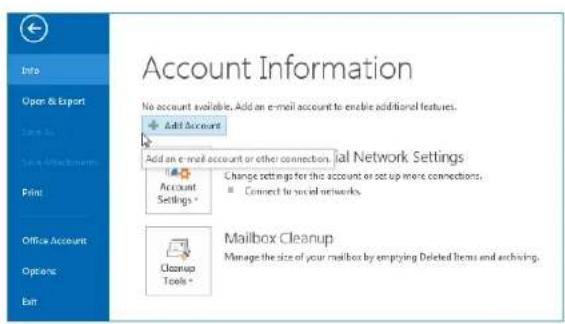
First things first: Add your account
Before you can send or receive messages, you have to connect your email account. If your company uses Microsoft Exchange, Outlook 2013 will attempt to set up your email account for you.
If you use Internet-based email (such as Hotmail, Gmail, or Yahoo!), enter your name, email address, and password to set up your account.
text_image
Account Information No account available. Add an e-mail account to enable additional features. Add Account Add an e-mail account or other connection. Mail Network Settings Change settings for this account or setup more connections. Connect to social networks. Mailbox Cleanup Manage the size of your mailbox by emptying Deleted Items and archiving.Change the Office Theme
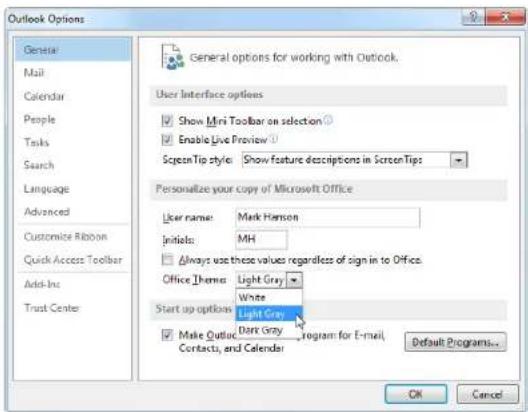
We've redesigned Office 2013 to provide a clean, uncluttered experience — like a blank piece of paper. If you want to see the different areas of Outlook more distinctly, you can change the Office Theme.
Use your File > Office Account settings to change the Office 2013 color scheme for all of your computers, or use the Outlook Options to change the color scheme on just this computer. You can choose from White, Light Gray, or Dark Gray.
text_image
Outlook Options General Mail Calendar People Tasks Search Language Advanced Customize Ribbon Quick Access Toolbar Add-Ins Trust Center General options for working with Outlook. User Interface options Show Mini Toolbar on selection Enable Live Preview SpectenTip style: Show feature descriptions in ScreenTips Personalize your copy of Microsoft Office User name: Mark Hanson Initials: MH Always use these values regardless of sign in to Office. Office Theme: Light Gray White Start up options: Light Gray Make Outlook Dark Gray Program for E-mail, Contacts, and Calendar Default Programs... OK CancelOutlook 2013

Things you might be looking for
Use the list below to find some of the more common tools and commands in Outlook 2013.
| To... Click... And then look in the... | ||
| Apply stationery or backgrounds to a message | File | Click File > Options > Mail > Stationery and Fonts. On the Personal Stationery tab, click Theme. |
| Send automatic replies when you're out of the office | File | Under Account Information, click Automatic Replies > Send automatic replies, and then choose your options (this feature requires a Microsoft Exchange Server account). |
| Insert a picture or clip art | Insert | From a new mail message, click Illustrations, and then click one of the following: Pictures, Online Picture, Shapes, Smart Art, Chart, or Screenshot. |
| Manage email messages by assigning rules | Home | In Mail view, click Move > Rules. |
| Insert a symbol or special character | Insert | From a new mail message, click Symbols > Symbol. |
| Add holidays to your calendar | File | Click Options > Calendar. Under Calendar options, click Add Holidays. |
| Share a calendar | Home | From the Calendar view, in the Share group, click E-mail Calendar > Share Calendar (this feature requires a Microsoft Exchange Server account), or Publish Online. |
Outlook 2013

Office
Mail isn't the half of it
Communication is important, but your time is important, too. Outlook 2013 has updated how you manage your time, your people, and your tasks.

text_image
Schedule a Lync Meeting Meet face-to-face or save yourself a trip by meeting online with Lync 2013. Plan for the weather Glance at the forecast for your city and up to four others. When you plan an out-of-town meeting, you'll know what to pack. View other people's calendars Quickly see the best times to schedule a meeting with others. Mail Calendar People Tasks ... Mail: Calendar People Tasks ...Outlook 2013

Create an email signature
To create a new email signature, do the following:
- Click File > Options > Mail. Under Compose messages, click Signatures.
- In the E-mail Signature tab, click New, and then type a name for the signature.
- In the Edit signature box, type the text that you want to include in the signature, then use the built-in tools to format it.

text_image
Signatures and Stationery E-mail Signature: Personal Stationery Select signature to edit email internal reply Choose default signature E-mail account: email@cvntfbox.com New messages: internal Reply: forwards: reply. Delete New Save Dename Edit signature Alabama 11 B J U Automatic Add a business card Anne Weiler Contoco, Ltd. anne@cvntfbox.com (273) 555-0151 Add a picture Add a hyperlink OK CancelIf you've already created a signature, you can copy it from one of your sent messages and then paste it here.
Automatically add a signature to messages
To automatically add a signature to new email messages, do the following:
- From any view, click File > Options > Mail. Under Compose messages, click Signatures.
- Under Choose default signature, choose the signature to add to New Messages. If you want, choose a different signature for Replies/forwards.
- To manually add a signature to a new message, from a new message, on the Message tab, in the Include group, click Signature, and then click the signature that you want.
