Publisher 2013 - Software MICROSOFT - Free user manual and instructions
Find the device manual for free Publisher 2013 MICROSOFT in PDF.


User questions about Publisher 2013 MICROSOFT
0 question about this device. Answer the ones you know or ask your own.
Ask a new question about this device
Download the instructions for your Software in PDF format for free! Find your manual Publisher 2013 - MICROSOFT and take your electronic device back in hand. On this page are published all the documents necessary for the use of your device. Publisher 2013 by MICROSOFT.
USER MANUAL Publisher 2013 MICROSOFT
Microsoft Publisher 2013 looks different from previous versions, so we created this guide to help you minimize the learning curve.
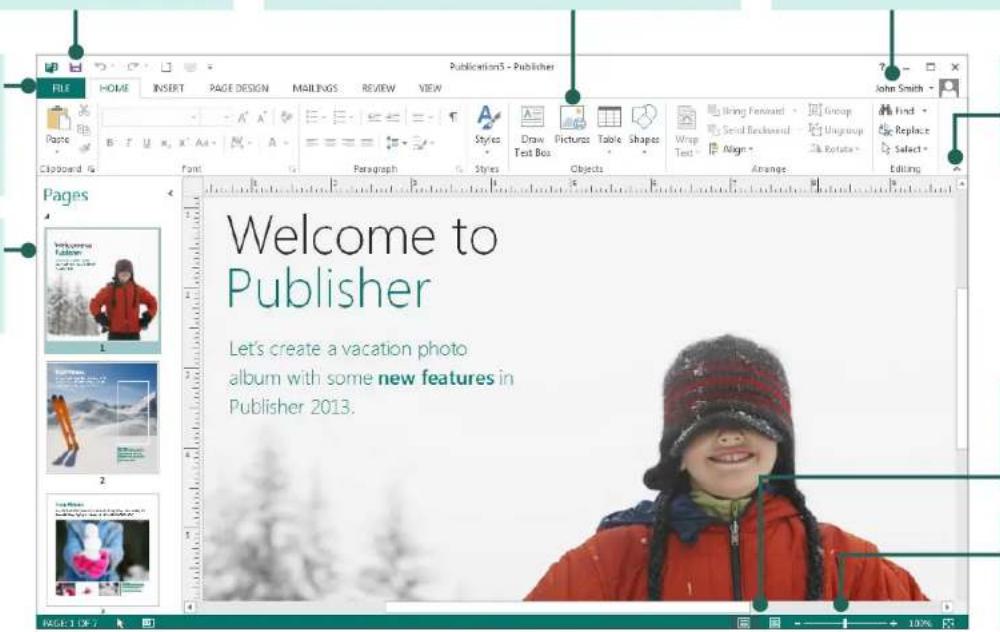
Quick Access Toolbar
Add your favorite commands to the Quick Access Toolbar, so they're always available whenever you need them.
Add pictures
Add one or more pictures to your publication from your computer, from the Office.com clip art gallery, or from the Web.
View or switch between online accounts
If you're working in the cloud, click File > Account to change your settings, or to switch accounts.
Manage files
Click File to create, open, save, print, and share files, as well as edit your business information and to choose other options.
Navigation pane
Use the Navigation Pane to move around your publication and to add and delete pages.
text_image
Welcome to Publisher Let's create a vacation photo album with some new features in Publisher 2013.Show or hide the ribbon
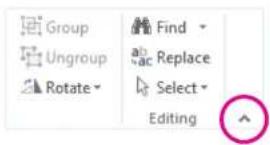
Click this arrow to hide the ribbon. To show the ribbon, click a tab and then click the pin icon.
View
Switch between single and double page spreads with a click.
Zoom
Use this slider bar to quickly zoom in and out on your publication pages.
Microsoft
Publisher 2013

Office
Use the ribbon
A wide band called the ribbon spans the top of the publication window. Each tab on the ribbon has different buttons and commands organized into groups.
When you open a publication in Publisher 2013, the Home tab displays the most frequently used Publisher tasks and commands.

text_image
FILE HOME INSERT PAGE DESIGN MAILINGS REVIEW VIEW Cut Copy Format Painter Calibri 10 A" B I U x₁ x₂ Aa AV A Font ParagraphHide or display the ribbon
You can give yourself more room on the screen by hiding the ribbon. Click the small arrow to the far right of the ribbon. To display the ribbon again later, click a tab title, and then click the pin icon that appears in place of the arrow.
text_image
Group Ungroup Rotate Find Replace Select EditingStart with a template
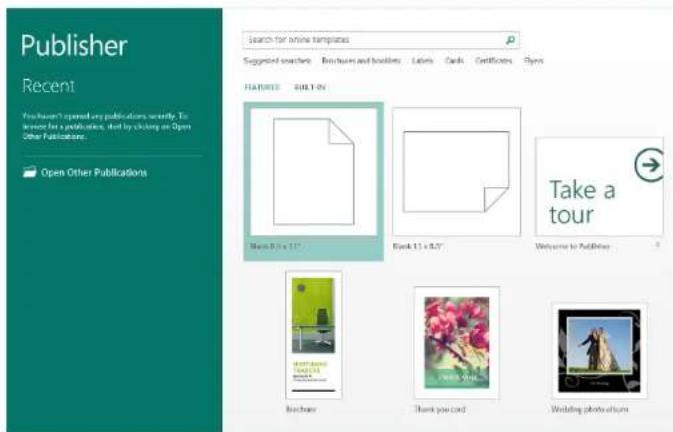
Every publication can begin from the new visual templates gallery. Choose from a blank publication or from one of the appealing new publication templates.
text_image
Publisher Recent You haven't opened any publications, we'll see to cover for a publication, click by clicking on Open Other Publications. Open Other Publications Search for online templates Suggested covers Brochures and Booklets Labels Cards Certificates Copies FEATURES BUILD IN Book 8 x 11" Book 13 x 8.7" Take a tour Welcome to Publishing Bucharest Thank you card Wedding photo albumWhile working in Publisher 2013, you can display the templates gallery again at any time by clicking File > New.
Publisher 2013

Office
Things you might be looking for
Use the list below to find some of the more common tools and commands in Publisher 2013.
| To... Click... And then look in the... | ||
| Open, create, save, share, export, or print | File | Backstage view (click the commands in the left pane). |
| Format painter, fonts and font formatting, paragraph formatting, alignment | Home Clipboard, Font, Paragraph, and Arrange groups. | |
| Insert text boxes, pictures, tables, shapes | Insert | Tables, Illustrations, and Text groups. |
| Change templates, margins, orientation, or page size; set up layout guides; apply schemes; find a Master Page | Page Design Template, Page Setup, Layout, Schemes, and Page Background groups. | |
| Mail and email merge | Mailings | Start, Write & Insert Fields, Preview Results, and Finish groups. |
| Check spelling, do online research, translate text, set language | Review | Proofing and Language groups. |
| Normal/Master Page view, layout view; show guides, rulers, graphics manager | View | Views, Layout, and Show groups. |
Publisher 2013

Office
Add pictures
Publisher 2013 lets you easily insert pictures from anywhere — whether they're on your computer, in the Office.com clip art gallery, or in another web location.

From a file
Browse files on your computer or local network

Office.com Clip Art
Royalty-free photos and illustrations

Bing Image Search
Search the web
When you insert several pictures at one time, Publisher 2013 puts them in a column in the scratch area. From the scratch area you can drag a picture onto the publication page and drag it off again, or swap the picture for another if you don't like the way it looks.

natural_image
Modern interior with wooden flooring, chairs, and wall-mounted screens; inset photos show people in various settings (no text or symbols)Swap pictures
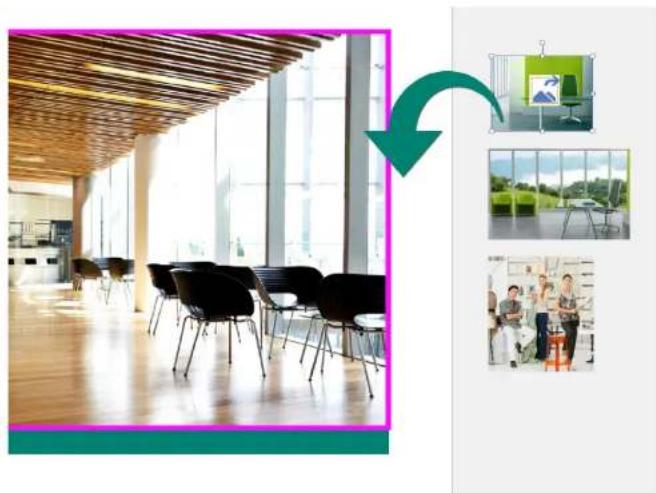
You can easily swap one picture in your layout with another, no matter if they're both on the same page or one is in the scratch area.
Select the first picture and then drag the mountain icon that appears to the second picture. When you see the pink highlighted border around the picture, release the mouse button.
natural_image
Modern office interior with large windows and black chairs, connected by a green arrow to three inset photos (no visible text or symbols)Publisher 2013

Add picture effects
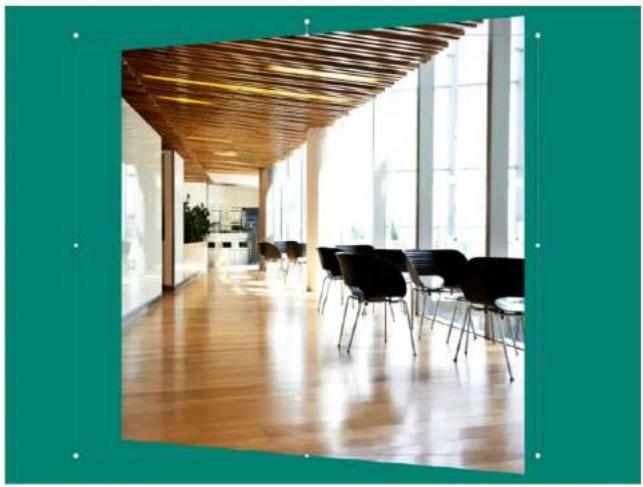
Publisher 2013 offers several new picture effects. You can apply shadows, glows, soft edges, reflections, bevels, and 3-D rotations to your pictures.
To apply the effect you want, select the picture and then click Picture Effects on the Picture Tools – Format tab.
natural_image
Interior view of a modern office hallway with wooden ceiling, large windows, and rows of black chairs (no visible text or signage)Add text effects
The new text effects in Publisher let you add visual appeal to your publications. Choose from shadows, glows, reflections, and bevels.
To apply the effect you want, select the text, and then click Text Effects on the Text Box Tools – Format tab.

text_image
TITLELorem Ipsum
Use pictures as page backgrounds
Your pictures can make stunning publication backgrounds. Right-click a picture, choose Apply to Background, and then either choose Fill so the picture fills the entire page, or choose Tile to add multiple copies of the picture to the background.

text_image
Change Picture Apply to Background Photo CaptionPhoto center printing
Online photo printing has never been as convenient as with the built-in Pack and Go options in Publisher 2013.
You can now save your publications specifically for photo printing. Each page of your publication is exported as a JPEG picture, which you can then upload to a photo center web site for printing.
