PowerPoint 2013 - Software MICROSOFT - Free user manual and instructions
Find the device manual for free PowerPoint 2013 MICROSOFT in PDF.


User questions about PowerPoint 2013 MICROSOFT
0 question about this device. Answer the ones you know or ask your own.
Ask a new question about this device
Download the instructions for your Software in PDF format for free! Find your manual PowerPoint 2013 - MICROSOFT and take your electronic device back in hand. On this page are published all the documents necessary for the use of your device. PowerPoint 2013 by MICROSOFT.
USER MANUAL PowerPoint 2013 MICROSOFT
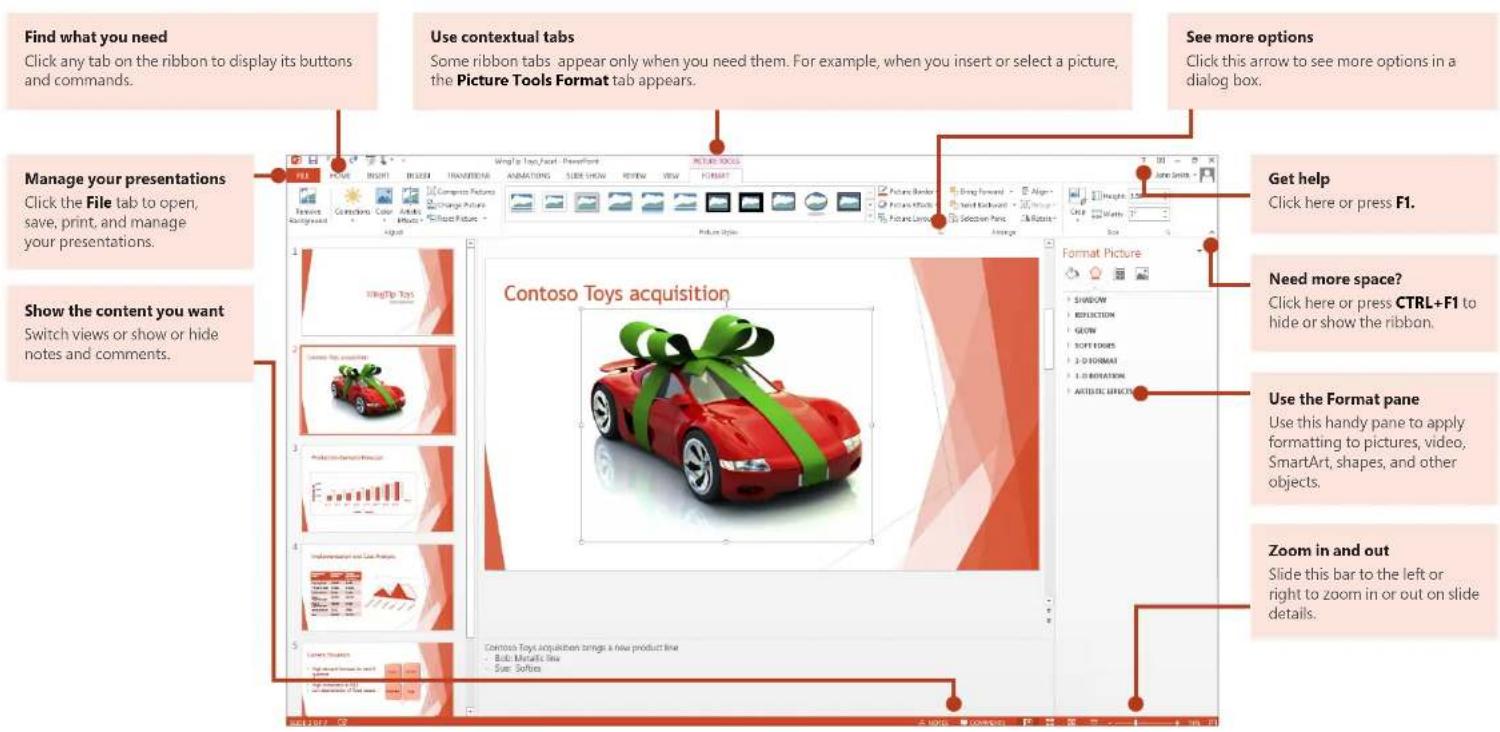
Microsoft PowerPoint 2013 looks different from previous versions, so we created this guide to help you minimize the learning curve.
text_image
Find what you need Click any tab on the ribbon to display its buttons and commands. Use contextual tabs Some ribbon tabs appear only when you need them. For example, when you insert or select a picture, the Picture Tools Format tab appears. See more options Click this arrow to see more options in a dialog box. Manage your presentations Click the File tab to open, save, print, and manage your presentations. Show the content you want Switch views or show or hide notes and comments. Contoso Toys acquisition Get help Click here or press F1. Need more space? Click here or press CTRL+F1 to hide or show the ribbon. Use the Format pane Use this handy pane to apply formatting to pictures, video, SmartArt, shapes, and other objects. Zoom in and out Slide this bar to the left or right to zoom in or out on slide details. Contoso Toys acquisition strings a new product line - Both Metallic Slew - Sue: SoftlinesMicrosoft
PowerPoint 2013

Office
Quick Start Guide
When you first open PowerPoint 2013, you'll see that you have several choices for getting started — using a template, a theme, a recent file, or a blank presentation.

text_image
Search for online templates and themes Type keywords into the search box to find templates and themes online at Office.com. Open a recent presentation It provides easy access to your most recently opened presentations. Find other files Browse to find presentations and other files stored on your computer or in the cloud. Start from scratch To start a new, presentation, click Blank Presentation. Use a featured theme Choose a built-in theme to start your next presentation. These work well for both widescreen (16:9) and standard screen (4:3) presentations. Choose a template category Click the template categories below the search box to find some of the most popular PowerPoint templates. Sign in to Office Sign into your account and access the files you've saved to the cloud from anywhere. Theme variations When you choose a theme, PowerPoint offers you variations with different color palettes and font families.PowerPoint 2013

Office
How to get help with PowerPoint 2013
If you've been using earlier versions of PowerPoint, you'll probably have questions about where to find certain commands in PowerPoint 2013.
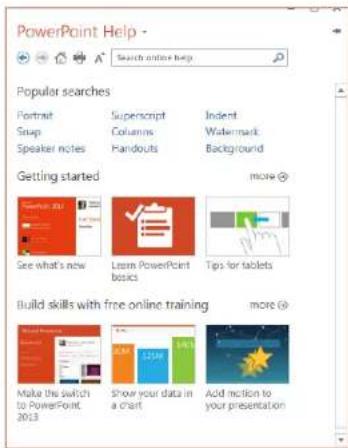
There are many free resources available to help you learn PowerPoint 2013, including training courses, Getting Started help topics and videos, and basic tasks. To find these materials, click the PowerPoint Help button (the question mark) in the upper right corner of the PowerPoint window.
text_image
PowerPoint Help Search online help Popular searches Portrait Superscript Indent Snap Columns Watermark Speaker notes Handouts Background Getting started more > See what's now Learn PowerPoint Basics Tips for tablets Build skills with free online training more > Make the switch to PowerPoint, 2013 Show your data in a chart Add motion to your presentationCreate custom ribbon tabs and groups
You can create custom tabs or groups on the ribbon and add buttons with the commands you want. Right-click any ribbon tab or group, and then click Customize the Ribbon.

text_image
WingTip Toys_Facet - PowerPoint Customize Quick Access Toolbar... Show Quick Access Toolbar Below the Ribbon Customize the Ribbon... Collapse the RibbonNext, add commands from the PowerPoint Options box. For example, you could create a tab called Frequent, and then add some of your most frequently-used commands to a custom group on this tab.
If you make a mistake, you can use the Reset button to go back to the default ("factory") settings.
Some older PowerPoint commands don't appear on the ribbon, but they're still available. In the PowerPoint Options dialog box, click Customize Ribbon, and then, in the Choose commands from list, select Commands Not in the Ribbon. Now find the commands you want and add them to a custom ribbon tab or group.
PowerPoint 2013

Things you might be looking for
Use the list below to find some of the more common tools and commands in PowerPoint 2013.
| To... Click... And then look in the... | ||
| Open, save, print, share, send, export, convert, or protect files | File | Backstage view (click the commands in the left pane). |
| Add slides, apply a layout, change fonts, align text, or apply Quick Styles | Home | Slides, Font, Paragraph, Drawing, and Editing groups. |
| Insert tables, pictures, shapes, SmartArt, WordArt, charts, comments, Header and footer, video, or audio | Insert | Tables, Images, Illustrations, Comments, Text, and Media groups. |
| Apply a theme, change the color of a theme, change the slide size, change the background of a slide, or add a watermark | Design Themes | Variants, or Customize groups. |
| Apply or adjust the timing of a transition | Transitions | Transition and Timing groups. |
| Apply or adjust the timing of an animation | Animations | Animation, Advanced Animation, and Timing groups. |
| Start a slide show, set up a slide show, specify monitors for use with Presenter view | Slide Show | Start Slide Show, Set Up, and Monitors groups. |
| Check spelling, enter and review comments, or compare presentations | Review | Proofing, Comments, and Compare groups. |
| Change views, edit a master view, show grids, guides, and rulers, zoom in, switch between PowerPoint windows, and use macros | View | Presentation Views, Master Views, Show, Zoom, Window, and Macros groups. |
PowerPoint 2013

Office
Access frequently-used commands
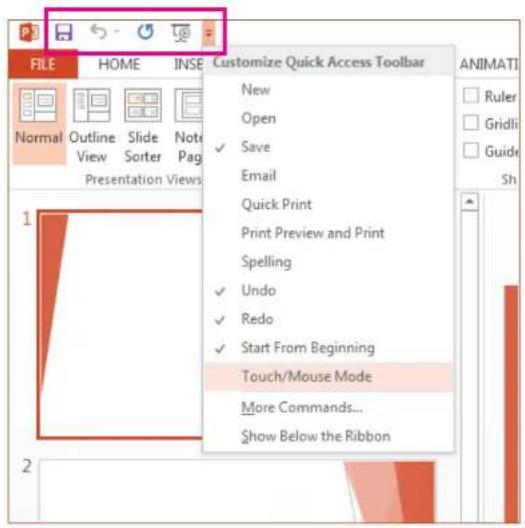
The Quick Access Toolbar, in the upper-left corner of the PowerPoint window, is a great place to add shortcut buttons to the commands you'll use most often.
Click the drop-down arrow next to the Quick Access Toolbar to add or remove the commands listed on the shortcut menu.
text_image
Customize Quick Access Toolbar New Open Save Email Quick Print Print Preview and Print Spelling Undo Redo Start From Beginning Touch/Mouse Mode More Commands... Show Below the RibbonIf the command you want to add isn't shown in the list, switch to the ribbon tab where the button resides, and then right-click it there. On the shortcut menu, click Add to Quick Access Toolbar.
Intuitive tools at your fingertips

text_image
VIDEO TOOLS FORMAT PLAYBACK Cut Copy Paste Options: Exit Edit Text A Font... Paragraph... Bullets Numbering Convert to SmartArt Hyperlink... Synonyms Translate Format Text Effects... Format Shape...Note that some ribbon tabs appear and disappear, depending on what you're doing.
For example, when you insert or select a video, the Video Tools: Playback and Format tabs automatically appear. They appear so you can apply formatting or set playback options for the video. These types of contextual tabs appear any time you insert or select a picture, chart, table, WordArt, or any other object.
When you're working on a slide and you right-click the slide background, the right-click menu appears, which is loaded with task options.
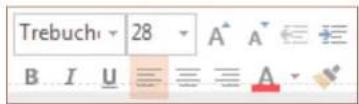
Similarly, the mini toolbar automatically appears whenever you want to perform quick text-related tasks, such as indenting a bullet or applying bold to your text.
PowerPoint 2013

Office
Changes to themes
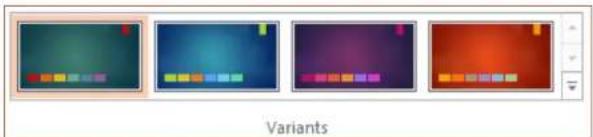
When you apply a built-in theme and you want to change the colors and fonts, you can now choose from designer-selected theme variants from the start screen or on the Design tab.
natural_image
Four pixelated UI panels showing color swatches and a title bar labeled 'Variants' (no readable text or symbols in the panels)If you don't see a combination that works for you, you can always customize the theme colors, fonts, and effects in Slide Master View.
Click View > Slide Master and you'll see the Colors, Fonts, and Effects options in the Background group.

text_image
ANIMATIONS REVIEW VIEW Colors Background Styles Fonts Hide Background Graphics Effects Styles Close Master View Edit Theme Office Office 20... Subtle Go... Banded E... Smokey G... Glow Edge Grunge T... Frosted G... Top Shad... Inset Milk Glass Ribtet Reflection Extreme S... GlossyNew default slide size
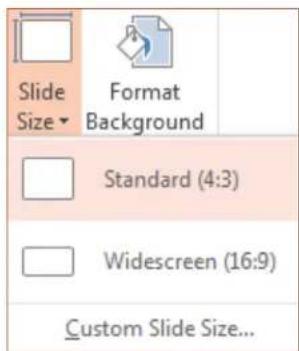
Much of the world's TVs and video have gone to widescreen and HD formats, and so has PowerPoint. In previous versions, the slide ratio was 4:3. In PowerPoint 2013, 16:9 is the new default, but you can change this on the Design tab.
If you work with slides in older versions of PowerPoint, or are presenting on older monitors or projectors, you'll want to change the slide ratio back to 4:3. To do so, click Design > Slide Size and then choose 4:3 — or you can set your own custom size.
text_image
Slide Size▼ Format Background Standard (4:3) Widescreen (16:9) Custom Slide Size...PowerPoint 2013

Office
Presenter View setup is automatic
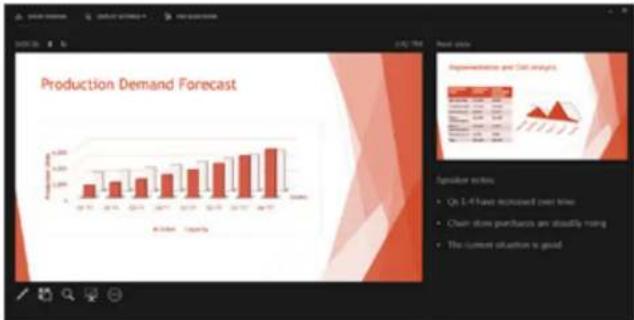
If you used Presenter View in previous versions of PowerPoint, you might have had difficulties setting it up. PowerPoint 2013 fixes that headache and makes it simpler to use.
All you do is connect a projector and monitor and PowerPoint applies the right settings for you automatically. However, you can also take control manually (switching between the monitor and projector) if you need to.
Note that Presenter View no longer requires multiple monitors. Now you can rehearse and use all the tools in Presenter View from a single monitor without hooking up anything else.
bar
Production Demand Forecast | Category | Production Demand (units) | |---|---| | 1 | 120 | | 2 | 130 | | 3 | 140 | | 4 | 150 | | 5 | 160 | | 6 | 170 | | 7 | 180 | | 8 | 190 | | 9 | 200 | The current situation is good.PowerPoint on touch devices
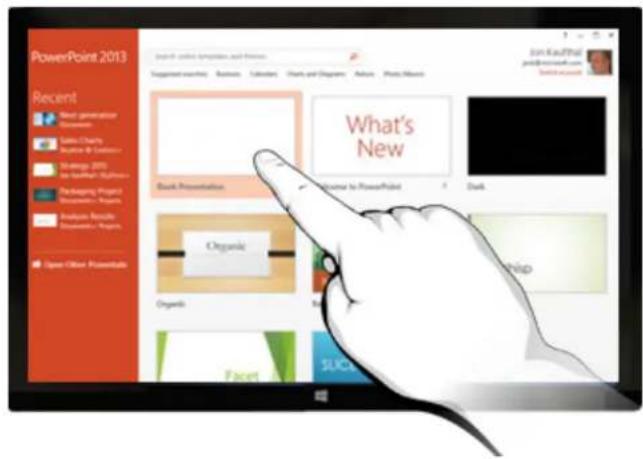
You can now interact with PowerPoint 2013 on touch devices running Windows 8. Using typical touch gestures, you can swipe, tap, scroll, zoom, and pan your way through your presentations.
text_image
PowerPoint 2013 Recent Most generation Document Sales Charts Balance & Balance Design, 2015 In Design, Project Packaging Project Documentation, Project Audience Results Documentation, Project Open Office Presentals Back Presentation What's New Back Organic Organic SUCF John Kaujthal public in our own Suzhou UniversityPowerPoint 2013

Office
Save your presentations to the cloud
The "cloud" is like file storage in the sky. You can get to it anytime you're online. If you travel or move from one place to another on a regular basis and you need access to your files, consider storing your files in the cloud.
SkyDrive is a free online cloud service where you can securely access and share files with others. All you need is a free Microsoft account or Windows Live ID to sign in to SkyDrive.

flowchart
graph LR
    A["Implementation and Cost Analysis"] --> B["P"]
    A --> C["Presentation & Data"]
    A --> D["Smartphone"]
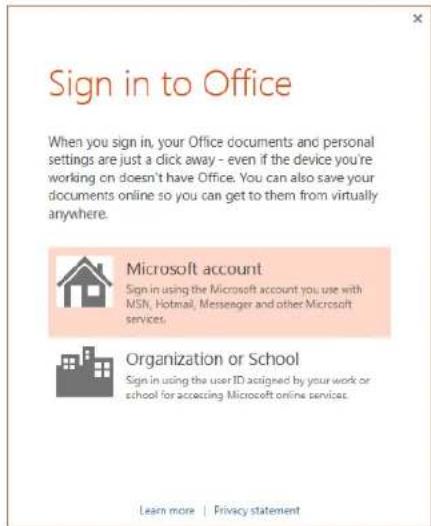
Sign in to Office
To get started saving, sharing, and storing your files to the cloud, sign in to Microsoft Office.
In PowerPoint, or any Office application, look for your name at the top right corner of the ribbon. After you sign in, you can switch accounts and change your profile.
text_image
Sign in to Office When you sign in, your Office documents and personal settings are just a dick away - even if the device you're working on doesn't have Office. You can also save your documents online so you can get to them from virtually anywhere. Microsoft account Sign in using the Microsoft account you use with MSN, Hotmail, Messenger and other Microsoft services. Organization or School Sign in using the user ID assigned by your work or school for accessing Microsoft online services. Learn more | Privacy statementPowerPoint 2013

How to work with people who don't have PowerPoint 2013
Here are some of the things to keep in mind when sharing or exchanging files with people who are using an older version of PowerPoint.
| In PowerPoint 2013... What happens? What should I do? | ||
| You open a presentation that was created in PowerPoint 2007 or earlier. | In PowerPoint 2013 you'll see the words [Compatibility Mode] on the title bar. This tells you that the presentation is currently saved in the older file format, which doesn't recognize newer features like embedded video, new transition effects, sections, and more.If you want to use all of the available PowerPoint 2013 features, you'll need to change the presentation to the newest file format. | You can continue working in Compatibility Mode. However, if no one you share the presentation with is using PowerPoint 2007 or earlier, it's best to change the file to the newest format.To change the file, click File > Info > Convert. |
| You save your presentation as a PowerPoint 2013. | If a colleague opens your PowerPoint 2013 presentation in PowerPoint 2007 or earlier, a prompt appears with a link to download the free Compatibility Pack. They'll need the Compatibility Pack to open and work with presentations in the new format. If you've included new PowerPoint 2013 features or formatting in your presentation, your colleague (using PowerPoint 2007 or earlier) will see warnings about unsupported features. | Before sharing your PowerPoint 2013 presentation with colleagues who use earlier versions of PowerPoint, run the Compatibility Checker tool. To check for compatibility, in PowerPoint 2013, click File > Info > Check for Issues > Check Compatibility.The tool tells you which new features in PowerPoint 2013 aren't supported in older versions. You can then decide whether to remove these features to avoid warnings in earlier versions of PowerPoint. |
| You save your presentation as a PowerPoint 2007 or earlier file. | If a colleague opens the presentation in PowerPoint 2007 or earlier, the file will open normally — no Compatibility Pack is required.If you've included new PowerPoint 2013 features or formatting in your presentation, your colleague will see warnings about unsupported features, the formatting or feature may not appear in the file, or the objects may not be editable. | You don't have to do anything, necessarily.When you save your file in the older PowerPoint file format, the Compatibility Checker will run automatically and warn you about any unsupported features. |