Word 2013 - Software MICROSOFT - Free user manual and instructions
Find the device manual for free Word 2013 MICROSOFT in PDF.


User questions about Word 2013 MICROSOFT
0 question about this device. Answer the ones you know or ask your own.
Ask a new question about this device
Download the instructions for your Software in PDF format for free! Find your manual Word 2013 - MICROSOFT and take your electronic device back in hand. On this page are published all the documents necessary for the use of your device. Word 2013 by MICROSOFT.
USER MANUAL Word 2013 MICROSOFT
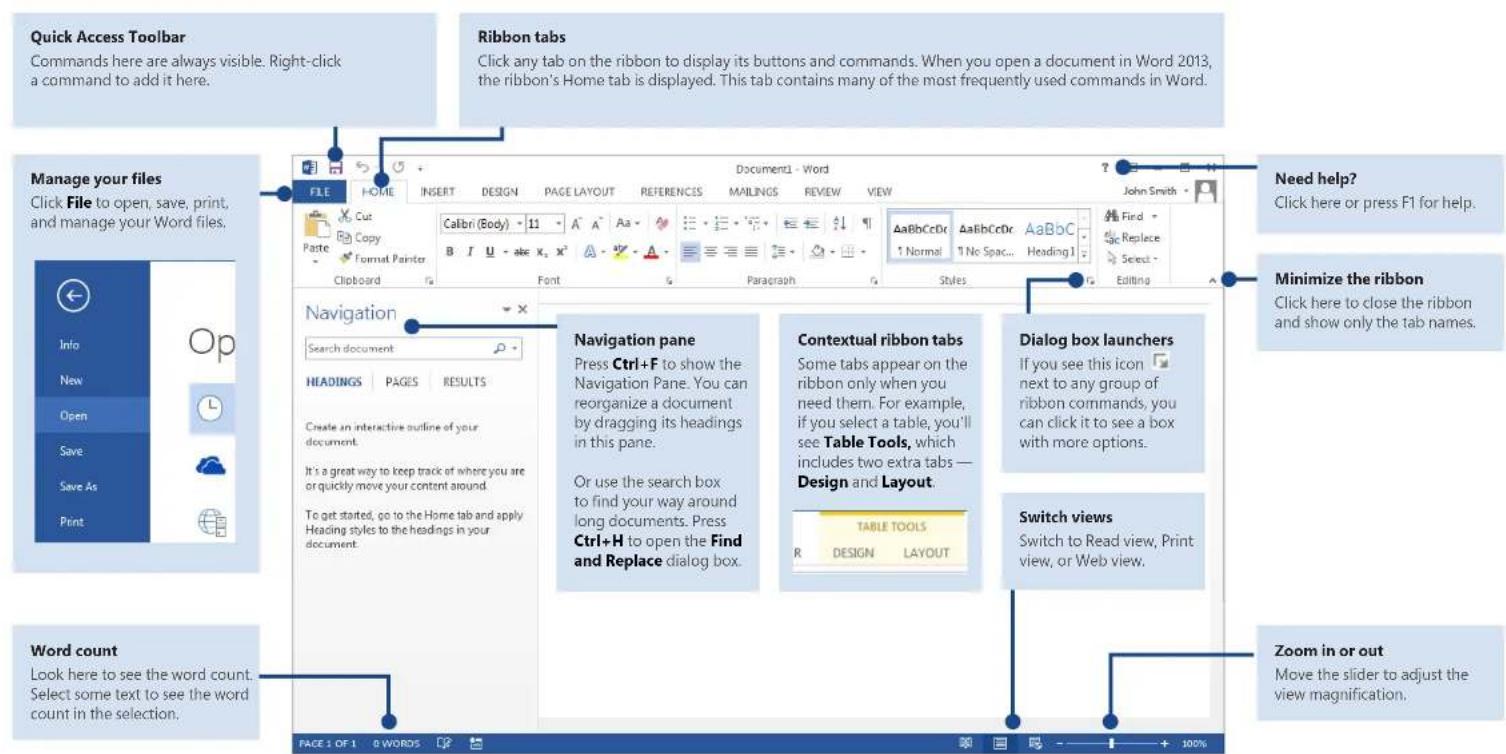
Microsoft Word 2013 looks different from previous versions, so we created this guide to help you minimize the learning curve.
text_image
Quick Access Toolbar Commands here are always visible. Right-click a command to add it here. Ribbon tabs Click any tab on the ribbon to display its buttons and commands. When you open a document in Word 2013, the ribbon's Home tab is displayed. This tab contains many of the most frequently used commands in Word. Manage your files Click File to open, save, print, and manage your Word files. Navigation Search document HEADINGS PAGES RESULTS Create an interactive outline of your document. It's a great way to keep track of where you are or quickly move your content around. To get started, go to the Home tab and apply Heading styles to the headings in your document. Navigation pane Press Ctrl+F to show the Navigation Pane. You can reorganize a document by dragging its headings in this pane. Or use the search box to find your way around long documents. Press Ctrl+H to open the Find and Replace dialog box. Contextual ribbon tabs Some tabs appear on the ribbon only when you need them. For example, if you select a table, you'll see Table Tools, which includes two extra tabs — Design and Layout. Dialog box launchers If you see this icon next to any group of ribbon commands, you can click it to see a box with more options. Switch views Switch to Read view, Print view, or Web view. Zoom in or out Move the slider to adjust the view magnification. Word count Look here to see the word count. Select some text to see the word count in the selection. PAGE 1 OF 1 0 WORDS + 100%Microsoft
Word 2013

Office
Quick Start Guide
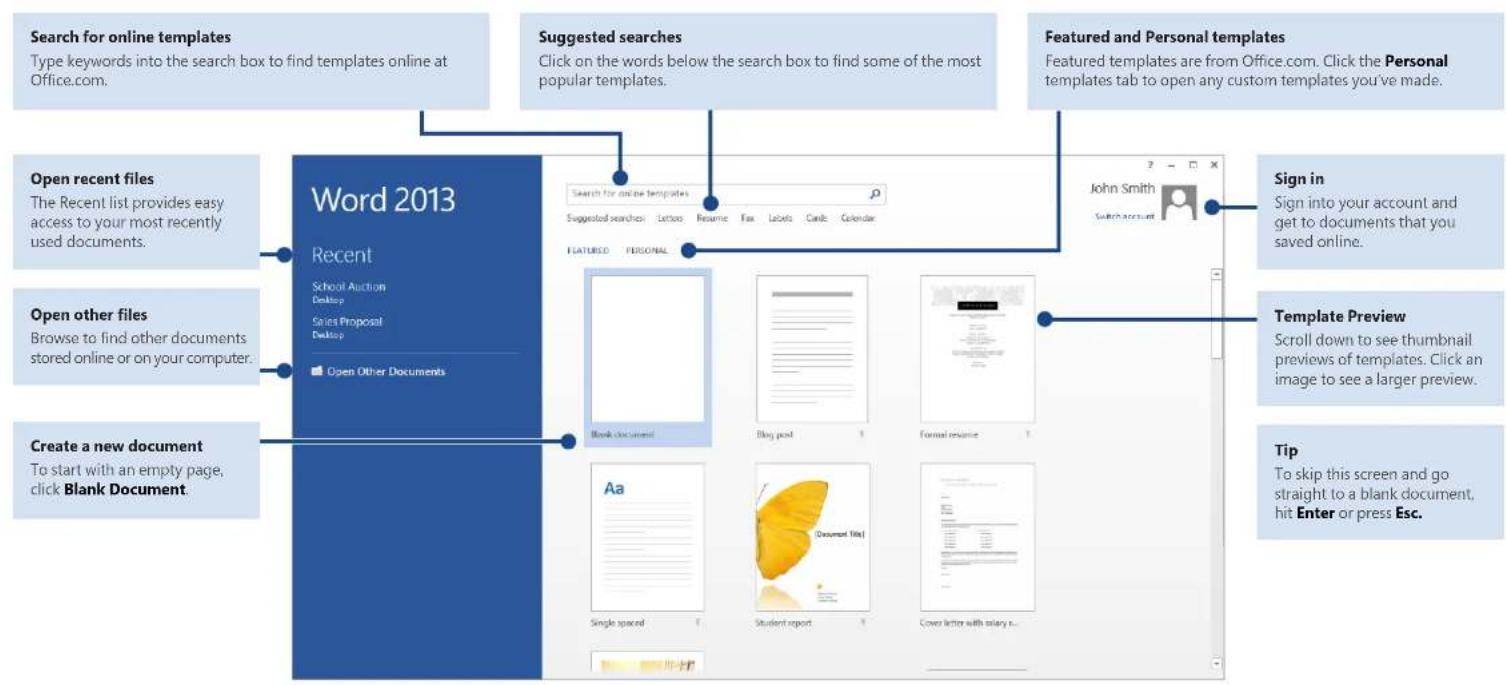
When you first open Word 2013, you'll see that you have several choices for getting started — using a template, a recent file, or a blank document.
text_image
Search for online templates Type keywords into the search box to find templates online at Office.com. Suggested searches Click on the words below the search box to find some of the most popular templates. Featured and Personal templates Featured templates are from Office.com. Click the Personal templates tab to open any custom templates you've made. Open recent files The Recent list provides easy access to your most recently used documents. Open other files Browse to find other documents stored online or on your computer. Create a new document To start with an empty page, click Blank Document. Word 2013 Recent School Auction Desktop Sales Proposal Desktop Open Other Documents Search for online templates Suggested searches Letters Resume Fax Labels Cards Calendar John Smith Shared account Sign in Sign into your account and get to documents that you saved online. Template Preview Scroll down to see thumbnail previews of templates. Click an image to see a larger preview. Aa Single spaced Student report Cover letter with salary n... Printed Printed Printed Printed Printed Printed Printed Printed Printed Printed Printed Printed Printed Printed Printed Printed Printed Printed Printed Printed Printed Printed Printed Printed Printed Printed Printed Printed Printed Printed Printed Printed Printed Printed Pil To skip this screen and go straight to a blank document, hit Enter or press Esc.Microsoft
Word 2013

Office
What's new on the ribbon
The new Design tab in Word 2013 makes it easier to use themes, styles, and other formatting features and to understand how they relate to one another.

text_image
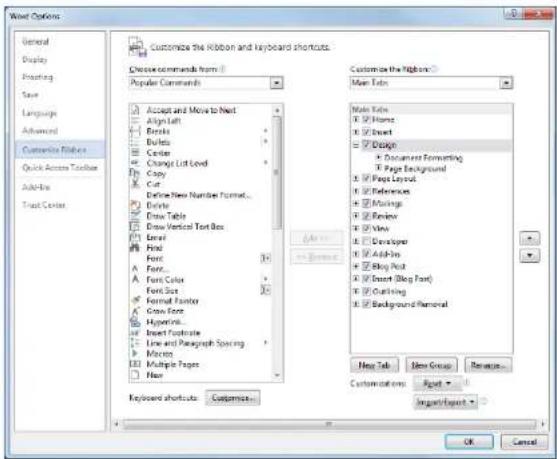
Document - Word FILE HOME INSERT DESIGN PAGE LAYOUT REFERENCES MAILINGS REVIEW VIEW Theme Title TITLE TITLE TITLE TITLE Color Fonts Paragraph Spacing * Effects * Set as Default Document FormattingYou can easily customize the ribbon to suit your needs by creating new tabs and filling them with the commands you use the most. To begin customizing ribbon commands, click File > Options > Customize Ribbon.
text_image
Word Options General Display Printing Save Language Advanced Customize Ribbon Quick Access Toolbar Add-Ex Trust Center Choose commands from (I) Popular Commands Accept and Move to Next Align Left Breaks Bulets Center Change List Level Copy Cut Define New Number Format... Enter Draw Table Draw Vertical Text Box End Find Font... Font Color Font Size Formal Fonter Grow Font Hyperlink Insert Fontrate Line and Paragraph Spacing Macros Multiple Pages... New Keyboard shortcuts Customize... Customize the Ribbon? Main Tabs Main Tabs X: Home Y: Sheet Z: Design + Document Formatting + Page Background X: Page Layout X: References X: Attachings X: Review X: View X: Developer X: Add-Go X: Blog Post X: Insert (Blog Font) X: Clustering X: Background Removal New Tab New Group Remove... Customizations: Reset > Import/Export * OK CancelSign in to Office
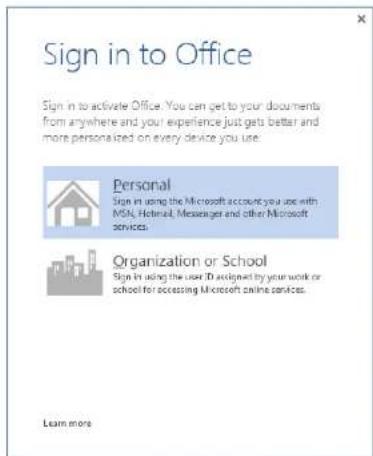
Work whenever and wherever you want. By signing in to Microsoft Office, you can safely get to your Office files from anywhere.
text_image
Sign in to Office Sign in to activate Office. You can get to your documents from anywhere and your experience just gets better and more personalized on every device you use. Personal Sign in using the Microsoft account you use with MSN, Hotels, Messaging and other Microsoft services. Organization or School Sign in using the user ID assigned by your work or school for accessing Microsoft online services. Learn moreLook for your name at the top right corner of the ribbon. After you sign in, you can update your profile or switch accounts from here.
text_image
Documents - Word X: 01 Y: 01 字体 AaBbCcN AaBbCcX AaBbCcY AaBbCcZ AaBbCcX AaBbCcZ Normal Normal Spec... Heading 1 Heading 2 Title Subtitle Font: 50 Width: 12 Size: 0 Color:Word 2013
Things you might be looking for
Use the list below to find some of the more common tools and commands in Word 2013.
| To... Click... And then look in the... | ||
| Open, save, print, preview, protect, send, convert files or connect to locations to save your documents to the cloud | File Backstage view (click the links on the left side in this view). | |
| Change line spacing, apply formatting and styles to text | Home | Font, Paragraph, and Styles groups. |
| Insert blank pages, tables, pictures, hyperlinks, headers and footers, or page numbers | Insert | Pages, Tables, Illustrations, Links, and Header & Footer groups. |
| Quickly change the look of your document, change the page background color, add a border to the page, or add a watermark | Design Document Formatting and Page Background groups. | |
| Set margins, add page breaks, create newsletter-style columns, change spacing between paragraphs, or rotate a page to landscape | Page Layout Page Setup group. | |
| Create a table of contents, or insert footnotes and endnotes | References | Table of Contents and Footnotes groups. |
| Create envelopes or labels, or do a mail merge | Mailings | Create and Start Mail Merge groups. |
| Check spelling and grammar, get a word count, or track changes | Review | Proofing and Tracking groups. |
| Switch between document views, open the Navigation pane, or show the rulers | View | Views, Show, and Window groups. |
Word 2013
Office
Where is Print Preview?
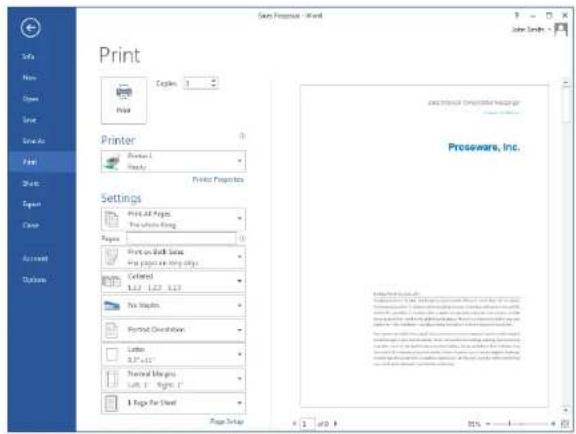
Click File > Print to see a print preview of the current document to the right of other useful print-related settings.
text_image
Print Copies Print Printer Printer 1 Ready Printer Properties Settings Print All Pages The website ring Pages Print on Web Sites Are popular web sites Colored L12 L22 L37 No. of Spikes Printed Destination Letter S.P. 151 Normal Margins Left - Right: 1 1 Page For Sheet Page Setup Proseware, Inc. Proseware, Inc.The right side of the window previews how the document will look when printed. Use the left side of the window to choose a printer or fine-tune settings — for example, to change from Portrait to Landscape, to change the paper size, or to print only the current page.
To set more print options, click the Page Setup link at the bottom of the left side of the window, below Settings.
Where do I choose options?
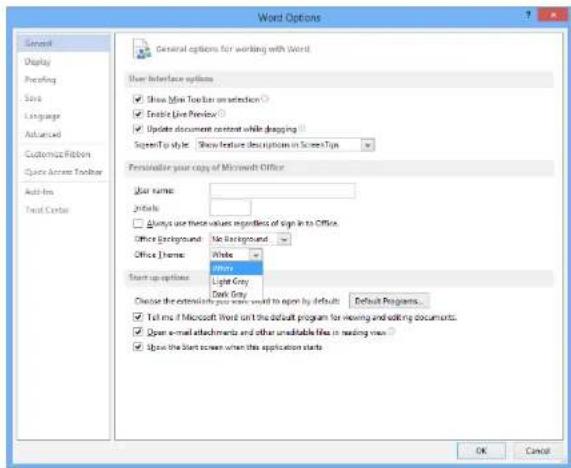
Click File > Options to open the Word Options dialog box. This is where you can customize Word settings and preferences.
text_image
Word Options General options for working with Word User Interface options Show User Toolbar on selection Enable Live Preview Update document content while dragging SpectUp Style Show feature descriptions in ScreenType Personalize your copy of Microsoft Office User name: Private Always use these values regardless of sign in to Office. Office Background: No Background Office Theme: White Other Start up options: Light Grey Dark Grey Choose the extension to you write until to upon by default Default Programs... Tell me if Microsoft Word isn't the default program for viewing and editing documents. Open e-mail attachments and other unavailable files in reading view Open the Start screen when the application starts OK CancelSome setting in the Word Options dialog box apply only to Word. But some preferences (for example, choosing Light Gray or Dark Gray for your Office Theme) will apply to all of your installed Office programs.
Word 2013
How to work with people who don't yet have Word 2013
Here are some of the things to keep in mind when sharing or exchanging files with people who are using an older version of Word.
| In Word 2013... What happens? What should I do? | ||
| You open a document that was created in an earlier version of Word. | In Word 2013, you'll see the words [Compatibility Mode] next to the file name on the title bar. Compatibility Mode makes sure that no new features in Word 2013 are available in the document, so that people using earlier versions of Word can work with it. | You can work in Compatibility Mode or you can convert your document to the new format. To convert the document, click File > Info > Convert. Converting your document lets you use the new features, but people using earlier versions of Word might have difficulty editing certain parts of the document. |
| You save your document as a Word 2013 file. | If someone opens the document in an earlier version of Word, they may not be able to change some items that were created using Word 2013 features.Word 2003 users will need the free Compatibility Pack. A prompt to download the pack appears when Word 2003 user opens the document. | If you need to share a Word 2013 document with someone using an earlier version of Word, run the Compatibility Checker tool to make sure the file will work for them.Click File > Info > Check for Issues > Check Compatibility.This tool tells you which new features in Word 2013 won't work in older versions. |
| You save your document as a Word 2003 file. | If you've used new Word features or formatting in your document, Word 2003 users may see warnings about unsupported features, or the formatting or feature may not appear in the file. | You don't have to do anything, necessarily. When you save your file in the older Word 2003 file format, the Compatibility Checker will run automatically and warn you about any unsupported features. Then you can choose to make any changes to your document. |