HTB-1026 - Blu-ray player Hiteker - Free user manual and instructions
Find the device manual for free HTB-1026 Hiteker in PDF.


User questions about HTB-1026 Hiteker
0 question about this device. Answer the ones you know or ask your own.
Ask a new question about this device
Download the instructions for your Blu-ray player in PDF format for free! Find your manual HTB-1026 - Hiteker and take your electronic device back in hand. On this page are published all the documents necessary for the use of your device. HTB-1026 by Hiteker.
USER MANUAL HTB-1026 Hiteker
text_image
Coaxial Coaxial cable Coaxial Digital AmplifierAnmerkungen:
text_image
Add all to Playlist Previous folder Play File ... Folder1 Folder2 ... File1 File2 ...text_image
Add all to Playlist Previous folder Play File ... Folder1 Folder2 ... File1 File2 ...text_image
Add all to Playlist Previous folder Play File ... Folder1 Folder2 ... File1 File2 ...text_image
Add all to Playlist Previous folder Play File ... Folder1 Folder2 ... File1 File2 ... Please select play mode Play All Play Current Folder Canceltext_image
Add all to Playlist Previous folder Play File ... Folder1 Folder2 ... File1 File2 ... Add to playlist Play(File)Please read this User Manual carefully to ensure proper use of this product and keep this manual for future reference.
Content
Important Safety Instructions 2
- Overview 3
- Front Panel and Rear Panel Illustration 4
- Output Illustration 7
- Remote Control 9
- System Setting 11
- Audio, Video, Picture files on disk or USB devices 15
- BD-Live Operation 20
- Trouble shooting 22
- Specifications 23
Important Safety Instructions
1) Read these instructions.
2) Keep these instructions.
3) Heed all warnings.
4) Follow all instructions.
5) Do not use this apparatus near water.
6) Clean only with dry cloth.
7) Do not block any ventilation openings, install in accordance with the instructions.
8) Do not install near any heat sources such as radiators, heat registers, stoves, or other apparatus (including amplifiers) that produce heat.
9) Do not defeat the safety purpose of the polarized plug. If the provided plug does not fit into your outlet, consult an electrician for replacement of the obsolete outlet.
10) Protect the power cord from being walked on or pinched particularly at plugs, convenience receptacles, and the point where they exit from the apparatus.
11) Only use attachments/accessories specified by the manufacturer.
12) Unplug this apparatus during lightening storms or when unused for long periods of time.
13) Refer all servicing to qualified service personnel. Servicing is required when the apparatus has been damaged in any way, such as power-supply cord or plug is damaged, liquid has been spilled or objects have fallen into the apparatus, the apparatus has been exposed to rain or moisture, does not operate normally, or has been dropped.
14) Mains plug is used as the disconnect device, the disconnect device shall remain readily operable.
15) The ventilation should not be impeded by covering the ventilation openings with items, such as newspapers, table-cloth, curtains, etc.
16) No naked flame sources, such as lighted candles, should be placed on the apparatus.
17) Attention should be drawn to the environmental aspects of battery disposal.
18) The use of apparatus in moderate climate.
19) Portable Cart Warning
A product and cart combination should be moved with care. Quick stop, excessive force, and uneven surface may cause the product and cart combination to overturn.

(Symbol provided by RETAC)
WARNING: To reduce the risk of fire or electric shock, do not expose this apparatus to rain or moisture.
WARNING: The batteries must not be exposed to excessive heat such as sunshine, fire or the like.

The symbol indicates that dangerous voltages constituting a risk of electric shock are present within this unit.

The symbol indicates that there are important operating and maintenance instructions in the literature accompanying this unit.

This symbol indicates that this product incorporates double insulation between hazardous main voltage and user accessible parts. When servicing use only identical replacement parts.
1. OVERVIEW
This BD player has the capability of providing high-definition, cinema-like pictures and multi-channel audio. Soundtracks in more than one language are usually included on the disk, and subtitles in more languages are often included as well.
1.1 PLAYABLE DISK TYPES
The following types of disks can play in the Blu-Ray Disc player:
| Blu-Ray Disks |  | DVD-RW |  |
| DVD Video Disks (DVD-ROM) |  | DVD-R |  |
| Audio CDs (CDDA) |  | DTS-CD | |
| VCD | MP3/WMA/JPEG Data CD |
NOTES:
For writeable DVD-RW/k\$VD-R)
- Only DVD-RW/-R recorded with UDF or ISO9660 format can be played back.
- The disks must be finalized, VR-mode.
- Playback may not work for some types of disks, or when specific operations, such as angle change and aspect ratio adjustment, are being performed. Information about the disks is written in detail on the box. Please refer to this if necessary.
- Some DVD-VR disks will be playable but not all features are available.
For writeable CD disks
- Only CD-R/-RW media recorded with UDF or ISO9660 format can be played, and they must be finalized.
1.2 REGION CODE
If the Region number of a BD or DVD disk does not correspond to the region number of this Blu-ray disk player, the BD player cannot play the disk. The region code is printed on the rear panel of the BD Player.
2. Front Panel and Rear Panel Illustration
2.1 Front panel

text_image
①234567 U型门① CABIN DOOR
⑤ PLAY/PAUSE BUTTON
② DISPLAY
⑥ POWER
③ SENSOR
⑦ USB
④ OPEN/CLOSE BUTTON
2.2 Rear panel
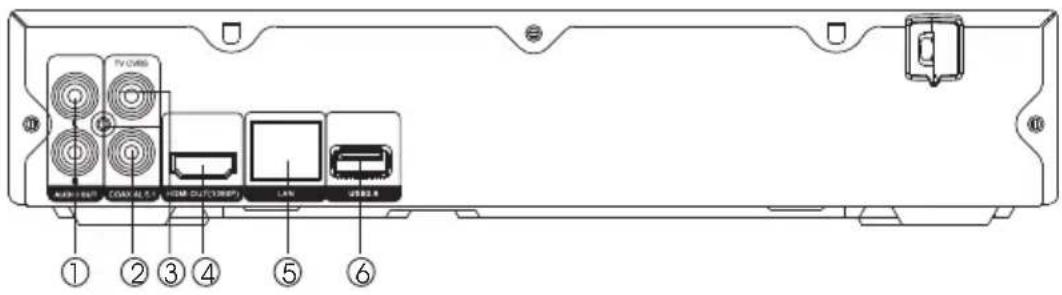
text_image
TV CNTS AUDIO COASTAL S HDMI OUTCRIPT LAN USB2.8 ① ② ③ ④ ⑤ ⑥① 2 CH Audio output(L,R)
④ HDMI output
② Digital Audio COAXIAL output
⑤ LAN
③ COMPOSITE CVBS output
⑥ USB 2.0
2.3 TV Set Connections

text_image
HDMI R L VIDEO AUDIO IN VIDEO IN HDMI IN AUDIO OUT COMPOS L/S HDMI OUT (HDMI) LAS USB2.52.3.1 CONNECT BD PLAYER TO TV SET BY AV CABLE
Connect the BD player s'L and R jack to the audio input jack on the TV. Connect the BD player s'video out jack to the video input jack of TV.
2.3.2 CONNECT THE BD PLAYER TO TV SET USING THE HDMI OUTPUT
Use the HDMI cable (not supplied) to connect BD player to your TV.
Notes: The player supports video resolution up to 1080p 60Hz on HDMI output.
2.3.3 Connecting to an AV Amplifier with Digital Audio Input

text_image
TV/OBS MOSI OUT COAXIAL 1.3 HDMI OUT/USBY LAN USB2.8 Coaxial cable Coaxial Digital AmplifierNotes:
- Select the Coaxial digital audio output.
- Set the digital Amplifier to the AV input connected to the BD player.
3. Output Illustration
3.1 Video Output Capabilities
Each of the video outputs are capable of different levels of functionality, as described in the table below. Actual output will depend on setup menu settings and TV capabilities for HDMI televisions.
| BD PlayerVideo Output | Resolutions Supported(NTSC Models) | Resolutions Supported(PAL Models) |
| HDMI | 1080p 60/30/241080i720p480p480i | 1080p 50/25/241080i720p576p576i |
| Composite Video | NTSC SD (480i) | PAL SD (576i) |
3.2 Audio Output Capabilities
Each of the audio outputs are capable of different levels of functionality, as described in the table below. Actual output will depend on
- BD player setup menu settings,
• What types of audio tracks are encoded on the disk, and, - Surround sound receiver capabilities (for BD players connected to a surround-sound system through HDMI or SPDIF)
| BD PlayerAudio Output | Audio tracks that can be sent directly to output |
| HDMI | Dolby TrueHDDolby Digital PlusDTS-HD High-Resolution AudioDolby DigitalDTSPCM (From mono up to 7.1 channels @96 Khz) |
| SPDIF | Dolby DigitalDTSPCM (stereo only, up to 96 Khz) |
3.3 Connectors Description
3.3.1 SPDIF Digital Audio Output
The SPDIF output is a digital audio output. If you have a surround-sound receiver with a SPDIF (coaxial) input, connect this output to the coaxial input of the surround sound receiver.
3.3.2. Stereo Audio Outputs
These are analog, "old fashioned" stereo (left/right) outputs. If your TV does not have an HDMI input, you can connect these outputs to the stereo audio inputs of a TV.
3.3.3. Composite Video
If your TV does not have component or HDMI video inputs, connect this output to the composite video input of the television.
3.3.4. HDMI 1.3 Audio/Video Output
If you are using a surround-sound audio receiver with an HDMI input, connect the HDMI output of the BD player to the HDMI input of the audio receiver. (You will need to connect a second HDMI cable from the HDMI output of the audio receiver to the HDMI input of the television)
If your surround-sound audio receiver does not have an HDMI input (or if you are not using a surround-sound receiver), connect this output directly to the HDMI input of the TV. One of the other audio outputs can be connected to the audio receiver.
3.3.5. Ethernet Connector
For BD-Live only, use an Ethernet cable to connect this connector to access Ethernet while playing BD-Live disk.
3.3.6. USB 2.0 Connector
Used for external USB memory access, play supported audio/video files on USB memory or store download content into USB memory for BD-Live
4. Remote Control

text_image
STAND BY AN GLE SUO IT I LE AUDIO POP MULTIPLE ML NU TREM DO SECOND/ARY AUDIO CONJUS VIEW SECOND/ARY SUBTITLE EN TER SE TO F STEP SLOW DISPLAY REV FWD PREV NEXT VOL MULTI STOP II Blue reg Disc 1 2 3 4 5 6 7 8 9 10 11 12 13 14 15 16 17 18 19 20 21 22 23 24 25 26 27 28 29 30 311.Open/Close
Press this button to open/close the disk tray.
2.Audio
This key is used to cycle through the movie audio soundtracks available on the disk. (Not available on all disks).
3. Subtitle
This key can be used to enable/disable subtitles during BD/DVD playback. If the disk has more than one subtitle language, it can also be used to cycle through the subtitle languages.
4.Random
Used for random playback of audio files on disk. (Not available on all disks).
5.Menu
Pressing this key will immediately stop playback, and bring up the main or 'top' menu of the BD or DVD disk. (Not available on all disks) In the main menu, you can typically choose subtitle language, audio track, or different scene etc.
6.Colour Keys
The red, green, yellow, and blue keys are used to implement disk-specific features on some BD disks. (Not available on all disks).
7.Secondary Subtitle
Used to bring up the subtitle (if available) for the picture-in-picture (director's commentary, etc) on a BD title. If the disk has more than one director's commentary subtitle language, it can also be used to cycle through the subtitle languages. (Not available on all disks).
8.Bonus View
On BD disks, this button is used to turn the video portion of the director's commentary (picture-in-a-picture) on and off. (Not available on all disks).
Note: Director's commentary must have been turned on in the BD's main menu in order for this key to work.
9.Menu Navigation Keys
These keys are used when navigating the menus on BD and DVDs. They are also used for navigating the setup menus for the BD player.
10.DISPLAY
Press this button to show current play status and time information.
11.SLOW
Pressing this button will cause the video to be played at 1/2, 1/4, 1/8 speed.

12.NEXT
Press this button to play next title, chapter, track or file if valid.
13.PREV
Press this button to play previous title, chapter, track or file if valid.
14.MUTE
Pressing this button to avoid audio output, pressing the MUTE button again will resume audio output. ✗ Mute ▼ Mute Off
15.Play/Pause
Pressing the bottom of this button will pause audio and video playback. Pressing the top of this button will resume playback.
16.STOP
This button stops playback of a BD/DVD movie or files on disk.
17. CLEAR
When entering numeric values via the numeric keypad, this button is used to clear a number entered incorrectly.
18.GOTO
This button is used with the numeric keypad to jump to a specific track on an audio CD.
19. STANDBY
Press the STANDBY button to turn the BD player on or off.
Note: Press STANDBY key during system (about 20s) startup will be no effect. Press STANDBY key during system is on, system will enter low power standby mode in about 6s.
20.Angle
Some BD and DVDs are filmed with more than one camera angle. During playback of such a disk, pressing this button will allow you to switch camera angles. (Not available on all disks)
21.Pop Menu/Title
On BD disks only, this button can be used to bring up the main movie menu. (Not available on all disks).
22.Secondary Audio
On BD disks equipped with multiple director's commentaries in several languages, pressing this key will cycle through all of the languages available for the director's commentaries. (Not available on all disks).
23. Setup
Bring out the settings menu of the BD player. This key will not work during disk play-back
24. Step
Pressing this button will play movie by one frame.
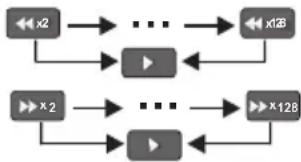
25.Fast Reverse
Used to "Fast Reverse" during content playback.
26.Fast Forward
Used to "Fast Forward" during content playback.
flowchart
graph LR
    A["x2"] --> B["..."]
    B --> C["x18"]
    D["x2"] --> E["..."]
    E --> F["x128"]
    G["..."] --> H["..."]
    H --> I["x128"]
27.Volume
Pressing the top (+) half of this button will increase the volume of the BD player's audio output. Pressing the bottom (-) half of this button will decrease the volume of the BD player's audio output.
28.Numeric Keypad
These buttons are used with the GOTO button to jump to specific title/chapter (track) or time.
29.REPEAT
This button is used to cycle through the possible "repeat" modes based on content played.
BD/DVD or video files on disk: (Not available on all disks)

Repeat Title

Repeat Chapter

Repeat Off
CDDA or audio Files on disk:

Repeat File

Repeat Off

Repeat All
30.A-B
When a disk is playing, pressing this button once will save a "start point" for repeating playback. Pressing this button again to select a "end point" then playback will repeat from the start point to the end point. (Not available on all disks)
31. Return

When navigating files on a data CD or USB stick, pressing this button will return you to the previous folder or menu.
5. System Setting
Press SETUP button under stop status or press RIGHT button in main menu. System will bring out setting menu as below picture:
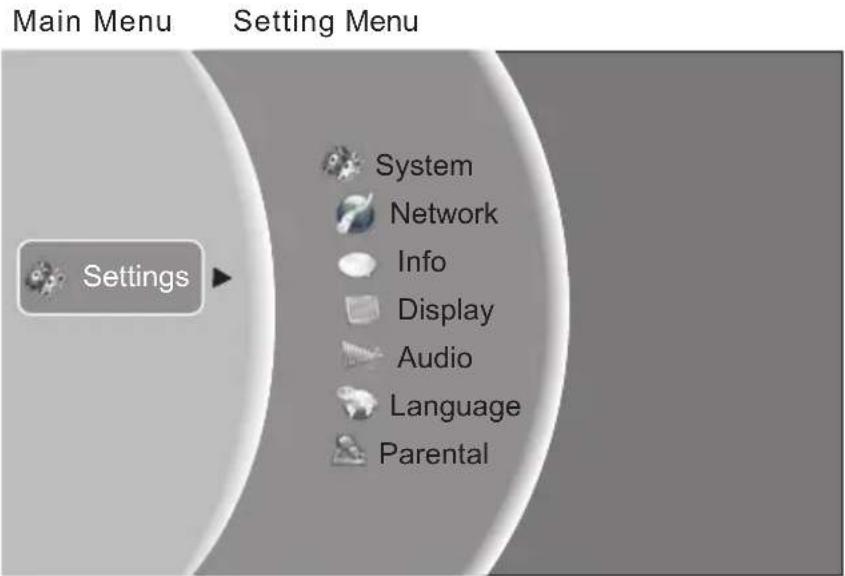
text_image
Main Menu Setting Menu Settings System Network Info Display Audio Language Parental5.1Language
5.1.1 OSD: set language used for user interface displayed.
5.1.2 Menu: set language used for BD/DVD menu (not available on all disks).
5.1.3 Audio: select audio language for BD/DVD disk (not available on all disks).
5.1.4 Subtitle: select subtitle language used for BD/DVD disk (not available on all disks).
5.2Display
5.2.1 TV Type: Select to output NTSC or PAL video format.
5.2.2 Resolution: Set maximum resolution of your TV here to get best video quality, if you are not sure, please use HDMI Auto, system will read the preferred resolution your TV supported via EDID.
5.2.3 TV Aspect: Select right video ratio based on your TV. (Refer to below table)
Note: Aspect setting only effect HDMI and component output, and 4:3 setting has no effect if resolution has been set to 720p or 1080i or 1080p).
| TV Aspect Menu Selection | ||||
| If your TV is more rectangular (16:9), choose: | If your TV is more square (4:3), choose: | |||
| 16:9 Full | 16:9 Pillarboxed | 4:3 Letterboxed | 4:3 Pan Scan | |
| Disk Contents | ||||
| Movie in widescreen format | Movie will fill entire screen | No effect - Movie will fill entire screen | Movie will be shown in rectangular "wide" aspect ratio (Horizontal bars will be shown above/below movie) | Center of movie will be shown on TV. Left and right portion of movie contents will not be shown |
| HD television episodes in widescreen format | Episode will fill entire screen | No effect - Episode will fill entire screen | Episode will be shown in rectangular "wide" aspect ratio (Horizontal bars will be shown above/below movie) | Center of episode will be shown on TV. Left and right portion of episode contents will not be shown |
| SD (4:3) television episodes | Episode will be stretched horizontally to fit entire screen | Episode will be shown in center of screen; vertical bars will appear on sides of screen | No effect - Epiode will fill entire screen | No effect - Epiode will fill entire screen |
| Cropped Movie (Movie put on disk in 4:3 Aspect Ratio) | Movie will be stretched horizontally to fit entire screen | Movie will be shown in center of screen; vertical bars will appear on sides of screen | No effect - Cropped movie will fill entire screen | No effect - cropped movie will fill entire screen |
Note:4:3PS and 4:3LB only valid under SD mode (resolution is 480p/576p or 480i/576i).
5.2.4 Film Mode: system will output 1080p 24Hz if this item is set to ON and disk movies are recorded on film at rate of 24 frames per second.
Note: this item only effect when Resolution is set to 1080p, and make sure your TV can support 1080P24Hz mode.
5.3 Audio
5.3.1 PCM Downsampling: select right bitrate for PCM signal to ensure your SPDIF receiver can handle it correctly. It's no effect for HDMI digital audio output.
5.3.2 Digital Output:
If you only have two speakers, set PCM stereo.
If you connect receiver with more than two speakers, please refer to below tables:
| Receiver Capabilities | |||
| Can decode DTS | Can decode Dolby Digital | Can decode Dolby Digital Plus | |
| I want the highest-fidelity audio movie soundtrack possible | Set to ‘Bitstream Legacy’ for disks with DTS soundtracks. | Set to ‘Bitstream Legacy’for disks with Dolby digital soundtracks.Set to PCM 5.1 or PCM 7.1 for disks without Dolby sound tracks (depending on the number of speakers connected to your surround receiver) | Set to ‘Bitstream Legacy’fo disks with DD+ soundtracks.Set to PCM 5.1 or PCM 7.1 for disks without Dolby Digital plus sound tracks (depending on the number of speakers connected to your surround receiver) |
| I want to hear the directors commentary on the BD disk-OR-I want to set this menu item once and then forget it | Set the output to ‘Bitstream Mixed’ | Set to ‘Bitstream mixed’ if your receiver also supports DTS.Otherwise, set the output to PCM 5.1 or PCM 7.1 (depending on the number of speakers connected to your surround receiver) instead. | |
| Receiver Capabilities | |||
| Can decode DTS-MA Essential | Can decode Dolby TrueHD | Can't decode DTS-HD or Dolby TrueHD | |
| I want the highest-fidelity movie soundtrack audio possible | Set to Bitstream HD for disks with DTS-HD soundtracks. Set to Bitstream mixed otherwise | Set to Bitstream HD for disks with Dolby TrueHD soundtracks. Set to Bitstream mixed otherwise | Refer to above table to decide |
| I want to hear the directors commentary on the BD disk--OR-I want to set this menu item once and then forget it | Set the output to Bitstream mixed | ||
5.3.3 Dynamic Range Control: means that you can allow the BD player to make the loud parts of amovie's audio track quieter than they would be in the theatre, without making the dialog of theactors any quieter. (It effects on analog audio output and digital output should be set to PCM or Bitstream Mixed).
5.4 System
5.4.1 Optical Disc Auto Play: This option is used to tell the BD player whether or not to start loading the main title menu of a disk as soon as the disk tray is closed.
5.4.2 BD-Live Internet Access: Control BD player accessing internet
Limit access : Only allow the inserted Blu-Ray disk to download content from a BD-Live website which has a valid online certificate. This will reduce the chances of downloading malicious content onto the player.
Always allow access: Allow the BD the inserted Blu-Ray disk to access content from all BD-Live internet sites whose internet address is encoded onto the disk. There is no danger of malicious code download from valid commercial BD disks, but choosing this option and downloading BD-live content via illegally authored BD disks, or disks obtained from questionable sources, could result in malicious code being downloaded onto the player.
Prohibit access : Blocks the inserted Blu-Ray disk from accessing BD-Live content over the internet.
5.4.3 BD-Live Storage:
Show BD-Live storage information, select storage device to clear Blu-ray storage.
5.4.4 Screen Saver Duration:
This BD player will activate screen saver mode by shutting video output (TV will go "Blank") after certain period of time set by this item when system is playing music file or in stop/fullstop mode.
5.4.5 Erase Blu-Ray Storage: Clear Blu-Ray storage.
5.4.6 CEC support:
Set this item to enable/disable CEC:
The CEC feature is designed to allow CEC-enabled devices to command and control each other without user intervention. For example: If your TV is also CEC-enabled and you will turn off your TV, the Blu-Ray player will get a CEC signal and turn off automatically. Or if you turn on your Blu-Ray player, your TV will automatically turn on and switch to HDMI input.
Note: Not every CEC-Enabled unit is compatible with this unit.
5.4.7 Reset Settings:
Reset all settings to factory default (Parental Control level will not be reset).
5.5 Network
Press "ENTER" button when the item is highlighted, then select "WIRED" to config network:
5.5.1 Link Status:
Show if ethernet cable is connected to BD player.
5.5.2 MAC Address
Show MAC address of this BD player.
5.5.3 IP Mode
Choose IP mode here for internet access. Choosing "Manual" mode, 4.5.5 \~ 4.5.8 will be activated for user input, otherwise they are inactivated.
5.5.4 IP Address:
Show current IP address or access user input while in "Manual" IP mode.
5.5.5 Subnet Mask:
Show current Subnet Mask or access user input while in "Manual" IP mode.
5.5.6 Gateway:
Show current Gateway or access user input while in "Manual" IP mode.
5.5.7 Primary DNS:
Show current Primary DNS or access user input while in "Manual" IP mode.
5.5.8 Secondary DNS:
Show current Secondary DNS or access user input while in "Manual" IP mode.
Press ENTER key while Apply button is highlighted to activate setting you made, or press ENTER key while Cancel button is highlighted to cancel changes you made for network settings.
5.6 Info
This item shows software and hardware information for loader and main board, no changes are allowed.
5.7 Parental
5.7.1 Parental Country:
Use this menu item to tell the BD player what country you are in.(Currently this menu item has no effect)
5.7.2 Parental Control:
To turn parental control ON or OFF,
5.7.3 Parental Level:
To restrict playback of disks encoded with a rating level equal to or higher than the level you set. Parental Control must be turned on for this menu item to have an affect
5.7.4 Parental Password:
Change new password for Parental Control menu operation. (Default value is: 6666)
6. Audio, Video, Picture files on disk or USB devices
6.1 INTRODUCTION
This section explains how to play back PC-type audio, pictures, and video files that have been placed onto a disk or USB memory stick.
6.2 Supported Audio, Video, Picture files types
Video
• .MPEG4 (.mp4) files
• .m4v files
. .mkv files
Note: External subtitle file must have name begin with the video file name, and it must be UTF8 or UTF16 encoded. (e.g. For video file: file001.mkv, external subtitle file can be: file001_01.srt, file001_eng.srt or file001_gr.sub etc)
Music:
- .mp3 files
- .wma files
Picture:
- .jpeg files
• .Png files
6.3 Disk or USB devices preparation
6.3.1 CD-R/RW, DVD+/-R, DVD+/-RW, BD-Ror BD-RE with supported files recorded in UDF or ISO9660 format (must be finalized) can be playback on this BD player.
6.3.2 USB device with supported files on its FAT/FAT32 partition will be recognized.
6.4 Browsing video files
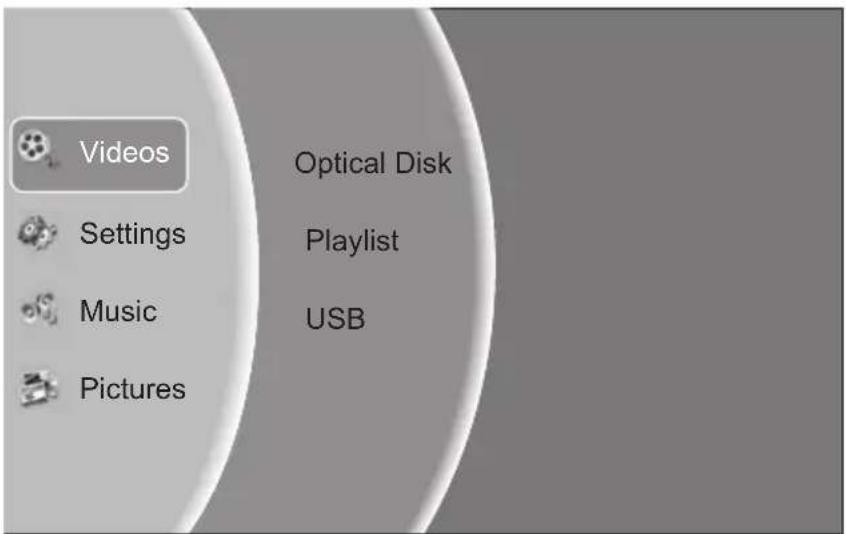
6.4.1 Select Videos icon in main menu which will appear after BD player read out disk or/and USB device. Press ENTER key while Video icon is highlighted, system will bring out a sub menu for file source selection.(Figure 5-1)
text_image
Videos Settings Music Pictures Optical Disk Playlist USBFigure 5-1 Video Media Selector
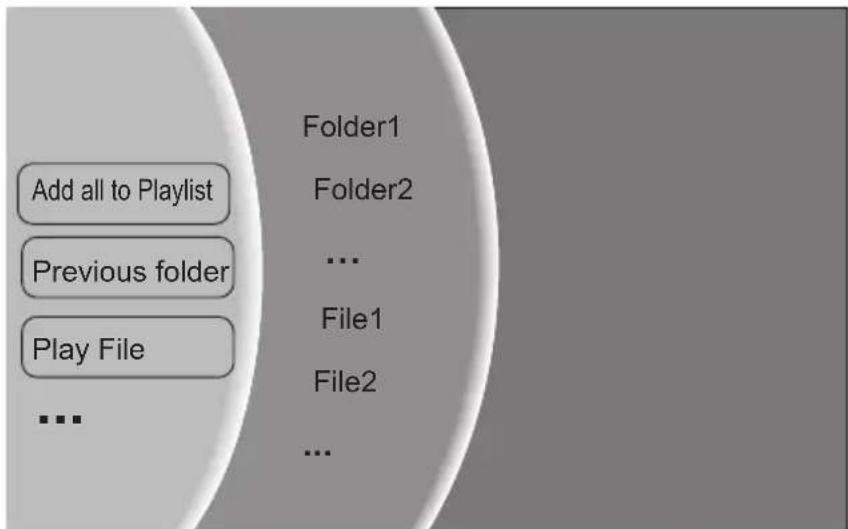
6.4.2 Select disk or USB to open a browser which allow you to view files on current disk/USB device, so you can choose any files you want to play.(Figure 5-2)
text_image
Add all to Playlist Previous folder Play File ... Folder1 Folder2 ... File1 File2 ...Figure 5-2 Video Browser Screen
6.5 Browsing Audio files
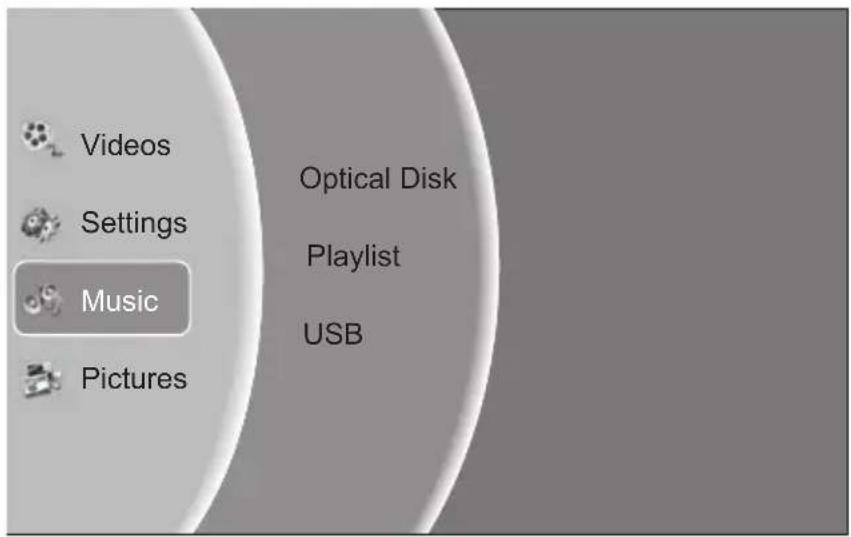
6.5.1 Select Music icon in main menu which will appear after BD player read out disk or /and USB device. Press ENTER key while Music icon is highlighted, system will bring out a sub menu for file source selection.(Figure 5-3)
text_image
Videos Settings Music Pictures Optical Disk Playlist USBFigure 5-3 Audio Media Selector
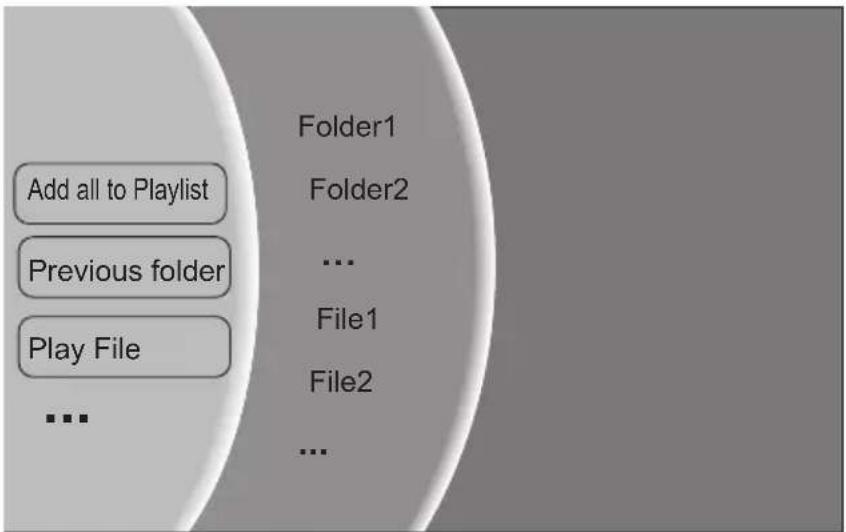
6.5.2 Select disk or USB to open a browser which allow you to view files on current disk / USB device, so you can choose any files you want to play .(Figure 5-4 )
text_image
Add all to Playlist Previous folder Play File ... Folder1 Folder2 ... File1 File2 ...Figure 5-4 Audio Browser Screen
6.6 Browsing picture files
6.6.1 Select Pictures icon in main menu which will appear after BD player read out disk or/and USB device. Press ENTER key while Pictures icon is highlighted, system will bring out a sub menu for file source selection.(Figure 5-5)

text_image
Videos Settings Music Pictures Optical Disk Playlist USBFigure 5-5 Picture Media Selector
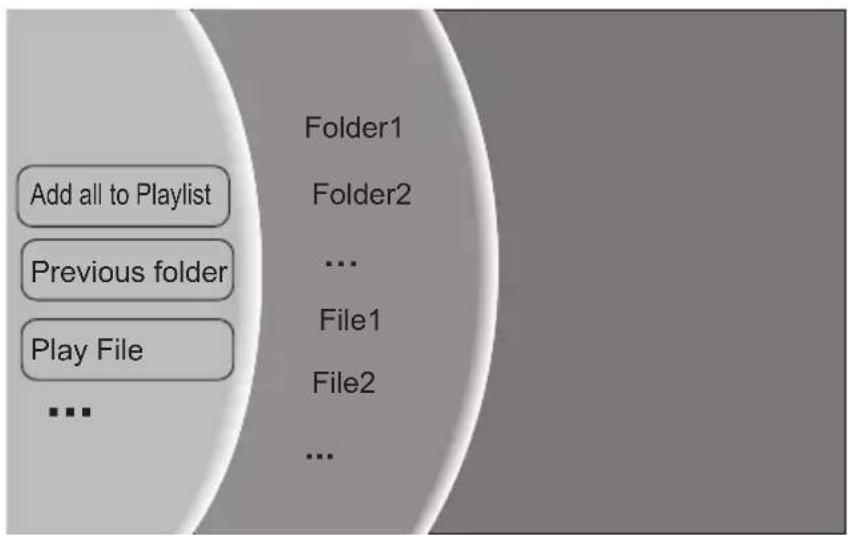
6.6.2 Select disk or USB to open a browser which follows your view disk/USB device, so you can choose any files you want to play.(Figure 5-6)
text_image
Add all to Playlist Previous folder Play File ... Folder1 Folder2 ... File1 File2 ...Figure 5-6 Picture Browser Screen
6.7 File playback
6.7.1 Refer to Figure 5-7, select "PlayAll" to play all selected type files on selected media, or select "Play Current Folder" to play all selected type files in current folder.

text_image
Add all to Playlist Previous folder Play File ... Folder1 Folder2 ... File1 File2 ... Please select play mode Play All Play Current Folder CancelFigure 5-7 Multi-files operation
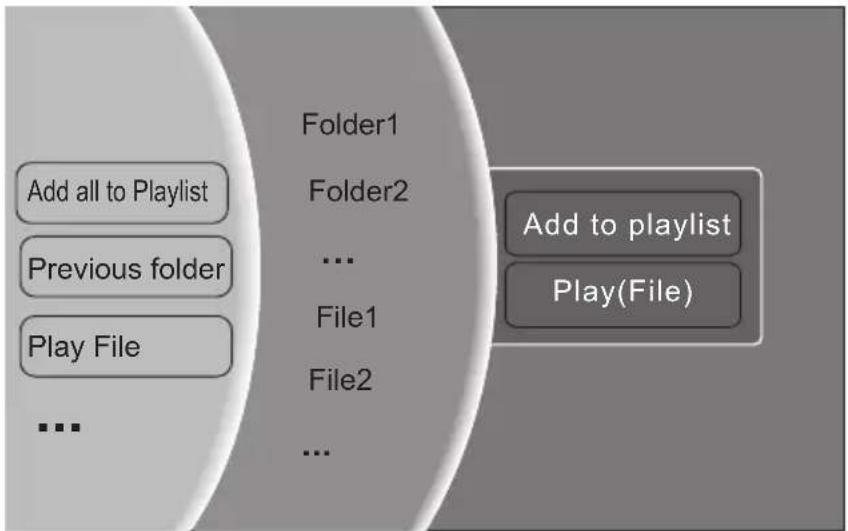
6.7.2 Also you can choose to play currenthighlighted file refer to Figure 5-8.
text_image
Add all to Playlist Previous folder Play File ... Folder1 Folder2 ... File1 File2 ... Add to playlist Play(File)Figure 5-8 Single file operation
6.8 Creating Playlist and Playlist Playback
6.8.1 In file browser mode( refer to Figure 5-2, 5-4 and 5-6), press "ENTER" key while "AddAll to Playlist" is highlighted and will add all selected type files in current folder into playlist,
or refer to Figure 5-8, choose "Add to playlist" icon and press "ENTER" to add current highlighted file into playlist.
6.8.2 In Media Selector Menu(refer to Figure 5-1), you can choose "playlist" to play files in playlist.
7. BD-Live Operation
7.1 Description
Some (but certainly not all) BD disks contain additional features that are made available to players that are connected to the internet, and have additional memory added. These additional features may include things like
-the ability to download new movie trailers,
-additional 'commentary' by actors and directors,
-mgalticeplayrand chat
In order to access BD-Live functions, the player must be properly configured for BD-Live internet access, and it must be equipped with additional memory.
7.2 Adding external BD-live Memory to player
7.2.1 Obtain USB memory which has been formatted as FAT32.
7.2.2 Insert the USB memory stick into the USB slot on the player.
7.3 Setting BD-Live Internet Access Mode
7.3.1 In the BD Player's main setup menu, go to the 'Other' menu choice; Then, choose "BD-Live InternetAccess". Be sure that "LimitAccess" or "Always Allow Access" is checked.
7.3.2 Once the USB memory stick has been inserted, if there is not at least 100Mbyte of free space on the device, you should choose "Clear BD Storage" from the "Other" setup menu item
7.3.3 In the BD Player's main setup menu, go to the 'Network' menu choice; Then, choose "IP mode". Set up the Network IP addresses per your router's or ISPs recommendations
NOTE: The 'Connectivity Test' must pass, or you are not connected to the internet, and cannot access BD-Live Content on the web.
7.4 BD-Live Internet Access Example
7.4.1 Obtain a BD-Livedisk like
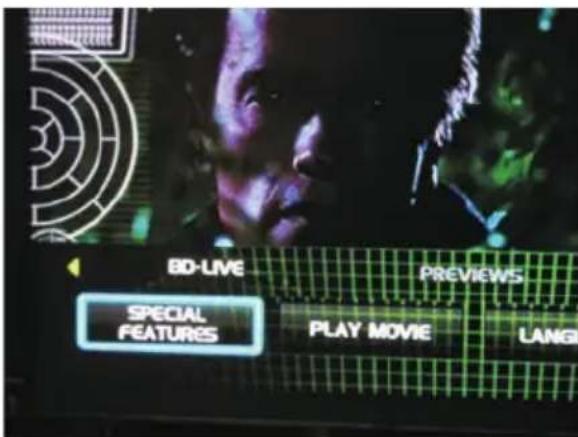
7.4.2 Select BD-Live option from Special Features Menu (or in some disk, you can see BD-Live option in main menu)
text_image
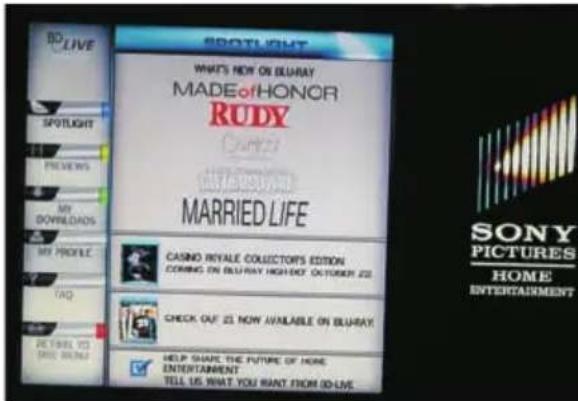
BD-LIVE PREVIEWS SPECIAL FEATURES PLAY MOVIE LANGI7.4.3 The player will connect to internet and show download menu as below picture. Note: This can take several minutes.
text_image
SPOTLIGHT WHAT'S NOW ON BLURAY MADEofHONOR RUDY CARRY GTY BOURY MARRIED LIFE CASINO ROYALE COLLECTORS EDITION CORNING ON BLURAY HIGH/LOW OCTUMER JEE CHECK OUT 22 NOW AVAILABLE ON BLURAY HELP SHAPE THE FUTURE OF HOME ENTERTAINMENT TELL US WHAT YOU WANT FROM DO-LIVE7.4.4 You can select the content to download from the Previews sub menu. Note: This can take several minutes.

text_image
BO-LIVE 1 2 3 4 5 6 7 8 9 10 11 12 13 14 15 16 17 18 19 20 21 22 23 24 25 26 27 28 29 30 31 32 33 34 35 36 37 38 39 40 41 42 43 44 45 46 47 48 49 50 51 52 53 54 55 56 57 58 59 60 61 62 63 64 65 66 67 68 69 70 71 72 73 74 75 76 77 78 79 80 81 82 83 84 85 86 87 88 89 90 91 92 93 94 95 96 97 98 99 100 MEMORS OF A GISHA ZHI ZHANG KEN WATANABE MICHELLE YEON KULYAKUSHO GONE LI DECTED BY: ROB MARSHALL SCREENPLAY BY: DOWNLOAD HD/REST QUALITY ▼ PLAY ▼ DELU SO/PASTEST ▲: DOWNLOAD NOW7.4.5 The downloaded content is stored under My Downloads. You can choose to either play back or delete the downloaded content

text_image
MY DOWNLOADS WELCOME TO YOUR COMPLETE LIST OF KENT PICTURES MORE ENTERTAINMENT DOWNLOADS. EXTRAIS PRENEWS MEMORS OF A DESHA ZHI ZHANG KEN WATANADE MICHELLE TECH KUI TAMSUSO DONG U DIRECTED BY: ROB MARSHALL SCREENPLAY BY: HE/BEST QUALITY PLAY DELETE7.5 BD-Live Notes
7.5.1 This player only supports the connection of USB memory in order to store BD 2.0 downloaded content
7.5.2 Any externally connected device will be set as BD-Live storage and internal storage will be ignored in same time.
7.5.3 Some BD-Live content will be expired and not playable, user need to manually delete the contents in BD storage in order to free space.
8. Trouble shooting
If you have any questions, please consult the troubleshooting guide below.
NO PICTURE OR SOUND
- Ensure the power button is on.
- Ensure the power outlet is operational.
● Ensure the power cord is not damaged. - Ensure the power plug is connected firmly to the outlet.
REMOTE NOT WORKING
● Make sure the Main unit's POWER button is on.
● Ensure the remote batteries are working.
- Point the remote control directly at the player's IR sensor.
- Remove any obstacles between the remote and the IR sensor.
PICTURE BUT NO SOUND
● Ensure the audio jacks are securely connected.
● Ensure the audio connector is not damaged.
- Ensure you have set the player's AUDIO settings correctly.
- Ensure you have entered the correct AV input for your TV.
● Ensure the audio is not set to mute.
UNIT NOT WORKING
● Turn off the power, and then turn it on again.
SOUND BUT NO PICTURE
- Ensure the video jacks are securely connected.
- Ensure you have entered the correct AV input for your TV.
● Ensure the video connector is not damaged. - Ensure you have set the player's VIDEO settings correctly.
"NO DISC" DISPLAYED
● Ensure you have put the disc on the tray.
● Ensure the disc is not upside down.
● Ensure the disc is not distorted, stained or scratched.
POOR PICTURE OR SOUND
- Ensure you have set the player's AUDIO settings correctly.
● Ensure the disc is not scratched or stained. - Ensure the AV connector or the output terminal is not damaged.
9. Specifications
General
Power requirements: AC 100-240 Volt, 50/60Hz
Power consumption: 35W
Discs Compatibility:
BD, DVD, DVD+/-R/RW, VCD, CD-DA, CD-R/RW.
Video out
CVBS: 1.0V(p-p)/75Ω, sync, negative polarity, RCA pin jack x 1 HDMI
Audio out
2 channel out: RCA pin jackx2
Coaxial out: 0.5V(p-p)75Ω, RCA pin Jack x I
Frequency response: 20Hz to 20kHz
S/N ratio:>90dB
Total harmonic distortion: <-65dB
[Accessories]
Remote Control x 1
User's Manual x 1
Specifications are subject to change without notice.
Weight and dimensions are approximate.
This product incorporates co-pyright protection technology that is p-rotected by U.S. patents and other intellectual property rights. Use of this copyright protection technology must be a authorized by Macrovision, and is intended for home and other limited viewing uses only unless otherwise by Macrovision. Revere engineering or disassembly is prohibited.
Manufactured under license from Dolby Laboratories. Dolby and the double-D symbol are trade marks of Dolby Laboratories. Copyright 1992 -1997 Dolby Laboratories. All rights reserved.
This device complies with Part 15 of the FCC Rules. Operation is subject to the following two conditions:(1) this device may not cause harmful interference, and(2) this device must accept any interference received, including interference that may cause undesired operation.
Manufactured under license under U.S. Patent# ^* s: 5,451,942; 5,956,674; 5,974,380; 5,978,762; 6,487,535 & other U.S. and worldwide patents issued & pending. DTS is a registered trademark and the DTS logos, Symbol, DTS-HD and DTS-HD Advanced Digital Out are trademarks of DTS, Inc. © 1996-2008 DTS, Inc. All Rights Reserved.
Hiteker
HTB-1026
LECTEUR DE DISQUE BLU-RAY

text_image
Hiteker HDMI Hindi E-mail USB Ginitext_image
Coaxial cable Coaxial Digital AmplifierNotes:
10. DISPLAY (affichage)
text_image
Add all to Playlist Previous folder Play File ... Folder1 Folder2 ... File1 File2 ...text_image
Add all to Playlist Previous folder Play File ... Folder1 Folder2 ... File1 File2 ...Figure 5-4 Écran de navigation Audio
text_image
Add all to Playlist Previous folder Play File: ... Folder1 Folder2 ... File1 File2 ...Figure 5-6 Écran de navigation Images
text_image
Add all to Playlist Previous folder Play File ... Folder1 Folder2 ... File1 File2 ... Please select play mode Play All Play Current Folder Canceltext_image
Add all to Playlist Previous folder Play File ... Folder1 Folder2 ... File1 File2 ... Add to playlist Play(File)
(Symbol provided by RETAC)
-
LADE
-
AFSPEEL/PAUZE KNOP
-
DISPLAY
-
POWER
-
SENSOR
-
USB
-
OPEN/SLUIT KNOP