Clavinova CLP-380 - Piano YAMAHA - Free user manual and instructions
Find the device manual for free Clavinova CLP-380 YAMAHA in PDF.


User questions about Clavinova CLP-380 YAMAHA
0 question about this device. Answer the ones you know or ask your own.
Ask a new question about this device
Download the instructions for your Piano in PDF format for free! Find your manual Clavinova CLP-380 - YAMAHA and take your electronic device back in hand. On this page are published all the documents necessary for the use of your device. Clavinova CLP-380 by YAMAHA.
USER MANUAL Clavinova CLP-380 YAMAHA
—Check your power supply—
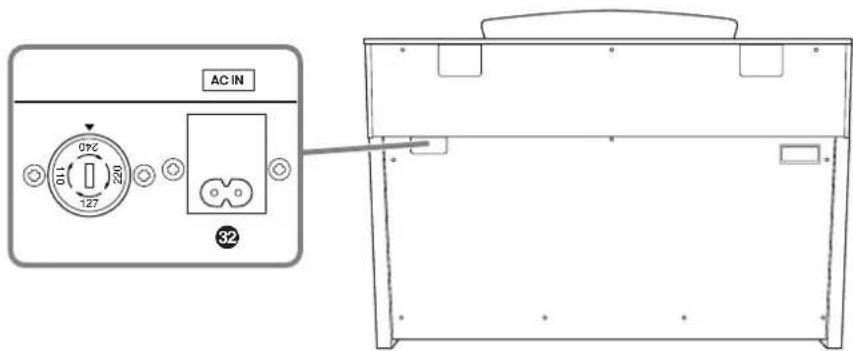
Make sure that your local AC mains voltage matches the voltage specified on the name plate on the bottom panel. In some areas a voltage selector may be provided on the rear panel of the main keyboard unit near the power cord. Make sure that the voltage selector is set for the voltage in your area. The voltage selector is set at 240V when the unit is initially shipped. To change the setting use a "minus" screwdriver to rotate the selector dial so that the correct voltage appears next to the pointer on the panel.
For information on assembling the keyboard stand, refer to the instructions at the end of this manual.
SPECIAL MESSAGE SECTION
PRODUCT SAFETY MARKINGS: Yamaha electronic products may have either labels similar to the graphics shown below or molded/stamped facsimiles of these graphics on the enclosure. The explanation of these graphics appears on this page. Please observe all cautions indicated on this page and those indicated in the safety instruction section.
text_image
CAUTION RISK OF ELECTRIC SHOCK DO NOT OPEN CAUTION: TO REDUCE THE RISK OF ELECTRIC SHOCK. DO NOT REMOVE COVER (OR BACK). NO USER-SERVICEABLE PARTS INSIDE. REFER SERVICING TO QUALIFIED SERVICE PERSONNEL.See bottom of Keyboard enclosure for graphic symbol markings.

The exclamation point within the equilateral triangle is intended to alert the user to the presence of important operating and maintenance (servicing) instructions in the literature accompanying the product.
The lightning flash with arrowhead symbol, within the equilateral triangle, is intended to alert the user to the presence of uninsulated “dangerous voltage” within the product’s enclosure that may be of sufficient magnitude to constitute a risk of electrical shock.
IMPORTANT NOTICE: All Yamaha electronic products are tested and approved by an independent safety testing laboratory in order that you may be sure that when it is properly installed and used in its normal and customary manner, all foreseeable risks have been eliminated. DO NOT modify this unit or commission others to do so unless specifically authorized by Yamaha. Product performance and/or safety standards may be diminished. Claims filed under the expressed warranty may be denied if the unit is/has been modified. Implied warranties may also be affected.
SPECIFICATIONS SUBJECT TO CHANGE: The information contained in this manual is believed to be correct at the time of printing. However, Yamaha reserves the right to change or modify any of the specifications without notice or obligation to update existing units.
ENVIRONMENTAL ISSUES: Yamaha strives to produce products that are both user safe and environmentally friendly. We sincerely believe that our products and the production methods used to produce them, meet these goals. In keeping with both the letter and the spirit of the law, we want you to be aware of the following:
Battery Notice: This product MAY contain a small non-rechargeable battery which (if applicable) is soldered in place. The average life span of this type of battery is approximately five years. When replacement becomes necessary, contact a qualified service representative to perform the replacement.
Warning: Do not attempt to recharge, disassemble, or incinerate this type of battery. Keep all batteries away from children. Dispose of used batteries promptly and as regulated by applicable laws. Note: In some areas, the servicer is required by law to return the defective parts. However, you do have the option of having the servicer dispose of these parts for you.
Disposal Notice: Should this product become damaged beyond repair, or for some reason its useful life is considered to be at an end, please observe all local, state, and federal regulations that relate to the disposal of products that contain lead, batteries, plastics, etc.
NOTICE: Service charges incurred due to lack of knowledge relating to how a function or effect works (when the unit is operating as designed) are not covered by the manufacturer's warranty, and are therefore the owners responsibility. Please study this manual carefully and consult your dealer before requesting service.
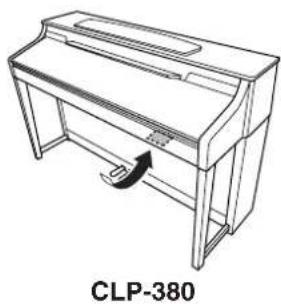
NAME PLATE LOCATION: The graphic below indicates the location of the name plate. The model number, serial number, power requirements, etc., are located on this plate. You should record the model number, serial number, and the date of purchase in the spaces provided below and retain this manual as a permanent record of your purchase.
natural_image
Line drawing of a piano with a clamped mechanism, labeled CLP-380 (no text or symbols on the diagram itself)Model
Serial No. ____
Purchase Date ____
text_image
CAUTION RISK OF ELECTRIC SHOCK DO NOT OPEN CAUTION: TO REDUCE THE RISK OF ELECTRIC SHOCK, DO NOT REMOVE COVER (OR BACK). NO USER-SERVICEABLE PARTS INSIDE. REFER SERVICING TO QUALIFIED SERVICE PERSONNEL.The above warning is located on the bottom of the unit.
Explanation of Graphical Symbols
The lightning flash with arrowhead symbol within an equilateral triangle is intended to alert the user to the presence of uninsulated “dangerous voltage” within the product’s enclosure that may be of sufficient magnitude to constitute a risk of electric shock to persons.

The exclamation point within an equilateral triangle is intended to alert the user to the presence of important operating and maintenance (servicing) instructions in the literature accompanying the product.
IMPORTANT SAFETY INSTRUCTIONS
1 Read these instructions.
2 K eep these instructions.
3 Heed all warnings.
4 Follow all instructions.
5 Do not use this apparatus near water.
6 Clean only with dry cloth.
7 Do not block any ventilation openings. Install in accordance with the manufacturer's instructions.
8 Do not install near any heat sources such as radiators, heat registers, stoves, or other apparatus (including amplifiers) that produce heat.
9 Do not defeat the safety purpose of the polarized or grounding-type plug. A polarized plug has two blades with one wider than the other. A grounding type plug has two blades and a third grounding prong. The wide blade or the third prong are provided for your safety. If the provided plug does not fit into your outlet, consult an electrician for replacement of the obsolete outlet.
10 Protect the power cord from being walked on or pinched particularly at plugs, convenience receptacles, and the point where they exit from the apparatus.
11 Only use attachments/accessories specified by the manufacturer.
12 Use only with the cart, stand, tripod, bracket, or table specified by the manufacturer, or sold with the apparatus. When a cart is used, use caution when moving the cart/apparatus combination to avoid injury from tip-over.
13 Unplug this apparatus during lightning storms or when unused for long periods of time.
14 Refer all servicing to qualified service personnel. Servicing is required when the apparatus has been damaged in any way, such as power-supply cord or plug is damaged, liquid has been spilled or objects have fallen into the apparatus, the apparatus has been exposed to rain or moisture, does not operate normally, or has been dropped.
WARNING
TO REDUCE THE RISK OF FIRE OR ELECTRIC SHOCK, DO NOT EXPOSE THIS APPARATUS TO RAIN OR MOISTURE.
(UL60065_03)
PRECAUTIONS
PLEASE READ CAREFULLY BEFORE PROCEEDING
* Please keep this manual in a safe place for future reference.

WARNING
Always follow the basic precautions listed below to avoid the possibility of serious injury or even death from electrical shock, short-circuiting, damages, fire or other hazards. These precautions include, but are not limited to, the following:
Power supply/Power cord
- Only use the voltage specified as correct for the instrument. The required voltage is printed on the name plate of the instrument.
- Check the electric plug periodically and remove any dirt or dust which may have accumulated on it.
- Use only the supplied power cord/plug.
- Do not place the power cord near heat sources such as heaters or radiators, and do not excessively bend or otherwise damage the cord, place heavy objects on it, or place it in a position where anyone could walk on, trip over, or roll anything over it.
Do not open
- Do not open the instrument or attempt to disassemble the internal parts or modify them in any way. The instrument contains no user-serviceable parts. If it should appear to be malfunctioning, discontinue use immediately and have it inspected by qualified Yamaha service personnel.
Water warning
- Do not expose the instrument to rain, use it near water or in damp or wet conditions, or place containers on it containing liquids which might spill into any openings. If any liquid such as water seeps into the instrument, turn off the power immediately and unplug the power cord from the AC outlet. Then have the instrument inspected by qualified Yamaha service personnel.
- Never insert or remove an electric plug with wet hands.
Fire warning
- Do not put burning items, such as candles, on the unit. A burning item may fall over and cause a fire.
If you notice any abnormality
- If the power cord or plug becomes frayed or damaged, or if there is a sudden loss of sound during use of the instrument, or if any unusual smells or smoke should appear to be caused by it, immediately turn off the power switch, disconnect the electric plug from the outlet, and have the instrument inspected by qualified Yamaha service personnel.

CAUTION
Always follow the basic precautions listed below to avoid the possibility of physical injury to you or others, or damage to the instrument or other property. These precautions include, but are not limited to, the following:
Power supply/Power cord
- When removing the electric plug from the instrument or an outlet, always hold the plug itself and not the cord. Pulling by the cord can damage it.
- Remove the electric plug from the outlet when the instrument is not to be used for extended periods of time, or during electrical storms.
- Do not connect the instrument to an electrical outlet using a multiple-connector. Doing so can result in lower sound quality, or possibly cause overheating in the outlet.
Assembly
- Read carefully the attached documentation explaining the assembly process. Failure to assemble the instrument in the proper sequence might result in damage to the instrument or even injury.
Location
- Do not expose the instrument to excessive dust or vibrations, or extreme cold or heat (such as in direct sunlight, near a heater, or in a car during the day) to prevent the possibility of panel disfiguration or damage to the internal components.
- Do not use the instrument in the vicinity of a TV, radio, stereo equipment, mobile phone, or other electric devices. Otherwise, the instrument, TV, or radio may generate noise.
- Do not place the instrument in an unstable position where it might accidentally fall over.
- Before moving the instrument, remove all connected cables.
- When setting up the product, make sure that the AC outlet you are using is easily accessible. If some trouble or malfunction occurs, immediately turn off the power switch and disconnect the plug from the outlet. Even when the power switch is turned off, electricity is still flowing to the product at the minimum level. When you are not using the product for a long time, make sure to unplug the power cord from the wall AC outlet.
- Do not place the instrument against a wall (allow at least 3 cm/one-inch from the wall), since this can cause inadequate air circulation, and possibly result in the instrument overheating.
Connections
- Before connecting the instrument to other electronic components, turn off the power for all components. Before turning the power on or off for all components, set all volume levels to minimum. Also, be sure to set the volumes of all components at their minimum levels and gradually raise the volume controls while playing the instrument to set the desired listening level.
Maintenance
- In the case of a model with a polished finish, gently remove dust and dirt with a soft cloth. Do not wipe too hard since small particles of dirt can scratch the instrument's finish. - When cleaning the instrument, use a soft, dry/dry or slightly damp cloth. Do not use paint thinners, solvents, cleaning fluids, or chemical-impregnated wiping cloths.
Handling caution
- Take care that the key cover does not pinch your fingers, and do not insert a finger or hand in any gaps on the key cover or instrument.
- Never insert or drop paper, metallic, or other objects into the gaps on the key cover, panel or keyboard. If this happens, turn off the power immediately and unplug the power cord from the AC outlet. Then have the instrument inspected by qualified Yamaha service personnel.
- Do not place vinyl, plastic or rubber objects on the instrument, since this might discolor the panel or keyboard.
- In the case of a model with a polished finish, bumping the surface of the instrument with metal, porcelain, or other hard objects can cause the finish to crack or peel. Use caution.
- Do not rest your weight on, or place heavy objects on the instrument, and do not use excessive force on the buttons, switches or connectors.
- Do not use the instrument/device or headphones for a long period of time at a high or uncomfortable volume level, since this can cause permanent hearing loss. If you experience any hearing loss or ringing in the ears, consult a physician.
Using the bench (If included)
- Do not place the bench in an unstable position where it might accidentally fall over.
- Do not play carelessly with or stand on the bench. Using it as a tool or step-ladder or for any other purpose might result in accident or injury.
- Only one person should sit on the bench at a time, in order to prevent the possibility of accident or injury.
- Do not attempt to adjust the bench height while sitting on the bench, since this can cause excessive force to be imposed on the adjustment mechanism, possibly resulting in damage to the mechanism or even injury.
- If the bench screws become loose due to extensive long-term use, tighten them periodically using the included tool.
Saving data
Saving and backing up your data
- Current data (page 39) is lost when you turn off the power to the instrument before saving. Save the data to a USB storage device/external device such as a computer.
Saved data may be lost due to malfunction or incorrect operation. Save important data to a USB storage device/external device such as a computer.
Yamaha cannot be held responsible for damage caused by improper use or modifications to the instrument, or data that is lost or destroyed.
Always turn the power off when the instrument is not in use.
Thank you for choosing the Yamaha Clavinova CLP-380.
In order to make the most of your Clavinova's performance potential and features, please read this
Owner's Manual thoroughly, and keep it in a safe place for later reference.
About this Owner's Manual and Data List
This manual consists of four main sections: “Introduction,” “Basic Operation,” “Detailed Settings,” and “Appendix.” Also, a separate “Data List” is provided.
| Introduction: | Please read this section first. |
| Basic Operation: | This main section explains how to use the basic functions. Refer to this section while you play the Clavinova. |
| Detailed Settings: | This section explains how to make detailed settings for the Clavinova’s various functions. Refer to this section as necessary. |
| Appendix: | This section introduces troubleshooting, a description of preset voices, and other reference material. |
| Data List: Normal (Default) Setting List, XG Voice List, etc.The Effect Parameter List, Effect Data Assign Table, MIDI Data Format, and MIDI Implementation Chart are available for downloading from the Yamaha Manual Library.http://www.yamaha.co.jp/manual/ | |
- T he model CLP-380 will be referred to as the CLP/Clavinova in this Owner's Manual.
- The illustrations and LCD screens as shown in this Owner's Manual are for instructional purposes only, and may appear somewhat different from those on your instrument.
- Copying of commercially available software or music data for purposes other than your personal use is strictly prohibited.
COPYRIGHT NOTICE
This product incorporates and bundles computer programs and contents in which Yamaha owns copyrights or with respect to which it has license to use others' copyrights. Such copyrighted materials include, without limitation, all computer software and MIDI files, etc. Any unauthorized use of such programs and contents outside of personal use is not permitted under relevant laws. Any violation of copyright has legal consequences. DON'T MAKE, DISTRIBUTE OR USE ILLEGAL COPIES. This device is capable of using various types/formats of music data by optimizing them to the proper format music data for use with the device in advance. As a result, this device may not play them back precisely as their producers or composers originally intended.
AVE-TCP™
AVE-TCP™, a TCP/IP protocol stack by ACCESS Co., Ltd., is installed in this product. Copyright © 1986-2008 ACCESS CO., LTD.
AVE™-SSL
AVE™-SSL, an encryption module technology by ACCESS Co., Ltd., is installed in this product. Copyright © 1997-2008 ACCESS CO., LTD.
ACCESS™
Trademarks
- Windows is the registered trademark of Microsoft Corporation.
- All other trademarks are the property of their respective holders.
Tuning
Unlike an acoustic piano, the Clavinova does not need to be tuned. It always stays perfectly in tune.
Transporting
If you move to another location, you can transport the Clavinova along with your other belongings. You can move the unit as it is (assembled) or you can disassemble the unit.
Transport the keyboard horizontally. Do not lean it up against a wall or stand it up on its side. Do not subject the instrument to excessive vibration or shock.
After transporting the instrument, do the following to ensure optimum performance of the iAFC function (page 92):
- Place the Clavinova so that its rear panel is at least 10cm away from the wall.
- Perform the automatic adjustment of the iAFC function (page 93).
Main Features
NW (Natural Wood) with synthetic ivory keytops
This type of keyboard features the feel of real ivory. The special Natural Wood keyboard also uses real-wood white keys. The key surface is soft and slightly porous, giving the keys added grip and a natural friction that lets you play easily. This authentic touch and feel of the keys goes far beyond existing electronic keyboards, making you feel as if you're playing a real grand piano. The specially crafted keyboard also lets you use techniques only possible on grand pianos, such as playing the same note successively and having the sounds blend smoothly even without use of the damper pedal, or playing the same key quickly and having perfect articulation without the sound cutting off unnaturally.
AWM Dynamic Stereo Sampling
The CLP-380 features Yamaha's original AWM Dynamic Stereo Sampling tone-generation technology that gives the instrument its rich, authentic voices and unmatched sonic realism. AWM (Advanced Wave Memory) is a sampling system which creates authentic acoustic instrument sounds by using digital technology to record the actual instrument sound and applying high-quality digital filter technology to the recorded audio samples. The GRAND PIANO 1 Voice in particular features completely new samples recorded from a full-size concert grand piano. Each sampled note has been adjusted and processed meticulously to ensure the very best sound—with instantaneous attack and expressive response. This special Voice features three velocity-switched samples (Dynamic Sampling), Sustain Sampling for recreating the unique resonance of an acoustic grand piano's soundboard and strings when the damper pedal is pressed, and Key-off Samples that add the subtle sound produced when the keys are released. These sophisticated features and advanced technologies ensure that the instrument sounds and plays virtually the same as an actual acoustic piano.
Tri-Amp System
The instrument has a built-in Tri-Amp System that features separate amplification for each speaker range—high, mid, and low—providing greater clarity and accuracy from each speaker, ensuring optimum volume balance for each octave range, and letting you enjoy richer, more natural, expansive sound.
The Acoustic Ambience of a Grand Piano—with the iAFC Feature
Turn on the iAFC (Instrumental Active Field Control) effect, and hear the sound expand around you—as if you're playing on stage in a concert hall. Use the Spatial Effect to recreate and emphasize the natural sounds of true acoustic instruments. The overall sound is deeper and more resonant, especially when using the damper pedal (Dynamic Damper Effect).
Internet Direct Connection (IDC)
By directly connecting the CLP-380 to the Internet, you can use the special service on the Yamaha website that enables you to automatically play back a wide variety of songs (song data) in various musical genres directly on your instrument.
Included Accessories
- “50 greats for the Piano” Score Collection • Accessory CD-ROM for Windows
- Owner's Manual • Accessory CD-ROM for Windows Installation Guide
- Data List • AC Power Cord
- Bench (included or optional depending on locale) • My Yamaha Product User Registration
The PRODUCT ID on the sheet will be needed when you fill out the User Registration form.
Table of contents
Introduction 6
About this Owner's Manual and Data List....6
Main Features ....7
Included Accessories....7
Panel Controls and Terminals.... 10
Introduction to the Controls 12
Before Using the Clavinova....14
About the key cover....14
About the music rest....14
About the music braces....14
Turning the power on 15
Adjusting the display contrast....15
Setting the volume....16
Using headphones ....16
Performing the iAFC automatic adjustment....16
Basic Operation 17
Listening to the Demonstration Tunes.... 17
Listening to 50 Piano Preset Songs....19
Playing the 50 piano preset songs....19
Practicing a one-hand part using 50 preset songs....21
Practicing with the Repeat Playback function and the preset songs....22
Selecting and Playing Voices....23
Selecting Voices ....23
Using the pedals....24
Adding variation to the sound [BRILLIANCE]/[REVERB]/[CHORUS] 25
Combining two voices (Dual mode) 27
Splitting the keyboard range and playing two different voices (Split mode)....28
Using the metronome....30
Recording Your Performance 31
Recording a New Song....31
Recording a performance without specifying the recording part....32
Recording a performance of several different parts....35
Other recording techniques ....36
Handling files such as deleting song files ... [FILE/SONG SETTING] 39
Basic file operation 41
Saving recorded songs to a USB storage device ... [Save] 42
Deleting a song from the Clavinova's Storage memory or from a USB storage device ... [Delete] ......43
Renaming files ... [Rename] 43
Copying files ... [Copy]....44
Moving files ... [Move] 45
Making folders in the USB storage device ... [MakeDir]....45
Formatting a USB storage device ... [Format]....46
Automatically selecting a song in storage media ... [SongAutoOpen] 46
Changing the type of characters on screen ... [CharacterCode] 47
Playing Back Recorded Songs and Commercially-available Music Data 48
Playing back a song....48
Turning part playback on and off....50
Supported song data type....50
Internet Direct Connection (IDC)....51
Connecting the Instrument to the Internet....51
About the Internet Settings (settings concerning the access point)....54
About the Internet Settings....58
Calling Up the Connection Information....61
Exporting the Connection Information....62
Restoring the Internet Settings to Normal (Default) Settings....63
Message List (IDC) 64
Error Code List (IDC) 66
Glossary of Terms (IDC)....67
Troubleshooting (IDC)....69
Listening to the Songs on Internet 70
Connections....72
Connectors....72
Connecting to a USB storage device....74
Connecting a personal computer ....75
Detailed Settings 77
Detailed Settings....77
Parameter List....77
Making detailed settings....80
Detailed settings for recording and playback [FILE/SONG SETTING] 82
Detailed settings for the metronome METRONOME [SETTING] 85
Detailed settings for the voices [VOICE SETTING] 86
Detailed settings for iAFC [iAFC SETTING] 92
Other settings [FUNCTION]....94
Message List 104
Questions about Operations and Functions 108
Appendix 110
Troubleshooting.... 110
Data Compatibility.... 112
Preset Voice List 114
Voice Combination Examples (Dual and Split).... 116
Keyboard Stand Assembly 117
Precautions when using the USB [TO DEVICE] terminal 122
Using USB Storage Devices....123
Handling the Floppy Disk Drive (FDD) and Floppy Disks (Optional) 124
Installing the Floppy Disk Drive (Optional).... 125
Options 126
Specifications.... 127
Index 129
Panel Controls and Terminals
text_image
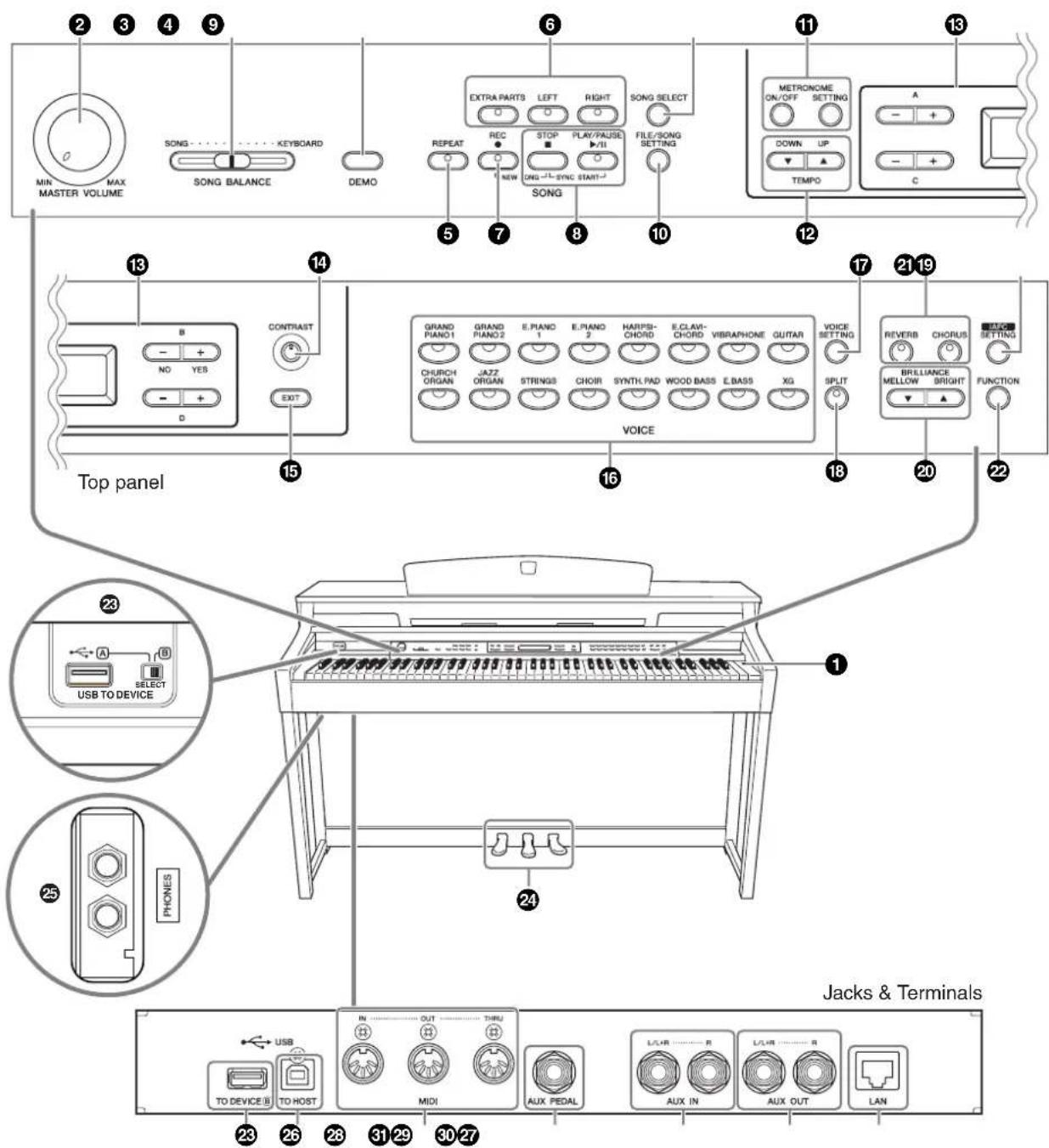
MIN MAX MASTER VOLUME SONG SONG BALANCE DEMO SONG EXTRA PARTS LEFT RIGHT SONG SELECT REPEAT NEW STOP PLAY/PAUSE /II FILE/SONG SETTING METRONOME ON/OFF SETTING DOWN UP TEMPO A + - + C 5 7 9 10 11 12 13 14 15 CONTRAST B NO YES D EXIT GRAND PIANO1 GRAND PIANO2 E.PIANO 1 E.PIANO 2 HARPSI-CHORD E.CLAVI-CHORD VIBRAPHONE GUITAR VOICE SETTING CHURCH ORGAN JAZZ ORGAN STRINGS CHOIR SYNTH.PAD WOOD BASS E.BASS XG SPLIT REVERB CHORUS MANGO SETTING BRELLIANCE MELLOW BRIGHT FUNCTION voice PARTS GROUP GROUP GROUP GROUP GROUP GROUP GROUP GROUP GROUP GROUP GROUP GROUP GROUP GROUP GROUP GROUP GROUP GROUP GROUP GROUP GROUP GROUP GROUP GROUP GROUP GROUP GROUP GROUP GROUP GROUP GROUP GROUP GROUP GROUP GROUP GROUP GROUP GROUP GROUP GROUP GROUP GROUP GROUP GROUP GROUP GROUP GROUP GROUP GROUP GROUP Group GROUP GROUP GROUP GROUP GROUP GROUP GROUP GROUP GROUP GROUP GROUP GROUP GROUP GROUP GROUP GROUP GROUP GROUP GROUP GROUP GROUP GROUP GROUP GROUP GROUP GROUP GROUP GROUP GROUP GROUP GROUP GROUP GROUP GROUP GROUP GROUP GROUP GROUP GROUP GROUP GROUP GROUP GROUP GROUP GROUP GROUP GROUP GROUP GROUP JACKS & TERMINALSMake sure when using the jacks and terminals to carefully check the names as printed on the panel before making connections.
text_image
AC IN 240 110 28 127 32① [POWER] switch ...... page 15
② [MASTER VOLUME] dial ...... page 16
Adjust the volume level using this dial.
③ [SONG BALANCE] slider ...... page 38
This lets you adjust the volume balance between the song playback and the sound you are playing on the keyboard.
④ [DEMO] button ...... page 17
Demonstration playback is available for each voice.
⑤ [REPEAT] button ...... page 22
For repeatedly playing back a single song or specifying a range (in beats) within a song for repeated playback.
6 [RIGHT], [LEFT], [EXTRA PARTS] buttons --------pages 21, 31, 35
For turning the left- and right-hand parts on or off as required so you can practice the corresponding part (the part that is turned off) on the keyboard.
⑦ [REC] button...... page 32
For recording your keyboard performance.
⑧ [PLAY/PAUSE], [STOP] buttons --------pages 20, 49, 71
For playing back the preset songs, your recorded material, commercially available music data, or songs from the Internet, etc.
⑨ [SONG SELECT] button ......pages 19, 48
For selecting a song to play back or edit.
10 [FILE/SONG SETTING] button......pages 39, 82
For saving recorded songs and managing song files. Also lets you make detailed settings for song recording and playback.
⑪ METRONOME [ON/OFF], METRONOME [SETTING] buttons ......pages 30, 77, 85
For using the metronome functions.
12 TEMPO [UP] [DOWN] buttons...... page 30
For changing the tempo (speed) of the song and metronome.
13 A - D [-] [+] buttons, Display...... page 12
14 [CONTRAST] knob...... page 15
For adjusting the display contrast.
15 [EXIT] button...... page 13
Pressing this button returns to the main operation display (the one shown when the power is turned on).
16 Voice group buttons...... page 23
For choosing voice groups. Sixteen groups of voices, including grand piano, are available. You can also combine two voices and use them together.
17 [VOICE SETTING] button ......pages 78, 86
For making detailed changes to the voice sound and effects.
18 [SPLIT] button ...... page 28
For playing different voices on the left- and right-hand sections of the keyboard.
19 [REVERB], [CHORUS] buttons...... page 26
For adding reverb and chorus effects to the sound.
20 BRILLIANCE [MELLOW] [BRIGHT] buttons ...... page 25
For adjusting the brightness of the sound.
21 [iAFC SETTING] button ...... pages 78, 92
When iAFC is engaged, the Clavinova will sound deeper, more resonant, and more similar to the sound of an actual acoustic instrument. You can turn the iAFC function on or off or make detailed settings for the iAFC.
In order to obtain the optimal results from iAFC, we recommend that you do the following.
- Position the Clavinova so that its rear panel is at least 10 cm away from the wall.
- Perform the automatic adjustment after you turn on the power of the Clavinova for the first time, and after each time you move the Clavinova (page 93).
22 [FUNCTION] button...... pages 79, 94
This lets you make detailed settings, such as adjusting the keyboard touch, making fine adjustments to the pitch or MIDI settings.
23 USB [TO DEVICE] terminals ...... page 72
For connecting the instrument to a USB storage device, allowing saving/loading of data to and from the connected device. The instrument has two [TO DEVICE] terminals, A (on the left of the keyboard) and B (on the connector panel at the bottom), which can be specified using the [SELECT] switch.
24 Soft pedal (left), Sostenuto pedal (center), Damper pedal (right)...... page 24
For producing a range of expressive effects similar to those produced by the pedals on an acoustic piano. These pedals can also be assigned to various functions.
25 [PHONES] jacks......page 16
For connecting a set of standard stereo headphones, allowing private practice.
26 USB [TO HOST] terminal......page 72
For connecting the instrument to your computer, allowing you to transfer MIDI data between the Clavinova and the computer.
27 MIDI [IN] [OUT] [THRU] terminals..... page 72
For connecting external MIDI devices, allowing the use of various MIDI functions.
28 [AUX PEDAL] jack......page 72
For connecting an optional pedal, allowing convenient foot control over one of a variety of assignable functions.
29 AUX IN [L/L+R] [R] jacks ......page 73
For connecting an external tone generator, allowing you to play the sound of that device via the Clavinova's internal sound system and speakers.
30 AUX OUT [L/L+R] [R] jacks...... page 73
For outputting the sound of the Clavinova to external powered speaker systems, for playing in large venues at higher volumes.
31 [LAN] port ...... page 74
By directly connecting the CLP-380 to the Internet, you can use the special service on the Yamaha website that enables you to automatically play back a wide variety of songs (song data) in various musical genres as background music directly on your instrument.
32 [AC IN] connector...... page 15
For connection of the power cord.
Introduction to the Controls
This instrument has many buttons and controls—so many that you may feel overwhelmed at first. However, once you understand the basic operations, you'll find the instrument is very easy to use.
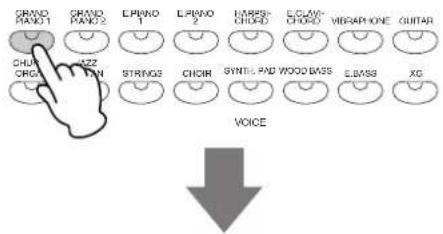
Press the button corresponding to the function you want to use.
The buttons are the means of entrance to the functions.
For example, when you want to change a voice, you simply press one of the voice group buttons on the right of the panel, or when you want to listen to a preset song, press the [SONG SELECT] button on the left of the panel.
For the functions that are assigned to each button, see "Panel Controls and Terminals" on page 10.
text_image
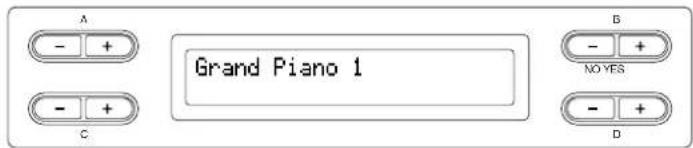
GRAND PAKO 1 GRAND PAKO 2 LPRWD 1 LPRWD 2 LIMPS-CHORD LICWY-CHORD VIBRAPONE GUITAR CHUA CHORD KZZ PAN STRINGS CHORD SYNTIL PAD WOOD BASS ELBASS XG VOICEWhen you press a button, related content or parameter is shown in the display. For example, when you press a voice button, the voice name is shown, or when you press the [SONG SELECT] button, a song name is shown on the display. After pressing a button, check the display for the indication.
text_image
Grand Piano 1 A B - + - + C NO YES - + DSelecting items/parameters with the buttons on the side of the display.
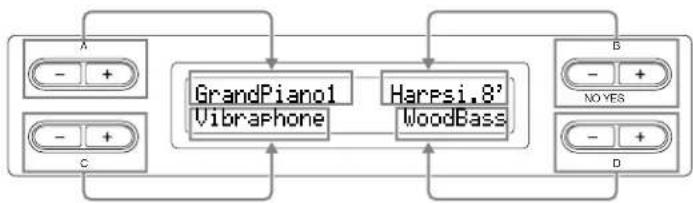
Each function may have many items or parameters from which you can choose. To select an item or parameter, press one of the A [-][+] - D [-][+] buttons. Each parameter in the display corresponds to the A [-][+] - D [-][+] button next to it.
flowchart
graph TD
    A["GrandPiano1 Vibraphone"] --> B["Harpsi.8' WoodBass"]
    C["No YES"] --> B
    D["No YES"] --> B
    A -->|A| B
    A -->|C| C
    B -->|B| D
■ To reset the values or parameters, press the [-][+] buttons simultaneously.
If you've changed the parameter values or settings, you may want to reset them to their normal condition. To do this, simply press the [-][+] buttons simultaneously.
![YAMAHA Clavinova CLP-380 - ■ To reset the values or parameters, press the [-][+] buttons simultaneously. - 1](/content/2026/06/1239174/images/090bc8aea89ba78b7bc526a1f476bb521d43b4ddbefbbec1cac29fa5d03e5f5c.jpg)
text_image
A - + MetronomeVolume 100 B - + NO YES - + CThe TEMPO and BRILLIANCE buttons are the same shape as the A [-][+] - D [-][+] buttons. You can reset the related values or parameters by simultaneously pressing buttons of this shape.
■ To execute or cancel the operation, press the B [+ (YES)] / B [− (NO)] button.
When a prompt is shown on the upper right of the display, press the B [+ (YES)] / B [− (NO)] button to execute or cancel the operation.
![YAMAHA Clavinova CLP-380 - ■ To execute or cancel the operation, press the B [+ (YES)] / B [− (NO)] button. - 1](/content/2026/06/1239174/images/ba2395c2b1e5574e68549a6d306e8291fa69d2fb1a12603fd6e1290cdef16028.jpg)
text_image
A - + C Save Overwrite?--> M-001:NewSong001.MID B YES: execute NO: cancel NO YES DPress the [EXIT] button to exit from a function.
The [EXIT] button is the means to "leave" a function.
After you've used a function and want to exit from it, press the [EXIT] button.
![YAMAHA Clavinova CLP-380 - Press the [EXIT] button to exit from a function. - 1](/content/2026/06/1239174/images/4bdd4d55688b4b9d72ef6159fd1eedc6043184ff09f0902f477db7c82edb52c9.jpg)
text_image
Front panel of a computer interface with labeled buttons, ports, and status indicators[EXIT] button
![YAMAHA Clavinova CLP-380 - Press the [EXIT] button to exit from a function. - 2](/content/2026/06/1239174/images/ff7c947351f978a946c0d42cc03a43bf7560bd8001c3cc4087c8544e34bec370.jpg)
text_image
B NO-YES D CONTRAST EXITBefore Using the Clavinova
About the key cover
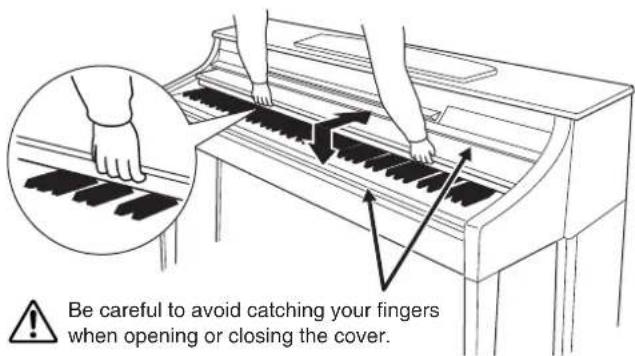
To open the key cover:
Lift the cover slightly, then push and slide it open.
To close the key cover:
Slide the cover toward you and gently lower the cover over the keys.
text_image
Be careful to avoid catching your fingers when opening or closing the cover.
Be careful to avoid catching your fingers when opening or closing the cover.

CAUTION
Hold the cover with both hands when opening or closing it. Do not release it until it is fully opened or closed. Be careful to avoid catching fingers (yours or others, especially children's) between the cover and the unit. Do not place objects such as a piece of metal or paper on top of the key cover. Small objects placed on the key cover may fall inside the unit when the cover is opened and may be nearly impossible to remove. This could cause electric shock, short circuit, fire or other serious damage to the instrument.
About the music rest
To raise the music rest:
- Pull the music rest up and toward yourself as far as it will go.
- Flip down the two metal supports at the left and right on the rear of the music rest.
- Lower the music rest so that it rests on the metal supports.
To lower the music rest:
- Pull the music rest toward yourself as far as it will go.
- Raise the two metal supports (at the rear of the music rest).
- Gently lower the music rest backward until it is all the way down.
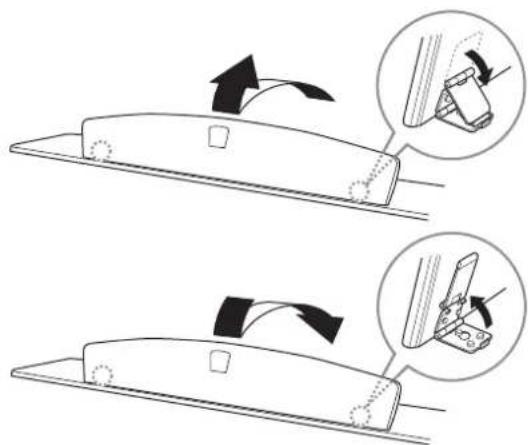
text_image
Diagram illustrating how to slide a slide on an inclined plane, showing correct and incorrect states of the slide.
CAUTION
Do not try to use the music rest in a half-raised position.
When lowering the music rest, do not release your hands from the music rest until it is all the way down.
About the music braces
These braces are for holding the pages of music books in place.
To open To close
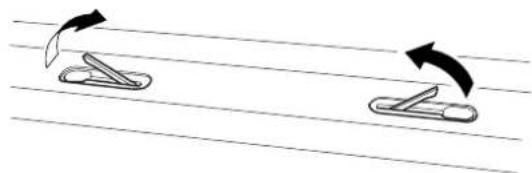
natural_image
Diagram showing two mechanical components with curved arrows indicating motion, no text or symbols present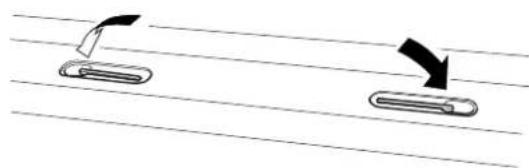
natural_image
Diagram showing two mechanical components with arrows indicating motion, no text or symbols presentTurning the power on
1. Connect the power cable.
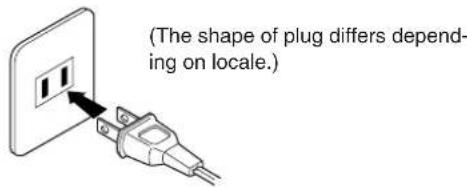
First insert the plug of the power cable into the AC connector on the Clavinova, then plug the other end of the cable into the proper AC outlet on the wall. For an illustration of the location of the [AC IN] connector, see "Panel Controls and Terminals" (page 10). In some areas a plug adaptor may be provided to match the pin configuration of the AC wall outlets in your area.
1-1
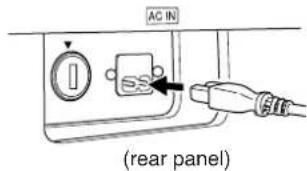
text_image
AC IN I SS (rear panel)1-2
text_image
(The shape of plug differs depending on locale.)
WARNING
Make sure your CLP-380 is rated for the AC voltage supplied in the area in which it is to be used (voltage rating appears on the name plate on the bottom panel). In some areas, a voltage selector may be provided on the bottom panel of the main keyboard unit near the power cord. Make sure that the voltage selector is set for the voltage in your area. Connecting the unit to the wrong AC supply can cause serious damage to the internal circuitry and may even pose a shock hazard!
Use only the AC power cord supplied with the CLP-380. If the supplied cord is lost or damaged and needs to be replaced, contact your Yamaha dealer. The use of an inappropriate replacement can pose a fire and shock hazard!
The type of AC power cord provided with the CLP-380 may be different depending on the country in which it is purchased. (In some areas a plug adaptor may be provided to match the pin configuration of the AC wall outlets in your area.) Do NOT modify the plug provided with the CLP-380. If the plug will not fit the outlet, have a proper outlet installed by a qualified electrician.
2. Turn on the power to the Clavinova.
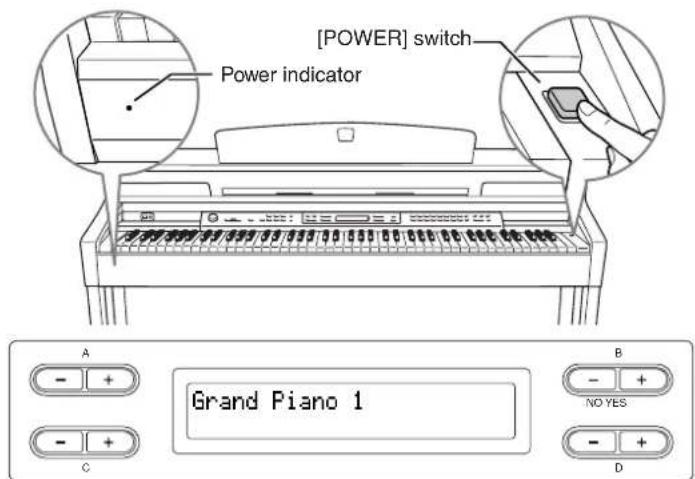
Press the [POWER] switch located on the right of the keyboard to turn the power on.
The screen located in the center of the front panel and the power indicator located below the left end of the keyboard lights up.
text_image
[POWER] switch Power indicator Grand Piano 1 A B C NO YES DWhen you turn on the power to the Clavinova, a voice name appears on the screen.
Press the [POWER] switch again to turn off the power to the Clavinova.
The screen and the power indicator turn off.
TIP
Power indicator
If you close the key cover without turning the power off, the power indicator remains lit, indicating that the power is still on.

CAUTION
Even when the instrument is turned off, electricity is still flowing to the instrument at the minimum level. When you are not using the instrument for a long time or during electrical storms, make sure you unplug the AC power plug from the wall AC outlet.
Adjusting the display contrast
You can adjust the contrast of the display by turning the [CONTRAST] knob located to the right of the LCD.
text_image
A - + - + C B - + NO YES - + D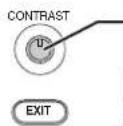
Use this knob.
TERMINOLOGY
Contrast
Difference between brightness and darkness.
Setting the volume
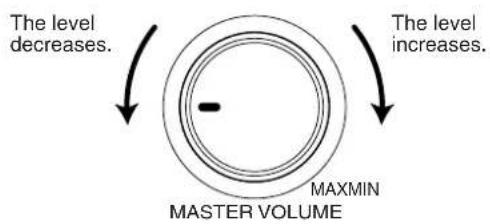
To adjust the volume, use the [MASTER VOLUME] dial located at the left of the panel. Play the keyboard to actually produce sound while you adjust the volume.
text_image
The level decreases. The level increases. MAXMIN MASTER VOLUMECAUTION Do not use the Clavinova at a high volume level for a long period of time, or your hearing may be damaged.
TERMINOLOGY MASTER VOLUME: The volume level of the entire keyboard sound
TIP
You can also adjust the [PHONES] output level and the AUX [OUT] output level using the [MASTER VOLUME] dial.
Using headphones
Connect a pair of headphones to one of the [PHONES] jacks. When the headphones are plugged into either of the [PHONES] jacks, the internal speaker system is automatically shut off.
Two [PHONES] jacks are provided. Two sets of standard stereo headphones can be plugged in. (If you are using only one pair of headphones, you can plug them into either of these jacks.)
CAUTION
Do not use headphones at a high volume for an extended period of time.
Doing so may cause hearing loss.
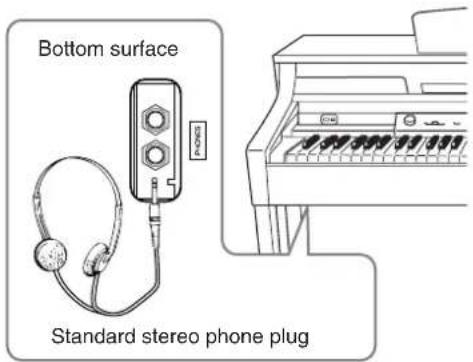
text_image
Bottom surface Standard stereo phone plugUsing the Headphone Hanger
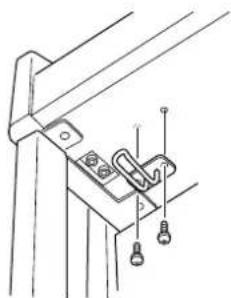
You can hang the headphones on the Clavinova. Install the headphone hanger using included two screws (4 × 10mm) as shown in the illustration.
CAUTION
Do not hang anything other than the headphones on the hanger. Otherwise, the Clavinova or the hanger may be damaged.
natural_image
Technical line drawing of a mechanical clamp or bracket assembly (no text or symbols)TIP
Optional headphones HPE-160 Yamaha headphones.
Performing the iAFC automatic adjustment
The CLP-380 features an iAFC (Instrumental Active Field Control) effect. This produces sound from the speaker located on the rear of the Clavinova, enhancing the reverberation and spaciousness of the sound. In order to take full advantage of iAFC, perform the automatic adjustment (page 92).
Listening to the Demonstration Tunes
For each voice group, the Clavinova contains one demo song that shows off the character of the voices. This section explains how to listen to the demo songs for the voice groups listed below.
Demonstration tunes
| Voice group Tunes Composer | ||
| GRAND PIANO1 Album | brad, Lyriske stykker IV, op.47-2 E. H. Grieg | |
| HARPSICHORD Concerto | to a cembalo obbligato, 2 violini, viola e continuo No.7, BWV.1058 | J. S. Bach |
| CHURCH ORGAN Herr | Christ, der ein'ge Gottes-Sohn, BWV.601 J. S. Bach | |
The demonstration pieces listed above are short rearranged excerpts the original compositions. All other songs are original (©2008 Yamaha Corporation).

text_image
2 4 3 Voice group buttonsProcedure
1. Turn the power on.
(In case the power is not turned ON) Press the [POWER] switch to turn the power on.
Initially set the [MASTER VOLUME] dial about half way between the "MIN" and "MAX" settings. Then, when you start playing, re-adjust the [MASTER VOLUME] dial to the most comfortable listening level.
2. Engage the demo mode.
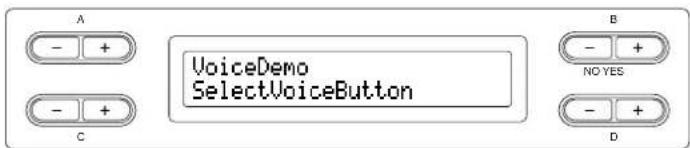
Press the [DEMO] button to engage the demo mode.
The indicators of the voice group buttons will blink in succession.
text_image
VoiceDemo SelectVoiceButton3. Select a tune and start playback.
Press the voice group button for the demo song that you want to hear.
The indicator of the voice group button you pressed will light, and the demo song will begin playing. Subsequently, the demo songs will play back consecutively from the upper left voice group button until you stop the playback.
4. Stop the playback and exit from demo mode.
Press the [DEMO] button.
TERMINOLOGY
Mode:
A mode is a status under which you can execute a certain function. In demo mode, you can play back demonstration tunes.
TIP
To adjust the volume balance between the song playback and the sound you are playing on the keyboard, use the [SONG BALANCE] slider (page 38).
TIP
You can also exit from demo mode by pressing the [EXIT] or [STOP] button.
Hearing the piano demo (using sampling technology) and iAFC demo
By holding down the [DEMO] button and pressing the A [+] button to call up the "Piano Demo" display, you can hear and compare how the piano demo sounds with and without the sampling technology and iAFC demo, by turning iAFC on/off. The demo songs are assigned to the voice group buttons as follows.
| Sampling technology/ iAFC demo | Voice group buttons | |
| Piano demo Stereo | Stereo Piano (Stereo Sampling) | GRAND PIANO 1 |
| Mono Piano (Mono Sampling) | GRAND PIANO 2 | |
| Sustain (Sustain Sampling) | ||
| With E.PIANO1 | ||
| Without E.PIANO 2 | ||
| KeyOff (Key-off Sampling) | ||
| With HARPSICHORD | ||
| Without E.CLAVICHORD | ||
| StringRes (String Resonance) | ||
| With VIBRAPHONE | ||
| Without GUITAR | ||
| iAFC demo | iAFC | |
| With CHURCH ORGAN | ||
| Without JAZZ ORGAN | ||
Listening to 50 Piano Preset Songs
The Clavinova provides performance data of 50 piano songs. You can just listen to these songs (page 19) or use them for practice (page 21). You can also refer to the included “50 greats for the Piano” booklet that contains the scores for 50 piano preset songs.
Playing the 50 piano preset songs
text_image
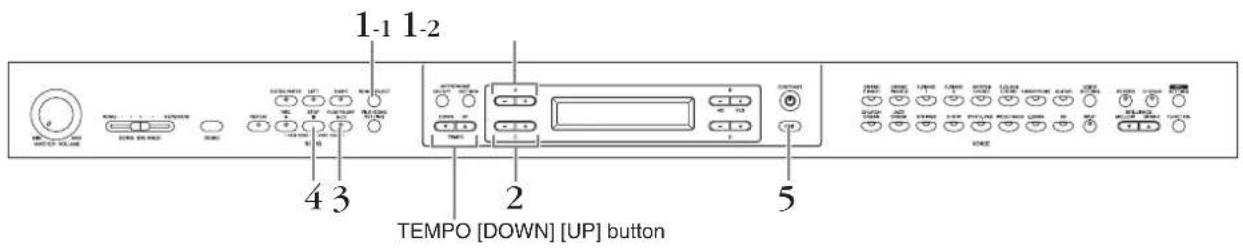
1-1 1-2 4 3 2 5 TEMPO [DOWN] [UP] buttonProcedure
- Call up the Song Select screen.
1-1 Press the [SONG SELECT] button.
1-2 Use the A [-][+] buttons to select the "PRESET" song type.
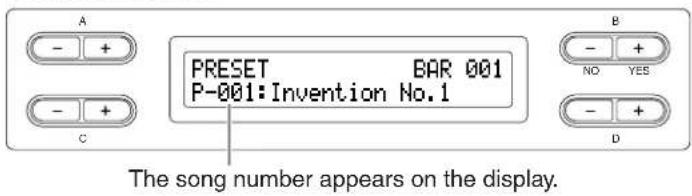
Song select screen
text_image
PRESET BAR 001 P-001:Invention No.1 The song number appears on the display.PRESET ......Stands for Preset song memory. This memory contains 50 piano preset songs.
- Select the desired song.
Press the C [-][+] buttons to select the desired piano song from P-001 to P-050.
TERMINOLOGY
Song:
On the Clavinova, performance data is called a "Song." This includes demonstration tunes and piano preset tunes.
3. Play a preset song.
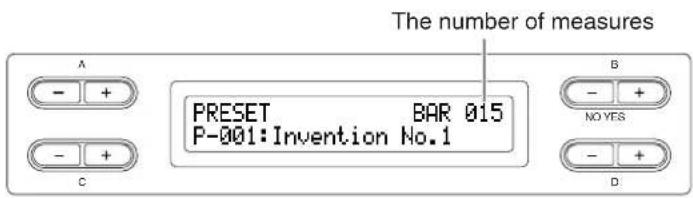
Press the [PLAY/PAUSE] button to start playback.
text_image
The number of measures A B - + - + C PRESET BAR 015 P-001:Invention No.1 NO YES - + DAdjusting the tempo
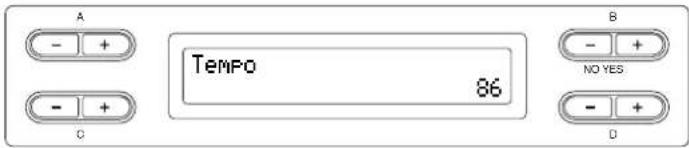
You can use the TEMPO [DOWN][UP] buttons to adjust the playback tempo as required. The default tempo (the song's original tempo) is set when you press the [DOWN] and [UP] buttons simultaneously.
Press either of the [SONG SELECT] button to return to the song select screen.
text_image
A - + - + C Tempo 86 B - + - + NO YES - + D4. Stop the song playback.
When playback is complete, it automatically stops and the Clavinova locates the top of the song. To stop playback in the middle of a song, press the [STOP] button. You can also pause playback by pressing the [PLAY/PAUSE] button. Playback stops when you press the button.
Fast forward and rewind
You can perform the following operations in the song select screen:
Use the B [- (NO)][ + (YES)] buttons to move back and forth (rewind and fast forward) through the song while the song is played or stopped.
Press the C [-] button during playback to start playback from the previous song. Press the C [+] button during playback to start playback from the next song.
Press the [STOP] button or simultaneously press the B [- (NO)][+ (YES)] buttons during playback or while playback is stopped in the middle of the song to locate the top of the song.
5. Return to the default screen.
Press the [EXIT] button.
TIP
- [----: NewSong] is a blank song provided for you to record your performance (page 31).
- You can repeatedly play back a single song or specify a range (in beats) within a song for repeated playback by using the [REPEAT] button (page 22). Use the "SongRepeat" parameter in the [FILE/SONG SETTING] menu to repeat playback of all songs (page 82).
TIP
You can play the keyboard along with the preset song playback. You can change the voice playing on the keyboard.
TIP
Use the D [-][+] buttons to scroll through the song name, if the name does not fit in the display.
TIP
You can also use the D [-][+] buttons to change the tempo.
TIP
Resetting the tempo
Whenever you select a new preset song, the tempo is automatically reset to the song's original value.
TERMINOLOGY
Default screen:
The default screen is a voice select screen (page 23) that appears when you turn on the power to the Clavinova.
Practicing a one-hand part using 50 preset songs
The 50 preset songs have separate left- and right-hand parts on individual parts. You can turn the left- and right-hand parts on or off as required so you can practice the corresponding part (the part that is turned off) on the keyboard. The right-hand part is played by [RIGHT] and the left-hand part is played by [LEFT].

text_image
1 3 2Procedure
1. Turn off the playback part you wish to practice.
After you select a song to practice, press the [RIGHT] or [LEFT] button to turn off the corresponding part.
When you first select a song, both [RIGHT] and [LEFT] indicators light up, indicating that you can play back both parts. When you press one of the buttons to turn off playback, the corresponding button indicator turns off and the corresponding part playback is muted. Pressing the buttons repeatedly toggles between playback on and off.
2. Start playback and playing.
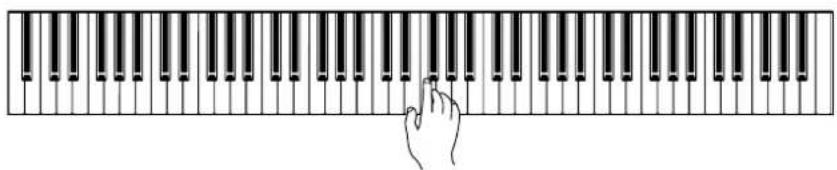
Press the [PLAY/PAUSE] button to start playback. Play the part you just turned off.
natural_image
Illustration of a hand touching a piano keyboard (no text or symbols)Starting playback automatically as you start playing the keyboard (Sync Start)
You can cause playback to begin when you play the keyboard (Sync Start). Hold down the [STOP] button and press the [PLAY/PAUSE] button. The [PLAY/PAUSE] indicator will blink, and the Clavinova will wait for Sync Start. Now when you play the keyboard, playback will begin at the same moment. If you press the [STOP] button while waiting, Sync Start will be cancelled.
3. Stop playback.
When playback is complete, it automatically stops and the Clavinova locates the top of the song. If you wish to stop playback in the middle of a song, press the [STOP] button. You can also pause playback by pressing the [PLAY/PAUSE] button. Playback stops when you press the button.
TIP
You can turn parts on or off, even during playback.
TERMINOLOGY
Sync:
Synchronous; occurring at the same time.
TIP
Resetting the part playback Both parts are automatically turned ON whenever you select a new song.
Practicing with the Repeat Playback function and the preset songs
The Song Repeat functions can be used to repeatedly play back a song or a specific range of measures in a song. This is useful for repeated practicing of difficult-to-play phrases.
Playing back a song repeatedly
Procedure
- Enter the Repeat mode. Select a song to practice, then press the [REPEAT] button.
- Start Repeat playback. Press the [PLAY/PAUSE] button to start playback.
- Exit the Repeat mode and return to the normal play mode. Press the [STOP] button to stop playback, then press the [REPEAT] button.
Specifying a range of measures and playing them back repeatedly (A-B repeat)
Procedure
-
Select the desired song for practicing and play it. Press the [PLAY/PAUSE] button to start playback.
-
Specify the repeat range. Press the [REPEAT] button at the starting point (A) of the range to be repeated. Press the [REPEAT] button again at the ending point (B). After an automatic lead-in (to help guide you into the phrase), the range from point A to point B is played back repeatedly,
-
Cancel the specified range and return to the normal play mode. Press the [REPEAT] button.
TIP
You can repeatedly play back all songs from the 50 preset songs or from the USB storage devices (page 82).
TIP
Specifying the repeat range between point A and the end of the song. Specifying only point A results in repeat playback between point A and the end of the song.
TIP
When you select another song, the specified range is automatically cancelled and the repeat function is turned off.
Selecting and Playing Voices
Selecting Voices

text_image
2 1 Voice group buttonsProcedure
1. Select a voice group.
Press a voice group button.
2. Select a voice.
Use A [-][+] buttons to select a voice.
| Voice group | Voice name | Voice group | Voice name |
| GRANDPIANO1 GrandPiano1 CHURCHORGAN PipeOrganPrincipal | |||
| MellowPiano PipeOrganTutti | |||
| RockPiano PipeOrganFlute 1 | |||
| HonkyTonkPiano | PipeOrganFlute 2 | ||
| GRANDPIANO2 GrandPiano2 JAZZORGAN JazzOrgan | |||
| BrightPiano | RotaryOrgan | ||
| E.PIANO1 | E.Piano1 | MellowOrgan | |
| SynthPiano | |||
| E.PIANO2 | E.Piano2 | STRINGS | Strings |
| Vintage E.Piano | SynthStrings | ||
| SlowStrings | |||
| HARPSICHORD Harpsichord8' CHOIR Choir | |||
| Harpsichord8'+4' | SlowChoir | ||
| E.CLAVICHORD | E.Clavichord | Scat | |
| Wah Clavi. | SYNTH.PAD | SynthPad 1 | |
| VIBRAPHONE | Vibraphone | SynthPad 2 | |
| Marimba | WOOD BASS WoodBass | ||
| Celesta | Bass&Cymbal | ||
| GUITAR | NylonGuitar | E.BASS | ElectricBass |
| SteelGuitar | FretlessBass | ||
| XG | XGVoice | ||
For details on XG voices, refer to "XG voice list" (the separate data list booklet).
If you select XG
XG voices are categorized and included in separate folders. You can select the XG voice group first, then select the desired voice.
2-1 Simultaneously press the [-] [+] screen buttons located beside the XG voice name display, to access a screen where you can select XG voices.
2-2 Use A [-][+] buttons to select the voice group.
2-3 Use C [-][+] buttons to select the desired voice.
TERMINOLOGY
Voice
On the Clavinova, a voice means "tone" or "tonal color."
TIP
You can also switch between voices in the same group by pressing a voice group button repeatedly.
TIP
To learn characteristics of the voices, listen to demo songs for each voice group (page 17). Refer to "Preset Voice List" on page 114 for more information on characteristics of each preset voice.
TIP
You can control the loudness of a voice by how hard you play the keyboard, although different playing styles (touch sensitivities) have little or no effect with the sound of certain musical instruments. Refer to "Preset Voice List" on page 114.
TIP
XG is a major enhancement of the GM System level 1 format, and was developed by Yamaha specially to provide more voices and variations, as well as greater expressive control over voices and effects, and to ensure compatibility of data well into the future.
Using the pedals
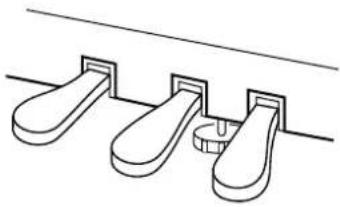
The Clavinova has three foot pedals: damper pedal (right), sostenuto pedal (center), and soft pedal (left) that produce a range of expressive effects similar to those produced by the pedals on an acoustic piano.
natural_image
Line drawing of three identical mechanical clips mounted on a horizontal line (no text or symbols)Damper (right) pedal
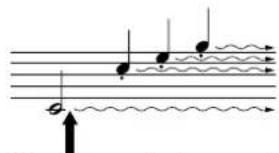
When you press the damper pedal, the notes you play have a longer sustain.
When you select Grand Piano 1, pressing the damper pedal activates the instrument's special "Sustain Samples" to accurately recreate the unique resonance of an acoustic grand piano's soundboard and strings. The damper pedal also features a naturally expressive half-pedal function.
text_image
Musical notation diagram showing rhythmic patterns with notes and wavy lines indicating sound or rhythm statesWhen you press the damper pedal here, the notes you play before you release the pedal have a longer sustain.
Sostenuto (center) pedal
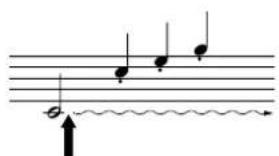
If you play a note or chord on the keyboard and press the sostenuto pedal while holding the note(s), the notes will sustain as long as the pedal is held. All subsequent notes will not sustain.
text_image
Musical notation diagram showing a staff with notes and a wavy line indicating motion or vibrationWhen you press the sostenuto pedal here while holding the note(s), the notes will sustain as long as you hold the pedal.
Soft pedal (left)
The soft pedal reduces the volume and slightly changes the timbre of notes played while the pedal is pressed. (The soft pedal will not affect notes that are already playing when it is pressed. Press the pedal immediately before you play the target notes.)
With the Vibraphone, Jazz Organ and Mellow Organ voices, this pedal turns vibrato on and off or toggles the speed of vibrato. (See page 98.)
TIP
If the damper pedal doesn't work, or notes are sustained even when the pedal is not pressed, make sure that the pedal cord is properly plugged into the [PEDAL] jack on the unit (see step 6 on page 119). Also, make sure that the RPedalFunc parameter in the "FUNCTION" menu is set to ON (see page 96).
TERMINOLOGY
Half-pedal:
While playing the piano with Sustain and you want to slightly mute the sustained sound, release the damper pedal from maximum position to half position.
TIP
The threshold at which the Half Pedal effect starts can be set from the Half Pedal Point parameter in the Function menu (page 98).
TIP
You can adjust the depth of the resonance produced by the "Sustain Samples" using the Sustain Sampling Depth parameter in the "FUNCTION" menu. (See page 99.)
TIP
You can assign a function to each pedal via the "RPedalFunc", "CPedalFunc", and "LPedalFunc" parameters in the "FUNCTION" menu. (See page 96.)
TIP
The center and left pedals can also be assigned to song start/stop operation (PLAY/PAUSE function) via the "PedalPlay/Pause" parameter in the "FUNCTION" menu (on page 98).
Adding variation to the sound [BRILLIANCE]/[REVERB]/[CHORUS]
The Effect function enables you to add expression to the sound. The Clavinova effects include Brilliance, Reverb, and Chorus.
![YAMAHA Clavinova CLP-380 - Adding variation to the sound [BRILLIANCE]/[REVERB]/[CHORUS] - 1](/content/2026/06/1239174/images/8d6cf79626dd9b65d22506bbd35b21c02cb7fbee993a57feb1dc829a2a4c6101.jpg)
text_image
[CHORUS] button [REVERB] button BRILLIANCE [MELLOW] [BRIGHT] button[BRILLIANCE]
You can use this control to adjust the brilliance of the tone and change the tonality to suit your preference.
Procedure
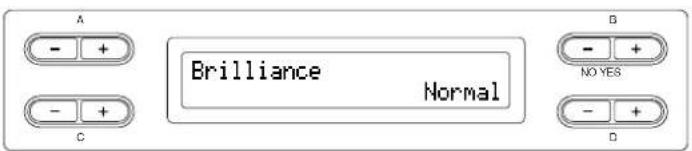
Press one of the BRILLIANCE [MELLOW]/ [BRIGHT] buttons to select the desired tonality.
text_image
A - + Brilliance Normal B - + NO YES - + C DMellow3 Mellow2 Mellow1 Soft and mellow tone. The sound becomes more mellow and rounder as the number increases.
Normal.....Standard tone.
Bright1 Bright2 Bright3 Bright tone. The sound becomes brighter as the number increases.
Press the [EXIT] button to return to the main screen.
TIP
You can press BRILLIANCE [MELLOW] [BRIGHT] buttons, and then use D [-][+] buttons to select the desired tonality.
TIP
Normal setting = Normal
TERMINOLOGY
Normal setting:
The "Normal setting" refers to the default setting (factory setting) obtained when you first turn on the power to the Clavinova.
TIP
If you select [Bright1], [Bright2] or [Bright3] as the type of brilliance, the volume level will increase slightly. Under this condition, if you raise the [MASTER VOLUME] dial setting, the sound may become distorted. In this case, lower the volume accordingly.
[REVERB]
This control adds reverberation to the sound by simulating the natural reverberation of a concert hall.
Procedure
Pressing the [REVERB] button repeatedly toggles the reverb on and off.
Even if the reverb effect is turned off, a “soundboard reverb” effect will be applied when the GrandPiano1 or GrandPiano2 voice is selected.
[CHORUS]
This control adds spread and spaciousness to the sound.
Procedure
Pressing the [CHORUS] button repeatedly toggles the chorus on and off.
You can turn the chorus effect on and off by pressing the [CHORUS] ON/OFF buttons on the panel and by setting the Chorus On Off parameter in the VOICE SETTING menu (see page 89). The [CHORUS] ON/OFF button setting on the panel is temporary. That is, if you select another voice, the chorus setting for the previous voice is cancelled. The Chorus On Off parameter setting is saved for each voice. That is, if you select a given voice, the chorus setting is automatically turned on or off according to the saved chorus setting.
TIP
You can select a reverb type via the Reverb Type parameter in the "VOICE SETTING" menu, and adjust the reverb depth for the selected voice via the Reverb Send parameter. (See page 88.)
TIP
Normal setting = ON
TIP
You can select a chorus type via the Chorus Type parameter in the "VOICE SETTING" menu, and adjust the chorus depth for the selected voice via the Chorus Send parameter. You can also turn chorus on or off via the Chorus On Off parameter. (See page 89.)
TIP
Normal Setting:
The normal chorus on/off setting is different for each voice.
Combining two voices (Dual mode)
You can play two voices simultaneously across the entire range of the keyboard. In this way, you can simulate a melody duet or combine two similar voices to create a thicker sound. Refer to “Voice Combination Examples (Dual and Split)” on page 116 for examples of effective voice combinations.

text_image
The numbers on the upper row indicate the steps in Dual mode using voices from different group. 2 2 1 3 Voice group buttons 3 4 The numbers on the bottom row indicate the steps in Dual mode using voices from the same group.Dual mode using voices in different voice groups
Procedure
1. Enter Dual mode.
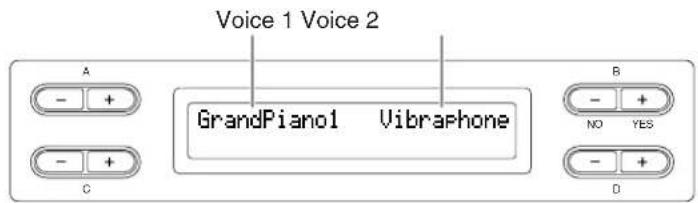
Press two voice group buttons simultaneously.
text_image
Voice 1 Voice 2 GrandPianol Vibraphone A B - + - + C - + D - + NO YES2. Select a voice.
Use the A [-][+] buttons and B [- (NO)][+ (YES)] buttons to select a voice.
The voices listed in the upper row in "Preset Voice List" on page 114 are called voice 1, and those listed in the bottom row are called voice 2.
3. Exit Dual mode and return to normal play mode.
Press any voice group button.
Dual mode using voices in the same voice group
Procedure
1. Select a voice group.
In normal play mode, press the desired voice group button.
2. Select a voice.
Use the A [-][+] buttons to select a voice.
TIP
If you want to select Dual mode for the left-hand area when the entire keyboard is divided into left and right areas (page 28), hold down [SPLIT] button and simultaneously press two voice group buttons.
TIP
Refer to page 23 for details on how to select XG voices.
3. Select another voice.
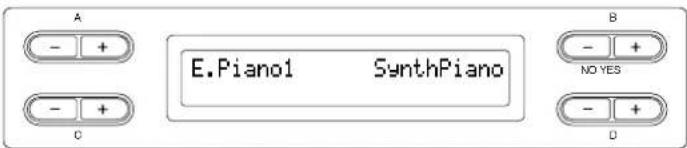
Use the B [- (NO)][+ (YES)] buttons to select another voice in the same voice group.
To use the identical voices, press the B [− (NO)][+ (YES)] buttons once. To use different voices within the same voice group, press the B [− (NO)][+ (YES)] buttons repeatedly.
text_image
A - + E.Piano1 SynthPiano B - + NO YES - + C D4. Exit Dual mode and return to normal play mode.
Press any voice group button.
TIP
If you want to select Dual mode for the left-hand area when the entire keyboard is divided into left and right areas (page 28), press D [-] [+] buttons.
Splitting the keyboard range and playing two different voices (Split mode)
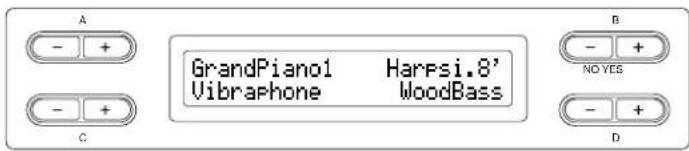
Split mode enables you to play two different voices on the keyboard — one with the left hand and another with the right hand. For example, you can play a bass part using the [WOOD BASS] or [E. BASS] voice with the left hand, and a melody with the right hand. Refer to “Voice Combination Examples (Dual and Split)” on page 116 for examples of effective voice combinations.

text_image
2 2 3 Voice group buttons 3 4 1 3 4 5Procedure
1. Enter Split mode.
Press the [SPLIT] button.
2. Select a voice for the right hand.
Use the voice group buttons and the A [-][+] buttons to select the voice for the right-hand area.
3. Select a voice for the left hand.
Hold down the [SPLIT] button, and press a voice group button to select the voice group for the left-hand area.
Use the C [-][+] buttons to select a voice.
TIP
Refer to page 23 for details on how to select XG voice.
4. Specify the split point (the border between the right- and left-hand range).
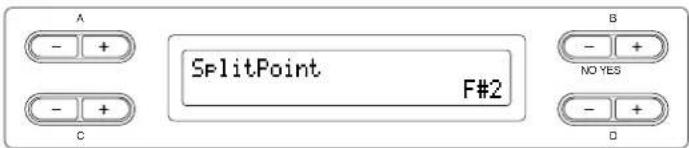
The normal setting of the split point is "F#2."

text_image
F#2 Center "C"To change the split point setting:
Hold down the [SPLIT] button, then use the D [-][+] buttons to specify the split point.
(Optional) Press and hold down the [SPLIT] button and play the key you wish to assign as the split point.
text_image
SplitPoint F#2 A B - + - + C - + B NO YES - + DRelease the [SPLIT] button to return to the main screen.
5. Exit Split mode and return to normal play mode.
Press the [SPLIT] button.
You can use Dual (see page 27) in each area (right-hand and left-hand) of Split mode.
text_image
GrandPiano1 Harpsi.8' Vibraphone WoodBass C B - + - + - + NO YES DTIP
A specified "split point" key is included in the left-hand range.
TIP
The split point can also be set by the [FUNCTION] parameter [SplitPoint] (page 96).
Using the metronome
The Clavinova is built-in metronome (a device that keeps an accurate tempo) is a convenient feature for practice.

text_image
1 2 TEMPO [DOWN] [UP] buttonsProcedure
1. Start the metronome.
Press the METRONOME [ON/OFF] button.
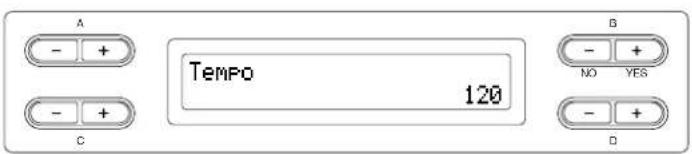
Adjusting the tempo
Press the TEMPO [DOWN] or [UP] button.
text_image
A - + Tempo 120 - + - + C B - + NO YES - + DTo adjust the tempo (number of beats per minute: 5 - 500), use the TEMPO [DOWN][UP] or the D [-][+] buttons. To reset the tempo to the normal (default) setting, press the [DOWN] and [UP] buttons or the D [-] and [+] buttons simultaneously. Press the [EXIT] button to return to the normal screen.
2. Stop the metronome.
Press the METRONOME [ON/OFF] button.
TIP
The default tempo is 120. (If a song has been selected, the song tempo is used.)
TIP
You can set the time signature, metronome volume, and metronome tone using the METRONOME [SETTING] button. (See page 85.)
Recording Your Performance
This chapter explains how to record your performance using the Clavinova recording function.
You can, for example, play back what you have played on the Clavinova keyboard for an effective practice aid. You can also record just the left-hand part, then practice the right-hand part while playing back the recorded left-hand part.
Since you can record up to sixteen parts separately, you could record the left- and right-hand parts separately, or record each part of a four-handed performance or ensemble song one by one to build a song.
TERMINOLOGY
Recording vs. Saving:
The format of performance data recorded on a cassette tape differs from that of data recorded on the Clavinova. A cassette tape records audio signals. On the other hand, the Clavinova "saves" information regarding note timing, voices, and a tempo value, but not audio signals. When you play back recorded songs, the Clavinova produces sound based on the saved information. Therefore, recording on the Clavinova may be more accurately called "saving information." However, this book often uses the word "recording" because it seems to make more sense.
A message (information or confirmation dialog) sometimes appears on the screen to facilitate operation. Refer to the “Message List” on page 104 for an explanation of each message, appropriate actions to take, and troubleshooting information.
TIP
You can record your performance (audio data) to a cassette tape recorder or other recording devices via the AUX OUT connector. (See page 73.)
Recording a New Song
There are two ways to record your performance: recording it quickly without specifying a recording part, or recording several different parts to multiple parts. You can select whichever way best suits your purpose.
■ Recording a performance without specifying the recording part (page 32)
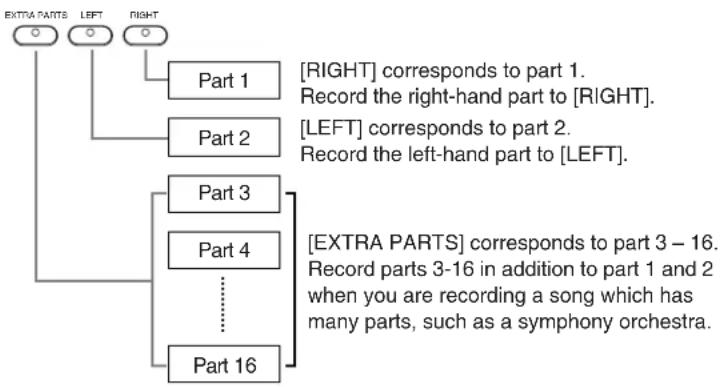
This convenient and simple recording method lets you quickly record your performance without specifying the recording parts—useful, for example, in recording solo piano pieces. In this way, the performance is automatically recorded to part 1 (right part).
■ Recording a performance of several different parts (page 35)
This lets you record the right, left and extra parts separately. Since you can record the left part while playing back the right, this is useful for recording both parts of a duet. Since you can record up to sixteen parts separately, record the performance of each instrument part one by one and create fully orchestrated compositions.
flowchart
graph TD
    A["PART 1"] --> B["Part 2"]
    B --> C["Part 3"]
    C --> D["Part 4"]
    D --> E["..."]
    E --> F["Part 16"]
    style A fill:#fff,stroke:#000
    style B fill:#fff,stroke:#000
    style C fill:#fff,stroke:#000
    style D fill:#fff,stroke:#000
    style E fill:#fff,stroke:#000
    style F fill:#fff,stroke:#000
    note1["RIGHT"] corresponds to part 1.
Record_the_right-hand_part_to["RIGHT"].
LEFT] corresponds to part 2.
Record_the_left-hand_part_to["LEFT"].
[EXTRA PARTS] corresponds to part 3 – 16.
Record parts 3-16 in addition to part 1 and 2 when you are recording a song which has many parts, such as a symphony orchestra.
TIP
Appropriate channels (parts) in the song will automatically be assigned to [RIGHT] and [LEFT]. Therefore, [RIGHT] may be assigned to a part other than Part 1, or [LEFT] to a part other than Part 2.
TIP
If a "MemoryFull" message or "SystemLimit" message appears after recording your performance, refer to the section "Saving recorded songs to a USB storage device ... [Save]" on page 42.
Recording a performance without specifying the recording part

text_image
1 3 4 5 2Procedure
1. Select "NewSong" for recording.
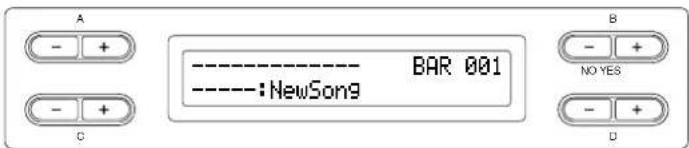
Press the [REC] and [STOP] buttons simultaneously.
"NewSong" screen
text_image
A - + C BAR 001 - - : NewSong B - + NO YES - + D2. Select a voice.
Select a voice (or voices) for recording (see page 23).
Set the other parameters, such as reverb, chorus and Song Balance. Adjust the [MASTER VOLUME] dial to set the volume level to suit your preference. You can also use the dial to adjust the level during playback. After you set the tempo or if the record standby screen does not appear, press the [SONG SELECT] button once to return to the "NewSong" screen.
3. Engage the record mode.
Press the [REC] button.
The [REC] and [RIGHT] indicators flash in red. (To stop recording, press the [REC] button again or press the [STOP] button.)
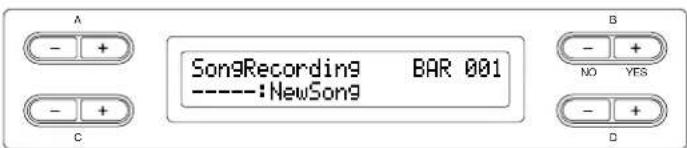
Record standby screen
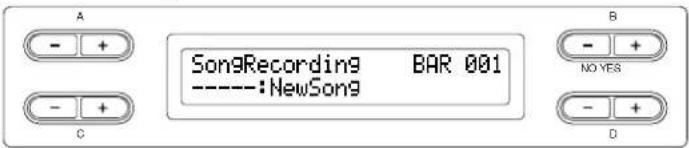
text_image
SongRecording BAR 001 ----:NewSong C B - + - + - + NO YES DSet the tempo, if necessary.
If this record standby screen does not appear, press the [SONG SELECT] button once.
TIP
If you select a song other than "----:NewSong" and record on a part that already has data, the existing data on the part will be lost.
TIP
Set the tempo in Step 3.
TIP
See page 38 for more information on recording in Dual/Split mode.
4. Start and stop recording.
Recording begins automatically as soon as you play a note on the keyboard.
(Optional) Press the [PLAY/PAUSE] button to start recording.
The recording screen displays the current measure number.
Record screen
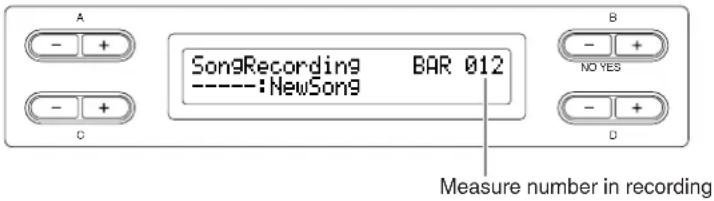
text_image
SongRecording BAR 012 -----:NewSong9 Measure number in recordingTo stop recording, press the [STOP] button. The Clavinova locates the top of the song.
As soon as recording is stopped, the song is automatically saved to Storage memory (page 39). When saving is completed, the Storage memory screen appears.
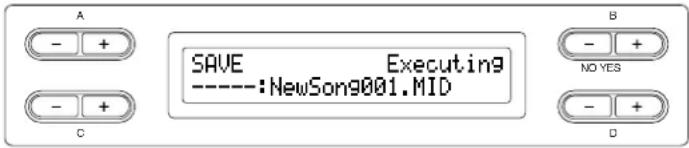
text_image
SAVE Executing ----:NewSong001.MID C B - + - + - + NO YES D5. Play back the recorded performance.
Press the [PLAY/PAUSE] button to play back the recorded performance.
If you've recorded a passage of silence prior to the first note on step 4, and want to play from top of the measure (including that silence or rests), set the "QuickPlay" function to OFF (page 83).
When playback is complete, it automatically stops and the Clavinova locates the top of the song. To stop playback in the middle of a song, press the [STOP] button. You can also pause playback by pressing the [PLAY/PAUSE] button.
Re-recording a song partially
This section explains how to record part of a song again.
Procedure
- Select a recording method.
1-1 Press the [FILE/SONG SETTING] button.
1-2 Press the A [-][+] buttons to display "RecStart" or "RecEnd."
TIP
Using the metronome
You can record data while using the metronome. To do this, turn the metronome on before step 4. The metronome is not recorded.
TIP
Tostop recording in the middle of a song, press the [PLAY/PAUSE] button. To resume recording, press the [PLAY/PAUSE] button again or play a note on the keyboard.
TIP
When you press the [REC] button, recording pauses. To return the location to the start of the song, press the [REC] button, again.
TIP
Rename songs
The recorded songs are named automatically, but you can rename songs as you like (page 43).
1-3 Press the D [-][+] buttons to specify how the recording should start and end.
Starting methods:
Normal: The existing data will be erased after re-recording starts.
FirstKeyOn: Data that exists prior to the point where you start playing a note will not be erased.
Ending methods:
Replace: The data after the point you stop recording will also be erased.
PunchOut: The data after the point you stop recording will remain.
2. Pause the song at the beginning of the part you wish to re-record.
Use the B [− (NO)][+ (YES)] buttons while the playback screen is displayed to move through the measures or play back the recording and press the [PLAY/PAUSE] button to locate a point slightly prior to the beginning of the part you wish to re-record.
If the playback screen is not displayed, press the [SONG SELECT] button once.
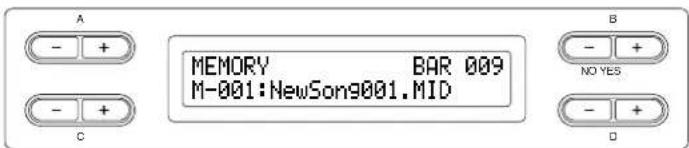
text_image
A - + C MEMORY BAR 009 M-001:NewSong001.MID B - + NO YES - + D3. Select a voice or voices for recording, if necessary.
Repeat Step 2 on page 32 if you wish to change the previous settings.
4. Engage record mode.
Press the [REC] button.
To stop recording, press the [REC] button again or press the [STOP] button. After pressing the [REC] button again or the [STOP] button when "RecStart" is set to "Normal" (page 34), "Overwrite?" is shown in the display. To cancel this and not overwrite, press the B [- (NO)] button.
5. Start and stop recording.
Recording begins automatically as soon as you play a note on the keyboard.
(Optional) Press the [PLAY/PAUSE] button to start recording.
To stop recording, press the [STOP] button. The Clavinova locates the top of the song.
6. Save the recorded songs.
When you stop recording, the display prompts you whether you want to overwrite the song or not. Press the B [+ (YES)] button to overwrite the song.
To cancel overwriting, press the B [− (NO)] button.
TERMINOLOGY
"Overwrite?->":
Do you wish to overwrite the song?
Recording a performance of several different parts

text_image
2 2 1 3Procedure
1. Select "New Song" and a voice for recording.
Follow the same operation steps as in “Recording a performance without specifying the recording part” above. Refer to steps 1 – 2 on page 32.
2. Specify the recording parts and engage the record mode.
Record to the right (part 1) or left (part 2) part:
Press and hold down the [REC] button and press the [RIGHT]/[LEFT] button.
Record to the extra parts (part 3 - 16):
Press the [FILE/SONG SETTING] button and press the A [-][+] button to display "RecExtraPartsCh." Press the D [-][+] buttons to specify a recording part. The specified part is assigned to the [EXTRA PARTS] button.
After specifying the recorded part to the [EXTRA PARTS] button, press and hold down the [REC] button and press the [EXTRA PARTS] button.
The [REC] and specified part indicators flash in red.
(To stop recording, press the [REC] button again or press the [STOP] button.)
Record standby screen
text_image
SongRecording BAR 001 ----:NewSongSet the tempo, if necessary.
If this record standby screen does not appear, press the [SONG SELECT] button once.
If you don't want to hear the right/left part while you record, press the [RIGHT]/[LEFT] button so that its indicator is turned off.
3. Start and stop recording.
Recording begins automatically as soon as you play a note on the keyboard.
(Optional) Press the [PLAY/PAUSE] button to start recording. To stop recording, press the [STOP] button. The Clavinova locates the top of the song.
To stop recording, press the [STOP] button. The Clavinova locates the top of the song.
As soon as recording is stopped, the song is automatically saved to Storage memory (page 39). When saving is completed, the Storage memory screen appears.
TIP
Set the tempo in Step 2.
TIP
See page 38 for more information on recording in Dual/Split mode.
Other recording techniques
Adding data to or recording over an existing song
The previous section explains how to record your performance from the beginning by selecting a blank “----: NewSong.” You can also add your performance to or overwrite existing songs (such as 50 preset songs [P-001 – P-050], commercially-available music data
Procedure
1. Select a song to be recorded over.
To select a preset song, press the [SONG SELECT] button, then press the A [-][+] buttons to display "PRESET." To select a song, press the C [-][+] buttons. To select a song from commercially available music data or from already-recorded data, press the A [-][+] buttons to display "MEMORY" or "USB1" in the Song Select screen and press the C [-][+] buttons.
To continue recording, follow the procedure described in "Recording a performance without specifying the recording part" from pages 32 to 34.
When you record over a preset song, the song is automatically saved to Storage memory (page 39) when the recording stopped.
When you record over a song of commercially available music data or of already-recorded data, the display prompts you whether you want to overwrite the song or not (when recording is stopped). Press the B [+ (YES)] button to overwrite the song.
TIP
If you record on a part that already has data, the existing data on the part will be lost.
Changing a voice or tempo after recording
You can change the voice and tempo after recording to change a song's feel or to set a more suitable tempo. You can also change these elements in the middle of a song.
Procedure
- Select a song you wish to change (page 36).
- To change the voice or tempo in the middle of the song, specify the measure to change by using the B [− (NO)] [+ (YES)] buttons while the playback screen is displayed or by pressing the [PLAY/PAUSE] button to locate a point slightly prior to the beginning of the part you wish to re-record.
- Change the settings (voice, reverb, etc.).
For example, if you wish to change the recorded E.Piano1 voice to E.Piano2, use the voice group buttons and the A [-][+] buttons to select E.Piano2.
When the setting is complete, press the [SONG SELECT] button once to return to the song select screen.
- Press and hold down the [REC] button and select the part to change.
The indicator for the selected part lights up in red.
Change the tempo setting now, if necessary.
At this point, do not play the keyboard or press the [PLAY/PAUSE] button.
Otherwise, recording will start, erasing the recorded data.
- Press the [STOP] or [REC] button to exit record mode.
When you exit record mode, the display prompts you whether you want to overwrite the song or not. Press the B [+ (YES)] button to overwrite the song.
TIP
Before changing a voice or tempo, set the starting method to "Normal" (page 33).
When the starting method is set to "FirstKeyOn," you cannot change a voice or tempo.
TIP
Refer to "What type of data is recorded?" on page 108 for information on the settings that can be changed here.
TIP
Change the tempo in Step 4.
CAUTION
The panel settings on Step 3 will be saved in memory and you will not be able to restore the previous settings. Proceed with caution.
Adjusting the volume balance between playback and your performance [SONG BALANCE]
While recording multiple parts one by one, you can adjust the volume balance between the playback of the recorded parts and your current performance.
Procedure
1. Move the [SONG BALANCE] slider to the left or right to make adjustments.
![YAMAHA Clavinova CLP-380 - Move the [SONG BALANCE] slider to the left or right to make adjustments. - 1](/content/2026/06/1239174/images/11b4b16b7cdb5c021620b9185941664655e348051c8e9626f95f9ae12103baaf.jpg)
text_image
SONG KEYBOARD SONG BALANCE The song playback volume will be lower. Your playing volume will be lower.Recording in Dual or Split mode
When you record in Dual or Split mode, the Clavinova records each voice onto a separate part. The following table shows how parts are assigned to each voice.

CAUTION
When you record multiple parts one by one, or when you record new data over an existing song (see page 36), the existing data will be erased. Proceed with caution.
In the following example, RIGHT, LEFT, and EXTRA PARTS n have been selected for recording.
TIP
Some commercially-available music data contains extremely high volumes. When using such data, please adjust the song balance.
TIP
Switching between Dual and Split mode in a song is not recorded.
| Parts assigned for recording | Dual Split Split+Dual | |||||||||
| RIGHT LEFT EXTRAPART n | RIGHT LEFT EXTRAPART n | RIGHT LEFT EXTRAPART n | ||||||||
| ↓↓ ↓ ↓ ↓ ↓ ↓ ↓ ↓ ↓ | ||||||||||
| Parts used for recording | MAIN (voice 1) | Part 1 | Part 2 | Part n | Part 1 | Part n | Part 1 | Part n | ||
| LEFT (voice 1) | - | Part 2 | Part n+1 | Part 2 | Part n+1 | |||||
| MAIN (voice 2) | Part 3 | Part 4 | Part n+2 | - | Part 3 | Part n+2 | ||||
| LEFT (voice 2) | - | - | Part 4 | Part n+3 | ||||||
Note: Part n = Part 3 - Part 16 If "n+1," "n+2," and "n+3" exceed 16, Parts 1, 2, and 3 are used.
Handling files such as deleting song files ... [FILE/SONG SETTING]
File screens (accessed via the [FILE/SONG SETTING] button) enables you to handle files (e.g., save, delete and rename recorded songs), copy and format medias and change characters on the screen. To connect to a USB storage device, be sure to read the section "Precautions when using the USB [TO DEVICE] terminal" on page 122.
The following parameters are provided for these operations:
| Settings | Parameter name | Reference page |
| Saving recorded songs to a USB storage device Save 42 | ||
| Deleting a song from the Clavinova's Storage memory or from a USB storage device | Delete 43 | |
| Renaming files Rename 43 | ||
| Copying files Copy 44 | ||
| Moving files Move 45 | ||
| Making folders (directories) in the USB storage device MakeDir 45 | ||
| Formatting a USB storage device Format | 46 | |
| Automatically selecting a song in storage media | SongAutoOpen | 46 |
| Changing the type of characters on screen | CharacterCode | 47 |
Clavinova memory
The Clavinova has the following three types of memory:
Current memory:
This is a temporary memory area where you can temporarily place and edit the currently-selected song before playback or recording.
Preset song memory:
This read-only memory area saves 50 piano preset songs.
Storage memory:
This memory area enables you to save recorded songs or song data loaded from USB storage device.
When you select a song in the song select screen, it is loaded from Preset song memory, Storage memory, or USB storage device, into Current memory.
You will use Current memory to play back and record songs. When you turn off the power to the Clavinova, songs saved in Preset song memory and Storage memory are not erased. On the other hand, songs in Current memory are lost. However, recorded songs are automatically saved to Storage memory from Current memory.
In this manual, a song located in a song recorded in Current memory, is referred to as a “Current song,” a song in Storage memory is a “Memory song,” and a song on a USB storage device is an “External song.”
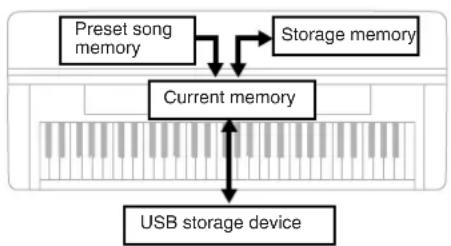
flowchart
graph TD
    A["Preset song memory"] --> B["Current memory"]
    C["Storage memory"] --> B
    B --> D["USB storage device"]
TERMINOLOGY
File
A file contains a group of data. On the Clavinova, a song file includes song data and a song number.
Memory
Memory is a location inside the Clavinova in which you can save and edit data.
Character code
Type of characters
CAUTION
Please note that the copy features are intended for your personal use only.
Song types
This instrument handles various types of songs. Letters and song numbers are displayed to the left of the song name. The letters indicate the different song types as follows:
Preset song memory
P.....Preset songs
Storage memory
M ......Memory songs
MP......Protected songs such as preset songs saved to Storage memory, or Disk Orchestra Collection (DOC) songs, and Disklavier Piano Soft songs in the Storage memory.
MS, Ms ....Yamaha-protection-formatted songs in the Storage memory.
USB storage device
U1......External song
U1P......External songs such as Disk Orchestra Collection (DOC) songs or Disklavier Piano Soft songs in a USB storage device.
U1S, U1s..Yamaha-protection-formatted songs in a USB storage device.
Limitation of file operations
O: Yes X: No
| Song types | ||||
| P | M | , | MS, Ms, U1S, U1s | |
| Save O | *1 | O | O^*1 | X |
| Delete X | O | O | *2 | O |
| Rename X | O | O | *2 | O |
| Copy O | *1 | O | O^*1 | X |
| Move X | O | X | O | *3 |
*1 Only to Storage memory
*2 Only MP songs
*3 Only between Storage memory and USB storage memory
TIP
U1 song with the ".SME" extension can only be deleted — cannot execute other file operations at left.
MP, U1P
Basic file operation
A message (information or confirmation dialog) sometimes appears on the screen to facilitate operation. Refer to the "Message List" on page 104 for an explanation of each message, appropriate actions to take.

text_image
1 2 3 5 3 4 4Procedure
1. Prepare for handling file(s).
Prepare for handling files as follows.
To use "Rename," "Copy" or "Move":
Select a song via the [SONG SELECT] button referring to the section "Listening to 50 Piano Preset Songs" (page 19) and "Playing Back Recorded Songs and Commercially-available Music Data" (page 48).
To use "MakeDir":
Select the USB storage device via the [SONG SELECT] button referring to the section "Playing Back Recorded Songs and Commercially-available Music Data" (page 48).
To use "Save," "Delete," "Format," "SongAutoOpen" or "CharacterCode":
No need to perform any operations in this step.
2. Access the File/Song Setting menu.
Press the [FILE/SONG SETTING] button.
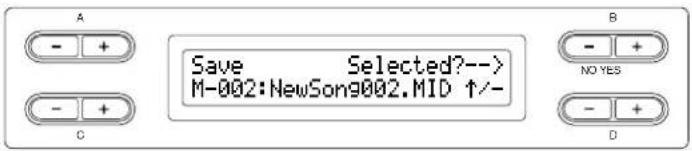
text_image
Save Selected?--> M-002:NewSong002.MID ↑/- C B NO YES DTo close the File/Song Setting menu, press the [EXIT] button once or twice.
3. Select the desired parameter.
Press the [FILE/SONG SETTING] or A [-][+] buttons repeatedly to display the desired item.
4. Set the parameter or execute the command.
Use the B [- (NO)][ + (YES)], C [-] [+], D [-] [+] buttons.
For more information regarding this procedure, refer to the corresponding section below.
5. Close the File/Song Setting menu.
Press the [EXIT] button.
TIP
The "↑ and " " indicators may be displayed in the lower right of the screen. In this case, you can use the D [+] button to open the folder. Press the D [-] button to shift to the upper level.
CAUTION
Avoid frequently turning the power on/off to the USB storage device, or connecting/disconnecting the cable too often. Doing so may result in the operation of the instrument "freezing" or hanging up. While the instrument is accessing data (such as in the Save, Copy and Delete operations), do NOT unplug the USB cable, do NOT remove the media from the device, and do NOT turn the power off to either device. Doing so may corrupt the data on either or both devices.
TERMINOLOGY
"Overwrite?→":
Do you wish to overwrite the song?
"Execute?→":
Do you wish to execute the operation?
"Sure?→":
Are you sure?
"Executing":
The Clavinova is executing the operation.
"Completed":
The operation is complete.
Saving recorded songs to a USB storage device ... [Save]
Recorded songs are automatically saved to Storage memory from Current memory, so normally you won't need to save songs using this function. However, if a "MemoryFull" message or "SystemLimit" message appear, save the song to another device using this function.
![YAMAHA Clavinova CLP-380 - Saving recorded songs to a USB storage device ... [Save] - 1](/content/2026/06/1239174/images/cbf19e96c05ba6b7c2d1fc861ec355061d4f74f6e27731a8fff25e19133e54d9.jpg)
text_image
Save Selected?--> M-001:NewSong001.MID ↑/- C B NO YES DProcedure
See page 41 for information on basic operations.
The following is a detailed procedure of Step 4.
4-1 Select a save destination.
Press the D [-] button to display "DriveSelected?→" and press the C [-][+] buttons to select a save destination (Storage memory or USB storage device). After selecting a save destination, press the B [+ (YES)] button to fix it. Then press the B [+ (YES)] button to display "Execute?→."
4-2 Name the song.
To move the cursor (small underline), use the C [-][+] buttons.
To insert a space, press the C [-][+] buttons simultaneously.
To select a character at the cursor, use the D [-][+] buttons.
To delete a character, press the D [-][+] buttons simultaneously.
You can use up to 46 one-byte or 23 two-byte characters for a song name. If the name is longer than the screen, use the C [-][+] buttons to move the cursor and scroll the name.
4-3 Execute the operation.
Press the B [+ (YES)] button located next to "Execute?→."
Follow the instructions on screen.
The song is automatically numbered.
CAUTION
Do not turn off the power before the save operation is completed. If you turn off the power to the Clavinova before the save operation is completed, the recorded song will be lost.
TIP
The "↑ and " " indicators may be displayed in the lower right of the screen. In this case, you can use the D [+] button to open the folder. Press the D [-] button to shift to the upper level.
TIP
You can change the type of characters on the screen using the "CharacterCode" parameter.
CAUTION
Do not turn off the power or eject the media while "Executing" is shown in the display.
TIP
If Storage memory contains one or more songs, and you save a new song, the Clavinova automatically sorts the songs alphabetically and renumbers them.
Deleting a song from the Clavinova's Storage memory or from a USB storage device ... [Delete]
This deletes a song from Storage memory or from a USB storage device. It is not possible to delete a preset song or current song.
![YAMAHA Clavinova CLP-380 - Deleting a song from the Clavinova's Storage memory or from a USB storage device ... [Delete] - 1](/content/2026/06/1239174/images/dc343aeb9871447cded59191f144c80762bcb0b75a85819648d7f7097666ef49.jpg)
text_image
Delete Execute?--> U1-001:NewSong001 ↑/- C B - + - + - + NO YES DProcedure
See page 41 for information on basic operations.
The following is a detailed procedure of Step 4.
4-1 Press the C [-][+] buttons to select a song to delete.
4-2 Press the B [+ (YES)] button located next to "Execute?→."
Follow the instructions on screen.
TIP
The “↑ and ” ↓ indicators may be displayed in the lower right of the screen. In this case, you can use the D [+] button to open the folder. Press the D [-] button to shift to the upper level.
TIP
After you delete a song, the Clavinova automatically updates the song numbers.
TIP
When you delete a folder, all files within that folder will be deleted.
CAUTION
Do not turn off the power or eject the media while "Executing" is shown in the display.
Renaming files ... [Rename]
You can change a song's title except for the preset songs and [----: NewSong].
![YAMAHA Clavinova CLP-380 - Renaming files ... [Rename] - 1](/content/2026/06/1239174/images/e3c0eac4d1596592206f59c369e60d2fc815d0502e8e83143bd340b68d1d3e82.jpg)
text_image
Rename Execute?--> M-001:NewSong001 C B NO YES DProcedure
See page 41 for information on basic operations.
The following is a detailed procedure for Step 4.
- Name the song as described in the "Save" section (page 42).
TIP
To rename a folder
To rename a folder, select "Rename" then select the folder by pressing the [SONG SELECT] button and the C [-][+] buttons. (The folder name is shown after "DIR:") To select another level in this display, press the D [-][+] buttons. (Other levels can be selected when "↑"↓s shown in the display.) After that, select "Rename" again and rename the folder.
TIP
After you rename a song, the Clavinova sorts songs alphabetically and renumbers them.
CAUTION
Do not turn off the power or eject the media while "Executing" is shown in the display.
Copying files ... [Copy]
You can copy songs. However, you cannot copy files to the same root directory or same folder.
![YAMAHA Clavinova CLP-380 - Copying files ... [Copy] - 1](/content/2026/06/1239174/images/7e546ef43315926de315eac33a818b9448734aff9c38ec4310310a285ce9986d.jpg)
text_image
Copy Execute?--> U1-001:NewaSon9001 ↑/- C B NO YES DCopy operation
You can copy files to other memory location.
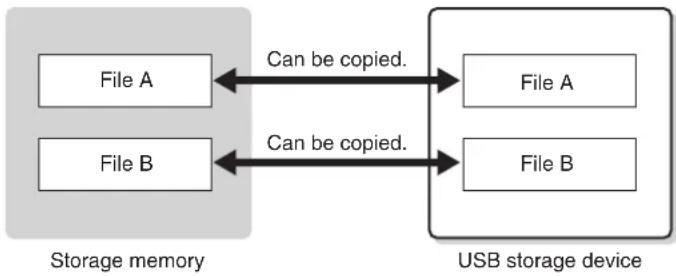
flowchart
graph LR
    A["File A"] -->|Can be copied.| B["File A"]
    C["File B"] <--|Can be copied.| D["File B"]
    E["Storage memory"] --> A
    E --> C
    style A fill:#f9f,stroke:#333
    style C fill:#f9f,stroke:#333
    style E fill:#ccf,stroke:#333
    classDef memory fill:#fff,stroke:#000;
    class A,B,C memory
    classDef device fill:#fff,stroke:#000;
    class B,D device
You can copy files to a folder but not on the same root directory.
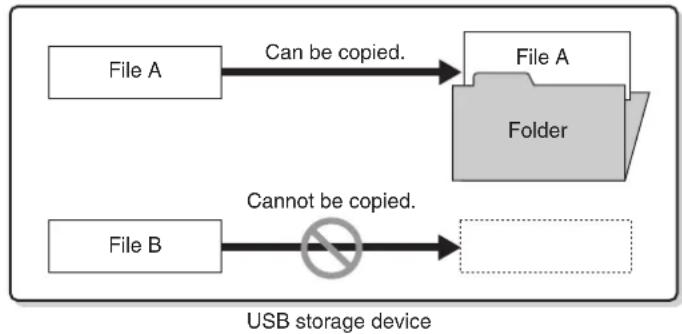
flowchart
graph TD
    A["File A"] -->|Can be copied.| B["Folder"]
    C["File B"] -->|Cannot be copied.| D["Unsupervised"]
Procedure
See page 41 for information on basic operations. The following is a detailed procedure for Step 4.
4-1 When you copy a song to/from a USB storage device, make sure that a USB storage device is connected to the instrument.
4-2 Press the D [-] button to display "DriveSelected?→" and press the C [-][+] buttons to select a copy destination (Storage memory or USB storage device). After selecting a copy destination, press the B [+ (YES)] button to fix it.
4-3 Press the B [+ (YES)] button located next to "Execute?→." Follow the instructions on screen.
TIP
Please note that the copy features are intended for your personal use only.
TERMINOLOGY
Root:
The highest level of a hierarchical structure. This indicates an area which does not belong to a folder.
TIP
Protected songs cannot be copied.
TIP
Please note that the copy features are intended for your personal use only.
TIP
You cannot copy a folder.
TIP
The "↑ and " " indicators may be displayed in the lower right of the screen. In this case, you can use the D [+] button to open the folder. Press the D [-] button to shift to the upper level.
CAUTION
Do not turn off the power or eject the media while "Executing" is shown in the display.
Moving files ... [Move]
You can move (cut and paste) songs.
![YAMAHA Clavinova CLP-380 - Moving files ... [Move] - 1](/content/2026/06/1239174/images/52336961079a06e13b2793a5370b4b7b49f1b8da5fcadc8432fbb35715c21f00.jpg)
text_image
Move Execute?--> U1-001:NewSong001 ↑/- C B - + - + - + D NO YESProcedure
See page 41 for information on basic operations.
The following is a detailed procedure for step 4.
4-1 When you move a song to/from a USB storage device, make sure that a USB storage device is connected to the instrument.
Press the D [-] button to display "DriveSelected?→" and press the C [-][+] buttons to select a move destination (Storage memory or USB storage device). After selecting a move destination, press the B [+ (YES)] button to fix it.
4-2 Press the B [+ (YES)] button located next to "Execute?→."
Follow the instructions on screen.
TIP
Preset songs and some protected songs cannot be moved.
TIP
You cannot move a folder.
TIP
The "↑ and " ↓ indicators may be displayed in the lower right of the screen. In this case, you can use the D [+] button to open the folder. Press the D [-] button to shift to the upper level.
CAUTION
Do not turn off the power or eject the media while "Executing" is shown in the display.
Making folders in the USB storage device ... [MakeDir]
You can create folders (directories) on the USB storage device to organize songs. This instrument enables you to create folders only in the USB storage device—not in the Preset song memory and Storage memory.
![YAMAHA Clavinova CLP-380 - Making folders in the USB storage device ... [MakeDir] - 1](/content/2026/06/1239174/images/4489630e4f24989c8b6b64aa01964a953d45a3d69826bf63960297acbcc9c17d.jpg)
text_image
MakeDir Execute?--> U1 :NewDir_Procedure
See page 41 for information on basic operations.
The following is a detailed procedure for step 4.
4-1 Follow the steps "Saving recorded songs to a USB storage device" on page 42 to name the folder.
4-2 Press the B [+ (YES)] button located next to "Execute?→."
Follow the instructions on screen.
The folder is created in the root directory in the USB1 (indicated by "U1" in this display) device.
TIP
To make a folder for the selected drive or level
To make a folder for the selected drive or level, select "MakeDir" then select "USB" by pressing the [SONG SELECT] button. In this display, press the A [-][+] button to select another drive. Press the D [-][+] button to select another level. After that, select "MakeDir" again and make a folder, following step 4 at left.
CAUTION
Do not turn off the power or eject the media while "Executing" is shown in the display.
TERMINOLOGY
Root:
The highest level of a hierarchical structure. This indicates an area which does not belong to a folder.
Formatting a USB storage device ... [Format]
You can format media so that it can be used with the Clavinova.
![YAMAHA Clavinova CLP-380 - Formatting a USB storage device ... [Format] - 1](/content/2026/06/1239174/images/1d532a9d811e04a57b0b9cec69a65e67166c870df525598f3cd5edbacadeb65c.jpg)
text_image
Format Execute?--> USB1 C B - + - + - + NO YES DProcedure
See page 41 for information on basic operations. The following is a detailed procedure for step 4.
4-1 If some USB storage devices are recognized by the instrument, press the C [-][+] buttons to select a device.
4-2 Press the B [+ (YES)] button located next to "Execute?→." Follow the instructions on screen.
CAUTION
Do not turn off the power or eject the media while "Executing" is shown in the display.
Automatically selecting a song in storage media ... [SongAutoOpen]
Specify whether a song (not contain in a folder) which does not contain to a folder will automatically be opened when you insert the media.
![YAMAHA Clavinova CLP-380 - Automatically selecting a song in storage media ... [SongAutoOpen] - 1](/content/2026/06/1239174/images/ee7286687cea011aeb27b57d141e55feaf3e4bae77be7c57aec765924017d7a0.jpg)
text_image
SongAutoOpen On A B C NO YES DProcedure
See page 41 for information on basic operations. The following is a detailed procedure for step 4.
4 Use D [-][+] button to select ON or OFF.
TIP
When a USB storage device is connected to the instrument, a song in the device will not automatically open. A song is automatically opened only when media is inserted to a drive. Therefore, this function cannot be used for devices which do not use removable media—such as USB flash memory or hard disk drive.
Changing the type of characters on screen ... [CharacterCode]
You can change the type of characters that appear on screen.
The default setting is "International." To input katakana, change this setting to "Japanese."
![YAMAHA Clavinova CLP-380 - Changing the type of characters on screen ... [CharacterCode] - 1](/content/2026/06/1239174/images/30b2a99b3b8c8d4a6f6be9e9d9c92416bdcf8134ce8afcf8b9c864f86d203efd.jpg)
text_image
CharacterCode Japanese - + + - + + C B - + NO YES - + + DProcedure
See page 41 for information on basic operations.
The following is a detailed procedure for step 4.
4 Use D [-][+] button to select International or Japanese.
Options: International, Japanese
Character list
International

text_image
0~9 | A~Z | a~z | Ä | Ê | İ | Ö | Ü | ä | ë | i | ö | ü | à | è | ì | ò | á | é | í | ó | ú | â | ê | í | ô | û | ű | ñ | β | Ç | ç | ° | i | ¿ | | ! # $ % & ' ( ) + , - . ; = @ [ ] ^ _ ` { } ~Japanese

Playing Back Recorded Songs and Commercially-available Music Data
You can play back songs recorded using the Record function (page 31) as well as commercially-available music data. You can also play the keyboard along with the playback.
TIP
Songs containing a large amount of data may not be able to be read properly by the instrument, and as such you may not be able to select them. The maximum capacity is about 200 – 300KB, however this may differ depending on the data contents of each song.
TIP
See page 50 for information on the types of song data that can be played on the Clavinova.
TIP
Change the Clavinova's character type ([CharacterCode]) as appropriate for the selected song (page 47).
Playing back a song
If you want to play back an External song on this instrument, connect the USB storage device and insert the appropriate media into the device. Before using a USB storage device, be sure to read the section “Precautions when using the USB [TO DEVICE] terminal” on page 122.

text_image
1-1 1-2 4 3 2 5Procedure
- Display the song select screen.
1-1 Press the [SONG SELECT] button.
1-2 Use the A [-][+] buttons to select the song type: "MEMORY" or "USB1."
Song select screen
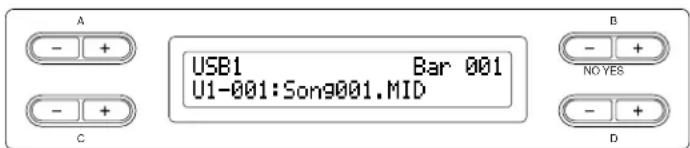
text_image
USB1 Bar 001 U1-001:Song001.MID C B NO YES DMEMORY .....Stands for Storage memory. This memory contains recorded songs or copied songs. "MEMORY" is not displayed when this memory does not contain any songs.
USB1 ......Stands for USB storage device. This device contains commercially available song data, etc. “USB1” is not displayed when the USB storage device is not connected to the instrument. When several USB storage devices are recognized to the instrument, numbers are added after “USB,” like “USB1,” “USB2”... The numbers are not fixed and may change according to the order in which the devices are connected and disconnected.
TIP
You can enjoy ensemble performance by yourself. Record the parts for a four-handed song or a piano duet, then play the recorded part while playing the other part on the keyboard.
TIP
You can repeat playback a single song via the [Repeat] button (page 22) or repeat playback all songs by using the "SongRepeat" function (page 82).
2. Select the desired song.
Use the C [-][+] buttons to select a song or folder.
Letters indicating song types and song numbers are shown on the left of the song names, while letters indicating song types are shown on the left of folder names. In addition, folders are indicated by "DIR" at the left of the corresponding name. See page 40 for details regarding the letters used to indicate song types.
3. Start playback.
Press the [PLAY/PAUSE] button.
Starting playback automatically as you start playing the keyboard (Sync Start)
You can start playback as soon as you start playing the keyboard. This is called the "Sync Start" function.
To enter Sync Start standby mode, press and hold down the [STOP] button and press the [PLAY/PAUSE] button. The [PLAY/PAUSE] indicator flashes.
Now play the keyboard. Playback starts simultaneously.
To cancel the Sync Start function, press the [STOP] button while the Clavinova is in Sync Start standby mode.
You can move back and forth (rewind and fast forward) through the bars by using the B [- (NO)][ + (YES)] buttons in the song select screen while the Clavinova is playing or stopped.
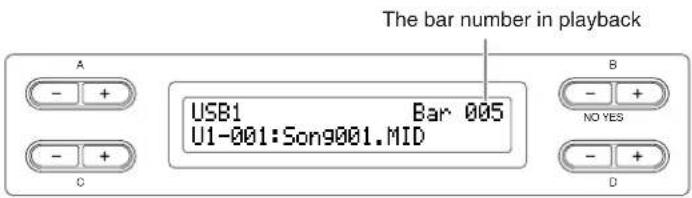
text_image
The bar number in playback USB1 Bar 005 U1-001:Song9001.MID C B NO YES DYou can play the keyboard while the Clavinova is playing back a song. You can also play the notes in a voice different from the playback voice by selecting the voice from the panel, and adjusting the volume balance between the playback parts and your current performance using the [SONG BALANCE] slider. (See page 38.)
Press the [SONG SELECT] button to return to the song select screen.
Adjusting the tempo
You can use the TEMPO [DOWN][UP] buttons to adjust the playback tempo as required before or during playback. The default tempo (the song's original tempo) is set when you press the [DOWN] and [UP] buttons simultaneously.
Press the [SONG SELECT] button to return to the song select screen.
4. Stop playback.
When playback is complete, the Clavinova automatically stops and locates the top of the song. To stop playback in the middle of a song, press the [STOP] button. You can also pause playback by pressing the [PLAY/PAUSE] button. Playback pauses when you press the button.
5. Return to the main screen.
Press the [EXIT] button.
TIP
If the song name extends beyond what can be displayed in the screen, you can press the D [+] button to move toward the right in steps of one character. Press the D [-] button to move back to the left in steps of one character.
TIP
The "↑ and " " indicators may be displayed in the lower right of the screen. In this case, you can use the D [+] button to open the folder. Press the D [-] button to shift to the upper level.
TIP
It is a good idea to shorten long folder names (i.e., over 13 characters) on your computer before using them. See "Troubleshooting" (page 111) for more details regarding the display of folder names.
TERMINOLOGY
Bar: measure
TIP
You can play the metronome along with the song playback. When you stop playback, the metronome is also stopped.
TIP
Press the C [+] button during playback to start playback from the next song. Press the C [-] button during playback to start playback from the previous song.
Tuming part playback on and off
While the Clavinova is playing or stopped, pressing these part buttons turn off the indicators, and the data on those parts will not be played. Pressing the part buttons toggles part playback on and off. You can play the part that is turned off.
TIP
You can practice a part or phrase using the "SongRepeat (page 82)" and "PhraseMark (page 82)" parameters in the "FILE/SONG SETTING" menu.
TIP
Appropriate channels (parts) in the song will automatically be assigned to [RIGHT] and [LEFT]. Therefore, [RIGHT] may be assigned to a part other than Part 1, or [LEFT] to a part other than Part 2.
Supported song data type
Data formats that can be played on the CLP-380
The Clavinova CLP-380 plays song data in the following formats:
Sequence format
• SMF (Standard MIDI File) formats 0 and 1
• ESEQ
Performance data recorded on the CLP-380 is saved as SMF format 0.
Voice arrangement format
• XG voice arrangement
• GM system level 1 voice arrangement
• GM system level 2 voice arrangement
• DOC voice arrangement
Performance data recorded with preset XG voices on the CLP-380 can be played on other XG-compatible instruments.
See the separate "Data List" for the XG voice list.
Floppy disk format
• 3.5-inch 2DD disks in the MS-DOS 720KB format
• 3.5-inch 2HD disks in the MS-DOS 1.44MB format
Refer to “Data Compatibility” on page 112 for more information on formats.
TERMINOLOGY
Sequence format:
A structured method for recording performance data.
TERMINOLOGY
Voice arrangement format:
A structured method for numbering the voices for assignment.
TIP
This instrument can play GS format songs. However, the voices may not be completely the same as used in the original.
TERMINOLOGY
Disk format:
A structured method for writing data to disk.
Internet Direct Connection (IDC)
This feature lets you directly connect your instrument to the Internet.
A service in the special Yamaha website enables you to play back a range of songs (song data) in various musical genres.
For the latest services, refer to the Yamaha website:
http://music.yamaha.com/idc/
Here in this section, you may come across some unfamiliar terms and phrases related to computers and online communications. To look up the meaning of these terms, refer to the “Glossary of Terms (IDC)” on page 67.
In addition, since information and confirmation messages sometimes appear on the screen to facilitate operation, you can refer to the "Message List (IDC)" on page 64 and "Message List" on page 104 for an explanation of the messages, appropriate actions to take, and troubleshooting information.
Connecting the Instrument to the Internet
You can connect the instrument to a full-time online connection (ADSL, optical fiber, cable Internet, etc.) via a router or a modem equipped with a router.
Use a computer to connect to the Internet and get online before connecting the instrument, since no modem or router settings can be made from the instrument itself.
To use the Internet connection, you will first need to subscribe to an Internet service or provider.
Procedure
1. Select the connection environment of your computer from the following.
CAUTION
Due to EU regulations, users within Europe should use an STP (shielded twisted pair) cable to prevent electromagnetic interference.
TIP
Depending on the Internet connection, you may not be able to connect to two or more devices (for example, a computer and the instrument), depending on the contract with the provider. This means you cannot connect with the instrument. If in doubt, check your contract or contact your provider.
| Connection environment | Reference page |
| Using a Cable Connection (Using DHCP) page 52 | |
| Using a Wireless LAN (Using a Wireless Game Adaptor; using DHCP) page 52 | |
| Using a Wireless LAN (Using a USB Wireless LAN Adaptor; using DHCP) page 53 | |
| Using a Cable Connection (Using Static IP Address, Proxy Server) Using a Wireless LAN (Using Static IP Address, Proxy Server) | page 57 |
Using a Cable Connection (Using DHCP)
2. Connect the devices according to the example.
First turn the power of the instrument off, then connect the LAN cable to the [LAN] port on the instrument, and finally turn the power on again.
Connection example: Connecting by cable (using a modem without router)
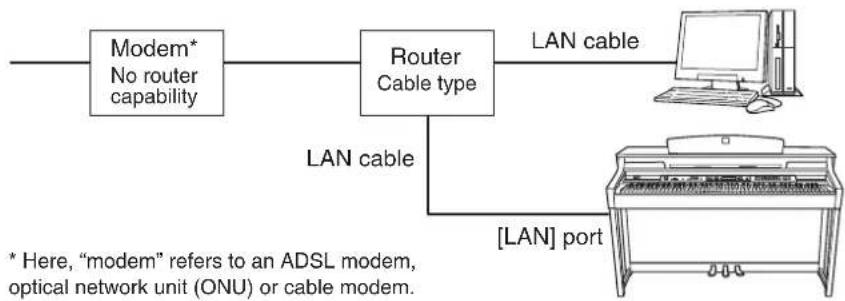
flowchart
graph LR
    A["Modem* No router capability"] --> B["Router Cable type"]
    B --> C["LAN cable"]
    B --> D["[LAN"] port]
    C --> E["Computer"]
    D --> F["Computer"]
Connection example: Connecting by cable (using a modem with router)
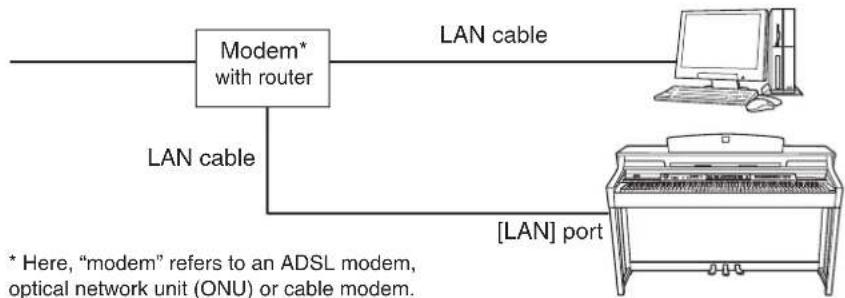
flowchart
graph LR
    A["Modem* with router"] -->|LAN cable| B["Computer"]
    A -->|LAN cable| C["[LAN"] port]
    C --> D["Computer"]
3. Connect the instrument to the Internet.
You do not need to make Internet settings. You can access the Internet simply by connecting a router or a modem equipped with a router to the instrument via a LAN cable.
You can play back songs from the Internet. For instructions on playing back songs, see "Listening to the Songs on Internet" on page 70.
Using a Wireless LAN (Using a Wireless Game Adaptor; using DHCP)
2. Connect the devices according to the example.
First turn the power of the instrument off, then connect the wireless game adaptor to the [LAN] port on the instrument, and finally turn the power on again.
TIP
For an illustration of the location of the [LAN] port, see "Panel Controls and Terminals" (page 10).
TIP
Some types of modems require an optional Ethernet hub network for simultaneously connecting to several devices (such as computer, musical instrument, etc.).
TIP
The most common router and modem equipped with a router have a DHCP function.
Connection example: Wireless connection (using a wireless game adaptor)
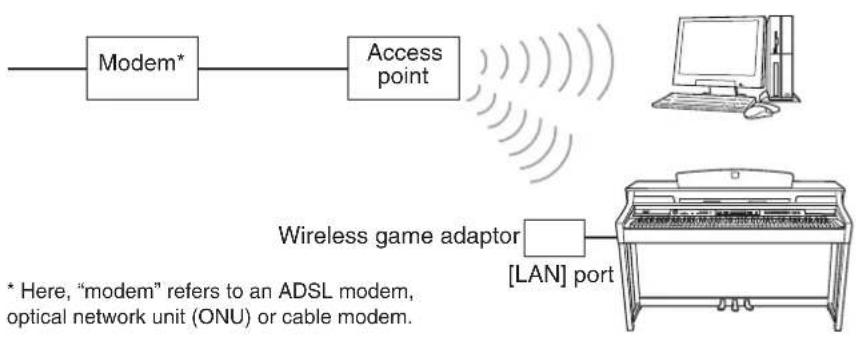
flowchart
graph LR
    A["Modem*"] --> B["Access point"]
    B --> C["Wireless game adaptor"]
    C --> D["[LAN"] port]
    style A fill:#f9f,stroke:#333
    style B fill:#ccf,stroke:#333
    style C fill:#cfc,stroke:#333
    style D fill:#fcc,stroke:#333
3. Connect the instrument to the Internet.
You do not need to make Internet settings. You can access the Internet simply by connecting a wireless game adaptor to the instrument.
You can play back songs from the Internet. For instructions on playing back songs, see "Listening to the Songs on Internet" on page 70.
Using a Wireless LAN (Using a USB Wireless LAN Adaptor; using DHCP)
For important information on the USB [TO DEVICE] terminal, refer to the section "Precautions when using the USB [TO DEVICE] terminal" on page 122.
2. Connect the devices according to the example.
First turn the power of the instrument off, then connect the USB wireless LAN adaptor to the USB [TO DEVICE] terminal on the instrument, and finally turn the power on again.
Connection example: Wireless connection (using a USB wireless LAN adaptor)
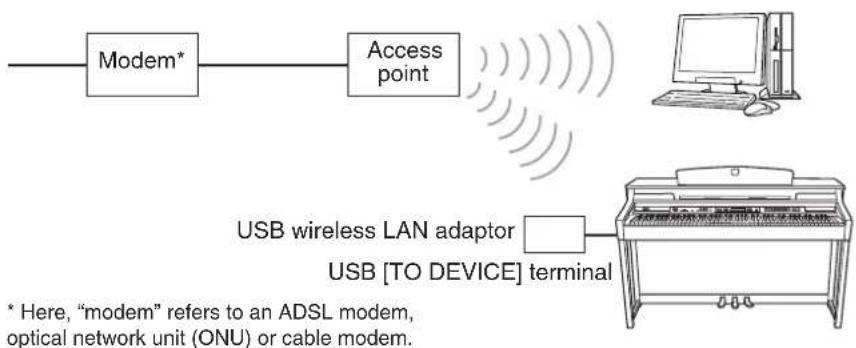
flowchart
graph LR
    A["Modem*"] --> B["Access point"]
    B --> C["USB wireless LAN adaptor"]
    C --> D["USB [TO DEVICE"] terminal]
    style A fill:#f9f,stroke:#333
    style B fill:#ccf,stroke:#333
    style C fill:#cfc,stroke:#333
    style D fill:#fcc,stroke:#333
3. Connect the instrument to the Internet.
You'll need to make Internet settings on the instrument explained in the section "About the Internet Settings (settings concerning the access point)" on page 54. Making the Internet settings might take some time.
TIP
For an illustration of the location of the [LAN] port, see "Panel Controls and Terminals" (page 10).
TIP
For a list of wireless game adaptors whose compatibility has been confirmed by Yamaha, refer to the website: http://music.yamaha.com/ download/
TIP
In addition to the modem or an access point, this connection requires a router.
TIP
The wireless game adaptor requires settings such as the access point. For information about how to make settings, read the owner's manual for the product you are using.
TIP
For an illustration of the location of the USB [TO DEVICE] terminal, see "Panel Controls and Terminals" (page 10).
TIP
For a list of USB wireless LAN adaptors whose compatibility has been confirmed by Yamaha, refer to the website: http://music.yamaha.com/download/
TIP
In addition to the modem or an access point, this connection requires a router.
TIP
This instrument is encrypted in WEP format only.
About the Internet Settings (settings concerning the access point)
When you use Internet Direct Connection (IDC) for the first time, you should make the Internet settings on the instrument, then save all of the settings.
Make a written note of the settings, in case you have to enter them again.
| Access point SS | ID | ||
| Channel | |||
| Encryption YES NO | |||
| WEP key — | |||
Searching for and selecting the access point
When searching for an access point, the display shows the access point(s) near the Clavinova. Once you select the desired access point, the SSID and channel are automatically set.
The WEP key is not entered automatically. You have to enter it by yourself if you select an encrypted access point (key icon " 🔊 appears).
TIP
You do not need to make Internet settings here if you are using a cable connection (using DHCP), a wireless LAN (using a wireless game adaptor; using DHCP), or a cable connection/wireless LAN (using static IP address, proxy server).
TIP
About the confirmation and changes in the setting of the access point side, read the owner's manual for the product you are using.
TIP
Confirm that the power of the access point is on.

text_image
2 3-2 4-1 4-4 1 1 3-1 4-2 4-3Procedure
1. Call up the Internet Settings screen.
Hold down the [FILE/SONG SETTING] button, and press the [REC] button.
Internet Settings screen
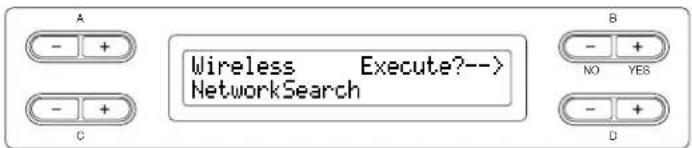
text_image
Wireless Execute?--> NetworkSearch2. Search for the access point(s).
Press the B [+ (YES)] button to search for the access point(s).
The access point(s) is displayed on the screen.
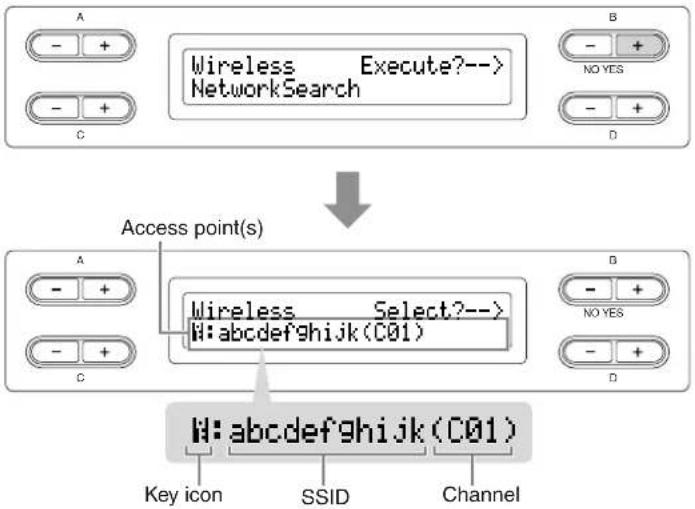
flowchart
graph TD
    A["Wireless Execute?--> NetworkSearch"] --> B["Access point(s)"]
    B --> C["Key icon: AA"]
    B --> D["SSID: AA"]
    B --> E["Channel: AA"]
    F["No YES"] --> G["Access point(s)"]
    G --> H["Key icon: AA"]
    G --> I["SSID: AA"]
    G --> J["Channel: AA"]
3. Select the access point.
3-1 Use the C [-][+] buttons to display the desired access point.
3-2 Press the B [+ (YES)] button to select the access point.
No key icon
Because your access point is not an encrypted setting, you don't need to make a setting for the WEP key. Please proceed to "Saving the Settings and Checking the Connection" on page 57. If you want to encrypt the access point, change this in the settings of the access point side.
With key icon "链"
The display for inputting the WEP key is called up in step 4.
4. Input the WEP key.
4-1 Press the B [+ (YES)] button to display the WEP Key Input screen.
WEP Key Input screen
![YAMAHA Clavinova CLP-380 - 4-1 Press the B [+ (YES)] button to display the WEP Key Input screen. - 1](/content/2026/06/1239174/images/a930591acb1579ac81bfff83c233fdff51b6172f0e08f5bf311e566c582808ac.jpg)
text_image
Wireless Input?--> WE Pkey:TIP
If no signal from the access point is received, the access point cannot be displayed.
TIP
If the access point extends beyond what can be displayed in the screen, you can press the D [+] button to move toward the right in one-character steps. Press the D [-] button to move back to the left in one-character steps.
4-2 Move the cursor to the desired point by using the C [-][+] buttons.
4-3 Select a character at the cursor by using the D [-][+] buttons.
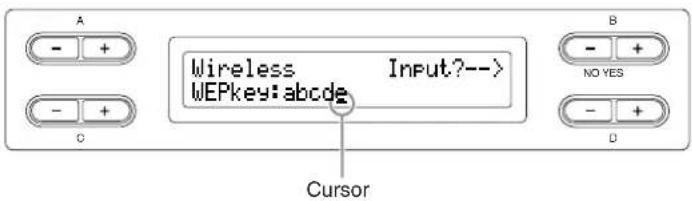
text_image
Wireless Input?--> WEPkey:abcde CursorInsert a space
Move the cursor to the position you want to insert the space, and press the C [-][+] buttons simultaneously.
Delete a character
Move the cursor to the character you want to delete, and press the D [-][+] buttons simultaneously.
WEP key character list

text_image
a~z A~Z @ .- _ ! " # $ % & ' ( ) * + , / : ; < = > ? [¥] ^ | | | ' {1} | | | 0~94-4 Set the WEP key input by using the B [+ (YES)] button.
When you set the WEP key input, the characters are shown as “*****.”
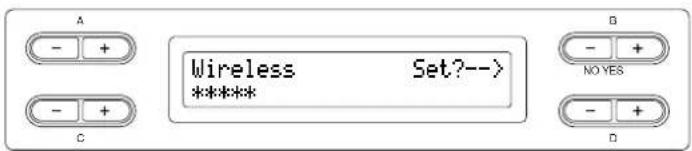
text_image
Wireless Set?--> *****4-5 Actually enter the WEP key input by using the B [+ (YES)] button.
TIP
Tocancel the WEP key input, press the B [-(NO)] button and return to the WEP Key Input screen.
TIP
If the WEP key input is incorrect, re-input it.
Saving the Settings and Checking the Connection
You can save the settings and check the connection.
5. Save the settings and check the connection.
Press the B [+ (YES)] button.
After the settings are saved, the instrument automatically starts checking the connection. When the operation is finished, the results are displayed on the screen.
Save the Settings and Check the Connection screen
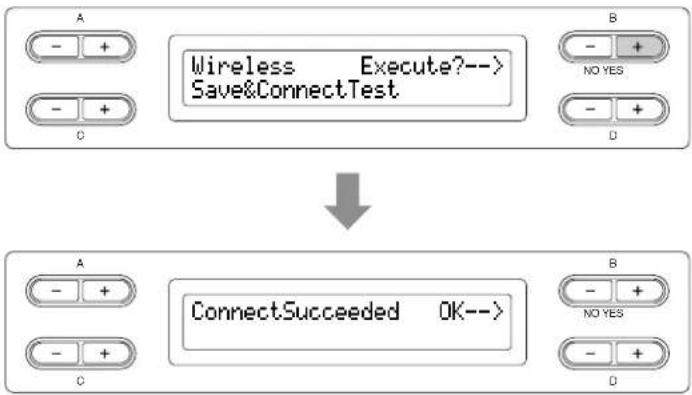
flowchart
graph TD
    A["Wireless Execute?--> Save&ConnectTest"] --> B["ConnectSucceeded OK-->"]
    C["NO YES"] --> B
    D["NO YES"] --> B
6. Return to the Internet Settings screen.
Press the B [- (NO)], B [+ (YES)], or [EXIT] button.
7. Return to the default screen.
Press the [EXIT] button.
You can play back songs from the Internet. For instructions on playing back songs, see "Listening to the Songs on Internet" on page 70.
Using a Cable Connection (Using Static IP Address, Proxy Server) / Using a Wireless LAN (Using Static IP Address, Proxy Server)
Before using a USB storage device, be sure to read the section "Precautions when using the USB [TO DEVICE] terminal" on page 122.
2. Connect the devices according to the example.
For information on connecting the devices, refer to the website: http://music.yamaha.com/idc/
3. Connect the instrument to the Internet.
You'll need to make Internet settings on the instrument explained in the section "About the Internet Settings" below.
Making the Internet settings might take some time.
CAUTION
Make sure to save any settings you have made or changed. Turning off the instrument before saving may result in loss of data.
TIP
This instrument has two USB [TO DEVICE] terminals; however, both cannot be used at the same time. Use the [SELECT] switch on the left of the panel to select the desired terminal. If you connect USB storage devices to both USB [TO DEVICE] terminals, the devices may not operate properly.
About the Internet Settings
When you use Internet Direct Connection (IDC) for the first time, you should make the Internet settings according to the following illustration flow. This flow is shown to make you easily understand how to load the setting file created on the computer to your instrument. You won't need to make any settings on your instrument.
For details, refer to the Yamaha webpage:
http://music.yamaha.com/idc/
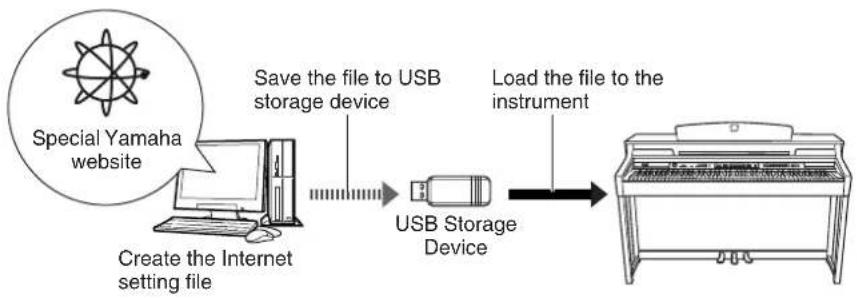
flowchart
graph LR
    A["Special Yamaha website"] --> B["Create the Internet setting file"]
    B --> C["Save the file to USB storage device"]
    C --> D["USB Storage Device"]
    D --> E["Load the file to the instrument"]
Creating the Internet Setting File
Procedure
1. Create the Internet Setting File.
You need to create the Internet setting file on the special Yamaha webpage using your computer. For information about how to create the file, read the instructions on the Yamaha webpage:
http://music.yamaha.com/idc/
TIP
You do not need to make Internet settings here if you are using a cable connection (using DHCP), a wireless LAN (using a wireless game adaptor; using DHCP), or a wireless LAN (using a USB wireless LAN adaptor; using DHCP).
Loading the Internet Setting Files
This procedure lets you make Internet settings by loading the files created on the special Yamaha webpage to the instrument.

text_image
Diagram of a front panel with labeled buttons and ports, showing numbered labels 2, 3, and 4 for system or control functions.2. Call up the Internet Settings screen.
Hold down the [FILE/SONG SETTING] button, and press the [REC] button.
Internet Settings screen
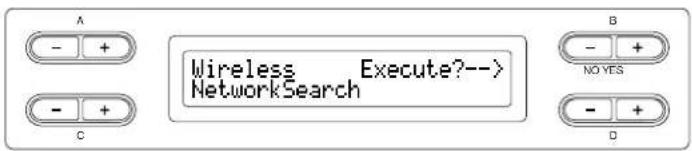
text_image
Wireless Execute?--> NetworkSearch3. Engage the Load mode.
Make sure that the USB storage device containing the saved Internet setting file named "config.n21" is connected to the instrument, and then use the A [-][+] buttons.
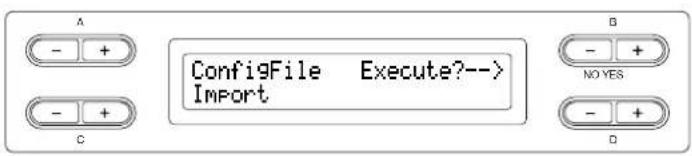
text_image
ConfigFile Execute?--> Import4. Start loading.
Press the B [+ (YES)] button to call up the confirmation message ("Sure?-->").
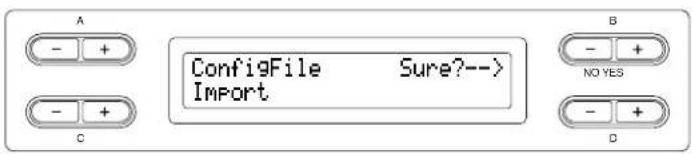
text_image
ConfigFile Sure?--> Import A B - + - + C NO YES - + DTo proceed, press the B [+ (YES)] button again. An “Executing” message appears and data loading starts. When loading is complete, a “Completed” message appears for three seconds, followed by the Check the Connection screen. Please proceed to “Checking the Connection” on page 60.
To cancel the loading, press the B [−(NO)] button instead of the B [+ (YES)] button.
TIP
You can create the Internet setting files (named "config.n21") on the special Yamaha webpage.
TIP
Yamaha recommends that you back up the Internet setting files (page 103).
Checking the Connection
5. Check the connection.
Press the B [+ (YES)] button.
Check the Connection screen
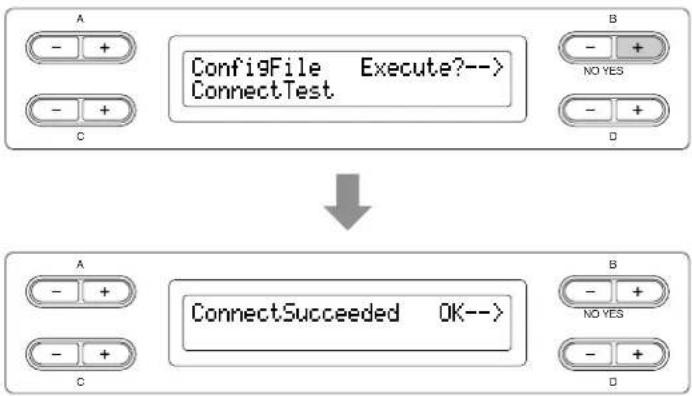
flowchart
graph TD
    A["ConfigFile Execute?--> ConnectTest"] --> B["ConnectSucceeded OK-->"]
    C["NO YES"] --> B
    D["NO YES"] --> B
    E["NO YES"] --> B
6. Return to the Internet Settings screen.
Press the B [− (NO)], B [+ (YES)], or [EXIT] button.
7. Return to the default screen.
Press the [EXIT] button.
You can play back songs from the Internet. For instructions on playing back songs, see "Listening to the Songs on Internet" on page 70.
Calling Up the Connection Information
This lets you confirm LAN connection environment, IP address acquisition status, Time acquisition status, and the field strength (when using a USB wireless LAN adaptor; using DHCP) for the current connection.

text_image
1-1 1-1 1-2 2Procedure
1. Call up the Connection Information screen.
1-1 Hold down the [FILE/SONG SETTING] button, and press the [REC] button.
![YAMAHA Clavinova CLP-380 - 1-1 Hold down the [FILE/SONG SETTING] button, and press the [REC] button. - 1](/content/2026/06/1239174/images/ec575be2c81eca82d01c3899b55458e680babbcc549e37348ed22b99bdf3b139.jpg)
text_image
Wireless Execute?--> NetworkSearch1-2 Use the A [-][+] buttons.
Connection Information screen
![YAMAHA Clavinova CLP-380 - 1-2 Use the A [-][+] buttons. - 1](/content/2026/06/1239174/images/4a9da7c5d25518e69a214904aeb1960821a72631776d772384f041eb42e912ce.jpg)
text_image
ConnectInf Execute?--> DisplayIf "Display" does not appear in the lower left of the screen, use the C [-][+] buttons to call up "Display."
2. Call up the connection information.
Press the B [+ (YES)] button.
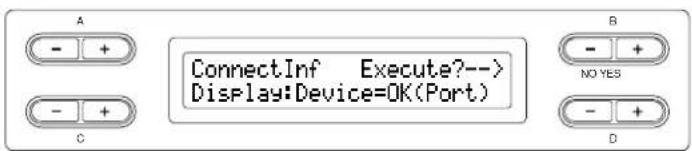
text_image
ConnectInf Execute?--> Display:Device=OK(Port)| Indication Meaning | |
| Device = LAN connection environment | |
| IP = IP address acquisition status | |
| Time = Time acquisition status | |
| Strength = Field strength (when using a USB wireless LAN adaptor; using DHCP) |
The connection information is not displayed, depending on the state of the connection, and is indicated as "NoInfo."
TIP
If the connection information extends beyond what can be displayed in the screen, you can press the D [+] button to move toward the right in one-character steps. Press the D [-] button to move back to the left in one-character steps.
Exporting the Connection Information
This procedure lets you export the detailed information on the current connection as a text file to a USB flash storage device. You can check the information on your computer.

text_image
1 2 3Procedure
1. Call up the screen below.
Hold down the [FILE/SONG SETTING] button, and press the [REC] button.
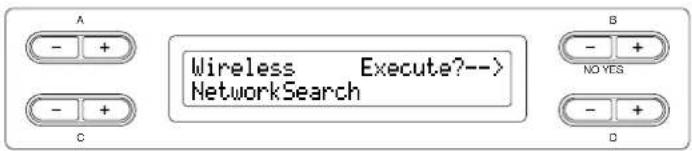
text_image
Wireless Execute?--> NetworkSearch2. Turn on the Export mode.
Make sure that a USB flash storage device is connected to the instrument, and then press the A [-][+] button.
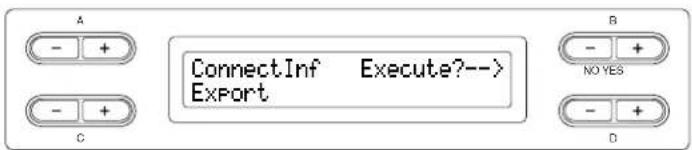
text_image
ConnectInf Execute?--> Export A B - + - + C - + B NO YES - + DIf the "Export" does not appear in the lower left of the screen, press the C [-][+] buttons to call up "Export."
3. Start exporting.
Press the B [+ (YES)] button.
Overwriting the Connection Information
A "Overwrite?-->" message will appear on the display if a USB storage device contains a file with the same name as the one you exported before. To overwrite, press the B [+ (YES)] button again. An "Executing" message appears and the Clavinova overwrites the data. When overwriting is complete, a "Completed" message appears for three seconds, before returning to the previous screen. To cancel overwriting, press the B [− (NO)] button instead of the B [+ (YES)] button.
TIP
The connection information file does not allow you to manually make Internet settings (pages 53 and 57). The connection information file is set to "read only" and cannot be edited.
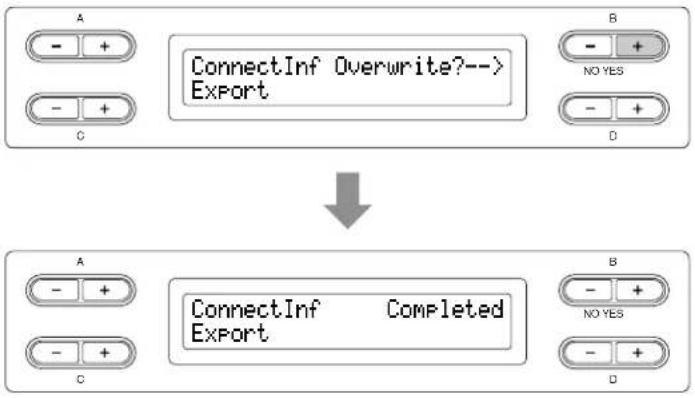
flowchart
graph TD
    A["ConnectInf Overwrite?"] --> B["Export"]
    B --> C["NO YES"]
    C --> D["+"]
    A --> E["ConnectInf Completed Export"]
    E --> F["NO YES"]
    F --> G["- +"]
    A --> H["ConnectInf Overwrite?--> Export"]
    H --> I["NO YES"]
    I --> J["- +"]
After exporting, connect the USB storage device to your computer, and then open the text file "ConnectionInfo.txt" in the root directory of the USB storage device to check the detailed connection information.
Restoring the Internet Settings to Normal (Default) Settings
Turn on the power while simultaneously holding down the [FILE/SONG SETTING] button and [PLAY/PAUSE] button to restore the Internet settings to default settings.
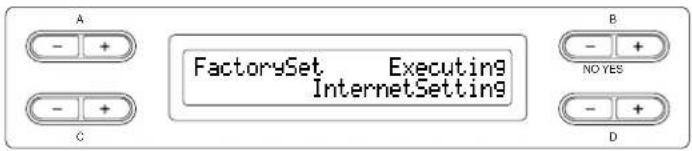
text_image
FactorySet Executing InternetSetting A B - + - + C - + D NO YESCAUTION
Restoring the instrument resets all Internet settings to the original factory-programmed settings. Yamaha recommends you that you back up your Internet settings before restoring. See "Backing up the Clavinova's internal data [FullBackup] on page 103 for details.
Internet Normal (Default) Settings List
| DHCP ON (available) |
| Wireless LAN OFF (no settings) |
| Proxy server OFF (no settings) |
Message List (IDC)
The messages are listed in alphabetical order.
| Message Meaning | |
| CannotOperate Exit--> | Execution of the operation failed because the recorded data has not been saved. Save the data by following the instructions “Saving recorded songs to a USB storage device ... [Save]” on page 42. |
| CheckingLANadaptor | Currently checking whether the USB wireless LAN adaptor connected to the musical instrument is compatible or not.This might take about 5 minutes. Please wait for a while. |
| Communication Exit-->Error (xxxx) | An error in communication with the Internet occurred.Confirm whether the connection is correct by “Connecting the Instrument to the Internet” on page 51.* For detailed information on the error, refer to the “Error Code List (IDC)” on page 66. |
| Communication Exit-->Timeout (xxxx) | A communication timeout occurred.If this message appears repeatedly, the communication may be unreliable. Make sure that your communication environment is appropriate. |
| ConnectError Exit-->(xxxx) | The connection test of the instrument to the Internet has failed.Confirm whether the connection is correct by “Connecting the Instrument to the Internet” on page 51.* For detailed information on the error, refer to the “Error Code List (IDC)” on page 66. |
| ConnectingUnknownLANadaptor | Currently connecting to the Internet by a USB wireless LAN adaptor whose compatibility has not been confirmed. |
| ConnectionError Exit-->(xxxx) | The instrument could not be successfully connected to the Internet.Confirm whether the connection is correct by referring to “Connecting the Instrument to the Internet” on page 51.* For detailed information on the error, refer to the “Error Code List (IDC)” on page 66. |
| ConnectSucceeded OK--> | The connection test of the instrument to the Internet has succeeded. |
| ErrorOccurred Exit-->(xxxx) | An error occurred.Check the error code number in the display and refer to the “Error Code List (IDC)” on page 66 for an explanation. |
| Invalid Exit-->LANadaptor | The particular USB wireless LAN adaptor which is connected to the instrument is invalid.Use a USB wireless LAN adaptor whose compatibility has been confirmed by Yamaha(page 122). |
| InvalidWEPkey | This message is displayed when the WEP key input is incorrect.Re-input the correct WEP key. |
| NoWirelessAdaptor | The USB wireless LAN adaptor is not recognized by the instrument.• C onfirm whether the connection of the USB wireless LAN adaptor to the instrument is correct.• U se the [SELECT] switch to select the desired terminal (page 123). |
| UnknownLANadaptor OK--> | The particular USB wireless LAN adaptor which is connected to the instrument is unsupported. |
| WirelessNetworkNotFound | This message appears if the wireless network has not been found.· Please check that the power of the access point is turned on and that the settings of the device are correct.· Set the instrument within reach of the signal from the access point. The signal will not be received if the distance from the access point is too great or there is an obstacle blocking reception. |
The characters “(xxxx)” indicate the relevant error code. For detailed information on specific error codes, refer to the “Error Code List (IDC)” on page 66.
Error Code List (IDC)
| Error Code Meaning | |
| 1110 USB wireless | LAN adaptor, LAN cable, or router cannot be recognized.Please check whether a USB wireless LAN adaptor, LAN cable, or router has been correctly connected. Also check that you are not using a damaged cable. |
| 1120 The USB wireless | less LAN adaptor connected to the musical instrument does not function properly.Make sure to use a USB wireless LAN adaptor whose compatibility has been confirmed by Yamaha (page 53). |
| 1130 Communication with the access point has failed. | Please check that all settings of the wireless LAN are correct.Please check that the power of the access point is turned on and that the settings of the device are correct.Set the instrument within reach of the signal from the access point. The signal will not be received if the distance from the access point is too great or there is an obstacle blocking reception. |
| 1250 – 1252 IP address could not be obtained from the router. | (When using a cable LAN connection:) Check that the LAN cable is correctly connected and that the cable you are using is not damaged.(When using a wireless LAN connection:) Check that all settings for the wireless LAN are correct.Make sure that the power of the router is turned on. Also, confirm that the router settings allows the use of DHCP.T ry turning on the power of the router once again. |
| 1410 – 1415 Connection to the special website has failed. | Make sure that the power of the router is turned on. Also, confirm that the router settings are correct.(When using a fixed IP address, proxy server:) Check that all LAN settings are correct.T ry turning on the power of the router once again. |
| 2001 Communication error. | Check the communication environment. Try connecting again after a while. |
| 2042 Communication timeout occurred. | Check that the LAN cable is correctly connected and that the cable you are using is not damaged.Make sure that the power of the router is turned on. Also, confirm that the router settings are correct.T ry turning on the router again. |
| 2404 Server was not found. | Try again after a while. |
| 3001 File access error. | |
| 3002 File cannot be read. | |
| 3003 Data cannot be written to the file. | |
| 3004 There is not enough available memory in the media. | |
| 3011 There is not enough space in the assigned folder. | |
| 3019 This media has not been formatted.Format the media after making sure that there is no important data remaining. Please be careful that all data will be deleted when executing the format. | |
| 3020 Write-protect has been enabled for the media. | |
Glossary of Terms (IDC)
| Access point | A device that acts as a communication hub for multiple wireless devices, and conventionally enables both wired and wireless LAN connections. |
| Broadband | An Internet connection technology/service (such as ADSL and optical fiber) that allows for high-speed, high-volume data communication. |
| Browser | The software used to search for, access, and view web pages. For this instrument, this refers to the display that shows the contents of the web pages. |
| Cookie | A system that records certain information that the user transfers when visiting a website and using the Internet. The function is similar to a preference file in a conventional computer program, in that it “remembers” certain information such as your user name and password, so you don’t have to re-enter the information each time you visit the site. |
| DHCP | This is a standard or protocol by which IP addresses and other low-level network configuration information can be dynamically and automatically assigned each time connection is made to the Internet. |
| Download | Transferring data over a network, from a larger “host” system to a smaller “client” system’s hard drive or other local storage device—much like copying files from your hard disk drive to a floppy disk. For this instrument, this refers to the process of transferring Song and other data from a website to the instrument. |
| Home page | The first page shown when opening a browser and connecting to the Internet. This phrase is also used to mean the “front screen” or top page of a website. |
| Internet | A huge network made up of networks, the Internet allows high-speed data transfer among computers, mobile phones and other devices. |
| IP address | A string of numbers assigned to each computer connected to a network, and indicating the device’s location on the network. |
| LAN | Short for Local Area Network, this is a data-transfer network that connects a group of computers at a single location (such as an office or home) by means of a special cable. |
| Link | Location information in other sentences and images, etc. that are under buttons and character strings on a web page. When the place with the link is clicked, the page selection jumps to the relevant link. |
| Modem | A device which connects and allows data transfer between a conventional telephone line and a computer. It converts the digital signals from the computer to analog audio for sending over the phone line, and vice versa. |
| Provider | A communications business that offers Internet connection services. In order to connect to the Internet, it is necessary to contract to a provider. |
| Proxy | A proxy server is a server that all computers on a local network have to go through before accessing information on the Internet. It intercepts all or designated requests to the real server to see if it can fulfill the requests itself. If not, it forwards the request to the real server. Proxy servers are used to improve performance and speed, and to filter requests, usually for security and to prevent unauthorized access to an internal network. |
| Router | A device for connecting multiple computer networks. For example, a router is necessary when connecting several computers in a house or office, and allow them to all access the Internet and share data. A router is usually connected between a modem and a computer, although some modems have a built-in router. |
| Server | A hardware system or computer used as a central point for a network, providing access to files and services. |
| Site | Short for “website,” this refers to the group of web pages that are opened together. For example, the collection of web pages whose addresses begin with “http://www.yamaha.com/” is referred to as the Yamaha site. |
| SSL | Short for Secure Sockets Layer, a standard for transmitting confidential data such as credit card numbers over the Internet. |
| URL | Short for Uniform Resource Locator, a string of characters used to identify and link to specific websites and pages on the Internet. A complete URL usually starts with the characters “http://.” |
| Web page | Refers to each individual page that makes up a website. |
| WEP | Short for Wired Equivalent Privacy, a security protocol for wireless networks.WEP protects communication contents from being intercepted. |
| Wireless LAN | A LAN connection that allows data transfer through a wireless, cable-free connection. |
| Wireless Game Adaptor (Wireless Ethernet Converter or Bridge) | Device that allows easy wireless connection with digital consumer electronic devices, printers, and game machines, etc. equipped with [LAN] ports. |
| Wireless network | Wireless network where signal is sent and received by using electric waves. |
Troubleshooting (IDC)
| Problem Cause Solution | ||
| The instrument cannot connect to the Internet using the [LAN] port. | The LAN cable is not connected securely to the [LAN] port. | Check the connection of the LAN cable to the [LAN] port. |
| The LAN cable used for connection may be damaged. | Use a new LAN cable. | |
| The instrument cannot connect to the Internet using a wireless game adaptor. | The settings of the wireless game adaptor are incorrect. | The settings of the wireless game adaptor cannot be made on the instrument. For information about how to make settings, read the owner's manual for the particular wireless game adaptor you are using. |
| The USB wireless LAN adaptor is not recognized by the instrument. | The particular USB wireless LAN adaptor you are using is not compatible with the instrument. | Check the list of USB wireless LAN adaptors whose compatibility has been confirmed by Yamaha (page 122). |
| The desired USB [TO DEVICE] terminal has not been selected. | This instrument has two USB [TO DEVICE] terminals; one on the left of the panel and one on the terminal at the front. Use the [SELECT] switch to select the desired terminal (page 123). | |
| The instrument cannot connect to the Internet using a static IP address, proxy server. | The necessary Internet settings have not been made. | Make Internet settings on the instrument as explained in the section “About the Internet Settings” on page 58. |
| The instrument cannot connect to the Internet using a wireless LAN. | The access point is set to conceal the SSID. | Temporarily remove the setting that conceals SSID, and make the appropriate Internet settings. |
| The access point is set to filter the MAC address. | (When using a USB Wireless LAN Adaptor:) Register the MAC address of USB wireless LAN adaptor you are using in the access point. (When using a Wireless Game Adaptor:) For information about the MAC address that is registered, refer to the owner's manual for the wireless game adaptor you are using. | |
| The access point is set for encryption in a format other than WEP. | This instrument is encrypted in WEP format only. | |
| No signal from the access point to the instrument is received. | Set the instrument within reach of the signal from the access point. The signal will not be received if the distance from the access point is too great or there is an obstacle blocking reception. | |
| The WEP key has been entered incorrectly (e.g., incorrect use of uppercase and lowercase letters). | After confirming the characters of the WEP key, including uppercase and lowercase letters, enter it again. |
Listening to the Songs on Internet
Yamaha provides a special website with a data service that enables you to play back a range of songs (song data) in various musical genres on your instrument. For the latest services, refer to the Yamaha website: http://music.yamaha.com/idc/
Before connect the instrument to the Internet, be sure to read “Internet Direct Connection (IDC)” on page 51.
TIP
Change the Clavinova's character type ("CharacterCode") as appropriate for the selected song (page 47).

text_image
1-1 1-2 4 3 2 5Procedure
- Display the Song Select screen.
1-1 Make sure that the instrument is connected to the Internet, then press the [SONG SELECT] button.
1-2 Use the A [-][+] buttons to select "INTERNET."
The folder name in the Internet is displayed on the screen.
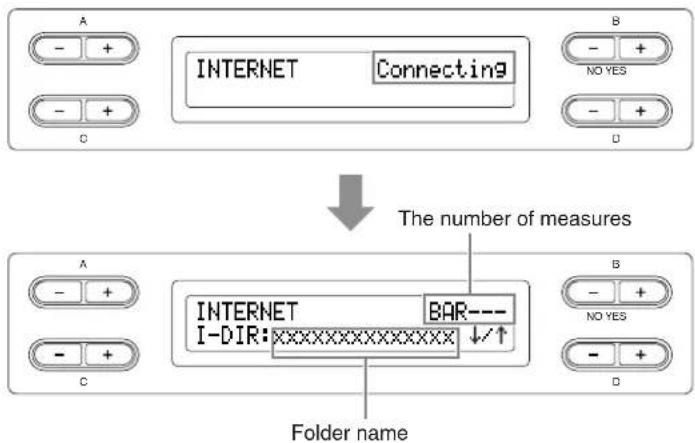
flowchart
graph TD
    A["INTERNET"] --> B["Connecting"]
    B --> C["The number of measures"]
    D["INTERNET I-DIR"] --> E["BAR"]
    E --> F["Folder name"]
    style A fill:#f9f,stroke:#333
    style B fill:#ccf,stroke:#333
    style C fill:#cfc,stroke:#333
    style D fill:#fcc,stroke:#333
    style E fill:#cff,stroke:#333
    style F fill:#ffc,stroke:#333
Internet:
The Internet can be used by the instrument to play back a wide range of songs (song data) in various musical genres.
2. Select a song.
2-1 Use the C [-][+] buttons to select a folder.
Press the D [+] button to open the folder and press the D [-] button to return to the previous (upper) level.
2-2 Use the C [-][+] buttons to select a desired Internet song.
![YAMAHA Clavinova CLP-380 - 2-2 Use the C [-][+] buttons to select a desired Internet song. - 1](/content/2026/06/1239174/images/69debd881f888da5f62cc3f23dfbb626bca3d17518cdb867da3a38d5b31ef790.jpg)
text_image
INTERNET BAR001 I-001:XXXXXXXXXX↓↑ Song name3. Start playback.
Press the [PLAY/PAUSE] button.
4. Stop playback.
Press the [STOP] button.
5. Return to the main screen.
Press the [EXIT] button.
TIP
The Sync Start (page 21), Part settings on/off (page 21), and A-B repeat (page 22) become effective only after you play back the song once.
TIP
If the song name extends beyond what can be displayed in the screen, you can press the D [+] button to move toward the right in steps of one character. Press the D [-] button to move back to the left in steps of one character.
TIP
You can play the keyboard along with the Internet song playback. You can change the voice playing on the keyboard.
TIP
You might not be able to adjust the tempo of songs from the Internet. In such cases, the default tempo “---” is automatically selected.
TIP
Song data from the Internet is not transmitted via the MIDI connectors.
Connections
Connectors
CAUTION
Before connecting the Clavinova to other electronic components, turn off the power to all the components. Before turning the power on or off to all components, set all volume levels to minimum (0). Otherwise, electrical shock or damage to the components may occur.

text_image
On the left of the panel USB TO DEVICE SELECT 1 TO DEVICE® TO HOST IN OUT THRU MIDI AUX PEDAL L/L+R R AUX IN L/L+R R AUX OUT LAN At front 1 2 4 7 5 6 3① USB [TO DEVICE] terminal (A/B)
This terminal allows connection to USB storage devices.
Refer to "Connecting to a USB storage device" on page 74.
② USB [TO HOST] terminal
This terminal allows direct connection to a personal computer. Refer to “Connecting a personal computer” on page 75 for more information.
③ MIDI [IN], [OUT], [THRU] terminals
Use MIDI cables to connect external MIDI devices to these connectors.
MIDI [IN]: Receives MIDI data.
MIDI [OUT]: Transmits MIDI data.
MIDI [THRU]: Transmits data received at the MIDI [IN] terminal as it is.
About MIDI
MIDI (Musical Instrument Digital Interface) is a standard format for data transmission/reception. It enables the transfer of performance data and commands between MIDI devices and personal computers. Using MIDI, you can control a connected MIDI device from the Clavinova, or control the Clavinova from a connected MIDI device or computer.
④ [AUX PEDAL] jack
A separately sold FC7 foot controller or FC4/FC5 foot switch can be connected to this jack. By using an FC7 you can control the volume while playing to add expression to your performance, or control various other functions. By using an FC4/FC5, you can switch various selected functions on/off. To select the function that will be controlled, use the [FUNCTION] parameter [AuxPedalFunc] (page 97). The [PLAY/PAUSE] function can also be assigned to a foot switch (page 98).
TIP
There are two different types of USB terminals on the instrument: USB [TO DEVICE] and USB [TO HOST]. Take care not to confuse the two terminals and the corresponding cable connectors. Be careful to connect the proper plug in the proper direction.
TIP
MIDI performance data and commands are transferred in the form of numeric values.
TIP
Since MIDI data that can be transmitted or received varies depending on the type of MIDI device, check the "MIDI Implementation Chart" to find out what MIDI data and commands your devices can transmit or receive. The Clavinova's MIDI Implementation Chart is available for downloading from the Yamaha Manual Library. http://www.yamaha.co.jp/manual/
CAUTION
Connect or disconnect the pedal when the power is off.
⑤ AUX IN [L/L+R], [R] jacks
The stereo outputs from another instrument can be connected to these jacks, allowing the sound of an external instrument to be reproduced via the Clavinova's speakers. Refer to the diagram below and use audio cables for connection.
![YAMAHA Clavinova CLP-380 - ⑤ AUX IN [L/L+R], [R] jacks - 1](/content/2026/06/1239174/images/4c5eaeb267185c605e651c86321c1fd10f7cb7d216ac76a17fb25b73d4bf4701.jpg)
CAUTION
When the Clavinova's AUX IN jacks are connected to an external device, first turn on the power to the external device, then to the Clavinova. Reverse this order when you turn the power off.
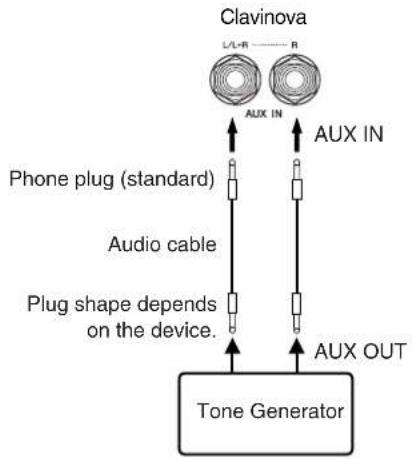
flowchart
graph TD
    A["Clavinova"] -->|L/L+R R| B["AUX IN"]
    A -->|L/L+R R| C["AUX OUT"]
    D["Phone plug (standard)"] --> E["Audio cable"]
    F["Plug shape depends on the device."] --> G["AUX IN"]
    H["Tone Generator"] --> I["AUX OUT"]
⑥ AUX OUT [L/L+R] [R] jacks
These jacks let you connect the Clavinova to external powered speaker systems, for playing in larger venues at higher volumes.
![YAMAHA Clavinova CLP-380 - ⑥ AUX OUT [L/L+R] [R] jacks - 1](/content/2026/06/1239174/images/66a91cf56780fa8ca0b909655fc967b8e03eca9f5d02377b0cee53c4449cdcd1.jpg)
CAUTION
When the Clavinova's AUX OUT jacks are connected to an external system, first turn on the power to the Clavinova, then to the external system. Reverse this order when you turn the power off.
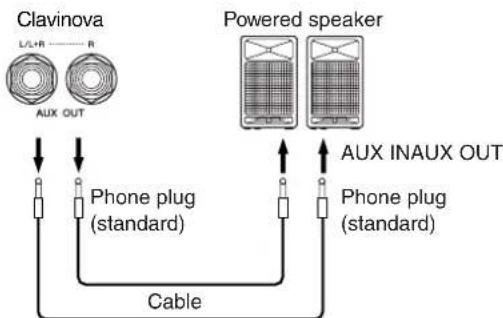
flowchart
graph TD
    A["Clavinova L/LR"] --> B["AUX OUT"]
    C["Powered speaker"] --> D["AUX INAUX OUT"]
    B --> E["Phone plug (standard)"]
    D --> F["Phone plug (standard)"]
    E --> G["Cable"]
    F --> G
The Clavinova's [MASTER VOLUME] setting will affect the sound that is output from AUX OUT jacks. When the Clavinova's AUX OUT jacks are connected to an external speaker and you want to turn off the speaker sound of the Clavinova, switch the speaker off (page 99). Moreover, the tone quality of the instrument sound output from the speakers and the headphones changes automatically to the appropriate settings according to how the instrument is being used (see chart below).
TIP
The Clavinova's [MASTER VOLUME] dial setting affects the input signal from the AUX IN jacks, but the [REVERB], [CHORUS], and BRILLIANCE [MELLOW] [BRIGHT] (page 25) settings do not.
TIP
If you connect the Clavinova to a monaural device, use only the AUX IN [L/L+R] jack.
TIP
Use audio cables and adaptor plugs with no resistance.
TIP
When the sound from the AUX OUT jacks is routed to the AUX IN jacks, the input sound will be output from the speaker of the CLP. The output sound may be excessively loud and may cause noise.
TIP
If you connect the Clavinova to a monaural device, use only the AUX OUT [L/L+R] jack.

Speakers sound Speakers do not sound
| No plugs to connected to AUX OUT jacks Plugs connected to AUX OUT jacks | ||||||
| Speakers On | Speakers Normal (Headphones Switch) | Speakers Off | Speakers On | Speakers Normal (Headphones Switch) | Speakers Off | |
| Headphones connected | Optimum equalization for speakers applied | Flat Flat Flat Flat Flat | ||||
| Headphones not connected | Optimum equalization for speakers applied | Optimum equalization for speakers applied | Flat Flat Flat Flat | |||
⑦ [LAN] port
This port allows direct connection of the CLP-380 to the Internet, letting you use a special service on the Yamaha website for playing back songs in a variety of musical genres as background music on the instrument. Before connecting the instrument to the Internet, be sure to read the section “Internet Direct Connection (IDC)” on page 51.
Connecting to a USB storage device
To connect to a USB storage device, be sure to read the section "Precautions when using the USB [TO DEVICE] terminal" on page 122.
To display the data in the USB storage device
To view the data of the USB storage device on the CLP display, press the [SONG SELECT] button and select a USB storage device with the A [-][+] buttons to engage the Song Selection mode, or press the [FILE/SONG SETTING] button to engage the File/Song Setting mode. If you try to engage these modes before connecting the USB storage device, press the [EXIT] button to exit the mode and re-engage the mode.
Backing up your data to a computer
■ Backing up the instrument data to a computer
Once you've saved data to a USB storage device, you can copy the data to the hard disk of your computer, then archive and organize the files as desired. Simply reconnect the device as shown below.
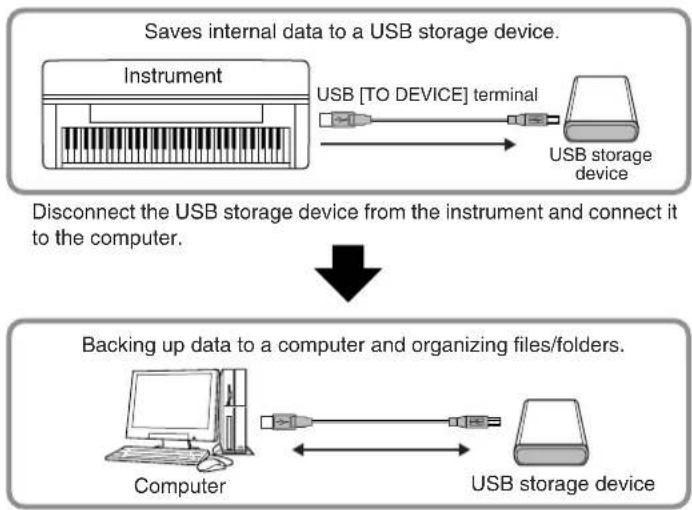
flowchart
graph TD
    A["Instrument"] -->|USB["TO DEVICE"] terminal| B["USB storage device"]
    C["Computer"] -->|USB storage device| D["USB storage device"]
    style A fill:#f9f,stroke:#333
    style B fill:#ccf,stroke:#333
    style C fill:#cfc,stroke:#333
    style D fill:#fcc,stroke:#333
■ Copying files from a computer hard disk to a USB storage device
Files contained on the hard disk of a computer can be transferred to the instrument by first copying them to the storage media, then connecting/inserting the media to the instrument.
Not only files created on the instrument itself but also Standard MIDI files created on other devices can be copied to a USB storage device from the hard disk of the computer. Once you've copied the data, connect the device to the USB [TO DEVICE] terminal of the instrument, and play back the data on the instrument.
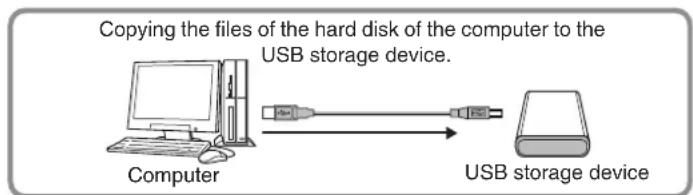
text_image
Copying the files of the hard disk of the computer to the USB storage device. Computer USB storage deviceDisconnect the USB storage device from the computer and connect it to the instrument.
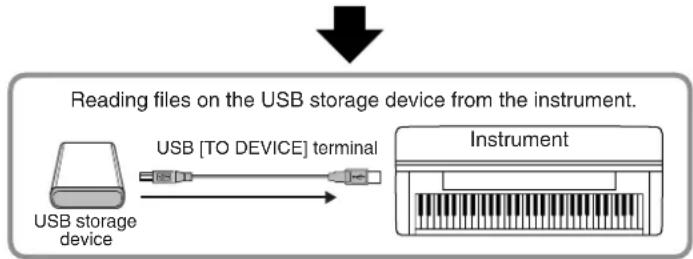
flowchart
graph TD
    A["USB storage device"] --> B["USB [TO DEVICE"] terminal]
    B --> C["Instrument"]
Connecting a personal computer
By connecting a computer to the USB [TO HOST] or MIDI terminals, you can transfer data between the instrument and the computer via MIDI, and take advantage of sophisticated computer music software. Keep in mind that you also need to install an appropriate USB MIDI driver.
There are the two methods by which to connect the Clavinova to a personal computer:
- Connecting the USB port on the computer to the Clavinova's USB [TO HOST] terminal (see below)
- Using a MIDI interface and the Clavinova's MIDI terminals (page 76)
If you are using a computer that has a USB interface, we recommend that you connect the computer and the instrument by USB, rather than by MIDI.
For more information, refer to the following pages.
CAUTION
When connecting the Clavinova to a personal computer, first turn off the power of the Clavinova and quit any application software that is open on the computer before connecting any cables. After making connections, turn on the power to the Clavinova.
CAUTION
If you are not using the connection between the Clavinova and your computer, you must disconnect the cable from the USB [TO HOST] terminal. The Clavinova may not operate correctly if a cable is left connected.
TERMINOLOGY
Driver:
A driver is software that provides a data-transfer interface between the computer's operating system and a connected hardware device. You need to install a USB MIDI driver to connect the computer and the instrument.
Connecting the USB port on the computer to the Clavinova's USB [TO HOST] terminal
Use a USB cable to connect the USB port on your computer to the USB [TO HOST] terminal on the Clavinova.
![YAMAHA Clavinova CLP-380 - Connecting the USB port on the computer to the Clavinova's USB [TO HOST] terminal - 1](/content/2026/06/1239174/images/afea3159a8b18c9cf1c149dbd17c61567b8afb3f16a541219316f01a6004164e.jpg)
text_image
Instrument USB TO DEVICE® TO HOST USB [TO HOST] terminal USB cable ComputerPrecautions when using the USB [TO HOST] terminal
When connecting the computer to the USB [TO HOST] terminal, make sure to observe the following points. Failing to do so risks freezing the computer and corrupting or losing the data. If the computer or the instrument freezes, restart the application software or the computer OS, or turn the power to the instrument off then on again.
CAUTION
• U se an AB type USB cable of less than about 3 meters.
- B before connecting the computer to the USB [TO HOST] terminal, exit from any power-saving mode of the computer (such as suspended, sleep, standby).
- B before turning on the power to the instrument, connect the computer to the USB [TO HOST] terminal.
- Execute the following before turning the power to the instrument on/off or plugging/unplugging the USB cable to/from the USB [TO HOST] terminal.
- Quit any open application software on the computer.
- Make sure that data is not being transmitted from the instrument. (Data is transmitted only by playing notes on the keyboard or playing back a song.)
- While the computer is connected to the instrument, you should wait for six seconds or more between these operations: (1) when turning the power of the instrument off then on again, or (2) when alternately connecting/disconnecting the USB cable.
Using a MIDI interface and the Clavinova's MIDI terminals
Use a MIDI interface device to connect a computer to the Clavinova using special MIDI cables.
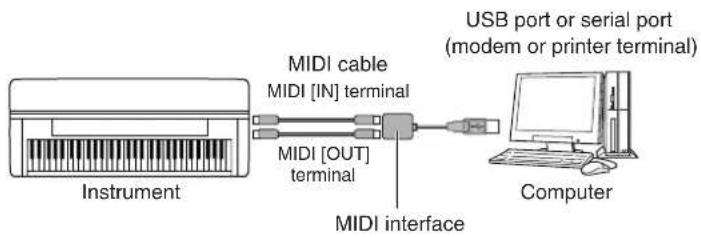
text_image
Instrument MIDI cable MIDI [IN] terminal MIDI [OUT] terminal MIDI interface USB port or serial port (modem or printer terminal) ComputerTIP
• The instrument will begin transmission a short time after the USB connection is made.
- When using a USB cable to connect the instrument to your computer, make the connection directly without passing through a USB hub.
- For information on setting up your sequence software, refer to the owner's manual of the relevant software.
Detailed Settings
You can set various parameters to make the best use of Clavinova functions, such as recording and playback, metronome, Voices, iAFC, etc. For basic procedure on making these settings, refer to page 80.
Parameter List
Recording and playback [FILE/SONG SETTING]
| Settings Parameter name Reference page | ||
| Saving recorded songs to a USB storage device Save 42 | ||
| Deleting a song from the Clavinova's Storage memory or from a USB storage device | Delete 43 | |
| Renaming files Rename 43 | ||
| Copying files Copy 44 | ||
| Moving files Move 45 | ||
| Making folders in the USB storage device MakeDir 45 | ||
| Formatting a USB storage device Format | 46 | |
| Automatically selecting a song in storage media | SongAutoOpen | 46 |
| Changing the type of characters on screen | CharacterCode | 47 |
| Playing back a song/all songs repeatedly | SongRepeat | 82 |
| Playing back the phrase specified by the phrase number | PhraseMark | 82 |
| Correcting note timing | Quantize | 83 |
| Specifying whether playback starts immediately along with the first voicing | QuickPlay | 83 |
| Auditioning the channels | ChannelListen | 84 |
| Deleting data from each channel | ChannelClear | 84 |
| Selecting a record starting method | RecStart | 33 |
| Selecting a record ending method | RecEnd | 33 |
| Recording parts 3 – 16 (Extra Parts) | RecExtraPartsCh | 35 |
Metronome [METRONOME SETTING]
| Settings Parameter name Reference page | ||
| Setting the metronome time signature | TimeSignature | 85 |
| Setting the metronome volume level MetronomeVolume | 85 | |
| Setting the metronome voice | MetronomeSound | 85 |
Voices [VOICE SETTING]
In Dual mode, parameters with the “*” mark are set for Voice 1 and Voice 2 individually.
| Settings Parameter name Reference page | ||
| Setting the octave* Octave 87 | ||
| Setting the volume level* Volume 87 | ||
| Setting the position of right and left channels* Pan 87 | ||
| Make fine adjustments to the pitch (only in Dual mode) Detune 87 | ||
| Selecting the reverb type ReverbType 88 | ||
| Setting the reverb depth* ReverbSend 88 | ||
| Selecting the chorus type | ChorusType 88 | |
| Setting the chorus depth* | ChorusSend 88 | |
| Setting the chorus on/off | ChorusOnOff | 89 |
| Selecting the DSP type* | DSP Type (DSP) | 89 |
| Setting the speed of the vibraphone vibrato effect* | VibeRotorSpeed | 89 |
| Turning the vibraphone vibrato effect on/off* | VibeRotorOnOff(RotorOnOff) | 89 |
| Setting the rotation speed of the rotary speaker* | RotarySpeed(Rot.Speed) | 90 |
| Adjusting the depth of the DSP effect* | DSPDepth | 90 |
| Adjusting the brightness of the sound* Brightness | 90 | |
| Adjusting the resonance effect* | HarmonicContent(Harmonic) | 90 |
| Adjusting the low-range frequency of the equalizer* | EQ LowFreq.(EQ L.Freq) | 90 |
| Adjusting the low-range gain (amount of boost/cut) of the equalizer* | EQ LowGain | 91 |
| Adjusting the high-range frequency of the equalizer* | EQ HighFreq.(EQ H.Freq) | 91 |
| Adjusting the high-range gain (amount of boost/cut) of the equalizer* | EQ HighGain | 91 |
| Setting the touch sensitivity* | TouchSense | 91 |
iAFC [iAFC SETTING]
| Settings Parameter name Reference page | ||
| Turning iAFC on/off | iAFC | 92 |
| Adjusting the Dynamic Damper Effect depth | DynDmpFX Depth | 92 |
| Adjusting the Spatial Effect depth | SpatialFX Depth | 93 |
| Calibration (automatic adjustment) | Calibration | 93 |
| Restoring the default calibration setting | iAFC Default | 93 |
Other settings [FUNCTION]
| Settings Parameter name Reference page | ||
| Changing the key Transpose 94 | ||
| Selecting a touch response TouchResponse 94 | ||
| Fine tuning the pitch Tune 95 | ||
| Selecting a tuning curve for a piano voice PianoTuningCurve 95 | ||
| Selecting a scale Scale 95 | ||
| Specifying the Split Point SplitPoint 96 | ||
| Setting the right pedal function | RPedalFunc | 96 |
| Setting the center pedal function | CPedalFunc | 96 |
| Setting the left pedal function | LPedalFunc | 96 |
| Setting the auxiliary pedal function | AuxPedalFunc | 97 |
| Turning the right pedal function on/off | RPedalOnOff | 97 |
| Turning the center pedal function on/off | CPedalOnOff | 97 |
| Turning the left pedal function on/off | LPedalOnOff | 97 |
| Turning the auxiliary pedal function on/off | AuxPedalOnOff | 98 |
| Assigning the SONG [PLAY/PAUSE] function to the pedal | PedalPlay/Pause | 98 |
| Selecting a type of auxiliary pedal | AuxPedalType | 98 |
| Setting the point at which the damper pedal starts to affect the sound | HalfPedalPoint | 98 |
| Adjusting the depth of the Soft pedal | SoftPedalDepth | 98 |
| Setting the depth of string resonance | StringResonanceDepth | 99 |
| Setting the depth of sustain sampling for the damper pedal | SustainSamplingDepth | 99 |
| Specifying the volume of the key-off sound | KeyOffSamplingDepth | 99 |
| Setting the range of pitch bend | PitchBendRange | 99 |
| Switching the speaker on/off | Speaker | 99 |
| Setting the MIDI transmit channel | MidiOutChannel | 100 |
| Setting the MIDI receive channel | MidilnChannel | 100 |
| Turning local control on/off | LocalControl | 100 |
| Selecting performance from the keyboard or song data for MIDI transmission | MidiOutSelect | 101 |
| Selecting a type of data received via MIDI | ReceiveParameter | 101 |
| Selecting a type of data transmitted via MIDI | TransmitParameter | 101 |
| Transmitting the initial settings on the panel | InitialSetup | 101 |
| Selecting items saved at shutdown | MemoryBackup | 102 |
| Restoring the normal (default) settings | FactorySet | 102 |
| Backing up the Clavinova's internal data | FullBackup | 103 |
| Displaying the version number | Version | 103 |
Making detailed settings

text_image
1 2 3 4 1 1 1 1 1 1 1 1 1 1 1 1 1 1 1 1 1 1 1 1 1 1 1 1 1 1 1 1 1 1 1 1 1 1 1 1 1 1 1 1 1 1 1 1 1 1 1 1 1 1 2 3 4Procedure
1. Access a setting menu.
Press the desired setting button ([FILE/SONG SETTING], METRONOME [SETTING], [VOICE SETTING], [iAFC SETTING], or [FUNCTION]) to access the corresponding setting menu.
Press the [EXIT] button any time to close the setting menu.
2. Select the desired parameter or part.
Press the setting button, A [-][+], and/or C [-][+] buttons repeatedly as required.
3. Set the parameter or part.
Some parameters or parts lead you to more options. Use the B [- (NO)] [+ (YES)], C [-] [+], and D [-] [+] buttons to select or set the option.
To restore the normal parameter value, press the [-] and [+] buttons simultaneously.
4. Write, execute, or save the data.
There are two ways to respond to the messages.
If "Execute?→" or "Start?→" appears:
Press the B [+ (YES)] button to display confirmation ("Sure?→"). To proceed, press the B [+ (YES)] button again. The Clavinova displays "Executing" and writes the data. When the operation is complete, it displays "Completed" for three seconds, then returns to the previous screen.
To cancel the operation, press the B [− (NO)] button instead of the B [+ (YES)] button.
When "Overwrite?→" appears after the "Completed" message, press the B [+ (YES)] button.
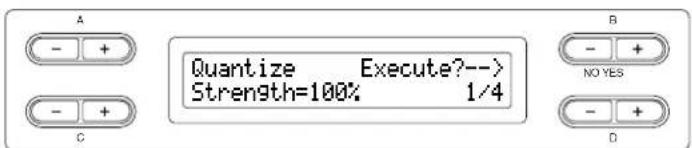
text_image
Quantize Execute?--> Strength=100% 1/4If "Set?→" appears:
Press the B [+ (YES)] button to execute the setting. The Clavinova displays "Executing" and saves the data. When the operation is complete, it displays "Completed" for three seconds, then returns to the previous screen.
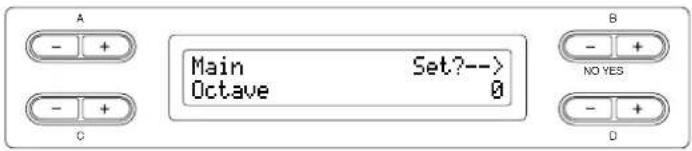
text_image
A - + Main Set?--> Octave 0 B - + NO YES - + C D5. Close the setting menu.
Press the [EXIT] button.
Detailed settings for recording and playback [FILE/SONG SETTING]
For information on the settings "Save" – "CharacterCode," see "Handling files such as deleting song files ... [FILE/SONG SETTING]" on page 39.
You can make detailed settings for the selected song. First, select the desired song from preset songs ("PRESET"), memory songs ("MEMORY"), or External songs ("USB1") (see page 48).
Procedure
Select the desired song and press the [FILE/SONG SETTING] button to access the "File/Song Setting" menu.

text_image
Front panel of a device control panel with labeled buttons, ports, and indicator lights[FILE/SONG SETTING] button
Playing back a song/all songs repeatedly
[SongRepeat]
You can repeatedly play back all songs or a single song selected from the 50 preset songs or from the USB storage devices.
When you start playback, the Clavinova plays the song you selected using the front panel, then starts repeat playback of the specified songs until you press the [STOP] button.
See the procedure on page 80.
![YAMAHA Clavinova CLP-380 - [SongRepeat] - 1](/content/2026/06/1239174/images/b32f6aaf745ea19caa1c9c8259eec4f9d9a745bdfd2b572aee568b960e5aa9dd.jpg)
text_image
Select on or off. A - + - C SongRepeat Off USBSongs B - + - NO YES - + - D Specify the repeated songs.Setting range:
[USBSongs]......All songs in the media inserted in the USB storage device
[MemorySongs] .....All songs in the Clavinova's memory
[USB+Memory] .....All songs from "USBSongs" and "MemorySongs"
[PresetSongs]......All 50 preset songs
[ALL]......All songs from "USBSongs," "MemorySongs," and "PresetSongs"
[OneSong] ...... One song selected from the front panel
TIP
When several USB storage devices are connected, the device which contains the previously selected song is the destination device.
Playing back the phrase specified by the phrase number
[PhraseMark]
If you select a song from an ensemble collection disk, such as the "Disk Orchestra Collection" or one of the "XG for Piano" disks, you can specify phrase numbers in the score to play back from the score from the mark point, or to play back the phrase repeatedly.
If you start playing back a song with "Repeat On" selected, the count down starts, followed by the repeated playback of the specified phrase until you press the [STOP] button.
If you select "Repeat Off," normal playback starts without repeat.
See the procedure on page 80.
![YAMAHA Clavinova CLP-380 - [PhraseMark] - 1](/content/2026/06/1239174/images/69fd257afedfcfd5459994b9138cbb055da166cda133d48fd4f31b2c2ee96bb3.jpg)
text_image
Select repeat on or off. A - + - + C PhraseMark RepeatOff 001 NDYES B - + - + D Specify the phrase number.Setting range of the phrase number:
--- (not specified)
0 – the last phrase number of the song
TIP
If you select any song other than those from the "Disk Orchestra Collection" or one of the "XG for Piano" disks, you can select only "Off."
Correcting note timing
[Quantize]
You can correct the timing of notes. For example, you can adjust recorded notes to precise eighth or sixteenth notes. Changes are made by song.
See the procedure on page 80.
![YAMAHA Clavinova CLP-380 - [Quantize] - 1](/content/2026/06/1239174/images/b499dcb612e1b44a1eb72bb86f604c33a5b67154759c63ea0672608b5d9e9737.jpg)
text_image
Stores the changed value. Quantize Execute?--> Strength=100% 1/16 B NO YES C D Specifies the type of note.Notes for which you can adjust the timing:
| 1/4...... | J | quarter note |
| 1/6...... | J_3^2 | quarter note triplet |
| 1/8...... | J | eighth note |
| 1/12...... | J_3^2 | eighth note triplet |
| 1/16...... | J | sixteenth note |
| 1/24...... | J_3^2 | sixteenth note triple |
| 1/32...... | J | thirty-second note |
| 1/8+1/12...... | J_+J_3^2 | eighth note + eighth |
| 1/16+1/12...... | J_+J_3^2 | sixteenth note + eig |
| 1/16+1/24...... | J_+J_3^2 | sixteenth note + six |
The three Quantize settings marked with asterisks (*) are exceptionally convenient, since they allow you to quantize two different note values at the same time. For example, when the straight eighth notes and eighth notes triplet are contained in the same part, if you quantize by the straight eighth notes, all notes in the part are quantized to straight eighth notes—completely eliminating any triplet feel. However, if you use the eighth note + eighth note triplet setting, both the straight and triplet notes will be quantized correctly.
From this display, you can determine how strongly the notes will be quantized. A setting of 100% produces exact timing. If a value less than 100% is selected, notes will be moved toward the specified quantization beats according to the specified percentage. Applying less than 100% quantization lets you preserve some of the “human” feel in the recording.
![YAMAHA Clavinova CLP-380 - [Quantize] - 2](/content/2026/06/1239174/images/952378a6d1c6e0c537ad0a89d1391e855645c0811cefe88d3388e27b00ffa009.jpg)
text_image
Quarter-note length Original data Quantizing strength=100 Quantizing strength=50Setting range:
0% - 100%
Specifying whether playback starts immediately along with the first voicing
[QuickPlay]
This parameter enables you to specify whether a song that starts from the middle of a bar, or a song with a silence prior to the first note, should be played from the first note or from the top of the bar (rest or blank).
See the procedure on page 80.
![YAMAHA Clavinova CLP-380 - [QuickPlay] - 1](/content/2026/06/1239174/images/2fa80e1c1b64d38a4c1e6b775543dec872b9a31a30042e3753fbef2edb421403.jpg)
text_image
A - + - + D QuickPlay On U - + - + D NO YES.Setting range:
[On].... Playing from the first note [Off].... Playing from the top of the bar (including a rest or blank)
Auditioning the channels
[ChannelListen]
You can select a single channel to listen to its contents.
Playback starts from the first note.
See the procedure on page 80.
Playback continues as long as you press and hold down this button.
![YAMAHA Clavinova CLP-380 - [ChannelListen] - 1](/content/2026/06/1239174/images/f98894043001b867fb35cbeaf58c1200d77a4ca16fc9ae5246c032e9b5f7bcd7.jpg)
text_image
ChannelListen Start?--> Ch1 A B C NO YES DSelect the desired channel for playback.
Setting range:
Ch1-Ch16
TIP
The song data consists of 16 channels. A channel is assigned to a part, so in this instrument, channel means the same as part.
TIP
Even channels that contain no data are displayed.
Deleting data from each channel
[ChannelClear]
You can delete data from each of 16 channels.
See the procedure on page 80.
![YAMAHA Clavinova CLP-380 - [ChannelClear] - 1](/content/2026/06/1239174/images/c2d98d8f03cae94c9e38fe0af67b546eac8d791d5fdf61ec0b66c0286c734ab0.jpg)
text_image
ChannelClear Execute?--> Ch1 Delete data. A B C NO YES DSelect the desired channel for deletion.
Setting range:
Ch1 - Ch16, ALL (all channels)
TIP
The song data consists of 16 channels. A channel is assigned to a part, so in this instrument, channel means the same as part.
TIP
Even channels that contain no data are displayed.
TIP
When you clear all channels using the "ALL" parameter, you can overwrite the song. In this case, the file which contains song settings with no channel data is saved.
For information on the settings "RecStart" and "RecEnd," see "Re-recording a song partially" on page 33.
For information on the setting "RecExtraPartsCh," see "Recording a performance of several different parts" on page 35.
Detailed settings for the metronome METRONOME [SETTING]
You can set the time signature, volume level, and voice of the Clavinova metronome.
Procedure
Press the METRONOME [SETTING] button to access the Metronome Setting menu.
METRONOME [SETTING] button

text_image
Front panel of a device control panel with labeled buttons, ports, and indicator lightsSetting the metronome time signature
[TimeSignature]
See the procedure on page 80.
![YAMAHA Clavinova CLP-380 - [TimeSignature] - 1](/content/2026/06/1239174/images/7f8dc4a9cd5d85f22f660824fa6f042274f66671c9e97fe68b3a5a16c4c77b70.jpg)
text_image
TimeSignature 4/ 4 Set the numerator of the time signature. Set the denominator of the time signature.For example, to specify "3/4," use the C [-][+] buttons to select "3" and the D [-][+] buttons to select "4."
Setting range for the numerator:
1 - 16
Setting options for the denominator:
2, 4, and 8
Setting the metronome volume level
[MetronomeVolume]
See the procedure on page 80.
![YAMAHA Clavinova CLP-380 - [MetronomeVolume] - 1](/content/2026/06/1239174/images/506b7b80b9f7d92c29b7126bb6f6dc372b8b6f08a1f725614d026ab2304b0b73.jpg)
text_image
A - + - C MetronomeVolume 100 R - + NO YES - + - DSetting range:
0 - 127
Selecting the metronome voice
[MetronomeSound]
See the procedure on page 80.
![YAMAHA Clavinova CLP-380 - [MetronomeSound] - 1](/content/2026/06/1239174/images/98ba5fede902f5109b508db6f54831b521f05b9125fe83a2f4e084a11058676d.jpg)
text_image
A - + MetronomeSound BellOff B - + NO YES - + DSetting range:
[BellOff] ....... Click (standard metronome sound)
[EnglishVoice]..... Click and "1, 2, 3, 4" in English
[GermanVoice] ..... Click and "1, 2, 3, 4" in German
[JapaneseVoice].... Click and "1, 2, 3, 4" in Japanese
[FrenchVoice] ...... Click and "1, 2, 3, 4" in French
[SpanishVoice] ..... Click and "1, 2, 3, 4" in Spanish
[BellOn] ...... Click and bell
TIP
To mute the beat count, select "BellOff."
Detailed settings for the voices
[VOICE SETTING]
This menu enables you to make various detailed settings for the voices in Dual or Split mode and the effects. You can make these settings for each voice (or each combination of voices) individually. You can listen to the notes you play on the keyboard while changing the settings.
Procedure
1. Select a voice.
Select a voice referring to the section "Selecting and Playing Voices" on page 23.
2. Access the "Voice Setting" menu.
Press the [VOICE SETTING] button to access the "Voice Setting" menu.

text_image
3 2 [VOICE SETTING] button OFFICE ON/OFFICE ON/OFFICE ON/OFFICE ON/OFFICE ON/OFFICE ON/OFFICE ON/OFFICE ON/OFFICE ON/OFFICE ON/OFFICE ON/OFFICE ON/OFFICE ON/OFFICE ON/OFFICE ON/OFFICE ON/OFFICE ON/OFFICE ON/OFFICE ON/OFFICE ON/OFFICE ON/OFO ON/OFO ON/OFO ON/OFO ON/OFO ON/OFO ON/OFO ON/OFO ON/OFO ON/OFO ON/OFO ON/OFO ON/OFO ON/OFO ON/OFO ON/OFO ON/OFO ON/OFO ON/OFO ON/OFO ON/OFO ON/OFO ON/OFO ON/OFO ON/OFO ON/OFC3. Press the A [-][+] buttons to select the part for which you wish to change the voice.
The range of the displayed part varies depending on the selected voice.
[Main] ...... MAIN voices (displayed with a single voice or in Split mode)
[Main × Layer]...... MAIN Voice 1 and Voice 2 (displayed when the MAIN side is in Dual mode)
[Left]...... LEFT voice (displayed in Split mode)
[Left × Layer] ...... LEFT Voice 1 and Voice 2 (displayed when the LEFT side is in Dual mode)
In Dual mode, parameters with the “*” mark are set for Voice 1 and Voice 2 individually. Parameter names enclosed in parentheses ( ) are displayed in Dual mode.
Setting the octave
[Octave]\*
The pitch of a note can be shifted upward or downward in steps of an octave.
See the procedure on page 80.
![YAMAHA Clavinova CLP-380 - [Octave]\* - 1](/content/2026/06/1239174/images/5425bf49ac1a304d05f80000e2d4648b95e4d72ea51dbaf631f867d1ab401a49.jpg)
text_image
Main Octave Set?--> 0 A B C NO YES - + + - + + DIn Dual mode:
![YAMAHA Clavinova CLP-380 - [Octave]\* - 2](/content/2026/06/1239174/images/7efc59155a4195211377d2906d1af843ff230793c8b9b2be028fbc663e23cf7c.jpg)
text_image
MainxLayer Set?-- Octave(GrndPno1) 0 Voice for editing (Voice 1 or Voice 2)Setting range:
-2 (two octaves lower) - 0 (no pitch shift) - +2 (two octaves higher)
Setting the volume level
[Volume]\*
You can set the volume level for each voice part.
See the procedure on page 80.
![YAMAHA Clavinova CLP-380 - [Volume]\* - 1](/content/2026/06/1239174/images/7044c44dfd5f2a02151361e5139a30da523e13681ca10b4f76909d30d262941f.jpg)
text_image
Main Volume Set?--> 100 NO YES A B C DIn Dual mode:
![YAMAHA Clavinova CLP-380 - [Volume]\* - 2](/content/2026/06/1239174/images/8cfc83aeaceb8b1ea87eede902948121b997fa0c81f2b928481b26d52e4c542d.jpg)
text_image
MainxLayer Set?--> Volume(GrndPno1) 100 Voice for editing (Voice 1 or Voice 2)Setting range:
0-127
Setting the position of right and left channels
[Pan]\*
You can specify the position in the stereo image from which you hear the sound.
See the procedure on page 80.
![YAMAHA Clavinova CLP-380 - [Pan]\* - 1](/content/2026/06/1239174/images/dc44913abbbf0771b5c2e9aab4a628ab6243148e6c93425f39f76bec6c6ca548.jpg)
text_image
A - + - - + - C Main Set?--> Pan C B - + - - + - NO YES - + - DIn Dual mode:
![YAMAHA Clavinova CLP-380 - [Pan]\* - 2](/content/2026/06/1239174/images/d82ed58c1daae8306885637eba336e7c0b1057c98a9e5bcaaac1821d7086f302.jpg)
text_image
MainxLayer Set?--> Pan(GrndPno1) C Voice for editing (Voice 1 or Voice 2)Setting range:
L64 (hard left) - C (center) - R63 (hard right)
Make fine adjustments to the pitch (only in Dual mode)
[Detune]
The pitch of the two sounds selected in Dual mode can be “skewed” slightly away from each other.
See the procedure on page 80.
![YAMAHA Clavinova CLP-380 - [Detune] - 1](/content/2026/06/1239174/images/2603ac404a25023ecdf3ed4d282086023116a229c97eb855a52e799e10c3ff9a.jpg)
text_image
A - + - + C MainxLayer Set?--> Detune + 3 B - + - + D NO YESSetting range:
-20 - +20 (Positive (+) settings will raise the pitch of the first sound and lower the pitch of the second sound. Negative (-) settings will do the opposite.)
Setting the reverb type
[ReverbType]
TIP
You cannot set this parameter for the voice parts "Left" and "Left x Layer."
See the procedure on page 80.
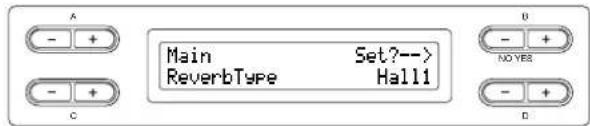
text_image
Main Set?--> ReverbType Hall11 C D U NO YES - + - +Setting range:
Room......Simulates reverberation in a room.
Hall1.....Simulates reverberation in a concert hall.
Hall2....Reverberation is slightly longer than that of "Hall1."
Stage....Reverberation suitable for a solo instrument sound.
Plate ....Reverberation simulating that created by vibration of a metal plate.
Setting the reverb depth
[ReverbSend]\*
TIP
The reverb effect is not applied if the ReverbSend parameter is set to "0."
See the procedure on page 80.
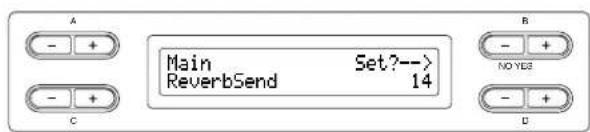
text_image
A - + C Main Set?--> ReverbSend 14 B - + NO YES - + DIn Dual mode:
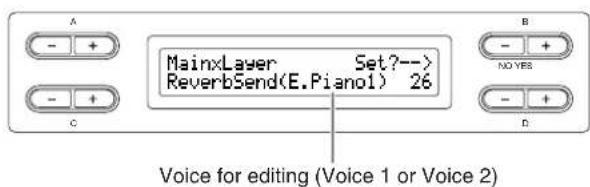
text_image
MainxLayer Set?--> ReverbSend(E.Piano1) 26 Voice for editing (Voice 1 or Voice 2)Setting range:
0 - 127
Selecting the chorus type
[Chorus Type]
TIP
You cannot set this parameter for the voice parts "Left" and "Left × Layer."
See the procedure on page 80.
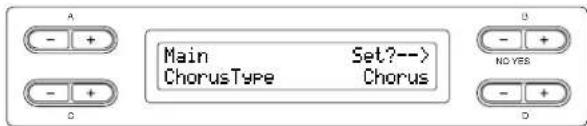
text_image
Main ChorusType Set?--> Chorus NO YES + - + - + - +Setting range:
Chorus ...... Adds a rich, spacious sound.
Celeste ....Adds swell and a spacious sound.
Flanger ....... Adds swell effects of an ascending or descending jet plane.
Setting the chorus depth
[ChorusSend]\*
See the procedure on page 80.
![YAMAHA Clavinova CLP-380 - [ChorusSend]\* - 1](/content/2026/06/1239174/images/672c232d4fe098f84e037c0dce8c8d7d37575dd3fe67443d0ebd82bddb6ec61a.jpg)
text_image
Main Set?--> ChorusSend 48 NO YES A - + - + O a - + - + OIn Dual mode:
![YAMAHA Clavinova CLP-380 - [ChorusSend]\* - 2](/content/2026/06/1239174/images/bbfb3c03e4c0c02adce5ec2dd8eec14ad70275e6bb1d9d567c361180029e3c87.jpg)
text_image
MainxLayer Set?--> ChorusSend(E.Piano1) 72 Voice for editing (Voice 1 or Voice 2)Setting range:
0 - 127
Setting the chorus on/off
[ChorusOnOff]
You can set the [CHORUS] button on or off for each voice. When you select a voice, the chorus on/off setting for the voice automatically changes according to this parameter.
TIP
Even if this parameter is turned on, the chorus effect is disabled if the ChorusSend parameter is set to 0.
See the procedure on page 80.
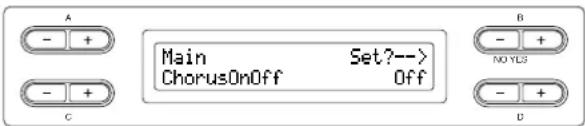
text_image
A - + Set?--> - + ChorusOnOff Off C B - + - + NO YLS DSetting range:
On/Off
Selecting the DSP type\*
[DSP Type (DSP)]
You can select other effects (than reverb and chorus). See the procedure on page 80.
![YAMAHA Clavinova CLP-380 - [DSP Type (DSP)] - 1](/content/2026/06/1239174/images/f64f74fa0d613696faaa8c9ed745669f3e9b8ab7cc9de67f3066ea8bf99d61e6.jpg)
text_image
A - + - - + - C Main Set?--> DSP Type DelayLCR B - + - NO YES - + - DSetting range:
DelayLCR......Delay applied at left, center, and right positions.
DelayLR ....Delay applied at left and right positions.
Echo....Echo-like delay
CrossDelay ....Left and right delays are crossed.
Symphonic ....Adds a rich and deep acoustic effect.
Rotary....Adds the vibrato effect of a rotary speaker.
Tremolo ....The volume level changes in rapid cycles.
VibeRotor ....The vibrato effect of a vibraphone.
AutoPan ....The sound pans left to right and back and forth.
Phaser......The phase changes periodically, swelling the sound.
AutoWah......The center frequency of the wah filter changes periodically.
SoundBoard......Simulates the reverberation of a piano soundboard.
Off No effect.
Setting the speed of the vibraphone vibrato effect\*
[VibeRotorSpeed]
TERMINOLOGY
Rotor= The rotating portion of an electrical device etc.
This will be displayed only if VibeRotor is selected for the DSP Type parameter explained above.
This sets the speed of the vibrato effect that is applied when you have selected Vibraphone and are using the VibeRotor pedal.
See the procedure on page 80.
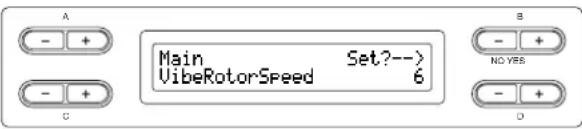
text_image
A - + - + C Main Set?--> UibeRotorSpeed 6 B - + NO YES - + DSetting range:
1 - 10
Turning the vibraphone vibrato effect on/off\*
[VibeRotorOnOff (RotorOnOff)]
This will be displayed only if VibeRotor is selected for the DSP Type parameter explained above.
It turns on/off the vibrato effect that is applied when you use the VibeRotor pedal.
See the procedure on page 80.
![YAMAHA Clavinova CLP-380 - [VibeRotorOnOff (RotorOnOff)] - 1](/content/2026/06/1239174/images/9ecbffac23ddcf759e18317c840714e8b988689fcc0072c97a8e97474d4f4be0.jpg)
text_image
A - + - + C Main Set?--> VibeRotorOnOff On B - + NO YES - + DSetting range:
On/Off
Setting the rotation speed of the rotary speaker\*
[RotarySpeed (Rot.Speed)]
This will be displayed only if Rotary is selected for the DSP Type parameter explained above.
It sets the rotation speed of the rotary speaker effect. See the procedure on page 80.
![YAMAHA Clavinova CLP-380 - [RotarySpeed (Rot.Speed)] - 1](/content/2026/06/1239174/images/673889119c8525e62490083995ce9fa9503f9183c98620d9beb48e410895162c.jpg)
text_image
Main RotarySpeed Set?--> Slow NO YES A B C DSetting range:
Slow/Fast
Adjusting the depth of the DSP effect\*
[DSPDepth]
This sets the depth of the DSP effect (page 89).
Some DSP Type settings do not allow you to set the DSPDepth.
See the procedure on page 80.
![YAMAHA Clavinova CLP-380 - [DSPDepth] - 1](/content/2026/06/1239174/images/3bc47dfdabe35d48db841098948e17f6968e810d74a9be87133b960f8e2b993a.jpg)
text_image
Main Set?--> DSPDepth 127 C B NO YES DSetting range:
1 (output only the original sound with almost no effect applied) - 127 (output only the sound processed by the effect)
Adjusting the brightness of the sound\*
[Brightness]
See the procedure on page 80.
![YAMAHA Clavinova CLP-380 - [Brightness] - 1](/content/2026/06/1239174/images/440c1aa51687b9d9dd03bce7ea9cdba075dfa21bd3cf4978b166e50baff7c230.jpg)
text_image
A - + - C Main Set?-- Brightness 0 B - + - + - D NO YESSetting range:
-64 - +63
Adjusting the resonance effect\*
[HarmonicContent (Harmonic)]
See the procedure on page 80.
![YAMAHA Clavinova CLP-380 - [HarmonicContent (Harmonic)] - 1](/content/2026/06/1239174/images/bcf3bbe34efd20647a84d0de9328d7f87b2aac52508c4ef466fcaf576fee5c2b.jpg)
text_image
Main Set?--> HarmonicContent 0 A B - + - + C NO YES - + DSetting range:
-64 - +63
TIP
Resonance can produce a distinctive "peaky" tone, making the sound brighter and harder.
Adjusting the low-range frequency of the equalizer\*
[EQ LowFreq. (EQ L.Freq)]
TERMINOLOGY
Equalizer:
An audio equalizer divides the frequency spectrum into multiple regions and enables the user to adjust the relative amplitude of each region.
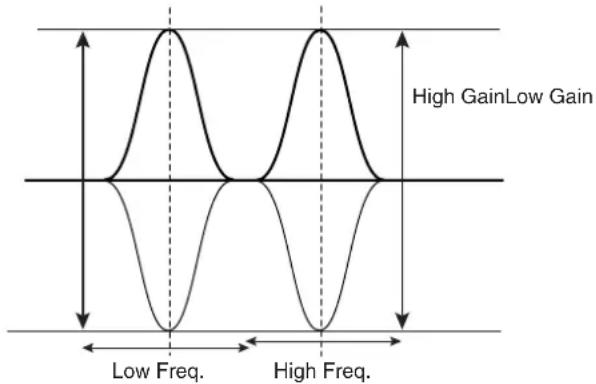
text_image
High GainLow Gain Low Freq. High Freq.See the procedure on page 80.
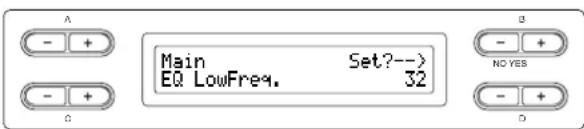
text_image
Main EQ LowFreq. Set?-- 32 NO YES A B C - + + - + + OSetting range:
32 Hz - 2.0 kHz
Adjusting the low-range gain (amount of boost/cut) of the equalizer\*
[EQ LowGain]
See the procedure on page 80.
![YAMAHA Clavinova CLP-380 - [EQ LowGain] - 1](/content/2026/06/1239174/images/39a51d50d1dd41fef2015a6de056e204e0d1c6469f20235d6ac2c84b8828ddbd.jpg)
text_image
Main Set?--> EQ LowGain 0 NO YES A - + - + C B - + - + DSetting range:
-12 - +12 dB
Adjusting the high-range frequency of the equalizer\*
[EQ HighFreq. (EQ H.Freq)]
See the procedure on page 80.
![YAMAHA Clavinova CLP-380 - [EQ HighFreq. (EQ H.Freq)] - 1](/content/2026/06/1239174/images/e473d6b9126df9746de8daba3f3c9d167a5faf9d59da93d2696717ca685ca3cc.jpg)
text_image
Main Set?--> EQ HighFreq. 500 C D NO YLSSetting range:
500 Hz - 16.0 kHz
Adjusting the high-range gain (amount of boost/cut) of the equalizer\*
[EQ HighGain]
See the procedure on page 80.
![YAMAHA Clavinova CLP-380 - [EQ HighGain] - 1](/content/2026/06/1239174/images/3fead0b58725213b78a1be3b3a3c63bc79c249741b93059b5960f7bbbd0b35db.jpg)
text_image
Main Set?--> EQ HighGain 0 A - + - + C B - + - + D NO YESSetting range:
-12 - +12 dB
Setting the touch sensitivity
[TouchSense]\*
This parameter enables determines the manner and degree to which the volume level changes in response to your touch on the keyboard (how hard you play). Since the volume level of the harpsichords and pipe organs do not change regardless of how you play the keyboard, the normal setting for these voices is 127. (See the setting range below.)
See the procedure on page 80.
![YAMAHA Clavinova CLP-380 - [TouchSense]\* - 1](/content/2026/06/1239174/images/4f3f9faa1ed14db02df77772679f5bad2a9849c343efcccb6014056ccbd76100.jpg)
text_image
Main Set?--> TouchSense 64 C B NO YES + - + - + - + DIn Dual mode:
![YAMAHA Clavinova CLP-380 - [TouchSense]\* - 2](/content/2026/06/1239174/images/093fd45f9103911f6751f2fdc990a1e9c40cfdbdc23de7b7bfb71082719a656d.jpg)
text_image
MainxLayer Set?--> TouchSense(GrndPno1) 64 Voice for editing (Voice 1 or Voice 2)Setting range:
0 (softest) - 64 (largest changes in the level) - 127 (loudest and fixed)
Detailed settings for iAFC [iAFC SETTING]
When iAFC is engaged, the Clavinova will sound deeper and more resonant, similar to an acoustic musical instruments. This lets you experience the ambience and reverberation that are characteristic of performing on stage or simulates the sustain sound that occur when you press the damper pedal of a grand piano.
This section describes how to make various settings for the iAFC function. You can also perform an automatic adjustment in order to obtain the optimal iAFC effect.
Procedure
Press [iAFC SETTING] button to enter iAFC Setting mode.
[iAFC SETTING] button

text_image
SOMI SORI SONI SORI SONI SOMI SOMI SOMI SOMI SOMI SOMI SOMI SOMI SOMI SOMI SOMI SOMI SOMI SOMI SOMI SOMI SOMI SOMI SOMI SOMI SOMI SOMI SOMI SOMI SOMI SOSI SOSI SOSI SOSI SOSI SOSI SOSI SOSI SOSI SOSI SOSI SOSI SOSI SOSI SOSI SOSI SOSI SOSI SOSI SOSI SOSI SOSI SOSI SOSI SOSI SOTI SOTI SOTI SOTI SOTI SOTI SOTI SOTI SOTI SOTI SOTI SOTI SOTI SOTI SOTI SOTI SOTI SOTI SOTI SOTI SOTI SOTI SOTI VDDAPerform the automatic adjustment after you turn on the power of the Clavinova for the first time, and after each time you move the Clavinova (page 93).
When the [iAFC SETTING] button is pressed before performing the automatic adjustment, the “Calibration” screen will be displayed.
TIP
iAFC cannot be used in the following cases.
When the Speaker setting is Normal, and headphones are connected.
When the Speaker setting is off.
TIP
When using iAFC, do not block the speaker located on the rear panel of the Clavinova. The optimal iAFC effect cannot be obtained if this speaker is blocked.
TIP
iAFC uses Yamaha's EMR (Electronic Microphone Rotator) technology to ensure stability against acoustic feedback.
Turning iAFC on/off
[iAFC]
See the procedure on page 80.
![YAMAHA Clavinova CLP-380 - [iAFC] - 1](/content/2026/06/1239174/images/655c6b9427e06b50d8e354ce51fde533091dd8fd88e4b163e6b2cdc87bf6a9df.jpg)
text_image
iAFC OnSetting range:
On/Off
Adjusting the Dynamic Damper Effect depth
[DynDmpFX Depth]
Dynamic Damper Effect is one type of the iAFC effect. Dynamic Damper Effect simulates the sustain sound that occurs when you press the damper pedal of a grand piano. The internal microphones are not used, but the sound produced within the Clavinova is processed to create a spacious sensation, as you press the damper pedal and play the keyboard.
See the procedure on page 80.
![YAMAHA Clavinova CLP-380 - [DynDmpFX Depth] - 1](/content/2026/06/1239174/images/dbfeb64098263f24088314df1c85b2b73bc1deaed6a9645917217e00915b63f9.jpg)
text_image
DynDmpFX Depth 105 A B - + - + - + O NO YES OSetting range:
0 - 127
Adjusting the Spatial Effect depth
[SpatialFX Depth]
Spatial Effect is one type of the iAFC effect. Spatial Effect creates a sense of reverberation and spaciousness by picking up the output sound using internal microphones and output the sound from the speaker on the rear of the instrument. The spread and spaciousness of the sound is different depending on the depth. For lower depth settings, this creates the resonance and enhances the acoustic realism of the sound that is characteristic of acoustic instruments by creating a virtual soundboard. For deeper depth settings, the sound of the instrument itself and the sound of singing and other instruments played nearby is picked up by internal microphones, and processed to simulate the spatial characteristics of performing together on stage.
See the procedure on page 80.
![YAMAHA Clavinova CLP-380 - [SpatialFX Depth] - 1](/content/2026/06/1239174/images/77f86e21e1ca1742e6c26c2d01e562e9dd713ecb155a3a31f566a642c7c65b79.jpg)
text_image
A - + - + C SpatialFX Depth 14 B - + - + D NO YESSetting range:
0 - 127
Calibration (automatic adjustment)
[Calibration]
This automatically adjusts the sensitivity and response of iAFC so that the optimal iAFC effect will be obtained.
When automatic adjust begins, a test sound (noise) will sound for about five seconds.
While automatic adjustment is being performed, do not make audible noises in the vicinity of the Clavinova.
See the procedure on page 80.
![YAMAHA Clavinova CLP-380 - [Calibration] - 1](/content/2026/06/1239174/images/50d5d58e89ef15261161ff313f9899654237db14e3f0d46df862eb2a24a5f075.jpg)
text_image
Calibration Sure?--> Test sound is output.TIP
The keyboard will not produce sound while automatic adjustment is being performed. Nor is it possible to adjust the volume of the Clavinova.
Restoring the default calibration setting
[iAFC Default]
This sets the calibration function to the default setting. See the procedure on page 80.
![YAMAHA Clavinova CLP-380 - [iAFC Default] - 1](/content/2026/06/1239174/images/9a7389deb655a3973017c967fcb8ae233d09f90e965d08aed9c2e00c4f9a3b5f.jpg)
text_image
iAFC Default Set?-->Other settings [FUNCTION]
You can make detailed settings for touch, tuning, scale, etc.
Procedure
Press the [FUNCTION] button to enter Function mode.

text_image
[FUNCTION] buttonChanging the key
[Transpose]
TIP
TRANSPOSE= To change the key
(Changing the key: To raise or lower the overall pitch of the entire song.)
The Clavinova's Transpose function makes it possible to shift the pitch of the entire keyboard up or down in semitone intervals to facilitate playing in difficult key signatures, and to let you easily match the pitch of the keyboard to the range of a singer or other instruments. For example, if you set the transposition amount to "5," playing key C produces pitch F. In this way, you can play the song as if it were in C major, and the Clavinova will transpose it to the key of F.
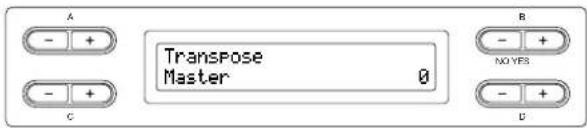
text_image
A - + Transpose Master 0 B - + NO YES C DSetting for:
Master ....The sound of the entire instrument (the manually-played sound and the song playback)
Keyboard ....The manually-played sound Song....The song playback
Setting range:
-12 (-1 octave) - 0 (normal pitch) - +12 (+1 octave)
Selecting a touch response
[TouchResponse]
You can specify a touch response (how the sound responds to the way you play the keys).
See the procedure on page 80.
![YAMAHA Clavinova CLP-380 - [TouchResponse] - 1](/content/2026/06/1239174/images/abc19d98db043d8c9c4d39e4cd2a114f78b350c4e4ae5b88f1667c1e174ec5ed.jpg)
text_image
TouchResponse Vel= 64 FixedSetting range:
Light.... With a soft touch, the Clavinova produces a loud sound. The volume level of tones tends to be consistent.
Medium...... Standard touch response.
Heavy .... You must hit the key very hard to generate a loud volume. This allows for versatile expression, from pianissimo to fortissimo tones.
Fixed.... No touch response. The volume level will be the same regardless of how hard you play the keys. Use the B [- (NO)][+ (YES)] buttons to set the volume level.
Setting range of the "Fixed" volume level:
1 - 127
Fine tuning the pitch
[Tune]
You can fine tune the pitch of the entire instrument. This function is useful when you play the Clavinova along with other instruments or CD music.
See the procedure on page 80.
![YAMAHA Clavinova CLP-380 - [Tune] - 1](/content/2026/06/1239174/images/6fca1098febf76557c1d18cc9d82c2fb84ebd87d96ced88668fb8e1f9bb474cb.jpg)
text_image
A - + C Tune A3=440.0Hz B - + D NO YESSetting range:
A3 = 414.8 Hz - 466.8 Hz (0.2 Hz steps)
Selecting a tuning curve for a piano voice
[PianoTuningCurve]
You can select a tuning curve from "GrandPiano1" and "GrandPiano2." Select "Flat" if you feel the tuning curve of the piano voice does not quite match that of other instruments voices.
See the procedure on page 80.
![YAMAHA Clavinova CLP-380 - [PianoTuningCurve] - 1](/content/2026/06/1239174/images/38e61e8fde12d7e4261965932563c0b5ceeed83f9fb69e6494504fae78935d70.jpg)
text_image
A - + C PianoTuningCurve Stretch B - + NO YES. - + DSetting range:
Stretch.....Tuning curve particularly for pianos
Flat ....Tuning curve in which the frequency is octave doubled over the entire keyboard range
Selecting a scale
[Scale]
You can select various scales.
Equal Temperament is the most common contemporary piano tuning scale. However, history has known numerous other scales, many of which serve as the basis for certain genres of music. You can experience the tunings of these genres.
See the procedure on page 80.
![YAMAHA Clavinova CLP-380 - [Scale] - 1](/content/2026/06/1239174/images/3886dbd7fc1afd8026dba1f69d02c96dffd6d7652339c88dd49a3076fa700665.jpg)
text_image
Scale BaseNote=C PureMajor NO YES - + + - + + OSetting range:
Equal ...... One octave is divided into twelve equal intervals. Currently most popular piano tuning scale.
PureMajor/PureMinor
Based on natural overtones, three major chords using these scales produce a beautiful, pure sound.
Pythagorean .... This scale, designed by Pythagoras, a Greek philosopher, is based on the interval of a perfect 5th. The 3rd produces swells, but the 4th and 5th are beautiful and suitable for some leads.
MeanTone .... This scale is an improvement of the Pythagorean in that the swell of the 3rd has been eliminated. It spread during the late 16th century through the late 18th century. Handel used this scale.
These scales combine Mean Tone and Pythagorean in different ways. With these scales, modulation changes the impression and feel of the songs. They were often used in the era of Bach and Beethoven. They are also often used now to reproduce the music of that era on harpsichords.
Normal setting:
Equal
If you select a scale other than Equal, you need to specify the root note using the B[-(NO)][+(YES)] buttons.
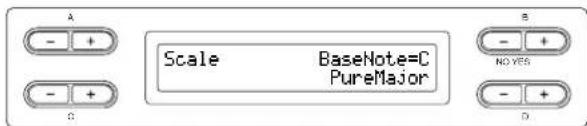
text_image
Scale BaseNote=C PureMajor - + + - + + D B - + NO YES - + DSetting range:
C, C#, D, E♭, E, F, F#, G, A♭, A, B♭, B
Specifying the Split Point
[Split Point]
You can specify the split point (the boundary between the right-hand and left-hand keyboard areas).
See the procedure on page 80.
![YAMAHA Clavinova CLP-380 - [Split Point] - 1](/content/2026/06/1239174/images/59ec0dfa789f39dd47d40c392aee59d2ec5c1a7bf47e96c07cc06349aeb6ee31.jpg)
text_image
SplitPoint F#2 A B C NO YES DSetting range:
$$ \mathrm{A-1-C7} $$
TIP
You can also use [SPLIT] to set the split point (page 29).
Setting the right pedal function
[RPedalFunc]
See the procedure on page 80.
![YAMAHA Clavinova CLP-380 - [RPedalFunc] - 1](/content/2026/06/1239174/images/25ebefc64d0c8192896a4d3bb8cfe0a802afdc340d42c54c735af52505846ced.jpg)
text_image
RPedalFunc Set?--> SustainCont NO YES + - + - + - + - + - + - + - + - + - + - + - + - + - + - + - + - + - + - + - + - + - + - + - + - + - + - + - + - + - + - + - + - + - + - + - + - + - + - + - + - + - + - + - + - + - + - + - + - + - + - + - + A - + - + C B - + - + DSetting range:
Sustain ......ON/OFF switch type damper
SustainCont......Damper that sustains the sound proportionately to how deeply you press the pedal
Expression ......A function that lets you create changes in dynamics (volume) as you play
PitchBend Up.....A function that smoothly raises the pitch
PitchBend Down.....A function that smoothly lowers the pitch
RotarySpeed ......Change the rotational speed of the JazzOrgan rotary speaker (switch between fast/slow each time you press the pedal)
VibeRotor .... Switch the vibraphone vibrato on/off (switch on/off each time you press the pedal)
Normal setting:
SustainCont
Setting the center pedal function
[CPedalFunc]
See the procedure on page 80.
![YAMAHA Clavinova CLP-380 - [CPedalFunc] - 1](/content/2026/06/1239174/images/cc26c4aee47fe800a3d5c03dbc539561522c70116036a8d5b87d29d150a14d50.jpg)
text_image
CPedalFunc Set?--> Sostenuto NO YES A B C DSetting range:
Same as "Setting the right pedal function" above, except for the following parameters.
- SustainCont
- Expression
- PitchBend Up
- PitchBend Down
Normal Setting:
Sostenuto
Setting the left pedal function
[LPedalFunc]
See the procedure on page 80.
![YAMAHA Clavinova CLP-380 - [LPedalFunc] - 1](/content/2026/06/1239174/images/d54c4cdbb37d0bee4fb141dffe8da8ee9e8dc347db1d444d80bae525fcea32d7.jpg)
text_image
LPedalFunc Set?--> Soft NO YES A - + - + D B - + - +Setting range:
Same as "Setting the right pedal function" above, except for the following parameters.
- SustainCont
- Expression
- PitchBend Up
- PitchBend Down
Normal Setting:
Soft (for all voices other than JazzOrgan, MellowOrgan and Vibraphone), Rotary Speed (JazzOrgan and MellowOrgan), Vibraphone (VibeRotor)
Setting the auxiliary pedal function
[AuxPedalFunc]
You can assign a function to the pedal connected to the Clavinova's AUX PEDAL jack.
See the procedure on page 80.
![YAMAHA Clavinova CLP-380 - [AuxPedalFunc] - 1](/content/2026/06/1239174/images/2e35f3daaceb8d8055a33f5d2dd42601e4b22be4ef9155fe80ee39a958ff467b.jpg)
text_image
AuxPedalFunc Set?--> Expression A B C NO YES DSetting range:
Same as "Right pedal function assignment" (page 96).
Normal setting:
Expression
TIP
Yamaha FC7 foot controller
This foot controller is suitable for controlling Expression, SustainCont, or PitchBend Up/Down.
Yamaha FC4 foot switch
Yamaha FC5 foot switch
These foot switches are suitable for controlling Sustain, Sostenuto, Soft, RotarySpeed, or VibeRotor.
Turning the right pedal function on/off
[RPedalOnOff]
This turns the right pedal function on or off for the relevant voice part. In other words, you can select the desired voice part (Main, MainLayer, Left, LeftLayer) and determine whether the right pedal function (set on page 96) will affect that part or not.
See the procedure on page 80.
![YAMAHA Clavinova CLP-380 - [RPedalOnOff] - 1](/content/2026/06/1239174/images/4e28d2092d6c85bf267f2de410846963e65aa362e60b085f11be105ef74a2ff5.jpg)
text_image
RPedalOnOff Set?--> Main On A B - + - + C NO YES - + DSelect the voice part for which the right pedal on/off setting is to be changed.
Select on or off.
Setting for:
Main, MLayer (MainLayer), Left, LLayer (LeftLayer)
Setting range:
On/Off
Normal Setting:
Different for each voice.
Turning the center pedal function on/off
[CPedalOnOff]
This turns the center pedal function on or off for the relevant voice part. In other words, you can select the desired voice part (Main, MainLayer, Left, LeftLayer) and determine whether the center pedal function (set on page 96) will affect that part or not.
See the procedure on page 80.
![YAMAHA Clavinova CLP-380 - [CPedalOnOff] - 1](/content/2026/06/1239174/images/594dbfd5e8846ec4cdd6733849d568e152142371f395dacda89c22475fd7ea17.jpg)
text_image
CPedal10nOff Set?--> Main On A B - + - + C NO YES - + DSelect the voice part for which the center pedal on/off setting is to be changed.
Select on or off.
Setting for:
Main, MLayer (MainLayer), Left, LLayer (LeftLayer)
Setting range:
On/Off
Normal Setting:
Different for each voice.
Turning the left pedal function on/off
[LPedalOnOff]
This turns the left pedal function on or off for the relevant voice part. In other words, you can select the desired voice part (Main, MainLayer, Left, LeftLayer) and determine whether the left pedal function (set on page 96) will affect that part or not.
See the procedure on page 80.
![YAMAHA Clavinova CLP-380 - [LPedalOnOff] - 1](/content/2026/06/1239174/images/68a1debc21e0ddd0c95a2db1288f0ebf45d14f58d0dd3db99eec4ee2f2c7a89c.jpg)
text_image
LPedalOnOff Set?--> Main On C B - + - + NO YES - + DSelect on or off. Select the voice p
the left pedal on/off setting is to be changed.
Setting for:
Main, MLayer (MainLayer), Left, LLayer (LeftLayer)
Setting range:
On/Off
Normal Setting:
Different for each voice.
Turning the auxiliary pedal function on/off
[AuxPedalOnOff]
This turns the auxiliary pedal function on or off for the relevant voice part. In other words, you can select the desired voice part (Main, MainLayer, Left, LeftLayer) and determine whether the auxiliary pedal function (set on page 97) will affect that part or not. See the procedure on page 80.
![YAMAHA Clavinova CLP-380 - [AuxPedalOnOff] - 1](/content/2026/06/1239174/images/4d7c7131519636c098baed1c5f186a72b7a1893dc4f5afd89b7b02ab7c42d102.jpg)
text_image
AuxPedal10nOff Set?--> Main On Select the voice part for which the AUX pedal on/off setting is to be changed. Select on or off.Setting for:
Main, MLayer (MainLayer), Left, LLayer (LeftLayer)
Setting range:
On/Off
Normal Setting:
Different for each voice.
Assigning the SONG [PLAY/PAUSE] function to the pedal
[PedalPlay/Pause]
TIP
If you assign the SONG PLAY/PAUSE function to a pedal and turn the function On, the pedal function assigned to the pedal in the Function menu (pages 96 and 97) is disabled.
See the procedure on page 80.
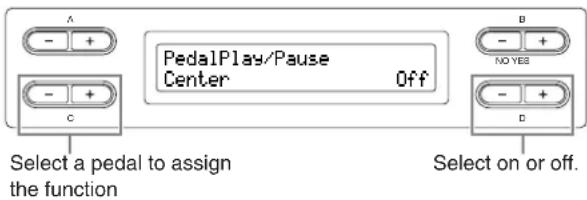
text_image
A - + C PedalPlay/Pause Center Off B - + NO YES - + D Select a pedal to assign the function Select on or off.Setting for:
Left, Center, AUX
Setting range:
On/Off
Normal setting:
Off for all pedals
Selecting a type of auxiliary pedal
[AuxPedalType]
A pedal connected to the [AUX PEDAL] jack may switch on and off differently. For example, some pedals turn on the effects and others turn them off when you press them. Use this parameter to reverse this mechanism. See the procedure on page 80.
![YAMAHA Clavinova CLP-380 - [AuxPedalType] - 1](/content/2026/06/1239174/images/e2949d8abf3ba71c41c92738123b8e070e6107c195f341ebf2c301690fba4b0d.jpg)
text_image
AuxPedalType Make A B C NO YES DSetting range:
Make, Break
Setting the point at which the damper pedal starts to affect the sound
[HalfPedalPoint]
Here you can specify the point to which you must depress the pedal (right and AUX) before the assigned effect begins to be applied. This setting applies only to the "SustainCont" effect (page 96) that is assigned to the right or AUX pedal.
![YAMAHA Clavinova CLP-380 - [HalfPedalPoint] - 1](/content/2026/06/1239174/images/eba2b96b83ab4e58f4170c9334d3cd40e1e32289c711b450219d8e7ac971c9d8.jpg)
text_image
A - + - + C HalfPedalPoint 0 B - + NO YES - + DSetting range:
-2 (effective with the shallowest press) - 0 - +2 (effective with the deepest press)
Adjusting the depth of the Soft pedal
[SoftPedalDepth]
See the procedure on page 80.
![YAMAHA Clavinova CLP-380 - [SoftPedalDepth] - 1](/content/2026/06/1239174/images/c305bf70bd6f02bb5afb98ea7414c84ea17c13cd17fe79014d88047b48433341.jpg)
text_image
SoftPedalDepth 5 C B - + - + - + NO YES - +Setting range:
1 - 10
Setting the depth of string resonance
[StringResonanceDepth]
This parameter is effective on the voices, such as “Grand Piano 1.”
See the procedure on page 80.
![YAMAHA Clavinova CLP-380 - [StringResonanceDepth] - 1](/content/2026/06/1239174/images/16a1a0e1e1ae98a3cb7f8dd82bf704160bbf2ba0b25793d9a0b45251e962f346.jpg)
text_image
StringResonanceDepth 5 A - + C B - + NO YES - + DSetting range:
Off, 1 - 10
Setting the depth of sustain sampling for the damper pedal
[SustainSamplingDepth]
This parameter is effective only on the voice group "GRANDPIANO1."
See the procedure on page 80.
![YAMAHA Clavinova CLP-380 - [SustainSamplingDepth] - 1](/content/2026/06/1239174/images/75b22ac0b132d12f7dd377596189940e20ef2f6b9390bdf4162f0e9a6e77e54c.jpg)
text_image
SustainSamplingDepth 5Setting range:
Off, 1 - 10
Specifying the volume of the key-off sound
[KeyOffSamplingDepth]
You can adjust the volume of the key-off sound (the subtle sound that occurs when you release a key)
This is effective on the voice groups “Grand Piano1,” “Harpsichord,” and “E.Clavichord” and on the voice “E.Piano2.”
See the procedure on page 80.
![YAMAHA Clavinova CLP-380 - [KeyOffSamplingDepth] - 1](/content/2026/06/1239174/images/eec50a579be25ada41e03f161d63c350534415d3205df418a9918d9b055be757.jpg)
text_image
A - + + - + + C KeyOffSamplingDepth 5 D - + + NO YES - + + DSetting range:
Off, 1 - 10
Setting the range of pitch bend
[PitchBendRange]
This specifies the amount of change that can be produced by the pitch bend function which smoothly varies the pitch.
This setting applies only to the manually-played sound. This setting can be made in semitone steps.
You can set the pedal function (page 96) to specify whether the pitch will be raised or lowered.
See the procedure on page 80.
![YAMAHA Clavinova CLP-380 - [PitchBendRange] - 1](/content/2026/06/1239174/images/bd1b9176bc4130c6fc4964578c63757210f4d2e2e8cf0020d1ba85da3a1afd0f.jpg)
text_image
PitchBendRange 2 A B - + - + C NO YES - + DSetting range:
0 - +12 (Pressing the pedal will raise/lower the pitch by 12 semitones [1 octave])
Normal setting:
2
Switching the speaker on/off
[Speaker]
This setting lets you switch the speaker on/off. See the procedure on page 80.
![YAMAHA Clavinova CLP-380 - [Speaker] - 1](/content/2026/06/1239174/images/ad6770814009fb8b0e9ad6b11d90a1d68c9851c1058d349bb1fe73971941c656.jpg)
text_image
Speaker Normal(HeadPhoneSW) A B - + - + C NO YLS - + DSetting range:
Normal (HeadphoneSW) .... The speaker will sound only if headphones are not connected.
On.... The speaker will always sound.
Off..... The speaker will not sound.
Setting the MIDI transmit channel
[MidiOutChannel]
This parameter enables you to specify the channel on which the Clavinova transmits MIDI data. See the procedure on page 80.
![YAMAHA Clavinova CLP-380 - [MidiOutChannel] - 1](/content/2026/06/1239174/images/385ebec04b197f474068a027bb3c5ff3f9921589a507946cd0c7433b44997b7b.jpg)
text_image
A - + C MidiOutChannel Main Midi/Usb1Ch1 B - + NO YES - + DSelect a voice part. Specify the channel.
Setting for:
Main, Left, Layer, Left Layer
Setting range:
Midi/Usb1 Ch1 - Ch16, Off (Not transmitted.)
Normal setting:
Main ......Midi/Usb1 Ch1
Left ......Midi/Usb1 Ch2
Layer ......Midi/Usb1 Ch3
Left Layer ......Midi/Usb1 Ch4
Setting the MIDI receive channel
[MidilnChannel]
You can specify whether each channel of data from MIDI [IN] and USB [TO HOST] will be received.
See the procedure on page 80.
![YAMAHA Clavinova CLP-380 - [MidilnChannel] - 1](/content/2026/06/1239174/images/a8a8ed2036e74e4d6fa9abc276bdb7ccd84f576cd311a8e5b5e2695475251c8b.jpg)
text_image
A - + C MidiInChannel Midi/Usb1Ch1 Song9 D - + NO YES - + DSelect a channel Select a MIDI receive part
Setting for:
Midi/Usb1 Ch1 - Ch16
Usb2 Ch1-16
Setting range:
Song, Main, Left, Layer, LeftLayer, Keyboard, Off
Normal setting:
Midi/Usb1 Ch1-Ch16.....Song
Usb2 Ch1......Keyboard
Usb2 Ch2....Main
Usb2 Ch3....Left
Usb2 Ch4....Layer
Usb2 Ch5....LeftLayer
Others ......Off
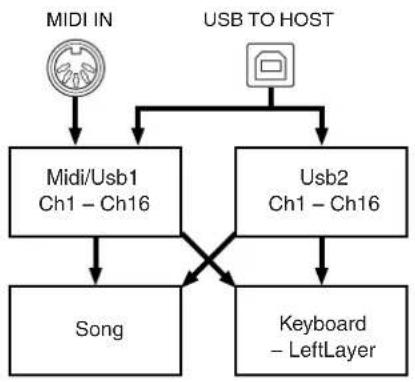
flowchart
graph TD
    A["MIDI IN"] --> B["Midi/Usb1 Ch1 - Ch16"]
    C["USB TO HOST"] --> D["Usb2 Ch1 - Ch16"]
    B --> E["Song"]
    D --> F["Keyboard - LeftLayer"]
    B <--> F
Tuming Local control on/off
[LocalControl]
"Local Control On" is a state in which the Clavinova produces the sound from its tone generator when you play the keyboard. In "Local Control Off" state, the keyboard and the tone generator are cut off from each other. This means that even if you play the keyboard, the Clavinova will not produce the sound. Instead, the keyboard data can be transmitted via MIDI to a connected MIDI device, which can produce the sound. The "Local Control Off" setting is useful when you wish to play an external sound source while playing the keys on the Clavinova.
See the procedure on page 80.
![YAMAHA Clavinova CLP-380 - [LocalControl] - 1](/content/2026/06/1239174/images/81c4de68a0a2c58e1856a56fb93ca96ff8cd1d4c4c93ac93f91aae118711b218.jpg)
text_image
A - + LocalControl On B - + NO YES - + DSetting range:
On/Off
Normal setting:
On
Selecting performance from the keyboard or song data for MIDI transmission
[MidiOutSelect]
You can select whether your performance data or song playback data is sent via MIDI.
See the procedure on page 80.
![YAMAHA Clavinova CLP-380 - [MidiOutSelect] - 1](/content/2026/06/1239174/images/06d49a76eb51a5711b52c4556629c0fd5deced385d5581e6d7db7d22c14a6684.jpg)
text_image
A - + C MidiOutSelect Keyboard B - + NO YU3 - + DSetting range:
Keyboard ......performance data played on the keyboard Song......song playback data
Normal setting:
Keyboard
Selecting a type of data received via MIDI
[ReceiveParameter]
This parameter enables you to specify which MIDI data the Clavinova can receive.
See the procedure on page 80.
![YAMAHA Clavinova CLP-380 - [ReceiveParameter] - 1](/content/2026/06/1239174/images/43d8493c0f663b8ff418ea204d4f7624d153dcc8d2f95cde7d4bc49d131cf0d1.jpg)
text_image
ReceiveParameter Note On A B - + - + C NO YES3 - + DSelect a type of data. Select on or off.
Type of data:
Note, Control, Program, Pitch Bend, SysEx (System Exclusive)
Setting range:
On/Off
Normal setting:
On for all types of data
Selecting a type of data transmitted via MIDI
[TransmitParameter]
This parameter enables you to specify which MIDI data the Clavinova can transmit.
See the procedure on page 80.
![YAMAHA Clavinova CLP-380 - [TransmitParameter] - 1](/content/2026/06/1239174/images/27a5ad6eda99a226f950fe3a84b33e885f7f1821b50be57e0ba129c0a6a66310.jpg)
text_image
TransmitParameter Note On A B - + - + C NO YES - + DSelect a type of data. Select on or off.
Type of data:
Note, Control, Program, Pitch Bend, SystemRealTime, SysEx (System Exclusive)
Setting range:
On/Off
Normal setting:
On for all types of data
Transmitting the initial settings on the panel
[InitialSetup]
You can transmit the panel data, such as voice selection, to a connected sequencer. Before you record performance data to a sequencer, it is useful if you first send and record (at the beginning of the performance data) the panel setup data for your performance during playback.
See the procedure on page 80.
![YAMAHA Clavinova CLP-380 - [InitialSetup] - 1](/content/2026/06/1239174/images/e791957c10bfc11291462afd7813e9d455161704316bb7e2de43dc113a6a381b.jpg)
text_image
A - + InitialSetup Start?--> - + C B - + NO YES - + DSelecting items saved at shutdown
[MemoryBackup]
You can back up some settings, such as voice selection and metronome setting, so that they will not be lost after you turn off the power to the Clavinova.
Memory songs (saved in the Clavinova's memory), the backup on/off setting (this parameter setting), and the "CharacterCode" parameter setting (page 47) are always backed up.
See the procedure on page 80.
![YAMAHA Clavinova CLP-380 - [MemoryBackup] - 1](/content/2026/06/1239174/images/c194495ba6a1a8bbca9f28ca7e2e01a31993d01fc1eda071050ab8895546b06d.jpg)
text_image
A - + C MemoryBackup Transpose Off B - + NO YES - + D Select the desired item. Select on or off.Setting for:
Transpose
Brilliance
ReverbOnOff
iAfc
SplitPoint
Main/LeftVoice
MetronomeSetting
File/SongSetting
MidiSetting ("MidiOutChannel" – "TransmitParameter" in the Function settings)
Function (except for Transpose, SplitPoint and Midi settings).
Setting range:
On/Off
Normal setting:
The Transpose, Main/LeftVoice, MetronomeSetting, and Function (except for Transpose and SplitPoint setting) parameters are set to Off. Other parameters are set to On.
Restoring the normal (default) settings
[FactorySet]
You can reset the Clavinova to its normal (factory default) settings.
The CharacterCode parameter setting (page 47) does not change.
The MemoryBackup parameter setting (On/Off) (left column) is reset to the normal setting.
You can specify whether the memory songs are erased or kept.
See the procedure on page 80.
CAUTION
Do not turn off the power during factory set. Doing so could result in damage to the data.
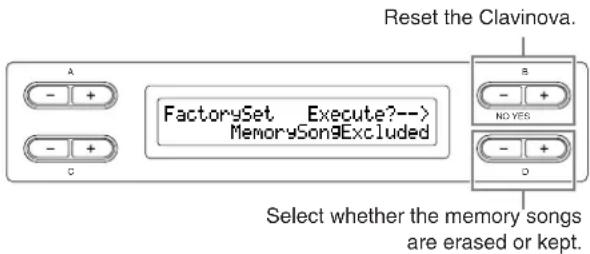
text_image
Reset the Clavinova. FactorySet Execute?--> MemorySongExcluded B NO YES D Select whether the memory songs are erased or kept.Selecting for "MemorySong":
MemorySongExcluded ..... Memory songs are kept.
MemorySongIncluded ...... Memory songs are erased.
Other method for restoring the normal settings
Press and hold down the white key on the right end (C7) and press the [POWER] switch to turn on the power to the Clavinova. In this case, the Memory songs saved in the storage memory are not erased.
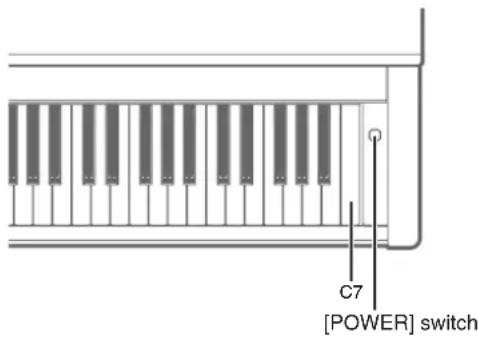
text_image
C7 [POWER] switchBacking up the Clavinova's internal data
[FullBackup]
For maximum data security Yamaha recommends that you copy or save your important data to a USB storage device. This provides a convenient backup if the internal memory is damaged. Perform the operation after connecting the USB storage device.
See the procedure on page 80.
![YAMAHA Clavinova CLP-380 - [FullBackup] - 1](/content/2026/06/1239174/images/f847f15856b12dd0ba030079333a1b5f54dfb302994f783ca840cf0a100c0a93.jpg)
flowchart
graph LR
    A["Input"] --> B["+"]
    C["Input"] --> D["+"]
    E["Input"] --> F["+"]
    G["Input"] --> H["+"]
    I["Input"] --> J["+"]
    K["Input"] --> L["+"]
    M["Input"] --> N["+"]
    O["Input"] --> P["+"]
    Q["Input"] --> R["+"]
    S["Input"] --> T["+"]
    U["Input"] --> V["+"]
    W["Input"] --> X["+"]
    Y["Input"] --> Z["+"]
    AA["Input"] --> AB["+"]
    AC["Input"] --> AD["+"]
    AE["Input"] --> AF["+"]
    AG["Input"] --> AH["+"]
    AI["Input"] --> AJ["+"]
    AK["Input"] --> AL["+"]
    AM["Input"] --> AN["+"]
    AO["Input"] --> AP["+"]
    AQ["Input"] --> AR["+"]
    AS["Input"] --> AT["+"]
    AU["Input"] --> AV["+"]
    AW["Input"] --> AX["+"]
    AY["Select "Save" or "Load.""]
TIP
It's best not to connect several USB storage devices when backing up your data. When several devices are connected, a specific device cannot be identified for saving data.
CAUTION
Do not execute "FullBackup" during file operations such as loading songs. Doing so could result in damage to the data.
TIP
It may take 1 - 2 minutes to complete the backup.
CAUTION
Do not turn off the power during full backup. Doing so could result in damage to the data.
TIP
Protected songs (indicated by MS/Ms in the display) cannot be saved. Move the songs to the USB storage device before executing Full Backup. If you do not move the protected songs and keep the data only in the internal memory, the data will be deleted when you load the backup settings to the instrument.
Displaying the version number
[Version]
You can display the version number of the program of this instrument, [LAN] port driver, and USB-LAN adaptor driver.
See the procedure on page 80.
Setting for:
•Program (the program of this instrument)
• LAN port ([LAN] port driver)
•USB-LAN adaptor (USB-LAN adaptor driver)
Message List
The messages are listed in alphabetical order.
| Message Meaning | |
| AccessError | • T his message appears when data has failed to be written or loaded to the Storage memory or USB storage device. When you write or load data via USB storage device, check the USB cable connection and try again. If you still see this message, the Storage memory/ media/device may have malfunctioned or may be damaged.• T his message appears when a Read-Only file is selected to be overwritten. The file cannot to be overwritten. |
| AllFiles?--> | When you delete a folder, this message asks you whether you want to delete all of the files in that folder. To delete all files in the folder, press the D [+ (YES)] button. To cancel, press the D [-(NO)] button. |
| BackupMemoryFull | This message will appear when there is insufficient empty space in backup memory. Turn the power switch off and turn it on again to delete unnecessary backup data. |
| CalibrationErrorDefaultReset | This message means that automatic adjustment of iAFC is not possible and the settings reset to their default values. In this case, perform the automatic adjustment once again. |
| CalibrationSpeaker sound is off | This message means that automatic adjustment of iAFC is not possible because no sound is output from the rear speaker. In this case if the “Speaker” setting is Off, turn “Speaker” On. If “Speaker” is set to Normal and headphones are connected, unplug the headphones. |
| Calibration Sure?-->Test sound is output. | This message will appear to confirm start of the iAFC calibration. When calibrating, a test tone will sound from the instrument. |
| Canceled | This message confirms that the operation has been cancelled. |
| Caution ProtectedSong | This message appears when you do the following operation to a protected song:• Overwrite (protected songs cannot be overwritten)• Save with a new name (protected songs cannot be used with “Save as” function)• D elete (this message confirms that the protected song will be deleted)• R ename (renamed protected songs may not be played back) |
| Completed | This message is displayed following the message “Executing.” The Clavinova’s internal processing is complete. You may proceed to the next step. |
| DriveError | This message appears when a communication error occurred between the instrument and drive. Check the USB cable connection and try again. If you still see this message, use a drive whose compatibility has been confirmed by Yamaha (page 122). |
| DriveNumLimitOver | The number of drives exceeds the limitation. Two USB storage devices can be connected to one USB [TO DEVICE] terminal using a hub device. This instrument can recognize up to four drives in one USB storage device. |
| DrivePowerError | The power consumption of the connected USB device exceeds the predetermined value. When a bus-powered USB hub is used, this message appears. The USB hub must be self-powered (with its own power source) and the power must be on. |
| DriveRemoved | This message appears when the USB storage device is removed from the instrument. |
| DuplicateName | When you attempted to rename a song and save it in “Rename” (page 43), this message will appear if an identically-named song already exists. Three seconds after this message is displayed, you will return to the previous screen. Please specify a different name. |
| Execute?--> | This message prompts you to execute a file-related operation. Press the B [+ (YES)] button to proceed, or press the [EXIT] button to cancel. |
| Executing | The Clavinova is processing the data internally. Wait until the message disappears, then proceed to the next step. |
| FactorySet Completed Restart | This message appears when factory set is completed. The instrument is then restarted. |
| FactorySet Executing MemorySongExcluded | The normal (factory default) settings (including the memory song setting) (“FactorySet” on page 102) have been restored. This message also appears if you press and hold down the C7 and turn on the power to the Clavinova (page 102). |
| FactorySet Executing MemorySongIncluded | The normal (factory default) settings (except for the memory song setting) (“FactorySet” on page 102) have been restored. |
| FullBackup Completed Restart | This message will appear when loading of the backup file is completed. The instrument is then restarted. |
| HostError | There is a problem with the USB [TO HOST] terminalW hen using the CLP-380 connected to your personal computer:The driver or MIDI application on your computer is not functioning correctly, perhaps because the computer is turned off, the cable is not connected correctly. In this case, turn off the power of the CLP-380 and your computer, and check the cable connections. Then turn on the power in the order of your computer → CLP-380, and check that the driver and MIDI application on your computer arc functioning correctly.W hen using the CLP-380 by itself.This message may appear if a cable is left connected to the USB [TO HOST] terminal of the CLP-380. In this case, turn off the power of the CLP-380, disconnect the cable, and then turn on the power again. If the cable is left connected, the CLP-380 may not function correctly. |
| LastPowerOffIllegal MemoryChecking | This message will appear when the power is turned on after turning off the power while saving a song or internal settings. The internal memory is being checked while this message appears. If the internal settings are damaged, they will be reset to the initial settings. If Memory songs are damaged, they will be deleted. |
| MakeDir ---:Select USB Drive | This message appears when you attempt to create a folder to a USB storage device that cannot be accessed. Check that the USB storage device is connected to the instrument and that the [SELECT] switch specifies the appropriate device, then try again. |
| MemoryFull | There is not enough memory space left and you cannot save any more songs. Save songs to an external device (page 42) or delete some songs in the storage memory, then save new data to memory. |
| NoDrive | A USB storage device was not connected to the instrument when you attempted to perform a drive-related function. Connect the device and continue. |
| NoFile | This message will appear when there is no file to load from the media, even if the file name is displayed. Securely insert the media.T his message will appear when two-byte letters are included in the file name. |
| NoSongToCopy | You tried to copy a song that does not exist in the Storage memory or on USB storage device. Select a Memory song or External song via the [SONG SELECT] button. |
| NoSongToMove | You tried to move a song that does not exist in the Storage memory or on USB storage device. Select a Memory song or External song via the [SONG SELECT] button. |
| NoSongToRename | You tried to rename a song that does not exist in the Storage memory or on USB storage device. Select a Memory song or External song via the [SONG SELECT] button. |
| OverCurrent | The connection has been cut off because of an abnormal power surge to the drive. To recover from this, turn the power switch of the hub off and on again, or disconnect the USB storage device from the instrument and turn the power switch of the instrument off and on again. |
| Overwrite?--> | This message prompts you to select whether you wish to overwrite the existing data with new data. Press the B [+ (YES)] button to allow overwriting. Press the B [− (NO)] button to cancel. |
| PC<-->CLP InCommunication | This message appears when Musicsoft Downloader is started on a computer connected to the instrument. When this message appears, you cannot operate the instrument. |
| PleaseWait | You tried to start playing a song or perform another operation right after you select the song. Wait until the message disappears. |
| ProtectedDrive | This message appears when you try to write (save), copy, or delete data on a protected drive/media. Set protect to off and try again. If you still see this message, the disk is internally protected (such as commercially available music data). You cannot write or copy to such a disk. |
| ProtectedDriveError | This message appears when a protected song and the drive are not compatible. Use a drive whose compatibility has been confirmed by Yamaha (page 122). |
| ProtectedFile | You tried to copy or delete data in internally-protected files (such as commercially available music data). You cannot write to, copy, or delete such files. |
| ProtectedFileFormatError | This message appears when you play back a protected song which has a file format error. |
| ProtectedSong | After you load an internally-protected song into the Clavinova's Current memory or storage memory, you tried to save the song to a USB storage device. You cannot save such a song to another disk. You cannot write or copy to such a disk. |
| ProtectedSong:UseMove | This message appears when you copy a protected song. Protected songs cannot be copied. However, you can move the song (page 45). |
| SecuritySongIsProtected CannotSave | This message appears when you attempt to save a protected song (security song). Protected songs cannot be saved. |
| Set?--> | This message prompts you to select whether you wish to save the edited settings. Press the B [+ (YES)] button to save the settings. Press the [EXIT] button to cancel. |
| SongChanged Clear? | This message appears when you record or edit the protected song and select another song. The recorded/edited protected song cannot be saved. The song will be deleted when you select another song. |
| SongChanged Save? | You tried to perform another operation before saving the recorded song to storage memory or an external device. If you continue the operation, the recorded song will be lost. To delete the new recording, press the B [-(NO)] button. To keep the recording, press the B [+ (YES)] button. The Clavinova displays the “Save” parameter screen. Save the recorded song and proceed to another operation. |
| SongError | This message will appear if a problem is found with the song data when you select a song or while the song is playing. In this case, reselect the song, and try once again to play it back. If the message still appears, the song data may have been damaged. |
| SongTooBig | 1. This message will be displayed if current memory fills up during recording. Recording will stop automatically at this point. The data that had been recorded up to that point will remain. This message will also be displayed when you attempt to enter Record mode for additional recording if that song already occupies all of current memory. In this case, additional recording will not be possible. If there is an already-recorded part that you do not need to keep, you can use “ChannelClear” (page 84) to delete the unneeded part, so that you will then be able to record the equivalent amount of additional material.2. This message will be displayed when you select a song if that song is larger than the capacity of the current memory (page 39). This song cannot be loaded into the CLP-380, and cannot be played back. Please select a different song. |
| Start?--> | This message prompts you to start the operation. To start, press the B [+ (YES)] button. Press the [EXIT] button to cancel the operation. |
| Sure?--> | This message prompts you to confirm the execution. Press the B [+ (YES)] button to continue. Press the B [- (NO)] button to cancel. |
| SystemLimit | This message appears when the number of files and folders exceeds the system limit. The maximum number of files/folders which can be stored in a folder is 250. Try again after deleting/moving the unnecessary file(s). |
| UnformattedDrive | You tried to perform a file- or drive-related operation using an unformatted media. Eject the media, format it using the “Format” parameter (page 46), then try again. |
| UnformattedDrive Format? | You tried to perform a file- or drive-related operation using an unformatted media. To cancel the operation, press the B [- (NO)] button. To format the disk and try again, press the B [+ (YES)] button to display the format parameter (page 46). |
| UnsupportedDrive | This message appears when you connect an unsupported drive. Use a drive whose compatibility has been confirmed by Yamaha (page 122). |
| WrongDrive | • T he connected drive does not support use of protected songs. Use only drives whose compatibility has been confirmed by Yamaha (page 122).• T his message appears when the connected USB storage device is damaged and cannot be accessed. |
| WrongName | You used a period or space at the beginning of a song name or you tried to change a song name that includes a character (or characters) not supported by the CLP-380, and the CLP-380 could not process the name. The Clavinova displays the previous screen in three seconds. Rename the song correctly. |
| WrongSelection | This message appears when, in copying a song, the same folder has been selected for both the source and destination. You cannot select the same folder for both the source and destination. Select the different folder as the destination folder. |
Questions about Operations and Functions
■ The buttons do not respond.
While you are using a function, some buttons not used for the function are disabled. If the song is playing, stop the playback. Otherwise, press the [EXIT] button to return to the main screen. Then, perform the desired operation.
■ The sound sustains indefinitely and does not decay when I press the sostenuto pedal.
With the voices in the CHURCH ORGAN, JAZZ ORGAN, STRINGS, CHOIR group, or some voices in the XG group, the sound continues sustaining while you are holding down the sostenuto pedal.
■ Higher or lower notes does not sound correctly when the transpose or octave setting is made.
The setting range for the transposition and octave setting is C -2 – G8. (With the normal setting, the Clavinova's 88 keys covers the range of A -1 – C7.) If the lowest key is set to a note lower than C -2, it will produce a sound one octave higher. If the highest key is set to a note higher than G8, it will produce a sound one octave lower.
■ How can I return to the recording or song select screen during song recording or playback?
Press the [SONG SELECT] button once.
■ The tempo does not change even though I recorded with tempo changes.
Depending on the timing of tempo changes, the changed tempo may not be recorded. In this case, the recording will be played back at the original tempo.
Make tempo changes when the recording part is selected and a red part indicator is flashing. The same trick applies to editing the tempo after recording.
■ Performance in Dual or Split mode is not recorded.
Part data is lost unexpectedly.
For Dual or Split mode recording, the recording part for the second voice (that is, the voice for the left-hand part) is automatically assigned (page 27). Therefore, if the part already has data, the data will be overwritten during recording. Also, switching to Dual mode or Split mode in the middle of the song is not recorded. Therefore, the notes you played with the second voice (or the notes lower than the Split point) are not recorded.
What type of data is recorded?
Data recorded in the parts:
• N ote data (notes you play)
• Voice selection
• C lavinova pedals and external pedal on/off
• R e v e r b depth [ReverbSend]
• C h o r us depth [ChorusSend]
- DSP effect depth [DSPDepth]
• S ound brightness [Brightness]
• R esonance effect setting [HarmonicContent]
- Equalizer's low-range frequency setting [EQLowFreq.]
- Equalizer's low-range gain setting [EQLowGain]
- Equalizer's high-range frequency setting [EQHighFreq.]
• E qualizer's high-range gain setting [EQHighGain]
- Octave setting of the voice [Octave]
• V volume setting of each voice [Volume]
• L eft/right position of each sound [Pan]
- Fine pitch adjustment between two voices (Dual only) [Detune]
• V volume change in response to playing strength for each voice [TouchSense]
Data recorded globally in all parts:
• Tempo
- Time signature
- Reverb type
- Ch o r us type
- DSP effect type
You can change all data except for note data, Octave setting or Time Signature after recording.
■ How much data can I record?
• C current memory (page 39): About 300KB
• S torage memory (page 39): About 1,513KB
■ The on/off setting of the pedal connected to the AUX PEDAL jack is reversed.
Some types of pedals may turn on and off in opposite fashion. Use the “AuxPedalType” parameter (page 98) in the “FUNCTION” menu to change the external pedal setting.
■ The song title is not correct.
The “CharacterCode” setting may be different than that used when you named the song. Also, if the song was recorded on another instrument, the title might be displayed incorrectly. Use the “CharacterCode” parameter (page 47) in the FILE/SONG SETTING menu to change the setting. However, if the song was recorded on another instrument, changing the “CharacterCode” parameter setting may not resolve the problem.
■ What is the difference between "TouchSense" and "TouchResponse" MIDI data?
“TouchSense” determines the manner and degree to which the volume level changes in response to your touch on the keyboard. The MIDI note-on velocity data is not changed. It changes the volume level at the same velocity data.
“TouchResponse” determines the touch sensitivity of an instrument. The MIDI note-on velocity data is changed when you play the keyboard with a consistent touch.
■ Only "PhraseMark" can be selected via the [FILE/SONG SETTING] button during song playback.
The “PhraseMark” parameter can only be set via the [FILE/SONG SETTING] button during song playback. If you desired to select other parameters, stop the song and try once again.
Troubleshooting
| Problem Cause Solution | ||
| The power of the Clavinova does not turn on. | The power cable is not plugged in (check at the Clavinova and at the electrical outlet). | Insert the power cable plug firmly into the Clavinova and into the electrical outlet of the correct voltage (page 15). |
| There is a clicking noise when you press the [POWER] button to turn the power on or off. | This is caused by the electrical power within the instrument. | This is not a malfunction. |
| Noise is heard from the Clavinova. A portable telephone is being used near the Clavinova (or the ring tone is sounding). | Turn off the power of the portable telephone located near the Clavinova. Noise may be heard if a portable telephone is used near the Clavinova or if the ring tone occurs. | |
| The overall volume is too low. Or, there is no sound at all. | The [MASTER VOLUME] dial is lowered. | Raise the [MASTER VOLUME] dial (page 16). |
| The volume level for the keyboard performance is set too low. | Move the [SONG BALANCE] slider toward the keyboard to increase the keyboard volume. | |
| Headphones are connected (only if the Speaker setting is “Normal HeadphoneSW”) (page 99). | Disconnect the headphone plug. | |
| Speaker setting is off. Set [Speaker] to “Normal” or “ON” (page 99). | ||
| Local Control is turned off. Set Local Control ON (page 100). | ||
| “Expression” is assigned to the right pedal or the AUX pedal. | Assign any function other than “Expression” to the pedal. | |
| The keyboard volume is lower than the song playback volume. | The volume level for the keyboard performance is set too low. | Move the [SONG BALANCE] slider toward the keyboard to increase the keyboard volume. |
| Sound is still heard from the speakers even though headphones are plugged in. | Speaker setting is On. Set the speaker setting to “Normal (HeadphoneSW)” (page 99). | |
| The tone quality and/or volume from the speaker or headphones has changed. | Plugs are connected to the AUX OUT jacks. | Disconnect the plugs. |
| Feedback occurs when you turn iAFC on. | iAFC was not automatically adjusted correctly. | Turn iAFC OFF, and perform the automatic adjustment (page 93). |
| Damper pedal does not function. The plug of the pedal cable is not inserted into the [PEDAL] jack. | Plug the pedal cable firmly into the [PEDAL] jack. (Refer to “Keyboard Stand Assembly” beginning on page 117.) | |
| The USB storage device is not recognized by the instrument. | The USB storage device may not be recognized by the instrument depending on the timing of the device connection or the setting of the [SELECT] switch. | Disconnect the USB storage device and connect it again and select a device using the [SELECT] switch. To view the data of the USB storage device on the CLP display, press the [SONG SELECT] button to engage song selection mode or press the [FILE/SONG SETTING] button to engage file/song setting mode. If you try to engage these modes before connecting the USB storage device, press the [EXIT] button to exit the mode and re-engage the mode. If the device is still not recognized, it may not be supported by Yamaha. Only use devices supported by Yamaha (page 122). |
| The USB storage device has hung up (stopped). | The USB storage device is not compatible with the instrument. | Only use devices whose compatibility has been confirmed by Yamaha (page 122). |
| The USB storage device does not operate properly. | Disconnect the device and connect it to the instrument again. | |
| The folder name does not change. A maximum of 13 characters from a folder name can be displayed. Therefore, if several folders have the same 13 characters at the start of their names, it will appear that they do not change when the C [-][+] buttons are pressed. | Shorten long folder names on your computer before using them. | |
Data Compatibility
This section covers basic information on data compatibility: whether or not other MIDI devices can playback the data recorded by CLP-380, and whether or not the CLP-380 can playback commercially available song data or song data created for other instruments or on a computer.
Depending on the MIDI device or data characteristics, you may be able to play back the data without any problem, or you may have to perform some special operations before the data can be played back. If you run into problems playing back data, please refer to the information below.
Basic Check Points
The data and the MIDI device must match in regards to the items below.
- Sequence format
• Voice allocation format
• D isk Format (floppy disk drive is optional)
Sequence Format
The system which records song data is called “sequence format.”
Playback is only possible when the sequence format of the disk matches that of the MIDI device.
The CLP-380 is compatible with the following formats.
■ SMF (Standard MIDI File)
This is the most common sequence format.
- Standard MIDI Files are generally available as one of two types: Format 0 or Format 1.
- M any MIDI devices are compatible with Format 0, and most commercially available software is recorded as Format 0.
- The CLP-380 is compatible with both Format 0 and Format 1.
- Performance data recorded on the CLP-380 is saved in the SMF format 0.
ESEQ
This sequence format is compatible with many of Yamaha's MIDI devices, including the Clavinova series instruments. This is a common format used with various Yamaha software.
Voice Allocation Format
With MIDI, voices are assigned to specific numbers, called “program numbers.” The numbering standard (order of voice allocation) is referred to as the “voice allocation format.”
Voices may not play back as expected unless the voice allocation format of the song data matches that of the compatible MIDI device used for playback.
The CLP-380 is compatible with the following formats.
■ GM System Level 1

This is one of the most common voice allocation formats. Many MIDI devices are compatible with GM System Level 1, as is most commercially available software.
■ GM System Level 2

“GM System Level 2” is a standard specification hat enhances the original “GM System Level 1” and improves song data compatibility. It provides for increased polyphony, greater voice selection, expanded voice parameters, and integrated effect processing.
XG

XG is a major enhancement of the GM System Level 1 format, and was developed by Yamaha specifically to provide more voices and variations, as well as greater expressive control over voices and effects, and to ensure compatibility of data well into the future.
Song data recorded on the CLP-380 using voices in the XG category is XG-compatible.
■ DOC (Disk Orchestra Collection)

This voice allocation format is compatible with many of Yamaha's MIDI devices, including the Clavinova series instruments.
This is also common format used with various Yamaha software.
GS

GS was developed by the Roland Corporation. In the same way as Yamaha XG, GS is a major enhancement of the GM specifically to provide more voices and drum kits and their variations, as well as greater expressive control over voices and effects.
Even if the devices and data used satisfy all the conditions above, the data may still not be completely compatible, depending on the specifications of the devices and particular data recording methods.
Disk format
It is necessary to first configure the floppy disk to the system of the device being used. This operation is called "formatting."
- T here are two types of floppy disks: MF2DD (double sided, double density) and MF2HD (double sided, high density), and each type has different formatting systems.
- Playback is only possible when the MIDI device to be used is compatible with the format of the disk.
Preset Voice List
○: Yes ×: No
| Voice group | Voice name | Stereo sampling | Touch Sense | Dynamic sampling | Key-off samples | String resonance | Voice description |
| GRAND PIANO1 | GrandPiano1 | ○ | ○ | ○ | ○ | ○ | This sound was newly sampled from a full concert grand piano. Five stages of dynamics were sampled, and no effort has been spared in making the sound virtually identical to that of an acoustic piano. Even the tonal changes produced by the damper pedal and the subtle sounds of releasing a key are reproduced. The sympathetic vibration (string resonance) that occurs between the strings of an acoustic piano has also been simulated. Suitable not only for classical compositions but also for piano pieces of any style. |
| MellowPiano | ○ | ○ | ○ | ○ | ○ | A warm and mellow piano sound. Ideal for classical music. | |
| RockPiano | ○ | ○ | ○ | ○ | ○ | A bright-sounding piano. Ideal for rock styles. | |
| HonkyTonk Piano | ○ | ○ | ○ | ○ | × | A honky-tonk style piano. Enjoy a tonal character that is quite different than a grand piano. | |
| GRAND PIANO2 | GrandPiano2 | ○ | ○ | × | × | × | A spacious and clear piano sound with a bright resonance. Ideal for popular music. |
| BrightPiano | ○ | ○ | × | × | × | A spacious and bright piano sound. Ideal for popular and rock music. | |
| E.PIANO1 | E.Piano1 | × | ○ | ○ | × | × | An electronic piano sound produced by an FM synthesizer. The tone will change as you vary your playing touch. Ideal for popular music. |
| SynthPiano | × | ○ | × | × | × | This voice simulates the electric piano sound produced by synthesizers in popular music. It also goes well with the acoustic piano sound. | |
| E.PIANO2 | E.Piano2 | × | ○ | ○ | ○ | × | The sound of an electric piano using hammer-struck metallic "tines." Soft tone when played lightly, and an aggressive tone when played hard. |
| Vintage E.Piano | × | ○ | ○ | × | × | A different type of electric piano sound. Widely used in rock and popular music. | |
| HARPSI CHORD | Harpsichord8' | ○ | × | × | ○ | × | The sound of the instrument frequently used in baroque music. Variations in playing touch will not affect the volume, and a characteristic sound will be heard when you release the key. |
| Harpsichord 8'+4' | ○ | × | × | ○ | × | A harpsichord with an added upper octave. Produces a more brilliant sound. | |
| E.CLAVI CHORD | E.Clavichord | × | ○ | × | ○ | × | This is the voice of a keyboard that produces sound by striking the strings with magnetic pickups. This funky sound is popular in black contemporary music. Because of its unique structure, the instrument produces a peculiar sound when you release the keys. |
| Wah Clavi. | × | ○ | × | ○ | × | A distinctive effect is preset. | |
| VIBRA- PHONE | Vibraphone | ○ | ○ | ○ | × | × | Vibraphone played with relatively soft mallets. The tone becomes more metallic the harder you play. |
| Marimba | ○ | ○ | × | × | × | A marimba sound, sampled in stereo for spaciousness and realism. | |
| Celesta | ○ | ○ | ○ | × | × | The sound of a celesta (a percussion instrument in which hammers strike metallic bars to produce sound). This instrument is well-known for its appearance in "Dance of the Sugar-plum Fairies" from Tchaikovsky's "Nutcracker Suite." | |
| GUITAR | NylonGuitar | ○ | ○ | ○ | × | × | A warm and natural nylon-string guitar sound. Enjoy the atmosphere it adds to a quiet song. |
| SteelGuitar | × | ○ | × | × | × | A bright steel guitar sound. Ideal for popular music. | |
| Voice group Voice name | Stereo sampling | Touch Sense | Dynamic sampling | Key-off samples | String resonance | Voice description | |
| CHURCH ORGAN | PipeOrgan Principal | ○ | × | × | × | This voice features the combination of pipes (8'×4'+2') of a principal (brass instrument) organ. It is suitable for Baroque church music. | |
| PipeOrgan Tutti | ○ | × | × | × | This voice features a full coupler of a pipe organ, famous for the sound used in Toccatta and Fugue by Bach. | ||
| PipeOrgan Flute1 | ○ | × | × | × | A pipe organ sound that combines flute-type (woodwind type) stops of different pitches (8' + 4'). This is a gentle sound that is ideal for accompanying hymns. | ||
| PipeOrgan Flute2 | ○ | × | × | × | A pipe organ sound that combines flute-type (woodwind type) stops of different pitches (8' + 4' + 1-1/3'). This is brighter than PipeOrganFlute1, and is suitable for solos. | ||
| JAZZOR-GAN | JazzOrgan | × | × | × | × | The sound of a "tonewheel" type electric organ. Often heard in jazz and rock idioms. | |
| RotaryOrgan | × | × | × | × | A bright electric organ sound. | ||
| MellowOrgan | × | × | × | × | A mellow electric organ sound. Ideal for calmer songs. | ||
| STRINGS | Strings | ○ | ○ | × | × | × | Stereo-sampled, large-scale strings ensemble with realistic reverb. Try combining this voice with piano in the Dual mode. |
| SynthStrings | × | ○ | × | × | × | A bright and spacious strings sound. Suitable for sustained parts in the background of an ensemble. | |
| SlowStrings | ○ | ○ | × | × | × | The sound of a string ensemble, with a slow attack. Suitable for use in Dual mode with GRAND PIANO or E.PIANO. | |
| CHOIR | Choir | × | ○ | × | × | × | A big, spacious choir voice. Perfect for creating rich harmonies in slow pieces. |
| SlowChoir | × | ○ | × | × | × | The sound of a choir with a slow attack. Suitable for use in Dual mode with GRAND PIANO or E.PIANO. | |
| Scat | × | ○ | ○ | × | × | You can enjoy jazz "scatting" with this voice. Depending on how hard and what note range you play, different sounds will be produced. | |
| SYNTH. PAD | SynthPad1 | × | ○ | × | × | × | A warm, mellow, and spacious synth sound. Ideal for sustained parts in the background of an ensemble. |
| SynthPad2 | × | ○ | × | × | × | A clear and spacious synth sound. Ideal for sustained parts in the background of an ensemble. | |
| WOOD BASS | WoodBass | × | ○ | ○ | × | × | The sound of a finger-plucked upright bass. Frequently used in jazz and Latin music. |
| Bass&Cymbal | × | ○ | ○ | × | × | The sound of a cymbal has been layered onto the bass. Effective when used for jazz walking-bass lines. | |
| E.BASS | ElectricBass | × | ○ | × | × | × | The sound of an electric bass. Frequently used in jazz, rock, and popular music. |
| FretlessBass | × | ○ | × | × | × | The sound of a fretless bass. Suitable for styles such as jazz and fusion. | |
Voice Combination Examples (Dual and Split)
Dual
| MAIN + MAIN GrandPiano1 + E.Piano1GrandPiano1 + E.Piano2 | This combination is often used in popular music. |
| MAIN + MAIN GrandPiano1 + SynthPiano This produces a fantasy, spacious piano sound. | |
| MAIN + MAIN GrandPiano2 + GrandPiano2 This combination sounds as if you are playing two notes that are one octave apart. It is suitable for the accompaniment of Salsa music. | |
| MAIN + MAIN E.Piano1 + Slow Choir This is suitable for romantic ballads. | |
| MAIN + MAIN E.Piano2 + E.Clavichord This is suitable for funk, rhythm & blues, and soul music. | |
| MAIN + MAIN Harpsichord8' + Strings This combination is very suitable for Baroque music. | |
| MAIN + MAIN Celesta + Synth Stirngs This combination adds strings and bell sound.A delay effect is automatically applied. | |
Split
| MAIN / LEFT GrandPiano1 / WoodBass or Bass&Cymbal | This is recommended for light Jazz music. The damper pedal is effective on the voice assigned to the right-hand range. |
| MAIN / LEFT Celesta / Choir This is suitable for a peaceful, somewhat cute song. | |
| MAIN / LEFT Choir / GrandPiano1 Play these voices elegantly along with piano arpeggio. Playing the Choir voice in chords would be more effective. | |
| MAIN / LEFT Scat / WoodBass This combination features a cool (stylish) jazz chorus. The Scat voice is touch sensitive, adding a variety of expressions. | |
| MAIN / LEFT E.Piano2 / Scat Playing the Scat voice for a bass part may create an interesting sound. | |
Dual + Split
| MAIN + MAIN / LEFT | GrandPiano1 + SynthString / GrandPiano1 | This combination creates the thick sound of a layered piano and strings. |
| MAIN + MAIN / LEFT | GrandPiano2 + E.Piano1 / ElectricBass | This sound is suitable for fusion. Deeper reverb and chorus (page 88) will improve the groove. The damper pedal is effective on the voice assigned to the right-hand range. |
| MAIN + MAIN / LEFT + LEFT | Harpsichord8' + 4' + Strings / Harpsichord8' + Strings | This combination makes a very brilliant sound. |
Keyboard Stand Assembly
CAUTION
- Be careful not to confuse parts, and be sure to install all parts in the correct direction. Please assemble in accordance with the sequence given below.
• A assembly should be carried out by at least two persons. - Be sure to use the correct screw size, as indicated below. Use of incorrect screws can cause damage.
• A ssemble the stand on a flat floor with ample space. - Be sure to tighten up all screws upon completing assembly of each unit.
- T o disassemble, reverse the assembly sequence given below.
Have a Phillips-head (+) screwdriver of the appropriate size ready.

Remove all parts from the box. Confirm that all parts shown in the illustration are provided.
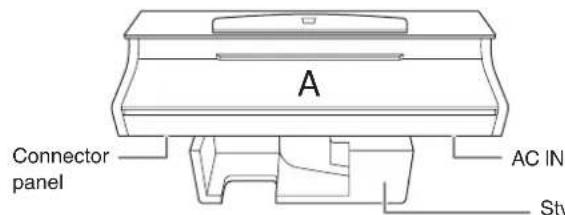
text_image
Connector panel A AC IN StvStyrofoam pads
Take out the styrofoam pads, and place A on top of the pads. Position the styrofoam pads to protect the connector panel at the bottom of A and the AC IN.
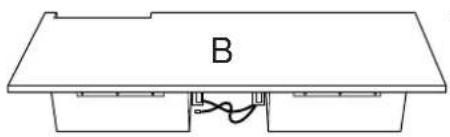
natural_image
Simple line drawing of a rectangular box with a label 'B' on top and two internal compartments (no text or symbols beyond the label)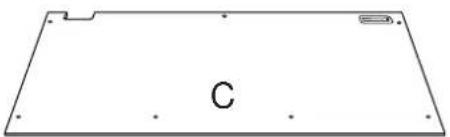
natural_image
Simple line drawing of a rectangular plate with a central label 'C' and small protrusions on the sides (no text or symbols beyond the label)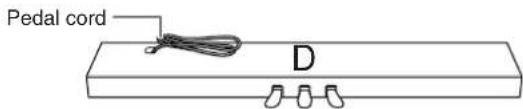
text_image
Pedal cord D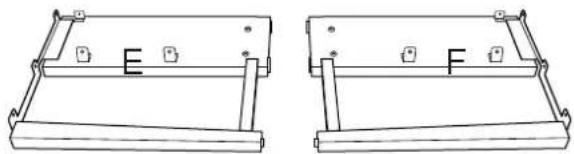
natural_image
Technical line drawing of two mechanical components with mounting holes and mounting brackets (no text or symbols)6 x 25mm long screws x 4
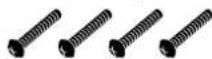
6 x 16mm short screws x 6

4 x 14mm thin screws x 8

4 x 20mm tapping screws x 5
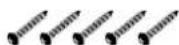
4 x 10mm thin screws x 2

Headphone hanger

Cord holders x 2

AC power cord
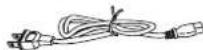
(The shape of plug differs depending on locale.)
1. Attach E and F to D.
1-1 Secure D using the four 6 x 25mm long screws.
1-2 Remove the twist tie from the folded pedal cord. Do not remove the twist tie located next to the hole. Don't discard the twist tie, you'll need it later in step 6.
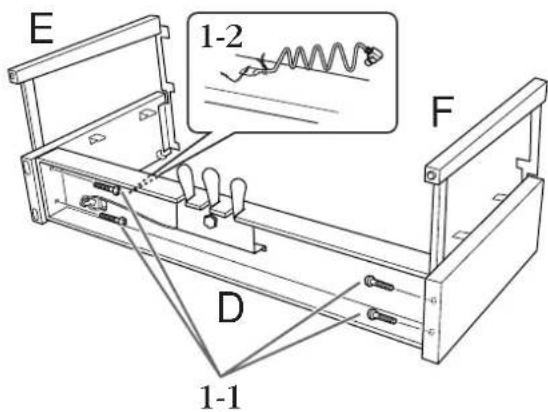
text_image
E 1-2 F D 1-12. Attach B.
2-1 Insert B between E and F as shown in the illustration.
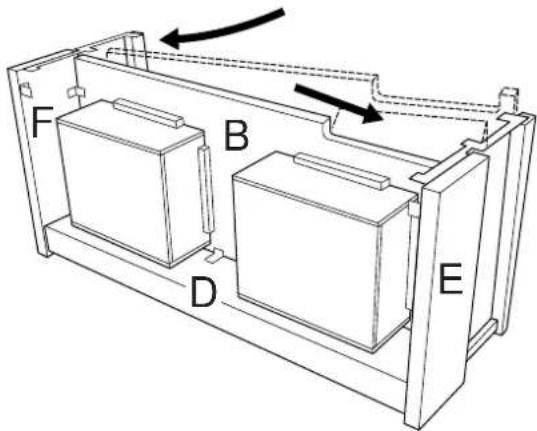
text_image
F B D E2-2 Align and attach B to the front side of D, E and F.
2-3 Secure B using the 4 x 14mm thin screws.
* I insert two screws into the smaller holes on the brackets.
2-4 Temporarily secure with 4 x 14mm thin screws.
* I insert four screws into the smaller holes on the brackets.
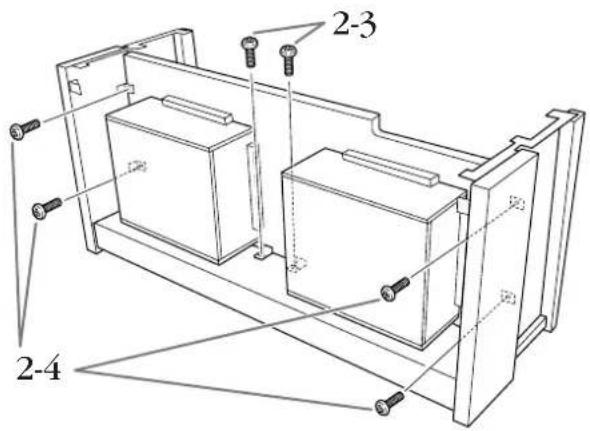
text_image
2-3 2-43. Lay A into position.
Align the screw threads on the bottom of A with the screw threads of E and F, while gently lowering A into position.
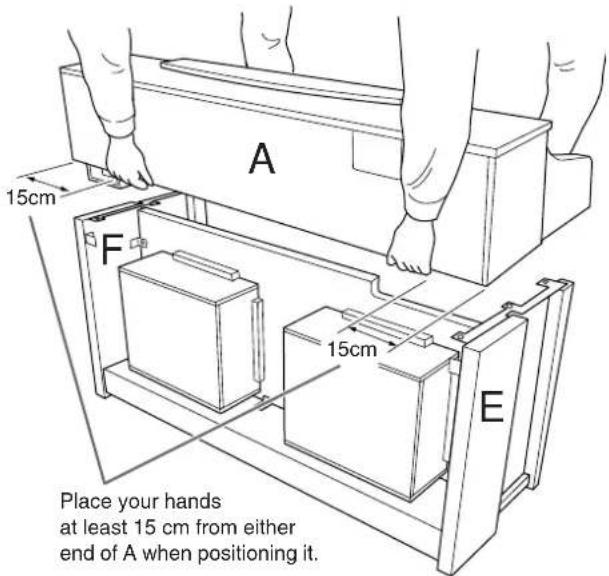
text_image
A 15cm F 15cm E Place your hands at least 15 cm from either end of A when positioning it.CAUTION
Fingers can become pinched between the main unit and the rear or side panels, be extra careful so as not to drop the main unit.
CAUTION
Do not hold the keyboard in any position other than the position shown in the illustration.
4. Attach A.
4-1 Adjust the position of A so that the left and right ends of A will project beyond E and F equally (as seen from the rear).
4-2 Secure A using two 6 x 16mm short screws from the rear.
4-3 Secure A using four 6 x 16mm short screws from the front.
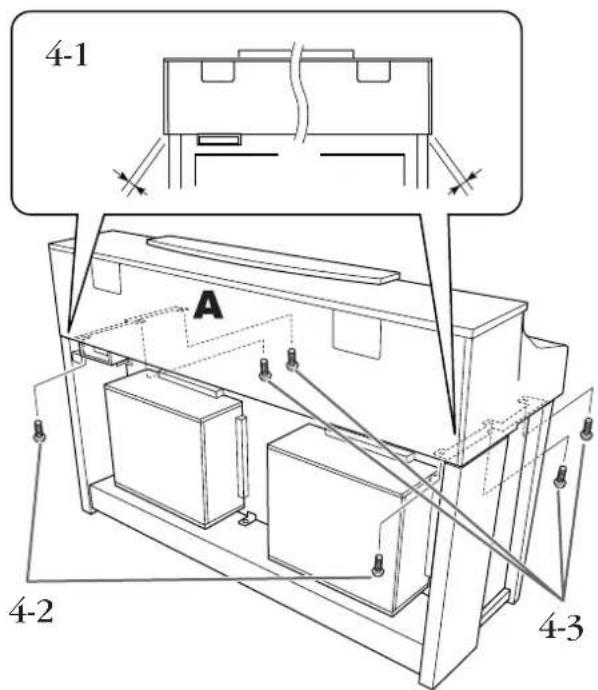
text_image
4-1 A 4-2 4-34-4 Firmly tighten the screws from the upper parts you temporarily fastened in step 2-4 above (assembly B).
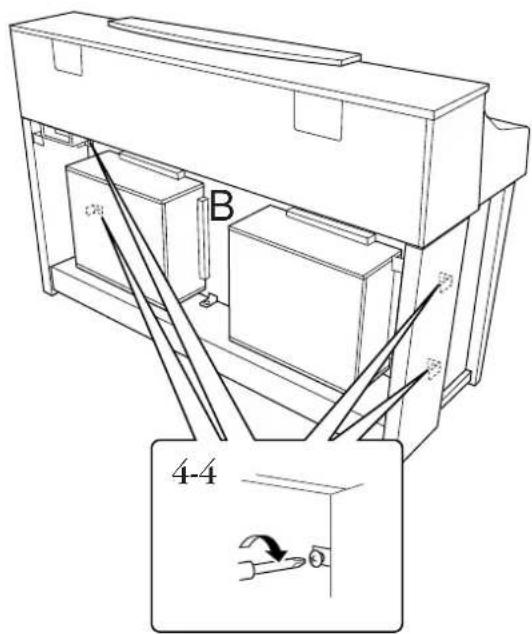
text_image
B 4-45. Connect the speaker cord.
5-1 Remove the twist tie attaching the speaker cord.
5-2 Insert the speaker cord plug into the connector so that the tab extends toward the front when viewed from the rear.
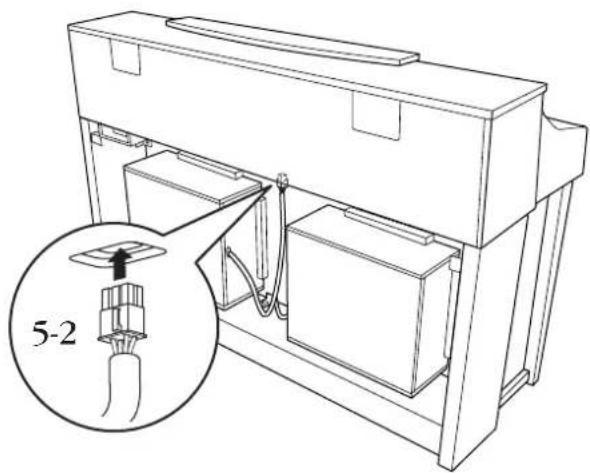
text_image
5-26. Connect the pedal cord.
6-1 Insert the pedal cord plug into the [PEDAL] connector.
6-2 Attach the cord holders to the instrument, then clip the cord into the holders. At this time, be careful that the pedal cord isn't loose between the plug and cord holder.
6-3 Use a twist tie to bundle the pedal cord.
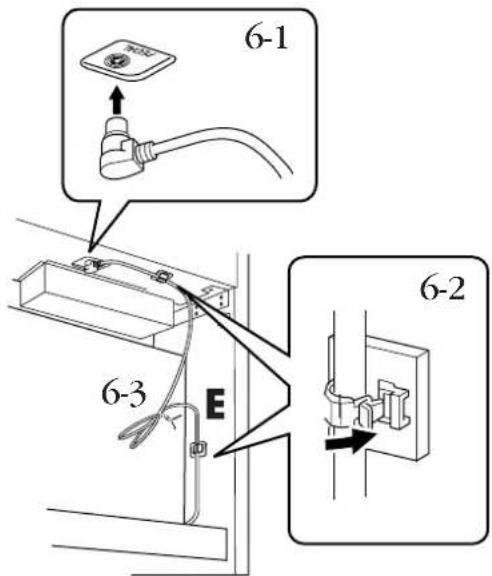
text_image
6-1 6-2 6-37. Attach C.
7-1 Place on D, the stopper-wood at the bottom edges of C, then secure the top.
7-2 Secure upper right and left of C using two 4 x 14mm thin screws.
7-3 Secure upper center and lower of C using five 4 x 20mm tapping screws.
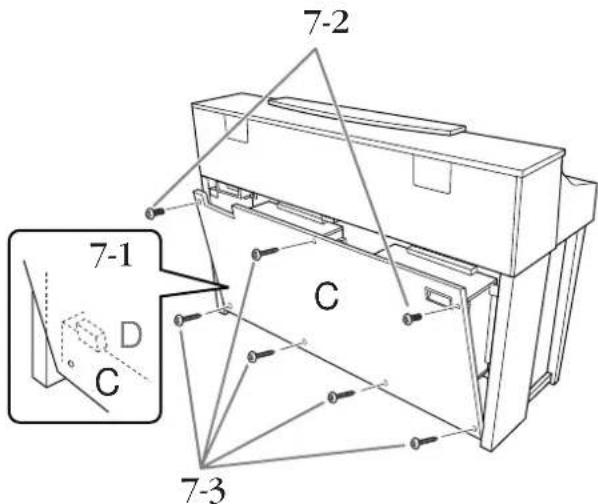
text_image
7-1 D C 7-2 C 7-38. Connect the power cord.
Insert the AC power cord plug into the [AC IN].
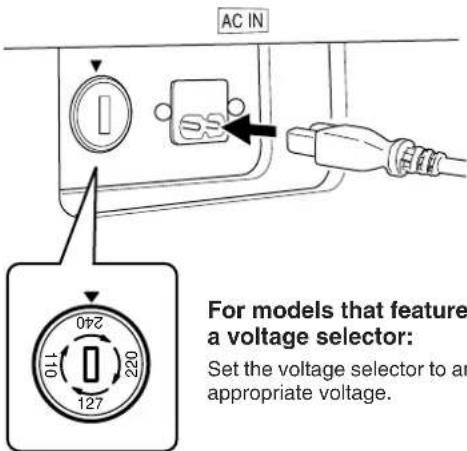
text_image
AC IN For models that feature a voltage selector: Set the voltage selector to an appropriate voltage.Voltage Selector
Before connecting the AC power cord, check the setting of the voltage selector which is provided in some areas. To set the selector for 110V, 127V, 220V or 240V main voltages, use a "minus" screwdriver to rotate the selector dial so that the correct voltage for your region appears next to the pointer on the panel. The voltage selector is set at 240V when the unit is initially shipped.
After the proper voltage has been selected, connect the AC power cord to the [AC IN] and an AC wall outlet. A plug adaptor may be also provided in some areas to match the pin configuration of the AC wall outlets in your area.
WARNING
An improper voltage setting can cause serious damage to the Clavinova or result in improper operation.
9. Set the adjuster.
Rotate the adjuster until it comes in firm contact with the floor surface.
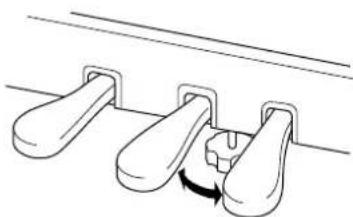
natural_image
Diagram of a mechanical clamp or bracket with two clips and a central valve, no text or symbols present10. Attach the headphone hanger.
You can attach a headphone hanger on the Clavinova to hang the headphones.
Install the headphone hanger using included two screws (4 x 10mm) as shown in the figure.
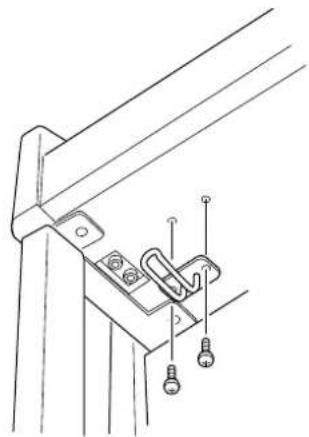
natural_image
Technical line drawing of a mechanical bracket assembly with mounting holes and a spring-loaded clamp (no text or symbols)After completing the assembly, please check the following.
- Are there any parts left over? Review the assembly procedure and correct any errors.
- I's the Clavinova clear of doors and other movable fixtures? Move the Clavinova to an appropriate location.
• Does the Clavinova make a rattling noise when you shake it? Tighten all screws.
- Does the pedal box rattle or give way when you step on the pedals? Turn the adjuster so that it is set firmly against the floor.
- I's the power cord inserted securely into the socket? Check the connection.
- If the main unit creaks or is otherwise unsteady when you play on the keyboard, refer to the assembly diagrams and retighten all screws.
After transporting the instrument, do the following to ensure optimum performance of the iAFC function (page 92):
- Place the Clavinova so that its rear panel is at least 10 cm away from the wall.
- Perform the automatic adjustment of the iAFC function (page 93).
CAUTION
When moving the instrument after assembly, always hold instrument by the lower surface in the front of the main unit and by the handles in the rear panel. Do not hold the key cover. Improper handling can result in damage to the instrument or personal injury.
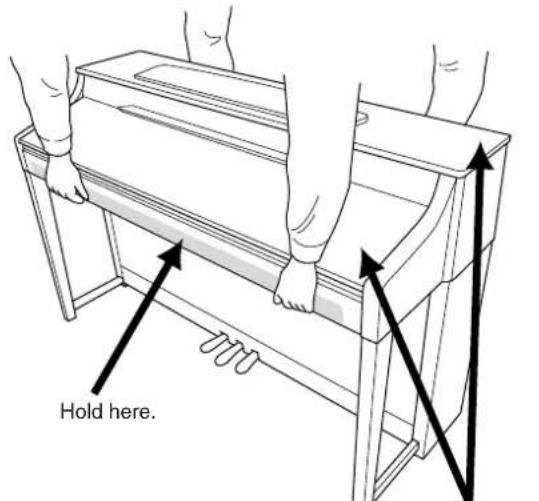
text_image
Hold here.Do not hold here.
Precautions when using the USB [TO DEVICE] terminal
This instrument features a built-in USB [TO DEVICE] terminal. When connecting a USB device to the terminal, be sure to handle the USB device with care. Follow the important precautions below.
NOTE For more information about the handling of USB devices, refer to the owner's manual of the USB device.
Compatible USB devices
- USB storage devices (flash memory, floppy disk drive, hard disk drive, etc.)
- USB hub
- USB-LAN adaptor
The instrument does not necessarily support all commercially available USB devices. Yamaha cannot guarantee operation of USB devices that you purchase. Before purchasing a USB device for use with this instrument, please visit the following web page: http://music.yamaha.com/download/
NOTE Other USB devices such as a computer keyboard or mouse cannot be used.
Connecting USB device
- When connecting a USB device to the USB [TO DEVICE] terminal, make sure that the connector on the device is appropriate and that it is connected in the proper direction.
CAUTION
When connecting a USB device to the USB [TO DEVICE] terminal on the top panel, remove it before closing the key cover. If the key cover is closed with the USB device connected, the USB device may be damaged.
- I f you intend to connect two or three devices at the same time to a terminal, you should use a USB hub device. The USB hub must be self-powered (with its own power source) and the power must be on. Only one USB hub can be used. If an error message appears while using the USB hub, disconnect the hub from the instrument, then turn on the power of the instrument and re-connect the USB hub.
- T hough the instrument supports the USB 1.1 standard, you can connect and use a USB 2.0 storage device with the instrument. However, note that the transfer speed is that of USB 1.1.
Using USB Storage Devices
By connecting the instrument to a USB storage device, you can save data you've created to the connected device, as well as read data from the connected device.
NOTE Although CD-R/RW drives can be used to read data to the instrument, they cannot be used for saving data.
This instrument has two USB [TO DEVICE] terminals; one on the left of the panel and one on the terminal at the front.
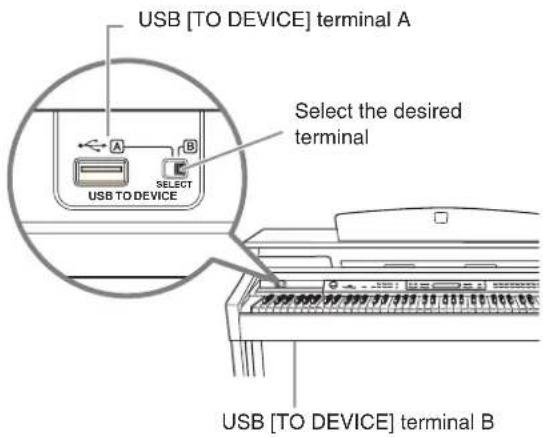
text_image
USB [TO DEVICE] terminal A Select the desired terminal A B SELECT USB TO DEVICE USB [TO DEVICE] terminal BBoth are the same terminal; however, both cannot be used at the same time. Use the [SELECT] switch to select the desired terminal. Switching to "A" selects the terminal on the left of the panel, while switching to "B" selects the terminal panel at the front.
CAUTION
While the USB storage device is connected to the instrument, do NOT use the [SELECT] switch.
CAUTION
While the instrument is accessing data (such as in the Save, Copy and Delete operations), do NOT use the [SELECT] switch. Doing so may corrupt the media or data.
NOTE If you connect USB storage devices to both USB [TO DEVICE] terminals, the devices may not operate properly.
The number of USB storage device to be used
Up to two USB storage devices can be connected to the USB [TO DEVICE] terminal. (If necessary, use a USB hub. The number of USB storage devices that can be used simultaneously with musical instruments even when a USB hub is used is a maximum of two.) This instrument can recognize up to four drives in one USB storage device.
Formatting USB storage media
When a USB storage device is connected or media is inserted, a message may appear prompting you to format the device/media. If so, execute the Format operation (page 46).
CAUTION
The format operation overwrites any previously existing data. Make sure that the media you are formatting does not contain important data. Proceed with caution, especially when connecting multiple USB storage media.
To protect your data (write-protect)
To prevent important data from being inadvertently erased, apply the write-protect provided with each storage device or media. If you are saving data to the USB storage device, make sure to disable write-protect.
Connecting/removing USB storage device
Before removing the media from the device, make sure that the instrument is not accessing data (such as in the Save, Copy and Delete operations).
CAUTION
Avoid frequently turning the power on/off to the USB storage device, or connecting/disconnecting the device too often. Doing so may result in the operation of the instrument "freezing" or hanging up. While the instrument is accessing data (such as during Save, Copy, Delete, Load and Format operations) or is mounting the USB storage device (shortly after the connection), do NOT unplug the USB connector, do NOT remove the media from the device, and do NOT turn the power off to either device. Doing so may corrupt the data on either or both devices.
Handling the Floppy Disk Drive (FDD) and Floppy Disks (Optional)
An optional floppy disk drive can be installed to this instrument. For instructions on installing the floppy disk drive, see page 125.
The floppy disk drive lets you save original data you've created on the instrument to floppy disk, and allows you to load data from floppy disk to the instrument. Be sure to handle floppy disks and treat the disk drive with care. Follow the important precautions below.
Floppy Disk Compatibility
3.5" 2DD and 2HD type floppy disks can be used.
Formatting a Floppy Disk
If you find that you are unable to use new, blank disks or old disks that have been used with other devices, you may need to format them. For details on how to format a disk, see page 46. Keep in mind that all data on the disk will be lost after formatting. Make sure to check beforehand whether or not the disk contains important data.
NOTE Floppy disks formatted on this device may or may not be useable as is on other devices.
Inserting/Removing Floppy Disks
Inserting a Floppy Disk into the Disk Drive:
Hold the disk so that the label of the disk is facing upward and the sliding shutter is facing forward, towards the disk slot. Carefully insert the disk into the slot, slowly pushing it all the way in until it clicks into place and the eject button pops out.
NOTE Never insert anything but floppy disks into the disk drive. Other objects may cause damage to the disk drive or floppy disks.
Removing a Floppy Disk
After checking that the instrument is not accessing* the floppy disk (checking that the use lamp on the floppy disk drive is off), firmly press the eject button at the upper right of the disk slot all the way in. When the floppy disk is ejected, pull it out of the drive. If the floppy disk cannot be removed because it is stuck, do not try to force it, but instead try pressing the eject button again, or try re-inserting the disk and attempt to eject it again.
* A ccess of the disk indicates an active operation, such as recording, playback, or deletion of data. If a floppy disk is inserted while the power is on, the disk is automatically accessed, since the instrument checks whether the disk has data.
CAUTION
Do not remove the floppy disk or turn off the instrument itself while the disk is being accessed. Doing so may result not only in loss of data on the disk but also damage to the floppy disk drive.
Be sure to remove the floppy disk from the disk drive before turning off the power. A floppy disk left in the drive for extended periods can easily pick up dust and dirt that can cause data-read and -write errors.
Cleaning the Disk Drive Read/Write Head
Clean the read/write head regularly. This instrument employs a precision magnetic read/write head which, after an extended period of use, will pick up a layer of magnetic particles from the disks used that will eventually cause read and write errors.
To maintain the disk drive in optimum working order Yamaha recommends that you use a commercially-available dry-type head cleaning disk to clean the head about once a month. Ask your Yamaha dealer about the availability of proper head cleaning disks.
About Floppy Disks
Handle floppy disks with care, and follow these precautions:
- Do not place heavy objects on a disk or bend or apply pressure to the disk in any way. Always keep floppy disks in their protective cases when they are not in use.
- Do not expose the disk to direct sunlight, extremely high or low temperatures, or excessive humidity, dust or liquids.
- D o not open the sliding shutter and touch the exposed surface of the floppy disk inside.
- Do not expose the disk to magnetic fields, such as those produced by televisions, speakers, motors, etc., since magnetic fields can partially or completely erase data on the disk, rendering it unreadable.
- N ever use a floppy disk with a deformed shutter or housing.
- Do not attach anything other than the provided labels to a floppy disk. Also make sure that labels are attached in the proper location.
To Protect Your Data (Write-protect Tab):
To prevent accidental erasure of important data, slide the disk's write-protect tab to the “protect” position (tab open). When saving data, make sure that the disk’s write-protect tab is set to the “overwrite” position (tab closed).
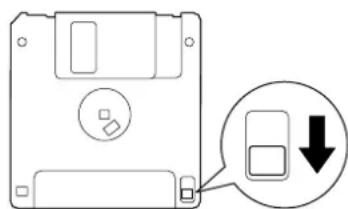
natural_image
Diagram of a floppy disk with a magnified inset showing a downward arrow (no text or symbols present)Write-protect tab open (protect position)
Installing the Floppy Disk Drive (Optional)
The optional UD-FD01 floppy disk drive can be installed to the bottom of the instrument by using the included floppy disk drive case and screws.
Have a Phillips-head (+) screwdriver of the appropriate size ready.

- Remove the three backing papers from the adhesive tape in the case, and fit the floppy disk drive into the case.
Insert the drive to the case, with the side having the rubber stoppers facing the case.
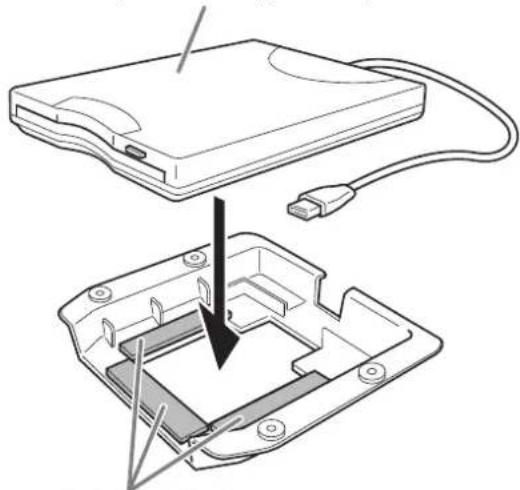
natural_image
Diagram of a device with an open circuit board and cable, showing internal components and a tool inserted (no text or symbols)Dual-sided adhesive tape
- Fold the USB cable inside the case as shown.
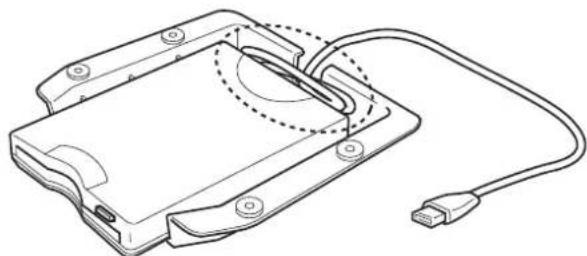
natural_image
Technical line drawing of a device with a cable and connector, no text or symbols present- Attach the drive and case assembly to the left underside of the instrument, using the included four screws (4mm x 10mm).
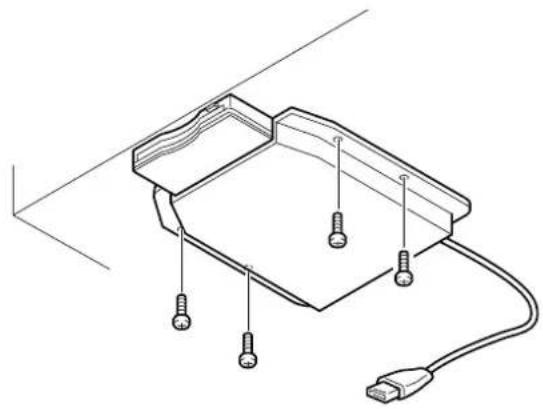
natural_image
Technical line drawing of a mechanical assembly with screws and a USB connector (no text or symbols)- Connect the USB cable to the USB [TO DEVICE] terminal.
Options
■ BC-100 Bench
A comfortable bench styled to match your Yamaha Clavinova.
■ HPE-160 Stereo Headphones
High-performance lightweight dynamic headphones with extra-soft ear pads.
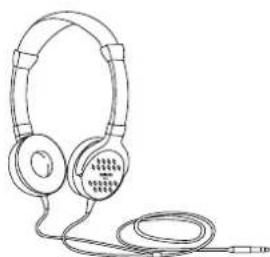
natural_image
Line drawing of a pair of headphones with earbuds and cord (no text or symbols)■ UD-FD01 USB-FDD Unit
Floppy disk drive for connecting to the instrument and saving/loading data.
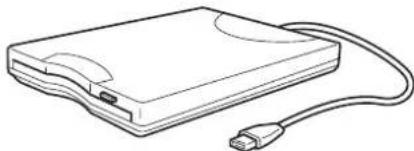
natural_image
Line drawing of a beige floppy disk drive with a USB cable (no text or symbols)Specifications
| Item CLP-380 | |||
| Size/Weight | Dimensions | Width 1406mm (55 3/8") | |
| Height | 943mm (37 1/8")With music rest: 1037mm (40 13/16") | ||
| Depth 512mm (20 3/16") | |||
| Weight Weight 95kg | (209 lb 7 oz) | ||
| Control Interface | Keyboard | Number of Keys 88 | |
| Type | NW (Natural Wood) with synthetic ivory keytops (with real-wood white keys) | ||
| Touch Sensitivity Yes | |||
| Pedal | Number of Pedals 3 | ||
| Half Pedal Yes | |||
| Functions Damper (with half-peda effect), Sostenuto, Soft | |||
| Display | Type LCD | ||
| Size 24-character x 2-line | |||
| Color Monochrome | |||
| Contrast Yes | |||
| Language English, Japanese | |||
| Panel | Language English | ||
| Cabinet | Key Cover | Key Cover Style | Sliding |
| Music Rest | Yes | ||
| Music Clips | Yes | ||
| Voices | Tone Generation | Tone Generation Technology | AWM Dynamic Stereo Sampling |
| Number of Dynamic Levels | 5 | ||
| Stereo Sustain Samples | Yes | ||
| Key-off Samples | Yes | ||
| String Resonance | Yes | ||
| Polyphony | Number of Polyphony (Max.) | 128 | |
| Preset | Number of Voices | 38 + 480 XG + 12 Drum Kits | |
| Compatibility | XG | Yes | |
| GS | Yes | ||
| GM | Yes | ||
| GM2 Yes | |||
| Effects | Types | Reverb | 5 |
| Chorus | 3 | ||
| Brilliance | 7 | ||
| DSP | 12 | ||
| iAFC Yes | |||
| Functions | Dual/Layers | Yes | |
| Split | Yes | ||
| Songs | Preset | Number of Preset Songs | 50 |
| Recording | Number of Songs (max.) | 250 | |
| Number of Tracks | 16 | ||
| Data Capacity | 1.47MB | ||
| Compatible Data Format | Playback | SMF (Format 0 & 1), ESEQ | |
| Recording | SMF (Format 0) | ||
| Item | CLP-380 | ||
| Functions | Overall Controls | Metronome Yes | |
| Tempo Range 5 – 500 | |||
| Transpose -12 to 0, 0 to +12 | |||
| Tuning Yes | |||
| Scale Type 7 types | |||
| Storage and Connectivity | Storage | Floppy Disk Drive Optional | |
| Internal Memory 1.47MB | |||
| External Drives (USB Storage Device) | Optional | ||
| Connectors | Headphones x 2 | ||
| MIDI [IN][OUT][THRU] | |||
| AUX IN [L/L+R][R] | |||
| AUX OUT [L/L+R][R] | |||
| [AUX PEDAL] Yes | |||
| USB [TO DEVICE] x 2 (selectable) | |||
| USB [TO HOST] | Yes | ||
| [LAN] | Yes | ||
| Amplifiers and Speakers | Amplifiers | 35W x 2 + 20W x 2 + 20W x 2 + 12W x 2 | |
| Speakers | 16cm x 2, 2.5cm (DOME) x 2, 8cm x 4 | ||
| Tri-Amp System | Yes | ||
| Service | Internet Direct Connection (IDC) | Yes | |
| Bundled Software | CD-ROM | Yes | |
| Accessories | Included Accessories | Owner's Manual, Accessory CD-ROM for Windows Installation Guide, "50 greats for the Piano" Score Collection, AC Power Cord, Bench (included or optional depending on locale), Data List, My Yamaha Product User Registration | |
* Specifications and descriptions in this owner's manual are for information purposes only. Yamaha Corp. reserves the right to change or modify products or specifications at any time without prior notice. Since specifications, equipment or options may not be the same in every locale, please check with your Yamaha dealer.
Index
You can search the desired section using not only the terminology in this manual but also commonly-used words. The * mark indicates that the corresponding page includes the terminology explanation in the right column.
Numerics
50 greats for the Piano 7
50 Piano Preset Songs 19
Practicing a one-hand part 21
A
A - D [-][+] buttons 12
A-B repeat 22
Accessories 7
Adding variation to the sound → Effect function ..... 25
Assembly 117
Assigning the SONG [PLAY/PAUSE] function to a pedal .....98
AUX IN [L/L+R] [R] jacks ....73
AUX OUT' [L/L+R] [R] jacks 73
[AUX PEDAL] jack 72
Auxiliary pedal function 97
B
Backup 102, 103
Bench 7
BRILLIANCE [MELLOW]/[BRIGHT] buttons .....25
C
Calibration 93
Center pedal 24
Center pedal function 96
CharacterCode 47
Characters 47
[CHORUS] button 26
combining two voices → Dual mode 27
Connection
computer 75
Other Components 72
Speaker 73
USB [TO HOST] 76
[CONTRAST] knob ....15
CONTRAST ^* 15
Copy 44
Current memory 39
Current song 39
D
Damper (right) pedal 24
Data Compatibility 112
Data type 50
Default (Normal) setting ^* 25
Delete 43
[DEMO] button 17
Demonstration tunes 17
Detailed Settings 77
Function 94
iAFC 92
Metronome 85
recording and playback 82
voices 86
display 12
Display contrast 15
DOC (Disk Orchestra Collection) 113
DOWN (TEMPO)
50 Piano Preset Songs ....20
metronome ....30
Driver 75
Dual
Detailed settings 86
Recording 38
Dual mode → combining two voices .....27
E
Effect function 25
equalizer 90
ESEQ 112
[EXIT] button ....13
External song 39
[EXTRA PARTS] button ....31, 35
F
FactorySet ....102
Fast forward 20,49
FILE* 39
[FILE/SONG SETTING] button 39,82
Floppy Disk 124, 125
Floppy Disk Drive 125
Format 46
[FUNCTION] button 79, 94
G
GM System Level 1 ....112
GM System Level 2....112
GS 113
H
Headphones 16
|
iAFC
iAFC Detailed settings 92
[iAFC SETTING] button 78,92
Internet Direct Connection (IDC) 51
J
Jacks
AUX IN 73
AUX OUT 73
AUX PEDAL 72
PHONES 16
K
key cover 14
KeyOffSampling 99
L
LCD → Screen
Contrast 15
Left 86
Left × Layer 86
[LEFT] button 21, 31, 35
Left pedal 24
Left pedal function 96
List
Demonstration tunes 17
Detailed Settings 77
Message 104
Preset Voice 114
M
M 40
Main 86
Main × Layer 86
MakeDir 45
[MASTER VOLUME] dial 16
MASTER VOLUME* 16
MEMORY 48
Memory 39
Memory song 39
MemoryBackup 102
Message List 104
METRONOME [ON/OFF] button 30
METRONOME [SETTING] button 77,85
MIDI [IN][OUT][THRU] terminals ....72
MIDI cables 76
Midi settings 79
MIDI terminals 76
Move 45
MP 40
MS 40
Ms 40
Music braces 14
Music Data 48
Music rest 14
N
New Song 31
Normal setting ^* 25
0
Other settings 94
P
P 40
Parameter List ....77
Pedal Function
Auxiliary 97
Center 96
Left 96
Right 96
Pedals 24
Personal computer 75
[PHONES] jacks ....16
PhraseMark 82
PLAY/PAUSE
50 Piano Preset Songs ....20
Recorded Songs and Music Data 49
[PLAY/PAUSE] button 20,49
Playback
50 Piano Preset Songs ....20
Demo Songs 17
Recorded Songs and Music Data ....49
Playing back repeatedly (song) 82
playing two voices → Split mode .....28
[POWER] switch 15
Practicing a one-hand part (50 preset songs) ....21
PRESET
50 Piano Preset Songs ....19
Preset song memory 39
Preset Voice List 114
R
[REC] button 32
Recording in Dual 38
Recording in Split 38
Recording Your Performance ....31
Rename 43
[REPEAT] button 22
Repeat Playback 22
Re-recording a song partially ....33
[REVERB] button 26
Rewind 20,49
[RIGHT] button 21, 31, 35
Right pedal 24
Right pedal function 96
RIGHT/LEFT
50 Piano Preset Songs 21
S
Save 42
Scale 95
Select
50 piano preset songs 19
Demo Songs 17
[SELECT] switch 123
Selecting a touch response 94
SMF (Standard MIDI File) 112
Soft (left) pedal 24
Song
Data Type 50
Detailed settings 82
Playing back repeatedly 82
[SONG BALANCE] slider 38
SONG SELECT
Recorded Songs and Music Data 48
[SONG SELECT] button 19,48
SongAutoOpen 46
Sostenuto (center) pedal 24
Sound
brilliance 25
expression 25
reverberation 26
spread and spaciousness 26
Soundboard reverb 26
Split
Detailed settings 86
Recording 38
[SPLIT] button 28
Split mode → playing two voices 28
Split point 29
Splitting the keyboard range and playing two different voices 28
STOP
50 Piano Preset Songs 20
Recorded Songs and Music Data 49
[STOP] button 20,49
Storage memory 39
StringResonance 99
SustainSampling 99
Sync Start
50 preset songs 21
Recorded Songs and Music Data 49
T
TEMPO
50 Piano Preset Songs 20
metronome 30
Recorded Songs and Music Data 49
TEMPO [UP] [DOWN] buttons 30
Terminals
MIDI [IN] [OUT] [THRU] 72,76
USB [TO DEVICE] 72
USB [TO HOST] 72
TouchResponse 94
Transpose 94
Troubleshooting....110
Tune 95
Type of characters ....47
Type of data (recorded) 108
U
U1 40
U1P 40
U1S 40
U1s 40
UP (TEMPO)
50 Piano Preset Songs ....20
metronome 30
USB [TO DEVICE] terminal 72
USB ['TO HOST] terminal 72
USB1 48
V
Voice group buttons 23, 28
[VOICE SETTING] button 78
Voices ^* 23
Detailed settings 86
Volume
Balance (SONG BLANCE) 38
Setting 16
X
XG 112
Memo
Memo
FCC INFORMATION (U.S.A.)
1. IMPORTANT NOTICE: DO NOT MODIFY THIS UNIT!
This product, when installed as indicated in the instructions contained in this manual, meets FCC requirements. Modifications not expressly approved by Yamaha may void your authority, granted by the FCC, to use the product.
- IMPORTANT: When connecting this product to accessories and/or another product use only high quality shielded cables. Cable/s supplied with this product MUST be used. Follow all installation instructions. Failure to follow instructions could void your FCC authorization to use this product in the USA.
- NOTE: This product has been tested and found to comply with the requirements listed in FCC Regulations, Part 15 for Class "B" digital devices. Compliance with these requirements provides a reasonable level of assurance that your use of this product in a residential environment will not result in harmful interference with other electronic devices. This equipment generates/uses radio frequencies and, if not installed and used according to the instructions found in the users manual, may cause interference harmful to the operation of other electronic devices. Compliance with FCC regulations does
not guarantee that interference will not occur in all installations. If this product is found to be the source of interference, which can be determined by turning the unit "OFF" and "ON", please try to eliminate the problem by using one of the following measures:
Relocate either this product or the device that is being affected by the interference.
Utilize power outlets that are on different branch (circuit breaker or fuse) circuits or install AC line filter/s.
In the case of radio or TV interference, relocate/reorient the antenna. If the antenna lead-in is 300 ohm ribbon lead, change the lead-in to co-axial type cable.
If these corrective measures do not produce satisfactory results, please contact the local retailer authorized to distribute this type of product. If you can not locate the appropriate retailer, please contact Yamaha Corporation of America, Electronic Service Division, 6600 Orangethorpe Ave, Buena Park, CA90620
The above statements apply ONLY to those products distributed by Yamaha Corporation of America or its subsidiaries.
^^ This applies only to products distributed by YAMAHA CORPORATION OF AMERICA. (class B)
COMPLIANCE INFORMATION STATEMENT (DECLARATION OF CONFORMITY PROCEDURE)
Responsible Party : Yamaha Corporation of America
Address : 6600 Orangethorpe Ave., Buena Park, Calif. 90620
Telephone : 714-522-9011
Type of Equipment : Digital Piano
Model Name : CLP-380PE/380PM
This device complies with Part 15 of the FCC Rules.
Operation is subject to the following two conditions:
1) this device may not cause harmful interference, and
2) this device must accept any interference received including interference that may cause undesired operation.
See user manual instructions if interference to radio reception is suspected.
IMPORTANT NOTICE FOR THE UNITED KINGDOM
Connecting the Plug and Cord
IMPORTANT. The wires in this mains lead are coloured in accordance with the following code:
BLUE : NEUTRAL
BROWN : LIVE
As the colours of the wires in the mains lead of this apparatus may not correspond with the coloured makings identifying the terminals in your plug proceed as follows:
The wire which is coloured BLUE must be connected to the terminal which is marked with the letter N or coloured BLACK.
The wire which is coloured BROWN must be connected to the terminal which is marked with the letter L or coloured RED.
Making sure that neither core is connected to the earth terminal of the three pin plug.
* This applies only to products distributed by YAMAHA CORPORATION OF AMERICA.
(FCC DoC)
• This applies only to products distributed by Yamaha Music U.K. Ltd. (2 wires)
For details of products, please contact your nearest Yamaha representative or the authorized distributor listed below.
Yamaha Canada Music Ltd.
135 Milner Avenue, Scarborough, Ontario,
M1S 3R1, Canada
Tel: 416-298-1311
U.S.A.
Yamaha Corporation of America
6600 Orangethorpe Ave., Buena Park, Calif. 90620,
U.S.A.
Tel: 714-522-9011
CENTRAL & SOUTH AMERICA
MEXICO
PANAMA AND OTHER LATIN
AMERICAN COUNTRIES/
CARIBBEAN COUNTRIES
Yamaha Music Latin America, S.A.
Sherbourne Drive, Tilbrook, Milton Keynes,
MK7 8BL, England
Tel: 01908-366700
GERMANY
Yamaha Music Europe GmbH
Siemensstraße 22-34, 25462 Rellingen, Germany
Tel: 04101-3030
Branch Switzerland in Zürich
Seefeldstrasse 94, 8008 Zürich, Switzerland
Tel: 01-383 3990
AUSTRIA
Yamaha Music Europe GmbH Branch Austria
Schleiergasse 20, A-1100 Wien, Austria
Tel: 01-60203900
CZECH REPUBLIC/SLOVAKIA/
HUNGARY/SLOVENIA
Yamaha Music Europe GmbH Branch Austria
Schleiergasse 20, A-1100 Wien, Austria
Tel: 01-602039025
POLAND
Yamaha Music Europe GmbH
147 Skiathou Street, 112-55 Athens, Greece
Tel: 01-228 2160
SWEDEN
Yamaha Scandinavia AB
J. A. Wettergrens Gata 1, Box 30053
S-400 43 Göteborg, Sweden
Tel: 031 89 34 00
DENMARK
YS Copenhagen Liaison Office
Generatorvej 6A, DK-2730 Herlev, Denmark
Tel: 44 92 49 00
FINLAND
F-Musiikki Oy
Kluuvikatu 6, P.O. Box 260,
SF-00101 Helsinki, Finland
Tel: 09 618511
NORWAY
Yamaha Music (Russia)
Office 4015, entrance 2, 21/5 Kuznetskii
Most street, Moscow, 107996, Russia
Tel: 495 626 0660
OTHER EUROPEAN COUNTRIES
Yamaha Music Europe GmbH
Siemensstraße 22-34, 25462 Rellingen, Germany
Tel: +49-4101-3030
AFRICA
Yamaha Corporation,
Asia-Pacific Music Marketing Group
Nakazawa-cho 10-1, Naka-ku, Hamamatsu,
Japan 430-8650
Tel: +81-53-460-2312
MIDDLE EAST
TURKEY/CYPRUS
Yamaha Music Europe GmbH
Siemensstraße 22-34, 25462 Rellingen, Germany
Tel: 04101-3030
OTHER COUNTRIES
Yamaha Music Gulf FZE
LOB 16-513, P.O.Box 17328, Jubel Ali,
Dubai, United Arab Emirates
Tel: +971-4-881-5868
ASIA
THE PEOPLE'S REPUBLIC OF CHINA
Yamaha Music & Electronics (China) Co., Ltd.
2F, Yunhedasha, 1818 Xinzha-lu, Jingan-qu.
Shanghai, China
Tel: 021-6247-2211
HONG KONG
Tom Lee Music Co., Ltd.
11/F., Silvercord Tower 1, 30 Canton Road,
Tsimshatsui, Kowloon, Hong Kong
Tel: 2737-7688
INDIA
Yamaha Music India Pvt. Ltd.
5F Ambience Corporate Tower Ambience Mall Complex
Ambience Island, NH-8, Gurgaon-122001, Haryana, India
Tel: 0124-466-5551
INDONESIA
PT. Yamaha Music Indonesia (Distributor)
PT. Nusantik
Gedung Yamaha Music Center, Jalan Jend. Gatot
Subroto Kav. 4, Jakarta 12930, Indonesia
Tel: 21-520-2577
KOREA
Yamaha Music Korea Ltd.
8F, 9F, Dongsung Bldg. 158-9 Samsung-Dong,
Kangnam-Gu, Seoul, Korea
Tel: 080-004-0022
MALAYSIA
Yamaha Music Malaysia, Sdn., Bhd.
Lot 8, Jalan Perbandaran, 47301 Kelana Jaya,
Petaling Jaya, Selangor, Malaysia
Tel: 3-78030900
PHILIPPINES
Yupangco Music Corporation
339 Gil J. Puyat Avenue, P.O. Box 885 MCPO,
Makati, Metro Manila, Philippines
Tel: 819-7551
SINGAPORE
Yamaha Music Asia Pte., Ltd.
03-11 A-Z Building
140 Paya Lebor Road, Singapore 409015
Tel: 747-4374
TAIWAN
Yamaha KHS Music Co., Ltd.
3F, #6, Sec.2, Nan Jing E. Rd. Taipei.
Taiwan 104, R.O.C.
Tel: 02-2511-8688
THAILAND
Siam Music Yamaha Co., Ltd.
4, 6, 15 and 16^th floor, Siam Motors Building,
891/1 Rama 1 Road, Wangmai,
Pathumwan, Bangkok 10330, Thailand
Tel: 02-215-2626
OTHER ASIAN COUNTRIES
Yamaha Corporation,
Asia-Pacific Music Marketing Group
Nakazawa-cho 10-1, Naka-ku, Hamamatsu,
Japan 430-8650
Tel: +81-53-460-2317
OCEANIA
AUSTRALIA
Yamaha Music Australia Pty. Ltd.
Level 1, 99 Queensbridge Street, Southbank.
Victoria 3006, Australia
Tel: 3-9693-5111
NEW ZEALAND
Music Works LTD
P.O.BOX 6246 Wellesley, Auckland 4680,
New Zealand
Tel: 9-634-0099
COUNTRIES AND TRUST
TERRITORIES IN PACIFIC OCEAN
Yamaha Corporation,
Asia-Pacific Music Marketing Group
Nakazawa-cho 10-1, Naka-ku, Hamamatsu,
Japan 430-8650
Tel: +81-53-460-2312

YAMAHA
Clavinova Web site
http://music.yamaha.com/homekeyboard/
Yamaha Manual Library