
iH3 - Camcorder AIPTEK - Free user manual and instructions
Find the device manual for free iH3 AIPTEK in PDF.


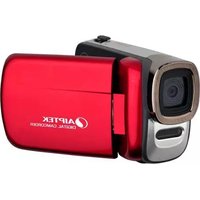
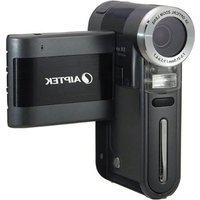
| Product Type | 3D Camcorder |
| Brand | Aiptek |
| Model | iH3 |
| Dimensions (L x W x H) | 130 mm x 53 mm x 67 mm |
| Weight (battery included) | 380 g |
| Power Supply | NP40 rechargeable Li-ion battery 1200 mA |
| Image Sensor | Dual CMOS 5 Megapixels (2592 x 1944) |
| Video Resolution | Full HD (1920x1080) up to 30 fps, HD 720p (1280x720) up to 60 fps |
| Photo Resolution | 3.7 Megapixels (16:9) |
| File Format | MP4 (H.264), JPEG |
| Internal Memory | 128 MB built-in (9 MB for storage) |
| External Memory | SD/SDHC card up to 32 GB (not included) |
| LCD Screen | 3.2-inch TFT panel with 3D display (parallax barrier) |
| Lens | Dual fixed-focus lens, aperture F3.2, f=5.23 mm |
| Digital Zoom | 10x in 2D mode, 4x in 3D mode |
| 3D/2D Function | Switchable via dedicated switch |
| Flash | Auto / Off / On (for photos) |
| Video Light | 2 built-in LEDs |
| White Balance | Auto, Sunny, Cloudy, Tungsten, Fluorescent |
| TV Output | HDMI (HDTV) |
| PC Interface | USB 2.0 (mass storage) |
| Battery | NP40 rechargeable Li-ion 1200 mAh, approximately 400 photos or 50 min video |
| Operating Temperature | 0 to 40 °C, humidity ≤ 80% |
| Supplied Accessories | Micro USB cable, AC adapter, wrist strap (check package contents) |
| Maintenance and Cleaning | Wipe with a soft, dry cloth; avoid water and solvents |
| Safety | Do not expose to heat, avoid shocks, keep away from children |
| Spare Parts and Repairability | Battery and cables available from the manufacturer; repair by a qualified technician |
Frequently Asked Questions - iH3 AIPTEK
User questions about iH3 AIPTEK
0 question about this device. Answer the ones you know or ask your own.
Ask a new question about this device
Download the instructions for your Camcorder in PDF format for free! Find your manual iH3 - AIPTEK and take your electronic device back in hand. On this page are published all the documents necessary for the use of your device. iH3 by AIPTEK.
USER MANUAL iH3 AIPTEK
Dear user, thank you for purchasing this product. Much investment in time and effort has gone into its development, and it is our hope that it will give you many years of trouble-free service.
FCC Compliance Statement:
This device complies with Part 15 of the FCC Rules. Operation is subject to the following two conditions: (1) this device may not cause harmful interference, and (2) this device must accept any interference received, including interference that may cause undesired operation.

This equipment has been tested and found to comply with the limits for a Class B digital device, pursuant to Part 15 of the FCC rules. These limits are designed to provide reasonable protection against harmful interference in residential installations. This equipment generates, uses, and can radiate radio frequency energy and, if not installed and used in accordance with the instructions, may cause harmful interference to radio communications.
However, there is no guarantee that interference will not occur in a particular installation. If this equipment does cause harmful interference to radio or television reception, which can be determined by turning the equipment off and on, the user is encouraged to try to correct the interference by one or more of the following measures:
- Reorient or relocate the receiving antenna.
- Move the equipment away from the receiver.
- Plug the equipment into an outlet on a circuit different from that to which the receiver is connected.
- Consult the dealer or an experienced radio/TV technician for help.
You are cautioned that any changes or modifications not expressly approved by the party responsible for compliance could void your authority to operate the equipment.


When the time comes to dispose of your product, please recycle all components possible.
Batteries and rechargeable batteries must not be disposed of with household waste! Please recycle them at your local recycling point.
Together we can help protect the environment.
Safety Notice:
- Do not drop, puncture, or disassemble the camcorder; otherwise, the warranty will be voided.
- Avoid all contact with water, and dry hands before using.
- Do not expose the camcorder to high temperature or leave it in direct sunlight. Doing so may damage the camcorder.
- Use the camcorder with care. Avoid pressing hard on the camcorder body.
- For your own safety, avoid using the camcorder when there is a storm or lightning.
- Do not use batteries of different specifications. Doing so may lead to the potential for serious damage.
- Remove the battery during long periods between usage, as a deteriorated battery may affect the functionality of the camcorder.
- Remove the battery if it shows signs of leaking or distortion.
- Use only the accessories supplied by the manufacturer.
- Keep the camcorder out of the reach of infants.
- Risk of explosion if battery is replaced by an incorrect type.
- Dispose of used batteries according to the instructions.
Extra notice regarding 3D viewing:
- To view 3D display and receive 3D effects well, the viewer should be positioned to face the center of the screen at around 30 cm distance and not having a steep viewing angle.
- Viewing in 3D mode may cause dizziness or even perceptive after effects, disorientation, and eye strain. It is recommended that viewers take frequent breaks to alleviate the likelihood of these effects. If you have any of the above symptoms, immediately cease usage of the 3D display of this device and do not resume until the symptoms have receded.
- Do not use the Red/Cyan Glasses for any purpose other than viewing red/cyan 3D files. Wearing the Red/Cyan Glasses for any other purpose (such as general spectacles, sunglasses, protective goggles, etc.) may cause harm to you or weaken your eyesight.
- Young children viewing 3D files should always be accompanied by adults. It is not recommended to give this device into the hands of young children.
The 3D display technology used in this product:
This product utilizes the "Parallax Barrier" 3D technology. A parallax barrier is a device that allows a liquid crystal display (LCD) to show a stereoscopic image without the need for the viewer to wear a pair of 3D glasses. Placed in front of the normal LCD, a parallax barrier consists of a layer of material with a series of precision slits, allowing each eye to see a different set of pixels, thus creating a sense of depth and 3D effect through parallax.
![graph TD A["Pixels"] --> B["Parallax Barrier"] B --> C["Right eye"] B --> D["Left eye"] style A fill:#f9f,stroke:#333 style B fill:#ccf,stroke:#333 style C fill:#cfc,stroke:#333 style D fill:#fcc,stroke:#333](/content/2026/06/1239070/images/e03ac2b19420032b31d36937aed982ff1049bf91008fc728b7602027e416509b.jpg)
Tips to Obtain the Best 3D Effects with your Camcorder
❖ Optimal watching distance to the monitor of 3D Camcorder:
Keep your eyes distance approximately 30cm from 3D camcorder (half the length of your arm) (as shown in right figure).

❖ The ideal viewing distance for best 3D effects:
The different distances maintained between the camcorder: 1.5 to 2 meters for foreground, 1 to 2 meters for the foreground to the medium shot, and over 4 meters for the long shot (as shown in figure below).

Therefore, multi-perspective images can be obtained via the above shooting skills. In order to obtain the best 3D effects, keep your hands still and steady when recording.
Refer to the two illustrations below for reference:


Note
- Users can toggle between 3D mode and 2D mode by pressing the 3D/2D switch button. Since the 3D grating film will be automatically enabled under 3D mode, the brightness of the monitor in 3D mode will be less than in 2D mode; nevertheless, the quality of the 3D files shot/recorded will remain the same.
Contents
Getting Started 5
Product Overview....5
Inserting the Battery and Memory Card....6
Charging the Battery....6
Turning on/off the Camcorder 7
Setting the Language....7
Setting the Date and Time 8
LCD Display 8
Basic Operations 10
Switching 2D/3D Mode ....10
Recording Videos....10
Viewing Photos 11
Playing Back Videos 11
Deleting Files 11
Using the Menu....12
Transferring Files to Your Computer 13
Connecting to HDTV....14
Appendix 15
Battery Life....15
Possible Number of Shots 15
Troubleshooting 15
Specifications....16
Getting Started
Product Overview
- Hand Strap Mount
- Lens (only for 3D mode)
- LED Light x2
- Lens
- Flash
- Microphone x2
- LCD Panel
- Speaker
- Power Button
- Delete Button
- Playback Button
- Zoom Button
- Shutter Button
- LED indicator
- Record Button
- Micro USB Port
- HDMI Port
- Navigation Key
- 3D/2D Switch Button
- Tripod Socket
- SD Card Compartment
- Battery Compartment


Navigation key (hot key):
A. Up: Icon on/off B. Left: LED light on/off C. Down: Flash mode (off/auto/on) D. Right: Menu mode
Inserting the Battery and Memory Card
1. Open the LCD panel. 2. Turn off the power. 3. Open the battery cover as shown in the illustration. 4. Insert an SD card (sold separately) into the SD card compartment until it clicks into place. 5. Insert the battery. Make sure that the + and - symbols on the battery line up with the + and - symbols on your camcorder. 6. Close the battery cover.


Note
Once you open the battery cover, the power of the camcorder will be cut off.
Charging the Battery
Before charging:
Make sure that the camcorder is turned off and the battery is inserted before starting.
Before charging via computer, be sure that the computer is turned on.
It is recommended to charge the battery for at least 8 hours before the first time usage.
1 Open the LCD panel. 2 Turn off the power. 3 Open the I/O cover. 4 Plug the Micro USB connector to the Micro USB port of your camcorder using the Micro USB cable. 5 Charge the battery. Choose one of the following two options:
A. Using the AC adapter
i. Plug the other end of the USB cable to the AC adapter. ii. Plug the AC adapter to a wall outlet to start charging.


B. Using the computer
Plug the other end of the USB cable to a computer/notebook to start charging.

LED indicator
When the battery is charging, the LED indicator turns on (orange).
When the battery is fully charged, the LED indicator turns off.

Checking the remaining battery charge:
A remaining charge indicator appears on the upper right of the LCD screen when power on camcorder.

- The displayed battery remaining indicator may not be correct under certain circumstances. The flash strobe & video light will be disabled in low battery.
- To avoid sudden outage of power supply, you are recommended to replace the battery when the icon indicates low battery life.
Turning on/ off the Camcorder
Press and hold the Power Button to turn the camcorder on/off.

Note
Closing and opening the LCD panel can power on/off the camcorder.
Setting the Language
To select the language, do the following:
1. Open the LCD panel to turn the camcorder on. 2. Press the Right key to open the menu. 3. Press the Right key to enter System Setting (☐Y). 4. Press the Down key to select Language and press the OK key. 5. Press the Up/Down key to select the desired language and press the OK key to confirm.


Navigation key:
A. Up B. Left C. Down D. Right
Setting the Date and Time
To adjust the date and time, do the following:
1. Open the LCD panel to turn the camcorder on. 2. Press the Right key to open the menu. 3. Press the Right key to enter System Setting (☐☐). 4. Press the Up/Down key to select Date or Time and press the OK key. 5. Press the Left/Right key to select the field to be adjusted. 6. Press the Up/Down key to adjust the value. 7. Repeat steps 5-6 to adjust other desired fields. 8. Press the Shutter Button to exit.

Date

Time
LCD Display
Icons are displayed on the screen to indicate the camcorder status/settings.
- Mode

3D
mode

2D
mode
- Video resolution

Full HD (1920x1080p)@30fps

HD 720P(1280x720p)@60fps
- Date stamp
[ *no icon ]
Date stamp is disabled

Print a date mark

Print a date and time mark
- Self timer
[ *no icon ]
Self timer is disabled

10-second delay self timer
- Slide show
[ *no icon ]
Slide show is disabled

Playback in slide show mode

Preview Mode - Video/Photo

Recording Mode
6. Video light
[“no icon] Video light is disabled

The setting allows you to add extra light when the lighting is insufficient while recording video clips.
7. Flash mode
[∅] Flash off

Auto flash (When the icon is blinking, it indicates that the flash is being charged.)

Forced flash (When the icon is blinking, it indicates that the flash is being charged.)
8. White balance
[★] Auto white balance

Sunny (suitable for outdoor recording in sunny weather)

Cloudy (suitable for recording in cloudy weather or shady environments)

Fluorescent (suitable for indoor recording with fluorescent lamp lighting, or environments with high color temperature)

Tungsten (suitable for indoor recording with incandescent lamp lighting, or environments with low color temperature)
9. Media type
[ ] Memory card

Internal memory
[X] Memory card error
[ ] Memory card locked
10. Battery status
[7] Full battery power
Medium battery power
[7] / low battery power
11. Guide key
[ICON] Press the Right key to enter menu mode.
- Available recording time (The available recording time varies depending on the image complexity.)
- Zoom status
- Elapsed time (recording)
- Guide key

Press the

Press the
- File type

Video file

Photo file
- File number/total files

Playback Mode (Thumbnail display)
![graph TD A["1"] --> B["3D Display"] C["17"] --> D["0001/0100"] E["00:00:10"] --> F["Display Icon"] G["21"] --> H["Control Panel Icon"] I["19"] --> J["Control Panel Icon"] K["20"] --> L["Control Panel Icon"]](/content/2026/06/1239070/images/c95358d2e766e985ba7a7993fbb8d4b2679295f454ef9486fb885b93791b9c56.jpg)
Playback Mode (Full screen display - Video)

Playback Mode (Full screen display - Photo)
- Guide key

Press the OK key to enter Full screen mode.
- Guide key

Press the Shutter Button to return to preview mode.
- Elapsed time (playback)
- Guide key

Press the OK key to pause video playback.

Press the OK key to resume video playback.
Basic Operations
Switching 2D/3D Mode
Press the 3D/2D Switch Button to toggle between 2D and 3D modes.
In Playback mode, press the 3D/2D Switch Button to toggle between viewing 2D or 3D files stored in your camcorder.


Note
In 2D mode, the camcorder only uses the right lens to record videos or take photos. • The 3D files cannot be recorded/viewed/deleted in 2D mode, and vice versa. The 2D and 3D files are stored separately. - This camcorder utilizes the "Parallax Barrier" 3D technology. The parallax barrier is a special layer placed in front of the LCD screen. In 3D mode, it allows each of your eyes to see a different set of pixels on the screen (hence the 3D effect). The brightness of the screen seems to be halved in 3D mode.
Taking Photos
1 Turn on the camcorder. 2 Compose your image. - Use the Zoom Button to zoom in and out on the subject. 3 Press the Shutter Button to capture a photo.


Note
To avoid fuzzy photos, please hold the camera steady or use a tripod. • In order to optimize the 3D effect, the ideal shooting range is 1m~4m (3ft~13ft), and you are advised to take photos with sufficient light.
Recording Videos
1 Turn on the camcorder. 2 Compose your image. 3 Press the Record Button to start recording the video. a. Use the Zoom Button to zoom in and out on the subject. b. To pause video recording, press the OK key. Press the OK key again to resume recording. c. When recording videos in a dark environment, press the Left key to turn on video light to provide extra light to the subject.
4 To stop video recording, press the Record Button again.


Note
The engine will auto stop recording a video in 30 minutes.
Viewing Photos
1 Turn on the camcorder. 2 Press the Playback Button to enter the playback mode. 3 Use the Left/Right/Up/Down key to browse the recorded files.
- Press the 3D/2D Switch Button to switch to 2D or 3D files.

4 Press the OK key to view the photo in full screen.
- Use the Zoom Button to zoom in the selected photo. When the image is zoomed in, the direction keys appear on the LCD screen. Use the Left/Right/Up/Down key to view the zoomed image. To exit zoom mode, press the OK key to return to its original size.
5 Press the Left/Right key to view other photos.

Note
Zoom playback is only available in 2D photo mode.
Playing Back Videos
1 Turn on the camcorder. 2 Press the Playback Button to enter the playback mode. 3 Use the Left/Right/Up/Down key to browse the recorded files. 4 Press the OK key to play the selected video clip.
- To pause during playback, press the OK key. To resume, press the OK key again.
- Left/Right/Forward, press and hold the
- Zoom button to adjust the volume during playback.
5 Press the Shutter Button to return to the thumbnail mode.
Deleting Files
1 Turn on the camcorder. 2 Press the Playback Button to enter the playback mode. 3 Use the Left/Right/Up/Down key to browse the recorded files.
- Press the 3D/2D Switch Button to switch to 2D or 3D files.
4 Press the Delete Button to delete the selected file. The Delete menu appears on the screen.
- Yes: delete the selected file, select
- Cancel: exit the menu without deleting the selected file, select
- All: delete all files (in the same folder), select
5 Press the OK key to confirm.


Note
Once the file is deleted, it cannot be recovered.
If you select "All", all files in the same folder (2D or 3D) will be deleted.
Using the Menu
1 Press the Right key to open the menu screen. 2 Press the Left/Right key to select the Basic Setting/System Setting. 3 Press the Up/Down key to select the setting item and press the OK key to enter. 4 Press the Up/Down key to set/adjust the setting and press the OK key to confirm. 5 Press the Shutter Button to exit.

Navigation key:
A. Up B. Left C. Down D. Right
Basic Setting

| Option Description | |
| Video Resolution Set the video resolution (Full HD 30f / HD 720P 60p). | |
| Flash Strobe Set the flash mode (Off / Auto / On). | |
| Video Light Enable/disable video light (Off / On). | |
| White Balance | Set the white balance when capturing images under specific lighting conditions (Auto / Sunny / Cloudy / Fluorescent / Tungsten). |
| NightShot Enable/disable night shot (Off / On). | |
| Date Stamp | Disable/set the date stamp type when taking a photo and recording a video (Off / Date / TIME/DATE). |
| Selftimer | Enable/disable the selftimer (10-second delay) when shooting a photo and recording a video (Off / On). |
| Slide Show Enable/disable slide show in Playback mode (Off / On). | |
System Setting

| Option Description | |
| Language Set the on-screen display language. | |
| Date Set the current date. | |
| Time Set the current time. | |
| Icon Hide/unhide icon display on the screen (Off / On). | |
| Start Image Enable/disable start image feature when turning the power on (Off / On). | |
| Auto Off | If “Auto Sleep” is set to “On” and the camcorder is left idle for 3 minutes, the camcorder will automatically turn off (Off / On). |
| Beep Enable/disable sound when pressing any key (Off / On / Shutter On). | |
| Frequency | Select the TV standard according to your region (60 Hz / 50 Hz).Note60 Hz - for the United States, Taiwan, Japan, Korea, and other regions.•50 Hz - Europe, China, Hong Kong, and other regions.• |
| Format | Format your memory card or the internal memory when no memory card is inserted (No / Yes). |
| Default Reset the camcorder to factory defaults (No / Yes). | |
Transferring Files to Your Computer
1 Open the I/O cover. 2 Plug the Micro USB connector into the Micro USB port of your camcorder using the Micro USB cable. 3 Plug the other end of the USB cable into a computer/notebook. 4 Turn on the camcorder. 5 From the Windows desktop, browse for My Computer > Removable Disk. You can access all files stored in the camcorder.

Connecting to HDTV
1 Turn on your HDTV. 2 Connect the HDMI-in connector (the larger end) of the HDMI cable to the HDTV. 3 Connect the other end of the HDMI cable to your camcorder. 4 Turn on the camcorder. 5 On your HDTV, select the HDMI input port where the HDMI cable is connected. 6 Switch your camcorder to Playback mode and start to play a file.

Note
If your HDTV is 2D type, the 3D files output on your HDTV will be 2D "side-by-side" only.
- The HDTV will display your video clips in 1080i (60 fields) resolution mode although it is recorded in 1080P (30 frames) or 720P (60 frames) setting.
Battery Life
| ❖ Still image (without flash) | ❖ Video clip |
| Number of shots: 400 Recording | time (minute): 50 |
* The unit is set to 3D mode.

Note
This table is for your reference only. The actual battery life depends on your battery quality and recharge level.
Possible Number of Shots
| Memory card capacity | Video clip (Full HD) (min.) | Video clip (HD 720P) (min.) | Still image |
| 2GB | 25 min. 26 min. 1 | 500 | |
| 4GB | 50 min. 52 min. 3 | 000 | |
| 8GB | 100 min. 104 min. | 6000 | |
| 16GB | 200 min. 208 min. | 12000 |

Note
- The actual value of capacity may vary (up to ±30%) depending on the color saturation and complexity of your subject and surroundings.
Troubleshooting
| Problem Possible cause Solution | ||
| Cannot to view the 3D video/photo playback using my 3D HDTV. | The system of your 3D TV/display is not correctly set up to support the 3D file format. | Select “side-by-side” setting in your 3D HDTV/display to correctly display the 3D effect. |
| Cannot view the 3D videos/photos on my 3D-featured PC/notebook. | The PC/notebook does not support “side-by-side” 3D format or the system is not correctly set up. | ·If your 3D PC/notebook is “Nvidia 3D” compatible, you can set the TotalMedia HDCam program to support “Nvidia 3D” directly.·If your PC/notebook is not “Nvidia 3D” compatible, you may consider installing “Nvidia 3D kit” to support the 3D effect.·You can download and install the 3D freeware “Stereoscopic Player”, and set up the software to support “side-by-side” 3D effect. |
| Flash occurs when I wear my Shutter Glasses (that came with 3D HDTV/display) to watch 3D files. | You are watching 3D files under 50Hz or 60Hz fluorescent light. | Turn off the fluorescent light to avoid interference and then watch the 3D files. |
Specifications
| Image Sensor Dual 5 Mega-pixels CMOS (2592 x 1944) | |
| Resolution | Camcorder:Full HD(1920x1080)HD 720p(1280x720)Camera: 3.7M (16:9) |
| File Format MP4(H.264), JPEG | |
| Video Frame Rate | Full HD up to 30fpsHD 720p up to 60fps |
| Internal Memory 128MB built-in; 9MB for storage | |
| 3D/2D capture Yes, switchable | |
| External Memory SD card slot (supports 256MB up to 32GB SD/SDHC) | |
| LCD Display 3.2" 3D TFT panel supports 3D and 2D mode display | |
| Lens Dual Fixed focus lens | |
| Focus Range 1 m ~∞ | |
| Aperture Range F3.2; f=5.23mm | |
| Shutter Speed 1 ~ 1/2000 sec. | |
| Flash Light Auto / Off / On for pictures | |
| LED Light 2xLED light for Video | |
| Digital Zoom | 10X for 2D mode4X for 3D mode |
| Night Shot Mode On, Off | |
| White Balance Auto, Sunny, Cloudy, Fluorescent, Tungsten | |
| Date Stamp | Yes for still picture and video |
| Microphone | Yes; stereo microphone built-in |
| Speaker | Yes |
| TV out | HDTV (HDMI output) |
| Self-timer | Off, 10 sec |
| Power Save Mode | 3 min |
| Interface | USB 2.0 mass storage |
| Battery | NP40 1200mA Li-lon rechargeable BatteryOperating Condition:Temperature / Humidity0~40°C/ ≤80%Storage Condition:Temperature / Humidity1 month -20°C ~ + 60°C / ≤85%3 months -20°C ~ +45°C / ≤80%1 year -20°C ~ + 25°C / ≤70% |
| Dimensions (LxWxH) | 130mm x 53mm x 67mm (5.12" x 2.09" x 2.64") |
| Weight (included battery) | 380g |
* The specifications are subject to change without prior notice.


Navigation keys
(Shortcut keys):
B. Left: LED light on/off


Note


LED indicator
Date

Time

Note

Note

Note

Note
Navigation keys:
A. Up
B. Left
C. Down
D. Right
Basic settings


Note


LED indicator
Navigation button:
A. Up B. Left C. Down D. Right
Date

Time
Full HD (1920x1080p)@30fps

HD 720P (1280x720p)@60fps
- Print date


Note

Note

Note
Navigation keys:
A. Up
B. Left
C. Down
D. Right
Basic settings


Optimal viewing distance for best 3D effect:
Long view
Medium view
Close view


Note


Navigation keys (hotkeys):


Note


B. Using a computer

LED indicator
Navigation keys:
Recording mode

Cloudy (this setting is suitable for shooting on cloudy days or in shadow.)


Note

Note
4 To stop recording, press the record button again.

Note
- The engine will automatically stop video recording after 30 minutes.
Photo viewing
1 Turn on the camera power.
2 Press the play button to enter playback mode.
Use the left/right/up/down keys to view thumbnails.
5 Press the left/right keys to view other photos.

Note

Note
Navigation keys:
Connect to HDTV

- FCC COMPLIANCE STATEMENT
- SAFETY NOTICE
- EXTRA NOTICE REGARDING 3D VIEWING
- THE 3D DISPLAY TECHNOLOGY USED IN THIS PRODUCT
- TIPS TO OBTAIN THE BEST 3D EFFECTS WITH YOUR CAMCORDER
- NOTE
- CONTENTS
- GETTING STARTED
- BASIC OPERATIONS
- APPENDIX
- PRODUCT OVERVIEW
- INSERTING THE BATTERY AND MEMORY CARD
- CHARGING THE BATTERY
- BEFORE CHARGING
- USING THE AC ADAPTER
- USING THE COMPUTER
- LED INDICATOR
- TURNING ON/ OFF THE CAMCORDER
- SETTING THE LANGUAGE
- SETTING THE DATE AND TIME
- LCD DISPLAY
- VIDEO LIGHT
- FLASH MODE
- WHITE BALANCE
- MEDIA TYPE
- BATTERY STATUS
- GUIDE KEY
- SWITCHING 2D/3D MODE
- TAKING PHOTOS
- RECORDING VIDEOS
- VIEWING PHOTOS
- PLAYING BACK VIDEOS
- DELETING FILES
- USING THE MENU
- TRANSFERRING FILES TO YOUR COMPUTER
- CONNECTING TO HDTV
- BASIC SETTINGS
- USING A COMPUTER
- NAVIGATION KEYS
- PHOTO VIEWING
- CONNECT TO HDTV
Brand : AIPTEK
Model : iH3
Category : Camcorder