KD-G301 - Car stereo JVC - Free user manual and instructions
Find the device manual for free KD-G301 JVC in PDF.


User questions about KD-G301 JVC
0 question about this device. Answer the ones you know or ask your own.
Ask a new question about this device
Download the instructions for your Car stereo in PDF format for free! Find your manual KD-G301 - JVC and take your electronic device back in hand. On this page are published all the documents necessary for the use of your device. KD-G301 by JVC.
USER MANUAL KD-G301 JVC
natural_image
Technical line drawing of a mechanical component with an arrow indicating assembly (no text or symbols)

KD-G302
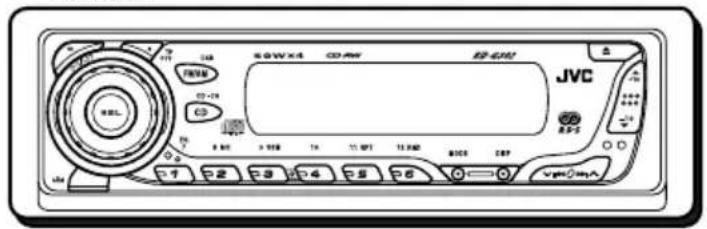
text_image
JVC 6.0W×4 CD RW 82-6M1 RBL F500 CD-19 CD 8 MΩ 3 MΩ 14 11 MΩ 11 MΩ 8000 GBP 7 2 3 4 5 6 7 8 9 10 11 12 13 14 15 16 17 18 19 20 21 22 23 24 25 26 27 28 29 30 31 32 33 34 35 36 37 38 39 40 41 42 43 44 45 46 47 48 49 50 51 52 53 54 55 56 57 58 59 60 61 62 63 64 65 66 67 68 69 70 VDCKD-G301
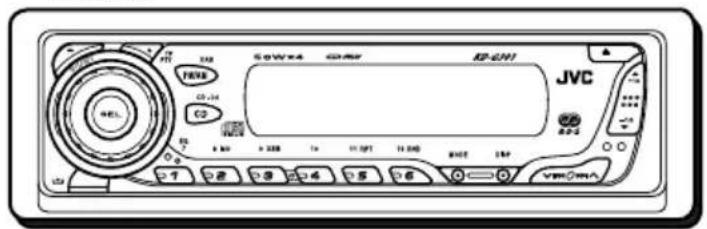
text_image
JVC VRC G0W4 GMP K2-UN1 F8V6 CD-14 C2 + 300 + 300 1x 11 GMT 11 DWD BATE ESP 7 2 3 4 5 6 0 = 0For installation and connections, refer to the separate manual.
MANUEL D'INSTRUCTIONS
GEBRUIKSAANWIJZING
IMPORTANT FOR LASER PRODUCTS
- CLASS 1 LASER PRODUCT
- CAUTION: Do not open the top cover. There are no user serviceable parts inside the unit; leave all servicing to qualified service personnel.
- CAUTION: Visible and invisible laser radiation when open and interlock failed or defeated. Avoid direct exposure to beam.
- REPRODUCTION OF LABEL: CAUTION LABEL, PLACED OUTSIDE THE UNIT.
| CAUTION : Visible and invisible laser radiation when open and interlock failed or detected AVOID DIRECT EXPOSURE TO BEAM. (e) | ADVARSEL : Synlig og usynlig laserstråling när maskinen er åben eller interlocken tejler Undøgä direkte eksponering bil stråling. (d) | VARNING : Synlig och osynlig laserstråning när den öppnas och spärren är urkopplad. Betrakta ej strålen. (s) | VARO : Awbetaessa ja suojelukitus ohlettuna tai vialisena olet albina näkyvälte ja näkymättömälle lasersätilylle. Valt säreen kondistimista suoraan tseesi. (f) |
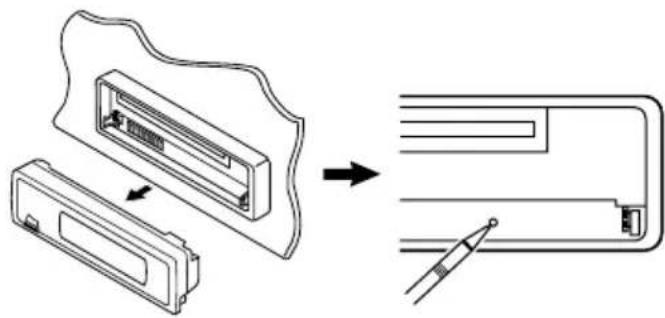
How to reset your unit
After detaching the control panel, press the reset button on the panel holder using a ball-point pen or a similar tool.
This will reset the built-in microcomputer.
Note:
Your preset adjustments—such as preset channels or sound adjustments—will also be erased.
natural_image
Diagram showing a device assembly process with a component being processed into a final package (no text or symbols present)How to use the MODE button
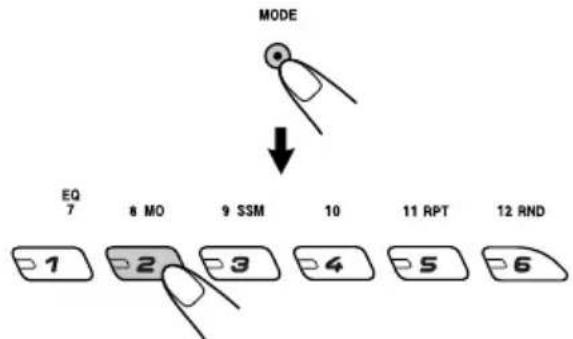
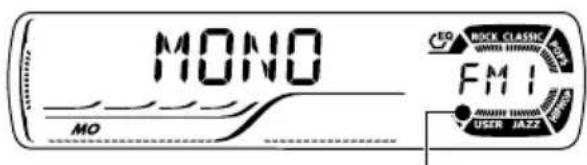
If you press MODE, the unit goes into functions mode, then the number buttons and ▲/▼ buttons work as different function buttons.
Ex.: When number button 2 works as MO (monaural) button.
flowchart
graph TD
    A["MODE"] --> B["EQ 7"]
    B --> C["8 MO"]
    C --> D["9 SSM"]
    D --> E["10"]
    E --> F["11 RPT"]
    F --> G["12 RND"]
    G --> H["1"]
    H --> I["2"]
    I --> J["3"]
    J --> K["4"]
    K --> L["5"]
    L --> M["6"]
text_image
MONO MO CEO NOCK CLASSIC WATER HUMANITY FMI USER JAZZTime countdown indicator
To use these buttons for original functions again after pressing MODE, wait for 5 seconds without pressing any of these buttons until the functions mode is cleared.
- Pressing MODE again also clears the functions mode.
CONTENTS
How to reset your unit 2
How to use the MODE button 2
LOCATION OF THE BUTTONS ...... 4
Control panel.... 4
BASIC OPERATIONS .... 5
Turning on the power 5
Canceling the display demonstration ..... 6
Setting the clock....7
RADIO OPERATIONS 8
Listening to the radio.... 8
Storing stations in memory 9
Tuning in to a preset station 10
RDS OPERATIONS ...... 11
What you can do with RDS 11
Other convenient RDS functions and adjustments 16
CD OPERATIONS ...... 18
Playing a CD 18
Locating a track or a particular portion on a CD 19
Selecting CD playback modes 20
Prohibiting CD ejection 20
SOUND ADJUSTMENTS ...... 21
Selecting preset sound modes (C-EQ: custom equalizer) 21
Adjusting the sound 22
OTHER MAIN FUNCTIONS ...... 23
Changing the general settings (PSM) ..... 23
Detaching the control panel 26
CD CHANGER OPERATIONS 27
About MP3 discs 27
Playing discs 28
Selecting the playback modes 30
EXTERNAL COMPONENT OPERATIONS ... 31
Playing an external component 31
DAB TUNER OPERATIONS .... 32
Tuning in to an ensemble and one of the services 32
Storing DAB services in memory 33
Tuning in to a preset DAB service 34
What you can do more with DAB 35
USING THE REMOTE CONTROLLER ..... 36
Location of the buttons.... 37
TROUBLESHOOTING 38
MAINTENANCE 40
Handling discs.... 40
SPECIFICATIONS...... 41
Note:
For security reasons, a numbered ID card is provided with this unit, and the same ID number is imprinted on the unit's chassis. Keep the card in a safe place, as it will help the authorities to identify your unit if stolen.
BEFORE USE
\*For safety....
- Do not raise the volume level too much, as this will block outside sounds, making driving dangerous.
- Stop the car before performing any complicated operations.
\*Temperature inside the car....
If you have parked the car for a long time in hot or cold weather, wait until the temperature in the car becomes normal before operating the unit.
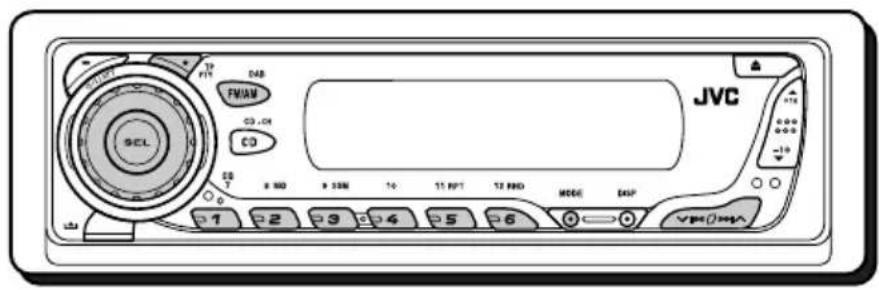
Control panel
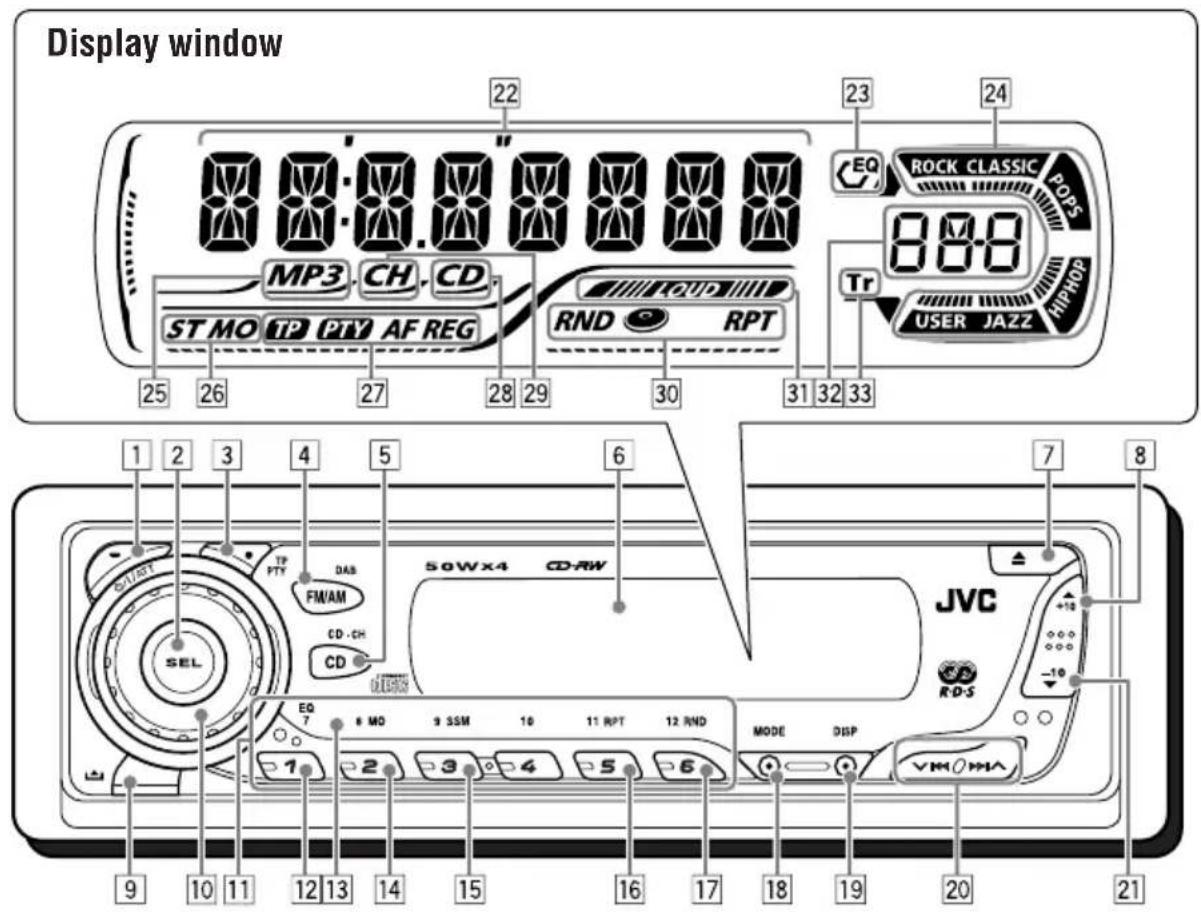
text_image
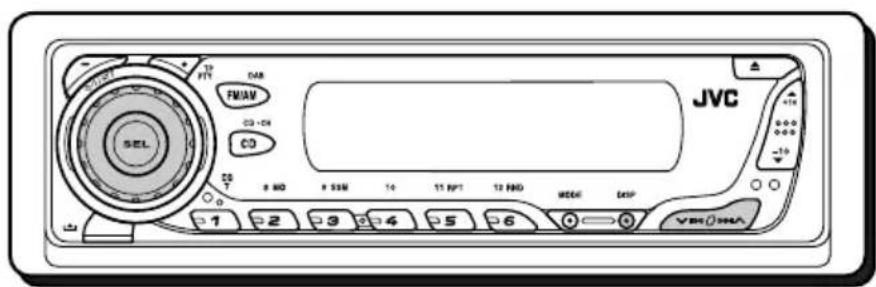
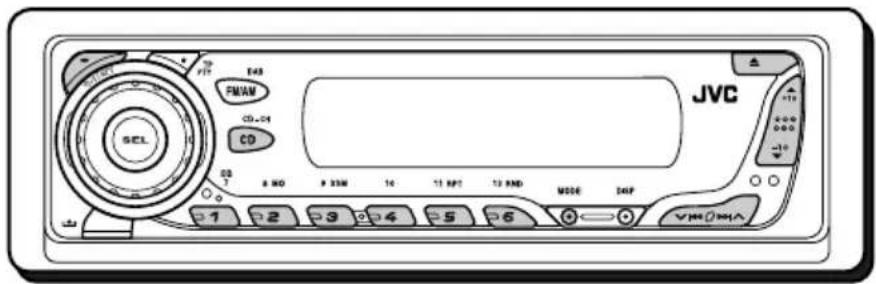
Display window 22 23 24 MP3 CH CD ST MO TP PTY AF REG RND RPT EQ ROCK CLASSIC POPS 800 Tr USER JAZZ HIPHOP 25 26 27 28 29 30 31 32 33 1 2 3 4 5 6 SUTY TP PTY DAS FM/AM CD-CH CD 50Wx4 CD-RW JVC RD-S EQ 7 8 MO 9 3SM 10 11 RPT 12 RND MODE DISP VMO HMA 1 2 3 4 5 6 9 10 11 12 13 14 15 16 17 18 19 20 211 (standby/on/attenuator) button
2 SEL (select) button
3 TP PTY (traffic programme/programme type) button
4 FM/AM DAB button
5 CD CD-CH (CD changer) button
6 Display window
7 ▲ (eject) button
8 ▲ (up) button +10 button
9 (control panel release) button
10 Control dial
11 Number buttons
12 EQ (equalizer) button
13 Remote sensor
- You can control this receiver with an optionally purchased remote controller.
14 MO (monaural) button
15 SSM (Strong-station Sequential Memory) button
16 RPT (repeat) button
17 RND (random) button
18 MODE button
19 DISP (display) button
20 ▼ |◀◀/▶▶| ∧ buttons
21 ▼ (down) button -10 button
Display window
22 Main display
23 EQ (equalizer) indicator
24 Sound mode (C-EQ: custom equalizer) indicators—ROCK, CLASSIC, POPS, HIP HOP, JAZZ, USER
- also works as level meter during play if the level meter is activated (see page 25).
25 MP3 indicator
- Lights up only when playing an MP3 disc on a JVC MP3-compatible CD changer.
26 Tuner reception indicators—ST (stereo), MO (monaural)
27 RDS indicators—TP, PTY, AF, REG
28 CD indicator
29 CH (CD changer) indicator
30 Playback mode/item indicators—RND (random), (disc), RPT (repeat)
31 LOUD (loudness) indicator
32 Source display Volume level indicator
33 Tr (track) indicator
text_image
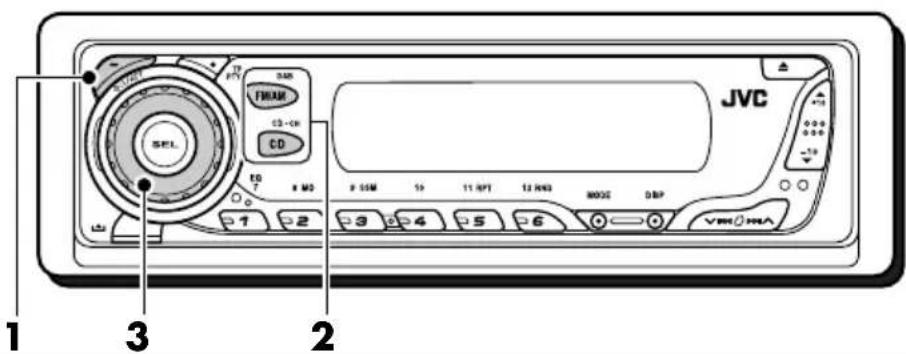
JVC 1 2 3 4 5 6 7 8 9 10 11 12 13 14 15 16 17 18 19 20 21 22 23 24 25 26 27 28 29 30 31 32 33 34 35 36 37 38 39 40 41 42 43 44 45 46 47 48 49 50 51 52 53 54 55 56 57 58 59 60 61 62 63 64 65 66 67 68 69 70 71 72 73 74 75 76 77 78 79 80Turning on the power
1 Turn on the power.
Note on One-Touch Operation:
When you select a source in step 2 below, the power automatically comes on. You do not have to press this button to turn on the power.
2 Select the source.
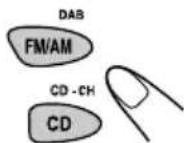
To operate the tuner (FM or AM), see pages 8 – 17.
To play a CD, see pages 18 – 20.
To operate the CD changer, see pages 27 - 30.
To operate the external component (LINE IN), see page 31.
To operate the DAB tuner, see pages 32 - 35.
3 Adjust the volume.
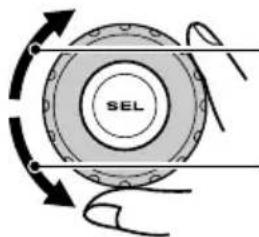
text_image
SELTo increase the volume
To decrease the volume
Volume level appears.
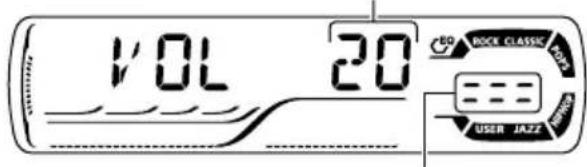
text_image
1'OL 20 BOCK CLASSIC MOZZ USER JAZZVolume level indicator
4 Adjust the sound as you want. (See pages 21 and 22.)
To drop the volume in a moment
Press ⬇ briefly while listening to any source. "ATT" starts flashing on the display, and the volume level will drop in a moment.
To resume the previous volume level, press the button briefly again.
- If you turn the control dial, you can also restore the sound.
To turn off the power
Press and hold Dior/AmBre than one second.
"SEE YOU" appears, then the unit turns off.
- If you turn off the power while listening to a disc, disc play will start from where playback has been stopped previously, next time you turn on the power.
CAUTION on Volume Setting:
Discs produce very little noise compared with other sources. If the volume level is adjusted for the tuner, for example, the speakers may be damaged by the sudden increase in the output level. Therefore, lower the volume before playing a disc and adjust it as required during playback.
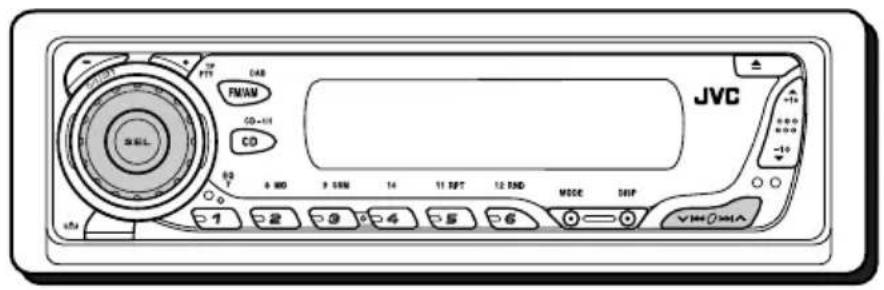
text_image
JVC 17 PTT CAB FM/AM CD-101 CD 80 8 MDD 9 SMM 14 11 RPT 12 END MODE SHIP 1 2 3 4 5 6 VDD:0.0mACanceling the display demonstration
When shipped from the factory, display demonstration has been activated, and starts automatically when no operations are done for about 20 seconds.
- It is recommended to cancel the display demonstration before you use the unit for the first time.
To cancel the display demonstration, follow the procedure below:
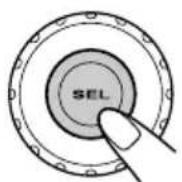
1 Press and hold SEL (select) for more than 2 seconds so that one of the PSM items appears on the display. (PSM: see pages 23 and 24.)
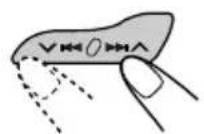
2 Select "DEMO" if not shown on the display.
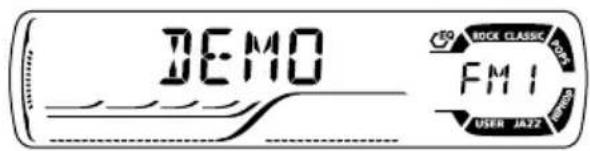
text_image
DEMO BOOT CLASSIC OFF FM1 USER JA223 Select "DEMO OFF."
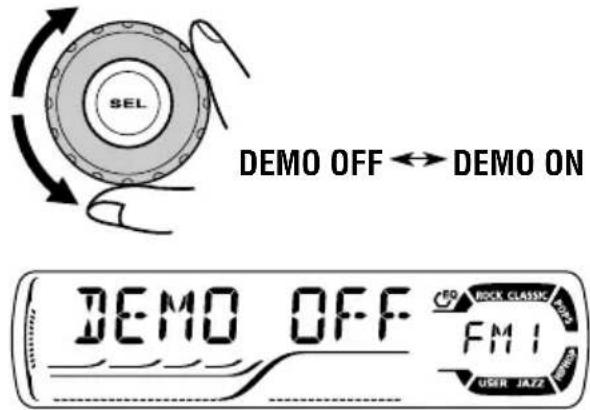
text_image
DEMO OFF ↔ DEMO ON DEMO OFF FMI RICK CLASSIC USER JAZZ4 Finish the setting.
To activate the display demonstration, repeat the same procedure and select "DEMO ON" in step 3.
text_image
JVC 10 FTT GAR FM/AV CD+DH CD 8 800 8 SSM 16 11 FFT 12 FWD WEDD EISP VBR/SHASetting the clock
You can also set the clock system to either 24 hours or 12 hours.
1 Press and hold SEL (select) for more than 2 seconds so that one of the PSM items appears on the display. (PSM: see pages 23 and 24.)
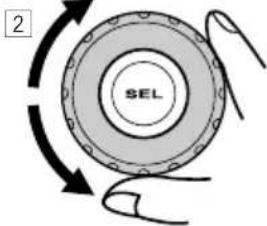
2 Set the hour.
1 Select "CLOCK H" (hour) if not shown on the display.
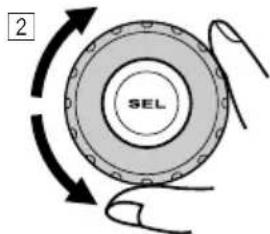
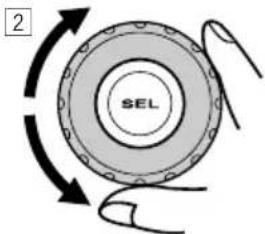
2Adjust the hour.
text_image
2 SEL3 Set the minute.
1 Select "CLOCK M" (minute).
2 Adjust the minute.
text_image
2 SEL4 Set the clock system.
1 Select "24H/12H."
2 Select "24H" or "12H."
text_image
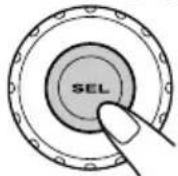
2 SEL5 Finish the setting.
To check the current clock time or change the display mode
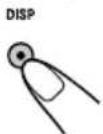
Press DISP (display) repeatedly. Each time you press the button, the display changes as follows:
- During AM and FM non-RDS Station operation:
Frequency Clock
• During FM RDS Station operation:
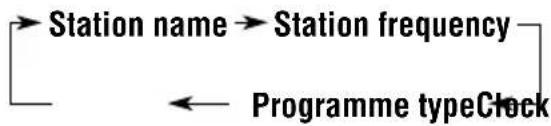
flowchart
graph LR
    A["Station name"] --> B["Station frequency"]
    B --> C["Programme typeClock"]
    C --> A
- During CD operation:
ClockElapsed playing
• During CD changer operation:

flowchart
graph TD
    A["Elapsed playing time"] --> B["ClockDisc number"]
    B --> C["End"]
- During external component operation:
LINE IN ←→ Clock
- During power off:
The power turns on and the clock time is shown for 5 seconds, then the power turns off.
text_image
JVC 0.00 +0.00 -10 +10 +10 +10 +10 +10 +10 +10 +10 +10 +10 +10 +10 +10 +10 +10 +10 +10 +10 +10 +10 +10 +10 +10 +10 +10 SCL T2 F11 DAB FM/AM CD, OK CD 8 MDD 8 SMM 14 11 NPT 12 RBD MODE EADP 1 2 3 4 5 6 7 8 9 10 11 12 13 14 15 16 17 18 19 20 21 22 23 24 25 26 27 28 29 30 31 32 33 34 35 36 37 38 39 40 41 42 43 44 45 46 47 48 49 50 51 52 53 54 55 56 57 58 59 60 61 62 63 64 65 66 67 68 69 70 71 72 73 74 75 76 77 78 79 80 81 82 83 84 85 86 87 88 89 90Listening to the radio
You can use either automatic searching or manual searching to tune in to a particular station.
Searching for a station automatically: Auto search
1 Select the band (FM1 - 3, AM).
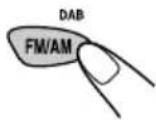
Each time you press the button, the band changes as follows:

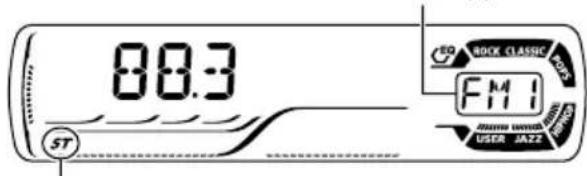
Selected band appears.
text_image
00:3 ST FMI RICH RICH RICH RICH RICH RICH RICH RICH RICH RICH RICH RICH RICH RICH RICH RICH RICH RICH RICH RICH RICH RICH RICH RICH RICH RICH RICH RICH RICH RICH RICH RICH RICH RICHLights up when receiving an FM stereo broadcast with sufficient signal strength.
Note:
This receiver has three FM bands (FM1, FM2, FM3). You can use any one of them to listen to an FM broadcast.
2 Start searching for a station.
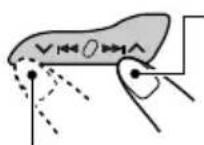
To search for stations of higher frequencies
To search for stations of lower frequencies
When a station is received, searching stops.
To stop searching before a station is received, press the same button you have pressed for searching.
Searching for a station manually: Manual search
1 Select the band (FM1 - 3, AM).
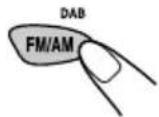
Each time you press the button, the band changes as follows:

Note:
This receiver has three FM bands (FM1, FM2, FM3). You can use any one of them to listen to an FM broadcast.
2 Press and hold ▶▶| or ◀◀ until “M” (manual) starts flashing on the display.
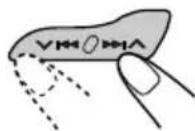
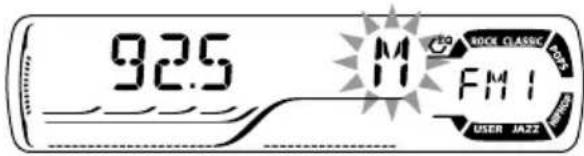
text_image
92.5 M FM1 BOOK CLASSIC F-03 R/W/03 USER JAZZ3 Tune in to a station you want while "M" (manual) is still flashing.
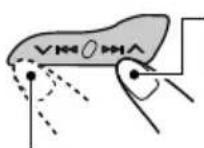
To tune in to stations of higher frequencies
To tune in to stations of lower frequencies
- If you release your finger from the button, the manual mode will automatically turns off after 5 seconds.
- If you hold down the button, the frequency keeps changing (in 50 kHz intervals for FM and 9 kHz for AM—MW/LW) until you release the button.
When an FM stereo broadcast is hard to receive:
text_image
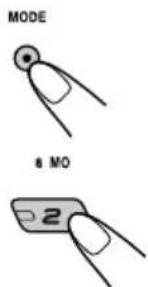
MODE 8 MO 21 Press MODE to enter the functions mode while listening to an FM stereo broadcast.
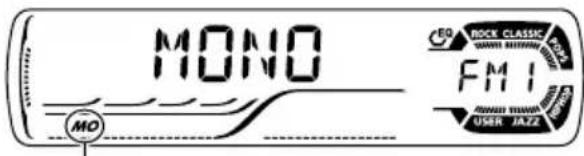
2 Press MO (monaural), while "MODE" is still flashing on the display, so that "MONO" appears on the display. Each time you press the button, monaural mode turns on and off alternately.
text_image
MONO MO EQ ROCK CLASSIC FMI USER JAZZMO (monaural) indicator
When the MO indicator is lit on the display, the sound you hear becomes monaural but the reception will be improved.
Storing stations in memory
You can use one of the following two methods to store broadcasting stations in memory.
• Automatic preset of FM stations: SSM (Strong-station Sequential Memory)
- Manual preset of both FM and AM stations
FM station automatic preset: SSM
You can preset 6 local FM stations in each FM band (FM1, FM2, and FM3).
1 Select the FM band (FM1 – 3) you want to store FM stations into.
Each time you press the button, the band changes as follows:

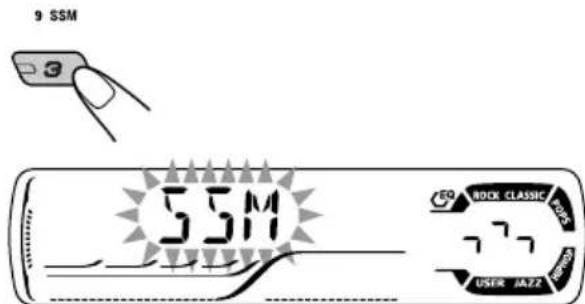
2 Press MODE to enter the functions mode.

3 Press and hold SSM for about 2 seconds.
text_image
9 SSM SSM EQQ ROCK CLASSIC 777 USER JAZZ“SSM” flashes, then disappears when automatic preset is over.
Local FM stations with the strongest signals are searched and stored automatically in the band number you have selected (FM1, FM2, or FM3). These stations are preset in the number buttons —No.1 (lowest frequency) to No.6 (highest frequency).
When automatic preset is over, the station stored in number button 1 will be automatically tuned in.
Manual preset
You can preset up to 6 stations in each band (FM1, FM2, FM3, and AM) manually.
Ex.: Storing FM station of 92.5 MHz into the preset number 1 of the FM1 band.
1 Select the band (FM1 – 3, AM) you want to store stations into (in this example, FM1).
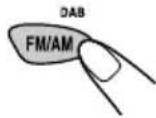
Each time you press the button, the band changes as follows:

2 Tune in to a station (in this example, of 92.5 MHz).
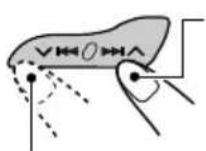
To tune in to stations of higher frequencies
To tune in to stations of lower frequencies
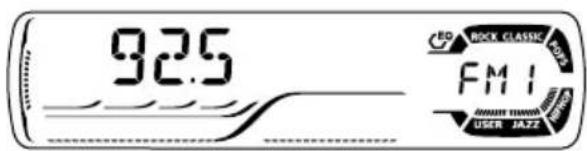
text_image
92.5 ED ROCK CLASSIC FM1 DARK JAZ3 Press and hold the number button (in this example, 1) for more than 2 seconds.

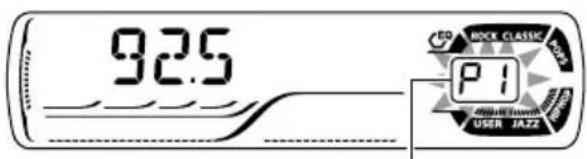
text_image
92.5 P1 RICK CLASSIC USER JAZZPreset number flashes for a while.
4 Repeat the above procedure to store other stations into other preset numbers.
Notes:
- A previously preset station is erased when a new station is stored in the same preset number.
- Preset stations are erased when the power supply to the memory circuit is interrupted (for example, during battery replacement). If this occurs, preset the stations again.
Tuning in to a preset station
You can easily tune in to a preset station. Remember that you must store stations first. If you have not stored them yet, see "Storing stations in memory" on pages 9 and 10.
1 Select the band (FM1 - 3, AM).
Each time you press the button, the band changes as follows:

2 Select the number (1 - 6) for the preset station you want.
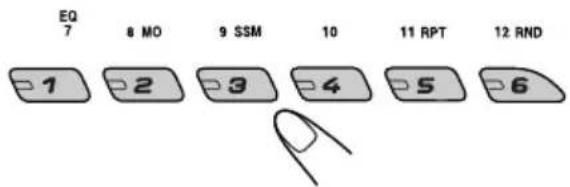
text_image
EQ 7 8 MO 9 SSM 10 11 RPT 12 RND 1 2 3 4 5 6What you can do with RDS
RDS (Radio Data System) allows FM stations to send an additional signal along with their regular programme signals. For example, the stations send their station names, as well as information about what type of programme they broadcast, such as sports or music, etc.
Another advantage of RDS function is called "Enhanced Other Networks." By using the Enhanced Other Networks data sent from a station, you can tune in to a different station of a different network broadcasting your favorite programme or traffic announcement while listening to another programme or to another source such as CD.
By receiving the RDS data, this unit can do the following:
- Tracing the same programme automatically (Network-Tracking Reception)
- Standby Reception of TA (Traffic Announcement) or your favorite programme
• PTY (Programme Type) search - Programme search
• And some other functions
Tracing the same programme automatically (Network-Tracking Reception)
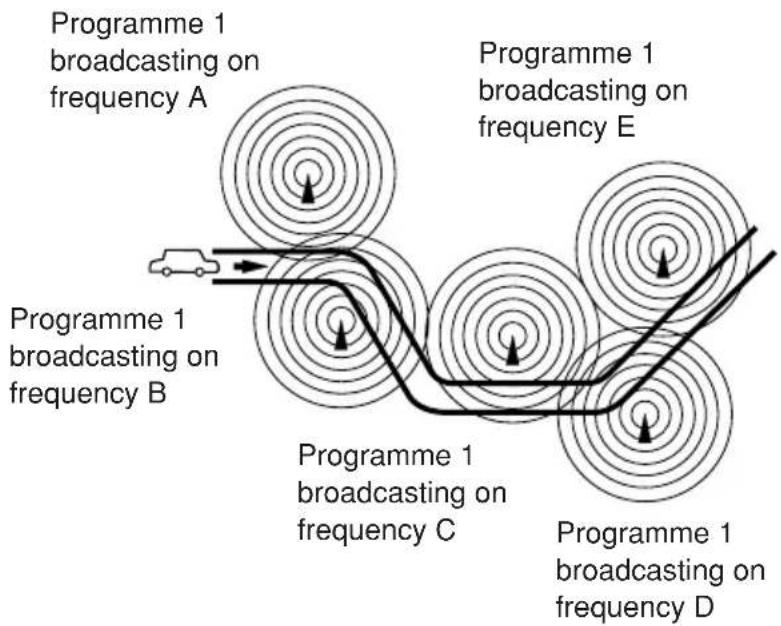
When driving in an area where FM reception is not good, the tuner built in this unit automatically tunes in to another RDS station, broadcasting the same programme with stronger signals. So, you can continue to listen to the same programme in its finest reception, no matter where you drive. (See the illustration on page 17.)
Two types of the RDS data are used to make Network-Tracking Reception work correctly —PI (Programme Identification) and AF (Alternative Frequency).
Without receiving these data correctly from the RDS station you are listening to, Network-Tracking Reception will not operate.
To use Network-Tracking Reception
You can select the different modes of network-tracking reception to continue listening to the same programme in its finest reception.
When shipped from the factory, "AF" is selected.
- AF: Network-Tracking Reception is activated with Regionalization set to "off."
With this setting, the unit switches to another station within the same network when the received signals from the current station become weak. (In this mode, the programme may differ from the one currently received.)
The AF indicator lights up but the REG indicator does not.
- AF REG: Network-Tracking Reception is activated with Regionalization set to "on."
With this setting, the unit switches to another station, within the same network, broadcasting the same programme when the received signals from the current station become weak.
Both the AF indicator and the REG indicator light up.
• OFF: Network-Tracking Reception is deactivated.
Neither the AF indicator nor the REG indicator lights up.

text_image
92.5 AF REG RCK CLASSIC FMI USER JAZZAF and REG indicators
Note:
If a DAB tuner is connected and Alternative Reception (for DAB services) is activated, Network-Tracking Reception is also activated ("AF") automatically. On the other hand, Network-Tracking Reception cannot be deactivated without deactivating Alternative Reception. (See page 35.)
1 Press and hold SEL (select) for more than 2 seconds so that one of the PSM items appears on the display. (PSM: see pages 23 and 24.)
2 Select "AF-REG" (alternative frequency/regionalization reception) if not shown on the display.
3 Select the desired mode—"AF," "AF REG," or "OFF."
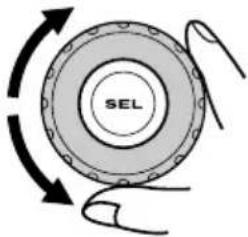
text_image
SEL4 Finish the setting.
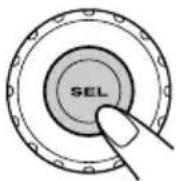
Using TA Standby Reception
TA Standby Reception allows the unit to switch temporarily to Traffic Announcement (TA) from the current source (another FM station, CD, or other connected components).
• TA Standby Reception will not work if you are listening to an AM station.
Press TP PTY to activate TA Standby Reception.
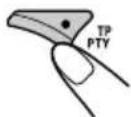
■When the current source is FM, the TP indicator either lights up or flashes.
- If the TP indicator lights up, TA Standby Reception is activated. If a station starts broadcasting a traffic announcement, "TRAFFIC" appears on the display, and this unit automatically tunes in to the station. The volume changes to the preset TA volume level (see page 16) and the traffic announcement can be heard.
- If the TP indicator flashes, TA Standby Reception is not yet activated since the station being received does not provide the signals used for TA Standby Reception. To activate TA Standby Reception, you need to tune in to another station providing these signals. Press ▶▶| ∧ or √ |◀◀ to search for such a station.
When a station providing these signals is tuned in, the TP indicator stops flashing and remains lit. Now TA Standby Reception is activated.
■When the current source is other than FM, the TP indicator lights up.
If a station starts broadcasting a traffic announcement, "TRAFFIC" appears on the display, and this unit automatically changes the source and tunes in to the station.
To deactivate the TA Standby Reception, press TP PTY again. The TP indicator disappears.
Using PTY Standby Reception
PTY Standby Reception allows the unit to switch temporarily to your favorite programme (PTY: Programme Type) from the current source (another FM station, CD, or other connected components).
- PTY Standby Reception will not work if you are listening to an AM station.
You can select your favorite programme type for PTY Standby Reception.
When shipped from the factory, PTY Standby Reception is turned off. ("OFF" is selected for PTY Standby Reception.)
1 Press and hold SEL (select) for more than 2 seconds so that one of the PSM items appears on the display. (PSM: see pages 23 and 24.)
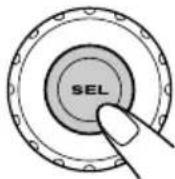
2 Select "PTY-STBY" (standby) if not shown on the display.
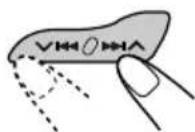
3 Select one of the twenty-nine PTY codes. (See page 17.)
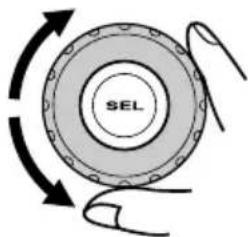
text_image
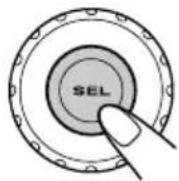
SELSelected code name appears on the display and is stored into memory.
4 Finish the setting.
■When the current source is FM, the PTY indicator either lights up or flashes.
- If the PTY indicator lights up, PTY Standby Reception is activated.
If a station starts broadcasting the selected PTY programme, this unit automatically tunes in to the station. - If the PTY indicator flashes, PTY Standby Reception is not yet activated since the station being received does not provide the signals used for PTY Standby Reception.
To activate PTY Standby Reception, you need to tune in to another station providing these signals. Press ▶▶| ∧ or √ |◀◀ to search for such a station.
When a station providing these signals is tuned in, the PTY indicator stops flashing and remains lit. Now PTY Standby Reception is activated.
■When the current source is other than FM, the PTY indicator lights up.
If a station starts broadcasting the selected PTY programme, this unit automatically changes the source and tunes in to the station.
To deactivate the PTY Standby Reception, select "OFF" in step 3 on the left column. The PTY indicator disappears.
Searching your favorite programme
You can search any one of the PTY codes. In addition, you can store your 6 favorite programme types in the number buttons. When shipped from the factory, the following 6 programme types have been stored in the number buttons (1 to 6).
To store your favorite programme types, see below.
To search your favorite programme type, see page 15.
| 1 | 2 | 3 |
| POP M | ROCK M EASY M | |
| 4 | 5 | 6 |
| CLASSICS | AFFAIRS | VARIED |
To store your favorite programme types
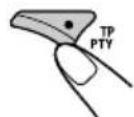
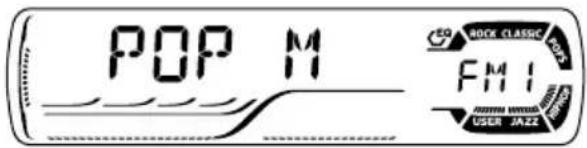
1 Press and hold TP PTY for more than 2 seconds while listening to an FM station.
text_image
POP M E0 ROCK CLASSIC FMI USER JAZZThe last selected PTY code appears.
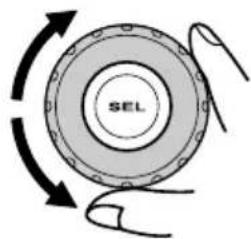
2 Select one of the twenty-nine PTY codes. (See page 17.)
text_image
转速LSelected code name appears on the display.
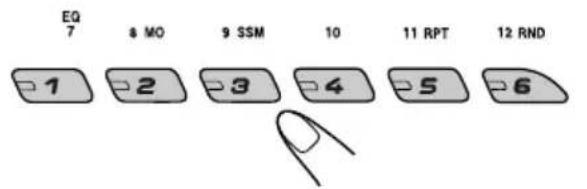
3 Press and hold the number button for more than 2 seconds to store the PTY code selected into the preset number you want.
text_image
EQ 7 8 MO 9 SSM 10 11 RPT 12 RND 1 2 3 4 5 6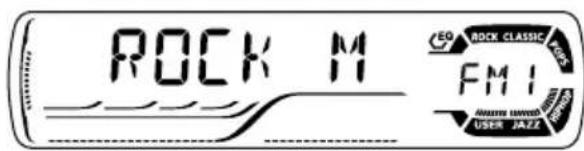
text_image
ROCK M EQ ROCK CLASSIC FMI USER JAZZ
Selected PTY code and "MEMORY" appear alternately for a while.
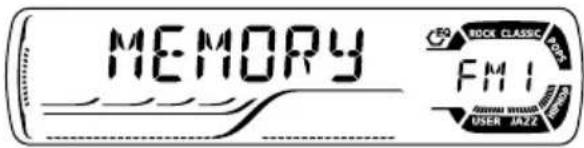
text_image
MEMORY FMI USER JAZ24 Press and hold TP PTY for more than 2 seconds to exit from this mode.
To search your favorite programme type
1 Press and hold TP PTY for more than 2 seconds while listening to an FM station.

text_image
TP PTY POP M CEO ROCK CLASSIC FMI USER JAZZThe last selected PTY code appears.
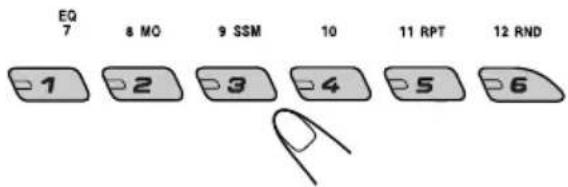
2 To select one of your favorite programme type
text_image
EQ 7 8 MO 9 SSM 10 11 RPT 12 RND -1 -2 -3 -4 -5 -6or
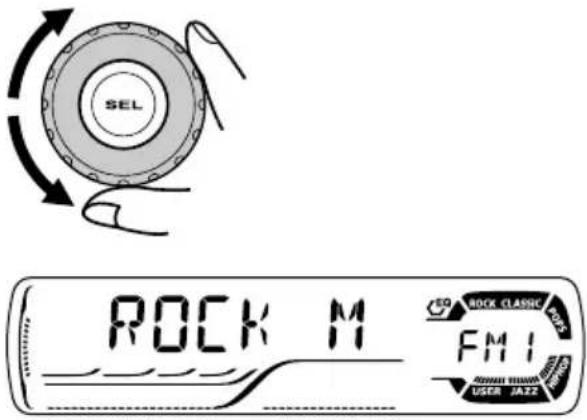
To select any one of the twenty-nine PTY codes
text_image
SEL ROCK M SO BOCK CLASSIC WORKS FMI USER JAZZEx.: When "ROCK M" is selected
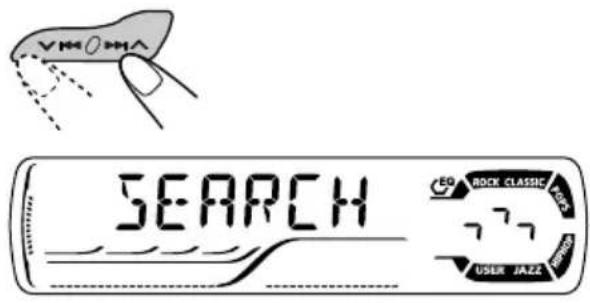
3 Press ▶▶| ∧ or ∨ ◀◀◀ to start PTY search for your favorite programme.
text_image
VMOMA SEARCH EO ROCK CLASSIC WORK 777 USER JAZZ- If there is a station broadcasting a programme of the same PTY code as you selected, that station is tuned in.
- If there is no station broadcasting a programme of the same PTY code as you selected, the station will not change.
Note:
In some areas, the PTY search will not work correctly.
Other convenient RDS functions and adjustments
Automatic selection of the station when using the number buttons
Usually when you press the number button, the preset station is tuned in.
However, when the preset station is an RDS station, something different will happen. If the signals from that preset station are not sufficient for good reception, this unit, using the AF data, tunes in to another frequency broadcasting the same programme as the original preset station is broadcasting. (Programme search)
- The unit takes some time to tune in to another station using programme search.
To activate programme search, follow the procedure below.
- See also “Changing the general settings (PSM)” on page 23.
1 Press and hold SEL (select) for more than 2 seconds so that one of the PSM items appears on the display.
2 Press ▶▶| ∧ or √ |◀◀ to select "P(Programme)-SEARCH."
3 Turn the control dial clockwise to select "ON." Now programme search is activated.
4 Press SEL (select) to finish the setting.
To cancel programme search, repeat the same procedure and select "OFF" in step 3 by turning the control dial counterclockwise.
Setting the TA volume level
You can preset the volume level for TA Standby Reception. When a traffic programme is received, the volume level automatically changes to the preset level.
- See also "Changing the general settings (PSM)" on page 23.
1 Press and hold SEL (select) for more than 2 seconds so that one of the PSM items appears on the display.
2 Press ▶▶▶ I ∧ or √ |◀◀ to select "TA VOL" (volume).
3 Turn the control dial to set to the desired volume.
You can set it from "VOL 00" to "VOL 30" or "VOL 50" (depending on the amplifier gain control setting: see page 25).
4 Press SEL (select) to finish the setting.
Automatic clock adjustment
When shipped from the factory, the clock built in this unit is set to be readjusted automatically using the CT (Clock Time) data in the RDS signal.
If you do not want to use automatic clock adjustment, follow the procedure below.
- See also "Changing the general settings (PSM)" on page 23.
1 Press and hold SEL (select) for more than 2 seconds so that one of the PSM items appears on the display.
2 Press ▶▶▶ I ∧ or √ ◀◀◀ to select "AUTO ADJ" (adjustment).
3 Turn the control dial counterclockwise to select "OFF."
Now automatic clock adjustment is canceled.
4 Press SEL (select) to finish the setting.
To reactivate clock adjustment, repeat the same procedure and select "ON" in step 3 by turning the control dial clockwise.
Note:
You must stay tuned to the same station for more than 2 minutes after setting "AUTO ADJ" to "ON."
Otherwise, the clock time will not be adjusted. (This is because the unit takes up to 2 minutes to capture the CT data in the RDS signal.)
PTY codes
| NEWS: News | SOCIAL: | Programmes on social activities |
| AFFAIRS: Topical programmes expanding on current news or affairs | RELIGION: | Programmes dealing with any aspect of belief or faith, or the nature of existence or ethics |
| INFO: Programmes which impart advice on a wide variety of topics | ||
| SPORT: Sport events | PHONE IN: | Programmes where people can express their views either by phone or in a public forum |
| EDUCATE: Educational programmes | ||
| DRAMA: Radio plays | ||
| CULTURE: Programmes on national or regional culture | TRAVEL: | Programmes about travel destinations, package tours, and travel ideas and opportunities |
| SCIENCE: Programmes on natural science and technology | ||
| VARIED: Other programmes like comedies or ceremonies | LEISURE: | Programmes concerned with recreational activities such as gardening, cooking, fishing, etc. |
| POP M: Pop music | ||
| ROCK M: Rock music | ||
| EASY M: Easy-listening music | JAZZ: Jazz music | |
| LIGHT M: Light music | COUNTRY: | Country music |
| CLASSICS: Classical music | NATION M: | Current popular music from another nation or region, in that country's language |
| OTHER M: Other music | ||
| WEATHER: Weather information | ||
| FINANCE: Reports on commerce, trading, the Stock Market, etc. | OLDIES: | Classic pop music |
| CHILDREN: Entertainment programmes for children | FOLK M: | Folk music |
| DOCUMENT: | Programmes dealing with factual matters, presented in an investigative style | |
The same programme can be received on different frequencies.
flowchart
graph TD
    A["Programme 1 broadcasting on frequency A"] --> B["Wave propagation pattern"]
    B --> C["Programme 1 broadcasting on frequency C"]
    C --> D["Wave propagation pattern"]
    D --> E["Programme 1 broadcasting on frequency E"]
    E --> F["Wave propagation pattern"]
    F --> G["Programme 1 broadcasting on frequency D"]
    style A fill:#f9f,stroke:#333
    style E fill:#f9f,stroke:#333
    style G fill:#f9f,stroke:#333
text_image
JVC SEL 17 +12 FM/AM CD-04 CD 8 NO 9 35M 14 12 RP? 12 RND MODE 240F 1 2 3 4 5 6 7 VM/0MAPlaying a CD
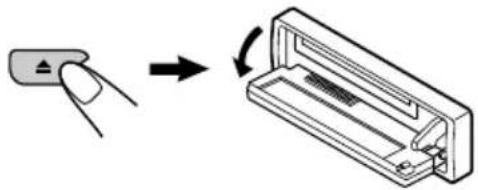
1 Open the control panel.
natural_image
Diagram showing a finger pressing a button next to a device with a curved arrow indicating rotation (no text or symbols present)Note on One-Touch Operation:
When a CD is already in the loading slot, pressing CD CD-CH turns on the unit and starts playback automatically.
2 Insert a CD into the loading slot.
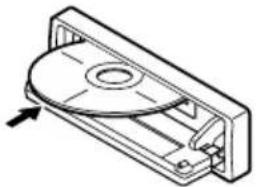
natural_image
Technical line drawing of a mechanical disc assembly with an arrow indicating direction (no text or symbols)The unit turns on, draws the CD and starts playback automatically.
3 Close the control panel by hand.
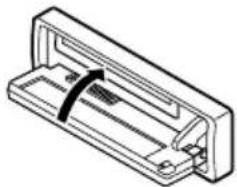
natural_image
Isometric line drawing of a rectangular electronic component with a black strap and internal slots (no text or symbols)All tracks will be played repeatedly until you stop playback.
The display changes to show the following:
Current source indication
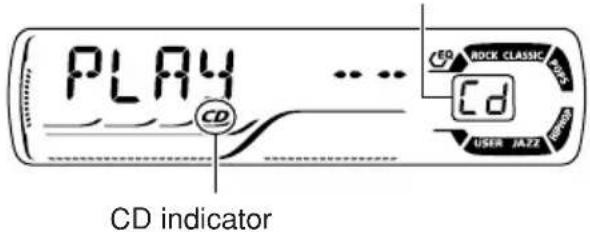
text_image
PLAY CD CD ROCK CLASSIC VOLK CD USER JAZZ CD indicator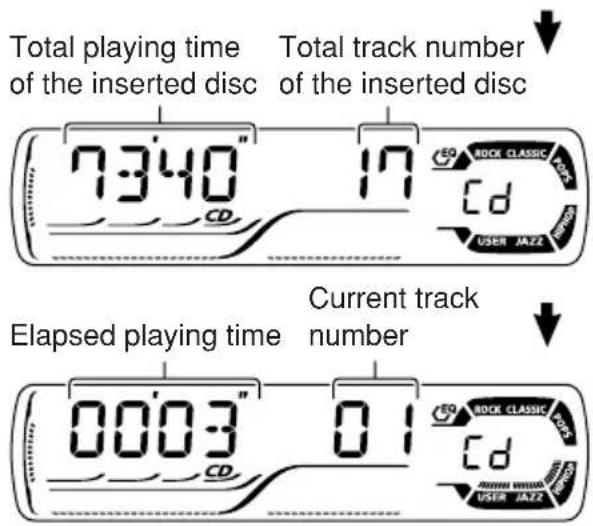
text_image
Total playing time of the inserted disc 7:340" 17 Total track number of the inserted disc ECD BCK CLASSIC CCK Cd USER JAZZ Elapsed playing time Current track number 0003" 01 ECD BCK CLASSIC CCK Cd USER JAZZNotes:
- When a CD is inserted upside down, the CD automatically ejects (if the control panel is open). If the control panel is closed, the source changes to the previously selected source, "PLEASE" and "EJECT" appear alternately on the display.
- If there is no CD in the loading slot, you cannot select CD as the source. "NO DISC" appears on the display.
To stop play and eject the CD
Press ▲.
CD play stops and the control panel flips down. The CD automatically ejects from the loading slot. The source changes to the previously selected source.
- If you change the source, CD play also stops (without ejecting the CD). Next time you select "CD" as the source, CD play starts from where playback has been stopped previously.
Notes:
- If the ejected CD is not removed for about 15 seconds, the CD is automatically inserted again into the loading slot to protect it from dust. (CD play will not start this time.) - You can eject the CD even when the unit is turned off.
Locating a track or a particular portion on a CD
To fast-forward or reverse the track
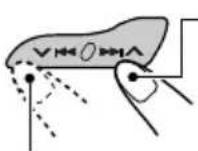
Press and hold ▶▶▶ I ▲while playing a CD, to fast-forward the track.
Press and hold ⚡◀, while playing a CD, to reverse the track.
To go to the next or previous tracks
natural_image
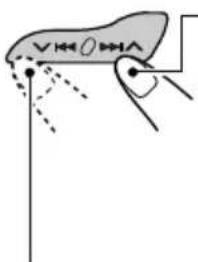
Simple line drawing of a hand holding a pen or stylus with no text or symbolsPress ▶▶▶ I ▶ briefly, while playing a CD, to go ahead to the beginning of the next track. Each time you press the button consecutively, the beginning of the next tracks is located and played back.
Press ▼◀ briefly, while playing a CD, to go back to the beginning of the current track. Each time you press the button consecutively, the beginning of the previous tracks is located and played back.
To go to a particular track directly
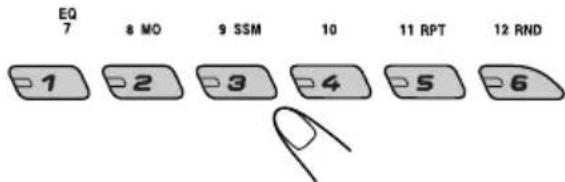
Press the number button corresponding to the track number to start its playback.
text_image
EQ 7 8 MO 9 SSM 10 11 RPT 12 RND 1 2 3 4 5 6- To select a track number from 1 – 6: Press 1 (7) – 6 (12) briefly. - To select a track number from 7 – 12: Press and hold 1 (7) – 6 (12) for more than one second.
To go to a track quickly (+10 and -10 buttons)
1 Press MODE to enter the functions mode while playing a CD.
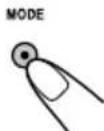
2 Press +10 or -10.
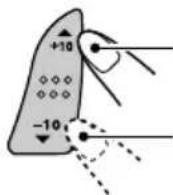
To skip 10 tracks* forwards to the last track
To skip 10 tracks* backwards to the first track
* First time you press +10 or -10 button, the track skips to the nearest higher or lower track with a track number of multiple ten (ex. 10th, 20th, 30th).
Then each time you press the button, you can skip 10 tracks (see "How to use the +10 and -10 buttons" on page 20).
• After the last track, the first track will be selected, and vice versa.
How to use the +10 and -10 buttons
• Ex. 1: To select track number 32 while playing track number 6
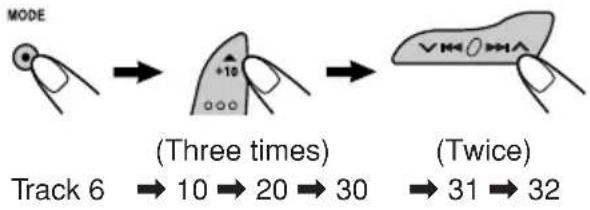
flowchart
graph LR
    A["Hand at Track 6"] --> B["Three times: +10 → 30"]
    B --> C["Target: V→O→A → 31→32"]
- Ex. 2: To select track number 8 while playing track number 36
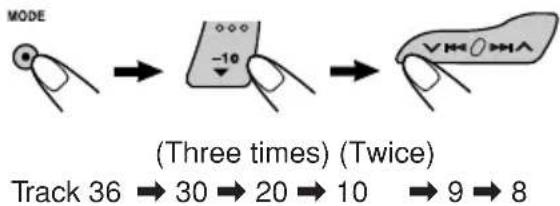
text_image
MODE (Three times) (Twice) Track 36 → 30 → 20 → 10 → 9 → 8Selecting CD playback modes
To play back tracks at random (Disc Random Play)
You can play back all tracks on the CD at random.

text_image
MODE 12 RND 61 Press MODE to enter the functions mode while playing a CD.
2 Press RND (random), while "MODE" is still flashing on the display, so that "DISC RND" appears on the display. Each time you press the button, disc random play mode turns on and off alternately.
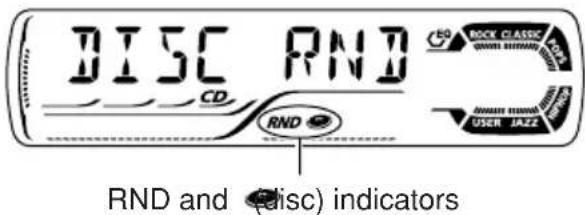
text_image
DISC RND CD RND RND and (disc) indicators RCK CLASSIC WWW.JAZZ USER JAZZWhen disc random play is turned on, the RND and indicators light up on the display. A track randomly selected starts playing.
To play back tracks repeatedly (Track Repeat Play)
You can play back the current track repeatedly.
text_image
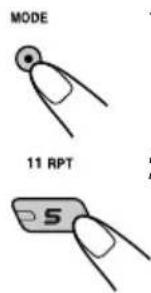
MODE 11 RPT1 Press MODE to enter the functions mode while playing a CD.
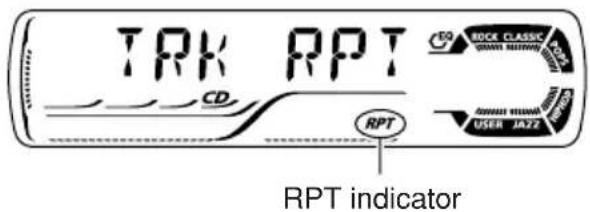
2 Press RPT (repeat), while "MODE" is still flashing on the display, so that "TRK RPT" appears on the display. Each time you press the button, track repeat play mode turns on and off alternately.
text_image
TRK RPT CD RPT RPT indicatorWhen track repeat play is turned on, the RPT indicator lights up on the display. The current track starts playing repeatedly.
Prohibiting CD ejection
You can prohibit CD ejection and can lock a CD in the loading slot.
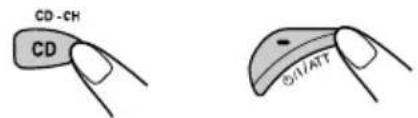
While pressing CD CD-CH, press and hold Ⓒ/1/ATT for more than 2 seconds.
text_image
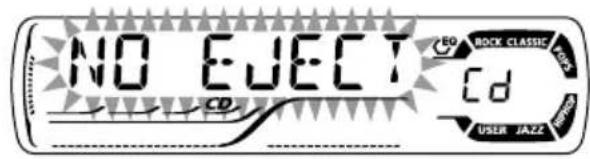
CD-CH CD Ø11ATT"NO EJECT" flashes on the display for about 5 seconds, and the CD is locked and cannot be ejected.
text_image
NO ELECT C0 C0 C0 RACK BLACK JAZZ USER JAZZTo cancel the prohibition and unlock the CD
While pressing CD CD-CH, press and hold Ⓗ/1/ATT again for more than 2 seconds.
"EJECT OK" flashes on the display for about 5 seconds, and the CD is unlocked.
Selecting preset sound modes (C-EQ: custom equalizer)
You can select a preset sound mode (C-EQ: custom equalizer) suitable to the music genre.
- There is a time limit in doing the following procedure. If the setting is canceled before you finish, start from step 1 again.
1 Press MODE to enter the functions mode.

2 Press EQ (equalizer) while "MODE" is still flashing on the display.
You can confirm the current sound mode.
3 Select the sound mode you want.
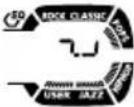
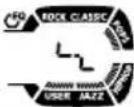
Each time you press the button, the sound modes change as follows:
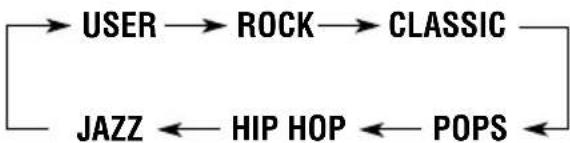
flowchart
graph LR
    A["USER"] --> B["ROCK"] --> C["CLASSIC"]
    D["JAZZ"] <--_E["HIP HOP"] <--_F["POPS"]
| USER | ROCK | |
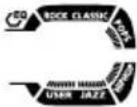 |  |  |
| JAZZ | CLASSIC | |
 |  | |
| HIP HOP | POPS | |
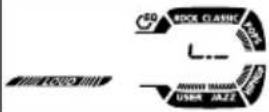 | 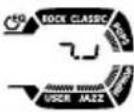 | |
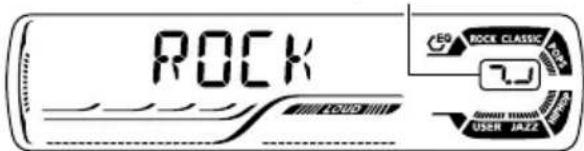
Indication pattern changes for each sound mode except for "USER."
text_image
ROCK 7.0 RICHEN RICHEN RICHEN RICHEN RICHEN RICHEN RICHEN RICHEN RICHEN RICHEN RICHEN RICHEN RICHEN RICHEN RICHEN RICHEN RICHEN RICHEN RICHEN RICHEN RICHEN RICHEN RICHEN RICHEN RICHEN RICHN RICHN RICHN RICHN RICHN RICHN RICHN RICHN RICHN RICHN RICHN RICHN RICHN RICHN RICHN RICHN RICHN RICHN RICHN RICHN RICHN RICHN RICHN RICHN RICHN RICH N RICH N RICH N RICH N RICH N RICH N RICH N RICH N RICH N RICH N RICH N RICH N RICH N RICH N RICH N RICH N RICH N RICH N RICH N RICH N RICH N RICH N RICH N RICH N RICH N RICH M RICH M RICH M RICH M RICH M RICH M RICH M RICH M RICH M RICH M RICH M RICH M RICH M RICH M RICH M RICH M RICH M RICH M RICH M RICH M RICH M RICH MEx.: When you select "ROCK"
| Indication | For: Preset values | ||
| BAS T | TRE LOUD | ||
| USER (Flat sound) 00 00 OFF | |||
| ROCK Rock or +03 +01 ON disco music | |||
| CLASSIC | Classical music | +01 -02 | OFF |
| POPS Light music +04 +01 | OFF | ||
| HIP HOP | Funk or rap music | +02 | 00 ON |
| JAZZ | Jazz music | +02 +03 | OFF |
Note: You can adjust each sound mode to your preference. Once you make an adjustment, it is automatically stored for the currently selected sound mode. See "Adjusting the sound" on page 22.
Adjusting the sound
You can adjust the sound characteristics to your preference.
1 Select the item you want to adjust.
Each time you press the button, the adjustable items change as follows:

flowchart
graph LR
    A["BAS (bass)"] --> B["TRE (treble)"]
    B --> C["FAD (fader)"]
    C --> D["BAL (balance)"]
    D --> E["LOUD (loudness)"]
    E --> F["VOL (volume)"]
    F --> A
| Indication To do: Range | ||
| BAS*1 | Adjust the bass. -06 (min.)|+06 (max.) | |
| TRE*1 | Adjust the treble. -06 (min.)|+06 (max.) | |
| FAD*2 | Adjust the front R06 (Rear only)and rear speaker |balance. F06 (Front only) | |
| BAL Adjust | the left L06 (Left only)and right speaker |balance. R06 (Right only) | |
| LOUD*1 | Boost low andhigh frequenciesto produce a well-balanced soundat low volumelevel. | LOUD ON|LOUD OFF |
| VOL*3 | Adjust the volume. 00 (min.)|30 or 50 (max.)*4 | |
*1 When you adjust the bass, treble, or loudness, the adjustment you have made is stored for the currently selected sound mode (C-EQ) including "USER."
^2 If you are using a two-speaker system, set the fader level to “00.”
*3 Normally the control dial works as the volume control. So you do not have to select "VOL" to adjust the volume level.
^4 Depending on the amplifier gain control setting. (See page 25 for details.)
2 Adjust the setting.
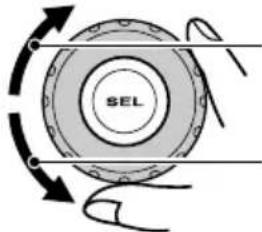
text_image
SELTo increase the level or turn on the loudness
To decrease the level or turn off the loudness
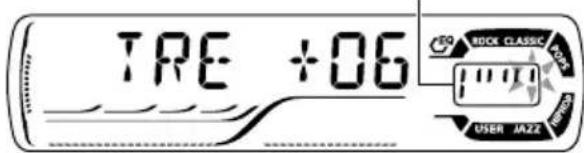
Indication pattern changes as you adjust the bass or treble.
text_image
TRE +06 RICK CLASSIC 10000 USER JAZZEx. 1: When you adjust "TRE" (treble)
text_image
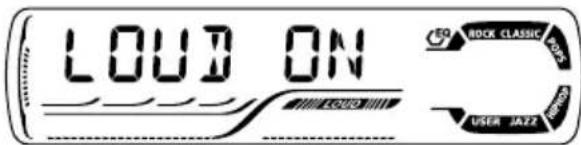
LOUD ON RCK CLASSIC USER JAZZEx. 2: When you turn on the loudness
3 Repeat steps 1 and 2 to adjust the other items.
To reset each sound mode to the factory settings, repeat the same procedure and reassign the preset values listed in the table on page 21.
Changing the general settings (PSM)
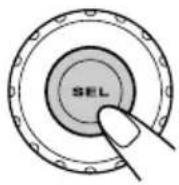
You can change the items listed in the table below and on page 24 by using the PSM (Preferred Setting Mode) control.
Basic Procedure
1 Press and hold SEL (select) for more than 2 seconds so that one of the PSM items appears on the display. (See below and page 24.)
2 Select the PSM item you want to adjust.
3 Adjust the PSM item selected.
text_image
SEL4 Repeat steps 2 and 3 to adjust the other PSM items if necessary.
5 Finish the setting.
Preferred Setting Mode (PSM) items
- For detailed operations of each PSM items, refer to the pages listed in the table.
| Indications Selectable values/items | Factory-preset settings page | See | ||
| DEMO Display demonstration | DEMO OFF | DEMO ON | DEMO ON | 6 |
| CLOCK H Hour adjustment | 0 — 23 (1 — 12) | 0 (0:00) | 7 | |
| CLOCK M Minute adjustment | 00 — 59 | 00 (0:00) | ||
| 24H/12H 24/12-hour time display | 12H 24H | 24H | 7 | |
| AUTO ADJ Automatic clock setting | OFF ON | ON | 16 | |
| AF-REG Alternative frequency/Regionalization reception | AF ↔ AF REG↑↓ OFF*1 ↑ | AF 11, 12 | ||
*1 Displayed only when the "DAB AF" is set to "OFF."
| Indications | Selectable values/items | Factory-preset settings | See page | |
| PTY-STBY PTY standby | OFF → 29 programme types (see page 17)↑ | OFF | 13 | |
| TA VOL Traffic announcement volume | VOL 00 — VOL 30 or 50*2 | VOL 20 | 16 | |
| P-SEARCH Programme search | OFF ON | OFF | 16 | |
| DAB AF*3 Alternative frequency search | AF OFF AF | ON | AF ON | 35 |
| DAB VOL*3 DAB volume adjustment | VOL -12 — VOL 12 | VOL 00 | 35 | |
| LEVEL Level display | OFF | ON | ON | 25 |
| DIMMER Dimmer mode | AUTO ↔ OFF↑→ ON ←↑ | AUTO 25 | ||
| TEL Telephone muting | OFF ↔ MUTING 1↑→ MUTING 2 ←↑ | OFF | 25 | |
| EXT IN*4 External component | CHANGER LINE IN CHANGER 25 | |||
| AMP GAIN Amplifier gain control | LOW PWR | HIGH PWR | HIGH PWR | 25 |
^2 Depending on the amplifier gain control setting. (See page 25 for details.)
^3 Displayed only when the DAB tuner is connected.
*4 Displayed only when one of the following sources is selected—FM, AM, and CD.
To select the level meter—LEVEL
You can activate or deactivate the level meter according to your preference.
When shipped from the factory, level meter is activated.
• ON: Shows the audio level indicator.
- OFF: Cancels the audio level indicator; sound mode indicator is shown.
To select the dimmer mode—DIMMER
When you turn on the car headlights, the display automatically dims (Auto Dimmer).
When shipped from the factory, Auto Dimmer mode is activated.
• AUTO: Activates Auto Dimmer.
• OFF: Cancels Auto Dimmer.
• ON: Always dims the display.
Note:
Auto Dimmer equipped for this unit may not work correctly on some vehicles, particularly on those having a control dial for dimming.
In this case, set the dimmer mode to "ON" or "OFF."
To select the telephone muting—TEL
This mode is used when a cellular phone system is connected. Depending on the phone system used, select either "MUTING 1" or "MUTING 2" whichever mutes the sounds from this unit.
When shipped from the factory, this mode is deactivated.
- MUTING 1: Select if this setting can mute the sounds.
- MUTING 2: Select if this setting can mute the sounds.
• OFF: Cancels the telephone muting.
To select the external component to use —EXT IN
You can connect the external component to the CD changer jack on the rear using the Line Input Adapter KS-U57 (not supplied).
To use the external component as the playback source through this unit, you need to select which component—CD changer or external component—to use.
When shipped from the factory, CD changer is selected as the external component.
- CHANGER: To use the CD changer.
• LINE IN: To use the external component other than CD changer.
Note:
For connecting the Line Input Adapter KS-U57 and the external component, refer to the Installation/Connection Manual (separate volume).
To select the amplifier gain control —AMP GAIN
You can change the maximum volume level of this unit. When the maximum power of the speakers is less than 50 W, select "LOW PWR" to prevent them from being damaged.
When shipped from the factory, "HIGH PWR" is selected.
- LOW PWR: You can adjust the volume level from "VOL 00" to "VOL 30."
Note:
If you can change the setting from "HIGH PWR" to "LOW PWR" while listening at a volume level more than 30, the unit automatically changes the volume level to "VOL 30."
- HIGH PWR: You can adjust the volume level from "VOL 00" to "VOL 50."
Detaching the control panel
You can detach the control panel when leaving the car.
When detaching or attaching the control panel, be careful not to damage the connectors on the back of the control panel and on the panel holder.
Detaching the control panel
Before detaching the control panel, be sure to turn off the power.
1 Unlock the control panel.
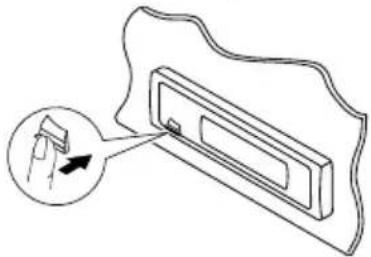
natural_image
Diagram of a door handle with a small inset showing a device tip and arrow (no text or symbols)2 Pull the control panel out of the unit.
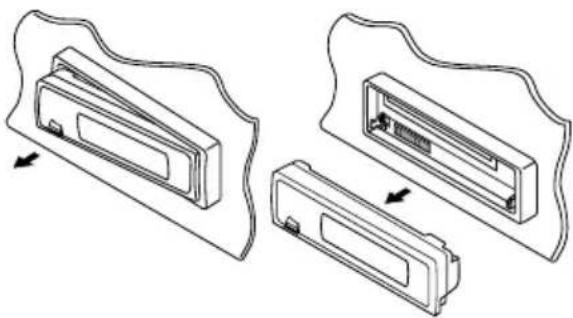
natural_image
Technical line drawing of two mechanical components with arrows indicating assembly or transformation (no text or symbols)3 Put the detached control panel into the provided case.
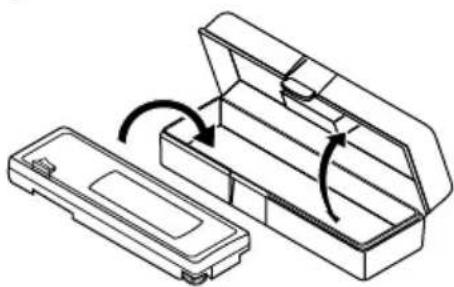
natural_image
Technical line drawing of a mechanical tool holder with an open lid and internal compartments (no text or symbols)Attaching the control panel
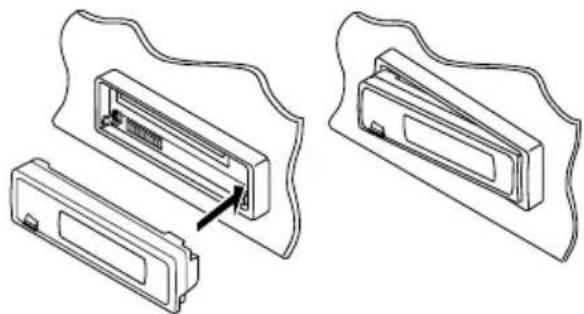
1 Insert the right side of the control panel into the groove on the panel holder.
natural_image
Technical line drawing of two mechanical component assemblies with no visible text or symbols2 Press the left side of the control panel to fix it to the panel holder.

natural_image
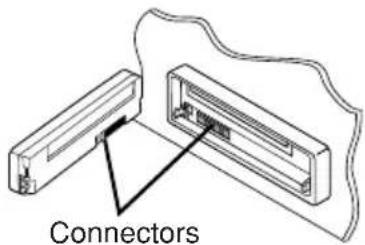
Pure technical line drawing of a mechanical component with no text or symbolsNote on cleaning the connectors:
If you frequently detach the control panel, the connectors will deteriorate.
To minimize this possibility, periodically wipe the connectors with a cotton swab or cloth moistened with alcohol, being careful not to damage the connectors.
text_image
Connectors
text_image
JVC FM1AM CO-14 CD 4 MΩ 9.50M 16 17 RPT 12 RND MODE SBP +1 +2 +3 +4 +5 +6 0 VHSCMAWe recommend that you use the JVC MP3-compatible CD changer with your unit.
By using this CD changer, you can play back your original CD-Rs (Recordable) and CD-RWs (Rewritable) recorded either in audio CD format or in MP3 format.
- You can also connect other CH-X series CD changers (except CH-X99 and CH-X100). However, they are not compatible with MP3 discs, so you cannot play back MP3 discs.
- You cannot use the KD-MK series CD changers with this unit.
Before operating your CD changer:
- Refer also to the Instructions supplied for your CD changer.
- If no discs are in the magazine of the CD changer or the discs are inserted upside down, "NO DISC" will appear on the display. If this happens, remove the magazine and set the discs correctly.
- If no magazine is loaded in the CD changer, "NO MAG" appears on the display. If this happens, insert the magazine in the CD changer.
- If "RESET 1" – "RESET 8" appears on the display, something is wrong with the connection between this unit and the CD changer. If this happens, check the connection and make sure the cords are connected firmly. Then, press the reset button of the CD changer.
About MP3 discs
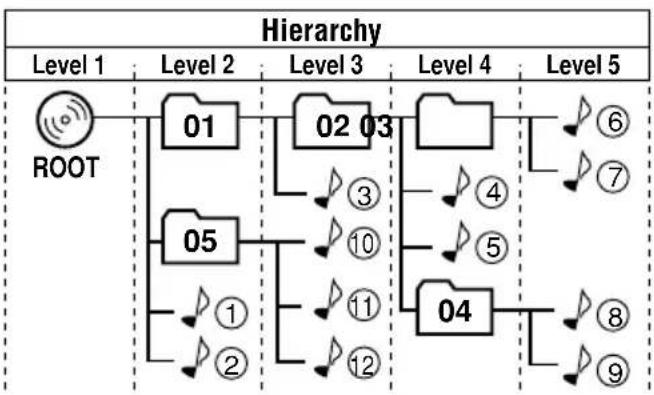
MP3 "files (tracks)" can be recorded in "folders"—in PC terminology.
During recording, the files and folders can be arranged in a way similar to arranging files and folders of computer data.
"Root" is similar to the root of a tree. Every file and folder can be linked to and be accessed from the root.
flowchart
graph TD
    A["ROOT"] --> B["01"]
    A --> C["05"]
    B --> D["02 03"]
    C --> E["04"]
    D --> F["Level 4"]
    E --> G["Level 5"]
    style A fill:#f9f,stroke:#333
    style B fill:#ccf,stroke:#333
    style C fill:#ccf,stroke:#333
    style D fill:#cfc,stroke:#333
    style E fill:#cfc,stroke:#333
    style F fill:#fcc,stroke:#333
    style G fill:#fcc,stroke:#333
01 : Folders and their playback order
♪① : MP3 files and their playback order
Playing discs
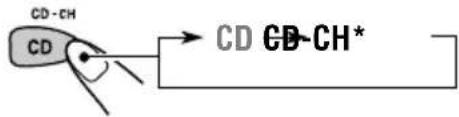
Select the CD changer (CD-CH).
text_image
CD-CH CD CD GB-CH** If you have changed "EXT IN" setting to "LINE IN" (see page 25), you cannot select the CD changer.
- When the current disc is an MP3 disc: Playback starts from the first folder of the current disc once file check is completed.
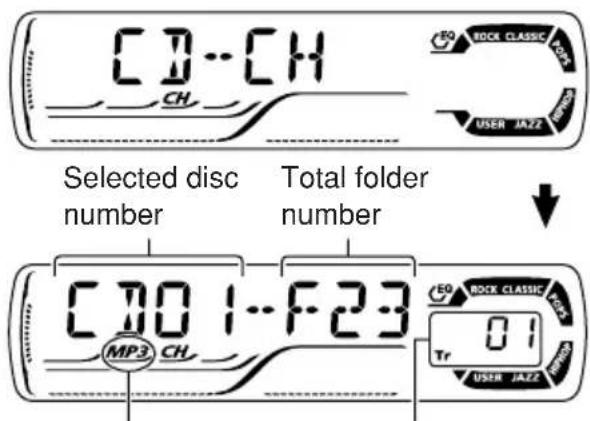
text_image
CD-CH CH Selected disc number Total folder number CD01-F23 MP3 CH EO ROCK CLASSIC TAX Tr USER JAZZ RICE USER JAZZSelected track numberMP3 indic
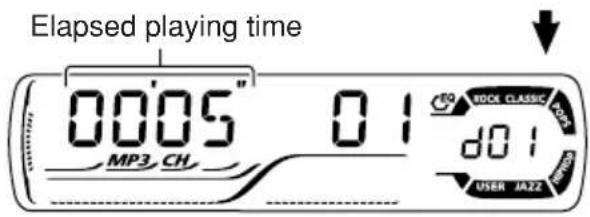
text_image
Elapsed playing time 00'05" 0 1 MP3 CH EQ BOCK CLASSIC d0 1 USER JAZZ- When the current disc is a CD:
Playback starts from the first track of the current disc.
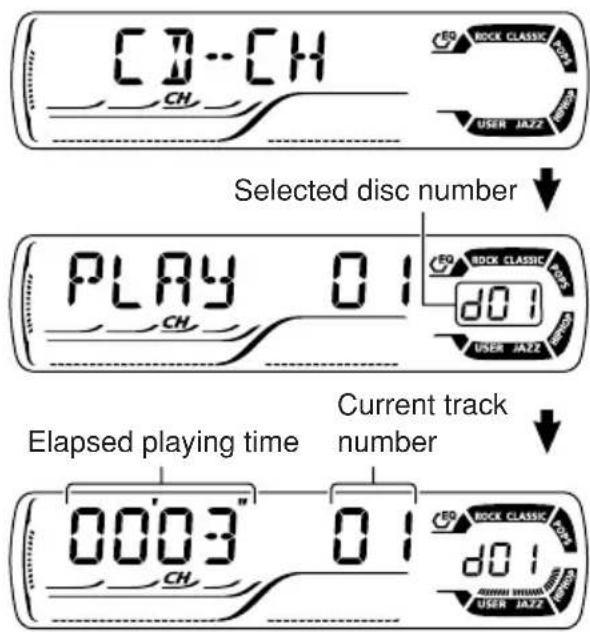
text_image
CD-CH CH Selected disc number PLAY 01 CH DO1 BOCK CLASSIC USER JAZZ Elapsed playing time Current track number 00'03" 01 CH DO1 BOOK CLASSIC USER JAZZNotes:
- When you press CD CD-CH, the power automatically comes on. You do not have to press information/ATT to turn on the power.
- If you change the source, CD changer play also stops. Next time you select the CD changer as the source, CD changer play starts from where playback has been stopped previously.
To go to a particular disc directly
Press the number button corresponding to the disc number to start its playback (while the CD changer is playing).

text_image
EQ 7 8 MO 9 SSM 10 11 RPT 12 RND 1 2 3 4 5 6- To select a disc number from 1 - 6: Press 1 (7) - 6 (12) briefly.
- To select a disc number from 7 – 12: Press and hold 1 (7) – 6 (12) for more than one second.
To fast-forward or reverse the track/file
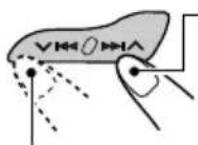
Press and hold ▶▶▶ during play, to fast-forward the track/file.
Press and hold ▼◀◀, during play, to reverse the track/file.
Note:
During this operation, you can only hear intermittent sounds. (The elapsed playing time also changes intermittently on the display.)
To go to the next or previous tracks/files
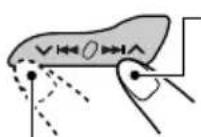
Press ▶▶▶ I ▶ briefly during play, to skip ahead to the beginning of the next track/file.
Each time you press the button consecutively, the beginning of the next tracks/files is located and played back.
Press ▼◀ briefly during play, to skip back to the beginning of the current track/file.
Each time you press the button consecutively, the beginning of the previous tracks/files is located and played back.
This operation is only possible when using JVC MP3-compatible CD changer (CH-X1500).
To go to a track/file quickly (+10 and -10 buttons)
1 Press MODE to enter the functions mode while playing a disc.
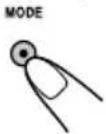
2 Press +10 or -10.
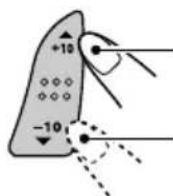
To skip 10 tracks/files* forwards to the last track/file
To skip 10 tracks/files* backwards to the first track/file
* First time you press +10 or -10 button, the track/file skips to the nearest higher or lower track/file with a track/file number of multiple ten (ex. 10th, 20th, 30th).
Then each time you press the button, you can skip 10 tracks/files (see "How to use the +10 and -10 buttons" below).
• After the last track/file, the first track/file will be selected, and vice versa.
Note:
If the current playing disc is an MP3 disc, files are skipped within the same folder.
How to use the +10 and -10 buttons
- Ex. 1: To select track/file number 32 while playing track/file number 6

flowchart
graph LR
    A["MODE"] --> B["+10"]
    B --> C["→"]
(Three times) (Twice)
Track/File 6 → 10 → 20 → 30 → 31 → 32
- Ex. 2 :To select track/file number 8 while playing track/file number 36

text_image
MODE -10 → →(Three times)
Track/File 36 → 30 → 20 → 10 → 9 → 8
(Twice)
To skip to the next or previous folder (only for MP3 discs)
text_image
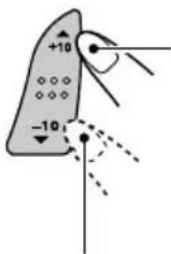
+10 -10Press ▲ (up) while playing an MP3 disc, to go to the next folder.
Each time you press the button consecutively, the next folder is located, and the first file in the folder starts playback.
Press ▼ (down) while playing an MP3 disc, to go to the previous folder.
Each time you press the button consecutively, the previous folder is located, and the first file in the folder starts playback.
Selecting the playback modes
To play back tracks/files at random (Disc Random/Magazine Random Play)
MODE

12 RND
1 Press MODE to enter the functions mode during play.
2 Press RND (random), while "MODE" is still flashing on the display.
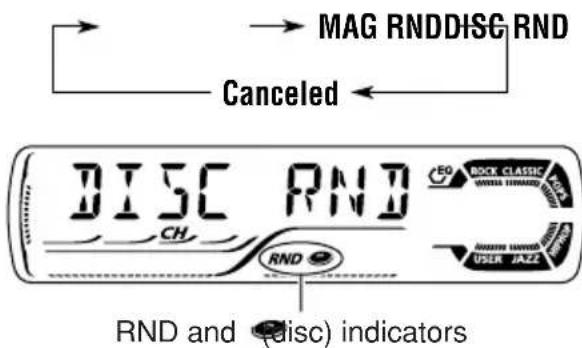
Each time you press the button, the random play mode changes as follows:
text_image
MAG RNDDISC RND Canceled DISC RND CH RND EO ROCK CLASSIC WHITE HENDER USER JAZZ RND and (disc) indicatorsEx.: When you select "DISC RND"
Note:
MP3 indicator also lights up if the current playing disc is an MP3 disc.
| Mode | Active indicator | Plays at random |
| DISC RND R | ND and All tracks/files of indicators the current (or light up. specified) disc. | |
| MAG RND R | ND indicator All lights up. the inserted discs. | tracks/files of |
To play back tracks/files repeatedly (Track Repeat/Disc Repeat Play)
MODE

11 RPT
1 Press MODE to enter the functions mode during play.
2 Press RPT (repeat), while "MODE" is still flashing on the display.
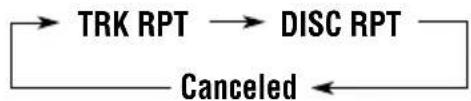
Each time you press the button, the repeat play mode changes as follows:
flowchart
graph LR
    A["TRK RPT"] --> B["DISC RPT"]
    B --> C["Canceled"]
    C --> A

text_image
TRK RPT CH RPT RPT indicatorEx.: When you select "TRK RPT"
Note:
MP3 indicator also lights up if the current playing disc is an MP3 disc.
| Mode | Active indicator | Plays repeatedly |
| TRK RPT RPT | indicator The lights up. specified) track/file. | current (or |
| DISC RPT | and RPT All tracks/files of indicators light the current (or up. specified) disc. |
text_image
JVC 200 FIRAM CD-CT CD A M2 9.54M 14 11.93T 12.86D M35E 38P +10 +10 -10 VHCHHAPlaying an external component
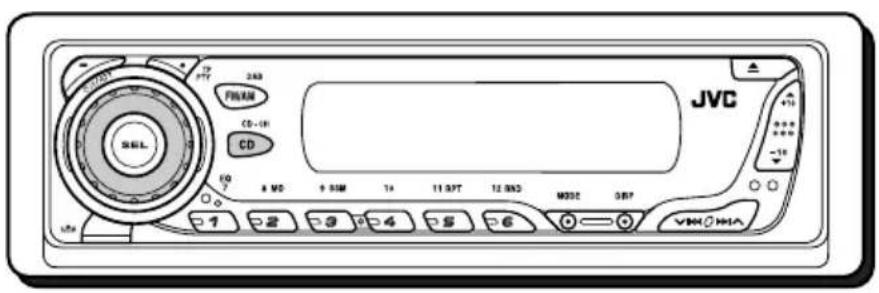
You can connect the external components to the CD changer jack on the rear using the Line Input Adapter KS-U57 (not supplied).
Preparations:
- For connecting the Line Input Adapter KS-U57 and the external component, refer to the Installation/Connection Manual (separate volume).
- Before operating the external component using the following procedure, select the external input correctly. (See “To select the external component to use—EXT IN” on page 25.)
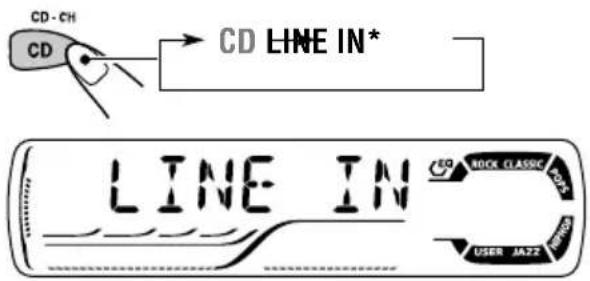
1 Select the external component (LINE IN).
text_image
CD-CH CD LINE IN* LINE IN CQ ROCK CLASSIC JOVS USER JAZZ- If "LINE IN"* does not appear on the display, see page 25 and select the external input ("LINE IN").
* Displayed only when one of the following sources is selected—FM, AM, and CD.
Note on One-Touch Operation:
When you press CD CD-CH, the power automatically comes on. You do not have to press to turn on the power.
2 Turn on the connected component and start playing the source.
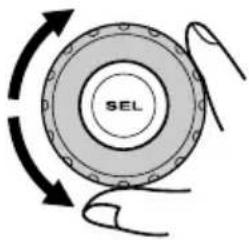
3 Adjust the volume.
text_image
SEL4 Adjust the sound as you want. (See pages 21 and 22.)
text_image
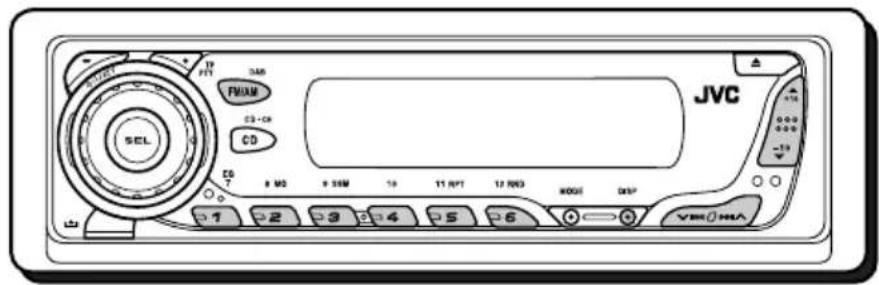
JVC SEL 17 VIT DAR FM/AM CD+CK CD 8 MD 9 SEM 10 11 RPT 12 RWD MODE DESP 1 2 3 4 5 6 VBR HUAWe recommend that you use DAB (Digital Audio Broadcasting) tuner KT-DB1500 or KT-DB1000 with your unit.
If you have another DAB tuner, consult your JVC IN-CAR ENTERTAINMENT dealer.
- Refer also to the Instructions supplied for your DAB tuner.
What is DAB system?
DAB is one of the digital radio broadcasting systems available today. It can deliver CD quality sound without any annoying interference and signal distortion.
Furthermore, it can carry text, pictures, and data.
In contrast to FM broadcast, where each programme is transmitted on its own frequency, DAB combines several programmes (called “services”) to form one “ensemble.”
In addition, each “service”—called “primary service”—can also be divided into its components (called “secondary service”).
With the DAB tuner connected with this unit, you can enjoy these DAB services.
Note:
When reception switches between DAB and FM, the listening volume level may increase or decrease inconveniently. This change in the volume level results from unequal audio injection levels at broadcaster site, but not from the malfunction of this unit.
To prevent this inconvenience, you can adjust the DAB volume level. (See "To adjust the DAB volume level" on page 35.)
Tuning in to an ensemble and one of the services
A typical ensemble has 6 or more programmes (services) broadcast at the same time. After tuning in to an ensemble, you can select a service you want to listen to.
Before you start....
Press FM/AM DAB briefly if CD, CD changer, or external component is the current source.
1 Select the DAB tuner.
Each time you press and hold the button, the DAB tuner and the FM/AM tuner are alternately selected.

2 Select the DAB band (DAB1, DAB2, or DAB3) you want.
Each time you press the button, the DAB band changes as follows:

Note:
This receiver has three DAB bands (DAB1, DAB2, DAB3). You can use any of them to tune in to an ensemble.
3 Start searching for an ensemble.
To search for ensembles of higher frequency
To search for ensembles of lower frequency
When an ensemble is received, searching stops.
To stop searching before an ensemble is received, press the same button you have pressed for searching.
4 Select a service (either primary or secondary) you want to listen to.

text_image
+10 -10To select the next service (If a primary service has some secondary services, they are selected before the next primary service is selected.)
To select the previous service (either primary or secondary)
To change the display information while tuning in to an ensemble
Normally service name is shown on the display. If you want to check the ensemble name or its frequency, press DISP (display) repeatedly.
Each time you press the button, the following information appears for a while on the display.
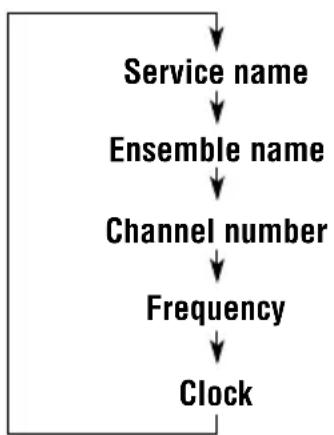
flowchart
graph TD
    A["Service name"] --> B["Ensemble name"]
    B --> C["Channel number"]
    C --> D["Frequency"]
    D --> E["Clock"]
To tune in to a particular ensemble without searching
Before you start....
Press FM/AM DAB briefly if CD, CD changer, or external component is the current source.
1 Press and hold FM/AM DAB to select DAB tuner as the source.
2 Press FM/AM DAB repeatedly to select the DAB band (DAB1, DAB2, or DAB3).
3 Press and hold ▶▶| ∧ or √ |◀◀ for more than one second.
4 Press ▶▶▶ ▲ or √ ◀◀▶ repeatedly until the ensemble you want is reached.
- If you hold down the button, the frequency keeps changing until you release the button.
5 Press ▲ (up) or ▼ (down) to select a service (either primary or secondary) you want to listen to.
To restore the FM/AM tuner
Press and hold FM/AM DAB again.
Storing DAB services in memory
You can preset up to 6 DAB services in each DAB band (DAB1, DAB2, and DAB3) manually.
Before you start....
Press FM/AM DAB briefly if CD, CD changer, or external component is the current source.
1 Select the DAB tuner.
Each time you press and hold the button, the DAB tuner and the FM/AM tuner are alternately selected.

2 Select the DAB band (DAB1, DAB2, or DAB3) you want.
Each time you press the button, the DAB band changes as follows:

3 Tune in to an ensemble you want.
4 Select a service of the ensemble you want to listen to.
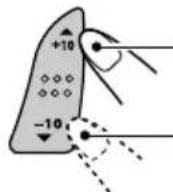
To select the next service
To select the previous service
5 Press and hold the number button (in this example, 1) for more than 2 seconds to store the selected service into the preset number you want.
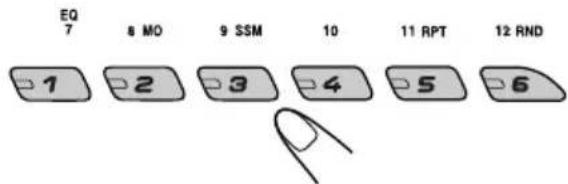
text_image
EQ 7 8 MO 9 SSM 10 11 RPT 12 RND 1 2 3 4 5 6Selected preset number
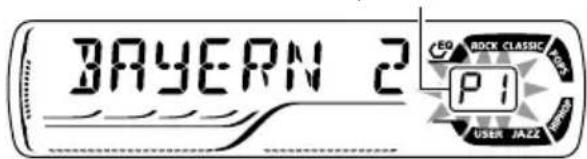
text_image
BAYERN 2 P1 ROCK CLASSIC USER JAZZ6 Repeat the above procedure to store other DAB services into other preset numbers.
Notes:
- You can only preset primary DAB services. If you store a secondary service, its primary service will be stored instead.
- A previously preset DAB service is erased when a new DAB service is stored in the same preset number.
- Preset DAB services are erased when the power supply to the memory circuit is interrupted (for example, during battery replacement). If this occurs, preset the DAB services again.
Tuning in to a preset DAB service
You can easily tune in to a preset DAB service. Remember that you must store services first. If you have not stored them yet, see "Storing DAB services in memory" on pages 33 and 34.
Before you start.....
Press FM/AM DAB briefly if CD, CD changer, or external component is the current source.
1 Select the DAB tuner.
Each time you press and hold the button, the DAB tuner and the FM/AM tuner are alternately selected.
← FM/AMDAB
2 Select the DAB band (DAB1, DAB2, or DAB3) you want.
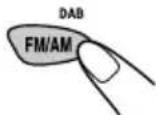
Each time you press the button, the DAB band changes as follows:
→ DAB1 DAB2 DAB3 →
3 Select the number (1 - 6) for the preset DAB service (primary) you want.
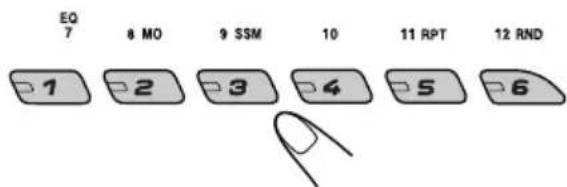
text_image
EQ 7 8 MO 9 SSM 10 11 RPT 12 RND 1 2 3 4 5 6Note:
If the selected primary service has some secondary services, pressing the same number button repeatedly will tune in to the secondary services.
What you can do more with DAB
Tracing the same programme automatically (Alternative Reception)
You can keep listening to the same programme.
• While receiving a DAB service:
When driving in an area where a service cannot be received, this unit automatically tunes in to another ensemble or FM RDS station, broadcasting the same programme.
• While receiving an FM RDS station:
When driving in an area where a DAB service is broadcasting the same programme as the FM RDS station is broadcasting, this unit automatically tunes in to the DAB service.
To use Alternative Reception
When shipped from the factory, Alternative Reception is activated.
- See also “Changing the general settings (PSM)” on page 23.
1 Press and hold SEL (select) for more than 2 seconds so that one of the PSM items appears on the display.
2 Press ▶▶▶ ▲ or ▼ ▶◀◀ to select "DAB AF" (alternative frequency).
3 Turn the control dial to select the desired mode.
- AF ON: Traces the programme among DAB services and FM RDS stations—Alternative Reception. The AF indicator lights up on the display (see page 11).
• AF OFF: Alternative Reception is deactivated.
4 Press SEL (select) to finish the setting.
Note:
When Alternative Reception (for DAB services) is activated, Network-Tracking Reception (for RDS stations: see page 11) is also activated automatically. On the other hand, Network-Tracking Reception cannot be deactivated without deactivating Alternative Reception.
To adjust the DAB volume level
You can adjust the volume level of DAB tuner and store it in memory. By adjusting the volume level properly to match it to the FM sound level, you will not need to adjust the volume level each time you change the source.
When shipped from the factory, DAB volume level is set at "00."
- See also “Changing the general settings (PSM)” on page 23.
1 Press and hold SEL (select) for more than 2 seconds so that one of the PSM items appears on the display.
2 Press ▶▶▶ ▲ or ▼ ▶◀◀ to select "DAB VOL" (volume).
3 Turn the control dial to set to the desired volume.
You can set it from "VOL -12" to "VOL 12."
4 Press SEL (select) to finish the setting.
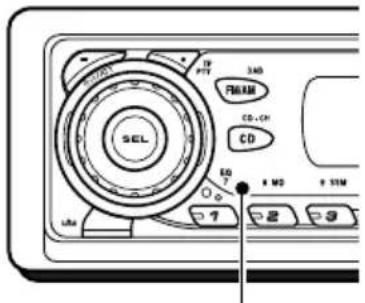
This unit can be remotely controlled as instructed here (with an optionally purchased remote controller). We recommend that you use remote controller RM-RK50 or RM-RK60 with your unit. (Ex.: When you are using RM-RK60)
Before using the remote controller:
- Aim the remote controller directly at the remote sensor on the main unit. Make sure there is no obstacle in between.
text_image
TEL 340 PREAM CD-CH CD ED 2 8 MS SIM 7 2 3Remote sensor
- Do not expose the remote sensor to strong light (direct sunlight or artificial lighting).
Installing the battery
When the controllable range or effectiveness of the remote controller decreases, replace the battery.
1. Remove the battery holder.
1) Push out the battery holder in the direction indicated by the arrow using a ball point pen or a similar tool.
2) Remove the battery holder.
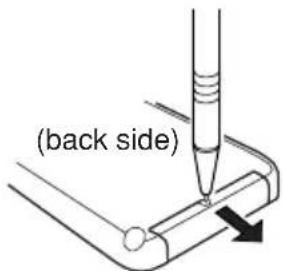
text_image
(back side)2. Place the battery.
Slide the battery into the holder with the + side facing upwards so that the battery is fixed in the holder.
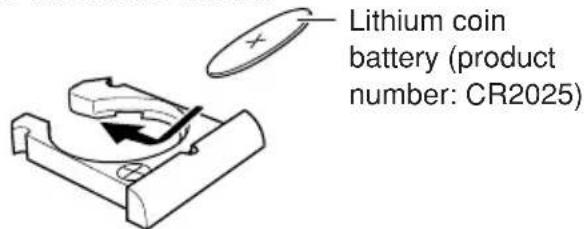
text_image
Lithium coin battery (product number: CR2025)3. Return the battery holder.
Insert again the battery holder by pushing it until you hear a clicking sound.
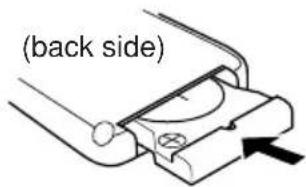
text_image
(back side)WARNING:
- Store the battery in a place where children cannot reach.
If a child accidentally swallows the battery, consult a doctor immediately. - Do not recharge, short, disassemble, or heat the battery or dispose of it in a fire. Doing any of these things may cause the battery to give off heat, crack, or start a fire.
- Do not leave the battery with other metallic materials.
Doing this may cause the battery to give off heat, crack, or start a fire. - When throwing away or saving the battery, wrap it in tape and insulate; otherwise, the battery may start to give off heat, crack, or start a fire.
- Do not poke the battery with tweezers or similar tools.
Doing this may cause the battery to give off heat, crack, or start a fire.
CAUTION:
DO NOT leave the remote controller in a place (such as dashboards) exposed to direct sunlight for a long time. Otherwise, it may be damaged.
KD-G302 and KD-G301 are equipped with the steering wheel remote control function. If your car is equipped with the steering wheel remote controller, you can operate the unit using the controller.
- See the Installation/Connection Manual (separate volume) for connection to utilize this function.
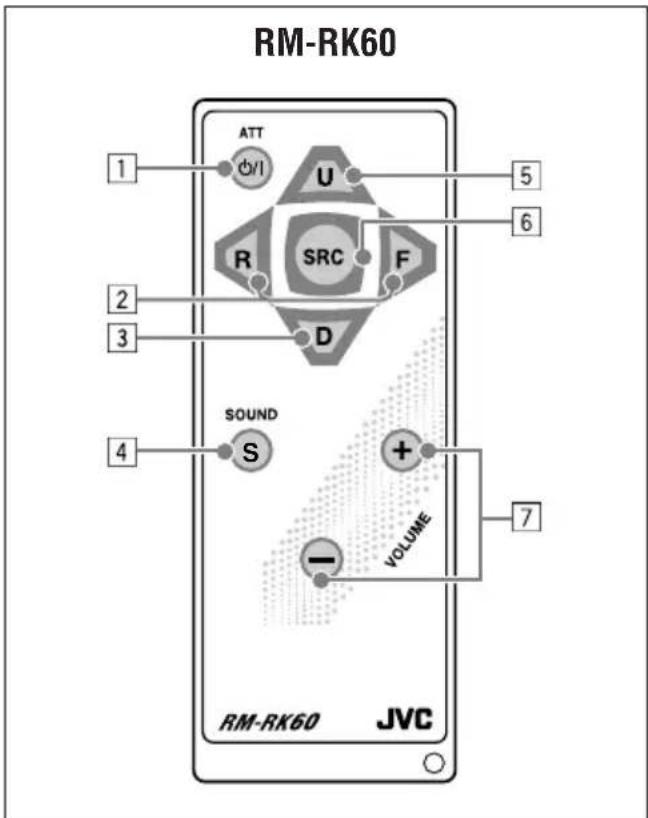
Location of the buttons
flowchart
graph TD
    A["1"] --> B["ATT"]
    B --> C["U"]
    C --> D["5"]
    E["2"] --> F["R"]
    F --> G["SRC"]
    G --> H["F"]
    I["3"] --> J["D"]
    J --> K["D"]
    L["4"] --> M["SOUND"]
    M --> N["S"]
    N --> O["+"]
    O --> P["VOLUME"]
    Q["7"] --> R["VM"]
    R --> S["VM"]
    T["RM-RK60"] --> U["JVC"]
    style T fill:#f9f,stroke:#333
    style U fill:#ccf,stroke:#333
- Turns on the unit if pressed when the unit is turned off.
- Turns off the unit if pressed and held until "SEE YOU" appears on the display.
- Drops the volume level in a moment if pressed briefly. Press again to resume the volume.
2 • Searches for stations while listening to the radio.
- Selects services while listening to the DAB tuner if pressed briefly.
- Searches for ensembles while listening to the DAB tuner if pressed for more than one second.
- Fast-forwards or reverses the track/file if pressed and held while listening to a disc.
- Skips to the beginning of the next track/file or goes back to the beginning of the current (or previous) tracks/files if pressed briefly while listening to a disc.
3• Selects the preset stations (or services) while listening to the radio (or the DAB tuner).
Each time you press the button, the preset station (or service) number increases, and the selected station (or service) is tuned in.
- While playing an MP3 disc on an MP3-compatible CD changer;
- Skips to the previous disc if pressed briefly.
- Skips to the previous folder if pressed and held.
Note: While playing a CD on a CD changer, this always skips to the previous disc.
4 Selects the sound mode (C-EQ: custom equalizer).
Each time you press the button, the sound mode (C-EQ) changes.
5• Selects the band while listening to the radio (or the DAB tuner).
Each time you press the button, the band changes.
- While playing an MP3 disc on an MP3-compatible CD changer;
- Skips to the next disc if pressed briefly.
- Skips to the next folder if pressed and held.
Note: While playing a CD on a CD changer, this always skips to the next disc.
6 Selects the source.
Each time you press the button, the source changes.
7 Functions the same as the control dial on the main unit.
Note: These buttons do not function for the Preferred Setting Mode adjustment.
What appears to be trouble is not always serious. Check the following points before calling a service center.
| Symptoms | Causes | Remedies | |
| General | Sound cannot be heard from the speakers. | The volume level is set to the minimum level. | Adjust it to the optimum level. |
| Connections are incorrect. | Check the cords and connections. | ||
| This unit does not work at all. | The built-in microcomputer may have functioned incorrectly due to noise, etc. | Press the reset button on the panel holder after detaching the control panel. (The clock setting and preset stations stored in memory are erased.) (See page 2.) | |
| FM/AM | SSM (Strong-station Sequential Memory) automatic preset does not work. | Signals are too weak. | Store stations manually. |
| Static noise while listening to the radio. | The aerial is not connected firmly. | Connect the aerial firmly. | |
| CD Playback | CD cannot be played back. | CD is inserted upside down. | Insert the CD correctly. |
| CD-R/CD-RW cannot be played back.Tracks on the CD-R/CD-RW cannot be skipped. | CD-R/CD-RW is not finalized. | Insert a finalized CD-R/CD-RW.Finalize the CD-R/CD-RW with the component which you used for recording. | |
| CD cannot be ejected. | CD is locked. | Unlock the CD.(See page 20.) | |
| CD sound is sometimes interrupted. | You are driving on rough roads. | Stop playback while driving on rough roads. | |
| CD is scratched. | Change the CD. | ||
| Connections are incorrect. | Check the cords and connections. | ||
| “NO DISC” appears on the display. | No CD in the loading slot. | Insert a CD into the loading slot. | |
| CD is inserted incorrectly. | Insert the CD correctly. | ||
| Symptoms | Causes | Remedies |
| “NO DISC” appears on the display. | No disc is in the magazine. | Insert discs into the magazine. |
| Discs are inserted upside down. | Insert discs correctly. | |
| The current disc does not contain any MP3 files. | Insert a disc that contains MP3 files. | |
| “NO MAG” appears on the display. | No magazine is loaded in the CD changer. | Insert the magazine. |
| “RESET 8” appears on the display. | This unit is not connected to the CD changer correctly. | Connect this unit and the CD changer correctly and press the reset button of the CD changer. |
| “RESET 1” – “RESET 7” appears on the display. | —— | Press the reset button of the CD changer. |
| The CD changer does not work at all. | The built-in microcomputer may function incorrectly due to noise, etc. | Press the reset button on the panel holder after detaching the control panel. (The clock setting and preset stations stored in memory are erased.) (See page 2.) |
About mistracking:
Mistracking may result from driving on extremely rough roads. This does not damage the unit and the disc, but will be annoying.
We recommend that you stop disc play while driving on such rough roads.
Handling discs
This unit has been designed to reproduce CDs, CD-Rs (Recordable), and CD-RWs (Rewritable).
- This unit is not compatible with MP3 discs, but can operate a JVC MP3-compatible CD changer.
How to handle discs
When removing a disc
Center holder
from its case, press down the center holder of the case and lift the disc out, holding it by the edges.
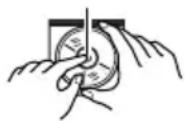
- Always hold the disc by the edges. Do not touch its recording surface.
When storing a disc into its case, gently insert the disc around the center holder (with the printed surface facing up).
- Make sure to store discs into the cases after use.
To keep discs clean
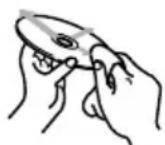
A dirty disc may not be played correctly. If a disc does become dirty, wipe it with a soft cloth in a straight line from center to edge.
To play new discs
New discs may have some rough spots around the inner and outer edges. If such a disc is used, this unit may reject the disc.
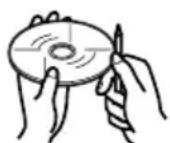
To remove these rough spots, rub the edges with a pencil or ball-point pen, etc.
Moisture condensation
Moisture may condense on the lens inside the CD player in the following cases:
• After starting the heater in the car.
- If it becomes very humid inside the car.
Should this occur, the CD player may malfunction. In this case, eject the disc and leave the unit turned on for a few hours until the moisture evaporates.
When playing a CD-R or CD-RW
Before playing back CD-Rs or CD-RWs, read their instructions or cautions carefully.
- Use only "finalized" CD-Rs or CD-RWs.
- Some CD-Rs or CD-RWs may not be played back on this unit because of their disc characteristics, and for the following reasons:
– Discs are dirty or scratched.
- Moisture condensation on the lens inside the unit.
- The pickup lens inside the unit is dirty.
- CD-RWs may require a longer readout time since the reflectance of CD-RWs is lower than that of regular CDs.
- CD-Rs or CD-RWs are susceptible to high temperatures or high humidity, so do not leave them inside your car.
- Do not use following CD-Rs or CD-RWs:
– Discs with stickers, labels, or protective seal stuck to the surface.
– Discs on which labels can be directly printed by an ink jet printer.
Using these discs under high temperatures or high humidity may cause malfunctions or damage to discs. For example,
- Stickers or labels may shrink and warp a disc.
- Stickers or labels may be peeled off so discs cannot be ejected.
– Print on discs may get sticky.
Read instructions or cautions about labels and printable discs carefully.
CAUTIONS:
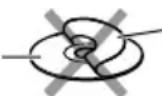
- Do not insert 8 cm discs (single CDs) into the loading slot. (Such discs cannot be ejected.)
- Do not insert any disc of unusual shape—like a heart or flower; otherwise, it will cause a malfunction.
- Do not expose discs to direct sunlight or any heat source or place them in a place subject to high temperature and humidity. Do not leave them in a car.
- Do not use any solvent (for example, conventional record cleaner, spray, thinner, benzine, etc.) to clean discs.
Warped disc
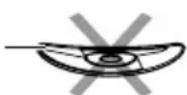
Sticker
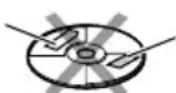
Sticker residue
Disc
Stick-on label
AUDIO AMPLIFIER SECTION
Maximum Power Output:
Front: 50 W per channel
Rear: 50 W per channel
Continuous Power Output (RMS):
Front: 19 W per channel into 4 Ω, 40 Hz to 20 000 Hz at no more than 0.8% total harmonic distortion.
Rear: 19 W per channel into 4 Ω, 40 Hz to 20 000 Hz at no more than 0.8% total harmonic distortion.
Load Impedance: 4 Ω (4 Ω to 8 Ω allowance)
Tone Control Range:
Bass: ±10 dB at 100 Hz
Treble: ±10 dB at 10 kHz
Frequency Response: 40 Hz to 20 000 Hz
Signal-to-Noise Ratio: 70 dB
Line-Out Level/Impedance:
2.0 V/20 kΩ load (full scale)
Output Impedance: 1 kΩ
TUNER SECTION
Frequency Range:
FM: 87.5 MHz to 108.0 MHz
AM: (MW) 522 kHz to 1 620 kHz
(LW) 144 kHz to 279 kHz
[FM Tuner]
Usable Sensitivity:
11.3 dBf (1.0 μV/75 Ω)
50 dB Quieting Sensitivity:
16.3 dBf (1.8 μV/75 Ω)
Alternate Channel Selectivity (400 kHz): 65 dB
Frequency Response: 40 Hz to 15 000 Hz
Stereo Separation: 30 dB
Capture Ratio: 1.5 dB
[MW Tuner]
Sensitivity: 20 μV
Selectivity: 35 dB
[LW Tuner]
Sensitivity: 50 μV
CD PLAYER SECTION
Type: Compact disc player
Signal Detection System: Non-contact optical pickup (semiconductor laser)
Number of channels: 2 channels (stereo)
Frequency Response: 5 Hz to 20 000 Hz
Dynamic Range: 96 dB
Signal-to-Noise Ratio: 98 dB
Wow and Flutter: Less than measurable limit
GENERAL
Power Requirement:
Operating Voltage:
DC 14.4 V (11 V to 16 V allowance)
Grounding System: Negative ground
Allowable Operating Temperature: 0°C to +40°C
Dimensions (W × H × D):
Installation Size (approx.):
182 mm × 52 mm × 150 mm
Panel Size (approx.):
188 mm × 58 mm × 12 mm
Mass (approx.):
1.4 kg (excluding accessories)
Design and specifications are subject to change without notice.
WICHTIG FÜR LASER-PRODUKTE
natural_image
Diagram showing a device being processed into a cable, with no visible text or symbols.text_image
SEL in airnatural_image
Diagram showing a finger pressing a button next to a device with a curved arrow indicating rotation (no text or symbols present)natural_image
Technical line drawing of a mechanical disc assembly with an arrow indicating direction (no text or symbols)natural_image
Isometric line drawing of a mechanical component with a rectangular housing and internal slots (no text or symbols)natural_image
Simple line drawing of a bird's head and tail with dashed lines indicating motion or movement (no text or symbols)text_image
CD-CH CD D11/ATTnatural_image
Diagram of a door handle with a small knob and an arrow pointing to it (no text or symbols present)natural_image
Technical line drawing of two mechanical components with arrows indicating assembly or movement (no text or symbols)natural_image
Technical line drawing of a mechanical device with an open box and internal components, showing rotational motion arrows (no text or symbols)natural_image
Technical line drawing of two mechanical components with a central component and an arrow indicating direction (no text or symbols)natural_image
Pure technical line drawing of a mechanical component with no text or symbolstext_image
Anschlüsse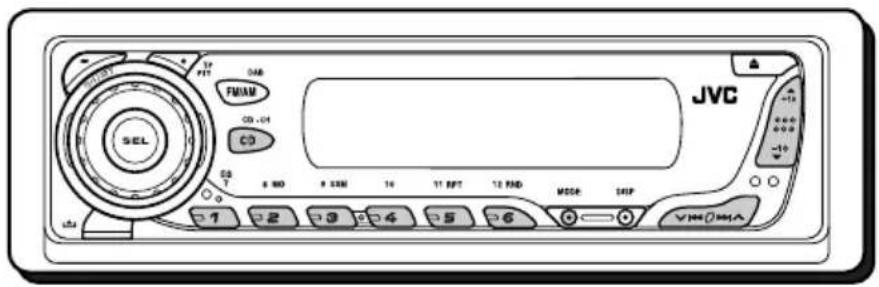
text_image
JVC SEL 048 FM1M CD-04 CD 0 0 0 800 9 SSB 16 11 RPT 12 FND MODE SEP 1 2 3 4 5 6 VACOMAnatural_image
Simple line drawing of a hand holding a small object with arrows indicating motion or force (no text or symbols)natural_image
Diagram of a mechanical component with a curved arrow and a circular feature, no text or symbols present11,3 dBf (1,0 μV/75 Ω)
Abmessungen (B × H × T):
Einbaugröße (ca.):
182 mm × 52 mm × 150 mm
text_image
Diagram showing a device assembly process with labeled components and directional arrows indicating assembly steps.1 Touche (attente/en service/sourdine)
text_image
JVC TIP FTT DAR FMAM CS+CR CD 10 8 MΩ 8 SSM 76 11 FFT 12 FWD MDDG EXP VTHC 1 2 3 4 5 6 -10text_image
DEMO OFF ↔ DEMO ON DEMO OFF EQ BOOK CLASSIC FM1 USER JAZCnatural_image
Diagram showing a hand pressing a button next to a device with a curved arrow indicating rotation (no text or symbols present)natural_image
Technical line drawing of a CD inside a rectangular housing (no text or symbols)natural_image
Technical line drawing of a mechanical component with no visible text or symbolsnatural_image
Diagram of a door handle with a magnified inset showing a hand holding a small object (no text or symbols)natural_image
Technical line drawing of a mechanical component with two views and directional arrows indicating assembly (no text or symbols)natural_image
Technical line drawing of a mechanical component with an open lid and internal slots, showing rotational motion arrows (no text or symbols)natural_image
Technical line drawing of two mechanical component assemblies with no visible text or symbolsnatural_image
Pure technical line drawing of a mechanical component with no text or symbols11,3 dBf (1,0 μV/75 Ω)
Dimensions (L × H × P):
natural_image
Diagram showing a device component being processed into a housing, with an arrow indicating the process (no text or symbols present)27 De indicators RDS—TP, PTY, AF, REG
28 De indicator CD
29 De indicator CH (CD-wisselaar)
31 De indicator LOUD (loudness)
32 Brondisplay Volumeniveau-indicator
33 De indicator Tr (fragment)
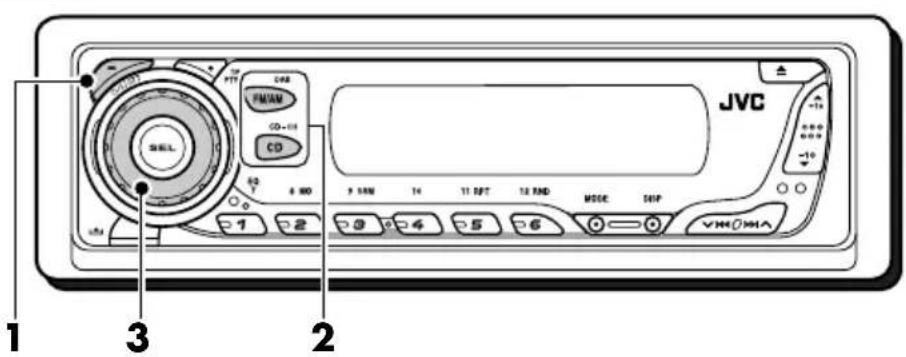
text_image
JVC 1 2 3 4 5 6 7 8 9 10 11 12 MODE SEP VHOMAtext_image
ROCK M RIOCK CLASSIC FM I MAINT CHANGE USER JAZZ
natural_image
Diagram showing a finger pressing a button next to a 3D model of a device with a handle (no text or symbols present)Opmerking over de "One-Touch"-bediening:
natural_image
Technical line drawing of a CD or DVD disc assembly (no text or symbols)natural_image
Technical line drawing of a mechanical component with no visible text or symbolstext_image
00:03" 01 CD Rocky CLASSIC CD User music USER JAZZOpmerkingen:
natural_image
Simple line drawing of a hand holding a pen or stylus, with no text or symbols present.text_image
CD-CH CD ①/1/ATTnatural_image
Diagram of a door handle with an arrow pointing to a small object inside, no text or symbols presentnatural_image
Technical line drawing of two mechanical components with arrows indicating assembly or movement (no text or symbols)natural_image
Technical line drawing of a mechanical component with an open lid and internal compartments, showing rotational motion arrows (no text or symbols)natural_image
Technical line drawing of two mechanical component assemblies with no visible text or symbolsnatural_image
Pure technical line drawing of a mechanical component with no text or symbolsnatural_image
Diagram of two connectors with internal components, no text or symbols presentConnectors
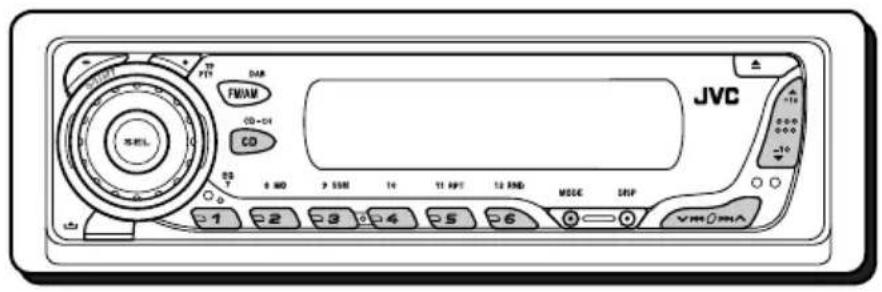
text_image
JVC FM/AM CD+CH CD 0 1 0 2 0 3 0 4 0 5 0 6 0 7 0 8 0 9 0 10 0 11 0 12 0 13 0 14 0 15 0 16 0 17 0 18 0 19 0 20 0 21 0 22 0 23 0 24 0 25 0 26 0 27 0 28 0 29 0 30 0 31 0 32 0 33 0 34 0 35 0 36 0 37 0 38 0 39 0 40 0 41 0 42 0 43 0 44 0 45 0 46 0 47 0 48 0 49 0 50 0 51 0 52 0 53 0 54 0 55 0 56 0 57 0 58 0 59 0 60 0 61 0 62 0 63 0 64 0 65 0 66 0 67 0 68 0 69 0 70 0 71 0 72 0 73 0 74 0 75 0 76 0 77 0 78 0 79 0 80 JVCchemical
Chemical reaction diagram showing CD-CH and CD-CB-CH* interactionstext_image
MODE +10 V H K O M A11,3 dBf (1,0 μV/75 Ω)
Stereo-scheiding: 30 dB
Vangbereik: 1,5 dB
[MG-zenders]
Gevoeligheid: 20 μV
Having TROUBLE with operation?
Please reset your unit
Refer to page of How to reset your unit