USER MANUAL KW-XR611 JVC
Having TROUBLE with operation?
Please reset your unit
Refer to page of How to reset your unit
This apparatus is in conformance with the valid European directives and standards regarding electromagnetic compatibility and electrical safety.
European representative of Victor Company of Japan, Limited is:
JVC Technical Services Europe GmbH
Postfach 10 05 04
61145 Friedberg
Germany
Cher(e) client(e),
MANUEL D'INSTRUCTIONS
IMPORTANT FOR LASER PRODUCTS
1.CLASS 1 LASER PRODUCT
2. CAUTION: Do not open the top cover. There are no user serviceable parts inside the unit; leave all servicing to qualified service personnel.
3.CAUTION: Visible and/or invisible class 1M laser radiation when open. Do not view directly with optical instruments.
4.REPRODUCTION OF LABEL:CAUTION LABEL,PLACED OUTSIDE THE UNIT.
[European Union only]
These symbols indicate that the product and the battery with this symbol should not be disposed as general household waste at its end-of-life.
If you wish to dispose of this product and the battery, please do so in accordance with applicable national legislation or other rules in your country and municipality.
By disposing of this product correctly, you will help to conserve natural resources and will help prevent potential negative effects on the environment and human health.
Notice:
The sign Pb below the symbol for batteries indicates that this battery contains lead.
Warning:
If you need to operate the unit while driving, be sure to look around carefully or you may be involved in a traffic accident.
For safety...
- Do not raise the volume level too much, as this will block outside sounds, making driving dangerous.
- Stop the car before performing any complicated operations.
Temperature inside the car...
If you have parked the car for a long time in hot or cold weather, wait until the temperature in the car becomes normal before operating the unit.
| How to read this manual
The following icons/symbols are used to indicate: |
| Hold | Press and hold the button(s) until the desired operation begins. |
| Turn the control dial. |
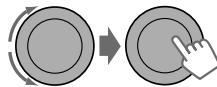
| XX | Turn the control dial to make a selection, then press to confirm. |
| XXXX> | Reference page number |
| Menu setting item |
| Continued on the next page |
How to reset your unit
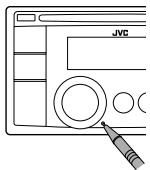
Your preset adjustments will also be erased (except the registered Bluetooth device). 13, 14)
How to forcibly eject a disc
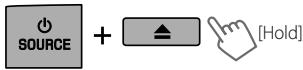
- You can forcibly eject the loaded disc even if the disc is locked. To lock/unlock the disc, 10.
- Be careful not to drop the disc when it ejects.
- If this does not work, reset your unit.
Caution on volume setting:
Digital devices (CD/USB) produce very little noise compared with other sources. Lower the volume before playing these digital sources to avoid damaging the speakers by sudden increase of the output level.
CONTENTS
3 How to read this manual
3 How to reset your unit
3 How to forcibly eject a disc
4 Canceling the display demonstration
4 Setting the clock
5 Preparing the remote controller (RM-RK50)
6 Basic operations
7 Listening to the radio
10 Listening to a disc
12 Listening to the USB device
13 Using the Bluetooth* device
14 Using a Bluetooth mobile phone
16 Using a Bluetooth audio player
16 Changing the Bluetooth settings
18 Listening to the iPod/iPhone
20 Listening to the DAB tuner
21 Listening to the other external components
22 Selecting a preset sound mode
23 Menu operations
27 Selecting the variable buttons and display color illumination
28 Creating your own day and night colors—USER
29 Maintenance
30 More about this unit
33 Troubleshooting
38 Specifications
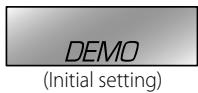
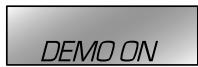
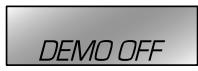
Canceling the display demonstration
1 Turn on the power.

2
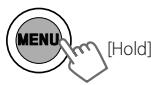
3

4 Select.

5

DEMO
6 Finish the procedure.

Setting the clock
1 Turn on the power.

2

(Initial setting)
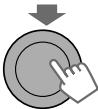
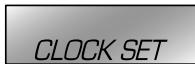
3 Select <CLOCK> .

CLOCK
4 Select.
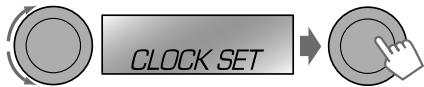
5 Adjust the hour.
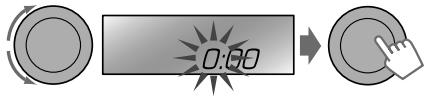
6 Adjust the minute.
600
CLOCK SET
7 Select < 24H / 12H> .

24H/12H
24 HOUR
8 Select < 24 HOUR> or < 12 HOUR>.
9 Finish the procedure.
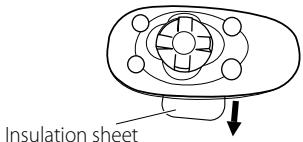
Preparing the remote controller (RM-RK50)
When you use the remote controller for the first time, pull out the insulation sheet.
If the effectiveness of the remote controller decreases, replace the battery.
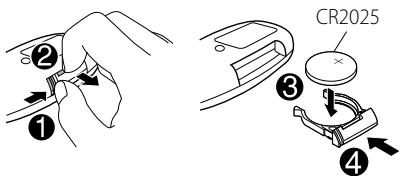
Replacing the lithium coin battery
Caution:
- Danger of explosion if battery is incorrectly replaced. Replace only with the same or equivalent type.
- Battery shall not be exposed to excessive heat such as sunshine, fire, or the like.
Warning (to prevent accidents and damage):
- Do not install any battery other than CR2025 or its equivalent.
- Do not leave the remote controller in a place (such as dashboards) exposed to direct sunlight for a long time.
- Store the battery in a place where children cannot reach.
- Do not recharge, short, disassemble, heat the battery, or dispose of it in a fire.
- Do not leave the battery with other metallic materials.
- Do not poke the battery with tweezers or similar tools.
- Wrap the battery with tape and insulate when throwing away or saving it.
This unit is equipped with the steering wheel remote control function.
Before operating, connect a JVC's OE remote adapter (not supplied) which matches your car to the steering wheel remote input terminal on the rear of the unit.
- For details, refer also to the instructions supplied with the remote adapter.
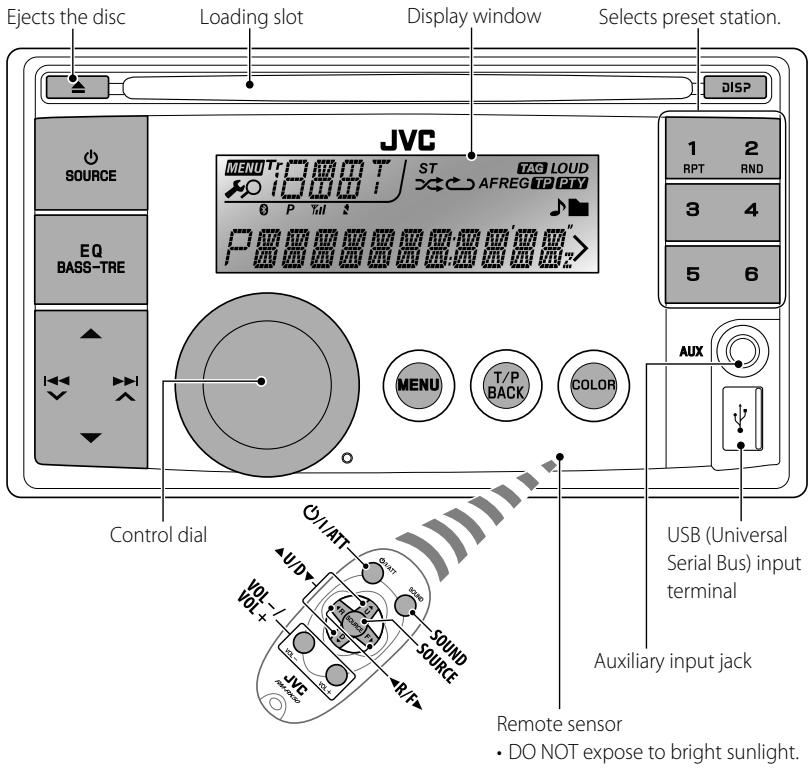
When you press or hold the following button(s)...
| Main unit | Remote controller | General operation |
| SOURCE | ∅/I/ATT | Turns on.
·When the power is on, pressing ∅/I/ATT on the remote controller also mutes the sound or pauses. Press ∅/I/ATT again to cancel muting or resume playback. |
| Turns off if pressed and held. |
| SOURCE | Selects the available sources (if the power is turned on).
·If the source is ready, playback also starts. |
| VOL- VOL+ | Adjusts the volume level. |
| — | Selects items. |
| — | • Mutes the sound while listening to a source. If the source is "CD","USB," or "USB-IPOD," playback pauses. Press the control dial again to cancel muting or resume playback.
• Confirms selection. |
| 1 2 RPT RND | — | • Enters repeat mode menu (11, 19) directly if pressed RPT.
• Enters random mode menu directly (11, 19) if pressed RND. |
| EQ BASS-TRE | SOUND | Selects the sound mode.
• Enters tone level adjustment directly (22) if pressed and held EQ BASS-TRE on the main unit. |
| COLOR | — | • Enters <COLOR> setting directly (27).
• Enters <COLOR SETUP> setting directly (28) if pressed and held. |
| T/P BACK | — | • Returns to the previous menu.
• Activates/deactivates TA Standby Reception.
• Enters PTY Searching mode if pressed and held.
• Switches the controlling terminal for iPod playback if pressed and held. (18, 27) |
| DISP | — | Power off: Checks the current clock time.
Power on: Changes the display information. |
Listening to the radio

"FM" or "AM"


"ST" lights up when receiving an FM stereo broadcast with sufficient signal strength.
Manual search
"M" flashes, then press the button repeatedly.

ENGLISH
When an FM stereo broadcast is hard to receive
1
2
TUNER>
Reception improves, but stereo effect will be lost.
To restore the stereo effect, repeat the same procedure to select .
Automatic presetting (FM)—SSM (Strong-station Sequential Memory)
You can preset up to 18 stations for FM.
While listening to a station...
1
2
SSM 13-18>
"SSM" flashes and local stations with the strongest signals are searched and stored automatically.
To preset another 6 stations, repeat the above procedure by selecting one of the other 6 SSM setting ranges.
Manual presetting (FM/AM)
You can preset up to 18 stations for FM and 6 stations for AM.
Ex.: Storing FM station of 92.50 MHz into preset number "04."
1
"92.50MHz"
2
"PRESET MODE" flashes.
3
Selects preset number "04."
"P04" flashes and "MEMORY" appears.
- Pressing and holding the number buttons (1 - 6) can also store the current station to the selected number buttons (1 - 6).
Selecting a preset station
or
- Pressing the number buttons (1 - 6) can also select the preset stations (1 - 6).
Frequency Clock (back to the beginning)
Using the remote controller

U / D : Changes the preset stations
R/F : Searches for stations
The following features are available only for FM Radio Data System stations.
Searching for your favourite FM Radio Data System
programme-PTY Search
You can tune in to a station broadcasting your favourite programme by searching for a PTY code.
1

The last selected PTY code appears.
2
Select one of your favourite programme types or a PTY code, and start searching.
If there is a station broadcasting a programme of the same PTY code as you have selected, that station is tuned in.
PTY codes: NEWS, AFFAIRS, INFO, SPORT, EDUCATE, DRAMA, CULTURE, SCIENCE, VARIORED, POP M (music), ROCK M (music), EASY M (music), LIGHT M (music), CLASSICS, OTHER M (music), WEATHER, FINANCE, CHILDREN, SOCIAL, RELIGION, PHONE IN, TRAVEL, LEISURE, JAZZ, COUNTRY, NATION M (music), OLDIES, FOLK M (music), DOCUMENT
Standby receptions
TA Standby Reception
TA Standby Reception allows the unit to switch temporarily to Traffic Announcement (TA) from any source other than AM.
- The volume changes to the preset TA volume level if the current level is lower than the preset level. (, 24)
To activate TA Standby Reception

If the TP indicator lights up, TA Standby Reception is activated. If the TP indicator flashes, TA Standby Reception is not yet activated.
- To activate the reception, tune in to another station providing Radio Data System signals required for TA Standby Reception.
- To deactivate the reception, press T/P BACK again.
PTY Standby Reception
PTY Standby Reception allows the unit to switch temporarily to your favourite PTY programme from any source other than AM.
To activate and select your favourite PTY code for PTY Standby Reception, see (24).
If the PTY indicator lights up, PTY Standby Reception is activated. If the PTY indicator flashes, PTY Standby Reception is not yet activated.
- To activate the reception, tune in to another station providing these signals.
To deactivate the reception, select (24) for the PTY code. The PTY indicator goes off.
- When a DAB tuner is connected, TA/PTY Standby Reception also searches for services (21).
- The unit will not switch to Traffic Announcement or PTY programme when a call connection is established through "BT-PHONE."
Tracing the same programme—Network-Tracking Reception
When driving in an area where FM reception is not sufficient enough, this unit automatically tunes in to another FM Radio Data System station of the same network, possibly broadcasting the same programme with stronger signals.
Programme A broadcasting on different frequency areas (01-05)
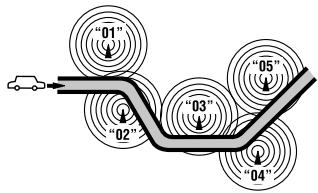
To change the Network-Tracking Reception setting, see (24).
- When the DAB tuner is connected, refer to "Tracing the same programme—Alternative Frequency Reception (DAB AF)," (21).
Listening to a disc

Turn on the power.

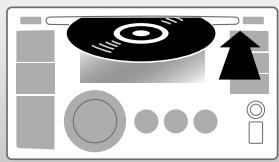
Stopping playback and ejecting the disc
"NO DISC" appears.
Press SOURCE to listen to another playback source.
Automatic station selection—Programme Search
Usually when you select a preset number, the station preset in that number is tuned in. If the signals from the FM Radio Data System preset station are not sufficient for good reception, this unit, using the AF data, tunes in to another frequency possibly broadcasting the same programme as the original preset station is broadcasting. (, 24)
Station name (PS) Station Frequency Programme type (PTY) Clock (back to the beginning)
All tracks will be played repeatedly until you change the source or eject the disc.
Prohibiting disc ejection

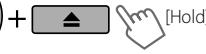
To cancel the prohibition, repeat the same procedure.
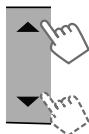
Selects folder of the MP3/WMA
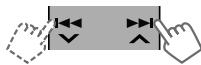
Selects track
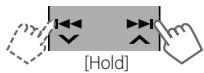
Fast-forwards or reverses the track
Selecting a folder/track on the list
While listening to a disc....
1

Enter the list menu.
2
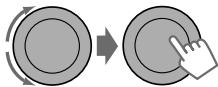
Select your desired item.
MP3/WMA: Select your desired folder, then the desired track by repeating this step.
- If the MP3/WMA disc contains many tracks, you can fast search (± 10, ± 100, ± 1000) through the disc by turning the control dial quickly.
To return to the previous menu, press T/P BACK.
Using the remote controller

A U/D▼: Selects folder of the MP3/WMA
R/F : Selects track
一 F:Fast-forwards or [Hold] reverses the track
Selecting the playback modes
You can use only one of the following playback modes at a time.
1
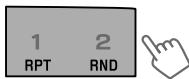
"REPEAT" or "RANDOMM"
- Pressing and holding the control dial will enter the playback menu. Turn the control dial to make a selection (REPEAT or RANDOM), then press to confirm.
2

REPEAT
TRACK RPT : Repeats current track
FOLDER RPT : Repeats current folder
RANDOM
FOLDER RND: Randomly plays all tracks of current folder, then tracks of next folders
ALL RND : Randomly plays all tracks
To cancel repeat play or random play, select "RPT OFF" or "RND OFF."
DISP
Disc title/Album name/performer (folder name)* Track title (file name)* Current track number with the elapsed playing time Current track number with the clock time (back to the beginning)
- If the current disc is an audio CD (except for CD Text), "NO NAME" appears.
If an MP3/WMA file does not have Tag information or is set to (23), folder name and file name appear.
Listening to the USB device
This unit can play MP3/WMA files stored on a USB mass storage class device.
You can connect a USB mass storage class device such as a USB memory, Digital Audio Player, etc. to the unit.
- You can also connect an Apple iPod/iPhone to the USB input terminal. For details of the
operations. 18.


Turn on the power.

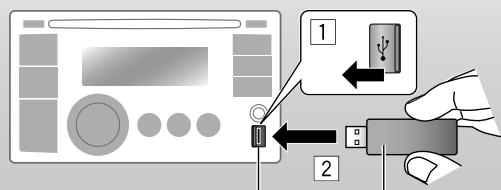
USB input terminal
USB memory
All tracks will be played repeatedly until you change the source or detach the USB device.
If you have turned off the power (without detaching the USB device)...
Pressing SOURCE turns on the power and playback starts from where it has been stopped previously.
- If a different USB device is currently attached, playback starts from the beginning.
Stopping playback and detaching the USB device
Straightly pull it out from the unit.
"NO USB" appears. Press SOURCE to listen to another playback source.
You can operate the USB device in the same way you operate the files on a disc. (10, 11)
Cautions:
- Avoid using the USB device if it might hinder your safety driving.
- Do not pull out and attach the USB device repeatedly while "READING" is shown on the display.
- Do not start the car engine if a USB device is connected.
- This unit may not be able to play the files depending on the type of USB device.
- Operation and power supply may not work as intended for some USB devices.
- You cannot connect a computer to the USB input terminal of the unit.
- Make sure all important data has been backed up to avoid losing the data.
- Do not leave a USB device in the car, expose to direct sunlight, or high temperature to avoid deformation or cause damages to the device.
- Some USB devices may not work immediately after attaching USB device or turn on the power.
- For more details about USB operations,

32.
Using the Bluetooth® device
For Bluetooth operations, it is required to connect the Bluetooth adapter, KS-BTA200 (not supplied) to the expansion port on the rear of this unit.
Refer to pages i and ii at the end of the manual to check the countries where you may use the Bluetooth® function.
- For details, refer also to the instructions supplied with the Bluetooth adapter and the Bluetooth device.
To use a Bluetooth device through the unit ("BT-PHONE" and "BT-AUDIO") for the first time, you need to establish a Bluetooth wireless connection between the unit and the device.
- Once the connection is established, it is registered on the unit even if you reset your unit. Up to five devices can be registered in total.
- Only one device can be connected at a time for each source ("BT-PHONE" and "BT-AUDIO").
Registration (Pairing) methods
Use either of the following items ("OPEN" or "SEARCH") in the Bluetooth menu to register and make the unit ready to establish a new Bluetooth connection with a device.
"OPEN": Connection is established by operating the Bluetooth device.
"SEARCH": Connection is established by operating the unit.
Registering using "OPEN"
Preparation: Operate the device to turn on its Bluetooth function.
1
"BT-PHONE" or "BT-AUDIO"
2

"NEW DEVICE" "OPEN"
3
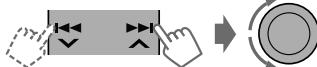
Enter a PIN (Personal Identification Number) code in to the unit.
You can enter any number you like (1-digit to 16-digit number).
[Initial: 0000]
- Some devices have their own PIN code. Enter the specified PIN code in to the unit.
4
Repeat step 3 until you have finished entering the PIN code.
5

"OPEN." flashes.
6
Use the Bluetooth device to search and connect.
On the device to be connected, enter the same PIN code you have just entered for this unit. "CONNECTED" appears.
Now connection is established and you can use the device through the unit.
The device remains registered even after you disconnect the device. Use "CONNECT" (or activate "AUTO CNTCT") to connect the same device from next time on. (17)
Registering using "SEARCH/SPECIAL"
1

"BT-PHONE" or "BT-AUDIO"
2

"NEW DEVICE"
3

"SEARCH": To search for available devices
The unit searches and displays the list of the available devices. "UNFOUND" appears if no available device is detected.
---Or---
"SPECIAL": To connect a special device
The unit displays the list of the preset devices.
4

Select a device you want to connect.
5 For available devices...
Enter the specific PIN code of the device to the unit.
Refer to the instructions supplied with the device to check the PIN code.
Use the Bluetooth device to connect.
Now connection is established and you can use the device through the unit.
For special device...
Use "OPEN" or "SEARCH" to connect.
Connecting/disconnecting/ deleting a registered device
1
"BT-PHONE" or "BT-AUDIO"
2

Select a device you want to connect/disconnect/delete.
3
"CONNECT" or "DISCONNECT": To connect/disconnect the selected device
--or
"DELETE" "YES": To delete the selected device
You can set the unit to connect the Bluetooth device automatically when the unit is turned on. ("AUTO CNT", 17)
Using a Bluetooth mobile phone
1

"BT-PHONE"
2

Bluetooth menu
3
Make a call or setting using the Bluetooth setting menu. (17)
When a call comes in....
The source is automatically changed to "BT-PHONE."
The display will flash in blue. (, 25)
When "AUTO ANSWER" is activated....
The unit answers the incoming calls automatically. (17)
- When "AUTO ANSWER" is deactivated, press any button (except SOURCE / ▲) to answer the incoming call.
- You can adjust the microphone volume level. (17)
To end the call
Hold any button (except SOURCE / ▲).
When a text message comes in....
If the mobile phone is compatible with text message (notified through JVC Bluetooth adapter) and "MSG INFO" (message info) is set to "AUTOMATIC" (17), the unit rings to inform you of the message arrival.
- "RCVMESSAGE" (receiving message) appears and the display illuminate in blue. (, 25)
Making a call
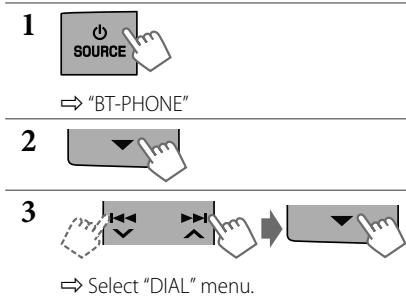
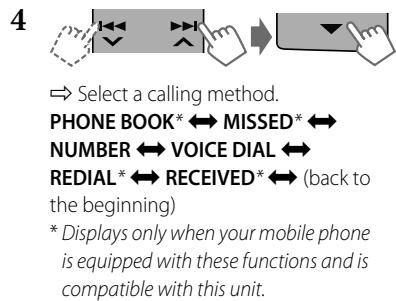
5 For REDIAL, RECEIVED, MISSED
Repeat step 4 to select a name (if it is acquired) or a phone number.
For PHONE BOOK
Repeat step 4 to select a name or a phone number.
For NUMBER
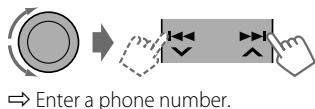

Confirm.
For VOICE DIAL
Speak the name you want to call when "SAY NAME" appears.
- If your mobile phone does not support the voice recognition system, "ERROR" appears.
- Using voice tags may be difficult in a noisy environment or during an emergency.
To return to the previous menu, press .
Using the remote controller
| ▲U/D▼/ : Answers calls
←R/F▶/ SOURCE |
| ▲U/D▼/ : Rejects calls
←R/F▶/ SOURCE
[Hold] |
Using a Bluetooth audio player
"BT-AUDIO"
If playback does not start, operate the Bluetooth audio player to start playback. Operate the Bluetooth audio player to pause (if playback does not pause when you change the source).
Reverse skips/forward skips
Pauses/startspayloadback*
- Operation may be different according to the connected Bluetooth audio player.

Enter setting menu (Device list)
For connecting/disconnecting/deleting a registered device, 14.
Using the remote controller

/ : Reverse skips/forward skips
Changing the Bluetooth settings
1

"BT-PHONE" or "BT-AUDIO"
2

Bluetooth menu
3

"SETTINGS"
4

Select a setting item.
AUTO CNNCT AUTO ANSWER*1
←MSG INFO2 ⇌ MIC SETTING1
VERSION*3 (back to the
beginning)
5

Change the setting accordingly. For setting menu, 17.
1 Appears only when a Bluetooth phone is connected.
2 Appears only when a Bluetooth phone is connected and it is compatible with text message (notified through JVC Bluetooth adapter).
*3 Bluetooth Audio: Shows only "Version."
When the unit is turned on, the connection is established automatically with...
OFF: No Bluetooth device.
LAST: The last connected Bluetooth device.
ORDER: The available registered Bluetooth device found at first.
AUTO ANSWER
Only for the device being connected for "BT-PHONE."
ON: The unit answers the incoming calls automatically.
OFF: The unit does not answer the calls automatically. Answer the calls manually.
REJECT: The unit rejects all incoming calls.
MSG INFO (message info)
Only for the device being connected for "BT-PHONE."
AUTOMATIC: The unit informs you of the arrival of a message by ringing and displaying "RCVMESSAGE" (receiving message).
- The display illuminate in blue. (, 25)
MANUAL: The unit does not inform you of the arrival of a message.
MIC SETTING (microphone setting)
Only for the device being connected for "BT-PHONE." Adjust microphone volume connected to the Bluetooth adapter, [LEVEL 01/02/03].
VERSION
The Bluetooth software and hardware versions are shown.
Warning messages
ERROR CNNCT (Error Connection)
The device is registered but the connection has failed. Use "CONNECT" to connect the device again. (14)
ERROR
Try the operation again. If "ERROR" appears again, check if the device supports the function you have tried.
UNFOUND
No available Bluetooth device is detected by "SEARCH."
LOADING*
The unit is updating the phone book.
PLEASE WAIT
The unit is preparing to use the Bluetooth function. If the message does not disappear, turn off and turn on the unit, then connect the device again (or reset the unit).
RESET8
Check the connection between the adapter and this unit.
- Displays only when your mobile phone is equipped with these functions and is compatible with this unit.
Bluetooth Information:
If you wish to receive more information about Bluetooth, visit the following JVC web site: http://www.jvc.co.jp/english/car/ (English website only)
Listening to the iPod/iPhone
You can connect the iPod/iPhone using the USB 2.0 cable (accessory of the iPod/iPhone) to the USB input terminal on the control panel.
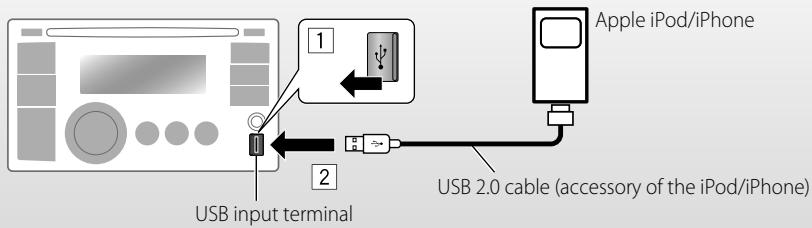
There are two control terminals:
- Control by this unit.
- Control by the connected iPod/iPhone.
Preparation: Select the controlling terminal,
or