
24-235-085 - Multimedia carts Ergotron - Free user manual and instructions
Find the device manual for free 24-235-085 Ergotron in PDF.


| Product Type | Multimedia cart for tablet management and charging |
| Brand | Ergotron |
| Model | 24-235-085 |
| Dimensions (W x D x H) | 58.4 cm x 46.7 cm x 100 cm |
| Weight (without equipment) | 43.1 kg (2 modules) / 54.1 kg (3 modules) |
| Power | 100-120 V~, 9.1 A, 50/60 Hz or 220-240 V~, 4.3 A, 50/60 Hz |
| Load capacity - top surface | 11.3 kg |
| Load capacity - bottom shelf | 11.3 kg (2-module cart) |
| Max. tablet size | 27.4 x 19.6 x 1.3 cm (H x W x D) |
| Max. weight per tablet | 1 kg |
| Max. number of tablets | 32 (2 modules) / 48 (3 modules) |
| LED indicators | Power and individual status per tablet (yellow = charging, green = syncing) |
| Syncing | Via external USB port for host computer (compatible with iTunes for iPad/iPod) |
| Security | Lockable casters and doors, unplug power cord before moving |
| Usage | Indoor only |
| Operating temperature | 0°C to 30°C |
| Operating humidity | 10% to 90% (non-condensing) |
| Max. altitude | 2,000 m |
| Tablet compatibility | Apple iPad, iPod Touch, Barnes & Noble Nook, Amazon Kindle (USB charging) |
| Warranty | See www.ergotron.com |
Frequently Asked Questions - 24-235-085 Ergotron
User questions about 24-235-085 Ergotron
0 question about this device. Answer the ones you know or ask your own.
Ask a new question about this device
Download the instructions for your Multimedia carts in PDF format for free! Find your manual 24-235-085 - Ergotron and take your electronic device back in hand. On this page are published all the documents necessary for the use of your device. 24-235-085 by Ergotron.
USER MANUAL 24-235-085 Ergotron
natural_image
Line drawing of a multi-tiered medical cart with handles and wheels (no text or symbols)
natural_image
Line drawing of a multi-tiered medical or laboratory care unit with wheels and internal compartments (no text or symbols)Two Module
Management Carts
Chariots de gestion
à deux modules
Carritos de gestión
con dos módulos
Zwei-Modul-
Managementwagen
( Tablet Management Cart )のセ
ットアップおよび使用ガイド
平板电脑管理手推车安装和使
用指南
5页-28页
1 Tablet Charging Set-up
Follow Tablet Charging instructions first, then Sync Set-up Instructions on next page.

Tablet Management Cart
Set-up and Go Guide
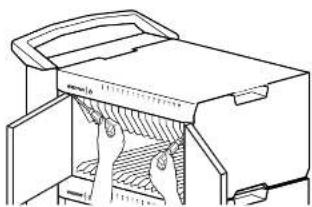
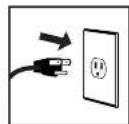
1 Make sure the cart power cord is disconnected from wall power supply before proceeding. Unlock the module and open the doors.

2 Use a Phillips screwdriver to remove the two screws located on the interior sides of the module; save screws to reinsert later.

natural_image
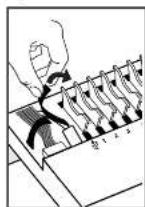
Technical line drawing of a mechanical device with internal components and no visible text or symbols3 Partially slide out the module drawer. You'll need to unplug two cables before sliding the drawer completely out. Open the strap to access the two cables.


4 Unplug the USB and DC power cables (push up on the lever under the DC connector to release). The drawer can now be removed.


5 Place the drawer up-side-down on the cart top. Line up a tablet USB cable along numbers 1 to 8 on the drawer as a way to measure out slack (represented by dashed line).

6 Route the tablet USB cable through the slots to the back of the drawer maintaining the slack measured in previous step.

7 Turn over the drawer. Wrap the excess USB cable around the cable organizer.

natural_image
Illustration of a hand using a spring scale to interact with a rack (no text or symbols visible)8 Connect the USB cable to the corresponding USB port. Repeat USB cabling steps 5 through 8 for the rest of the tablets going into this module.

9 Slide the drawer partially into the module. Reconnect the USB and DC cables and wrap the straps around the cables.

10 Slide the drawer completely into the module. Insert the screws removed in step 2 and tighten.

natural_image
Technical line drawing of a mechanical device with internal components and no visible text or symbols11 Insert tablets into module. Connect the tablet USB charging cables to the tablets. Repeat Steps 1 - 10 for the other modules.


Tablet Charging

The power cord is used to turn the Cart power on and off Charging occurs whenever the cart power cord is connected UNLESS a Mac or PC notebook USB cable is connected to the cart for syncing (see Tablet
Syncing Set-Up on the next page).
The cart power cord acts as the connect/disconnect device switching power off and on.
777-24-014-W-02 rev C
1 Tablet Charging Set-up continued

Tablet Management Cart Set-up & Go Guide
LED - Indicators

Power Indicator – communicates sync and charge status with the following signals:
Off = No power to the module.
On - solid = Tablets are charging.
On - slow blink = Computer is plugged into auxiliary USB outlet and tablets are ready to sync or are syncing.
On - fast blink = Fault Status. Please make sure all cables are seated correctly within cable drawer. Contact Ergotron Customer
Support if problem continues.
1-16 Individual Status Indicators (ISI) - sequentially numbered LEDs corresponding to each tablet in the module*:
Green = Fully charged.
Amber = Charging in progress.
* If module is syncing all ISIs will be green.
2 Tablet Syncing Set-up
Complete the Tablet Charging instructions before starting the Syncing Instructions.

Syncing Notebook to Tablets
The tablets will mount as USB devices when the included USB cable is connected to a host laptop via the USB port on the exterior of the module.
Apple iPad or iPod Touch devices will sync to a host laptop using iTunes. If the Mac or PC laptop power is on, and the laptop is running iTunes, the devices will sync to the laptop automatically when the USB cable is connected from the laptop to the USB port on the exterior of the module. Please see included separate instructions for specific setup of iTunes and your Apple devices.
For all other tablets, please reference your tablet manufacturer's product guide for information or instructions about how to sync to a host laptop.
1
Place your Mac or PC notebook, power adaptor and a USB cable on the cart work top.

natural_image
Illustration of a hand holding a laptop and paper with scissors, placed on a desk with scissors and paper nearby (no text or symbols visible)
3
Connect the notebook USB cable to the port on the side of the cart.

natural_image
Line drawing of a printer with a paper airplane and cable, showing internal components (no text or symbols)4
Connect the notebook power adaptor into the auxiliary outlet on the side of the cart. Tuck the access cables into the recessed area. Switch on the notebook power to begin syncing.

3 Safety

Tablet Management Cart Set-up and Go Guide
Cart and Equipment Electric Safety
There are specific risks associated with the use of equipment having power cables. You must be aware of, and avoid these risks when the Cart is located in close proximity to children.

WARNING: Failure to observe the following Electrical notices can result in fire or death by electric shock.

Electrical cables can be hazardous. Misuse can result in death by electrical shock.
• Double Pole / Neutral Fusing
- Inspect power cables thoroughly before each use.
- Do not use cables that are damaged.
- Insert the plug completely into the outlet.
- Grasp the plug to remove from the outlet.
- Do not unplug by pulling on the cable.
- Do not use excessive force to make connections.
- Do not plug the cable into an extension cable.
- Do not remove, bend or modify any metal prongs or pins of cable.
- Do not drive, drag or place objects over the cable.
- Do not walk on the cable.
- Avoid overheating. Uncoil the cable and do not cover it with any material.
- Do not run cable through doorways, holes in ceilings, walls or floors.

Keep the Cart away from water.
- Do not use it when wet.
- Do not place the Cart in close proximity to flammable liquids or gases.

The cart power cord acts as the connect/disconnect device switching power off and on.
Cart Use Safety
There are specific risks associated with the use of Cart when moving or stationary (for charging or storage). You must be aware of, and avoid these risks when the Cart is located in close proximity to children.

WARNING: Failure to observe the following Cart Use Safety notices may result in serious personal injury or equipment damage.
Only Adults should move this cart.
- Do not allow anyone to sit, stand, or climb on the Cart.
- Do not lift the Cart from the bottom.
- Do not block the fans and vent openings. To prevent overheating, leave at least 127 mm (5-inch) clearance around fans and vents.
The Cart is designed to be used indoors only.
- Do not use the Cart to transport or store equipment other than what has been noted in this guide.
- Do not use the Cart to store liquids or cleaning supplies.
- Do not place heavy objects on the Cart surface or shelf.
– The maximum weight capacity of the top surface is 11.4 kg (25 lb).
– The maximum weight capacity of the shelf is 16 kg (35.2 lb).
Moving the Cart
• Before moving the Cart:
-
Disconnect the power cable from the wall.
-
Make sure the cable is wrapped and secure.
-
Close and lock the doors.
-
Remove items from the top work surface.
-
Unlock the casters.
- Push (do not pull) the Cart for optimum maneuverability and to prevent muscle strain.
- Do not move the Cart across rough, uneven or irregular surfaces such as gravel.
Parking the Cart
Observe these safety alerts for times when the cart is stationary:
- Do not park the Cart in areas of heavy traffic.
- Do not run cables through doorways, holes in ceilings, walls, or floors.
- Do not run cables across hallways, classrooms, or other areas where they will be walked on.
- Do not leave Cart unattended in areas where children have access.
- Keep Cart doors closed and locked whenever it is unattended or parked for charging or storage.
- Keep Cart casters locked whenever it is unattended.

CAUTION: Changes or Modifications not expressly approved by Ergotron could void the user's authority to operate the equipment.
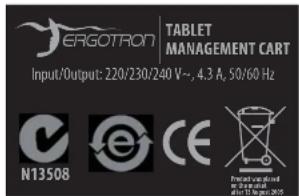


4 Specifications
This device complies with Part 15 of the FCC Rules. Operation is subject to the following two conditions: 1) This device may not cause harmful interference. 2) This device must accept any interference received, including interference that may cause undesired operation. This Class A digital apparatus complies with Canadian ICES-003. / Cet appareil numérique de la classe A est conforme à la norme NMB-003 du Canada.
Cart dimensions
23"W x 18.4"D x 39.3"H (58.4 x 46.7 x 100 cm)
Cart weight (w/o equipment)
Two Module Cart 95 lbs (43.1kg)
Three Module Cart 119 lbs (54.1 kg)
Rated weight capacity
Top Work Surface 25 lb (11.3 kg)
Bottom Shelf (Two Module Carts, only)
25

This cart is intended for use only with loading as indicated. Use with loads greater than indicated may result in instability causing possible injury.
Maximum tablet size
Individual tablet dimensions (including cover): up to 10.8 H x 7.7 W x 0.95 in D (27.4 x 19.6 x 1.3 cm) Individual tablet weight: up to 2.2 lb (1 kg)
LED status indicators (ISI) - Optional feature
Lights indicate power status and syncing activity Two Module Cart 32 LED lights Three Module Cart 48 LED lights
Cooling/ventilation
One 5-volt DC continuous operation fan in each module
External power outlet(s)
One or two outlets, depending on region 100/120 V\~, 3A, 50/60 Hz or 220/230/240 V\~, 1.5A, 50/60 Hz

Tablet Management Cart
Set-up and Go Guide
Shipping dimensions
46.1×29.9×22.8 in (117×76×58 cm)
Shipping weight
Two Module Cart 140 lb (64 kg)
Three Module Cart 168 lb (76 kg)
Power system
100/120 V\~, 9.1A, 50/60 Hz or 220/230/240 V\~, 4.3A, 50/60 Hz Depending on region and model of Cart
Tip Test/Angle: 10 degrees
Environmental
Temperature range: Operating 0° to 30°C (32° to 86°F) Storage -40° to 60°C (-40° to 140°F)
Relative humidity (maximum): Operating 10%–90% (non condensing) Storage 5%–95% (non condensing) Altitude (maximum): 2000 m (6,562 ft)
Compatibility: USB charged Tablets only, including: Apple iPad, Apple iPod Touch, Barnes & Nobel Nook, Amazon Kindle. For devices not listed here, check with Ergotron for compatibility.
Cart Features

Handle
LED Power Indicator
Individual Status Inidicators (ISI)
Tablet Access Doors
Keyed Locks
2 Non-locking Casters

natural_image
Line drawing of a multi-tiered cylindrical medical cart with handles and control knobs (no text or symbols)
AC Adaptor Cradle
Auxiliary Power Outlet(s)
USB Port
Fans (one for each module)
Cord Wrap Bay and Power Cord
2 Locking Casters
JERGOTRON
© 2011 Ergatron, Inc. All rights reserved.
While Ergotron, Inc. makes every effort to provide accurate and complete information on the installation and use of its products, it will not be held liable for any editorial errors or omissions (including those made in the process of translation from English to another language); or for incidental, special or consequential damages of any nature resulting from furnishing this instruction and performance of equipment in connection with this instruction. Ergotron, Inc. reserves the right to make changes in the product design and/or product documentation without notification to its users. For the most current product information, or to know that this document is available in languages other than those who are subject to Ergotron, Inc. or to do not have a particular effect on the subject. The authors' legal system transmitted in any form or by any means, electronic, mechanical, photocopying, recording or otherwise without the prior written consent of Ergotron, Inc., 1181 Trapp Board, Eagan, Minnesota, 55121, USA. Patents Pending and Patented U.S. & Foreign Ergotron is a registered trademark of Ergotron, Inc.
Americas Sales and
St. Paul, MN USA
(800) 888-8458
+1-651-681-7600
natural_image
Technical line drawing of a printer or printer with internal structure and no visible text or symbolsnatural_image
Illustration of a hand using a ruler to press or adjust a mechanical component, with no visible text or symbols.natural_image
Line drawing of a hand using a coiled spring to switch a device (no text or symbols present)natural_image
Technical line drawing of a mechanical device with internal components and no visible text or symbolsnatural_image
Two-panel illustration showing a file transfer or storage operation: one with a folder and arrow, the other with a tray filled with contents (no text or symbols)Vert = pleine charge.
natural_image
Line drawing of a printer with an open circuit board and a hand inserting a cable (no text or symbols)4
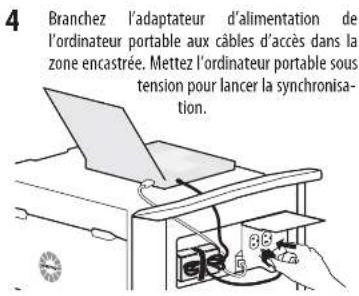
The cart power cord acts as the connect/disconnect device switching power off and on.

Corporate Headquarters
EMEA Sales
St. Paul, MN USA
(800) 888 8458
+1-651-681-7600
natural_image
Technical line drawing of a printer or printer with internal structure and no visible text or symbolsnatural_image
Illustration of two mechanical components: a cutting tool and a spring scale (no text or symbols)natural_image
Hand holding a spring scale with wires, placed on a rectangular device (no text or symbols visible)natural_image
Technical line drawing of a mechanical device with internal components (no text or symbols)natural_image
Two-step diagram showing a file transfer or storage operation: one with arrows indicating direction, the other with a hand inserting a tray into a container (no text or symbols present)Carga de tabletas

2 Tablet Syncing Set-up
natural_image
Line drawing of a printer with a paper airplane and cable inserted into a slot (no text or symbols)4
© 2011 Ergoton, Inc.
At rights reserved.
Corporate Headquarters
EMEA Sales
St. Paul, MN USA
(800) 888-8458
+1-651-681-7600
www.ergotron.com
sales@ergotron.com
Amersfoort, The Netherlands
+31 33 45 45 600
www.ergotron.com
info.eu@ergotron.com
APAC Sales
Worldwide OEM Sales
Tokyo, Japan
www.ergotron.com
apaccustomerservice@ergotron.com
www.ergotron.com
info.oem@ergotron.com
777-24-014-W-02 rev C

natural_image
Technical line drawing of a printer or printer with internal structure and no visible text or symbols


natural_image
Illustration of a hand connecting a spring-loaded cable to a rack with a switch (no text or symbols visible)
natural_image
Technical line drawing of a mechanical device with internal components and no visible text or symbols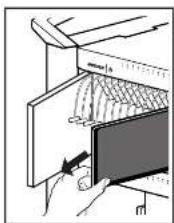


natural_image
Illustration of a hand holding a laptop and paper with scissors, placed on a desk with tools (no text or symbols visible)2
natural_image
Line drawing of a printer's internal structure with a hand inserting a cable into the case (no text or symbols)3
natural_image
Line drawing of a printer with a paper airplane being inserted into a box (no text or symbols)4
3 Sicherheit

- Do not run cables through doorways, holes in ceilings, walls, or floors.
- Do not run cables across hallways, classrooms, or other areas where they will be walked on.
- Do not leave Cart unattended in areas where children have access.
- Keep Cart doors closed and locked whenever it is unattended or parked for charging or storage.
- Keep Cart casters locked whenever it is unattended.

© 2011 Ergotran, Inc.
All rights reserved.
Corporate Headquarters
EMEA Sales
St. Paul, MN USA
(800) 888-8458
+1-651-681-7600
Follow Tablet Charging instructions first, then Sync Set-up Instructions on next page.
natural_image
Technical line drawing of a printer or printer with internal structure and no visible text or symbolsnatural_image
Illustration showing hands using a tool to press or adjust a mechanical component, with no visible text or symbols.5 Place the drawer up-side-down on the cart top. Line up a tablet USB cable along numbers 1 to 8 on the drawer as a way to measure out slack (represented by dashed line).

natural_image
Technical line drawing of a mechanical device with internal components and no visible text or symbolsnatural_image
Two-step diagram showing a file transfer or storage operation: one with arrows indicating direction, the other with a hand inserting a tray into a container (no text or symbols present)Carica dei tablet

natural_image
Line drawing of a printer with a paper airplane and cable inserted into a slot (no text or symbols)4
3 Sicurezza

This device complies with Part 15 of the FCC Rules. Operation is subject to the following two conditions: 1) This device may not cause harmful interference. 2) This device must accept any interference received, including interference that may cause undesired operation. This Class A digital apparatus complies with Canadian ICES-003. / Cet appareil numérique de la classe A est conforme à la norme NMB-003 du Canada.
© 2011 Ergatron, Inc.
At rights reserved.
natural_image
Technical line drawing of a multi-tiered office or inventory unit with wheels and handlebars (no text or symbols)Corporate Headquarters
EMEA Sales
St. Paul, MN USA
(800) 888 8458
+1-651-681-7600
natural_image
Technical line drawing of a mechanical device with internal components (no text or symbols)natural_image
Illustration of two mechanical components: a flat tool and a spring scale, both without any text or symbols.natural_image
Line drawing of a hand using a coiled spring to interact with a device labeled '1.0' (no text or symbols on the device itself)natural_image
Illustration of a hand using a pen to press or install a spiral notebook (no text or symbols visible)natural_image
Line drawing of a printer with internal components and ventilation slots (no text or symbols)natural_image
Two-step diagram showing a file transfer or storage operation: one with arrows indicating direction, the other with a hand inserting a tray into a container (no text or symbols present)タブレット充電

© 2011 Ergaton, Inc. All rights reserved.
natural_image
Technical line drawing of a printer or printer with internal structure and no visible text or symbolsnatural_image
Illustration of two mechanical devices: a flat sheet and a rack with a handle, both without any text or symbols.natural_image
Line drawing of a hand using a coiled spring to switch a rectangular electronic device (no text or symbols visible)natural_image
Line drawing of a printer with open door and internal mesh structure (no text or symbols)natural_image
Two-panel illustration showing a file organizer with arrows and a close-up of the open drawer containing dense contents (no text or symbols)平板电脑充电
1 Tablet Charging Set-up 续
LED - 指示灯

平板电脑管理手推
车安装和使用指南

交流适配器架
辅助电源插座
USB端口
风扇(每个模块一个)
绕线架和电源线
2个锁定滚轮
Americas Sales and Corporate Headquarters
EMEA Sales
St. Paul, MN USA
(800) 888 8458
+1-651-681-7600


- Tablet Charging Set-up
- Tablet Charging Set-up continued
- LED - Indicators
- Tablet Syncing Set-up
- Syncing Notebook to Tablets
- Safety
- Cart and Equipment Electric Safety
- Cart Use Safety
- Moving the Cart
- Parking the Cart
- Specifications
- Cart dimensions
- Cart weight (w/o equipment)
- Rated weight capacity
- Maximum tablet size
- LED status indicators (ISI) - Optional feature
- Cooling/ventilation
- External power outlet(s)
- Shipping dimensions
- Shipping weight
- Power system
- Environmental
- JERGOTRON
- Americas Sales and
- Carga de tabletas
- 2
- 3
- 4
- Sicherheit
- Carica dei tablet
- Sicurezza
- 平板电脑充电
- Tablet Charging Set-up 续
- LED - 指示灯
Brand : Ergotron
Model : 24-235-085
Category : Multimedia carts