
DAP-2310 - Access Point D-LINK - Free user manual and instructions
Find the device manual for free DAP-2310 D-LINK in PDF.


| Product Type | Wireless Access Point |
| Brand | D-Link |
| Model | DAP-2310 |
| Dimensions (L x W x H) | 147 x 118 x 31 mm |
| Weight | 0.2 kg |
| Power Supply | Power adapter 5V DC, 1A |
| Power Consumption | 5 W max |
| Wireless Standards | IEEE 802.11 b/g/n |
| Maximum Wireless Speed | Up to 300 Mbps |
| Antennas | 2 detachable antennas |
| Ports | 1 Ethernet 10/100 Mbps port (LAN) |
| Operating Modes | Access point, WDS, bridge |
| Wireless Security | WEP, WPA/WPA2, MAC filtering |
| Configuration | Web interface (HTTP) |
| Default IP Address | 192.168.0.50 |
| Default Username | admin |
| Default Password | (blank) |
| Package Contents | Access point, 2 antennas, power adapter, Ethernet cable, CD-ROM |
| Care and Cleaning | Clean with a soft, dry cloth. Do not use liquids or aerosols. |
| Spare Parts and Repairability | Contact D-Link technical support. No user-serviceable parts. |
| General Information | Indoor use only. Operating temperature: 0 to 40 °C. |
Frequently Asked Questions - DAP-2310 D-LINK
User questions about DAP-2310 D-LINK
0 question about this device. Answer the ones you know or ask your own.
Ask a new question about this device
Download the instructions for your Access Point in PDF format for free! Find your manual DAP-2310 - D-LINK and take your electronic device back in hand. On this page are published all the documents necessary for the use of your device. DAP-2310 by D-LINK.
USER MANUAL DAP-2310 D-LINK
- Computers with Windows ^ , Macintosh ^ , or Linux-based operating systems and an installed Ethernet Adapter
- Internet Explorer version 7.0 or Firefox 3.0 or higher (for configuration)
Package Contents
• D-Link DAP-2310 AirPremier® N Access Point
• 2 Detachable Antennas
- Power Adapter
• CAT5 Ethernet Cable
• CD-ROM with Installation Guide, User Manual, and Special Offers

natural_image
Black DIP2 network device with two external antennas and a power indicator (no readable text or symbols beyond branding)Note: Using a power supply with a different voltage than the one included with the DAP-2310 may damage the unit and will void the warranty for this product.
If any of the above items are missing, please contact your reseller.
Connecting the DAP-2310 to your network
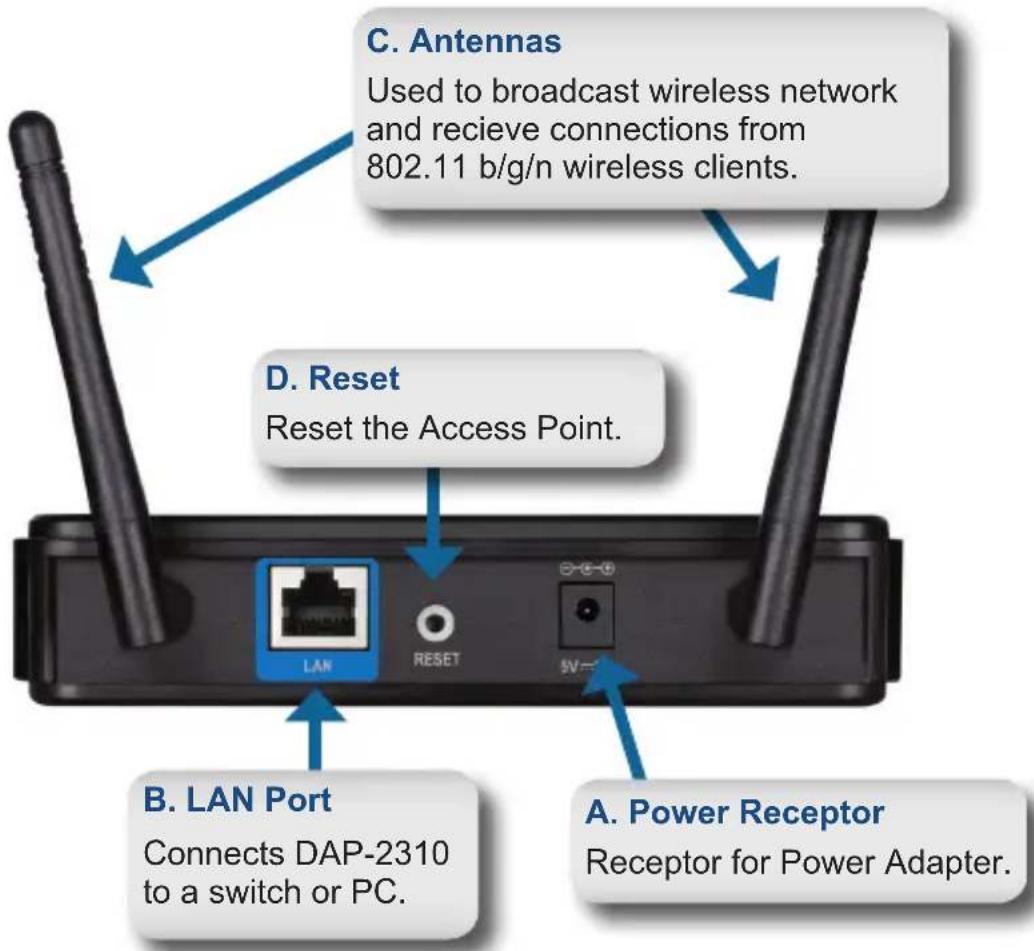
A. Connect the power adapter to the receptor on the rear panel of the DAP-2310 and then plug the other end of the power adapter to a wall outlet or power strip. The power LED will turn ON to indicate proper operation.
B. Using an Ethernet cable, insert one end of the cable to the LAN port on the rear panel of the DAP-2310 and the other end of the cable to a switch.
Note: You can also connect the DAP-2310 directly to the computer that will be used for configuration. The LAN LED will illuminate to indicate a proper Ethernet connection.
C. Computers with 802.11 b/g/n wireless adapters can connect to the DAP-2310.
Getting Started
- You will need broadband Internet access.
- Consult with your cable or DSL provider for proper installation of the modem.
- Connect the Cable or DSL modem to a router.
- If you are connecting a desktop computer to your network, install a wireless PCI adapter into an available PCI slot on your desktop computer.
- Install the drivers for your wireless CardBus adapter into a laptop computer.

flowchart
graph TD
    A["INTERNET"] --> B["CABLE/DSL MODEM"]
    B --> C["Router"]
    C --> D["AirPremier® N ACCESS POINT DAP-2310"]
    D --> E["NOTEBOOK with WIRELESS B/G ADAPTER"]
    D --> F["COMPUTER with WIRELESS N ADAPTER"]
Using the Configuration Menu
First, disable the Access the Internet using a proxy server function. To disable this function, go to Control Panel > Internet Options > Connections > LAN Settings and uncheck the enable box.
Start your web browser program (Internet Explorer, Mozilla Firefox).
Please start your web browser program, type the IP address of the device (http://192.168.0.50) and press Enter. Make sure that the IP addresses of the device and the computer are in the same subnet. Then, refer to the manual for configuration.
Note: If you have changed the default IP address assigned to the DAP-2310, make sure to enter the correct IP address.

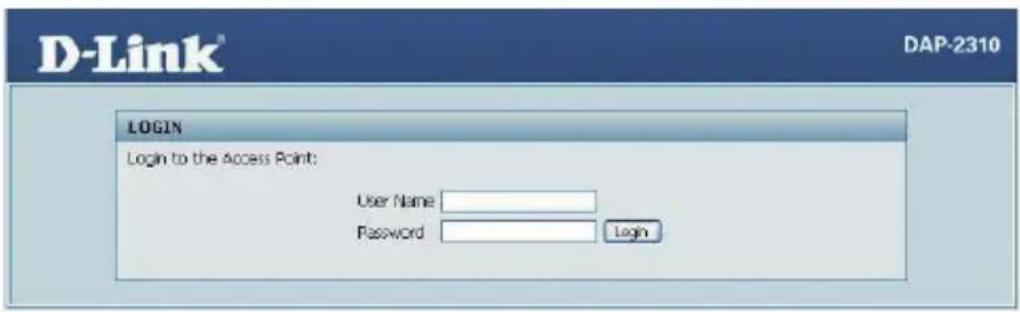
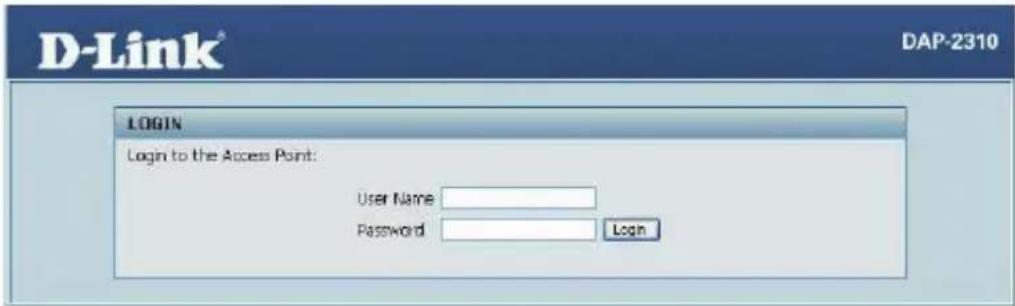
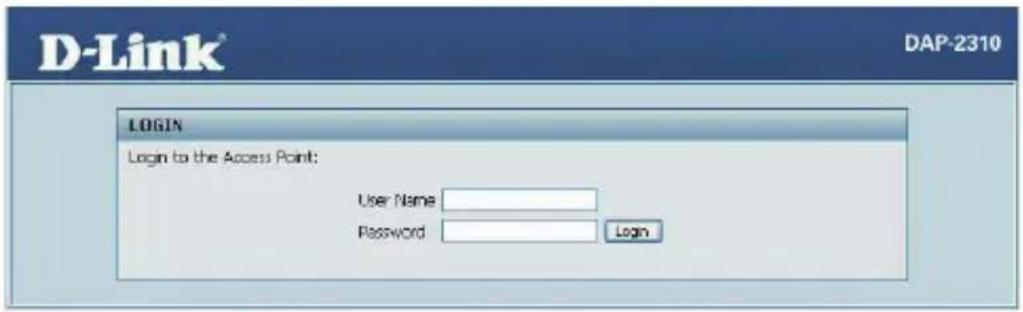
- Type admin in the User Name field.
- Leave the Password field blank.
- Click the Login button.
Note: If you have changed the password, make sure to enter the correct password.
TECHNICAL SUPPORT
United Kingdom (Mon-Fri) website: http://www.dlink.co.uk FTP: ftp://ftp.dlink.co.uk
Home Wireless/Broadband 0871 873 3000 (9.00am–06.00pm, Sat 10.00am-02.00pm)
Managed, Smart, & Wireless Switches, or Firewalls 0871 873 0909 (09.00am- 05.30pm)
(BT 10ppm, other carriers may vary.)
Ireland (Mon-Fri)
All Products 1890 886 899 (09.00am-06.00pm, Sat 10.00am-02.00pm)
Phone rates: €0.05ppm peak, €0.045ppm off peak times
Systemanforderungen
natural_image
Black D-Link wireless router with two external antennas, shown without any text or symbols on the device body.
natural_image
Black wireless router device with two external antennas and control buttons (no visible text or symbols on body)flowchart
graph TD
    A["INTERNET"] --> B["CABLE/DSL MODEM"]
    B --> C["ROUTER"]
    C --> D["AirPremier® N ACCESS POINT DAP-2310"]
    D --> E["NOTEBOOK with WIRELESS B/G ADAPTER"]
    D --> F["COMPUTER with WIRELESS N ADAPTER"]
natural_image
Black wireless router device with two external antennas and control buttons (no visible text or symbols on body)flowchart
graph TD
    A["INTERNET"] --> B["CABLE/DSL MODEM"]
    B --> C["ROUTER"]
    C --> D["AirPremier® N ACCESS POINT DAP-2310"]
    D --> E["NOTEBOOK with WIRELESS B/G ADAPTER"]
    D --> F["COMPUTER with WIRELESS N ADAPTER"]
natural_image
Black wireless router with two external antennas, no visible text or symbols on the device bodyflowchart
graph TD
    A["INTERNET"] --> B["CABLE/DSL MODEM"]
    B --> C["ROUTER"]
    C --> D["AirPremier® N ACCESS POINT DAP-2310"]
    D --> E["COMPUTER with WIRELESS N ADAPTER"]
    D --> F["NOTEBOOK with WIRELESS B/G ADAPTER"]
http://www.dlink.it/support
Wireless Network Name (SSID)
Wireless Network Password
TECHNICAL SUPPORT
UK www.dlink.co.uk
IRELAND www.dlink.ie
GERMANY www.dlink.de
FRANCE www.dlink.fr
SPAIN www.dlink.es
ITALY www.dlink.it
NETHERLANDS www.dlink.nl
BELGIUM www.dlink.be
LUXEMBURG www.dlink.lu
POLAND www.dlink.pl
CZECH www.dlink.cz
HUNGARY www.dlink.hu
NORWAY www.dlink.no


Brand : D-LINK
Model : DAP-2310
Category : Access Point