KDL-32CX520 - TV SONY - Free user manual and instructions
Find the device manual for free KDL-32CX520 SONY in PDF.


User questions about KDL-32CX520 SONY
0 question about this device. Answer the ones you know or ask your own.
Ask a new question about this device
Download the instructions for your TV in PDF format for free! Find your manual KDL-32CX520 - SONY and take your electronic device back in hand. On this page are published all the documents necessary for the use of your device. KDL-32CX520 by SONY.
USER MANUAL KDL-32CX520 SONY
Operating Instructions GB
操作手册
CT
text_image
i-MANUAL ?BRAVIA
Introduction
Thank you for choosing this Sony product. Before operating the TV, please read this manual thoroughly and retain it for future reference.
_3
- Instructions about “Installing Wall Mount Bracket” are included within this TV’s instructions manual.
- The illustrations used in this manual are of the KDL-40EX520 series unless otherwise state.
- The illustrations of the remote control used in this manual are of the RM-GD019 unless otherwise stated.
- Before operating the TV, please read "Safety Information" (page 31). Retain this manual for future reference.
Trademark information
HDMI, the HDMI logo and High-Definition Multimedia Interface are trademarks or registered trademarks of HDMI Licensing LLC.
DLNA® and DLNA CERTIFIED® are trademarks and/or service marks of Digital Living Network Alliance.
DivX® is a video file compression technology, developed by DivX, Inc.
DivX®, DivX Certified®, and associated logos are trademarks of DivX, Inc. and are used under license.
ABOUT DIVX VIDEO: DivX® is a digital video format created by DivX, Inc. This is an official DivX Certified device that plays DivX video. Visit www.divx.com for more information and software tools to convert your files into DivX video.
ABOUT DIVX VIDEO-ON-DEMAND: This DivX Certified® device must be registered in order to play DivX Video-on-Demand (VOD) content. To generate the registration code, locate the DivX VOD section in the device setup menu. Go to vod.divx.com with this code to complete the registration process and learn more about DivX VOD.
Manufactured under license from Dolby Laboratories. Dolby and the double-D symbol are trademarks of Dolby Laboratories.
"BRAVIA" and Bare Trademarks of Sony Corporation.
The typefaces used on the screen display are solely developed by DynaComware.
TrackID are trademarks or registered trademarks of Sony Ericsson Mobile Communications AB.
Music and video recognition technology and related data are provided by Gracenote®. Gracenote is the industry standard in music recognition technology and related content delivery. For more information, please visit www.gracenote.com. CD, DVD, Blu-ray Disc, and music and video-related data from Gracenote, Inc., copyright © 2000-present Gracenote. Gracenote Software, copyright © 2000-present Gracenote. One or more patents owned by Gracenote apply to this product and service. See the Gracenote website for a nonexhaustive list of applicable Gracenote patents. Gracenote, CDDB, MusicID, MediaVOCS, the Gracenote logo and logotype, and the “Powered by Gracenote” logo are either registered trademarks or trademarks of Gracenote in the United States and/or other countries.
Opera® Browser from Opera Software ASA. Copyright 1995-2010 Opera Software ASA. All rights reserved.
Wi-Fi Protected Setup and WPA are marks of the Wi-Fi Alliance.

DIGITAL PLUS
PULSE



This television is designed for use in Hong Kong and ensured the usage in Hong Kong only.
Location of the identification label
Labels for Model No. and Power Supply rating (in accordance with applicable safety regulation) are located on the rear of the TV.

gracenote.

HIGH-DEFINITION MULTIMEDIA INTERFACE
Precautions
Viewing the TV
- Some people may experience discomfort (such as eye strain, fatigue, or nausea) while watching 3D video images or playing 3D video games. Sony recommends that all viewers take regular breaks while watching 3D video images or playing 3D video games. The length and frequency of necessary breaks will vary from person to person. You must decide what works best. If you experience any discomfort, you should stop watching the 3D video images or playing 3D video games until the discomfort ends; consult a doctor if you believe necessary. You should also review (i) the instruction manual of any other device or media used with this television and (ii) our website (http://www.sony-asia.com/support) for the latest information. The vision of young children (especially those under six years old) is still under development. Consult your doctor (such as a pediatrician or eye doctor) before allowing young children to watch 3D video images or play 3D video games. Adults should supervise young children to ensure they follow the recommendations listed above.
- When using the simulated 3D function, please note that the displayed image is modified from the original due to the conversion done by this television.
• View the TV in moderate light, as viewing the TV in poor light or during long period of time, strains your eyes. - When using headphones, adjust the volume so as to avoid excessive levels, as hearing damage may result.
LCD Screen
- Although the LCD screen is made with high-precision technology and 99.99% or more of the pixels are effective, black dots may appear or bright points of light (red, blue, or green) may appear constantly on the LCD screen. This is a structural property of the LCD screen and is not a malfunction.
- Do not push or scratch the front filter, or place objects on top of this TV set. The image may be uneven or the LCD screen may be damaged.
- If this TV set is used in a cold place, a smear may occur in the picture or the picture may become dark. This does not indicate a failure. These phenomena disappear as the temperature rises.
- Ghosting may occur when still pictures are displayed continuously. It may disappear after a few moments.
- The screen and cabinet get warm when this TV set is in use. This is not a malfunction.
- The LCD screen contains a small amount of liquid crystal. Some fluorescent tubes used in this TV set also contain mercury (except LED backlight LCD TV). Follow your local ordinances and regulations for disposal.
Handling and cleaning the screen surface/cabinet of the TV set
Be sure to unplug the mains lead connected to the TV set from mains socket before cleaning.
To avoid material degradation or screen coating degradation, observe the following precautions.
- To remove dust from the screen surface/cabinet, wipe gently with a soft cloth. If dust is persistent, wipe with a soft cloth slightly moistened with a diluted mild detergent solution.
- Never spray water or detergent directly on the TV set. It may drip to the bottom of the screen or exterior parts and enter the TV set, and may cause damage to the TV set.
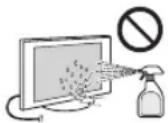
- Never use any type of abrasive pad, alkaline/acid cleaner, scouring powder, or volatile solvent, such as alcohol, benzene, thinner or insecticide. Using such materials or maintaining prolonged contact with rubber or vinyl materials may result in damage to the screen surface and cabinet material.
- Periodic vacuuming of the ventilation openings is recommended to ensure to proper ventilation.
- When adjusting the angle of the TV set, move it slowly so as to prevent the TV set from moving or slipping off from its table stand.
Optional Equipment
Keep optional components or any equipment emitting electromagnetic radiation away from the TV set. Otherwise picture distortion and/or noisy sound may occur.
(Caution about handling the remote control) Notes
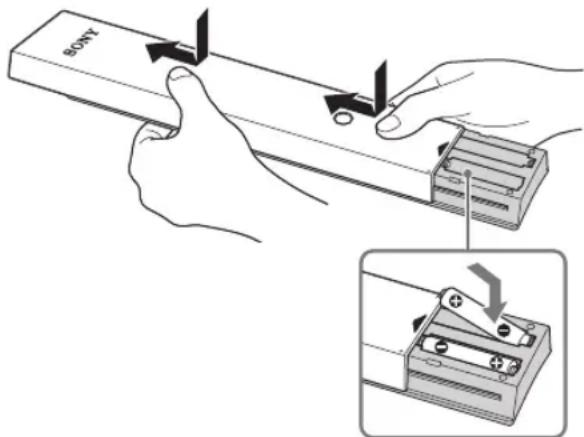
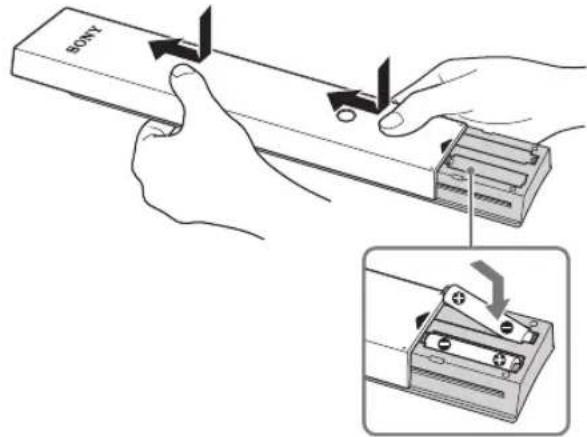
- Observe the correct polarity when inserting batteries.
- Do not use different types of batteries together or mix old and new batteries.
- Dispose of batteries in an environmentally friendly way. Certain regions may regulate the disposal of batteries. Please consult your local authority.
- Handle the remote with care. Do not drop or step on it, or spill liquid of any kind onto it.
- Do not place the remote in a location near a heat source, a place subject to direct sunlight, or a damp room.
Table of Contents
Getting Started
Checking the accessories....6
Inserting batteries into the remote....6
1: Attaching the Table-Top Stand 7
2: Adjusting the viewing angle of the TV....8
3: Connecting an antenna (aerial)/cable/VCR....9
4: Connecting audio/video devices .... 10
5: Preventing the TV from toppling over....10
6: Organizing the AC power cord/Bundling the cables....11
7: Performing the initial set-up .... 11
Using Your BRAVIA TV
Watching the TV....12
Selecting various functions and settings (Home Menu)....14
Displaying Operating Instructions (i-Manual) 16
Network Setup
Preparing a wired network 18
Preparing a wireless LAN....18
Setting up the Internet connection ....19
If you cannot connect to the Internet....20
Adjusting the server display settings....20
Additional Information
Troubleshooting 22
Specifications....23
Installing the Accessories (Wall-Mount Bracket)....25
Safety Information....31
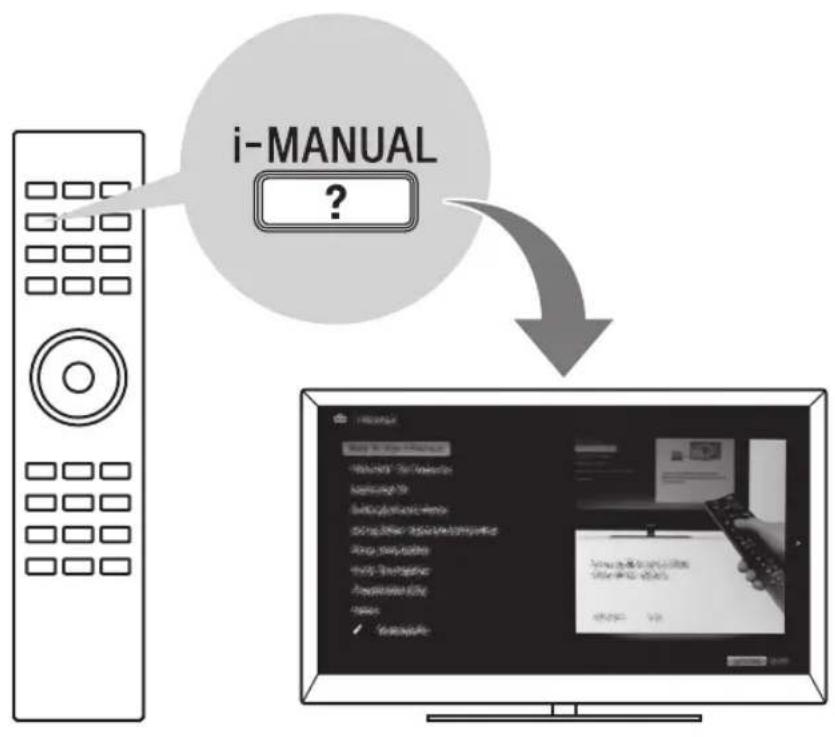
After setting up your BRAVIA TV and learning basic operations with this manual, see the built-in manual (i-Manual) for further explanation of the features of your TV.
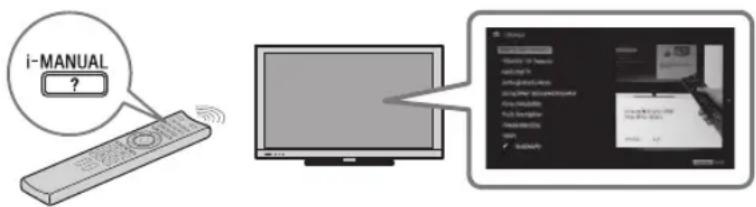
This TV has a built-in manual (i-Manual).
To access the i-Manual, press i-MANUAL on the remote, and select an item. For details, see page 16 of this manual. Contents of the i-Manual may differ depending on the model/region/area.
text_image
i-MANUAL ?Contents of the i-Manual
* Some models do not have this feature.
How to Use i-Manual
"BRAVIA" TV Features
3D Feature*
Presence Sensor
"BRAVIA" Internet Video
Internet Widgets
Wireless LAN Ready
"BRAVIA" Sync with "Control for HDMI"
Skype Ready
TrackID™/Music Search/Video Search
Watching TV
3D Feature*
Digital Electronic Programme Guide
Favourites
Wide Mode
Picture Mode
Text
Photos/Music/Videos
Twin Picture (PIP)
Twin Picture (P&P)
Settings/Home Menu
About the Home Menu
Settings
Display
Sound
System Settings
i-Manual
Digital Set-up
Analogue Set-up
External Inputs
Network
Product Support
Using Other Equipment/Internet
VCR/DVD Player
Audio System
USB Device (e.g. Digital Camera)
Picture Frame
HDMI Equipment
Internet/Wireless LAN
Home Network
Media Remote
PC
Parts Description
Remote
TV Controls and Indicators
Terminals
Troubleshooting
Index
Bookmarks
Checking the accessories
Remote (1)
Size AAA batteries (R03 type) (2)
Table-Top Stand (1)*1
Fixing screws for Table-Top Stand
(M4 × 12) (2) (for KDL-26/22EX420)
Fixing screws for Table-Top Stand
(M5 × 16) (3) (for KDL-55/46/40/32EX720,
KDL-40/32EX520, KDL-40/32CX520)
Fixing screws for Table-Top Stand
(M5 × 16) (4*2) (for KDL-22CX520)
Assembling screws for Table-Top Stand
(M4 × 12) (2) (for KDL-26/22EX420)
Assembling screws for Table-Top Stand
(M6 × 14) (4) (for KDL-55/46EX720)
Assembling screws for Table-Top Stand
(M6 × 14) (3) (for KDL-40/32EX720,
KDL-40/32EX520, KDL-40/32CX520)
Assembling screws for Table-Top Stand
(M4 × 10) (3) (for KDL-22CX520)
Hexagon Wrench (1) (except
KDL-26/22EX420, KDL-22CX520)
Operating Instructions (this manual) and other documents
*1 Assemble the Table-Top Stand with the supplied assembling screws. Refer to the supplied Table-Top Stand leaflet to assemble the stand.
^*2 One spare screw is included.
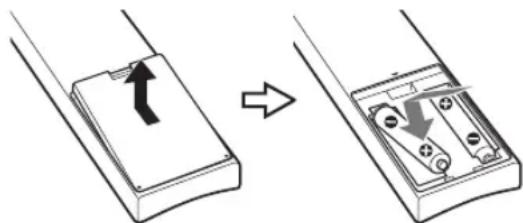
Inserting batteries into the remote
▶KDL-55/46/40/32EX720
text_image
SONY1 Remove the protection sheet.
2 Push and slide the cover upward.
▶KDL-40/32EX520, KDL-40/32/22CX520 and KDL-26/22EX420
text_image
Diagram showing a device with an arrow indicating direction, before and after assembly or disassembly.1 Remove the protection sheet.
2 Push and lift the cover to open.
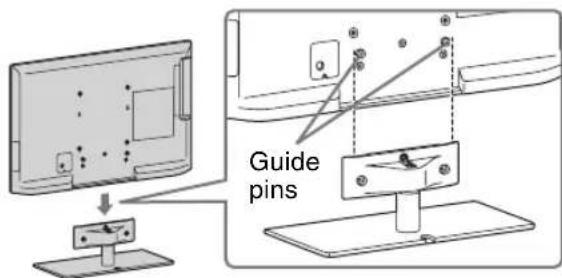
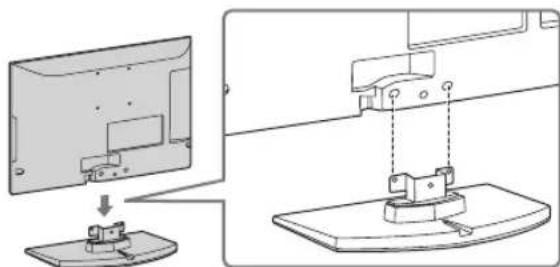
1: Attaching the Table-Top Stand
1 Refer to the supplied Table-Top Stand leaflet for proper attachment for some TV models.
2 Place the TV set on the Table-Top Stand.
▶KDL-55/46/40/32EX720, KDL-40/32EX520 and KDL-40/32CX520
text_image
Guide pins[NO TEXT]
- Align the TV from the top, slide it in until the guide pins cannot be seen.
▶KDL-26/22EX420
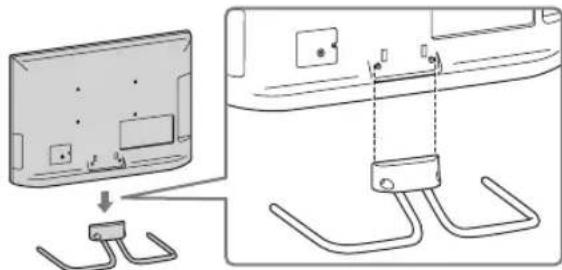
natural_image
Diagram showing a device with two metal clips connected to a panel, no text or symbols present▶KDL-22CX520
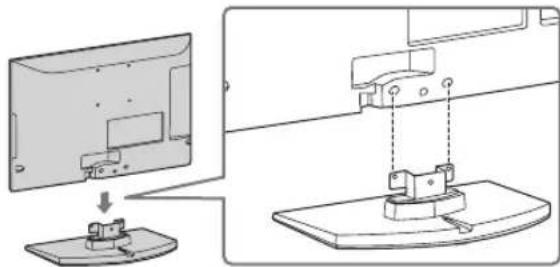
natural_image
Technical diagram showing a device assembly with a component being inserted into a base plate (no text or symbols present)3 Fix the TV to the Table-Top Stand according to the arrow marks that guide the screw holes using the supplied screws.
▶KDL-55/46/40/32EX720, KDL-40/32EX520 and KDL-40/32CX520
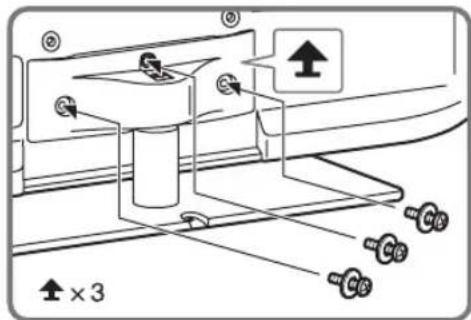
text_image
↑ × 3▶KDL-26/22EX420
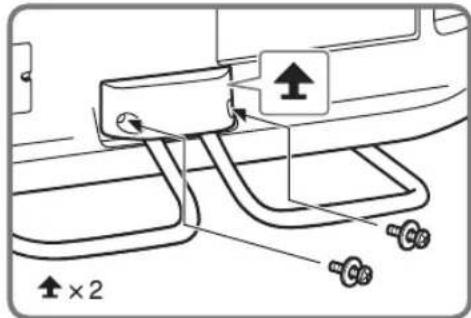
text_image
Diagram showing a vehicle interior with labeled parts and directional arrows, including a 2x2 ratio indicator.KDL-22CX520
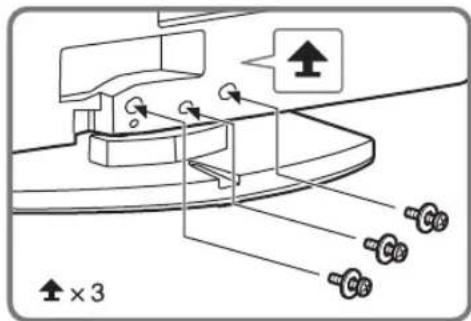
text_image
↑ × 3[NO TEXT]
- If using an electric screwdriver, set the torque at approximately 1.5 N·m {15 kgf·cm}.
Detaching the Table-Top Stand from the TV
To detach the Table-Top Stand from the TV, remove the screws ✦ fixed in step 3.
4
- Do not remove the Table-Top Stand for any reason other than to install corresponding accessories on the TV.
- When removing the Table-Top Stand from the TV, lay the display face down on a stable work surface that is larger than the TV.
• To prevent damaging the surface of the LCD display, make sure to place a soft cloth on the work surface.
2: Adjusting the viewing angle of the TV
This TV can be adjusted within the angles as illustrated.
Angle adjustment (Swivel) (except KDL-26/22EX420/KDL-22CX520)
[NO TEXT]
- When adjusting the angle, hold the stand with one hand to avoid having the stand slip or TV tip over.
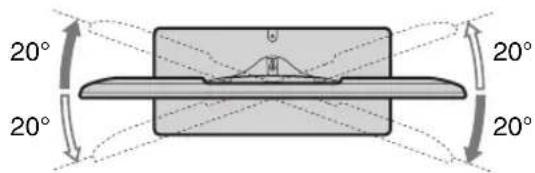
text_image
20° 20° 20° 20°Angle adjustment (Tilt) (except KDL-40/32CX520)
[NO TEXT]
- Be careful not to pinch your fingers between the TV and stand when adjusting the angle.
▶KDL-55/46/40/32EX720 and KDL-40/32EX520
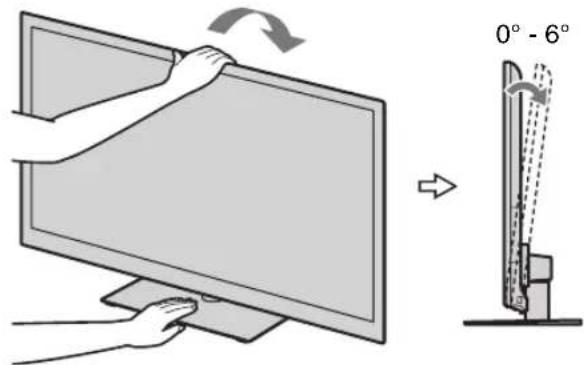
text_image
0° - 6°▶KDL-26/22EX420
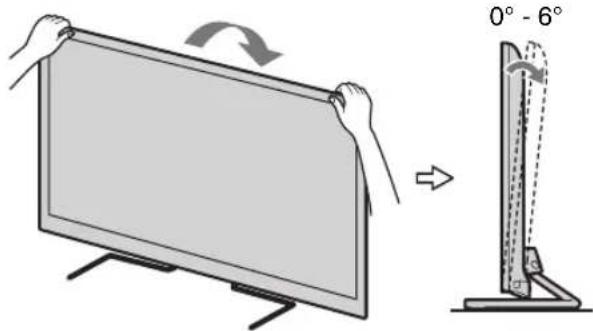
text_image
0° - 6°▶KDL-22CX520
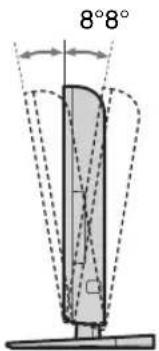
text_image
8°8°[NO TEXT]
- Ensure that there are no objects in front of the TV.
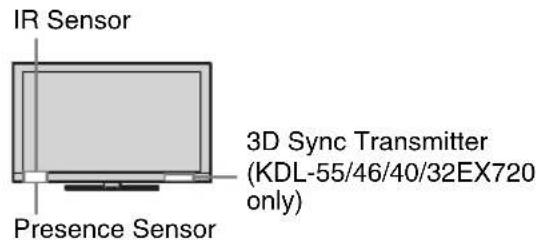
text_image
IR Sensor Presence Sensor 3D Sync Transmitter (KDL-55/46/40/32EX720 only)- Do not expose the Presence Sensor to direct sunlight or other strong light, as malfunction may occur.
3: Connecting an antenna (aerial)/cable/VCR
Connecting an antenna (aerial)/cable
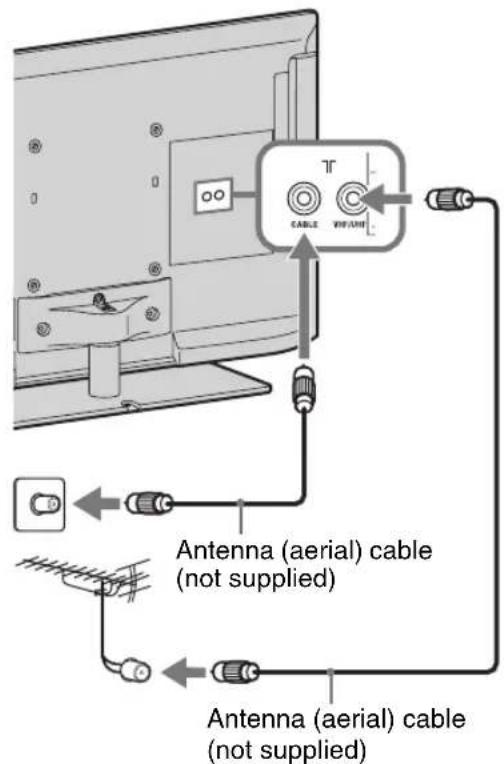
text_image
CABLE VIF/ANH Antenna (aerial) cable (not supplied) Antenna (aerial) cable (not supplied)Connecting a Set Top Box/recorder (e.g. DVD recorder) with HDMI
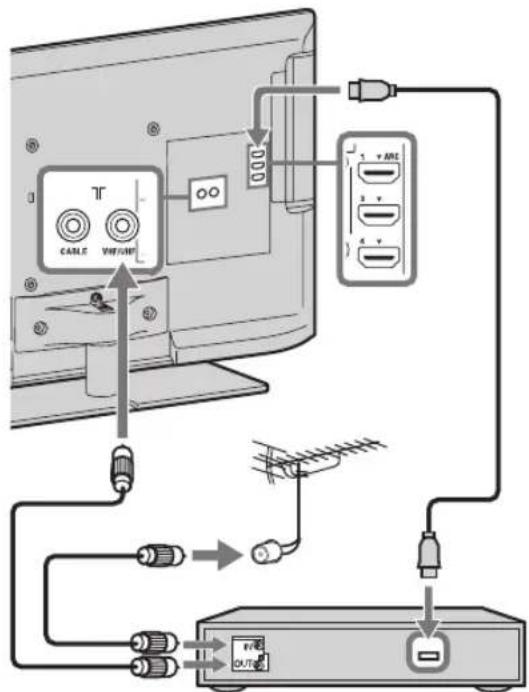
text_image
Diagram showing cable and network connection between a monitor and an audio device, with labeled ports and connectors.Set Top Box/recorder (e.g. DVD recorder)
Connecting an antenna (aerial)/cable and VCR
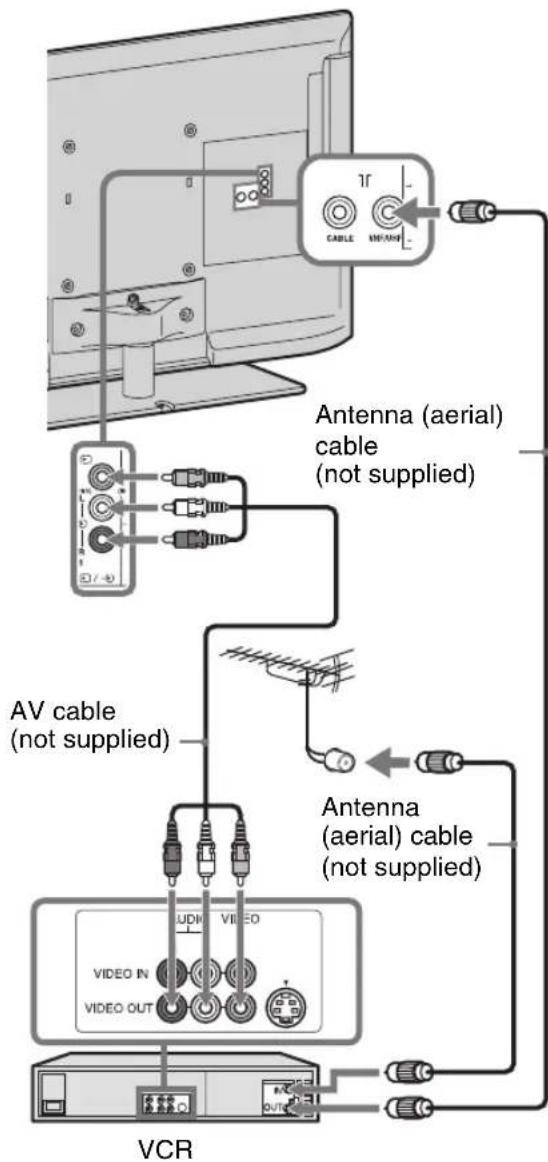
text_image
Antenna (aerial) cable (not supplied) AV cable (not supplied) Antenna (aerial) cable (not supplied) VCR4: Connecting audio/video devices
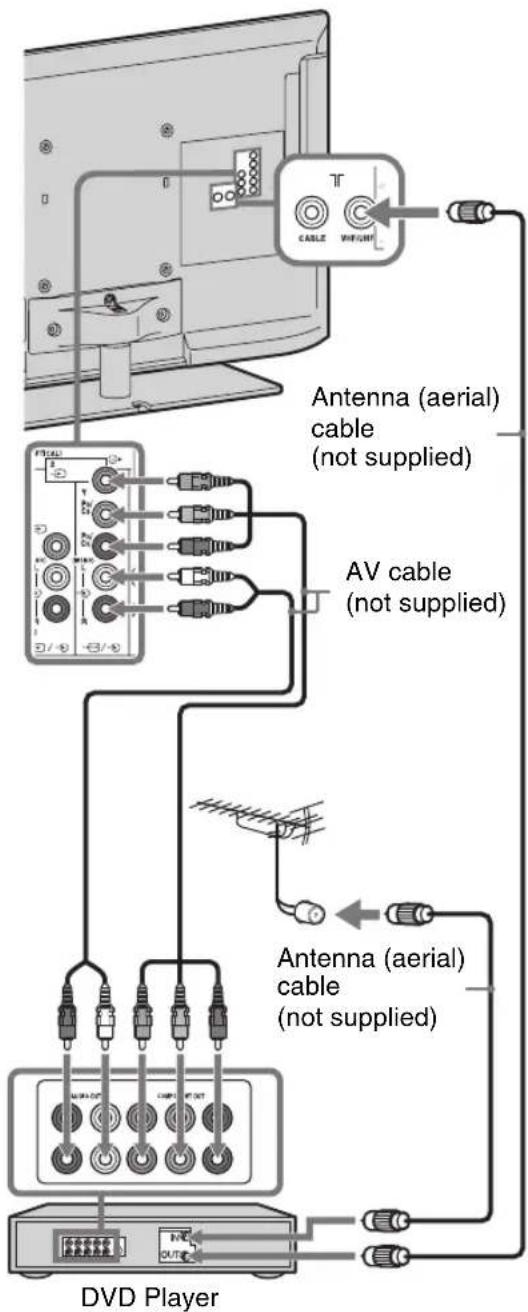
text_image
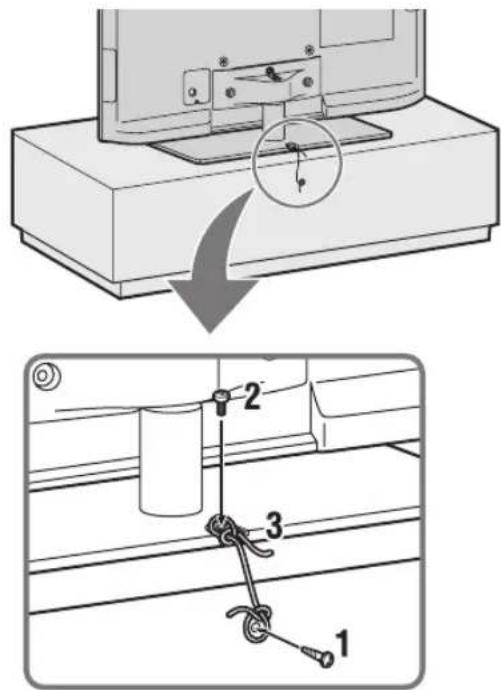
Antenna (aerial) cable (not supplied) AV cable (not supplied) Antenna (aerial) cable (not supplied) DVD Player5: Preventing the TV from toppling over
text_image
Diagram illustrating cable installation steps with labeled components: wire, cable, and cable-coil assembly.1 Install a wood screw (4 mm in diameter, not supplied) in the TV stand.
2 Install a machine screw (M4, not supplied) into the screw hole of the TV.
3 Tie the wood screw and the machine screw with a strong cord (not supplied).
The length of the M4 machine screw differs depending on the cord diameter. Please refer to below illustration.

text_image
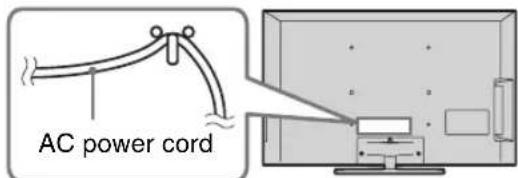
Screw M4 Cord 5 - 6 mm TV's Table-Top Stand6: Organizing the AC power cord/Bundling the cables
▶KDL-40/32/22CX520
text_image
AC power cord▶ Except KDL-40/32/22CX520
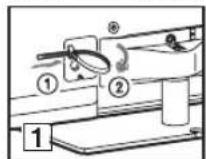
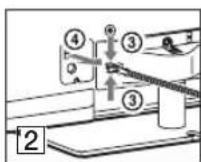
4
- Before bundling the cables, remove the cable holder from the AC cover (see step 1 and 2). Reuse the cable holder (see step 3) to bundle the other cables (see step 4).
- Do not bundle the AC power cord (mains lead) together with other cables.
KDL-55/46/40/32EX720 and KDL-40/32EX520
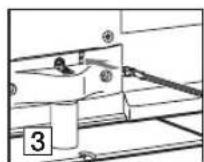
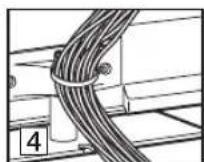
KDL-26/22EX420
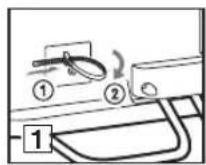
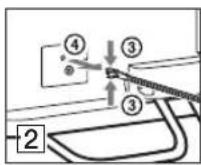
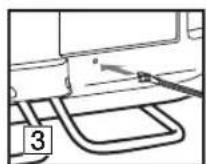
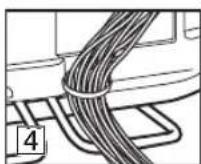
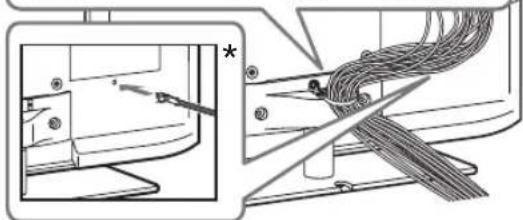
natural_image
Technical diagram showing mechanical assembly with a component and cable, no visible text or symbols* When installing on the wall, attach the cable holder under the terminals.
7: Performing the initial set-up
text_image
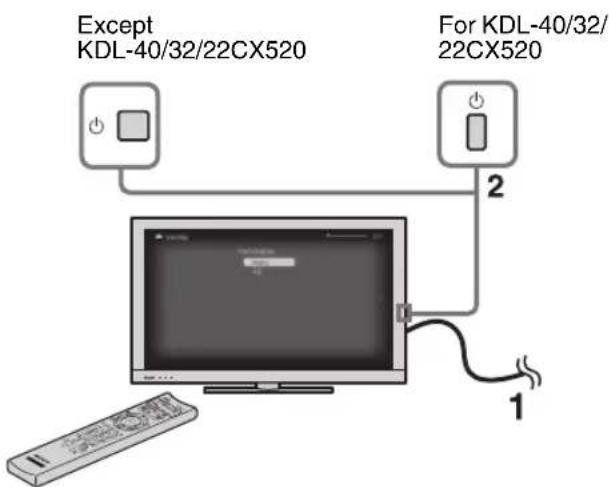
Except KDL-40/32/22CX520 For KDL-40/32/ 22CX520 11 Connect the TV to your AC power outlet (mains socket).
2 Press ⏻ on the TV.
When you switch on the TV for the first time, the Language menu appears on the screen.
[NO TEXT]
- When you turn on the TV for the first time, the TV requires some internal processing for optimization before you can perform the initial setup. There will be no picture and sound, and the timer indicator on the front of the TV blinks orange for about 40 seconds. Do not turn off the TV during this process.
![SONY KDL-32CX520 - [NO TEXT] - 1](/content/2026/06/1236608/images/4ba7e4cec915cf49f9c3f062cacd049227dba7c2d8ac54fd2668789bf505317a.jpg)
natural_image
Simple diagram showing a monitor connected to a light bulb and clock icon (no text or symbols)3
text_image
Subtotal Subtotal Set Input HelpFollow the instructions on the screen.
Programme Sorting: Changes the order of analogue channels stored in the TV.
1 Press ♠/▽ to select the channel you want to move to a new position, then press ⊕
2 Press ♠/▽ to select the new position for the channel, then press ⊕
[NO TEXT]
- You can also tune channels manually.
Watching the TV
text_image
Diagram showing a monitor connected to a device labeled '1' with a hand pressing a button, indicating a switch or action.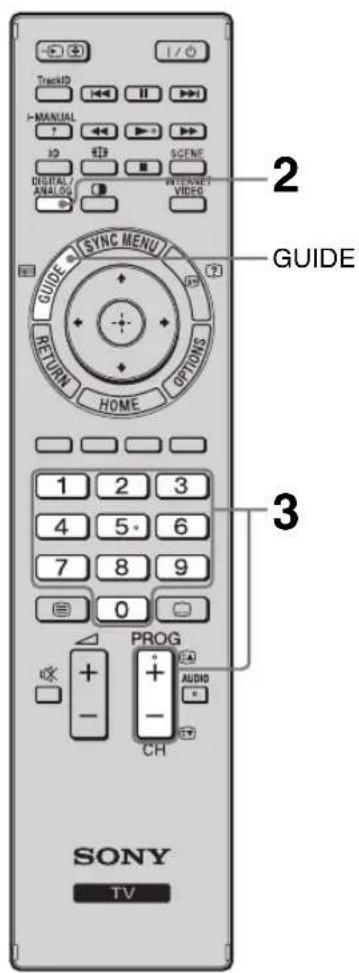
text_image
TrackID I-MANUAL 10 DIGITAL ANALOG SYNC MENU RETURN HOME OPTIONS GUIDE 2 GUIDE 3 PROG CH AUDIO SONY TV
- The number 5, ▶, PROG + and AUDIO buttons on the remote have a tactile dot. Use the tactile dots as a reference when operating the TV.
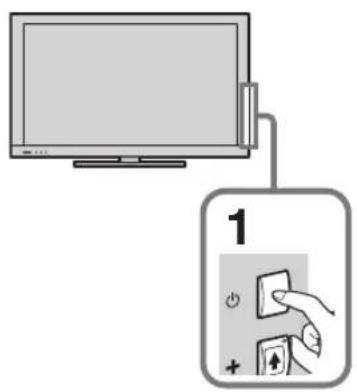
1 Turn on the TV. Press ⏻ on the TV to turn on the TV.
2 Select a mode. DIGITAL/ ANALOG
3 Select a TV channel.
To use Digital Electronic Programme Guide
Press GUIDE in digital mode to display the programme guide.
Use with 0-9 to select digital channels. For channel numbers 10 and above, press the next digit quickly.
Parts and controls of the remote
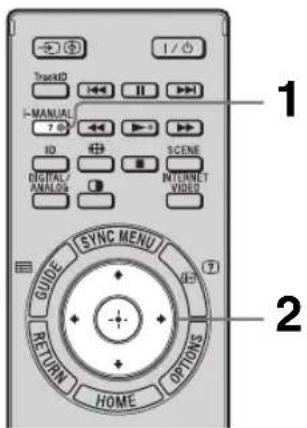
Use the supplied remote to control your TV. Basic remote operations are explained here. For details on all of the remote function, press i-MANUAL and see the built-in manual (i-Manual) (page 16).
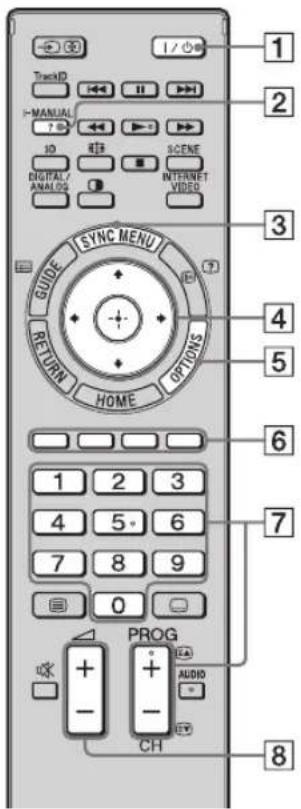
text_image
TrackMD I / ◆ 1 2 3 4 5 6 7 8 9 0 PROG + - CH AUDIO EV RETURN SYNC MENU GUIDE HOME OPTIONStext_image
SONY 1/0 1Rear of Remote Control
1V
Press to turn the TV on and off from standby mode.
2 i-MANUAL
Displays the built-in manual (i-Manual).
3 SYNC MENU
Displays the BRAVIA Sync menu to operate the BRAVIA Sync-compatible equipment that is connected to the TV.
4 ↗/↓/↔/→/ ⊕
Moves the on-screen cursor, and confirm the item.
5 OPTIONS
Displays a list of convenient functions and menu shortcuts. The menu items vary based on the current input and/or content.
6 Coloured buttons
When the coloured buttons are available, an operation guide appears on the screen.
7 PROG/CH +/-/Number buttons
Select channels in the TV mode.
8 ∠ +/−
Adjusts the volume.
Selecting various functions and settings (Home Menu)
You can select all the features from the Home menu.
See page 15 for the Home menu map.
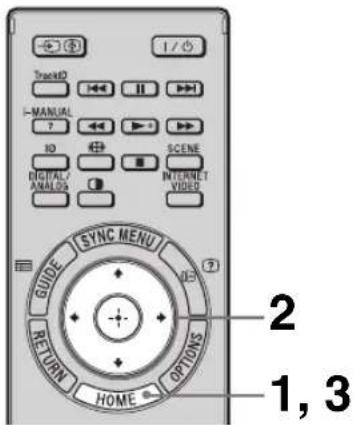
text_image
TrackD I / MANUAL ? 10 DIGITAL/ANALOG SYNC MENU RETURN HOME OPTIONS 2 1, 3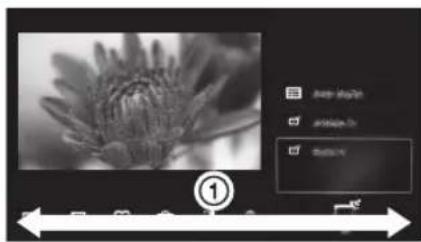
natural_image
Black-and-white photo of a flower with visible petals and droplets, accompanied by a software interface panel (no readable text or symbols on the flower image itself)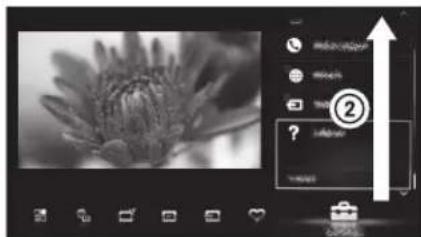
text_image
Screenshot of a photo editing interface with a black-and-white flower image and a pop-up dialog box showing options like 'Add', 'Remove', and 'Delete'.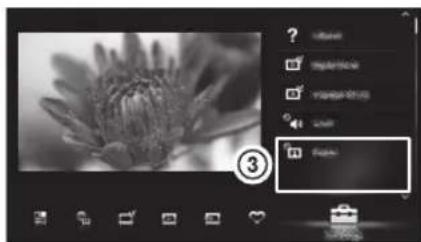
natural_image
Black-and-white photo of a flower with visible petals and a small object in the corner (no text or symbols)1 Press HOME.
2 Press ↗/▽/↔/→/⊕ to select items.
To select items in the Home menu (e.g., selecting "Settings")
① Press ⇔/⇒ to select “Settings”.
The contents of “Settings” are displayed on the right.
② Press ♠/▽ to select “Display”.
③Press to launch the menu.
According to the screen instruction, press ↙/▽/↔/⇨ to select items and press ⬆to confirm.
3 Press HOME to exit.
Home menu map
After pressing HOME on the remote, following icons are displayed as categories. The categories are available depending on your TV model, region, country and broadcasting conditions.

TV You can select a list of TV channels, or a programme guide.

Media You can enjoy photo/music/video content via USB devices or the home network.

Inputs You can select equipment connected to the TV.

Favourites/History
Provides quick access to your frequently used and recently viewed items, such as TV channels, external inputs or your media files.

Settings
Contains all of the necessary configurations to customise your TV settings.

Widgets Provides access to Widgets.

Applications
You can enjoy various applications such as “Music Search”, “Internet Browser”, etc.

Qriocity Provides access to the "Qriocity" online service.

Internet Content You can enjoy Internet content services.

Recommendations
Presents recommendations for programmes you may like, based on your viewing history.
Displaying Operating Instructions (i-Manual)
Operating instructions are built into your BRAVIA TV and can be displayed on the screen. To learn more about your TVs features, access your i-Manual with the touch of a button.
text_image
TrackID I MANUAL 7 B ID DIGITAL/ANALOG SYNC MENU RETURN HOME OPTIONS SCENE INTERNET/VIBED 1 21 Press i-MANUAL.
2 Press ↩/↙/↙/↙/⊕ to select items.
text_image
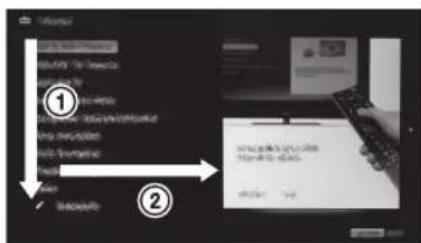
Screenshot of a software interface with numbered steps and a text input box showing 'Enter' and 'View'.To select items in the i-Manual
① Press ↩/▽ to select an item.
The contents in the item are displayed on the right as the second layer.
② Press to move to the second layer.
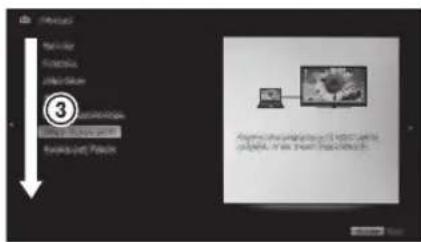
③ Press / to select an item from the second layer.
A digest of the item is displayed on the right. If the third layer is available, repeat this step to display the digest of the item.
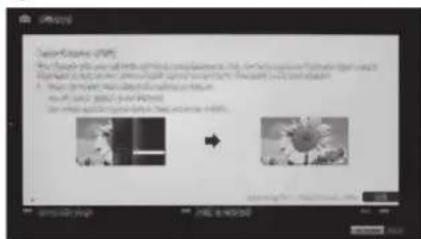
④Press to select an item.
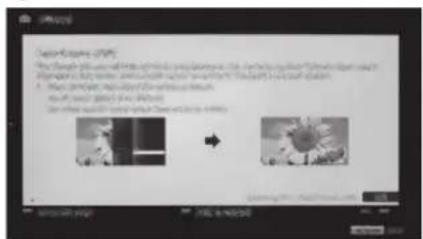
The content is displayed.
text_image
3 My Computer will help you to use your computer.④
text_image
Video Screening (VPS) The video will be used to find the video content. It is not a video file or image that can be extracted from the image. The image is designed to use a video file format for each video file, but it is not a video file. The video has been edited and then returned to the image file. The image is designed to use a video file format for each video file. The image is designed to use a video file format for each video file. The image is designed to use a video file format for each video file. The image is designed to use a video file format for each video file. The image is designed to use a video file format for each video file. The image is designed to use a video file format for each video file. The image is designed to use a video file format for each video file. The image is designed to use a media format for each video file. The image is designed to use a media format for each video file. The image is designed to use a media format for each video file. The image is designed to use a media format for each video file. The image is designed to use a media format for each video file. The image is designed to use a media format for each video file. The image is designed to use a media format for each video file. The image is designed to use a media format (or any other type of video) in the image file.Description of the i-Manual screen
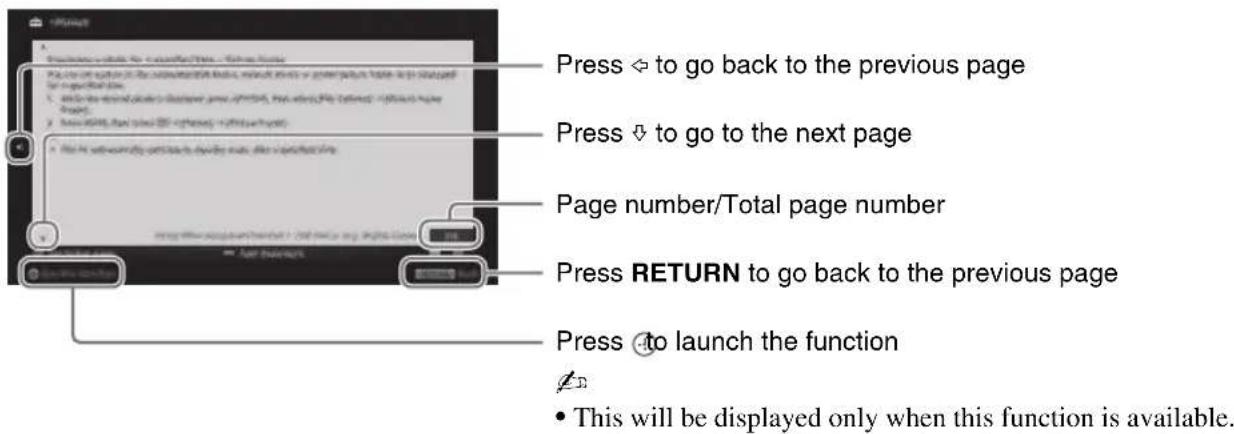
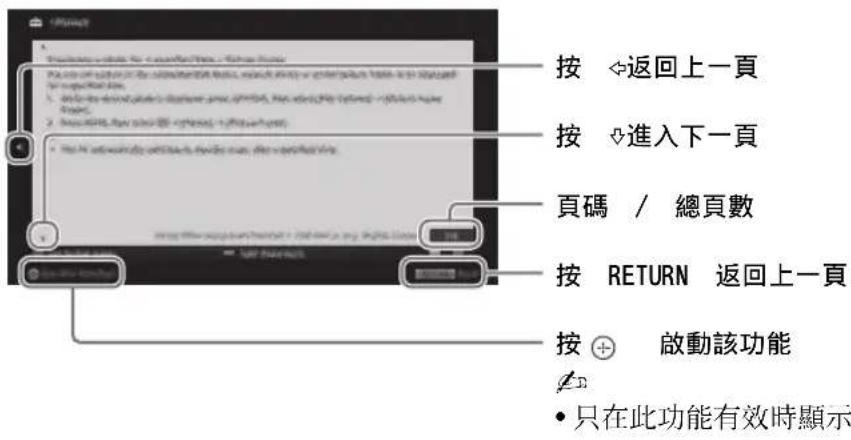
When the information page is more than 1 page, symbols are displayed.
text_image
Press → to go back to the previous page Press ↓ to go to the next page Page number/Total page number Press RETURN to go back to the previous page Press → launch the function • This will be displayed only when this function is available.To use the bookmark
The i-Manual has a bookmark function. Pages can be bookmarked with coloured buttons, according to the instructions at the bottom of the screen. To access your registered bookmarks, go to the top page of the i-Manual and select “Bookmarks”.
To memorise the last displayed page
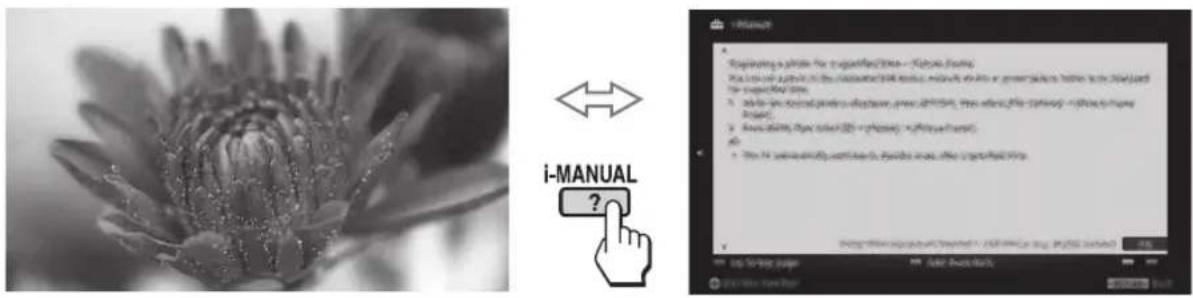
i-Manual memorises the last displayed page. When in the i-Manual screen, press i-MANUAL to return to the TV screen. If you press i-MANUAL again, the information you saw last time appears. For viewing from the top page of the i-Manual, return to the top page according to the instructions on the screen, or press HOME and select “i-Manual” of “Settings” in the Home menu.
text_image
i-MANUAL ?[NO TEXT]
- Last page memory is automatically reset when you switch the TV to standby mode.
Network Setup
When you connect this TV to the Internet, you can enjoy multiple functions: displaying a photograph that shows its location on the map, enjoying Internet video, etc. For details on the functions, refer to the i-Manual.

- You will need to contract with an Internet service provider to connect to the Internet.
Preparing a wired network
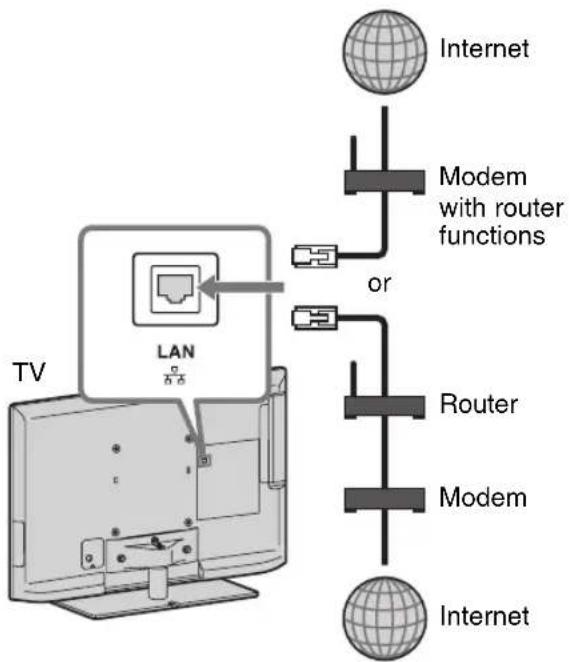
flowchart
graph TD
    TV["TV"] --> LAN["LAN"]
    LAN --> Modem1["Modem with router functions"]
    LAN --> Modem2["Modem"]
    Modem1 --> Internet1["Internet"]
    Modem2 --> Internet2["Internet"]
    Modem1 --> Router["Router"]
    Modem2 --> Router
    Modem1 --> Internet3["Internet"]

- For LAN connections, use a Category 7 cable (not supplied).
Preparing a wireless LAN
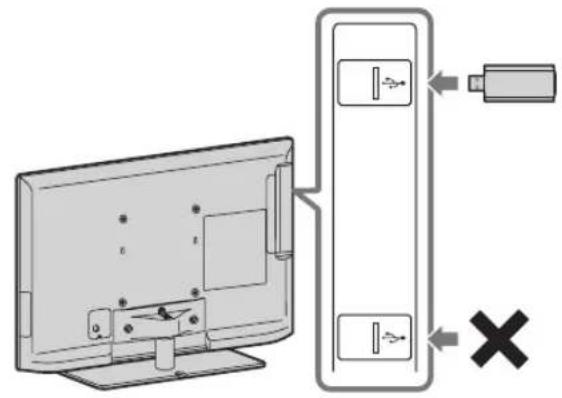
Wireless LAN Ready lets you easily access the Internet and your home network with the USB Wireless LAN Adapter UWA-BR100 (as of January 2010). By inserting the USB Wireless LAN Adapter into your TV's USB port, you can easily create a cable-free network. Before setting up the wireless LAN function of the TV, be sure to set up a wireless LAN router.
text_image
Diagram showing a monitor connected to a device with USB and switch, and a battery symbol indicating disconnection or disconnection.
- The USB Wireless LAN Adaptor is available as an optional accessory, depending on your TV model.
Setting up the Internet connection
Using the network feature you can connect the TV to the Internet. The set-up procedure differs depending on the type of network and LAN router. Before setting up the Internet connection, be sure to set up a LAN router. Check your wireless LAN environment using the following chart.
Wireless LAN
Secure Wireless LAN?
NO → Type 3
YES ↓
Do you use a wireless LAN router compatible with Wi-Fi Protected Set-up (WPS)?
NO → Type 2
YES ↓ Type 1*
Wired LAN → Type 4
* Type 1 is the easier set up if your router has an automatic setting button, e.g. Air Station One-Touch Secure System (AOSS). Most of the latest routers have this function. Check your router.
Type 1: Follow the configuration for “Secured Network with Wi-Fi Protected Set-up (WPS)”.
Type 2: Follow the configuration for “Secured Network without Wi-Fi Protected Set-up (WPS)”.
Type 3: Follow the configuration for "Unsecured Network with Any Type of Wireless LAN Router".
Type 4: Follow the configuration for “Wired network setup”.
Type 1: Secured network with Wi-Fi protected Set-up (WPS)
The WPS standard makes security of a wireless home network as straightforward as pressing the WPS button on the wireless LAN router. Before setting up a wireless LAN, check the location of the WPS button on the router and verify how to use it.
For security purpose, “WPS (PIN)” provides a PIN code for your router. PIN code is renewed every time you select “WPS (PIN)”.
1 Press HOME, then select 📋 > "Network" > "Network Set-up".
2 Select "Wireless Set-up".
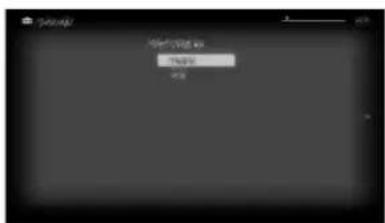
3 Select "WPS (Push Button)" for Push Button method or "WPS (PIN)" for PIN method.
- Button name of the WPS may differ depending on the router (e.g. AOSS button).
4 Follow the instructions on the set-up screen.
Type 2: Secured network without Wi-Fi protected Set-up (WPS)
To set up a wireless LAN, SSID (wireless network name) and security key (WEP or WPA key) will be required. If you do not know them, consult the instruction manual of your router.
1 Press HOME, then select 📋 > "Network" > "Network Set-up".
2 Select "Wireless Set-up".
3 Select "Scan", then select a network from the list of scanned wireless networks.
4 Follow the instructions on the set-up screen.
[NO TEXT]
- If you use WPS for network set-up, the security settings of the wireless LAN router activate, and any equipment previously connected to the wireless LAN in a non-secure status will be disconnected from the network.
In this case, activate the security settings of the disconnected equipment and then reconnect. Or, you can deactivate the security settings of the wireless LAN router, and then connect the equipment to a TV in a non-secure status.
Type 3: Unsecured network with any type of wireless LAN router
To set up a wireless LAN, SSID (wireless network name) will be required.
1 Press HOME, then select 📋 > "Network" > "Network Set-up".
2 Select "Wireless Set-up".
3 Select "Scan", then select a network from the list of scanned wireless networks.
4 Follow the instructions on the set-up screen.
[NO TEXT]
- Security key (WEP or WPA key) will not be required because you do not need to select any security method in this procedure.
Type 4: Wired network setup
Enter the respective alphanumeric values for your router if necessary. The items that need to be set (e.g. IP Address, Subnet Mask, DHCP) may differ depending on the Internet service provider or router. For details, refer to the instruction manuals provided by your Internet service provider, or those supplied with the router.
1 Press HOME, then select 📋 > "Network" > "Network Set-up".
2 Select "Wired Set-up".
3 Select "Auto" to set the IP Address and proxy server automatically, or "Custom" to set them manually.
4 Follow the instructions on the set-up screen.
Viewing the network status
You can confirm your network status.
1 Press HOME, then select 📋 > "Network" > "Network Set-up".
2 Select "View Network Status".
If you cannot connect to the Internet
Use the diagnosis to check possible causes for network connection failures, and settings.
1 Press HOME, then select 📋 > "Network" > "Network Set-up".
2 Select "View Network Status".
3 Select “Check Connection”.
This may take several minutes. You cannot cancel the diagnosis after selecting “Check Connection”.
Adjusting the server display settings
You can select home network servers to be displayed on the Home Menu. Up to 10 servers can be displayed in the Home Menu automatically.
1 Press HOME, then select 📋 > "Network" > "Home Network Setup".
2 Select "Server Display Settings".
3 Select the server you want to display on the Home Menu, and adjust the settings.
If you cannot connect to your home network
The TV detects if the server is being correctly recognised when you cannot connect it to your home network. If the diagnostic results indicate a failure, check possible causes, and network connections and settings.
1 Press HOME, then select 📋 > "Network" > "Home Network Setup".
2 Select "Server Diagnostics".
The server diagnostic starts. When the server diagnostic is complete, the diagnostic result list appears.
Troubleshooting
When the ⏻ (standby) indicator is flashing, count how many times it flashes (interval time is three seconds).
Press ⏻ on the TV to turn it off, disconnect the AC power cord (mains lead), and inform your dealer or Sony service centre of how the indicator flashes (number of flashes).
When the ⏻ (standby) indicator is not flashing, check the items in the tables as follows.
Also refer to “Troubleshooting” in the i-Manual. If the problem persists, have your TV serviced by qualified service personnel.
Condition Explanation/Solution
| There is no picture (screen is dark) and no sound. | ·Check the antenna (aerial)/cable connection.·Connect the TV to the AC power (mains), and press ⏻ on the TV.·If the ⏻ (standby) indicator lights up in red, press ⚠/⋯. |
| Tiny black points and/or bright points appear on the screen. | ·The screen is composed of pixels. Tiny black points and/or bright points (pixels) on the screen do not indicate a malfunction. |
| Some programmes cannot be tuned. | ·Check the antenna (aerial) or dish. |
| The TV turns off automatically (the TV enters standby mode). | ·Check if the “Sleep Timer” is activated, or confirm the “Duration” setting of “On Timer”.·Check if the “Idle TV Standby” is activated.·Check if the “Presence Sensor” is activated. When no viewer is detected in front of the TV for a preset time, the picture automatically turns off, while leaving only the TV sound on. Additionally, after 30 minutes in picture off mode, the TV will switch to standby mode. |
| The remote does not function. | ·Replace the batteries.·Your TV may be in SYNC mode.PressSYNC MENU, select “TV Control” and then select “Home (Menu)” or “Options” to control the TV. |
| The “Parental Lock” password has been forgotten. | ·Enter 9999 for the PIN code. (PIN code 9999 is always accepted.) |
| The TV surrounds become warm. | ·When the TV is used for an extended period, the TV surrounds become warm.You may feel hot when touching there by the hand. |
Specifications
| System | |
| Panel system | LCD (Liquid Crystal Display) Panel |
| TV system | Analogue: B/G, I, D/K, M, LDigital: DTMB |
| Colour/video system | Analogue: PAL, PAL60 (only video input), SECAM, NTSC3.58, NTSC4.43 (only video input)Digital: MPEG-2 MP@ML/HL, H.264/MPEG-4 AVC MP/HP@L4 |
| Channel coverage | Analogue: B/G: VHF: E2-E12/UHF: E21-E69/CATV: S01-S03, S1-S41I: UHF: B21-B69/CATV: S01-S03, S1-S41D/K: VHF: C1-C12, R1-R12/UHF: C13-C57, R21-R60/CATV: S01-S03, S1-S41M: VHF: A2-A13/UHF: A14-A79L: VHF: F2-F10/UHF: F21-F69/CATV: B-QDigital: UHF |
| Sound output | 10 W + 10 W (KDL-55/46/40/32EX720, KDL-40/32EX520, KDL-40/32CX520)8 W + 8 W (KDL-26/22EX420)5 W + 5 W (KDL-22CX520) |
| Input/Output jacks | |
| Antenna (aerial)/cable | 75 ohm external terminal for VHF/UHF |
| →/→2 | COMPONENT INSupported formats: 1080p, 1080i, 720p, 576p, 576i, 480p, 480i2 Video input (phono jacks) |
| COMPONENT IN | Audio input (phono jacks) |
| HDMI IN1, 2, 3, 4(except KDL-26/22EX420, KDL-22CX520) | Video: 1080/24p/30p, 1080p, 1080i, 720/24p/30p, 720p, 576p, 576i, 480p, 480iAudio: Two channel linear PCM: 32, 44.1 and 48 kHz, 16, 20 and 24 bits, Dolby DigitalAnalogue audio input (minijack) (HDMI IN4 only)ARC (Audio Return Channel) (HDMI IN 1 only)PC Input |
| HDMI IN1, 2(for KDL-26/22EX420, KDL-22CX520) | Video: 1080/24p/30p, 1080p, 1080i, 720/24p/30p, 720p, 576p, 576i, 480p, 480iAudio: Two channels linear PCM: 32, 44.1 and 48 kHz, 16, 20 and 24 bitsAnalogue audio input (minijack) (HDMI IN2 only)ARC (Audio Return Channel) (HDMI IN 1 only)PC Input |
| 1 | Video input (phono jack) |
| 1 | Audio input (phono jacks) |
| DIGITAL AUDIO OUT(OPTICAL) | Digital optical jack (Two channel linear PCM, Dolby Digital) |
| AUDIO OUT/ | Audio output (stereo minijack)Headphones jack |
| PC IN | PC Input (Mini D-sub 15-pin)PC audio input (minijack) |
| LAN | USB port |
| 10BASE-T/100BASE-TX connector (Depending on the operating environment of the network, connection speed may differ. 10BASE-T/100BASE-TX communication rate and communication quality are not guaranteed for this TV.) | |
| Model name KDL- | 55EX720 | 46EX720 | 40EX720 | 40EX520 | 40CX520 |
| Power and others | |||||
| Power requirements | 220 V – 240 V AC, 50 Hz | ||||
| Screen size (measured diagonally) | Approx. 138.8 cm/55 inches | Approx. 116.8 cm/46 inches | Approx. 101.6 cm/40 inches | ||
| Display resolution | 1,920 dots (horizontal) × 1,080 lines (vertical) | ||||
| Power consumption | Indicated on the rear of the TV | ||||
| Dimensions (Approx.) (w × h × d) | |||||
| with Table-Top Stand (mm) | 1269 × 799 × 315 107 | 78 × 690 × 260 943 × 616 × 250 991 × 636 × 250 | |||
| without Table-Top Stand (mm) | 1269 × 769 × 41 107 | 8 × 660 × 42 943 × 586 × 42 991 × 606 × 71 | |||
| Mass (Approx.) | |||||
| with Table-Top Stand (kg) | 25.4 17.9 14.4 16.3 | ||||
| without Table-Top Stand (kg) | 20.2 14.3 11.2 12.9 | ||||
| Supplied accessories | See “Checking the accessories” (page 6). | ||||
| Optional accessories | Wall-Mount Bracket: SU-WL50BUSB Wireless LAN Adaptor3D Glasses: TDG-BR250, TDG-BR200, TDG-BR100, TDG-BR50 (for KDL-55/46/40EX720)Camera and Microphone Unit: CMU-BR100 | ||||
| Operating temperature | 0 °C – 40 °C | ||||
| Operating humidity | 10 % – 80 % RH (non-condensing) | ||||
| Model name KDL- | 32EX720 | 32EX520 | 32CX520 | 26EX420 | 22EX420 | 22CX520 |
| Power and others | ||||||
| Power requirements | 220 V – 240 V AC, 50 Hz | |||||
| Screen size (measured diagonally) | Approx. 80.1 cm/32 inches Approx. | 66.1 cm/26 inches | Approx. 54.8 cm/ 22 inches | |||
| Display resolution | 1,920 dots (horizontal) × 1,080 lines (vertical) | 1,366 dots (horizontal) × 768 lines (vertical) | ||||
| Power consumption | Indicated on the rear of the TV | |||||
| Dimensions (Approx.) (w × h × d) | ||||||
| with Table-Top Stand (mm) | 755 × 510 × 216 799 × 532 × 230 631 × 421 × 182 529 × 362 × 172 554 × 403 × 215 | |||||
| without Table-Top Stand (mm) | 755 × 480 × 42 799 × 502 × 70 631 × 406 × 42 529 × 347 × 42 554 × 366 × 61 | |||||
| Mass (Approx.) | ||||||
| with Table-Top Stand (kg) | 10.4 10.2 11.4 7.2 5.1 6.6 | |||||
| without Table-Top Stand (kg) | 7.9 7.7 8.7 6.1 4.1 5.7 | |||||
| Supplied accessories | See “Checking the accessories” (page 6). | |||||
| Optional accessories | Wall-Mount Bracket: SU-WL50B (for KDL-32EX720, KDL-32EX520, KDL-32CX520)SU-WL100 (for KDL-26/22EX420, KDL-22CX520)USB Wireless LAN Adaptor3D Glasses: TDG-BR250, TDG-BR200, TDG-BR100, TDG-BR50 (for KDL-32EX720)Camera and Microphone Unit: CMU-BR100 | |||||
| Operating temperature | 0 °C – 40 °C | |||||
| Operating humidity | 10 % – 80 % RH (non-condensing) | |||||
Design and specifications are subject to change without notice.
Installing the Accessories (Wall-Mount Bracket)
To Customers:
When using SU-WL50B and SU-WL100 Wall-Mount Bracket, the space between the wall and the TV will be 6 cm. Use this space to route cables to the TV.

text_image
6cm WallFor product protection and safety reasons, Sony strongly recommends that installing of your TV be performed by Sony dealers or licensed contractors. Do not attempt to install it yourself.
To Sony Dealers and Contractors:
Provide full attention to safety during the installation, periodic maintenance and examination of this product.
Your TV can be installed using the SU-WL50B and SU-WL100 Wall-Mount Bracket (sold separately).
• Refer to the Instructions supplied with the Wall-Mount Bracket to properly carry out the installation.
- Refer to “Detaching the Table-Top Stand from the TV” (page 8).
Sufficient expertise is required for installing this product, especially to determine the strength of the wall for withstanding the TV's weight. Be sure to entrust the attachment of this product to the wall to Sony dealers or licensed contractors and pay adequate attention to safety during the installation. Sony is not liable for any damage or injury caused by mishandling or improper installation.
SU-WL50B and SU-WL100
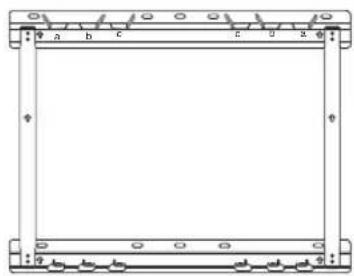
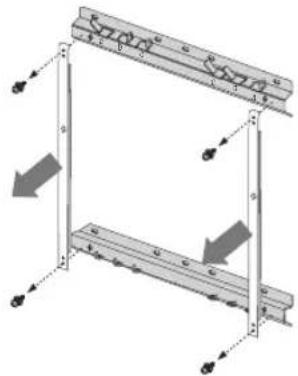
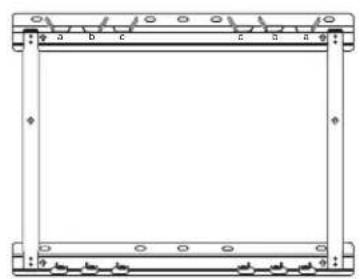
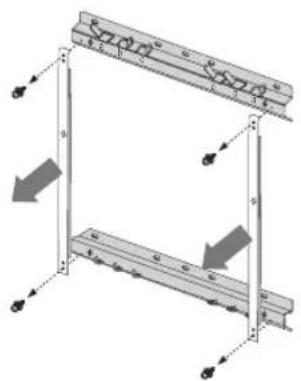
When installing the base bracket on the wall (for SU-WL50B):
1 Install one side of each plate to the upper bracket and the other side to the lower bracket.
2 Attach the base bracket to the wall.
3 Remove the plates. (except KDL-55EX720)
4
- Be sure to store the plates in a safe place after use.
①

natural_image
Technical line drawing of a rectangular frame with internal components and mounting holes (no text or symbols)→
②
natural_image
Pure technical diagram of a rectangular frame with labeled sides (a, b, c) and mounting holes, no text or symbols present.③
→
natural_image
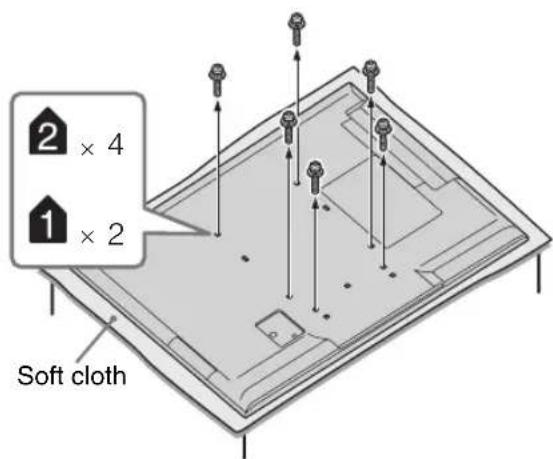
Diagram of a mechanical assembly with two vertical supports and directional arrows indicating force or movement (no text or symbols)When installing the TV on a wall, remove the screws from the rear of the TV. The screws and number of screws are available depending on the TV model (They are fastened in the screw holes for wall mounting.) Be sure to store the removed screws in a safe place, keeping them away from children.
For KDL-55EX720
▶ For KDL-46/40/32EX720, KDL-40/32EX520
text_image
2 × 4 1 × 2 Soft cloth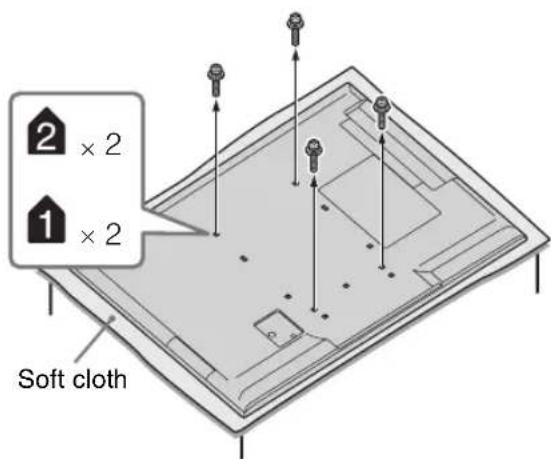
text_image
2 × 2 1 × 2 Soft cloth[NO TEXT]
- When removing the Table-Top Stand from the TV, lay the display face down on a stable work surface that is larger than the TV.
• To prevent damaging the surface of the LCD display, make sure to place a soft cloth on the work surface.
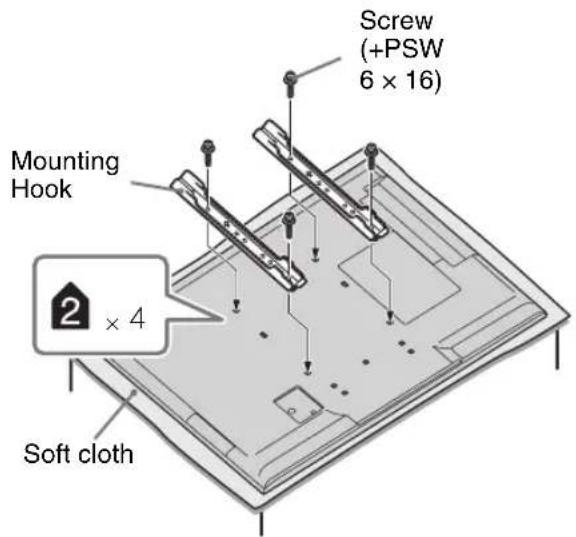
KDL-55/46/40/32EX720, KDL-40/32EX520 and KDL-40/32CX520
SU-WL50B
text_image
Screw (+PSW 6 x 16) Mounting Hook 2 x 4 Soft clothKDL-26/22EX420
SU-WL100
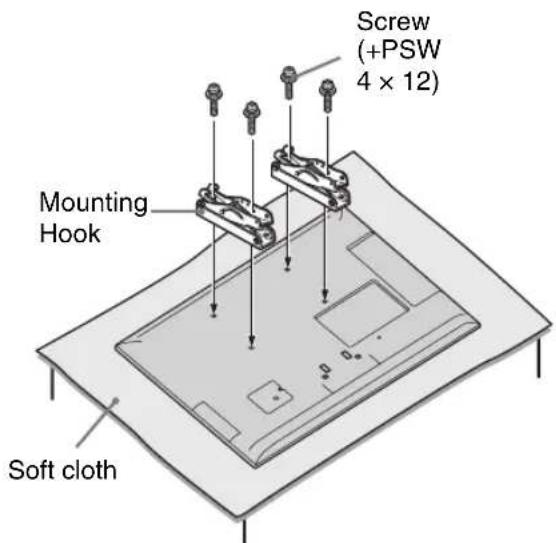
text_image
Screw (+PSW 4 x 12) Mounting Hook Soft clothKDL-22CX520
SU-WL100
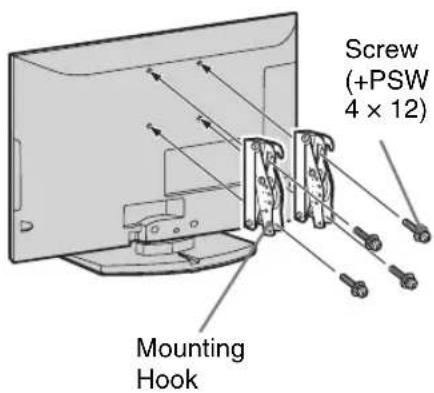
text_image
Screw (+PSW 4 × 12) Mounting Hook[NO TEXT]
- Attach the Mounting Hook using four screws supplied with the Wall-Mount Bracket.
- When attaching the Table-Top Stand again, be sure to fasten the screws (previously removed) to the original holes on the rear of the TV.
- Place the TV on the Table-Top Stand, when securing the Mounting Hook (for KDL-22CX520).
Screw and Hook locations diagram/table
| Model NameKDL- | Screw location Hook location | |
| SU-WL50B SU-WL50B | ||
| 55EX720 | e, j b | |
| 46EX720 | e, j b | |
| 40EX720/40EX520 | c, j b | |
| 40CX520 | d, i b | |
| 32EX720/32EX520 | e, h c | |
| 32CX520 | c, h c | |
| SU-WL100 | ||
| 26EX420 | a | |
| 22EX420 | b | |
| 22CX520 | b | |
SU-WL50B
Screw location
When installing the Mounting Hook on the TV.

text_image
d e f g h i j
text_image
d o e o , f o g o h o i o j oHook location
When installing the TV onto the Base Bracket.
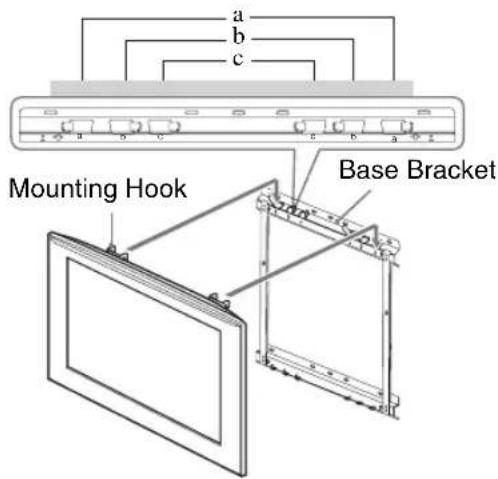
text_image
a b c Mounting Hook Base BracketSU-WL100
Hook location
When installing the TV onto the Base Bracket.
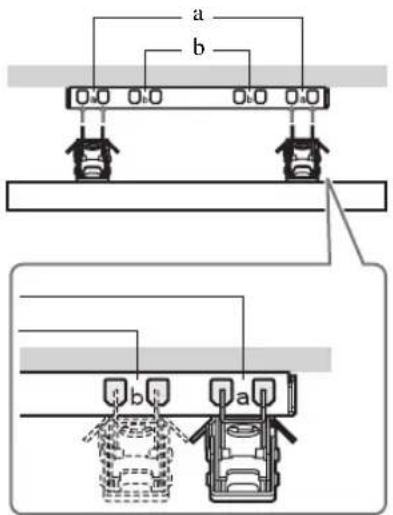
text_image
a b b aTV installation dimensions table
①SU-WL50B
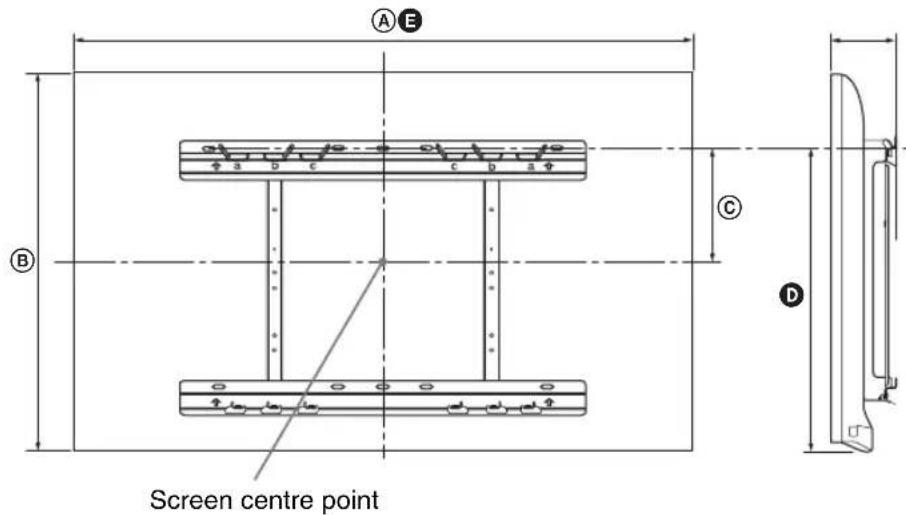
text_image
Screen centre point A E B C D②SU-WL100
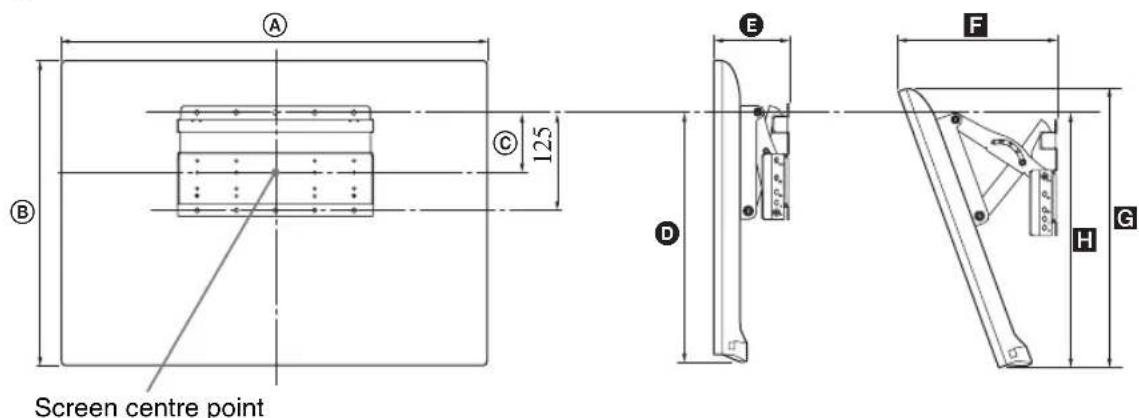
text_image
Screen centre point A C 125 B D E F H GUnit: mm
| Model Name KDL- | Display dimensions | Screen centre dimension | Length for each mounting angle | |||||
| Angle (0°) Angle (20°) | ||||||||
| A | B | C | D | E | F | G | ||
| SU-WL50B | SU-WL50B | SU-WL50B | ||||||
| 55EX720 | 1269 769 | 93 492 90 | ||||||
| 46EX720 | 1078 660 | 148 492 92 | ||||||
| 40EX720/40EX520 | 943 586 | 185 492 91 | ||||||
| 40CX520 | 991 606 | 175 485 132 | ||||||
| 32EX720/32EX520 | 755 480 | 189 444 92 | ||||||
| 32CX520 | 799 502 | 200 460 131 | ||||||
| SU-WL100 | ||||||||
| 26EX420 | 631 406 | 78 295 95 204 374 263 | ||||||
| 22EX420 | 529 347 | 108 295 93 182 319 276 | ||||||
| 22CX520 | 554 366 | 116 312 122 210 342 303 | ||||||
Figures in the table may differ slightly depending on the installation.
WARNING
The wall that the TV will be installed should be capable of supporting a weight of at least four times that of the TV. Refer to “Specifications” (page 23) for its weight.
Safety Information
WARNING
Batteries must not be exposed to excessive heat such as sunshine, fire or the like.
Installation/Set-up
Install and use the TV set in accordance with the instructions below in order to avoid any risk of fire, electrical shock or damage and/or injuries.
Installation
- The TV set should be installed near an easily accessible AC power outlet.
- Place the TV set on a stable, level surface to avoid it from falling down and cause personal injury or damage to the TV.
- Only qualified service personnel should carry out wall installations.
- For safety reasons, it is strongly recommended that you use Sony accessories, including:
- Wall-mount bracket SU-WL100 (KDL-26/22EX420/ KDL-22CX520) SU-WL50B (except KDL-26/22EX420/ KDL-22CX520)
- Be sure to use the screws supplied with the Wall-mount bracket when attaching the mounting hooks to the TV set. The supplied screws are designed as indicated by illustration when measured from the attaching surface of the mounting hook. The diameter and length of the screws differ depending on the Wall-mount bracket model. Use of screws other than those supplied may result in internal damage to the TV set or cause it to fall, etc.
Min. \~ 26 TV: 6.5 \~ 10mm
32 TV \~ Max.: 8 \~ 12mm
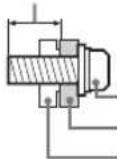
Screw (supplied with the Wall-mount bracket)
Mounting Hook
Hook attachment on rear of TV set
Transporting
- Before transporting the TV set, disconnect all cables.
- Two or more people are needed to transport a large TV set.
- When transporting the TV set by hand, hold it as shown below. Do not put stress on the LCD panel and the frame around the screen.
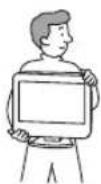
KDL-26/22EX420/
KDL-22CX520
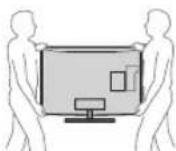
- When transporting the TV set, do not subject it to jolts or excessive vibration.
- When transporting the TV set for repairs or when moving, pack it using the original carton and packing material.
Ventilation
- Never cover the ventilation holes or insert anything in the cabinet.
- Leave space around the TV set as shown below.
- It is strongly recommended that you use a Sony wall-mount bracket in order to provide adequate air-circulation.
Installed on the wall
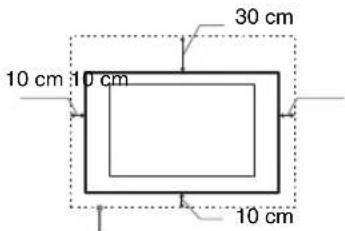
text_image
30 cm 10 cm 10 cm 10 cmLeave at least this space around the set.
Installed with stand
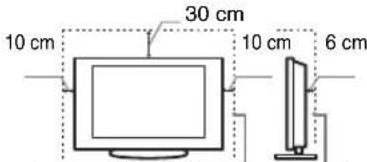
text_image
10 cm 30 cm 10 cm 6 cmLeave at least this space around the set.
• To ensure proper ventilation and prevent the collection of dirt or dust:
- Do not lay the TV set flat, install upside down, backwards, or sideways.
- Do not place the TV set on a shelf, rug, bed or in a closet.
- Do not cover the TV set with a cloth, such as curtains, or items such as newspapers, etc.
- Do not install the TV set as shown below.
Air circulation is blocked.
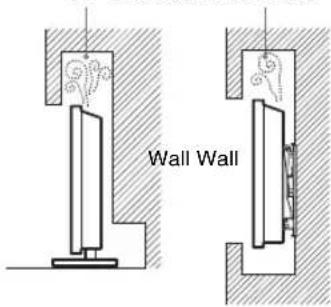
text_image
Wall WallAC power cord
Handle the AC power cord and outlet as follows in order to avoid any risk of fire, electrical shock or damage and/or injuries:
– Use only Sony supplied AC power cords, not those of other brands.
- Insert the plug fully into the AC power outlet.
- Operate the TV set on a 220–240 V AC supply only.
- When wiring cables, be sure to unplug the AC power cord for your safety and take care not to catch your feet on the cables.
- Disconnect the AC power cord from the AC power outlet before working on or moving the TV set.
- Keep the AC power cord away from heat sources.
- Unplug the AC power plug and clean it regularly. If the plug is covered with dust and it picks up moisture, its insulation may deteriorate, which could result in a fire.
Notes
- Do not use the supplied AC power cord on any other equipment.
- Do not pinch, bend, or twist the AC power cord excessively. The core conductors may be exposed or broken.
- Do not modify the AC power cord.
- Do not put anything heavy on the AC power cord.
- Do not pull on the AC power cord itself when disconnecting the AC power cord.
- Do not connect too many appliances to the same AC power outlet.
- Do not use a poor fitting AC power outlet.
Prohibited Usage
Do not install/use the TV set in locations, environments or situations such as those listed below, or the TV set may malfunction and cause a fire, electrical shock, damage and/or injuries.
Location:
- Outdoors (in direct sunlight), at the seashore, on a ship or other vessel, inside a vehicle, in medical institutions, unstable locations, near water, rain, moisture or smoke.
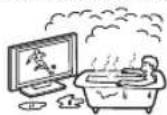
- If the TV is placed in the changing room of a public bath or hot spring, the TV may be damaged by airborne sulfur, etc.
- For best picture quality, do not expose the screen to direct illumination or sunlight.
- Avoid moving the TV from a cold area to a warm area. Sudden room temperature changes may cause moisture condensation. This may cause the TV to show poor picture and/or poor colour. Should this occur, allow moisture to evaporate completely before powering the TV on.
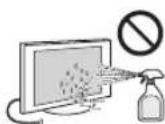
- Never spray water or detergent directly on the TV set. It may drip to the bottom of the screen or exterior parts and enter the TV set, and may cause damage to the TV set.
Environment:
- Places that are hot, humid, or excessively dusty; where insects may enter; where it might be exposed to mechanical vibration, near flammable objects (candles, etc). The TV set shall not be exposed to dripping or splashing and no objects filled with liquids, such as vases, shall be placed on the TV.
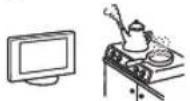
- Do not place the TV in a humid or dusty space, or in a room with oily smoke or steam (near cooking tables or humidifiers). Fire, electric shock, or warping may result.
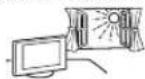
- Do not install the TV in places subject to extreme temperature, such as in direct sunlight, near a radiator or a heating vent. The TV may overheat in such conditions which can cause deformation of the enclosure and/or TV malfunction.
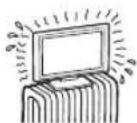
Situation:
- Do not use when your hands are wet, with the cabinet removed, or with attachments not recommended by the manufacturer. Disconnect the TV set from AC power outlet and antenna during lightning storms.
- Do not install the TV so that it sticks out into an open space. Injury or damage from a person or object bumping into the TV may result.
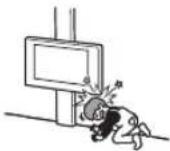
Broken pieces:
- Do not throw anything at the TV set. The screen glass may break by the impact and cause serious injury.
- If the surface of the TV set cracks, do not touch it until you have unplugged the AC power cord. Otherwise electric shock may result.
When not in use
- If you will not be using the TV set for several days, the TV set should be disconnected from the AC power for environmental and safety reasons.
- As the TV set is not disconnected from the AC power when the TV set is just turned off, pull the plug from the AC power outlet to disconnect the TV set completely.
• However, some TV sets may have features that require the TV set to be left in standby to work correctly.
For children
- Do not allow children to climb on the TV set.
- Keep small accessories out of the reach of children, so that they are not mistakenly swallowed.
If the following problems
occur...
Turn off the TV set and unplug the AC power cord immediately if any of the following problems occur.
Ask your dealer or Sony service centre to have it checked by qualified service personnel.
When:
- AC power cord is damaged.
– Poor fitting of AC power outlet.
– TV set is damaged by being dropped, hit or having something thrown at it.
– Any liquid or solid object falls through openings in the cabinet.
簡介
The typefaces used on the screen display are solely developed by DynaComware.
Opera® Browser from Opera Software ASA. Copyright 1995-2010 Opera Software ASA. All rights reserved.
text_image
i-MANUAL ?i-Manual 的内容
*有些型號沒有此功能。
如何使用功能操作教学
“BRAVIA” 電視功能
3D 功能 *
動態節能感應器
“BRAVIA”網路影片
網路 Widgets
無線 LAN 就緒
▶KDL-55/46/40/32EX720
text_image
SONY1 取出保護片。
2 按壓蓋子並向上滑出。
text_image
Diagram showing a device with an arrow indicating direction, before and after assembly or disassembly.1 取出保護片。
2 按壓並提起蓋子以打開。
1: 安装桌面底座
natural_image
Diagram showing a device with two metal clips connected to a wall-mounted device (no text or symbols present)KDL-22CX520
natural_image
Technical diagram showing a mechanical assembly with a component being inserted into a base plate (no text or symbols present)text_image
Technical diagram showing mechanical assembly with labeled components and directional arrow indicator[NO TEXT]
natural_image
Front view line drawing of a flat-screen monitor (no text or symbols)text_image
Diagram showing cable and switch connections to a monitor, with labeled ports and connectorsnatural_image
Diagram of a monitor mounted on a base with a magnified inset showing the blade and scale (no text or symbols)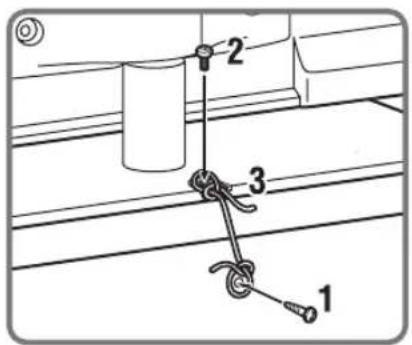
text_image
Technical diagram showing three labeled components (1, 2, 3) of a mechanical assembly with ropes and a cylindrical component.natural_image
Technical diagram showing mechanical assembly with cable and spring components (no text or labels)natural_image
Simple diagram showing a device connected to a light bulb and icon (no text or symbols)3
text_image
Diagram showing a monitor connected to a device labeled '1' with control buttons and an icon for battery release.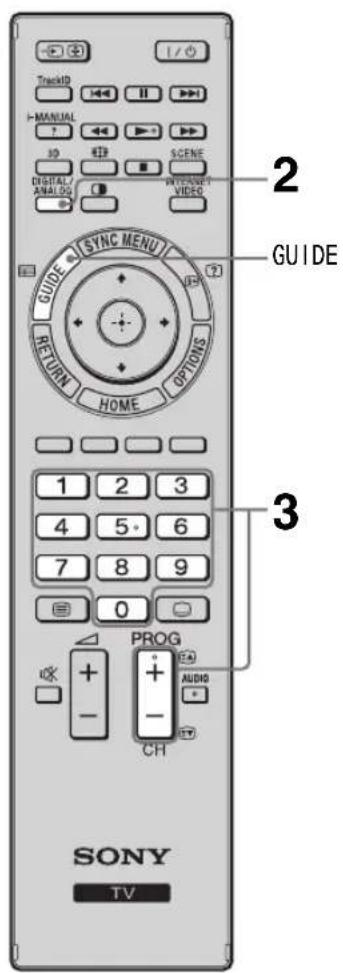
text_image
TrackID I MANUAL 3D SCENE DIGITAL/ANALOG VIDEO SYNC MENU GUIDE RETURN HOME OPTIONS 1 2 3 4 5 6 7 8 9 0 PROG + - CH AUDIO 2 GUIDE 3 SONY TV
natural_image
Black-and-white photo of a flower with visible petals and textured skin, accompanied by a software interface panel (no readable text or symbols on the flower itself)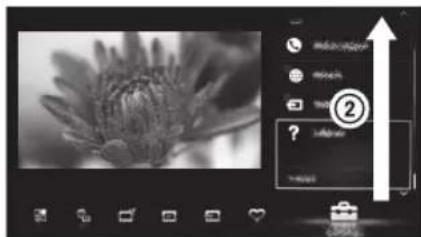
text_image
Screenshot of photo editing interface with black-and-white flower image and UI elements including 'Search' and 'Add', plus a numbered callout.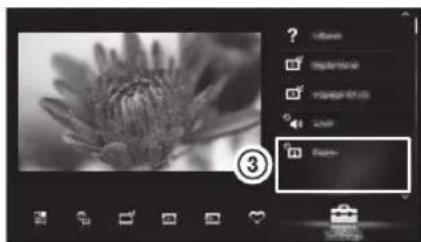
natural_image
Black and white photo of a flower with visible petals, no text or symbols present1 按 HOME。
text_image
Screenshot of a software interface with numbered steps and instructional text in Chinese若要在 -Manual 中選擇項目
text_image
3 My Computer is the most active play in the music.④
text_image
Video Screening (VPS) The Google Play will be able to get the original video. The chart is created by the 'Video' program, which is designed to create a new video file from the Google Play. It is also created. • What is the original video file in the original book: what is the original video file in the original book: what is the original video file in the original book: what is the original video file in the original book: what is the original video file in the original book: what is the original video file in the original book: what is the original video file in the original book: what is the original video file in the original book: what is the original video file in the original book: what is the original media file in the original book: what is the original media file in the original book: what is the original media file in the original book: what is the original media file in the original book: what is the original media file in the original book: what is the original media file in the original book: what is the original media file in the original book: what is the original media file in the original book: what is the original media file in the Original book: what is the original media file in the Original book: what is the original media file in the Original book: what is the original media file in the Original book: what is the original media file in the Original book: what is the original media file in the Original book: what is the original media file in the Original book: what is the original media file in the Original book: what is the original media file in the Original book: which is that it's going to see this video. The image was created using a 2D view and a 3D view.i-Manual 螢幕的說明
當資訊頁面超過 1 頁,標誌顯示。
text_image
Diagram showing a monitor connected to a wall-mounted device with USB and switch labels, alongside a cross symbol indicating cancellation or error.
natural_image
Pure technical line drawing of a rectangular frame with mounting holes and dimension lines, no text or symbols present.②
natural_image
Pure technical line drawing of a rectangular frame with mounting holes and bolted edges (no text or symbols)③
→
natural_image
Pure mechanical assembly diagram showing two vertical supports with arrows indicating forces or motion (no text or symbols)Instructions about "Installing Wall Mount Bracket" are included within this TV's instructions manual.