
Kave - Headset ROCCAT - Free user manual and instructions
Find the device manual for free Kave ROCCAT in PDF.


| Product Type | Gaming Headset |
| Brand | ROCCAT |
| Model | Kave |
| Surround Sound | True 5.1 Surround Sound |
| Speaker Drivers | 4 x 40mm |
| Vibration Units | 30mm, adjustable via Sub control |
| Microphone | Omnidirectional, flexible, 360° pivoting, with mute LED |
| Frequency Response (Speakers) | 20Hz - 20,000Hz |
| Frequency Response (Microphone) | 20Hz - 18,000Hz |
| Impedance (Microphone) | 2.2kΩ ±15% |
| Sensitivity (Microphone) | -36dB at 1kHz |
| Maximum Input Power (Speakers) | 100mW |
| Maximum Input Power (Vibration) | 1000mW |
| Connectors | 4 x 3.5mm jack (color-coded), 1 x USB (for power) |
| Cable Length | 3.4m (2m from remote to PC) |
| Remote Control | Desktop Tip'n'Control with sliders for Center, Front, Rear, Sub; volume dial and mute; Game/Movie modes |
| Earcup Design | Padded, hand-sewn, noise-isolating, foldable for transport |
| Headband | Size-adjustable with three pads for comfort |
| Weight | Approximately 300g (estimated) |
| Power Source | USB port (5V DC) |
| Operating Temperature | 5°C to 40°C |
| Humidity | 5% to 80% (non-condensing) |
| Warranty | 2 years limited |
| Care Instructions | Keep dry; avoid moisture; do not attempt repairs; use within specified conditions |
Frequently Asked Questions - Kave ROCCAT
User questions about Kave ROCCAT
0 question about this device. Answer the ones you know or ask your own.
Ask a new question about this device
Download the instructions for your Headset in PDF format for free! Find your manual Kave - ROCCAT and take your electronic device back in hand. On this page are published all the documents necessary for the use of your device. Kave by ROCCAT.
USER MANUAL Kave ROCCAT
Warranty and Support 4
Safety Instructions 5
What's Included 5
System Requirements 5
Transport 5
Connecting 6
Operation 7
Troubleshooting 9
Technical Information 10
INTRODUCTION
Welcome to the ROCCAT™ Kave
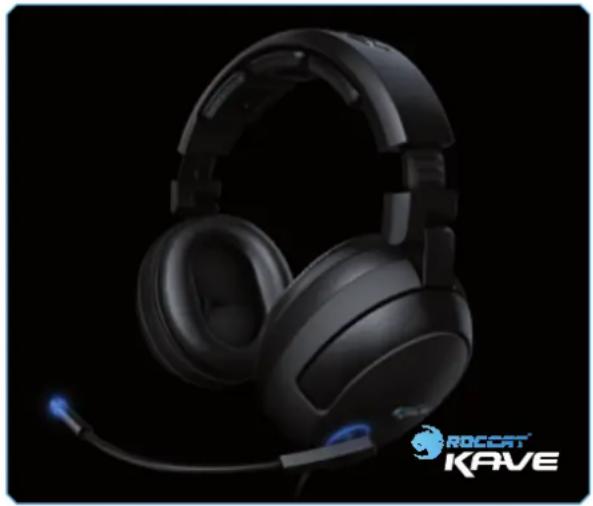
Congratulations! By purchasing this ROCCAT™ Kave solid 5.1 surround sound gaming headset, you've got everything a gamer's heart could desire: from fantastic sound quality to adjustable vibration technology. This includes the opportunity to always stay one step ahead of your opponents through precise sound positioning and so to score those decisive points.
Thanks to the uniquely precise premium sound reproduction, the ROCCATT™ Kave Solid surround sound gaming headset doesn't only give gamers a decisive advantage when pinpointing their opponents; it also delivers a uniquely realistic sound when watching films, too. No noise will go unheard; you'll find yourself immersed right in the center of the action. A unique atmosphere. This immersive experience is delivered by the ultra high performance of the headset's four 40mm speakers and the electrifying vibration function.
The fully flexible microphone, which can be pivoted through a full 360°, can be conveniently switched on or off. An ice-blue LED indicates whether the microphone is currently on or off.
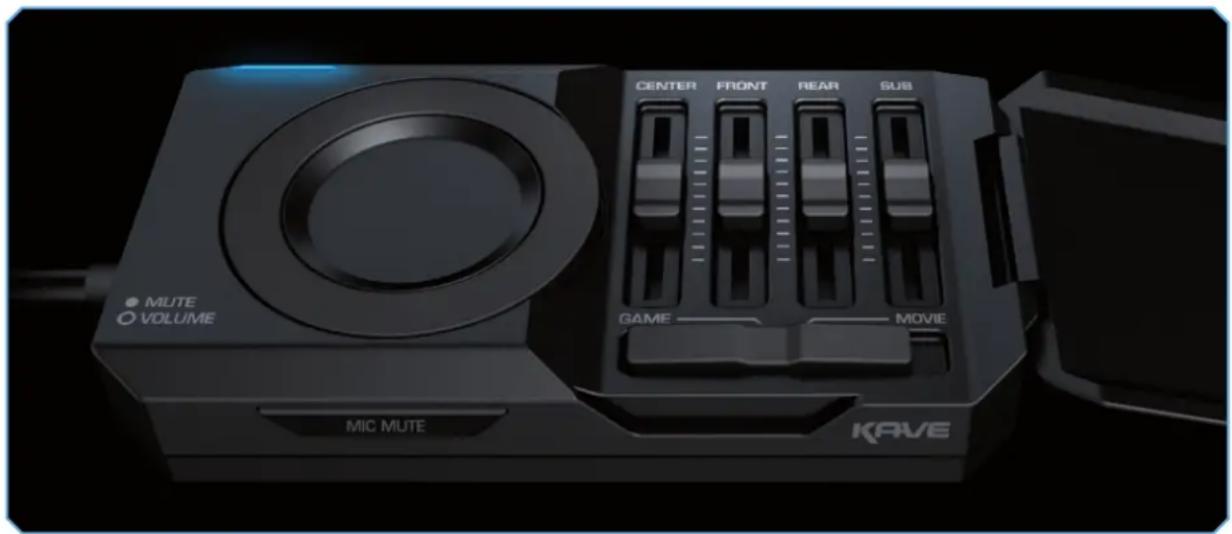
The compact Tip'n'Control desktop remote doesn't just allow you to switch between Game and Movie mode; it also allows you to control the master volume as well as each of the four surround sound channels too.
Weight is spread evenly thanks to the size-adjustable headband's three pads which makes the headset particularly comfortable to wear. The padded earcups are hand-sewn and are outstanding at cancelling out noise; no distracting external noises will spoil your gaming or film enjoyment.
With the ROCCAT™ Kave, you'll also be best equipped for LAN parties. The earcups fold compactly together and, as the microphone can also be removed, the Kave is particularly easy to carry around.
natural_image
Black RoCCAT KAVE headset with headlamp and blue illuminated ear (no text or symbols on device)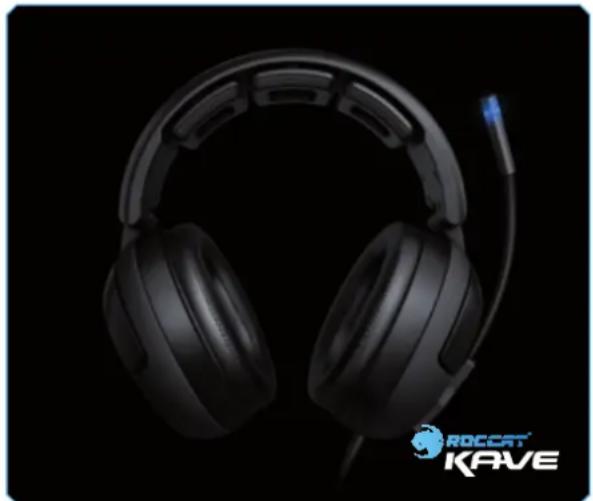
natural_image
Black and white headboard with a blue logo 'ROCCAT' and 'KAVE' visible on the side (no other text or symbols)
natural_image
Black and white photo of a Kave device with visible ports and control panel (no readable text or symbols)WARRANTY AND SUPPORT
Support
If you experience difficulties when installing or connecting the product, please get in touch with our technical support team.
A support form is available on our website: www.roccat.org.
Alternatively you can e-mail our technical support team directly: support@roccat.org
Limitation of liability
ROCCAT GmbH shall not be liable for damages such as damages to or loss of property, profit or turnover losses, costs for spare parts, expenses for inconveniences arising from the interruption of a service or any other damages. Claims which exceed the purchasing price of the product may not be asserted under any circumstances.
Warranty
This product is supplied with a limited warranty of two years. If this product exhibits a defect within the warranty period then ROCCAT GmbH may repair or replace the fault product at its own discretion. To make a claim against the warranty take the defective product, together with the receipt of purchase, to the supplier you purchased the product from.
Correct disposal
This product must not be disposed of together with household waste. You are obliged to hand in used electrical equipment to an official collection point for electrical equipment. ROCCAT GmbH is concerned about protecting as many resources as possible and with it the environment and your health as well. Help us to do this by disposing of this product at your nearest authorized collection point. You can find out where your nearest collection point is by contacting your local authority, the local disposal company or the supplier/business where you purchased this product from.
Maintenance and repair
Any repairs and maintenance work must only be performed by qualified specialists. Do not attempt to make repairs yourself and do not make changes to the product.
Moisture
Keep the product away from sources of moisture (rain), water and other liquids..
Operating conditions
Use the product between 5 to 40°C and with a relative humidity of 5 to 80% (non-condensing).
Copyright
© 2009 ROCCAT GmbH. All rights reserved. This publication may not be copied, reproduced, made retrievable or saved, neither fully or in part, nor may it be transferred or made accessible electronically, mechanically, as a photocopy, as a recording or by any other means without the express written approval of ROCCAT GmbH.
SAFETY NOTES
Radio interference
Operation of the device (the devices) may be affected by strong static, electrical or high-frequency fi elds (radio installations, mobile telephones, microwaves, electrostatic discharges). If this occurs, try increasing the distance between the devices that are causing interference.
Damage to hearing
High volume levels may cause damage to hearing. Avoid listening to audio at too high a volume, especially for extended periods, and check the volume level that has been set on the volume control each time before the product is used.
WHAT'S INCLUDED
■ ROCCAT™ Kave solid 5.1 surround sound gaming headset
5.1 Sound Demo CD
Tip'n'Control desktop remote
- 'The Inari Case' mission book including ID card
Quick Install Guide
SYSTEM REQUIREMENTS
PC or MAC™
■ 5.1 soundcard or soundcard configured for 5.1 sound for real 5.1 surround sound
Free USB port
TRANSPORT
The ROCCAT™ Kave solid 5.1 headset can be folded quickly and practically, thereby allowing it to be transported with ease.
To do that, adjust the headband so it's at its smallest size. Fold the right-hand earcup inward. Now fold the left-hand earcup inward so it rests on the right-hand earcup. To avoid damaging the headset, you can now easily remove the boom mic from its socket on the left-hand side of the headset and store it separately.

natural_image
Close-up of a black and white headboard with blue indicator lights, against a black background (no text or symbols visible)
natural_image
Line drawing of a headboard with earbuds and microphone (no text or symbols)
natural_image
Line drawing of a pair of headphones with a blue arrow indicating rotation (no text or symbols)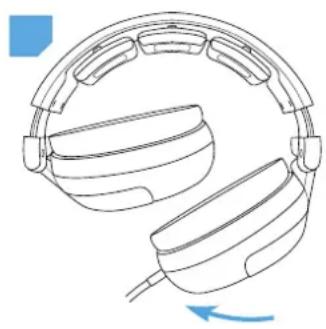
natural_image
Line drawing of a pair of hardcover headsets with a blue arrow indicating rotation (no text or symbols)CONNECTING
All connectors are color coded to simplify the process of connecting the ROCCAT™ Kave gaming headset. These markings correspond to the colors on the soundcard sockets as used by many hardware manufacturers. If this isn't the case with your soundcard, please refer to your soundcard's user manual.
| Headset connector marking Soundcard socket | |
| Pink (jack plug) Microphone | |
| Green (jack plug) Front speaker (right and left) | |
| Orange (jack plug) Subwoofer and Center | |
| Black (jack plugr) Rear speaker (right and left) | |
| Gray (USB connector) USB port |
1 Plug the pink connector into the microphone socket on the soundcard.
2 Plug the green connector into the headphone/front speaker socket.
3 Plug the orange connector into the subwoofer and center speaker socket.
4 Plug the black connector into the rear speaker socket.
5 Plug the USB connector into any free USB port.
Er dient der Stromversorgung des Headsets The USB connector powers the headset and remote, therefore it should either be plugged directly into the computer or into a mains powered USB hub. Using the headset with a bus-powered USB hub may lead to problems.

natural_image
Diagram of an electronic circuit board with resistors and capacitors, showing pin connections (no text or labels)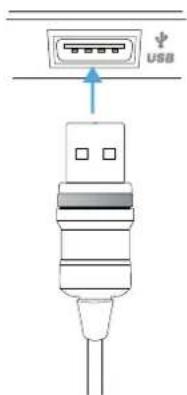
OPERATION
natural_image
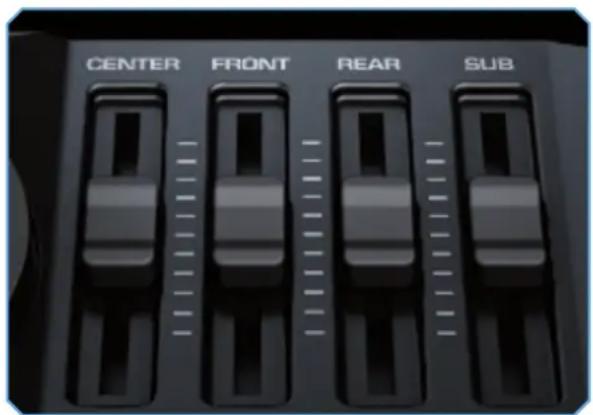
3D rendering of a KAVE audio console with labeled buttons (MUTE VOLUME, MIC MUTE) and control knobs (CENTER, FRONT, REAR, SUB), no readable text or symbols beyond labels.The headset uses the soundcard's presets, which means that the computer's audio settings don't need to be adjusted again. You can, however, adjust the sound and volume of all four speakers and the subwoofer to suit your preferences using the desktop remote. When you open the cover of the remote, you'll find a set of slider controls.
Game vs. Movie
Two options are available to you which control how the headset sound is mixed: 'Game' and 'Movie'.
The ‘Game’ setting is equivalent to the original 5.1 sound setting and is best suited to games, particularly first-person shooters. If you intend to watch films on the computer, ‘Movie’ is the best setting as it ensures that the voices sound clearer and more defined.

natural_image
Close-up of a black gaming controller handle with 'GAME' and 'MOVIE' labels (no additional text or symbols)Center
Using this controller, you can adjust the volume level of the voices. By doing this, you can raise the voices above the background noises and the music, for example.
Front
The 'Front' controller controls the volume of the left and right channels – in other words the stereo sound.
Rear
The 'Rear' controller controls the volume of the rear speakers – these produce the surround sound effects.
Sub
Using the 'Sub' controller, you can adjust the subwoofer, in other words the bass level, and also the vibration strength. The higher the 'Sub' controller level is set to, the stronger and more noticeable the vibration.
OPERATION
Volume
You can raise the overall volume level using the volume dial. To do that, rotate the outer ring in a clockwise direction.
Mute
You can also mute the sound. To do that, press the circular area within the volume dial.
Mic Mute
The headset's microphone can also be muted. To do that, press the 'Mic Mute' button located below the volume control. A blue LED directly on the microphone will light up indicating that the microphone has been muted. This setting has no effect on the soundcard's microphone input.

natural_image
Close-up of a black circular device with 'MUTE O VOLUME' and 'MEASURE' labels, no readable text beyond branding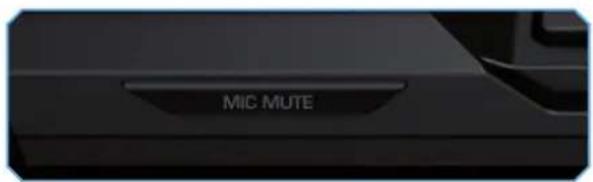
TROUBLESHOOTING
The headset doesn't work
■ Make sure that the USB connector is correctly plugged into the USB socket on your computer.
Make sure the cables have been correctly plugged into the soundcard.
Refer to your soundcard's manual for details on how to connect the headset correctly.
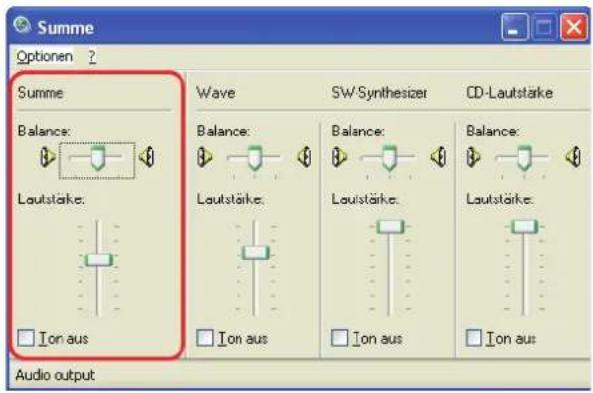
Check your computer's audio properties to see if the volume has been muted and if the correct speaker settings have been selected.
The microphone doesn't work
Check your computer's audio settings to see if the microphone has been muted.
Check to see if the blue LED on the microphone is lit or press the 'Mute Mic' button just to make sure it hasn't been pressed accidentally.
The headset doesn't reproduce surround sound
■ Make sure the cables have been correctly connected to the soundcard.
Check if the DVD program you're using on your PC supports surround sound and change the sound settings in the program.
Check the sound settings in your game to see if surround sound is supported and, if necessary, change the sound settings in the game.
Cable length: 3.4m (2m from the remote to the PC)
Speakers
Frequency range: 20Hz\~20,000kHz
Max. SPL at 1kHz: 114±3dB
Max. input power: 100mW
Drive diameter: 40mm
Vibration units
Frequency range: 20\~100Hz
Max. input power: 1000mW
Drive diameter: 30mm
Microphone
Frequency range: 20Hz\~18,000Hz
Condenser microphone: 4 x 1.5mm
Sensitivity at 1kHz: -36dB
Impedance: 2.2kΩ + 15%
Directional characteristic: omnidirectional
System
Input impedance: 10kΩ
Connectors: 4 x 3.5mm jack plugs, 1 x USB connector
- INTRODUCTION
- Welcome to the ROCCAT™ Kave
- WARRANTY AND SUPPORT
- Support
- Limitation of liability
- Warranty
- Correct disposal
- Maintenance and repair
- Moisture
- Operating conditions
- Copyright
- SAFETY NOTES
- Radio interference
- Damage to hearing
- WHAT'S INCLUDED
- SYSTEM REQUIREMENTS
- TRANSPORT
- The ROCCAT™ Kave solid 5.1 headset can be folded quickly and practically, thereby allowing it to be transported with ease.
- CONNECTING
- OPERATION
- Game vs. Movie
- Center
- Front
- Rear
- Sub
- Volume
- Mute
- Mic Mute
- TROUBLESHOOTING
- The headset doesn't work
- The microphone doesn't work
- The headset doesn't reproduce surround sound
- Speakers
- Vibration units
- Microphone
- System
Brand : ROCCAT
Model : Kave
Category : Headset