DW Office - Helmet SENNHEISER - Free user manual and instructions
Find the device manual for free DW Office SENNHEISER in PDF.


User questions about DW Office SENNHEISER
0 question about this device. Answer the ones you know or ask your own.
Ask a new question about this device
Download the instructions for your Helmet in PDF format for free! Find your manual DW Office - SENNHEISER and take your electronic device back in hand. On this page are published all the documents necessary for the use of your device. DW Office by SENNHEISER.
USER MANUAL DW Office SENNHEISER
natural_image
Black and white product photo of two Sennheiser headphones on stands, no visible text or symbols on the devices themselves.SetupGuide
DW Series
Setup Guide
Contents "Setup Guide"
Important safety information 2
Scope of delivery and overview of the DW series 3
Base stations with components 3
Headsets with components 4
Product overview of the base stations .... 5
Overview of the front 5
Overview of the rear 5
Setting up the base station 6
Connecting the base station to the mains power supply 6
Connecting the base station to a fixed line phone 7
Connecting the base station to an optional electronic hook switch control (EHS) 9
Connecting the base station to a computer ....10
Securing the connected cables ....10
Charging the headset 11
Testing the headset system and the sound quality 13
Adjusting the headset system using the DIP switches ....13
Adjusting the audio signal by means of the dial tone ....15
Adjusting the volume 16
Adjusting the automatic audio transmission "Auto Audio" ....16
If a problem occurs 17
Specifications 18
Manufacturer Declarations 20

Important safety information
▶ Please read this instruction manual carefully and completely before using the product.
▶ Always include this instruction manual when passing the product on to third parties.
▶ Do not use an obviously defective product.
Preventing damage to health and accidents
Do not listen at high volume levels for long periods of time to prevent hearing damage.
Always maintain a distance of at least 3.94" (10 cm) between the ear cups and the cardiac pacemaker or implanted defibrillator since the product generates permanent magnetic fields.
Keep the product, accessories and packaging parts out of reach of children and pets to prevent accidents and choking hazards.
Do not use the product in situations which require special attention.
Preventing damage to the product and malfunctions
Always keep the product dry and do not expose it to extreme temperatures (hairdryer, heater, extended exposure to sunlight, etc.) to avoid corrosion or deformation.
▶ Only use attachments/accessories supplied or recommended by Sennheiser.
▶ Only clean the product with a soft, dry cloth.
▶ Unplug the power supply unit from the wall socket to completely disconnect the product from the mains power supply.
Do not short-circuit the contacts of the product. Make sure that no metal objects (e.g. paper clips, hair pins, earrings) come into contact with the interfaces and contacts.
▶ Only use the base station for charging DW series headsets.
Intended use/Liability
The headset system can be used for calling and – together with a computer (VoIP) and/or a telephone – for audio input/output and is intended for professional office or call center use.
It is considered improper use when this product is used for any application not named in this instruction manual.
Sennheiser does not accept liability for damage arising from abuse or misuse of this product and its attachments/accessories. The risk is to be borne by the user.
Sennheiser is not liable for damages to USB devices that are not consistent with the USB specifications.
Sennheiser is not liable for damages resulting from the loss of connection due to flat or overaged rechargeable batteries or exceeding the DECT transmission range.
Scope of delivery and overview of the DW series

The DW series allows you to combine base stations (BS) and headsets (HS) to meet your needs. The listed headsets and base stations are compatible with each other. The DW series base stations marked with ML in their name are optimized for Microsoft® Lync™.
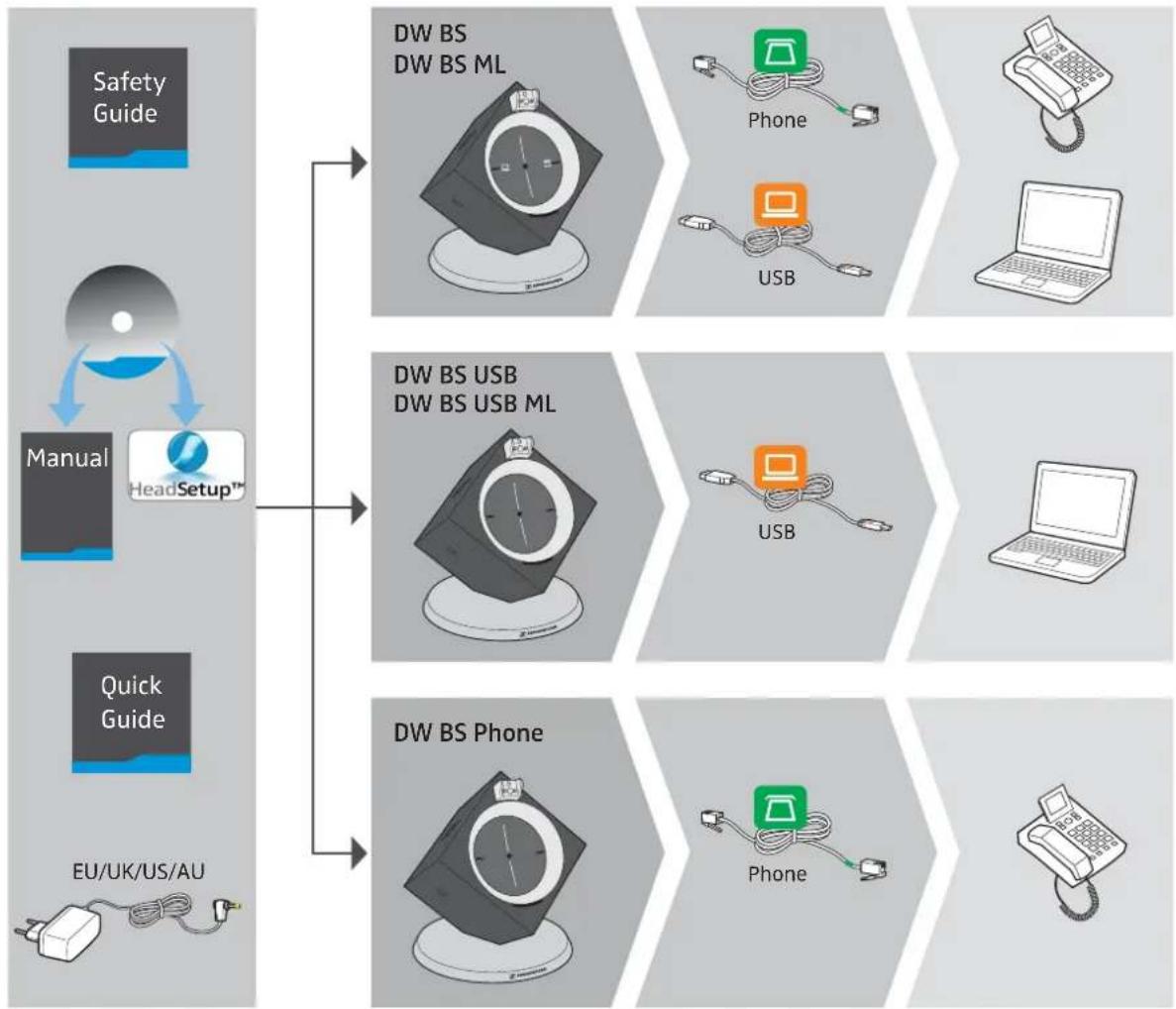
The scope of delivery includes – depending on the product purchased – a base station and/or a headset with corresponding components.
Base stations with components
DW BS for fixed line phone and computer
DW BS ML for fixed line phone and computer, optimized for Microsoft Lync
DW BS USB for computer
DW BS USB ML for computer, optimized for Microsoft Lync
DW BS Phone for fixed line phone
flowchart
graph TD
    A["Safety Guide"] --> B["Manual HeadSetup™"]
    B --> C["Quick Guide"]
    C --> D["EU/UK/US/AU"]

    subgraph Safety Guide
        E["DW BS DW BS ML"]
        F["Phone"]
        G["USB"]
    end

    subgraph Manual Setup
        H["DW BS USB DW BS USB ML"]
        I["USB"]
    end

    subgraph Quick Guide
        J["DW BS Phone"]
        K["Phone"]
    end
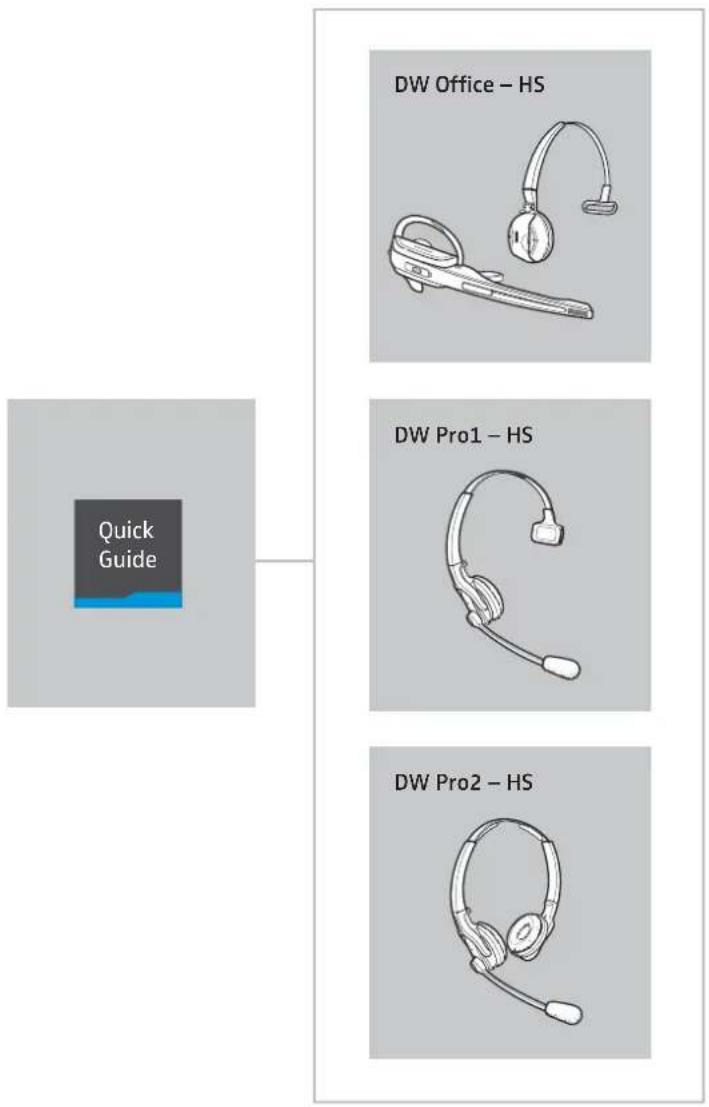
Headsets with components
DW Office – HS monaural, with different wearing styles
DW Pro1 - HS monaural, with headband
DW Pro2 - HS binaural, with headband
text_image
DW Office – HS DW Pro1 – HS DW Pro2 – HS Quick GuideProduct overview of the base stations
Overview of the front

text_image
DW BS DW BS ML 1 2 3 4 5
text_image
DW BS USB DW BS USB ML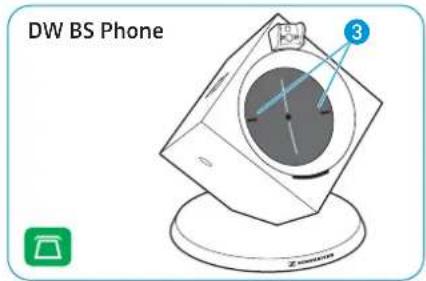
text_image
DW BS Phone 31 PC button with LED
2 Charging contacts
3 Phone button with LED
4 Link LED ◇
5 Charge status LED
Overview of the rear

text_image
DW BS DW BS ML 6 7 8 9 10 14 13 12 11 12 13 DC N 25-16E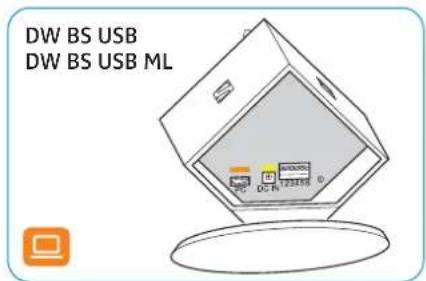
text_image
DW BS USB DW BS USB ML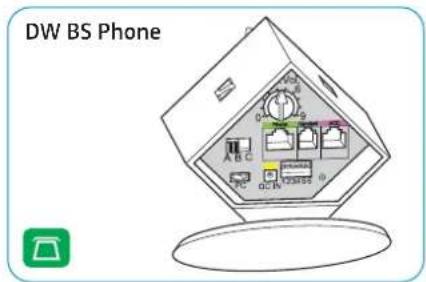
text_image
DW BS Phone6 ABC switch
7 Microphone volume control
8 Phone socket
9 Handset socket
10 ACC socket
11 Set button
12 DIP switch row 1 to 6
13 DC IN socket
14PC socket (USB)
Setting up the base station
You can use the headset system with your fixed line phone and/or your computer. The base station controls the wireless communication to the headsets.

flowchart
graph TD
    A["Laptop"] --> B["Keyboard"]
    C["Computer"] --> D["Headphones"]
    E["Phone Icon"] --> F["Desktop Icon"]

natural_image
Illustration of a laptop connected to a speaker and two earphones, no text or symbols present
flowchart
graph TD
    A["Printer"] --> B["Central Network Node"]
    C["Headphones"] --> B
    D["Wireless Headphones"] --> B
    B --> E["Signal"]
    style B fill:#90EE90,stroke:#333,stroke-width:2px
Place the base station at a minimum distance of 15 cm from the fixed line phone.
Connecting the base station to the mains power supply
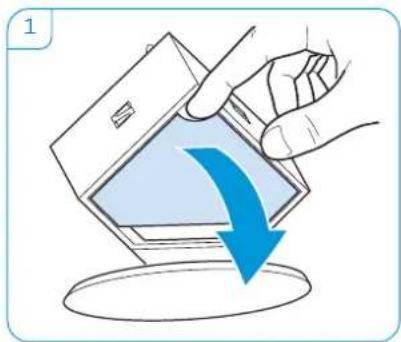
1 Remove the cover.
2 Connect the connector of the power supply unit to the DC IN socket (marked yellow). Connect the power supply unit to a wall socket.
3 DW BS, DW BS ML: The Link LED ◇ lights up red. Either the PC LED □ or the Phone LED □ lights up white.
4 DW BS USB, DW BS USB ML, DW BS Phone: The Link LED ◇ lights up red. The PC LED and the Phone LED light up white.
natural_image
Illustration of a hand holding a smartphone with a blue arrow indicating the download or drag (no text or symbols present)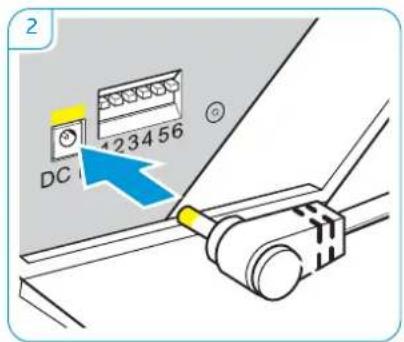
text_image
2 DC 123456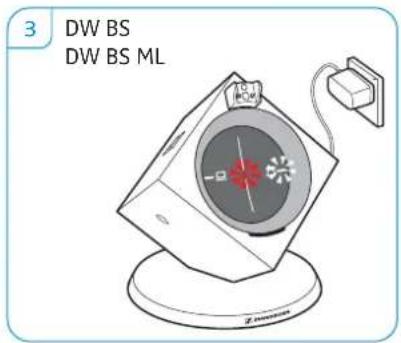
text_image
3 DW BS DW BS ML
text_image
4 DW BS USB DW BS USB ML DW BS PhoneDisconnecting the base station from the mains power supply
If the product is not used for extended periods of time, unplug the power supply unit from the wall socket.
Connecting the base station to a fixed line phone



Connection possibilities Page
A Connection to a fixed line phone without headset socket 7
B Connection to a fixed line phone with headset socket 8
C Connection to an optional mechanical handset lifter 8
▶ Check which connection possibility is best suited for your telephone.
▶ Follow the instructions in the corresponding chapter.
A
Connecting the base station to a fixed line phone without headset socket
1 Disconnect the handset cable from the telephone and connect it to the Handset socket (marked gray) on the base station.
2 Connect the telephone cable to the handset socket on the telephone and to the Phone socket (marked green) on the base station.
3 Use a pointed object (e.g. a ball pen) to set the DIP switches 1 and 2 to the position shown.

text_image
Diagram showing connection between a landline telephone and a device with labeled ports and cables, including a zoomed-in view of the internal components.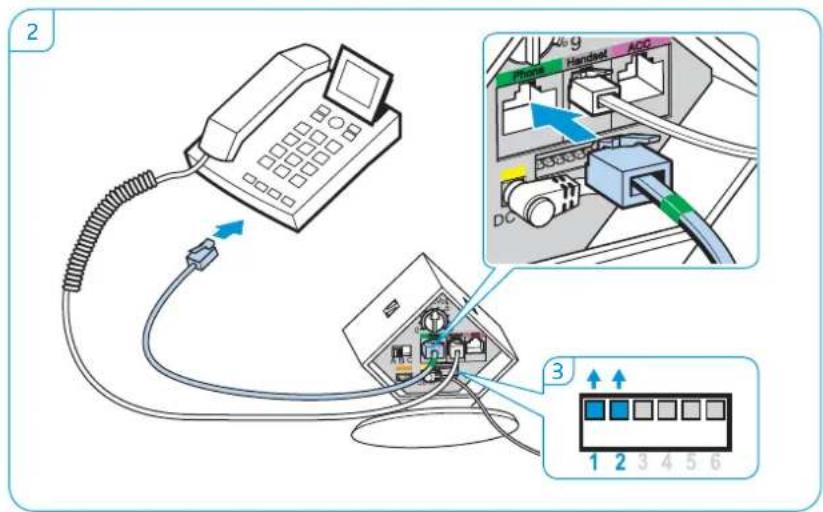
text_image
Diagram showing connection between a telephone and a device with labeled ports and connectors, including a close-up of the internal network interface.
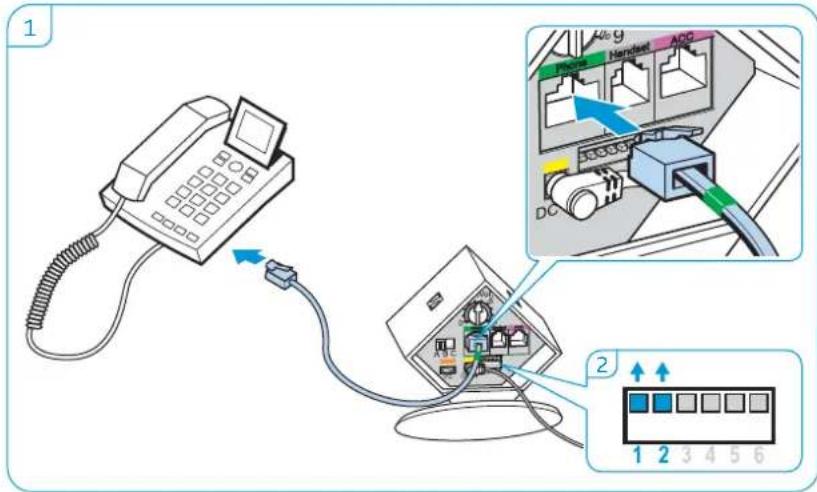
Connecting the base station to a fixed line phone with headset socket
1 Connect the telephone cable to the headset socket on the telephone and to the Phone socket (marked green) on the base station.
2 Use a pointed object (e.g. a ball pen) to set the DIP switches 1 and 2 to the position shown.
text_image
Diagram showing connection between a telephone and a device with labeled ports and connectors, including a zoomed-in view of the internal components.
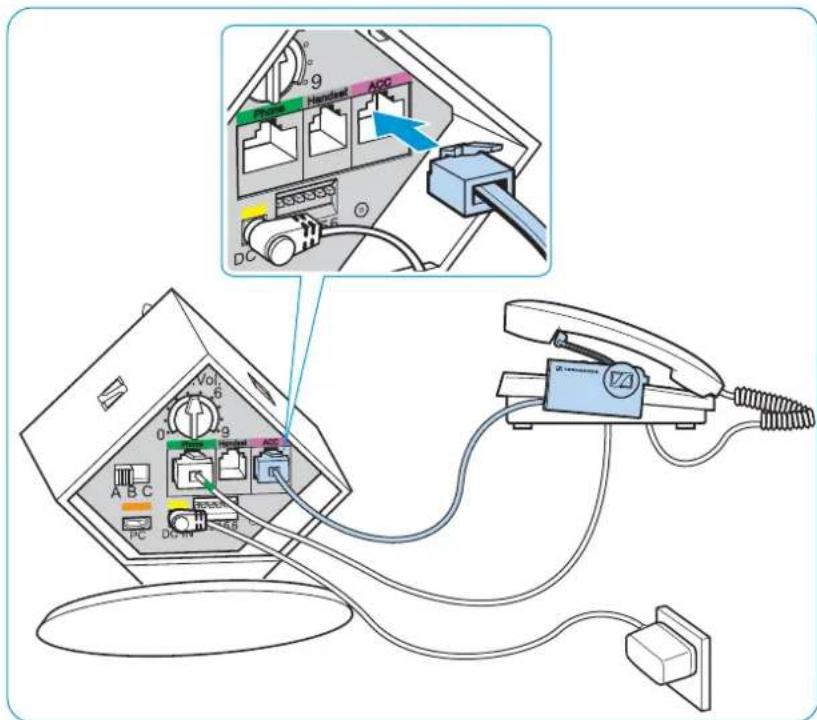
Connecting the base station to an optional mechanical handset lifter
The Sennheiser HSL 10 mechanical handset lifter is an optional accessory available from your Sennheiser partner. The handset lifter allows you to answer calls even when you are away from your desk.
Connect the base station to the fixed line phone as described in chapter or. B
Connect the handset lifter to the ACC socket on the base station.
Connect the handset lifter to the fixed line phone. For more information, refer to the instruction manual of the HSL 10 handset lifter.
text_image
Diagram showing connections between a computer interface with labeled ports and an attached telephone device, including a magnified inset of the device's internal components.
Connecting the base station to an optional electronic hook switch control (EHS)
The necessary EHS connection cables as well as adapter cables for manufacturer specific standards are available as optional accessories from your Sennheiser partner. The corresponding quick guides are supplied with the cables or can be found on the product page on our website at www.sennheiser.com.
By way of example of a Siemens and an Alcatel adapter cable, the following describes how to connect the base station to an electronic hook switch.
1 Connect the base station to the fixed line phone.
2 Use a pointed object (e.g. a ball pen) to set the DIP switch to the position shown.
Siemens, Agfeo, Aastra, Auerswald, etc.

text_image
1 2 1 2 3 4 5 6 Mic Vol. 3. + 6 0 9 A B C DC 23416Alcatel

text_image
Diagram showing connections between a device with labeled ports and micro-injection ports, including numbered parts and control buttons.For an overview of the available connection and adapter cables, visit the DW series product page on our website at www.sennheiser.com or contact your Sennheiser partner.



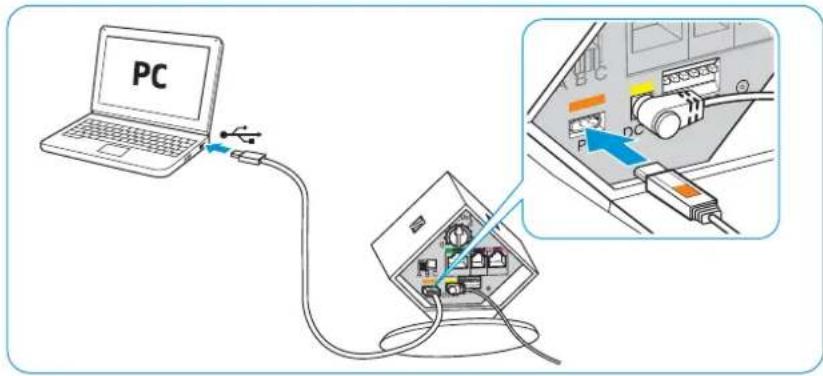
Connecting the base station to a computer
Connect the USB cable to the PC socket (marked orange) on the base station and to a USB socket of your computer. The operating system detects the USB audio device "Sennheiser DECT" and installs the necessary drivers.
text_image
PCSennheiser PC software
The free Sennheiser PC software allows you to add value to your Sennheiser products. The Sennheiser Updater, for example, facilitates easy updating of products with new software. For more information, visit our website at www.sennheiser.com/cco/software.

Securing the connected cables
1 Replace the cover to the rear of the base station.
2 Tilt the cover upwards until it locks into place with an audible click.

text_image
1 A B C 0 1 2 3 4 5 6 7 8 9 Vcc GND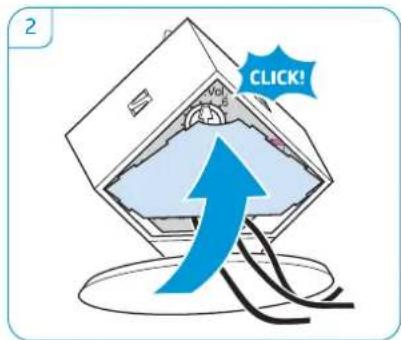
text_image
2 CLICK!Charging the headset



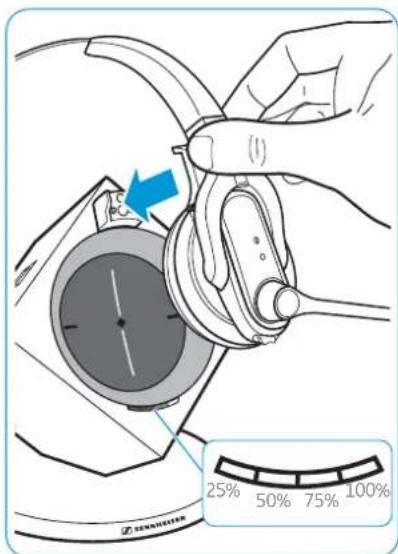
Charge the rechargeable battery for at least 20 minutes without interruption before using it for the first time. A complete charging process takes about 60 minutes.
Charging the headset in the base station
Place the headset into the magnetic holder of the base station. The Headset LED lights up blue and the rechargeable battery is being charged. The Charge status LED on the base station indicates the charge status.
text_image
Diagram showing a hand holding a device with a blue arrow pointing to a circular dial, and a scale bar indicating 25% to 100%.
text_image
Diagram showing a hand using a tool to adjust or install a device, with a blue arrow indicating the change and a red X symbol below.
natural_image
Illustration of a medical or laboratory device with a pen inserted into a circular chamber (no text or symbols visible)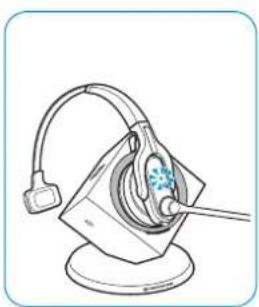
natural_image
Line drawing of a mechanical device with a bulb and base, no text or symbols present
text_image
DW Pro2 - HSDW OfficeDuring the first charging process, it may take up to 5 minutes until the Headset LED lights up blue.
| LED segment (white = lit up) | Required charging time | Corresponds to a talk time of Wideband Narrowband | |
 | approx. 10 min. | approx. 2 hrs | approx. 3 hrs |
| approx. 20 min. | approx. 4 hrs | approx. 6 hrs | |
| approx. 40 min. | approx. 6 hrs | approx. 9 hrs | |
| approx. 60 min. | approx. 8 hrs | approx. 12 hrs | |

If the headset is outside the range of the base station, it will switch off after 30 minutes in order to conserve battery power.
Charging the headset using the optional CH 10 headset charger
The Sennheiser CH 10 headset charger is an optional accessory available from your Sennheiser partner. The CH 10 allows you to charge additional DW series headsets.

natural_image
Illustration of a hand holding a cable connector to a device with a blue arrow indicating the cable attachment (no text or symbols present)
text_image
DW Office - HS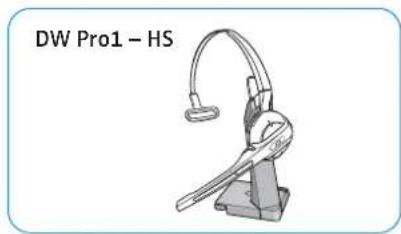
natural_image
Technical line drawing of a DW Pro1-HS headset with adjustable arm and base mount (no text or symbols on the device itself)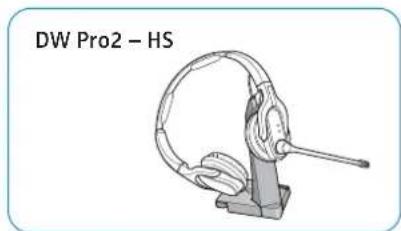
natural_image
Technical line drawing of a mechanical device labeled DW Pro2 - HS, showing a clamping mechanism (no text or symbols on the diagram itself)Refer to the instruction manual of the CH 10 for more information.
Charging several headsets simultaneously
The MCH 7 multi USB power source is an optional accessory available from your Sennheiser partner. Together with the CH 10 USB, the MCH 7 allows you to charge up to 7 headsets simultaneously.

flowchart
graph TD
    A["Power Supply"] --> B["MZH 7"]
    B --> C["Ch 10 USB"]
    C --> D["Output"]
    style A fill:#f9f,stroke:#333
    style B fill:#ccf,stroke:#333
    style C fill:#cfc,stroke:#333
    style D fill:#fcc,stroke:#333
Refer to the instruction manual of the MCH 7 for more information.
Testing the headset system and the sound quality



Adjusting the headset system using the DIP switches
1 Press the Link button on the headset to disconnect an existing wireless link between base station and headset.
The LEDs on the headset and on the base station go off.
2 Use a pointed object (e.g. a ball pen) to set the DIP switches to the desired position.

natural_image
Illustration of a hand inserting a blue component into a heart chamber, with earpieces and medical devices nearby (no text or symbols)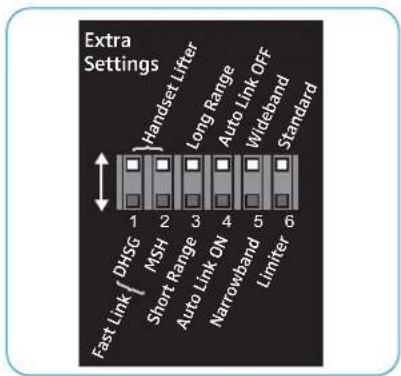
text_image
Extra Settings Handset Lifter Long Range Auto Link OFF Wideband Standard Fast Link { DMSG MSH Short Range 3 4 5 6 Narrowband Limiter
text_image
123456


Configuring the handset lifter/hook switch - DIP switches 1 and 2
The DIP switches 1 and 2 are only assigned a function on the DW BS, DW BS ML and DW BS Phone base stations.
| Switch position Function | |
| Manual operationLifts/hangs up the handset manually or using the handset lifter (Sennheiser HSL 10). | |
| Electronic hook switch (DHSG standard)Call control via the headset system.For faster link establishment, see Fast Link. | |
| Electronic hook switch (MSH standard)Call control via the headset system. | |
| Fast Link for DHSG standard and HSL 10 handset lifterRecommended for frequent callers. Shorter battery life. Fast link establishment without delay due to hidden link to the base station. | |
Adjusting the radio range - DIP switch 3
If many DECT systems are operated in a confined space, interference can occur. In this case, you should change the radio range.
Switch position Function
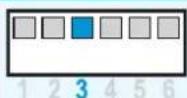
Standard radio range

Reduced radio range
Use this setting in order to avoid interference with other DECT systems
Range of approx. 10 m indoors
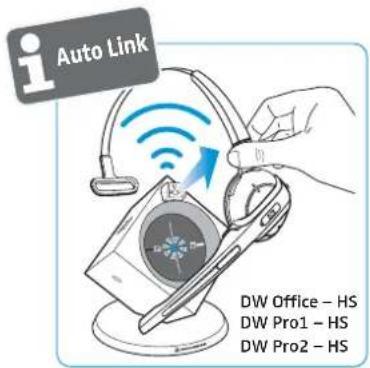
Automatically establishing the wireless link between headset and base station (Auto Link) – DIP switch 4
text_image
i Auto Link DW Office - HS DW Pro1 - HS DW Pro2 - HSSwitch position Function
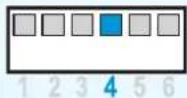
Manual link establishment
When taking the headset out of the base station, you have to manually establish the wireless link between headset and base station.

Automatic link establishment – Auto Link
When taking the headset out of the base station, a wireless link is automatically established between headset and base station.
Switching between wideband and narrowband audio transmission – DIP switch 5
Switch position Function
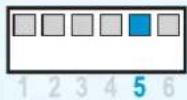
Wideband audio transmission
Automatic frequency adjustment of wideband and narrowband calls. Wideband audio transmission is e.g. supported by Skype and gives high speech quality.
Battery life: 8 hours
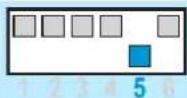
Narrowband audio transmission
Battery life: 12 hours
Limiting the volume - DIP switch 6
Switch position Function
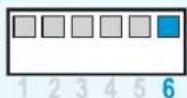
Standard limitation
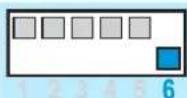
Limited volume (country specific)
• A U v e r s i o n : in compliance with Directive AS/ACIF G616:2006
• EU and US version: in compliance with Directive 2003/10/EC



Adjusting the audio signal by means of the dial tone
1 Put on the headset and press the Phone button ☐ on the base station.
2 Press the Link button on the headset. The Link LED lights up blue.
3 Lift the handset. You hear a dial tone.
4 Set the ABC switch to the position A, B or C so that you can hear a clear dial tone in the headset.

natural_image
Illustration of a person using a headset to interact with a device (no text or symbols visible)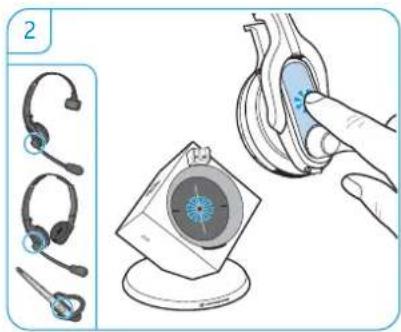
natural_image
Illustration of ear protection and cleaning steps, showing ear Headphones, a device with blue filter, and a hand adjusting the gear (no text or symbols)
text_image
3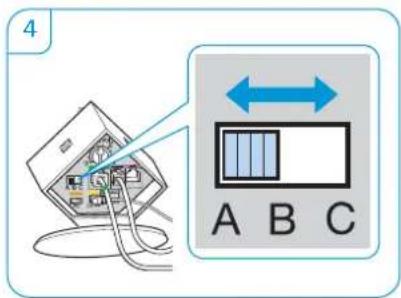
text_image
4 A B C
Adjusting the volume
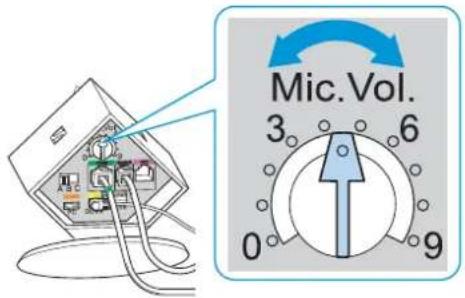
Adjusting the microphone volume of the call transmission
By default, the microphone volume control is set to position 4. This setting is suitable for most telephones.
Make a call to someone who will help you find t he correct sensitivity setting for your microphone.
▶ Turn the microphone volume control so that the other party can hear you at a comfortable level.
text_image
Mic. Vol. 3 6 0 9
Adjusting the microphone volume of the USB transmission
Some softphones adjust the microphone sensitivity automatically.
▶Activate this function in order to be able to optimally use the microphone and, via your operating system, adjust the microphone sensitivity so that the other party can hear you at a comfortable level (see the Help function of your operating system).

Adjusting the automatic audio transmission "Auto Audio"
With the "Auto Audio" function activated and in the case of a USB connection, the audio signals – e.g. from Windows® Media Player® or iTunes® – are automatically transmitted to the headset.
When you receive a call or when a connection to Skype™ is established, the audio transmission stops and you hear for example the ring tone. The "Auto Audio" function is activated by default.
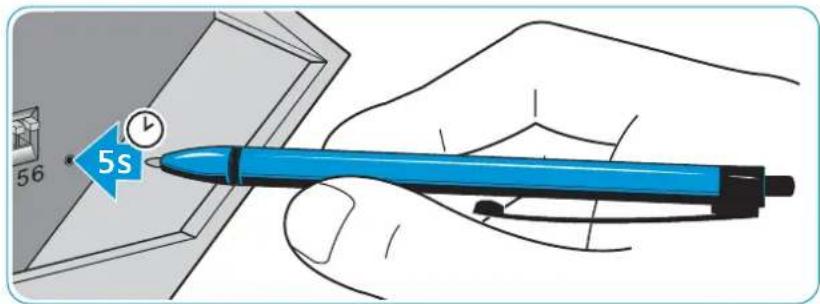
Activating the "Auto Audio" function:
Use a pointed object to press the Set button for approx. 5 seconds. The Link LED rapidly flashes blue several times.
Deactivating the "Auto Audio" function:
Use a pointed object to press the Set button for approx. 5 seconds. The Link LED rapidly flashes red several times.
text_image
5s 56If a problem occurs
For causes and solutions that are mainly related to the headset, refer to the chapter "If a problem occurs ..." in the "User Guide".
| Problem | Possible cause | Possible solution | Page |
| The headset is placed into the base station but the Charge status LED if off | Base station is not connected to the mains power supply | Connect the base station to the mains power supply. | 6 |
| Rechargeable battery is deep discharged | Wait several minutes until the Charge status LED lights up. | 11 | |
| For quick-charging the headset: Briefly press the Set button at the rear of the base station. | - | ||
| Link between headset and base station cannot be established | Base station is only connected via the USB cable | Connect the base station to the mains power supply. | 6 |
| Bad radio link between headset and base station | Transmission range is exceeded | Reduce the distance between headset and base station. | - |
| Adjust the radio range. 14 | |||
| Noise interference and connection loss | Too many DECT systems within the radio range | Reduce the radio range. 14 | |
| Set the base station to narrow-band transmission. | 14 | ||
| Distance between base station and fixed line phone is so small that interference occurs | Increase the distance between base station and fixed line phone. | - | |
| The rechargeable battery cannot be charged | Headset is not properly placed into the magnetic holder of the base station | Check if the headset is properly placed into the magnetic holder. | 11 |
| Bad audio quality, the other party sounds too low or too loud | Microphone sensitivity is not correctly adjusted | Adjust the microphone sensitivity. 15 | |
| The sound from the fixed line phone is distorted and disturbed | Base station is not adjusted to the fixed line phone | Use the ABC switch to adjust the base station to your fixed line phone. | 15 |
For more information and an FAQ list, please visit our website at www.sennheiser.com.
If a problem occurs that is not listed in the above table or if the problem cannot be solved with the proposed solutions, please contact your local Sennheiser partner for assistance.
To find a Sennheiser partner in your country, search at www.sennheiser.com under "Service & Support".
Specifications
Base station
DW BS/DW BS ML
Dimensions 108 x 116 x 114 mm (W x H x D)
Weight approx. 368 g
Operating temperature range +5°C to +45°C (+41°F to +113°F)
Storage temperature range -20^ to +70^ ( -4^ to +158^ )
DW BS USB/DW BS USB ML/DW BS Phone
Dimensions 108 x 116 x 114 mm (W x H x D)
Weight approx. 322 g
Operating temperature range +5°C to +45°C (+41°F to +113°F)
Storage temperature range -20^ to +70^ ( -4^ to +158^ )
Headset
DW Office – HS
Dimensions 140 x 24 x 22 mm (W x H x D)
Weight with ear hook: approx. 22 g
with headband: approx. 50 g
Talk time narrowband: up to 12 hours
wideband: up to 8 hours
Charging time 50%: approx. 20 min
100%: approx. 1 hour
Range
free line of sight: up to 180 m
(environment dependent)
in office buildings: up to 55 m
Speaker type dynamic, neodymium magnet
Microphone type electret microphone, noise canceling
Operating temperature range +5°C to +45°C (+41°F to +113°F)
Storage temperature range -20^ to +70^ ( -4^ to +158^ )
DW Pro1/Pro2 - HS (DW 10)
Dimensions 170 x 175 x 55 mm (W x H x D)
Weight Pro1: approx. 65 g
Pro2: approx. 85 g
Talk time narrowband: up to 12 hours
wideband: up to 8 hours
Charging time 50%: approx. 20 min
100%: approx. 1 hour
Range
free line of sight: up to 180 m
(environment dependent)
in office buildings: up to 55 m
Speaker type dynamic, neodymium magnet
Microphone type electret microphone, ultra noise canceling
Operating temperature range +5°C to +45°C (+41°F to +113°F)
Storage temperature range -20^ to +70^ ( -4^ to +158^ )
Power supply unit
Nominal input voltage 100 - 240 V\~
Nominal input current max. 0.2 A
Mains frequency 50 – 60 Hz
Nominal output voltage 5 V
Nominal output current max. 850 mA
Operating temperature range +5°C to +45°C (+41°F to +113°F)
Storage temperature range -20^ to +70^ ( -4^ to +158^ )
Relative humidity operation: 20 to 85%
storage: 20 to 95%
Weight approx. 75 g
DECT
| EU, UK, AU:CAT IQ 1.0 | US version:DECT 6.0 | |
| Frequency 1,880 to 1,900 MHz | 1,920 to 1,930 MHz | |
| SAR value of DW Office – HS | 0.196 W/kg(max. 10 g SAR) | 0.093 W/kg(max. 1 g SAR) |
| SAR value of DW Pro1 – HS | 0.069 W/kg(max. 10 g SAR) | 0.044 W/kg(max. 1 g SAR) |
| SAR value of DW Pro2 – HS | 0.058 W/kg(max. 10 g SAR) | 0.025 W/kg(max. 1 g SAR) |
In compliance with
Europe: EMC EN 301489-6
CE
| Radio | EN 301406 |
| Safety | EN 60950-1 |
| SAR | EN 50360 refEN 62209-1(headset) |
USA & Canada:
This product meets the safety requirements of CSA No. 231437

Canada: IC: 2099D-TDB1
(DW BS-US & DW BS USB-US)
IC: 2099D- TDH1
(DW 10 HS/DW 20 HS/DW 30 HS)
IC: 2099D-TDH1
IC: 2099D-TDH1
USA: FCC ID: DMOCDBDIB (DW BS-US)
FCC ID: DMOCDBDKB (DW BS USB-US)
FCC ID: DMOCDHDFC
FCC ID: DMOCDHDEC
Manufacturer Declarations
Warranty
Sennheiser Communications A/S gives a warranty of 24 months on this product. For the current warranty conditions, please visit our website at www.sennheiser.com or contact your Sennheiser partner.
In compliance with the following requirements
• WEEE Directive (2002/96/EC)
Please dispose of this product at the end of its operational lifetime by taking it to your local collection point or recycling center for such equipment.
• Battery Directive (2006/66/EC)
The product's built-in rechargeable batteries can be recycled. In order to protect the environment, please dispose of defective products with their rechargeable batteries as special waste or return them to your specialist dealer.
CE Conformity
CE 1321
• R&TTE Directive (1999/5/EC)
• EMC Directive (2004/108/EC)
- Low Voltage Directive (2006/95/EC)
• ErP Directive (2009/125/EC)
• RoHS Directive (2011/65/EU)
The declaration is available at www.sennheiser.com. Before putting the product into operation, please observe the respective country-specific regulations!
Statements regarding FCC and Industry Canada
text_image
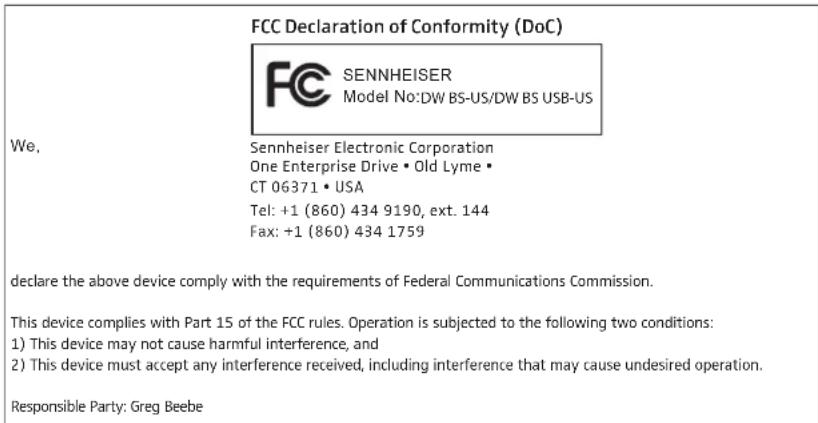
FCC Declaration of Conformity (DoC) SENNHEISER Model No:DW BS-US/DW BS USB-US We, Sennheiser Electronic Corporation One Enterprise Drive • Old Lyme • CT 06371 • USA Tel: +1 (860) 434 9190, ext. 144 Fax: +1 (860) 434 1759 declare the above device comply with the requirements of Federal Communications Commission. This device complies with Part 15 of the FCC rules. Operation is subjected to the following two conditions: 1) This device may not cause harmful interference, and 2) This device must accept any interference received, including interference that may cause undesired operation. Responsible Party: Greg BeebeThis equipment complies with Part 15 of the FCC Rules and with RSS-213 of Industry Canada. Operation is subject to the following two conditions: (1) this equipment may not cause harmful interference, and (2) this equipment must accept any interference received, including interference that may cause undesired operation.
This equipment has been tested and found to comply with the limits for a Class B digital device, pursuant to Part 15 of the FCC Rules. These limits are designed to provide reasonable protection against harmful interference in a residential installation. This equipment generates, uses and can radiate radio frequency energy and, if not installed and used in accordance with the instructions, may cause harmful interference to radio communications. However, there is no guarantee that interference will not occur in a particular installation. If this equipment does cause harmful interference to radio or television reception, which can be determined by turning the equipment off and on, the user is encouraged to try to correct the interference by one or more of the following measures:
- Reorient or relocate the receiving antenna.
- Increase the separation between the equipment and receiver.
- Connect the equipment into an outlet on a circuit different from that to which the receiver is connected.
- Consult the dealer or an experienced radio/TV technician for help.
This class B digital equipment complies with the Canadian ICES-003.
Changes or modifications made to this equipment not expressly approved by Sennheiser electronic Corp. may void the FCC authorization to operate this equipment. Before putting the equipment into operation, please observe the respective country-specific regulations!
The headsets DW 10 HS/DW 20 HS/DW 30 HS comply with In Canada RF radiation exposure limits for devices used by the general public. They have been tested for SAR and have complied with Industry Canada SAR limits for devices used by the general public.
Trademarks
Sennheiser is a registered trademark of Sennheiser electronic GmbH & Co. KG. Other product and company names mentioned in this instruction manual may be the trademarks or registered trademarks of their respective owners.

SENNHEISER
Sennheiser Communications A/S
Industriparken 27, 2750 Ballerup, Denmark
www.sennheiser.com
Publ. 07/13, A02