PC 31-II - Helmet SENNHEISER - Free user manual and instructions
Find the device manual for free PC 31-II SENNHEISER in PDF.


User questions about PC 31-II SENNHEISER
0 question about this device. Answer the ones you know or ask your own.
Ask a new question about this device
Download the instructions for your Helmet in PDF format for free! Find your manual PC 31-II - SENNHEISER and take your electronic device back in hand. On this page are published all the documents necessary for the use of your device. PC 31-II by SENNHEISER.
USER MANUAL PC 31-II SENNHEISER
natural_image
Sensethoscope head with black and silver design, displayed on a reflective stand (no visible text or symbols)
natural_image
Modern digital earwhicial device with metallic head and circular base, displayed on a reflective stand (no text or symbols visible)DECT Headset System
DW'Office
Instruction manual
Contents
Important safety information 2
The DW Office wireless headset system 4
Delivery includes 5
Product overview 6
Base station 6
Headset 7
Overview of the buttons 8
Overview of the LEDs 9
Putting the headset system into operation 10
Putting the base station into operation 10
Putting the headset into operation 16
Testing the headset system in Phone mode and adjusting it 17
Testing the headset system in PC mode and adjusting it 19
Adjusting advanced settings 20
Using the headset system 22
Charging the headset rechargeable battery 22
Switching the headset on/off 23
Establishing a wireless link between headset and base station 23
Putting the headset on and adjusting it 24
Calling via the fixed line phone using the headset 24
Calling via the PC using the headset 26
Switching between Phone and PC mode 28
Adjusting the volume 28
Muting the headset's microphone 29
Using the advanced functions 29
If you leave the DECT range 31
Cleaning and maintaining the headset system 32
Replacing the ear pad of the headband 33
Replacing the headset's rechargeable battery 34
If a problem occurs 35
Accessories and spare parts 36
Specifications 37
Manufacturer Declarations 39
Index 41
Important safety information
- Please read these instructions carefully and completely before using the product.
- Make these instructions easily accessible to all users at all times. Always include these instructions when passing the product on to third parties.
- Do not use the product in situations which require special attention (e.g. when performing skilled jobs).
- Always keep the product dry and do not expose it to extreme temperatures (normal operating temperatures: +5°C/+41°F to +45°C/+113°F).
- Use the product with care and store it in a clean, dust-free environment.
- Switch off the headset after use to conserve battery power.
- Only use the DW Office base station for charging DW Office headsets fitted with the DW Office rechargeable battery. Never try to charge other rechargeable batteries or non-rechargeable batteries in the DW Office base station.
- Do not short-circuit the contacts of the product. Make sure that no metal objects (e.g. paper clips, hair pins, earrings) come into contact with the interfaces and contacts.
- Sennheiser Communications is not liable for damages resulting from the loss of connection due to a run flat battery, an old battery or exceeding the DECT transmission range.
- This equipment generates, uses and can radiate radio frequency energy and, if not used in accordance with the instructions, may cause harmful interference to radio communications. However, there is no guarantee that interference will not occur in a particular installation.
- The DW Office headset contains magnets that generate a magnetic field which could cause interference with cardiac pacemakers and implanted defibrillators. Keep the DW Office headset at least 1.2" (3 cm) from cardiac pacemakers or implanted defibrillators!
- Protect your hearing from high volume levels.
- Only use the mains units supplied by Sennheiser Communications.
- To reduce the risk of fire or electric shock, do not use the product near water and do not expose it to rain or moisture.
- Unplug the mains unit from the wall socket
– to completely disconnect the product from the mains
– during lightning storms or
– when unused for long periods of time.
- Only operate the mains unit from the type of power source specified in the chapter "Specifications" (see page 37).
- Ensure that the mains unit is
– in a safe operating condition and easily accessible,
– properly plugged into the wall socket,
– only operated within the permissible temperature range,
- not covered or exposed to direct sunlight for longer periods of time in order to prevent heat accumulation (see "Specifications" on page 37).
- Do not operate the product near any heat sources.
- Only use attachments/accessories specified by Sennheiser Communications (see "Accessories" on page 36).
- Keep plastic wrap and plastic bags of the packaging out of reach of children – danger of suffocation!
Intended use
Intended use of the product includes
- having read this instruction manual, especially the chapter "Important safety instructions" on page 2,
- using the product within the operating conditions and limitations described in this instruction manual.
"Improper use" means using the product other than as described in this instruction manual, or under operating conditions which differ from those described herein.
Safety instructions for the Lithium-Polymer rechargeable batteries
If abused or misused, rechargeable batteries may leak. In extreme cases, rechargeable batteries may even present

- a heat hazard,
- a fire hazard,
- an explosion hazard,
- a smoke or gas hazard.
Please understand that Sennheiser Communications does not accept liability for damage arising from abuse or misuse.

Keep away from children. Do not short-circuit.


Do not expose to moisture. Do not

above +45°C/ +113°F, e.g. do not expose to sunlight or throw into a fire.

Do not mutilate or dismantle. Do

arge the rechargeable battery if the device is obviously defective.

Only charge rechargeable batteries at ambient temperatures between +5°C/+41°F to +45°C/+113°F.

Only charge rechargeable batteries with an appropriate Sennheiser Communications charger.

When not using rechargeable batteries for extended periods of time, charge them regularly (every six months for about one hour).

Store in a cool and dry place at room temperature (approx. 20^ C/68°F).

Return defective devices or devices with defective rechargeable batteries to your specialist dealer.
The DW Office wireless headset system
The Sennheiser Communications DW Office is a wireless DECT headset system which is intended for professional office use.
- Can be used with a fixed line phone or PC (VoIP)
- Quick link establishment between headset and base station
- Excellent sound quality in narrowband and wideband mode ensures optimum speech intelligibility
- Range of up to 180 m outdoors and up to 55 m indoors
• Monaural headset with 2 wearing styles:
-earhookor
- headband with ear pad
- Noise cancelling microphone for optimum speech intelligibility without annoying background noise
- Permits conference calls with up to 4 headsets
- Quick and easy pairing of a new headset
- Long battery operating time:
- up to 12 hours of talk time in narrowband mode
– up to 8 hours of talk time in wideband mode
– up to 4 days of standby time
- Quick and convenient charging of the headset (1 hour)
- HeadSetup software for convenient call control and headset management via a PC
- Headset can be integrated into existing DECT GAP systems
DECT
The Sennheiser Communications DW Office wireless headset system uses DECT radio technology. Due to a dynamic adjustment of the transmission power, the DECT technology offers an increased transmission range, minimized radiation exposure and has a good energy efficiency. Encrypted radio transmission provides maximum security for wireless communication.
Delivery includes
1 base station
1 headset with built-in rechargeable battery
4 earhooks (size S (pre-installed), M, L and XL)
1 headband
1 name plate with cheek spacer (pre-installed)
1 name plate
1 main unit
1 telephone cable
1 USB cable
1 safety guide (booklet with important safety information)
1 quick guide
1 CD ROM (including, among other things, the HeadSetup software and a detailed instruction manual as PDF)
Product overview
Base station

1 PC button with LED
② Charging contacts
③ PHONE button with LED
4 LINK LED
5 CHARGE STATUS LED
6 ABC switch
7 Microphone volume control
8 Phone socket
9 Handset socket
10 ACC socket
11 DIP switch row 1 to 6
12 DC IN socket
13 PC socket (USB)
14 Cover with overview of DIP switch assignment
15 Mains unit
16 DC IN connector
17 Telephone cable
18 USB cable
Headset

text_image
Technical diagram of a hairless vacuum cleaner with numbered parts for identification and assembly reference.①⑬Microphone
②13Name plate with cheek spacer
③⑬HEADSET LED
④⑬LINK button
⑤⑬AUDIO button
⑥ Earhook (size S, M, L, XL)
⑦⑬Charging contacts
⑧⑬Earhook slot
⑨⑬Battery compartment cover
⑩⑬Earpiece
⑪⑬Name plate
⑫⑬Headband
⑬⑬Charging contacts
⑭⑬Ear pad
⑮⑬Headset holder
Overview of the buttons
Base station

text_image
Diagram of a device with labeled parts, showing a circular component and base with 'SINNANCE' branding.| Action Button Functions Page | |||
| Press the PHONE button 3 |  | Selects the Phone mode 24 | |
| Establishes/disconnects the link between headset and base station | 23 | ||
| Accepts/ends a call (with electronic call control/handset lifter) | 24 | ||
| Press the PC button |  | Selects the PC mode 26 | |
| Establishes/disconnects the wireless link between headset and base station | 23 | ||
| Accepts/ends a call (depending on the softphone used) | 26 | ||
Headset

text_image
Technical diagram of a mechanical device with numbered parts labeled 4 and 5| Action Button Functions Page | |||
| Press the LINK button 74 |  | Establishes/disconnects the link between headset and base station | 23 |
| Accepts/ends a call (with electronic call control/handset lifter or depending on the softphone used) | 24/26 | ||
| Press and hold the LINK button 74 for 5 seconds |  | Switches the headset on/off | 23 |
| Push the AUDIO button 5 upwards/downwards |  | Increases/reduces the ring tone volume, the volume of the acoustic signals or the audio volume by 1 step | 28 |
| Press the AUDIO button 5 | [HH8S] | Mutes the microphone/unmutes the microphone | 29 |
| Press and hold the LINK button 74 and the AUDIO button 5 for 5 seconds |  | Setting mode | |
| GAP pairing mode 30 | |||
| Swaps the assignment of the AUDIO button 5 | 17 | ||
Overview of the LEDs
Base station

text_image
1 2 3 4 5| LED of the PC button 1 | Meaning |
| lights up PC mode | |
| flashes Incoming PC call | |
| LED of the PHONE button 3 | Meaning |
| lights up Phone mode | |
| flashes Incoming telephone call | |
| LINK LED 4 Meaning | |
| lights up blue Active link to the headset | |
| lights up red No link to the headset | |
| flashes red Headset is muted | |
| is off Standby mode | |
| Base station is switched off (not powered) | |

| CHARGE STATUS LED 5 | ||
| LED segment* | Battery charge Required | charging time |
| 1 0-25% approx. 10 min | total:approx.60 min | |
| 2 25-50% approx. 10 min | ||
| 3 50-75% approx. 20 min | ||
| 4 | 75-100% | approx. 20 min |
* during charging, each segment gets brighter in 5 steps

When the LED segment 1 flashes in rapid succession, the battery is almost flat. You have to recharge the battery within the next few minutes (see also page 22).
Headset

natural_image
Line drawing of a mechanical device with labeled parts (no text or symbols)| HEADSET LED 3 | Meaning |
| lights up blue (when placed into base station) | Charging mode |
| flashes blue slowly | Active link to base station |
| flashes red Rechargeable battery is almost flat | |
| if off | Standby modeHeadset is switched off |
| flashes blue/red | Setting mode/GAP pairing mode |
| Pairing of an additional headset to the base station | |
Putting the headset system into operation
Putting the base station into operation

flowchart
graph TD
    A["Laptop"] -->|Data Flow| B["Printer"]
    C["Phone"] -->|Data Flow| B
    D["Pen"] -->|Data Flow| B
You can use the headset system with your fixed line phone (Phone mode) and/or your PC (PC mode). The base station controls the wireless communication between the products.
Removing/attaching the cover
To remove the cover:

text_image
14Remove the cover 14 by inserting a finger into the recess as shown.

text_image
Diagram of an electronic device with labeled ports and internal components, showing connections and wiring.To attach the cover and to secure the connected cables:
Replace the cover 14 to the rear of the base station (see diagram).
Tilt the cover 14 upwards until it locks into place.

text_image
14Connecting the base station to the mains

text_image
DC 123456 12 16The base station is ready for operation as soon as it is connected to the mains.
Connect the DC IN connector 16 of the mains unit to the DC IN socket 12.

text_image
1 3 4 Z HANUATEPlug the mains unit 15 into a wall socket. The LINK LED 4 lights up red. The LED of the last used mode button (PHONE □ 3 or PC □ 1) lights up white.
When using the headset system only in PC mode, the power from the PC via the USB cable is sufficient to power the base station. All other modes require the mains unit.
Connecting the base station to a fixed line phone
If your telephone features a headset socket for connecting the electronic call control, please use this socket.
To connect the base station to a fixed line telephone, choose one of the follow options:
| Possibility Connection | |
| A | to a fixed line phone without headset socket |
| B | to a fixed line phone with headset socket |
| C | of an optional mechanical handset lifter(with connection possibilities And oBly) |
| D | to an optional electronic hook switch control (EHS) |
Choose your connection possibility and proceed as described under A, B, Cor or the following pages.
For additional information on the individual settings for the headset system via the DIP switch row 1, refer to page 20.

Connection to a fixed line phone without headset socket
▶ Disconnect the handset cable from the telephone.
Connect the handset cable to the Handset socket 9.
Use the telephone cable 17 to connect the Phone socket 8 to the handset socket on the telephone.

text_image
Diagram showing connection between a computer interface with labeled components and a telephone handset, including numbered parts 6, 8, 9, and 17.
Set the DIP switch 11 #1 and #2 to the upper position.

Connection to a fixed line phone with headset socket
Use the telephone cable 17 to connect the Phone socket 8 to the headset socket on the telephone.

text_image
Diagram showing connections between a computer interface with labeled ports and a telephone, including a numbered component.
Set the DIP switch 11 # 1 and # 2 to the upper position.

Connection of an optional mechanical handset lifter (with connection possibilities A and B only)
You can also connect the HSL 10 mechanical handset lifter from Sennheiser Communications (see "Accessories and spare parts" on page 36):
Connect the base station to the fixed line phone as described under or B
Connect the handset lifter to the ACC socket 10 on the base station.

text_image
Diagram showing a computer monitor with labeled ports and cable connections, alongside a handheld device labeled '10'.Connect the handset lifter to the fixed line phone as described in the instruction manual of the handset lifter.

Connection to an optional electronic hook switch control (EHS)
If your telephone has a built-in electronic hook switch, supporting either the DHSG or the MSH standard, you require the corresponding connection cables. Other hook switch standards require suitable adapter cables which convert the control signals to the DHSG standard. Both the connections cables and the adapter cables are available as accessories (see "Accessories and spare parts" on page 36).
DHSG standard

flowchart
graph LR
    A["Telephone"] --> B["DHSG cable"]
    B --> C["DW Office DHSG setting"]
    style A fill:#f9f,stroke:#333
    style C fill:#bbf,stroke:#333
Other standards

flowchart
graph LR
    A["Coffee Client"] -->|e.g. Cisco, Avaya, Polycom| B["Adapter cable"]
    B --> C["DW Office DHSG setting"]
If your telephone has a built-in electronic hook switch supporting the DHSG or the any other hook switch standard (except for the MSH standard):

Set the DIP switch 11 # 1 to the lower position.
Set the DIP switch 11 # 2 to the upper position.
MSH standard

flowchart
graph LR
    A["Alcatel"] --> B["MSH cable"]
    B --> C["DW Office MSH setting"]

If your telephone has a built-in electronic hook switch supporting the MSH standard:
Set the DIP switch 11 # 1 to the upper position.
Set the DIP switch 11 # 2 to the lower position.
The necessary connection and adapter cables are available from your Sennheiser partner. For additional information, please visit our website at www.sennheisercommunications.com/headsetselector.
Setting up the base station
Place the base station at a minimum distance of 15 to 20 cm from the fixed line phone.
Connecting the base station to a PC
You can connect the headset system to a PC in order to use it for Internet telephone (VoIP) with softphones or multimedia applications.
Use the USB cable 18 to connect the PC socket 13 to a USB socket of your PC. The operating system detects the USB audio device "Sennheiser DECT" and installs the necessary drivers.

text_image
A B C P DC 13 13
HeadSetup™
Installing the HeadSetup software
The HeadSetup software enables the headset system to communicate with a wide variety of softphones and allows you to use the call control functions.
For updates and additional information on the HeadSetup software, please visit our website at www.sennheiser.com/headsetup.
Specifications of the version 1.0
| File size approx. 16 MB | |
| Supported operating systems | Microsoft Windows 2000Microsoft Windows XPMicrosoft Windows VistaMicrosoft Windows 7 |
| Supported softphones Cisco IP | Communicator Version 2.0 - 2.1Avaya IP Softphone 4.0x - 5.0x - 6.0xSkypeAOL Instant Messenger |
To install the HeadSetup software:
Run the "Setup.exe" file in the "HeadSetup" folder on the CD ROM and follow the instructions of the install program.
Additional information can be found in the Help section of the software:
Click the "Help ..." button.

text_image
HeadSetup Status Settings Soft-Phones Skype AOL Instant Messenger Default Headset Connected: Sennheiser DECT Model: Sennheiser DECT Manufacturer: Sennheiser Communications OK Cancs Apply Help...Putting the headset into operation
The headset comes with earhooks in different sizes and a headband with ear pad and can be worn on the left or right ear.

Before using the headset for the first time, charge the rechargeable battery for at least 20 minutes (see page 22).
Attaching the earhook
Select a suitable earhook ⑥.
Insert the earhook ⑥ into the earhook slot ⑧.

text_image
S M XL L ⑥ ⑤ ⑧Attaching the headband
Replace the name plate with cheek spacer ② with the name plate ⑪.
Attach the headset to the headset holder ⑮ of the headband.

text_image
Technical diagram showing three-step assembly of a device handle with labeled parts and directional arrows indicating movement.Identifying the headset
The name plate ② or ⑪ allows you to clearly identify the headset.
▶ Change the lettering of the name plate.

text_image
② ⑪ Thea TOM OFFICE 123 Thea Thea
The "Name" program included on the CD enables you to create and print individual name plates.
Swapping the assignment of the AUDIO button ⑤
The assignment of the AUDIO button ⑤ can be swapped depending on whether you wear the headset on the right or left ear. By default, the headset is configured for wearing on the right ear. Pushing the AUDIO button ⑤ upwards increases the volume, pushing it downwards reduces the volume (see page 28).
To swap the assignment of the AUDIO button ⑤:
Simultaneously press and hold the headset's LINK button ④ and AUDIO button ⑤ for 5 seconds. The HEADSET LED ③ flashes blue/red.
▶ Push the AUDIO button ⑤ in the direction in which you want to increase the volume until the HEADSET LED ③ goes off. The headset switches to standby mode.

text_image
5s ⑤ ④ ③ Vol - Vol + Right Vol + Vol - LeftTesting the headset system in Phone mode and adjusting it
Testing the telephone connection
When PC mode is selected (the LED of the PC button ☐ lights up white):
Press the PHONE button 📞 3 on the base station.
The base station is set to Phone mode and the LED of the PHONE button 3 lights up white.
Press either the LINK button ☐④ on the headset or the PHONE button ☐③ on the base station.
A wireless link is established between the headset and the base station, the LINK LED ④ lights up blue and the HEADSET LED ③ flashes blue.

text_image
Medical procedure diagram showing ear and ear diagnosis steps with labeled parts
text_image
A B C ⑥Lift the handset (If a handset lifter is connected, it automatically lifts the handset). The system is correctly connected if you can hear a clear dial tone and if the other party can hear you at a comfortable level. If the audio signal/dial tone is disturbed, adjust the audio signal (see next section). If the other party cannot hear you well, adjust the microphone sensitivity (see below).
Adjusting the audio signal
Set the ABC switch to A (default setting), B or C so that you can hear a clear signal (e.g. a dial tone) in the headset.
Adjusting the microphone sensitivity
By default, the microphone volume control ⑦ is set to between position 4 and position 5. This setting is suitable for most telephones and your voice gets reproduced at a good volume. To change the volume, adjust the microphone volume control accordingly.

The microphone volume control ⑦ only adjusts the microphone sensitivity in Phone mode. The volume of the headset earpiece ⑩ is not adjusted (see also page 28).
Make a call to someone who will help you find the correct sensitivity setting for your microphone (see page 24).
Turn the microphone volume control ⑦ so that the other party can hear at a comfortable level.

text_image
Mic. Vol. 3 6 0 9 7Testing the headset system in PC mode and adjusting it
Testing the PC connection
When Phone mode is selected (the LED of the PHONE button ☐ 3 lights up white):
Press the PC button □ 1 on the base station.
The base station is set to PC mode and the LED of the PC button ☐ lights up white.
Press either the LINK button ☐④ on the headset or the PC button ☐① on the base station.
A wireless link is established between the headset and the base station, the LINK LED ④ lights up blue and the HEADSET LED ③ flashes blue.

text_image
Diagram illustrating a medical procedure with labeled steps: monitoring, ear manipulation, and endoscopy.Make a call to someone who will help you adjust the correct microphone sensitivity for PC mode (see below).
The system is correctly connected if the other party can hear you at a comfortable level.
Adjusting the microphone sensitivity
Depending on the operating system used, adjust the microphone sensitivity so that the other party can hear you at a comfortable level (see the instruction manual of your operating system).

Some softphones provide automatic adjustment of the microphone sensitivity. If possible, activate this function in order to be able to use the headset microphone to the full.
Adjusting advanced settings
The DIP switch row 11 allows you to adjust the headset system to your individual needs. By default, all DIP switches are set to the upper position.
To change the settings of the DIP switch row 11:
If necessary, disconnect an existing wireless link between base station and headset (see page 23).

text_image
9 Handset ACQ A B C PC DC IN 123456▶ Use a pointed object (e.g. a pen) to set the DIP switches to the desired position.
Configuring the handset lifter/hook switch – DIP switch 1 and 2
| Switch position Function | |
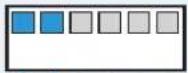 1 2 3 4 5 6 1 2 3 4 5 6 | Manual operationLifts/hangs up the handset manually or using the handset lifter. |
 1 2 1 2 | Electronic hook switch (DHSG standard)Call control via the DW Office headset system. |
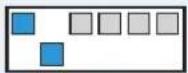 1 2 3 4 5 6 1 2 3 4 5 6 | Electronic hook switch (MSH standard)Call control via the DW Office headset system. |
 1 2 1 2 | Manual operationLifts/hangs up the handset manually or using the handset lifter. |
Adjusting the radio range – DIP switch 3
If many DECT systems are operated in a confined space, interference can occur. In this case, you should change the radio range.
| Switch position Function | |
 1 2 3 4 5 6 1 2 3 4 5 6 | Standard radio range |
 3 3 | Reduced radio rangeUse this setting in order to avoid interference with other DECT systems. |
Automatically establishing the wireless link between headset and base station – DIP switch 4
Switch position Function

Switched off
You have to manually establish the wireless link (see page 23).

Switched on
When taking the headset out of the base station, a wireless link is automatically established between headset and base station.
Switching between wideband and narrowband mode - DIP switch 5
Switch position Function

Wideband mode
Automatic frequency adjustment of wideband and narrowband calls in PC and Phone mode.
Battery life: 8 hours

Narrowband mode
Narrowband audio transmission in PC and Phone mode.
Battery life: 12 hours
Limiting the volume – DIP switch 6
Switch position Function

Standard limitation

Limited volume (country specific)
- AU version:
in compliance with Directive AS/ACIF S004:2008
• EU and US version:
in compliance with Directive 2003/10/EC
Using the headset system
Charging the headset rechargeable battery
If you charge the rechargeable battery for the first time, allow charging for at least 20 minutes without interruption. A complete charging process takes about 60 minutes. You can interrupt charging at any time without damaging the rechargeable battery.
Operating time with a fully charged rechargeable battery:
| Talk time/standby time Mode | |
| 12 hours | narrowband mode (see page 21) |
| 8 hours | wideband mode (see page 21) |
| 4 days standby mode |
To charge the headset rechargeable battery:
Place the headset into the magnetic holder of the base station. The HEADSET LED ③ lights up blue and the CHARGE STATUS LED ⑤ indicates the battery charge:
LED segment* Battery charge Required charging time
| 1 0-25% approx. 10 min | total: | |
| 2 25-50% approx. 10 min | approx. | |
| 3 50-75% approx. 20 min | 60 min | |
| 4 75-100% approx. 20 min |
* during charging, each segment gets brighter in 5 steps

text_image
Technical diagram showing a hand holding a device with labeled parts and directional arrows indicating motion or assembly.To stop the charging process:
▶ Take the headset out of the base station.
The CHARGE STATUS LED ⑤ indicates the remaining battery charge of the headset.
When the battery is about to run flat ...
... only the LED segment 1 lights up weakly or flashes (see page 9).
... the HEADSET LED ③ flashes red.
... you hear a low battery warning (three beeps) in the headset.
... you have several minutes of battery reserve.
When the battery is flat, the headset switches off.

If the headset is outside the range of the base station, it will switch off after 30 minutes in order to conserve battery power.
Switching the headset on/off

If you place the headset into the base station, the headset automatically switches to standby mode. In standby mode, the power consumption is very low and the radiated power is reduced to a minimum. The HEADSET LED ③ lights up blue and the rechargeable battery is being charged.
Switching the headset on
Press and hold the LINK button ④ for 5 seconds.
The HEADSET LED ③ flashes blue 3 times and the wireless link to the base station is established (where required). An ascending confirmation beep is heard in the headset.

text_image
Technical diagram of a mechanical component with numbered parts labeled ③ and ④Switching the headset off
Press and hold the LINK button ☐④ for 5 seconds.
The HEADSET LED ③ flashes red 3 times.
Establishing a wireless link between headset and base station
To establish a wireless link between headset and base station:
Press the LINK button ④ on the headset.
The link is established. The LINK LED ④ lights up blue and the HEADSET LED ③ flashes blue.
To disconnect a wireless link between headset and base station:
Press the LINK button ④ on the headset.
The link is disconnected. The LINK LED ④ and the HEADSET LED ③ go off.

text_image
Technical diagram of a mechanical device with labeled parts 3 and 4
text_image
1 2 3 4
You can also establish or disconnect the wireless link by pressing the PC button ☐ 1 or the PHONE button ☐ 3 on the base station (depending on the selected mode (PC or Phone), see page 28).

If your telephone has a built-in electronic hook switch supporting the MSH standard (see page 13), you can only disconnect the wireless link between headset and base station by placing the headset into the base station. The control signals ("accept a call", "end a call") of the headset are still transmitted to the electronic hook switch without.
Putting the headset on and adjusting it
Wearing the headset with the earhook
▶ Slightly pull the earhook ⑥ away from the headset.
Place the earhook behind your ear so that it follows the contour of your ear.
Adjust the headset so that a comfortable and secure fit is ensured.

text_image
Medical illustration showing ear anatomy with labeled parts and a magnified inset of the ear with needle insertion.Wearing the headset with the headband
Adjust the headband ⑫ to your head.
Put on the headset so that the ear pad ⑭ rests comfortably on your ear and that the headband ⑫ runs over the top of your head.
▶ Orient the microphone towards your mouth.

text_image
Illustration showing a person using a headset to interact with a cable, with numbered instructions and checkmarks indicating action.Calling via the fixed line phone using the headset
Accepting an incoming call
You hear the ring tone of the fixed line phone:
▶ Put on the headset and establish a wireless link between headset and base station (see page 23).

flowchart
graph TD
    A["Laptop"] <--> B["Server"]
    C["Printer"] <--> B
    B --> D["Data Link"]
    style A fill:#f9f,stroke:#333
    style C fill:#bbf,stroke:#333
    style B fill:#dfd,stroke:#333
If a handset lifter/electronic hook switch is used, the call is automatically accepted.


If you receive a call and a handset lifter/electronic hook switch with ring tone detection is used, you hear a ring tone in the headset and the LED of the PHONE button ☐ ③ flashes white.
If no handset lifter/electronic hook switch is used:
Accept the call by lifting the handset or by pressing the "accept call" button on your fixed line phone.

Making a call
If a handset lifter/electronic hook switch is used:
▶ Dial the desired number.
Put on the headset and establish a wireless link between headset and base station (see page 23).
The phone connection is established automatically.


If no handset lifter/electronic hook switch is used:
Put the headset on and establish a wireless link between headset and base station (see page 23).
▶ Lift the handset and dial the desired number. The phone connection is established.


Ending a call
▶ Disconnect the wireless link between headset and base station (see page 23). If a handset lifter/electronic hook switch is used, the call is automatically ended.

If no handset lifter/electronic hook switch is used:
Hang up the handset or press the "end call" button on your fixed line phone.

text_image
CLICKTransferring a call from the headset to the fixed line phone and vice versa
This function is only available if no handset lifter/electronic hook switch is used or if your fixed line phone supports this function.
If a wireless link is established (see page 23):
Speak into the headset.
If no wireless link is established (see page 23):
Speak into the handset.
Calling via the PC using the headset

flowchart
graph TD
    A["Laptop"] <--> B["Central Device Icon"]
    C["Printer"] <--> B
    B --> D["Server"]
Accepting an incoming PC call
If you receive a call on your softphone:
Establish a wireless link between headset and base station (see page 23).
Accept the call using your softphone. If the call control function of your softphone is supported, the call is automatically accepted (see page 15).

text_image
RING! RING! RING! RICK! Hello!If you receive a call and if the call control function of your softphone is supported by the HeadSetup software (see page 15), you hear a ring tone in the headset and the LED of the PC button ☐① flashed white.
Making a PC call
Establish a wireless link between headset and base station (see page 23).
Make the call using your softphone.


Ending a PC call
▶ Disconnect the wireless link between headset and base station (see page 23).
End the call using your softphone. If the call control function of your softphone is supported, the call is automatically ended (see page 15).


Reproducing PC audio via the headset
The HeadSetup software allows you to listen to all PC audio via the headset.
To activate/deactivate the reproduction of PC audio via the headset:
In the HeadSetup software, activate/deactivate the "Always Audio" function by clicking the corresponding button.
All PC audio is permanently reproduced via the headset. The wireless link between headset and base station remains permanently established.

text_image
HeadSetup Status Settings Select Default Headset Sennheiser DECT Launch application in Windows Startup Windows Sound and Audio Settings... Always Audio OK Cancel Apply Help...If the "Always Audio" function is deactivated, the icon on the button is crossed out in red.


If the "Always Audio" function is activated, you can still accept calls via the Phone mode. After ending the call, the base station automatically switches back to PC mode and all PC audio is reproduced via the headset.
Switching between Phone and PC mode
You can switch between Phone and PC mode and accept calls of the other mode.
Press the PC button ☐ 1 or the PHONE button ☐ 3 on the base station to select the desired mode.
The LED of the PC button ☐ 1 or the LED of the PHONE button ☐ 3 lights up white, indicating the selected mode.

text_image
Diagram showing a hand operating a computer with labeled parts, including a laptop and a calculator, likely illustrating a medical or testing procedure.Adjusting the volume
WARNING Hearing damage due to high volumes!

Listening at high volume levels for long periods can lead to permanent hearing defects.
▶ Set the volume to a medium level.
Do not continuously expose yourself to high volumes.
In order to be able to adjust the volume of the ring tone and the acoustic signals, the headset has to be in standby mode. In order to be able to adjust the audio volume, a wireless link has to be established between headset and base station (see page 23).

In PC mode, you can adjust the volume using the AUDIO button ⑤ or by using the volume control of your operating system (see the instruction manual of your operating system).
The volumes can be adjusted in several steps. When the minimum or maximum volume is reached, you hear a double beep in the headset.
To increase or reduce the volume step-by-step, push the AUDIO button ⑤ upwards or downwards.

text_image
Vol +Vol -
The assignment of the AUDIO button ⑤ can be swapped depending on whether you wear the headset on the right or left ear (see "Swapping the assignment of the AUDIO button ⑤" on page 17).

text_image
Diagram showing car steering wheel and dashboard with labeled parts and directional arrowsMuting the headset's microphone
To mute the headset's microphone during a call (the LINK LED ④ on the base station lights up blue):
Press the AUDIO button ⑤. The microphone is muted. While the microphone is muted, you hear a beep in the headset every 5 seconds and the LINK LED ④ on the base station flashes red.
To unmute the headset's microphone:
Press the AUDIO button ⑤ again.
You hear a low confirmation beep in the headset.
or
▶ Disconnect the wireless link between headset and base station (see page 23).
In both cases, the muting is canceled and the LINK LED 4 lights up blue again.
Using the advanced functions
Pairing additional headsets for shared use
You can use one DW Office base station with different DW Office headsets. This can be advantageous if you share a telephone workplace. The last headset paired to the base station can be used without more ado.
If no wireless link is established between headset and base station:
Place the additional headset into the magnetic holder of the base station. During pairing of the headset to the base station, the HEADSET LED ③ flashes blue/red. If pairing was successful, the HEADSET LED ③ lights up blue. You can now use the newly paired headset.
Holding a conference call
The headset system allows you to hold a conference call with up to 4 headsets. The master headset is used to control the conference call and up to 3 additional guest headsets can participate in the conference call.

flowchart
graph TD
    A["Master"] -->|Data Flow| B["Guest"]
    B -->|Data Flow| C["Laptop"]
    C -->|Data Flow| D["Phone"]
    D -->|Data Flow| E["Master"]
    E -->|Data Flow| F["Master"]
    F -->|Data Flow| G["Master"]
    G -->|Data Flow| H["Master"]
    H -->|Data Flow| I["Master"]
    I -->|Data Flow| J["Master"]
    J -->|Data Flow| K["Master"]

text_image
Technical diagram of a mechanical component with numbered parts labeled 3 and 4To start the conference call using the master headset:
▶ Establish a wireless link between headset and base station (the LINK LED 4 flashes blue).
To add a guest headset to the conference call:
Place the guest headset to be added to the conference call into the base station of the master headset.
The HEADSET LED ③ flashes blue/red and the headset pairs to the base station. If pairing was successful, the HEADSET LED ③ lights up blue.
Take the guest headset out of the base station. You hear a beep in the master headset.
Press the LINK button ☐④ on the master headset within 15 seconds. The guest headset is enabled for the conference call.
If necessary, repeat this procedure for the two other guest headsets.
▶ Call the other party.
To exit the conference call with a guest headset:
Press the LINK button ☐ ④ on the guest headset.
To end the conference call:
▶ Use the master headset to end the conference call. The wireless links to all other headsets participating in the conference call are disconnected.

You can only end the conference call using the master headset. Other functions such as volume adjustment and muting the headset's microphone can still be performed on each headset.
Pairing the headset to third party DECT GAP telephones

The DW Office base station can only be used with DW Office headsets.
Place the DW Office headset at a maximum distance of 1 m from the non-DW Office base station.
Simultaneously press and hold the headset's LINK button ④ and AUDIO button ⑤ for 5 seconds.
The headset switches to setting mode/GAP pairing mode and the HEADSET LED ③ flashes blue/red.
▶ Set the non-DW Office base station to GAP pairing mode (see the instruction manual of the non-DW Office base station).
The headset pairs to the non-DW Office base station. If pairing was successful, the HEADSET LED ③ goes off.

The standard code for DW Office is "0000".
Pairing is not successful
If pairing is not successful within 60 seconds, the DW Office headset switches to standby mode.
For information on how to pair the headset to the non-DW Office base station, refer to the instruction manual of the base station.
Charging an additional headset
If you wish to charge an additional headset (headset b) in the base station while you are using your headset (headset a):
Make sure that a wireless link is established between headset a and base station (the LINK LED 4 on the base station lights up blue).
Place headset b into the base station.
Headset a can continue to connect to and disconnect from the base station and its use is not restricted while headset b is being charged.
If you leave the DECT range
If you leave the DECT range during a call, the audio quality deteriorates. When the link breaks down completely, you hear a descending sequence of beeps in the headset and the LINK LED 4 on the base station lights up red.
To resume the call:
▶ Re-enter the DECT range of the headset system within 60 seconds. As soon as the headset re-establishes the wireless link to the base station, you hear a ring tone in the headset.
Press the LINK button ☐④ on the headset to resume the call.

If a handset lifter/electronic hook switch is used or if your soft-phone supports call control, the call will automatically be ended 60 seconds after leaving the DECT range.
Cleaning and maintaining the headset system
CAUTION Damage to the product due to liquids!
Liquids entering the product can short-circuit the electronics or damage the mechanics.
Solvents or cleansing agents can damage the surface of the product.
▶ Keep all liquids far away from the product.
▶ Do not use any solvents or cleansing agents.
Before cleaning, switch the product off and disconnect the base station from the mains.
▶ Only use a dry and soft cloth to clean the product.
Clean the charging contacts ② of the base station and the charging contacts ⑧ or ⑬ of the headset from time to time using e.g. a cotton swab.

natural_image
Diagram of a mechanical device with a dial and base, no visible text or symbols
natural_image
Technical line drawing of a mechanical clamp or connector with labeled part (8), no text or symbols present
text_image
Technical diagram of a mechanical component with labeled part 13Replacing the ear pad of the headband
You can replace the ear pad. Spare ear pads are available from your Sennheiser partner.
Remove the old ear pad ⑭.
Attach the new ear pad by placing the fastening tab B of the ear pad over the notch A of the headband (see diagram).
▶ Turn the ear pad counter-clockwise.
The notch A guides the fastening tab B so that the ear pad is securely attached to the headband.

text_image
Diagram showing hands using a tool to cut a circular component with a blue arrow indicating rotation or change.
text_image
Technical diagram showing mechanical components labeled A and B with blue arrows indicating motion or rotation, alongside a close-up of a circular component.Replacing the headset's rechargeable battery
You can replace the rechargeable battery. Spare rechargeable batteries are available from your Sennheiser partner. Only use spare rechargeable batteries recommended by Sennheiser Communications.
CAUTION Damage to the product due to improper handling
The cable connections can be damaged when subjected to mechanical stress.
▶ Open the battery compartment cover ⑨ carefully loosen the connector plug of the rechargeable battery.
Remove the earhook or the headband.
Open the battery compartment cover ⑨ using your finger nail (see first diagram).
Carefully move the battery compartment cover ⑨ in the direction of the arrow until you overcome a slight resistance.
Remove the rechargeable battery and carefully loosen the connector plug of the battery cable.
Insert the connector plug of the new rechargeable battery into the connection socket. Observe correct orientation of the connector plug.
Replace the battery compartment cover ⑨ onto the headset.
Carefully lift the headset housing with your finger nail while fixing the battery compartment cover ⑨ with your thumb.
The battery compartment cover ⑨ locks into place (see last diagram).

text_image
Illustration showing a hand holding a device with numbered instructions for adjusting the device's handle, including blue arrows indicating movement.Charge the new rechargeable battery (see "Charging the headset rechargeable battery" on page 22).
If a problem occurs
| Problem Possible cause Possible solution | ||
| The headset is placed into the base station but does not show any reaction | Base station is not connected to the mains | Connect the base station to the mains (see page 11). |
| Rechargeable battery is deep discharged | Wait several minutes until the charging process starts. | |
| Link between headset and base station cannot be established (Phone mode) | Base station is not connected to the mains | Connect the base station to the mains (see page 11). |
| Headset is not paired to the base station | Pair your headset to the base station (see page 29). | |
| Link between headset and base station cannot be established (PC mode) | Base station is only connected to the mains | Connect the base station to the PC using the USB cable. |
| Headset is not paired to the base station | Pair your headset to the base station (see page 29). | |
| Bad radio link between headset and base station | Transmission range is exceeded | Reduce the distance between headset and base station. |
| Adjust the radio range (see page 20). | ||
| The headset causes noise and connection losses | Microphone rubs on the cheek or perhaps the beard | Use the name plate with cheek spacer 2. |
| Distance between base station and fixed line phone is so small that interference occurs | Increase the distance between base station and fixed line phone (see page 14). | |
| Too many DECT systems within the radio range | Reduce the radio range (see page 20).Set the base station to narrowband mode (see page 21). | |
| The rechargeable battery cannot be charged | Charging contacts of the headset or the base station are dirty | Clean the charging contacts on the headset and on the base station (see page 32). |
| Rechargeable battery is defective Replace the defective rechargeable battery by a new rechargeable battery (see page 34). | ||
| Charging contacts of the headset 8 and the headband do not make good contact | Check if the headset is properly attached to the headset holder of the headband 14 (see page 16). | |
| The rechargeable battery is quickly depleted even after charging | Overaged rechargeable battery Replace the overaged rechargeable battery by a new rechargeable battery (see page 34). | |
| The sound from the fixed line phone is distorted and disturbed | Base station is not adjusted to the fixed line phone | Adjust the base station to your fixed line phone (see page 18). |
| The other party cannot hear me properly, my voice sounds too low or too loud | Microphone sensitivity is not correctly adjusted | Adjust the microphone sensitivity to the Phone mode (see page 18) or the PC mode (see page 19). |
| Your headset is no longer paired to the base station if an additional headset has been used with the base station | You can only use the last headset paired to the base station (exception: conference call) | Replace your headset into the base station (see page 29). |
For additional information and an FAQ list, please visit our website at www.sennheiser.com/DW
If a problem occurs that is not listed in the above table or if the problem cannot be solved with the proposed solutions, please contact your local Sennheiser partner for assistance.
To find a Sennheiser partner in your country, search at www.sennheisercommunications.com under "Service & Support".
Accessories and spare parts
For additional information on accessories and spare parts, please contact your Sennheiser partner or visit our website at www.sennheiser.com
Accessories
• HSL 10 handset lifter
- mechanical handset lifter
- incl. ring tone detection
– supports nearly all standard desktop telephones
• D H S G c a b l e
– electronic hook switch cable
– for e.g. Siemens, Astra, etc.
- MSH cable
– electronic hook switch cable -
for e.g. Alcatel, etc.
-
Adapter cables for manufacturer specific standards
– available for Cisco, Avaya, Polycom, etc.
Spare parts
- Handband
- Ear pad for headband
- Set of earhooks (size S, M, L, XL)
- Set of name plates (with and without cheek spacer)
- Rechargeable battery
- Telephone cable
- Micro-USB cable
- Mains unit, EU version
- Mains unit, UK version
- Mains unit, US version
- Mains unit, AU version
Specifications
DW Office base station
Dimensions 108 x 116 x 114 mm (W x H x D)
Weight approx. 368 g
Operating temperature range +5°C to +45°C (+41°F to +113°F)
Storage temperature range -20^ to +70^ (-4^ to +158^)
DW Office headset
Dimensions 140 x 24 x 22 mm (W x H x D)
Weight with earhook: approx. 22 g with headband: approx. 50 g
Talk time narrowband: up to 12 hours
| wideband: up to 8 hours | ||||
| Charing time of rechargeable battery | 50%: | approx. | 20 min | |
| 100%: | approx. | 1 hour | ||
Range environment dependent:
- up to 180 m outdoors
• up to 55 m in office buildings
with reduced radio range (see page 20):
- up to 10 m in office buildings
Speaker type dynamic, neodymium magnet
Microphone type electret microphone, noise canceling
Operating temperature range +5°C to +45°C (+41°F to +113°F)
Storage temperature range -20^ to +70^ ( -4^ to +158^ )
Type approvals (DW Office headset system)
In compliance with
Europe: EMC EN 301489-6
CE Radio EN 301406
Safety EN 60950-1
SAR EN 50360 ref EN 62209-1 (headset)
USA: This product meets the safety requirements of CSA No. 231437
Approved by
Canada: Industry Canada RSS 213 Issue 2
IC ID: 2099D-TDB1 (base station)
IC ID: 2099D-TDH1 (headset)
FCC ID: DMOCDBDIB (base station)
FCC ID: DMOCDHDKB (headset)
DW Office mains unit
Nominal input voltage 100 to 240 V\~
Nominal input current max. 0.2 A
Mains frequency 50 to 60 Hz
Nominal output voltage 6 V ---
Nominal output current max. 850 mA
Operating temperature range +5°C to +45°C (+41°F to +113°F)
Storage temperature range -20^ to +70^ ( -4^ to +158^ )
Relative humidity operation: 20 to 85%
storage: 20 to 95%
Weight approx. 75 g
DECT
| EU version: CAT IQ 1.0 | US version: DECT 6.0 | |
| Transmission frequency | 1,880 to 1,900 MHz | 1,920 to 1,930 MHz |
| SAR value 0.196 W/kg | (max. 10 g SAR) | 0.093 W/kg (max. 1 g SAR) |
Manufacturer Declarations
Warranty
Sennheiser Communications A/S gives a warranty of 24 months on this product.
For the current warranty conditions, please visit our web site at www.sennheiser.com or contact your Sennheiser partner.
In compliance with the following requirements
• R o H S Directive (2002/95/EC)
• W E E E Directive (2002/96/EC)

Please dispose of this product at the end of its operational lifetime by taking it to your local collection point or recycling center for such equipment.
• Battery Directive (2006/66/EC)

The supplied rechargeable battery can be recycled. Please dispose of it as special waste or return it to your specialist dealer. In order to protect the environment, only dispose of exhausted rechargeable batteries.
CE Conformity
• C€ 1321
• R&TTE Directive (1999/5/EC)
• EMC Directive (2004/108/EC)
• Low Voltage Directive (2006/95/EC)
The declarations are available at www.sennheiser.com. Before putting the product into operation, please observe the respective country-specific regulations.
Statements regarding FCC and Industry Canada
This equipment complies with Part 15 of the FCC Rules and with RSS-213 of Industry Canada. Operation is subject to the following two conditions: (1) this equipment may not cause harmful interference, and (2) this equipment must accept any interference received, including interference that may cause undesired operation.
This equipment has been tested and found to comply with the limits for a Class B digital device, pursuant to Part 15 of the FCC Rules. These limits are designed to provide reasonable protection against harmful interference in a residential installation. This equipment generates, uses and can radiate radio frequency energy and, if not installed and used in accordance with the instructions, may cause harmful interference to radio communications. However, there is no guarantee that interference will not occur in a particular installation. If this equipment does cause harmful interference to radio or television reception, which can be determined by turning the equipment off and on, the user is encouraged to try to correct the interference by one or more of the following measures:
- Reorient or relocate the receiving antenna.
- Increase the separation between the equipment and receiver.
- Connect the equipment into an outlet on a circuit different from that to which the receiver is connected.
- Consult the dealer or an experienced radio/TV technician for help.
This class B digital equipment complies with the Canadian ICES-003
Changes or modifications made to this equipment not expressly approved by Sennheiser electronic Corp. may void the FCC authorization to operate this equipment. Before putting the equipment into operation, please observe the respective country-specific regulations!
Since the radiated output of this device is far below the FCC radio frequency exposure limits, it is not subjected to routine RF exposure evaluation as per Section 2.1093 of the FCC rules.
Trademarks
Sennheiser is a registered trademark of Sennheiser electronic GmbH & Co. KG.
Other product and company names mentioned in this instruction manual may be the trademarks or registered trademarks of their respective owners.
Index
A
ABC switch
adjusting 18
ACC
connection of an optional mechanical handset lifter 13
Accessories
connection of an optional mechanical handset lifter 13
Acoustic signals
adjusting the volume 28
Additional headsets
pairing for shared use 29
Advanced functions
pairing/using additional headsets 29 using 29
Advanced settings
adjusting 20 adjusting the radio range 20 DIP switch row 20 establishing the wireless link automatically 21 limiting the volume 21 wideband and narrowband mode 21
Always Audio
27
Audio signal
adjusting 18
Audio volume
adjusting 28
AUTIO button
swapping the assignment 17
B
Base station
connecting to a fixed line phone 11 connecting to a fixed line phone with headset socket 12 connecting to a fixed line phone without headset socket 12 connecting to a PC 14 connecting to the mains 11 connection of an optional mechanical handset lifter 13 connection to an optional electronic hook switch 13 putting into operation 10 removing/attaching the cover 10 setting up 14
Buttons
base station 8
headset 8
overview 8
C
Calling
accepting an incoming call (fixed line phone) 24 accepting an incoming PC call 26 ending a call (fixed line phone) 26 ending a PC call 27 making a call (fixed line phone) 25 making a PC call 27 transferring a call from the headset to the fixed line phone and vice versa 26 via the fixed line phone 24 via the PC 26
calling
making a call (fixed line phone) 25
D
DECT 4
leaving the DECT range 31
DECT GAP telephone pairing 30
DHSG
connection of an optional electronic hook switch 13
Dial tone
adjusting 18
DIP switch 1 and 2
configuring the handset lifter/ hook switch 20
DIP switch 3
adjusting the radio range 20
DIP switch 4
establishing the wireless link 21
DIP switch 5
switching between wideband and narrowband mode 21
DIP switch 6
limiting the volume 21
E
Ear pad
replacing 33
Earhook 16
G
GAP telephone pairing 30
H
Headband 16
Headset
adjusting 24
attaching the earhook 16
attaching the headband 16
charging 22
identifying 16
pairing to third party DECT GAP
telephone 30
putting into operation 16
putting on 24
wearing with earhook 24
wearing with headband 24
Headset microphone muting 29
Headset system
testing the headset system in PC mode and adjusting it 19
testing the headset system in
Phone mode and adjusting it 17
HeadSetup software installing 15 specifications 15
L
LEDs
base station 9
headset 9
overview 9
M
Microphone sensitivity adjustment for Phone mode 18
Microphone volume control setting 18
MSH
connection of an optional electronic hook switch 13
Muting 29
N
Name plate 16
P
PC
connecting the base station to a PC 14
PC audio
reproducing via the headset 27
PC mode
adjusting 19
testing 19
Phone
connecting the base station to a fixed line phone with headset socket 12
connecting the base station to a fixed line phone without headset socket 12
Phone and PC mode
switching between Phone and PC mode 28
Phone mode
adjusting 17
testing 17
R
Radio range
adjusting 20
exceeding 31
Rechargeable battery
charging 22
replacing 34
Ring tone
adjusting the volume 28
S
Softphone
calling via the PC 26
supported softphones 15
Specifications
HeadSetup 15
T
Telephone connection testing 17
Troubleshooting 35
V
Volume
adjusting 28
limiting 21
Volume button
swapping the assignment 17
W
Wideband and narrowband mode switching between wideband and narrowband mode 21
Wireless link
establishing automatically 21

SENNHEISER COMMUNICATIONS
Sennheiser Communications A/S
6 Langager, 2680 Solrød Strand, Denmark
www.sennheisercommunications.com
Printed in China
Publ. 11/09
A01