
CEMIWIFI1200 - Air conditioner CORBERO - Free user manual and instructions
Find the device manual for free CEMIWIFI1200 CORBERO in PDF.


| Product Type | Electric Radiator (WiFi-enabled) |
| Model | CEMIWIFI1200 |
| Power Output | 1200 W |
| Power Supply | 230 V ~ 50 Hz |
| Dimensions (Approx.) | Height: 540 mm; Width: varies (typical 500-600 mm); Depth: 100 mm |
| Weight (Approx.) | 12 kg |
| Control Type | Touch buttons + WiFi app (iHeatControl) + Voice (Alexa/Google) |
| Operating Modes | Manual, Auto, Modified Auto, Boost, OFF |
| Temperature Settings | Comfort, Eco, Anti-freeze; range 0°C to 30°C (configurable) |
| Programming | Weekly schedule with 30-min or 1-hour resolution; individual day or copy |
| WiFi Connectivity | 2.4 GHz; supports AP and BT pairing modes |
| Smart Features | Geolocation (auto away), Open Window Detection, Smart Start, Duty Limit |
| Child Lock | Yes (press + and - simultaneously for 5 seconds) |
| Display | LED with adjustable backlight (brightness, timeout, color style) |
| Language Support | English, German, Spanish, French (device); app supports multiple languages |
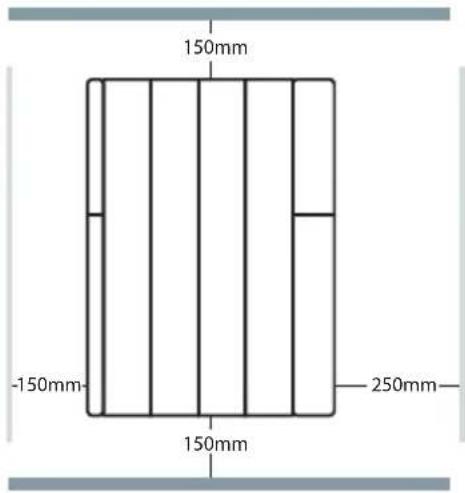
| Installation | Wall-mounted; requires spacer and screws (included); bottom to floor 540 mm |
| Safety Features | Overheat protection (DO NOT COVER); IP? not specified; requires professional installation |
| Cleaning | Wipe with damp cloth; do not use abrasive cleaners |
| Warranty | 36 months from date of invoice (manufacturer's legal warranty); exceptions apply |
| Energy Efficiency Class | Not specified (likely Class A or higher) |
| Accessories Included | Mounting bracket, screws, spacer, user manual |
Frequently Asked Questions - CEMIWIFI1200 CORBERO
User questions about CEMIWIFI1200 CORBERO
0 question about this device. Answer the ones you know or ask your own.
Ask a new question about this device
Download the instructions for your Air conditioner in PDF format for free! Find your manual CEMIWIFI1200 - CORBERO and take your electronic device back in hand. On this page are published all the documents necessary for the use of your device. CEMIWIFI1200 by CORBERO.
USER MANUAL CEMIWIFI1200 CORBERO
User and installation manual electric radiator
Modelos/Models
CEMIWIFI500
CEMIWIFI750
CEMIWIFI1000
CEMIWIFI1200
CEMIWIFI1500
CEMIWIFI1800
natural_image
Diagram of a mechanical component with a circular component and an inset view showing a bracket (no text or symbols)Elemento
ES - Colocar el separador en la parte trasera del emisor
PT - Coloque o espaçador na parte traseira do radiador
EN - Place the spacer at the rear of the radiator

ES - Medida del suelo a plantilla 540 mm
PT - Meça do chão ao modelo 540 mm
EN - Floor to insole measurement 540 mm

natural_image
Diagram showing two screwdrivers interacting with a wall-mounted device (no text or symbols present)ES - Atornillar
PT - Aparafuse
EN - Screw

bar
| Category | Value | |---|---| | iHeat Control | 10.47 | | Selective on dia | 25.67 | | Selective on dia | 32.87 | | Selective on dia | 38.47 | | Selective on dia | 45.47 | | Selective on dia | 51.47 | | Selective on dia | 57.47 | | User count | 19 | | Status | 20 | | Current (iHeat Control) | 21 | | Status | - | | Status | + | | Status | - | | Status | - | LATCHLAB | UNTONATOR3. LIGAR O DISPOSITIVO:
OFF, LST (low surface temperature - 70%), BABY CARE (50%) y VALOR (70,80,90%).
注:Secondar, trusboth

Before proceeding with the installation of the product, you must read very carefully all the instructions and recommendations detailed in this manual, since the manufacturer will not be responsible for any breakdown or damage caused by non-compliance. Once installed, keep this manual in a safe place so that it can be consulted at any time and in case of doubt.
¡VERY IMPORTANT!
- Read the installation manual before assembling the radiator.
- Read the manual carefully to operate the radiator.
- Observe the warnings carefully.
• Install the radiator in a place where air can circulate. - The installation of the device must be carried out by specialized personnel.

Once the device has been unpacked, the remains of the packaging must be removed responsibly since all elements have been designed for recycling. If, once unpacked, you detect apparent damage to the device, you should consult with your supplier before proceeding with the installation and electrical connection within a period of less than 24 hours.
Assembly and installation must be carried out following the instructions detailed in this manual.
RECYCLING
Warnings for the correct disposal of the product as established by European Directive 2012/19/EU. At the end of its useful life, the product should not be disposed of with municipal waste. It can be delivered to specific differentiated collection centers arranged by municipal administrations or to distributors who provide this service. Disposing of an appliance separately means avoiding possible negative consequences for the environment and health resulting from improper disposal and allows the materials that make it up to be recycled, thus obtaining significant energy and resource savings. To underline the obligation to collaborate with selective collection, the product appears marked as a warning not to use traditional containers for disposal. For more information, contact your local authority or the store where you purchased it for disposal.
IMPORTANT SAFETY NOTES
The placement of the heating device must be chosen correctly and carried out according to the rules and in accordance with the standard.
The radiator should be kept away from any flammable objects and children should not be left near the radiator without being supervised.
This appliance can be used by children aged 8 years and above and persons with reduced physical, sensory or mental capabilities or lack of experience and knowledge if they have been given appropriate supervision or training regarding use of the appliance in a safe manner and understand the instructions dangers it entails.
Children from 3 years old and under 8 years old should not plug in, regulate and clean or perform maintenance operations.
Children under 3 years of age should be kept out of reach of the appliance unless continually supervised.
Children from 3 years of age and under 8 years of age should only turn the appliance on/off provided that it has been placed and installed in its intended normal operating position and that they are supervised or have received instructions regarding use of the appliance in a safe and secure manner. understand the risks that the device has.
Children should be supervised to ensure that they do not play with the appliance. Cleaning and maintenance to be carried out by the user should not be carried out by children without supervision.
Caution: Some parts of this product may become very hot and cause burns. Particular attention should be paid when children and vulnerable people are present.
The radiator should under no circumstances be covered by clothing, containers or any other object, nor placed under a closet or any other obstacle that prevents the circulation of hot air.
WARNING: To avoid overheating, DO NOT COVER the heating device.

The heating appliance must not be placed immediately below or in front of a socket outlet.
Avoid using extension cords as these can cause overheating and pose a risk of fire.
The radiator should not be installed in places where there is a risk of splashing water, such as bathtubs, sinks, etc. The radiator must be installed in such a way that the switches, thermostat, and power outlet cannot be touched directly or indirectly by a person who is in the bathtub or shower (respect the prohibition distances according to REBT).
The connection cables of the heater itself must not come into contact with the surface of the device.
If the power cable is damaged, it can only be replaced by the Technical Assistance Service, in order to avoid risks.
Always respect safety measures when placing the radiator on the wall.
The electrical installation must have a switch with fuses or magnet-to-thermal protection. Likewise, differential protection against ground faults is advisable. The voltage and frequency values of the power supply network must be the same as those indicated on the nameplate.
It is possible that the radiator causes slight noises at the beginning of its operation, this is normal due to expansions and contractions. As the days go by, this noise disappears.
ELECTRIC CONNECTION
- If the radiator you have purchased does not have a plug incorporated into the power cable, you must follow the instructions below regarding its electrical installation and the connection must be made by a qualified installer.
- In the electrical connection of the appliance, disconnection means must be incorporated into the fixed installation in accordance with the installation regulations in force in the country in which it will be installed.
• For safety, before proceeding with the connection, verify that there is no voltage in the network. - Before connecting the device to the electrical network, you must ensure that the supply voltage is that indicated on the nameplate 230V.
- The device must be connected to the protective conductor of the fixed installation.
- Any incident arising from failure to follow these instructions will invalidate the warranty.
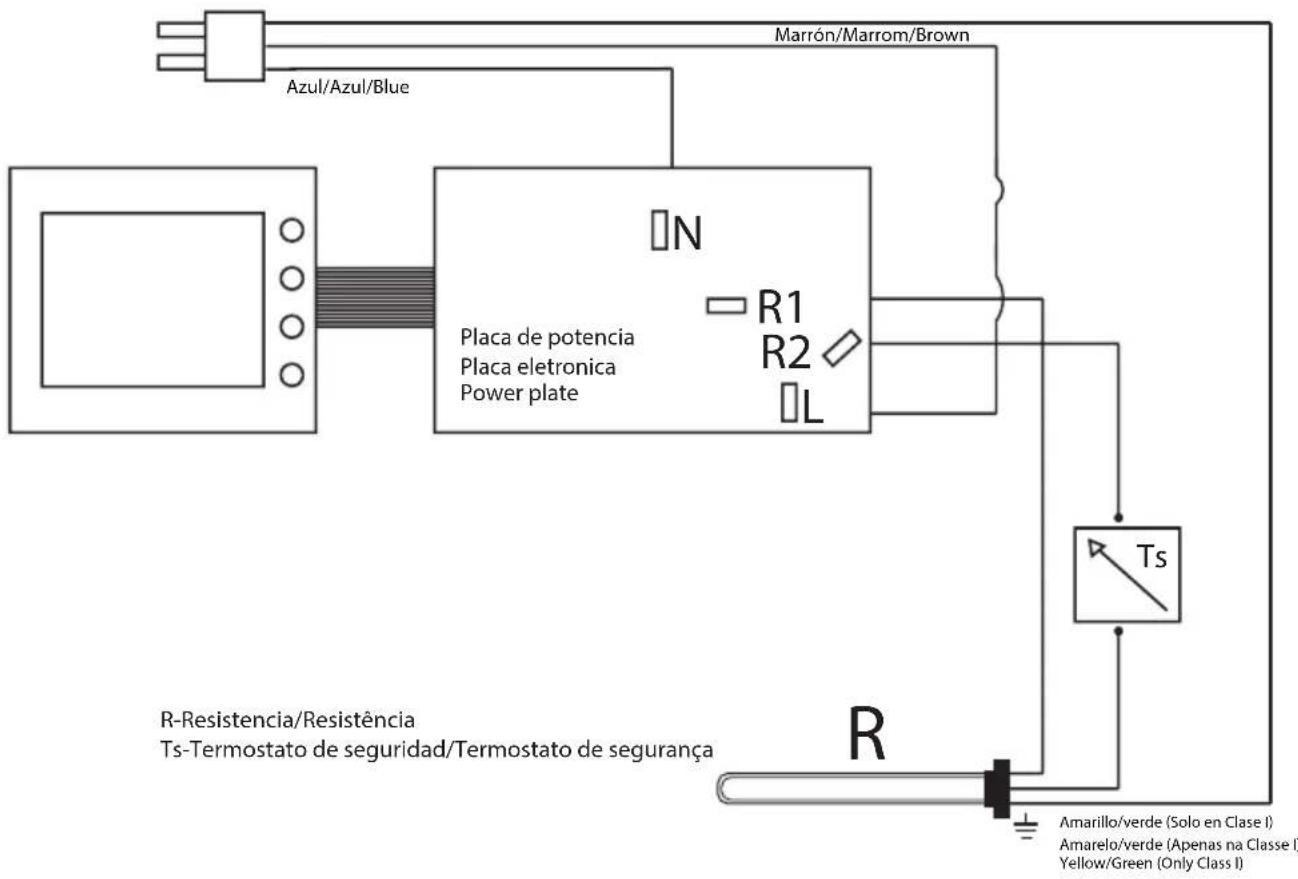
- When connecting, what is indicated in the electrical diagram must be strictly observed, with special attention to the colors of the cables.
ELECTRIC SCHEME
1. HOW TO USE THE ELECTRIC RADIATOR
The radiator has four buttons:
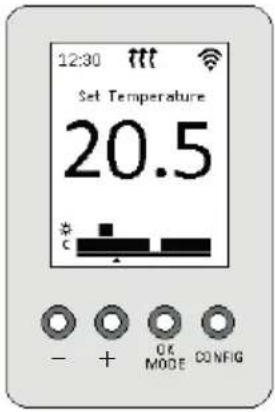
- -:Decrease the temperature, scroll down.
• +: Increase the temperature, scroll upwards. - OK/MODE: Confirm or change the operating mode.
- CONFIG
| Icon | Description |
| Heating active icon. | |
| True radiant functionality active icon. | |
| Heating + true radiant icon. | |
| Open window functionality active. | |
| Away functionality active. | |
| Device link, if icon blinking device lost. | |
| ErrX | If there is any active error. |
2. OPERATING MODES
The radiator has different operating modes: OFF, Manual, Auto and Auto Modified.
After switching on the unit, a start-up screen appears and then it automatically switches to OFF mode. To change the mode, press the OK/MODE button.
Alternatively, Boost mode is available for temporary changes. To start or stop Boost mode, press the CONFIG button.
OFF mode: In OFF mode, the device is switched off.

Manual mode: In manual mode, the appliance operates at a fixed temperature selected by the user. The set temperature can be increased or decreased with the + or - buttons.

Auto mode - Modified auto mode: In automatic mode, the radiator follows a schedule. The programme time has four different options: anti-freeze, eco, comfort or off. The product can be programmed in full hours or half hours. The following sections explain how to programme it.

If the user wants to change the temperature of the appliance's current band in automatic mode, without leaving this mode, press the + or - keys and it will switch to Modified automatic mode. Modified automatic mode allows you to set a different temperature to the one set in the current period, which will be maintained until there is a change in the programming period.

Boost mode: To set Boost mode, the user must press the CONF button in any of the above modes. In Boost mode, the unit will apply a temporary change in setpoint temperature for a set period of time, and both the temperature and the time are configurable. To change the supply temperature, press the + or - button, the unit will switch to the supply temperature setting screen. Press OK/MODE to confirm the temperature change and you will move on to the preheating time setting screen. The booster time can be set from 1 to 24 hours. Press OK/MODE to confirm the temperature and time. To exit Boost mode and return to the previous operating mode, simply press the CONFIG button.

3. LINK DEVICE:
To pair the device with your WiFi network, access the application and follow the steps to Add device, then click on WiFi Radiator.
On the device, press the OK/MODE button for 3s and you will see the following screens.
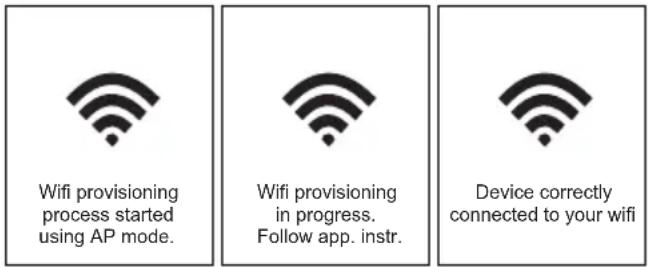
If, on the other hand, the connection process fails, the screen changes to:

Keyboard lock: To lock the device locally, press the + and - buttons at the same time for 5 seconds. Do the same to unlock it.

4. DEVICE CONFIGURATION
To configure the device settings, press and hold the CONFIG button for 5 seconds. The process for navigating the different menus is the same:
Navigate through the menus with the + or - keys. Select or confirm with the OK/MODE key. Go back with the CONFIG button.
Time and date settings: In the Time and date settings menu, you can set: Time, Date, Time format (12h/24h) and Date format (dd.mm.yyyy/mm.dd.yyyy). This menu is not available if the device is paired.
| TIME & DATE | TIME | DATE | FORMAT | TIME FORMAT | DATE FORMAT |
| TIME DATE FORMAT | 22:55 | dd.mm.yyyy 01.05.2025 | TIME FORMAT DATE FORMAT | 24h 12h | dd.mm.yyyy mm.dd.yyyy |
Temperature settings: In the temperature configuration menu, set the Comfort, Eco and Anti-freeze temperatures. The temperatures can be set between off and 30^ C, taking into account that Comfort > Eco > Anti-freeze (i.e. Anti-freeze can go from off to a maximum of 29^ C, Eco from a minimum of 0.5^ C to a maximum of 29.5^ C and Comfort from a minimum of 1^ C to a maximum of 30^ C). The default values are: Comfort temperature, 19.0^ C. Eco temperature, 17.0^ C. Anti-freeze temperature, 5.0^ C.

Program settings: In the programme configuration menu, the user can edit the programme schedule or select the programme resolution. Navigation in the programme editing view is described below:
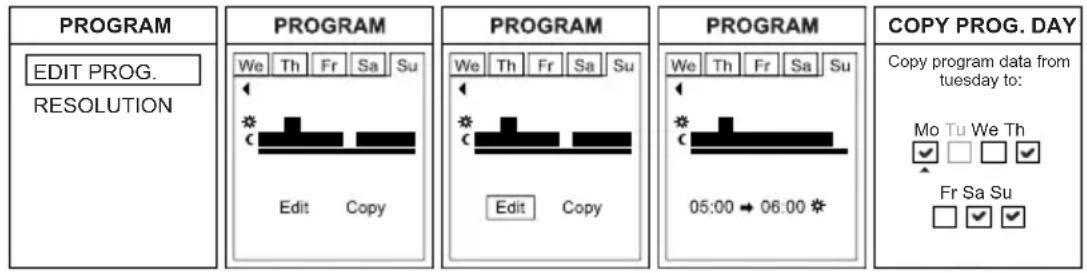
Select the day of the programme with the + or - buttons and confirm with the MODE button.
Select Edit or Copy to change the programme time or to copy the time to another day. If you select Edit, move the current slot with the + or - buttons and change the temperature between comfort, eco, antifreeze or off with the OK/MODE button. If Copy is selected, scroll through the days and select them by pressing the OK/MODE button. To return to the previous option/screen, press the CONFIG. button.
Resolution: The time resolution menu allows you to change the time resolution between full and half hours.
Display settings. Can be configured:
Time on: the time for which the backlight is active after pressing a button; by default, 10 seconds. Can be set to 10, 20, 30 seconds or always.
Brightness on: Brightness level when the backlight is switched on, the default setting is 100%. The brightness can be set to 100%, 75%, 50% or 25%.
Brightness off: brightness level when the backlight is deactivated, the default setting is OFF. It can be set to off or to 3%, 10% or 20%.
Style: can be white background (light, default value), black background (dark) or color.
Beep: the key beep can be activated or deactivated. By default it is disabled, the on/off beep cannot be turned off.
Language: This device can be configured in four different languages: English, German, Spanish or French. In the Language settings menu, the user can select the desired language. The default value is English.
Advanced settings: The advanced settings menu allows you to change some of the heater's settings and check the status of the device. The options available are:
Units: Units menu to choose between °C and °F. The default value is Celsius.
Control type: The control mode sets the way in which the unit acts to reach the desired setpoint temperature. The default is PID for correct operation in most situations. Hysteresis control modes may be appropriate in situations where the radiator output is high compared to the room to be heated, or in rooms with low thermal insulation. The available values are:
Hysteresis 0.25°C, Hysteresis 0.35°C, Hysteresis 0.5°C, Hysteresis 0.75°C, PID 15 min (default) and PID 30 min.
Open window: Activates or deactivates the open window function. If activated, it switches the load off if the ambient temperature drops by 1.2^ C or more within 10 min. It switches the load back on if, after switching it off, the ambient temperature rises by 0.3^ C or more within 10 min or after the user presses any button. The default value is Off.
Smart start: This function can activate the load before the programmed time to obtain the programmed temperature at the programmed time. It calculates the slope of the temperature rise and anticipates the programmed start time. The default value is Off.
Offset: In this menu, you can set an offset temperature on the room temperature sensor. This can be positive or negative. On the edit screen, you can see the offset value and the corrected room temperature. The default value is 0.0^ C.
Duty limit: You can choose between the following values:
OFF, LST (baixa temperatura de superfície - 70%), BABY CARE (50%) y VALOR (70,80,90%).
By default, the device will be set to OFF mode.
Version: The Version menu shows the firmware version of the device.
Wifi: The wifi menu shows the user the connection status: disconnected, connected or lost. It also shows the device ID and, if the device is connected, the device IP and network name.
Reset: In the Restart menu, there are three restart options:
Reset settings: resets only the heater settings, keeping the WiFi settings.
Reset WiFi settings: resets only the WiFi settings, keeping the heater settings.
Reset all: completely resets the device.
Link: In the Link menu, you can carry out the provisioning process by selecting the mode in which you want to do it: using AP mode or using BT mode..
5. INSTRUCTIONS AND USE OF THE APP
To get the app, go to the 'Play Store' (Android) or App Store (iOS) and download 'iHeatControl'.
Create an account to access the app by clicking on 'new user'. You can now log into the account with the data provided (you may receive a confirmation email).


Now you must associate the radiators, to do this in the drop-down menu, click on 'Dwellings' and then click on '+ Add dwelling' (the first time you don't need to go to add dwelling, it goes directly there). The APP will ask you for a name for the dwelling and a time use. Once the data is filled in, click on 'Next'.

At this point, three possible connection types will appear on the screen, we have to select wifi radiator.
The App will allow you to configure, program and access the consumption statistics of the devices through an intuitive and easy to use interface. The main features are shown below:

The APP has basic help in the 'help' icon at the bottom left of the screen.
Also on certain screens of the app, such as temperature changes or programming, the help icon will show the specific parts for that particular option.
Invite a user: With the 'Invite user' function, the heating control can be temporarily shared via the application.
Go to 'Homes' and then select the home you want to share.

Select the option 'invite user' in the top bar and then '+Invite user'.
Enter the email address of the user you want to invite.

The user will receive an email with a link that will give him/her access to control the heating.
The guest can be removed at any time we want.
Geolocation:
- General information. The geolocation function allows the set temperature to be automatically reduced when the user is not at home. The system requires no user intervention because it uses the GPS position of the user's smartphone.
The user can define the temperature reduction setting, as well as enable/disable it, or override it manually. If there are several users, all should enable geolocation. The radius and position of the dwelling is common for all users.
- Settings. Go to General Settings (the 3 horizontal lines at the top right of the screen)--> Households and select a household. Then click on Geolocation.
Enable geolocation if this is the first time, here the user can enable/disable this function.
Select the location of the house on the map and save the position. Select the desired radius (from 150m to 10km) within which the system will consider you to be outside your home.


Select the T^a drop in absence in the configuration of each device between 0^ to 5^ ( 2^ by default). The set temperature will reduce the selected value if the user is not at home.

By pressing the central house icon on the main screen, the application will display the 'At home' or 'Away' status on the main screen.
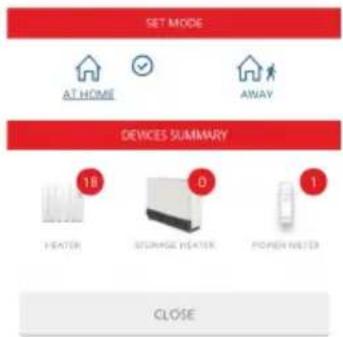

When the status is ‘away’, the ‘Away’ mode is activated on the display of the equipment.
3 Manual override. There are 2 ways to manually override the system:
1) Press any button on a physical device. The system understands that you are someone at home and will override the system by considering 'Home' for 2 hours.
2) Pressing on the home icon and manually press 'At home' or press 'Away'.
Notes: A change in a device, such as switching on/off or reducing/increasing the temperature with the app, will not change the 'at home/absent' status.
All users in the home who have the APP must have the function activated for it to work correctly.
This function is not synchronised like the others, i.e. it is independent on each smartphone, if one user deactivates it, it is not deactivated for everyone in the APP, but only in the interface of their APP.
Statistics and programming: Another function in the APP is to program the desired temperature by days and hours. In the accumulators, we can also programme every half hour, but we can only carry out the programming if in the operational mode (within the configuration) we have selected 'Weekly programming', if we have 'Fixed temperature' the option will not appear. To do this, click on the icon of the product you want to program. A new screen will appear as shown below, click on 'MORE'. Then click on "PROGRAM".

We will have a screen like the one shown below, where we can program by day and by hours with the different modes (Comfort, Eco or Anti-freeze). To do this, click on the day you want to program and in 'DEF TEMP' set the desired temperature for each mode.
After confirming this step, select the desired mode in the top right-hand side of the APP and mark the hours that you want with each mode..

bar
| Time | Temperature (°C) | |---|---| | 0 | 19 | | 1 | 18 | | 2 | 17 | | 3 | 16 | | 4 | 15 | | 5 | 14 | | 6 | 13 | | 7 | 12 | | 8 | 11 | | 9 | 10 | | 10 | 9 | | 11 | 8 | | 12 | 7 | | 13 | 6 | | 14 | 5 | | 15 | 4 | | 16 | 3 | | 17 | 2 | | 18 | 1 | | 19 | 0.5 | | 20 | 0.3 | | 21 | 0.2 | | 22 | 0.1 | | 23 | 0.05 | | 24 | 0.03 | | 25 | 0.02 | | 26 | 0.01 | | 27 | 0.005 | | 28 | 0.003 | | 29 | 0.002 | | 30 | 0.001 | | 31 | 0.0005 | | 32 | 0.0003 | | 33 | 0.0002 | | 34 | 0.0001 | | 35 | 0.00005 | | 36 | 0.00003 | | 37 | 0.00002 | | 38 | 0.00001 | | 39 | 0.000005 | | 40 | 0.000003 | | 41 | 0.000002 | | 42 | 0.000001 | | 43 | 0.0000005 | | 44 | 0.0000003 | | 45 | 0.0000002 | | 46 | 0.0000001 | | 47 | 0.00000005 | | 48 | 0.00000003 | | 49 | 0.00000002 | | 50 | 0.00000001 | | 51 | 0.00000001 | | 52 | 0.00000001 | | 53 | 0.00000001 | | 54 | 0.00000001 | | 55 | 0.00000001 | | 56 | 0.00000001 | | 57 | 0.00000001 | | 58 | 0.00000001 | | 59 | 0.00000001 | | 60 | 0.00000001 | | 61 | 0.00000001 | | 62 | 0.00000001 | | 63 | 0.00000001 | | 64 | 0.00000001 | | 65 | 0.00000-19:34:34:34:34:34:34:34:34:34:34:34:34:34:34:34:34:34:34:34:34:34:34:34:34:34:34:34:34:34:34:34:34:34:34 : - | | ... | ... | | ... | ... | | ... | ... | | ... | ... | | ... | ... | | ... | ... | | ... | ... | | ... | ... | | ... | ... | | ... | ... | | ... | ... | | ... | ... | | ... | ... | | ... | ... | | ... | ... | | ... | ... | | ... | ... | | ... | ... | | ... | ... | | ... | ... | | ... |... | | ... | ... | | ... | ... | | ... | ... | | ... | ... | | ... | ... | | ... | ... | | ... | ... | | ... | ... | | ... | ... | | ... | ... | | ... | ... | | ... | ... | | ... | ... | | ... | ... | | ... | ... | | ... | ... | | ... | ... | | ... | ... | | ... | ... | | ... | < -19 : -19 : -19 : -19 : -19 : -19 : -19 : -19 : -19 : -19 : -19 : -19 : -19 : -19 : -19 : -19 : -19 : -19 : -19 : -19 : -19 : -19 : -19 : -19 : -19 : -19All modes can be modified to suit your needs.
If you want the same configuration for several days, it is not necessary to program them one by one, the application has the function to copy the properties on the days of the week you want. To do this, click on the day you want to copy and then click on 'COPY DAY' (icon at the bottom right of the APP)..

Consumption: Through the application we can see the consumption of each product, for this we click on the issuer, then on 'MORE' and 'CONSUMPTION'. You can see a graph of your consumption by days, months or years for each linked device.
Other functions in the APP: To access any of the following functions, click on the desired transmitter, then click on 'MORE' and 'CONFIGURE'. There you will find the buttons to activate or deactivate the desired function. If the button is slid to the right and in orange colour, the function is active, on the contrary if it is slid to the left and in white colour it will be deactivated.
"Adaptive start control" If activated, in Auto mode, the transmitter can switch the load on before a period of time so that the programmed setpoint temperature has already been reached at the start of that period. For it to work correctly, it is important to carry out programming intervals of less than 18 hours.
"Window mode" This is the function for detecting open windows. The transmitter switches off the load if the temperature drops by 2.4^ within 4 minutes, for 30 minutes or until there is a rise of 0.6^ .
6. VOICE CONTROL:
Google Assistant
To work with Google Assistant to manage heating devices, you need to use the Google Home app.
In it, search and select to add "Heating Control". At this point, a window will appear for you to enter the user name and password (the same one used in the heating control app). Then follow the steps indicated by Google Home..
Limitations: Control through Google presents a number of limitations compared to what can be done using the native application. These would be::
- You cannot add devices and/or users. You cannot delete them either.
- You cannot edit device or home names.
- You cannot schedule or configure advanced device settings.
- Geolocation does not work.
- You cannot invite users to the account.
- You cannot view histories.
For any of these functions use the native application.
Functions:
- Turn off a device, or all the devices in the house.
- Turn on a device or all the devices in the house. They turn on in Auto mode.
- Set the temperature on the radiator or in the whole house. If it was off, it turns on in Auto mode with the selected temperature. In another mode, it changes the temperature while maintaining the mode.
- Set eco mode on a radiator. It puts it in manual mode at the Eco temperature.
- Set heat mode on a radiator. It puts it in manual mode at the Comfort temperature.
- Set Auto mode on a radiator.
- Ask for the temperature of a device.
With the Google voice assistant, you can set the modes mentioned above. The way of saying voice commands is not unique or predefined, the Google voice assistant interprets the commands naturally. Below are some commands, with the possibility of saying them in different ways:
- Turn off the house (turns off all devices)
- Turn on the house (turns on all devices)
- Set 25 degrees in the house (sets all devices to 25^ , if they were off, turns them on in Auto,
otherwise in the mode they were in)
- Set 25 degrees in the living room (there must be a living room device)
- Set Heat mode in the living room (sets manual mode to Comfort temperature)
- Set Eco mode in the living room (sets manual mode to Eco temperature)
- Turn off the living room radiator.
Amazon Alexa
With Amazon Alexa, you can control the product by voice. No modifications to radiators, accumulators, multilink or applications are required.
Download or open the Amazon Alexa APP, search for and enable the use of the "Heating Control" skill. Enter your username and password (these are the same data used for the "iHeatcontrol" APP). Then follow the steps indicated by the Amazon Alexa APP.
Invocation word: The invocation word is “heating control”. All commands made to the skill must begin with “Alexa, ask heating control…” It is also possible to say “Alexa, open heating control” and then the command
Commands: These are the orders that can be executed:
- Turn off Node: [turn off/turn off/turn off/turn off] [the] [radiator/thermostat] kitchen
- Turn on Node: [turn on/turn on/turn on/to turn on] [the] [radiator/thermostat] kitchen
- Set Auto mode: [set/set/put] auto mode in [the] [radiator/thermostat] kitchen
- [set/set/to set] auto mode in [the] [radiator/thermostat] kitchen
- Set Manual Mode: [put/put/put] manual mode in [the] [radiator/thermostat] kitchen
- [set/set/set] manual mode in [the] [radiator/thermostat] kitchen
- Set node temperature: [set/set/put] 24 degrees in [the] [radiator/thermostat] kitchen
- [set/set/set] 24 degrees in [the] [radiator/thermostat] kitchen
- Read Node Temp: The temperature of [the] [radiator/thermostat] kitchen
- what is the temperature of [the] [radiator/thermostat] kitchen
- Read house temperature: the temperature [of/at] [house/system/the house/the system]
- what is the temperature [of/in] [house/system/the house/the system]
- Set House Temperature: [set/set/set] 24 degrees in [house/system/house/system]
- [set/set/set] 24 degrees at [home/system/house/system]
- Turn off the house: [turn off / turn off / turn off / turn off] [house / system / the house / the system]
- Turn on the house: [turn on/turn on/turn on/to turn on] [house/system/the house/the system]
Node names: The nodes or radiator must have one of the names from the following list so that Alexa can understand orders to it: Living room, room, corridor, large room, small room, medium room, main room, kitchen, dining room, toilet, living room, bed , entrance, spare room, dressing room, stairs, study, radiator, children's room, den, conservatory, hall, landing, corridor, garage, extension, nursery, parlor, reception, living room, sitting room, gym, bar, attic , cellar, porch, basement, closet, laundry, pantry, patio, playroom, living room, games room, guest room, staircase, sun room, music room, workshop, office, exhibition, meeting room, bedroom rest, bathroom. It is not case sensitive. It is also possible to put a number in numerical format to any of the previous names, for example: "room 1" and "room 2".
The cloud service provider may bill maintenance costs.
7. APP FAQs:
Geolocation: For it to work properly, all the users of that house must have geolocation activated. The range must also be the same, if someone changes it, it changes for everyone.
When geolocation is activated and you leave the defined range, the radiator will show 'out' and
the ‘away’ icon will appear at the top of the application. If any button on the radiator is touched, it is deactivated for 2 hours. If you switch to ‘at home’ in the app, the same happens, it is also deactivated for 2 hours..
Why is geolocation not activated?
If geolocation is not activated at the values defined in the range, then it may depend on the speed at which you move over distances. The APP sends data periodically (every 5-10 min) about whether we are at home or not. Therefore, if we go out for example, by car, we may be out of range, but it has not yet synchronised.
Some phones restrict background applications more than others, and increase the switching time. When an application is not in the foreground, the mobile device deactivates it to save battery life. You can go into the permissions of the APP and tell it that when it is in the background, it does not deactivate geolocation.
Temperature drop in absence
These are the degrees that the setpoint of the radiator drops when you are away from home using geolocation.
Can I configure multiple devices at the same time?
Yes. To do this, instead of clicking on the radiator icon, we click on the circle that each radiator icon has at the top right. In this way we select all the products that we want to configure and then in "MORE" we choose the joint action that we want to perform.
How to change home devices?
You can also move devices from one home to another (this step cannot be undone).
Go to "Homes" and then select the home you want to change.
Select the devices and "MOVE TO ANOTHER HOME", choose the home you want to transfer the device to.
You can have in the same home equipment connected to a switchboard and direct WiFi equipment.
If a radiator with a control unit was already connected, a wifi radiator can be added to the same dwelling, they will be separated in the interface by two lines. If the first time you link a radiator, you link a wifi radiator, in this case you will not be able to include an RF radiator in the same dwelling, but if you create a dwelling for RF you will then be able to move the wifi directly to the new dwelling..
How to change the language of the APP?
In the menu, go to "MY ACCOUNT", "LANGUAGE" and select the desired one from the drop-down menu.
How to change the APP password and email?
In the "MY ACCOUNT" menu, you can change your password and email. It is also possible to delete your account (this cannot be undone).
Is there a limit to creating housing in the APP?
There is no limit.
Why is there a lack of data on consumption?
The computer may have been offline during that time.
When we unplug a device from the power, is it possible that it will become disconnected from the application?
No, electric radiators are not disconnected by being unplugged.
How many devices can be connected in the same home with direct Wi-Fi?
That depends on the router you connect it to, the user's router. There are routers that limit you to 20 or 32 devices, others to more, it depends on the router. You have to take into account that there will be other devices connected to WiFi already in the house..
Difference between AP and BT mode
AP- Wifi access point. The phone connects to the device's WiFi network and the configuration is done from there..
Bt-Bluetooth. The device is put into Bluetooth discovery mode and the phone connects directly to the device to send the WiFi information. It is a faster process and does not mean that you have to have Bluetooth active to operate the radiator.
When the link is made, it is advisable to activate geolocation (especially in older versions) so that the notifications appear correctly.
The presentation of the purchase invoice accompanied by this guarantee certificate is essential.
Covered Risks.
This appliance is guaranteed against any malfunction, provided that it is intended for domestic use, proceeding to its repair within the warranty period and only bythe authorized SAT network. Our Corberó appliances have the manufacturer's legal warranty that covers any breakdown or defect for 36 months, from the invoice date of January 1, 2022. If necessary, we take care of any possible incident whenever it is due to a defective component or manufacturing fault. Warranty Exceptions
Warranty Exceptions
• That the date of the certificate does not coincide with the date of sale of the original invoice.
- Faults produced by blow, by fall or any other cause of force majeure.
- If the device has been manipulated by unauthorized personnel.
- Faults produced or derived as a consequence of improper use, installation defects, or modifications to the device that alter its operation.
- Start-up, maintenance, cleaning, components subject to wear, lamps, aesthetic parts, oxidation, plastics, rubbers, housings and crystals.
- Microwave ovens (except for built-in ones) and tabletop ovens, in the event of any operating incident, must be taken to the customer's nearest technical service. They are not collected or repaired at home. This exception of not picking it up at home and having to take it to technical service is also for the following devices: Electric Oil Radiator, Electric Convector with Mechanical Thermostat, Electric Convector with Display, PTC Portable Heater, Programmable Fluid Thermal Emitter.
Electric thermos guarantee. 3-year warranty including travel and labor costs that correspond to the repair of the product, having to have maintenance once every 12 months. Especially if you have installed a gas appliance, keep in mind as the owner of the installation, the obligation to carry out a complete review of the equipment, (according to Royal Decree 238 / 2013, of April 5. RITE. IT3, M. Lo thermos electrical and boilers that include hot water storage tanks, for the benefit of the Guarantee to apply, it is mandatory that the magnesium anode is operational and that it performs the protection function adequately. For this, it is recommended that the anode be checked biannually by the Official Service and is renewed when necessary Periodicity that must be annual in those areas with critical waters (CaCO3 content greater than 200mg/L, that is, from 20°fH of hardness) Deposits without the correct state of the protection anode are not covered by the warranty Regardless of the type of tank or product, ali heating or DHW overpressure valves must be channeled to avoid damage and n the house due to water discharges. The product warranty does not cover damages caused by not channeling the water spilled by this valve. Guarantee of Gas Stoves, it is necessary to have the start-up accreditation from Corberó SAT, to benefit from the 3-year guarantee service.
"THESE EXCEPTIONS VOID THE WARRANTY, THE REPAIR BEING CHARGED TO THE CUSTOMER"
Period covered in devices according to the law of guarantees in the sale of consumer goods Current law is "RD 7/2021"
Official Technical Service: 911 08 08 08
Hours of operation Monday to Friday from9h00 a 19h00. Telephone contact_911 08 08 08 Contact email_info@corbero.es web_ www.corbero.es Official Technical Service Address_Vidal i Ribes 8-1 O 08950 Esplugues de Llobregat Barcelona
Corberō
Kurbin Lane S.L. Paseo del Ferrocarril 335 08860 Castelldefels
BARCELONA (ESPAÑA)

- LIGAR O DISPOSITIVO:
- ¡VERY IMPORTANT!
- RECYCLING
- IMPORTANT SAFETY NOTES
- ELECTRIC CONNECTION
- ELECTRIC SCHEME
- HOW TO USE THE ELECTRIC RADIATOR
- OPERATING MODES
- LINK DEVICE:
- DEVICE CONFIGURATION
- INSTRUCTIONS AND USE OF THE APP
- Geolocation:
- VOICE CONTROL:
- Google Assistant
- Functions:
- Amazon Alexa
- APP FAQs:
- Covered Risks.
- Warranty Exceptions
- Official Technical Service: 911 08 08 08
- Corberō
Brand : CORBERO
Model : CEMIWIFI1200
Category : Air conditioner