DVP3747 - Media player PHILIPS - Free user manual and instructions
Find the device manual for free DVP3747 PHILIPS in PDF.


User questions about DVP3747 PHILIPS
0 question about this device. Answer the ones you know or ask your own.
Ask a new question about this device
Download the instructions for your Media player in PDF format for free! Find your manual DVP3747 - PHILIPS and take your electronic device back in hand. On this page are published all the documents necessary for the use of your device. DVP3747 by PHILIPS.
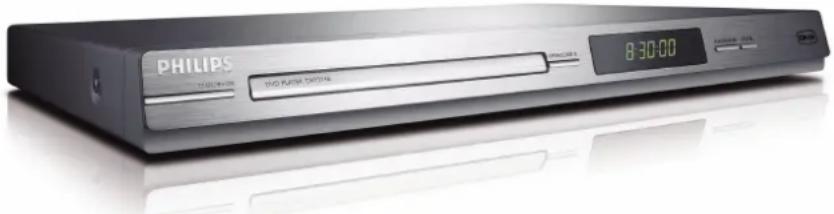
USER MANUAL DVP3747 PHILIPS
Thank you for choosing Philips.
Need help fast?
Read your Quick Start Guide and/or User Manual first for quick tips that make using your Philips product more enjoyable.
Register your product and get support at www.philips.com/welcome
text_image
PHILIPS TOLERANCE 80 RUSH OFFICE 8:30:00PHILIPS
The apparatus shall not be exposed to dripping or splashing and that no objects filled with liquids, such as vases, shall be placed on apparatus.
Due to the inconsistency of disc formats provided by various disc manufacturers, your DVD system may require a playability enhancement or upgrade. As DVD technology advances, these enhancements will become common and will be easy to complete. Go to www.philips.com/support for software upgrade.
This product incorporates copyright protection technology that is protected by method claims of certain U.S. patents and other intellectual property rights owned by Macrovision Corporation and other rights owners. Use of this copyright protection technology must be authorized by Macrovision Corporation, and is intended for home and other limited viewing uses only unless otherwise authorized by Macrovision Corporation. Reverse engineering or disassembly is prohibited.
'CONSUMERS SHOULD NOTE THAT NOT ALL HIGH DEFINITION TELEVISION SETS ARE FULLY COMPATIBLE WITH THIS PRODUCT AND MAY CAUSE ARTIFACTS TO BE DISPLAYED IN THE PICTURE. IN CASE OF 525 OR 625 PROGRESSIVE SCAN PICTURE PROBLEMS, IT IS RECOMMENDED THAT THE USER SWITCH THE CONNECTION TO THE 'STANDARD DEFINITION' OUTPUT. IF THERE ARE QUESTIONS REGARDING TV SET COMPATIBILITY WITH THIS MODEL 525p AND 625p DVD PLAYER, PLEASE CONTACT OUR CUSTOMER SERVICE CENTER.'
Index
English 6
English
General Information
Environmental Information
All unnecessary packaging has been omitted. The packaging has been made easy to separate into two materials; cardboard (box) and polyethylene (bags, protective foam sheet).
Your DVD player consists of materials which can be recycled and reused if disassembled by a specialised company. Please observe the local regulations regarding the disposal of packaging materials, exhausted batteries and old equipment.

Manufactured under license from Dolby Laboratories, Dolby and the double-D symbol are trademarks of Dolby Laboratories.
Windows Media and the Windows logo are trademarks, or registered trademarks of Microsoft Corporation in the United States and/or other countries.

DivX Certified products: DivX, DivX Certified and associated logos are trademarks of DivX, Inc. and are used under license.
For Customer Use:
Read carefully the information located at the bottom or rear of your DVD Video player and enter below the Serial No. Retain this information for future reference.
Model No. DVP3146 / DVP3747 Serial No.
Laser Safety
This unit employs a laser. Due to possible eye injury, only a qualified service person should remove the cover or attempt to service this device.
NOTE:
Pictures shown maybe different between countries.
CAUTION:
WARNING LOCATION: ON THE BACKPLATE OF THE SET
NEVER MAKE OR CHANGE CONNECTIONS WITH THE POWER SWITCHED ON.
Specifications are subject to change without notice. Trademarks are the property of Koninklijke Philips Electronics N.V. or their respective owners.
LASER
Type Semiconductor laser
InGaAlP (DVD)
AlGaAs (CD)
Wave length 658 nm (DVD)
790 nm (CD)
Output Power 7.0 mW (DVD)
10.0 mW (VCD/CD)
Beam divergence 60 degrees
Language Code
| Abkhazian | 6566 | Inupiaq | 7375 | Pushto | 8083 |
| Afar | 6565 | Irish | 7165 | Russian | 8285 |
| Afrikaans | 6570 | Islenska | 7383 | Quechua | 8185 |
| Amharic | 6577 | Italiano | 7384 | Raeto-Romance | 8277 |
| Arabic | 6582 | Ivrit | 7269 | Romanian | 8279 |
| Armenian | 7289 | Japanese | 7465 | Rundi | 8278 |
| Assamese | 6583 | Javanese | 7486 | Samoan | 8377 |
| Avestan | 6569 | Kalaallisut | 7576 | Sango | 8371 |
| Aymara | 6589 | Kannada | 7578 | Sanskrit | 8365 |
| Azerhaijani | 6590 | Kashmiri | 7583 | Sardinian | 8367 |
| Bahasa Melayu | 7783 | Kazakh | 7575 | Serbian | 8382 |
| Bashkir | 6665 | Kernewek | 7587 | Shona | 8378 |
| Belarusian | 6669 | Khmer | 7577 | Shqip | 8381 |
| Bengali | 6678 | Kinyarwanda | 8287 | Sindhi | 8368 |
| Bihari | 6672 | Kirghiz | 7589 | Sinhalese | 8373 |
| Bislama | 6673 | Komi | 7586 | Slovensky | 8373 |
| Bokmál, Norwegian | 7866 | Korean | 7579 | Slovenian | 8376 |
| Bosanski | 6683 | Kuanyama; Kwanyama | 7574 | Somali | 8379 |
| Brezhoneg | 6682 | Kurdish | 7585 | Sotho; Southern | 8384 |
| Bulgarian | 6671 | Lao | 7679 | South Ndebele | 7882 |
| Burmese | 7789 | Latina | 7665 | Sundanese | 8385 |
| Castellano, Español | 6983 | Latvian | 7686 | Suomi | 7073 |
| Catalán | 6765 | Letzeburgesch; | 7666 | Swahili | 8387 |
| Chamorro | 6772 | Limburgan; Limburger | 7673 | Swati | 8383 |
| Chechen | 6769 | Lingala | 7678 | Svenska | 8386 |
| Chewa; Chichewa; Nyanja | 7889 | Lithuanian | 7684 | Tagalog | 8476 |
| 中文 | 9072 | Luxembourgish; | 7666 | Tahitian | 8489 |
| Chuang; Zhuang | 9065 | Macedonian | 7775 | Tajik | 8471 |
| Church Slavic; Slavonic | 6785 | Malagasy | 7771 | Tamil | 8465 |
| Chuvash | 6786 | Magyar | 7285 | Tatar | 8484 |
| Corsican | 6779 | Malayalam | 7776 | Telugu | 8469 |
| Česky | 6783 | Maltese | 7784 | Thai | 8472 |
| Dansk | 6865 | Manx | 7186 | Tibetan | 6679 |
| Deutsch | 6869 | Maori | 7773 | Tigrinya | 8473 |
| Dzongkha | 6890 | Marathi | 7782 | Tonga (Tonga Islands) | 8479 |
| English | 6978 | Marshallese | 7772 | Tsonga | 8483 |
| Esperanto | 6979 | Moldavian | 7779 | Tswana | 8478 |
| Estonian | 6984 | Mongolian | 7778 | Türkçe | 8482 |
| Euskara | 6985 | Nauru | 7865 | Turkmen | 8475 |
| Ελληνικά | 6976 | Navaho; Navajo | 7886 | Twi | 8487 |
| Faroese | 7079 | Ndebele, North | 7868 | Uighur | 8571 |
| Français | 7082 | Ndebele, South | 7882 | Ukrainian | 8575 |
| Frysk | 7089 | Ndonga | 7871 | Urdu | 8582 |
| Fijian | 7074 | Nederlands | 7876 | Uzbek | 8590 |
| Gaelic; Scottish Gaelic | 7168 | Nepali | 7869 | Vietnamese | 8673 |
| Gallegan | 7176 | Norsk | 7879 | Volapuk | 8679 |
| Georgian | 7565 | Northern Sami | 8369 | Walloon | 8765 |
| Gikuyu; Kikuyu | 7573 | North Ndebele | 7868 | Welsh | 6789 |
| Guarani | 7178 | Norwegian Nynorsk; | 7878 | Wolof | 8779 |
| Gujarati | 7185 | Occitan; Provencal | 7967 | Xhosa | 8872 |
| Hausa | 7265 | Old Bulgarian; Old Slavonic | 6785 | Yiddish | 8973 |
| Herero | 7290 | Oriya | 7982 | Yoruba | 8979 |
| Hindi | 7273 | Oromo | 7977 | Zulu | 9085 |
| Hiri Motu | 7279 | Ossetian; Ossetic | 7983 | ||
| Hrwatski | 6779 | Pali | 8073 | ||
| Ido | 7379 | Panjabi | 8065 | ||
| Interlingua (International) | 7365 | Persian | 7065 | ||
| Interlingue | 7365 | Polski | 8076 | ||
| Inuktitut | 7385 | Português | 8084 |
Contents
Care and Safety Information
Setup 8
Cleaning discs....8
General Information
Accessories supplied 9
Region codes....9
Connections
Connecting to television....10-11
Using Composite Video jacks (CVBS)....10
Using Component Video jacks (YPbPr)....10
Using an accessory RF modulator ....II
Connecting the power cord....12
Optional connections
Connecting to a Multi-channel Receiver ....12
Receiver has a Dolby Digital decoder 12
Connecting to a stereo system ....13
Stereo system has right/left Audio In jacks 13
Connecting to a digital AV receiver ....13
Receiver has a PCM, Dolby Digital or MPEG decoder 13
Product Overview
Front and Rear panels....14
Remote Control.... 15
Getting Started
Step 1: Inserting Batteries....16
Using the remote control to operate the system.... 16
Step 2: Finding your viewing channel ....16
Step 3: Setting up Progressive Scan feature....17
Step 4: Selecting the matching color system....18
Step 5: Setting the language ....19
On-screen display (OSD) language....19
Audio, Subtitle and DVD menu languages....19
Playback from Disc
Playable discs....20
Supported formats....20
Playback Features
Starting disc playback 21
Basic playback controls.... 21
Pausing playback....21
Selecting title/chapter/track 21
Stopping playback....21
Operations for video playback 22
Using the Disc Menu 22
Zooming in 22
Resuming playback from the last stopped point....22
Slow Motion....22
Forward / Reverse Searching 22
Selecting various repeat functions....23
Repeat play mode....23
Repeating a section within a chapter/track....23
Angle 23
Contents
Viewing the disc playback information 24
Title/Chapter/Track selection 24
Time Search 24
Special DVD Features 25
Playing a Title 25
Changing the Audio Language....25
Subtitles....25
Special VCD and SVCD Feature 25
Playback Control (PBC)....25
Playing a DivX ^® disc 26
Playing MP3/WMA/JPEG/Kodak/Fuji Picture CD 26-27
General Operation 26
Playback selection 27
Zoom picture (JPEG) 27
Playback with multi-angles (JPEG) 27
DVD Menu Options
Using the Language setup menu 28
OSD Language....28
Subtitle / Audio / DVD Menu....28
Setting the DivX ^® subtitle font....28
Using the Video setup menu ....29-31
Setting the Aspect Ratio 29
View Mode 30
TV System 30
Video Out....30
Smart Picture....31
Using the Audio setup menu ....32-33
Front / Center / Surround Speakers 32
Subwoofer 32
Digital Output 33
Night Mode 33
Down Sampling 33
Using the Rating setup menu ....34-35
Rating level settings 34-35
Changing the Password....35
Using the Misc (Miscellaneous) setup menu 36-37
Restoring to the original settings....36
DivX® registration code 37
Volume Control 37
Speakers Delay.... 37
Others
Software upgrade 38
Specifications 39
Troubleshooting....40\~41
Glossary....42
Care and Safety Information
DANGER!
High voltage! Do not open the device. You run the risk of getting an electric shock.
The machine does not contain any user-serviceable parts. Please leave all maintenance work to qualified personnel.
Setup
Finding a suitable location
- Place the set on a flat, hard and stable surface. Do not place the set on a carpet.
- Do not put any equipment or heavy objects on top of the set.
- Do not position the set on top of other equipment that might heat it up (such as receiver or amplifier).
- Do not put anything under the set (such as CDs, magazines).
- Install this unit near the AC outlet and where the AC power plug can be reached easily.
Space for ventilation
- Place the apparatus in a location with adequate ventilation to prevent internal heat build up. Allow at least 10 cm (4.0") clearance from the rear and the top of the set and 5cm (2.0") from the left and right to prevent overheating.

text_image
10cm (4.0') 10cm (4.0') 5cm (2.0') 5cm (2.0')Avoid high temperatures, moisture, water and dust
- Apparatus shall not be exposed to dripping or splashing.
- Do not place any sources of danger on the apparatus (such as liquid filled objects, lighted candles).
Cleaning discs
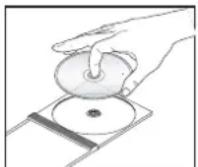
Some problems occur because the disc inside the player is dirty (frozen picture, sound disruptions, picture distortions). To avoid these problems, discs should be cleaned on a regular basis.
To clean a disc, use a micro fi bre cleaning cloth and wipe the disc from the center to the edge in a straight line.

CAUTION!
Do not use solvents such as benzene, thinner, commercially available cleaners, or anti-static sprays intended for analog discs. Since the optical unit (laser) of the DVD player operates at a higher power than regular DVD or CD players, cleaning CDs intended for DVD or CD players may damage the optical unit (laser). Therefore, refrain from using a cleaning CD.
General Information
Accessories supplied
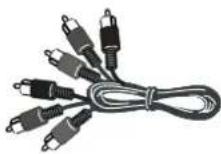
Composite video cable (yellow) and Audio cables (white, red)
Remote control and two AAA batteries

text_image
PHILIPS 2000 PLANTERRegion codes
This DVD player is designed to support the Region Management System. Check the regional code number on the disc package. If the number does not match the player's region number (see table below), the player may be unable to playback the disc.
Tips:
- It may not be possible to play CD-R/RW or DVD-R/RW in all cases due to the type of disc or condition of the recording.
- If you are having trouble playing a certain disc, remove the disc and try a different one. Improper formatted disc will not play on this DVD player.
| Region | Discs that can be played |
| U.S.A. and Canada regions | |
| U.K and Europe regions | |
| Asia Pacific, Taiwan, Korea | |
| Australia, New Zealand, Latin America | |
| Russia and India regions | |
| China, Calcos Islands, Walls and Futuna Islands |
English
Connections
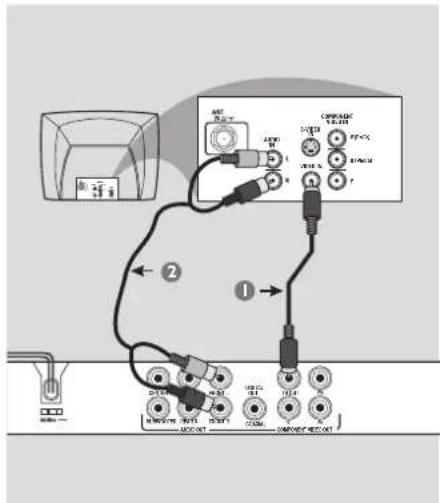
Connecting to television
text_image
Diagram showing connections between audio equipment and a monitor, labeled with ports and cable colorsIMPORTANT!
- You only need to make one video connection from the following options, depending on the capabilities of your television. - Connect the DVD player directly to the television.
Using Composite Video jacks (CVBS)
Use the composite video cable (yellow) to connect the DVD player's TV OUT (CVBS) jack to the video input jack (or labeled as A/V In, Video In, Composite or Baseband) on the television (cable supplied).
② To hear sound of this DVD player through your television, use the audio cables (white/red) to connect FRONT (L/R) AUDIO OUT jacks of the DVD player to the corresponding AUDIO IN jacks on the television (cable supplied).
TIPS: Before making or changing any connections, make sure that all the devices are disconnected from the power outlet.

text_image
Diagram showing connections between an electronic device, a switch, and multiple audio/video cables with labeled components.IMPORTANT!
- The progressive scan video quality is only possible when using YPbPr and a progressive scan television is required.
Using Component Video jacks (YPbPr)
Use the component video cables (red/blue/green) to connect the DVD player's YPbPr jacks to the component video input jacks (or labeled as YPbPr) on the television (cable not supplied).
② To hear sound of this DVD player through your television, use the audio cables (white/red) to connect FRONT (L/R) AUDIO OUT jacks of the DVD player to the corresponding AUDIO IN jacks on the television (cable supplied).
③ Proceed to page 17 for detailed progressive scan setup.
text_image
RF coaxial cable to TV Back of RF Modulator (example only) TO TWANT/MEXICO EN VIDEO CHS CHN 1 2 3 4IMPORTANT!
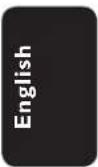
- If your television only has a single Antenna In jack (or labeled as 75 ohm or RF In,) you will need an RF modulator in order to view the DVD playback on the television. See your electronics retailer or contact Philips for details on RF modulator availability and operations.
Using an accessory RF modulator
Use the composite video cable (yellow) to connect the DVD player's TV OUT (CVBS) jack to the video input jack on the RF modulator.
② Use the RF coaxial cable (not supplied) to connect ANTENNA OUT or TO TV jack on the RF modulator to the ANTENNA IN jack on the television.
③ To hear sound of this DVD player through your TV, use the audio cables (white/red) to connect FRONT (L/R) AUDIO OUT jacks of the DVD player to the corresponding AUDIO IN jacks on the RF modulator (cable supplied).
4 Connect the Antenna or Cable TV service signal to the ANTENNA IN or RF IN jack on the RF modulator. (It may have been connected to your TV previously. Disconnect it from the TV).
TIPS: Before making or changing any connections, make sure that all the devices are disconnected from the power outlet.
Connections (continued)
English
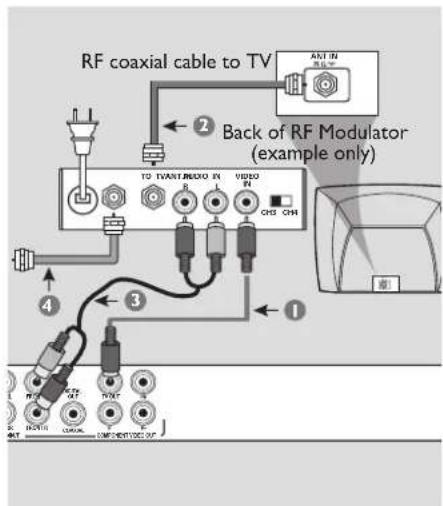
Connecting the power cord
text_image
Diagram showing connection between a device and a control panel with labeled ports and connectionsConnecting to a Multi Channel Receiver
text_image
R201 180.0 180.0 180.0 180.0 180.0 180.0 180.0 180.0 180.0 180.0 180.0 180.0 180.0 180.0 180.0 180.0 180.0 185.0 185.0 185.0 185.0 185.0 185.0 185.0 185.0 185.0 185.0 185.0 185.0 185.0 185.0 185.0 185.0 185.0 234.0 234.0 234.0 234.0 234.0 234.0 234.0 234.0 234.0 234.0 234.0 234.0 234.0 234.0 234.0 234.0 234.0 196.0 196.0 196.0 196.0 196.0 196.0 196.0 196.0 196.0 196.0 196.0 196.0After everything is connected properly, plug in the AC power cord to the power outlet.
Never make or change any connections with the power switched on.
When no disc is loaded, press STANDBY ON on the DVD player front panel.
“--” may appear on the display panel.
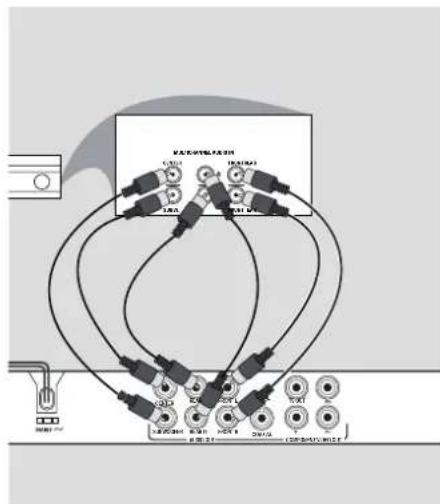
Receiver has a Dolby Digital decoder
1 Select one of the video connections (CVBS VIDEO IN or COMPONENT VIDEO IN) depending on the options available on your television.
2 Connect the Audio Out Left and Right jack for Front and Rear speakers to the corresponding input jacks on your receiver (cable not supplied).
3 Connect the Audio Out for Center speaker and Subwoofer to the corresponding inputs on your receiver (cable not supplied).
Tip:
- If the subwoofer has its own amplifier, connect directly to the subwoofer Audio Out on the DVD Player.
TIPS: Before making or changing any connections, make sure that all the devices are disconnected from the power outlet.
12
Optional connections
Connecting to a stereo system

text_image
STEREO A120 F1 D114 C120 U3W5-08 P2X08 H6X74 S270 U270 L220V 200V 100V (100V)Connecting to a digital AV receiver

text_image
AV Receiver 30000 A100 1 2 3 4 5 6 7 8 9 10 11 12 13 14 15 16 17 18 19 20 21 22 23 24 25 26 27 28 29 30 31 32 33 34 35 36 37 38 39 40 41 42 43 44 45 46 47 48 49 50 51 52 53 54 55 56 57 58 59 60 61 62 63 64 65 66 67 68 69 70 71 72 73 74 75 76 77 78 79 80Stereo system has right/ left Audio In jacks
1 Select one of the video connections (CVBS VIDEO IN or COMPONENT VIDEO IN) depending on the options available on your television.
② Use the audio cables (white/red) to connect FRONT (L/R) AUDIO OUT jacks of the DVD Player to the corresponding AUDIO IN jacks on the stereo system (cable supplied).
Receiver has a PCM, Dolby Digital or MPEG decoder
1 Select one of the video connections (CVBS VIDEO IN or COMPONENT VIDEO IN) depending on the options available on your television.
② Connect the COAXIAL jack of the DVD player to the corresponding Digital Audio In jack on your receiver (cable not supplied).
3 Set the DVD player's digital output to PCM-Only or ALL depending on the capabilities of your receiver (see page 33 {Digital Output}).
Tip:
- If the audio format of the Digital Output does not match the capabilities of your receiver, the receiver will produce a strong, distorted sound or no sound at all.
TIPS: Before making or changing any connections, make sure that all the devices are disconnected from the power outlet.
Product Overview
English
Front and Rear Panels

flowchart
graph TD
    A["PHILIPS"] --> B["Display panel"]
    B --> C["OPEN/CLOSE ▲"]
    C --> D["STANDBY ON ⏻"]
    D --> E["Disc Tray"]
    E --> F["PLAY/PAUSE ▶II"]
    F --> G["IR Sensor"]
    G --> H["STOP"]
    H --> I["Stands on player or switches to standby mode"]
    B --> J["Shows information about the current status of the DVD player."]
    style A fill:#f9f,stroke:#333
    style B fill:#ccf,stroke:#333
    style C fill:#cfc,stroke:#333
    style D fill:#fcc,stroke:#333
    style E fill:#cff,stroke:#333
    style F fill:#ffc,stroke:#333
    style G fill:#fcc,stroke:#333
    style H fill:#ffc,stroke:#333
    style I fill:#fcc,stroke:#333
text_image
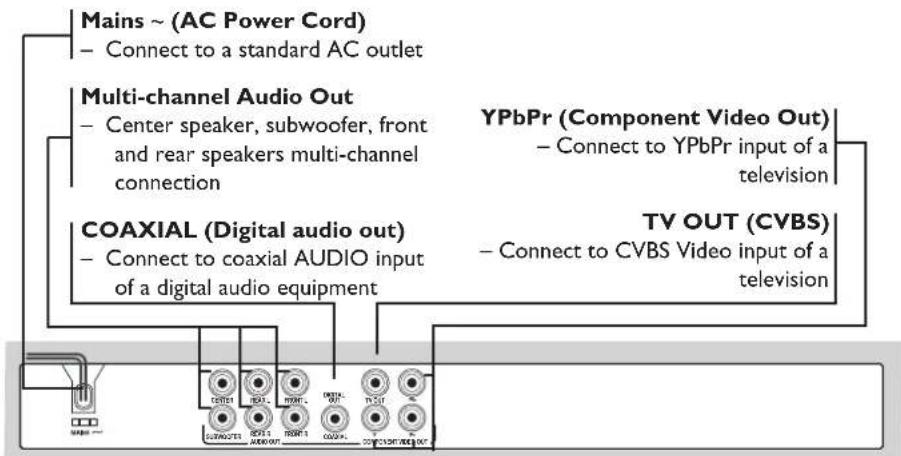
Mains ~ (AC Power Cord) - Connect to a standard AC outlet Multi-channel Audio Out - Center speaker, subwoofer, front and rear speakers multi-channel connection YPbPr (Component Video Out) - Connect to YPbPr input of a television COAXIAL (Digital audio out) - Connect to coaxial AUDIO input of a digital audio equipment TV OUT (CVBS) - Connect to CVBS Video input of a televisionProduct Overview (continued)
Remote Control
text_image
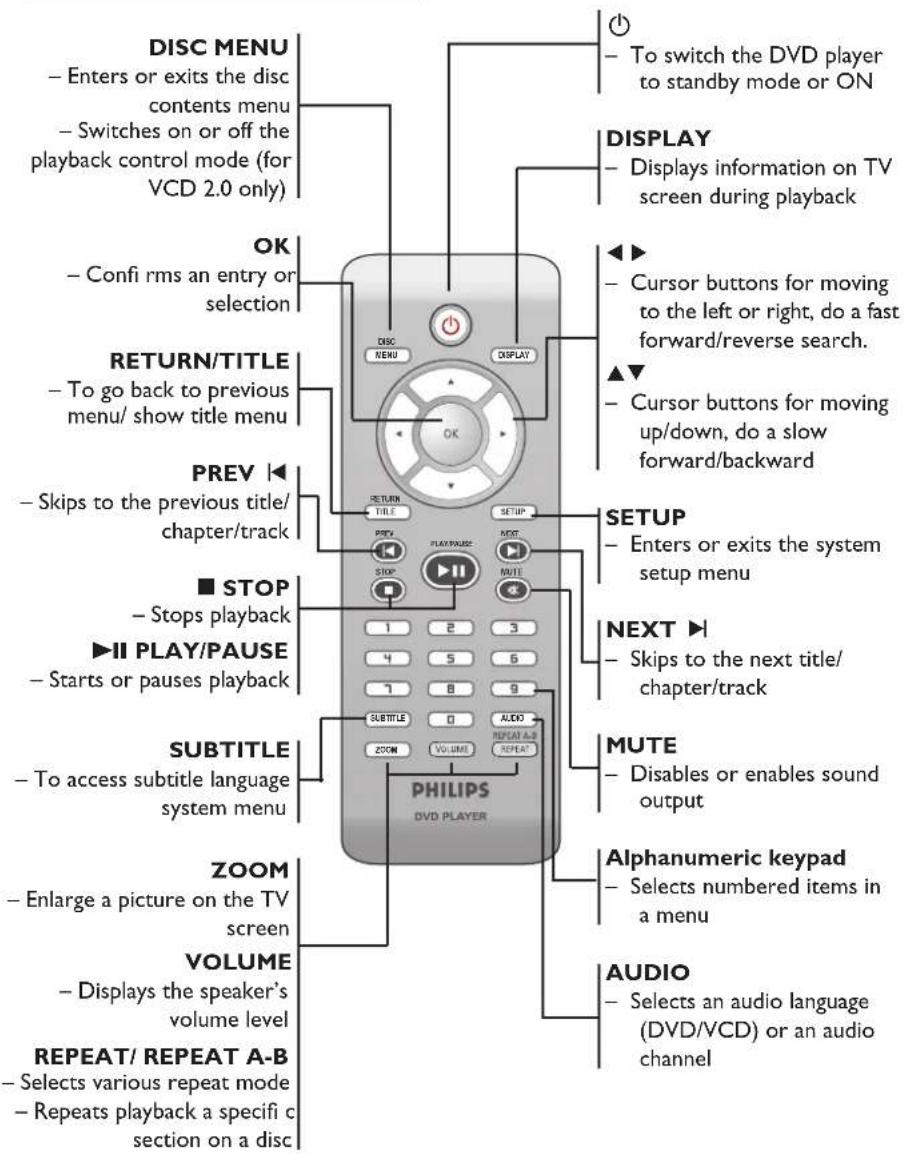
DISC MENU - Enters or exits the disc contents menu - Switches on or off the playback control mode (for VCD 2.0 only) OK - Conf i rms an entry or selection RETURN/TITLE - To go back to previous menu/ show title menu PREV ◀ - Skips to the previous title/ chapter/track ■ STOP - Stops playback ▶II PLAY/PAUSE - Starts or pauses playback SUBTITLE - To access subtitle language system menu ZOOM - Enlarge a picture on the TV screen VOLUME - Displays the speaker's volume level REPEAT/ REPEAT A-B - Selects various repeat mode - Repeats playback a specifi c section on a disc DISPLAY - Displays information on TV screen during playback ◀ ▶ - Cursor buttons for moving to the left or right, do a fast forward/reverse search. ▲ ▼ - Cursor buttons for moving up/down, do a slow forward/backward SETUP - Enters or exits the system setup menu NEXT ▶ - Skips to the next title/ chapter/track MUTE - Disables or enables sound output Alphanumeric keypad - Selects numbered items in a menu AUDIO - Selects an audio language (DVD/VCD) or an audio channelEnglish
Getting Started
English
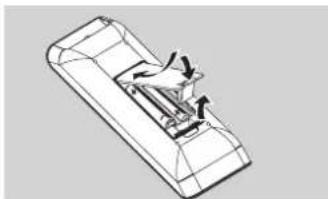
Step I: Inserting Batteries
natural_image
Technical line drawing of a mechanical component with internal structure (no text or symbols)① Open the battery compartment.
② Insert two batteries type R03 or AAA, following the indications (+ -) inside the compartment.
③ Close the cover.
CAUTION!
- Remove batteries if they are exhausted or if the remote is not to be used for a long time.
- Do not use old and new or different types of batteries in combination.
- Batteries contain chemical substances, so they should be disposed of properly.
Using the remote control to operate the system

text_image
Diagram showing a remote control interface with labeled buttons and a dashed line indicating a connection point.① Aim the remote control directly at the remote sensor (IR) on the front panel.
② Do not put any objects between the remote control and the DVD player while operating the DVD player.
Step 2: Finding your viewing channel
1 Press STANDBY-ON ⏻ on the DVD player to turn it on.
② Turn on the TV and set it to the correct video-in channel. You should see the blue DVD background screen.
→ Usually these channel are between the lowest and highest channels and may be called FRONT, A/V IN, VIDEO. See your TV's manual for more details.
→ Or, you may go to channel I on your TV, then press the Channel down button repeatedly until you see the Video In channel.
→ Or, the TV remote control may have a button or turn that chooses different video modes.
→ Or, set the TV to channel 3 or 4 if you are using an RF modulator.
3 If you are using external equipment, (such as audio system or receiver), turn it on and select the appropriate input source for the DVD player output. Refer to the equipment user's manual for detail.
Getting Started (continued)
Step 3: Setting up Progressive Scan feature
(for Progressive Scan TV only)
The progressive scan displays twice the number of frames per seconds than interlaced scanning (ordinary normal TV system). With nearly double the number of lines, progressive scan offers higher picture resolution and quality.
Before you start...
- Ensure that you have connected this DVD player to a progressive scan TV using the Y Pb Pr connection (see page 10).
- Ensure that you have completed the basic installation and set-up.
① Turn on your TV and set to interlace mode (refer to your TV user manual).
2 Press STANDBY ON ⏻ on the remote control to turn on the DVD player.
③ Select the correct video-in channel.
→ The DVD background menu appears.
4 Press SETUP.
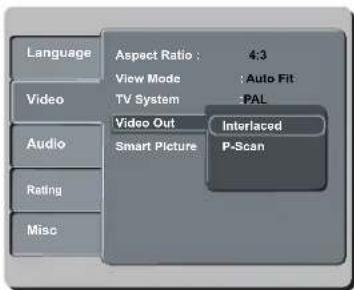
5 Press ▲ ▼ to select { Video }, then press ▶.
text_image
Language Aspect Ratio : 4:3 View Mode : Auto Fit Video TV System PAL Video Out Interlaced Smart Picture P-Scan Audio Rating Misc6 Press ▲▼ repeatedly to select { Video Out }, then press ▶.
⑦ Select { P-Scan }, then press OK to confi rm. → The menu will appear on the TV.
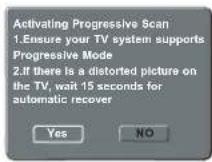
8 Press ◀ to highlight { Yes } and press OK to confirm.
⑨ Turn on your TV progressive scan mode (refer to your TV user manual).
→ The menu will appear on the TV.
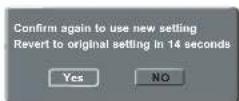
10 Press ◀ to highlight { Yes } and press OK to confirm. → The setup is now completed and you can start enjoy the high quality picture.
To deactivate Progressive Scan manually:
- Wait for 15 seconds for the auto recovery.
OR
1 Press OPEN/CLOSE ▲ on the DVD player to open the disc tray.
② Press numeric keypad 'I' on the remote control for few seconds. → The DVD background screen appears.
Tip:
- There are some progressive scan TVs and High-Defi nition TVs that are not fully compatible with this unit, resulting in the unnatural picture when playing back a DVD VIDEO disc in the progressive scan mode. In such a case, turn off the progressive scan feature on both the DVD player and your TV.
TIPS: The underlined option is the factory default setting. Press ◀ to go back to previous menu item. Press SETUP to exit the menu item.
Getting Started (continued)
Step 4: Selecting the matching color system
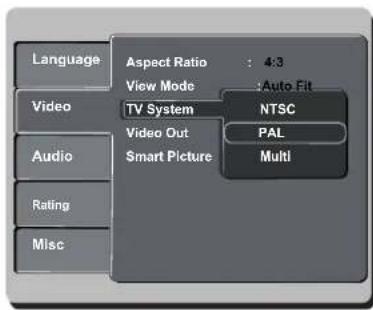
The color system of the DVD player, disc and TV should match in order for the disc to play. Before changing the TV system, determine the color system of your TV.
text_image
Language Aspect Ratio : 4:3 View Mode : Auto Fit Video TV System NTSC Video Out PAL Smart Picture Multi Audio Rating Misc1 Press SETUP.
② Press ▲ ▼ to select { Video }, then press ▶.
③ Press ▲▼ repeatedly to select { TV System }, then press ▶.
4 Use ▲ ▼ to select one of the options below:
{ PAL }
Select this if the connected TV has the PAL colour system. It will change the video signal of an NTSC disc and output it to PAL format.
{ NTSC }
Select this if the connected TV has the NTSC colour system. It will change the video signal of a PAL disc and output it to NTSC format.
{ Multi }
Select this if the connected TV is compatible with both NTSC and PAL (multi-system). The output format will be in accordance with the video signal of the disc.
5 Select a setting and press OK.
→ Follow the instructions show on the TV to confirm the selection (if any).

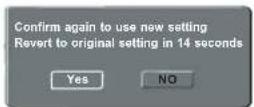
6 Press ◀ to highlight { Yes } and press OK to confirm.
To reset to default TV color system:
- Wait for 15 seconds for the auto recovery.
OR
1 Press OPEN/CLOSE ▲ on the DVD player to open the disc tray.
② Press numeric keypad '3' on the remote control for few seconds. → The DVD background menu appears.
Tips:
- Before changing the current TV colour setting, ensure that your TV supports the 'selected TV System'.
- If there is no proper picture on your TV, wait for 15 seconds for auto recovery.
TIPS: The underlined option is the factory default setting.
Press ◀ to go back to previous menu item. Press SETUP to exit the menu item.
Step 5: Setting the language
The language options are different depending on your country or region. It may not correspond to the illustrations shown on the user manual.
On-screen display (OSD) language
Select this to change the language of this DVD player screen display menu. The menu language (on-screen display) for the system will remain as you set it.

text_image
Language Video Audio Rating Mloc OSD language English Subtitle Hindi DivX Subtitle Audio : English DVD menu : English① Press SETUP.
② Press ▲ ▼ to select { Language }, then press ▶.
③ Press ▲▼ to select { OSD Language }, then press ▶.
4 Use ▲ ▼ to select a language and press OK to confirm.
Audio, Subtitle and DVD menu languages
You can choose your preferred language or sound track from audio, subtitles and DVD menu languages. If the selected language is not available on the disc, the disc's default language will be used instead.

text_image
Language Video Audio Rating Misc OSD language : English Subtitle : Auto DivX Subtitle Audio English DVD menu Hindi① Press SETUP.
② Press ▲▼ to select { Language }, then press ▶.
③ Press ▲ ▼ to highlight one of the options below, then press ▶.
{ Audio }
Select this to change disc sound track language.
{ Subtitle }
Select this to change the subtitle language.
{ DVD menu }
Select this to change the language of the disc menu.
4 Use ▲ ▼ to select a language and press OK to confirm.
⑤ Repeat steps ③ - ④ for other language settings.
TIPS: The underlined option is the factory default setting.
Press ◀ to go back to previous menu item. Press SETUP to exit the menu item.
Playback from Disc
IMPORTANT!
- If the INVALID KEY appears on the TV screen when a button is pressed, it means the function is not available on the current disc or at the current time.
- DVD discs and players are designed with regional restrictions. Before playing a disc, make sure the disc is for the same zone as your player.
playable discs
Using this DVD player, you can playback on the following discs:
DVD Video
(Digital Versatile Disc)
DVD±RW (DVD Rewritable) Audio/Video format or MP3/WMA/JPEG/DivX® fi les.
DVD±R (DVD Recordable) Audio/Video format or MP3/WMA/JPEG/DivX® fi les.
CD-R (CD-Recordable) Audio/Video format or MP3/WMA/JPEG/DivX ^® fi les.
CD-RW (CD-Rewritable) Audio/Video format or MP3/WMA/JPEG/DivX® fi les.
Audio CD (Compact Disc Digital Audio)
Video CD (Formats 1.0, 1.1, 2.0)


Super Video CD
MP3-Disc
DivX® Disc
(DivX® 3.11, 4.x, 5.x and 6.0)


Supported formats
MP3/WMA tracks
- The fi le extensions has be to be '.mp3', '.wma'
- JPEG/ISO format
– Maximum 15 characters display.
– Supported sampling frequencies and corresponding bit-rates;
32kHz 64 – 320 kbps
44.1kHz, 48kHz 80 - 320 kbps
JPEG pictures
- The file extensions has be to be '.JPG' and not '.JPEG.'
- JPEG/ISO format
- It can only display DCF-standard still pictures or JPEG pictures such as TIFF.
DivX® movies
- The file extensions has be to be '.AVI,' '.MPG,' or '.MPEG.'
- DivX® 3.11, 4.x, 5.x and 6.0
– Q-pel accurate motion compensation - Global Motion Compensation (GMC) playback.
Tips:
- Maximum 100 sessions for CD and 10 multi border for DVD are supported.
- For DVD-R and DVD-RW multi border, only fi nalized disc are supported.
- For DVD+R and DVD+RW multi border both fi nalized and unfi nalized disc are NOT supported.
TIPS: Some discs cannot be played on this DVD player due to the configuration and characteristics of the disc, or due to the condition of recording and authoring software that was used.
Playback Features
Starting disc playback
① Turn on the TV to the correct program number for the DVD player (e.g. 'EXT', '0', 'AV').
2 Press STANDBY-ON ⏻ to turn on the DVD player.
③ Press OPEN/CLOSE ▲ on the front of the DVD player.
- You can also hold down the STOP button on the remote control to open and close the disc tray.
4 Place a disc into the disc tray with the label facing up, then press OPEN/CLOSE ▲.
→ For double-sided discs, load the side which you want to play facing up.
5 Playback may start automatically. If not, press PLAY/PAUSE ▶II.
If a disc menu appears on the TV, see page 22 'Using the Disc Menu'.
- If the child lock was activated for the inserted disc, you have to enter your four-digit password (see page 35).
- For more playback features, see pages 21\~27.
Tips:
— Do not overturn the DVD player while disc loading, playing or ejecting.
— Do not close the disc tray manually even if the power switched off.
Basic playback controls
Unless otherwise stated, all operations described are based on Remote Control use.
Pausing playback
During playback, press PLAY/PAUSE ▶II to pause playback and display a still picture.
→ Sound will be muted.
② To resume normal playback, press PLAY/PAUSE ▶II again.
Selecting title/chapter/track
- Press PREV ◀ / NEXT ▶ to go to the previous or next title/chapter/track.
- Press DISPLAY to display the disc information text line for title/chapter/track (example - 00/08).
- Use alphanumeric keypad (0-9) to enter valid title/chapter/track number, then press OK.
→ The playback skips to the selected title/chapter/track.
Stopping playback
- Press STOP■.
Tips:
- Screen saver will start automatically if the disc playback is stopped for about 5 minutes.
- The player will automatically switch to Power Standby mode if you do not press any buttons for about 15 minutes after the disc has stopped playing.
TIPS: The operating features described here might not be possible for certain discs. Always refer to the instructions supplied with the discs.
Playback Features (continued)
Operations for video playback
Using the Disc Menu
Depending on the disc, a menu may appear on the TV screen once you load in the disc.
To select a playback feature or item
Use ▲ ▼◀▶ keys or numeric keypad (0-9) on the remote, then press OK to start playback.
To access or remove the menu
- Press DISC MENU on the remote.
Zooming in
This function allows you to enlarge the picture on the TV screen and to pan through the enlarged picture.
① During playback, press ZOOM repeatedly to display the picture with different scales.
→ Use ▲ ▼◀▶ keys to pan through the enlarged picture.
→ Playback will continue.
② Press ZOOM repeatedly to return to the original size.
Resuming playback from the last stopped point
Resume playback of the last 5 discs is possible, even if the disc was ejected (open), standby or power off. Auto resume is active for DVD, VCD, SVCD, CD types of discs.
- Load one of the last 5 discs.
→ 'Play from start, press [PREV]' appears during playback for first 10 seconds.
- During the message appears on the TV screen, press PREV to start playback from the beginning.
→ Playback restarts from the first title (DVD) or the beginning of the title/track (VCD/CDDA/SVCD). - To remove the message from the TV screen, press DISPLAY.
Slow Motion
You can slow forward or slow reverse a disc during playback and select a different speed.
For DivDVD, VCD, SVCD
1 Press ▲ ▼ during playback to select the required speed: 1/2, 1/4, 1/8 or 1/16 (forward or backward).
→ Sound will be muted.
② To return to normal speed, press PLAY/PAUSE ▶II.
Forward / Reverse Searching
You can fast forward or fast reverse a disc during playback and select a desired search speed.
For Div DVD, VCD, SVCD, CD
① Press ◀▶ directly or press ◀▶ for 2 seconds during playback to select the required speed: 2X, 4X, 8X, 16X or 32X (backward or forward).
→ Sound will be muted (DVD/VCD) or intermittent (CD).
② To return to normal speed, press PLAY/PAUSE ▶II.
Tip:
- For CD, fast forward or fast reverse is available only when pressing ◀ ▶ for few seconds or more.
TIPS: The operating features described here might not be possible for certain discs. Always refer to the instructions supplied with the discs.
Playback Features (continued)
Selecting various repeat functions
Repeat play mode
The repeat play options vary depending on the disc type.
1 While playing a disc, press REPEAT/REPEAT A-B.
→ The menu appears on the TV screen.
Rep off A-B off 1/1
② Press ◀▶ to highlight {Rep Off}, then press OK repeatedly to select the following repeat options.
For DVD
- Repeat Chapter (currently playing chapter)
– Repeat Title (currently playing title) - Off (cancel)
For Video CD, Audio CD
- Repeat Single (currently playing track)
- Repeat All (entire disc)
- Off (cancel)
For MP3
- Repeat Single (currently playing file)
- Repeat folder (current folder)
- Off (cancel)
For JPEG, DivX®
- Repeat Single (currently playing file)
- Repeat folder (current folder)
- Off (cancel)
Tip:
- For VCD, repeat playback is not possible if the PBC mode is switched on.
Repeating a section within a chapter/track
You can repeat the playback of a specific segment within a title/chapter track. To do this, you must mark the start and end of the segment you want.
1 While playing a disc, press REPEAT/REPEAT A-B.
→ The menu appears on the TV screen.
Rep off A-B off 1/1
② Press ◀▶ to highlight {A-B Off}, then press OK at your chosen starting point.
③ Press OK again at your chosen end point.
→ The section A and B can be set only within the same chapter/track.
→ The section will now repeat continuously.
4 To exit the sequence, press OK.
Angle
When {Angle} information appears on the TV screen, press ◀▶ to highlight {Angle}.
② Press OK repeatedly to switch between different angle.
→ Playback will go to the selected angle.
TIPS: The operating features described here might not be possible for certain discs. Always refer to the instructions supplied with the discs.
Playback Features (continued)
Viewing the disc playback information
You can view the disc information (such as current title/chapter/track number, total elapsed time or total playing time on the disc) without interrupting the disc playback.
During playback, press DISPLAY repeatedly on the remote control.
→ The available disc information appears on the TV screen with the following sequence.
Title/Chapter
Title /1 Chapter 6/161 (DVD)
Time
Time 00:03:36/01:22:34 (DVD)
Track
Track 3/21 (VCD)
Time
Time 00:00:56/00:03:34 (VCD)
Title/Chapter/Track selection
① Press ◀▶ to select {Title} / {Chapter} or {Track}, then press OK to access.
② Use the alphanumeric keypad 0-9 to input a valid number.
③ Press OK to confirm.
→ The playback skips to the chosen title/chapter/track.
Time Search
When {Time} information appears on the TV screen, press OK to access.
② Use the alphanumeric keypad 0-9 to input the valid time (such as 0:34:27).
③ Press OK to confirm.
→ The playback skips to the chosen time.
TIPS: The operating features described here might not be possible for certain discs. Always refer to the instructions supplied with the discs.
Playback Features (continued)
Special DVD Features
Playing a Title
① Press DISC MENU.
→ The disc title menu appears on the TV screen.
② Use ▲▼◀▶ keys or alphanumeric keypad 0-9 to select a play option.
③ Press OK key to confirm.
Changing the Audio Language
For DVD
- Press AUDIO repeatedly to select different audio languages.
Changing the Audio Channel For VCD
- Press AUDIO to select the available audio channels provided by the disc (LEFT, RIGHT, MIX, STEREO).
Subtitles
- Press SUBTITLE repeatedly to select different subtitle languages.
Special VCD and SVCD Feature
Playback Control (PBC)
For VCD with Playback Control (PBC) feature (version 2.0 only)
- Press DISC MENU to toggle between 'PBC ON' and 'PBC OFF'.
→ If you select 'PBC ON', the disc menu (if available) will appear on the TV.
→ Use the PREV |◀ / NEXT ▶| to turn to previous/page page or use the alphanumeric keypad 0-9 to select a play option.
During playback,
→ pressing PREV ◀ after the first 5 seconds, playback will start from the beginning of the current track,
→ pressing PREV ◀ within the first 5 seconds, playback will go to the previous track.
- During playback, pressing RETURN/TITLE will return to the menu screen (if PBC is on).
If you want to skip the index menu and playback directly from the beginning,
- Press DISC MENU key on the remote control to turn to PBC off.
TIPS: The operating features described here might not be possible for certain discs. Always refer to the instructions supplied with the discs.
Playback Features (continued)
English
Playing a DivX® disc
This DVD player supports the DivX® movie playback that you download from your computer onto a CD-R/RW or DVD±R/RW (see page 37 for more information).
1 Load a DivX® disc.
→ The data disc menu appears on the TV screen.
② Press ▲ ▼ to select the folder and press OK to open the folder.
③ Press ▲ ▼ to select a track/file.
4 Press OK to confirm.
5 Press SUBTITLE on the remote control will turn on or off the subtitle.
If multilingual subtitles are embedded on the DivX® disc, pressing SUBTITLE will change the subtitle language during playback.
Tips:
- Subtitle fi les with the following fi lename extensions (.srt, .smi, .sub, .ssa, .txt) are supported.
- The subtitle fi lename (.sub) have to be saved under the same fi lename as the movie (.avi) in the same folder.
[For example, Folder A: abc.avi and abc.sub]
Playing MP3/WMA/JPEG/Kodak/Fuji Picture CD
IMPORTANT!
You have to turn on your TV and set to the correct Video In channel. (See page 16 'Finding your viewing channel').
General Operation
1 Load a disc.
→ The disc reading time may exceed 30 seconds due to the complexity of the directory/fi le configuration.
→ The data disc menu and ID3 (MP3) / Meta data (WMA) information (including at least title, singer and album) appears on the TV screen.
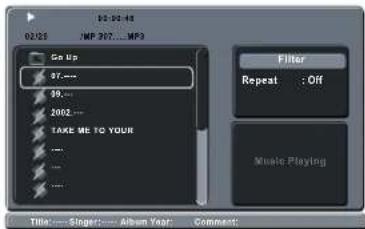
text_image
02/03 02/03-48 NFP 907....MP3 Go Up 87.... 98.... 2002.... TAKE ME TO YOUR ... ... ... Filter Repeat : Off Music Playing Title: .... Singer: .... Album Year: Comment:② Press ▲ ▼ to select the folder and press OK to open the folder.
③ Press ▲ ▼ to select a track/file.
4 Press OK to confirm.
Tips:
- If the playing file is not selected, the ID3/ Meta information will disappear.
- If a jpeg file is selected, a preview will appear.
TIPS: The operating features described here might not be possible for certain discs. Always refer to the instructions supplied with the discs.
Playback Features (continued)
Playback selection
During playback, you can;
- Press PREV ◀ / NEXT ▶ to select the previous/next track/fi le in the current folder.
- Press ▲▼◀▶ on the remote to rotate/fl ip the picture fi les.
- Press PLAY/PAUSE ▶II repeatedly to pause/resume playback.
For MP3/WMA,
During playback,
→ pressing PREV ◀ after the first 5 seconds, playback will start from the beginning of the current track,
→ pressing PREV ◀ within the first 5 seconds, playback will go to the previous track.
During playback, press and hold PREV ◄ / NEXT ▶ for about few seconds to access fast forward or fast reverse with the required speed: 2X, 4X, 8X, 16X or 32X.
Tip:
- For MP3/WMA, fast forward or fast reverse is available only when pressing ◀▶ for few seconds or more.
Zoom picture (JPEG)
During playback, press ZOOM repeatedly to display the picture with different scales.
Use ▲▼◀▶ to view the zoomed picture.
Playback with multi-angles (JPEG)
During playback, press ▲▼◀▶ to rotate the picture on the TV screen.
▲ ▼: fl ip the picture vertically by 180°
◀: rotate the picture anti-clockwise by 90°
▶: rotate the picture clockwise by 90°
Tip:
- It may not be possible to play certain MP3/JPEG disc due to the confi guration and characteristics of the disc or condition of the recording.
TIPS: The operating features described here might not be possible for certain discs. Always refer to the instructions supplied with the discs.
DVD Menu Options
This DVD Player setup is carried out via the TV, enabling you to customize the DVD player to suit your particular requirement.
Using the Language setup menu
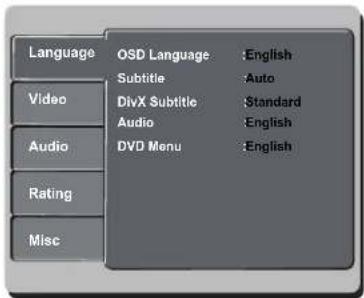
① Press SETUP on the remote control.
→ The system setup menu appears.
text_image
Language Video Audio Rating Misc OSD Language English Subtitle Auto DivX Subtitle Standard Audio English DVD Menu English② Press ▲ ▼ to select { Language }, then press ▶.
③ Press ▲ ▼ to select an item, then press ▶ to access.
Example: { OSD Language }
→ The options for the selected item appears.
→ If the selection in the menu is greyed out, that means the feature is not available or not possible to change at the current state.
④ Use ▲▼ to select a setting and press OK to confirm.
Example: { English }
→ The setting is selected and setup is complete.
⑤ To exit, press SETUP.
TIPS: The underlined option is the factory default setting.
Press ◀ to go back to previous menu item. Press SETUP to exit the menu item.
OSD Language
This menu contains various language options for the language displayed on the screen. For details, see page 19.
Subtitle/Audio/DVD Menu
These menus contains various language options for audio, subtitle and disc menu which may be recorded on the DVD. For details, see page 19.
Setting the DivX ^® subtitle font
You can set the font type that supports the recorded DivX ^® subtitle.
In 'Language', press ▲▼ to select {DivX® Subtitle}, then press ▶.
{Standard}
Albanian, Danish, Dutch, English, Finnish, French, Gaelic, German, Italian, Kurdish (Latin), Norwegian, Portuguese, Spanish, Swedish and Turkish.
② Press OK to confirm.
DVD Menu Options (continued)
Using the Video setup menu
① Press SETUP on the remote control.
→ The system setup menu appears.

text_image
Language Aspect Ratio : 4:3 View Mode :Auto Fit Video TV System :PAL Video Out Interlaced Audio Smart Picture :Standard Rating Mlsc② Press ▲ ▼ to select { Video }, then press ▶.
③ Press ▲ ▼ to select an item, then press ▶ to access.
Example: { TV System }
→ The options for the selected item appears.
→ If the selection in the menu is greyed out, that means the feature is not available or not possible to change at the current state.
④ Use ▲ ▼ to select a setting and press OK to confirm.
Example: {PAL}
→ The setting is selected and setup is complete.
5 To exit, press SETUP.
Setting the Aspect Ratio
The picture shape can be adjusted to fit your TV and the format must be available on the playback disc. Otherwise, the TV display will not affect the picture during playback.
① In 'Video', press ▲ ▼ to select { Aspect Ratio }, then press ▶.
{4:3}
Select this if you have a normal TV. A 'wide-screen' display with black bars on the top

and bottom will be displayed on the TV screen.
{16:9}
Select this for wide-screen TV (frame ratio 16:9).
② Use ▲ ▼ to select a setting and press OK to confirm.
TIPS: The underlined option is the factory default setting.
Press ◀ to go back to previous menu item. Press SETUP to exit the menu item.
DVD Menu Options (continued)
View Mode
Use view mode to scale an image that fits to the TV screens' width and height.
① In 'Video', press ▲ ▼ to select {View Mode}, then press ▶.
{Fill}
Select this to scale the image up or down in horizontal and vertical directions respectively to fill the screen height and width.
{Original}
Select this to fit the original screen size (only for DivX®/MPEG).
{ Height Fit }
Select this to scale the image up or down in vertical direction to fit the screen height.
{Width Fit}
Select this to scale the image up or down in horizontal direction to fit the screen width.
{Auto Fit}
Select this to take the minimum value of horizontal and vertical fi t scale ratio (like letter box).
{Pan Scan}
Select this to take the maximum value of horizontal and vertical fi t scale ratio.
② Use ▲ ▼ to select a setting and press OK to confirm.
TV System
This menu contains the options for selecting the color system that matches the connected TV. For details, see page 18.
Video Out
This setting allows you to toggle the output of the video signal between Interlaced and P-Scan (Progressive Scan).
In 'Video', press ▲ ▼ to select { Video Out }, then press ▶. { Interlaced }
Select this for Interlaced (YPbPr) connection.
{ P-Scan }
Select this when you want to make progressive scan (YPbPr) connection on your DVD player to a progressive scan TV.
② Use ▲ ▼ to select a setting and press OK to confirm.
TIPS: The underlined option is the factory default setting.
Press ◀ to go back to previous menu item. Press SETUP to exit the menu item.
DVD Menu Options (continued)
Smart Picture
This DVD player provides four predefined sets of picture color settings.
① In 'Video', press ▲ ▼ to select { Smart Picture }, then press ▶.
{Standard}
Select this for a preset standard picture setting.
{ Vivid }
Select this to make the picture brighter.
{Cool}
Select this to make the picture softer.
{ Personal }
Select this to personalize your picture color by adjusting the brightness, contrast, tint and color (saturation).
② Use ▲ ▼ to select a setting and press OK to confirm.
③ If you select {PERSONAL}, then proceed to steps ④\~⑦.
→ The setup menu appears.

text_image
Brightness Contrast Tint Color4 Press ▲ ▼ to highlight one of the following options.
BRIGHTNESS
Increase the value to brighten the picture or vice versa. Choose zero (0) for average setting.
CONTRAST
Increase the value to sharpen the picture or vice versa. Choose zero (0) to balance the contrast.
TINT
Increase the value to darken the picture or vice versa. Choose zero (0) for average setting.
COLOR
Increase the value to enhance the color in your picture or vice versa. Choose zero (0) to balance the color.
5 Press ◀▶ to adjust the setting that best suits your personal preference.
6 Repeat steps 4\~5 for adjusting other color features.
7 Press OK to confirm.
TIPS: The underlined option is the factory default setting.
Press ◀ to go back to previous menu item. Press SETUP to exit the menu item.
DVD Menu Options (continued)
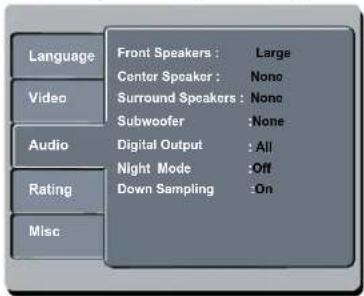
Using the Audio setup menu
① Press SETUP on the remote control. → The system setup menu appears.
text_image
Language Video Audio Rating Misc Front Speakers : Large Center Speaker : None Surround Speakers : None Subwoofer : None Digital Output : All Night Mode : Off Down Sampling : On② Press ▲ ▼ to select { Audio }, then press ▶.
③ Press ▲ ▼ to select an item, then press ▶ to access.
Example: { Night Mode }
→ The options for the selected item appears.
→ If the selection in the menu is greyed out, that means the feature is not available or not possible to change at the current state.
4 Use ▲ ▼ to select a setting and press OK to confirm.
Example: { On }
→ The setting is selected and setup is complete.
⑤ To exit, press SETUP.
Front / Center / Surround Speakers
You can adjust the volume level setting for individual speakers.
In 'Audio', press ▲▼ to select { Front Speakers }, { Center Speaker } or { Surround Speakers }, then press ▶. { Large }
When connected speakers (except for subwoofer) can produce low frequency signals below 120Hz.
→ The range from 20Hz to 20KHz { Small }
When connected speakers (except for subwoofer) can not produce low frequency signals below 120Hz.
→ The range from 120Hz to 20KHz { _ None }
No sound output from the speakers. Only applicable for center and rear speakers.
② Use ▲ ▼ to select a setting and press OK to confirm.
Subwoofer
This option is only available for subwoofer connection.
① In 'Audio', press ▲▼ to select { Subwoofer }, then press ▶.
{ Present }
Select this option when a subwoofer is connected.
{ None }
Select this option when no subwoofer is connected.
② Use ▲ ▼ to select a setting and press OK to confirm.
TIPS: The underlined option is the factory default setting.
Press ◀ to go back to previous menu item. Press SETUP to exit the menu item.
DVD Menu Options (continued)
Digital Output
Select this if you connect to a multichannel decoder/receiver.
① In 'Audio', press ▲ ▼ to select { Digital Output }, then press ▶.
{__All}
Select this if the connected device has a built-in multichannel decoder that supports one of the multichannel audio format (Dolby Digital, MPEG-2).
{ PCM }
Select this if the connected device is not capable of decoding multichannel audio. The DVD player will convert the Dolby Digital and MPEG-2 multichannel signals to PCM (Pulse Code Modulation).
{ Off }
To deactivate the digital audio output. For example, if you use the FRONT (L/R) AUDIO OUT sockets to connect to a TV or stereo system.
② Use ▲ ▼ to select a setting and press OK to confirm.
Tips:
- If { Digital Output } is set to { All }, all audio settings except MUTE are invalid. - If { Digital Output } is set to { All } while playback MPEG, MP3/WMA fi les, the player will output PCM signals.
Night Mode
This mode optimizes playback of sound at low volume. High volume outputs will be softened and low volume outputs are brought upward to an audible level.
① In 'Audio', press ▲ ▼ to select { Night Mode }, then press ▶.
{On}
Select this to set low volume output. This feature is only available for movie discs with Dolby Digital mode.
{Off}
Turns off night mode feature. Select this to enjoy the surround sound with its full dynamic range.
② Use ▲ ▼ to select a setting and press OK to confirm.
Down Sampling
You can enable and disable the digital signal for better sound output quality.
① In 'Audio', press ▲ ▼ to select { Down Sampling }, then press ▶.
{On}
Playback a disc recorded at the sampling rate of 48kHz.
{ Off }
Playback a disc recorded at the sampling rate of 96kHz. This rate can only be achieved in Stereo-Classic (Flat) mode.
② Use ▲ ▼ to select a setting and press OK to confirm.
TIPS: The underlined option is the factory default setting.
Press ◀ to go back to previous menu item. Press SETUP to exit the menu item.
DVD Menu Options (continued)
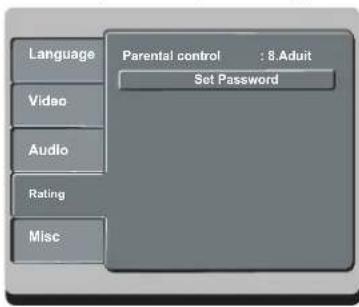
Using the Rating setup menu
① Press SETUP on the remote control. → The system setup menu appears.
text_image
Language Video Audio Rating Misc Parental control : 8.Aduit Set Password② Press ▲ ▼ to select { Rating }, then press ▶.
③ Press ▲ ▼ to select an item, then press ▶ to access.
Example: { Parental control }
→ The options for the selected item appears.
→ If the selection in the menu is greyed out, that means the feature is not available or not possible to change at the current state.
4 Use ▲ ▼ to select a setting and press OK to confirm.
Example: { 8 Adult }
→ The setting is selected and setup is complete.
⑤ To exit, press SETUP.
Rating level settings
Depending on the DVD, you may be asked to change the parental level while playing the disc. The rating levels are from 1 to 8 and are country dependent. You can prohibit the playing of certain discs that are not suitable for your children, or have certain discs played with alternative scenes.
In 'Rating', press ▲▼ to select { Parental control }, then press ▶.
② Use the alphanumeric keypad 0-9 to enter the four-digit password (see page 35 'Changing the Password', then press ▶.
{ I.Kid Safe }
Childsafe; acceptable for viewers of all ages.
{2.G}
General Audience; recommended as acceptable for viewers of all ages.
{3.PG}
Parental Guidance suggested.
{4. PG - 13}
Unsuitable for children under age 13.
{5. PG-R}
Parental Guidance; recommended that parents restrict children under 17 from viewing.
{6.R}
Restricted; recommended only when supervised by a parent or adult guardian.
{ 7.NC-17}
No Children under age 17; not recommended viewing for children under age 17.
{8. Adult}
Mature Material; should be viewed only by adults due to graphic sexual material, violence or language.
TIPS: The underlined option is the factory default setting.
Press ◀ to go back to previous menu item. Press SETUP to exit the menu item.
DVD Menu Options (continued)
③ Use ▲ ▼ to select a rating level and press OK to confirm.
→ Select { 8 Adult } to disable parental level and allow all discs to play.
● DVDs that are rated higher than the level you selected will not play unless you enter your four-digit password.
Tips:
- This feature will not limit viewing if the disc manufacturer did not code the disc.
- VCD, SVCD, CD have no level indication, so parental control has no effect on these type of discs. This also applies to most illegal DVDs.
- Some DVDs are not coded with a rating though the movie rating may be printed on the disc cover. The rating level feature does not prohibit play of such discs.
Changing the Password
You need to enter your four-digit password to play a prohibited disc or if prompted for a password.
In 'Rating', press ▲▼ to select { Set Password }, then press OK.
→ You will be prompted to enter your four-digit password.
Enter Password
② Use the alphanumeric keypad 0-9 to enter the four-digit password.
→ When doing this for the first time, enter the default password '0000'.
- If you forget your old four-digit password, enter the default password '0000'.
③ Press OK again to enter the new four-digit password.
→ The new four-digit password will now take effect.
Enter New Password
4 Press OK to confirm.
TIPS: The underlined option is the factory default setting.
Press ◀ to go back to previous menu item. Press SETUP to exit the menu item.
DVD Menu Options (continued)
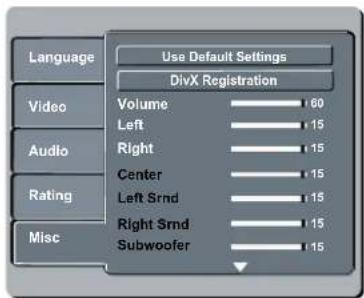
Using the Misc (Miscellaneous) setup menu
① Press SETUP on the remote control. → The system setup menu appears.
text_image
Language Use Default Settings DivX Registration Video Volume 60 Left 15 Right 15 Center 15 Left Srnd 15 Right Srnd 15 Subwoofer 15 Audio Rating Misc② Press ▲ ▼ to select { Misc }, then press ▶.
③ Press ▲ ▼ to select an item, then press OK to access.
Example: { Use Default Settings }
→ The options for the selected item appears.
If the selection in the menu is greyed out, that means the feature is not available or not possible to change at the current state.
4 Use ▲ ▼ to select a setting and press OK to confirm.
Example: { No }
→ The setting is selected and setup is complete.
⑤ To exit, press SETUP.
Restoring to the original settings
Setting the { Default } function will reset all options and your personal settings to the factory defaults, except your password for rating level.
In 'Misc', press ▲ ▼ to select { Use Default Settings }, then press OK. → The menu will appear.

{Yes}
Select this to reset to factory default settings.
{No}
Select this to close the menu.
② Use ◀▶ to select a setting and press OK to confirm.
TIPS: The underlined option is the factory default setting. Press ◀ to go back to previous menu item. Press SETUP to exit the menu item.
DVD Menu Options (continued)
DivX® registration code
DivX® registration code allows you to rent and purchase movies using the DivX® service from the internet. For more information, visit website; http://vod.divx.com
In 'Misc', press ▲▼ to select { DivX® Registration }, then press OK. → The registration code will appear.
② Use the registration code to rent or purchase the movies from DivX® Registration service at http://vod.divx.com. → Follow the instructions and download the movie from your computer onto a CD-R/RW for playback on this DVD player.
Tip: - All the downloaded movies from DivX® Registration can only be played back on this DVD player.
Volume Control
In 'Misc', press ▲ ▼ to select {Volume 60}.
② Press ◀▶ to adjust the speaker's volume that best suits your personal preference. → The range from {0 - 63}
3 Press ▲▼, then press ◀▶ to adjust the volume corresponding speakers from 0-15.
OR
You can also press VOLUME on the remote control to display the speaker's volume level on the TV screen.
② Press ◀▶ to adjust the speaker's volume level.
③ Press OK or VOLUME to exit.
Tip: - The display will disappear if no buttons are press within 5 seconds.
Speaker Delay
Delay times setting are related to the listening position or distance for center and surround speakers.
① In 'Misc', press ▲▼ to select { Center Sprk Delay } or { Surr Sprk Delay }, then press OK. ② Use ▲▼ to move the slider to adjust the delay times of the audio output from the corresponding speakers.
TIPS: The underlined option is the factory default setting. Press ◀ to go back to previous menu item. Press SETUP to exit the menu item.
Others
Software upgrade
Periodically Philips will issue software upgrade to enhance your user experience.
IMPORTANT!
- Power supply must not be interrupted during upgrade!
To check the current software version of this DVD player;
① Press OPEN/CLOSE ▲ on the DVD player to open the disc tray.
→ The disc tray will open.
② Press numeric keypad '966' on the remote control.
→ The software installed in the DVD player appears on the TV screen.
To download and install the latest software to the DVD player;
① Visit the Philips website ‘www.philips.com/support’ to check the availability of the latest software upgrade.
② Download the software to a CD-R.
③ Insert the CD-R to the disc slot. → The menu appears.
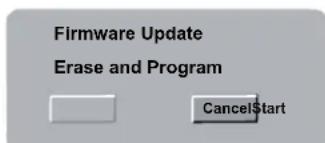
text_image
Firmware Update Erase and Program CancelStartFirmware Update
Programming, please wait.....
Do not switch the player off!
4 Press ◀▶ to select { START }, then press OK to confirm.
→ The latest software will be downloaded in the DVD player.
Specifications
TV STANDARD (PAL/50Hz)(NTSC/60Hz)
Number of lines 625 525
Playback Multistandard (PAL/NTSC)
VIDEO PERFORMANCE
Video DAC 12 bit, 108 MHz
YPbPr 0.7 Vpp \~ 75 ohm
Video Output IVpp \~ 75 ohm
VIDEO FORMAT
Digital MPEG 2 for DVD, SVCD
Compression MPEG I for VCD
©DivX
| DVD | 50Hz | 60Hz |
Horiz. resolution 720 pixels 720 pixels
Vertical resolution 576 lines 480 lines
| VCD | 50Hz | 60Hz |
Horiz. resolution 352 pixels 352 pixels
Vertical resolution 288 lines 240 lines
AUDIO FORMAT
Digital MPEG/ AC-3/ compressed
PCM Digital
16, 20, 24 bits
fs, 44.1, 48, 96 kHz
MP3(ISO 9660) 96, 112, 128,
256, 320kbps &
variable bit rate
fs, 32, 44.1, 48 kHz
Analog Sound Stereo
Dolby Surround compatible downmix from Dolby
Digital multi-channel sound
AUDIO PERFORMANCE
DA Converter 24 bit, 192 kHz
DVD fs 96 kHz 4Hz-44kHz
fs 48 kHz 4Hz-22kHz
SVCD fs 48 kHz 4Hz-22kHz
fs 44.1kHz 4Hz-20kHz
CD/VCD fs 44.1kHz 4Hz-20kHz
Signal-Noise (1kHz) > 90 dB
Dynamic range(1kHz) > 80 dB
Crosstalk (1kHz) > 70 dB
Distortion/noise (1kHz) > 65 dB
MPEG MP3 MPEG Audio L3
CONNECTIONS
YPbPr Output Cinch 3x
Video Output Cinch (yellow)
Audio Output(L+R) Cinch (white/red)
Digital Output I coaxial
IEC60958 for CDDA / LPCM
IEC61937 for MPEG 1/2,
Dolby Digital
6 channel analog output
Audio Front L/R Clinch (white/red)
Audio Rear L/R Clinch (white/red)
Audio Center Clinch (blue)
Audio Subwoofer Clinch (black)
CABINET
Dimensions (w x h x d) 360 x 38 x 209 mm
Weight Approximately 2 kg
POWER CONSUMPTION
Power Supply Rating 110V - 240V;
50/60Hz
Power consumption < 10 W
Power consumption in < | W
Standby mode
Troubleshooting
WARNING
Under no circumstances should you try to repair the system yourself, as this will invalidate the warranty. Do not open the system as there is a risk of electric shock.
If a fault occurs, fi rst check the points listed below before taking the system for repair. If you are unable to remedy a problem by following these hints, consult your dealer or Philips for help.
| Problem | Solution |
| No power. | - Press STANDBY-ON button on the front of the DVD player to turn on the system.- Make sure the AC outlet has power. |
| Remote control does not work. | - Aim the remote control directly at the sensor on the front of the DVD player (not towards TV).- Remove any obstacles between DVD player and the remote control.- Batteries are weak, replace the batteries.- Check the polarities of the batteries are as indicated on the remote control ( ± signs). |
| No picture. | - Turn on your TV and set to the correct Video In channel for the DVD player. You may go to Channel I on your TV, then press the channel down button on your TV's remote control until you see the TV program.- Check the video connection between the DVD player and the TV. |
| The picture is distorted or black & white during playback. | - The disc does not match with the TV color system standard (PAL/NTSC).- The disc is dirty, clean the disc.- Sometimes a small amount of picture distortion may appear. This is not a malfunction.- To deactivate progressive scan function manually;1) Turn off your TV progressive scan mode (or set to interlaced mode)2) Press OPEN/CLOSE to open the DVD player disc tray.3) Press the alphanumeric keypad 'I' for few seconds. |
| No sound. | - Check the audio connections, the red and white jacks are connected correctly.- Set the Digital output correctly, based on the equipment you connected to the DVD player. |
| Disc does not play. | - Insert the disc with the label facing up.- Wrong region code.- Wrong disc type. Read chapter "Playback from Disc - Playable discs" for details.- Make sure the disc is not scratched or warped. Clean the disc or replace a new one.- Check if the disc is defective by trying another disc. |
| The aspect ratio of the screen cannot be changed. | - The aspect ratio is fixed on the DVD disc.- Depending on the TV, it may not be possible to change the aspect ratio. |
Troubleshooting (continued)
| Problem | Solution |
| Not able to select some items in the setup/system menu. | - Press STOP button twice before selecting the setup/system menu.- Depending on the disc availability, some menu items cannot be selected. |
| The DVD player does not start playback. | - Insert a readable disc with the playback side facing down.- Check the disc type, color system (PAL/NTSC) and region code.- Check for any scratches or smudges on the disc.- Press SETUP to turn off the setup menu screen.- You may need to enter the password in order to change the parental rating level or to unlock the disc for playback.- Moisture may have condensed inside the system. Remove the disc and leave the system turned on for about an hour.- Disconnect the power cord from the power outlet for a few minutes. Reconnect the power cord and try to operate again as usual. |
| Picture freezes momentarily during playback. | - Check the disc for fi ingerprint/scratches and clean with a soft cloth wiping from center to edge. |
| Unable to select Progressive Scan on/off. | - Check that the output of the video signal is turn to { Interlaced }. |
| Unable to play DivX® movies. | - Check that the DivX® fi le is encoded in 'Home Theatre' mode with DivX® 5.x encoder.- Check that the DivX® movie downloaded is a complete fi le. |
| No sound during DivX® movies playback. | - The audio codec may not be supported by this DVD player. |
| An DivX® movies does not repeat. | - Check that fi le size of the movie does not exceed the fi le of the disc during downloading. |
| Certain DivX® files does not play or are skipped. | - Make sure the fi le name extension is correct. You can check this using a computer with CD-ROM.- The player is designed to playback DVD, VCD, CD audio, MP3 and DivX® discs only. Other digital audio formats such as liquid audio, RM (RealMedia), WAV or non-audio fi les like '.doc', '.txt', '.pdf' are not supported.- Try to play the problem DivX® files, on a computer. If they do not work, the source file appears to be corrupt.- Try to download the file again from a different source, or if you have created the file yourself, create the file again and make sure the settings are correct. |
English
Glossary
Analog: Sound that has not been turned into numbers. Analog sound varies, while digital sound has specific numerical values. These jacks send audio through two channels, the left and right.
Aspect ratio: The ratio of vertical and horizontal sizes of a displayed image. The horizontal vs. vertical ratio of conventional TVs. is 4:3, and that of wide-screens is 16:9.
AUDIO OUT Jacks: Jacks on the back of the DVD System that send audio to another system (TV, Stereo, etc.).
Bit Rate: The amount of data used to hold a given length of music; measured in kilobits per seconds, or kbps. Or, the speed at which you record. Generally, the higher the bit rate, or the higher the recording speed, the better the sound quality. However, higher bit rates use more space on a Disc.
Chapter: Sections of a picture or a music piece on a DVD that are smaller than titles. A title is composed of several chapters. Each chapter is assigned a chapter number enabling you to locate the chapter you want.
Component Video Out Jacks: Jacks on the back of the DVD System that send high-quality video to a TV that has Component Video In jacks (R/G/B, Y/Pb/Pr, etc.).
Disc menu: A screen display prepared for allowing selection of images, sounds, subtitles, multi-angles, etc recorded on a DVD.
Digital: Sound that has been converted into numerical values. Digital sound is available when you use the DIGITAL AUDIO OUT COAXIAL or OPTICAL jacks. These jacks send audio through multiple channels, instead of just two channels as analog does.
DivX ^® 3.11/4.x/5.x/6.0: The DivX ^® codec is a patent-pending, MPEG-4 based video compression technology, developed by DivX ^® Networks, Inc., that can shrink digital video to sizes small enough to be transported over the internet, while maintaining high visual quality.
Dolby Digital: A surround sound system developed by Dolby Laboratories containing up to six channels of digital audio (front left and right, surround left and right, center and subwoofer).
JPEG: A very common digital still picture format. A still-picture data compression system proposed by the Joint Photographic Expert Group, which features small decrease in image quality in spite of its high compression ratio.
MP3: A file format with a sound data compression system. 'MP3' is the abbreviation of Motion Picture Experts Group I (or MPEG-I) Audio Layer 3. By using MP3 format, one CD-R or CD-RW can contain about 10 times as much data volume as a regular CD can.
Multichannel: DVD is specified to have each sound track constitute one sound fi eld. Multichannel refers to a structure of sound tracks having three or more channels.
Parental Control: A function of the DVD to limit playback of the disc by the age of the users according to the limitation level in each country. The limitation varies from disc to disc; when it is activated, playback will be prohibited if the software's level is higher than the user-set level.
PCM (Pulse Code Modulation): A system for converting analog sound signal to digital signal for later processing, with no data compression used in conversion.
Playback control (PBC): Refers to the signal recorded on video CDs or SVCDs for controlling reproduction. By using menu screens recorded on a Video CD or SVCD that supports PBC, you can enjoy interactive-type software as well as software having a search function.
Progressive Scan: It displays all the horizontal lines of a picture at one time, as a signal frame. This system can convert the interlaced video from DVD into progressive format for connection to a progressive display. It dramatically increases the vertical resolution.
Region code: A system for allowing discs to be played back only in the region designated beforehand. This unit will only play discs that have compatible region codes. You can find the region code of your unit by looking on the product label. Some discs are compatible with more than one region (or ALL regions).
Title: The longest section of a picture or music feature on DVD, music, etc., in video software, or the entire album in audio software. Each title is assigned a title number enabling you to locate the title you want.
TV OUT jack: Jack on the back of the DVD System that sends video to a TV.
WMA: Windows Media Audio. Refers to an audio compression technology developed by Microsoft Corporation. WMA data can be encoded by using Windows Media Player version 9 or Windows Media Player for Windows XP. Files are recognized by their file extension "WMA."
WARRANTY
This APPARATUS IS covered under warranty against any defect arising out of faulty or defective material or workmanship for a period of 6 months from date of purchase.
Should a defect develop during the period of warranty, Philips India Limited undertakes to repair the apparatus free of charge through an Authorised Philips service Center. If the purchaser shifts his residence to other town, the warranty will be valid at the nearest Authorised Philips service Center.
This warranty is not valid in case:
I. The apparatus is not used according to this manual;
2. Defects are caused by improper or reckless use;
3. Any repair work are done by person other than Authorised Philips Service Center;
4. Any modification or alteration of any nature are made in the apparatus;
5. The serial number is tampered
6. This warranty form is not completed immediately after purchase.
Serial No.:
Bill No & Date of Purchase:
Purchaser's Name:
Location & Tel No:
Dealer's Name:
Location & Tel No:
Dealer's Stamp & Sign:
Philips Electronics India Limited
Registered Office : 7, Justice Chandra Madhab Road, Kolkata 700 020
Head Office : 2 ^nd Floor, Technopolis Knowledge Park, Nelco Complex, Mahakali Caves Road, Chakala, Andheri (East), Mumbai – 400093.
Maintenance Tips for your DVD Player:
• Always keep a Disc loaded in your DVD Player tray.
- Keep the player away from the dusty areas. Keep it covered with a dust cover.
- Clean your DVD Player Lens after every 20 discs played.
- Use the 2 brush Philips DVD Lens Cleaner SVC2520 for best results.
- Clean the CDs / VCD / DVD / MP3 CD before inserting in your DVD Player.
"For unlimited listening pleasure use Philips earphones / headphones". Over 20 models to choose from
For any sales or service related queries: Visit us on web at www.philips.com or Call us on Toll Free Number : 1 600 22 44 22
Meet Philips at the Internet http://www.philips.com/welcome

DVP3146
DVP3747
CLASS 1 LASER PRODUCT

Sgp-0736/94-2