DWL-AB520 - NAS D-LINK - Free user manual and instructions
Find the device manual for free DWL-AB520 D-LINK in PDF.


User questions about DWL-AB520 D-LINK
0 question about this device. Answer the ones you know or ask your own.
Ask a new question about this device
Download the instructions for your NAS in PDF format for free! Find your manual DWL-AB520 - D-LINK and take your electronic device back in hand. On this page are published all the documents necessary for the use of your device. DWL-AB520 by D-LINK.
USER MANUAL DWL-AB520 D-LINK
D-LINK AirPro DWL-AB520
2.4GHz / 5GHz Multimode Wireless PCI Adapter
Manual
D-Link
Building Networks for People
Contents
Package Contents .... 3
Introduction 4
Wireless Basics 6
Getting Started 10
Using the Configuration Utility 13
Networking Basics....18
Troubleshooting.... 31
Technical Specifications 34
Contacting Technical Support....36
Warranty and Registration 37
Package Contents
natural_image
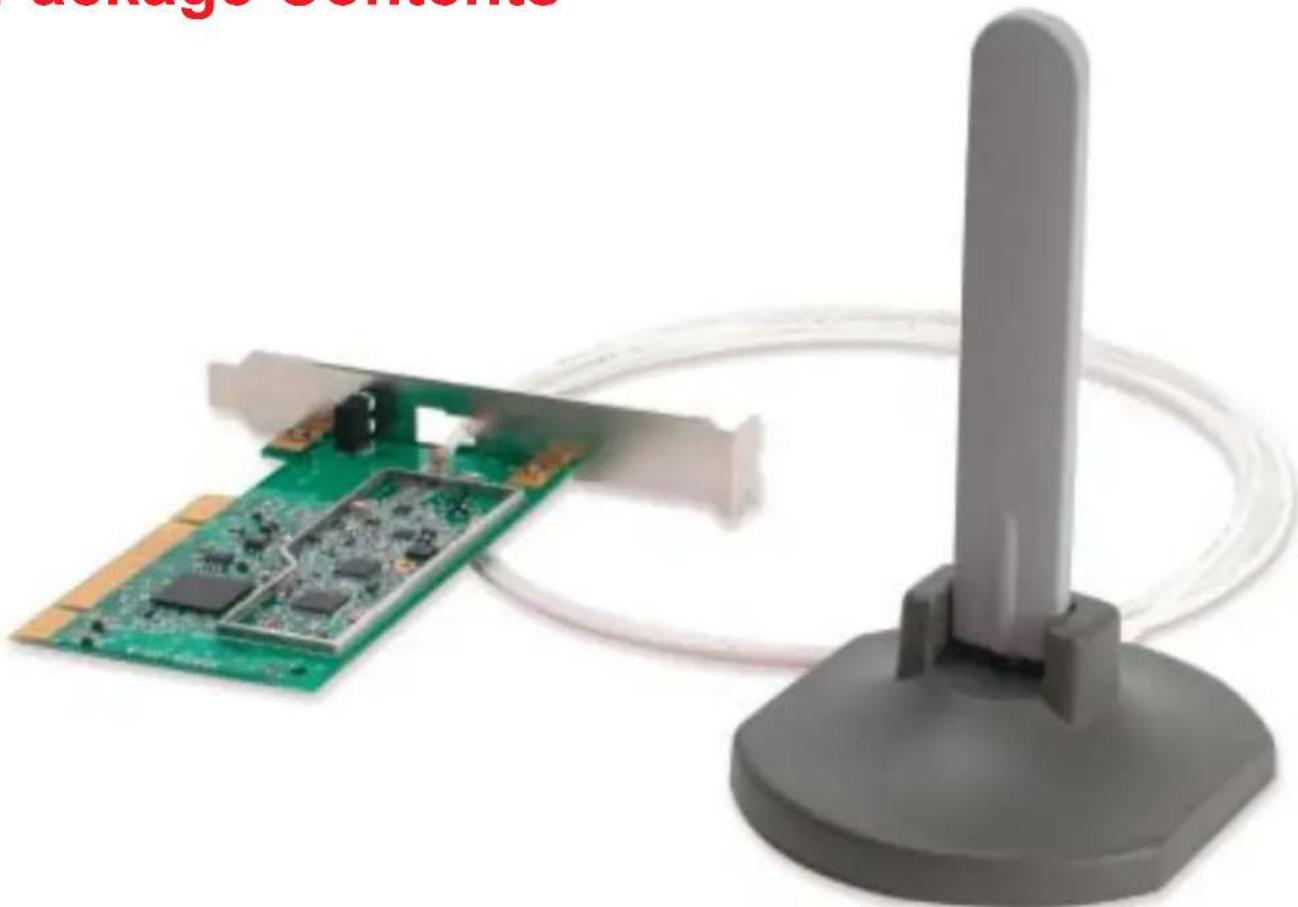
Green printed circuit board with attached cable and a gray stand (no visible text or symbols)Contents of Package:
D-Link AirPro DWL-AB520
2.4 GHz / 5GHz Multimode Wireless PCI Adapter
■ Manual and Warranty on CD
Quick Installation Guide
If any of the above items are missing, please contact your reseller.
System Requirements:
A computer with an available 32-bit PCI slot
Windows XP, Windows 2000, Windows Me, or Windows 98SE
At least 32 MB of memory and a 300 MHz processor
An 802.11a/802.11b Multimode Access Point (e.g., DWL-6000AP or DI-764), or an 802.11a Access Point (e.g., DWL-5000AP for Infrastructure Mode), or an 802.11b Access Point (e.g., DWL-900AP+), or an 802.11a wireless adapter (e.g., DWL-A650 for laptops or DWL-A520 for Ad-Hoc mode), or an 802.11b wireless adapter (e.g., DWL-650+.)
Introduction
D-Link introduces the integrated multimode 802.11a/802.11b wireless PCI Adapter, as part of the high performance D-Link AirPro series of wireless networking products.
Featuring a breakthrough all-in-one multimode design, the new D-Link AirPro DWL-AB520 Multimode Wireless PCI Adapter is a next generation PCI Adapter that simultaneously serves both 802.11a wireless networks at 54 Mbps (72 Mbps in proprietary Turbo mode*) and 802.11b wireless networks at 11Mbps.
The D-Link AirPro DWL-AB520 delivers the fastest IEEE standards-based wireless technology in the industry and is interoperable with other 802.11a and 802.11b wireless devices.
After completing the steps outlined in the Quick Installation Guide (included in your package) not only will you have the ability to share information and resources, but you will also be able to enjoy the freedom that wireless networking delivers, at speeds capable of handling large data files or video streams.
Features
Fully compatible with the 802.11a standard to provide an optimal wireless 54Mbps data rate (provides a 72Mbps data rate in proprietary Turbo Mode).
- Fully compatible with the 802.11b standard to provide an optimal wireless data rate of 11Mbps.
■ Dynamic data rate scaling at 6, 9, 12, 18, 24, 36, 48, 54 for 802.11a
Dynamic data rate scaling at 1, 2, 5.5, and 11Mbps for 802.11b
■ Maximum reliability, throughput and connectivity with automatic data rate switching
Supports wireless data encryption with 64-bit WEP, 128-bit WEP and 152-bit WEP with Dynamic Keying for more secure networking.
- Provides an extended omni-directional antenna with 2 \~ 4dBi
■ Supports PCI Local Bus 2.2 standard
- User-friendly configuration and diagnostic utilities
LEDS
LED stands for Light-Emitting Diode. The DWL-AB520 has the following LEDs as shown below:
| LED | LED Activity |
| Power | A steady light indicates a connection to a power source |
| Activity | A blinking light indicates network activity |
Wireless Basics
D-Link wireless products are based on industry standards to provide easy-to-use and compatible high-speed wireless connectivity within your home, business or public access wireless networks. Strictly adhering to the IEEE standard, the D-Link wireless family of products will allow you to securely access the data you want, when and where you want it. You will be able to enjoy the freedom that wireless networking delivers.
A wireless local area network (WLAN) is a cellular computer network that transmits and receives data with radio signals instead of wires. Wireless LANs are used increasingly in both home and office environments, and public areas such as airports, coffee shops and universities. Innovative ways to utilize WLAN technology are helping people to work and communicate more efficiently. Increased mobility and the absence of cabling and other fixed infrastructure have proven to be beneficial for many users.
Wireless users can use the same applications they use on a wired network. Wireless adapter cards used on laptop and desktop systems support the same protocols as Ethernet adapter cards.
Under many circumstances, it may be desirable for mobile network devices to link to a conventional Ethernet LAN in order to use servers, printers or an Internet connection supplied through the wired LAN. A Wireless Router is a device used to provide this link.
Wireless Basics (continued)
People use wireless LAN technology for many different purposes:
Mobility - Productivity increases when people have access to data in any location within the operating range of the WLAN. Management decisions based on real-time information can significantly improve worker efficiency.
Low Implementation Costs – WLANs (Wireless Local Area Networks) are easy to set up, manage, change and relocate. Networks that frequently change, both physically and logically, can benefit from WLANs ease of implementation. WLANs can operate in locations where installation of wiring may be impractical.
Installation Speed and Simplicity - Installing a wireless LAN system can be fast and easy and can eliminate the need to pull cable through walls and ceilings.
Network Expansion - Wireless technology allows the network to go where wires cannot.
Scalability – Wireless Local Area Networks (WLANs) can be configured in a variety of topologies to meet the needs of specific applications or existing infrastructures. Configurations are easily changed and range from peer-to-peer networks suitable for a small number of users to larger infrastructure networks to accommodate hundreds or thousands of users, depending on the number of wireless devices deployed.
Wireless Basics (continued)
The DWL-AB520 is compatible with other D-Link AirPro 802.11a products, which include:
◆ 5GHz Wireless Cardbus Adapters used with laptop computers (DWL-A650)
◆ 5GHz Multimode Wireless Broadband Routers computers (DI-764, and DI-754)
◆ 5GHz Wireless Access Points (DWL-5000AP, DWL-6000AP)
The DWL-AB520 is also compatible with D-Link Air and AirPlus 802.11b wireless products, which include:
◆ 2.4GHz Wireless Cardbus Adapters used with laptop computers (DWL-650, DWL-650+)
◆ 2.4GHz Wireless PCI cards used with desktop computers (DWL-520, DWL-520+)
◆ Enhanced 2.4GHz Wireless Access Point (DWL-900AP+)
◆ Enhanced 2.4GHz Wireless Broadband Router (DI-614+)
Standards-Based Technology
The versatile DWL-AB520 Wireless Multimode PCI Adapter integrates both 802.11a and 802.11b standards into a single unit.
The IEEE 802.11a standard designates that devices may operate at an optimal data rate of 54 Mbps (72 Mbps in proprietary Turbo mode.) This means that in most environments, within the specified range of this device, you will be able to transfer large files quickly or even watch a movie in MPEG format over your network without noticeable delays. This technology works by transmitting high-speed digital data over a radio wave utilizing OFDM (Orthogonal Frequency Division Multiplexing) technology. OFDM works by splitting the radio signal into multiple smaller sub-signals that are then transmitted simultaneously at different frequencies to the receiver. OFDM reduces the amount of crosstalk (interference) in signal transmissions. D-Link AirPro 802.11a products will automatically sense the best possible connection speed to ensure the greatest speed and range possible.
Based on the IEEE 802.11b standard, the DWL-AB520 is also interoperable with existing compatible 2.4GHz wireless technology with data transfer speeds of up to 11Mbps.
Wireless Basics (continued)
Installation Considerations
The D-Link AirPro DWL-AB520 lets you access your network, using a wireless connection, from virtually anywhere. Keep in mind, however, that the number, thickness and location of walls, ceilings, or other objects that the wireless signals must pass through, may limit the range. Typical ranges vary depending on the types of materials and background RF (radio frequency) noise in your home or business. The key to maximizing wireless range is to follow these basic guidelines:
- Keep the number of walls and ceilings between the DWL-AB520 and other network devices to a minimum - each wall or ceiling can reduce your D-Link AirPro Wireless product's range from 3-90 feet (1-30 meters.) Position your receiving devices so that the number of walls or ceilings is minimized.
- Be aware of the direct line between network devices. A wall that is 1.5 feet thick (.5 meters), at a 45-degree angle appears to be almost 3 feet (1 meter) thick. At a 2-degree angle it looks over 42 feet (14 meters) thick! Try to make sure that devices are positioned so that the signal will travel straight through a wall or ceiling for better reception.
- Building Materials make a difference - a solid metal door or aluminum studs may have a negative effect on range. Try to position wireless devices and computers with wireless adapters so that the signal passes through drywall or open doorways and not other materials.
- Keep your product away (at least 3-6 feet or 1-2 meters) from electrical devices or appliances that generate RF noise.
Getting Started
With its default settings, the DWL-AB520 will connect with other D-Link AirPro products, right out of the box.
There are basically two modes of networking:
Infrastructure – using an Access Point, such as the DWL-900AP+, DWL-5000AP or DWL-6000AP.
Ad-Hoc – directly connecting to another computer, for peer-to-peer communication, using wireless network adapters on each computer, such as two or more DWL-AB520 wireless network PCI adapters.
On the following pages we will show you an example of an Infrastructure Network and an Ad-Hoc Network.
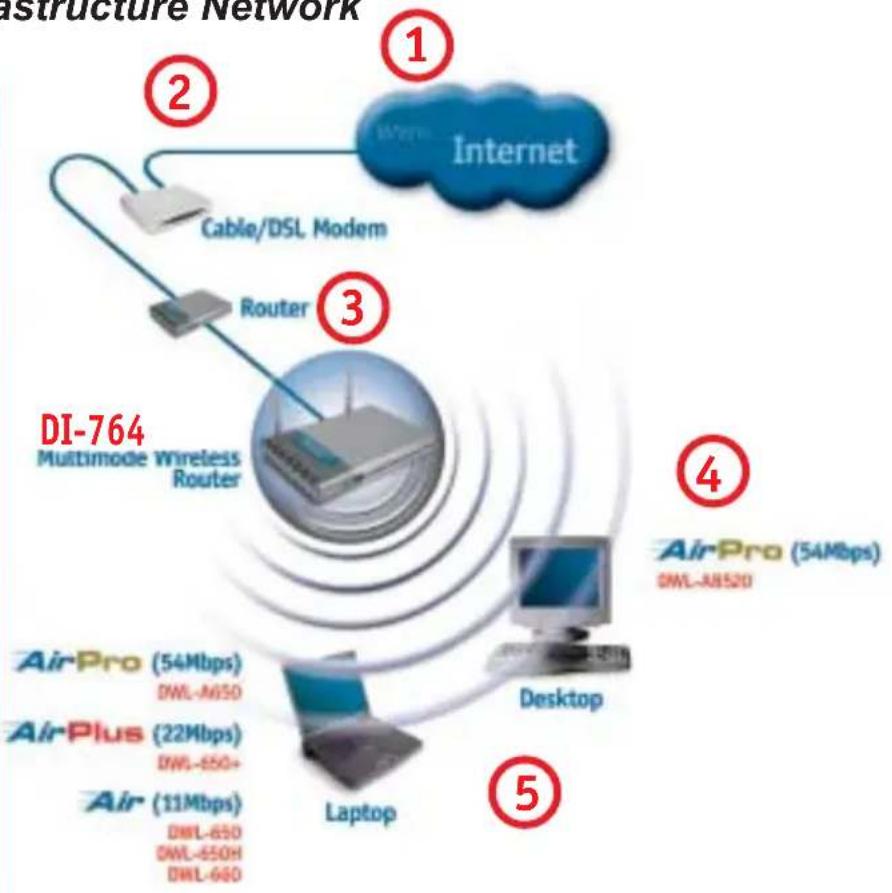
An Infrastructure network contains an Access Point or Router. The Infrastructure Network example shown on the following page contains the following D-Link network devices (your existing network may be comprised of other devices):
A wireless Router - D-Link AirPro DI-764
A laptop computer with a wireless adapter - D-Link AirPro DWL-A650 or AirPlus DWL-650+
A desktop computer with a wireless adapter - D-Link AirPro DWL-AB520
A Cable modem - D-Link DCM-200
Getting Started
Setting up a Wireless Infrastructure Network
Please refer to the following sections of this manual for additional information about setting up a network:
Networking Basics - learn how to check and assign your IP Address; share printers and files.
Using the Configuration Menu - learn the settings for the DWL-AB520, using the web-based interface.
Troubleshooting - learn how to check for common installation issues and other tips for troubleshooting.
flowchart
graph TD
    A["Internet"] -->|①| B["Cable/DSL Modem"]
    B --> C["Router"]
    C --> D["DI-764 Multimode Wireless Router"]
    D --> E["AirPro (54Mbps) DWL-A8520"]
    D --> F["AirPlus (22Mbps) DWL-650+"]
    D --> G["Air (11Mbps) DWL-650 DWL-650H DWL-660"]
    D --> H["Laptop"]
    H --> I["Desktop"]
    style A fill:#f9f,stroke:#333
    style B fill:#ccf,stroke:#333
    style C fill:#cfc,stroke:#333
    style D fill:#fcc,stroke:#333
    style E fill:#ffc,stroke:#333
    style F fill:#cfc,stroke:#333
    style G fill:#cfc,stroke:#333
    style H fill:#cfc,stroke:#333
    style I fill:#fcc,stroke:#333
Please remember that D-Link AirPro wireless devices are pre-configured to connect together, right out of the box, with their default settings.
For a typical wireless setup at home (as shown above), please do the following:

You will need broadband Internet access (a Cable or DSL-subscriber line into your home or office)

Consult with your Cable or DSL provider for proper installation of the modem

Connect the Cable or DSL modem to your broadband router (see the Quick Installation Guide included with your router.)

Install the D-Link AirPro DWL-AB520 wireless PCI adapter into an available PCI slot on your desktop computer. (See the Quick Installation Guide included with the DWL-AB520.)

If you are connecting a laptop computer to your network, install the drivers for the wireless cardbus adapter (e.g., D-Link AirPro DWL-A650, DWL-650+ or the DWL-650) into a laptop computer. (See the Quick Installation Guide included with the DWL-A650, DWL-650+, or DWL-650.)
Getting Started
Setting up a Wireless Ad Hoc Network
text_image
① Computer D-Link DWL-AB520 ② Laptop D-Link DWL-A650 DWL-650+ DWL-650
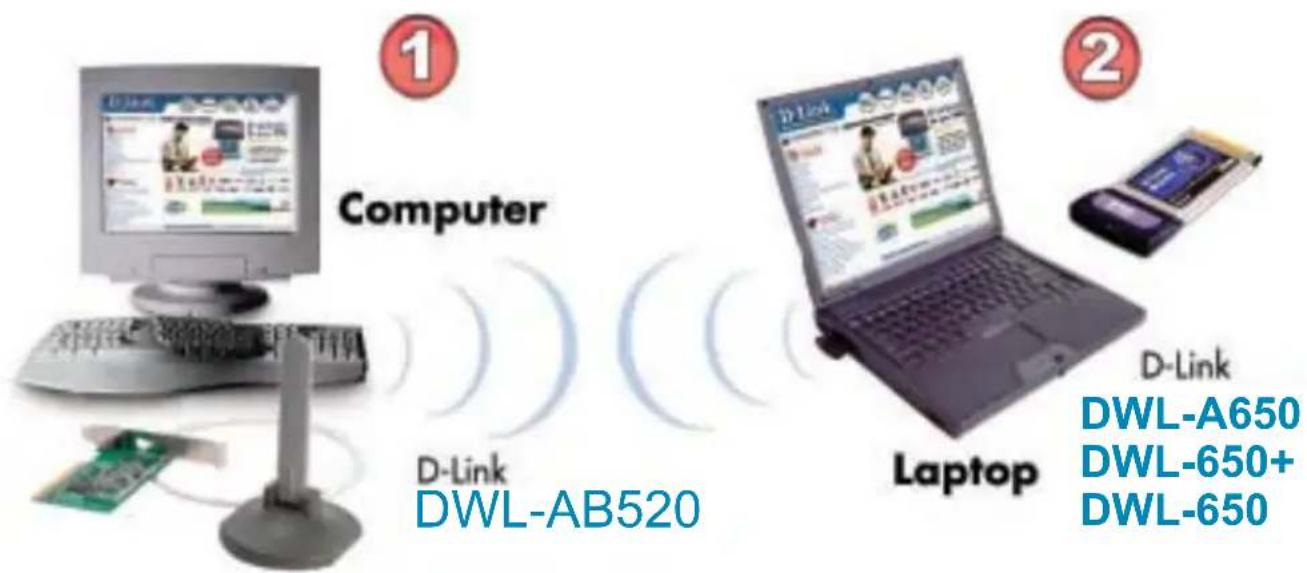
Install the D-Link AirPro DWL-AB520 Wireless Network adapter into the desktop computer. See the Quick Installation Guide included with the product for installation instructions.

Install a wireless network adapter into the laptop computer. In the example above the DWL-A650, DWL-650+ or DWL-650 may be installed into a laptop computer. See the Quick Installation Guide included with the product.

Set the wireless configuration for the adapters to Ad-Hoc mode, set the adapters to the same channel, and assign an IP Address to each computer on the Ad-Hoc network. (See Box below)
IP Address
When assigning IP Addresses to the computers on the network, please remember that the IP Address for each computer must be in the same IP Address range as all the computers in the network, and the subnet mask must be exactly the same for all the computers in the network.
For example: If the first computer is assigned an IP Address of 192.168.0.2 with a Subnet Mask of 255.255.255.0, then the second computer can be assigned an IP Address of 192.168.0.3 with a Subnet Mask of 255.255.255.0, etc.
IMPORTANT: If computers or other devices are assigned the same IP Address, one or more of the devices may not be visible on the network.
Using the Configuration Utility
If you want to alter the default settings or optimize the performance of the DWL-AB520, D-Link has included a configuration utility to do so.
Note: With its default settings, the DWL-AB520 will associate with D-Link Air/AirPro products such as the DI-764 (a wireless router), and the DWL-A650 (a wireless adapter for laptops), right out of the box.
Before you use the configuration utility for the DWL-AB520, you must install the drivers and the configuration utility by inserting the CD-ROM that came with the DWL-AB520. (Please see the Quick Installation Guide that came with the product.) After you have completed this installation and restarted your computer, you can access the Configuration Utility at any time by clicking on the icon in your taskbar at the bottom right corner of your PC's screen.
After double-clicking on the icon in the taskbar (shown at right), the following Configuration Utility window will appear:

Configuration

text_image
D-Link AirPro DWL-AB520 Wireless PCI Adapter Configuration | Status | Option | About | Available WLANs: To connect to available WLAN, click Add to setup. test Refresh Add Preferred WLANs: Automatically connect to available WLAN per below order: test Move up Move down New Remove Properties Advanced OK Cancel ApplyUsing the Configuration Utility
Configuration (continued)
| Refresh- | click Refresh to display the current networks available |
| Add- | highlight the network to which you wish to connect and click Add |
| New- | click New to connect to the Preferred WLAN |
| Remove- | click Remove to eliminate the highlighted network |
| Move up- | click Move up to move the network up higher in the list |
| Move down- | click Move down to move the network lower in the list |
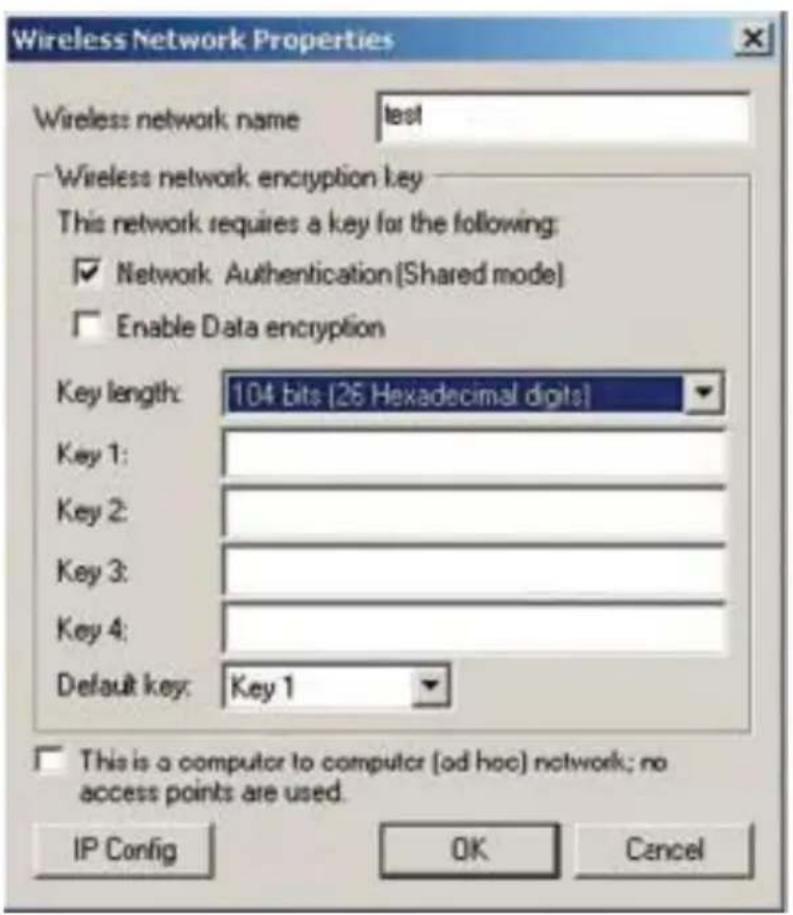
| Properties- | click Properties to configure the highlighted network and the screen below will appear |
Configuration>Properties
text_image
Wireless Network Properties Wireless: network name test Wireless network encryption key This network requires a key for the following: ✓ Network Authentication (Shared mode) ☐ Enable Data encryption Key length: 104 bits [26 Hexadecimal digits] Key 1: Key 2: Key 3: Key 4: Default key: Key 1 ☐ This is a computer to computer (ad hoc) network; no access points are used. IP Config OK CancelUsing the Configuration Utility
Configuration>Advanced
text_image
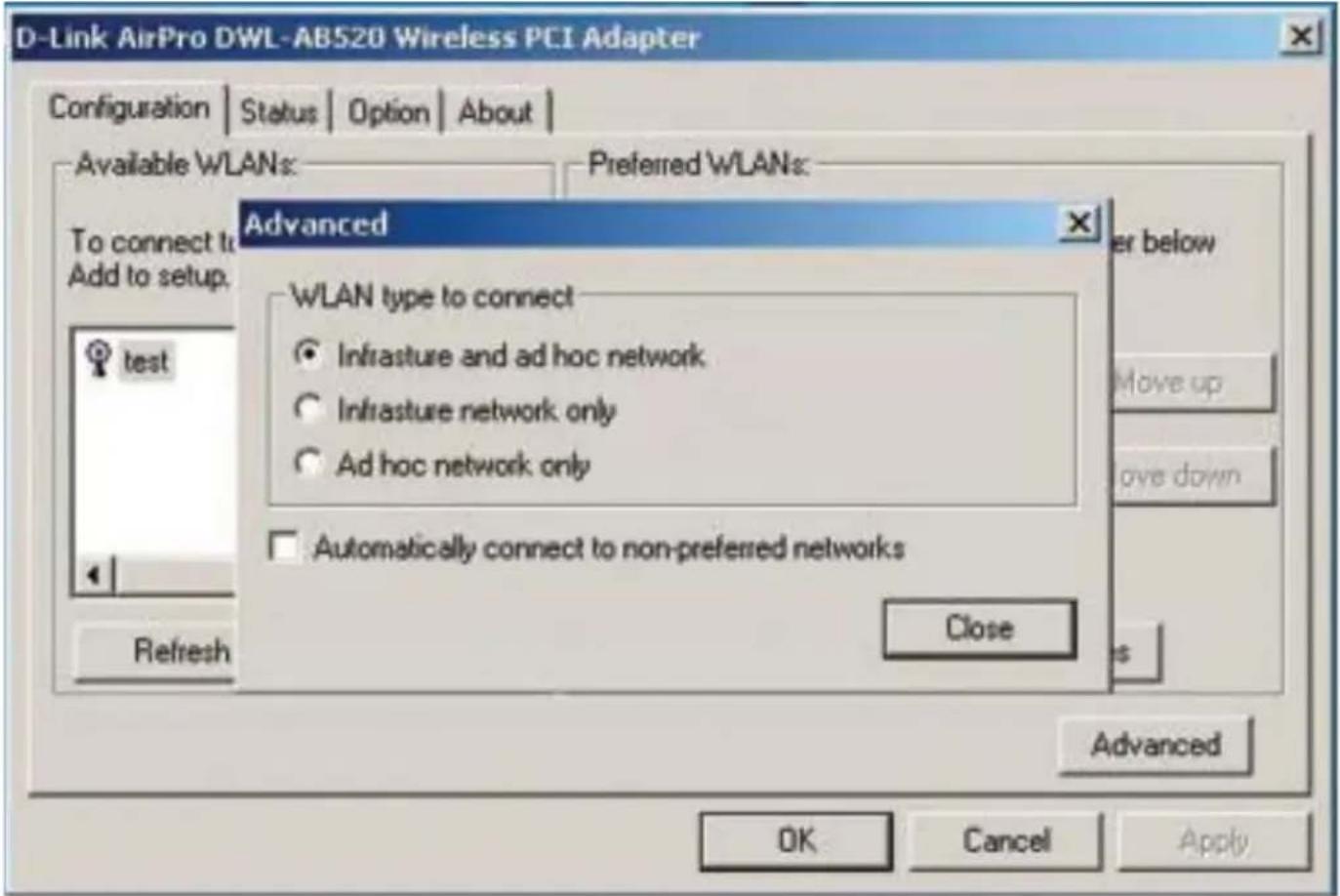
D-Link AirPro DWL-AB520 Wireless PCI Adapter Configuration | Status | Option | About | Available WLANs: Preferred WLANs: Advanced To connect to Add to setup. test Refresh WLAN type to connect ● Infrastructure and ad hoc network ○ Infrastructure network only ○ Ad hoc network only □ Automatically connect to non-preferred networks Close Enter below Move up Move down OK Cancel ApplyClick on Advanced in the Configuration window to select the type of WLAN (Wireless Local Area Network) to which you wish to connect. Select from the following options in the Advanced pop-up window:
WLAN type to connect
Infrastructure and ad-hoc network-
choose this option to connect to both Infrastructure and Ad-Hoc networks
Infrastructure network only-
choose this option to connect to Infrastructure networks only (networks with an Access Point like the DI-764)
Ad-hoc network only-
choose this option to connect directly to another ethernet adapter equipped computer
Automatically connect to non-preferred networks-
choose this option to connect to any available network. (This option could result in a security risk.)
Close-
click Close to save the changes.
Using the Configuration Utility
Status

text_image
D-Link AirPro DWL-AB520 Wireless PCI Adapter Configuration Status Option About Connection State Connection Status : Connected Network name hestlab Network Type : Infrastructure Wep Status :_Disable Speed : 11.0 Mbps Signal Strength : Hardware Information MAC Address : 00:40:05:C1:0B:3E Advance State Radio Status : ON Turbo Mode :_Disable OK Cancel Apply
If you enable WEP encryption or Turbo Mode make sure to enable WEP encryption and Turbo Mode on all the devices in your network.
The Status screen displays the current properties of the DWL-AB520.
Connection Status- indicates the connection status: either connected or disconnected.
Network Name- displays the network name that you have input
Network Type- indicates either Infrastructure, Ad-Hoc or Infrastructure and Ad-Hoc
WEP Status- either Enable or Disable
WEP stands for Wired Equivalent Privacy. It is a security protocol for Wireless Local Area Networks
Speed- indicates data rate speed
Signal Strength- displays the signal strength
MAC Address- Media Access Control address is a unique hardware address that identifies the DWL-AB520 on the network
Radio Status- ON or OFF
Turbo Mode- Enable or Disable. Disable is the default setting
Click OK or Apply- click Apply to save the changes
Using the Configuration Utility
Option

text_image
D-Link AirPro DWL-AB520 Wireless PCI Adapter Configuration Status Option About General Setting ✓ Auto launch when Windows starts up ☐ Enable profile IP Settings - Leave blank to use Windows IP settings for this adapter ☐ Disable Radio Advance Setting ☐ Enable Turbo Mode Encryption Type: Auto Power Save Mode: Fast Save Radio Frequency: Auto OK Cancel Apply Click on the About tab to find out the firmware versionGeneral Setting
Auto Launch when Windows starts up-
automatically enables the adapter when Windows starts up. By default this option is selected.
Advance Setting
Enable Turbo Mode-
disable is the default setting. Make sure all devices in your network have identical settings for Turbo mode
Encryption Type-
select from Auto, WEP or AES
Power Save Mode- select from Fast Save, Max. Save or Disable. Default is Fast Save.
Radio Frequency-
select from 802.11b - 2.4GHz, 802.11a - 5GHz or Auto. Default is Auto.
Click OK or Apply- click Apply to save the changes; click OK to close the utility
Networking Basics
Using the Network Setup Wizard in Windows XP
In this section you will learn how to establish a network at home or work, using Microsoft Windows XP.
Note: Please refer to websites such as http://www.homenethelp.com and http://www.microsoft.com/windows2000 for information about networking computers using Windows 2000, ME or 98SE.
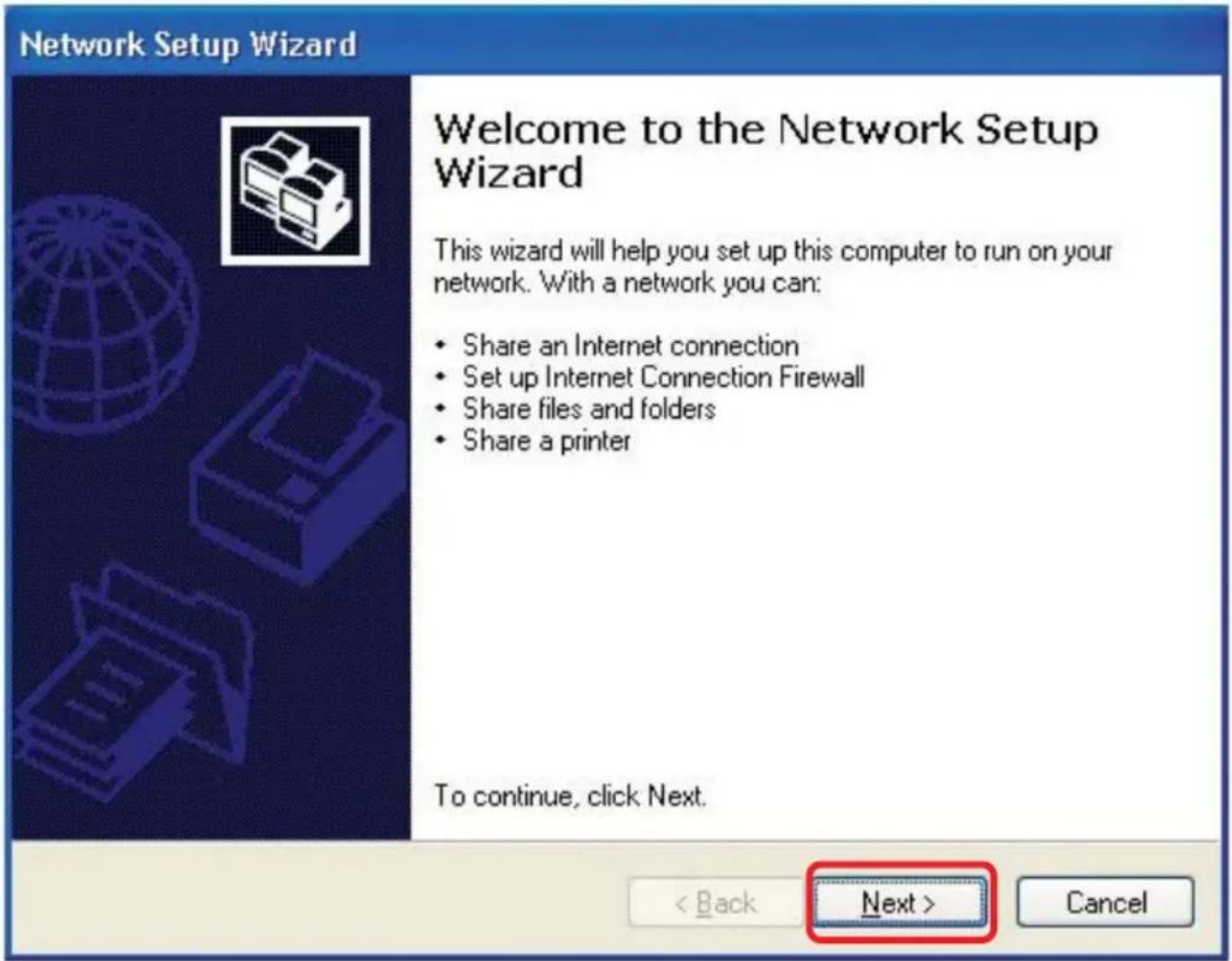
Go to Start>Control Panel>Network Connections Select Set up a home or small office network
text_image
Network Setup Wizard Welcome to the Network Setup Wizard This wizard will help you set up this computer to run on your network. With a network you can: • Share an Internet connection • Set up Internet Connection Firewall • Share files and folders • Share a printer To continue, click Next. < Back Next > CancelWhen this screen appears, Click Next.
Networking Basics
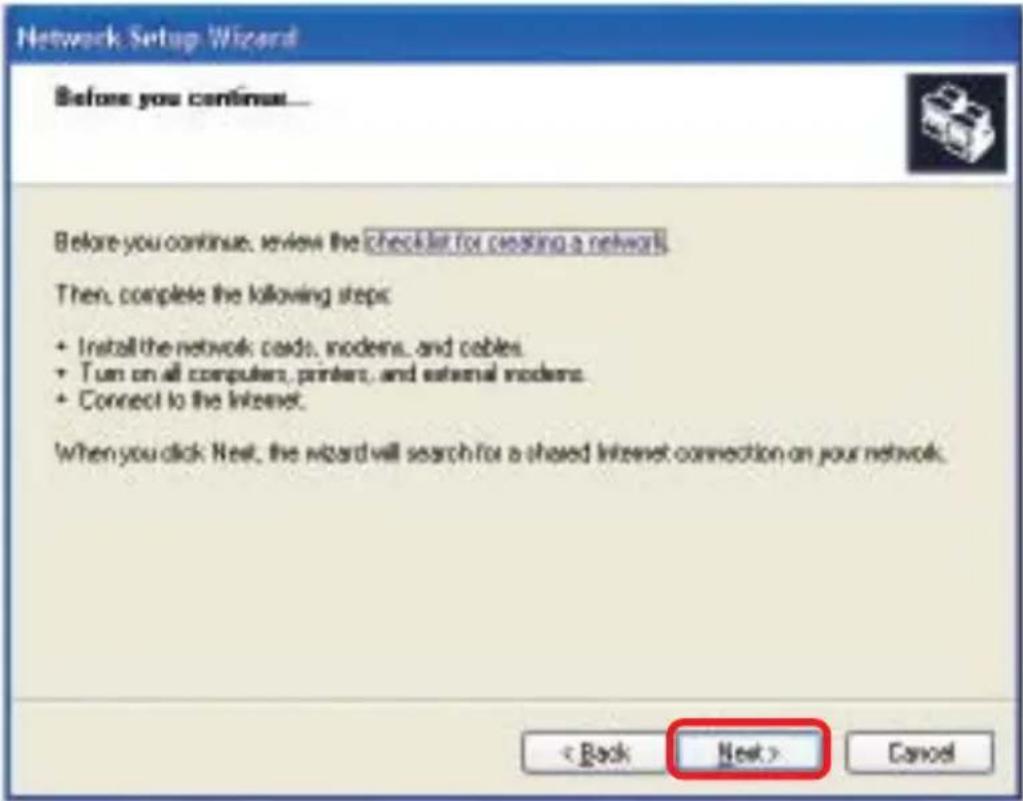
Please follow all the instructions in this window:
text_image
Network Setup Wizard Before you continue... Before you continue, review the checklist for ceasing a network. Then, complete the following steps: • Install the network: cards, modems, and cables. • Turn on all computers, printers, and external modems. • Connect to the Internet. When you click Next, the wizard will search for a shared Internet connection on your network. < Back Next > CancelClick Next
In the following window, select the best description of your computer. If your computer connects to the internet through a gateway/router, select the second option as shown.

text_image
Network Setup Wizard Select a connection method. Select the statement that best describes this computer: ○ This computer connects directly to the Internet. The other computers on my network connect: to the Internet through this computer. View an example. ● This computer connects to the Internet through another computer on my network or through a accidental gateway. View an example. ○ Other Learn more about home or small office network: configurations. < Back Next > CancelClick Next
Networking Basics
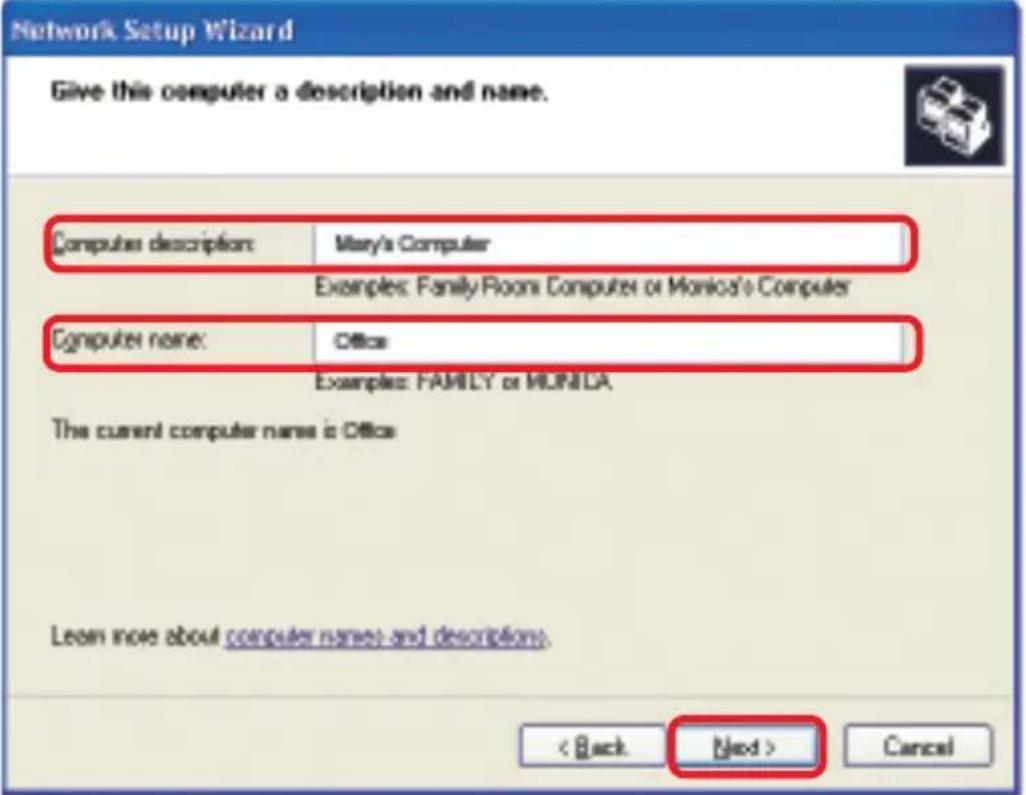
Enter a Computer description and a Computer name (optional.)
text_image
Network Setup Wizard Give this computer a description and name. Computer description: Mary's Computer Examples: Family Room Computer or Monica's Computer Computer name: Office Examples: FAMILY or MONICA The current computer name is Office Learn more about computer names and descriptions. < Back Next > CancelClick Next
Enter a Workgroup name. All computers on your network should have the same Workgroup name.

text_image
Network Setup Wizard Name your network. Name your network by specifying a workgroup name below. All computers on your network. should have the some workgroup name. Workgroup name: Accounting Examples: HOME or OFFICE < Back Next > CancelClick Next
Networking Basics
Please wait while the Network Setup Wizard applies the changes.

text_image
Network Setup Wizard Ready to apply network settings... The wizard will apply the following settings. This process may take a few minutes to complete and cannot be interrupted. Settings: Network settings: Computer description: Mary's Computer Computer name Office Workgroup name Accounting The Shared Documents folder and any printers connected to this computer have been shared. To apply these settings, click Next. < Back Next > CancelWhen the changes are complete, click Next.
Please wait while the Network Setup Wizard configures the computer. This may take a few minutes.
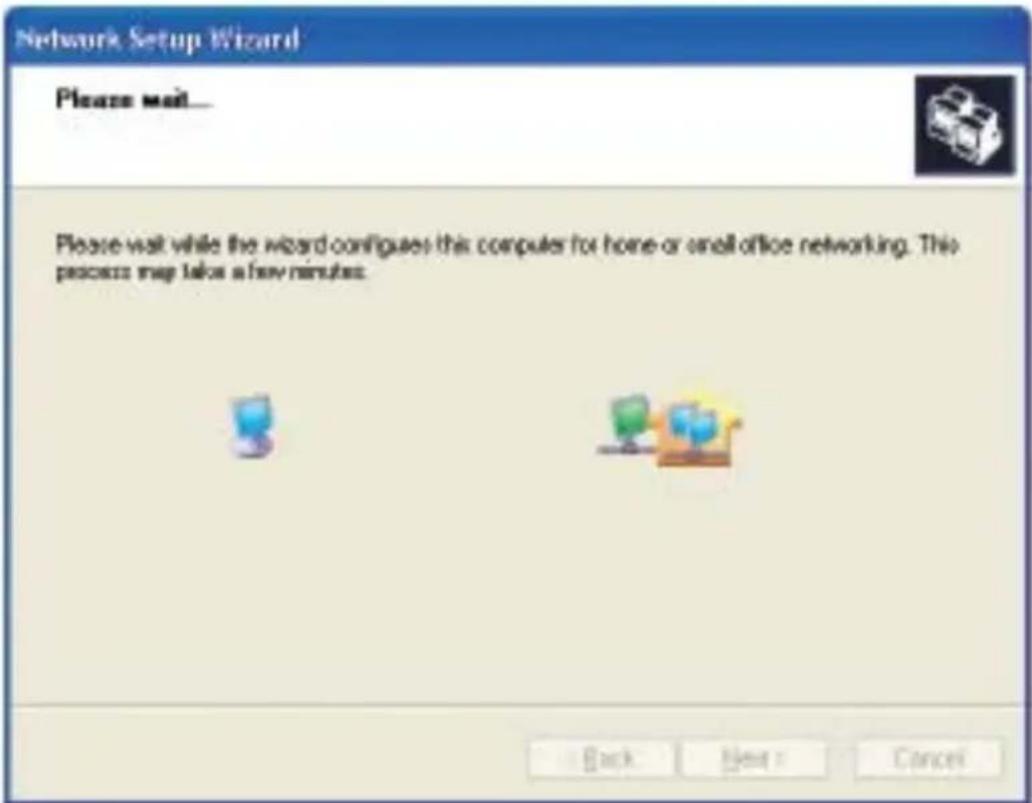
text_image
Network Setup Wizard Please wait... Please wait while the wizard configues this computer for home or small office networking. This process may take a few minutes. Back Next > CancelNetworking Basics
In the window below, select the option that fits your needs. In this example, Create a Network Setup Disk has been selected. You will run this disk on each of the computers on your network. Click Next.
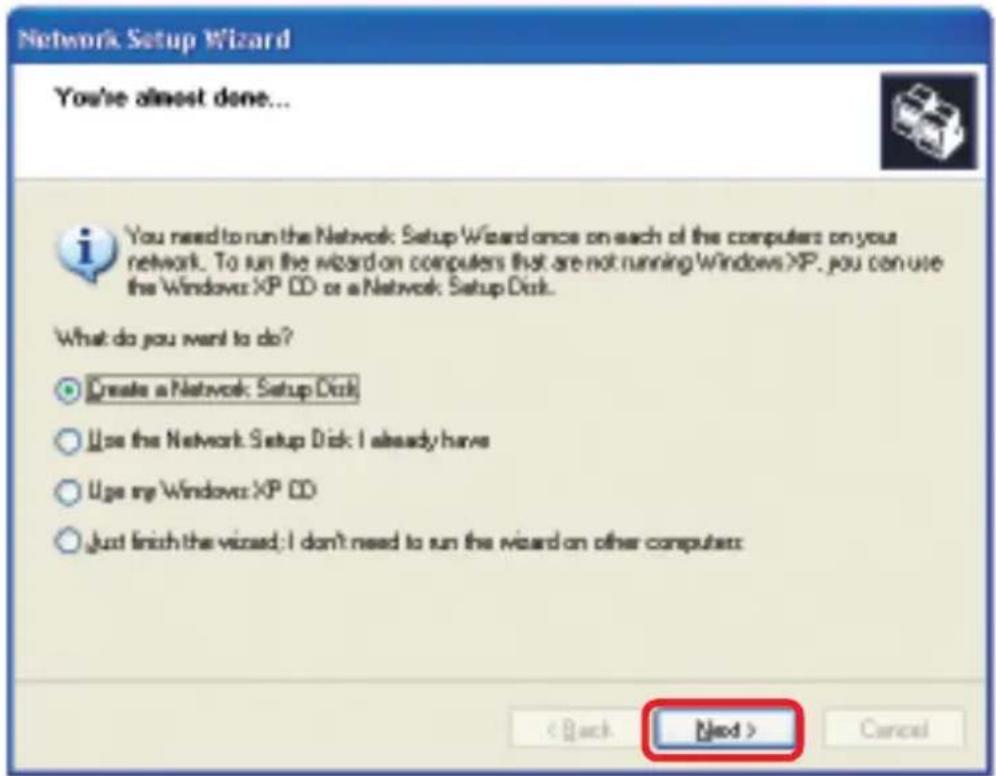
text_image
Network Setup Wizard You're almost done... You need to run the Network: Setup Wizard once on each of the computers on your network. To run the wizard on computers that are not running Windows XP, you can use the Windows XP DD or a Network Setup Disk. What do you want to do? Create a Network: Setup Disk Use the Network Setup Disk: I already have Use any Windows XP DD Just finish the wizard: I don't need to run the wizard on other computers: < Back Next > CancelInsert a disk into the Floppy Disk Drive, in this case drive A.
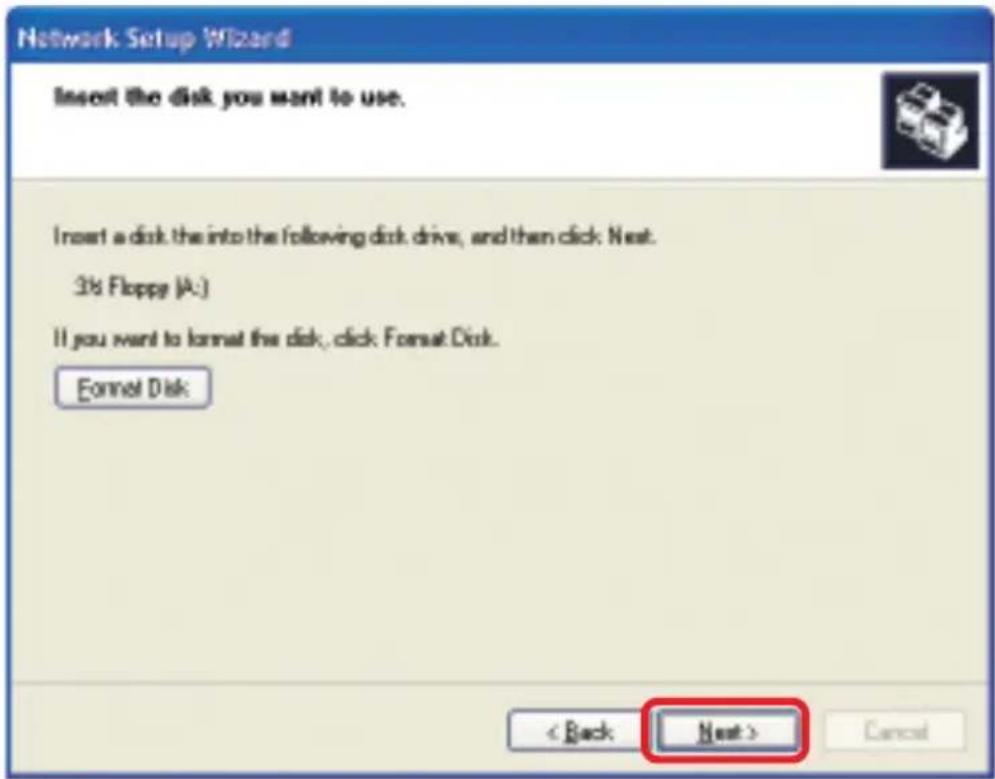
text_image
Network Setup Wizard Insert the disk you want to use. Insert a disk the into the following disk drive, and then click Next. 3/8 Floppy (A:) If you want to format the disk, click Format Disk. Format Disk: < Back Next > CancelNetworking Basics
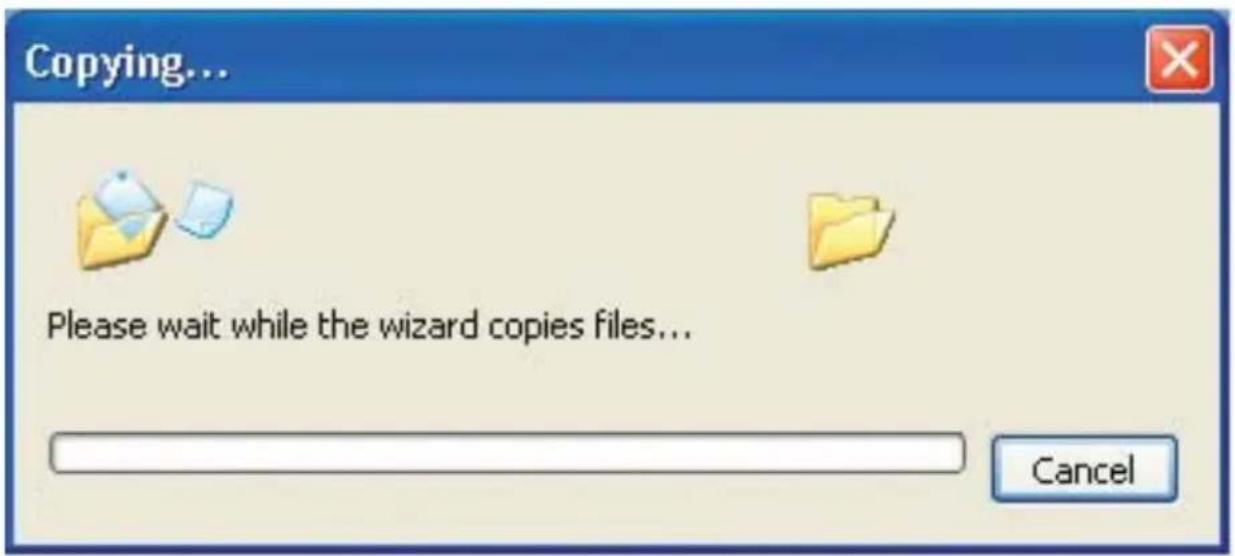
text_image
Copying... Please wait while the wizard copies files... CancelPlease read the information under Here's how in the screen below. After you complete the Network Setup Wizard you will use the Network Setup Disk to run the Network Setup Wizard once on each of the computers on your network. To continue click Next.

text_image
Network Setup Wizard To run the wizard with the Network Setup Disk... Complete the wizard and restart this computer. Then, use the Network Setup Disk to run the Network Setup Wizard once on each of the other computers on your network. Here's how: 1. Insert the Network Setup Disk into the next computer you want to network. 2. Open My Computer and then open the Network Setup Disk. 3. Double-click "netsetup." < Back Next > CancelNetworking Basics
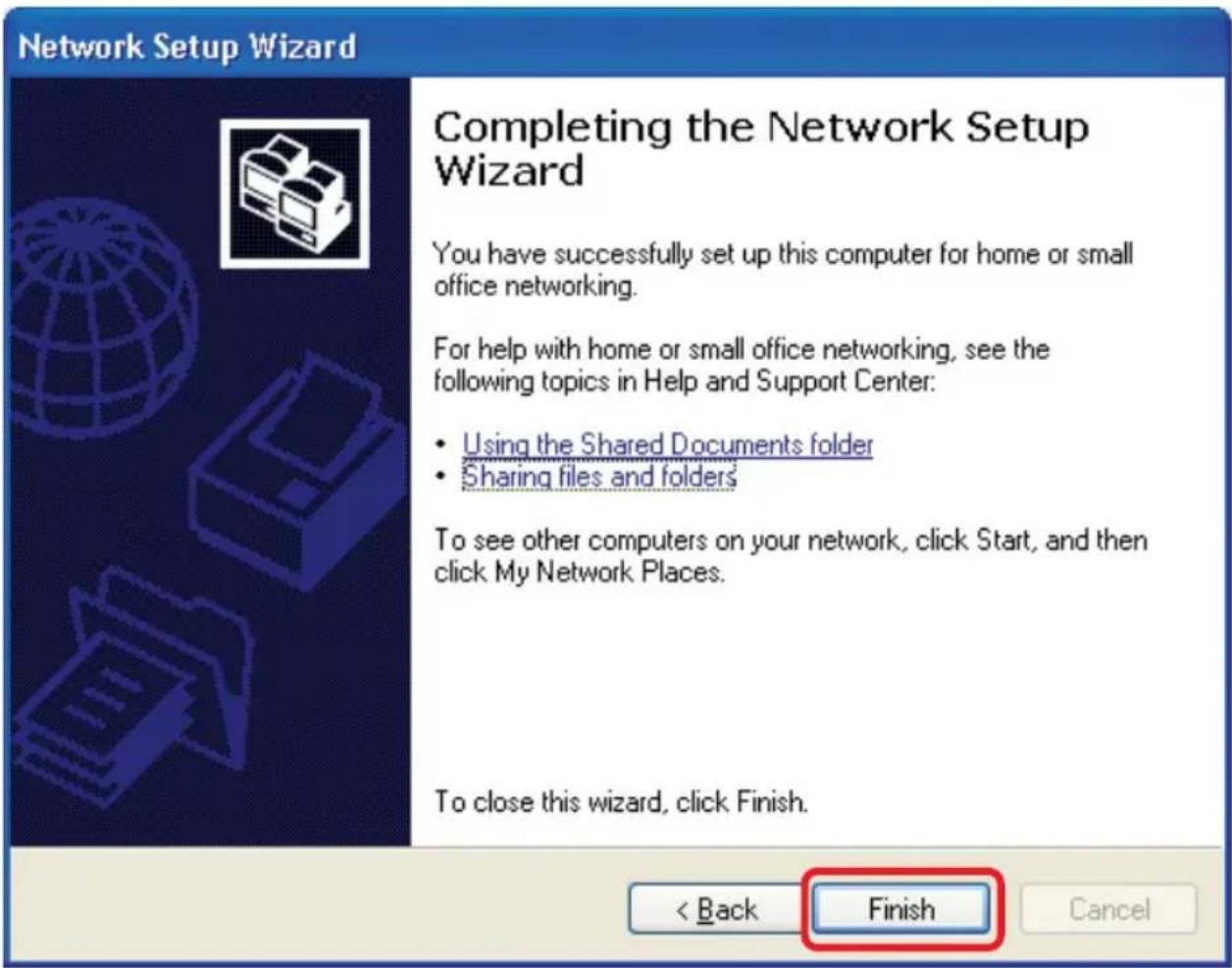
Please read the information on this screen, then click Finish to complete the Network Setup Wizard.
text_image
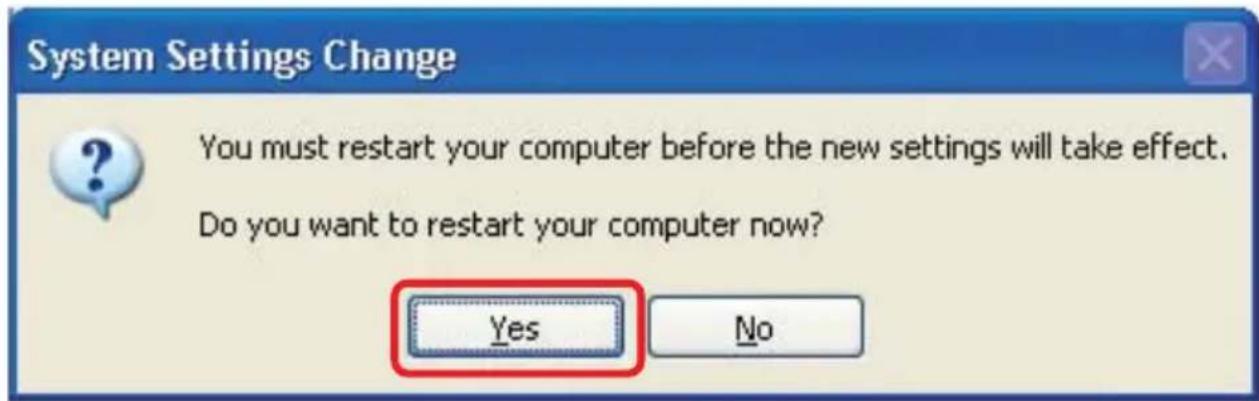
Network Setup Wizard Completing the Network Setup Wizard You have successfully set up this computer for home or small office networking. For help with home or small office networking, see the following topics in Help and Support Center: • Using the Shared Documents folder • Sharing files and folders To see other computers on your network, click Start, and then click My Network Places. To close this wizard, click Finish. < Back Finish CancelThe new settings will take effect when you restart the computer. Click Yes to restart the computer.
text_image
System Settings Change You must restart your computer before the new settings will take effect. Do you want to restart your computer now? Yes NoYou have completed configuring this computer. Next, you will need to run the Network Setup Disk on all the other computers on your network. After running the Network Setup Disk on all your computers, your new wireless network will be ready to use.
Networking Basics Naming your Computer
To name your computer, please follow these directions: In Windows XP:
- Click Start (in the lower left corner of the screen)
Right-click on My Computer
Select Properties and click

text_image
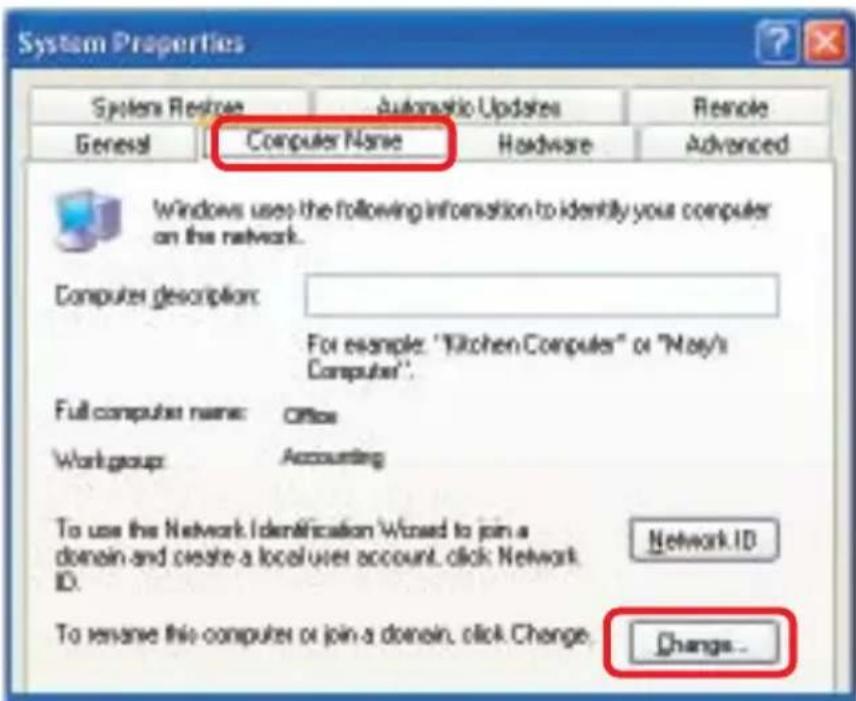
Internet Internet Explorer E-mail Outlook Express Command Prompt MSN Explorer Windows Media Player Windows Movie Maker Tour Windows XP Files and Settings Transfer Wizard My Documents My Recent Documents * My Pictures My Music: My Computer My Network Control Panel Connect To Printers and P Help and Sup Open Explore Search... Manage Map Network,Drive... Disconnect Network,Drive... Show on Desktop Rename Properties■ Select the Computer Name Tab in the System Properties window.
You may enter a Computer Description if you wish; this field is optional.
■ To rename the computer and join a domain, Click Change.
text_image
System Properties System Restore Automatic Updates Remote General Computer Name Hardware Advanced Windows uses the following information to identify your computer on the network. Computer description: For example: "Kitchen Computer" or "May's Computer". Full computer name: Office Work group: Accounting To use the Network Identification Wizard to join a domain and create a local user account, click Network ID. Network ID To revise this computer or join a domain, click Change... Change...Networking Basics Naming your Computer
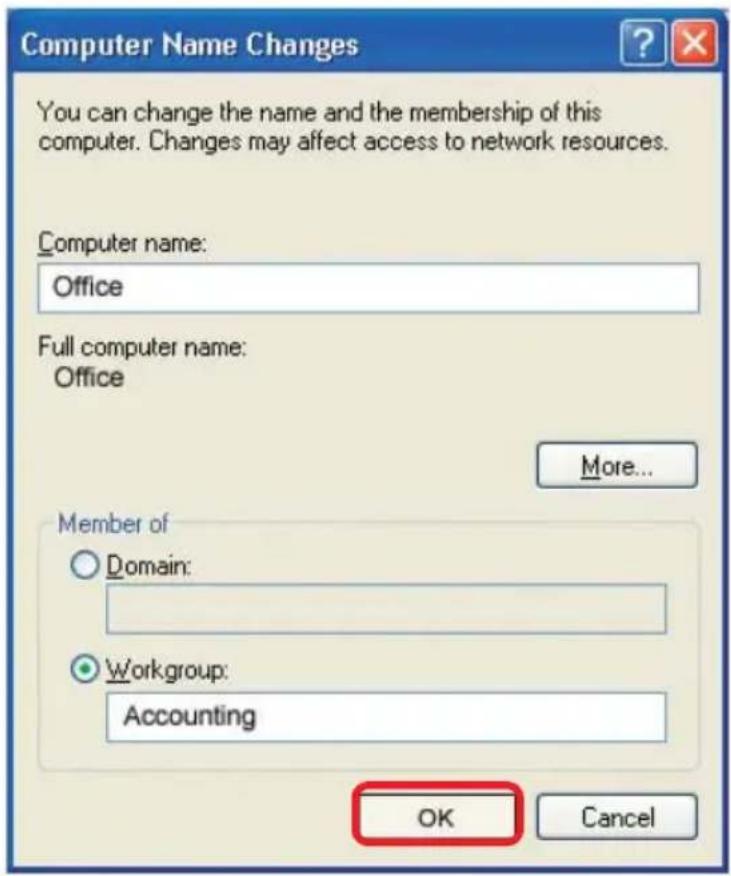
In this window, enter the Computer name
■ Select Workgroup and enter the name of the Workgroup
All computers on your network must have the same Workgroup name.
Click OK
text_image
Computer Name Changes You can change the name and the membership of this computer. Changes may affect access to network resources. Computer name: Office Full computer name: Office More... Member of ○ Domain: ● Workgroup: Accounting OK CancelChecking the IP Address in Windows XP
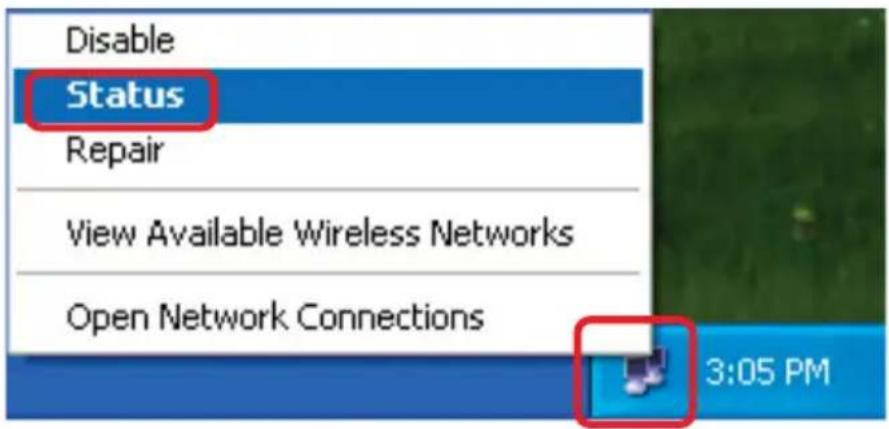
The wireless adapter-equipped computers in your network must be in the same IP Address range (see Getting Started in this manual for a definition of IP Address Range.) To check on the IP Address of the adapter, please do the following:
Right-click on the Local Area Connection icon in the task bar
Click on Status
text_image
Disable Status Repair View Available Wireless Networks Open Network Connections 3:05 PMNetworking Basics
Checking the IP Address in Windows XP
This window will appear.
Click the Support tab
Click Close

text_image
Wireless Network Connection 7 Status General Support Internet Protocol (TCP/IP) Address Type: Assigned by DHCP IP Address: 192.168.0.114 Subnet Mask: 255.255.255.0 Default Gateway: 192.168.0.1 Details... Repair CloseAssigning a Static IP Address in Windows XP/2000
Note: Residential Gateways/Broadband Routers will automatically assign IP Addresses to the computers on the network, using DHCP (Dynamic Host Configuration Protocol) technology. If you are using a DHCP-capable Gateway/Router you will not need to assign Static IP Addresses.
If you are not using a DHCP capable Gateway/Router, or you need to assign a Static IP Address, please follow these instructions:
Go to Start
Double-click on Control Panel

text_image
Tour Windows XP Files and Settings Transfer Wizard Paint All Programs Control Panel Printers and Faxes Help and Support Search Run... Start Log Off Turn Off ComputerNetworking Basics
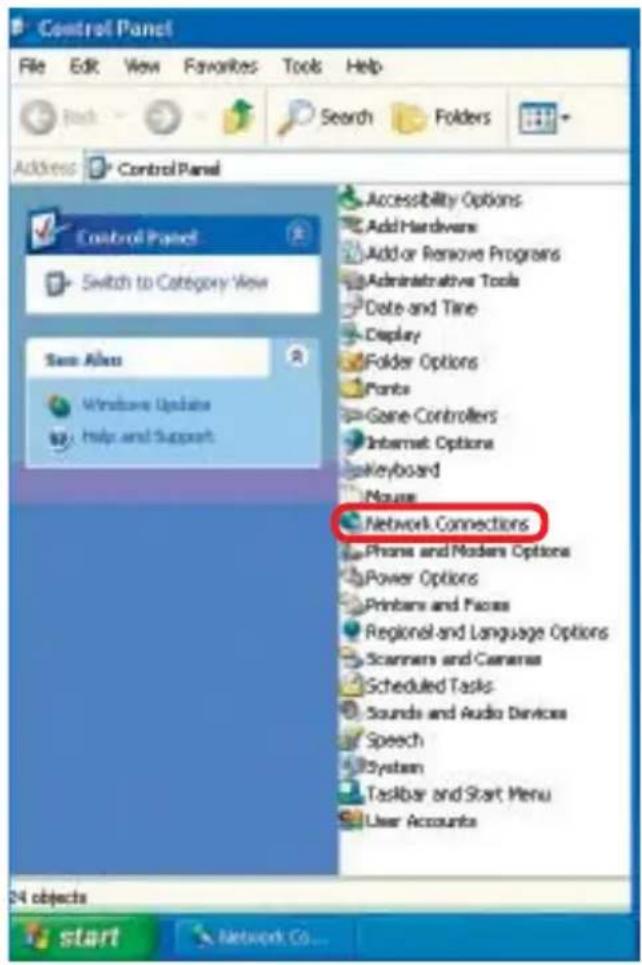
Assigning a Static IP Address in Windows XP/2000
Double-click on Network Connections
text_image
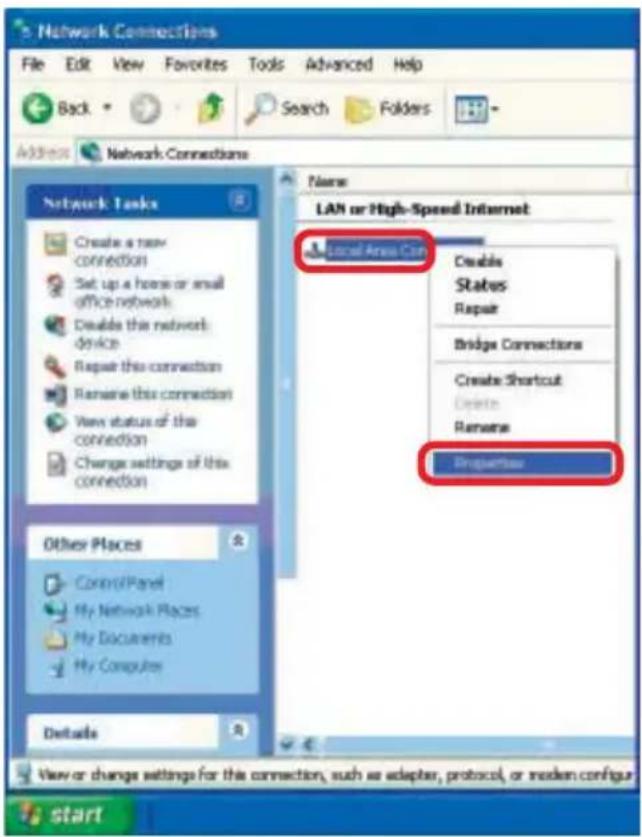
Control Panel File Edit View Favorites Tools Help Back Search Folders Address Control Panel Control Panel Switch to Category View Save Atlas Windows Updates Help and Support Accessibility Options Add Hardwires Add or Remove Programs Administrative Tools Delete and Time Display Folder Options Fonts Game Controllers Internet Options Keyboard Mouse Network Connections Phone and Modems Options Power Options Printers and Faces Regional and Language Options Scammers and Cameras Scheduled Tasks- Sounds and Audio Devices Speech System Toolbar and Start Menu User Accounts 24 objects start Network Co...Right-click on Local Area Connections
Double-click on Properties
text_image
Network Connections File Edit View Favorites Tools Advanced Help Back Search Folders Address Network Connections Network Tasks Create a new connection Set up a home or email office network Deals this network device Repair this connection Rename this connection View status of this connection Change settings of this connection Other Places Control Panel My Network Places My Documents My Computers Details LAN or High-Speed Internet Local Area Can Create States Repair Bridge Connections Create Shortcut Delete Rename Properties View or change settings for this connection, such as adapter, protocol, or modem configur startNetworking Basics Assigning a Static IP Address in Windows XP/2000
- Click on Internet Protocol (TCP/IP)
Click Properties
Input your IP address and subnet mask. (The IP Addresses on your network must be within the same range. For example, if one computer has an IP Address of 192.168.0.2, the other computers should have IP Addresses that are sequential, like 192.168.0.3 and 192.168.0.4. The subnet mask must be the same for all the computers on the network.)
Input your DNS server addresses. (Note: If you are entering a DNS server, you must enter the IP Address of the Default Gateway.)
The DNS server information will be supplied by your ISP (Internet Service Provider.)
Click OK

text_image
Local Area Connection 7 Properties General Advanced Connect using: D-Link 07A1-A650 Configure... This connection uses the following items: Client for Microsoft Networks File and Printer Sharing for Microsoft Networks OnS Packet Schedules Internet Protocol (TCP/IP) Install... Uninstall Properties Description Transmission Control Protocol/Internet Protocol. The default wide area network protocol that provides communication across diverse interconnected networks. Show icon in notification area when connected OK Cancel
text_image
Internet Protocol (TCP/IP) Properties General You can get IP settings assigned automatically if your network supports this capability. Otherwise, you need to ask your network administrator for the appropriate IP settings. Obtain on IP address automatically Use the following IP address: IP address: 192 . 168 . 0 . 2 Submit reach: 255 . 255 . 255 . 0 Default gateway: . Obtain DNS server address automatically Use the following DNS server addresses: Preferred DNS server: . Alternate DNS server: . Advanced... OK CancelNetworking Basics
Checking the Wireless Connection by Pinging in Windows XP and 2000
Go to Start > Run > type cmd. A window similar to this one will appear. Type ping xxx.xxx.xxx.xxx, where xxx is the IP Address of the Wireless Router or Access Point. A good wireless connection will show four replies from the Wireless Router or Acess Point, as shown.

text_image
Microsoft Windows XP [Version 5.1.2640] (C) Copyright 1985-2001 Microsoft Corp. P:\Documents and Settings\lab3>ping 192.168.0.50 Pinging 192.168.0.50 with 32 bytes of data! Reply from 192.168.0.50: bytes=32 time(1ms TTL=64) Reply from 192.168.0.50: bytes=32 time(1ms TTL=64) Reply from 192.168.0.50: bytes=32 time(1ms TTL=64) Reply from 192.168.0.50: bytes=32 time(1ms TTL=64) Ping statistics for 192.168.0.50: Packets: Sent = 4, Received = 4, Lost = 0 (8x less), Approximate round trip times in milli-seconds: Minimum = 0ms, Maximum = 0ms, Average = 0ms P:\Documents and Settings\lab3>Checking the Wireless Connection by Pinging in Windows Me and 98
Go to Start > Run
type command. A window similar to this will appear. Type ping xxx.xxx.xxx.xxx where xxx is the IP Address of the Wireless Router or Access Point. A good wireless connection will show four replies from the wireless router or access point, as shown.

text_image
C:\WINDOWS\DESKTOP>ed.. C:\WINDOWS>ed.. G:\>>ping 192.168.0.1 Pinging 192.168.0.1 with 32 bytes of data: Reply from 192.168.0.1: bytes=32 time<18ms TTL=64 Reply from 192.168.0.1: bytes=32 time<18ms TTL=64 Reply from 192.168.0.1: bytes=32 time<18ms TTL=64 Reply from 192.168.0.1: bytes=32 time<18ms TTL=64 Ping statistics for 192.168.0.1: Packets: $ent = 4, Received = 4, Lost = 0 (Hz loss). Approximate round trip times in milli-seconds: Minimum = 0ms, Maximum = 0ms, Average = 0ms G:\>Troubleshooting
This chapter provides solutions to problems that can occur during the installation and operation of the DWL-AB520. Read the following descriptions if you are having problems. (The examples below are illustrated in Windows XP. If you have another operating system, these solutions will still apply although the appearance on your computer screen may differ.)
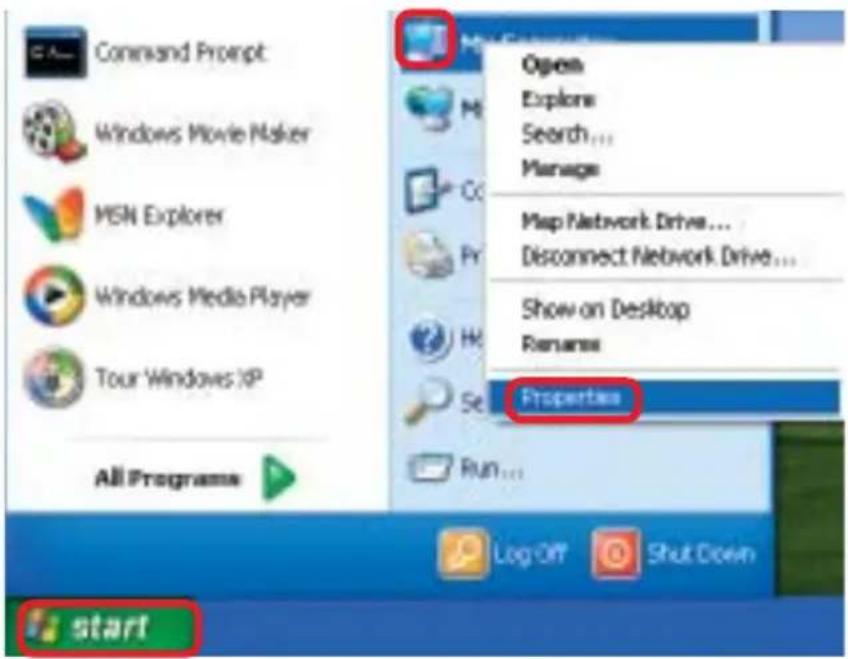
1. Check that the drivers for the DWL-AB520 are installed properly.
Go to Start > My Computer > Properties
text_image
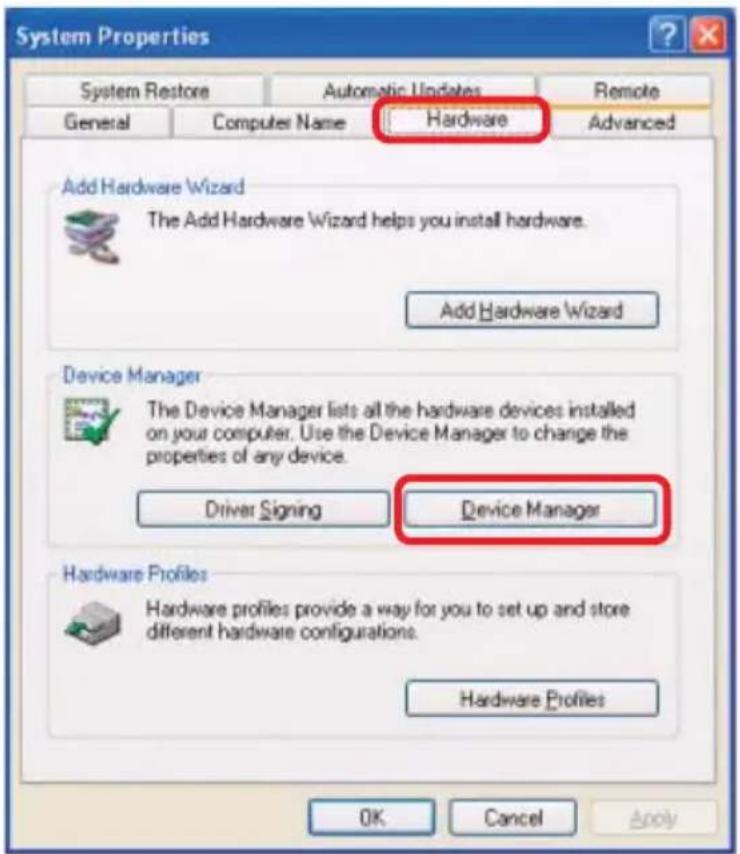
Command Prompt Windows Movie Maker MSN Explorer Windows Media Player Tour Windows XP All Programs Open Explore Search... Manage Map Network Drive... Disconnect Network Drive... Show on Desktop Rename Properties Run... Log Off Shut Down start■ Select the Hardware Tab
Click Device Manager
text_image
System Properties System Restore Automatic Updates Remote General Computer Name Hardware Advanced Add Hardware Wizard The Add Hardware Wizard helps you install hardware. Add Hardware Wizard Device Manager The Device Manager lists all the hardware devices installed on your computer. Use the Device Manager to change the properties of any device. Driver Signing Device Manager Hardware Profiles Hardware profiles provide a way for you to set up and store different hardware configurations. Hardware Profiles OK Cancel ApplyTroubleshooting
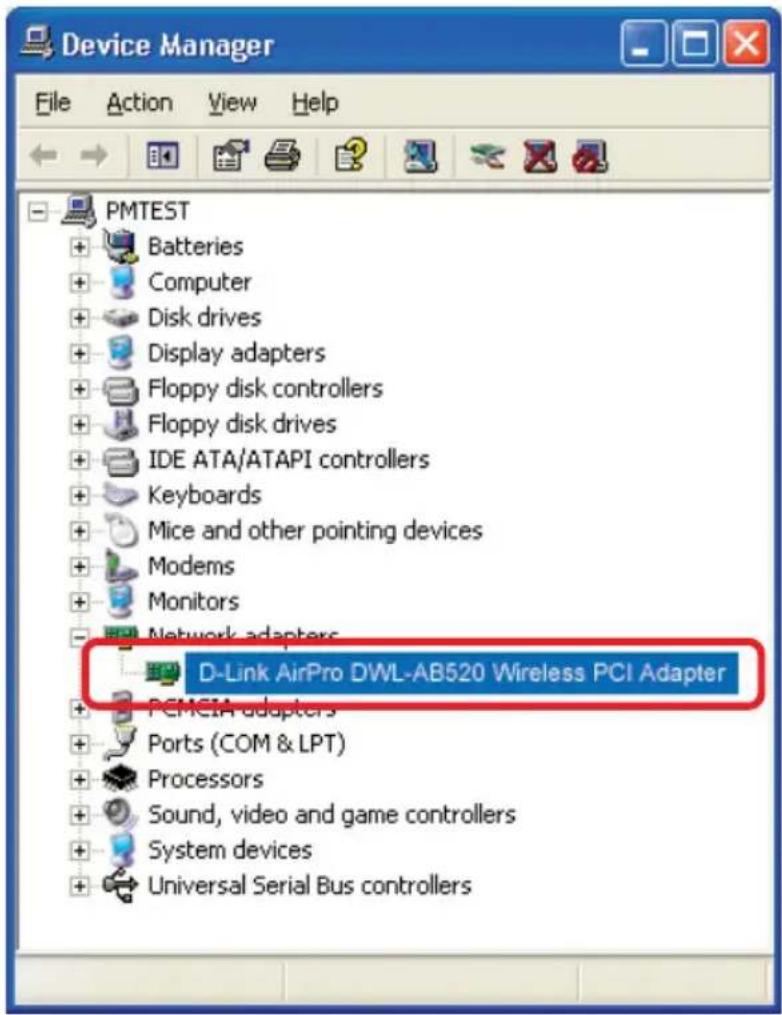
Double-click on Network Adapters
Right-click on D-Link AirPro DWL-AB520 Wireless PCI Adapter
Select Properties to check that the drivers are installed properly
Look under Device Status to check that the device is working properly
Click OK
text_image
Device Manager File Action View Help PMTEST + Batteries + Computer + Disk drives + Display adapters + Floppy disk controllers + Floppy disk drives + IDE ATA/ATAPI controllers + Keyboards + Mice and other pointing devices + Modems + Monitors Network adapters D-Link AirPro DWL-AB520 Wireless PCI Adapter + PCMEIA adapters + Ports (COM & LPT) + Processors + Sound, video and game controllers + System devices + Universal Serial Bus controllers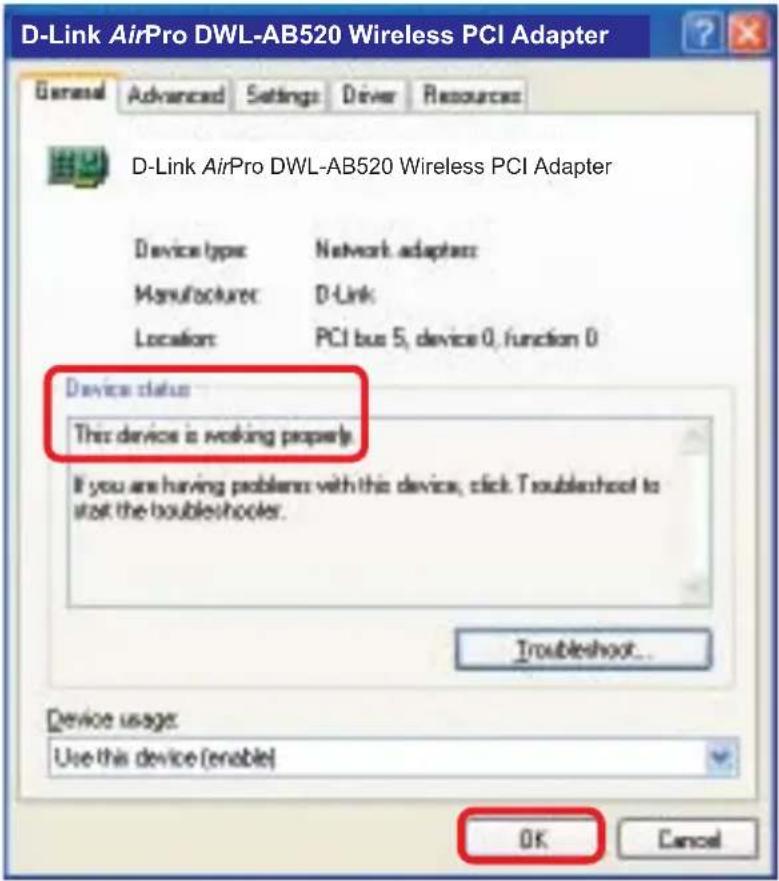
text_image
D-Link AirPro DWL-AB520 Wireless PCI Adapter General Advanced Settings Driver Resources D-Link AirPro DWL-AB520 Wireless PCI Adapter Device type Network adapter: Manufacturer D-Link Location PCI bus 5, device 0, function 0 Device status This device is working properly. If you are having problems with this device, click Troubleshoot to start the doublebooter. Troubleshoot... Device usage: Use this device (enable) OK CancelTroubleshooting
2. What variables may cause my wireless products to lose reception?
D-Link products let you access your network from virtually anywhere you want. However, the positioning of the products within your environment will affect the wireless range. Please refer to Installation Considerations in the Wireless Basics section of this manual for further information about the most advantageous placement of your D-Link wireless products.
3. Why does my wireless connection keep dropping?
Antenna Orientation- Try different antenna orientations for the DWL-AB520. Try to keep the antenna at least 6 inches away from the wall or other objects.
If you are using 2.4GHz cordless phones, X-10 equipment or other home security systems, ceiling fans, and lights, your wireless connection will degrade dramatically or drop altogether. Try changing the Channel on your Router, Access Point and Wireless adapter to a different Channel to avoid interference.
- Keep your product away (at least 3-6 feet) from electrical devices that generate RF noise, like microwaves, Monitors, electric motors, etc.
4. Why can't I get a wireless connection?
If you have enabled Encryption on the DWL-AB520, you must also enable encryption on all wireless devices in the network in order to establish a wireless connection.
For 802.11a, the Encryption settings are: 64, 128 or 152 bit. Make sure that the encryption bit level is the same on the Router (if you have an infrastructure network) and the DWL-AB520.
For 802.11b, the Encryption settings are: 64, 128, or 256 bit. Make sure that the encryption bit level is the same on the Router and the DWL-AB520.
■ Make sure that the SSID on the Router (if you have one in your network) and the DWL-AB520 are exactly the same. If they are not, wireless connection will not be established. Please note that there are two separate SSIDs for 802.11a and 802.11b. The default SSID for both 802.11a and 802.11b is default.
Technical Specifications
Standards
IEEE 802.11b
IEEE 802.11a
Diagnostic LED
Power
Network
Temperature
Operating: 0°C to 55°C (32°F to 131°F)
■ Storing: -20^ to 75^ ( -4^ to 167^ )
Humidity:
10%-90%, non-condensing
Antenna Type:
Omni-directional dipole antenna with 2\~4dB
Operating Voltage:
3.3VDC +/-10%
MTBF:
■ Mean time between failure >30,000 hours
Emissions:
FCC part 15b
Physical Dimensions:
L = 6.6 inches
W = 4.2 inches
H = 1.6 inches
Technical Specifications
802.11a Specifications
Standard:
IEEE 802.11a
Data Rates:
6, 9, 12, 18, 24, 36, 48, 54 (72 Mbps in Turbo mode)
Encryption:
■ Supports 64-bit, 128-bit, and 152-bit WEP encryption with Dynamic keying
Available Channels:
12 non-overlapping channels for North America
Frequency Range:
5.150 – 5.350 and 5.725 \~ 5.825 GHz
Modulation Technology:
Orthogonal Frequency Division Multiplexing (OFDM)
Media Access Protocol:
CSMA/CA with ACK
Modulation Techniques:
BPSK
QPSK
16 QAM
64 QAM
Transmitter Output Power:
+13 \~ 14dBm at 54Mbps
Receiver Sensitivity:
-66dBm at 54Mbps
802.11b Specifications
Standard:
IEEE 802.11b
Data Rates:
1, 2, 5.5, 11Mbps (with Automatic Fallback)
Available Channels:
■ Eleven channels for North America. Three non-overlapping.
Technical Specifications
802.11b Specifications
Encryption:
■ Supports 64-bit or 128-bit WEP encryption
Frequency Range:
2.4 – 2.497 GHz
Modulation Techniques:
Transmitter Output Power:
+18dBm at 11,5.5,2 and 1 Mbps
Receiver Sensitivity:
-84dBm for 11Mbps @ 8% PER
Contacting Technical Support
You can find the most recent software and user documentation on the D-Link website.
D-Link provides free technical support for customers within the United States for the duration of the warranty period on this product.
U.S. customers can contact D-Link technical support through our web site, or by phone.
D-Link Technical Support over the Telephone:
(877) 453-5465
24 hours a day, seven days a week.
D-Link Technical Support over the Internet:
http://support.dlink.com
When contacting technical support, please provide the following information:
Serial number of the unit
■ Model number or product name
■ Software type and version number
Warranty and Registration
Subject to the terms and conditions set forth herein, D-Link Systems, Inc. ("D-Link") provides this Limited warranty for its product only to the person or entity that originally purchased the product from:
D-Link or its authorized reseller or distributor and
Products purchased and delivered within the fifty states of the United States, the District of Columbia, U.S. Possessions or Protectorates, U.S. Military Installations, addresses with an APO or FPO.
Limited Warranty: D-Link warrants that the hardware portion of the D-Link products described below will be free from material defects in workmanship and materials from the date of original retail purchase of the product, for the period set forth below applicable to the product type (“Warranty Period”), except as otherwise stated herein.
3-Year Limited Warranty for the Product(s) is defined as follows:
Hardware (excluding power supplies and fans) Three (3) Years
Power Supplies and Fans One (1) Year
- Spare parts and spare kits Ninety (90) days
D-Link's sole obligation shall be to repair or replace the defective Hardware during the Warranty Period at no charge to the original owner or to refund at D-Link's sole discretion. Such repair or replacement will be rendered by D-Link at an Authorized D-Link Service Office. The replacement Hardware need not be new or have an identical make, model or part. D-Link may in its sole discretion replace the defective Hardware (or any part thereof) with any reconditioned product that D-Link reasonably determines is substantially equivalent (or superior) in all material respects to the defective Hardware. Repaired or replacement Hardware will be warranted for the remainder of the original Warranty Period from the date of original retail purchase. If a material defect is incapable of correction, or if D-Link determines in its sole discretion that it is not practical to repair or replace the defective Hardware, the price paid by the original purchaser for the defective Hardware will be refunded by D-Link upon return to D-Link of the defective Hardware. All Hardware (or part thereof) that is replaced by D-Link, or for which the purchase price is refunded, shall become the property of D-Link upon replacement or refund.
Limited Software Warranty: D-Link warrants that the software portion of the product ("Software") will substantially conform to D-Link's then current functional specifications for the Software, as set forth in the applicable documentation, from the date of original retail purchase of the Software for a period of ninety (90) days ("Warranty Period"), provided that the Software is properly installed on approved hardware and operated as contemplated in its documentation. D-Link further warrants that, during the Warranty Period, the magnetic media on which D-Link delivers the Software will be free of physical defects. D-Link's sole obligation shall be to replace the non-conforming Software (or defective media) with software that substantially conforms to D-Link's functional specifications for the Software or to refund at D-Link's sole discretion. Except as otherwise agreed by D-Link in writing, the replacement Software is provided only to the original licensee, and is subject to the terms and conditions of the license granted by D-Link for the Software. Software will be warranted for the remainder of the original Warranty Period from the date or original retail purchase. If a material non-conformance is incapable of correction, or if D-Link determines in its sole discretion that it is not practical to replace the non-conforming Software, the price paid by the original licensee for the non-conforming Software will be refunded by D-Link; provided that the non-conforming Software (and all copies thereof) is first returned to D-Link. The license granted respecting any Software for which a refund is given automatically terminates.
Non-Applicability of Warranty: The Limited Warranty provided hereunder for hardware and software of D-Link's products, will not be applied to and does not cover any product purchased through the inventory clearance or liquidation sale or other sales in which D-Link, the sellers, or the liquidators expressly disclaim their warranty obligation pertaining to the product and in that case, the product is being sold "As-Is" without any warranty whatsoever including, without limitation, the Limited Warranty as described herein, notwithstanding anything stated herein to the contrary.
Submitting A Claim: Any claim under this limited warranty must be submitted in writing before the end of the Warranty Period to an Authorized D-Link Service Office.
The customer must submit as part of the claim (a written description of the Hardware defect or Software nonconformance) in sufficient detail to allow D-Link to confirm the same.
The original product owner must obtain a Return Material Authorization ("RMA") number from the Authorized D-Link Service Office and, if requested, provide written proof of purchase of the product (such as a copy of the dated purchase invoice for the product) before the warranty service is provided.
After an RMA number is issued, the defective product must be packaged securely in the original or other suitable shipping package to ensure that it will not be damaged in transit, and the RMA number must be prominently marked on the outside of the package. Do not include any manuals or accessories in the shipping package. D-Link will only replace the defective portion of the Product and will not ship back any accessories.
The customer is responsible for all shipping charges to D-Link. No Charge on Delivery ("COD") is allowed. Products sent COD will either be rejected by D-Link or become the property of D-Link. Products should be fully insured by the customer and shipped to D-Link Systems, Inc., 53 Discovery Drive, Irvine, CA 92618. D-Link will not be held responsible for any packages that are lost in transit to D-Link. The repaired or replaced packages will be shipped via UPS Ground or any common carrier selected by D-Link, with shipping charges prepaid. Expedited shipping is available if shipping charges are prepaid by the customer.
D-Link may reject or return any product that is not packaged and shipped in strict compliance with the foregoing requirements, or for which an RMA number is not visible from the outside of the package. The product owner agrees to pay D-Link's reasonable handling and return shipping charges for any product that is not packaged and shipped in accordance with the foregoing requirements, or that is determined by D-Link not to be defective or non-conforming.
What Is Not Covered: This limited warranty provided by D-Link does not cover: Products, if in D-Link's judgment, have been subjected to abuse, accident, alteration, modification, tampering, negligence, misuse, faulty installation, lack of reasonable care, repair or service in any way that is not contemplated in the documentation for the product, or if the model or serial number has been altered, tampered with, defaced or removed; Initial installation, installation and removal of the product for repair, and shipping costs; Operational adjustments covered in the operating manual for the product, and normal maintenance; Damage that occurs in shipment, due to act of God, failures due to power surge, and cosmetic damage; Any hardware, software, firmware or other products or services provided by anyone other than D-Link; Products that have been purchased from inventory clearance or liquidation sales or other sales in which D-Link, the sellers, or the liquidators expressly disclaim their warranty obligation pertaining to the product. Repair by anyone other than D-Link or an Authorized D-Link Service Office will void this Warranty.
Disclaimer of Other Warranties: EXCEPT FOR THE LIMITED WARRANTY SPECIFIED HEREIN, THE PRODUCT IS PROVIDED "AS-IS" WITHOUT ANY WARRANTY OF ANY KIND WHATSOEVER INCLUDING, WITHOUT LIMITATION, ANY WARRANTY OF MERCHANTABILITY, FITNESS FOR A PARTICULAR PURPOSE AND NON-INFRINGEMENT. IF ANY IMPLIED WARRANTY CANNOT BE DISCLAIMED IN ANY TERRITORY WHERE A PRODUCT IS SOLD, THE DURATION OF SUCH IMPLIED WARRANTY SHALL BE LIMITED TO NINETY (90) DAYS. EXCEPT AS EXPRESSLY COVERED UNDER THE LIMITED WARRANTY PROVIDED HEREIN, THE ENTIRE RISK AS TO THE QUALITY, SELECTION AND PERFORMANCE OF THE PRODUCT IS WITH THE PURCHASER OF THE PRODUCT.
Limitation of Liability: TO THE MAXIMUM EXTENT PERMITTED BY LAW, D-LINK IS NOT LIABLE UNDER ANY CONTRACT, NEGLIGENCE, STRICT LIABILITY OR OTHER LEGAL OR EQUITABLE THEORY FOR ANY LOSS OF USE OF THE PRODUCT, INCONVENIENCE OR DAMAGES OF ANY CHARACTER, WHETHER DIRECT, SPECIAL, INCIDENTAL OR CONSEQUENTIAL (INCLUDING, BUT NOT LIMITED TO, DAMAGES FOR LOSS OF GOODWILL, LOSS OF REVENUE OR PROFIT, WORK STOPPAGE, COMPUTER FAILURE OR MALFUNCTION, FAILURE OF OTHER EQUIPMENT OR COMPUTER PROGRAMS TO WHICH D-LINK'S PRODUCT IS CONNECTED WITH, LOSS OF INFORMATION OR DATA CONTAINED IN, STORED ON, OR INTEGRATED WITH ANY PRODUCT RETURNED TO D-LINK FOR WARRANTY SERVICE) RESULTING FROM THE USE OF THE PRODUCT, RELATING TO WARRANTY SERVICE, OR ARISING OUT OF ANY BREACH OF THIS LIMITED WARRANTY, EVEN IF D-LINK HAS BEEN ADVISED OF THE POSSIBILITY OF SUCH DAMAGES. THE SOLE REMEDY FOR A BREACH OF THE FOREGOING LIMITED WARRANTY IS REPAIR, REPLACEMENT OR REFUND OF THE DEFECTIVE OR NON-CONFORMING PRODUCT. THE MAXIMUM LIABILITY OF D-LINK UNDER THIS WARRANTY IS LIMITED TO THE PURCHASE PRICE OF THE PRODUCT COVERED BY THE WARRANTY. THE FOREGOING EXPRESS WRITTEN WARRANTIES AND REMEDIES ARE EXCLUSIVE AND ARE IN LIEU OF ANY OTHER WARRANTIES OR REMEDIES, EXPRESS, IMPLIED OR STATUTORY
Governing Law: This Limited Warranty shall be governed by the laws of the State of California. Some states do not allow exclusion or limitation of incidental or consequential damages, or limitations on how long an implied warranty lasts, so the foregoing limitations and exclusions may not apply. This limited warranty provides specific legal rights and the product owner may also have other rights which vary from state to state.
Trademarks: D-Link is a registered trademark of D-Link Systems, Inc. Other trademarks or registered trademarks are the property of their respective manufacturers or owners.
Copyright Statement: No part of this publication or documentation accompanying this Product may be reproduced in any form or by any means or used to make any derivative such as translation, transformation, or adaptation without permission from D-Link Corporation/D-Link Systems, Inc., as stipulated by the United States Copyright Act of 1976. Contents are subject to change without prior notice. Copyright ^® 2002 by D-Link Corporation/D-Link Systems, Inc. All rights reserved.
FCC Statement: This equipment has been tested and found to comply with the limits for a Class B digital device, pursuant to part 15 of the FCC Rules. These limits are designed to provide reasonable protection against harmful interference in a residential installation. This equipment generates, uses, and can radiate radio frequency energy and, if not installed and used in accordance with the instructions, may cause harmful interference to radio communication. However, there is no guarantee that interference will not occur in a particular installation. If this equipment does cause harmful interference to radio or television reception, which can be determined by turning the equipment off and on, the user is encouraged to try to correct the interference by one or more of the following measures:
■ Reorient or relocate the receiving antenna
Increase the separation between the equipment and the receiver
Connect the equipment into an outlet on a circuit different from that to which the receiver is connected
Consult the dealer or an experienced radio/TV technician for help
Registration: Register your D-Link AirPro DWL-AB520 online at http://support.dlink.com/register
(09/25/2002)