
VS-48HDxl - Video switch Kramer - Free user manual and instructions
Find the device manual for free VS-48HDxl Kramer in PDF.


| Product Type | 3G HD/SD SDI 4x8 Matrix Switcher (also supports dual-link 2x4) |
| Brand | Kramer |
| Model | VS-48HDxl |
| Dimensions (WxDxH) | 19" x 7" x 1U (rack-mountable) |
| Weight | Approx. 2.6 kg (5.7 lbs) |
| Power Supply | 100-240 VAC, 50/60 Hz, 22 VA |
| Inputs | 4 SDI (SMPTE-259M/292M/424M/372M) + 1 GENLOCK, all on BNC |
| Outputs | 8 equalized/reclocked SDI + 1 looped GENLOCK, all on BNC |
| Data Rate | Up to 2.97 Gbps |
| Controls | Front panel buttons, RS-232, RS-485, Ethernet, IR remote, dry contact remote, panel lock |
| Cable Equalization | 350m for SD, 140m for 1.5 GHz HD, 120m for 3 GHz HD |
| Supported Standards | SMPTE 259M, 292M, 424M, 372M (dual-link HD-SDI) |
| Genlock | Bi-level or Tri-level sync with loop-through and 75Ω termination |
| Dual-Link Mode | Switchable between 4x8 and 2x4 dual-link operation |
| Store/Recall Setups | Up to 12 configurations via front panel buttons |
| Front Panel Display | 7-segment display shows current input per output; buttons illuminate green (SD) or blue (HD) |
| Take/Confirm Mode | AT ONCE or CONFIRM mode with TAKE button for batch switching |
| Rack Mountable | Yes, with included ears |
| Operating Temperature | +5° to +45°C (41° to 113°F) |
| Accessories Included | Power cord, null-modem adapter, IR remote transmitter (RC-IR2) |
| Warranty | 7 years (labor and parts) |
| Safety & Compliance | CE, FCC approved; use only with provided power cord |
| Maintenance | Keep away from moisture, dust, sunlight; use quality cables; disconnect power before servicing |
Frequently Asked Questions - VS-48HDxl Kramer
User questions about VS-48HDxl Kramer
0 question about this device. Answer the ones you know or ask your own.
Ask a new question about this device
Download the instructions for your Video switch in PDF format for free! Find your manual VS-48HDxl - Kramer and take your electronic device back in hand. On this page are published all the documents necessary for the use of your device. VS-48HDxl by Kramer.
USER MANUAL VS-48HDxl Kramer
Kramer Electronics, Ltd.

USER MANUAL
Model:
VS-48HDxl
3G HD/SD SDI 4x8 Matrix Switcher
Contents
1 Introduction 1
2 Getting Started 1
2.1 Quick Start 1
3 Overview 3
4 Your VS-48HDxl 3G HD/SD SDI 4x8 Matrix Switcher 4
4.1 Using the IR Transmitter 8
5 Installing the VS-48HDxl in a Rack 9
6 Connecting the VS-48HDxl 3G HD/SD SDI 4x8 Matrix Switcher 10
6.1 Connecting the VS-48HDxl in the Dual-Link Mode 12
6.2 Working Mode Setting 13
6.3 Dipswitch Settings 14
6.3.1 Setting the Setup Dipswitches 14
6.4 Controlling via RS-232 (for example, using a PC) 15
6.5 Controlling via the RS-485 Port 16
6.6 Factory Reset 16
6.7 Switching Genlocked Video Signals 17
6.8 Controlling via ETHERNET 17
6.8.1 Connecting the ETHERNET Port directly to a PC (Crossover Cable) 17
6.8.2 Connecting the ETHERNET Port via a Network Hub (Straight-Through Cable) 19
6.8.3 Configuring the Ethernet Port 19
6.9 Controlling via the REMOTE Connector 19
7 Operating the VS-48HDxl 20
7.1 Switching OUT-IN Combinations 20
7.1.1 Switch OUT-IN Combinations 20
7.1.2 Switch OUT-IN Combinations in the Dual-Link Mode 21
7.2 Confirming Settings 21
7.2.1 Toggling between the AT ONCE and CONFIRM Modes 22
7.2.2 Confirming a Switching Action 22
7.3 Storing/Recalling Input/Output Configurations 22
7.3.1 Storing an Input/Output Configuration 22
7.3.2 Recalling an Input/Output Configuration 23
7.4 Locking the Front Panel 23
8 Technical Specifications 24
9 Table of Hex Codes for Serial Communication 24
10 Kramer Protocol 2000 25
Figures
Figure 1: VS-48HDxl 3G HD/SD SDI 4x8 Matrix Switcher 5
Figure 2: Connecting the VS-48HDxl 3G HD/SD SDI 4x8 Matrix Switcher 11
Figure 3: Connecting the Dual-Link VS-48HDx1 3G HD/SD-SDI 4x8 Matrix Switcher 13
Figure 4: VS-48HDxl SETUP Dipswitches 14
Figure 5: Connecting a PC without using a Null-modem Adapter 15
Figure 6: Controlling via RS-485 (for example, using an RC-3000) 16
Figure 7: Local Area Connection Properties Window 18
Figure 8: Internet Protocol (TCP/IP) Properties Window 18
Figure 9: Using the Remote Connector 19
Tables
Table 1: Front Panel VS-48HDxl 3G HD/SD SDI 4x8 Matrix Switcher 6
Table 2: Rear Panel VS-48HDxl 3G HD/SD SDI 4x8 Matrix Switcher 7
Table 3: Machine # Dipswitch Settings 14
Table 4: Technical Specifications of the VS-48HDxl 24
Table 5: VS-48HDxl Hex Codes for Switching via RS-232/RS-485 24
Table 6: Protocol Definitions 25
Table 7: Instruction Codes for Protocol 2000 26
1 Introduction
Welcome to Kramer Electronics! Since 1981, Kramer Electronics has been providing a world of unique, creative, and affordable solutions to the vast range of problems that confront the video, audio, presentation, and broadcasting professional on a daily basis. In recent years, we have redesigned and upgraded most of our line, making the best even better! Our 1,000-plus different models now appear in 11 groups ^1 that are clearly defined by function.
Congratulations on purchasing your Kramer VS-48HDxl 3G HD/SD SDI 4x8 Matrix Switcher. This product is ideal for:
- Broadcasting and production studios
- Presentation applications
The package includes the following items:
• VS-48HDxl 3G HD/SD SDI 4x8 Matrix Switcher
- Power cord ^2
- Null-modem adapter and infrared remote control transmitter
- This user manual ^3
2 Getting Started
We recommend that you:
- Unpack the equipment carefully and save the original box and packaging materials for possible future shipment
- Review the contents of this user manual
- Use Kramer high-performance high-resolution cables ^4
2.1 Quick Start
This quick start chart summarizes the basic setup and operation steps.
Step 1: Mount the machine
Mount the machine in a rack or stick the 4 rubber feet to the underside

Step 2: Connect the Inputs and outputs - see section 6
Connect a GENLOCK source
Connect the LOOP connector
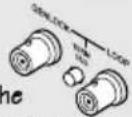
SET THE DIPSWITCHES

By default, the dipswitches are set to OFF
flowchart
graph TD
    A["In the dual-link mode, connect the dual-link source 1 to DUAL LINK INPUT 1 and 2"] --> B["HD/SD SDI Camera"]
    B --> C["3G HD Video Server"]
    C --> D["Preview"]
    D --> E["HD SDI Mixer"]
    E --> F["SDI"]
Step 3: Turn the power ON
Step 4: Operate the machine - see section 7
Use the SELECTOR buttons to switch the inputs to the outputs
Connect a selected input to ALL the outputs; disconnect an output (OFF) from an input
Press TAKE to confirm actions


Press and hold OFF for 3 seconds to enter or exit the dual-link mode
Store (STO) and recall (RCL) the status


LOCK the front panel
Operate via the front panel buttons, RS-232, RS-485, remote connectors and the Ethernet
3 Overview
The Kramer VS-48HDxl can be used as a high-performance 4x8 matrix switcher or as a dual-link 2x4 switcher, which lets you simultaneously route any of the inputs to any or all of the outputs for all SDI video signals, using BNC connectors.
In particular, the VS-48HDxl features:
- Cable equalization up to 350m for SD ^1 signals, 140m for 1.5GHz HD ^2 signals, and 120m for 3GHz HD signals
- Operation of up to 2.97Gbps – enabling it to be used for standard definition, high definition and the new 3G high definition serial digital video signals (SD/HD-SDI)
- SMPTE 259M, 292M and 424M and 372M (for dual-link HD-SDI signals) compliance and support for data rates of 270Mbps, 1483.5Mbps, 1485Mbps and 2970Mbps
- Reclocking and equalization on each input, storing and recalling setups, and a TAKE button for the execution of multiple switches all at once
- Selector buttons that automatically light up in different colors—green, when the VS-48HDxl detects a ‘standard definition’ signal, or blue, when it detects a ‘high definition’ signal
- The ability to switch genlocked video signals according to timing of the GENLOCK reference input. Switching according to the Bi-level or Tri-level Genlock input according to SMPTE RP-168 ^3
The VS-48HDxl is housed in a 19" 1U rack-mountable enclosure, and is fed from a 100-240 VAC universal switching power supply. The unit can be controlled via the front panel buttons or via:
- An infrared remote control transmitter
- An infrared remote extension cable transmitter
- Remotely, by RS-232 or RS-485 serial commands transmitted by a PC, touch screen system, or other serial controller
- The ETHERNET
- Remote contact closure for forced operation
To achieve the best performance:
- Connect only good quality connection cables, thus avoiding interference, deterioration in signal quality due to poor matching, and elevated noise levels (often associated with low quality cables)
- Avoid interference from neighboring electrical appliances that may adversely influence signal quality and position your Kramer VS-48HDxl from moisture, excessive sunlight and dust
4 Your VS-48HDxl 3G HD/SD SDI 4x8 Matrix Switcher
Figure 1, Table 1, and Table 2 define the VS-48HDxl 3G HD/SD SDI 4x8 Matrix Switcher.
Your VS-48HDxl 3G HD/SD SDI 4x8 Matrix Switcher


flowchart
graph LR
    A["GENLOCK"] --> B["TERM 75 Ω"]
    B --> C["LOOP"]
    C --> D["INPUTS"]
    D --> E["OUTPUTS"]
    E --> F["RS-232"]
    F --> G["ETHERNET"]
    G --> H["Remote"]
    H --> I["RS-485"]
    I --> J["SETUP"]
    C --> K["1 (Dual Line)"]
    C --> L["2 (Dual Line)"]
    C --> M["3 (Dual Line)"]
    C --> N["4 (Dual Line)"]
    C --> O["1 (Dual Line)"]
    C --> P["2 (Dual Line)"]
    C --> Q["3 (Dual Line)"]
    C --> R["4 (Dual Line)"]
    C --> S["5 (Dual Line)"]
    C --> T["6 (Dual Line)"]
    C --> U["7 (Dual Line)"]
    C --> V["8 (Dual Line)"]
    C --> W["19"]
    C --> X["20"]
    C --> Y["21"]
    C --> Z["22"]
    C --> AA["23"]
    C --> AB["24"]
    C --> AC["25"]
    C --> AD["26"]
    C --> AE["27"]
Figure 1: VS-48HDxl 3G HD/SD SDI 4x8 Matrix Switcher

Table 1: Front Panel VS-48HDxl 3G HD/SD SDI 4x8 Matrix Switcher
| # | Feature Function | |
| 1 | IR Receiver | The red LED is illuminated when receiving signals from the Infrared remote control transmitter |
| 2 | POWER Switch Illuminated switch for turning the unit ON or OFF | |
| 3 | OUTPUT (DUAL LINK)Selector Buttons | Select the output to which the input is switched (from 1 to 8)In the dual-link mode, select the output DUAL LINK 1 to DUAL LINK 4 to which the input is switched |
| 4 | INPUT (DUAL LINK)Selector Buttons | Select the input to switch to the output (from 1 to 4)In the dual-link mode, select input DUAL LINK 1 or DUAL LINK 2 to switch to the outputsPress IN buttons 1, 2 and 3 simultaneously to reset the machine to its factory default values ^1 (see section 6.6)Use to set the resolution when switching genlocked video signals (see section 6.7) |
| 5 | STO (STORE) Button Pressing | STO followed by an INPUT / OUTPUT button stores the current setting ^2 |
| 6 | TAKE Button | Pressing TAKE toggles the mode between the CONFIRM mode ^3 and the AT ONCE mode (user confirmation per action is unnecessary).When in CONFIRM mode, the TAKE button implements a pending operation ^4 |
| 7 | ALL Button | Pressing ALL followed by an INPUT button, connects that input to all outputs ^5 |
| 8 | RCL (RECALL) Button | Pressing the RCL button and the corresponding INPUT / OUTPUT key displays a setup from the non-volatile memory. After pressing the same memory location the second time, the settings will take effect |
| 9 | OFF Button | An OFF-OUT combination disconnects that output from the inputs; an OFF-ALL combination disconnects all the outputsPress and hold ^6 to toggle between the 4x8 switcher mode and the dual-link 2x4 switcher mode |
| 10 | LOCK Button | Disengages/engages the front panel buttons |
| 11 | 7-segment Display | Displays the selected input switched to the output (marked above each input) |
Table 2: Rear Panel VS-48HDxl 3G HD/SD SDI 4x8 Matrix Switcher
| # | Feature Function | |
| 12 | GENLOCK BNC Connector Connect to the Genlock source | |
| 13 | TERM 75Ω Button Press to terminate the Genlock source (75Ω) or release for looping ^1 | |
| 14 | LOOP BNC Connector | Connect to the GENLOCK connector of the next unit in the line |
| 15 | DUAL LINK INPUT BNC Connectors | In the dual-link mode, connect the source to inputs 1 and 2 and/or inputs 3 and 4 (DUAL LINK 1 and/or DUAL LINK 2) |
| 16 | INPUT BNC Connectors | Connect to the serial digital video sources (from 1 to 4) |
| 17 | DUAL LINK OUTPUT BNC Connectors | In the dual-link mode, connect the acceptors to outputs 1 and 2 and/or outputs 3 and 4 and/or outputs 5 and 6 and/or outputs 7 and 8 (DUAL LINK 1 and/or DUAL LINK 2 and/or DUAL LINK 3 and/or DUAL LINK 4, respectively) |
| 18 | OUTPUT BNC Connectors Connect to the serial digital video acceptors (from 1 to 8) | |
| 19 | RS-232 9-pin D-sub Port Connects to the PC or the Remote Controller | |
| 20 | RESET Button Press to reset Ethernet to factory default definitions ^2 :IP number – 192.168.1.39Mask – 255.255.255.0Gateway – 192.168.1.1 | |
| 21 | ETHERNET RJ-45 Connector | Connects to the PC or other Serial Controller through computer networking |
| 22 | REMOTE INPUT Terminal Block Connectors | Connect to dry contact switches ^3 (from 1 to 4) |
| 23 | REMOTE OUTPUT Terminal Block Connectors | Connect to dry contact switches (from 1 to 8) |
| 24 | RS-485 Detachable Terminal Block Port | Pin G is for the Ground connection ^4 pins B (-) and A (+) are for RS-485 |
| 25 | REMOTE IR Opening ^5 Connects to an external IR receiver unit for controlling the machine via an IR remote controller (instead of using the front panel IR receiver) | |
| 26 | $ETUP Dipswitches Dipswitches for setup of the unit | |
| 27 | Power Connector with Fuse AC connector enabling power supply to the unit | |
4.1 Using the IR Transmitter
You can use the RC-IR2 IR transmitter to control the machine via the built-in IR receiver on the front panel or, instead, via an optional external IR receiver ^1 . The external IR receiver can be located 15 meters away from the machine.
This distance can be extended to up to 60 meters when used with three extension cables ^2 .
Before using the external IR receiver, be sure to arrange for your Kramer dealer to insert the internal IR connection cable ^3 with the 3.5mm connector that fits into the REMOTE IR opening on the rear panel.
Connect the external IR receiver to the REMOTE IR 3.5mm connector.
5 Installing the VS-48HDxl in a Rack
This section describes how to install the VS-48HDxl in a rack.
Before Installing in a rack
| Before installing in a rack, be sure that the environment is within the recommended range: | |
| Operating temperature range | +5° to +45°C (41° to 113°F) |
| Operating humidity range | 10 to 90% RHL, non-condensing |
| Storage temperature range | -20° to +70°C (-4° to 158°F) |
| Storage humidity range | 5 to 95% RHL, non-condensing |

CAUTION!!
When installing on a 19" rack, avoid hazards by taking care that:
- It is located within the recommended environmental conditions, as the operating ambient temperature of a closed or multi unit rack assembly may exceed the room ambient temperature.
- Once rack mounted, enough air will still flow around the machine.
- The machine is placed straight in the correct horizontal position.
- You do not overload the circuit(s). When connecting the machine to the supply circuit, overloading the circuits might have a detrimental effect on overcurrent protection and supply wiring. Refer to the appropriate nameplate ratings for information. For example, for fuse replacement, see the value printed on the product label.
- The machine is earthed (grounded) in a reliable way and is connected only to an electricity socket with grounding. Pay particular attention to situations where electricity is supplied indirectly (when the power cord is not plugged directly into the socket in the wall), for example, when using an extension cable or a power strip, and that you use only the power cord that is supplied with the machine.
How to Rack Mount
To rack-mount a machine:
- Attach both ear brackets to the machine. To do so, remove the screws from each side of the machine (3 on each side), and replace those screws through the ear brackets.

natural_image
Technical line drawing of a mechanical bracket assembly with bolts and rods (no text or symbols)- Place the ears of the machine against the rack rails, and insert the proper screws (not provided) through each of the four holes in the rack ears.
Note that:
- In some models, the front panel may feature built-in rack ears
- Detachable rack ears can be removed for desktop use
- Always mount the machine in the rack before you attach any cables or connect the machine to the power
- If you are using a Kramer rack adapter kit (for a machine that is not 19"), see the Rack Adapters user manual for installation instructions (you can download it at: http://www.kramerelectronics.com)
6 Connecting the VS-48HDxl 3G HD/SD SDI 4x8 Matrix Switcher
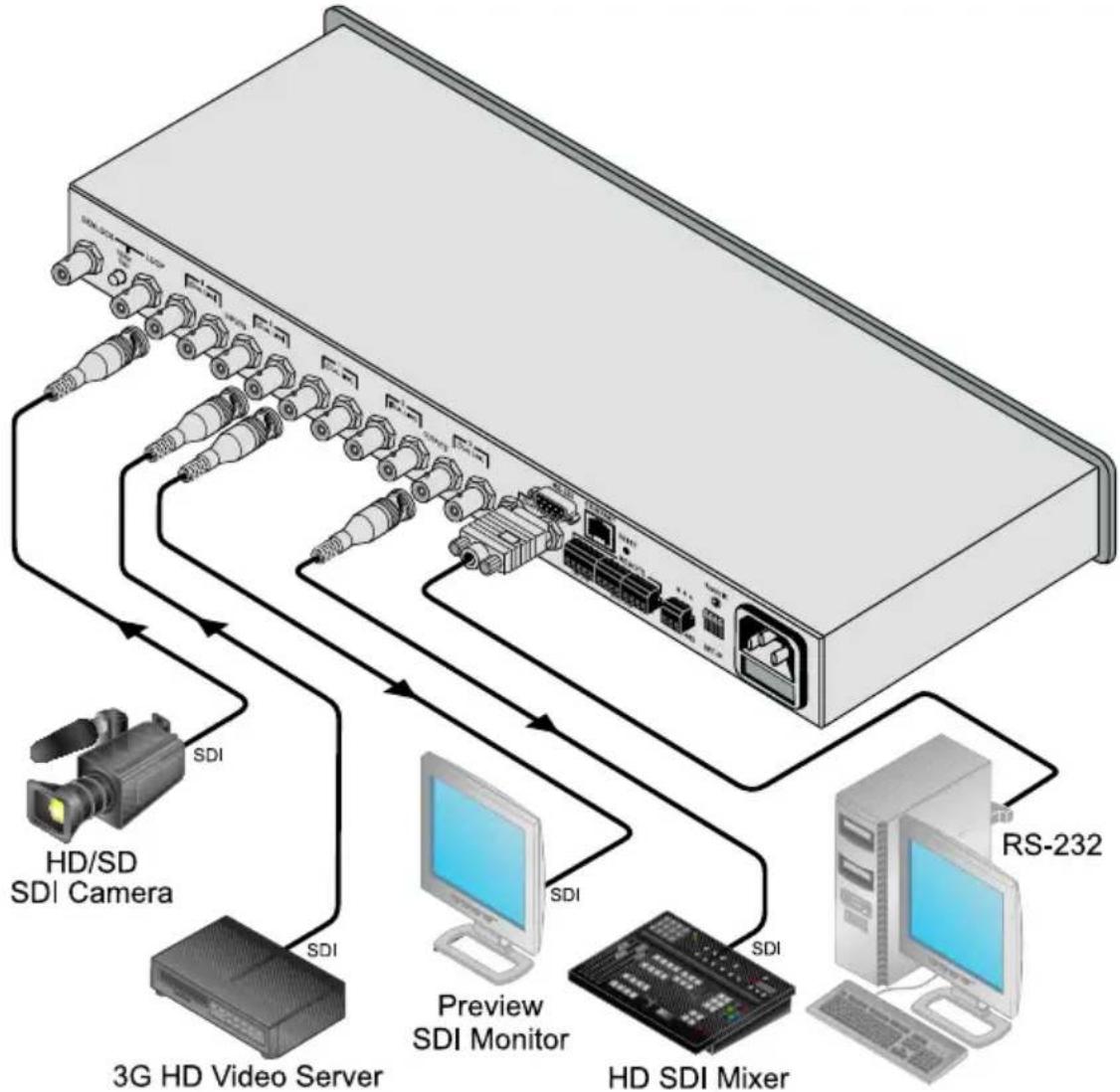
To connect the VS-48HDxl 3G HD/SD SDI 4x8 Matrix Switcher, as illustrated in the example in Figure 2, do the following ^1 :
- Connect up to four SDI sources to the SDI INPUT BNC connectors (for example, an HD/SD SDI camera to input 1 and a 3G HD video server to input 4).
- Connect the SDI OUTPUT BNC connectors to up to ^2 eight SDI acceptors (for example, output 1 to a Preview display, and output 8 to an HD SDI mixer).
- Set the dipswitches (see section 6.3).
- If required ^3 , connect:
■ A Genlock source to the GENLOCK BNC connector
- The LOOP BNC connector to the GENLOCK connector of the next unit in the line, and release the TERM button for looping ^4
- Connect a PC and/or controller (if required), to the:
■ RS-232 port (see section 6.4), and/or
■ RS-485 port (see section 6.5), and/or
■ ETHERNET connector (see section 6.6)
-
If required ^3 , connect a remote dry contact switch (refer to section 6.9).
-
Connect ^3 the power cord ^5 .
flowchart
graph TD
    A["Server"] -->|SDI| B["HD/SD SDI Camera"]
    A -->|SDI| C["3G HD Video Server"]
    A -->|SDI| D["Preview SDI Monitor"]
    A -->|SDI| E["HD SDI Mixer"]
    A -->|RS-232| F["Computer"]
Figure 2: Connecting the VS-48HDxl 3G HD/SD SDI 4x8 Matrix Switcher
6.1 Connecting the VS-48HDxl in the Dual-Link Mode
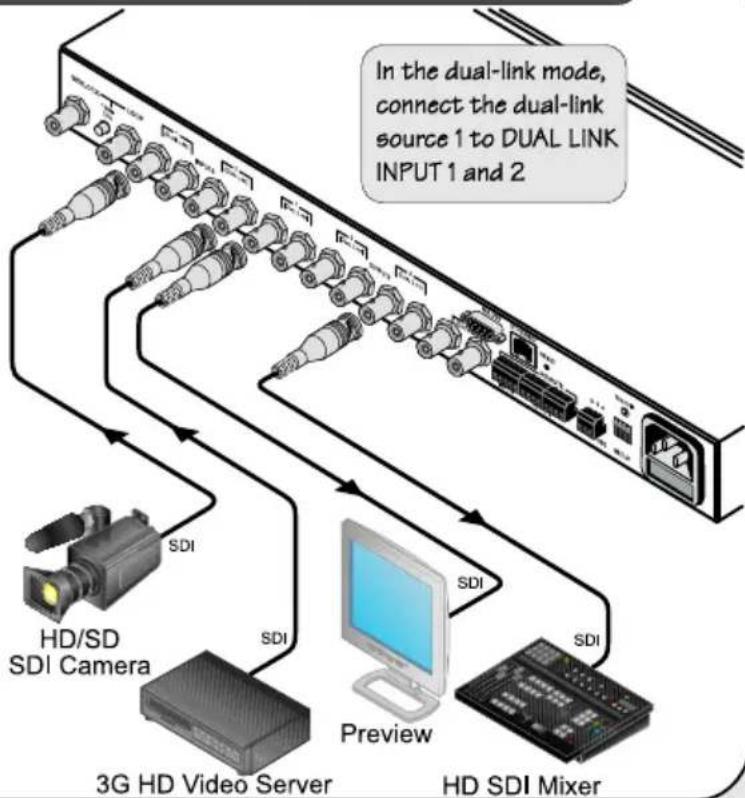
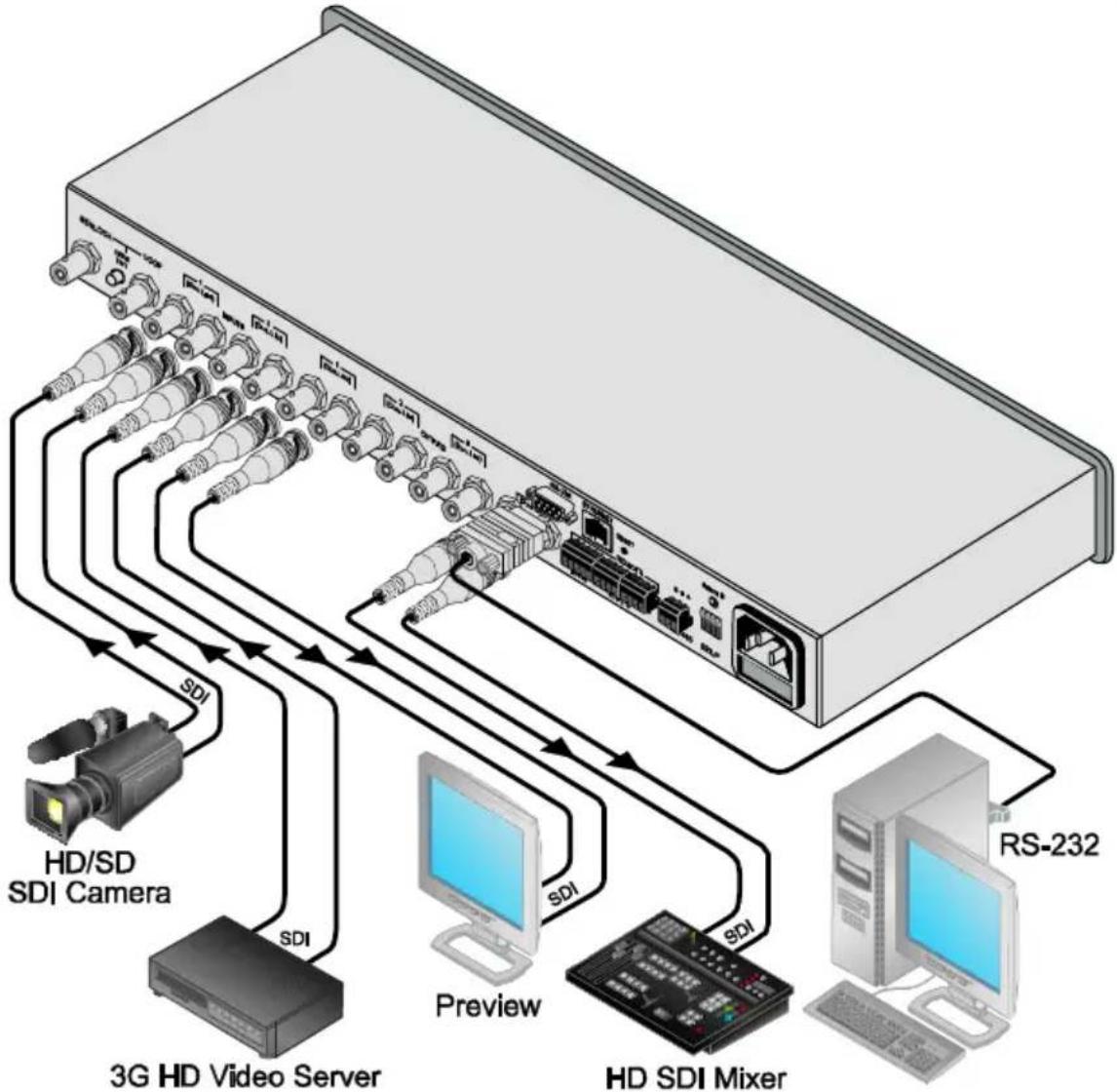
You can use your VS-48HDxl in the dual-link mode to switch any of the two dual-link SDI inputs to any or all of the four dual-link SDI outputs, as the illustration in Figure 3 shows.
To connect the VS-48HDxl 3G HD/SD-SDI 4x4 Matrix Switcher in the dual-link mode, do the following ^1 :
- Connect one or both of the SDI sources to the INPUT DUAL LINK BNC connectors. For example, a dual-link HD/SD SDI camera to DUAL LINK 1 (inputs 1 and 2) and a dual-link 3G HD video server to DUAL LINK 2 (inputs 3 and 4).
- Connect the SDI OUTPUT BNC connectors to up to four ^2 SDI acceptors. For example, OUTPUT DUAL LINK 1 (outputs 1 and 2) to a dual-link preview display, and OUTPUT DUAL LINK 4 (outputs 7 and 8) to a dual-link HD SDI mixer.
- Set the dipswitches (see section 6.3).
- If required ^3 , connect:
■ A Genlock source to the GENLOCK BNC connector
- The LOOP BNC connector to the GENLOCK connector of the next unit in the line, and release the TERM button for looping ^4
- Connect a PC and/or controller (if required), to the:
■ RS-232 port (see section 6.4), and/or
■ RS-485 port (see section 6.5), and/or
■ ETHERNET connector (see section 6.6)
- If required ^3 , connect a remote dry contact switch (refer to section 6.9).
- Connect ^3 the power cord ^5 .
- Set the machine to the dual-link mode (see section 6.2).
flowchart
graph TD
    A["Server"] -->|SDI| B["3G HD Video Server"]
    A -->|SDI| C["HD/SD SDI Camera"]
    A -->|SDI| D["Preview"]
    A -->|SDI| E["HD SDI Mixer"]
    A -->|SDI| F["RS-232"]
Figure 3: Connecting the Dual-Link VS-48HDxl 3G HD/SD-SDI 4x8 Matrix Switcher
6.2 Working Mode Setting
You can set the VS-48HDxl to work in the dual-link mode as follows:
- To switch to the dual-link mode, press and hold the OFF front panel button for 3 seconds until a red dot illuminates on the display (on the fourth segment of the 7-segment display) and the OFF button blinks
- To exit the dual-link mode, press and hold the OFF front panel button for 3 seconds until the red dot on the display disappears and the OFF button blinks
6.3 Dipswitch Settings
By default, all dipswitches are set to OFF.
Figure 4 illustrates the VS-48HDxl dipswitches:
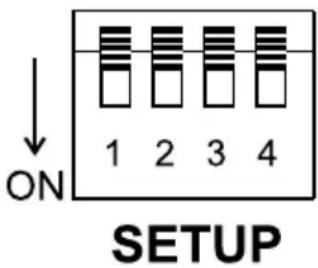
Figure 4: VS-48HDxl SETUP Dipswitches
6.3.1 Setting the Setup Dipswitches
The setup dipswitches determine the address of each VS-48HDxl unit when several VS-48HDxl units are connected to a PC or serial controller. Set the address of the unit using the SETUP dipswitches 1, 2, 3 and 4, according to Table 3.
When using a standalone VS-48HDxl unit, set the address to 1.
When connecting more than one VS-48HDxl unit, set the address of the first machine (the Master) that is closest to the PC, to 1 (dipswitches are set to OFF). Each additional VS-48HDxl unit must have a unique address.
Table 3: Machine # Dipswitch Settings
To connect a PC to the VS-48HDxl unit, using the Null-modem adapter provided with the machine (recommended):
- Connect the RS-232 9-pin D-sub rear panel port on the VS-48HDxl unit to the Null-modem adapter and connect the Null-modem adapter with a 9-wire flat cable to the RS-232 9-pin D-sub port on your PC
To connect a PC to the VS-48HDxl unit, without using a Null-modem adapter:
- Connect the RS-232 9-pin D-sub port on your PC to the RS-232 9-pin D-sub rear panel port on the VS-48HDxl unit, as Figure 5 illustrates

Figure 5: Connecting a PC without using a Null-modem Adapter
6.5 Controlling via the RS-485 Port
To cascade up to eight individual VS-48HDxl units, via RS-485 (with control via a Master Programmable Remote Control system such as the Kramer RC-3000), as Figure 6 illustrates, do the following:
-
Connect the “A” (+) and “B” (-) PINS on the RS-485 terminal block port of the RC-3000 to the “A” (+) and “B” (-) PINS, respectively, on each of the eight VS-48HDxl units. (If using shielded twisted pair cable, the shield is usually connected to the “G” (Ground) PIN of the first unit).
-
Set the first VS-48HDxl unit as MACHINE # 1 and the following seven VS-48HDxl units as MACHINE # 2 to MACHINE # 8, according to Table 3.
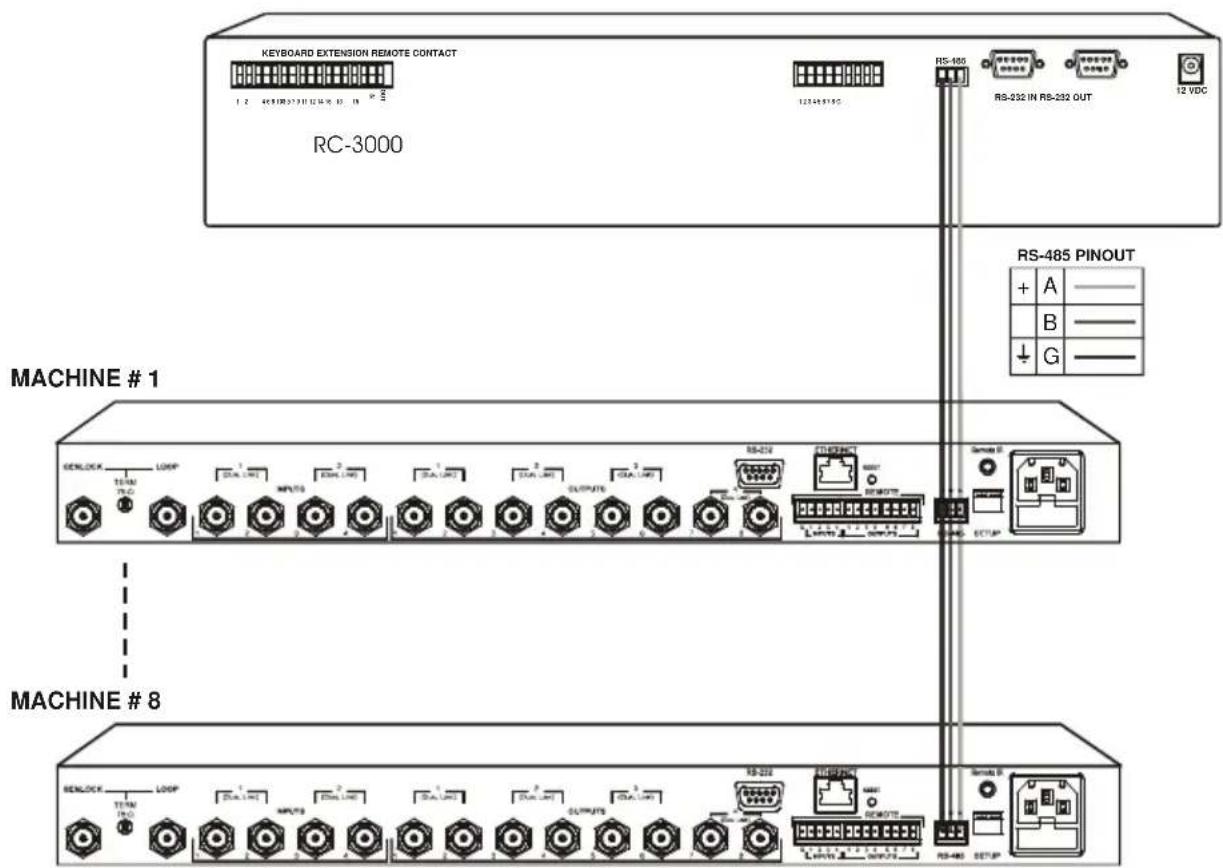
Figure 6: Controlling via RS-485 (for example, using an RC-3000)
6.6 Factory Reset
Press and hold the input buttons 1, 2 and 3 simultaneously for 3 seconds until the three buttons flash to reset the machine to its default values.
6.7 Switching Genlocked Video Signals
The genlock feature lets you switch genlocked video signals according to timing of the GENLOCK reference input ^1 .
Connect the GENLOCK cable.
If the HD input signal ^2 that is connected is one of the following, it is necessary to set it up as follows:
- 1080i@60Hz: press and hold INPUT 1 button for 3 seconds. The button will flash ^4 to indicate that the set up was completed
- 1080i@50Hz or 720p@50Hz: press and hold INPUT 2 button for 3 seconds.
The button will flash ^3 to indicate that the set up was completed - 720p@60Hz: press and hold INPUT 3 button for 3 seconds.
The button will flash ^3 to indicate that the set up was completed
When turning the machine ON, the appropriate button will flash to indicate the latest setup (last setup is saved).
6.8 Controlling via ETHERNET
You can connect the VS-48HDxl via the Ethernet, using a crossover cable (see section 6.8.1) for direct connection to the PC or a straight-through cable (see section 6.8.2) for connection via a network hub or network router ^4 .
6.8.1 Connecting the ETHERNET Port directly to a PC (Crossover Cable)
You can connect the Ethernet port of the VS-48HDxl to the Ethernet port on your PC, via a crossover cable with RJ-45 connectors.
This type of connection is recommended for identification of the factory default IP Address of the VS-48HDxl during the initial configuration
After connecting the Ethernet port, configure your PC as follows:
-
Right-click the My Network Places icon on your desktop.
-
Select Properties.
-
Right-click Local Area Connection Properties.
- Select Properties.
The Local Area Connection Properties window appears.
- Select the Internet Protocol (TCP/IP) and click the Properties Button (see Figure 7).
![Local Area Connection Properties General Connect using: IBM Netfinity 10/100 Ethernet Adapter Configure Components checked are used by this connection: ✓ Client for Microsoft Networks ✓ File and Printer Sharing for Microsoft Networks ✓ Internet Protocol [TCP/IP] Install... Urinstall Properties Description Transmission Control Protocol/Internet Protocol. The default wide area network protocol that provides communication across diverse interconnected networks. ✓ Show icon in taskbar when connected OK Cancel](/content/2026/06/1229097/images/fae0f4d30ce7064020f5ffdfcef5e80e5c818617c89a0594e398f0a7ee598760.jpg)
Figure 7: Local Area Connection Properties Window
- Select Use the following IP address, and fill in the details as shown in Figure 8.
- Click OK.
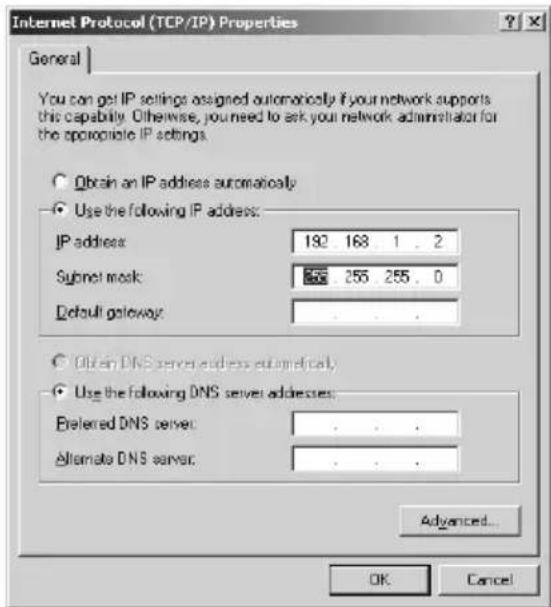
Figure 8: Internet Protocol (TCP/IP) Properties Window
6.8.2 Connecting the ETHERNET Port via a Network Hub (Straight-Through Cable)
You can connect the Ethernet port of the VS-44HDxl to the Ethernet port on a network hub or network router, via a straight-through cable with RJ-45 connectors.
6.8.3 Configuring the Ethernet Port
After connecting the Ethernet port, you have to install and configure it.
For detailed instructions on how to install and configure your Ethernet port, see the “Ethernet Configuration (FC-11) guide.pdf” on our Web site: http://www.kramerelectronics.com.
6.9 Controlling via the REMOTE Connector
Connecting the REMOTE terminal block connector to a dry contact switch enables you to route an input to an output by remote control.
To route input 1 to output 8 as an example (see Figure 9):
-
Momentarily touch output # 8 to Ground (G)
-
Momentarily touch input # 1 to Ground (G)
![To route INPUT 1 to OUTPUT 8 Stage 1 REMOTE G 1 2 3 4 1 2 3 4 5 6 7 8 [INPUTS] [OUTPUTS] Stage 2 REMOTE G 1 2 3 4 1 2 3 4 5 6 7 8 [INPUTS] [OUTPUTS]](/content/2026/06/1229097/images/b7663b87b1c26f102db522be2ba9b9a81ff7ef4e3b97de106fbfa01b248476e2.jpg)
Figure 9: Using the Remote Connector
In the dual-link mode, only inputs 1 and 2 and outputs 1 to 4 are used (as are the INPUT and OUTPUT selector buttons, respectively). Remote input PINs 3 and 4 and Input Selector buttons 3 and 4 are not used, as well as Remote output PINs 5 to 8 and Output Selector buttons 5 to 8.
7 Operating the VS-48HDxI
You can operate your VS-48HDxl using the:
- Front panel buttons
- RS-232/RS-485 serial commands transmitted by a PC, touch screen system, or other serial controller
- Kramer RC-IR2 Infrared Remote Control Transmitter
• Infrared remote extension cable transmitter - ETHERNET
7.1 Switching OUT-IN Combinations
Section 7.1.1 describes how to switch OUT-IN combinations and section 7.1.2 how to switch OUT-IN combinations in the dual link mode.
Note that:
- The OUTPUT button color changes during routing according to the input button color: red (for standard definition) or blue (for high definition)
- If no INPUT is connected to an OUTPUT, that OUTPUT button will not illuminate
- If a source is connected to an INPUT, that INPUT button will illuminate
7.1.1 Switch OUT-IN Combinations
To switch an input to an output via the front panel buttons ^1 , in the AT ONCE mode (see section 7.2), do the following:
- Press an OUTPUT button from 1 through 8, or ALL.
The selected OUTPUT button illuminates brightly, as does the 7-segment display. - Press an INPUT button from 1 through 4 or OFF ^2 .
The selected input switches to the selected output, and that input button illuminates brightly. The digits displayed in the 7-segment display change as appropriate.
7.1.2 Switch OUT-IN Combinations in the Dual-Link Mode
To switch an input to an output in the dual-link mode, via the front panel buttons ^1 , in the AT ONCE mode (see section 7.2), do the following:
-
Press an OUTPUT button (either 1, 2, 3, 4 or ALL).
The selected OUTPUT button illuminates brightly, as does the 7-segment display. -
Press an INPUT button (either 1, 2 or OFF).
The selected input switches to the selected output, and that input button illuminates brightly. The digits displayed in the 7-segment display change as appropriate.
7.2 Confirming Settings
You can work in the AT ONCE or the CONFIRM mode (see section 7.2.1). When the VS-48HDxl operates in the AT ONCE mode, pressing an OUT-IN combination implements the switch immediately. In the CONFIRM mode, the TAKE button must be pressed to authorize the switch.
In the AT ONCE mode, you save time as execution is immediate and actions require no user confirmation. However, no protection is offered against changing an action in error.
In the CONFIRM mode:
- You can key-in several actions and then confirm them by pressing the “TAKE” button to simultaneously activate the multiple switches
- Every action requires user confirmation, protecting against erroneous switching
- Execution is delayed until the user confirms the action
Note that after ten seconds the VS-48HDxl will go to standby mode and the buttons and the 7-segment display will illuminate less brightly.
7.2.1 Toggling between the AT ONCE and CONFIRM Modes
To toggle between the AT ONCE and CONFIRM modes, do the following:
-
Press the dim TAKE button to toggle from the AT ONCE mode (in which the TAKE button is dim) to the CONFIRM mode (in which the TAKE button illuminates). Actions now require user confirmation and the TAKE button illuminates.
-
Press the illuminated TAKE button to toggle from the CONFIRM mode back to the AT ONCE mode. Actions no longer require user confirmation and the TAKE button no longer illuminates.
7.2.2 Confirming a Switching Action
To confirm a switching action (in CONFIRM mode where the TAKE button is illuminated), do the following:
-
Press an OUT-IN combination. The 7-segment Display blinks
-
Press the TAKE button to confirm the action. The 7-segment Display no longer blinks. The TAKE button turns off.
7.3 Storing/Recalling Input/Output Configurations
You can store and recall up to twelve setup configurations, as well as the working mode, using the four INPUT buttons and the eight OUTPUT buttons.
7.3.1 Storing an Input/Output Configuration
To store the current status in memory, do the following:
-
Set the working mode, see section 6.2.
-
Press the STO button. The STO button illuminates.
-
Press one of the 12 INPUT / OUTPUT buttons (this will be the setup # in which the current configuration is stored). The selected INPUT / OUTPUT button illuminates in blue. The memory stores the data at that reference.
To confirm the setup, press the INPUT/OUTPUT button again. To cancel the setup, press the STO button once again
7.3.2 Recalling an Input/Output Configuration
To recall an input/output configuration, do the following:
- Press the RCL button.
The RCL button illuminates. - Press the appropriate INPUT / OUTPUT button (the button # corresponding to the setup #). That setup configuration blinks in the 7-segment display.
The memory recalls the stored data from that reference
After pressing the same memory location the second time, the settings take effect.
To cancel this action, press the RCL button once again
7.4 Locking the Front Panel
To prevent changing the settings accidentally or tampering with the unit via the front panel buttons, lock ^2 your VS-48HDxl. Unlocking releases the protection mechanism.
To lock the VS-48HDxl:
- Press the LOCK button until the LOCK button illuminates
The front panel is locked. Pressing a button will have no effect
To unlock the VS-48HDxl:
- Press the illuminated LOCK button until the LOCK button is no longer illuminated
The front panel unlocks
8 Technical Specifications
Table 4 includes the technical specifications:
Table 4: Technical Specifications ^1 of the VS-48HDxl
| INPUTS: 4 SMPTE-259M / 292M / 424M / (372M for dual-link HD-SDI signals) serial video, 75Ω on BNC connectors1 GENLOCK 75Ω / Hi-Z on a BNC connector, hi-level or tri-level sync |
| OUTPUTS: 8 equalized and reclocked SMPTE-259M, 292M outputs 75Ω on BNC connectors1 Looped GENLOCK 75Ω / Hi-Z on a BNC connector |
| OUTPUT LEVEL: 800 mVpp /75 ohms |
| DATA RATE: Up to 2.97Gbps |
| CONTROLS: Front-panel, RS-232; RS-485, ETHERNET, infrared remote, dry contact, and panel lock |
| POWER SOURCE: Universal, 100-240VAC, 50/60Hz 22VA |
| DIMENSIONS: 19 inch (W), 7 inch (D), 1U (H) rack mountable |
| WEIGHT: 2.6kg (5.7lbs) approx. |
| ACCESSORIES: Power cord, Null-modem Adapter |
| OPTIONS: External remote IR receiver cable ^2 |
9 Table of Hex Codes for Serial Communication
Table 5 lists the Hex values for a single machine (MACHINE #1):
Table 5: VS-48HDxl Hex Codes for Switching via RS-232/RS-485
| OUT 1 | OUT 2 | OUT 3 | OUT 4 | OUT 5 | OUT 6 | OUT 7 | OUT 8 | |
| IN 1 | 01 | 01 | 01 | 01 | 01 | 01 | 01 | 01 |
| 81 | 81 | 81 | 81 | 81 | 81 | 81 | 81 | |
| 81 | 82 | 83 | 84 | 85 | 86 | 87 | 88 | |
| 81 | 81 | 81 | 81 | 81 | 81 | 81 | 81 | |
| IN 2 | 01 | 01 | 01 | 01 | 01 | 01 | 01 | 01 |
| 82 | 82 | 82 | 82 | 82 | 82 | 82 | 82 | |
| 81 | 82 | 83 | 84 | 85 | 86 | 87 | 88 | |
| 81 | 81 | 81 | 81 | 81 | 81 | 81 | 81 | |
| IN 3 | 01 | 01 | 01 | 01 | 01 | 01 | 01 | 01 |
| 83 | 83 | 83 | 83 | 83 | 83 | 83 | 83 | |
| 81 | 82 | 83 | 84 | 85 | 86 | 87 | 88 | |
| 81 | 81 | 81 | 81 | 81 | 81 | 81 | 81 | |
| IN 4 | 01 | 01 | 01 | 01 | 01 | 01 | 01 | 01 |
| 84 | 84 | 84 | 84 | 84 | 84 | 84 | 84 | |
| 81 | 82 | 83 | 84 | 85 | 86 | 87 | 88 | |
| 81 | 81 | 81 | 81 | 81 | 81 | 81 | 81 |
10 Kramer Protocol 2000
The VS-48HDxl is compatible with Kramer's Protocol 2000 (version 0.50) (below). This RS-232/RS-485 communication protocol uses four bytes of information as defined below. For RS-232, a null-modem connection between the machine and controller is used. The default data rate is 9600 baud, with no parity, 8 data bits and 1 stop bit.
Table 6: Protocol Definitions
| MSB LSB | |||||||
| DESTI-NATION | INSTRUCTION | ||||||
| 0 D N5 N4 | N3 N2 N1 N0 | ||||||
| 7 6 5 4 3 2 | 1 0 | ||||||
1st byte
| INPUT | |||||||
| 1 I6 | I5 I4 | I3 I2 I1 I0 | |||||
| 7 6 5 4 3 2 | 1 0 | ||||||
2nd byte
| OUTPUT | |||||||
| 1 | O6 | O5 | O4 | O3 | O2 | O1 | O0 |
| 7 6 5 4 3 2 | 1 0 | ||||||
3rd byte
| MACHINE NUMBER | |||||||
| 1 OVR | X | M4 | M3 M2 M1 | M0 | |||
| 7 6 5 4 3 2 | 1 0 | ||||||
4th byte
1^st BYTE: Bit 7 - Defined as 0.
D – “DESTINATION”: 0 - for sending information to the switchers (from the PC);
1 - for sending to the PC (from the switcher).
N5...N0 - "INSTRUCTION"
The function that is to be performed by the switcher(s) is defined by the INSTRUCTION (6 bits). Similarly, if a function is performed via the machine's keyboard, then these bits are set with the INSTRUCTION NO., which was performed. The instruction codes are defined according to the table below (INSTRUCTION NO. is the value to be set for N5...N0).
2^nd BYTE:
Bit 7 - Defined as 1.
16...10 - "INPUT".
When switching (ie. instruction codes 1 and 2), the INPUT (7 bits) is set as the input number which is to be switched. Similarly, if switching is done via the machine's front-panel, then these bits are set with the INPUT NUMBER which was switched. For other operations, these bits are defined according to the table.
3^rd BYTE:
Bit 7 - Defined as 1.
O6...O0 - "OUTPUT"
When switching (ie. instruction codes 1 and 2), the OUTPUT (7 bits) is set as the output number which is to be switched. Similarly, if switching is done via the machine's front-panel, then these bits are set with the OUTPUT NUMBER which was switched. For other operations, these bits are defined according to the table.
4^th BYTE: Bit 7 - Defined as 1.
Bit 5 - Don't care.
OVR - Machine number override.
M4...M0 - MACHINE NUMBER.
Used to address machines in a system via their machine numbers. When several machines are controlled from a single serial port, they are usually configured together with each machine having an individual machine number. If the OVR bit is set, then all machine numbers will accept (implement) the command, and the addressed machine will reply.
For a single machine controlled via the serial port, always set M4...M0 = 1, and make sure that the machine itself is configured as MACHINE NUMBER = 1.
Table 7: Instruction Codes for Protocol 2000
Note: All values in the table are decimal, unless otherwise stated.
| INSTRUCTION DEFINITION FOR SPECIFIC INSTRUCTION | NOTE | |||
| # | DESCRIPTION INPUT OUTPUT | |||
| 0 | RESET VIDEO 0 0 1 | |||
| 1 | SWITCH VIDEO Set equal to video inputwhich is to be switched(0 = disconnect) | Set equal to video output which is to be switched(0 = to all the outputs) | 2 | |
| 3 | STORE VIDEO STATUS Set as SETUP # 0 - to store | 1 - to delete | 2, 3 | |
| 4 | RECALL VIDEO STATUS Set as SETUP # 0 2, 3 | |||
| 5 | REQUEST STATUS OF AVIDEO OUTPUT | Set as SETUP # Equal to output number whosestatus is reqd | 4, 3 | |
| 15 | REQUEST WHETHER SETUPIS DEFINED | SETUP # | 0 - for checking if setup is defined | 8 |
| 61 | IDENTIFY MACHINE | 1 - video machine name3 - video software version | 0 - Request first 4 digits1 - Request first suffix2 - Request second suffix10 - Request first prefix | 13 |
| 62 | DEFINE MACHINE | 1 - number of inputs2 - number of outputs3 - number of setups | 1 - for video | 14 |
NOTES on the above table:
NOTE 1 - When the master switcher is reset, (e.g. when it is turned on), the reset code is sent to the PC. If this code is sent to the switchers, it will reset according to the present power-down settings.
NOTE 2 - These are bi-directional definitions. That is, if the switcher receives the code, it will perform the instruction; and if the instruction is performed (due to a keystroke operation on the front panel), then these codes are sent. For example, if the HEX code
01 85 88 83
was sent from the PC, then the switcher (machine 3) will switch input 5 to output 8. If the user switched input 1 to output 7 via the front panel keypad, then the switcher will send HEX codes:
41 81 87 83
to the PC.
When the PC sends one of the commands in this group to the switcher, then, if the instruction is valid, the switcher replies by sending to the PC the same four bytes that it was sent (except for the first byte, where the DESTINATION bit is set high).
NOTE 3 - SETUP # 0 is the present setting. SETUP # 1 and higher are the settings saved in the switcher's memory, (i.e. those used for Store and Recall).
NOTE 4 - The reply to a "REQUEST" instruction is as follows: the same instruction and INPUT codes as were sent are returned, and the OUTPUT is assigned the value of the requested parameter. The replies to instructions 10 and 11 are as per the definitions in instructions 7 and 8 respectively. For example, if the present status of machine number 5 is breakaway setting, then the reply to the HEX code
| 0B | 80 | 80 | 85 |
| would be HEX codes | |||
| 4B | 80 | 81 | 85 |
NOTE 8 - The reply is as in TYPE 3 above, except that here the OUTPUT is assigned with the value 0 if the setup is not defined / no valid input is detected; or 1 if it is defined / valid input is detected.
NOTE 13 - This is a request to identify the switcher/s in the system. If the OUTPUT is set as 0, and the INPUT is set as 1, 2, 5 or 7, the machine will send its name. The reply is the decimal value of the INPUT and OUTPUT. For example, for a 2216, the reply to the request to send the audio machine name would be (HEX codes):
7D 96 90 81 (i.e. 128dec+22dec for 2nd byte, and 128dec+16dec for 3rd byte).
If the request for identification is sent with the INPUT set as 3 or 4, the appropriate machine will send its software version number. Again, the reply would be the decimal value of the INPUT and OUTPUT - the INPUT representing the number in front of the decimal point, and the OUTPUT representing the number after it. For example, for version 3.5, the reply to the request to send the version number would be (HEX codes):
7D 83 85 81 (i.e. 128dec+3dec for 2nd byte, 128dec+5dec for 3rd byte).
If the OUTPUT is set as 1, then the ASCII coding of the lettering following the machine's name is sent. For example, for the VS-7588YC, the reply to the request to send the first suffix would be (HEX codes):
7D D9 C3 81 (i.e. 128dec+ ASCII for "Y"; 128dec+ ASCII for "C").
NOTE 14 - The number of inputs and outputs refers to the specific machine which is being addressed, not to the system. For example, if six 16X16 matrices are configured to make a 48X32 system (48 inputs, 32 outputs), the reply to the HEX code 3E 82 81 82 (i.e. request the number of outputs)
would be HEX codes
7E 82 90 82
ie. 16 outputs
LIMITED WARRANTY
Kramer Electronics (hereafter Kramants this product free from defects in material and workmanship under the following terms.
HOW LONG IS THE WARRANTY
Labor and parts are warranted for seven years from the date of the first customer purchase.
WHO IS PROTECTED?
Only the first purchase customer may enforce this warranty.
WHAT IS COVERED AND WHAT IS NOT COVERED
Except as below, this warranty covers all defects in material or workmanship in this product. The following are not covered by the warranty:
- Any product which is not distributed by Kramer, or which is not purchased from an authorized Kramer dealer. If you are uncertain as to whether a dealer is authorized, please contact Kramer at one of the agents listed in the Web site www.kramcrelectronics.com.
- Any product, on which the serial number has been defaced, modified or removed, or on which the WARRANTY VOID IF TAMPERED sticker has been torn, reattached, removed or otherwise interfered with.
- Damage, deterioration or malfunction resulting from:
i) Accident, misuse, abuse, neglect, fire, water, lightning or other acts of nature
ii) Product modification, or failure to follow instructions supplied with the product
iii) Repair or attempted repair by anyone not authorized by Kramer
iv) Any shipment of the product (claims must be presented to the carrier)
v) Removal or installation of the product
vi) Any other cause, which does not relate to a product defect
vii) Cartons, equipment enclosures, cables or accessories used in conjunction with the product
WHAT WE WILL PAY FOR AND WHAT WE WILL NOT PAY FOR
We will pay labor and material expenses for covered items. We will not pay for the following:
- Removal or installations charges.
- Costs of initial technical adjustments (set-up), including adjustment of user controls or programming. These costs are the responsibility of the Kramer dealer from whom the product was purchased.
- Shipping charges.
HOW YOU CAN GET WARRANTY SERVICE
- To obtain service on you product, you must take or ship it prepaid to any authorized Kramer service center.
- Whenever warranty service is required, the original dated invoice (or a copy) must be presented as proof of warranty coverage, and should be included in any shipment of the product. Please also include in any mailing a contact name, company, address, and a description of the problem(s).
- For the name of the nearest Kramer authorized service center, consult your authorized dealer.
LIMITATION OF IMPLIED WARRANTIES
All implied warranties, including warranties of merchantability and fitness for a particular purpose, are limited in duration to the length of this warranty.
EXCLUSION OF DAMAGES
The liability of Kramer for any effective products is limited to the repair or replacement of the product at our option. Kramer shall not be liable for:
- Damage to other property caused by defects in this product, damages based upon inconvenience, loss of use of the product, loss of time, commercial loss; or:
- Any other damages, whether incidental, consequential or otherwise. Some countries may not allow limitations on how long an implied warranty lasts and/or do not allow the exclusion or limitation of incidental or consequential damages, so the above limitations and exclusions may not apply to you.
This warranty gives you specific legal rights, and you may also have other rights, which vary from place to place.
NOTE: All products returned to Kramer for service must have prior approval. This may be obtained from your dealer.
This equipment has been tested to determine compliance with the requirements of:
EN-50081: "Electromagnetic compatibility (EMC); generic emission standard.
Residential, commercial and light industry"
EN-50082: "Electromagnetic compatibility (EMC) generic immunity standard.
Part 1: Residential, commercial and light industry environment".
CFR-47: FCC* Rules and Regulations:
Part 15: "Radio frequency devices
Subpart B Unintentional radiators"
CAUTION!
Servicing the machines can only be done by an authorized Kramer technician. Any user who makes changes or modifications to the unit without the expressed approval of the manufacturer will void user authority to operate the equipment.
Use the supplied DC power supply to feed power to the machine.
☒ Please use recommended interconnection cables to connect the machine to other components.
* FCC and CE approved using STP cable (for twisted pair products)
For the latest information on our products and a list of Kramer distributors, visit our Web site: www.kramerelectronics.com, where updates to this user manual may be found.
We welcome your questions, comments and feedback.

Caution
Safety Warning:
Disconnect the unit from the power supply before opening/servicing.

CE


- Kramer Electronics, Ltd.
- USER MANUAL
- Contents
- Figures
- Tables
- Introduction
- Getting Started
- Quick Start
- Overview
- Your VS-48HDxl 3G HD/SD SDI 4x8 Matrix Switcher
- Using the IR Transmitter
- Installing the VS-48HDxl in a Rack
- CAUTION!!
- How to Rack Mount
- Connecting the VS-48HDxl 3G HD/SD SDI 4x8 Matrix Switcher
- Connecting the VS-48HDxl in the Dual-Link Mode
- Working Mode Setting
- Dipswitch Settings
- Setting the Setup Dipswitches
- Controlling via the RS-485 Port
- Factory Reset
- Switching Genlocked Video Signals
- Controlling via ETHERNET
- Connecting the ETHERNET Port directly to a PC (Crossover Cable)
- Connecting the ETHERNET Port via a Network Hub (Straight-Through Cable)
- Configuring the Ethernet Port
- Controlling via the REMOTE Connector
- Operating the VS-48HDxI
- Switching OUT-IN Combinations
- Switch OUT-IN Combinations
- Switch OUT-IN Combinations in the Dual-Link Mode
- Confirming Settings
- Toggling between the AT ONCE and CONFIRM Modes
- Confirming a Switching Action
- Storing/Recalling Input/Output Configurations
- Storing an Input/Output Configuration
- Recalling an Input/Output Configuration
- Locking the Front Panel
- Technical Specifications
- Table of Hex Codes for Serial Communication
- Kramer Protocol 2000
- LIMITED WARRANTY
- HOW LONG IS THE WARRANTY
- WHO IS PROTECTED?
- WHAT IS COVERED AND WHAT IS NOT COVERED
- WHAT WE WILL PAY FOR AND WHAT WE WILL NOT PAY FOR
- HOW YOU CAN GET WARRANTY SERVICE
- LIMITATION OF IMPLIED WARRANTIES
- EXCLUSION OF DAMAGES
- CAUTION!
- Safety Warning:
Brand : Kramer
Model : VS-48HDxl
Category : Video switch