
PEX16S550LP - Unspecified StarTech.com - Free user manual and instructions
Find the device manual for free PEX16S550LP StarTech.com in PDF.


| Product Type | Serial PCI Express Card |
| Interface | PCI Express x1 (compatible with x4, x8, x16) |
| Number of Serial Ports | 16 (via two breakout cables) |
| Connector Type (Card) | 2 x VHDCI-68 female |
| Connector Type (Breakout Cables) | 8 x DB9 male per cable |
| Maximum Data Rate | 921.6 Kbps |
| UART Compatibility | 16C550 |
| Form Factor | Low-profile (preinstalled) with full-profile bracket included |
| Power Source | PCI Express slot; optional SATA power for pin 9 power |
| Supported Operating Systems | Windows (driver required); other OS may work |
| Warranty | 2 years |
| Package Contents | 1 x serial card, 2 x breakout cables, 1 x quick-start guide, 1 x full-profile bracket, 16 x optional DB9 hex nut pairs |
| Dimensions (Card) | Approximately 120 mm x 90 mm |
| Weight | Approximately 150 g |
| Static Sensitivity | ESD sensitive – handle with care |
| Cleaning | Use a dry, soft cloth; do not use liquids or solvents |
| Repairability | No user-serviceable parts; contact support for issues |
| Jumper Settings | JP1 (pin 9 power selector), JP2/JP3 (port group power), JP4 (UART voltage), JP5 (mode – factory use only), JP6 (PME) |
| FCC Compliance | Class B digital device, part 15 |
Frequently Asked Questions - PEX16S550LP StarTech.com
User questions about PEX16S550LP StarTech.com
0 question about this device. Answer the ones you know or ask your own.
Ask a new question about this device
Download the instructions for your Unspecified in PDF format for free! Find your manual PEX16S550LP - StarTech.com and take your electronic device back in hand. On this page are published all the documents necessary for the use of your device. PEX16S550LP by StarTech.com.
USER MANUAL PEX16S550LP StarTech.com
natural_image
Electronic hardware components including a USB connector, multiple connected VGA connectors, and a circuit board (no visible text or symbols)*actual product may vary from photos
For the latest information, technical specifications, and support for this product, please visit www.StarTech.com/PEX16S550LP
FCC Compliance Statement
This equipment has been tested and found to comply with the limits for a Class B digital device, pursuant to part 15 of the FCC Rules. These limits are designed to provide reasonable protection against harmful interference in a residential installation. This equipment generates, uses and can radiate radio frequency energy and, if not installed and used in accordance with the instructions, may cause harmful interference to radio communications. However, there is no guarantee that interference will not occur in a particular installation. If this equipment does cause harmful interference to radio or television reception, which can be determined by turning the equipment off and on, the user is encouraged to try to correct the interference by one or more of the following measures:
- Reorient or relocate the receiving antenna.
- Increase the separation between the equipment and receiver.
- Connect the equipment into an outlet on a circuit different from that to which the receiver is connected.
- Consult the dealer or an experienced radio/TV technician for help
This device complies with part 15 of the FCC Rules. Operation is subject to the following two conditions: (1) This device may not cause harmful interference, and (2) this device must accept any interference received, including interference that may cause undesired operation.
Changes or modifications not expressly approved by StarTech.com could void the user's authority to operate the equipment.
Industry Canada Statement
This Class B digital apparatus complies with Canadian ICES-003.
This device complies with Industry Canada licence-exempt RSS standard(s).
Operation is subject to the following two conditions:
(1) This device may not cause interference, and
(2) This device must accept any interference, including interference that may cause undesired operation of the device.
Use of Trademarks, Registered Trademarks, and other Protected Names and Symbols
This manual may make reference to trademarks, registered trademarks, and other protected names and/or symbols of third-party companies not related in any way to StarTech.com. Where they occur these references are for illustrative purposes only and do not represent an endorsement of a product or service by StarTech.com, or an endorsement of the product(s) to which this manual applies by the third-party company in question. Regardless of any direct acknowledgement elsewhere in the body of this document, StarTech.com hereby acknowledges that all trademarks, registered trademarks, service marks, and other protected names and/or symbols contained in this manual and related documents are the property of their respective holders.
Table of Contents
Product diagram ....1
Top view .... 1
Front view 1
DB9 RS232 connector pinout - male 2
Introduction......2
Packaging contents....2
Requirements 2
About the jumpers....3
JP1 – Power selector....3
JP3 and JP2 - Serial port power 4
JP4 – UART power selector ....4
JP5 - Mode setting ....4
JP6 - PME setting 4
Hardware installation....5
Install the full-profile bracket....5
Install the PCIe Card .... 5
Software installation ....6
Install the driver – Windows....6
Technical support....7
Warranty information....7
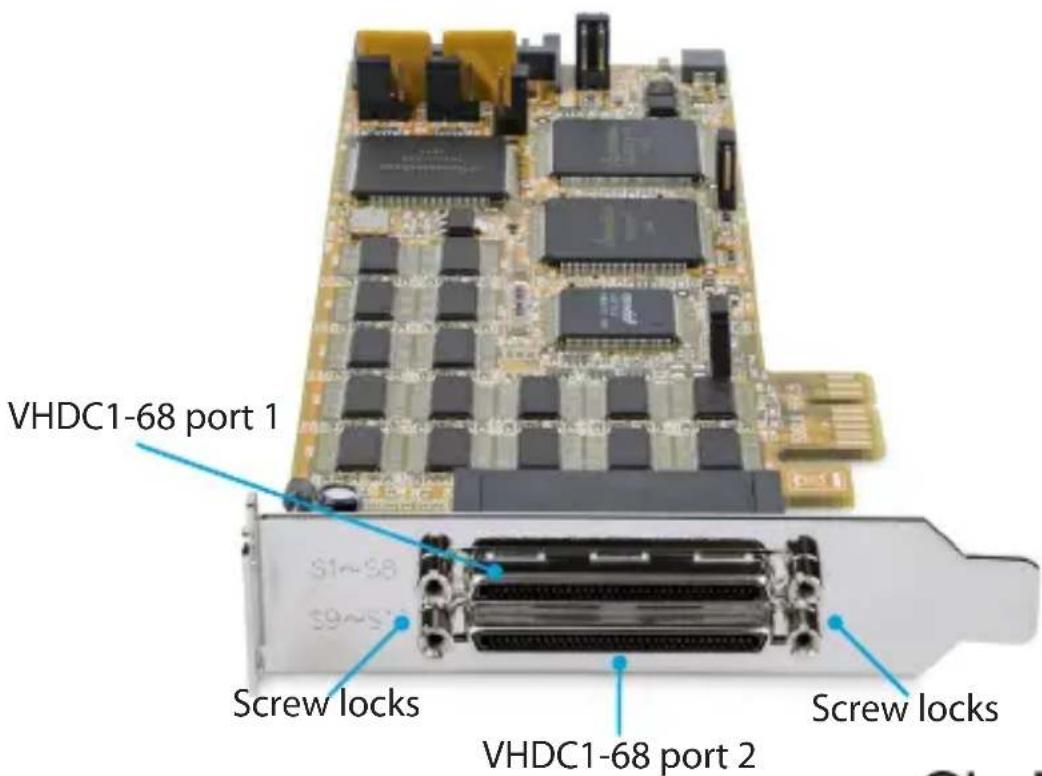
Product diagram
Top view

Front view
DB9 RS232 connector pinout - male
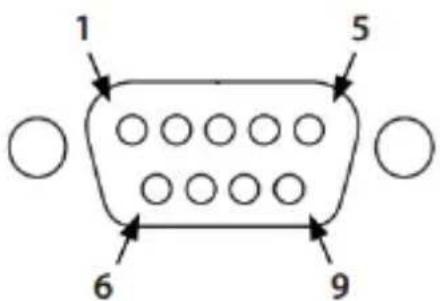
| Pin 1 | DCD |
| Pin 2 | RXD |
| Pin 3 | TXD |
| Pin 4 | DTR |
| Pin 5 | GND |
| Pin 6 | DSR |
| Pin 7 | RTS |
| Pin 8 | CTS |
| Pin 9 | RI or power |
Introduction
This serial card lets you add 16 RS232 serial ports to your full or small form-factor computer through a PCI Express expansion slot. It's a convenient solution for connecting modern or legacy serial devices to your computer, with support for data transfer rates up to 921.6Kbps. It includes two 8-port breakout cables so you can connect up to 16 serial devices to this single card, even in low-profile computer systems.
Packaging contents
- 1 x serial card
- 1 x full-profile bracket
- 2 x breakout cables
- 1 x quick-start guide
• 16 x Optional DB9 Connector Hex Nut Pairs
Requirements
Requirements are subject to change. For the latest requirements, please visit www.StarTech.com/PEX16S550LP
- A host computer with a PCI Express x1 slot
• RS232 serial cables (DB9)
About the jumpers
JP1 – Power selector
This jumper is used to provide pin number nine of the serial port connector(s) with DC5V or DC12V power. There are four sources depending on the jumper's position.
JP1: Power selector Setting
| Internal 5V: Power source is +5VDC, from the motherboard's PCI Express slot |  |
| Internal 12V: Power source is +12VDC, from the motherboard's PCI Express slot |  |
| Internal 12V: Power source is +12VDC, from the motherboard's PCI Express slot |  |
| Internal 5V: Power source is +5VDC, from the motherboard's PCI Express slot | 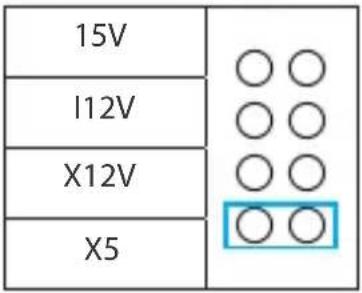 |
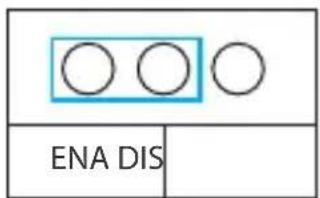
JP3 and JP2 - Serial port power
These two jumpers are used to provide external power to the two breakout cables or the 16 serial ports. JP3 enables or disables power over ports 1 to 8, and JP2 enables or disables power over ports 9 to 16. When enabled, the card connects DC power to pin 9 of the DB9 port(s).
JP3/JP2: Power selector Setting
No power is supplied to pin nine on the serial ports

Power is supplied to pin nine on the serial ports and the power source is determined by what is selected at JP3/JP2

JP4 – UART power selector
Leave at the default setting (3.3V).
JP5 - Mode setting
This is for factory test purposes only. The jumper must be fixed at SB.
JP6 - PME setting
This jumper enables or disables wake from sleep.
JP6: Power selector Setting
PME is disabled

(default)
PME is enabled
Hardware installation
Install the full-profile bracket
The serial card can be installed in a low-profile (half-height) or a full-profile computer. The low-profile bracket comes preinstalled on the card, but if you have a standard form factor computer, you can install the full-profile bracket instead.
- Remove the four screw locks that are securing the two VHDCI-68 ports to the low-profile bracket.
- Remove the low-profile bracket from the card.
- Align the full-profile bracket's VHDCI-68 port hole with the card's VHDCI-68 ports.
- Insert the VHDCI-68 ports into the VHDCI-68 port hole on the full-profile bracket using the four screw locks from step 1.
- Insert the four screw locks from step 1 and tighten them into place on the full-profile bracket.
Install the PCIe Card
Warning! PCIe cards can be severely damaged by static electricity. If an anti-static strap isn't available, discharge any built-up static electricity by touching a large grounded metal surface for several seconds.
- Turn off your computer and any devices or peripherals that are connected to it, such as printers or external storage devices.
- Unplug the power cable from the back of your computer.
- Disconnect any peripheral devices that are connected to your computer.
- Remove the cover from your computer case. Consult the documentation that came with your computer for details about how to do this safely.
- Locate an open PCIe slot and remove the corresponding metal cover plate from the back of your computer case. Consult the documentation that came with your computer for details about how to do this safely. This card works in PCIe slots of x1, x4, x8, or x16 lanes.
- Gently insert the card into the open PCIe slot and fasten the bracket to the back of the case.
Note: If you install the card into a full-profile (small form-factor) desktop system, it might be necessary to replace the preinstalled low-profile bracket with the included full-profile bracket. See "Install the full-profile bracket" for instructions on how to do this.
- (Optional) Connect a SATA power cable from your computer's power supply to the card's SATA power connector.
- Place the cover back onto your computer case.
- Reconnect the power cable to the back of your computer.
- Reconnect all of the peripheral devices that you disconnected in step 3.
- Turn on your computer.
Software installation
Install the driver
- Navigate to www.StarTech.com/PEX16S550LP
- Click the Drivers & Downloads tab.
- Under Driver(s), download the Driver to the computer.
For Windows Systems
- Extract the contents of the Driver Package by Right Clicking the Driver Folder that was downloaded from the website and select Extract All. Follow the on-screen instructions to finish the Extraction.
- Browse to the folder created in Step 1.
- Open the Windows 32bit or Windows 64bit folder.
- Right-click the Setup file. Click Run as administrator.
Note If the Run as administrator option is not available, you could be attempting to run the EXE installer from within the zipped Driver Package. Extract the files using the instructions from Step 1.
- Follow the on-screen instructions to install the Device Driver. Restart the computer if prompted.
Technical support
StarTech.com's lifetime technical support is an integral part of our commitment to provide industry-leading solutions. If you ever need help with your product, visit www.startech.com/support and access our comprehensive selection of online tools, documentation, and downloads.
For the latest drivers/software, please visit www.startech.com/downloads
Warranty information
This product is backed by a two-year warranty.
StarTech.com warrants its products against defects in materials and workmanship for the periods noted, following the initial date of purchase. During this period, the products may be returned for repair, or replacement with equivalent products at our discretion. The warranty covers parts and labor costs only. StarTech.com does not warrant its products from defects or damages arising from misuse, abuse, alteration, or normal wear and tear.
Limitation of liability
In no event shall the liability of StarTech.com Ltd. and StarTech.com USA LLP (or their officers, directors, employees or agents) for any damages (whether direct or indirect, special, punitive, incidental, consequential, or otherwise), loss of profits, loss of business, or any pecuniary loss, arising out of or related to the use of the product exceed the actual price paid for the product. Some states do not allow the exclusion or limitation of incidental or consequential damages. If such laws apply, the limitations or exclusions contained in this statement may not apply to you.
Hard-to-find made easy. At StarTech.com, that isn't a slogan. It's a promise.
StarTech.com is your one-stop source for every connectivity part you need. From the latest technology to legacy products — and all the parts that bridge the old and new — we can help you find the parts that connect your solutions.
We make it easy to locate the parts, and we quickly deliver them wherever they need to go. Just talk to one of our tech advisors or visit our website. You'll be connected to the products you need in no time.
Visit www.startech.com for complete information on all StarTech.com products and to access exclusive resources and time-saving tools.
StarTech.com is an ISO 9001 registered manufacturer of connectivity and technology parts since 1985 with operations around the world.
Reviews
Share your experiences using StarTech.com products, including product applications and setup, what you love about the products, and areas for improvement.
StarTech.com Ltd.
45 Artisans
Crescent
London, Ontario
N5V 5E9
Canada
StarTech.com LLP
4490 South
Hamilton Road
Groveport, Ohio
43125
U.S.A.
StarTech.com Ltd.
Unit B, Pinnacle 15
Gowerton Road
Brackmills,
Northampton
NN4 7BW
United Kingdom
StarTech.com Ltd.
Siriusdreef 17-27
2132 WT
Hoofddorp
The Netherlands
FR: fr.startech.com
DE: de.startech.com
ES: es.startech.com
NL: nl.startech.com
IT: it.startech.com
JP: jp.startech.com


- FCC Compliance Statement
- Industry Canada Statement
- Use of Trademarks, Registered Trademarks, and other Protected Names and Symbols
- Table of Contents
- Product diagram ....1
- Introduction......2
- About the jumpers....3
- Hardware installation....5
- Software installation ....6
- Technical support....7
- Warranty information....7
- Product diagram
- Top view
- Front view
- DB9 RS232 connector pinout - male
- Introduction
- Packaging contents
- Requirements
- About the jumpers
- JP1 – Power selector
- JP3 and JP2 - Serial port power
- JP3/JP2: Power selector Setting
- JP4 – UART power selector
- JP5 - Mode setting
- JP6 - PME setting
- JP6: Power selector Setting
- Hardware installation
- Install the full-profile bracket
- Install the PCIe Card
- Software installation
- Install the driver
- For Windows Systems
- Technical support
- Warranty information
- Limitation of liability
- Hard-to-find made easy. At StarTech.com, that isn't a slogan. It's a promise.
- Reviews
Brand : StarTech.com
Model : PEX16S550LP
Category : Unspecified