
S252SMTB3 - Unspecified StarTech.com - Free user manual and instructions
Find the device manual for free S252SMTB3 StarTech.com in PDF.


| Product Type | Thunderbolt Dual 2.5" SATA SSD/HDD Enclosure |
| Drive Bays | 2 x 2.5" SATA (SSD/HDD) |
| Interface | Thunderbolt (2 ports) |
| Supported RAID Modes | JBOD, RAID 0, RAID 1 (software configurable) |
| Data Transfer Rate | Up to 10 Gbps (Thunderbolt 2) |
| Power Supply | Universal AC adapter (included) with NA/EU/UK/AUS plugs |
| Dimensions (L x W x H) | 5.9 x 4.3 x 1.2 in (150 x 110 x 30 mm) |
| Weight | 0.6 lb (272 g) without drives |
| Enclosure Material | Aluminum and plastic |
| Cooling | Built-in fan |
| LED Indicators | Drive activity LEDs per bay |
| Daisy Chaining | Yes, via second Thunderbolt port |
| System Requirements | Computer with Thunderbolt port; OS: Windows 8/7/Server 2008 R2, Mac OS X, Linux |
| What's Included | Enclosure, Thunderbolt cable, power adapter w/ regional cables, screw kit, rubber feet, manual |
| Warranty | 2 years |
| Compliance | FCC Class B, CE, RoHS |
| Model Number | S252SMTB3 |
| Brand | StarTech.com |
Frequently Asked Questions - S252SMTB3 StarTech.com
User questions about S252SMTB3 StarTech.com
0 question about this device. Answer the ones you know or ask your own.
Ask a new question about this device
Download the instructions for your Unspecified in PDF format for free! Find your manual S252SMTB3 - StarTech.com and take your electronic device back in hand. On this page are published all the documents necessary for the use of your device. S252SMTB3 by StarTech.com.
USER MANUAL S252SMTB3 StarTech.com
ThunderBolt Dual 2.5" SATA SSD/HDD Enclosure
S252SMTB3
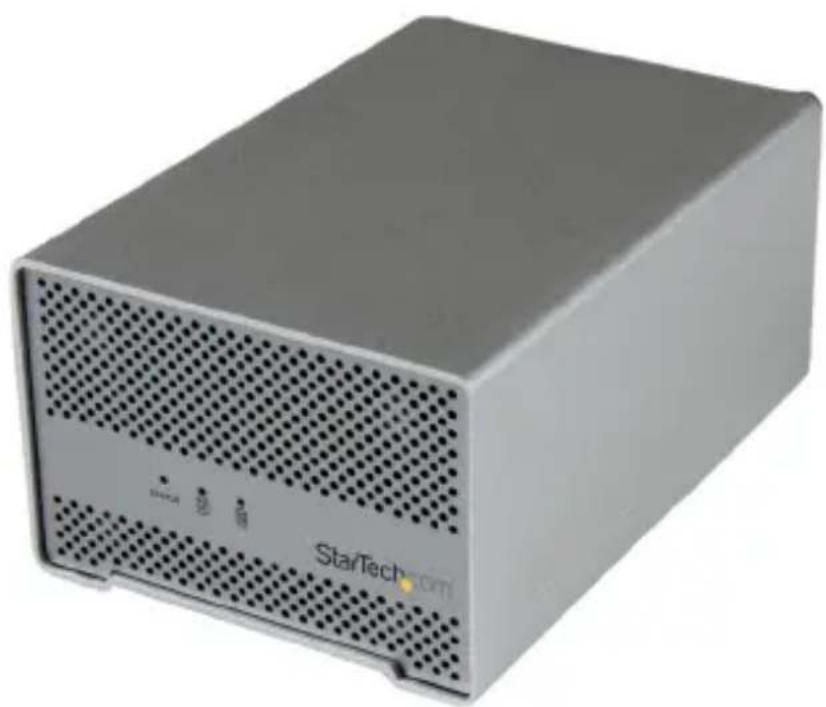
natural_image
Exterior view of a gray StartTech 3.0M drive with ventilation grille and external ports (no readable text beyond branding)*actual product may vary from photos
For the most up-to-date information, please visit: www.startech.com
FCC Compliance Statement
This equipment has been tested and found to comply with the limits for a Class B digital device, pursuant to part 15 of the FCC Rules. These limits are designed to provide reasonable protection against harmful interference in a residential installation. This equipment generates, uses and can radiate radio frequency energy and, if not installed and used in accordance with the instructions, may cause harmful interference to radio communications. However, there is no guarantee that interference will not occur in a particular installation. If this equipment does cause harmful interference to radio or television reception, which can be determined by turning the equipment off and on, the user is encouraged to try to correct the interference by one or more of the following measures:
• Reorient or relocate the receiving antenna.
- Increase the separation between the equipment and receiver.
- Connect the equipment into an outlet on a circuit different from that to which the receiver is connected.
- Consult the dealer or an experienced radio/TV technician for help.
Use of Trademarks, Registered Trademarks, and other Protected Names and Symbols
This manual may make reference to trademarks, registered trademarks, and other protected names and/or symbols of third-party companies not related in any way to StarTech.com. Where they occur these references are for illustrative purposes only and do not represent an endorsement of a product or service by StarTech.com, or an endorsement of the product(s) to which this manual applies by the third-party company in question. Regardless of any direct acknowledgement elsewhere in the body of this document, StarTech.com hereby acknowledges that all trademarks, registered trademarks, service marks, and other protected names and/or symbols contained in this manual and related documents are the property of their respective holders.
Table of Contents
Product Diagram....1
Front View .... 1
Rear View....1
Introduction......2
Packaging Contents 2
System Requirements....2
Installation 3
Hardware Installation .... 3
How to Use 6
Connecting the Hard Drives....6
LED Indicator 6
Disconnecting the Hard Drive....6
Initializing the Hard Drive 7
Technical Support 8
Warranty Information......8
Product Diagram
Front View
- Status LED
- Drive Activity LEDs

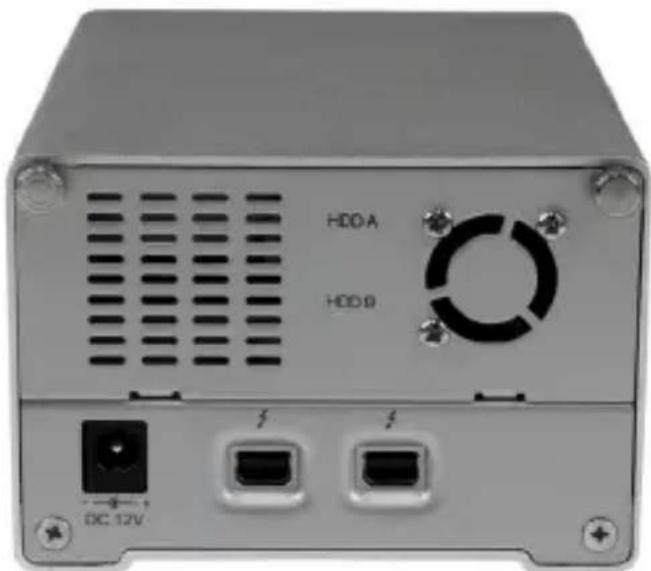
Rear View
- Drive bay panel
- Thumb screws
- Drive Fan
- Power Jack
- 2 x Thunderbolt ports

Introduction
Packaging Contents
• 1 x Thunderbolt 2.5" HDD RAID Enclosure
- 1 x Thunderbolt Cable
• 1 x HDD installation screw kit
• 1 x Universal Power Adapter w/ regional power cables (NA/EU/UK/AUS)
- 1 x Rubber foot set
• 1 x Instruction Manual
System Requirements
- 1x Computer system with available Thunderbolt port Microsoft® Windows® 8/7/Server 2008 R2 (32/64-bit) Apple® Mac® OSX Linux®
- 2 x 2.5" SATA SSD/HDDs
Installation Hardware Installation
WARNING! Hard drives and storage enclosures require careful handling, especially when being transported. If you are not careful with your hard disk, lost data may result. Always handle your hard drive and storage device with caution. Be sure that you are properly grounded by wearing an anti-static strap when handling computer components or discharge yourself of any static electricity build-up by touching a large grounded metal surface (such as the computer case) for several seconds.
- Remove the thumb screws on the back of the enclosure by turning them counter clockwise until released.
natural_image
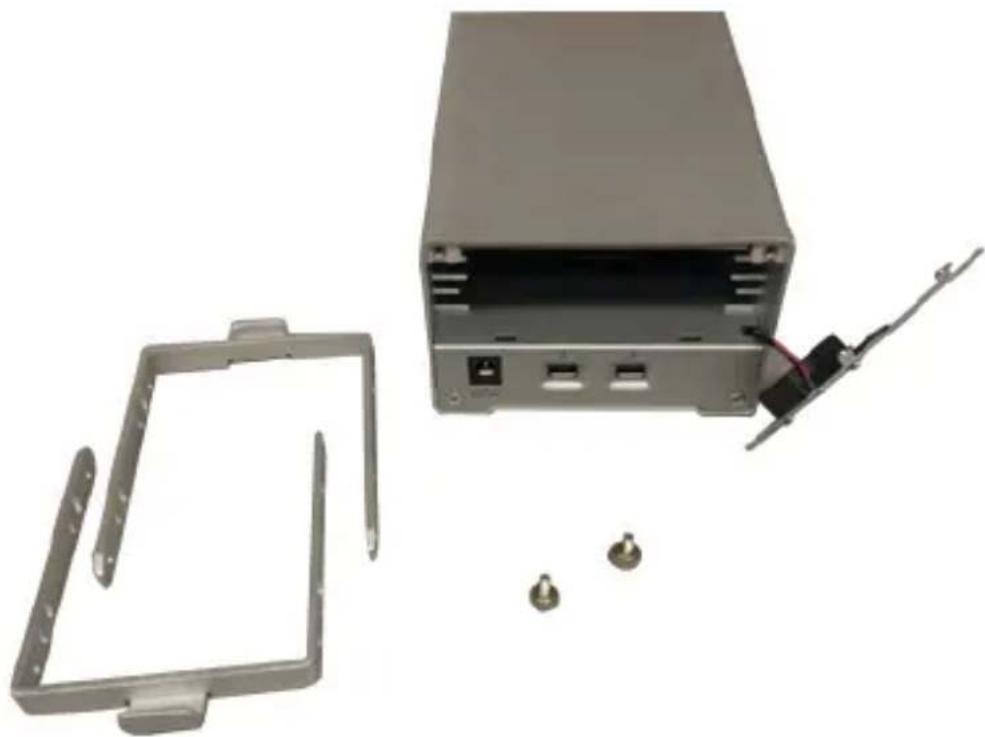
Front view of a silver rack-mounted electronic device with ventilation grilles and ports (no visible text or symbols)- Remove the drive panel by lifting it up and outward.
Note: Drive fan cables will stay connected to the panel and the rest of the enclosure

natural_image
Exterior view of a device chassis showing internal components and external wiring (no text or symbols visible)- Grasp the drive tray handels to slide each of the drive trays out of the enclosure
natural_image
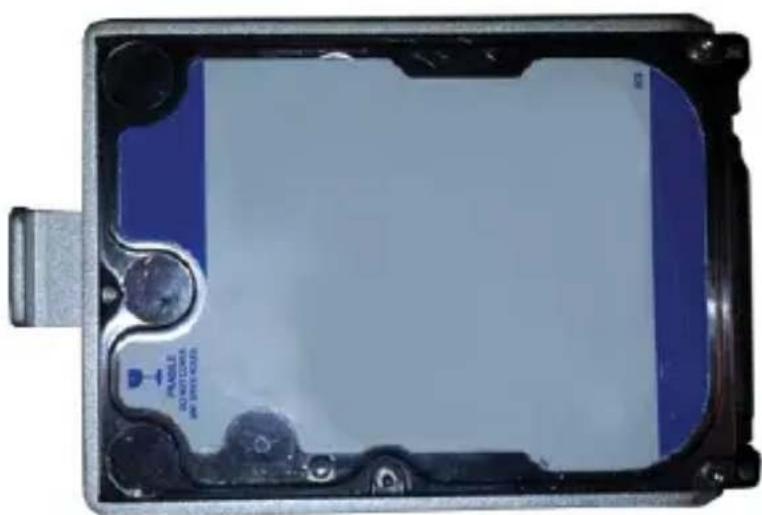
Exterior view of a computer drive unit with plastic housing and accessories (no text or symbols visible)- Place the drive tray around your 2.5" HDD/SSD with the label facing upward.
natural_image
Close-up of a rectangular electronic device with blue and white panels, no visible text or symbols on the body.- Fix four of the included hdd installation screws into place through the screw holes on the drive tray using a Phillips head screw driver (not included). Repeat this process for your second drive using the other drive tray.
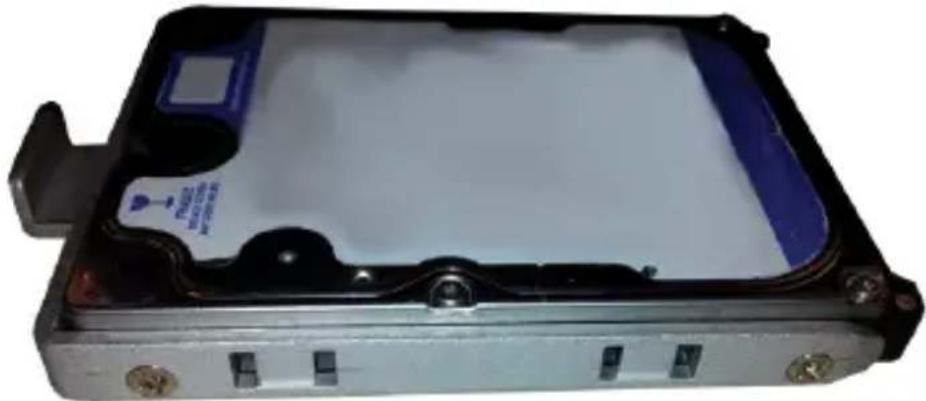
natural_image
Exterior view of a black hard drive chassis with blue and white casing (no visible text or symbols)- Slide the drive trays back into drive slots on the HDD Enclosure.
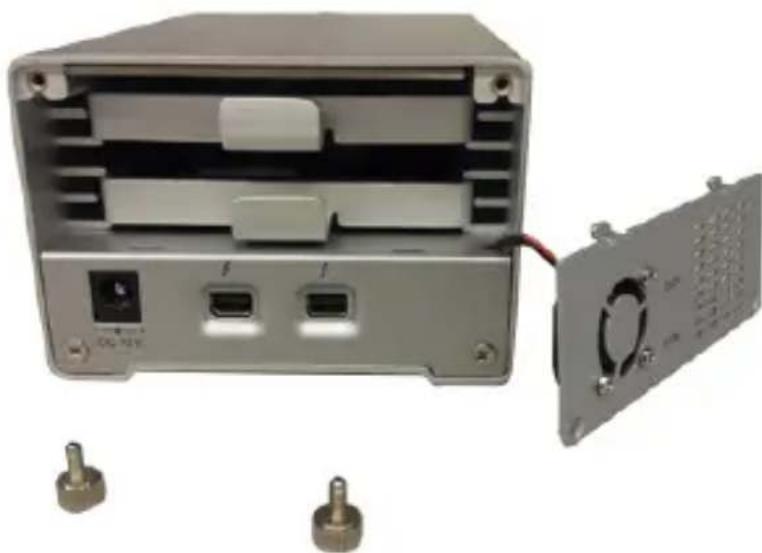
natural_image
Exterior view of a device chassis showing internal components and external wiring (no text or symbols visible)-
Replace the drive panel and thumb screws.
-
Connect the included thunderbolt cable from one of the Thunderbolt ports on the back of the enclosure, to an available Thunderbolt port on your computer.
Note: Either Thunderbolt port may be used to connect the enclosure to the host computer system. The remaining Thunderbolt port may be used to daisy chain to an additional device such as another enclosure, or Display.
- Connect your power adapter from the power jack on the unit into an available power outlet.
How to Use
Connecting the Hard Drives
Once the enclosure has been attached to a computer, and your the drivers will install automatically, and the inserted drives will be accessible as though they were installed within the system.
Prior to using the drive array, it will need to be formatted according to your operating system requirements. Refer to Initializing the Hard Drive
LED Indicator
The hard drive enclosure offers LED indicators for each drive, so you can monitor drive activity. The LED will flash while the hard drive is being accessed. Do not remove the enclosure from the host computer while the LED is flashing, as it could damage the drive or the enclosure, resulting in data loss.
Disconnecting the Hard Drive
Windows
- Select the "Safely remove Hardware and Eject Media" icon, located in the task bar.
- Select the Mass Storage Device from the list that appears.
- Wait for the message indicating that it is now safe to remove the device.
Note: Removing the connected drive prior to receiving notification that it is safe to do so, could result in losing or corrupting data stored on the drive. Once the Safe to Remove Hardware message appears, please disconnect the enclosure from the computer by removing the USB connection.
Mac OS X
To safely disconnect the attached drive from the host computer, close any windows listing the contents of the removable drive. Once all windows are closed, click on the drive icon on the desktop, and drag it to the Trash Can icon on the desktop. Allow 5 seconds before physically removing the enclosure/drive from the computer.
Initializing the Hard Drive
- If the drive array is new it may need to be initialized and formatted before use. From the main Windows desktop, right-click on "My Computer" ("Computer" in Vista/7/8), then select Manage. In the new Computer Management window, select Disk Management from the left window panel.

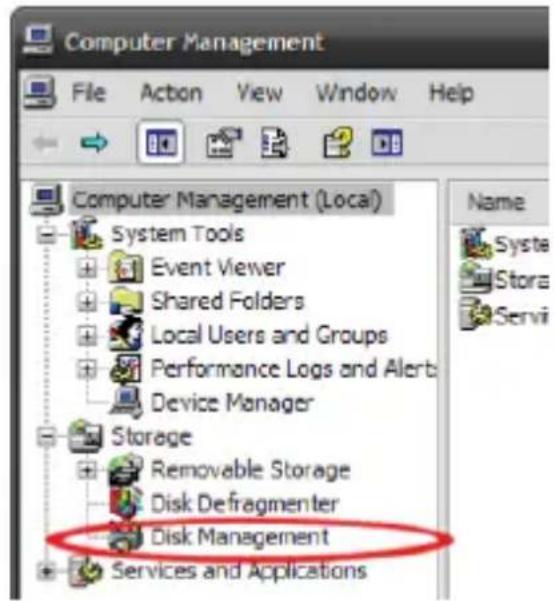
- A dialog window should automatically appear, asking you to initialize the drive. Depending on the version of Windows, it will give you the option of either creating an "MBR" or "GPT" disk. GPT (GUID partition) is required for drives larger than 2TB but is not compatible with some older operating systems, while MBR is supported by newer and older operating systems.
- Once initialized, locate the Disk that says it is "Unallocated" (check the listed hard drive capacity to confirm it's the correct hard drive) and then right-click in the section that says "Unallocated" and select "New Partition".

- Several on screen prompts will follow walking you through the steps to create the partition. Follow the prompts to complete partition creation.
Technical Support
StarTech.com's lifetime technical support is an integral part of our commitment to provide industry-leading solutions. If you ever need help with your product, visit www.startech.com/support and access our comprehensive selection of online tools, documentation, and downloads.
For the latest drivers/software, please visit www.startech.com/downloads
Warranty Information
This product is backed by a two year warranty.
In addition, StarTech.com warrants its products against defects in materials and workmanship for the periods noted, following the initial date of purchase. During this period, the products may be returned for repair, or replacement with equivalent products at our discretion. The warranty covers parts and labor costs only. StarTech.com does not warrant its products from defects or damages arising from misuse, abuse, alteration, or normal wear and tear.
Limitation of Liability
In no event shall the liability of StarTech.com Ltd. and StarTech.com USA LLP (or their officers, directors, employees or agents) for any damages (whether direct or indirect, special, punitive, incidental, consequential, or otherwise), loss of profits, loss of business, or any pecuniary loss, arising out of or related to the use of the product exceed the actual price paid for the product. Some states do not allow the exclusion or limitation of incidental or consequential damages. If such laws apply, the limitations or exclusions contained in this statement may not apply to you.
Hard-to-find made easy. At StarTech.com, that isn't a slogan. It's a promise.
StarTech.com is your one-stop source for every connectivity part you need. From the latest technology to legacy products — and all the parts that bridge the old and new — we can help you find the parts that connect your solutions.
We make it easy to locate the parts, and we quickly deliver them wherever they need to go. Just talk to one of our tech advisors or visit our website. You'll be connected to the products you need in no time.
Visit www.startech.com for complete information on all StarTech.com products and to access exclusive resources and time-saving tools.
StarTech.com is an ISO 9001 Registered manufacturer of connectivity and technology parts. StarTech.com was founded in 1985 and has operations in the United States, Canada, the United Kingdom and Taiwan servicing a worldwide market.


- ThunderBolt Dual 2.5" SATA SSD/HDD Enclosure
- FCC Compliance Statement
- Use of Trademarks, Registered Trademarks, and other Protected Names and Symbols
- Table of Contents
- Product Diagram....1
- Introduction......2
- Installation 3
- How to Use 6
- Technical Support 8
- Warranty Information......8
- Product Diagram
- Front View
- Rear View
- Introduction
- Packaging Contents
- System Requirements
- Installation Hardware Installation
- How to Use
- Connecting the Hard Drives
- LED Indicator
- Disconnecting the Hard Drive
- Windows
- Mac OS X
- Initializing the Hard Drive
- Technical Support
- Warranty Information
- Limitation of Liability
Brand : StarTech.com
Model : S252SMTB3
Category : Unspecified