KBGU10CCT1A - Television Kogan - Free user manual and instructions
Find the device manual for free KBGU10CCT1A Kogan in PDF.


User questions about KBGU10CCT1A Kogan
0 question about this device. Answer the ones you know or ask your own.
Ask a new question about this device
Download the instructions for your Television in PDF format for free! Find your manual KBGU10CCT1A - Kogan and take your electronic device back in hand. On this page are published all the documents necessary for the use of your device. KBGU10CCT1A by Kogan.
USER MANUAL KBGU10CCT1A Kogan
natural_image
White plastic funnel-shaped object with two metallic pins at the base (no text or symbols visible)KOGAN SMARTERHOME™ 5W COOL & WARM WHITE SMART BULB
(GU10, BLUETOOTH MESH)
KBGU10CCT1A
SAFETY & WARNINGS
For bulbs with a weight significantly higher than that of the bulbs for which they are a replacement, attention should be drawn to the fact that the increased weight may reduce the mechanical stability of certain light fixtures may impair contact making and bulb retention.

natural_image
Simple line drawing of a crossed cross over leaf-like shapes (no text or symbols)IEC 60417 -6179-1
Bulb not suitable for use under dust and moisture.
INSTALLATION
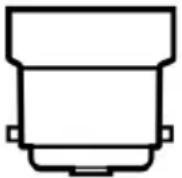
This smart bulb is only suitable for GU10 twist lock bi-pin type light fixtures. It will not fit into any other size or type of light fixture. Refer to the table below for the appropriate removal and installation method.
Light Bulb Types
The oil from your hands can cause damage to certain types of light bulbs. It is highly recommended to wear gloves while handling light bulbs.
| Base Type | Removal/Installation Method |
 Edison Screw Edison Screw | Remove: Twist bulb counter-clockwise until it comes free. |
| Install: Twist bulb clockwise until it is securely in place. | |
 Bayonet Bayonet | Remove: Push the bulb upward then twist counter-clockwise until it comes free. |
| Install: Insert the bulb into the fixture and gently twist clockwise until the pins lock securely in place. | |
 Twist Lock Bi-pin Twist Lock Bi-pin | Remove: Using your thumbs, gently press the bulb upward and slowly rotate the bulb counter-clockwise. When the bulb won’t rotate any further, wiggle it slightly and remove it from the light fixture.Note: Some bi-pin light fixtures feature a locking clip which will need to be removed before the bulb. |
| Install: Insert the bulb into the fixture, lining up the two pins. Using your thumbs rotate the bulb clockwise until it locks securely in place. Replace the locking clip (if applicable). |
Step 1: Turn off the power
- Ensure the light switch is in the off position before attempting to install or remove a light bulb.
- If you are removing an old light bulb, give the bulb a few minutes to cool down before touching it.
Note: Always test the temperature of globe with your fingertips before grasping it.
Step 2: Use a step ladder or stable chair
- If installing the light bulb in your ceiling, ensure you use a step ladder or stable chair to reach the light fixture. Do not stand on your tiptoes to reach the light bulb.
- Ensure you are in a comfortable, stable position before installing the bulb.
Step 3: Installing the light bulb
- Remove the bulb from the packaging and install it into the light fixture. Do not push or turn too hard as this may damage the light bulb.
Note:
Ensure that you're using the correct bulb type and power rating for the light fixture. If in doubt consult a qualified electrician before installing the bulb.
CONNECT TO SMARTERHOME™ APP
Install App
Download the "Kogan SmarterHome" app from the Play Store (Android) or App Store (iOS).
Register
If you do not have a Kogan SmarterHome™ account, register or sign in with a verification code sent by SMS.
To Register
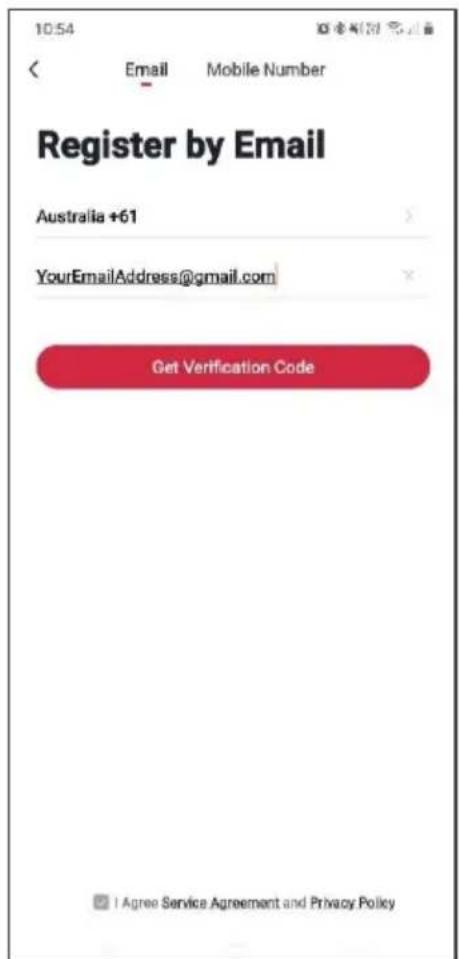
- Tap to enter registration page.
- The system automatically recognises your country/area. You can also select your country code manually. Enter your email address and tap 'Next.'
- Alternatively, you can select 'Register by mobile number' and enter the verification code sent to you by SMS.
- Create a profile on the next page to define your location and room.
text_image
10:54 Email Mobile Number Register by Email Australia +61 YourEmailAddress@gmail.com Get Verification Code I Agree Service Agreement and Privacy Policy
text_image
10:55 Email Mobile Number Register by Mobile Number Australia +61 0412345678 Get Verification Code I Agree Service Agreement and Privacy PolicyNote:
This product is intended to be used with the Smarterhome™ Smart Gateway (KABLEMSHUBA). If available, please complete the installation of the Gateway first and read the user guide before proceeding.
Once the gateway has been setup and successfully paired the app, you can add additional devices through the app to build a Bluetooth mesh network.
The gateway can communicate with other smart devices through Bluetooth so even if your Wi-Fi becomes unstable or interrupted, the accessories will still operate normally.
Set Device in Pairing Mode
Install the bulbs into the appropriate light fitting and power them on.
When the device is first turned on, it may automatically enter pairing mode (light gently breathing or flashing rapidly).
If not automatically in pairing mode when powered on, you can manually set the device in pairing mode by turning the light switch on and off 3 times: the bulb will begin gently breathing or flashing rapidly.

text_image
ON OFFNote:
This device requires constant power for proper functionality.
Auto-connect
-
Ensure that the device is in pairing mode (light gently breathing or flashing rapidly).
-
Connect your smart phone to your 2.4GHz Wi-Fi network.
-
Open the "Kogan SmarterHome" app.
-
Ensure that Bluetooth is enabled on your smart phone.
-
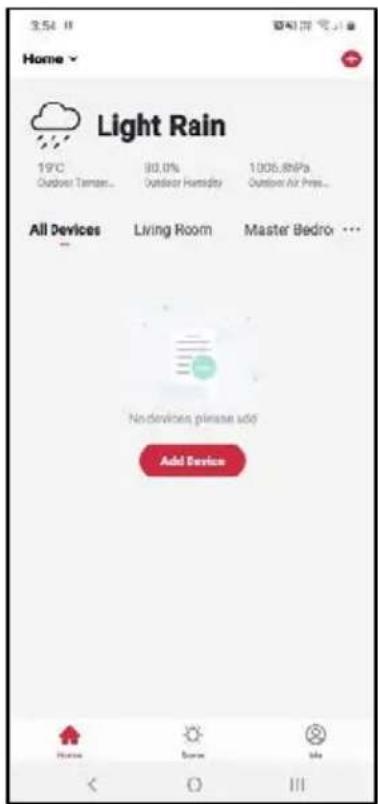
Tap "+" in the upper right corner of the app's home page to add a new device through the network.
-
The app will automatically detect the device, tap "Go to add".
-
If the device doesn't appear automatically, please select the "Bluetooth Mesh Light Bulb" in the device list and follow the prompt to detect/connect your device.
-
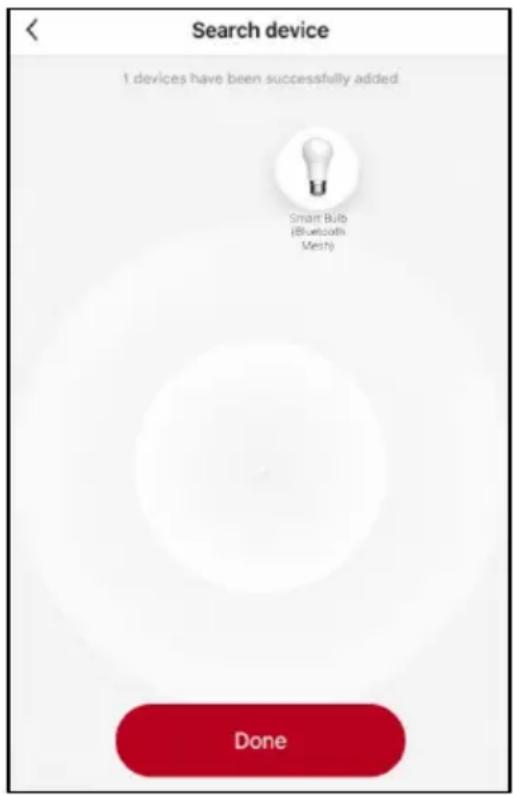
The device will commence the pairing process and connect to the gateway and app. Ensure your Wi-Fi router, mobile phone, and the SmarterHome™ device are kept close until connection is complete.
-
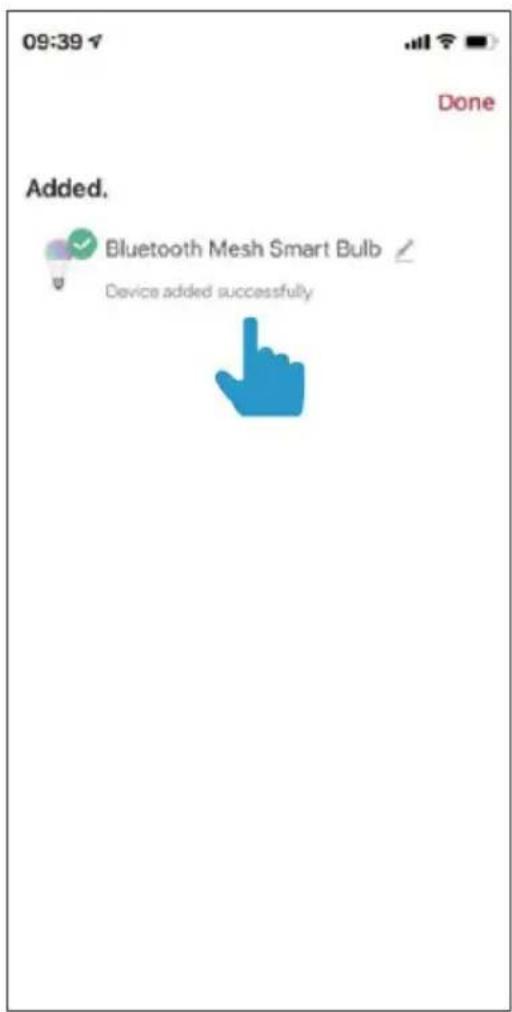
After successfully being added, you will have the option to rename the device and assign it to a location. It will now be listed on the app's home page. Tap the device listing to enter its control page.

text_image
3:54 11 Home Light Rain 19°C Outdoor Temas... 80.0% Outdoor Humidity 1006.8kPa Outdoor Air Pres... All Devices Living Room Master Bedro ... No devices please add Add Device Home Name Mn < O III
text_image
3.50 Add Manually Alma Scan Lighting Smart Night Light Macro Lamp Smart Ceiling Light Smart Bulb (Bluetooth Mesh) Slay Light Ambient Bag Light Clearing & Clearing Outdoor Garden Light Outdoor Bulb (WiFi) LED Slice Light Devices to be added: 1 Smart Bulb (Bluetooth Mesh) Do not add Go to add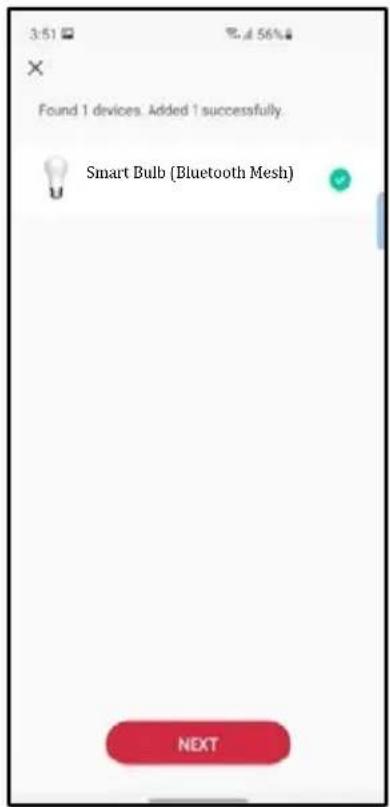
text_image
3:51 4.56% × Found 1 devices. Added 1 successfully. Smart Bulb (Bluetooth Mesh) NEXTConnect the Device Through Gateway
- Ensure that the device is in pairing mode.
- Connect your smart phone to your 2.4GHz Wi-Fi network.
- Open the "Kogan SmarterHome" app.
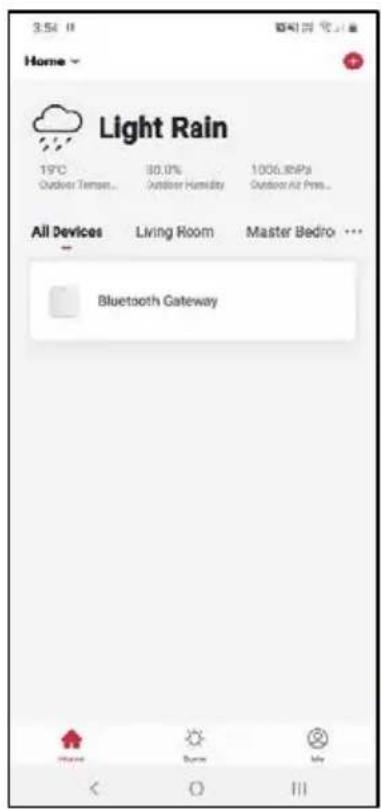
- Select "Bluetooth Gateway" from the list of connected devices.
- Tap "search new device" in the bottom right corner of the app to search for any sub-devices.
- Ensure that Bluetooth is enabled on your smart phone. If not, you will be prompted to turn it on.
- Confirm that the sub-device is in pairing mode (light gently breathing or flashing rapidly) then tap "Lights is in a flash" to begin pairing to the gateway.

text_image
Bluetooth Gateway Home Science Mix
text_image
Bluetooth Gateway Online devices: 0 You haven't create any device yet. Tap 'Add' to start: + add device from list Q search new device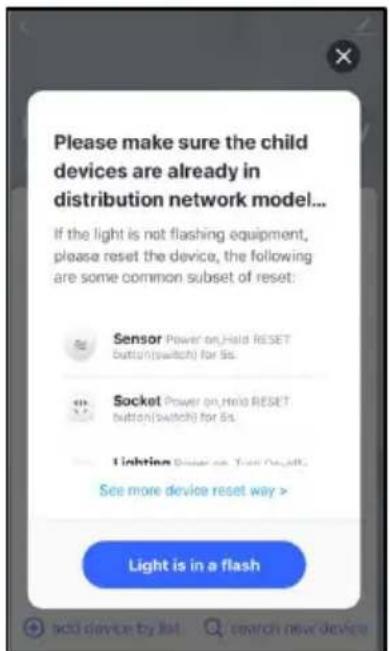
text_image
Please make sure the child devices are already in distribution network model... If the light is not flashing equipment, please reset the device, the following are some common subset of reset: Sensor Power on,Held RESET button(switch) for 5s. Socket Power on,Help RESET button(switch) for 6s. Lighting Sensor on,Tool Onset See more device reset way > Light is in a flash- The device will commence the pairing process and connect to the gateway and app. Ensure your Wi-Fi router, mobile phone, and the SmarterHome™ device are kept close until connection is complete.
- After successfully being added, you will have the option to rename the device and assign it to a location. It will now be listed on the app's home page. Tap the device listing to enter its control page.
text_image
Search device 1 devices have been successfully added Smart Bulb (Bluetooth Mesh) Done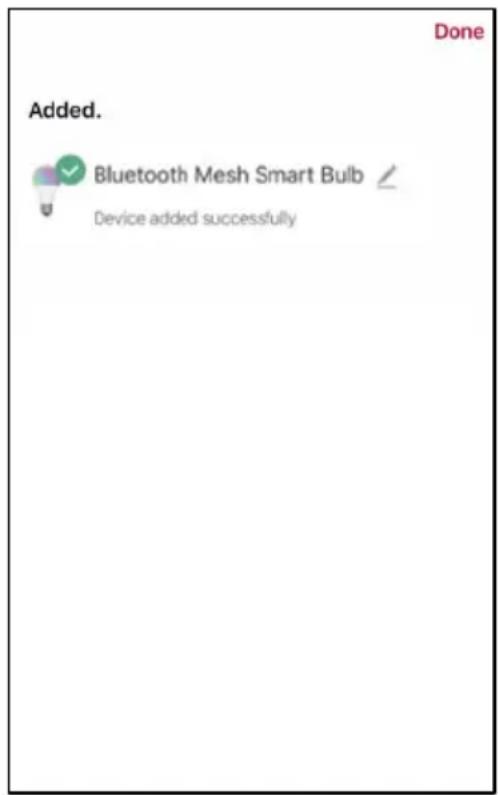
text_image
Added. Bluetooth Mesh Smart Bulb Device added successfullyDirect Bluetooth Connection
In situations where a Wi-Fi network and a gateway aren't present, this device can be connected to and controlled using your smartphone through Bluetooth. This method however has a limited range and once the device is outside of the smartphone's Bluetooth range, the device will lose its connection and appear offline.
- Ensure that the device is in pairing mode (light gently breathing or flashing rapidly).
- Open the "Kogan SmarterHome" app.
- Ensure that Bluetooth is enabled on your smart phone.
- Tap “+” in the upper right corner of the app’s home page to add a new device through the network.
- The app will automatically detect the device, tap "Go to add".
- The device will commence the pairing process and connect to the gateway and app. Ensure your phone, and the SmarterHome™ device are kept close until connection is complete.
- After successfully being added, you will have the option to rename the device and assign it to a location. It will now be listed on the app's home page. Tap the device listing to enter its control page.
text_image
3:54 Home Light Rain 19°C Outdoor Terrace... 80.0% Outdoor Humidity 1006.8MPa Outdoor Air Pres... All Devices Living Room Master Bedroom No devices please add Add Device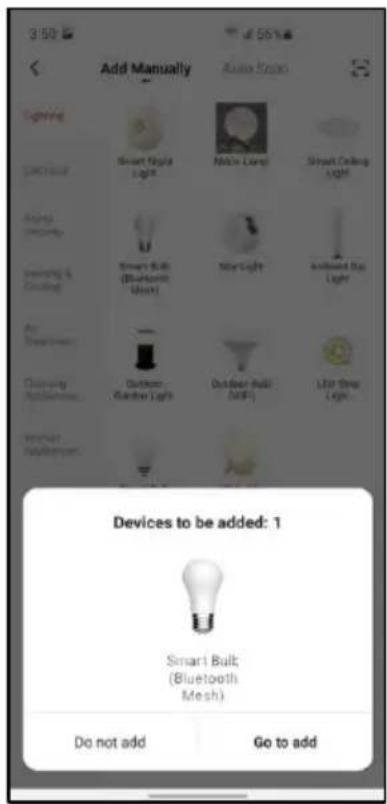
text_image
3:50 Add Manually Auto Scope Lighting Smart Night Light Main Lamp Smart Ceiling Light Lighting (Security) Smart Bulb (Bluetooth Mesh) Light Analog Bus Light Clearing Appliance Custom Garden Light Outdoor Bulb (MIP) Light Free Light Smart Bulk (Bluetooth Mesh) Do not add Go to add Devices to be added: 1
text_image
3:51 4.56% × Found 1 devices: Added 1 successfully. Smart Bulb (Bluetooth Mesh) NEXTAdding a Connected Device to Gateway
- Ensure that the device is in pairing mode (light gently breathing or flashing rapidly).
- Connect your smart phone to your 2.4GHz Wi-Fi network.
- Ensure that Bluetooth is enabled on your smart phone. If not, you will be prompted to turn it on.
- Open the "Kogan SmarterHome" app.
- Select "Bluetooth Gateway" from the list of connected devices.
- Tap "add device from list" in the bottom left corner of the app to search for any sub-devices.
- Select the device(s) from the list you wish to add to the gateway then tap "confirm".
text_image
3.5°C Home Light Rain 19°C Outdoor Temperature... 80.0% Outdoor Humidity 1006.8MPa Outdoor Air Press... All Devices Living Room Master Bedroom ... Bluetooth Gateway
text_image
Bluetooth Gateway Online devices: 2 Floodlig BT 4 deviceOffline Bluetooth Door Sensor 2 Bluetooth Temperature Sensor add device from list Q search new device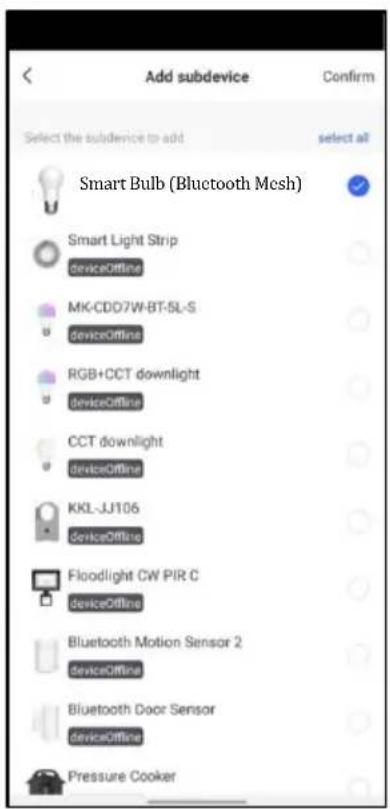
text_image
Add subdevice Select the subdevice to add select all Smart Bulb (Bluetooth Mesh) Smart Light Strip deviceOffline MK-CDD7W-BT-SL-S deviceOffline RGB+CCT downlight deviceOffline CCT downlight deviceOffline KKL-JJ106 deviceOffline Floodlight CW PIR C deviceOffline Bluetooth Motion Sensor 2 deviceOffline Bluetooth Door Sensor deviceOffline Pressure CookerEffective Range, Coverage Extension & Integrated Automation
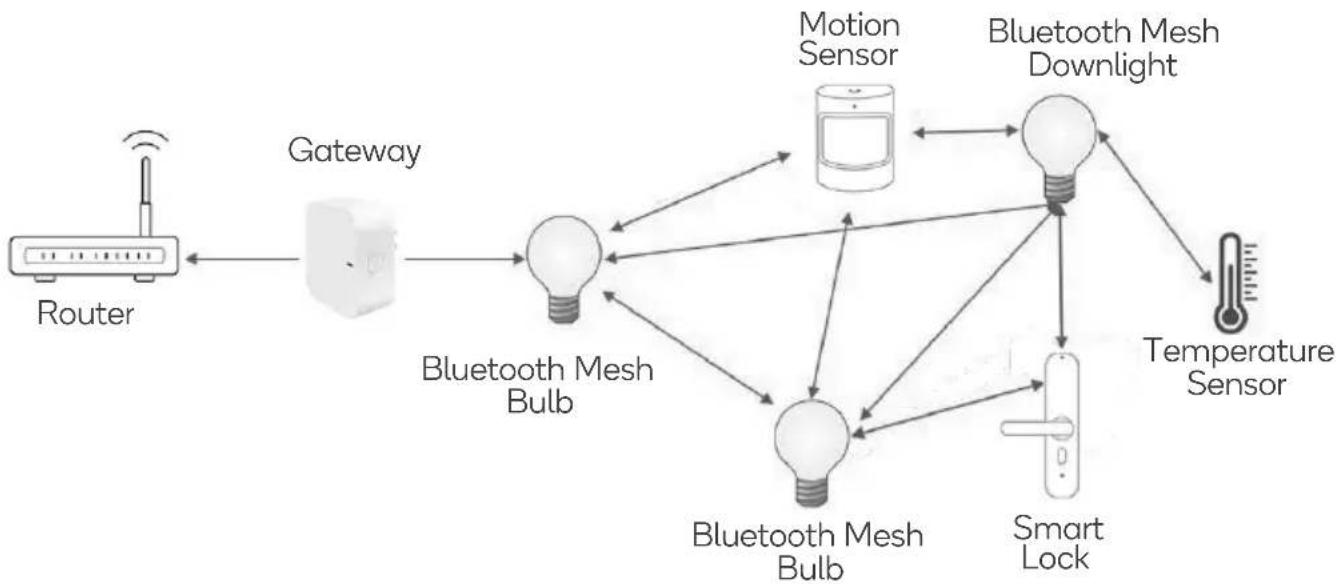
• Each Gateway can control up to 128 devices at the same time.
- The maximum effective distance between the Gateway and the smart light is up to 40 meters (in open areas) and up to 20m with obstructions (the more obstructions, the less the range).
• Each Bluetooth Mesh downlight/bulb creates a mesh network around itself and extends the signal coverage of the gateway up to 8-15m (up to 8m indoors, and up to 15m in open areas).
- The signal can be repeated/extended up to 8 mesh points (the furthest distance that can be reached is by repeating the signal for 8 times/through 8 lights).
- All other Kogan SmarterHome Bluetooth Mesh products (such as security sensors, door locks etc.) can connect to the Gateway via the extended mesh created by the Bluetooth Mesh downlights or bulbs.
• These sensors are commonly used together with the light to create automated scenes (when a PIR motion sensor detects movement it turns on the light etc.).
flowchart
graph LR
    A["Router"] --> B["Gateway"]
    B --> C["Bluetooth Mesh Bulb"]
    C --> D["Motion Sensor"]
    C --> E["Bluetooth Mesh Downlight"]
    C --> F["Bluetooth Mesh Bulb"]
    C --> G["Smart Lock"]
    C --> H["Temperature Sensor"]
    D <--> E
    E <--> G
    F <--> H
    G <--> H
Example of typical Bluetooth Mesh home network
Note:
You will need to have set up a Google Home account prior to linking your Kogan SmarterHome™ device.
Adding "SmarterHome" to the Google Home app
- From the home page of the Google Home app, select the “+” icon to access the ‘Add and manage’ page.
- Select 'Set up device', then under the Works with Google banner, select 'Have something already set up?'
-
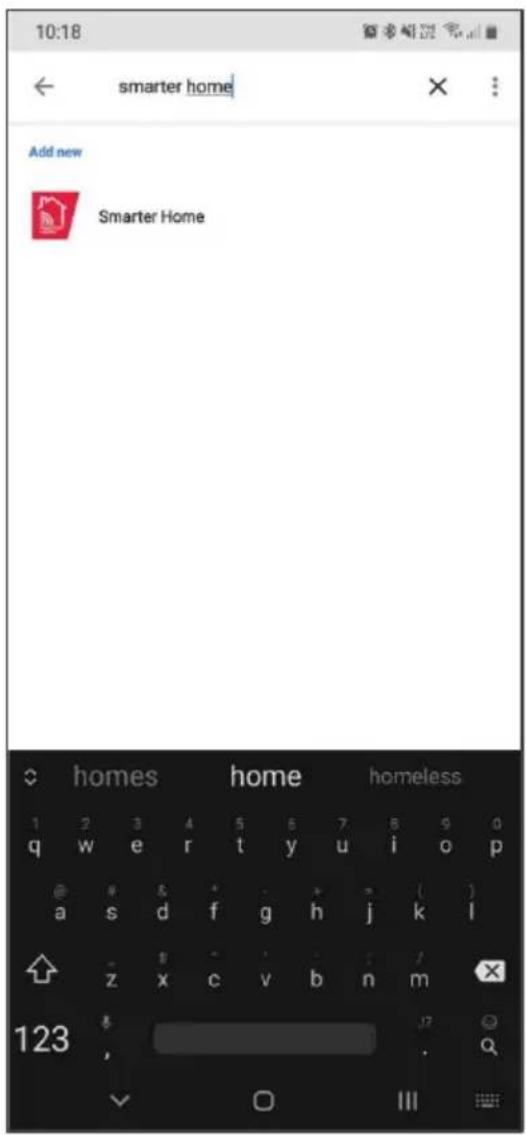
Select the search bar and type 'Smarter Home' to locate the Kogan SmarterHome™ service.
-
Tap 'Authorise' to grant Google permission to access the SmarterHome™ app and your devices.
- From here, you will be prompted to sign into your SmarterHome™ account using either your email or mobile phone number, depending on which method you used to register your account.
text_image
10:18 ← smarter home Add new Smarter Home homes home homeless 1 2 3 4 5 6 7 8 9 0 q w e r t y u i o p @ & * ( ) a s d f g h j k l z x c v b n m 123 , .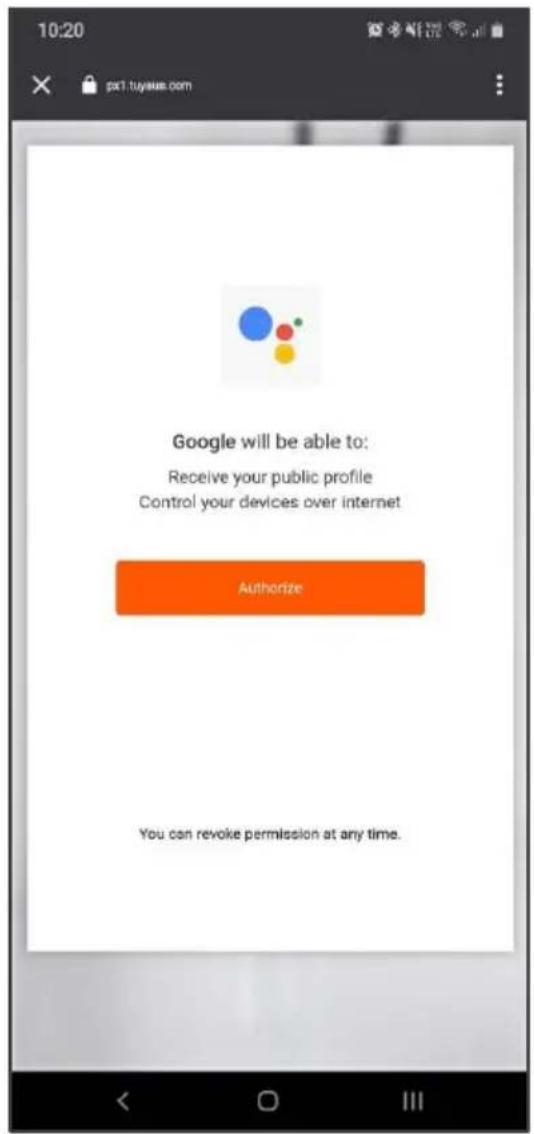
text_image
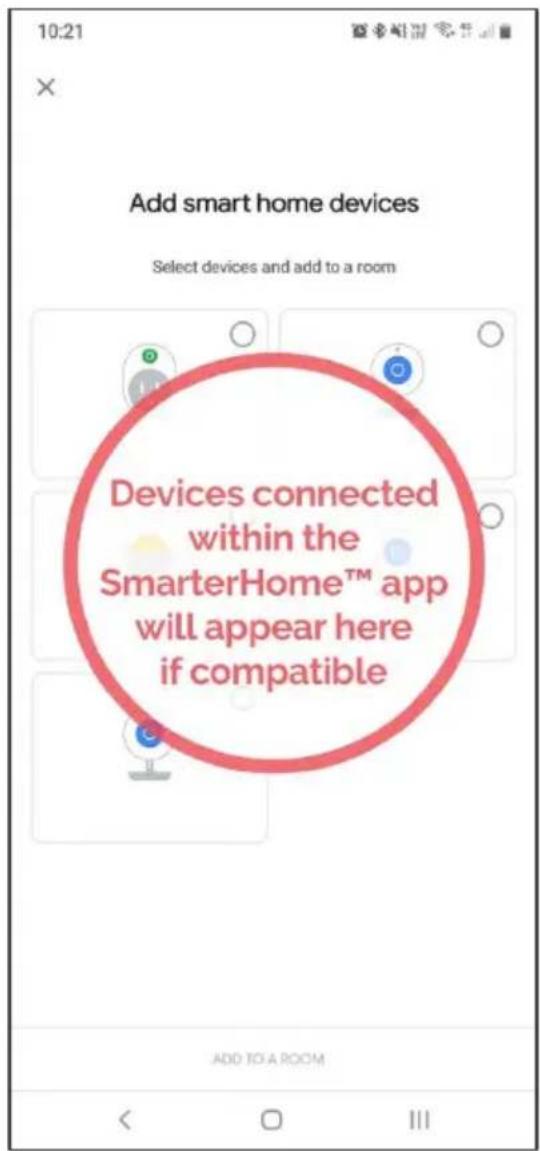
10:20 px1.tuyake.com Google will be able to: Receive your public profile Control your devices over internet Authorize You can revoke permission at any time.- Once connected, the app will display any compatible devices linked to your SmarterHome™ account. From here you can assign them to rooms and set up any routines.
- Tap on any of the devices to view a list of available commands.
text_image
10:21 Add smart home devices Select devices and add to a room Devices connected within the SmarterHome™ app will appear here if compatible ADD TO A ROOM
text_image
10:23 + Home ▼ Media Routines Settings Back garden 2 devices Dog Cam (Backyard) Dog Cam (Undercover) Kitchen 1 device Cat Cam (Kitchen) Other cast devices 8 devicesNote:
Please note that Google Home can only control the base/core functions of any compatible SmarterHome™ devices. To make full use of this product's smart functionality, please use the Kogan SmarterHome™ app.
AMAZON ALEXA CONTROL
Note:
You will need to have set up an Alexa account prior to linking your Kogan SmarterHome™ device.
Adding "SmarterHome" to the Alexa app
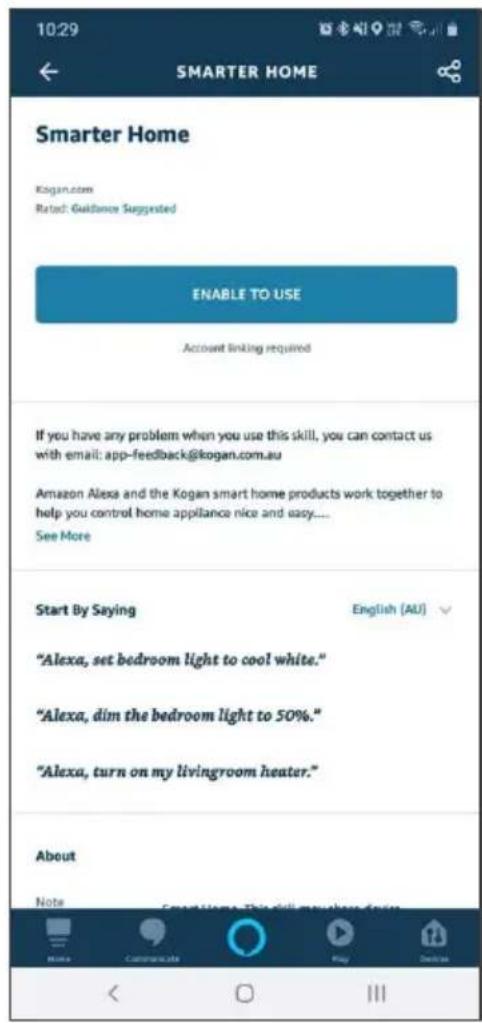
- From the home page of the Alexa app, select the “=” icon in the top-right and select Skills & Games from the sidebar.
- Select the search bar and type 'Smarter Home' to locate the Kogan SmarterHome™ skill.

text_image
10:28 Good Morning SOUTH MELBOURNE Acc@Alicia.com Morning 28° Afternoons 30° Evening 22° Call and message from your Alexa devices Add your phone number to get started.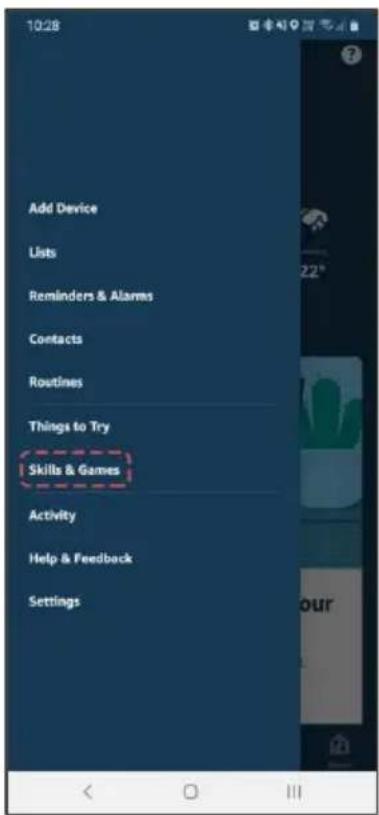
text_image
Add Device Lists Reminders & Alarms Contacts Routines Things to Try Skills & Games Activity Help & Feedback Settings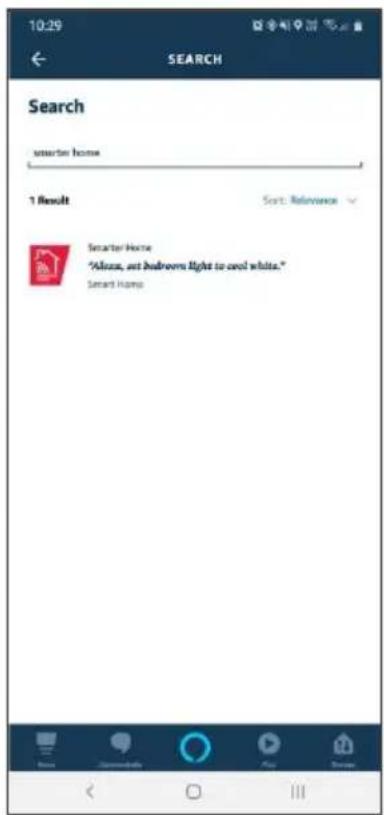
text_image
10:29 SEARCH Search smart home 1 Result Sort: Reference Smart Home "Always, eat bedrooms light to cool white." Smart Home- Tap 'Enable to Use' to add the Kogan SmarterHome™ skill to Alexa.
- From here, you will be prompted to sign into your SmarterHome™ account using either your email or mobile phone number, depending on which method you used to register your account.
- Tap 'Authorise' to grant Alexa permission to access the SmarterHome™ app and your devices.
text_image
10:29 SMARTER HOME Smarter Home Kogan.com Rated: Guidance Suggested ENABLE TO USE Account linking required If you have any problem when you use this skill, you can contact us with email: app-feedback@kogan.com.au Amazon Alexa and the Kogan smart home products work together to help you control home appliance nice and easy.... See More Start By Saying English (AU) "Alexa, set bedroom light to cool white." "Alexa, dim the bedroom light to 50%." "Alexa, turn on my livingroom heater." About Note SmartHome This skill makes home design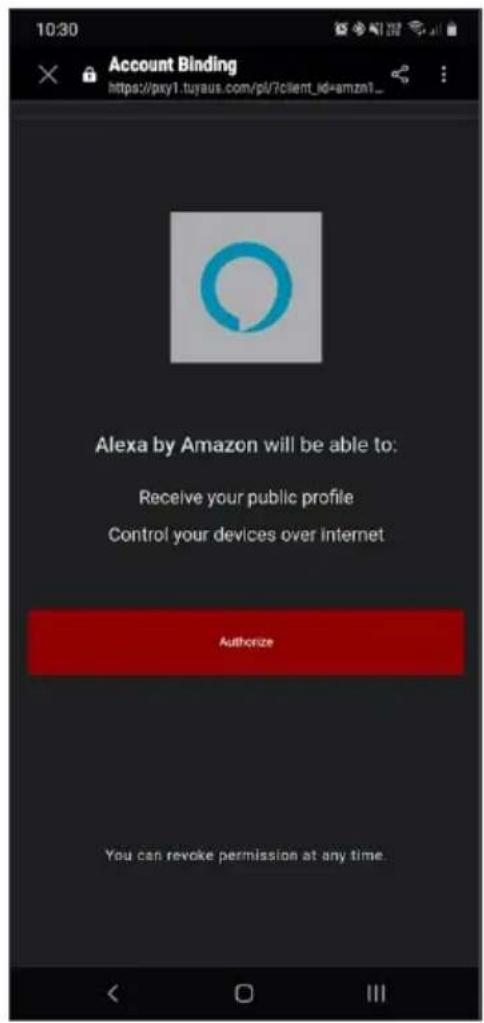
text_image
10:30 Account Binding https://pxyl.tuyaus.com/pl/?client_id=amzn1... Alexa by Amazon will be able to: Receive your public profile Control your devices over internet Authorize You can revoke permission at any time.-
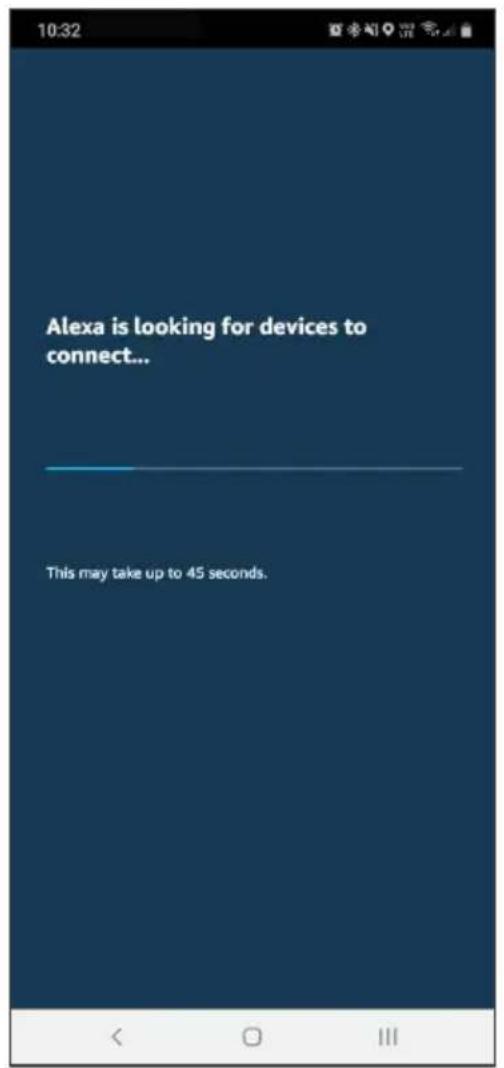
Once connected, the app will perform a search and display the devices linked to your SmarterHome™ account.
-
When your devices have successfully connected to the Alexa app, you will be able to control your Kogan SmarterHome™ devices via Alexa's voice commands.
text_image
Alexa is looking for devices to connect... This may take up to 45 seconds.
text_image
10:45 ALL DEVICES Cat Cam (Study) • New Device Alexa on this Phone Online Cat Cam (Kitchen) Fish Cam light 1 Plug 1Note:
Please note that Alexa can only control the base/core functions of any compatible SmarterHome™ devices. To make full use of this product's smart functionality, please use the Kogan SmarterHome™ app.
OPERATION
Power On/Off
To quickly turn the bulb on or off, tap the power icon to the right of the device name.
Reset
To reset the device back to its default settings, turn the relevant light switch on and off 10 times.
Settings
- Tap on the name of the device to enter the settings menu.
- Tap the power icon at the bottom of the screen to turn the bulb on or off.
text_image
09:39 Done Added. Bluetooth Mesh Smart Bulb Device added successfully
text_image
Bluetooth Mesh Smart Bulb White Scene 100% Left time ScheduleWhite Adjustment
-
Tap on the "White" tab at the top of the screen to enter the white control menu.
-
Adjust the temperature bar left or right to set the colour temperature from warm (3000K) to cool (6500K).
-
Slide the horizontal bar left or right to set the desired brightness level.

text_image
Bluetooth Mesh Smart Bulb White Scene 100% Left time Schedule
text_image
Bluetooth Mesh Smart Bulb White Scene 100% Left time ScheduleScene
- Tap on the "Scene" tab at the top of the screen.
- Tap on any of the scene icons to select the desired scene.

text_image
Bluetooth Mesh Smart Bulb White Scene Edit Night Read Working Leisure Add Left time Schedule
text_image
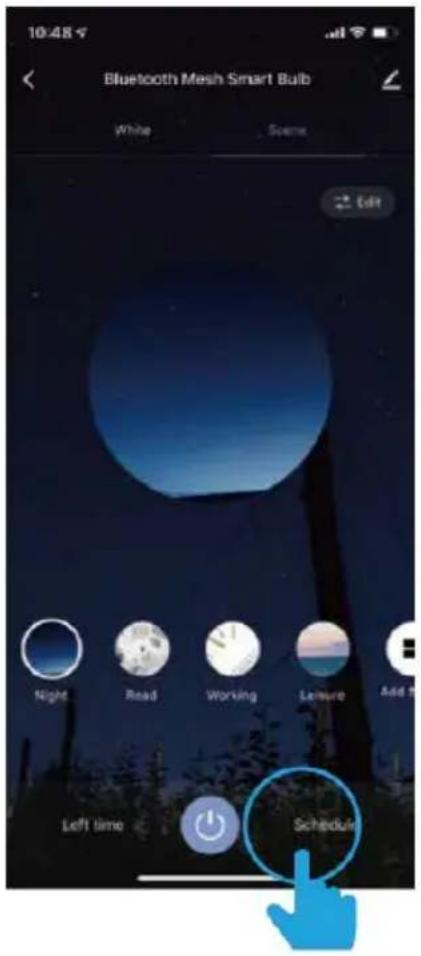
Bluetooth Mesh Smart Bulb White Scene Edit Night Read Working Leisure Add S Left time ScheduleSchedule
- Tap on the "Schedule" tab at the bottom right of the screen.
- Tap on the "Add Schedule" button.
- Choose a start time (on) or end time (off).
- To setup a repeat on certain days of the week tap "Repeat" or the schedule will only occur once.
text_image
Bluetooth Mesh Smart Bulb White Scene Night Read Working Leisure Add Left time Schedule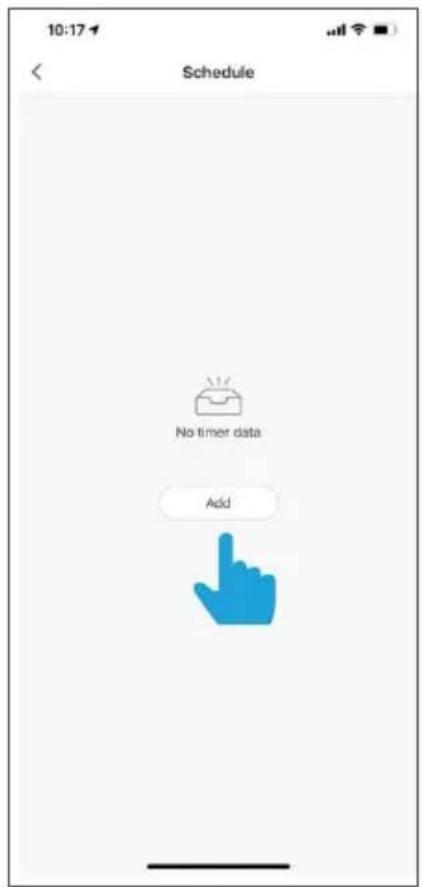
text_image
10:17 Schedule No timer data Add
text_image
10:17 Add Schedule Save 08 15 09 16 10 17 11 18 12 19 13 20 Repeat Once > Note > Notification Switch ON >Additional Settings
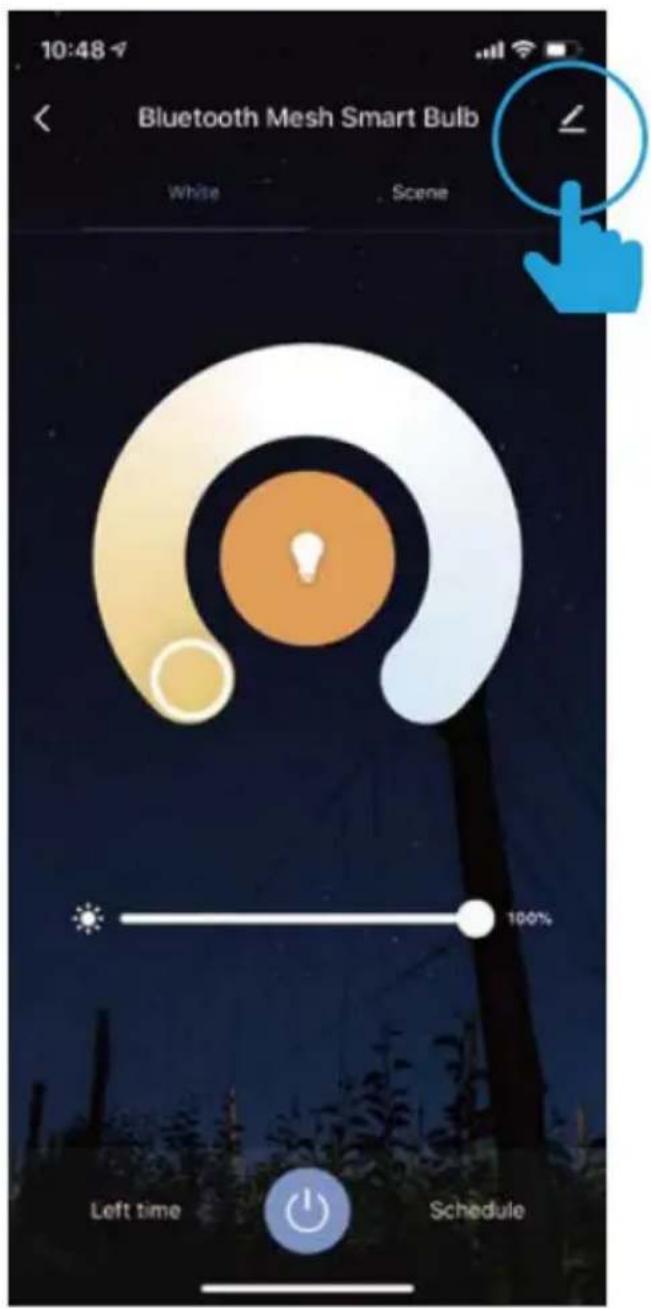
- Tap the context menu in the upper right corner, represented by the pen icon.
- Additional features are available in the bulb settings context menu, including renaming and removing devices.
text_image
Bluetooth Mesh Smart Bulb White Scene 100% Left time Schedule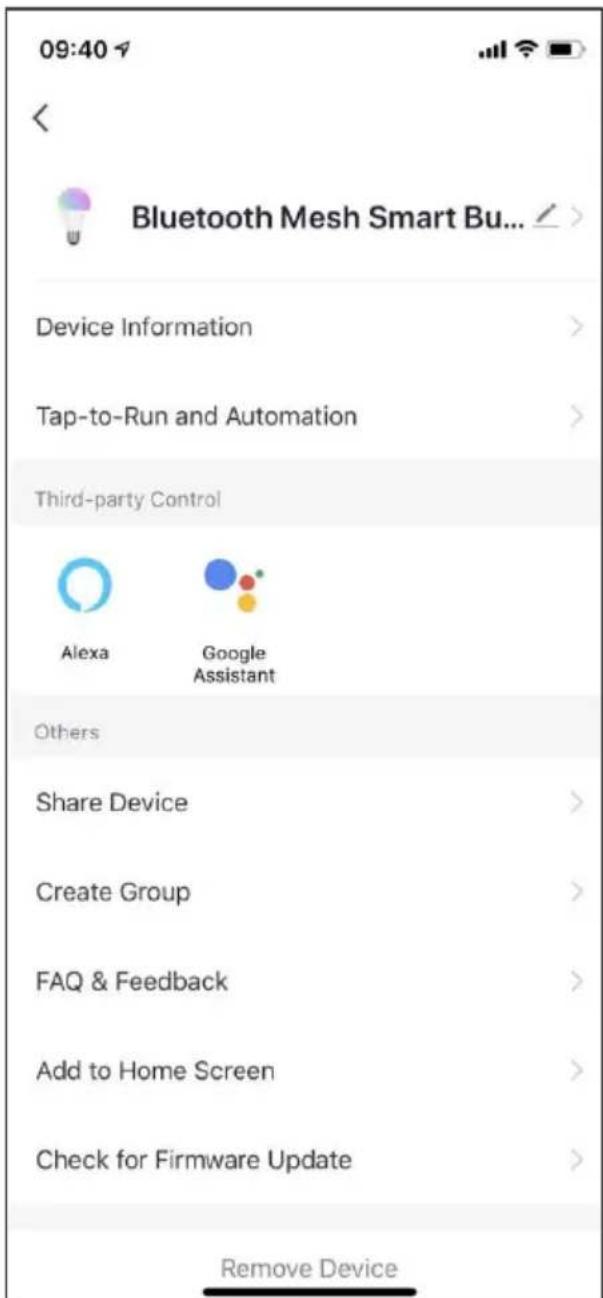
text_image
09:40 Bluetooth Mesh Smart Bu... Device Information Tap-to-Run and Automation Third-party Control Alexa Google Assistant Others Share Device Create Group FAQ & Feedback Add to Home Screen Check for Firmware Update Remove DeviceGrouping Devices
- From the context menu, tap on "Create Group".
- Select the bulbs you want to group then tap "Confirm".
- Enter the desired name for the group and tap "Save".

text_image
Bluetooth Mesh Smart Bus... Device Information Tap-to-Run and Automation Third-party Control Alexa Google Assistant Others Share Device Create Group FAQ & Feedback Add to Home Screen Check for Firmware Update
text_image
Cancel Select Device Confirm Devices under same group can be controlled simultaneou... Added Addable Bluetooth Mesh Smart Bulb Cancel Select Device Confirm Devices under same group can be controlled simultaneou... Added Enter the group name BLE Mesh Group1 Cancel Save- Tap the name of the created group in the device menu.
- Tap the context menu in the upper right corner, represented by the pen icon.
- From the context menu, you can rename the group or remove a bulb from the group. Once complete, tap "Save".

text_image
Cancel Select Device Confirm If you create a group you can control these devices together. Added Bluetooth Mesh Smart Bulb ✓ Bluetooth Mesh Smart Bulb ✓ Addable
text_image
09:39 Bluetooth Mesh Smart Bulb White Colour Scene MusicDevice Sharing
- Tap on the name of the bulb or group you wish to share from the device menu.
- Tap the context menu in the upper right corner, represented by the pen icon.
- Tap on "Share Group", then "Add Sharing" at the bottom of the Device Sharing screen.
- Enter the new user's mobile phone number or email address, then tap "Done" in the top-right corner of the screen.

text_image
10:25 BLE Mesh Group13 Group Device 2 > Tap-to-Run and Automation Third-party Control Alexa Google Assistant Others FAQ & Feedback Dismiss GroupNote:
New users must set up a SmarterHome account before device sharing is possible.
Need more information?
We hope that this user guide has given you
the assistance needed for a simple set-up.
For the most up-to-date guide for your product, as well as any additional assistance you may require,
head online to help.kogan.com.
kogan.com