Series 9 XU9250 - Television Kogan - Free user manual and instructions
Find the device manual for free Series 9 XU9250 Kogan in PDF.


User questions about Series 9 XU9250 Kogan
0 question about this device. Answer the ones you know or ask your own.
Ask a new question about this device
Download the instructions for your Television in PDF format for free! Find your manual Series 9 XU9250 - Kogan and take your electronic device back in hand. On this page are published all the documents necessary for the use of your device. Series 9 XU9250 by Kogan.
USER MANUAL Series 9 XU9250 Kogan
Safety and warnings 02
Components 04
Product overview....05
Inputs......05
Assembly and installation....06
Stand assembly....06
Connect to antenna....06
Using remote / power button....07
Remote control overview .....08 - 09
First time setup....09 - 10
Basic operation 11
Channel Selection....11
Volume / mute....11
Input Source....11
Navigating menus....11
Colour buttons....11
Settings....12
Overview 12
Quick menu....12
Global settings....13 - 14
PVR mode 15
Instant recording....15
Schedule recording....15
Timeshift mode....16
Media playback....16
Wall-mount installation....17
Specifications....18
Troubleshooting....19
THIS USER GUIDE COVERS THE FOLLOWING MODELS
Kogan 65" Smart HDR 4K LED TV (Series 9 XU9250)
SAFETY AND WARNINGS
Thank you for buying this Kogan product. Please read all safety instructions before using your TV.
WARNING
Never place a television set in an unstable location. A television set may fall, causing serious personal injury or death. Many injuries, particularly to children, can be avoided by taking simple precautions such as:
• Using cabinets or stands recommended by the manufacturer of the television set.
- Only using furniture that can safely support the television set.
- Ensuring the television set is not overhanging the edge of the supporting furniture.
- Not placing the television set on tall furniture (for example, cupboards or bookcases) without anchoring both the furniture and the television set to a suitable support.
- Not placing the television set on cloth or other materials that may be located between the television set and supporting furniture.
• Educating children about the dangers of climbing on furniture to reach the television set or its controls.
If your existing television set is being retained and relocated, the same considerations as above should be applied.
• To reduce the risk of fire or electric shock, do not expose this apparatus to rain or moisture.
• The apparatus shall not be exposed to dripping or splashing, and no objects filled with liquids, (for example, vases), shall be placed on the apparatus.
- When discarding used batteries, always be mindful of the environment. Ensure you follow any guidelines for recycling and safe disposal of batteries that apply in your local area. Don't throw used batteries in rubbish bin.
- When installing your TV, maintain a distance of at least 10 cm between the TV and other objects (walls, cabinet sides, etc.) to ensure proper ventilation. Failing to maintain proper ventilation may result in a fire or a problem with the product caused by an increase in its internal temperature.
- The openings/slots on the back of the apparatus have been provided for necessary ventilation. Ventilation should not be impeded by blocking these openings in any way (for example, newspapers, table-cloths, curtains, etc.)
- No naked flame sources, such as lit candles, should be placed on the apparatus. To prevent the spread of fire, keep candles or other open flames away from this product at all times.
- The device may malfunction when under electrostatic discharge. It can be manually resumed by switching power off completely (at wall outlet), then switching power on again.
• To avoid any injury caused by overturn of the product when installed with base stands, please always ensure the whole product is placed horizontally within the supporting surface and that the television is not overhanging the edge of the supporting furniture.
- If not using with base stands, use only a wall or ceiling mount which has been recommended by the manufacturer of the television.
SAFETY AND WARNINGS cont'd
- Keep small accessories out of reach of children so they are not mistakenly swallowed.
CAUTION: Connecting the power cord
Most appliances recommend they be placed upon a dedicated circuit; that is, a single outlet circuit which powers only that appliance and has no additional outlets or branch circuits.
Do not overload wall outlets. Overloaded wall outlets, loose or damaged wall outlets, extension cords, frayed power cords, or damaged or cracked wire insulation are dangerous. Any of these conditions could result in electric shock or fire. Periodically examine the cord of your appliance, and if appearance indicates damage or deterioration, immediately discontinue use of the appliance until the cord is replaced with an exact replacement part by an authorized servicer.
Protect the power cord from physical or mechanical abuse, such as being twisted, kinked, pinched, closed in a door, or walked upon. Pay particular attention to plugs, wall outlets, and the point where the cord exits the appliance.
The MAINS plug is used as the disconnect device, and the disconnect device shall remain readily operable.
Operating Temperature: 5°C to 45°C
Storage Temperature: -15°C to 45°C
Operating Humidity: ≤80%
Storage Humidity: ≤90%
CAUTION
Do not attempt to modify this product in any way without written authorization from supplier. Unauthorized modification could void the user's authority to operate this product.
It is not recommended to keep a certain still image displayed on the screen for a long time as well as displaying extremely bright images on screen.
Figures and illustrations in this User Manual are provided for reference only and may differ from actual product appearance. Product design and specifications may be changed without notice.
Refer to the table below as a guide to the symbols and warnings which may be on your TV.
| CAUTIONRISK OF ELECTRIC SHOCKDO NOT OPEN | CAUTION: TO REDUCE THE RISK OF ELECTRIC SHOCK DO NOT REMOVE COVER (OR BACK). NO USER SERVICEABLE PARTS INSIDE. REFER TO QUALIFIED SERVICE PERSONNEL. |
 | The lightning flash with arrowhead symbol, within an equilateral triangle, is intended to alert the user to the presence of uninsulated “dangerous voltage” within the products enclosure that may be of sufficient magnitude to constitute a risk of electric shock to persons. |
 | The exclamation point within an equilateral triangle is intended to alert the user to the presence of important operating and maintenance (servicing) instructions in the literature accompanying the appliance. |
 | Class II product: This symbol indicates that a safety connection to electrical earth (ground) is not required. If this symbol is not present on a product with a mains lead, the product MUST have a reliable connection to protective earth (ground). |
| AC voltage: Rated voltage marked with this symbol is AC voltage. | |
| DC voltage: Rated voltage marked with this symbol is DC voltage. | |
 | Caution. Consult instructions for use: This symbol instructs the user to consult the user manual for further safety related information. |
COMPONENTS

natural_image
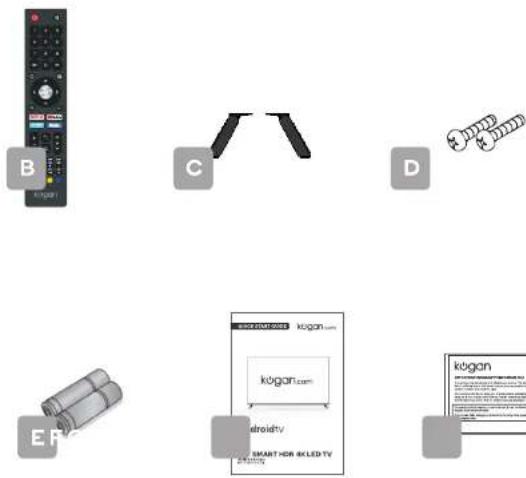
Plain dark gray rectangular panel with no visible text, symbols, or markingsA Kogan 65" Smart HDR 4K LED TV
B Remote control
C Stand (x2)
D M6 x 20mm screw (x2)
E AAA battery (x2)
F Quick-start guide
G Warranty card
text_image
B C D E kugan.com kugan.com Smart Home Display kuganNOT INCLUDED
Phillips head screwdriver, antenna cable, broadband internet connection.
PRODUCT OVERVIEW
natural_image
Simple line drawing of a blank rectangular frame with two side supports labeled '1' and '2' (no text or symbols on the frame itself)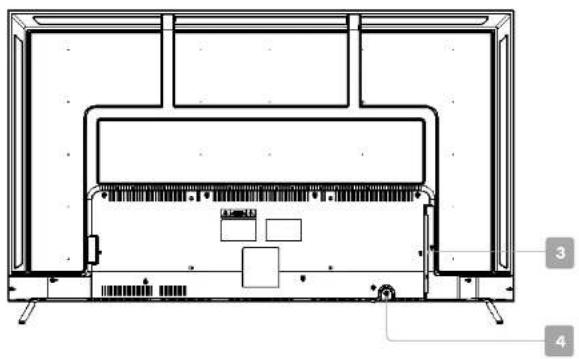
natural_image
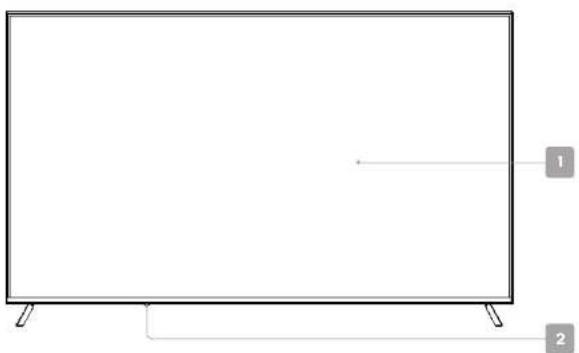
Technical line drawing of a mechanical or electronic component with labeled parts (no text or symbols present)1 HDR 4K LED display screen
3 Inputs/Ports
2 Remote sensor / Standby light
4 Power button
Inputs
| Audio in | [<778] | Stereo (2.0) audio input. | |
| Composite video in | [5Y6C] | Usually paired with stereo audio inputs(red and white cables), the single-wire composite cable provides video signal. | |
| Component video in | [2405] | Three cables ("Y," "Pb" and "Pr") provide a higher quality connection than the single-wire composite cable ("Y") commonly used to hook up earlier AV equipment. | |
| HDMI | Connect an HDMI cable between the HDMI port on the TV and the HDMI port on the DVD player/Set-Top Box.Ports marked 'ARC' also support Audio Return Channel. | ||
| USB 2.0 | USB storage devices can be inserted to record and pause live TV in PVR mode, or to watch media flies stored on device in medio mode. | ||
| VGA | Connect to a desktop or laptop computer. | ||
| ANT | For free-to-air TV, use an antenna cable (not supplied) to connect to a working antenna, either via an antenna wall socket, or directly. | ||
| LAN | For a wired internet connection via a broadband modem or router, connect an Ethernet cable to the LAN port. | ||
| Digital audio out (optical) | Audio out for digital audio devices. Port and cable may look different depending on an optical or coaxial input. Please use the cable appropriate for your device. | ||
| Digital audio out (coaxial) | |||
| 3.5mm audio out | Line audio out port for use with headphones, amplifier, soundbar or any other audio device via an AUX cable (not supplied). |
guide to inputs and ports, your TV may not feature all of the above.
ASSEMBLY AND INSTALLATION
BEFORE YOU GET STARTED
Spread cushioning flat to lay the TV on. This will help to prevent damage.
1. Stand assembly
a. Attach stands to base of TV, ensuring 'L' and 'R' markings on the TV and stands match.
b. Insert two 20mm screw for each stand and use Phillips head screwdriver (not supplied) to tighten.

natural_image
Architectural floor plan diagram showing room layout and structural elements (no text labels or annotations)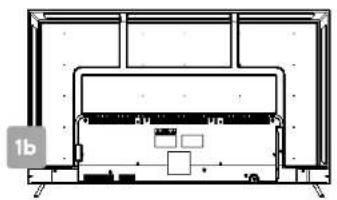
natural_image
Architectural floor plan showing room layout and structural elements (no text or labels)2. Connect to antenna
a. Connect an antenna cable (not supplied) via the 'ANT' input port at the back of the TV.
b. Ensure the antenna cable is also connected to a working antenna, either via an antenna wall socket in your home, or directly.
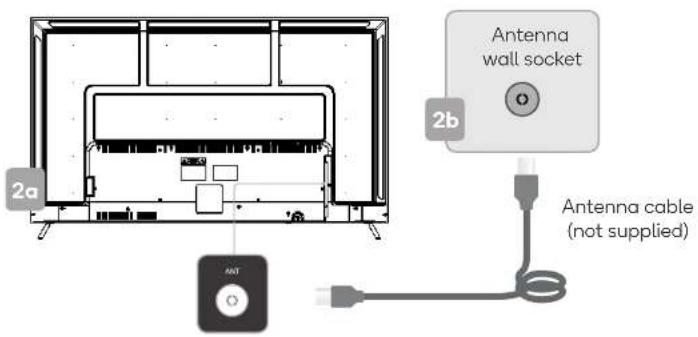
text_image
2a Antenna wall socket 2b Antenna cable (not supplied)USING REMOTE CONTROL / POWER BUTTON
3. Remote control assembly
a. Open the battery compartment cover on the back side.
b. Insert two 1.5V AAA size batteries, making sure to match the polarity markings (+ / -) of the batteries with the diagram inside the compartment.
c. Replace battery compartment cover.
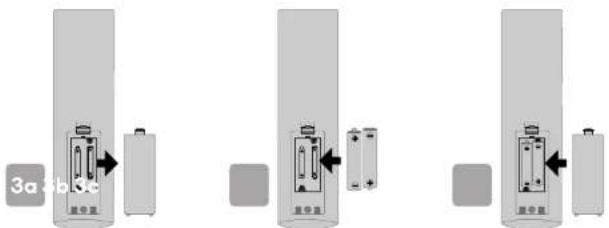
• One loading of batteries will last for 1 year under normal use.
- If you do not intend to use the remote controller for a long period of time, remove them to avoid damage due to leakage.
- Do not use old and new batteries together.
- The batteries (battery pack or batteries installed) shall not exposed to excessive heat such as sunshine, fire or the like.
4. Using remote control without bluetooth
Your Android TV remote control has bluetooth capability, but until this is paired with your TV, you will need to ensure the distance between the remote control and the TV is no greater than 8 metres, at an angle of no more that 30 degrees on either side (4a). Point the remote towards the sensor at the front of the TV (this may differ from the illustration).
TIPS
Do not block the path between the sensor and the remote control.
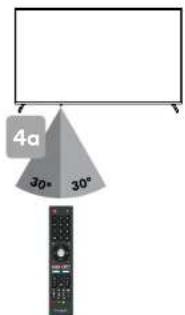
text_image
4a 30° 30°5. Turning TV on
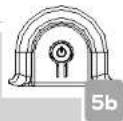
a. Plug the power cord into a suitable power outlet. The standby will display a light, showing that the TV is receiving power.
b. Press the POWER (0) button (on your remote or %8[8,) ]&38831 [3*8,) ]]) to turn the TV on.
c. The standby light will turn off when the TV is on.
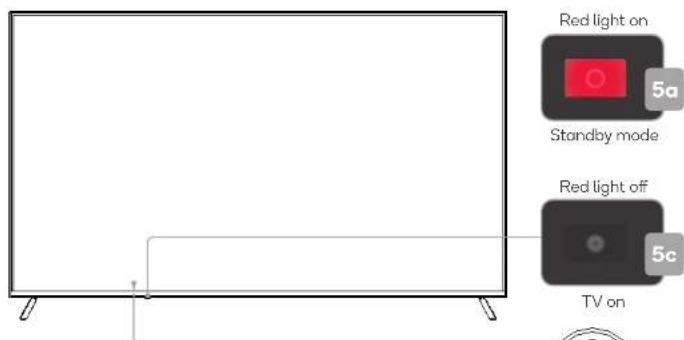
text_image
Red light on 5a Standby mode Red light off 5c TV onTURNING TV OFF
Press the POWER (4) button on the remote control to enter standby mode.
To power down the TV completely, unplug the power cord from the power outlet.
Do not leave your set in standby mode for long periods of time. If you will not use the TV for a long time, it is recommended to unplug the set from both the power outlet and aerial.
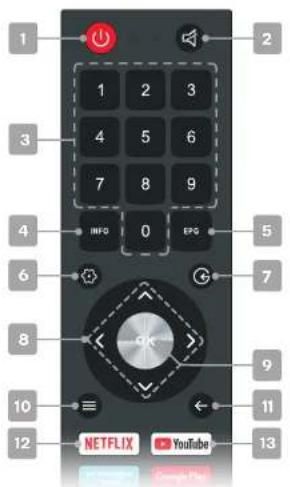
REMOTE CONTROL OVERVIEW (va6-a2t 1)
text_image
1 2 3 4 5 6 7 8 9 INFO 0 EFG 5 6 7 8 9 10 11 12 NETFLIX YouTube 131 Power, press to enter or exit standby mode
2 Mute to toggle sound on/off
3 Number buttons to select channels or input passwords
4 INFO displays the current program information
5 EPG Electronic Program Guide in DTV mode
6 Device preferences to display sound and picture options
7 © Source displays the list of input source channels.
8 ^/√ ✘ Direction buttons for navigating menus and settings
9 ok Enter select the current item or confirm selection, display Channel list in DTV mode
10 ≡ Quick Menu to display TV options with optional, adjustable settings
11 ← Back to the previous menu
12 NETFLIX to open app homepage
13 YouTube to open app homepage

text_image
14 15 16 17 18 19 20 21 kogan14 to open app homepage
15 Stan. to open app homepage
16: Google Assistant to launch the built-in virtual assistant for voice commands
17 +△- Volume to adjust the volume up or down
18 ^P∨ Program to scroll channels
19 Home to access the home page
20 ☐ Teletext to show/hide Teletext (Teletext not available in Australia or New Zealand)
USB P6) ss to sw-tc, to t,) USB so96c).
©I/II Audio to select available languages and audio channels.
SUBT Subtitles to select subtitles
▶ Start playback in media mode;
MIX mode in teletext
II Pause in media/PVR mode;
Timeshift function in DTV mode
■ Stop in media/PVR mode;
Hold teletext page on display, press again to release
Record in DTV mode;
Change size of teletext screen
◀ Reverse playback rapidly in media mode; 📄 Subtitle mode, or Submenu
Skip to previous in media mode; Index page
Skip to next in media mode;
Reveal hidden information in some teletext pages
▶ Advance playback rapidly in media mode;
Cancel teletext but not exit
21 Colour buttons for navigational use within apps
REMOTE CONTROL OVERVIEW (va6-a2t 2)

text_image
1 2 3 4 5 6 7 8 9 INFO 0 EFG 5 6 7 8 9 10 11 12 NETFLIX YouTube1 Power, press to enter or exit standby mode
2 Mute to toggle sound on/off
3 Number buttons to select channels or input passwords
4 INFO displays the current program information
5 EPG Electronic Program Guide in DTV mode
6 Device preferences to display sound and picture options
7 © Source displays the list of input source channels.
8 ^/√ ✘ Direction buttons for navigating menus and settings
9 ok Enter select the current item or confirm selection, display Channel list in DTV mode
10 ≡ Quick Menu to display TV options with optional, adjustable settings
11 ← Back to the previous menu
12 NETFLIX to open app homepage
13 YouTube to open app homepage

text_image
14 15 16 17 18 19 20 21 kogan14 to open app homepage
15 Google Play to open app homepage
16: Google Assistant to launch the built-in virtual assistant for voice commands
17 +△- Volume to adjust the volume up or down
18 ^P∨ Program to scroll channels
19 Home to access the home page
20 ☐ Teletext to show/hide Teletext (Teletext not available in Australia or New Zealand)
USB Pb) ss to sw-tc, to t,) USB so96c).
©1/II Audio to select available languages and audio channels.
SUBT Subtitles to select subtitles
▶ Start playback in media mode;
MIX mode in teletext
II Pause in media/PVR mode;
Timeshift function in DTV mode
■ Stop in media/PVR mode;
Hold teletext page on display, press again to release
Record in DTV mode;
Change size of teletext screen
◀ Reverse playback rapidly in media mode; 📄 Subtitle mode, or Submenu
Skip to previous in media mode; Index page
Skip to next in media mode;
Reveal hidden information in some teletext pages
▶ Advance playback rapidly in media mode;
Cancel teletext but not exit
21 Colour buttons for navigational use within apps
FIRST TIME SETUP
When turning the TV on for the first time, the Welcome screen will appear. Use the
▲, ▼ and OK buttons to navigate the following options.
Language and Location
Select your menu language, and select your country/region from the list.
Bluetooth
Your Android TV remote control has bluetooth capabilities. Follow the onscreen prompts to pair the remote with the TV, holding the ▲Volume and ←Back buttons simultaneously. Your remote's LED light will flash while pairing, and the TV will display 'Remote control paired' when successful. This will allow you to use voice commands with your remote via the Google Assistant button.
If the Bluetooth pairing process is skipped, refer to the Remotes &
Accessories section of the Settings menu.
Quickly set up with Android phone
If you have an Android smartphone, you can easily transfer your phone's Wi-Fi network and Google account to your TV. If not, select 'Skip'.
Select Wi-Fi network
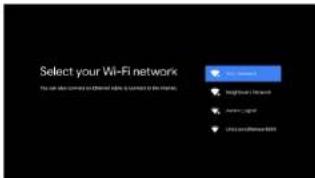
Your Android TV will automatically scan for wireless networks nearby. Ensure the TV is within range of your wireless modem or router, and have your password handy. Follow the prompts to input your password and connect your TV to your selected network.
If you'd prefer to connect an Ethernet cable to connect to the internet, simply insert the cable (not supplied) to the 'LAN' input port at the back of the TV (6b, next page), and ensure that it is correctly connected to the internet.

text_image
Press 📊 and ● key simultaneously, while pointing to the TV bottom within the distance of 1 meter Dip to show 2 your attention point above the button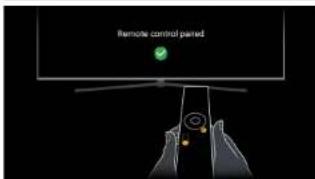
text_image
Remote control pairedPairing your bluetooth remote control with your Android TV will enable your remote's Google Assistant voice control function.
text_image
Select your Wi-Fi network The can also come to Internet links to the network.Connect to Wi-Fi by selecting your network and entering your password. A broadband internet connection is required for this step.
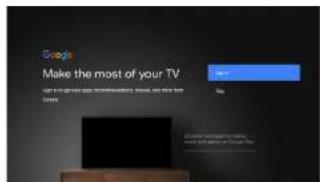
Google Account sign-in
Linking your Google Account to your Android TV will allow you to install new apps from the Play store, as well as receive recommendations from Google.
Terms of Service
This page will allow you to read each of the Google Terms of Service, Privacy Policy, and Google Play Terms of Service in full, and to accept.
Location permission
Grant permission for your Android TV to detect your location. You can adjust these permissions at any time from Settings.
Help improve Android
Grant permission for your Android TV to detect your location to automatically send diagnostic information to Google.
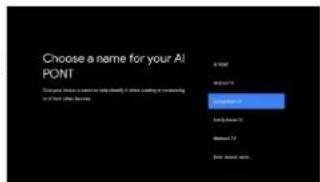
Choose a name for your TV
Give you TV a name to help identify it when casting or connecting to it from other devices. Select a preset option or enter a custom name.
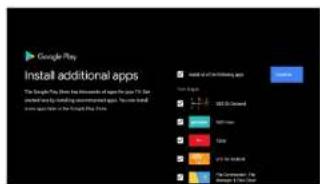
Install additional apps
Get started with some of our handpicked selections from the Play Store.
Following this you will be shown a brief overview of Android TV's features.
Password
Set a default password.
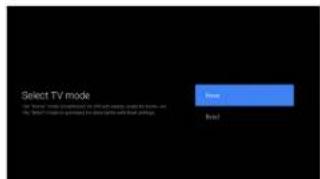
Select TV mode
The 'home mode' is optimized for efficient usage for home use. The 'retail mode' is optimized for store Demo with fixed settings.
WOL
Select on or off for the Wake On LAN function (if using Ethernet cable).
text_image
Google Make the most of your TV Yes NoSign in to your Google account here. If you use Gmail, you already have a Google account.
text_image
Choose a name for your AI PONT Name: Name: 1 Name: 2 Name: 3 Name: 4 Name: 5 Name: 6 Name: 7 Name: 8 Name: 9 Name: 10 Name: 11 Name: 12 Name: 13 Name: 14 Name: 15 Name: 16 Name: 17 Name: 18 Name: 19 Name: 20 Name: 21 Name: 22 Name: 23 Name: 24 Name: 25 Name: 26 Name: 27 Name: 28 Name: 29 Name: 30 Name: 31 Name: 32 Name: 33 Name: 34 Name: 35 Name: 36 Name: 37 Name: 38 Name: 39 Name: 40 Name: 41 Name: 42 Name: 43 Name: 44 Name: 45 Name: 46 Name: 47 Name: 48 Name: 49 Name: 50 Name: 51 Name: 52 Name: 53 Name: 54 Name: 55 Name: 56 Name: 57 Name: 58 Name: 59 Name: 60 Name: 61 Name: 62 Name: 63 Name: 64 Name: 65 Name: 66 Name: 67 Name: 68 Name: 69 Name: 70 Name: 71 Name: 72 Name: 73 Name: 74 Name: 75 Name: 76 Name: 77 Name: 78 Name: 79 Name: 80 Name: 81 Name: 82 Name: 83 Name: 84 Name: 85 Name: 86 Name: 87 Name: 88 Name: 89 Name: 90 Name: 91 Name: 92 Name: 93 Name: 94 Name: 95 Name: 96 Name: 97 Name: 98 Name: 99 Name: 100Select a name for your TV.
text_image
Google Play Install additional apps The Google Play has been installed at the beginning of the year. You can install your app in the following sections: - New York - 2017 - New York - 2018 - New York - 2019 - New York - 2020 - New York - 2021 - New York - 2022 - New York - 2023 - New York - 2024 - New York - 2025 - New York - 2026 - New York - 2027 - New York - 2028 - New York - 2029 - New York - 2030 - New York - 2031 - New York - 2032 - New York - 2033 - New York - 2034 - New York - 2035 - New York - 2036 - New York - 2037 - New York - 2038 - New York - 2039 - New York - 2040 - New York - 2041 - New York - 2042 - New York - 2043 - New York - 2044 - New York - 2045 - New York - 2046 - New York - 2047 - New York - 2048 - New York - 2049 - New York - 2050 - New York - 2051 - New York - 2052 - New York - 2053 - New York - 2054 - New York - 2055 - New York - 2056 - New York - 2057 - New York - 2058 - New York - 2059 - New York - 2060 - New York - 2061 - New York - 2062 - New York - 2063 - New York - 2064 - New York - 2065 - New York - 2066 - New York - 2067 - New York - 2068 - New York - 2069 - New York - 2070 - New York - 2071 - New York - 2072 - New York - 2073 - New York - 2074 - New York - 2075 - New York - 2076 - New York - 2077 - New York - 2078 - New York - 2079 - New York - 2080 - New York - 2081 - New York - 2082 - New York - 2083 - New York - 2084 - New York - 2085 - New York - 2086 - New York - 2087 - New York - 2088 - New York - 2089 - New York - 2090 - New York - 2091 - New York - 2092 - New York - 2093 - New York - 2094 - New York - 2095 - New York - 2096 - New York - 2097 - New York - 2098 - New York - 2099 - New York - 2100Installing additional apps from the Google Play Store.
text_image
Select TV mode Next NextSelect 'home mode' or 'retail mode'.
FIRST TIME SETUP (cont'd)
Following these options, the Channel Scan screen will appear. Ensure you have an antenna cable connected to the 'ANT' input port at the back of the TV (6a).
The auto tuning function will search for and save all available free-to-air TV channels. After confirming your settings (the default will be set for Australia), the
process will automatically begin. The number of searched channels will be displayed on the screen.
When setup is complete, you will be able to access the Home screen.

text_image
Channel Scan View View Scan
text_image
LAN PROM 250M POINT LND ANT 320.20 AV IN Digital 42/20 OUT 'LAN' input 'ANT' input
text_image
13 67 Search movies, TV and more 8 NETFLIX 10 Netflix 11 STRANGER THINGS 12 LUXATICS 12 LUXAVES 12 CLOTHING'S TILL 12 CHINESE & COOKING Customers: Netflix Add and active channels from your Home screen1 Google Assistant
Click to launch the built-in virtual assistant, which will begin listening for voice commands. Give it a try, ask "What's the weather today?"
2 Text search
Enter text manually to search TV apps.
3 System notifications
This option will only appear when notifications are present.
4 Source
Access free-to-air channels ('DTV') or other input source channels.
5 Internet connection
This will display as a Wi-Fi or LAN icon, depending on your connection. Select for connectivity options.
6 Settings
Access the global settings menu.
7 Clock
Time and date settings can be adjusted in the global settings.
8 Apps
Access the App Centre to display all installed apps. Free-to-air channels can be accessed under the 'Live TV' option.
9 Favourites list
A customisable list of apps available at a single click.
10 Play next
Displays the program you are watching or have queued to play next. You can add to this list by long pressing the OK button, then selecting "Add to play next". If the play next queue is empty, it will not be shown on the home page.
11 Pinned channels
Show the program list of pinned channels. The order of this list can be adjusted by pressing <from the channel icon and selecting the "<>" icon. Empty channels will not be shown on the home page.
12 Customise channels
Add or remove pinned channels from the home page.
BASIC OPERATION
Selecting channels
There are two ways to select channel:
-
Using number buttons followed by the ok button on the remote control to select channel directly.
-
To select channel 5, press: 5.
- To select channel 21, press: 2-1 in quick succession. When using the number buttons, you can directly select channels that were either not saved during the auto tuning, or manually erased.
- Using Buttons on the remote control or on your TV to select channel. When you press the Buttons, the TV changes channels in sequence. You will see all the channels that the TV has saved, but will not see channels that were either not saved, or manually erased.
Volume adjustment and mute setup
Press + buttons on the remote control or the TV to adjust the volume of the TV.
• To increase the volume, press ▲button
- To decrease the volume, press △ button
Press the ⚫ Mute button to toggle TV sound on and off. The mute icon will appear in the lower-right corner of the screen. To resume sound when TV is muted, press the ⚫ Mute button again, or simply press the ∠1+ button.
Input source
Input options are accessible directly from the home screen by selecting the Source icon. Press the ok button to confirm your selection.
Alternatively, you can use the Ⓐbutton on your remote control to access the list from any channel or screen.
Colour buttons
In some menus and apps, the remote control's four colour buttons () can be used.
Navigating menus
- Press the Ⓧ Menu button to display the quick menu.
- Press the ^/\~ Navigational buttons to select the desired sub item.
- Press the ok Enter or > Navigational button to access the menu of the next level.
- Select More on quick menu list to bring up the full settings menu.
- Press the ← Back button to return to the previous menu.
NOTE
- When a menu item is greyed out, it means that the item is not available or cannot be adjusted.
- Some items in menus may be hidden depending on modes or signal sources used.
SETTINGS
Quick menu
Options for your TV (picture, aspect ratio, speakers, etc) can be accessed by pressing the ≡ Quick Menu button on your remote control. Use </> buttons to navigate through the submenus, and ▲ buttons to access Channel and Recording/Time Shift options (7a).
Channels
TV options

text_image
Picture Mode Display Mode Speakers Power Advanced Options SettingsRecord
Global settings
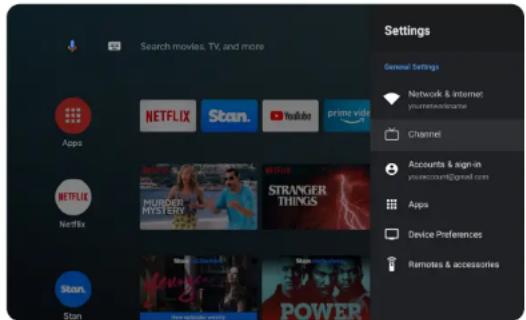
To access the global settings menu, simply navigate to the Ⓧ icon on the Home screen. Here you will find all of the adjustable options for Android TV's interface, connectivity, and apps.
In DTV mode you can also press the Quick Menu button on your remote control and use the Buttons to navigate to the 'Settings' option.
text_image
Search movies, TV, and more Settings General Settings Network & internet you're@netecartire Channel Accounts & sign-in you're@sum@gmail.com Apps NetFLIX Stan. YouTube prime video NetFLIX MURDER MYSTERY STRANGER THINGS Stan. Stan. PowerDevice preferences
To open the device options submenu directly during live TV playback, press the ☑ Device preferences button on your remote control.
QUICK MENU
Picture mode
Choose from the following selection of presets, or select 'User' mode to configure your own custom settings.
Standard
- Vivid
- Sport
- Movie
• Game
- Energy Saving
Display mode
You can select the picture size which best corresponds to your viewing requirements. Sizes may differ between input sources.
Speakers
Select the desired audio output source, choosing from the built-in TV speakers or an external system.
Power
Display power usage and sleep timer options, as well as the option for picture off (audio only) playback.
Advanced options
Adjust settings for subtitles, default channel, blue mute and more. Also see system and app version information.
Settings
Selecting the settings option here will take you to the Global Settings menu, also accessible via the home screen.
SETTINGS (cont'd)
GLOBAL SETTINGS
Network & Internet
Here you will find the options for Wi-Fi and Ethernet internet connections.
Wi-Fi
Available Wi-Fi networks are listed, with the option to manually add a new network.
Scanning always available
Toggle on/off.
WOW
Toggle on/off for Wake On Wi-Fi function.
WOL
Toggle on/off for Wake On LAN function.
Ethernet
The TV will display whether a LAN connection is active or not. If LAN is connected, status will show IP address.
Proxy settings
HTTP proxy is used by the browser but may not be used by other apps. Select between no proxy, or manually entering proxy address details.
IP settings
Select between DCHP or static.
CHANNEL
Auto channel update
Toggle on/off.
Parental controls
Enter PIN to access. Here you will find options for blocking channels, restricting content based on ratings, and blocking inputs (TV, AV, and all four HDMIIs).
Audio language and Second audio language
Select primary and secondary audio languages.
ACCOUNT & SIGN-IN
Here you find the same Google account sign-in screen from the start-up wizard.
APPS
Recent
View all recently used apps.
See all apps
Display a list of all installed apps.
Permissions
View and adjust settings for app permissions, special app access, and security & restrictions.
DEVICE PERMISSIONS
About
View system information.
Date & Time
Set clock and date information.
Timer
Adjust auto power-on and auto power-off settings.
Language
Interface language settings for on-screen display.
Keyboard
Adjust keyboard options. Third party keyboards can be added from the Play store. By default, Google's GBoard keyboard is installed.
Inputs
HDMI CEC (Consumer Electronic Control) settings can be adjusted here. Option to rename inputs (for example, 'HDMI 1' can be set as 'Blu-ray' or even a custom name, which will appear on the source inputs list) are also located in this submenu.
Power
Adjust power settings here.
Picture
Adjust picture settings here, in more detail than the Quick Menu's picture mode presets.
Sound
Locate settings for sound balance, equalizer, speakers, digital output, SPDIF and more in this submenu.
SETTINGS (cont'd)
Storage
View and adjust device storage information and set up external drives for use.
Home screen
Adjust options such as enabling video or audio previews, customising channels, and app order for the home screen. You can also view app licenses.
Retail mode
Toggle on/off. The 'home mode' is optimized for efficient usage for home use. The 'retail mode' is optimized for store Demo with fixed settings. By default the TV is set to home mode.
Google Assistant
Access options for Google Assistant and voice controls.
Chromecast built-in
View license details for Chromecast functionality. By default, Chromecast is enabled for your TV and does not require adjusting.
Screensaver
Adjust the screensaver usage and time settings.
Location
Enable location settings.
Usage & Diagnostics
Enable permission to share usage and diagnostic data.
REMOTES & ACCESSORIES
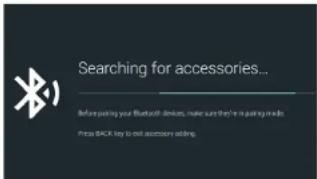
All compatible Bluetooth devices will appear here. You can connect and disconnect from devices here.
If not paired during the initial set-up (First Time Use), the TV's remote control pairing process can be reattempted by selecting Remotes & Accessories from the settings menu. To set your remote control into
text_image
Searching for accessories... Before passing your Bluetooth devices, make sure they're making me. Press BACK key to exit accessory adding.Pairing mode, hold the △- Volume and ← Back buttons simultaneously.
If the connection fails repeatedly, we recommend unplugging the TV for over ten seconds before reattempting.
PVR MODE
NOTE
- Don't connect or disconnect any USB device while in USB playback mode.
- Ensure all personal data is backed up before inserting USB device into TV. We assume no liability for any loss of data due to malfunction or misuse.
• USB device should have capacity at least 512MB. - USB device must support USB 2.0 high-speed specification.
- Use only USB storage devices formatted to FAT32.
- You cannot change channels while recording.
- If the signal is interrupted while recording, the recording will stop until signal is regained.
- While in time-shift mode, do not turn TV off.
Setup
To use PVR and Timeshift settings, first you must prepare your USB device. Ensure you have a USB drive inserted in either of your TV's USB 2.0 input ports.
Channels
TV options
Record

flowchart
graph LR
    A["Record List"] --> B["Device Info"]
    B --> C["Schedule List"]
    C --> D["Time Shift Mode"]
Press the ≡ Quick Menu button on your remote control, then the button to scroll down to the Record menu. Select Device Info (8a) to prepare your USB device for PVR or Timeshift functionality.
Your attached USB device will display on the Device Info list if it is prepared for PVR or Timeshift usage, or both.
You can also format your device and run speed tests from this menu.
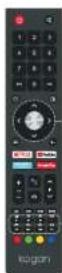
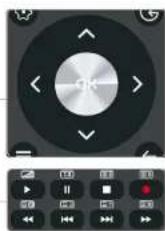
Recording and Timeshift controls
ok Confirm / Play / Pause
</> Navigation//Skipbookword&forward, Hold to skip to start & end
^/Navigation
▶ Play
II Pause / Timeshift
■ Stop
Record
Skip to start
Skip to end
◀ Skip backward
Skip forward
Recording
There are two types of recording: Instant Recording and Schedule Recording. Instant recording can record current TV programmes, while schedule recording can be set to record TV programmes automatically on the day, time, and duration you choose.
Instant recording
Select the channel you want, then press the Record button on the remote control to start recording. You will be prompted to confirm – press OK to begin recording.
To hide the information bar at the bottom of the screen, press the Record button once more.
To stop the recording, press ■ Stop and then OK to confirm when prompted.
Schedule recording
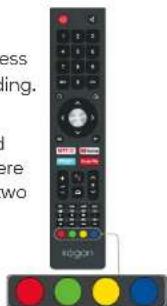
Select the Schedule List from the Record menu. Use the navigation buttons to select the desired programme, and press the ● Red colour button to schedule a programme for recording.
You can schedule several items to record. Press the
- Yellow colour button to view the list of currently scheduled programmes. Different schedules should not overlap and there must be at least a one-minute time gap to set up between two schedules.
NOTE
Schedule recording still works when TV is in standby mode.
text_image
less ing. ere two adgonPVR MODE (cont'd)
Timeshift mode
With the Timeshift turned on, you may pause and rewind normal TV viewing at any time without missing any of the live broadcast. This can also allow you to create a buffer and skip forward through commercials.
Press the Il Pause button on the remote control while in DTV mode to activate the Timeshift function. The TV stores the channel from the point of view you want to record. ▶ Play will resume from where you left off. Press ■ Stop to exit Timeshift mode. If a USB device dedicated to recording is disconnected, Timeshift files that were saved will automatically be deleted.
Playing recorded files
After recording is complete, press the ≡ Quick Menu button on your remote control, then the ▼ button to scroll down to the Record menu to find the
Record List. Here you will find a complete list of your recordings. Press the
- Red colour button to delete any files you no longer require.
MEDIA PLAYBACK
NOTE
You will need to have an app installed for media playback. We recommend VLC for Android, but you are welcome to choose your preferred media player from the Google Play store.
To access media playback mode, insert a USB drive containing files of the following type into the TV's USB input port. Next, from the Home page, select your preferred media player app. The following file types are supported:
| Data Format | |
| Photo JPEG, JPG, PNG, BMP, GIF | |
| Audio MP3, M4A, AAC, AC3, FLAC | |
| Video | MPEG, MPG, VOB, DAT, TS, TP, TRP, AVI, MP4, MOV, MKV, FLV, 3GP |
Alongside flashdrives, the TV's USB port is also capable of reading from devices such as digital cameras and USB hard disks.
Recordings saved in PVR mode will also be playable.

natural_image
Digital audio player interface with playback controls and control buttons (no readable text or symbols)Media playback controls
ok Confirm / Play / Pause
< /> Navigation / Skip backward & forward, Hold to skip to start & end
^/Navigation
← Back to previous menu
▶ Play
II Pause
■ Stop playback
Skip to start
Skip to end
Skip backward
Skip forward
[Non-Text]
WALL MOUNTING
Wall mount kit not included. Steps below are provided as an optional alternative to the supplied base-mounts.
natural_image
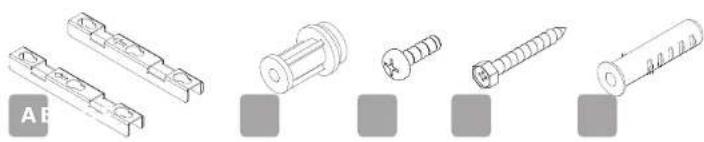
Five technical illustrations of mechanical fasteners and screws, shown in isometric view with no text or symbols.A Mounting bracket (x2)
B Shaft sleeve - M6 (x4)
C M6 x 45mm screw (x4)
D M6 x 60mm self-tapping screw (x4)
E Wall anchor (x4)
9. Optional wall-mounting installation
a. Measure and double-check the distance of threaded holes on the back panel of the TV before creating any holes in the wall.
b. Use 45mm screws (C) to attach shaft sleeves (B) within the four threaded holes on the back panel of the TV.
9b

text_image
Technical diagram of an electronic device rear panel with labeled components A, B, and Cc. Use a mounting bracket (A) as a guide to mark the positions for the four holes on the wall with a pencil.
d. Using a drill, create holes in the marked positions on the wall.
e. Insert the four wall anchors (E) into the screw holes in the wall.
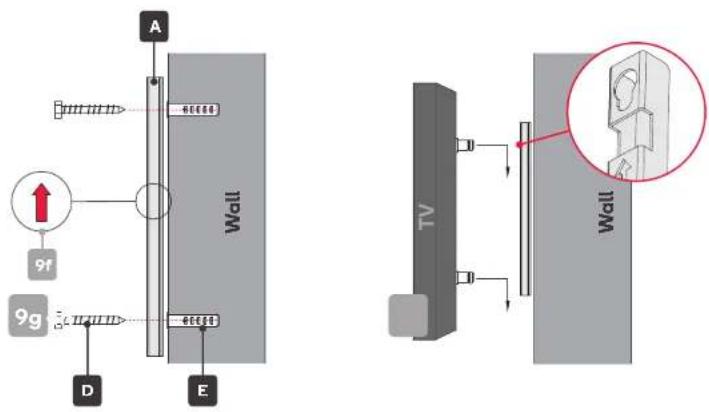
f. Place the mounting brackets against the wall, aligned with the wall anchors, ensuring the directional arrow is facing upwards.
g. Fix the mounting brackets with the 60mm self-tapping screws.
h. Attach the TV to the mounting brackets by placing all four shaft sleeves into the larger openings of the brackets, then lowering the TV so that the shaft sleeves "lock" into place within the brackets.
It is recommended that two people perform step 9h together to ensure the sleeves are properly aligned before the TV is lowered onto the brackets.
text_image
A 9f 9g D E Wall WallNOTE:
Only use wall-mounts that match the same size screws and fittings as those listed on this page. Other methods of wall-mounting have not been tested for this model and can not be guaranteed to safely support the TV.
SPECIFICATIONS
Audio
Speakers(Rated) 2 x 10W
Connectivity
Ethernet (RJ45) Yes
HDMI 3 x HDMI 2.0
HDMI-ARC Yes | HDMI 1
HDMI-CEC Yes | HDMI 1, HDMI 2, HDMI 3
USB 2 x USB 2.0
Wi-Fi IEEE 802.11b/g/n
Dimensions
Distance Between Legs 1389.4mm
Without Stand 1452.1 x 834.6 x 89.5mm
With Stand 1452.1 x 899.1 x 243.4mm
VESA Wall Mount Pattern 400 x 200
Weight 18kg
Display
Colours 1.07G
Computer Supported Resolutions 640×360, 853×480, 1024×576, 1280×720,
1366x768, 1920x1080, 3840x2160 (@60Hz)
Contrast Ratio 4000:1
Native Aspect Ratio 16:9
Panel Manufacturer SHARP
Refresh Rate 60Hz
Resolution 3840 x 2160
Response Time 6.5ms
Size 65"
Viewing Angle 170^/170^
Features
EPG Yes
HDCP Yes | 2.2
TV Resolution 4K UHD
Browser Pango
USB Media Playback Yes
USB Media Playback Formats JPG, JPEG, PNG, BMP, MP3, DD, DD+, AAC, MPG, MPEG4, H.265
Inputs
Composite (AV) 1
HDMI 3
Outputs
3.5mm Stereo Audio 1
Optical Audio Out 1
Performance
CPU ARM CA55 Quad Core with TEE1.2GHz
GPU MALi470 MP3
OS Android 9.0
RAM 1.5GB
Storage Capacity 8GB
Power
Average Consumption 116W
Energy Consumption 426kWh per year
Energy Rating 5 Star
Tuning And Signal
Tuner Type DVB-T
Note:
- Design and specifications are subject to change without notice.
• Weight and dimension shown are approximate.
TROUBLESHOOTING
Common fixes
Many minor issues can be resolved by hard resetting, or power cycling the unit or upgrading the firmware.
To perform a hard reset, or power cycle, please use the following steps.
- Unplug it from the main power socket and leave it for 10-15 minutes.
- Press and hold the power button on the TV for 5 seconds.
- Connect the TV back to the power and turn it on.
Poor picture and sound quality
- Try a different channel
- Adjust the antenna
- Check all connections
No picture or sound in TV status
- Try another channel
- Press the source button
• Make sure TV is plugged in - Check the antenna connection
Remote control malfunctions
- Replace remote control batteries (we recommend lithium AAA batteries for best results)
- Ensure battery terminal polarity (+/-) is correct
- Remote is out of range, move closer to TV
- Bluetooth remote not paired to TV (refer to Settings > Remotes & Accessories to pair)
- Remove any obstructions between remote and IR sensor of TV
• Make sure the power cord to your TV is plugged in and turned on
No sound or sound is too low at maximum volume
- Check the volume settings on any external speakers connected to your television
- Adjust the TV volume accordingly
- Check another channel or input
- Check that MUTE hasn't been turned on
Blurred or snowy picture, distorted sound
- Check direction, location and connections to your antenna
- Issues may be caused by the use of an indoor antenna (poor signal)
Picture rolls vertically
- Check all connections
No colour, wrong colour or tints
• Make sure the program itself is broadcast in colour
- Select the picture menu, then adjust the colour and tint submenus
Image is not centred on the screen
- Adjust the horizontal and vertical position
"No Signal" on HDMI source
- Test the device with a different HDMI cable
- Plug the device into another HDMI port
- Try a different device connected to the same cable and port
• Perform a factory reset on your TV
Care & maintenance
Unplug the television from the power supply before cleaning. Do not use any liquid cleaners or harsh chemicals. Always use a soft, damp cloth.
Cleaning the screen
Wet a soft cloth in a mixture of lukewarm water and a little fabric softener or dish washing detergent. Wring the cloth until it's almost dry, and then use it to wipe the screen.
Make sure the excess water is off the screen, and then let it air-dry before you turn on your TV.
Cleaning the casing
To remove dirt or dust, wipe the TV casing with a soft, dry, lint-free cloth. Please be sure not to use a wet cloth.
For our full TV troubleshooting guide, head online to help.kogan.com