107-GM5B - Kit d'installation audio voiture AXESS - Free user manual and instructions
Find the device manual for free 107-GM5B AXESS in PDF.


User questions about 107-GM5B AXESS
0 question about this device. Answer the ones you know or ask your own.
Ask a new question about this device
Download the instructions for your Kit d'installation audio voiture in PDF format for free! Find your manual 107-GM5B - AXESS and take your electronic device back in hand. On this page are published all the documents necessary for the use of your device. 107-GM5B by AXESS.
USER MANUAL 107-GM5B AXESS
text_image
Car dashboard display showing connected app icons and status bar with 'Driver' and 'Finish' labelsKIT COMPONENTS
- A) Center dash panel • B) Top trim panel • C) Radio brackets • D) Pioneer display brackets • E) Pioneer chassis brackets
• F) Three panel clips (top panel) • G) Interface and wiring (not shown)
A


F


[Non-Text]

[Non-Text]

TABLE OF CONTENTS
Dash Disassembly 2-3
Kit Preparation 4-6
Kit Assembly
-Shallow DDIN radio provision 7
-Pioneer modular DDIN radio provision ....8
Axxess Interface Installation 9-19
WIRING & ANTENNA CONNECTIONS
Wire harness: Axxess interface included
Antenna adapter: Included
Steering wheel control interface: Included
RGB Extension Cable: Pioneer part # CD-RGB150E (not sold by Metra)
TOOLS REQUIRED
• Panel removal tool • Phillips screwdriver
• 9/32" Socket wrench • T-15 Torx screwdriver
ATTENTION: With the key out of the ignition,
disconnect the negative battery terminal before installing this product. Ensure that all
before installing this product. Ensure that an installation connections are secure before
cycling the Ignition to test this product.
NOTE: Refer also to the instructions Included
with the aftermarket radio.
DASH DISASSEMBLY
- Using the panel removal tool, carefully unclip and remove the trim panels from both sides of the center console. (Figure A)
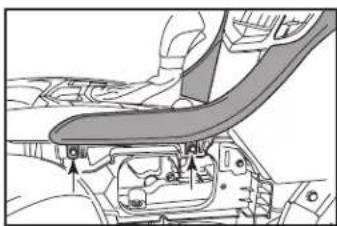
- Remove (2) 9/32" screws located on both sides of the padded trim of the center console. Unclip and remove the padded trim. (Figure B)
- Using the panel removal tool, gently unsnap and remove the u-shaped trim around the lower dash pocket. (Figure C)

text_image
Remove both sides(Figure A)
- Remove (2) 9/32" screws securing the lower portion of the control panel. (Figure D)
- Pull the pocket from the top to allow the upper control panel to pass.
Continued on the next page
natural_image
Mechanical assembly diagram showing a car's side panel and internal components (no text or labels)(Figure B)

natural_image
Technical line drawing of a vehicle interior panel with no visible text or symbols(Figure D)

natural_image
Technical line drawing of a mechanical component with no visible text or symbols(Figure C)
DASH DISASSEMBLY (CONT.)
NAV Models
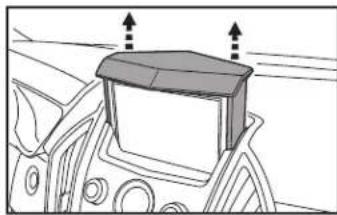
- For NAV equipped models, motorize the screen up, unclip the left and right legs securing the trim over the top of the motorized display screen, then lift up to remove the trim. (Figure E)
- Unplug the control panel and lift up enough to access the (2) 9/32" screws and 10mm nut. Plug the control panel back in and power the screen down to remove the control panel. (Figure F)
Note: If the airbag light is unplugged during this process be sure not to cycle the ignition.
natural_image
Top-down view of a vehicle's front dashboard and steering wheel (no text or symbols visible)(Figure E)

natural_image
Diagram of a computer monitor with ports and connectors, no visible text or symbols(Figure F)
Both NAV and Non-NAV
- Using the panel removal tool, gently, unclip and remove the control panel. (Figure G)
- Remove (4) 9/32" screws securing the radio chassis. Slide the chassis out, then unplug and remove the radio. (Figure H)
Continue to Kit Preparation

natural_image
Line drawing of a car interior control panel with no visible text or symbols(Figure G)

natural_image
Technical diagram of an automotive electronic panel assembly (no visible text or labels)(Figure H)
KIT PREPARATION
From the factory control panel:
Non-NAV
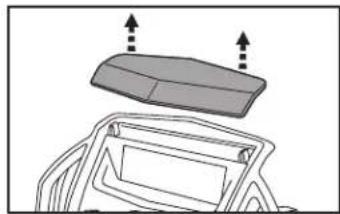
- Unsnap the top trim panel from the control panel. (above the screen) (Figure A)
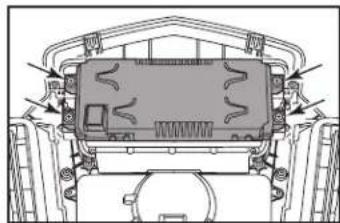
- Remove (4) Phillips screws and the factory screen. (Figure B)
- Remove (6) Phillips screws to remove the factory screen bezel. (Figure C)
Continued on the next page
natural_image
Diagram of a vehicle interior showing a rectangular frame with two upward arrows indicating motion or force (no text or symbols present)(Figure A)
natural_image
Technical diagram of a vehicle chassis frame with no visible text or symbols(Figure B)

natural_image
Technical line drawing of a vehicle front panel with control panels and directional arrows (no text or symbols)(Figure C)
From the factory control panel:
NAV models
- Remove (4) Phillips screws to remove the factory screen bezel. (Figure A)
Continue to Step 4 on the next page

natural_image
Technical line drawing of a vehicle chassis frame with no visible text or symbols(Figure A)
KIT PREPARATION (CONT.)
From the factory control panel:
Both NAV and Non-NAV
- Remove (6) Phillips screws securing the clock panel, unplug the connectors and remove the panel. (Figure D)
- Remove (10) Phillips screws securing the control button panel, then unplug and remove the panel. (Figure E)
- Remove (16) Phillips screws securing the inner housing. Unplug the lower climate controls, then remove the housing from the outer silver trim. (Figure F)
Continued on the next page

natural_image
Technical line drawing of a vehicle chassis frame with structural components and directional arrows indicating assembly or movement (no text or symbols present)(Figure D)

natural_image
Technical diagram of a vehicle's internal components with no visible text or symbols(Figure E)

natural_image
Technical line drawing of a mechanical component with mounting brackets and internal features (no text or symbols)(Figure F)
KIT PREPARATION (CONT.)
Dash Panel Assembly
- Secure the 107-GM5B dash panel using (16) factory screws. (Figure G)
- Cut off the top (2) mounting legs from the main factory climate buttons. (Figure H)
- Secure the main factory climate buttons using (8) factory screws. (Figure I)
- Connect the lower climate controls. Caution: Make sure the keyways line up or the connector can be forced in wrong.
Continue to Kit Assembly

natural_image
Technical diagram of a vehicle dashboard frame with directional arrows indicating components (no text or labels)(Figure G)

text_image
Remove shaded areas(Figure H)

natural_image
Top-down schematic of a computer chassis showing internal components and connectors (no text or labels)(Figure 1)
KIT ASSEMBLY
ISO DDIN radio provision
- Secure the radio brackets to the radio using (4) screws supplied with the radio. (Figure A)
- Reconnect the negative battery terminal and prepare for Axxess interface installation.
Continue to Axxess Interface Installation

natural_image
Technical line drawing of an electronic device casing with mounting brackets and screw holes (no text or symbols)(Figure A)
KIT ASSEMBLY
Pioneer Modular DDIN radio provision
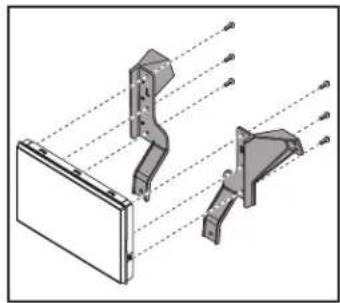
Note: For steps 1 and 2, reference the installation manual provided with the radio for which hardware to use. The display screen and radio chassis use two different types of screws.
- Secure the display screen to the Pioneer display brackets using (6) screws supplied with the radio. (Figure A)
- Connect the RGB extension cable to the display, then route the cable downward where the factory radio chassis was located.
natural_image
Technical illustration of mechanical components with alignment lines (no text or symbols)
natural_image
Interior view of a vehicle showing two rectangular electronic enclosures mounted on the hood (no text or symbols visible)(Figure B)
- Using the factory screws, secure the display screen assembly to the dash where the factory display was located. (Figure B)
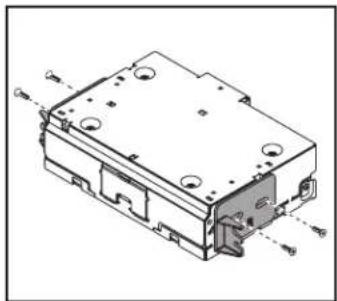
- Secure the Pioneer chassis brackets to the radio chassis using (4) screws supplied with the radio. (Figure C)
Continue to Axxess Interface Installation
natural_image
Technical line drawing of an electronic component with mounting holes and internal structure (no text or symbols)(Figure C)(Figure A)
AXXESS INTERFACE INSTALLATION
INTERFACE FEATURES
- Retains factory control panel and display of climate functions and vehicle customization menus on the 107-GM5B OLED screen.
- Provides accessory power (12-volt 10-amp)
- Maintains the Retained Accessory Power (R.A.P.) feature
- Retains factory backup camera
- Provides illumination
- Provides parking brake, reverse, and speed sense outputs
- Retains audio control on steering wheel and radio control buttons on the factory control panel
- Retains warning chimes
- Retains OnStar/OE Bluetooth
- Adjustable volume for chimes and OnStar
- Can be used in non-amplified, or amplified models
- Retains balance and fade
- USB Micro-B updatable
INTERFACE COMPONENTS
- Axxess interface
- 3"x2" OLED display
• Car side harness (LD-BX-GM8)
• Climate control T-harness (LD-SRXHVAC)
• Female 3.5mm jack (LD-SWC-F3.5)
• 16-pin harness with stripped leads (LD-2NAVAMPL) - 4-pin to 4-pin resistor pad harness (LD-GMOS100RPAD)
- Backup cam harness (LD-BACKUPCAM-2)
TABLE OF CONTENTS
Connections....10-11
Programming....12-13
Steering wheel control settings 14-18
Final assembly 19
TOOLS REQUIRED
- Crimping tool and connectors, or solder gun, solder, and heat shrink • Tape
- Wire cutter • Zip-ties
CONNECTIONS
For models without an amplifier:
From the 16-pin harness with stripped leads to the aftermarket radio, connect as indicated:
- Red wire to the accessory wire.
- Orange/White wire to the illumination wire. (if applicable)
- Brown wire to the mute wire. (if applicable)
Note: If the mute wire is not connected, the radio will turn off when OnStar is activated.
- Gray wire to the right front (+) speaker output.
• Gray/Black wire to the right front (-) speaker output. - White wire to the left front (+) speaker output.
- White/Black wire to the left front (-) speaker output.
The following (3) wires are only for multimedia/navigation radios that require these wires.
- Green/Purple wire to the reverse wire.
• Light Green wire to the parking brake wire.
Tape off and disregard the following (5) wires, they will not be used in this application:
Blue/White, Purple, Purple/Black, Green, Green/Black
From the car side harness to the aftermarket radio connect as indicated:
- Black wire to the ground wire.
- Yellow wire to the battery wire.
- Green wire to the left rear (+) speaker output.
- Green/Black wire to the left rear (-) speaker output.
-
Purple wire to the right rear (+) speaker output.
-
Purple/Black wire to the right rear (-) speaker output.
• Blue/Pink wire to the VSS/speed sense wire. - Ensure the 4-pin Molex connectors are connected together.
Note: The 4-pin to 4-pin resistor pad harness will not be used in this application.
Cut off and remove the resistors from the wires below the heat shrink:
Green, Green/Black, Purple, and Purple/Black
- Black/Yellow wire is used for OnStar level adjustment for models that do not come equipped with steering wheel controls. Refer to the OnStar level Adjustment section for further instructions.
- Connect the Pink wire with a red bullet connector to the Pink wire from the climate control harness. Attention! If this wire is not connected the climate control will fail to function.
- If retaining the factory AUX-IN jack is desired, connect the Red and White RCA jacks to the audio AUX-IN jacks from the aftermarket radio.
Note: a) The jack can only be used if it is a single jack.
b) If the jack has a USB port as well, neither can be retained.
Note: The relay attached to the car side harness is only for audible turn signal clicks. No extra steps are required to retain this feature, so leave the relay as-is.
Retaining factory backup camera
- To retain the factory backup camera, connect the Yellow RCA jack to the backup camera input of the aftermarket radio.
DIN jack: The DIN jack will not be used in this application, please disregard.
Continued on the next page

Metra
CONNECTIONS (CONT.)
For models with an amplifier:
From the 16-pin harness with stripped leads to the aftermarket radio, connect as indicated:
- Red wire to the accessory wire.
- Blue/White wire to the amp turn on wire. This wire must be connected to hear sound from the factory amplifier.
- Orange/White wire to the illumination wire. (if applicable)
- Brown wire to the mute wire, (if applicable)
Note: If the mute wire is not connected, the radio will turn off when OnStar is activated. - Gray wire to the right front (+) speaker output.
• Gray/Black wire to the right front (-) speaker output. - White wire to the left front (+) speaker output.
- White/Black wire to the left front (-) speaker output.
The following (3) wires are only for multimedia/navigation radios that require these wires.
• Blue/Pink wire to the VSS/speed sense wire.
- Green/Purple wire to the reverse wire.
• Light Green wire to the parking brake wire
Tape off and disregard the following (4 wires, they will not be used in this application:
• Green, Green/Black, Purple, Purple/Black
From the car side harness to the aftermarket radio, connect as indicated:
- Black wire to the ground wire.
• Yellow wire to the battery wire.
- Green wire to the left rear (+) speaker output.
• Green/Black wire to the left rear (-) speaker output.
• Purple wire to the right rear (+) speaker output.
- Purple/Black wire to the right rear (-) speaker output.
- Disconnect the 4-pin Molex connectors and then attach the 4-pin to 4-pin resistor pad harness.
- The Black/Yellow wire is used for OnStar level adjustment for models that do not come equipped with steering wheel controls. Refer to the OnStar level Adjustment section for further instructions.
- Connect the Pink wire with a red bullet connector to the Pink wire from the climate control harness. Attention! If this wire is not connected the climate control will fail to function.
- If retaining the factory AUX-IN jack is desired, connect the Red and White RCA jacks to the audio AUX-IN jacks from the aftermarket radio.
Note: a) The jack can only be used if it is a single jack.
b) If the jack has a USB port as well, neither can be retained.
Note: The relay attached to the car side harness is only for audible turn signal clicks. No extra steps are required to retain this feature, so leave the relay as-is.
Retaining factory backup camera
- To retain the factory backup camera, connect the Yellow RCA jack to the backup camera input of the aftermarket radio.
DIN jack: The DIN jack will not be used in this application, please disregard.
Continue to Programming
PROGRAMMING
With the key in the off position:
- Connect the 16-pin harness with stripped leads, and the car side harness, into the Axxess interface.
- Connect the climate control harness to the radio trim panel with climate controls, then to the wiring harness in the vehicle.
- Locate the factory antenna connector in the dash and complete all necessary connections to the radio. Metra recommends using the proper antenna adapter from Metra.
Attention! Do not connect the car side harness to the wiring harness in the vehicle just yet.
PROGRAMMING THE INTERFACE
For the steps below, the L.E.D. located inside the interface can only be seen while active. The interface does not need to be opened to see the L.E.D.
- Start the vehicle.
- Connect the car side harness to the wiring harness in the vehicle. The L.E.D. will initially be solid Green to indicate the interface is powered.
-
The L.E.D. will then flash Red up to (23) times indicating which radio is connected to the interface, and then turn off for a couple of seconds. Pay close attention to how many Red flashes there are. This will help in troubleshooting, if need be. Refer to the L.E.D. feedback section for more information.
-
After several seconds the L.E.D. will turn on solid Red while the interface auto detects the vehicle. The radio will shut off at this point. This process should take (5 to 30) seconds.
- Once the vehicle has been auto detected by the interface, the L.E.D. will turn on solid Green, and the radio will come back on, indicating programming was successful.
- Test all functions of the installation for proper operation, before reassembling the dash. If the interface fails to function, refer to Resetting the Interface.
Note: The L.E.D. will turn on solid Green for a moment, and then turn off under normal operation after the key has been cycled. - Test all functions of the installation for proper operation, before reassembling the dash.. If the interface fails to function, refer to "Troubleshooting", "Resetting the Axxess interface".
Chime level adjustment:
- With the vehicle on, turn it off and leave the keys in ignition. Open the driver's door; chimes will be heard.
- Wait (10) seconds, and then with a small flat-blade screwdriver, turn the potentiometer clockwise to raise the chime level; counterclockwise to lower the chime level.
- When the chime is at a desired level, remove the keys from the ignition. This will lock the chime volume at its current level.
Continued on the next page
OnStar level adjustment:

Metra
PROGRAMMING (CONT.)
- Press the OnStar button to activate it.
- While OnStar is speaking, press the VOLUME-UP or VOLUME-DOWN button on the steering wheel to raise or lower the OnStar level.
- If the vehicle doesn't come equipped with steering wheel controls, locate the Black/Yellow wire on the car side harness.
- While OnStar is speaking, tap the Black/Yellow wire to ground. Once the OnStar level is set, it will stay at that level until the Black/Yellow wire is tapped to ground again.
Continue to Steering Wheel Control Settings
STEERING WHEEL CONTROL SETTINGS
L.E.D. Feedback: The (23) Red L.E.D. flashes represent a different radio manufacturer for the SWC interface to detect. For example, if you are installing a JVC radio, the SWC Interface will flash Red (5) times, then stop. Following is the L.E.D Feedback Legend, which indicates the flash count of the radio manufacturer.
L.E.D. Feedback Legend
| Flash Count | Radio |
| 1 | Eclipse (type 1) † |
| 2 | Kenwood ‡ |
| 3 | Clarion (type 1) ‡ |
| 4 | Sony / Dual |
| 5 | JVC |
| 6 | Pioneer / Jensen |
| 7 | Alpine * |
| 8 | Visteon |
| 9 | Valor |
| 10 | Clarion (type 2) † |
| 11 | Metra OE |
| 12 | Eclipse (type 2) † |
| Flash Count | Radio |
| 13 | LG |
| 14 | Parrot ** |
| 15 | XITE |
| 16 | Phillips |
| 17 | TBA |
| 18 | JBL |
| 19 | Insane |
| 20 | Magnadyne |
| 21 | Boss |
| 22 | Axxera |
| 23 | Axxerra (type 2) |
KEYNOTES
* If the SWC interface flashes Red (7) times, and an Alpine radio is not installed, that means there is an open connection not accounted for. Verify that the 3.5mm jack is connected to the correct steering wheel jack/wire in the radio.
** The AXSWCH-PAR is required (sold separately). Also, the software in the radio must be rev. 2.1.4 or higher.
If a Clarion or Eclipse radio is installed and the steering wheel controls do not function, change the radio to Clarion (type 2) or Eclipse (type 2) respectively. If the steering wheel controls still do not function, refer to the Changing Radio Type document on the next page, also available at axxessinterfaces.com.
If a Kenwood radio is installed and the L.E.D. feedback flashes (5) times instead of (2), manually change the radio type to Kenwood. To do this, refer to the Changing Radio Type instructions on the next page, also available at axxessInterfaces.com.

Metra
STEERING WHEEL CONTROL SETTINGS (CONT.)
Changing Radio Type
- If the LED flashes do not match the number of the aftermarket radio, the radio will have to be manually programmed.
- Three (3) seconds after turning the key on, press and hold the Volume-Down button on the steering wheel until the L.E.D. in the interface turns a solid green.
- Release the Volume-Down button; the L.E.D. will go out indicating we are now in Changing Radio Type mode.
- Refer to the Radio Legend to know how many flashes are required to reach the aftermarket radio.
- Press and hold the Volume-Up button until the L.E.D. goes solid, and then release. Repeat this step for the desired radio number you have selected.
- Once the desired radio number has been selected, press and hold the Volume-Down button on the steering wheel until the L.E.D. goes solid. The L.E.D. will remain on for about (3) seconds, while it stores the new radio information.
- Once the L.E.D. goes off, the Changing Radio Type mode will then end. You can now test the steering wheel controls.
Note: If at any time the user fails to press any button for a period longer than (10) seconds, this process will abort.
Note: Refer to L.E.D. Feedback Legend for number of flashes, and for more information regarding specific radios.
| Flash Count Radio Legend |
| 1. Eclipse (type 1) |
| 2. Kenwood |
| 3. Clarion (type 1) |
| 4. Sony / Dual |
| 5. JVC |
| 6. Pioneer / Jensen |
| 7. Alpine |
| 8. Visteon |
| 9. Valor |
| 10. Clarion (type 2) |
| 11. Metra OE |
| 12. Eclipse (type 2) |
| 13. LG |
| 14. Parrot |
| 15. XITE |
| 16. Philips |
| 17. TBA |
| 18. JBL |
| 19. Insane |
| 20. Magnadyne |
| 21. Boss |
| 22. Axxera |
| 23. Axxerra (type 2) |
Continued on the next page
STEERING WHEEL CONTROL SETTINGS (CONT.)
Dual assignment instructions (long button press)
The interface has the capability to assign (2) functions to a single button, except Volume-
Up and Volume-Down. Follow the steps below to program the button(s) to your preference.
Note: Seek-Up and Seek-Down come pre-programmed as Preset-Up and Preset-Down for a long button press.
- Turn on the ignition but do not start the vehicle.
- Press and hold down the steering wheel control button that you want to assign a long press function to for about (10) seconds, or until the L.E.D. flashes rapidly. At this point release the button; the L.E.D. will then go solid.
- Press and release the Volume-Up button the number of times corresponding to the new button number selected. Refer to the Dual Assignment Legend. The L.E.D. will flash rapidly while the Volume-Up button is being pressed, and then go back to a solid L.E.D. once released. Go to the next step once the Volume-Up button has been pressed the desired number of times.
Caution: If more than (10) seconds elapses between pressing the Volume-Up button, this procedure will abort, and the L.E.D. will go out.
- To store the long press button in memory, press the button that you assigned a long press button to (the button held down in Step 2). The L.E.D. will now go off indicating the new information has been stored.
Note: These steps must be repeated for each button you would like to assign a dual purpose feature to. To reset a button back to its default state, repeat Step 1, and then press the Volume-Down button. The L.E.D. will go out, and the long press mapping for that button will be erased.
Dual assignment legend
- Not allowed 10. Band
- Not allowed 11. Play/Enter
- Seek-Up/Next 12. PTT
- Seek-Down/Prev 13. On-Hook
- Mode/Source 14. Off-Hook
- ATT/Mute 15. Fan-Up *
- Preset-Up 16. Fan-Down *
- Preset-Down 17. Temp-Up *
- Power 18. Temp-Down *
\* Not applicable in this application
Continued on the next page

Metra
STEERING WHEEL CONTROL SETTINGS (CONT.)
Remapping the steering wheel control buttons
The interface makes it possible to change the button assignments on the steering wheel. For example, the Seek-Up button could be reassigned as the Mute button. Follow the steps below to remap the steering wheel control buttons:
- Turn off the radio and ensure that the LED light on the interface is visible to confirm button recognition
- Within the first (20) seconds of turning the ignition on, press and hold the Volume-Up button on the steering wheel until the L.E.D. goes solid.
- Release the Volume-Up button, the L.E.D. will then go out; The Volume-Up button has now been programmed.
- Follow the list in the Button Assignment Legend to reference the order in which the steering wheel control buttons need to be programmed.
Note: If the next function on the list is not on the steering wheel, press the Volume-Up button for (1) second until the L.E.D. comes on, and then release the Volume-Up button. This will tell the interface that this function is not available and it will move on to the next function.
- To complete the remapping process, press and hold the Volume-Up button on the steering wheel until the L.E.D. in the interface goes out.
Button assignment legend
- Volume-Up 10. Band
- Volume-Down 11. Play/Enter
- Seek-Up/Next 12. PTT (Push to Talk) *
- Seek-Down/Prev 13. On-Hook *
- Source/Mode 14. Off-Hook *
- Mute 15. Fan-Up *
- Preset-Up 16. Fan-Down *
- Preset-Down 17. Temp-Up *
- Power 18. Temp-Down *
\* Not applicable in this application
Note: Not all radios will have all of these commands. Please refer to the manual provided with the radio, or contact the radio manufacturer for specific commands recognized by that particular radio.
Continued on the next page
STEERING WHEEL CONTROL SETTINGS (CONT.)
The factory vehicle customization menu is visible on the Metra 107-GM5B screen with use of the factory Center stack buttons. Some buttons also double as additional radio controls (just like the steering wheel controls).
Factory buttons on Non NAV models:
Seek >> - seek up
Seek << - seek down
Radio/band – source
Menu/select- enters menu mode. Also enter button
Silver dial – scrolls through menu options
Back = back
Factory buttons on NAV models:
Seek >> - seek up
Seek << - seek down
CD/AUX/HDD - source
Menu/select- enters menu mode. Also enter button
Silver dial – scrolls through menu options
Back= back

Metra
386-257-1187 | MetraOnline.com
FINAL ASSEMBLY
- Using the factory screws, secure the radio/bracket assembly to the dash where the factory display was located. (Figure A)
- Using the factory screws, secure the Pioneer Modular DDIN assembly to the dash where the factory chassis was located. (Figure B)
- Reassemble the dash in the reverse order of disassembly to complete the installation.

natural_image
Interior view of a vehicle dashboard with a central rectangular device mounted on the backrest (no visible text or symbols)(Figure A)

natural_image
Technical line drawing of a vehicle chassis showing two internal compartments with no visible text or symbols(Figure B)
Having difficulties? We're here to help.
Contact our Tech Support line at:
386-257-1187
Or via email at:
techsupport@metra-autosound.com
Tech Support Hours (Eastern Standard Time)
Monday - Friday: 9:00 AM - 7:00 PM
Saturday: 10:00 AM - 7:00 PM
Sunday: 10:00 AM - 4:00 PM

KNOWLEDGE IS POWER
Enhance your installation and fabrication skills by enrolling in the most recognized and respected
enrolling in the most recognized and resp mobile electronics school in our industry.
Log onto www.installerinstitute.com or call
800-354-6782 for more information and take steps toward a better tomorrow.

Metra recommends MECP certified technicians