
KH 6500 - Kitchen appliance SILVERCREST - Free user manual and instructions
Find the device manual for free KH 6500 SILVERCREST in PDF.


| Product Type | Portable DVD Player |
| Brand | SILVERCREST |
| Model | KH 6500 |
| Power Supply | AC 100-240 V~50/60 Hz, 12 V car adapter, rechargeable lithium-ion battery 7.4 V 2500 mAh |
| Power Consumption | 15 W |
| Screen | 7-inch TFT (17.8 cm) swivel 180° |
| Playable Formats | DVD, VCD, SVCD, Audio CD, MP3, WMA, JPEG, AVI, MPEG-4 |
| Connections | USB, SD/MMC/MS, 3.5 mm headphone output, coaxial audio/video output, audio/video input |
| TV Standards | PAL / NTSC |
| Video Resolution | ≥ 500 horizontal lines |
| Audio Signal-to-Noise Ratio | 95 dB |
| Battery | Rechargeable lithium-ion, 7.4 V, 2500 mAh, battery life approx. 2.5 h |
| Remote Control | Infrared, CR2025 battery included |
| Features | Zoom, repeat, program, bookmark, parental control, subtitles, multi-language |
| Cleaning | Soft dry cloth; do not use liquid inside |
| Safety | Class 1 laser, child lock, automatic shutdown in case of overvoltage |
| Warranty | 3 years |
| After-sales service | Hotline and warranty repair |
Frequently Asked Questions - KH 6500 SILVERCREST
User questions about KH 6500 SILVERCREST
0 question about this device. Answer the ones you know or ask your own.
Ask a new question about this device
Download the instructions for your Kitchen appliance in PDF format for free! Find your manual KH 6500 - SILVERCREST and take your electronic device back in hand. On this page are published all the documents necessary for the use of your device. KH 6500 by SILVERCREST.
USER MANUAL KH 6500 SILVERCREST
- Technical Data 3
- Applications and functions 3
- Safety Instructions 4 4. Appliance description 6
- Starting Up the Device 7
5.1 Unpacking 7 5.2 Check the delivered contents 7 5.3 Preparing the remote control 7
6. Connections and connection potentials 8
6.1 Mains power connection 8 6.2 Rechargeable battery connection 8 6.3 Connection to another device 9 6.4 Headphone connection 11 6.5 Setting the viewing position 12
7. Use 12
8. Menu functions 12
8.1 GENERAL SETUP PAGE 13 8.2 DIGITAL AUDIO SETUP PAGE 14 8.3 VIDEO SETUP PAGE 15 8.4 PREFERENCE PAGE 15 8.5 PASSWORD SETUP PAGE 16 8.6 EXIT SETUP 17
9. Sound functions 17
9.1 To control the Volume 17 9.2 Mute 17
10. Playback of DVD, SVCD, VCD and CD discs 17
10.1 Inserting the disc. 17 10.2 Playback functions when playing back DVDs, VCDs, S-VCDs, MPEG or Audio CDs..18 10.3 Notice functions 22 10.4 Programming function 24
- Display of MP3/ WMA/JPEG/AVI and MPEG data 24
- Playback of MP3/WMA/AVI and MPEG discs 25
12.1 Repeat function with MP3/WMA/AVI/MPEG/JPEG discs 25 12.2 Replay of JPEG discs 26 12.3 Programmed replay with MP3/WMA/AVI/MPEG/JPEG discs 26
- Playback of USB/SD/MMC data mediums 26
13.1 Compatible data mediums 26 13.2 Using USB/SD/MMC data mediums 27
- Cleaning of the DVD player 27
- Disposal 28
- Troubleshooting 28
- Glossary / Key Word Index 30
17.1 What are DVDs, VCDs and S-VCDs? 30 17.2 What are Title and Chapter? 30 17.3 Dolby Surround 30 17.4 What are PAL and NTSC? 31 17.5 MP3, WMA, JPEG and MPEG 31 17.6 What are files? 31
- Warranty & service 32 19.Importer 32
Read these operating instructions carefully before using the appliance for the first time and preserve this manual for later reference. Pass this manual on to whoever might acquire the appliance at a future date.
1. Technical Data
Power consumption : 15 Watt
TV standard: PAL/NTSC
Operating temperature: +5 +35° C
Humidity: 5~90%
(No condensation)
Mains plug
Primary: AC 100-240 V~50/60 Hz max. 0.6 A
Secondary: DC 12 V = 1.5 A
Manufacturer: Honor Electronic Co., Ltd
Model: ADS-18E-121218GPB
Vehicle adapter
Type: KD627
Input: DC 12 V/max. 10 A
Output: 1500 mA
Rechargeable battery
Type: Lithium iron rechargeable battery
Model: KH6500
Rechargeable battery pack
Input: 12V---
Output: 7.4V=2500mAh
Video Output
Output level: 1 + 0.2 / - 0.2Vp - p(75Ω)
Horizontal resolution: > = 500 Lines
Signal-to-noise ratio: 60 dB
Audio Output
Impedance: 10 kΩ
Output level: 1.8 + 0.2 / - 0.8 Vrms (1kHz 0 dB)
Harmonic distortion: < 0.01% (JIS-A 1kHz, typical)
Dynamic range: 80 dB (JIS-A 1 KHz, typical)
Signal-to-noise ratio:95 dB (JIS-A 1 kHz, typical)
Earphones
Model: HX206-001
Impedance: 32 Ohm
Nominal power: 3 mW
Headphone output
Maximum sound pressure level 85 dB(A)
Wide band characteristic voltage 300 mV
Maximum output voltage 60 mV
Digital audio output
Coaxial output
2. Applications and functions
The Silvercrest KH 6500 DVD player is exclusively intended ...
- as an electronic entertainment device for the playback...
- ... of DVD videos in the 12 cm (Diameter) format with the country/region code 2 or ALL, marked with the logo DVD.
- ...of MPEG-4/MPEG-4 ASP video formats
of video CDs (VCDs) and super video CDs (S-VCDs) in the 12cm (diameter) format, marked with the logo
of audio CDs in the 12cm (diameter) format, marked with the logo
- ... in general of the MP3 (.mp3), Windows Media Audio (.wma) and JPEG (.jpg) data formats on CD-R and CD-RW storage mediums.
...for stationary operation in enclosed spaces ...for private, non commercial use
You can connect to the portable DVD player for image outputs during playback of DVDs, VCDs, S-VCDs, Audio CDs and the MP3, Windows Media Audio and JPEG data formats ...
- Stereo and Mono televisions with the formats PAL or NTSC and the picture formats 4:3/16:9. The portable DVD player can be used and/or connected to for sound and/or music outputs ...
- From the speaker of one of the televisions connected to the DVD player.
from external audio components such as a HiFi system, receiver or surround sound system (analogue/digital).
Attention!
No liability/warranty will be assumed for damage resulting from improper use of the device!
3. Safety Instructions
- This device is not suitable for use by children or any other persons, whose physical, sensory or mental abilities, without assistance or supervision, impedes the safe operation of the device. Children should be watched-over to ensure that they do not play with the appliance.
- To avoid unintentional switching on, disconnect the power cord after use and before cleaning.
- Check the appliance and all parts for visible damage. The safety concept can work only if the appliance is in a faultless condition.
- The power plug must always be easily accessible, so that the appliance can be quickly separated from the mains in the event of an emergency.
Danger of electrical shocks
- Connect the appliance only to correctly installed and properly earthed power sockets. Ensure that the rating of the local power supply tallies completely with the details given on the rating plate of the appliance.
- Arrange for defective power plugs and/or cables to be replaced at once by qualified technicians or our Customer Service Department.
- Arrange for customer service to repair or replace connecting cables and/or appliances that are not functioning properly or have been damaged.

Never submerge the device or the power cable in water. Wipe it only with a slightly damp cloth.
- Do not expose the appliance to rain and never use it in a humid or wet environment.
- Make sure that the power cord never becomes wet during operation.
- You may not open the housing or repair the appliance yourself. Should you do so, appliance safety can no longer be assured and the warranty will become void.
- Protect the appliance against drip and spray water. Do not place any water-filled vessels (e.g. flower vases) on the appliance.
Risk of fire!
- Do not use the appliance in the vicinity of hot surfaces.
- Do not keep the appliance in places exposed to direct sunlight, otherwise it may overheat and become irreparably damaged.
- Do not leave the appliance unattended when in use.
- Never cover the ventilation slots of the appliance while it is being used.
- Do not place any open sources of fire, like candles, on the device.
Injury hazard
- Keep children away from the connecting cable and the appliance. Children frequently underestimate the dangers of electrical appliances.
- Ensure that the appliance stands with a safe and secure positioning.
- Do not operate the appliance if it has sustained a fall or is damaged. Arrange for the appliance to be checked and/or repaired by qualified technicians.
Keep batteries away from children. Children can put batteries into their mouths and swallow them.
Danger! Laser Beams!
The appliance is fitted with a „Class 1 Laser
- Never open the device.
- Never attempt to repair the device.
- There is invisible laser radiation inside the device. Do not expose yourself to the laser beam.
Note:
Some aggressive furniture finishes can have a destructive influence on the device's rubber feet. If necessary, place the device on a nonslip pad.
Thunderstorms!
Equipment connected to a power supply can be damaged during a thunderstorm. You should therefore always pull the power plug from the power socket when there is a storm.
Notice regarding surge voltages (FEO/ fast electrical overloads):
In a case of malfunction due to an electrical fast transient (power surge) the product must be returned to default settings in order to re-establish normal operation. It is possible that the power supply will have to be disconnected and then reconnected again. The batteries (if present) must be removed and then reinserted.
Notice regarding power disconnection
The POWER switch does not completely disconnect the appliance from the power network. Additionally, the appliance consumes electricity when in standby mode. In order to completely disconnect the device from the power the power plug must be pulled out of the power socket
Notice regarding the handling of batteries/rechargeable battery pack
The remote control is operated by batteries and the device by a rechargeable battery pack. For the handling of batteries/rechargeable battery packs please observe the following:
Risk of Explosion!
Do not throw batteries/rechargeable battery packs into a fire. Do not recharge non-rechargeable batteries.
- Only charge batteries that are specifically marked "rechargeable".
- Charge the supplied battery power pack exclusively with the portable DVD player and the supplied power supply unit. Do not use any other charging device or power supply unit.
- Never open, solder or weld batteries/rechargeable battery packs. The risk of explosions and injuries exist!
- Regularly check the batteries/rechargeable battery pack. Depleted batteries/rechargeable battery packs can damage the device
- If you do not intend to use the device for a long time, remove the batteries or rechargeable battery pack.
- Put on protective gloves when handling depleted batteries or rechargeable battery packs.
- Clean the battery compartment and the battery contacts with a dry cloth.
4. Appliance description
A Overview
1 PLAY/PAUSE button: Start/Suspend playback 2 STOP button: Stop playback 3 DVD/USB/CARD button: Set the DVD, USB or CARD mode 4 IR: Infrared sensor for the remote control 5 Right loudspeaker 6 Swivel joint 7 NEXT button: next Title/chapter 8 PREV button: previous Title/chapter 9 VOL+ button: Volume increase 10 VOL- button: Volume decrease 11 SETUP button: Access the Setup menu 12 OK button: Confirm input 13 Navigation buttons ◄ ▲ ▼ ►: Select menu input 14 OPEN button: Open the disc tray 15 Disc tray 16 Left loudspeaker 17 POWER: Operation LED 18 TFT-Display
B Front panel
USB connection
Right side
20 SD/MMC/MS Card slot 21 3.5 mm Headphones output 22 AUDIO IN/OUT COAX: Audio Input/output, co-axial output 23 VIDEO IN/OUT: Video Input/output 24 DC IN 9-12 V: Input for power adapter 25 POWER switch: Device on/off switch
Remote control
26 IR Sender 27 AV button: Select video input 28 DVD/USB/CARD button: Set the DVD, USB or CARD mode 29 Number buttons 0-9 and button 10+ 30 TIME button: Select a determined Title/chapter or a determined time on the disc 31 SETUP button: Access the Setup menu 32 STEP button: Individual frame playback 33 FUNCTION button: Access display settings 34 REPEAT button: Repeat function and random playback settings 35 A-B button: Repeat chapter 36 ZOOM button: Enlarge/reduce image size 37 SLOW button: Slow motion setting 38 ◄◄ button: previous Title/chapter 39 ►► button: next Title/chapter 40 VOL- button: Volume decrease 41 VOL+ button: Volume increase 42 Battery compartment (on the front panel) 43 II button: Start/Suspend playback 44 ■ button: Stop playback 45 ◄◄ button: Search backwards 46 ►► button: Search forwards 47 RETURN/CLR button: One menu back/Input delete 48 MARK button: Place a bookmark 49 MENU/PBC button: Access the disc menu 50 TITLE button: Access the title menu 51 Navigation buttons ▲▼◄►: Select menu input 52 ENTER button: Confirm input 53 ANGLE button: Set camera position 54 AUDIO button: Set the audio language 55 SUBTITLE button: Set the sub-title 56 DISPLAY button: Display playback information 57 MUTE button: Switch off sound 58 PROG button: Programme playback order
5. Starting Up the Device
5.1 Unpacking
- Remove the DVD player and its accessories from the packaging
- Remove all adhesive tapes, foils and transport restraints.
Attention!
Do not permit small children to play with plastic packaging. There is a risk of suffocation!
5.2 Check the delivered contents
Before putting the appliance into use, check that all items are present and free of visible damage.
DVD player A - Infrared remote control D - 1 Remote control battery, 3 V, Type CR2025 (Button cell) Audio Cinch cable with 3 Cinch plugs Video Cinch cable with Cinch plug and socket F Vehicle adapter cable G Power supply unit plug H - 1 Rechargeable battery pack ① - Headphones - Carrying case and fastening strap K This operating manual
5.3 Preparing the remote control
Inserting the battery
For first time activation you only need to pull out the protective foil that protrudes from the battery compartment in order to prepare the remote control for operation.
For future battery changes proceed as follows:
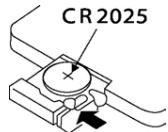
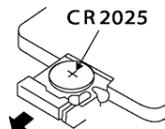
- Pull the battery compartment out of the remote control.
- Remove the depleted battery and insert a new battery of the type CR2025 (Button cell) into the battery compartment. Make sure that the battery is inserted in accordance with its correct polarity.
- Push the battery compartment back into the remote control.
Using the remote control
- Point the remote control to the Infrared sensor on the front panel of the device.
- You can use the remote control for distances of up to approx. 8 m from the device.
6. Connections and connection potentials
In order to use the device you need only to provide a power supply. You can connect it to a power socket via the rechargeable battery or you can run it with the 12V vehicle adapter.
In addition the device can be connected to other input and output devices:
with a television set with a video or DVD recorder with a receiver, also, for example, a stereo system with a Dolby Digital system
Attention!
Make sure that all devices are switched off before you connect them. Do not plug the device into the mains power until all connections have been made.
6.1 Mains power connection
Connection with the power supply unit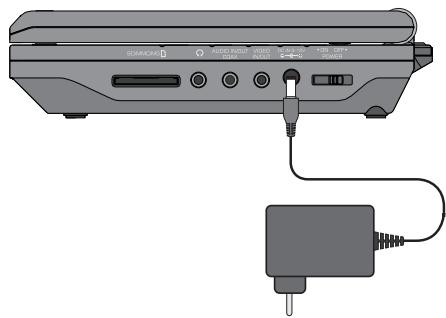
- Plug the device plug of the supplied power supply unit into the socket on the side of the device.
- Plug the power supply unit into a power socket.
Connection with the 12V vehicle adapter
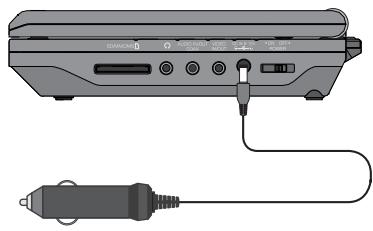
- Plug the device plug of the 12V vehicle adapter into the socket on the side of the device.
- Plug the 12V vehicle adapter into a suitable socket, for example, the cigarette lighter connection in the vehicle.
Note:
- The supplied 12V vehicle adapter may only be used on 12V supply systems.
- The DVD player may only be operated with the supplied 12V vehicle adapter.
- Do not use the supplied 12V vehicle adapter on other devices.
- After use, remove the 12V vehicle adapter from the DVD player and from the vehicle's power socket.
6.2 Rechargeable battery connection
The DVD player is supplied with a rechargeable battery, with which you can operate the device if no power source is available.
The rechargeable battery must be charged for approx. 3.5 hours before the first use and for each full charge thereafter. A fully charged battery allows for a playback time of approx. 2 1/2 hours (depending on the type of playback, for example, the volume).
Installing the rechargeable battery
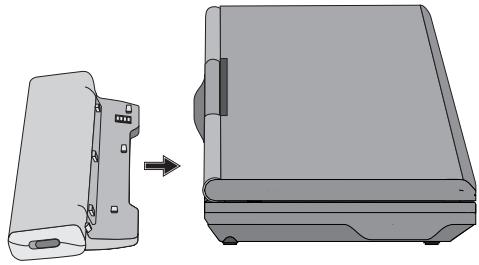
- Plug the rechargeable battery connections into the connection opening on the rear panel of the device.
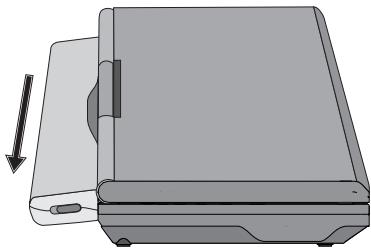
- Slide the rechargeable battery slightly sideways in the direction indicated on the battery until it audibly locks into place.
Charging the battery with the power supply unit
- Plug the device plug of the power supply unit or the 12V vehicle adapter into the socket on the side of the device.
- Plug the power plug of the power supply unit into the power socket or the 12V vehicle adapter into the vehicle's cigarette lighter socket.
- While the battery is charging, the operation light on the side of the battery is illuminated red.
- When the battery is fully charged, the operation light on the side of the battery turns green.
Removing the rechargeable battery
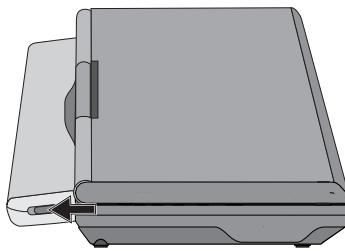
- Slide the locking tab on the side of the rechargeable battery in the direction of the arrow and hold it in this position.
- Pull the rechargeable battery in the opposite direction to the arrow and then pull it backwards.
6.3 Connection to another device
The DVD player can be connected to televisions that operate with the PAL or NTSC standards. In this way, you can transmit the display onto the television screen. If you want to use the DVD player on a television operating under the NTSC standard, you may have to select the NTSC television standard in the video settings of the DVD player's so-called "OSD Menu" (see chapter 8.4. "Special settings: TV TYPE").
Video connection to the television
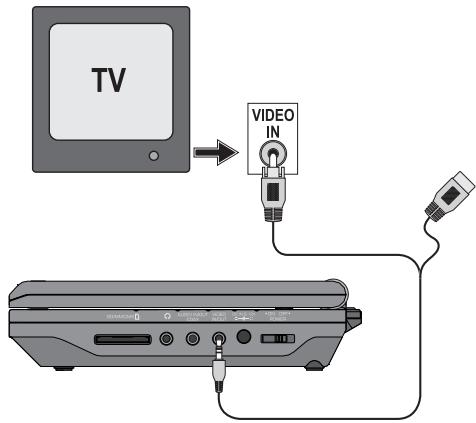
- Switch off the DVD player and the television.
- Insert the yellow jack plug of the video cinch cable into the VIDEO IN/OUT socket of the DVD player.
- Insert the cinch plug of the video cinch cable into the television's corresponding video input.
Audio connection to the television or to a stereo system
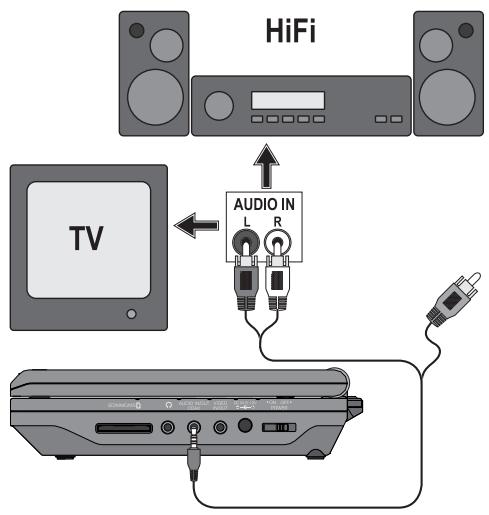
- For sound transmission, insert the red jack plug of the audio cinch cable into the AUDIO IN/OUT COAX socket of the DVD player.
- Insert the white and red cinch plugs of the audio cinch cable into the corresponding audio input L/R of the television or stereo system.
In the same way, you can also connect the DVD player with a video or DVD recorder in order to transmit the DVD player's video and audio signals to these devices.
Connection to a Dolby Digital system
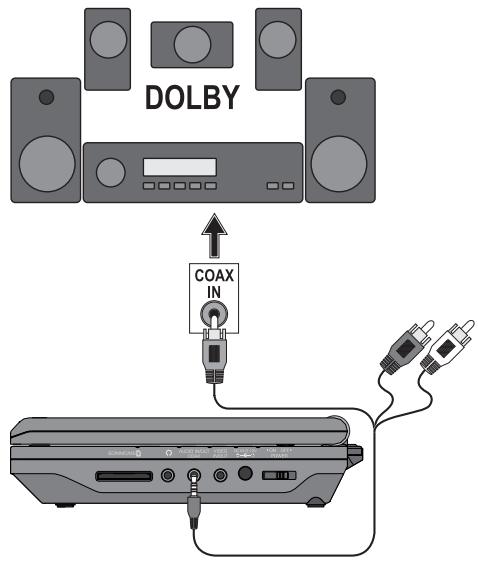
You can also play back the sound via a connected Dolby Digital system. However, a prerequisite is that this system is equipped with a coaxial input.
- For sound transmission, insert the red jack plug of the audio cinch cable into the AUDIO IN/OUT COAX socket of the DVD player.
- Insert the orange colored cinch plug of the audio cinch cable into the corresponding coaxial input of the Dolby Digital system.
- Switch on the DVD player and the Dolby Digital system.
Playback of an external device's audio and video signals with the DVD player
DVD/VIDEO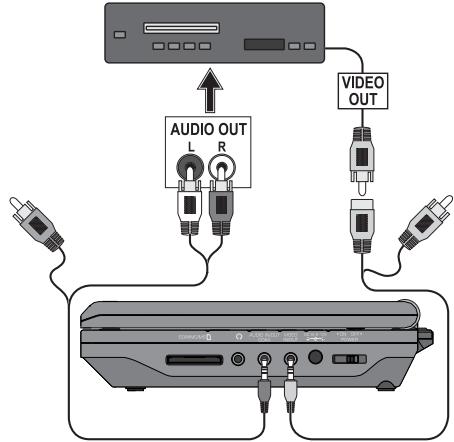
You can play back images and sound from an external device via the DVD player.
- For sound transmission, insert the red jack plug of the audio cinch cable into the AUDIO IN/OUT COAX socket of the DVD player.
- Insert the white and red cinch plugs of the audio cinch cable into the corresponding audio output of the external device.
- Insert the yellow jack plug of the video cinch cable into the VIDEO IN/OUT socket of the DVD player.
- Connect the cinch socket of the video cinch cable with the corresponding video output of the external device.
- Switch on the DVD player and the external device.
- In order to play back the external device's audio and video signals, press the AV button on the remote control.
- In order to switch back to the DVD's display, press the button DVD/USB/CARD.
Note:
Depending on the data carrier, the display can remain black for a few seconds until the DVD player's image is again displayed.
Note:
The sound of an external device connected to the DVD player's audio input will also play back if the device is set to an operating mode other than AV.
6.4 Headphone connection
Attention!
Only use the supplied earphones, type HX206-001.
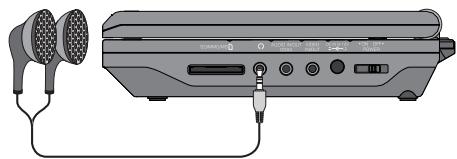
You can connect headphones with a 3.5 mm stereo jack plug to the DVD player. The headphone connection is located on the side of the device. When you connect the headphones, the loudspeaker will be switched off and you will only hear sound from the headphones.
- Insert the jack plug of the headphones into the headphone connection.

Important!
Listening to music over long periods with full volume on headphones can lead to hearing damage.
6.5 Setting the viewing position
Your portable DVD player is equipped with a pivoting swivelling TFT display screen.
In the event that you find the image quality of a DVD to be insufficient, slightly turn the device to optimize the viewing angle.
The TFT display screen will turn 180° and fold down in this position, thus allowing the display to operate when the device is closed up.
7. Use
- Carry out the required connections as described in chapter 5 and provide a power supply.
- Lift up the TFT display screen.
Switching the DVD player on and off
- Set the POWER switch to the "ON" position to switch the DVD player on.
The TFT display screen switches on and the background image appears.
If no disc is inserted into the disc tray the notice "READING" will appear briefly followed by the prompt "NO DISC".
- To switch the DVD player off set the POWER switch to the position "OFF".
Buttons on the device and the remote control
Most of the functions described in this manual can be set using the buttons on the device or also the buttons on the remote control. When both buttons are possible for operation then both numbers will be specified after the button designation (for example DVD/USB/CARD button.
Display settings
- Press the FUNCTION button to access the display settings. The settings can be accessed at any time.
- Select with the navigation buttons one of the inputs Brightness (Bri), Contrast (Con) and Saturation (Sat).
- With the navigation buttons change the value.
- To exit the settings press the FUNCTION button again.
- To reset the settings select the input Reset and press the button OK/ENTER.
8. Menu functions
Navigating in the menu
- Press the SETUP button to access the setup menu. The main menu appears GENERAL SETUP PAGE.
- With the navigation buttons and the button OK/ENTER you can carry out all settings in the menu.
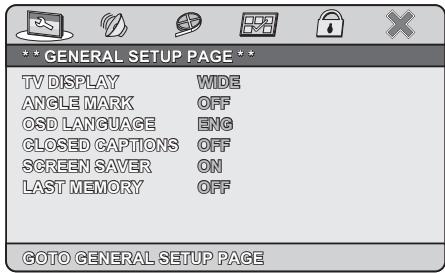
- With the navigation buttons you select a menu by moving the yellow highlighting under the corresponding menu symbol.
- With the navigation buttons you select an input in a menu by moving the yellow bar over an input.
- With the navigation button you change an input in the sub menu and with the navigation button you move back to the previous menu level.
- To confirm a selection press the button OK/ENTER.
- All navigation possibilities in a current menu are displayed at the lower edge of the menu.
- To exit the setup menu either press the button SETUP or select the last symbol "EXIT SETUP" and press the button OK/ENTER.
8.1 GENERAL SETUP PAGE
TV DISPLAY
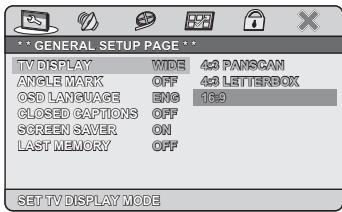
Here you can match the vertical and horizontal image display to the playback device in use.
4:3 PANSCAN: Select this setting to display broadcasts in the usual 4:3 format on a 4:3 television set. Broadcasts in the 16:9 format will be displayed in full screen without the distracting bars, although the side edges of the image will be trimmed. 4:3 LETTERBOX: Display of a film in 16:9 format on a traditional 4:3 format television.
The image is displayed with black bars on the lower and upper edges of the screen.
16:9 WIDE: The output of the image on a wide screen television in 16:9 format.
ANGLE MARK
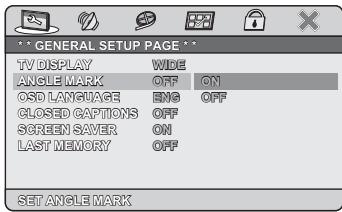
On some DVDs particular scenes are recorded from various camera positions.
- Select the input ON in order to switch to the next camera position by pressing the ANGLE button during playback of the film.
- To deactivate this function select the input OFF.
OSD LANGUAGE
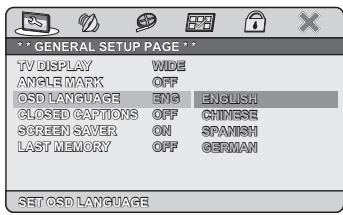
Here you set the language in which the OSD Menu will be displayed on the television screen.
CLOSED CAPTIONS
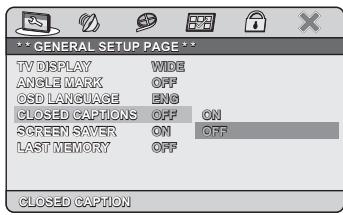
You set this if by every playback of a DVD the subtitle (if present) is to be automatically displayed on the television screen.
- For this purpose set the function to ON.
- If you want to activate the subtitles manually, set this function to OFF.
The subtitles can be set during playback with the SUBTITLE button.
SCREENSAVER
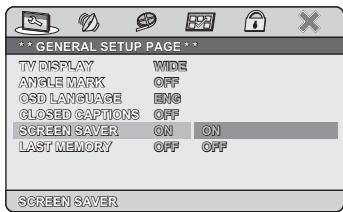
- To activate the screen saver, set this function to ON. The screen saver will now switch on when the playback is stopped and no activity takes place for several minutes.
- To switch the screen saver off, set the function to OFF.
LAST MEMORY
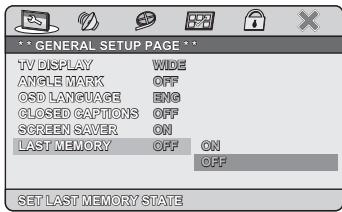
- Select the setting ON to playback a disc from the previous halted position after removal and re-insertion. With the setting OFF, disc playback starts from the beginning.
Note:
When the DVD player is switched off, the saved position is not retained.
8.2 DIGITAL AUDIO SETUP PAGE
DIGITAL OUTPUT
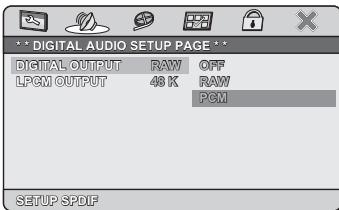
Select the input DIGITAL OUTPUT to set the SPDIF audio output signal.
OFF: Select OFF when there is to be no digital signal output.
PCM: Select PCM (Pulse Code Modulation) when a connection to a digital amplifier/receiver exists. Your DVD player transmits, through the PCM signal, the same audio formats that are rendered on the disc. In addition, there will be an audio signal output via the left/right connection.
RAW: The DVD player outputs the raw data of the Dolby Digital sound (default setting).
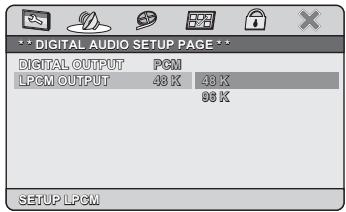
Select the input LPCM OUTPUT to set the sampling frequency for the processing of the raw data.
48K: Default setting.
96K: Only for DVDs with the corresponding sampling frequency.
Note:
The LPCM OUTPUT function is only available if you have set the SPDIF audio output signal to PCM.
DOLBY DIGITAL SETUP
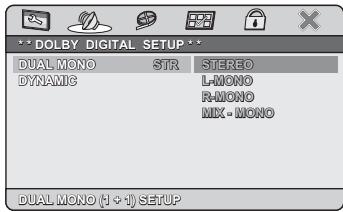
- Select the input DUAL MONO to set the Dolby Digital output either to STEREO, L-MONO, R-MONO or MIX-MONO.
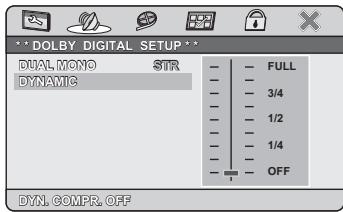
- Select the input DYNAMIC to enable an optimal sound replay with reduced volume.
- In the setting FULL the louder passages will be suppressed and the softer passages will be played back louder.
Note:
This function is only possible when using a digital audio component.
DOWNMIX
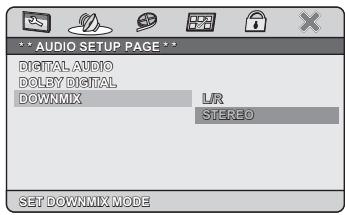
L/R: Select this setting if the film was recorded in Pro Logic Dolby Digital and you want to hear the sound in cinema quality.
STEREO: Select this option to output the left and right sound channels of the DVD. The output with CD playback is a traditional stereo signal.
8.3 VIDEO SETUP PAGE
VIDEO OUTPUT
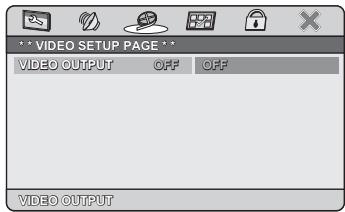
The standard setting of this function is CVBS and cannot be changed.
8.4 PREFERENCE PAGE
TV TYPE
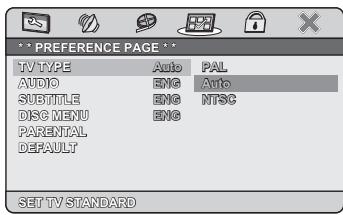
- Set this function to PAL to output the video signal via the video output in the PAL television standard.
- Set this function to AUTO and the DVD player will automatically recognise which television standard should be used for the video output.
- Set this function to NTSC to output the video signal via the video output in the NTSC television standard.
AUDIO
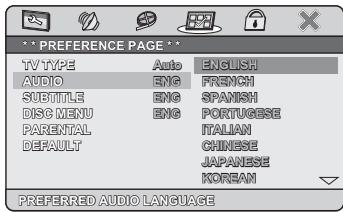
Set the audio language here, which should be used as standard when playing back the film.
SUBTITLE
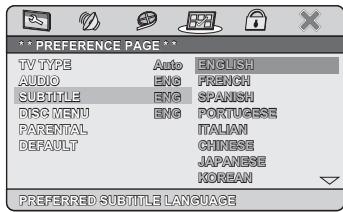
Set the subtitle language here, which should be used as standard when playing back the film.
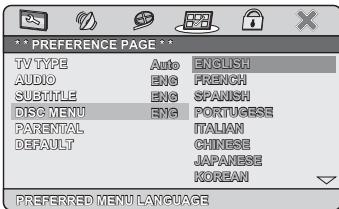
Set the disc menu language here, which should be used as standard when playing back the film.
PARENTAL
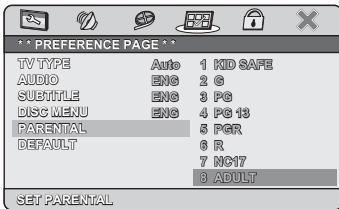
Some DVDs and CDs are encoded with an encryption signal. In this way DVDs can be divided into eight different approval classes. Select one of the following approval classes to protect the playback of this media class with a password request:
8 ADULT: for adults only; 7 NC 17: not for teenagers under 18 years of age; 6 R: for teenagers under 16, adult supervision is strongly recommended; 5 PGR: for teenagers under 16, adult supervision is recommended; 4 PG 13: adult supervision strongly recommended; some scenes are not suitable for children under 12; 3 PG: adult supervision recommended; 2 G.: for all age groups; 1 KID SAFE.: also suitable for small children.
If a DVD was encoded with, for example, approval class 7 or 8 and you have an approval class setting between 1 and 6 then a message follows and the password must be entered.
Also only parts of the DVD, that is to say certain film scenes, may be encoded with an approval class or various approval classes.
To activate the age approval select an approval class and then enter your password with the number buttons in the password request box that follows. The factory default password is 888888. - Confirm your entry by pressing the button OK/ENTER.
Note:
In the PASSWORD SETUP PAGE you can change the factory default password and enter a new password for the child lock.
DEFAULT
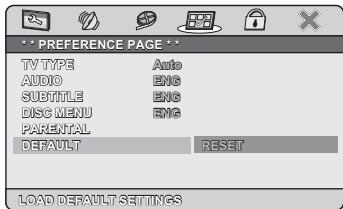
Here you reset the DVD player's factory default settings.
8.5 PASSWORD SETUP PAGE
PASSWORD MODE
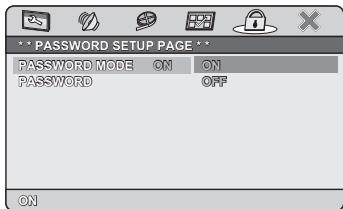
- Set this entry to OFF to switch off the child lock setting password request. To reactivate the password request set this entry to ON.
PASSWORD
Here you can change the preset password (888888) and enter your own password. Only the numbers 0-9 can be used.
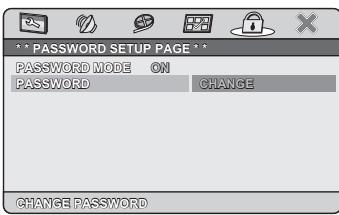
- To change the password select the entry CHANGE.
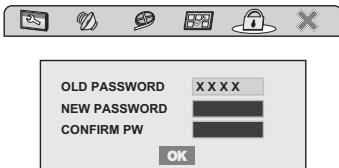
- Enter in the line OLD PASSWORD the valid password with the number buttons. The tab changes to the next line NEW PASSWORD.
- Enter the new password with the number buttons. The tab changes to the next line CONFIRM PW.
- Enter the new password with the number buttons. The tab changes to the OK field.
- Press the button OK/ENTER. The password has now been changed.
Note:
In the event that you forget your password you can use the factory default password (888888).
8.6 EXIT SETUP
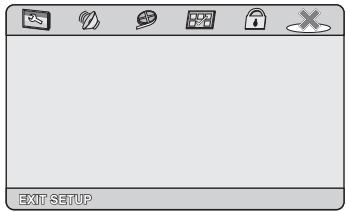
- Select the last menu in the toolbar and press the button OK/ENTER to exit the setup menu.
9. Sound functions
9.1 To control the Volume
Press the button VOL + to increase the volume. Press the button VOL - to decrease the volume.
9.2 Mute
Press the MUTE button to switch off the sound. To switch the sound on again press the MUTE button once more or press one of the buttons VOL+ or VOL-
10. Playback of DVD, SVCD, VCD and CD discs
10.1 Inserting the disc
- Open the disc tray of the DVD player by pressing the OPEN/CLOSE button.
"OPEN" will now appear in the display.
- Place a DVD/VCD/S-VCD with the inscribed/labelled side facing up in the disc tray.
- Close the flap of the disc tray.
"LOAD" will appear in the display.
- The contents of the inserted DVD/VCD/S-VCD will now be loaded; this may take a few seconds.
- Playback of the inserted DVD/VCD/S-VCD starts automatically.
Note:
DVDs that you want to play back with the DVD player may possibly have a country code, which is printed on the DVD jacket.
The DVD player can only play back DVDs with the country code 2.
If no country code is printed on the jacket of a DVD...
...but instead the symbol ALL, then the DVD can be played back on the DVD player.
- ...the DVD may possibly not play back on the DVD player. You can check this by attempting to play back the DVD.
Depending on the inserted DVD/VCD/S-VCD, it is possible that the contents of the DVD/VCD/S-VCD will not play back immediately; rather, first a selection menu appears on the television screen. In this case, select with the Navigation buttons
the menu item that will start the playback of the film. To start the playback of the film... - Press the button OK/ENTER or press the button PLAY/PAUSE.
10.2 Playback functions when playing back DVDs, VCDs, S-VCDs, MPEG or Audio CDs
During the playback of a DVD/VCD/S-VCD you can use the following DVD player functions.
Pause playback
To pause the playback:
- During playback press the button; PLAY/PAUSE. The prompt "II" appears in the display. The display shows a freeze frame of the scene you have just paused.
- To continue with playback of the film press the button PLAY/PAUSE.
Stop playback
To stop playback press the button STOP.
Resume function
If you stopped playback of the inserted DVD/VCD/S-VCD by pressing the STOP button once then the DVD player automatically saves the position, at which playback was stopped. This function is called "Resume function". The display will show TO RESUME: PRESS PLAY BUTTON. As soon as you press the PLAY/PAUSE button again playback will continue from the saved position.
If you press the STOP button a second time the saved position, at which you stopped playback is deleted. As soon as you press the PLAY/PAUSE button again playback of the inserted DVD/VCD/S-VCD starts from the beginning.
Skip to beginning of chapter (SKIP)
Note:
This function may not be available on all DVDs/VCDs/S-VCDs! If you attempt to carry out a function that is not available the symbol Ø will be displayed on the television screen.
- With the buttons SKIP▶ FORWARD and SKIP▶ BACKWARDS you can, during playback, skip within the film on the inserted DVD/VCD/S-VCD to the beginning of the next chapter or skip back to the previous chapter.
The respectively selected chapter will immediately playback without you having to press the PLAY/PAUSE button. The number of the respectively selected chapter will be displayed on the front panel of the DVD player to the left of the played back so far time.
Entry of the title number via number keys
Note:
This function may not be available on all DVDs/VCDs/S-VCDs! If you attempt to carry out a function that is not available, the symbol ⊘ will be displayed on the television screen.
Instead of using the skip function, you can also access a title from within the film of an inserted DVD/VCD/S-VCD directly by entering the title number via the number buttons 0 to 9 on the remote control.
- For entry of two-digit numbers, first press the button 10+ and then enter one after the other the two digits of the number.
- Then press the button OK/ENTER on the remote control. Playback of the entered number title will now start automatically.
Direct chapter or time selection using the search function (Search)
Note:
This function may not be available on all DVDs/VCDs/S-VCDs! If you attempt to carry out functions that are not available, the symbol ○ will be displayed on the television screen.
Entry of the time position via the search function DVD, VCD and S-VCD:
- During playback, press the TIME button on the remote control. The time menu is superimposed on the television screen:
| DVD VIDEO* | TITLE | 01/04 |
| CHAPTER | 10/36 | |
| AUDIO | 5:1 K/ENGLISH | |
| SUBTITLE | ENGLISH | |
| BITRATE25 | TITLE ELAPSED 045:01 | |
- The entry field TITLE is automatically selected first. Press the button OK/ENTER and enter the desired title with the number buttons 0 to 9. On DVDs, title 01 is most often the main film.
- Press the navigation button to select the entry field CHAPTER. Press the button OK/ENTER and enter the desired chapter with the number buttons 0 to 9.
- Press the navigation button to select the entry field AUDIO. Press the button OK/ENTER and select with the navigation button ◁ an audio language.
- Press the navigation button to select the entry field SUBTITLE. Press the button OK/ENTER and select with the navigation buttons a subtitle language.
- To fade out the time menu press the button TIME again.
Audio CD
- During playback press repeatedly the button TIME on the remote control. One after the other the following notifications appear, in which you can enter a time position using the number buttons 0 to 9:
DISC GOTO:
Enter here a time position on the disc from where playback should start.
TRACK GOTO:
Enter here a time position for the current playback title from where playback should start.
GOTO TRACK:
Enter here a title number from where playback should start.
MPEG CD
SELECT:
Enter here a title number on the disc from where playback should start.
GOTO:
Enter here a time position for the current playback title from where playback should start.
Search forward/backwards
- Press the button SEARCH or SEARCH during playback to start a search forwards/backwards.
- Press the button SEARCH or SEARCH repeatedly in order to apply the following search speeds:
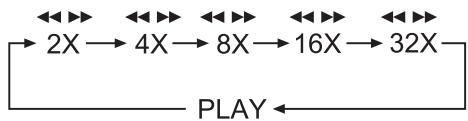
i Note:
During the search no sound will play.
- To continue playback of the film at normal speed from the selected position, during the search press the button PLAY/PAUSE.
Slow motion function (DVD, VCD, S-VCD only)
- Press the button SLOW to set playback to slow motion. Press the button SLOW repeatedly to apply the following slow motion speeds:
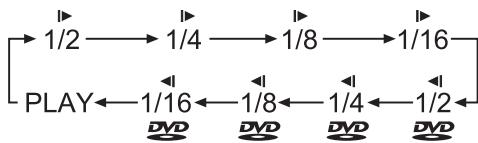
i Note:
During slow motion playback no sound will be played.
- To continue playback at normal speed, during slow motion playback press the button PLAY/PAUSE.
Frame by frame playback (Step) (DVD, VCD, S-VCD only)
Note:
This function may not be available on all DVDs/VCDs/S-VCDs! If you attempt to carry out functions that are not available the symbol will be displayed on the television screen.
- During playback press the button STEP to stop playback. The display shows a freeze frame of the scene you have just paused.
- With each additional press of the button STEP the paused image advances by one frame.
- To continue playback press the button PLAY/PAUSE.
Image enlargement (Zoom) (DVD, VCD, S-VCD and MPEG only)
Note:
This function may not be available on all DVDs/VCDs/S-VCDs! If you attempt to carry out functions that are not available the symbol will be displayed on the television screen.
During playback of an inserted DVD/VCD/S-VCD you can enlarge and reduce the image on the television screen in three stages.
- Press repeatedly the button ZOOM to apply the following enlargement and/or reduction:

With the navigation buttons the section of the enlargement can be shunted.
Camera position (DVD only)
Note:
This function may not be available on all DVDs/VCDs/S-VCDs! If you attempt to carry out functions that are not available the symbol will be displayed on the television screen.
Many films on DVD contain chapters, which were recorded from different camera perspectives simultaneously. With films that have such chapters available you can view the same chapter from different perspectives.
- For this, during playback of the inserted DVD, press the button ANGLE on the remote control. Each press on the button ANGLE will switch to one of the available camera perspectives.
Repeat function for DVDs, VCDs, S-VCDs and Audio CDs
With the repeat function you can...
... in the case of DVDs, selectively repeat title, chapter or the entire DVD.
... in the case of VCDs/S-VCDs, repeatedly play back individual titles and/or the entire VCD/S-VCD.
... in the case of audio CDs, repeatedly play back a particular track and/or the entire CD.
To switch on the repeat playback ...
- During playback, press the REPEAT button repeatedly.
The repeat symbol appears in the display with one of the following notifications:
CHAPTER: Select CHAPTER to continuously repeat the current playback chapter until playback repeat is switched off or playback is stopped by pressing the STOP button twice.
TITLE: Select TITLE to continuously repeat the current playback title until playback repeat is switched off or playback is stopped by pressing the STOP button twice.
ALL: Select ALL to continuously repeat all available titles on the disc, thus the entire disc, until playback repeat is switched off or playback is stopped by pressing the STOP button twice.
Display off: To switch off repeat playback, press the REPEAT button repeatedly during playback until no more notifications appear in the display.
Repeat sequence (A-B)
With this function, you can repeat playback of a favourite sequence within a chapter of the current playback disc.
To do this ...
During playback, press the A-B button on the remote control as soon as the desired sequence begins to play. On the television screen, the repeat symbol appears with the notice A. - Press the A-B button again as soon as the end of the desired sequence has played back. Bear in mind that the beginning and end of a sequence must be located in the same chapter.
On the television screen the repeat symbol → appears with the notice AB.
Repeat playback of the selected sequence begins immediately without having to press the button PLAY/PAUSE. The sequence will continuously repeat until you press the button A-B again to switch off the function.
Bookmark function
During the playback of a DVD/VCD/S-VCD you can place so called bookmarks in order to watch selected passages of a film again later. You can set up to 12 bookmarks.
- During playback of a film press the button MARK on the remote control. In the display the following notice appears:
- As soon as the passage, on which you want to place a bookmark, is reached press the button OK/ENTER. The title and chapter, in which the position is located, as well as the exact time position of this passage within the film will now be displayed in hours, minutes and seconds under bookmark 1.
- If you want to place another bookmark then with the navigation buttons select an unoccupied field and press once again the button OK/ENTER as soon as the passage is reached, on which you want to place the second bookmark.
- Proceed in the same manner to place further bookmarks. Once you have placed all the desired bookmarks press the button MARK to fade out the bookmark menu from the screen.
- Later if you want to skip to the passages, on which you have placed bookmarks press the button MARK again.
- Select with the navigation buttons the desired bookmark.
- Confirm the selection by pressing the button OK/ENTER. Playback of the selected chapter will now start automatically from the location, on which you placed the selected bookmark.
- To delete placed bookmarks press the button RETURN/CLR.
10.3 Notice functions
Activate the DVD menu (Menu)
Note:
This function may not be available on all DVDs/VCDs/S-VCDs! If you attempt to carry out functions that are not available, the symbol will be displayed on the television screen.
With many films on DVD, there is a main menu on the disc that, apart from the option of playing the main film, enables you, for example...
to choose the language for subtitles and film dialogue, to select directly from chapters, to playback the film's bonus material (background information, "Making of", etc.)
If such a menu is present on the DVD that is inserted into the DVD player, then you can access it during playback by pressing the button MENU/PBC.
You select particular menu items by pressing the navigation buttons to confirm the selected menu item press...
the button PLAY/PAUSE or - the button OK/ENTER.
To return to playback, press the button MENU/PBC again.
Note:
If you cancel playback by pressing the button
"STOP" twice (playback stop without Resume function), activation of the main menu on the disc is not possible.
Playback Control (PBC) with VCDs/S-VCDs
Many VCDs/S-VCDs have Playback Control (in short "PBC"). Playback Control indicates a main menu that allows operation of several functions of the VCD/S-VCD.
If PBC is available on a VCD/S-VCD inserted in the DVD player, you must first activate it in order to be able to superimpose the menu.
To activate PBC ...
- During playback or when playback is stopped, press the MENU/PBC button. The display shows the message PBC OFF.
- Press the MENU/PBC button again. The display shows the message PBC ON. PBC is now switched on, and the disc's main menu can be accessed with the RETURN/CLR, MENU/PBC, or TITLE buttons.
Note:
If you switch on PBC during playback, it is possible that playback will stop and start again from the beginning and/or with the main menu.
Superimpose/fade out subtitles
Note:
This function may not be available on all DVDs/VCDs/S-VCDs! If you attempt to carry out a function that is not available, the symbol ⊘ will be displayed on the television screen.
If the film on the inserted DVD/VCD/S-VCD has subtitles available, you can superimpose them on the television screen during playback by pressing the SUBTITLE button.
- With the first press of the SUBTITLE button, the subtitle of the first available language will be superimposed on the television screen.
- With each further press of the SUBTITLE button, the subtitles in subsequent available languages, one after the other, will be superimposed on the television screen. The number of the currently superimposed subtitle language will be displayed on the television screen (e.g., "1/10" for the first of ten available subtitle languages).
- When the last of the available subtitle languages is superimposed (e.g., "10/10" for the tenth of ten available subtitle languages), you can switch off the subtitle function by pressing the SUBTITLE button again. OFF is displayed on the television screen.
Change playback language
**Note:**
This function may not be available on all DVDs/VCDs/S-VCDs! If you attempt to carry out a function that is not available, the symbol Ø will be displayed on the television screen.
- With many films on DVD/VCD/S-VCD, you can select another playback language during playback by pressing the AUDIO button.
- With the first press of the AUDIO button, the first available playback language will be switched on. With each further press of the AUDIO button, the subsequent available playback languages will be switched on, one after the other.
The currently switched-on playback language will be superimposed on the television screen.
Superimpose disc information
**Note:**
This function may not be available on all DVDs/VCDs/S-VCDs! If you attempt to carry out a function that is not available, the symbol Ø will be displayed on the television screen.
With this function, you can superimpose all the available information from a DVD/VCD/S-VCD inserted into the DVD player onto the television screen during playback.
To do this...
- During playback, press the DISPLAY button repeatedly to superimpose, one after the other, the following information:
In the case of DVDs:
- The current title number / the total number of titles
- The current chapter number / the total number of chapters
- The time played back so far in hours, minutes, and seconds (TITLE ELAPSED), and the time to the end of the film in hours, minutes, and seconds (TITLE REMAIN)
- The elapsed time of the chapter played so far, in hours, minutes, and seconds (CHAPTER ELAPSED).
- The remaining time until the end of the chapter, in hours, minutes, and seconds (CHAPTER REMAIN).
In the case of VCDs/S-VCDs:
- The current title number / the total number of titles.
- The elapsed time of the current playback title on the VCD/SVCD played so far, in hours, minutes, and seconds (SINGLE ELAPSED).
- The remaining time until the end of the current playback title, in hours, minutes, and seconds (SINGLE REMAIN).
For audio CDs:
- The current title number / the total number of titles, and the total elapsed time.
- The elapsed time of the current playback track on the CD played so far, in minutes and seconds (SINGLE ELAPSED).
- The remaining time until the end of the current playback track, in minutes and seconds (SINGLE REMAIN).
- The total elapsed time of the CD played so far, in minutes and seconds (TOTAL ELAPSED).
- The remaining time until the end of the CD, in minutes and seconds (TOTAL REMAIN).
- To fade out the disc information, press the DISPLAY button again.
10.4 Programming function
You can program a playback sequence for the titles and chapters that are available on the DVD, VCD, or S-VCD disc.
For this, during playback, press the PROG button to superimpose the following window:
Programming window
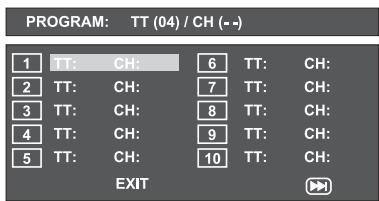
The upper line shows the total number of titles (TT:) available on the disc.
Below this, programme positions 1-10 are listed, with programme position 1 highlighted.
- Enter the number of the title to be played first using the number buttons. The upper line will then show the chapters available in this title (CH:).
- Enter the number of the chapter to be played using the number buttons. The highlight moves to programme position 2.
- Use the navigation buttons to select further programme positions and enter title and chapter numbers for these positions.
- To show the next 10 programme positions, select the field with the navigation buttons and press the OK/ENTER button. You can allocate up to 20 programme positions. To delete entries in a programme position, select the position and press the RETURN/CLR button.
- To cancel the programming function, select the EXIT field and press the OK/ENTER button. All allocated programme positions are deleted.
- Start playback of the programme position by selecting the START field and pressing the OK/ENTER button.
During programmed playback, the notice
PROGRAM appears in the display.
The programme list will be deleted as soon as you press the STOP button.
11. Display of MP3/WMA/JPEG/AVI and MPEG data
- Insert a storage medium.
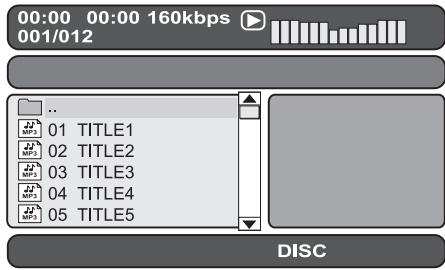
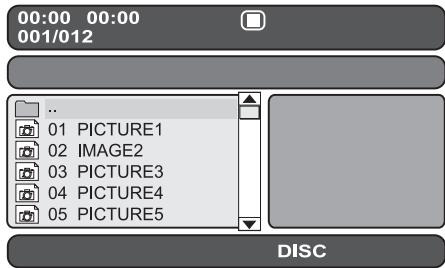
The contents of the data medium will be shown on the display:
Display of MP3 data
Display of JPEG data
Display of AVI and MPEG data
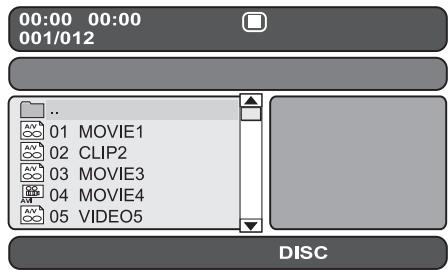
- The data is listed on the left (Data window). Folders will be depicted with the symbol .
- To superimpose the folders available on the disc press repeatedly the button PROG until the notice FOLDER appears at the bottom of the display.
- Press the button PROG again repeatedly until the notice FILELIST appears at the bottom of the display. Folders will now be faded out and all data on the disc is represented in a list.
- The area on the right is intended for the previewing of JPEG images. A preview appears as soon as you highlight a JPEG data in the data window.
- At the bottom is located the information bar, in which is displayed the image size (JPEG Image) as well as the medium (DISC, USB or SD/MMC), on which the data is located.
- Select a data with the help of the navigation buttons . By pressing the button OK/ENTER confirm your selection. The data will be played back and/or the JPEG Foto displayed.
- To open a folder, select the folder and press the button OK/ENTER. The contents of the folder will be listed.
- To reach a higher folder level select the symbol with the entry ". ." and press the button OK/ENTER.
12. Playback of MP3/WMA/AVI and MPEG discs
- Select a data with the help of the navigation buttons . By pressing the button OK/ENTER confirm your selection. Playback starts immediately.
With the playback of music or video data the following functions can be used:
Play/Pause
See "10. Playback of DVD, S-VCD and VCD discs" Stop
See "10. Playback of DVD, S-VCD and VCD discs" Skip
See "10. Playback of DVD, S-VCD and VCD discs" Search
See "10. Playback of DVD, S-VCD and VCD discs" Slow (with AVI and MPEG data only)
See "10. Playback of DVD, S-VCD and VCD discs" Step (with AVI and MPEG data only)
See "10. Playback of DVD, S-VCD and VCD discs" Zoom (with JPEG-, AVI and MPEG data only)
See "10. Playback of DVD, S-VCD and VCD discs" AB Repeat
See "10. Playback of DVD, S-VCD and VCD discs"
12.1 Repeat function with MP3/WMA/AVI/MPEG/JPEG discs
During playback press repeatedly the button REPEAT to apply the following repeat functions (the set function appears in the display):
REPEAT1 Endless repeat of the current title/image.
REP FOLDER Repeat of the current folder. FOLDER Repeat all folders.
SHUFFLE1 Random playback of all titles/ images.
SHUFFLE2 Random playback of all titles/ Images whereby each title/ Image will playback only once.
ONCE: One-time playback of the current title/image (Repeat function off).
12.2 Replay of JPEG discs
- Highlight an image with the navigation buttons ◀ and press the OK/ENTER or PLAY/PAUSE button to open the image.
The image is shown on the display.
Subsequently, change the view to the next available image on the disc/in the folder.
- To show the currently displayed image longer, press the PLAY/PAUSE button.
- To continue playback, press the PLAY/PAUSE button again.
- You can access an image directly by entering the data number of the image with the number buttons and then confirm with the OK/ENTER button.
- With the navigation buttons ◀◀, you can rotate the image during playback in 90° steps.
- During playback, press the STOP button to display a miniature view of all the images in the folder/on the disc. 12 miniatures will be displayed on each page.
- Select an image with the navigation buttons ◀ and start playback with OK/ENTER or PLAY/PAUSE.
- Select one of the following entries from the bottom display line with the navigation buttons ◀◀ and confirm with OK/ENTER:
| Slide Show | Starts a slide show of the images in the folder/on the disc |
| Menu | Shows the available button functions for JPEG playback. Press the button OK/ENTER until this summary has faded out. |
| Prev | changes to the previous page |
| Next | changes to the next page |
- Press the MENU/PBC button to change back to the data list again.
12.3 Programmed replay with MP3/WMA/AVI/MPEG/JPEG discs
You can program a playback sequence in which the titles on a disc shall be played back.
- Switch, if necessary, to the data list by repeatedly pressing the button PROG until FILE LIST shows at the bottom in the display.
- Select with the navigation buttons the title that shall be played back first.
- Press the button MARK to move the title to the play list.
- In the same manner highlight further titles and move these to the play list.
- To display the play list press repeatedly the button PROG until the notice PLAYLIST appears at the bottom in the display.
- Start playback from the play list by highlighting a title and then press the button PLAY/PAUSE and/or the button OK/ENTER. To delete a title from the play list highlight the title and press the button MARK. The title will be removed from the play list.
13. Playback of USB/SD/MMC data mediums
13.1 Compatible data mediums
With your device you can playback MP3/WMA/JPEG/AVI/MPEG data from USB data mediums (Universal Serial Bus = universal interface for data transfer) like, for example, a USB Stick or Flash memory card in the SD/MMC format.
i Note:
Due to the vast number of available storage mediums there can be no guarantee of compatibility with all current and future storage mediums. Do NOT connect to the device any hard discs that are equipped with a USB connection! This can result in the loss of data!
13.2 Using USB/SD/MMC data mediums
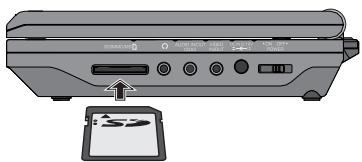
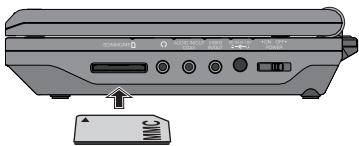
- Insert the USB plug of the USB data medium in the USB connection of the DVD player and/or an SD or MMC card in the SD/MMC card slot.
USB plug
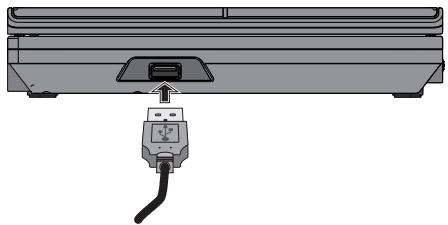
SD memory card
MMC memory card
- Press the DVD/USB/CARD button repeatedly until the display at the bottom shows the USB and/or CARD indicator.
The playback of
MP3/WMA/AVI/MPEG/JPEG/data is exactly the same as playback from a disc.
- To switch back to disc playback, press the DVD/USB/CARD button repeatedly until the display at the bottom shows the DISC indicator.
14. Cleaning the DVD player
- Clean the housing of the DVD player exclusively with a soft, damp cloth and a mild dishwashing liquid. While cleaning, make sure no moisture gets inside the DVD player!
Clean the inside of the disc tray, if necessary, only with a clean, dry brush (e.g., a lens cleaning brush available at camera stores). Never use moisture to clean the inside of the disc tray!
Warning!
Moisture penetrating the DVD player creates the risk of electric shock! Additionally, moisture can cause irreparable damage to the DVD player!
15. Disposal

Do not dispose of the appliance in your normal household waste. This product is subject to European Directive 2002/96/EC.
Dispose of the appliance through an approved disposal center or at your community waste facility. Observe the currently applicable regulations. In case of doubt, contact your waste disposal center.
Battery disposal!
Batteries must not be disposed of with normal household waste. All consumers are legally obligated to dispose of batteries at the collection point in their community/district or with the original supplier. The purpose of this obligation is to ensure that batteries are disposed of in an environmentally friendly manner. Only dispose of batteries when they are fully discharged.

Dispose of all packaging materials in an environmentally friendly manner.
16. Troubleshooting
Display is blank/DVD player shows no functions even though it is switched on
A Check to see that the power cord is properly plugged into the power socket. B Check to see if the power socket, in which you have plugged the power cord of the power supply unit/vehicle adapter, is supplying power by connecting to it another device. If necessary plug the power cord of the power supply unit/vehicle adapter into another power socket. C Switch off the DVD player by pressing the "Power" button and wait for ten seconds. Then switch the DVD player back on by pressing the "Power" button.
The display shows "No Disc" even though there is a disc inserted
A The disc is dirty, scratched or damaged. Clean the disc or insert another disc. B The Country/Region code on the inserted DVD/VCD/S-VCD does not correspond to the Country/Region code of the DVD player. In this case the DVD/VCD/S-VCD can not be played back with the DVD player.
Inserted disc will not playback
It is possible that a layer of condensation has built up on the DVD players laser scan lens. This can be the case especially if the DVD player has been subjected to strong temperature fluctuations. If this is the case place the DVD player in a dry environment at normal room temperature. First remove the currently inserted disc from the disc tray. Subsequently allow the DVD player to sit switched on for at least an hour without using it until the layer of condensation has dissipated.
No image or Black/White image only
A Check to make sure that all connection cables between the DVD player and the television (or Video projector) are firmly inserted into the corresponding sockets B Check to make sure that the settings in the OSD menu match the connections variant, with which you have connected the DVD player to the television (or Video projector). C Check by means of the televisions (or Video projectors) operating instructions to see if settings to the television (or Video projector) may be necessary in order to use the DVD player with the television.
No sound
A Check to see if the DVD player is possibly switched to mute (MUTE button). B Check to see that all connecting cables between the DVD player and potentially connected audio components are firmly plugged into the corresponding sockets C Check to make sure that the settings in the OSD menu match the connections variant, with which you have connected the audio component to the DVD player. D Check by means of the televisions operating instructions to see if settings to the television may be necessary in order to use the DVD player with the television. E Check by means of the operating instructions for a potential connected audio component if settings to it are necessary in order to use it with the DVD player.
No 4:3 or 16:9 image
A Check by means of the television's operating instructions, which image formats the television has at its disposal. B Check to see if the settings in the OSD menu match the available image format of the television.
Remote control not functioning
A Check to make sure that the remote control batteries have been inserted into the battery compartment with the correct polarity. B Check to see if the remote control batteries are exhausted and, if necessary, change both batteries. C Make sure that there are no obstacles located between the remote control and the DVD player. D Be situated no more than five meters from the DVD player when using the remote control.
Playback language/ Subtitle language do not correspond to the settings in the OSD menu
The playback language/Subtitle language setting in the OSD menu is not available on the inserted disc.
One or several functions can not be switched on
The selected function may not be available on all DVDs/VCDs/S-VCDs! If you attempt to carry out a function that is not available the symbol will be displayed on the television screen.
None of the buttons on the appliance or on the remote control are functioning/other malfunctions
A Switch off the DVD player by pressing the POWER button. Wait ten seconds, then press the "Power" button again once to switch the DVD player back on. B If the malfunction is still present: Reset the DVD player to its default settings.
Contact one of our service partners in your area if ...
the stated function defect can not be resolved as described or other functional defects arise.
For this see chapter 18. "Warranty & Service".
17. Glossary / Key Word Index
17.1 What are DVDs, VCDs and S-VCDs?
DVDs
DVD is the abbreviation for "Digital Versatile Disc". DVDs are a storage medium for audio and video data; they are available in 8 cm and 12 cm (Diameter) formats. Because of the much higher storage capacity as compared to CD-Rs/CD-RWs DVDs can provide a playback duration of up to eight hours for the audio and video data stored on them.
VCDs/S-VCDs
"Video CD" (VCD) and "Super Video CD" (S-VCD) are designations for two processes of compressed storage, thus space saving, of films on CDs. VCDs and S-VCDs are available in 8 cm and 12 cm (Diameter) formats. Their storage capacity is a great deal lower than that of DVDs. For this reason they only offer a playback duration, for the saved audio and video data on them, of 20 minutes (8 cm format) and/or 74 minutes (12 cm format).
VCDs are available in two versions:
- With version 1.1 VCDs/S-VCDs only audio and video data can be played back.
- With version 2.0 VCDs/S-VCDs, PBC (Playback Control) functions are available. In addition still images can be played back in a higher resolution.
Playback Control (PBC)
Version 2.0 VCDs/S-VCDs have Playback Control (in short "PBC") at their disposal. Then on the VCD/ S-VCD a main menu is available, by which various functions of the VCD/S-VCD are allowed to be operated.
17.2 What are Title and Chapter?
Title is the name given to the largest units of image and sound units on DVDs; on many DVDs the (Main) film has the title number 01. For bonus material (i.e. Film trailer, background information etc.), that is available on many DVDs, other possible title numbers can be used.
Chapter is the name given to the next smaller image and sound units beneath title. If the title or titles on a DVD/VCD/S-VCD are subdivided into chapters, they are assigned numbers that can be entered to select the chapters directly.
Bear in mind that not on all DVDs ...
- are the DVD or the title divided into (numbered) chapters
- Chapters are also designated as "Scenes" (i.e. in the main menu of DVDs)
17.3 Dolby Surround
Dolby Surround is an analogue sound format, by which the two channels of a stereo sound signal are used in order to accommodate room sound information for further channels. With a Dolby Surround decoder the signals are again converted into sound and/or music and are fed to two additional loudspeakers, which are to be situated behind the listening area.
Dolby Prologic
In comparison to Dolby Surround sound format, with Dolby Prologic an additional channel in the stereo signal is used; this is the so called "Centre" channel. The corresponding centre loudspeaker is to be situated in the middle between the stereo loudspeakers. The deepest sounds are fed to a bass loudspeaker, the so called "Subwoofer". The subwoofer can be placed in any desired location in the room; the logic for this is that the bass sounds that the subwoofer puts out can scarcely be localized exactly by the human ear
Dolby Digital (5.1)
Dolby Digital, also designated as AC3, is a digital sound format, by which up to sixperate audio channels can be transported. With most of the current DVDs, the sound is stored in the so called "Dolby Digital 5.1" format; the "5" in the title "5.1" stands for three front and two rear surround sound channels, the "1" for the bass sound channel.
DTS
DTS is the abbreviation for "Digital Theatre System" and refers to one of the most common surround sound formats for DVDs. As with Dolby Digital 5.1, DTS uses three front and two rear surround sound channels as well as a bass sound channel.
17.4 What are PAL and NTSC?
PAL
PAL is the abbreviation for "Phase Alternation Line". PAL is the mid and west Europe (Exception: France, see the heading "SECAM") customary and most wide spread colour television standard.
NTSC
NTSC is the abbreviation for "National Television System Committee". NTSC is a colour television standard that is primarily used in the USA and Japan.
17.5 MP3, WMA, JPEG and MPEG
MP3
MP3 denotes a process and/or format developed by the Fraunhofer Institute for the compression of audio data. In the MP3 format compressed music pieces are only a fraction of their original size, which, for example, on CD-Rs/CD-RWs allows for storage of a considerably greater volume of music than on commercially available audio CDs, on which audio data is stored in the CDA format. The structure of an MP3-CD can, for example, appear as follows, if the MP3 data is stored in files:
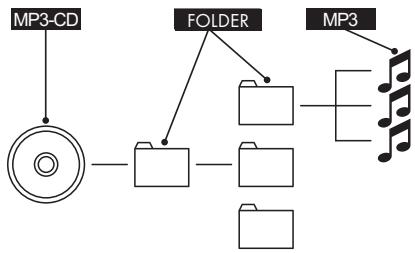
WMA
WMA ("Windows® Media Audio") is a data format developed by Microsoft® for audio data.
JPEG
JPEG ("Joint Photographics Expert Group") denotes a widespread graphic format, developed by the organization with the same name, with which image data of the color and grey scales are compressed.
MPEG
MPEG ("Moving Picture Experts Group") refers to a video compression format.
17.6 What are files?
As opposed to audio CDs, the titles on a CD-R/CDRW with MP3-, WMA- or JPEG data can be stored in files, for example, in order to file titles from different genres.
18. Warranty & service
You receive a 3-year warranty on this device from the date of purchase. If, in spite of our high quality standards, you have reason to complain about this device, please contact our service hotline. If it is not possible to deal with your complaint by phone, they will provide
- a processing number (RMA number) and
- an address where you can send your product for repairs under the warranty.
If you send the device, please enclose a copy of the proof of purchase (till receipt). The device must be packaged securely for transport and the RMA number must be directly visible. Shipments without an RMA number cannot be processed.
① Note:
The warranty applies to material or manufacturing faults.
The warranty does not apply to
parts subject to wear and tear, damage to breakable parts such as switches and rechargeable batteries.
The product is only designed for private and not commercial use. Improper handling and usage not in accordance with the intended purpose, use of force and any interventions that are not carried out by our authorised service centre will render the warranty null and void. This warranty does not affect your legal rights.
19. Importer
KOMPERNASS GMBH
BURGSTRASSE 21
D-44867 BOCHUM
www.kompernass.com
Portable DVD-Player KH 6500
In order to guarantee a cost free repair procedure please get in touch with the service hotline. Make sure you have your sales slip handy.
Sender, please write clearly:
Last name:
First name
Street
Postcode/Place
Country
Telephone
Date/Signature
GB DES Ltd
Tel.: 0870/787-6177
Fax: 0870/787-6168
e-mail: support.uk@kompernass.com
IE Irish Connection
Tel: 00353 (0) 87 99 62 077
Fax: 00353 18398056
e-mail: support.ie@kompernass.com
www.mysilvercrest.de
Description of fault:

- CONNECTIONS AND CONNECTION POTENTIALS
- USE
- MENU FUNCTIONS
- SOUND FUNCTIONS
- PLAYBACK OF DVD, SVCD, VCD AND CD DISCS
- TECHNICAL DATA
- MAINS PLUG
- VEHICLE ADAPTER
- RECHARGEABLE BATTERY
- VIDEO OUTPUT
- AUDIO OUTPUT
- EARPHONES
- HEADPHONE OUTPUT
- DIGITAL AUDIO OUTPUT
- APPLICATIONS AND FUNCTIONS
- ATTENTION
- SAFETY INSTRUCTIONS
- DANGER OF ELECTRICAL SHOCKS
- RISK OF FIRE
- INJURY HAZARD
- DANGER! LASER BEAMS
- NOTE
- THUNDERSTORMS
- NOTICE REGARDING SURGE VOLTAGES (FEO/ FAST ELECTRICAL OVERLOADS)
- NOTICE REGARDING POWER DISCONNECTION
- NOTICE REGARDING THE HANDLING OF BATTERIES/RECHARGEABLE BATTERY PACK
- RISK OF EXPLOSION
- APPLIANCE DESCRIPTION
- A OVERVIEW
- B FRONT PANEL
- RIGHT SIDE
- REMOTE CONTROL
- STARTING UP THE DEVICE
- UNPACKING
- CHECK THE DELIVERED CONTENTS
- PREPARING THE REMOTE CONTROL
- INSERTING THE BATTERY
- USING THE REMOTE CONTROL
- MAINS POWER CONNECTION
- CONNECTION WITH THE 12V VEHICLE ADAPTER
- RECHARGEABLE BATTERY CONNECTION
- INSTALLING THE RECHARGEABLE BATTERY
- CHARGING THE BATTERY WITH THE POWER SUPPLY UNIT
- REMOVING THE RECHARGEABLE BATTERY
- CONNECTION TO ANOTHER DEVICE
- VIDEO CONNECTION TO THE TELEVISION
- AUDIO CONNECTION TO THE TELEVISION OR TO A STEREO SYSTEM
- CONNECTION TO A DOLBY DIGITAL SYSTEM
- HEADPHONE CONNECTION
- IMPORTANT
- SETTING THE VIEWING POSITION
- SWITCHING THE DVD PLAYER ON AND OFF
- BUTTONS ON THE DEVICE AND THE REMOTE CONTROL
- DISPLAY SETTINGS
- NAVIGATING IN THE MENU
- GENERAL SETUP PAGE
- TV DISPLAY
- ANGLE MARK
- OSD LANGUAGE
- CLOSED CAPTIONS
- SCREENSAVER
- LAST MEMORY
- DIGITAL AUDIO SETUP PAGE
- DIGITAL OUTPUT
- DOLBY DIGITAL SETUP
- DOWNMIX
- VIDEO SETUP PAGE
- PREFERENCE PAGE
- TV TYPE
- AUDIO
- SUBTITLE
- PARENTAL
- DEFAULT
- PASSWORD SETUP PAGE
- PASSWORD MODE
- PASSWORD
- EXIT SETUP
- TO CONTROL THE VOLUME
- MUTE
- INSERTING THE DISC
- PLAYBACK FUNCTIONS WHEN PLAYING BACK DVDS, VCDS, S-VCDS, MPEG OR AUDIO CDS
- PAUSE PLAYBACK
- STOP PLAYBACK
- RESUME FUNCTION
- SKIP TO BEGINNING OF CHAPTER (SKIP)
- ENTRY OF THE TITLE NUMBER VIA NUMBER KEYS
- DIRECT CHAPTER OR TIME SELECTION USING THE SEARCH FUNCTION (SEARCH)
- ENTRY OF THE TIME POSITION VIA THE SEARCH FUNCTION DVD, VCD AND S-VCD
- AUDIO CD
- DISC GOTO
- TRACK GOTO
- GOTO TRACK
- MPEG CD
- SELECT
- GOTO
- SEARCH FORWARD/BACKWARDS
- I NOTE
- SLOW MOTION FUNCTION (DVD, VCD, S-VCD ONLY)
- CAMERA POSITION (DVD ONLY)
- REPEAT FUNCTION FOR DVDS, VCDS, S-VCDS AND AUDIO CDS
- REPEAT SEQUENCE (A-B)
- BOOKMARK FUNCTION
- NOTICE FUNCTIONS
- ACTIVATE THE DVD MENU (MENU)
- PLAYBACK CONTROL (PBC) WITH VCDS/S-VCDS
- SUPERIMPOSE/FADE OUT SUBTITLES
- CHANGE PLAYBACK LANGUAGE
- SUPERIMPOSE DISC INFORMATION
- IN THE CASE OF DVDS
- IN THE CASE OF VCDS/S-VCDS
- FOR AUDIO CDS
- PROGRAMMING FUNCTION
- PROGRAMMING WINDOW
- DISPLAY OF MP3/WMA/JPEG/AVI AND MPEG DATA
- DISPLAY OF MP3 DATA
- DISPLAY OF JPEG DATA
- DISPLAY OF AVI AND MPEG DATA
- PLAYBACK OF MP3/WMA/AVI AND MPEG DISCS
- PLAY/PAUSE
- REPEAT FUNCTION WITH MP3/WMA/AVI/MPEG/JPEG DISCS
- REPLAY OF JPEG DISCS
- PROGRAMMED REPLAY WITH MP3/WMA/AVI/MPEG/JPEG DISCS
- PLAYBACK OF USB/SD/MMC DATA MEDIUMS
- COMPATIBLE DATA MEDIUMS
- USING USB/SD/MMC DATA MEDIUMS
- CLEANING THE DVD PLAYER
- WARNING
- DISPOSAL
- BATTERY DISPOSAL
- TROUBLESHOOTING
- DISPLAY IS BLANK/DVD PLAYER SHOWS NO FUNCTIONS EVEN THOUGH IT IS SWITCHED ON
- THE DISPLAY SHOWS "NO DISC" EVEN THOUGH THERE IS A DISC INSERTED
- INSERTED DISC WILL NOT PLAYBACK
- NO IMAGE OR BLACK/WHITE IMAGE ONLY
- NO SOUND
- NO 4:3 OR 16:9 IMAGE
- REMOTE CONTROL NOT FUNCTIONING
- PLAYBACK LANGUAGE/ SUBTITLE LANGUAGE DO NOT CORRESPOND TO THE SETTINGS IN THE OSD MENU
- ONE OR SEVERAL FUNCTIONS CAN NOT BE SWITCHED ON
- NONE OF THE BUTTONS ON THE APPLIANCE OR ON THE REMOTE CONTROL ARE FUNCTIONING/OTHER MALFUNCTIONS
- CONTACT ONE OF OUR SERVICE PARTNERS IN YOUR AREA IF
- GLOSSARY / KEY WORD INDEX
- WHAT ARE DVDS, VCDS AND S-VCDS
- DVDS
- VCDS/S-VCDS
- PLAYBACK CONTROL (PBC)
- WHAT ARE TITLE AND CHAPTER
- DOLBY SURROUND
- DOLBY PROLOGIC
- DOLBY DIGITAL (5.1)
- DTS
- WHAT ARE PAL AND NTSC
- PAL
- NTSC
- MP3, WMA, JPEG AND MPEG
- MP
- WMA
- JPEG
- MPEG
- WHAT ARE FILES
- WARRANTY & SERVICE
- ① NOTE
- IMPORTER
- PORTABLE DVD-PLAYER KH
Brand : SILVERCREST
Model : KH 6500
Category : Kitchen appliance