42980 - Simulateur Lindy - Free user manual and instructions
Find the device manual for free 42980 Lindy in PDF.


User questions about 42980 Lindy
0 question about this device. Answer the ones you know or ask your own.
Ask a new question about this device
Download the instructions for your Simulateur in PDF format for free! Find your manual 42980 - Lindy and take your electronic device back in hand. On this page are published all the documents necessary for the use of your device. 42980 by Lindy.
USER MANUAL 42980 Lindy
natural_image
Black and red mobile phone with a keypad and antenna, no visible text or symbolsLINDY No. 42980
www.lindy.com
Introduction
Thank you for purchasing the LINDY USB VoIP Phone. This phone has been designed primarily for use with Skype, but can also be used with other VoIP applications. You can control the Skype software by simply pressing the keys on the phone to select phone listing and dialling function. With the in-built echo eliminating technology, voice clarity is vastly improved.
Features
• USB 1.1 & USB 2.0 specification compliant
- Compatible with VoIP (Voice over Internet Protocol) solutions, such as Skype, MSN Messenger and Yahoo Messenger
- Built in hot key functions to make operating the Skype software as easy as dialling a normal telephone.
- Skype hot key, up, down, 0 \~ 9, send & hook on the base unit for quick access
• Built in speaker and microphone
- Echo-eliminating for better sound quality
- Buzzer function for incoming call alerts
- Desk and Wall mount
System Requirements
- Processor: PC 1GHz or over
• Storage: 128MB RAM 15MB Hard Disk - Internet service: ISDN, ADSL or LAN
- Operating System: Microsoft Windows 2000/XP/Vista, Mac OS compliant
- Skype Software Version: 2.0 or over
Package Contents
- USB phone
• Installation CD (API Software and manual) - This manual
Function Keys

| 1 | Speaker | speaker |
| 2 | Hang Up Button | on-hook & make a new call. |
| 3 | Microphone | microphone |
| 4 | LED | power and ringing indicator |
| 5 | Number Button | skype out dialer button |
| 6 | Skype Table Button | select contact, miss list, call list of Skype table. |
| 7 | Down Button | select list of contact list, Missed call list, Called list. |
| 8 | Dial Key | make a call. |
| 9 | Up Button | select list of contact list, Missed call list, Called list. |
| 10 | Buzzer | incoming call ringer |
Installation
1. Hardware Installation
Please connect the USB VoIP Phone to your computer's USB port. Your computer will find a USB Audio Device. The driver will be installed automatically.
2. Installing Skype Software
If Skype is not yet installed on your computer, please download the latest version of the software from www.skype.com and install on your computer. If you experience any problems while installing this software then please refer to the Skype website.
3. Installing the API Software
3.1 Insert the Utility CD into your CD-ROM drive. Double Click My Computer and then choose the CD-ROM drive.

DVD/CD-RW Drive (F:)
3.2 Run the setup icon to start the installation.

EC 1.0.0.13(MCU98SimpleV1.1) Sep. 30, 2005
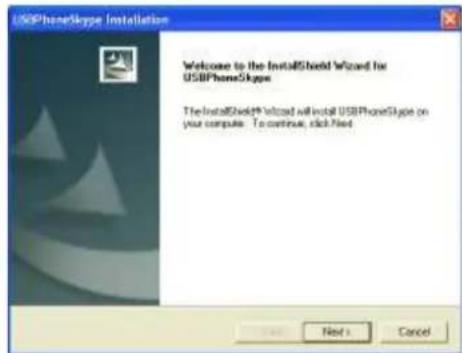
3.3 Please click Next.
text_image
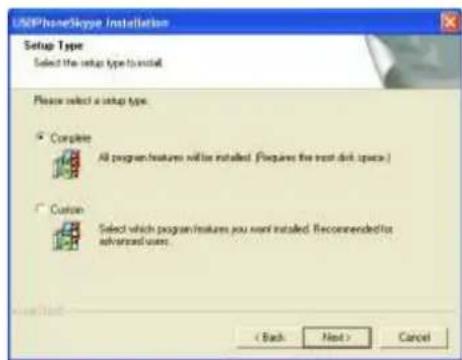
USBPhoneSkype Installation Welcome to the InstallShield Wizard for USBPhoneSkype The InstallShield® Wizard will install USBPhoneSkype on your computer. To continue, click Next Next > Cancel3.4 Please click Next.
text_image
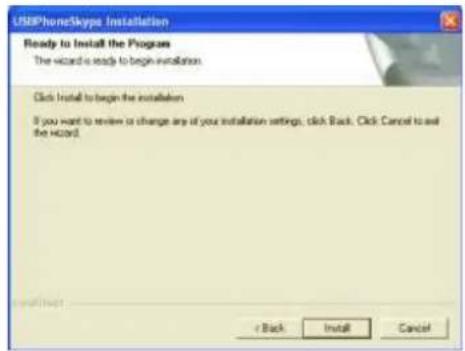
USBPhoneSkype Installation Setup Type Select the setup type to install Please select a setup type. ● Complete All program features will be installed (Requires the next disk space.) ● Custom Select which program features you want installed. Recommended for advanced users. < Back Next > Cancel3.5 Click Install to begin the installation.
text_image
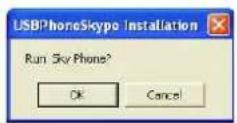
USBPhoneSkype Installation Ready to Install the Program The wizard is ready to begin installation. Click Install to begin the installation If you want to review or change any of your installation settings, click Back. Click Cancel to exit the HAZO! < Back Install Cancel3.6 After installing, click OK to start the API program.
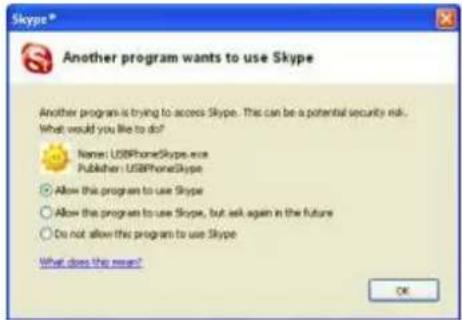
3.7 When this dialogue appears: "Another program wants to use Skype". Select "Allow this program to use Skype" and click the OK button.
text_image
Skype® Another program wants to use Skype Another program is trying to access Skype. This can be a potential security risk. What would you like to do? Name: USBPhoneSkype.exe Publisher: USBPhoneSkype Allow this program to use Skype Allow this program to use Skype, but ask again in the future Do not allow this program to use Skype What does this mean? OKNote:
If you accidentally select the "Do not allow this program to use Skype" option, open the Skype window and take these steps: Click "Tools ▶ Options ▶ Privacy ▶ Manage other programs access to Skype", Select "USBPHONESKYPE.EXE" and click "Change". Select "Allow this program to use Skype" and click the OK button.
3.8 When you have finished installing the API software, a small icon will appear in the system tray. The icon displays different colours to show the status of USB phone as follows:
 | (Black) | USB Phone disconnect & skype disconnect |
 | (Green) | USB Phone In-used / Skype On-line |
 | (Red) | USB Phone disconnect |
 | (Blue) | Skype disconnect |
4. Setting Audio and Sound Device
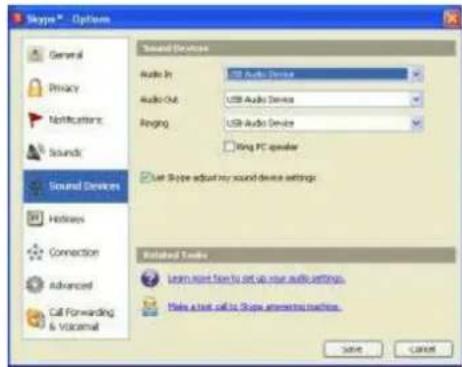
Open the Skype window, click "Tools ▶ Options ▶ Sound Devices". In the items "Audio In" and "Audio Out", please select USB Audio Device, then click Save.
text_image
Skype® - Options General Privacy Notifications Sounds Sound Devices Hotlines Connection Advanced Call Forwarding & Voicemail Sound Devices Audio In: USB Audio Device Audio Out: USB Audio Device Ringing: USB Audio Device Ring PC speaker Left Skype adjust my sound device settings Included Tools Learn most from to set up your audio settings. Make a text call to Skype engine in the system.5. Using the Handset
5.1 Calling a Skype User
Pick up the handset, the Skype window will pop-up automatically. Press the Skype key on the base unit to select contact, call list, Live or history.
Press the Up and Down key to scroll the list of contacts; when you have found the desired contact press the dial key to make a call.
To cancel the call replace the handset in the base unit or press the hang up button on the handset.
5.2 Calling a Phone Number (Skype Out)
Before using this function, please make sure you have paid for the service.
For further information about Skype Out, please go to http://www.skype.com.
Pick-up the handset and dial the phone number by pressing the keys on the base unit.
Press the send key to call the number
Note:
You must include the "country code" + "area code" (leaving out the leading zero) + "number" e.g. "0044" "1642" "754000"
5.3 Answer a Call
When the USB phone is ringing with an incoming call, pick up the handset to answer the call and place the handset in base unit to end a call.
5.4 Assign Speed-Dial
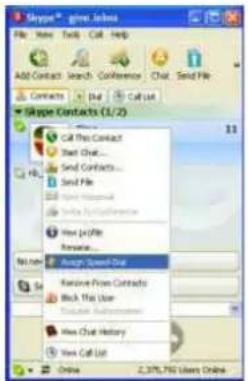
Open the Skype window, select contacts, right-click the user name on the contact list and select "Set Speed-Dial".
text_image
Skype™ swim-ups File View Tools Call Help Add Contacts Search Conference Chat Send File Contracts Edit Call List Skype Contacts (1/2) Call For Contact Send Chat... Send Contacts... Send File New Profile New Profile New Profile New Profile New Profile New Profile New Profile New Profile New Profile New Profile New Profile New Profile New Profile New Profile New Profile New Profile New Profile New Profile New Profile New Profile New Profile New Profile New Profile New Profile New Profile New Profile New Profile New Profile New Profile New Profile New Profile New Profile New Profile New ProfileSet the speed dial number, example "11" and press OK.
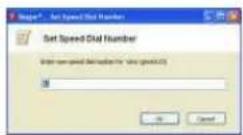
To use speed dial on the handset, pick up the handset and dial "11". Then press the "dial" key to make a call to this contact.
6. API Program Instruction
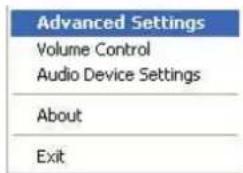
Right-click the USB Phone icon in the system tray, there are five items on the list.
text_image
Advanced Settings Volume Control Audio Device Settings About Exit6.1 Advanced Settings
Option 1: Auto Switch Skype Audio Device
Skype will switch suitable audio device automatically.
Option 2: Auto Run Skype when Plug in
If Skype doesn't run, the API will run Skype automatically when plugging the handset into the USB port of the PC.

text_image
Advanced Settings ✓ Auto Switch Skype Audio device ✓ Auto Run Skylighter Plug on OK6.2 Volume Control
You can control the volume of speaker and microphone in this window.

6.3 Adjust different Ring Tone
Click up the handset. Continue to press the handset hand-up button, then press the “#” button and you will hear the ring tone. Press “#” to change to a different ring tone. There are 4 different tones to select.
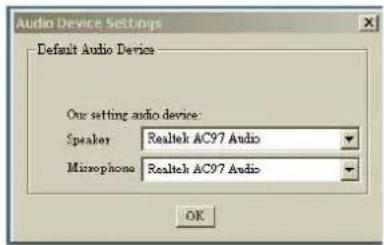
6.4 Audio Device Settings
To change the Windows default audio device.
text_image
Audio Device Settings Default Audio Devices Our setting audio device: Speaker Realtek AC97 Audio Microphone Realtek AC97 Audio OK6.5 About
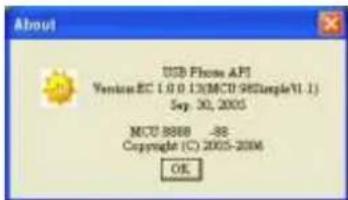
The window shows information about the USB Phone.
text_image
About USB Phone API Yenter EC 1.0.0.13(MCU 98Sample\1.1) Sep. 30, 2005 MCU 9868 -88 Copyright (C) 2005-2006 OK6.6 Exit
To quit the API program.
7 Other IM Software Setting
7.1 MSN Messenger
Open MSN Messenger, Click "Tools" and select "Audio and Video Setup...". Then follow the wizard to select the USB phone and test.
7.2 Yahoo Messenger
Open Yahoo Messenger, Click "Yahoo! Audio Setup Wizard" item. Then test the USB phone Speaker and Microphone.
Troubleshooting
Q1 Skype is launched, but it has no response when I pick up the handset and press a key using my USB phone
A1. Make sure your Skype is allowed to be accessed by the provided API. Please refer to point 3 installing the API software.
Q2. While using messenger software or Skype, the voice is played from the PC sound card instead of the USB phone.
A2. Make sure your software is configured to USB phone as audio device. Refer to point 4 Setting Audio and Sound device.
In MSN Messenger please refer to point 7.1 MSN Messenger setting.
In Skype please refer to point 3 'Installing the API software.'
Q3. There is no audio from my speakers when I play music?
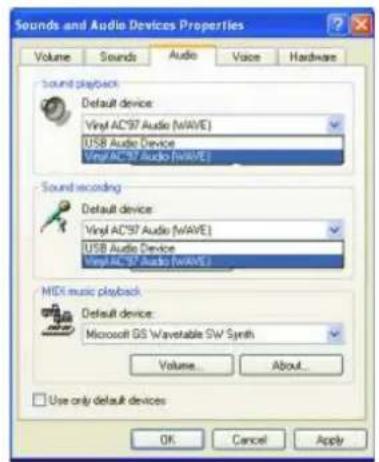
A3. Please go to your Control Panel/Sound and Audio Devices, set Sound playback and Sound Recording's preferred device to your sound card, as shown below:
text_image
Sounds and Audio Devices Properties Volume Sounds Audio Voice Hardware Sound playback Default device: Vinyl AC97 Audio (WAVE) USB Audio Device Vinyl AC97 Audio (WAVE) Sound recording Default device: Vinyl AC97 Audio (WAVE) USB Audio Device Vinyl AC97 Audio (WAVE) MIDI music playback Default device: Microsoft GS Wavetable SW Synth Volume... About... Use only default devices OK Cancel ApplyCertifications
FCC Certifications
This equipment has been tested and found to comply with the limits for a Class A digital device, pursuant to part 15 of the FCC Rules. These limits are designed to provide reasonable protection against harmful interference when the equipment is operated in a commercial environment. This equipment generates, uses, and can radiate radio frequency energy and, if not installed and used in accordance with the instruction manual, may cause harmful interference to radio communications. Operation of this equipment in a residential area is likely to cause harmful interference in which case the user will be required to correct the interference at their own expense.
This device complies with Part 15 of the FCC Rules. Operation is subject to the following two conditions: (1) this device may not cause harmful interference, and (2) this device must accept any interference received; including interference that may cause undesired operation.
CE Certification
This equipment complies with the requirements relating to electromagnetic compatibility, EN 55024 and EN55022 class A for ITE, EN61000-3-2/-3 the essential protection requirement of Council Directive 89/336/EEC on the approximation of the laws of the Member States relating to electromagnetic compatibility.
Recycling Information

WEEE (Waste of Electrical and Electronic Equipment), Recycling of Electronic Products
United Kingdom
In 2006 the European Union introduced regulations (WEEE) for the collection and recycling of all waste electrical and electronic equipment. It is no longer allowable to simply throw away electrical and electronic equipment. Instead, these products must enter the recycling process. Each individual EU member state has implemented the WEEE regulations into national law in slightly different ways. Please follow your national law when you want to dispose of any electrical or electronic products. More details can be obtained from your national WEEE recycling agency.