38288 - Câble AV Lindy - Free user manual and instructions
Find the device manual for free 38288 Lindy in PDF.


User questions about 38288 Lindy
0 question about this device. Answer the ones you know or ask your own.
Ask a new question about this device
Download the instructions for your Câble AV in PDF format for free! Find your manual 38288 - Lindy and take your electronic device back in hand. On this page are published all the documents necessary for the use of your device. 38288 by Lindy.
USER MANUAL 38288 Lindy
HDBaseT Presentation System with Control Keypad
User Manual English
natural_image
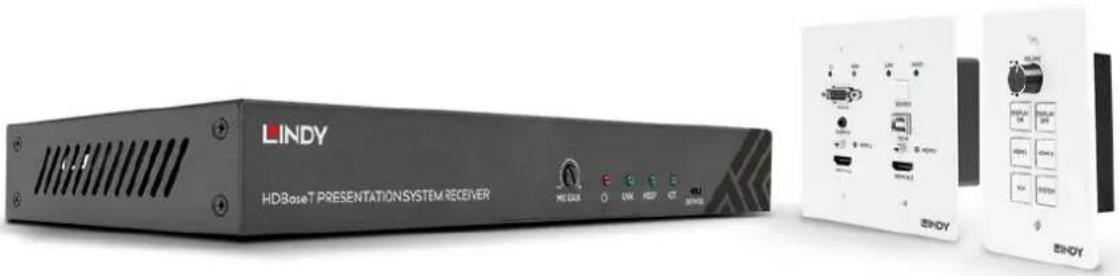
Exterior and interior views of a LINDY HDBase T Presentation System Receiver (no signage or text in focus)No. 38288
CE

Tested to comply with
FCC Standards
For Home and Office Use!

lindy.com
!!! IMPORTANT !!!
Only use a direct Cat.5e/6/7 cable connection between the HDBaseT ports. Do not connect these ports to Network or Ethernet equipment or any active components

WICHTIG

Please read the following safety information carefully and always keep this document with the product.
Failure to follow these precautions can result in serious injuries or death from electric shock, fire or damage to the product.
Touching the internal components or a damaged cable may cause electric shock, which may result in death.

text_image
DANGER ELECTRIC SHOCK RISKThis device is a switching type power supply and can work with supply voltages in the range 100 - 240 VAC For worldwide usability four different AC adapters are enclosed: Euro type, UK type, US/Japan type and Australia/New Zealand type. Use the appropriate AC adapter as shown in the picture and ensure it is firmly secured in place and does not detach by pulling before installing into a power socket.
To reduce risk of fire, electric shocks or damage:
- Do not open the product nor its power supply. There are no user serviceable parts inside.
■ Only qualified servicing personnel may carry out any repairs or maintenance.
■ Never use damaged cables. - Do not expose the product to water or places of moisture.
- Do not use this product outdoors it is intended for indoor use only.
- Do not place the product near direct heat sources. Always place it in a well-ventilated place.
- Do not place heavy items on the product or the cables.
- Please ensure any adapters are firmly secured and locked in place before inserting into a wall socket
Introduction
Thank you for purchasing the HDBaseT Presentation System with Control Keypad. This product has been designed to provide trouble free, reliable operation. It benefits from both a LINDY 2 year warranty and free lifetime technical support. To ensure correct use, please read this manual carefully and retain it for future reference.
The Lindy HDBaseT Presentation System is a multi-function AV solution which is ideal for creating smart, autonomous presentation, education or collaboration spaces combining three core components. An HDBaseT multi-AV transmitter, An HDBaseT receiver and a separate wall mounted room control panel. Using reliable HDBaseT technology, single cable installation and PoH means this system is perfectly suited for education in a classroom or training room environment
Package Contents
■ HDBaseT Transmitter Wall Plate
■ HDBaseT Receiver
■ Control Panel
■ 24V 3.75A Multi Country DC power Supply, Barrel Size: 5.5/2.1mm
■ Quick Instruction Guide
Features
■ Valens HDBaseT VS210 Chipset
■ Distance:
■ 4K, 30Hz, RGB, 8bit with 40m of Cat.6 cable
■ 1920x1080, 60Hz, RGB, 8Bit with 70m of Cat.6 cable.
■ HDMI 1.4b, HDCP 2.2 and HDCP 1.4 compliant.
- Up to 7.1 channels of High Definition audio pass through (LPCM, Dolby TrueHD, and DTS-HD Master Audio).
■ Supports multi-VESA Standard VGA formats input up to 1080p.
■ Supports MIC input via terminal block.
■ Stereo 30watts@4 ohms amplifier output (2 channel)
■ Supports interactive display (Touch screen) USB control using USB HID.
■ Control over Web GUI.
- Separate control panel for system control.
■ Supports relay control.
■ Supports RS-232 control.
- Colour: Transmitter: White, Receiver: Black, Control Plate: White
■ ESD Protection: ± 8kV (air-gap discharge)
■ Human Body Model: ± 4kV (contact discharge)
■ Power Consumption: 75W max
■ Operating Temperature 0°C - 40°C (32°F - 104°F)
■ Storage Temperature -20°C - 60°C (-4°F - 140°F)
■ Relative humidity: 20 – 90% RH (non condensing)
■ CE/FCC and RoHS/REACH, California 65 compliant
Specification
• Transmitter wall plate:
• Input ports: 2x HDMI, 1x VGA, 1x Stereo Audio (3.5mm), 1x USB Type B Female
• Output ports: 1x HDBaseT, 1x RJ45 for RS232/Power (Control Plate connection)
• Control Ports: 1x Source Select Switch
• Dimensions: 115.9mm [W] x 38.7mm [D] x 114.3mm [H]
- Receiver:
- Input ports: 1x HDBaseT, 1x Mic, 1x LAN (RJ45), 1x USB Type A Female
- Output ports: 1x HDMI, 1x RS-232 (Screw Terminal), 1x Relay (Screw Terminal), 1x Audio Out (Screw Terminal), 1x 2x30 Watts@4 ohms amplifier output (Screw Terminal)
• Dimensions: 250mm [W] x 104mm [D] x 30mm [H]
- Control Plate:
• Input / Output port: 1x RJ45 for RS232/Power
• Dimensions: 70mm [W] x 32mm [D] x 115mm [H]
Installation and Operation
Transmitter Panel
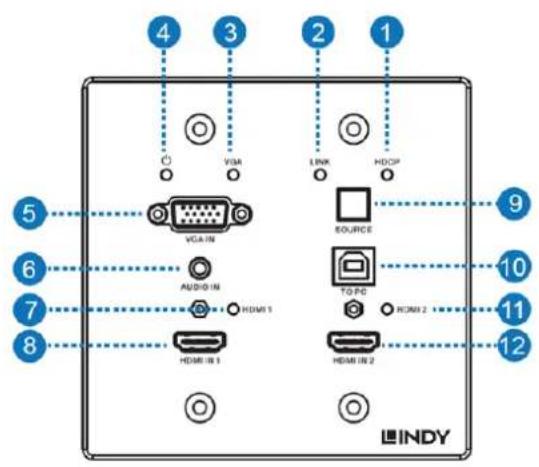
text_image
4 3 2 1 VISA LINK HDCIP VCA IN SOURCE AUDIO IN TO PC HDMI 1 HDMI 2 HDMI 3 HDMI 4 5 6 7 8 9 10 11 12 INDY
text_image
HOS/INT OUT 78-232/ POWER 24VDC 13 14 15
text_image
Technical diagram of a device rear panel with labeled ports and connection points| Number | Name | Function Description |
| 1 | HDCP LED | HDCP status indicator.·OFF: HDMI input is not carrying HDCP content.·ON: HDMI input is carrying HDCP content. |
| 2 | LINK LED | HDBaseT Link status indicator.·OFF: No Link.·GREEN: Link successful.·Blink GREEN: Link abnormal. |
| 3 | VGA LED | VGA signal indicator.·OFF: There is no +5V HPD or VGA signal detected on the input.·FLASHING: +5V HPD or VGA signal is detected.·GREEN: VGA input is active and the VGA signal is detected. |
| 4 | POWER LED | System power indicator. |
| 5 | VGA IN | Connect to a VGA source. |
| 6 | AUDIO IN | Connect to an external audio source for the VGA signal. |
| 7 | HDMI 1 LED | HDMI 1 signal indicator.·OFF: There is no +5V HPD or HDMI signal detected on the input.·FLASHING: +5V HPD or HDMI signal is detected.·GREEN: HDMI input is active and the HDMI signal is detected. |
| 8 | HDMI 1 IN | Connect to an HDMI source device. |
| 9 | SOURCE | Press to switch between sources. |
| 10 | TO PC | Connect to the USB Host device, typically a PC |
| 11 | HDMI 2 LED | HDMI 2 signal indicator.·OFF: There is no +5V HPD or HDMI signal detected on the input.·FLASHING: +5V HPD or HDMI signal is detected.·GREEN: HDMI input is active and the HDMI signal is detected. |
| 12 | HDMI 2 IN | Connect to an HDMI source device. |
| 13 | HDBaseT OUT | Connect to the HDBaseT Receiver with a Cat5e/6/7 cable. |
User Manual English
| 14 | RS-232/POWER | Connect to the Control Panel via CAT5e/6/7 cable. |
| 15 | 24VDC(OPTIONAL) | This 24V / 1A connection is only used when the receiver doesn’t provide power. The receiver included with 38288 provides power. |
| 16 | Micro-USB | For firmware updates. |
| 17 | DIP SWITCH | Used in combination with firmware updates. Please leave on the default position. |
Receiver

text_image
LINDY HDBaseT PRESENTATION SYSTEM RECEIVER MIC GAIN LINK HDCP ACT SERVICE 1 2 3 4 5 6 TCP/IP HDBaseT IN HDMI OUT USB DEVICE RS-232 RELAY AUDIO OUT MIG IN 1 2 C L R MIC LINE + - 2x30W@4Ω DC 24V 7 8 9 10 11 12 13 14 15 16 17| Number | Name | Function Description |
| 1 | MIC GAIN | Adjust the MIC input gain. (Volume) |
| 2 | POWER LED | System power indicator. |
| 3 | LINK LED | HDBaseT Link status indicator.·OFF: No Link.·GREEN: Link successful.·Blink GREEN: Link abnormal. |
| 4 | HDCP LED | HDCP status indicator.·OFF: HDMI input is not carrying HDCP content.·ON: HDMI input is carrying HDCP content. |
| 5 | ACT | System status indicator. ·OFF: System standby or power off. ·Blink GREEN: The system is functioning correctly. |
| 6 | SERVICE | For firmware updates. |
| 7 | TCP/IP | Connect to the LAN for web GUI control. |
| 8 | HDBaseT IN | Connect to the Transmitter Wall plate with a Cat5e/6/7 cable. |
| 9 | HDMI OUT | Connect to the HDMI display device. |
| 10 | USB DEVICE | Connect to an interactive display or USB sink device as required. |
| 11 | RS-232 | RS-232 control for the display. |
| 12 | RELAY | To control the projector screen rise and fall. |
| 13 | AUDIO OUT | Connect to a speaker. |
| 14 | MIC LINE SWITCH | When the switch is set to “MIC”, the microphone input is used to connect a dynamic microphone. ·When the switch is set to “LINE”, the microphone input is used for connecting a line level audio source or wireless microphone output. |
| 15 | MIC IN | Using Phoenix terminal cable to connect microphone input |
| 16 | 2X30 watts @4Ω | Connect to speaker out |
| 17 | DC 24V | Connect 24V/3.75A adaptor to AC wall outlet for power supply. |
Control Plate
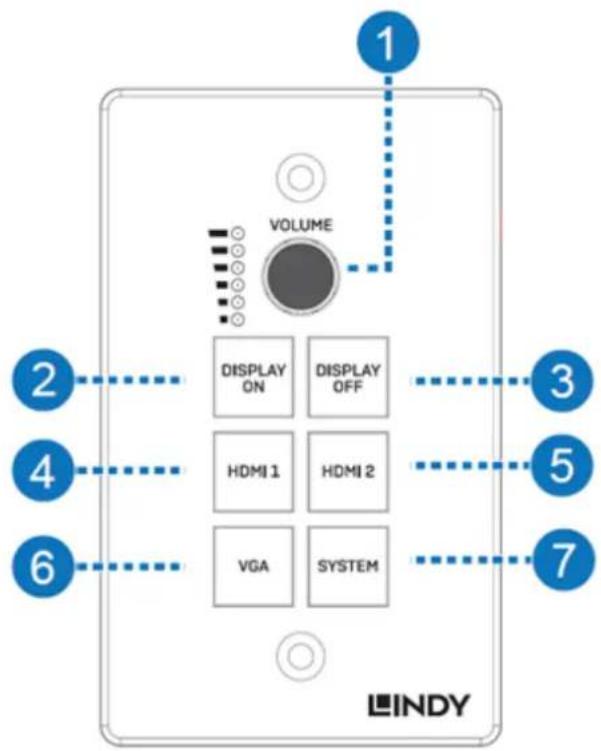
text_image
VOLUME DISPLAY ON DISPLAY OFF HDMI 1 HDMI 2 VGA SYSTEM 1 2 3 4 5 6 7 LINDY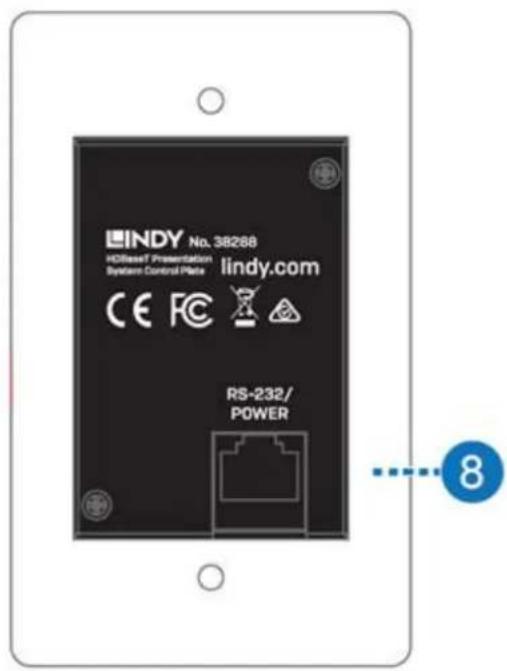
text_image
LINDY No. 38268 HD/IESelf Presentation System Control Plate lindy.com CE FC RS-232/ POWER 8| Number | Name | Function Description |
| 1 | VOLUME | Volume adjustment and LED indicatorAdjusts amplifier volume output |
| 2 | DISPLAY ON | Runs the DISPLAY ON routine, please see the full manual for further details |
| 3 | DISPLAY OFF | Runs the DISPLAY OFF routine, please see the full manual for further details. |
| 4 | HDMI 1 | Selects HDMI 1 as the active source |
| 5 | HDMI 2 | Selects HDMI 2 as the active source |
| 6 | VGA | Selects VGA as the active source |
| 7 | SYSTEM | Long press the button for 3 seconds to turn on or off the system, please see the full manual for further details. |
| 8 | RJ45 / POWER | Connect to the transmitter using CAT5e/6/7 cable |
Web GUI Guide
This product can be controlled via it's built in Web GUI. The default IP address is 192.168.2.100. Please make sure the device you are connecting with is on the same IP range as the unit. Once the IP is entered in the web browser you should be prompted with a login page, the default username and password is the same, please enter "admin" for both. The login page should look like below:
Please login to continue

text_image
User: admin Password: ...... LoginMain Page:

text_image
Room Label MAIN CONTROL INPUT/OUTPUT SYSTEM Input Select HDMI1 HDMI2 VGA Volume Mute OFF ON System Connection Status Display Output Mute OFF ON OFF ON
text_image
Input Select HDMI1 HDMI2 VGAInput Select: You can choose from the available input options. It also shows the status of the input signal.
Green: The input port has an active signal.
Blue: The input port has a live connected device, but it is not an active signal.
Red: The input port has no signal.

text_image
Volume Mute OFF ONVolume control adjusts the output for the amplifier and the audio extractor. Adjusting the slider will increase or decrease volume for the amplifier and the audio extractor.
Mute toggle will silence the amplifier and the audio extractor outputs, however it does not silence the audio on the HDMI output.

text_image
System OFF ON Connection Status ✓ Display CFF ON Output Mute OFF ONSystem: runs the system on/off subroutine when you switch the toggle. (see Routines at the end of the manual)
Connection Status: indicates the connection status about the web server.
Display: Runs the display on/off subroutine when you switch the toggle, (see Routines at the end of the manual)
Output Mute: when on, turns off the video output but it does not mute audio.
Control Page:
text_image
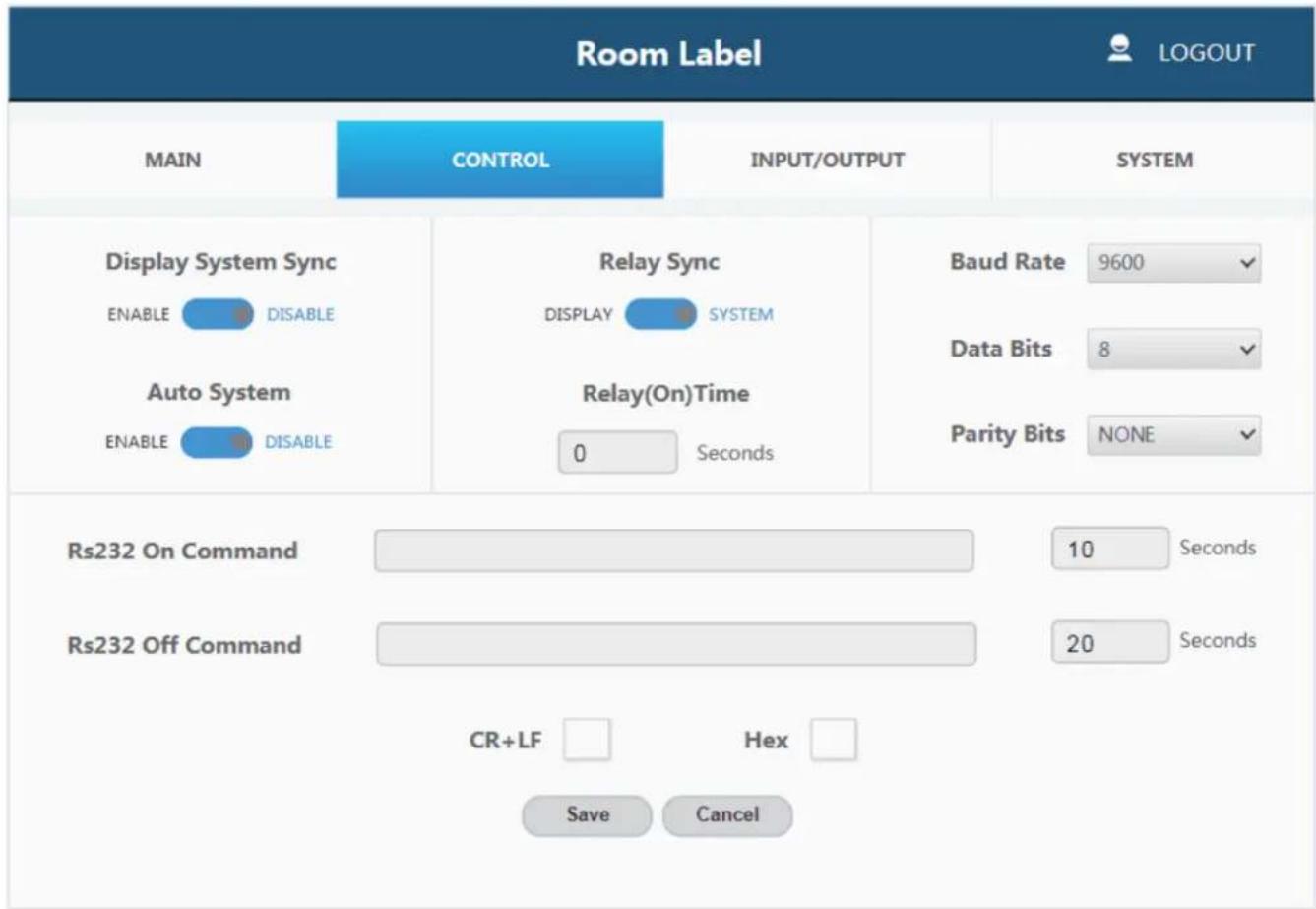
Room Label MAIN CONTROL INPUT/OUTPUT SYSTEM Display System Sync ENABLE DISABLE Auto System ENABLE DISABLE Relay Sync DISPLAY SYSTEM Relay(On)Time 0 Seconds Baud Rate 9600 Data Bits 8 Parity Bits NONE Rs232 On Command 10 Seconds Rs232 Off Command 20 Seconds CR+LF Hex Save CancelDisplay System Sync
ENABLE

DISABLE
Display System Sync: When the toggle is in the 'enable' position, the display on/off subroutine will run the system subroutine on/off every time. (see Routines at the end of the manual)
Auto System
ENABLE

DISABLE
Auto System: When the toggle is in the 'enable' position, the system will turn off when no signals are actively connected the amount of time can be configured, please see the "No Activity Timeout" in the INPUT/CONTROL section.
Relay Sync
DISPLAY

SYSTEM
Relay Sync: Sets the relays to either be triggered with the display subroutine on/off or the system subroutine on/off. (see Routines at the end of the manual)
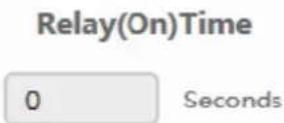
Relay (On) Time: Sets the amount of time that the relay contacts will stay closed.
text_image
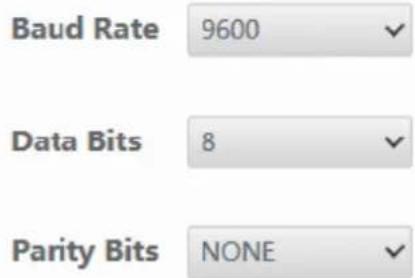
Baud Rate 9600 Data Bits 8 Parity Bits NONEThe RS-232 communication settings for the RS-232 port.
text_image
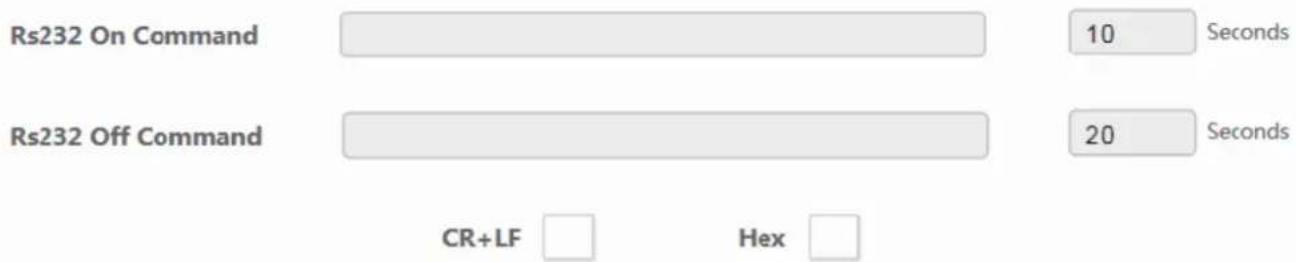
Rs232 On Command 10 Seconds Rs232 Off Command 20 Seconds CR+LF HexRS232 On Command: Sends the string when the Display On subroutine is called.
RS232 Off Command: Sends the string when the Display Off subroutine is called.
CR + LF: Appends a carriage return and line feed character to the end of the input strings as they are sent out.
Hex: The commands can be input as hexadecimal numbers when the Hex checkbox is marked.

Save: After any settings have been changed, the settings must be saved by pressing the 'Save' button.
Input / Output Page:
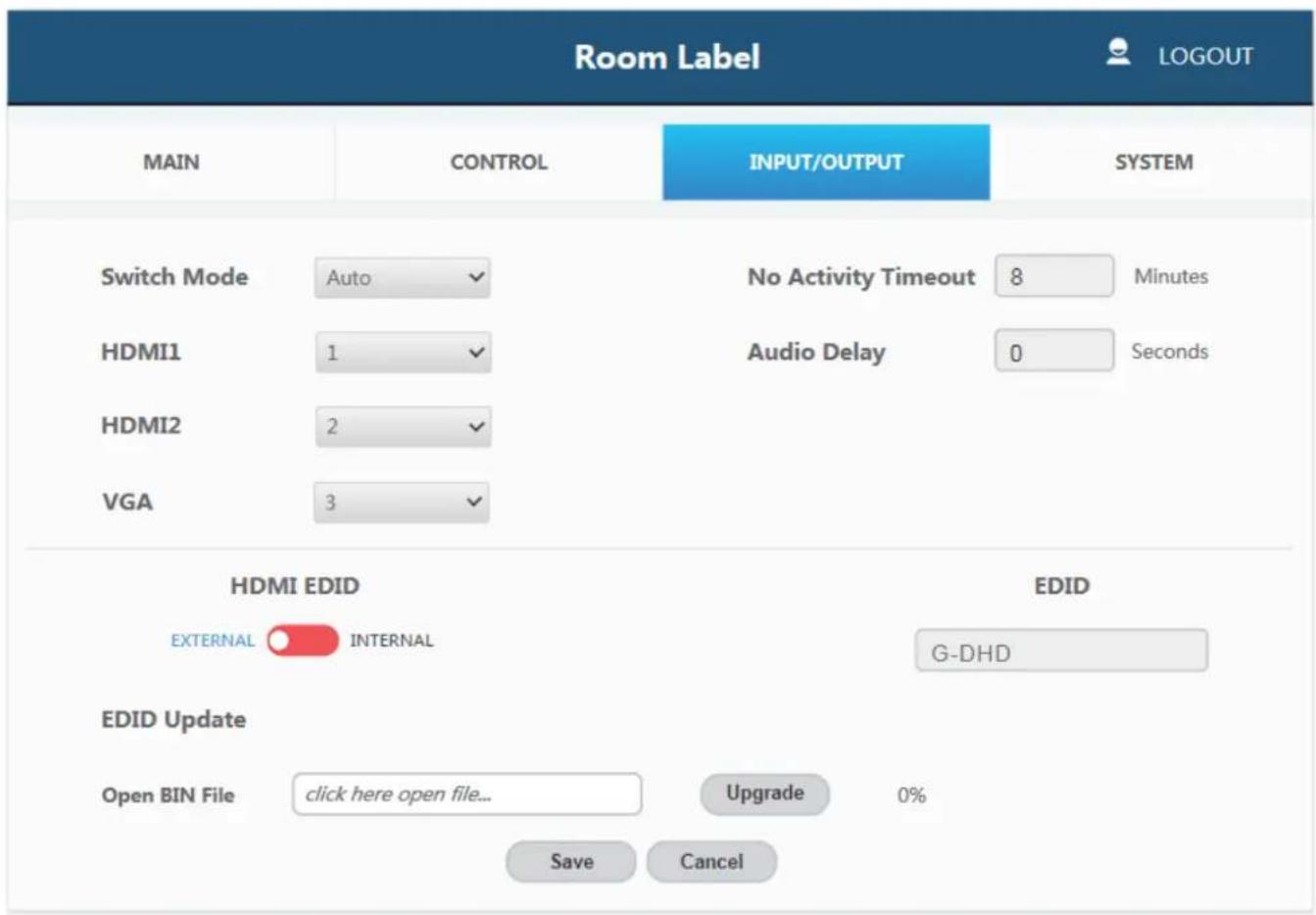
text_image
Room Label MAIN CONTROL INPUT/OUTPUT SYSTEM Switch Mode Auto No Activity Timeout 8 Minutes HDMI1 1 Audio Delay 0 Seconds HDMI2 2 VGA 3 EDID EXTERNAL INTERNAL EDID G-DHD EDID Update Open BIN File click here open file... Upgrade 0% Save CancelSwitch Mode
Auto
Switch Mode: Sets how the transmitter plate will change between input signals. It includes an 'Auto' mode and 'Manual' mode.
HDMI1
1
HDMI2
2
VGA
3
Sets the priority to use when the switch mode is set to priority mode. 1 is the highest priority and 3 is the lowest.
No Activity Timeout
8
Minutes
No Activity Timeout: Sets the amount of time it will take for the system to turn itself off when there is no detected input signal.
Audio Delay
0
Seconds
Audio Delay: Sets how many seconds the audio on the amp output is delayed.

text_image
HDMI EDID EXTERNAL ○ INTERNAL EDID Update Open BIN File click here open file... UPgrade 0% Save Cancel EDID G-DHDHDMI EDID: When set to Internal, the EDID communicated to the source is the one stored in the systems internal memory. When set on external it will use the EDID from the attached sink device.
EDID: The name of the current EDID.
EDID Update: Upload a .bin file to change what EDID is stored in the systems internal memory that is used when EDID is set to internal.
System Page:
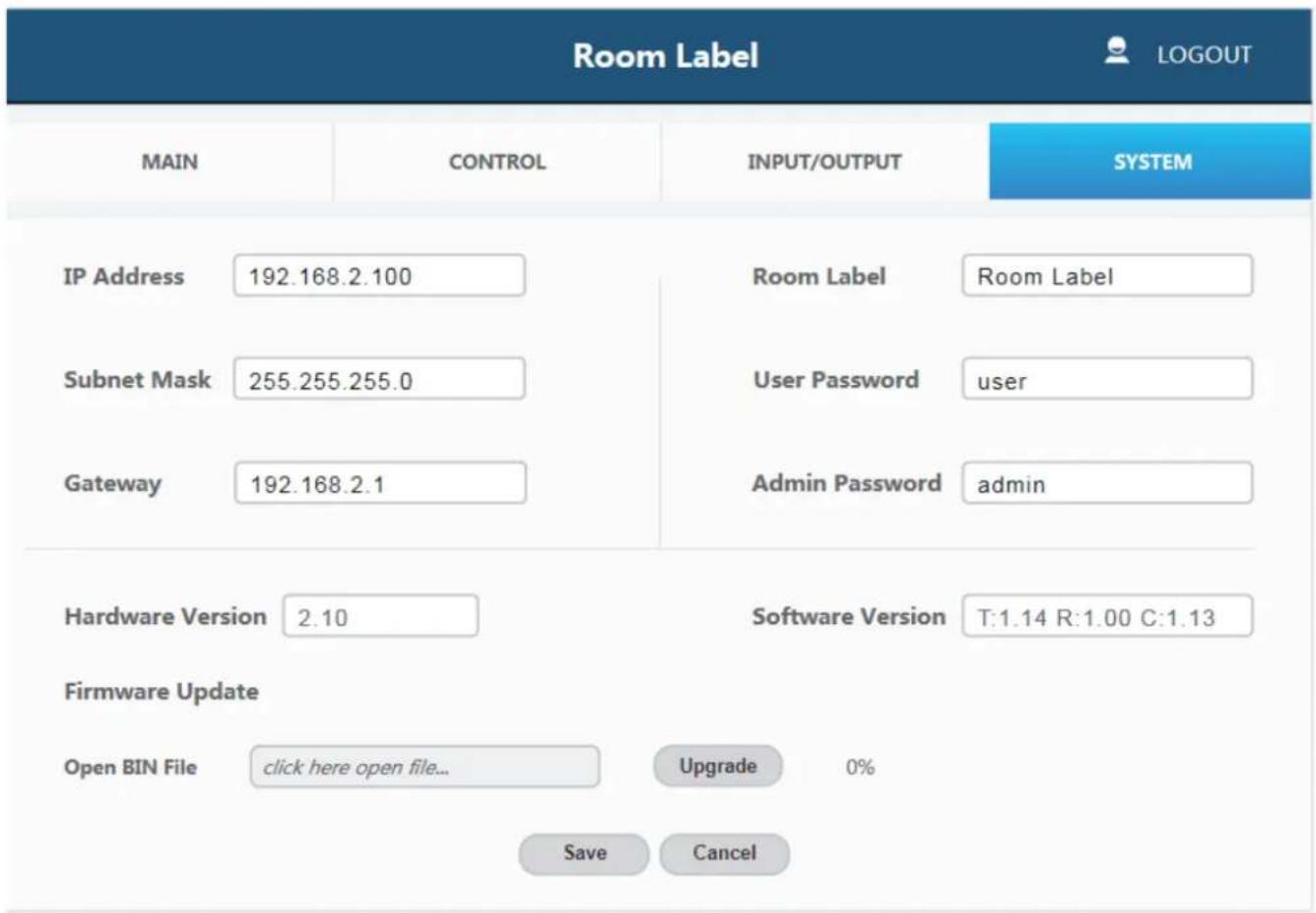
text_image
Room Label MAIN CONTROL(INPUT/OUTPUT SYSTEM IP Address 192.168.2.100 Room Label Room Label Subnet Mask 255.255.255.0 User Passwordicer Gateway 192.168.2.1 Admin Password admin Hardware Version 2.10 Software Version T:1.14 R:1.00 C:1.13 Firmware Update Open BIN File click here open file... Upgrade 0% Save CancelIP Address
102.168.2.100
Subnet Mask
255.255.255.0
Gateway
192.168.2.1
The network settings of the device's internal system.
Room Label
Room Label
Room Label: This is the customisable label that appears at the top of the web interface.
User Password
user
Admin Password
admin
The user and the admin password settings. Please note each one is unique to the different accounts.
Hardware Version
2.10
Software Version
T:1.14 R:1.00 C:1.13
Firmware Update
Open BIN File
click here open file...
Upgrade
0%
Save
Cancel
Upload new firmware and see the current version installed. This can update the firmware of the control panel and the receiver box, not the transmitter. To update the firmware of the transmitter use the USB port on the plate.
Troubleshooting
I have lost access to the system or it has strange behaviour.
To perform a system reset hold the transmitter source button (SOURCE button) for 20 seconds until the HDCP light flashes three times. When the system is reset, user settings will return to their default values this includes passwords, room label, switching mode, IP address, etc.
System ON/OFF & Display ON/OFF Routine

flowchart
graph TD
    A["System ON/OFF Subroutine"] --> B{Run ON or OFF Routine}
    B -->|OFF| C["Turn video and audio output off"]
    C --> D["Close Relay 2"]
    D --> E["Send out RS-232 OFF Command"]
    E --> F["END"]
    F --> G{Display System Sync Status}
    G -->|Enable| H["Send out RS-232 ON Command"]
    H --> I["Close Relay 1"]
    I --> J["END"]
    J --> K{Relay Sync Status}
    K -->|Disable| G
    K -->|System| L["Close Relay 1"]
    L --> M["End"]
    M --> N{Display}
    N -->|Display| O["Close Relay 1"]
    O --> P["END"]
    P --> Q["End"]
    Q --> R["System"]
    R --> S{Relay Sync Status}
    S -->|Display| T["Close Relay 2"]
    T --> U["END"]
    U --> V["System"]
    V --> R
    V --> W["End"]
    W --> X["End"]
    X --> Y["End"]
    Y --> Z["End"]
    Z --> K
    K -->|OFF| AA["Send Out RS-232 OFF Command"]
    AA --> AB{Relay Sync Status}
    AB -->|Display| AC["Close Relay 2"]
    AC --> AD["END"]
    AD --> AE["System"]
RS-232 Commands
Note: The default communication settings are 9600 8N1 None.
- Command, ? - Query, () Response
| Command Category | Action | Basic ASCII String | Variables | Example Settings | Example String | Example Response |
| Com Settings | Setup Baud Rate | >BR:a,b,p | a = Baud rate | Set RS232 Baud Rate to 9600 with 8 bits and No Parity | >BR:9600,8,N | (BR:9600,8,N) |
| (2400, 4800, 9600, 14400, 19200, 38400, 5600, 57600, 115200) | ||||||
| b=bits, | ||||||
| p=parity | ||||||
| (Even = E, Odd = O, None = N) | ||||||
| Query Rs232 Com Setting | ?RS | Request the Rs232 Setting | ?RS | (Rs232, BR:9600,8,N) | ||
| IP Settings | IP Adressing | >IPA:m, ipa | m = Mode (S=Static, D=Dynamic) | Set IP Adress to static at 192.168.2.175 | >IPA:S,192.168.2.175 | (Static, 192.168.2.175) |
| ipa = IP Adress | Set The Unit to Dynamic | >IPA:D | (Dynamic, 192.168.1.50) | |||
| Quary IP Adress | ?IPA | Request IP adress | ?IPA | (Static,192.168.2.175) | ||
| (Dynamic, 192.168.1.20) | ||||||
| Set Subnet Mask | >MASK:m | m = Mask (XXX.XXX.XXX.XXX) | Set the mask to 255.255.255.0 | >MASK:255.255.255.0 | (Mask, 255.255.255.0) | |
| Quary Subnet Mask | ?MASK | Request the subnet mask | ?MASK | (Mask, 255.255.255.0) | ||
| Set Gateway | >GATE:ipa | Ipa = IP Adress | Set the Gateway to 192.168.1.1 | >GATE:192.168.1.1 | (Gateway, 192.168.1.1) | |
| Quary Gateway | ?GATE | Request the Gateway | ?GATE | (Gateway, 192.168.1.1) | ||
| Input/Output and switching Controls | Switching Inputs to Output | >SW:i | i = Input | Switch to (VGA and Audio) | >SW:V | (VGA Active) |
| (V= VGA & Audio, | ||||||
| DP = DisplayPort | Switch to DisplayPort | >SW:DP | (DP Active) | |||
| H (or H1, H2) = HDMI, | Switch to HDMI1 | >SW:H1 | (HDMI1 Active) | |||
| Switch to HDMI2 | >SW:H2 | (HDMI2 Active) | ||||
| Query Active Signal | ?SW | Request the active source | ?SW | ([Value] Active) | ||
| Mute the Output Video | >VM:a | a = 0, 1, T | Unmute the Video Output | >VM:0 | (Video Output Mute Off) | |
| 0 = Unmute Video Output | ||||||
| 1 = Mute Video Output | Mute the Video Output | >VM:1 | (Video Output Mute On) | |||
| T = Toggle | Toggle the Mute | >VM:T | (Video Output Mute [Off, On]) | |||
| Query Mute Status | ?VM | Request Video Mute Status | ?VM | (Video Output Mute [On, Off]) | ||
| Setting the Front Panel Select Button mode | >PB:a | a = Button Status | Enable Front Panel Button | >PB:1 | (Button Enabled) | |
| (0 = Disabled) | ||||||
| 1 = Enabled) | Disable Front Panel Button | >PB:0 | (Button Disabled) | |||
| 2 = Rs232 Mode | Rs232 Mode | >PB:2 | (Button Rs232 Mode) | |||
| Changing Switch Modes | >SM:a | a = Switching Mode | Set Switch Mode to Manual | >SM:M | (Manual Mode) | |
| (M = Manual, | ||||||
| H = Hybrid, | Set Switch Mode to Hybrid | >SM:H | (Hybrid Mode)锁定一个接入的信号源 | |||
| A = Auto, | Set Switch Mode to Auto | >SM:A | (Auto Mode) | |||
| P = Priority) | Set Switch Mode to Priority | >SM:P | (Priority Mode) | |||
| Query switching mode | ?SM | Request active mode | ?SM | |||
| ([value] Mode) | ||||||
| Setting Input Priority | >SMP:[a,b,c] | Port prioritisation : "a" the highest priority followed by b and so on for multiple inputs | Set the following priority from Highest to lowest; HDMI1, HDMI2, VGA | >SMP:[H1,H2,V] | (Priority [H1,H2,V]) | |
| (V = VGA & Audio, | ||||||
| DP = DisplayPort | ||||||
| (H1, H2) = HDMI | ||||||
| Query Port Priority | ?SMP | Request the current Priority of Inputs for Auto Switching | ?SMP | (Priority [H1,H2,V]) | ||
| Audio Mode | >AUD:a | a = Audio Mode | Set the Unit to pass embedded audio | >AUD:I | (Audio, Embedded) | |
| (I=Embedded Audio, E = External Input, | Set the unit to Embed the external Input | >AUD:E | (Audio, External Input) | |||
| T = Toggle) | Toggle between Embedded and External | >AUD:T | (Audio, [Value]) | |||
| Query Audio Mode | ?AUD | Request Audio Mode | ?AUD | ([value] Mode) | ||
| Audio | Volume Control | >VOL:a | a = +/- | Increase Audio Volume | >VOL:+ | (Volume value) |
| += Increase Vol | ||||||
| -= Decrease Vol | Decrease Audio Volume | >VOL:- | (Volume value) | |||
| >VOL:S,50 | (Volume value) | |||||
| ?VOL | (Volume value) | |||||
| Audio Mute | >AM:a | a = 0, 1, T | Unmute the Audio Output | >AM:0 | (Audio Output Mute Off) | |
| 0 = Unmute Audio Output | ||||||
| 1 = Mute Audio Output | Mute the Audio Output | >AM:1 | (Audio Output Mute On) | |||
| T = Toggle | Toggle the Mute | >AM:T | (Audio Output Mute [Off, On]) | |||
| Query Mute Status | ?AM | Request Audeo Mute Status | ?AM | (Audio Output Mute [On, Off]) | ||
| Auto RS232 Command Features | Input Detect Command Set | >IDC:{a}:h,t | send command 60 seconds after input on switch is connected, do not disable carrage return and not in hex | >IDC:{Command}:0,60 | (Input Detect : {Command}, Carrage return enabled, Hex off, Timer 60 seconds) | |
| a = Command string, | ||||||
| No Input Detect Command Set | >NIC:{a}:h,t | send command 60 seconds after all inputs are disconnected, do not disable carrage return and not in hex | >NIC:{Command}:0,60 | (No Input : {Command}, Carrage return enabled, Hex off, Timer 60 seconds) | ||
| h = hex 1 = on 0 = off | ||||||
| Select Button Hold Command Set | >SBC:{a}:h | t = timmer in seconds | send command when select button is held for 3 seconds, do not disable carrage return and not in hex | >SBC:{Command}:0 | (Select Button : {Command}, Carrage return enabled, Hex off) | |
| Pass Through Commands | >PTC:a'c | a = Control Port | Pass the Command "Hello" to the RS-232 port on the HDBase-T RX | >PTC:RSR'Hello | ||
| (RST = Local Rs232, | ||||||
| RSR = HDBase-T Rs232, | Pass the Command "Hello" to the local RS-232 port on the SB3M-B110 | >PTC:RST'Hello | ||||
| LAN = Local Area Network) | ||||||
User Manual English
| c = Command | Pass the Command "Hello" to the LAN port | >PTC:LAN'Hello | ||||
| Device Info | Query Firmware version | ?FW | Request Firmware version | ?FW | (1.0.25) | |
| System | System ON/OFF | >SYS:a | a = 0, 1, T | |||
| 0 = System Off | Turn OFF System | >SYS:0 | (System Off) | |||
| 1 = System On | Turn ON System | >SYS:1 | (System ON) | |||
| T = Toogle | Toogle | >SYS:T | Off->ON or ON->OFF | |||
| EDID Controls | Single EDID Management | >EDID:a,b | Set VGA EDID to internal mode | >EDID:int,V | (EDID:internal, VGA) | |
| a = EDID Mode | ||||||
| (ext = External Display EDID, | ||||||
| int = Internal preset EDID, | ||||||
| def = Switching to Default EDID Mode) | ||||||
| Multiple EDID Management | >EDID:a,b1,b2 | b = Input Type | Set DP and HDMI input ports to External EDID mode | >EDID:ext,H | (EDID:external, HDMI) | |
| (V = VGA & Audio, | ||||||
| All EDID Management | >EDID:a,ALL | Set All inputs EDID to default | >EDID:def,ALL | (EDID:internal, VGA) | ||
| H = HDMI) | ||||||
| (EDID:external, HDMI) | ||||||
| Query EDID Status | ?EDID | Request the current EDID Modes | ?EDID | |||
| Video Output Format | Video Output Format Setting | >VOUT:a | a = Output Format | Set Output Format to HDMI | >VOUT:H | (Output Format, HDMI) |
| H = HDMI | ||||||
| D = DVI | Set Output Format to DVI | >VOUT:D | (Output Format, DVI) | |||
| A = Auto | Set Output Format to Auto (Depend on Sink EDID) | >VOUT:A | (Output Format, Auto) | |||
| Query Output Format | ?VOUT | Request the Output Video Format Setting | ?VOUT | ([value] Mode) |
| Relay | Relay Control | >RELAY1:a | a = 0,1 | |||
| 0 = Relay OFF | Turn OFF Relay 1 | >RELAY1:0 | (Relay 1 Off) | |||
| 1 = Relay ON | Turn ON Relay 1 | >RELAY1:1 | (Relay 1 On) | |||
| >RELAY2:a | 0 = Relay OFF | Turn OFF Relay 2 | >RELAY2:0 | (Relay 2 Off) | ||
| 1 = Relay ON | Turn ON Relay 2 | >RELAY2:1 | (Relay 2 On) | |||
| Display Control Button | Display Button ON/OFF | >DIS:a | a = 0, 1 | Send Display On/Off Command when the bottom press | >DIS:0 | (Display Off : {Command}) |
| 0 = Send Off Command | ||||||
| 0 = Send ON Command | >DIS:1 | (Display On : {Command}) | ||||
| Reset | Factory Reset | >RESET | Default Factory Reset | (Reset Completed) | ||
| Load | Load System Configuration | >LOAD | Load System Config | (LOAD DATA) | ||
| Copy | Copy System Configuration | >COPY | Copy System Config | (COPY DATA) | ||
| FW Update | >UPDATE:FW | >UPDATE:FW | (Update Completed) |
CE Certification
This equipment complies with the requirements relating to Electromagnetic Compatibility Standards. It has been manufactured under the scope of RoHS compliance.
This equipment has been tested and found to comply with the limits for a Class B digital device, pursuant to part 15 of the FCC Rules. These limits are designed to provide reasonable protection against harmful interference in a residential installation.
You are cautioned that changes or modification not expressly approved by the party responsible for compliance could void your authority to operate the equipment.
This device complies with part 15 of the FCC Rules.
Operation is subject to the following two conditions:
-
This device may not cause harmful interference, and
-
This device must accept any interference received, including interference that may cause undesired operation.
WEEE (Waste of Electrical and Electronic Equipment), Recycling of Electronic Products
Europe, United Kingdom
In 2006 the European Union introduced regulations (WEEE) for the collection and recycling of all waste electrical and electronic equipment. It is no longer allowable to simply throw away electrical and electronic equipment. Instead, these products must enter the recycling process.
Each individual EU member state has implemented the WEEE regulations into national law in slightly different ways.
Please follow your national law when you want to dispose of any electrical or electronic products. More details can be obtained from your national WEEE recycling agency.
Tested to comply with
FCC Standards
For Home and Office Use!
No. 38288
^st Edition, April 2020
lindy.com
