CE-H23W11-S1 - Router Siig - Free user manual and instructions
Find the device manual for free CE-H23W11-S1 Siig in PDF.


User questions about CE-H23W11-S1 Siig
0 question about this device. Answer the ones you know or ask your own.
Ask a new question about this device
Download the instructions for your Router in PDF format for free! Find your manual CE-H23W11-S1 - Siig and take your electronic device back in hand. On this page are published all the documents necessary for the use of your device. CE-H23W11-S1 by Siig.
USER MANUAL CE-H23W11-S1 Siig
natural_image
Front view of a black network switch device with ports and indicator lights (no visible text or symbols on the device body)All Rights Reserved
Preface
Read this user manual carefully before using the product. Pictures shown in this manual is for reference only. Different models and specifications are subject to real product.
This manual is only for operation instruction only. The functions described in this version are updated till August 14, 2017. In the constant effort to improve our product, we reserve the right to make functions or parameters changes without notice or obligation. Please refer to the dealers for the latest details.
FCC Statement
This equipment generates, uses and can radiate radio frequency energy and, if not installed and used in accordance with the instructions, may cause harmful interference to radio communications. It has been tested and found to comply with the limits for a Class B digital device, pursuant to part 15 of the FCC Rules. These limits are designed to provide reasonable protection against harmful interference in a commercial installation.
Operation of this equipment in a residential area is likely to cause interference, in which case the user at their own expense will be required to take whatever measures may be necessary to correct the interference
Any changes or modifications not expressly approved by the manufacture would void the user's authority to operate the equipment.

text_image
CE FCC FEDERAL COMMUNICATIONS COMMUNION USA NOISSIMONICSAFETY PRECAUTIONS
To insure the best from the product, please read all instructions carefully before using the device. Save this manual for further reference.
- Unpack the equipment carefully and save the original box and packing material for possible future shipment
- Follow basic safety precautions to reduce the risk of fire, electrical shock and injury to persons.
- Do not dismantle the housing or modify the module. It may result in electrical shock or burn.
- Using supplies or parts not meeting the products' specifications may cause damage, deterioration or malfunction.
- Refer all servicing to qualified service personnel.
- To prevent fire or shock hazard, do not expose the unit to rain, moisture or install this product near water.
- Do not put any heavy items on the extension cable in case of extrusion.
- Do not remove the housing of the device as opening or removing housing may expose you to dangerous voltage or other hazards.
● Install the device in a place with fine ventilation to avoid damage caused by overheat.
- Keep the module away from liquids.
- Spillage into the housing may result in fire, electrical shock, or equipment damage. If an object or liquid falls or spills on to the housing, unplug the module immediately.
- Do not twist or pull by force ends of the optical cable. It can cause malfunction.
- Do not use liquid or aerosol cleaners to clean this unit. Always unplug the power to the device before cleaning.
● Unplug the power cord when left unused for a long period of time.
- Information on disposal for scrapped devices: do not burn or mix with general household waste, please treat them as normal electrical wastes.
Table of Content
1. Introduction....1
1.1 Brief Introduction ....1
1.2 Features .... 1
1.3 Package List....2
2. Product Appearance ....3
2.1 HDMI HDBaseT 4x4 Matrix Switcher....3
2.2 HDBaseT Receiver....4
3. System Connection....6
3.1 System Applications ....6
3.2 Connection Diagram....6
3.3 Connection Procedure....7
3.4 Connection with HDBaseT Receiver....8
4. System Operations 9
4.1 IR Control 9
4.1.1 IR Remote 9
4.1.2 Force Carrier .... 10
4.1.3 Control Far-end Device locally....11
4.1.4 Control Local Device Remotely 11
4.2 RS232 Control....13
4.2.1 RS232 connection .... 13
4.2.2 Installation/uninstallation of RS232 Control Software 13
4.2.3 Basic Settings....13
4.2.4 RS232 Communication Commands ....14
4.3 TCP/IP Control....21
4.3.1 Control Modes ......21
4.3.2 GUI for TCP/IP control....22
4.3.3 GUI Update....26
4.4 EDID Management....26
4.4.1 EDID learning ....26
4.4.2 EDID invoking....26
4.5 Firmware Update via USB 27
- Specification....28
5.1 HDMI HDBaseT 4x4 Matrix Switcher....28
5.2 HDBaseT Receiver....29
- Panel Drawing ....30
6.1 HDMI HDBaseT 4x4 Matrix Switcher....30
6.2 HDBaseT Receiver....30
-
Troubleshooting & Maintenance ....31
-
Customer Service ....33
1. Introduction
1.1 Brief Introduction
This product is a professional HDMI HDBaseT 4x4 4K Matrix Kit, which consists of a 4K HDBaseT Matrix Switcher, 3 HDBaseT Receivers and accessories.
The HDMI HDBaseT 4x4 4K Matrix Kit is a professional 4x4 HDBaseT Matrix Switcher that consist of the following inputs and outputs, 4 HDMI IN (4kx2K@60Hz signal at max), 3 IR IN, 1 IR EYE, 4 IR OUT, 3 HDBaseT OUT, 1 HDMI OUT, 1 SPDIF OUT, 1 L&R RCA OUT, and TCP/IP, RS232 control port via phoenix connector.
The HDBaseT Receiver is an HDBaseT Receiver that consists of the following inputs and outputs, 1 HDBaseT IN, 1 IR IN, 1 IR OUT and HDMI OUT. The receiver is powered directly by the Matrix Switcher.
All HDMI inputs can be selected by either the front panel buttons, IR, RS 232 or GUI. The selected source is delivered to HDBaseT zoned outputs 1\~3 & HDMI Output.
The Matrix Switcher is capable of delivering 4K signals up to 40m, 1080p up to 70m and powering the receivers via a single CAT5e cable. It is however recommended to use good quality CAT6 cable.
The Matrix Switcher supports EDID management and is HDCP 2.2, 1.4 compliant.
Audio sources can be selected via RS232 commands and TCP/IP at the Matrix Switcher or by 3rd Party control.
1.2 Features
- Support HDMI1.4 & HDCP2.2, and compliant with lower standards, capable to transmit 4Kx2K@60Hz 4:2:0 & 1080p 3D
● Support manual HDCP management and auto-detecting
● Transmit 4Kx2K signal for 8m via HDMI port, 40m via HDBT port
● Audio source selectable via RS232 command - 3 HDBaseT outputs, distances up to 70m at 1080p and 40m at 4Kx2K on a single CAT5e/6 cable can be achieved
- The HDBaseT Receivers are powered by the matrix switcher 12VDC by PoC technology
● LED indicators show real-time switching status
● Controllable via front panel, RS232, IR and TCP/IP
● Support bi-directional IR control
● Built-in GUI for TCP/IP control
● Powerful EDID management
● Support non-volatile memory [NVM] for reliable operation
● Support firmware upgrade through Micro USB port
● Easy installation with rack-mounting design
1.3 Package List
| 4K HDBaseTMatrix Switcher | ● 1 x HDMI HDBaseT 4x4 Matrix Switcher● 2 x Matrix Switcher Mounting Ears with 6 Screws● 4 x Matrix Switcher Trapezoidal Plastic Pads● 1 x IR Remote● 4 x IR Receivers● 4 x IR Emitters● 1 x RS232 Cable (Phoenix to 9-pin D-Sub)● 1 x Power Adapter (DC 24V 2.71A) |
| HDBaseTReceivers | ● 3 x HDBaseT Receivers● 6 x HDBaseT Receiver Mounting ears with 6 Screws● 12 x HDBaseT Receiver Round Plastic Pads |
| ● 1 x User manual |
Note: Confirm if the product and the accessories are all included, if not, please contact with the dealers.
2. Product Appearance
2.1 HDMI HDBaseT 4x4 Matrix Switcher
1) Front Panel

flowchart
graph LR
    A["TEMPERATURE"] --> B["INPUT TO"]
    B --> C["OUTPUT 1"]
    C --> D["INPUT TO"]
    D --> E["OUTPUT 2"]
    E --> F["INPUT TO"]
    F --> G["OUTPUT 3"]
    G --> H["INPUT TO"]
    H --> I["OUTPUT 4"]
| No. | Name | Description |
| 1 | FIRMWARE | Micro USB port for updating firmware |
| 2 | Power Indicator | ➢OFF: No power;➢RED: DC power present or Standby Mode |
| 3 | INPUT selector Indicators | Total 4 groups, and each group is set up including 4 green indicators for 4 input sources, numbered from "1" to "4". |
| 4 | Output selector button | Total 4 output selector buttons, press the buttons to switch input cycle for the output. |
2) Rear Panel

text_image
1 INPUTS 2 RUN 3 4 OUTPUTS 5 CONTROL 6 POWER HDMI HDMI HDMI 3 HDMI 14-HDDT I/O OUT 24-DOT 45/70F 16-HDDT LIMEDEN OFFICE RSCE| No. | Name | Description |
| 1 | HDMI INPUTS | 4 x HDMI input ports, type A female HDMI connector, connect the Source with an HDMI cable to any of the HDMI inputs. |
| 2 | IR IN | ➢ 3 x IR IN: Connect with IR receiver, fixed IR input for the output, cannot be switched separately. It makes up an IR bi-directional transmission with the IR OUT on the corresponding HDBaseT receiver.➢ 1 x IR EYE: Connect with extended IR receiver, use the IR remote to control the Matrix Switcher. |
| 3 | IR OUT(1~4) | Plug in the IR Emitter and attach to the front of the Source. This then emits the IR signal received from the HDBaseT Receiver. There are 4 IR OUTPUT sockets marked on IRmatrix. |
| 4 | OUTPUTS | ➢ HDBaseT: The HDBT RJ45 outputs deliver HD video, Audio and PoC to the HDBaseT Receiver up to 70m.➢ HDMI: Connect an HDMI cable from the Matrix Switcher to the displayer.➢ SPDIF: Digital audio output connects directly via an optic fibre cable to the Toslink input on a sound bar.➢ RCA (L&R): PCM Analogue audio output sockets connect the de-embedded audio additional speakers. |
| 5 | Control | ➢ TCP/IP: RJ45 port. Connect with PC for Web-based GUI control.➢ RS232: Serial port for unit control, 3-pin pluggable terminal block, connects with control device (e.g. PC). |
| 6 | DC 24V | Connect with DC24V 2.71A power adaptor. |
2.2 HDBaseT Receiver
1) Front Panel

text_image
1 2 3 IR IN IR OUTHDMI OUT| No. | Name | Description |
| 1 | HDMI OUT | Connect to HDMI display. |
| 2 | IR IN | Plug in the IR receiver, this will receive the IR signals from the RCU and send through to the Matrix Switcher and then control the desired source. |
| 3 | IR OUT | Plug in the IR emitter and attached to the fornt of the display, this will send the IR signals form the Matrix Switcher to control the display which is connected to the HDMI OUT port. |
2) Rear Panel

text_image
1 2 LINK TP IN| No. | Name | Description |
| 1 | Power Indicator | ➢OFF: No power;➢RED: DC power present (PoC). |
| 2 | TP IN | The RJ45 socket has two LED status indicators. Plug in the Pre-installed CAT cable in to the HDBT RJ45 socket.➢HDCP: HDCP compliant indicator✧ OFF: No HDMI traffic (no picture)✧ GREEN: Signals with HDCP.✧ Blinking GREEN: Signal without HDCP➢LINK: HDBT Link status indicator.✧ OFF: No Link✧ YELLOW:Link Successful✧ Blinking YELLOW: Link Error |
Note: Pictures shown in this manual are for reference only, different model and specifications are subject to real product.
3. System Connection
3.1 System Applications
The new HDMI HDBaseT 4x4 4K Matrix Kit is designed for the residential market delivering HD Video, Audio to 4 zones with total control and simplicity.
Usage Precautions:
- The HDMI HDBaseT 4x4 4K Matrix Kit should be installed in a clean and dust free environment.
- Ensure that all plugs, power cords and sockets are in good condition without signs of damage.
- All devices should be connected before power on.
3.2 Connection Diagram
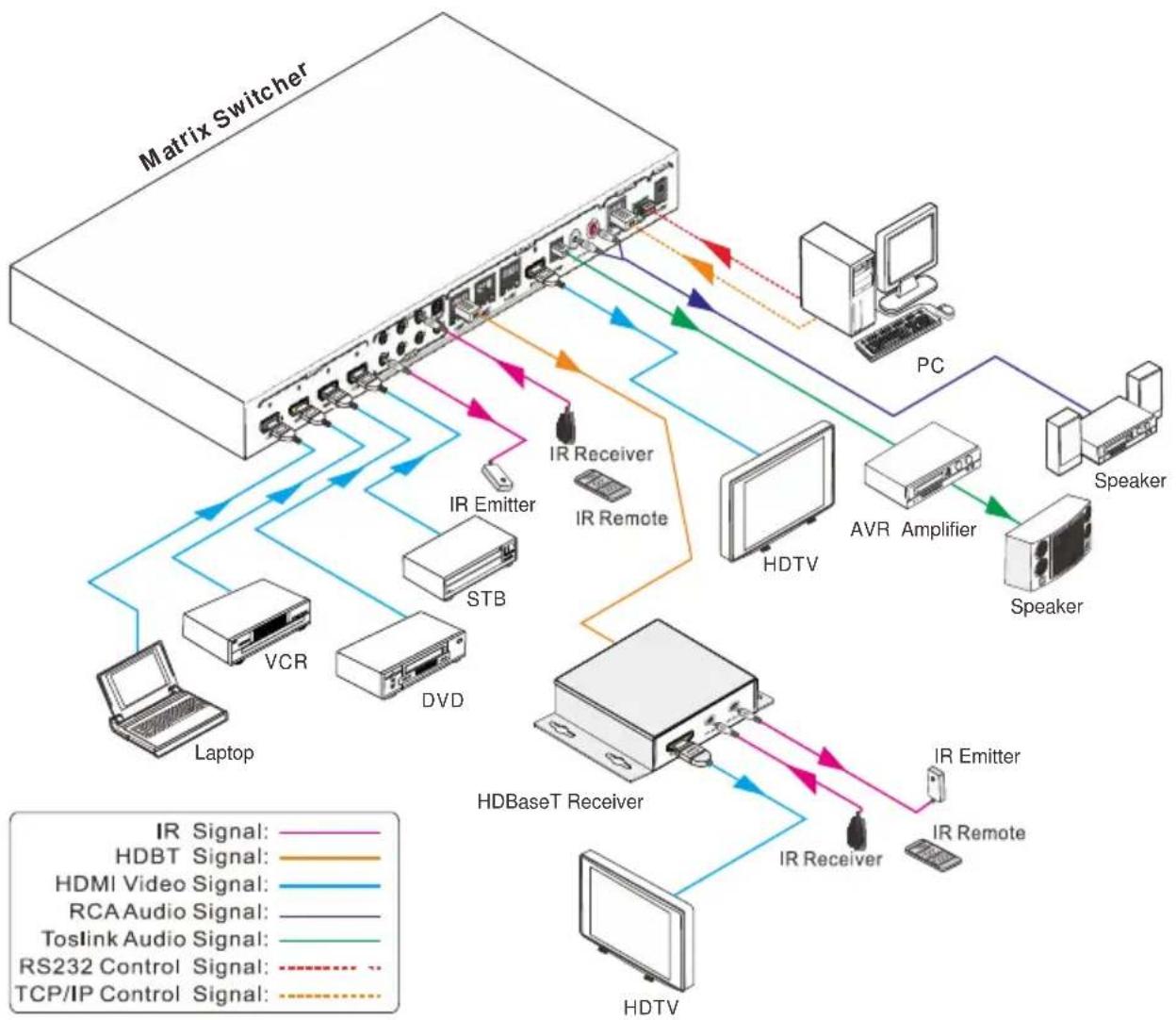
flowchart
graph TD
    A["Matrix Switcher"] --> B["PC"]
    A --> C["Speaker"]
    A --> D["AVR Amplifier"]
    A --> E["Speaker"]
    A --> F["HDTV"]
    A --> G["HDBaseT Receiver"]
    A --> H["HDTV"]
    A --> I["Laptop"]
    A --> J["VCR"]
    A --> K["DVD"]
    A --> L["STB"]
    A --> M["IR Emitter"]
    A --> N["IR Remote"]
    A --> O["IR Emitter"]
    A --> P["IR Remote"]
    style A fill:#f9f,stroke:#333
    style B fill:#ccf,stroke:#333
    style C fill:#cfc,stroke:#333
    style D fill:#fcc,stroke:#333
    style E fill:#cff,stroke:#333
    style F fill:#ffc,stroke:#333
    style G fill:#cfc,stroke:#333
    style H fill:#fcc,stroke:#333
    style I fill:#cfc,stroke:#333
    style J fill:#fcc,stroke:#333
    style K fill:#cfc,stroke:#333
    style L fill:#fcc,stroke:#333
    style M fill:#cfc,stroke:#333
    style N fill:#fcc,stroke:#333
    style O fill:#cfc,stroke:#333
    style P fill:#fcc,stroke:#333
3.3 Connection Procedure
1) Connect HDMI sources (e.g. DVD) to HDMI input ports of the Matrix Switcher via good quality HDMI cables.
2) Connect the Pre-Installed CAT5e/CAT 6 cable infrastructure to Matrix Switcher and HDBaseT receivers via good quality patch leads.
3) Connect HDTV to HDMI output port via HDMI cable.
4) Plug in an HDMI cable in to each of HDBaseT Receiver and connect to the local display [HDTV].
5) Connect AVR amplifier to SPDIF output port or via the Toslink fiber optic cable.
6) Connect speaker to L&R (RCA) output port via audio cable.
7) Plug the IR Receivers 3.5mm jack into the IR IN sockets on HDBaseT Receivers and plug in the IR Emitters to the IR OUT sockets (1\~4) on Matrix Switcher to make up as IR Matrix.
8) Plug the phoenix connector in to the RS232 socket on the matrix, this will enable the Matrix Switcher to be controlled via a PC.
9) Plug in a Patch lead from the router in to the Ethernet port on Matrix Switcher to control Matrix Switcher by TCP/IP protocol.
10) Plug in the Power supply adapter 24V DC and tighten to secure. Once all components have been connected and the installation is completed, switch on the mains supply at the socket.
Note:
- Connect HDBT ports of Matrix Switcher and far-end HDBaseT Receiver with straight-through cable.
- IR receivers connected to IR IN should be with carrier. If not, send command %0900. or %0901. to activate native carrier mode or force carrier mode in the IR matrix launched between Matrix Switcher and far-end HDBaseT Receiver.
3.4 Connection with HDBaseT Receiver
The Matrix Switcher has 3 HDBaseT outputs which support PoC technology. Plug in the 4 RJ45 patch leads in to the HDBT outputs and connect to the pre-installed infrastructure. Connect HDBaseT Receivers to the pre-installed cabling via additional patch leads. Plug the power supply in to the power socket on the matrix, the HDBaseT Receiver will be powered by the Matrix Switcher.
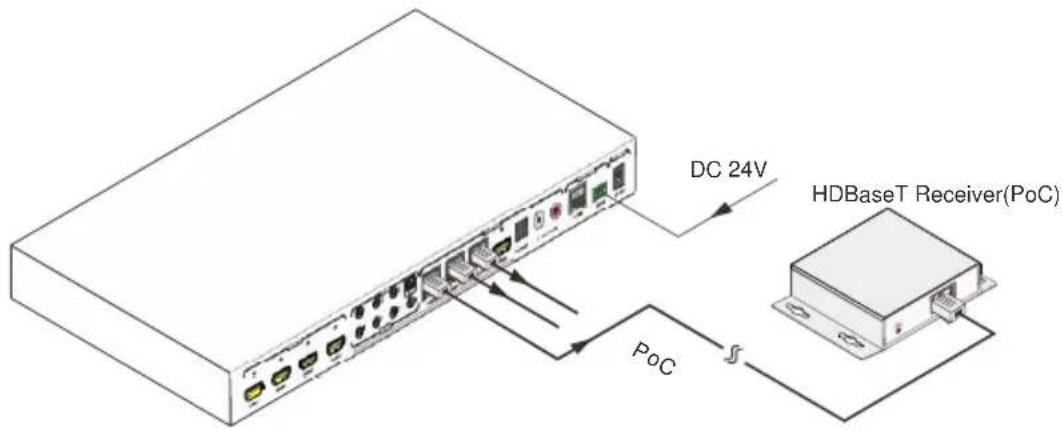
text_image
DC 24V HDBaseT Receiver(PoC) PoC4. System Operations
4.1 IR Control
4.1.1 IR Remote
Connect an IR receiver to the IR EYE port of the Matrix Switcher, users can control it through the included IR remote. Here is a brief introduction to the IR remote.
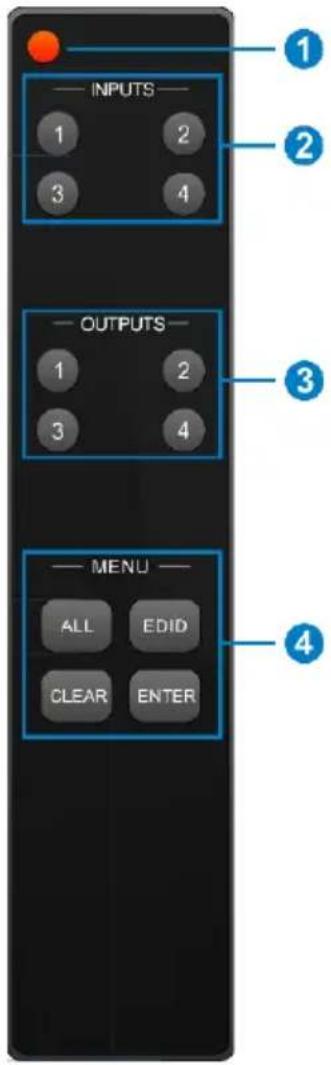
text_image
INPUTS 1 2 3 4 OUTPUTS 1 2 3 4 MENU ALL EDID CLEAR ENTER① Standby button, press it to enter/ exit standby mode.
② INPUTS: Input channel selection buttons, range from 1\~4, corresponding IR signal switched synchronously when switching input channels.
③ OUTPUTS: Output channel selection buttons.
④ Menu buttons: ALL, EDID, CLEAR and ENTER.
ALL: Select all outputs.
➢ EDID management button: Enable input port to manually capture and learn the EDID data of output devices.
CLEAR: Withdraw an operation like switching output channel, learning EDID data before it comes into effect. Meanwhile, the matrix will return to the previous status.
ENTER: Confirm operation.
1) To convert one input to an output:
Example: Input 1 to Output 3
→ Press INPUTS 1 + OUTPUTS 3 + ENTER
NOTE:
Default status, on first boot up this matrix assigns the IR outputs to the corresponding HDMI input, meaning, IR out 1 is directly associated to HDMI input 1 and so on. When you switch an HDMI input to a different output, the corresponding IR OUT will be switched synchronously to allow the IR commands to be sent from the select zone back through the Matrix Switcher to the source.
2) To convert an input to several outputs:
Example: Convert Input 2 to Output 3 and 4
→ Press INPUTS 2 + OUTPUTS 3 + OUTPUTS 4 + ENTER
3) To convert an input to all outputs:
Example: Input 1 to all Outputs
→ Press INPUTS 1 + ALL + ENTER
By using IR & HDBaseT transmission technology, the HDMI HDBaseT 4x4 4K Matrix Kit has the functions as follows:
1) Control far-end output device from local.
2) Control local input/output device remotely.
3) Control the Matrix Switcher locally/remotely.
4.1.2 Force Carrier
a) Only if the IR receiver connected to HDBaseT receiver is with IR carrier, can the received IR signal be transferred to IR OUT port of the Matrix Switcher.
b) Only if the IR receiver connected to the Matrix Switcher is with IR carrier, can the received IR signal be transferred to IR OUT port of the Matrix Switcher.
If the IR receiver connected to HDBaseT receiver or the Matrix Switcher is without an IR carrier signal, send the command “%0901.” to enter infrared carrier enforcing mode, and then IR signal can be transferred to IR OUT port.
4.1.3 Control Far-end Device locally
Connect an IR receiver with IR carrier to the IR IN port of the Matrix Switcher; users can control far-end output displayer via its IR remote from local.
In that case, the IR signal is transferred via twisted pair. Only the corresponding IR OUT port can emit control signals to the remote display.
See the figure below:
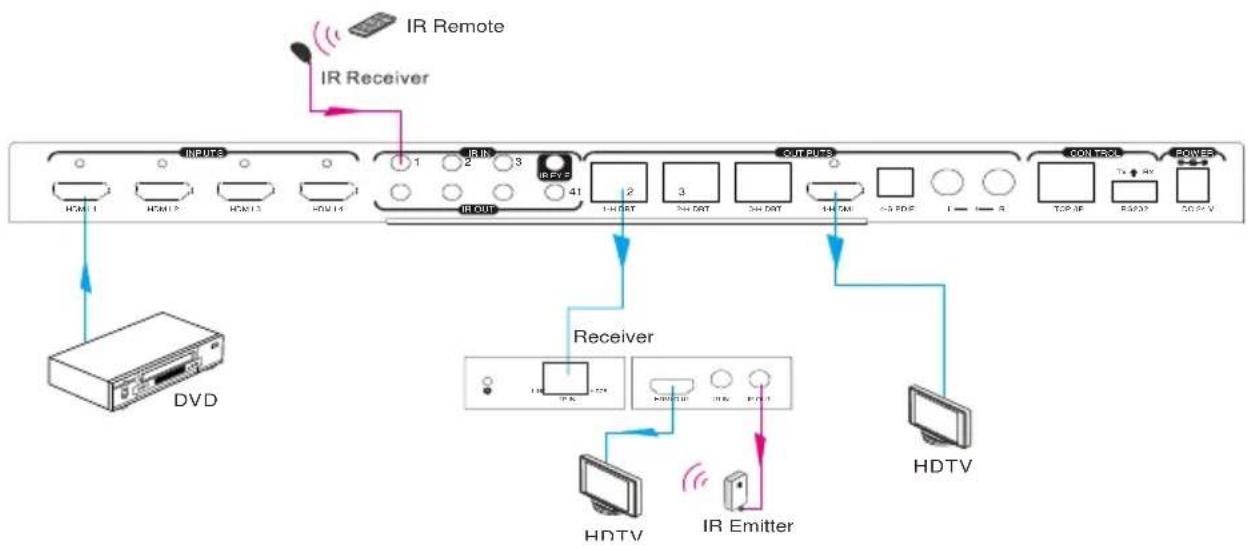
flowchart
graph TD
    A["Input"] --> B["IR Remote"]
    A --> C["IR Receiver"]
    D["DVD"] --> A
    E["Receiver"] --> F["HDTV"]
    E --> G["IR Emitter"]
    E --> H["HDTV"]
    style A fill:#f9f,stroke:#333
    style B fill:#ccf,stroke:#333
    style C fill:#cfc,stroke:#333
    style D fill:#fcc,stroke:#333
    style E fill:#cff,stroke:#333
    style F fill:#ffc,stroke:#333
    style G fill:#fcc,stroke:#333
    style H fill:#ffc,stroke:#333
Control far-end device from Local
Note: The IR receiver connected to IR IN must be with IR carrier.
4.1.4 Control Local Device Remotely
Connect IR receiver(s) to IR IN on far-end HDBT receiver(s), and IR Emitter(s) to IR OUT port of the switcher, and use the IR Remote of local source to control the device remotely.
- 1 to 1:
Connect an IR receiver to IR IN on far-end HDBT receiver, and an IR Emitter to IR OUT port of the switcher. Use the IR Remote of local source to control the device remotely. See below:

flowchart
graph TD
    A[" DVD "] --> B[" HDMI 1 "]
    A --> C[" HDMI2 "]
    A --> D[" HDMI3 "]
    A --> E[" HDMI4 "]
    B --> F[" IR Emitter "]
    C --> F
    D --> F
    E --> F
    F --> G[" Receiver "]
    G --> H[" HDTV "]
    G --> I[" IR Receiver "]
    G --> J[" IR Remote "]
    G --> K[" HDTV "]
    G --> L[" HDTV "]
    G --> M[" HDTV "]
    G --> N[" HDTV "]
    G --> O[" HDTV "]
    G --> P[" HDTV "]
    G --> Q[" HDTV "]
    G --> R[" HDTV "]
    G --> S[" HDTV "]
    G --> T[" HDTV "]
    G --> U[" HDTV "]
    G --> V[" HDTV "]
    G --> W[" HDTV "]
    G --> X[" HDTV "]
    G --> Y[" HDTV "]
    G --> Z[" HDTV "]
    G --> AA[" HDTV "]
    G --> AB[" HDTV "]
    G --> AC[" HDTV "]
    G --> AD[" HDTV "]
    G --> AE[" HDTV "]
    G --> AF[" HDTV "]
    G --> AG[" HDTV "]
    G --> AH[" HDTV "]
    G --> AI[" HDTV "]
    G --> AJ[" HDTV "]
    G --> AK[" HDTV "]
    G --> AL[" HDTV "]
    G --> AM[" HDTV "]
    G --> AN[" HDTV "]
    G --> AO[" HDTV "]
    G --> AP[" HDTV "]
    G --> AQ[" HDTV "]
    G --> AR[" HDTV "]
    G --> AS[" HDTV "]
    G --> AT[" HDTV "]
    G --> AU[" HDTV "]
    G --> AV[" HDTV "]
    G --> AW[" HDTV "]
    G --> AX[" HDTV "]
    G --> AY[" HDTV "]
    G --> AZ[" HDTV "]
    G --> BA[" HDTV "]
    G --> BB[" HDTV "]
    G --> BC[" HDTV "]
    G --> BD[" HDTV "]
    G --> BE[" HDTV "]
    G --> BF[" HDTV "]
    G --> BG[" HDTV "]
    G --> BH[" HDTV "]
    G --> BI[" HDTV "]
    G --> BJ[" HDTV "]
    G --> BK[" HDTV "]
    G --> BL[" HDTV "]
    G --> BM[" HDTV "]
    G --> BN[" HDTV "]
    G --> BO[" HDTV "]
    G --> BP[" HDTV "]
    G --> BQ[" HDTV "]
    G --> BR[" HDTV "]
    G --> BS[" HDTV "]
    G --> BT[" HDTV "]
    G --> BU[" HDTV "]
    G --> BV[" HDTV "]
    G --> BW[" HDTV "]
    G --> BX[" HDTV "]
    G --> BY[" HDTV "]
    G --> BZ[" HDTV "]
    G --> CA[" HDTV "]
    G --> CB[" HDTV "]
    G --> CC[" HDTV "]
    G --> CD[" HDTV "]
    G --> CE[" HDTV "]
    G --> CF[" HDTV "]
    G --> CG[" HDTV "]
    G --> CH[" HDTV "]
    G --> CI[" HDTV "]
    G --> CJ[" HDTV "]
    G --> CK[" HDTV "]
    G --> CL[" HDTV "]
    G --> CM[" HDTV "]
    G --> CN[" HDTV "]
    G --> CO[" HDTV "]
    G --> CP[" HDTV "]
    G --> CQ[" HDTV "]
    G --> CR[" HDTV "]
    G --> CS[" HDTV "]
    G --> CT[" HDTV "]
    G --> CU[" HDTV "]
    G --> CV[" HDTV "]
    G --> CW[" HDTV "]
    G --> CX[" HDTV "]
    G --> CY[" HDTV "]
    G --> CZ[" HDTV "]
Control local device from remote
Note: Send command "%0901." to enter infrared carrier enforcing mode if the IR Receiver connected to IR IN of the receiver is not with carrier.
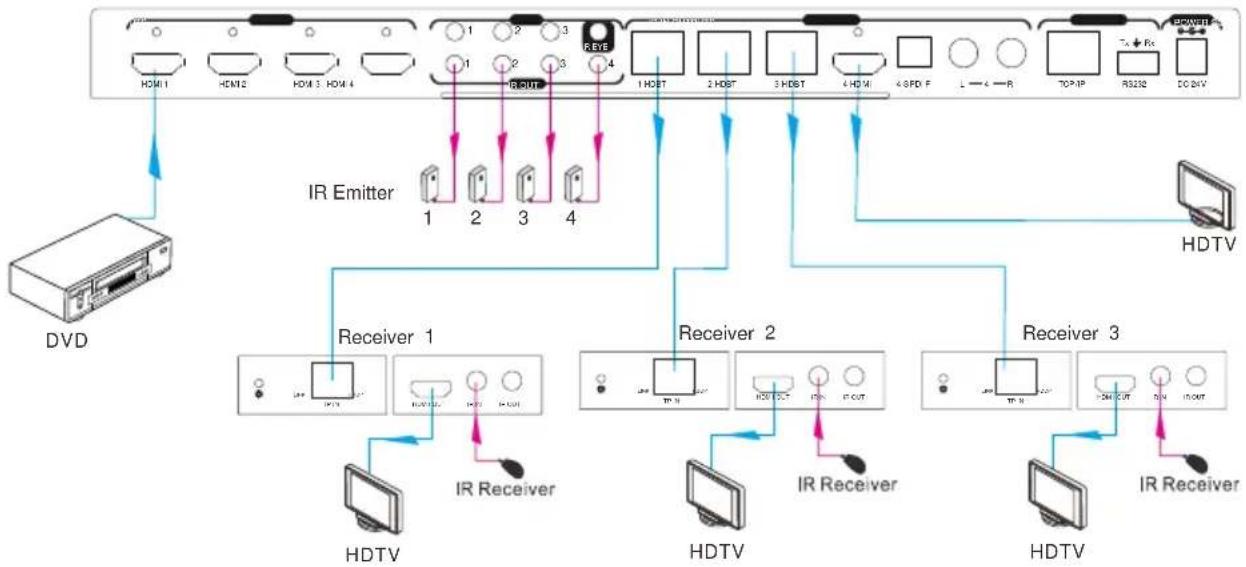
● Multiple to Multiple: (IR Matrix)
The 4 "IR OUT" ports and the 3 "IR IN" ports on the far-end receivers make up a 4x3 IR matrix. See as below:
flowchart
graph TD
    A[" DVD "] --> B[" HDMI 1 "]
    A --> C[" HDMI 2 "]
    A --> D[" HDMI 3 "]
    A --> E[" HDMI 4 "]
    B --> F[" IR Emitter 1 "]
    C --> G[" IR Emitter 2 "]
    D --> H[" IR Emitter 3 "]
    E --> I[" IR Emitter 4 "]
    F --> J[" HDTV "]
    G --> K[" HDTV "]
    H --> L[" HDTV "]
    I --> M[" HDTV "]
    J --> N[" IR Receiver 1 "]
    K --> O[" IR Receiver 2 "]
    L --> P[" IR Receiver 3 "]
    M --> Q[" IR Receiver 4 "]
    N --> R[" IR Receiver 5 "]
    O --> S[" IR Receiver 6 "]
    P --> T[" IR Receiver 7 "]
    Q --> U[" IR Receiver 8 "]
    R --> V[" IR Receiver 9 "]
    S --> W[" IR Receiver 10 "]
IR Matrix
The IR signal is sent by IR remote, then it is transferred to HDBaseT receiver, then to corresponding zone of the matrix through the twisted pair, finally it is transferred to IR OUT port and received by controlled device.
Switching Operation:
Sending command (reference to 4.2 RS232 Control): [x1]R[x2].
x1: Corresponding to the 4 IR OUT ports of the Matrix Switcher, the IR transmitter connected to this port can be placed at IR receiving area of output device or the Matrix Switcher itself.
x2: Corresponding to the zone (receive IR signal from HDBaseT receiver with IR IN port connects with IR receiver) number of the Matrix Switcher.
→ Example: Send command "3R2." to transfer IR signal received from zone 2 to IR OUT port 3.
4.2 RS232 Control
4.2.1 RS232 connection
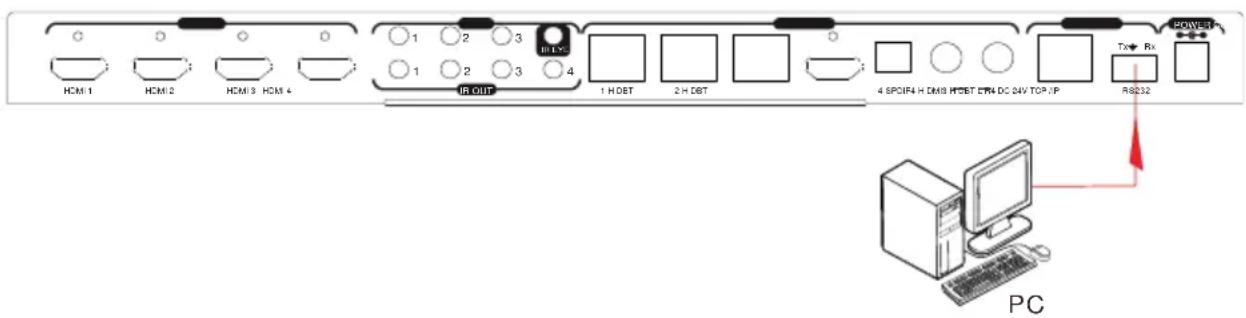
Except the front control panel, the Matrix Switcher can be controlled by far-end control system through the RS232 communication port. This RS232 communication port is a 3-pin phoenix connector. User can use the RS232 cable (Phoenix to 9-pin D-Sub) to connect the RS232 port to PC, see as below:
text_image
HCM 1 HCM 2 HCM 3 HCM 4 IR QUT 1 H DBT 2 H DBT 4 SPOF4 H DM9 HDBT ETR DC 24V TOP IP Rx R8232 POWER-up PC4.2.2 Installation/uninstallation of RS232 Control Software
- Installation Copy the control software file to the computer connected with the Matrix Switcher.
- Uninstallation Delete all the control software files in corresponding file path.
4.2.3 Basic Settings
Connect the Matrix Switcher to an input device and an output device. Then, connect it with a computer which is installed with RS232 control software. Double-click the software icon to run this software.
Here we take the software CommWatch.exe as example. The icon is showed as below:

CommWatch.exe
The interface of the control software is showed as below:

text_image
Parameter Configuration area UA (SerialPort) Test Tool (V1.0) — HTTP://WWW.SL.COM.CN POR1 Com1 BaudRa 9600 Parity pNone Byte 8 Stop 1 Reset Clear Save To File Hex View Stop View Auto Clear View New Line Hex Send Mode Send Auto Send Interval 1000 ms Counter Reset Clear 2013-05-08 14:03:35 Send:0 Receive:0 V1.0 Monitoring area, indicates whether the command sent works. Command Sending areaPlease set the parameters of COM number, baud rate, data bit, stop bit and the parity bit correctly, only then will you be able to send command in Command Sending Area.
4.2.4 RS232 Communication Commands
Note:
1) Please disconnect all the twisted pairs before sending command EDIDUpgrade[X].
2) In above commands, “[” and “]” are symbols for easy reading and do not need to be typed in actual operation.
3) Please remember to end the commands with the ending symbols “.” and “;”.
4) Type the command carefully, it is case-sensitive.
Baud rate: 9600
Data bit: 8
Stop bit: 1
Parity bit: none
| Command | Function | Feedback Example |
| System Commands | ||
| /*Type; | Inquire the models information. | XXXXX |
| /%Lock; | Lock the front panel buttons on the Matrix. | System Locked! |
| /%Unlock; | Unlock the front panel buttons on the Matrix. | System Unlock! |
| /^Version; | Inquire the version of firmware | VX.X.X |
| Demo. | Switch to the “demo” mode, convert input and output in turn like1B1, 1B2, ...4B3, 4B4, 1B1... and so on .The switching interval is 2 seconds. | Demo ModeAV:01->01IR:01->01AV:01->02IR:01->02......AV:04->04IR:04->04...... |
| Operation Commands | ||
| [x]All. | Transfer signals from the input channel [x] to all output channels | X To All. (X=01~04) |
| All#. | Transfer all input signals to the corresponding output channels respectively like 1->1, 2->2... | All Through. |
| All. | Switch off all the output channels. | All Closed. |
| [x]#. | Transfer signals from the input channel [x] to the output channel [x]. | X Through.(X=01~04) |
| [x] . | Switch off the output channel [x]. | X Closed.(X=01~04) |
| [x]@ . | Switch on the output channel [x]. | X Open. (X=01~04) |
| All@ . | Switch on all output channels. | All Open. |
| [x1]V[x2]. | Transfer the AV signal from the input channel [x1] to one or several output channels ([x2], separate output channels with comma). | AV: X1-> X2(X1/X2=01~04) |
| [x1]B[x2]. | Transfer the AV and IR signal from input channel [x1] to one or several output channels ([x2], separate output channelswith comma). | AV: X1-> X2(X1/X2=01~04) |
| [x1] R[x2]. | Transfer the IR signal from output [x1] to input [x2]. | IR: X1->X2(X1、X2=01~04) |
| Status[x]. | Check the I/O connection status of output [x] | AV: Y->X(X=01~04,Y=01~04) |
| Status. | Inquire the input channel to the output channels one by one. | AV: 01->01... ...AV: 04->04IR: 01->01... ...IR: 04->04 |
| Save[Y]. | Save the present operation to the preset command [Y], ranges from 0 to 9. | Save To FY(Y=0-9) |
| Recall[Y]. | Recall the preset command [Y]. | Recall From FY(Y=0-9) |
| Clear[Y]. | Clear the preset command [Y]. | Clear FY (Y=0-9) |
| PWON. | Work in normal mode. | PWON |
| PWOFF. | Enter into standby mode and cut off the power supply to HDBaseT receivers. | PWOFF |
| STANDBY. | Enter into standby mode. (Do not cut off the power supply to HDBaseT receivers, press other buttons or send other commands to start.) | STANDBY |
| /%[Y]/[X]:[Z]. | HDCP management command.[Y] is for input (value: l) or output (value: O); [X] is the number of the port, if the value of X is ALL, it means all ports; [Z] is for HDCP compliant status, the value may be 1 (HDCP compliant) or 0 (not HDCP compliant). | /%[Y]/[X]:[Z]. |
| DigitAudioON[x]. | Enable HDMI audio output of port x.X=1, 2, 3, 4, enable this port.X=5, enable all the 4 ports. | DigitAudio ON with [x] |
| DigitAudioOFF[x]. | Disable HDMI audio output of port x.X=1, 2, 3, 4, disable this port.X=5, disable all the 4 ports. | DigitAudio OFF with [x] |
| /[Y]/[X]:***** | Set communication between PC and HDBaseT receiver. | ***** |
| 1 Y is for RS232 port (connect with RS232 port of HDBaseT receiver)Y= 1~5 or A~H, The value of Y is defined into the following meanings (in a given baud rate depended by the value of X):a. Y = 1~4, send this command to the corresponding HDBaseT receiver to control far-end device.b. Y = 5, send this command to all HDBaseT receivers to control all far-end devices.c. Y = A, B, C, or Dd. Y = E, F, G, or HFor items c or d, send this command, it will be saved to the matrix switcher but taken without action to corresponding HDBaseT receiver. And its command function will be effective almost at the same time when you send the command PWON (for item c) or PWOFF (for item d).Note:A & E are for port 1. B & F are for port 2.C & G are for port 3. D & H are for port 4.2 X is for baud rate, its value ranges from 1 to 7 (1--2400, 2--4800, 3--9600, 4--19200, 5--38400, 6--57600, 7--115200)3 ***** is for data (max 48 Byte) | ||
| EDIDH[x]B[y]. | Input port [y] learns the EDID from output port [x].If the EDID data is available and the audio part supports not only PCM mode, then force-set it to support PCM mode only. If the EDID data is not available, then set it as initialized EDID data. | EDIDH[x]B[y] |
| EDIDPCM[x]. | Set the audio part of input port [x] to PCM format in EDID database. | EDIDPCM[x] |
| EDIDG[x]. | Get EDID data from output [x] and display the output port number. | Hexadecimal EDID data and carriage return character |
| EDIDMInit. | Restore the factory default EDID data of every input. | EDIDMInit. |
| EDIDM[X]B[Y]. | Manually EDID switching. Enable input[Y] to learn the EDID data of output[X]. If the EDID data is not available, then set it as initialized EDID data. | EDIDM[X]B[Y] |
| EDIDUpgrade[x]. | Upgrade EDID data via the RS232 port.[x] is the input port, when the value of X is 5, it means to upgrade all input ports.When the switcher receives the command, it will show a message to prompt you to send EDID file (.bin file). Operations will be canceled after 10 seconds. Please cut off all connections of HDBaseT ports. | Please send the EDID file |
| EDID/[x]/[y]. | Set the EDID data of input port [x] to built-in EDID No.[y].[y]=1~5, correspond to the 5 embedded EDID data separately | EDID/[x]/[y] |
| UpgradeIntEDID[x]. | Upgrade one of the 5 embedded EDID data x is the serial number for EDID data:1. 1080P 2D 2CH2. 1080P 3D 2CH3. 1080P 2D Multichannel4. 1080P 3D Multichannel5. 3840x2160 2D (30Hz)When the switcher gets the command, it will show a message to send EDID file (.bin file). Operations will be invalid after 10 seconds. | Please send the EDID file |
| GetIntEDID[x]. | Return the embedded EDID data ranked x, [x]=1~5 | |
| GetInPortEDID[X] | Return the EDID data of input [x], [x]=1~4 | |
| %0801. | Auto HDCP management, activate carrier native mode | %0801 |
| %0900. | Switch to carrier native mode. | Carrier native |
| %0901. | Switch to force carrier mode. | Force carrier |
| %0911. | Reset to factory default. | Factory Default |
| %9951. | Check the command sent by port 1 when PWON. | Port 1:data when PWON |
| %9952. | Check the command sent by port 2 when PWON. | Port 2:data when PWON |
| %9953. | Check the command sent by port 3 when PWON. | Port 3:data when PWON |
| %9954. | Check the command sent by port 4 when PWON. | Port 4:data when PWON |
| %9955. | Check the command sent by port 1 when PWOFF. | Port 1:data when PWOFF |
| %9956. | Check the command sent by port 2 when PWOFF. | Port 2:data when PWOFF |
| %9957. | Check the command sent by port 3 when PWOFF. | Port 3:data when PWOFF |
| %9958. | Check the command sent by port 4 when PWOFF. | Port 4:data when PWOFF |
| %9961. | Check the system locking status. | System Locked/ Unlock! |
| %9962. | Check the power status | STANDBY/PWOFF/ PWON |
| %9963. | Check the working mode of infrared carrier. | Carrier native/ Force carrier |
| %9964. | Check the IP address. | IP:192.168.0.178 (default) |
| %9971. | Check the connection status of the inputs. | In 01 02 03 04 Connect Y Y Y Y |
| %9972. | Check the connection status of the outputs. | Out 01 02 03 04 Connect Y Y Y Y |
| %9973. | Check the HDCP status of the inputs. | In 1 2 3 4 HDCP N N N N |
| %9974. | Check the HDCP status of the outputs. | Out 1 2 3 4 HDCP N N N N |
| %9975. | Check the I/O connection status. | Out 01 02 03 04 In 04 04 04 04 |
| %9976. | Check the output resolution. | Out 1 1920x1080 Out 2 1920x1080Out 3 1920x1080Out 4 1920x1080 |
| %9977. | Check the status of digital audio of output channels. | Out 1 2 3 4Audio Y Y Y Y |
| %9978. | Check the HDCP compliant status of the inputs. | In 01 02 03 04HDCPEN Y Y Y Y |
| I-Lock[X]. | Lock the channel [x], X=1~4 | Channel[x] Lock! |
| I-UnLock[X]. | Unlock the channel [x], X=1~4 | Channel[x] Unlock! |
| A-Lock. | Lock all channels | All Channel Lock! |
| A-UnLock. | Unlock all channels | All Channel Unlock! |
| Lock-Sta. | Check the lock status of all channels. | Channel 1->1 Lock!Channel 1->2 Lock!......Channel 2->1 Unlock!...... |
4.3 TCP/IP Control
Besides IR control, RS232 control, the Matrix Switcher has TCP/IP port for IP control.
Default settings: IP: 192.168.0.178; Subnet Mast: 255.255.255.0; Gateway: 192.168.0.1; Serial Port: 4001.
IP& gateway can be changed as you need, Serial Port cannot be changed.
Connect the Ethernet port of control device and TCP/IP port of the Matrix Switcher, and set same network segment for the 2 devices, users are able to control the device via web-based GUI or designed TCP/IP communication software.
4.3.1 Control Modes
The Matrix Switcher can be controlled by PC without Ethernet access or PC(s) within a LAN.
- Controlled by PC
Connect a computer to the TCP/IP port of the Matrix Switcher, and set its network segment to the same as the Matrix Switcher's.

text_image
Internet Protocol Version 4 (TCP/IPv4) Properties General You can get IP settings assigned automatically if your network supports this capability. Otherwise, you need to ask your network administrator for the appropriate IP settings. Obtain an IP address automatically Use the following IP address: IP address: 192 . 168 . 0 . Subnet mask: 255 . 255 . 255 . 0 Default gateway: 192 . 168 . 0 . 1 Obtain DNS server address automatically Use the following DNS server addresses: Preferred DNS server: 202 . 96 . 134 . 133 Alternate DNS server: 202 . 96 . 128 . 68 Validate settings upon exit Advanced... OK Cancel Same network segment as the switcher● Controlled by PC(s) in LAN
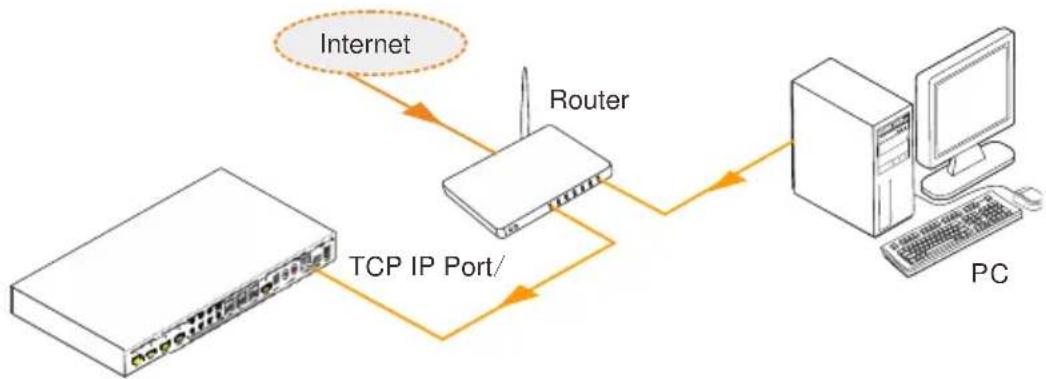
Connect the Matrix Switcher, a router and several PCs to setup a LAN (as shown in the following figure). Set the network segment of the Matrix Switcher to the same as the router's, then PCs within the LAN are able to control the Matrix Switcher.
flowchart
graph TD
    A["Internet"] --> B["Router"]
    B --> C["PC"]
    B --> D["TCP IP Port/"]
    D --> B
Follow these steps to connect the devices:
Step1. Connect the TCP/IP port of the Matrix Switcher to Ethernet port of PC with twisted pair.
Step2. Set the PC's network segment to the same as the Matrix Switcher's. Do please remember the PC's original network segment.
Step3. Set the Matrix Switcher's network segment to the same as the router.
Step4. Set the PC's network segment to the original ones.
Step5. Connect the Matrix Switcher and PC(s) to the router. PC(s) within the LAN is able to control the Matrix Switcher asynchronously.
Then it's able to control the device via GUI.
4.3.2 GUI for TCP/IP control
The HDMI HDBaseT 4x4 4K Matrix Kit provides built-in GUI for convenient TCP/IP control. GUI allows users to interact with this Kit through graphical icons and visual indicators.
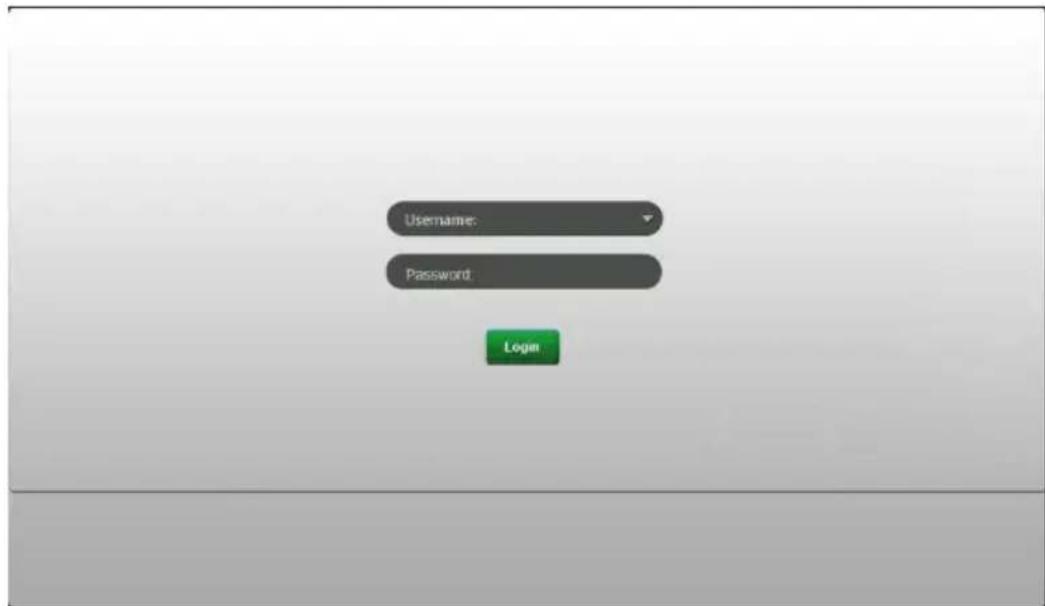
Type 192.168.0.178 in your browser, it will enter the log-in interface shown as below:
text_image
Username: Password: LoginThere are 2 selectable usernames – admin (default password: admin) and user (default password: user). Log in as admin can access more configuration interfaces than user. Enter username and the right password. Here is a brief introduction to the interfaces.
Main: Interface shown after logging in, provide intuitive I/O connection switching. See the screenshot below:

flowchart
graph TD
    A["Input"] --> B["Set"]
    A --> C["Recall"]
    B --> D["Output1"]
    B --> E["Output2"]
    B --> F["Output3"]
    C --> G["Output4"]
    C --> H["Output5"]
    C --> I["Output6"]
    D --> J["1"]
    E --> K["2"]
    F --> L["3"]
    G --> M["4"]
    H --> N["5"]
    I --> O["6"]
    J --> P["7"]
    K --> Q["8"]
    L --> R["9"]
    M --> S["10"]
    N --> T["11"]
    O --> U["12"]
    P --> V["13"]
    Q --> W["14"]
    R --> X["15"]
    S --> Y["16"]
    T --> Z["17"]
    U --> AA["18"]
    V --> AB["19"]
    W --> AC["20"]
    X --> AD["21"]
    Y --> AE["22"]
    Z --> AF["23"]
The button matrix displays every possible connection between every input and output, users can carry on the connections by clicking corresponding button.
Buttons 1\~9 at the right-bottom corner provides quick saving and recall for overall connection status.
Users: Display or modify credential settings, front panel lock, and GUI version.

text_image
Main Users Interface Configuration Network Credentials: Admin password admin User password user Front Panel: Unlocked Locked Version: GUI Version 40.0.0 HIV version 40.0.1 Save CancelIf there is any modification, press Save to restore the settings, or press Cancel to withdraw.
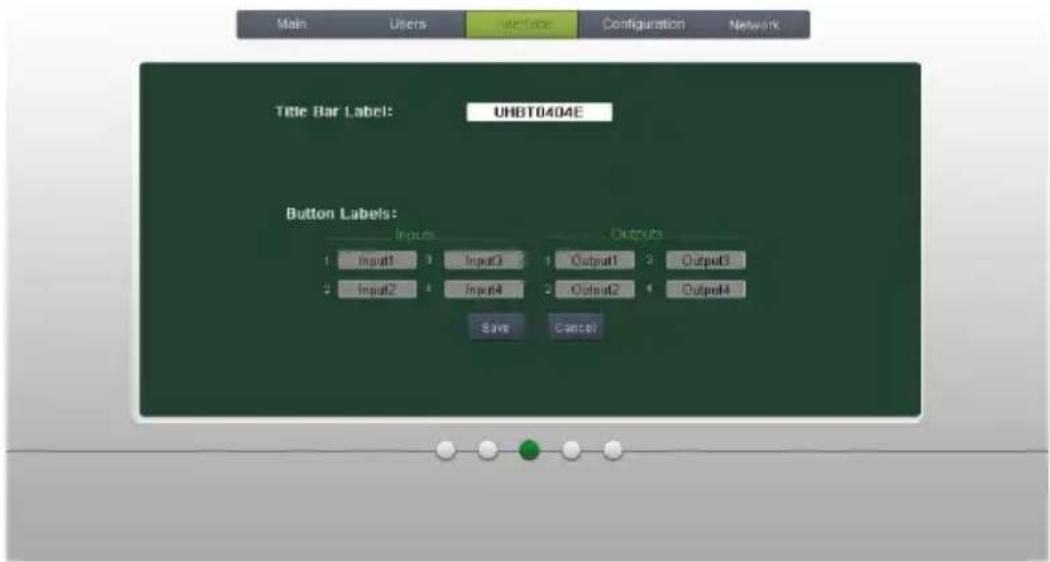
Interface: Set title bar label and button labels, press Save to save the settings
text_image
Main Users Interface Configuration Network Title Bar Label: UHBT0404E Button Labels: Inputs 1 Input1 2 Input3 3 Output1 4 Output3 2 Input2 3 Input4 2 Output2 4 Output4 Save CancelConfiguration: Set HDCP Compliance status for every input, and manage EDID. See the screenshot below:
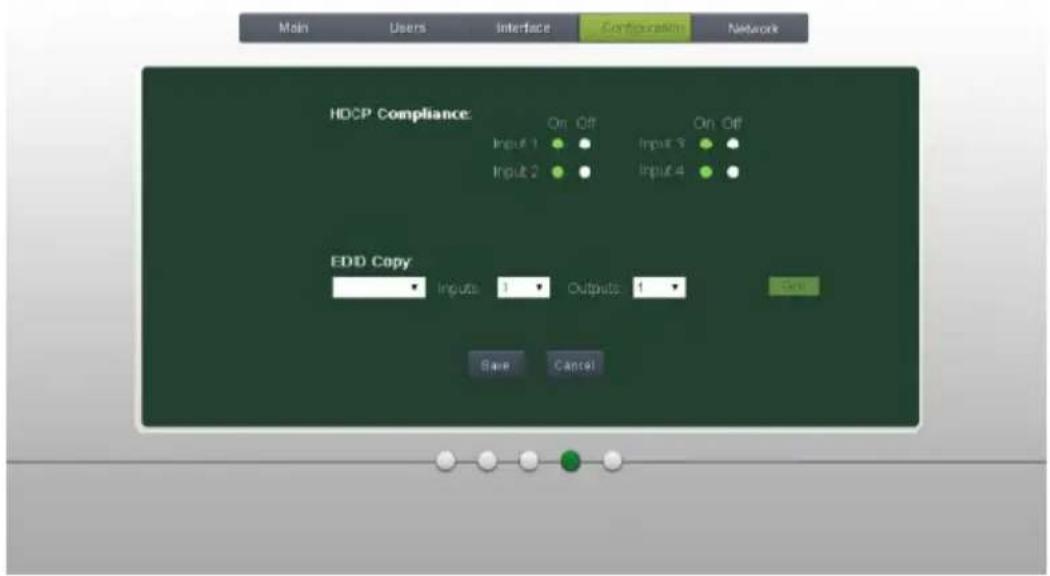
text_image
Main Users Interface Configurations Network HDCP Compliance: On Off On Off Input 1 Input 2 Input 3 Input 4 EDD Copy: Inputs: 1 Outputs: 1 OK Save CancelNetwork: Inquire and configure network settings including MAC address, IP address, subnet mask, and Gateway

text_image
Main Users Interface Configuration Network Network Settings: MAC Address 45 33 40 32 41 98 DHCP Static IP IP Address: 192.168 0.178 Subnet Mask: 255.255.255.0 Gateway: 192.168 0.1 Says CancelNote: Log in as user access main interface only.
4.3.3 GUI Update
The GUI for HDMI HDBaseT 4x4 4K Matrix Kit supports online update at URL http://192.168.0.178:100. Type the username and password (the same as the GUI log-in settings, modified password will be available only after rebooting) to log in the configuration interface. After that, click Administration at the source menu to get to Upload Program as shown below:

text_image
goahead WEBSERVER™ m: i) m) o bility™ open all | close all web-server Internet Settings WAN Administration Unclosed Program Update software program Location: 浏览... ApplySelect the desired update file and press Apply, it will start upgrading then.
4.4 EDID Management
The Matrix Switcher features EDID management to maintain compatibility between all devices. It can be controlled via EDID learning and EDID invoking.
4.4.1 EDID learning
The included IR remote can be used to enable the Matrix Switcher to learn the EDID of all sink devices.
√ One input port learns the EDID data of one output port:
Example: Input 2 learns EDID data from output 4
→Press EDID + INPUTS 2 + OUTPUTS 4 + ENTER
√ All input ports learn EDID data from one output port:
Example: all input ports learn EDID data from output 4
→Press: EDID + ALL + OUTPUTS 4 + ENTER
4.4.2 EDID invoking
There are five types of embedded EDID data. The chart below illustrated the detailed information of the embedded EDID data:
| No. | EDID Data |
| 1 | 1080P 2D 2CH |
| 2 | 1080P 3D 2CH |
| 3 | 1080P 2D Multichannel |
| 4 | 1080P 3D Multichannel |
| 5 | 3840x2160 2D (30Hz) |
Sending the command "UpgradeIntEDID[x]." via RS232 Control Software to upgrade the embedded EDID data, x=1\~5.
4.5 Firmware Update via USB
The Matrix Switcher has a USB port for online firmware upgrade on the front panel. Follow these steps to upgrade firmware:
Step1. Copy the upgrade software and the latest upgrade file (.bin) to PC.
Step2. Connect the USB ports of the Matrix Switcher and the PC via USB cable.
Step3. Double-click the update software icon (see as below).

Updata_v1.4.1.exe
It will enter the upgrade interface shown as below:
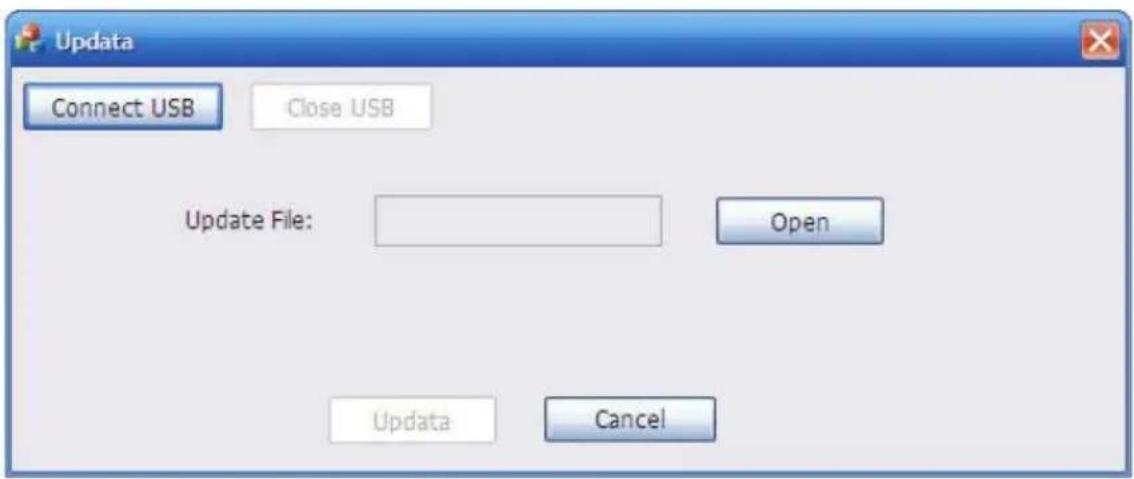
text_image
Update Connect USB Close USB Update File: Open Update CancelStep4. Click Connect USB.
Step5. Click Open to load the upgrade file, then click Updata to start firmware upgrading.
Note: To ensure available control, the COM number of the PC should be 1\~9.
5. Specification
5.1 HDMI HDBaseT 4x4 Matrix Switcher
| Video Input | |
| Input | 4 HDMI |
| Input Connector | Female HDMI |
| Input Level | T.M.D.S. 2.9V~3.3V |
| Input Impedance | 100Ω (Differential) |
| HDMI Standard | Support HDMI1.4 & HDCP2.2 and is backward compatible with all previous standards. |
| Video Output | |
| Output | 1 HDMI - 3 HDBaseT |
| Output Connector | Female HDMIFemale RJ45(with LED indicators) |
| Output Level | T.M.D.S. 2.9V~3.3V |
| Output Impedance | 100Ω (Differential) |
| HDMI Standard | Support HDMI1.4 & HDCP1.4 and is backward compatible with all previous standards. |
| Video general | |
| Video Signal | HDMI (or DVI-D) |
| Transmission Distance | 1080P@60Hz ≤70m4Kx2K@60Hz ≤40m |
| Resolution Range | Up to 4Kx2K@60Hz |
| EDID Management | In-built EDID data and manual EDID management |
| Gain | 0 dB |
| Bandwidth | 10.2Gbit/s |
| Switching Speed | 200ns (Max.) |
| Audio general | |
| Output Signal | Stereo audioDigital audio |
| Analog Audio Output | Support PCM |
| Digital Audio Output | Supports PCM, Dolby, DTS, DTS-HD |
| Frequency Response | 20Hz~20KHz |
| Output Connector | 1 L&R(RCA)1 SPDIF |
| Control Parts | |
| Control Ports | 4 IR OUT3 IR IN1 IR EYE1 TCP/IP (female RJ45)1 RS232 (3-pin pluggable terminal block) |
| Panel Control | Front panel buttons |
| RS232 Control | 3-pin pluggable terminal block |
| IR | Extended IR receiver |
| TCP/IP Control | Web-based GUI |
| General | |
| Power Supply | Input: 100-240V~, 50/60HzOutput: DC 24V 2.71A |
| Power Consumption | 35W (Max) |
| Temperature | 0~ +50°C |
| Reference Humidity | 10% ~ 90% |
| Dimension (W*H*D) | 360mm x 28mm x 150 mm |
| Net weight | 910g |
5.2 HDBaseT Receiver
| Input & Output | |
| Input | 1 HDBaseT |
| Input Connector | Female RJ45(with LED indicators); |
| Output | 1 HDMI |
| Output Connector | Female HDMI |
| Control | 1 IR IN1 IR OUT |
| Control Connector | 3.5mm mini jacks |
| General | |
| Resolution Range | Up to 4K×2K@60Hz |
| Transmission Mode | HDBaseT |
| Transmission Distance | 1080P@60Hz ≤70m4Kx2K@60Hz ≤40m |
| Bandwidth | 10.2Gbps |
| HDMI Standard | Support HDMI1.4 and HDCP1.4 |
| Temperature | 0~+50°C |
| Humidity | 10% ~ 90% |
| Power Supply | Powered by 4K HDBaseT Matrix Switcher. |
| Dimension (W*H*D) | 61mm x 24mm x 120mm |
| Net Weight | 280g |
6. Panel Drawing
6.1 HDMI HDBaseT 4x4 Matrix Switcher
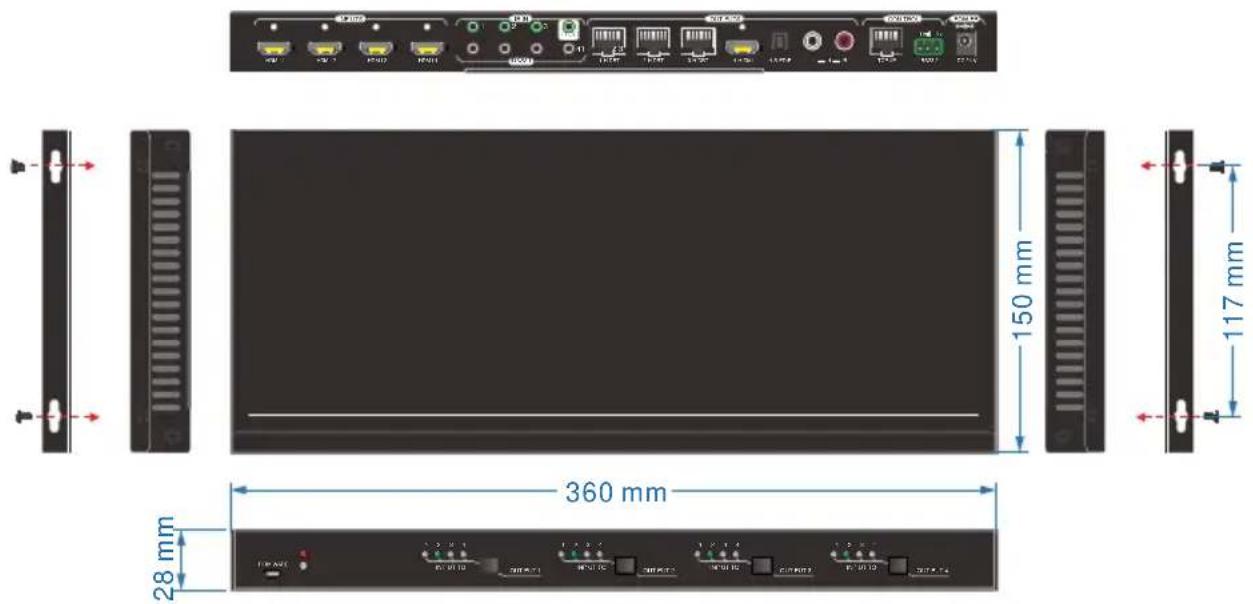
text_image
150 mm 117 mm 360 mm 28 mm6.2 HDBaseT Receiver
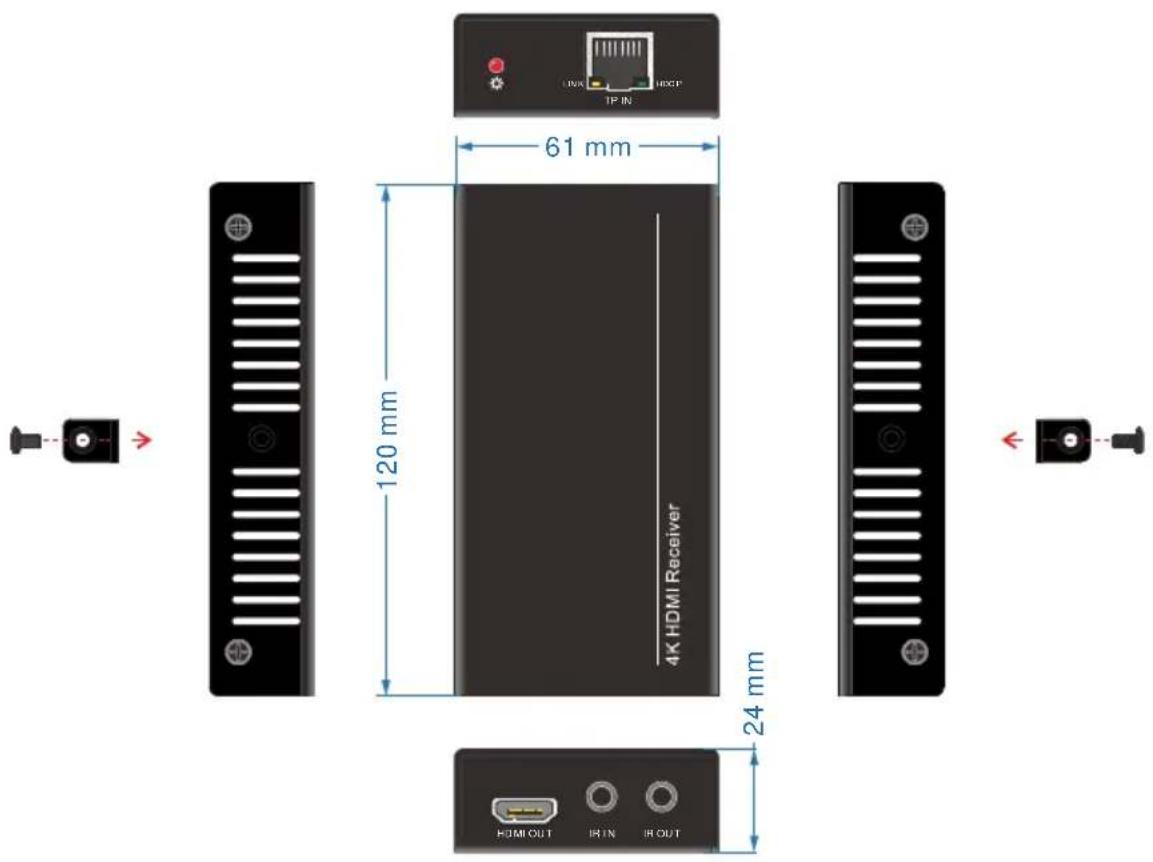
text_image
61 mm 120 mm 4K HDMI Receiver 24 mm HDMI OUT I R IN I R OUT- Troubleshooting & Maintenance
| Problems | Potential Causes | Solutions |
| Color loss or no video signal output | The connecting cables may not be connected correctly or it may be broken. | Check whether the cables are connected correctly and in working condition. |
| Fail or loose connection | Make sure the connection is good | |
| No output image when switching | No signal at the input / output end | Check with oscilloscope or multimeter if there is any signal at the input/ output end. |
| Fail or loose connection | Make sure the connection is good | |
| Input source is with HDCP while the HDCP compliance is switched off. | Send command /%[Y]/[X]:1. or change HDCP compliance status in GUI. | |
| The display doesn't support the input resolution. | Switch for another input source or enable the display to learn the EDID data of the input. | |
| Cannot control the device via front panel buttons | Front panel buttons are locked. | Send command /%Unlock; or select unlock in GUI interface to unlock |
| Cannot control the device via IR remote | The battery has run off. | Change for new battery. |
| The IR remote is broken. | Send it to authorized dealer for repairing. | |
| Beyond the effective range of the IR signal or not pointing at the IR receiver | Adjust the distance and angle and point right at the IR receiver. | |
| The IR receiver connected to IR IN port is not with carrier | Change for an IR receiver with carrier. | |
| Power Indicator remains off when powered on | Fail or loose power connection | Check whether the cables are connected correctly |
| EDID management does not work normally | The HDMI cable is broken at the output end. | Change for another HDMI cable which is in good working condition. |
| There is a blank screen on the display when switching | The display does not support the resolution of the video source. | Switch again. |
| Manage the EDID data manually to make the resolution of the video source automatically compliant with the output resolution. | ||
| Cannot control the device by control device (e.g. a PC) through RS232 port | Wrong connection | Check to ensure the connection between the control device and the unit |
| Wrong RS232 communication parameters | Type in correct RS232 communication parameters: Baud rate:9600; Data bit: 8; Stop bit: 1; Parity bit: none | |
| Broken RS232 port | Send it to authorized dealer for checking. | |
| Static becomes stronger when connecting the video connectors | Bad grounding | Check the grounding and make sure it is connected well. |
| Cannot control the device by RS232 / IR remote / front panel buttons | The device has already been broken. | Send it to authorized dealer for repairing. |
If your problem persists after following the above troubleshooting steps, seek further help from authorized dealer or our technical support.
8. Customer Service
The return of a product to our Customer Service implies the full agreement of the terms and conditions hereinafter. There terms and conditions may be changed without prior notice.
1) Warranty
The limited warranty period of the product is fixed 3 (three) years.
2) Scope
These terms and conditions of Customer Service apply to the customer service provided for the products or any other items sold by authorized distributor only.
3) Warranty Exclusions:
- Warranty expiration.
- Factory applied serial number has been altered or removed from the product.
- Damage, deterioration or malfunction caused by:
√ Normal wear and tear.
√ Use of supplies or parts not meeting our specifications.
√ No certificate or invoice as the proof of warranty.
√ The product model showed on the warranty card does not match with the model of the product for repairing or had been altered.
√ Damage caused by force.
√ Servicing not authorized by distributor.
√ Any other causes which does not relate to a product defect.
- Shipping fees, installation or labor charges for installation or setup of the product.
4) Documentation:
Customer Service will accept defective product(s) in the scope of warranty coverage at the sole condition that the defeat has been clearly defined, and upon reception of the documents or copy of invoice, indicating the date of purchase, the type of product, the serial number, and the name of distributor.
Remarks: For further assistance or solutions, please contact your local distributor.