L'otary2 - Audio software PSP Audioware - Free user manual and instructions
Find the device manual for free L'otary2 PSP Audioware in PDF.


User questions about L'otary2 PSP Audioware
0 question about this device. Answer the ones you know or ask your own.
Ask a new question about this device
Download the instructions for your Audio software in PDF format for free! Find your manual L'otary2 - PSP Audioware and take your electronic device back in hand. On this page are published all the documents necessary for the use of your device. L'otary2 by PSP Audioware.
USER MANUAL L'otary2 PSP Audioware
Design, Master Algorithm Development and Supportive Programming: Mateusz Woźniak Master Programming and Supportive Algorithm Development: Piotr Kryger Product Manager: Antoni Ożyński Documentation: Mateusz Woźniak, Orren Merton
Special thanks to:
Paul White (inspiration), Steve Nathan (organ samples), Andrzej Karp (continuous knowledge base support), Łukasz Mackiewicz-Krzos (sharing original hardware), Paweł Więsik (sharing knowledge and hardware)
Thanks to all our customers around the world for ideas and help in development of new plug-ins!
By using this software you agree to the terms of any license agreement accompanying it. “PSP”, the PSP logo, “PSP L’otary2”, and “It’s the sound that counts!” are trademarks of PSPaudioware.com s.c. Leslie, Leslie 122 and Leslie 147 are trademarks of respective owners and are used only for reference purposes. All other trademarks are the property of their respective owners. © 2015 PSPaudioware.com s.c.
Table of Contents
ACKNOWLEDGEMENTS......2
TABLE OF CONTENTS......3
END USER LICENSE AGREEMENT....5
OVERVIEW....6
COMPATIBILITY....6
LIMITATIONS OF THE DEMO VERSION 6
CONTROLS 7
CENTER SECTION....7
HORN SECTION....9
DRUM SECTION....10
CONFIGURATION AND OUTPUT SECTION....11
MIDI BAR....12
P_RESET BAR....14
SUPPORT......15
USER COMMENTS....15
End User License Agreement
PREFACE: This End-User License Agreement (“EULA”) is a legal agreement between you and PSPaudioware.com s.c. (PSP) for the PSP product accompanying this EULA, which includes computer software and may include associated media, printed materials, and “online” or electronic documentation (“SOFTWARE”). By installing, copying, or using the SOFTWARE, you agree to be bound by the terms of this EULA. If you do not agree to the terms of this EULA, you may not use the SOFTWARE. The SOFTWARE is protected by copyright laws and international copyright treaties, as well as other intellectual property laws and treaties. The SOFTWARE is licensed, not sold.
LICENSE: You may install and use a copy of the current version of the SOFTWARE, or in its place, any prior version for the same operating system, on as many machines as you want as long as you are the only user of those DAWs. If more users use the software you must buy an additional license for each workstation. The DEMO VERSION of the SOFTWARE is NOT LICENSED FOR COMMERCIAL USE.
RESTRICTIONS: You may not transfer, modify, rent, lease, loan, resell, distribute, network, electronically transmit or merge the SOFTWARE. You may not reverse engineer, decompile or disassemble the SOFTWARE, or otherwise attempt to discover the SOFTWARE source code. You are not permitted to copy the SOFTWARE or any of the accompanying documentation.
COPYRIGHTS: All title and copyrights in and to the SOFTWARE (including but not limited to any images, photographs, animations, video, audio, music, text, and “applets” incorporated into the SOFTWARE), the accompanying printed materials, and any copies of the SOFTWARE are owned by PSP. The SOFTWARE is protected by copyright laws and international treaty provisions. Unauthorized reproduction or distribution of the SOFTWARE or documentation is subject to civil and criminal penalties.
DISCLAIMER OF WARRANTY: The SOFTWARE is provided “AS IS” and without warranty of any kind. The entire risk arising out of the use or performance of the SOFTWARE and documentation remains with user. To the maximum extent permitted by applicable law, PSP further disclaims all warranties, either express or implied, including, but not limited to, implied warranties of merchantability and fitness for a particular purpose, with regard to the SOFTWARE, and any accompanying hardware. To the maximum extent permitted by applicable law, in no event shall PSP be liable for any consequential, incidental, direct, indirect, special, punitive, or other damages whatsoever (including, without limitation, damages for loss of business profits, business interruption, loss of business information, or other pecuniary loss) arising out of this EULA or the use of or inability to use the SOFTWARE, even if PSP has been advised of the possibility of such damages.
MISCELLANEOUS: This EULA is governed by Polish law. Should you have any questions concerning this EULA, or if you wish to contact PSP for any reason, please write to:
PSPaudioware.com s.c.
Kwadratowa 4/19
05-509 Józefosław
Poland
Overview
We are thrilled to present to you the PSP L'otary2, a master quality emulation of a rotary speaker. The PSP team spent hundreds of hours on creating and tuning the algorithm we based upon two original and legendary models: the Leslie 122 and 147. Although PSP L'otary2 is capable of a variety of setups and sounds we designed it primarily to reproduce the classic sound of those famous rotary speakers instead of just another modulation effect.
Although the plug-in's aim is to mimic the rotating high frequency horn and rotating low frequency drum of the aforementioned models, it is possible to set up both independently from each other and emulate speakers with a static drum or even a broken engine for a horn or a drum.
Compatibility
PSP L'otary2 is compatible with most applications that can host VST, RTAS, AAX and Audio Unit plug-ins.
Minimum System Requirements
PSP L'otary2 needs to run on at least a i5-class CPU for crackle-free operation. i7 or better CPU recommended.
PC
VST
- Windows XP, Vista, 7, 8 or 10
•VST 2.4 compatible application
RTAS
•Windows XP, Vista, 7, 8 or 10
•ProTools LE 8.0.0 or ProTools TDM 8.0.0 (or later)
AAX
•Windows XP, Vista, 7, 8 or 10
•Pro Tools 11, 12 or Pro Tools HD 11, 12
Mac
AudioUnit
•Mac OSX 10.8 – 10.11 or later
- 32 or 64-bit host application capable of running AudioUnit plug-ins with Cocoa view
VST
•Mac OSX 10.8 – 10.11 or later
•32 or 64-bit VST 2.4 compatible host application
RTAS
•Mac OSX 10.8 – 10.11 or later
•ProTools LE 8.0.0 or ProTools TDM 8.0.0 (or later)
AAX
•Mac OSX 10.9 – 10.11 or later
•Pro Tools 11, 12 or Pro Tools HD 11, 12
Limitations of the demo version
We offer a 14-day evaluation period without any audio interruption or control limitations. To get access to the plug-in and your unique authorization details simply log-in to your account at our user area. Enjoy!
Controls
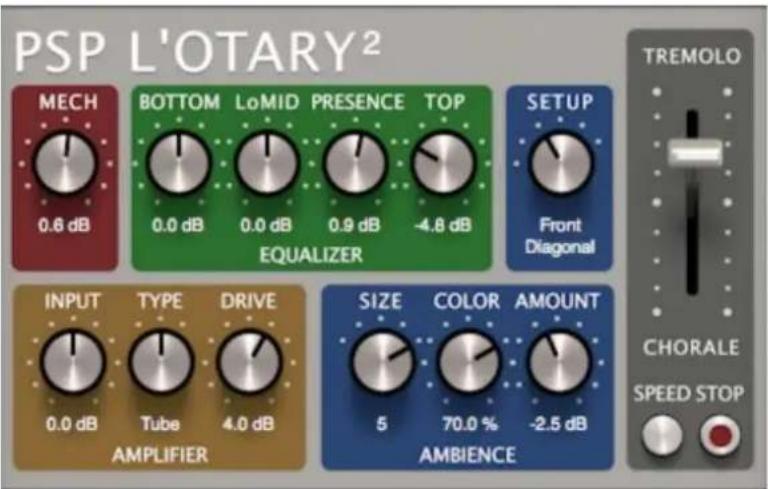
PSP L'otary2's front panel is divided into three sections. The center section contains general controls, and two band sections (Horn and Drum) which offer dedicated controls for the rotating horn speaker and low frequency speaker with a rotating drum respectively. Please read the controls' descriptions below to learn how to get the best sound of this plug-in.
Center Section
text_image
PSP L'OTARY² MECH 0.6 dB BOTTOM 0.0 dB LoMID 0.0 dB PRESENCE 0.9 dB TOP -4.8 dB EQUALIZER SETUP Front Diagonal INPUT TYPE DRIVE 0.0 dB Tube 4.0 dB AMPLIFIER SIZE COLOR AMOUNT 5 70.0 % -2.5 dB AMBIENCE TREMOLO CHORALE SPEED STOPThis section of the plug-in contains controls responsible for global parameters of the plug-in. These include input amplifier settings, microphone setup, mechanical noises, equaliser and ambience settings. The most important parameter is the Speed Lever which allows you to set a smooth speed setting for the rotary speakers, with two buttons underneath for switching between Chorale (slow) and Tremolo (fast) speeds, or to completely stop speaker rotation.
PSP L'OTARY 2
Please click on this label to open the about box of the plug-in. The about box contains information about this plug-in, version number and authorisation details. Click anywhere in the about box area to close it.
SPEED Lever
The speed lever is the main way to smoothly control the speed of both rotors. It is also possible to jump to any chosen position by a single click or even click to its slowest (CHORALE) or fastest (TREMOLO) settings. Please note that this lever does not control the speed directly as the rotation speed is always a subject to rotating elements' inertia which can be defined in Horn and Drum sections of the plug-in.
SPEED Button
This button immediately shifts the speed lever to the Tremolo or Chorale depending on the current state of the plug-in's speed settings including the previously set speed and lever setting.
STOP Button
Use this button to stop speaker rotation. When clicked, the stop mode is engaged and the button is lit bright red. The second click of this button disengages stop mode and switches the rotation to its previous settings.
MECHANics
The single knob in this section sets the amount of mechanical noises simulated from the speaker's electric motors and other rotating elements, including air turbulence.
AMPLIFIER
There are three knobs in the AMPLIFIER section.
- INPUT knob – sets the input gain for the entire plug-in.
- TYPE rotary switch – set the amplifier algorithm into Thru mode to omit any amplifier distortion. Select Tube for an emulation of a vacuum tube amplifier, and Solid for an emulation of a solid state speaker amplifier. Please note that even when the amplifier is set to a thru mode some saturation may occur due to the distortion characteristics of speakers.
- DRIVE knob – sets up the drive (saturation) depth of the amplifier emulation.
EQUALIZER
This set of knobs controls the level of four EQ bands: BOTTOM, LoMID, PRESENCE and TOP. All four controls are helpful to achieve the character of the rotary speaker which would sit the best in your mix.
SETUP
This single knob allows you to set the horn's microphone setup or to switch the plug-in into AMP ONLY mode to monitor the input amplifier solely. Five microphone setups are available:
- AMP ONLY – sets the plug-in into amplifier line output mode and omits the electro-acoustic parts of the emulation.
- Front Side – the default setting. In this setting one microphone is located on the top front of the cabinet, while the other one is put on its side at the same elevation. The resulting rotation difference between both microphones is 90 degrees. This results in a one of the most representative emulations of the classic rotary speaker.
- Front Diagonal – in this setting both microphones are on the edges of the front side, directed towards the top center of the cabinet at a 45-degree angle, which results in an approximate 90-degree rotation difference between microphones. This set up is one of the most commonly used for rock music.
- Front Rear – this setting contains a microphone located on the front top, while the other is set on the rear of the cabinet. The result is a typical 180-degree rotation difference which is also widely used among popular music producers. Please note this offers a wide stereophonic effect but at the expense of reduced tremolo density compared to the 90-degree settings described above.
- Opposite Diagonal – this setting is an alternative setting to 180-degree Front Rear. In this case the horn microphones are set up diagonally when looked from above down on the speaker. The result is a slightly different harmonic and reflection content, which results in a different density and sound flavor then in the Front Rear setting.
- Mono – this setting allows you to use a single top microphone setup commonly used for dense mixes or in early rock recordings. Please note that you can make the sound even more rough by turning the Drum’s microphone gain down to -oo dB and leave only this single horn microphone the receiver of the sound.
Please note that whenever a parameter like SETUP, DISTance or CPU mode are adjusted or the preset is changed the plug-in switches temporarily into an internal bypass mode. This is due to the complex emulation details that need be recalculated on every such change.
AMBIENCE
Contains a set of three controls to configure those aspects of the room ambience which influence the sound of the rotary speaker.
- SIZE Rotary Switch – sets in 5 steps the size of the virtual room.
- COLOR Knob – Determines the coloration of the ambience, ranging from a flat settings to pronounced midrange setting.
- AMOUNT Knob – sets the amount of ambience response which is recorded by all three microphones used for the Horn and Drum sections. Please note that the amount of early reflection not only depends on the AMOUNT Knob but also on the distance between the virtual speaker cabinet and microphones.
Horn Section

text_image
HORN SLOW FAST 1.00 Hz 6.36 Hz SPEED ACC DEC 905 ms 1.1 s INERTIA DIST CUT-OFF GAIN 66 cm 305 Hz -1.2 dB MICThis section of the plug-in contains the set of controls that configure the rotating high frequency horn section of the plug-in.
Lightning Speaker Position Indicator
At the top of the Horn Section you'll see a light indicator bar. This bar can help you visualize the orientation of the rotating horn. The horn light marker moves from left to right, representing the speaker movement of the rotating horn. This indicator covers about 300 degrees, so whenever the light marker disappears from the gauge on the right, it immediately re-appears on the left side. At high rotation speeds a wagon wheel effect occurs typical of what you would observe when a spinning object (like a car or bicycle wheel) is shown in a movie. Please note that the light marker is disabled when the plug-in is in the AMP ONLY monitor mode.
SPEED
Contains two controls:
- SLOW knob – controls the frequency of the slow (chorale) rotation when stated.
- FAST knob – controls the frequency of the fast (tremolo) rotation when stated.
INERTIA
Contains two controls:
- ACCeleration Knob – Sets the transition time between slow and fast rotation speeds.
- DEceleration Knob – Sets the transition from fast to slow modes.
MICrophones
These control the distance, level and filter of the microphone:
- DISTance Knob – sets the distance between the speaker cabinet and the virtual microphone. Please note that the distance influences several aspects of the sound, including the tremolo effect, density of the reflections, and the amount of room's ambience
- CUT-OFF Knob – sets the cutoff (corner) frequency of the high pass filters assigned to the horn's microphones.
- GAIN Knob – sets the gain of the microphones' preamplifier. Please note that when the knob is turned down to -oo dB the signal from the horn microphones is attenuated but there still is crosstalk from the horn to the drum's microphone.
Drum Section

text_image
DRUM SLOW FAST 0.72 Hz 5.31 Hz SPEED ACC DEC 3.3 s 2.9 s INERTIA DIST CUT-OFF GAIN 73 cm 12.16 kHz 0.0 dB MICThis section of the plug-in contains the set of controls that configure the low frequency rotating drum section of the plug-in.
Lightning Speaker Position Indicator
At the top of the Drum Section you'll see a light indicator bar. This bar can help you to visualize the orientation of the deflector in the rotating drum which spreads the sound of the bass speaker. The drum light marker moves from right to left, reflecting the speaker movement of the rotating drum. This indicator covers about 300 degrees so whenever the light marker disappears from the gauge on the left, it immediately appears on the right side. At high rotation speeds a wagon wheel effect occurs typical of what you would observe when a spinning object (like a car or bicycle wheel) is shown in a movie. Please note that the light marker is disabled when the plug-in is in the AMP ONLY monitor mode.
SPEED
Contains two controls:
- SLOW knob – controls the frequency of the slow (chorale) rotation when stated.
- FAST knob – controls the frequency of the fast (tremolo) rotation when stated.
INERTIA
Contains two controls:
- ACCeleration Knob – Sets the transition time between slow and fast rotation speeds.
- DEceleration Knob – Sets the transition from fast to slow modes.
MICrophone
These control the distance, level and filter of the microphone:
- DISTance Knob – sets the distance between the speaker cabinet and the virtual microphone. Please note that the distance influences several aspects of the sound, including the tremolo effect, density of the reflections and the amount of room's ambience.
- CUT-OFF Knob – sets the cutoff (corner) frequency of the low pass filters assigned to the drum microphone.
- GAIN Knob – sets the gain of the microphones' preamplifier. Please note that when the knob is turned down to -oo dB the signal from the drum microphon is attenuated but there still is crosstalk from the drum to horns' microphones.
Configuration and Output Section
text_image
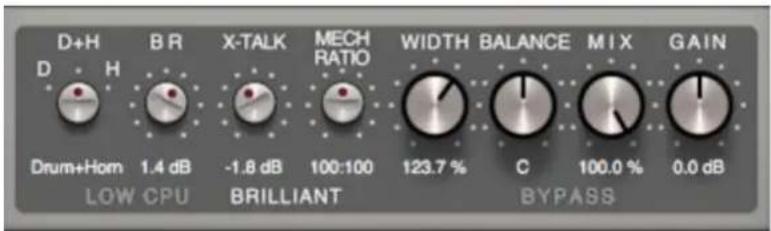
D+H B R X-TALK MECH RATIO WIDTH BALANCE MIX GAIN D H Drum+Hom 1.4 dB -1.8 dB 100:100 123.7 % C 100.0 % 0.0 dB LOW CPU BRILLIANT BYPASSThis section of the plug-in contains the set of controls that configure details of the algorithm and output mixing.
Speaker configuration
Controls the state of both speakers. When the control is set to D, only the drum speaker is enabled. When the control is set to H, only the horn speaker is enabled. In the middle setting (D+H) both speakers are enabled.
When a speaker is in a disabled state, it does not emit sound waves and its rotor does not spin.
BR Knob
Controls the amount of signal gain radiated from the bass reflex port.
X-TALK Knob
Sets the crosstalk gain.
MECH RATIO Knob
Controls the ratio between the two groups of mechanical noises simulated in PSP L'otary2. A ratio greater than one amplifies the click sounds and attenuates the noises from the speaker's electric motors and rotating elements.
WIDTH
Controls the stereo width of the output signal.
BALANCE
Controls the stereo balance of the wet (i.e. processed by PSP L'otary2) signal.
MIX
Controls the dry/wet signal ratio.
GAIN
Sets the gain of the output signal.
LOW CPU / BRILLIANT Switch
Switches between LOW CPU consumption and BRILLIANT quality modes. There is only a slight difference between both modes however the CPU usage difference is considerable. Please consider using a LOW CPU mode whenever a PSP L'otary2 doesn't play in the first run of the mix.
BYPASS Button
When lit red, turns on a bypass mode to totally omit the processing of the plug-in.
MIDI Bar

Underneath the main plug-in's GUI area there is a MIDI Bar which contains a set of MIDI controls and indicators.
MIDI
Click the green arrow icon to load MIDI settings from a file on disk.
Click the red arrow icon to save MIDI settings.
Double click the MIDI label to permanently store the default MIDI settings.
Press Command (Mac) or Control (PC) and double click the MIDI label to restore the factory default settings.
Channel Selector
This control allows you to select the MIDI channel to receive MIDI CC messages from. Available settings are MIDI OFF, channel 1-16 or OMNI (receives messages from all MIDI channels).
CC Display
This display can operate in two modes. Upon hovering the mouse pointer over one of the automatable controls in the plugin editor, it displays the currently assigned MIDI controller (if no controller is assigned, the display will read “not assigned”). If a MIDI CC message is received and the mouse pointer is not hovering over one of the controls, this control will display the name of the controller in green.
Learn

This control lets the user attach a MIDI controller to one of the plug-in's parameters.
A short guide on how to link a controller to a parameter.
- Click the MIDI Learn icon (shown above), it will turn bright white upon clicking.
- Move the parameter that you want to map (for example, the speed lever).
- Move the desired controller on your MIDI keyboard or controller (for example, the mod wheel).
The speed lever should now be linked to the mod wheel (the lever should react to the movement of the controller). The MIDI Learn icon's color should change back to gray.
To save this configuration as the default, double-click the 'MIDI' label located in the bottom left corner of the L'otary2 window.
Forget

This control lets the user detach a MIDI controller.
A short guide on how to unlink a controller from a parameter.
- Click the MIDI Forget icon (shown above), it will turn bright white upon clicking.
- Move the parameter that you want to unlink with the mouse pointer (for example, the speed lever). Alternatively, you can instead move the controller that you want to unlink on your MIDI keyboard or controller (for example, the mod wheel).
The speed lever should now be unlinked from the mod wheel (the lever should no longer react to the movement of the controller). The MIDI Forget icon's color should change back to gray.
In order to reset to default MIDI configuration, hold CMD (Mac) or CTRL1 (PC) and double-click the 'MIDI' label located in the bottom left corner of the L'otary2 window.
Lever Mode Switch
This control sets the lever mode. Three modes are available:
- Cont - continuous mode (the only mode available in the previous versions of L'otary).
- Snap - quantized mode.
- Orig - original mode (the lever acts as a three-state switch with stop in the middle).
Speed Mode Switch
This control sets the speed mode. Four modes are available:
- Default - the default mode (the speed button behavior is the same as in versions <=1.0.3 of L'otary).
- TremDwn - tremolo speed is set when the speed button is pressed, chorale speed is set when the speed button is released.
- TremUp - tremolo speed is set when the speed button is released, chorale speed is set when the speed button is pressed.
- Trigger - pressing the speed button triggers the speed of both rotors (from chorale to tremolo, from tremolo to chorale).
Preset Bar

PSP L'otary2 is provided with a factory set of presets. Those presets were prepared to help you discover available range of sounds and to better understand this plug-in. In addition, the presets can be used as a starting point for further adjustments or as quick fix presets.
You can access these presets from the PSPaudioware standard PRESET bar at the bottom of the plug-in interface. Here you can select from among the factory presets, and load and save individual, as well as banks of presets. There are three sections to this bar, the PRESET section, the Preset window, and the BANK section.
BANK SECTION
Click the green arrow icon to load a bank from a disk.
Click the red arrow icon to save a bank.
Double click the BANK label to permanently store the default preset bank.
Press Command (Mac) or Control (PC) and double click to restore the factory default bank.
PRESET SECTION
Click the green arrow icon to load a preset.
Click the red arrow icon to save a preset.
Double click the PRESET label to permanently store the default preset.
Press Command (Mac) or Control (PC) and double click to restore the factory default preset.
PRESET EDIT BOX
Click the menu button to the right of the preset edit box to see and the popup menu of all the presets in the currently loaded preset bank and to choose a preset from the list.
Click the name of the preset to rename it.
PRESET SELECTION
Click on the bright left arrow to switch to a previous preset on the list.
Click on the bright right arrow to switch to a next preset on the list..
MEMO A and B
Both A and B are permanently stored on your disk. This allows you to compare alternative settings or share a preset between various instances of the plug-in in the same project or even between various projects.
Click the green arrow icon to load a preset from memo A or B.
Click the red arrow icon to save a preset to memo A or B.
?
Click on the question mark whenever you need to open the operation manual.
Support
If you have any questions about the principles or operation of our plug-ins, please visit our web site www.PSPaudioware.com where you can find the latest product information, free software updates and answers to the most frequently asked questions. You can also contact us by e-mail: support@PSPaudioware.com. We will gladly answer all of your questions. As a rule we respond within 24 hours.
PSPaudioware.com s.c.
Kwadratowa 4/19
05-509 Józefosław
Poland
ph. +48 601 963 173
www.PSPaudioware.com
support@PSPaudioware.com
User Comments
We welcome any opinions and comments related to the PSP L'otary2. We would also be grateful if you shared with us your experiences using PSP L'otary2. Please, contact us at:
contact@PSPaudioware.com
PSPaudioware.com s.c.
Kwadratowa 4/19
05-509 Józefosław
Piaseczno
Poland