Nexcellence - Audio software PSP Audioware - Free user manual and instructions
Find the device manual for free Nexcellence PSP Audioware in PDF.


User questions about Nexcellence PSP Audioware
0 question about this device. Answer the ones you know or ask your own.
Ask a new question about this device
Download the instructions for your Audio software in PDF format for free! Find your manual Nexcellence - PSP Audioware and take your electronic device back in hand. On this page are published all the documents necessary for the use of your device. Nexcellence by PSP Audioware.
USER MANUAL Nexcellence PSP Audioware
Programming and Algorithms: Piotr Kryger
Algorithms' Supervision and Programming Assistance: Mateusz Woźniak
Thanks to all our customers around the world for your ideas and help in the development of new plug-ins!
By using this software you agree to the terms of any license agreement accompanying it. "PSP", the PSP logo, "PSP Nexcellence" and "It's the sound that counts!" are trademarks of PSPaudioware.com s.c.
VST is a trademark and software of Steinberg Media Technologies GmbH. AAX, Pro Tools, and RTAS are trademarks or registered trademarks of Avid Technology, Inc. AudioUnit, OSX are trademarks of Apple Inc. All other trademarks are the property of their respective owners.
© 2017 PSPaudioware.com s.c.
Table Of Contents
CREDITS....2
ACKNOWLEDGEMENTS....2
END USER LICENSE AGREEMENT FOR PSP SOFTWARE....4
PSP NEXCELLENCE....5
CONTROLS 5
Input section.... 5
Main Section....6
Advanced parameters section....7
Output section....7
Using presets....9
TRIAL ACTIVATION INSTRUCTIONS 10
FULL VERSION ACTIVATION INSTRUCTIONS 12
MINIMUM SYSTEM REQUIREMENTS.... 14
SUPPORT....15
End User License Agreement for PSP Software
PREFACE: This End-User License Agreement ("EULA") is a legal agreement between you and PSPaudioware.com s.c. (PSP) for the PSP product accompanying this EULA, which includes computer software and may include associated media, printed materials, and "online" or electronic documentation ("SOFTWARE"). By installing, copying, or using the SOFTWARE, you agree to be bound by the terms of this EULA. If you do not agree to the terms of this EULA, you may not use the SOFTWARE.
The SOFTWARE is protected by copyright laws and international copyright treaties, as well as other intellectual property laws and treaties. The SOFTWARE is licensed, not sold.
LICENSE: You may USE the current version of the SOFTWARE, or in its place any prior version for the same operating system, on no more than three computers simultaneously. You can INSTALL a copy of the SOFTWARE on as many machines as you want so long as you are the direct user or a studio client of those machines. If more users USE the software you must buy an additional license for each workstation. The DEMO VERSION of the SOFTWARE is NOT LICENSED FOR COMMERCIAL USE.
RESTRICTIONS: You may not transfer, modify, rent, lease, loan, resell, distribute, network, electronically transmit or merge the SOFTWARE. You may not reverse engineer, decompile or disassemble the SOFTWARE, or otherwise attempt to discover the SOFTWARE source code. You are not permitted to copy the SOFTWARE or any of the accompanying documentation.
COPYRIGHTS: All title and copyrights in and to the SOFTWARE (including but not limited to any images, photographs, animations, video, audio, music, text, and "applets" incorporated into the SOFTWARE ), the accompanying printed materials, and any copies of the SOFTWARE are owned by PSP. The SOFTWARE is protected by copyright laws and international treaty provisions. Unauthorized reproduction or distribution of the SOFTWARE or documentation is subject to civil and criminal penalties.
DISCLAIMER OF WARRANTY: The SOFTWARE is provided "AS IS" and without warranty of any kind. The entire risk arising out of the use or performance of the SOFTWARE and documentation remains with user. To the maximum extent permitted by applicable law, PSP further disclaims all warranties, either express or implied, including, but not limited to, implied warranties of merchantability and fitness for a particular purpose, with regard to the SOFTWARE, and any accompanying hardware. To the maximum extent permitted by applicable law, in no event shall PSP be liable for any consequential, incidental, direct, indirect, special, punitive, or other damages whatsoever (including, without limitation, damages for loss of business profits, business interruption, loss of business information, or other pecuniary loss) arising out of this EULA or the use of or inability to use the SOFTWARE, even if PSP has been advised of the possibility of such damages.
MISCELLANEOUS: This EULA is governed by Polish law. Should you have any questions concerning this EULA, or if you wish to contact PSP for any reason, please write to:
PSPaudioware.com s.c. Kwadratowa 4/19, 05-509 Jozefosław, Piaseczno, Poland.
PSP Nexcellence
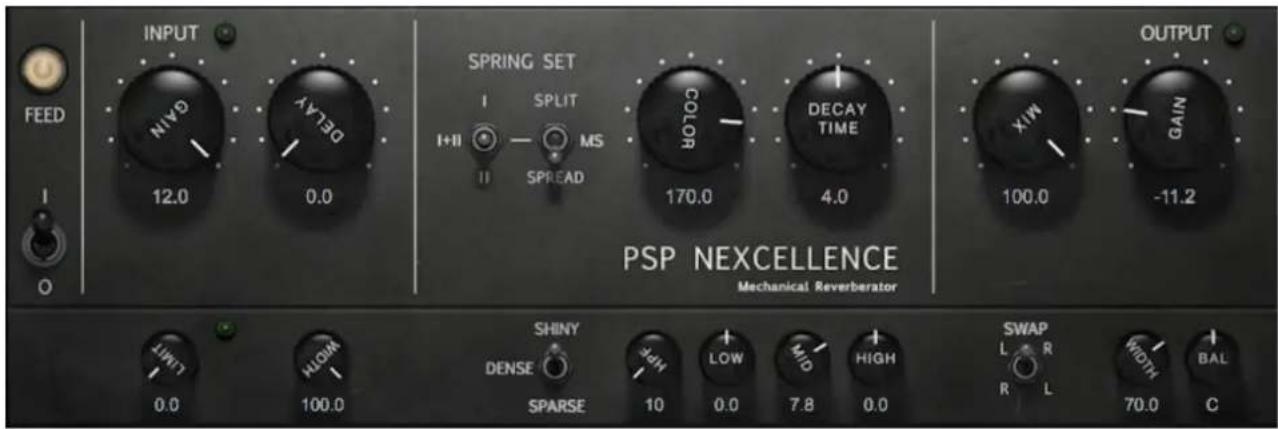
PSP Nexcellence is a rich-sounding, spring emulation inspired by and modeled after "Necklace-type" reverb units. PSP Nexcellence provides two different spring set processors and can use one or both of its processing engines simultaneously. The algorithm has improved on the original hardware by providing a handy set of parameters to let you control inherent aspects of the spring reverb.
text_image
INPUT FEED I O NIVG 12.0 0.0 DELAY SPRING SET I SPLIT I+II MS II SPREAD COLOR 170.0 4.0 DECAY TIME 100.0 OUTPUT GAIN -11.2 PSP NEXCELLENCE Mechanical Reverberator SHINY DENSE SPARSE 10 0.0 7.8 0.0 LOW MID HIGH SWAP L R R L WIDTH 70.0 BAL CControls
Input section
text_image
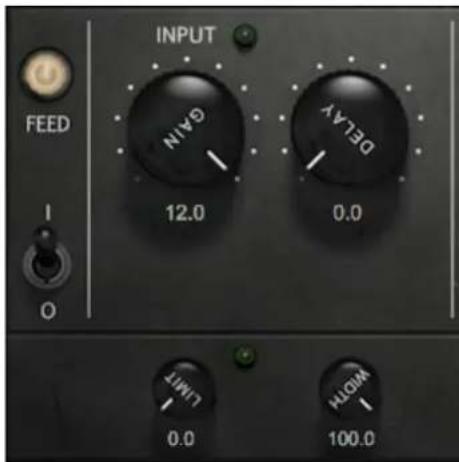
INPUT FEED GAN 12.0 DELAY 0.0 I O LIMIT 0.0 METH 100.0Feed switch – toggles signal to the reverb unit. The bulb indicates the plug-in is feeding signal to the spring reverb emulation. When switched off, the input signal remains unprocessed. However, even when the switch is off the reverb processor still processes the signal in the background, so that when you toggle Feed back on, the delay processing will continue immediately. The state of the Feed switch doesn't influence the dry path, Mix or Output gain, thus the amount of the dry signal passed to the output remains intact when Feed is off.
Input Gain knob – sets the amount of input gain, controlling the level of the signal at the input of the reverb simulation.
Input LED – lights up and changes colors depending on the current level of the input signal.
Input Limit knob – lowers the input limiter threshold, limiting the input signal harder as the Limit parameter value increases
Input Limit LED – displays the current level of gain reduction.
In hardware spring reverb units, both the springs and the analog electronic circuits (such as amplifiers) can be overdriven. In order to prevent them from overdriving, some spring reverbs are equipped with an input limiter. PSP Nexcellence recreates the nonlinearities introduced by the springs as well as the electronic circuits and features an emulation of a high-ratio optical compressor (an opto-limiter) with an adjustable threshold, which enables you to control the character, density and overall saturation of the wet signal. Lowering the limiter threshold by setting the Limit parameter to a high value will decrease the saturation but may require you to increase the output gain for the perceived volume of the wet signal to stay equal.
Input Width knob – sets the stereo panorama width of the input signal (as a percentage)
The Input Width parameter adjusts the gain of the SIDE signal in MID/SIDE processing at the input of the reverb simulation. By design it can only work correctly when both spring sets are active, because otherwise (in modes I or II), the signal at the input of the reverb is monaural (in modes I and II, the input signal is a sum of signals from the left input channel and the right input channel).
Delay knob - sets the pre-delay time (from 0 to 250 milliseconds), controlling the initial delay of the signal at the input of the reverb simulation.
Main Section
text_image
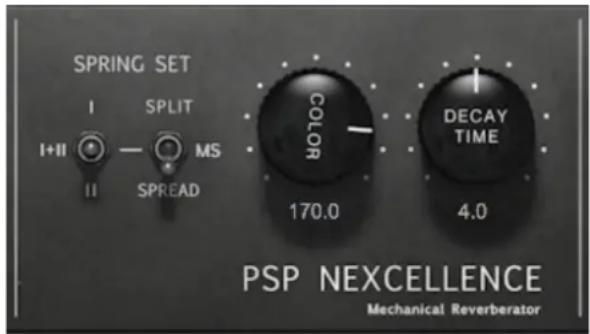
SPRING SET I SPLIT I+II — MS II SPREAD COLOR 170.0 DECAY TIME 4.0 PSP NEXCELLENCE Mechanical ReverberatorSpring Set Selector – lets you choose between three modes of internal configuration
- first spring set, solo,
- I+II – both spring sets,
- II – second spring set, solo.
Additionally, in the I+II mode, the Spring Set Configuration switch enables you to choose between
- Split mode, in which the first spring set is used to process the left channel and the second spring set is used to process the right channel,
- MS mode, as above, but the stereo output signal from the spring reverb simulation is treated as a Mid/Side stereo signal and decoded into a Left/Right stereo signal at the output, resulting in a well-balanced stereo image of the output signal,
- Spread, in which individual springs from both spring sets are used to process audio from both input channels.
Color knob – allows you to set the brightness (color) of the reverb effect (0-200%). This setting affects the decay time.
Decay Time knob – sets the decay time of the reverb simulation (0.8-7.2s). Due to the non-linear nature of the simulation, the displayed decay time is somewhat approximate, as it depends heavily on the input signal (its level and frequency content), as well as the Color setting. The middle setting (4.0 seconds) corresponds to the original behavior of the "Necklace-type" spring reverb.
The Color setting influence more than the amount of high frequencies in the wet signal, and the perceived brightness of the reverb. It also controls the damp factor, saturation, as well as the density of the reflections in the reverb tail. This can be helpful when adjusting the character of the reverb to fit best with your track or mix. Its complexity is the reason why it's expressed as a percentage (where 100% is the original behavior), rather than in Decibels. Similarly, the Decay Time setting also changes a number of different parameters. That's why it can also influence the brightness of the reverb.
Advanced parameters section

text_image
SHINY DENSE SPARSE 10 0.0 7.8 0.0 LOW MID HIGHDensity switch – allows you to select the simulation model used for the processing. Sparse is the least CPU-intensive model, Shiny is the most CPU-intensive, high quality model, and Dense is a compromise between Sparse and Shiny.
HPF knob - sets the frequency of the high-pass filter at the output (10Hz-1kHz).
LOW knob – sets the gain of low frequencies around 60Hz in the wet signal.
MID knob - sets the gain of mid-range frequencies around 1.3kHz in the wet signal.
HIGH knob – sets the gain of high frequencies around 6kHz in the wet signal.
Output section

text_image
OUTPUT X1W GAIN 100.0 -11.2 SWAP L R R L WIDTH 70.0 BAL CSwap switch – enables you to swap the wiring of the input channels (effectively swapping the first spring set with the second spring set).
Output Width knob - sets the stereo panorama width of the output (wet) signal (as a percentage)
Balance knob - sets the stereo balance of the output (wet) signal.
Mix knob – sets the balance between wet and dry signal (expressed as a percentage of wet signal in the output signal, from 0% to 100%). Mix is a global parameter shared between all presets.
Output Gain knob – sets the amount of output gain (post-mix), controlling the total output level of PSP Nexcellence.
Output LED – lights up and changes colors depending on the current level of the output signal.
Using presets
PSP Nexcellence is provided with factory set of presets.
The main aim of included presets is to showcase the features of the plug-in and help to learn the controls usage. In addition, the presets can be used as a starting point for further adjustments or as quick fix presets.
The PSP Nexcellence presets can be accessed from the PSPaudioware standard PRESET bar at the bottom of the plug-in interface. Here you can select from among the factory presets, or load and save individual, as well as banks of presets. There are three sections to this bar, the PRESET section, the Preset window, and the BANK section.
| Bank Section | Preset Section | Preset Edit Box Preset Selection | Memo Memo A | B | Operation Manual | Show Hints |
BANK SECTION
Click the green arrow icon to load a bank from a disk.
Click the red arrow icon to save a bank.
Double click the BANK label to permanently store the default preset bank.
Press Command (Mac) or Control (PC) and double click to restore the factory default bank.
PRESET SECTION
Click the green arrow icon to load a preset.
Click the red arrow icon to save a preset.
Double click the PRESET label to permanently store the default preset.
Press Command (Mac) or Control (PC) and double click to restore the factory default preset.
PRESET EDIT BOX
Click the menu button to the right of the preset edit box to see and the popup menu of all the presets in the currently loaded preset bank and to choose a preset from the list.
Click the name of the preset to rename it.
PRESET SELECTION
Click on the bright left arrow to switch to a previous preset on the list.
Click on the bright right arrow to switch to a next preset on the list.
MEMO A and B
Both A and B are permanently stored on your disk. This allows you to compare alternative settings or share a preset between various instances of the plug-in in the same project or even between various projects.
Click the green arrow icon to load a preset from memo A or B.
Click the red arrow icon to save a preset to memo A or B.
Show Hints
Click on the lightbulb icon to enable or disable hints displayed when hovering over controls.
?
Click on the question mark whenever you need to open the operation manual.
Trial Activation Instructions
In order to run a plug-in in 30 day demo mode, you need an iLok user ID which you can create free at https://www.ilok.com/, and you need to install the free iLok License Manager application.
A hardware USB iLok dongle is NOT required, however it is optional.
- Run the installer on your computer and follow the steps to complete the installation.
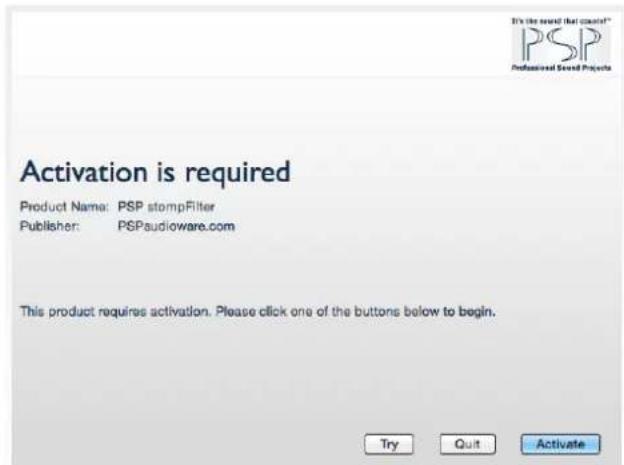
- Launch your host application (Pro Tools, Logic, Cubase, Sonar, Live etc.), which will scan your plug-ins and prompt you with an activation window.
text_image
It's the sound that could! PSP Professional Sound Projects Activation is required Product Name: PSP stompFilter Publisher: PSPaudioware.com This product requires activation. Please click one of the buttons below to begin. Try Quit Activate- To run a plug-in demo click "Try" in the PSP activation window and then enter your iLok account details.

text_image
License Account Login This trial requires you to have an ilok.com account. Please enter your ilok.com account credentials. User ID: Password: Remember Me Forgot Password or User ID? Create new account Back Next- Select the activation location. You can activate the license in three separate locations, each of which can be either a computer or an iLok dongle (2 ^nd generation or above). You can move these licenses at any time using PACE's iLok License Manager software.

Select a Location
Please select the activation location. If you want to activate to an iLok you can plug it in at any time.

text_image
MacBook Air (2) iLok_230F43 Put the license on this computer Click here if you need to purchase an iLok online. Quit Next- Enjoy using our plug-in for next 30 days without any limitation!
Full Version Activation Instructions
In order to activate the plug-in, you need an iLok user ID which you can create for free at https://www.ilok.com/, and you need to install the free iLok License Manager application. A hardware USB iLok dongle is NOT required, however it is optional.
- Download the PSP installer from your PSP user area account.
- Run the installer on your computer and follow the steps to complete the installation.
- Launch your host application (Pro Tools, Logic, Cubase, Sonar, Live etc.), which will scan your plug-ins and prompt you with an activation window.

text_image
Activation is required Product Name: PSP stormFilter Publisher: PSPaudioware.com This product requires activation. Please click one of the buttons below to begin.- Click the Activate button and enter your activation code, which is listed in the product table for your account in our user area (in the column authorization details). Click next.

text_image
Activation Code Entry Do you have an activation code available? If yes, please enter it below. Click here if you need to purchase a license for PSP atompFilter. Back No Next- Type in your iLok account user ID and password. Click next.
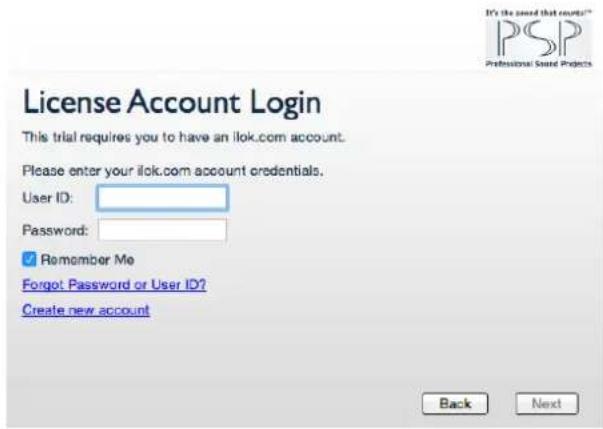
text_image
License Account Login This trial requires you to have an ilok.com account. Please enter your ilok.com account credentials. User ID: Password: Remember Me Forgot Password or User ID? Create new account Back Next- Select the activation location. You can activate the license in three separate locations, each of which can be either a computer or an iLok dongle ( 2^nd generation or above). You can move these licenses at any time using PACE's iLok License Manager software.
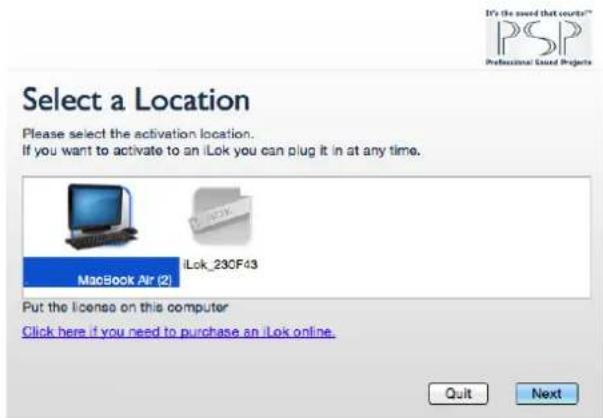
text_image
Select a Location Please select the activation location. If you want to activate to an iLok you can plug it in at any time. MacBook Air (2) iLok_23CF43 Put the license on this computer Click here if you need to purchase an iLok online. Quit Next- Activation is complete. Enjoy using our plug-ins! We hope you find them useful in your productions.
Minimum System Requirements
PC
VST3
•Windows x32 or x64 (7, 8 or 10)
•VST3 compatible application
VST
•Windows x32 or x64 (Vista, 7, 8 or 10)
•VST 2.4 compatible application
RTAS
•Windows x32 or x64 (XP Service Pack 2, Vista, 7 or 10)
•ProTools 8.0.0 (or later)
AAX
•Windows x32 or x64 (XP Service Pack 2, Vista, 7 or 10)
•Pro Tools 10, 11, 12 or Pro Tools HD 10, 11, 12
All DAWs
- Up to date iLok License Manager application installed
Mac
AudioUnit
•Mac OSX 10.8 - 10.12 or later
•32 or 64-bit compatible host application
VST
•Mac OSX 10.8 - 10.12 or later
•32 or 64-bit VST 2.4 compatible host application
VST3
•Mac OSX 10.8 - 10.12 or later
•32 or 64-bit VST 2.4 compatible host application
RTAS
•Mac OSX 10.8, 10.9, 10.10 or 10.11
•ProTools LE 8.0.0 or ProTools TDM 8.0.0 (or later)
AAX
•Mac OSX 10.8 - 10.12 or later
•Pro Tools 11, 12 or Pro Tools HD 11, 12
All DAWs
- Up to date iLok License Manager application installed

Audio Units


REAL-TIME AUDIO-SUITE


VST is a trademark and software of Steinberg Media Technologies GmbH. AAX, Pro Tools, and RTAS are trademarks or registered trademarks of Avid Technology, Inc. AudioUnit, OSX are trademarks of Apple Inc.
Support
If you have any questions about any of our plug-ins, please visit our website http://www.PSPaudioware.com where you can find the latest product information, free software updates, online support forum and answers to the most frequently asked questions.
You can also contact us by e-mail: support@PSPaudioware.com. We will gladly answer all of your questions. As a rule we respond within 24 hours.
PSPaudioware.com s.c.
Kwadratowa 4/19
05-509 Józefosław
Poland.
ph. +48 601 96 31 73
www.PSPaudioware.com
contact@PSPaudioware.com