MasterComp - Audio software PSP Audioware - Free user manual and instructions
Find the device manual for free MasterComp PSP Audioware in PDF.


User questions about MasterComp PSP Audioware
0 question about this device. Answer the ones you know or ask your own.
Ask a new question about this device
Download the instructions for your Audio software in PDF format for free! Find your manual MasterComp - PSP Audioware and take your electronic device back in hand. On this page are published all the documents necessary for the use of your device. MasterComp by PSP Audioware.
USER MANUAL MasterComp PSP Audioware
PSP MasterComp PSP MicroComp

text_image
Professional Sound Projects Left-Mid VU -1.84dB -3.28dB G Pre R Post Right-Side Ratio Threshold s.c. Ext Low -s.c.filters - High 100 141 200 Mon 1 A 2 B 4 C 6 7 11 Attack - Auto 1ms 10 Smooth Link C 10 20 30 30 40 50 60 70 80 90 Release - Auto 1s Classic Make-up - Auto Mix Output Off Classic 60.8ms 2684smps Off Hard Peak Off On M L LR R S Fat Soft RMS Limit PSP MasterCompStereo Mastering and Mixing Compressors www.PSPaudioware.com
Acknowledgements
Sakis Anastopoulos DigisoundMastering, Victoria, Australia
Joachim Krukowski Jarocin, Poland
Adam Taborowski PSPaudioware.com s.c., Tarnowskie Góry, Poland
Hubert Pietrzykowski Warsaw, Poland
End User License Agreement
PREFACE: This End-User License Agreement (“EULA”) is a legal agreement between you and PSPaudioware.com s.c. (PSP) for the PSP product accompanying this EULA, which includes computer software and may include associated media, printed materials, and “online” or electronic documentation (“SOFTWARE”). By installing, copying, or using the SOFTWARE, you agree to be bound by the terms of this EULA. If you do not agree to the terms of this EULA, you may not use the SOFTWARE. The SOFTWARE is protected by copyright laws and international copyright treaties, as well as other intellectual property laws and treaties. The SOFTWARE is licensed, not sold.
LICENSE: You may install and use a copy of the current version of the SOFTWARE, or in its place, any prior version for the same operating system, on as many machines as you want as long as you are the only user of those DAWs. If more users use the software you must buy an additional licence for each workstation. The DEMO VERSION of the SOFTWARE is NOT LICENSED FOR COMMERCIAL USE.
RESTRICTIONS: You may not transfer, modify, rent, lease, loan, resell, distribute, network, electronically transmit or merge the SOFTWARE. You may not reverse engineer, decompile or disassemble the SOFTWARE, or otherwise attempt to discover the SOFTWARE source code. You are not permitted to copy the SOFTWARE or any of the accompanying documentation.
COPYRIGHTS: All title and copyrights in and to the SOFTWARE (including but not limited to any images, photographs, animations, video, audio, music, text, and “applets” incorporated into the SOFTWARE), the accompanying printed materials, and any copies of the SOFTWARE are owned by PSP. The SOFTWARE is protected by copyright laws and international treaty provisions. Unauthorized reproduction or distribution of the SOFTWARE or documentation is subject to civil and criminal penalties.
DISCLAIMER OF WARRANTY: The SOFTWARE is provided “AS IS” and without warranty of any kind. The entire risk arising out of the use or performance of the SOFTWARE and documentation remains with user. To the maximum extent permitted by applicable law, PSP further disclaims all warranties, either express or implied, including, but not limited to, implied warranties of merchantability and fitness for a particular purpose, with regard to the SOFTWARE, and any accompanying hardware. To the maximum extent permitted by applicable law, in no event shall PSP be liable for any consequential, incidental, direct, indirect, special, punitive, or other damages whatsoever (including, without limitation, damages for loss of business profits, business interruption, loss of business information, or other pecuniary loss) arising out of this EULA or the use of or inability to use the SOFTWARE, even if PSP has been advised of the possibility of such damages.
MISCELLANEOUS: This EULA is governed by Polish law. Should you have any questions concerning this EULA, or if you wish to contact PSP for any reason, please write to:
PSPaudioware.com s.c.
Kwadratowa 4/19
05-509 Józefosław
Poland.
Table of Contents
Acknowledgements....2
End User License Agreement....3
Table of Contents......4
Overview....5
Features......5
Applications 5
Minimum System Requirements....6
Plug-in Latency....7
Limitations of the demo version 7
Front panel....8
Meters....8
Controls....10
Rear Panel....16
Plugin Information Plate....16
Knobs....16
Operation....17
Working with meters 17
A note regarding use of the Channel processing mode switch....17
Rear Panel operation 18
Using meters' preferences parameters ....18
Using presets....19
Support....20
User Comments....20
Overview
PSP MasterComp and PSP MicroComp are high fidelity stereo dynamic processors that feature a wide range of controls to make them versatile tools for mastering compression and expansion. They are also well suited for using on buses and track processing during mixing.
Features
PSP MasterComp
- High frequency transparency thanks to double sampled processing (excluding output limiter)
- Low distortion due to our optional Smooth Level Detector algorithm
- Optional automatic attack and release times
- Wide range of controls dedicated for mastering purposes
- Compression and expansion over the set threshold
- Advanced side chain filtering, channel linking and compression tilting controls
- Mix control to allow fine blending between the processed and clean signal
- Optional high quality brick wall output limiter with automatic release time
- Advanced PPM/VU meters with contextual readings and adjustable parameters
- Selectable channel processing: Mid, Side, Left, Right or Stereo
PSP MicroComp
- Simple and effective control layout
•CPU efficient algorithm optimized for mixing purposes - Low distortion thanks to optional Smooth Level Detector algorithm
- Optional automatic release time
- Wide range of controls dedicated for mixing purposes
•Over threshold compression and expansion - Basic side chain filtering and channel linking controls
- Advanced PPM/VU meters with contextual readings and adjustable operation parameters
Applications
- Controlling or revitalizing signal dynamics during mixing or mastering
- Creating the final sound of the mix
- Providing classic analog-like smooth compression
•Revitalization of transients
Minimum System Requirements
PSP MasterComp and PSP MicroComp are compatible with applications that can host standard VST, AU, RTAS and AAX plug-ins.
PC
VST
- Windows x32 or x64 (XP Service Pack 2, Vista, 7 or 8)
• VST 2.4 compatible application
RTAS
- Windows x32 or x64 (XP Service Pack 2, Vista, 7 or 8)
• ProTools LE 8.0.0 or ProTools TDM 8.0.0 (or later)
AAX
- Windows x32 or x64 (XP Service Pack 2, Vista, 7 or 8)
• Pro Tools 11
Mac
AudioUnit
• Mac OSX 10.5 or later
- 32 or 64-bit host application capable of running AudioUnit plug-ins with Cocoa view
• Mac OSX 10.5 or later
• 32 or 64-bit VST 2.4 compatible host application
VST
RTAS
• Mac OSX 10.5 or later
• ProTools LE 8.0.0 or ProTools TDM 8.0.0 (or later)
AAX
• Mac OSX 10.8 or later
• Pro Tools 11
Plug-in Latency
In order to achieve the highest quality results, the PSP MasterComp and PSP MicroComp require a buffer containing a number of samples in order to process your audio material properly. In the case of the PSP MicroComp the amount of samples needed was kept purposefully small and results in a delay up to 22ms, depending on the sample rate of the audio. This means that PSP MicroComp can be used while tracking. In the case of PSP MasterComp the latency is considerably larger—up to 37ms, depending on the sample rate. This is because of the precise FIR (finite impulse response) filters used for FAT double sampling. Due to the larger latency of the PSP MasterComp we recommend this version for mastering purposes.
That said, most modern DAWs include plug-in delay compensation, which eliminates the effect of the delay incurred by PSP MicroComp and PSP MasterComp on playback. PSP MasterComp and PSP MicroComp fully support the latency compensation of all host DAWs (meaning, the plug-ins accurately report the samples of delay they incur to the host). Note that some host DAWs have limitations regarding delay compensation, so be sure to refer to your DAW's user guide for more information. For your convenience the latency of each plugin is reported at the bottom of the editor window in both samples and milliseconds.
Limitations of the demo version
14-day evaluation period without any audio interruption or control limitations.
Front panel
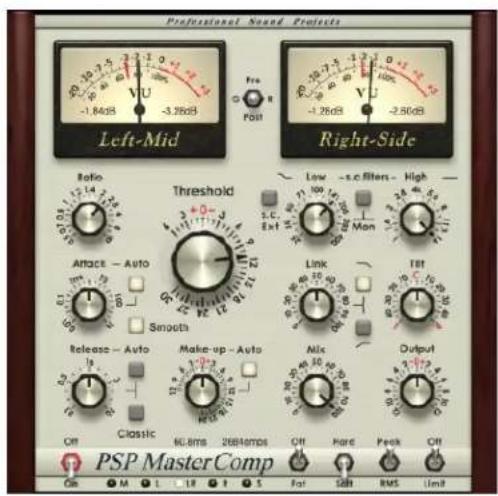
text_image
Professional Sound Protects Left-Mid Pro R PSI1 Right-Side Ratio 1.4 1.2 1.0 -1.8dB Threshold +0- 7.1/7.7/7.5/7.3/7.1/6.9/6.7/6.5/6.3/6.1/5.9/5.7/5.5/5.3/5.1/4.9/4.7/4.5/4.3/4.1/3.9/3.7/3.5/3.3/3.1/2.9/2.7/2.5/2.3/2.1/1.9/1.7/1.5/1.3/1.1/0.9/0.7/0.5/0.3/0.1/0.0 Low -s.c filters - High - 71 100 S.C. Ext Mon Altace - Auto Smooth Release - Auto Make-up - Auto Mix Output Classic Off Classic 60.8ms 2684amps Off Rare Peak Off PSP Master Comp On M L 18 F S Fatt SBH RMS Limit
text_image
Professional Sound Projects Left Pre Post Right Attack RMS Threshold Release - Auto 0.3 Off 22.1ms 977amps Ratio - Soft Ext - Mon Knee Side Chain Make-up - Auto 0.66dB Fast Mono Off Smooth Stereo Limit PSP Micro CompMeters
PSP MasterComp's and PSP MicroComp's meters contain VU and PPM needle readings, contextual numeric readings which are held for two seconds, and overload LED indicators that are held until reset. All main parameters of meters are rear panel controlled.

text_image
VU indication -10 -7 -5 -3 -2 -1 0 -20 -6 80 100% -20 -10 VU held value -8.97dB -3.60dB Left-Mid Overload indication PPM indication PPM held valueVU is indicated by a long black needle and the contextually displayed number on the left part of the meter.
PPM is indicated by a short red needle and the contextually displayed number on the right part of the meter. The black text turns to red one if 0dBFS or greater is detected. Please note that the reading is not equal to digital metering if the integration time is set to a greater value then 0ms.
The LEDs react according to the rear panel's overs counter setting, which means that when PPM integration time is greater than 0ms and overs counter is set to low values the LEDs may blink often while the PPM level is still below 0dBFS. The opposite situation may also occur when PPM integration is set to 0ms and it reads over 0dBFS; in this case the LEDs do not blink at all because they are waiting for the minimum number of overloaded samples. The LEDs respond dependently on the Pre-GR-Post switch. When the Pre mode is chosen LEDs indicate the input overloads, when the GR or Post mode is selected and output overloads are indicated.
After an overload indication occurs (a red blink), the held LEDs become a darker red to indicate that an overload detection occurred.
To reset the LEDs simply click one of meters.
The meters go dark when the processing switch is set to Off.
Controls
Ratio
Lets you set the compression/expansion ratio. There are 21 steps available, including 14 compression ratios ranging from 1.2:1 to :1 omitting compression 1:1, and 6 expansion ratios up to 0.5:1 .
Attack
Sets an attack time within a wide range from 0.01ms to 1s. Sets a nominal attack time for automated attack mode.
Auto Attack button (PSP MasterComp only)
Engages automated attack adjustment mode. In this mode the Attack control sets a nominal attack time while the automation algorithm shortens or lengthens the attack according to the current transient content in the signal. Please note that although the automation algorithm provides superb transparent attack behavior, there are tracks and plug-in settings that may require turning it off for a more musical result.
Release
Sets a release time within a wide range from 0.1s to 10s in PSP MasterComp and from 0.03s to 3s in PSP MicroComp. Sets the nominal release time for automated release mode.
Auto Release button
Engages automated release adjustment mode. In this mode the Release control sets a nominal release time while the automation algorithm shortens or lengthens the release according to the current transient content in the signal. Please note that although the automation algorithm provides superb transparent release behavior there are tracks and plug-in settings that may require turning it off for a more musical result.
Classic
Sets the Classic release mode. When Classic mode is engaged the release phase is fast when using large amounts of gain reduction, and is slow or even very slow when using small amounts of gain reduction.
There will be an additional impact (slowdown of the plug-in's release) on the processed signal when compared with the Standard release mode. Classic mode also lessens the impact of silence followed by a loud transient.
Threshold
Sets the compression or expansion threshold between the range of +6..-30dB. The threshold in PSP MicroComp is calibrated to be more sensitive by 3dB approximately to be more suitable for track processing.
Makeup
Controls the post compression/expansion make-up gain. The make-up gain occurs in the signal chain before the mix control, output gain and the output limiter.
Auto Makeup
Engages the automated makeup control, which uses a set ratio and threshold. Due to the fact that some manual calibration may still be needed, a Makeup control can be used for this purpose. Caution! Turning on Auto Makeup may produce a sudden considerable gain change and corresponding click.
text_image
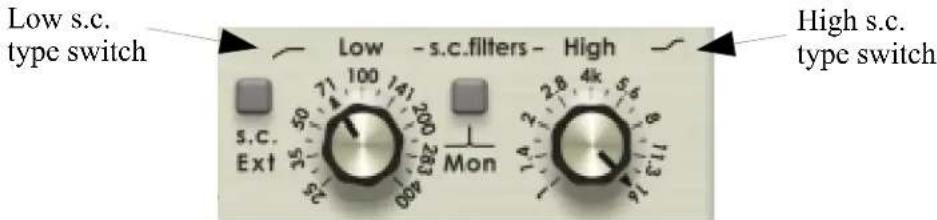
Low s.c. type switch s.c. Ext 71 100 s.c. Mon 283 250 240 230 220 210 200 190 180 170 160 150 140 130 120 110 100 High s.c. type switchLow s.c. (PSP MasterComp only)
Controls the low cut or low shelf frequency of the side chain filter.
Low s.c. type switch (PSP MasterComp only)
Clicking the low shelf (upper click) / low cut (lower click) icon next to the “Low” label switches to an alternate low filter type. The shelf filter is set to +12dB while a cut filter gives attenuation down to -15dB. When clicked in the middle the filter is set to a flat mode.
High s.c. (PSP MasterComp only)
Controls the high cut or high shelf frequency of the side chain filter.
High s.c. type switch (PSP MasterComp only)
Clicking the high shelf (upper click) / high cut (lower click) icon next to the “High” label switches to an alternate high filter type. The shelf filter is set to +12dB while a cut filter gives attenuation down to -15dB. When clicked in the middle the filter is set to a flat mode.

flowchart
graph LR
    A["Ext-Mon Side Chain"] --> B["Switch Symbol"]
    C["Low s.c. filter switch"] --> B
    D["High s.c. filter switch"] --> B
Low s.c. filter switch (PSP MicroComp only)
This is a three state switch. In the “_” position a low frequency boost in the side chain signal is added to provide low frequency pumping. The “--” position provides a flat response of the low frequency side chain filter. This is the default setup for most individual tracks. The “_/” position attenuates low frequencies in order to generate a complex signal unmodulated by low frequencies. This setting is useful for protecting vocal tracks against pop plosives, or during dc-cssing.
High s.c. filter switch (PSP MicroComp only)
This is a three state switch. The “_” position activates a high frequency boost in the side chain signal to increase response on sibilants. Use this setting whenever extra attenuation on higher frequencies is needed, for instance during de-essing. The “--” position activates a flat response low frequency side chain filter. Use this setting for most individual tracks, groups and entire mixes. The“_” position attenuates high frequencies in order to generate a complex signal unmodulated by high frequencies. You may wish to do this to avoid modulation from a loud hi-hat track, for example.
s.c. Monit
Engages side chain monitoring mode, which provides an input processed by side chain filters to the output. The side chain content depend on the state of the Channel processing mode switch.
Caution! Turning FAT On or Off during playback may produce a considerable click or glitch.
Link knob (PSP MasterComp only)
Sets the amount of linking between channels. Variable control of this parameter allows you to find the most musical setting that won't shift the stereo field.
Link switch (PSP MicroComp only)
Sets the algorithm to linked mode, which is the proper setting for most stereo track compressions. Try the unlinked mode during expansion.
Link Low Cut (PSP MasterComp only)
Gently cuts low frequencies from a linking signal, making an alternative stereo field response for situations when low frequencies should not affect linking.
Link High Cut (PSP MasterComp only)
Gently cuts high frequencies from a linking signal, making an alternative stereo field response for when high frequencies should not affect linking.
Tilt (PSP MasterComp only)
Controls side chain left/right volume balance, which allows for precise adjustment of channel processing depth whenever not balanced input signal occurs.
Mix (PSP MasterComp only)
Sets the amount of processed signal (post make-up) and input signal sent to the output level control and output limiter. This allows you to dial in a transient transparent sound with gently processed middle dynamic ranges.
Output
Controls the output gain of the signal just before the output limiter in PSP MasterComp and just before the output in PSP MicroComp.
On/Off
Engages or disengages processing. When set to off, metering still occurs although the signal is untouched. Caution! Turning processing On or Off during playback may produce a gain change and corresponding click.
Fat/Off
PSP MasterComp only. Engages Frequency Authentication Technique (FAT) for high quality double sampled processing. Please note that when a FAT mode is engaged the plug-in is using about 2.5x more CPU then with FAT mode switched off.
Caution! Turning FAT On or Off during playback may produce a considerable click or glitch.
Smooth button (PSP MasterComp) or Fast/Smooth switch (PSP MicroComp)
Engages the premium quality (PSP MasterComp) and high quality (PSP MicroComp) Smooth Level Detector algorithm. In this mode, compression distortion is significantly reduced for mid range and low frequencies. In previous PSP MasterComp editions the
premium quality Smooth Level Detector was always on. Now you have a choice between a smooth, CPU hungry mode and a faster and less transparent mode.
Please notice that Fast mode doesn't necessarily mean it is a worse choice or a compromise. This mode still provides very high quality processing and may be the best choice for many applications. In PSP MasterComp, when the button in not lit plug-in turns on its high quality Smooth Level Detector mode, which is easier on CPU than the premium Smooth mode, however it still sounds very close to the original Smooth mode. In the PSP MicroComp the Fast mode completely omits the Smooth Level Detector algorithm, which results in further CPU savings and a more aggressive sound.
Caution! Switching Smooth during playback may produce a considerable click or glitch.
Hard/Soft switch (PSP MasterComp) or Soft Knee button (PSP MicroComp)
Switches between standard hard and soft knee compression/expansion curves.
In PSP MicroComp a soft knee mode is engaged when a button is lit.
Peak/RMS switch (PSP MasterComp) or RMS button (PSP MicroComp
Switches between peak and RMS responses of the level detector.
In PSP MicroComp an RMS mode is engaged when the button is lit.
Caution! Switching between Peak and RMS detection requires the plug-in to reset and switch its internal processing and may produce a sudden gain drop and corresponding click if attempted during playback.
Limit/Off (PSP MasterComp only)
Engages the high quality output brick wall limiter. The limiter is located as the last processing part of this plug-in after mixing the dry with the processed signal and the output gain stage. The ceiling level of the limiter is set to 0dBFS.
Stereo/Mono (PSP MicroComp only)
Engages the stereo processing mode. Mono mode allows you to save some CPU cycles whenever a mono track is processed.
Pre/G.R./Post
Switches the meters between Pre processing (input), Gain Reduction and Post processing (output) modes.
PSP MasterComp or PSP MicroComp
Clicking on the PSP MasterComp or PSP MicroComp label switches to the rear panel.
Channel processing mode switch
A channel processing mode switch is located underneath the PSP MasterComp label. Use this switch to select the channel processing mode. The “LR” setting configures standard stereo processing. To process Left and Right channels independently, please use two instances of the PSP MasterComp in series and set the mode to L on one of them and R on the other. To process Middle and Side signals please use two instances of the plug-in in series and set the M mode on one of them and S mode on the other.
Whenever a mode other then Stereo is selected the Link and Tilt knobs return to their default positions and labels change to “---” to indicate that those controls are not conforming to the individual channel processing mode.
Latency indication
Just above the PSP MasterComp or PSP MicroComp label there are two numbers showing the exact latency of the plug-in in samples and milliseconds. Although most audio applications provide automatic latency compensation there are still some situations when manual compensation is required.
Rear Panel

text_image
PSP MasterComp v.8.3.2 by Professional Sound Projects www.PSPaudioware.com Authorized to: User Name VST Plugin Technology by Steinberg VU integration time 300ms DVU reference level 4.0dBFS VU PPM integr. time 0ms PPM return time 2.010s Overs counter LED PhatMixPlugin Information Plate
This shows the plug-in name, its version number, and authorization details. Clicking here switches back to the front panel.
Knobs
0VU Reference Level
The 0VU Reference Level knob sets the sine wave reference level. The default value is -14dBFS. This value is stored as a preference setting.
PPM integration time
The PPM integration time knob sets the attack ballistics for the PPM meters. The default value is 10ms. This value is stored as a preference setting.
PPM return time
The PPM return time knob sets the return ballistics for the PPM meters. The default value is 1000ms. This value is stored as a preference setting.
Overs counter
The Overload counter knob sets how many overloaded samples it will take to make the overload LEDs light. The default value is 3 samples. This value is stored as a preference setting.
Operation
Working with meters
PSP MasterComp and PSP MicroComp meters are designed to work similarly to real VU and PPM meters and overs indicators. To ensure that they can be a useful tool in every situation we endowed them with a set of parameters that allow you to adjust the meters' behavior to every practical situation. To learn more about those adjustable parameters please refer to the Controls -> Rear Panel section of this manual.
Standard VU meters are specified to work with a 300ms integration time — every other integration time setting results in a response that is not compatible with standard VU time response. However, this also allows you to adjust the meters to your particular needs. As the VU meter shows a kind of average level, it has to be calibrated to be useful for real applications. In normal situations the VU meter shows -14dB value relative to the peak value. That is why mastering and post-production engineers decided to use it as reference level for music. The current practice of setting levels as hot as possible is why average levels are much closer to peak values. Because of this we decided to offers users such a wide reference level adjustment range.
PPM meters are a kind of peak meters. They show the level value very close to digital peak values. Typically they have 10ms or 5ms attack and about 1000-2000ms release times. In many cases they are more practical then digital peak meters. You can achieve perfect digital peak metering by setting attack to 0ms.
A note regarding use of the Channel processing mode switch
PSP MasterComp provides an optional channel split mode obtained by the use of a Channel processing mode switch. Whenever you need independent L-R or M-S processing, two instances of the plug-in should be set up in the chain with appropriately set up channel switches.
The usual way a single band compressor is used is to run the stereo LR signal through a single instance of the PSP MasterComp. However you might need to process the L and R channels unlinked with independent settings. In this case please set up two instances of the plugin in series and select L processing on the first instance and R processing on the other.
One of the most powerful tools in a mastering workshop is a compressor used on M (middle) or S (side) signal. Using PSP MasterComp on the M signal allows you to tame, boost or add expression to signals panned in the middle. A properly set up compressor on the middle signal will usually allow you to fix issues with a vocal level and dynamics.
Setting up the PSP MasterComp on the side signal helps to maintain the ambience of the recording.
Whenever the middle or side signal is processed during mastering we would suggest you use very mellow settings either by using the compression and the expansion settings close to 1 or using the Mix values lower than 100% . Otherwise a noticeable stereo image shift may occur.
Rear Panel operation
PSP MasterComp's and PSP MicroComp Rear Panel consist of the plug-in information box and meters' preferences parameters. The Information box shows the plug-in's version as well as the authorization details.
Meters' preference parameters are not involved with the sound processing. They set the way meters and knobs operate.
Using meters' preferences parameters
The meters' preferences parameters allow you to adjust the meters' behavior to your needs. These are: VU integration time, 0VU reference level, PPM integration time, PPM return time and Overload counter. These settings are automatically stored in the Windows Registry or in the Preferences folder in OS X every time this plug-in is closed. Those parameters are not accessible through your audio application's automation function. Whenever you start a new instance of the plug-in or start a project with PSP MasterComp or PSP MicroComp used, all preference parameters are recovered from these saved settings regardless of the project or even the host application that is used.
Using presets
PSP MasterComp and PSP MicroComp are provided with a factory set of presets. These presets were prepared by professionals and are designed for various purposes and highlight different features of the plug-in. The first aim of these presets is to show customers the features of the plug-ins and help them to learn the controls of the plug-ins. In addition, the presets can be used as a starting point for further adjustments or as quick fix presets.
The PSP MasterComp and PSP MicroComp contain 16 presets for mastering, mixing and tracking. You can access these presets from the PSPaudioware standard PRESET bar at the bottom of the plug-in interface. Here you can select from among the factory presets and load and save individual, as well as banks of presets. There are three sections to this bar: the PRESET section, the Preset window, and the BANK section.
BANK SECTION
Click the green arrow icon to load a bank from a disk.
Click the red arrow icon to save a bank.
Double click the BANK label to permanently store the default preset bank.
Press Command (Mac) or Control (PC) and double click to restore the factory default bank.
PRESET SECTION
Click the green arrow icon to load a preset.
Click the red arrow icon to save a preset.
Double click the PRESET level to permanently store the default preset.
Press Command (Mac) or Control (PC) and double click to restore the factory default preset.
PRESET EDIT BOX
Click the menu button to the right of the preset edit box to see and the popup menu of all the presets in the currently loaded preset bank and to choose a preset from the list.
Click the name of the preset to rename it.
PRESET SELECTION
Click on the bright left arrow to switch to a previous preset on the list.
Click on the bright right arrow to switch to a next preset on the list.
MEMO A and B
Both A and B are permanently stored on your disk. This allows you to compare alternative settings or share a preset between various instances of the plug-in in the same project or even between various projects.
Click the green arrow icon to load a preset from memo A or B.
Click the red arrow icon to save a preset to memo A or B.
?
Click on the question mark whenever you need to open the operation manual.
Support
If you have any questions about the principles or operation of our plug-ins, please visit our website www.PSPaudioware.com where you can find the latest product information, free software updates and answers to the most frequently asked questions.
You can also contact us by e-mail: support@PSPaudioware.com. We will gladly answer all of your questions. As a rule we respond within 24 hours.
PSPaudioware.com s.c.
Kwadratowa 4/19
05-509 Józefoslaw
Poland.
ph. +48 601 96 31 73
www.PSPaudioware.com
contact@PSPaudioware.com
User Comments
We welcome any opinions and comments related to PSP MasterComp. We would also be grateful if you shared with us your experiences using PSP MasterComp. For example, if you've created a useful preset then let us know.
Please, contact us at: contact@PSPaudioware.com