
STVS424HDPIP - Router StarTech.com - Free user manual and instructions
Find the device manual for free STVS424HDPIP StarTech.com in PDF.


| Product Type | 4x4 HDMI Matrix Switch with Picture-in-Picture |
| Model | STVS424HDPIP (VS424HDPIP) |
| Brand | StarTech.com |
| Number of HDMI Inputs | 4 |
| Number of HDMI Outputs | 4 |
| Max Supported Resolution | 1920x1200 (1080p) |
| Video Resolution Support | 480p, 576p, 720p, 1080i, 1080p, VGA (up to 1920x1200) |
| Audio Formats | LPCM 2/6/8 CH, Bitstream, HD |
| Control Interfaces | Front panel buttons, IR remote, RS-232, LAN (web GUI) |
| Operating Modes | Matrix, Dual (PiP/PoP), TV Wall |
| On-Screen Display (OSD) | Yes, with menu for picture adjustment, resolution, HDCP, etc. |
| Power Supply | Universal power adapter (NA/UK/EU/AUS) included |
| Power Consumption | Not specified (typical < 50W) |
| Dimensions (approx.) | Not specified (typical rackmount size) |
| Weight (approx.) | Not specified (approx. 2 kg) |
| Mounting | Mounting brackets included for rack or surface mount |
| HDCP Support | Yes, configurable per input/output |
| RS-232 Protocols | 115200 baud, 8 data bits, no parity, 1 stop bit |
| LAN Control | DHCP/Static IP, web GUI for remote operation |
| Warranty | 2 years |
| Included Accessories | Remote control, mounting brackets, power adapter, quick install guide |
Frequently Asked Questions - STVS424HDPIP StarTech.com
User questions about STVS424HDPIP StarTech.com
0 question about this device. Answer the ones you know or ask your own.
Ask a new question about this device
Download the instructions for your Router in PDF format for free! Find your manual STVS424HDPIP - StarTech.com and take your electronic device back in hand. On this page are published all the documents necessary for the use of your device. STVS424HDPIP by StarTech.com.
USER MANUAL STVS424HDPIP StarTech.com
4x4 HDMI Matrix Switch w/ Picture-and-Picture – 1080p
VS424HDPIP
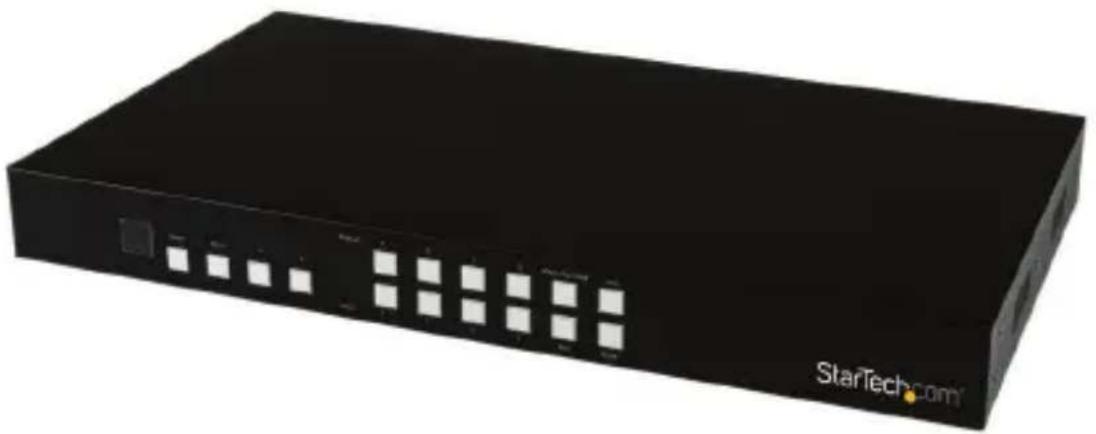
*actual product may vary from photos
For the most up-to-date information, please visit: www.startech.com
FCC Compliance Statement
This equipment has been tested and found to comply with the limits for a Class B digital device, pursuant to part 15 of the FCC Rules. These limits are designed to provide reasonable protection against harmful interference in a residential installation. This equipment generates, uses and can radiate radio frequency energy and, if not installed and used in accordance with the instructions, may cause harmful interference to radio communications. However, there is no guarantee that interference will not occur in a particular installation. If this equipment does cause harmful interference to radio or television reception, which can be determined by turning the equipment off and on, the user is encouraged to try to correct the interference by one or more of the following measures:
- Reorient or relocate the receiving antenna.
- Increase the separation between the equipment and receiver.
- Connect the equipment into an outlet on a circuit different from that to which the receiver is connected.
- Consult the dealer or an experienced radio/TV technician for help
This device complies with part 15 of the FCC Rules. Operation is subject to the following two conditions: (1) This device may not cause harmful interference, and (2) this device must accept any interference received, including interference that may cause undesired operation.
Changes or modifications not expressly approved by StarTech.com could void the user's authority to operate the equipment.
Industry Canada Statement
This Class B digital apparatus complies with Canadian ICES-003.
Use of Trademarks, Registered Trademarks, and other Protected Names and Symbols
This manual may make reference to trademarks, registered trademarks, and other protected names and/or symbols of third-party companies not related in any way to StarTech.com. Where they occur these references are for illustrative purposes only and do not represent an endorsement of a product or service by StarTech.com, or an endorsement of the product(s) to which this manual applies by the third-party company in question. Regardless of any direct acknowledgement elsewhere in the body of this document, StarTech.com hereby acknowledges that all trademarks, registered trademarks, service marks, and other protected names and/or symbols contained in this manual and related documents are the property of their respective holders.
Table of Contents
Introduction......1
Packaging Contents .... 1
System Requirements....1
Product Diagram....2
Front View 2
Rear View....2
Hardware Installation....3
Hardware Operation....3
Matrix Operation....3
Dual Mode Operation....3
TV Wall Mode Operation 4
On Screen Display Menu 4
IR Remote Control Operation 8
RS232 Serial Operation 10
IP Operation Using Web Browser 13
Technical Support 18
Warranty Information....18
Introduction
Packaging Contents
• 1 x HDMI Matrix Switch (VS424HDPIP)
- 1 x Remote control
- 1 x Mounting brackets
• 1 x Universal Power Adapter (NA/UK/EU/AUS)
- 1 x Quick Install Guide
System Requirements
- Up to 4 x HDMI-enabled Video Source Devices (i.e. computer, Blu-ray Player)
- Up to 4 x HDMI-enabled Display Devices (i.e. television, projector)
- Up to 8 x M/M HDMI cables for displays and video sources
Product Diagram
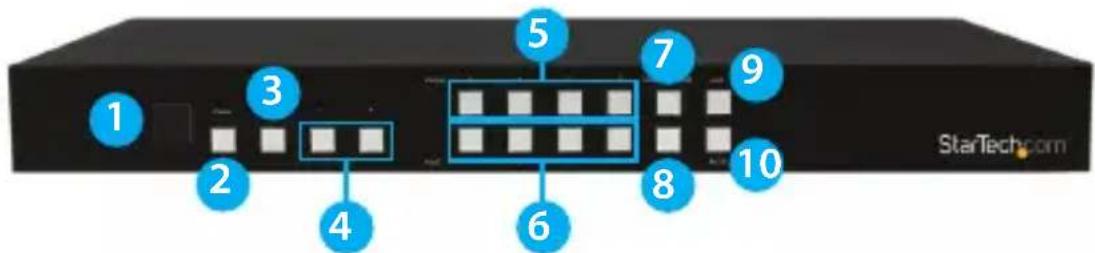
Front View
- IR Sensor
- Power Button / LED
- Menu Button / LED
- Menu Operation Buttons / LEDs
- Output Selection Buttons / LEDs
- Input Selection Buttons / LEDs
-
Mode Selection Button / LEDs
-
Save Button / LED
- Lock Button / LED
- Recall Button
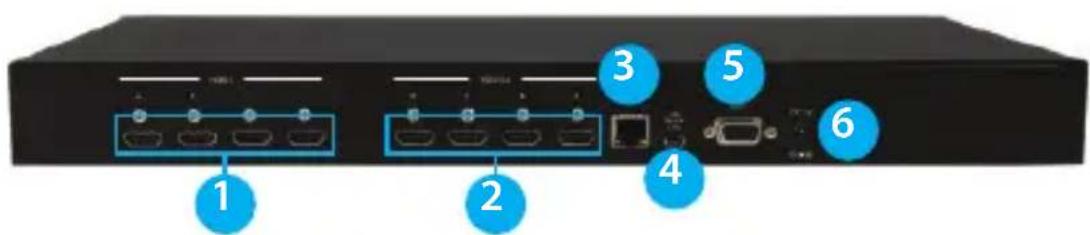
Rear View
- HDMI Input Ports
- HDMI Output Ports
- LAN Port
- USB Service Port
- RS232 Serial Port
- Power Adapter Port
Hardware Installation
- Connect up to four HDMI cables (not included) from each of your HDMI video source devices (i.e. computers, Blu-ray Players) to each of the HDMI input ports on the matrix switch.
- Connect up to 4 HDMI cables (not included) from each HDMI output port on the matrix switch to the HDMI input ports on your display devices (i.e. televisions, projectors).
- Connect the power adapter from an available power outlet to the Power adapter port the Matrix switch.
- (Optional) If you would like to control your Matrix Switch with RS232, connect a DB-9 pin serial cable (not included) from the RS232 serial port on the matrix switch to your RS232 serial port on your computer system.
- (Optional) If you would like to control your Matrix Switch over your network, connect a network cable (not included) from the LAN port on the matrix switch to an available LAN port on your network device.
Hardware Operation
Matrix Operation
- Press the Mode button repeatedly until the Mode LED is solid to indicate Matrix Mode.
- Press the Output select button (that corresponds with the lettered output display) you wish to select.
- Press the input select button (that corresponds with the numbered input display) you wish to output on your selected output display.
- Your selected video input will now be displayed on your selected video output. Repeat steps 2-3 for each video output you wish to adjust. Each output setting must be made individually.
Dual Mode Operation
- Press the Mode button repeatedly until the Mode LED is unilluminated to indicate Dual Mode.
- Press output A/B and then press corresponding input 1/2.
For example: If you press output A then press input 1, output A will display the input 1 image on the left side. If you then press output B followed by input 2, output A will display the input 2 image on the right side. Both output A and B will have an identical image.
Note: Dual A group are output A and B, Dual B group are output C and D. Each group will output the same image simultaneously.
- To switch the audio source between output A or B, Press button A or B for 3 seconds.
- To switch the audio source between output C or D, Press button C or D for 3 seconds.
TV Wall Mode Operation
- Press the Mode button repeatedly until the LED is blinking to indicate TV Wall Mode.
- Press the input select button (that corresponds with the numbered input display) you wish to output on all displays.
Note: Audio will Output on the device connected to Video Output A only
On Screen Display Menu
The OSD menu gives you access to advanced functionality. The below table lists each OSD menu option. The description field outlines the functionality of each menu selection.
| Main Menu Sub Menu Adjustments Default Description | |||||
| PICUTRE | ALL | CONTRAST | 0 ~ 100 50 | Enables you to adjust the specified attributes for your desired picture quality. Note: In Matrix mode, four pictures adjust simultaneously. In Dual/TV Wall mode, each picture can adjust individual and support individual last memory feature. | |
| BRIGHTNESS | 0 ~ 100 50 | ||||
| SATURATION | 0 ~ 100 50 | ||||
| HUE | 0 ~ 100 50 | ||||
| DUAL | DUAL AL | Enables you to select Dual mode with your desired video outputs selected. | ||
| DUAL AR | ||||
| DUAL BL | ||||
| DUAL BR | ||||
| TVWALL | OUT A | Enables you to select TV WALL mode with your desired video output. | ||
| OUT B | ||||
| OUT C | ||||
| OUT D | ||||
| D/T | RESET | Restores default output settings. | ||
| ALL | RESET ALL | |||
| EXIT | Returns to Main Menu. | |||
| OUTPUT RESOLUTION | 480p, 576p, 720p50, 720p60, 1080i50, 1080i60, 1080p24, 1080p50, 1080p60, 1024x768, 1280x800, 1280x1024, 1366x768, 1440x900, 1600x900, 1600x1200, 1680x1050, 1920x1200 | 720p60 | Enables you to select your desired output resolution.Note: 1080i@50/60 are supported in Matrix mode only. | |
| EXIT | Returns to Main Menu. | |||
| AUDIO EDID | LPCM 2CH, LPCM, 6CH, LPCM 8CH, BIT-STREAM, HD | LPCM 2CH | Enables you to define your available audio specification to your audio source device. Note: Whichever is selected will limit the audio distributed by your source device. | |
| EXIT | Returns to Main Menu. | |||
| OSD SETTINGS | POSITION | LEFT T, RIGHT T, LEFT B, RIGHT B | LEFT T | Enables you to adjust the specified attributes in relation to the On the Screen display positioning and operation. Note: TIMEOUT =OFF means MENU and INFO will continue showing on the screen |
| H OFFSET 0 ~ 20 | 10 | |||
| V OFFSET 0 ~ 20 | 10 | |||
| TRANSPARENCY 0 | ~ 94 | |||
| MENU TIMEOUT 5 | ~ 50 OFF 8 | |||
| INFO.TIMEOUT 5 | ~ 50 OFF 8 | |||
| INFO.DISPLAY ON | , OFF ON | |||
| BRIEF INFO ON | , OFF OFF | |||
| EXIT | Returns to Main Menu. | |||
| HDCP | INPUT | ACCEPT, NOT ACCEPT | ACCEPT | Enables you to turn HDCP support on and off. |
| OUTPUT | FOLLOW INPUT, ALWAYS ON | FOLLOW INPUT | ||
| EXIT | Returns to Main Menu. | |||
| BEZEL CORRECTION | CORRECTION ON, OFF OFF | Enables you to define image compensation for the bezel size of your monitors for when the switch is in TV WALL mode. | ||
| H CORRECTION | 0~ by output resolution | 0 | ||
| V CORRECTION | 0~ by output resolution | 0 | ||
| EXIT | Returns to Main Menu. | |||
| RECALL / SAVE | RECALL | CANCEL, FAV .1 ~ 4 | CANCEL | Enables you to access the save and recall features from the OSD menu. |
| SAVE | CANCEL, FAV .1 ~ 4 | CANCEL | ||
| EXIT | Returns to Main Menu. | |||
| ETHERNET | IP MODE DHCP, STATIC DHCP | Enables you to define Network communication protocols for remote operation. | ||
| STATIC SET | IP, MASK, GATE | IP | ||
| BYTE1 192 | ||||
| BYTE2 168 | ||||
| BYTE3 5 | ||||
| BYTE4 155 | ||||
| RE-LINK | ||||
| TIMEOUT (Min.) 5~60, OFF 10 | ||||
| EXIT | Returns to Main Menu. | |||
| OTHERS | IR ADDRESS 0~3 0 | Enables you to specify up to three different IR modes for the use of multiple switches with multiple remote controls. | ||
| EXIT | Returns to Main Menu. | |||
| INFORMATION | IN/OUT RESOLUTION Enables you | to view the technical specifications of the specified attributes. | ||
| SOURCE HDCP/AUDIO | ||||
| OUT MODE, FIRMWARE VER | ||||
| EXIT | Returns to Main Menu. | |||
| EXIT | Closes OSD Menu. | |||
IR Remote Control Operation
An IR remote control is included with the VS424HDPIP for hassle-free remote operation. Please review the legend below for a detailed description of each remote control function.

- Power: Press this button to switch on the device or press it again to set it to standby mode.
-
Info: Press this button to show the device's firmware version.
-
Out A\~D and In 1\~4: Press output A\~D and then press input 1\~4 to select display input. For example: press Out A then press In 1, output A will display input 1's image.
-
MATRIX/DUAL/WALL: Press to switch between Matrix mode, Dual mode and TV Wall mode.
-
Lock: Press once to lock the keypad and remote control, press 3 second again to re-lease the lock function.
-
Mute: Press this button to mute the audio from HDMI output port.
-
▲/▼/←/→/OK: Press these buttons to scroll through the OSD selec-tion and press OK to enter and confirm the setting.
-
Exit: Press this button to exit the OSD menu or the OSD settings.
-
Menu: Press this button to enter into the OSD menu.
-
1024x768/720p/1080p: Press these hot keys to switch between each resolution.
-
AL/AR/BL/BR: When in Dual mode, press these hot keys to switch the audio channel in Left or Right side for Dual A and Dual B group.
-
SAVE: To save the customized input and output corresponding settings.
i. Press "Matrix/Dual/Wall" button to select mode status.
ii. Press each output channel A\~D and then press corresponding input channel 1\~4.
iii. Press "SAVE", then input 1\~4's LED will illuminate at the same time, then press remote control FAV.1\~FAV.4 to save to the system memory.
- FAV.1\~FAV.4: Press favorite hot keys 1\~4 to bring up the customized screen save settings.
IR Remote Control Dip Switch
If you're using multiple switches in the same location you can configure up to three remote controls on different IR addressing to avoid interference with each other. To adjust the remote control, open the Remote control back cover and adjust the dip-switch ON/OFF to match IR address setting in the OSD menu. Factory default setting is 0.

You must then adjust the switch itself using the OSD menu, to the specific number you've set your remote control to. To adjust the IR addressing of the switch itself please access the below setting in the OSD menu.
Others -> IR addressing
RS232 Serial Operation
RS232 Pin Assignment
| VS424HDPIP | |
| PIN Assignment | |
| 1 NC | |
| 2 TxD | |
| 3 RxD | |
| 4 NC | |
| 5 GND | |
| 6 NC | |
| 7 NC | |
| 8 NC | |
| 9 NC | |
| Serial Controller (PC) | |
| PIN Definition | |
| 1 NC | |
| 2 TxD | |
| 3 RxD | |
| 4 NC | |
| 5 GND | |
| 6 NC | |
| 7 NC | |
| 8 NC | |
| 9 NC | |
RS232 Protocols
Baud Rate: 115200bps
Data Bit: 8 bits
Parity: None
Flow Control: None
Stop Bit: 1
RS232 Telent Commands
Note: All commands will be not executed unless followed with a carriage return (0x0D) and commands are case-sensitive.
| Command Action Return | ||
| AUA001 | Dual A Audio channel in Left side | AUA001 |
| AUA002 | Dual A Audio channel in Right side | AUA002 |
| AUA999 | Check Dual A audio channel status | AUA??? |
| AUB001 | Dual B Audio channel in Left side | AUB001 |
| AUB002 | Dual B Audio channel in Right side | AUB002 |
| AUB999 | Check Dual B audio channel status | AUB??? |
| AUD000 Audio output Off AUD000 | ||
| AUD001 Audio output On AUD001 | ||
| AUD999 Check audio on/off status AUD??? | ||
| AUE000 Audio ed d is LPCM 2CH AUE000 | ||
| AUE001 Audio ed d is LPCM 6CH AUE001 | ||
| AUE002 Audio ed d is LPCM 8CH AUE002 | ||
| AUE003 Audio ed d is BITSTREAM AUE003 | ||
| AUE004 Audio ed d is HD AUE004 | ||
| AUE999 Check audio edid setting AUE??? | ||
| BEZ000 Bezel Correction OFF BEZ000 | ||
| BEZ001 | Bezel Correction ON | BEZ001 |
| BEZ999 | Check bezel correction on/ off status | BEZ??? |
| BEH??? | Horizontal (H) Bezel correction??=000 ~ Maximum | BEH??? |
| BEH998 | Check the current Horizontal(H) Bezel correction Maximum value | BEH??? |
| BEH999 | Check the current Horizontal(H) Bezel correction setting value | BEH??? |
| BEV??? | Vertical (V) Bezel correction??=000 ~ Maximum | BEV??? |
| BEV998 | Check the current Vertical(V) Bezel correction Maximum value | BEV??? |
| BEV999 | Check the current Vertical(V) Bezel correction setting value | BEV??? |
| BRI??? | Setting Brightness No response | |
| ???=000~100 for matrix mode | ||
| ???=(000~100)+200*(OUT No.-1) for dual/tv wall mode | ||
| For example: OUT B set the Brightness value to 57 =(57)+200*(2-1) = 257 | ||
| BRI99? | Check current Brightness value | BRI??? |
| 99?=999 for matrix mode | ||
| 99?=991~994=OUT1~4 for dual/tv wall mode | ||
| CAL??? | RECALL FAV. ???=001~004=FAV.1~4 | CAL??? |
| CON??? Settings Contrast No Response | ||
| CON999 | Command Setting same as Brightness | CON??? |
| DUL001 Sets Dual mode to PoP DUL001 | ||
| DUL002 Sets Dual | mode to PiP DUL002 | |
| DUL003 Checks Dual mode status DUL999 | ||
| EGW999 | RS232 only, checks the current Ethernet gateway address | aaa.bbb.ccc.ddd |
| EIP999 | RS232 only, check the current Ethernet IP address | aaa.bbb.ccc.ddd |
| EMK999 | RS232 only, checks the current Ethernet Subnet mask address | aaa.bbb.ccc.ddd |
| HLP999 Shows the command list Command List | ||
| HPI0xy | HDCP Input settingx=1~4=IN 1~4, y=o=On,y=1=Off | HPI0xy |
| HPI99? | Check HDCP INPUT setting ? =1~4 = IN 1~4 | HPI0xy |
| HPO0xy | HDCP Output settingx=1~4=OUT A~D,y=o=Follow Input,y=1=Follow Output | HPI0xy |
| HPO99? | Check HDCPOUTPUT setting ? =1~4 = OUT A~D | HPO0xy |
| HUE?? Setting HUE No response | ||
| HUE999 | Command setting same as Brightness (BRI) | HUE??? |
| INP??? | INPUT selection ??? = 001~004 = IN 1 ~ 4 | INP??? |
| Execute OUT??? | ||
| INP999 Check current INPUT INP??? | ||
| LAB000 Set Input label off LAB000 | ||
| LAB001 Set Input label on LAB001 | ||
| LAB999 | Check current Input label on/off | LAB??? |
| LAlxyyyyyy | Set Input label name x = 1 - 4 = IN 1 - 4, yyyyyyyyyyy max. 12 characters | LAlxyy |
| LAI99? | Check Input label character ? = 1 - 4 = IN 1 - 4 | LAlxyy |
| LCK000 Unlock LCK000 | ||
| LCK001 Lock LCK001 | ||
| LCK999 | Check current Lock/Unlock status | LCK??? |
| MNE001 OSD Menu EXIT No response | ||
| MND001 OSD Menu DOWN No response | ||
| MNL001 OSD Menu LEFT (-) No response | ||
| MNO001 OSD Menu OK No response | ||
| MNR001 OSD Menu RIGHT (+) No response | ||
| MNU001 | OSD Menu UP No response | |
| MNX001 | OSD menu No response | |
| MOD001 | Matrix mode | MOD001 |
| MOD002 | Dual PoP mode MOD002 | |
| MOD003 | TV Wall mode | MOD003 |
| MOD004 | Dual PiP mode MOD004 | |
| MOD005 | Quad mode | MOD005 |
| MOD999 | Check current output mode status | MOD??? |
| OUT??? | OUTPUT selection ??? = 001 - 004 = OUT A - D | OUT??? |
| OUT999 | Check current OUTPUT | OUT??? |
| PPO0xy | Dual PiP/Sub Positionx=1~2=PiP A~By=0=Upper left, 1=Upperright, 2=Lower right, 3= Lower left | PPO0xy |
| PPO099? | Check PiP/Sub Postion status? =1~2=PiP A~B | PPO0xy |
| PSW001 | Dual PiP A(Main) image swap with Sub | PSW001 |
| PSW002 | Dual PiP B(Sub) image swap with Main | PSW002 |
| PSZ0xy | Dual PiP/Sub Size x=1~2=PiPA~By=0=Large, 1=Medium, 2=Small, 3= Off | PSZ0xy |
| PWR000 Power Off(Standby) PWR000 | ||
| PWR001 Power On PWR001 | ||
| PWR999 Check current power status PWR??? | ||
| RES??? | Output resolution ???=001~ ...corresponding osd menu list | RES??? |
| RES999 | Check current output resolution | RES??? |
| RST001 Factory Reset RST001 | ||
| RST002 Picture Reset RST002 | ||
| SAT??? Setting Saturation No response | ||
| SAT999 | Command setting same as Brightness (BRI) | SAT??? |
| SAV??? | SAVE FAV. ???=001~004=FAV.1~4 | SAV??? |
| VER999 Check firmware version | VER ??? Example: VER110=V1.1 | |
| VR2999 | Check customer's firmware version | VR2 ??? |
IP Operation Using Web Browser
Before you begin:
- Power Status must be set to on, and source status must be unlocked
- Ensure step 5. of hardware Setup has been completed.
- Obtain the IP address of the VS424HDPIP using the OSD menu. Access the following sub menu:
ETHERNET -> IP
Your IP address will be displayed next to IP.
Note: The switch supports DHCP and it is activated by default. As a result if you connect it to a piece of network equipment that supports DHCP your IP address will automatically change. If your network equipment does not support DHCP your default IP address will be 192.168.5.155
Access IP Operation Web GUI
- Open your web browser.
- In the address bar type the IP address obtained from your OSD menu, and press enter.
- The VS424HDPIP web GUI is now displayed.
Operate your VS424HDPIP using the Web GUI
The web GUI enables you to remotely operate your VS424HDPIP with basic and advanced functionality. The below sections outline the features and navigation of the Web GUI.
Operation Pane
The operation pane gives you a high level overview as well as access to basic switch operation. The Operation pane is always visible at the top of every page in the Web GUI.

The Information-in and information-out sections gives you an overview of the current connected video source and display devices.
The Status section enables you to power off the device.
The Source section enables you to select your desired mode as well as define which video source devices will be shown on each display.
The Save/Factory section enables you to save and action the customized input and output corresponding settings.
Advanced Menu
The Advanced menu is available on the left hand side of the GUI, and enables you to navigate between advanced sections of operation.
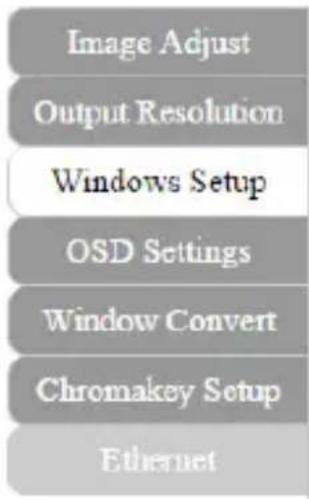
Descriptions outlining navigation as well as the available functionality for each tab are listed below.
Image Adjust
By default, the Image Adjust tab is the first window displayed when the web GUI is opened. If you would like to access the Image Adjust tab, and have navigated away from the Window, click Image Adjust tab from the side menu.
The Image Adjust tab enables you to define the specific attributes listed for optimal picture quality based on the requirements of your application.
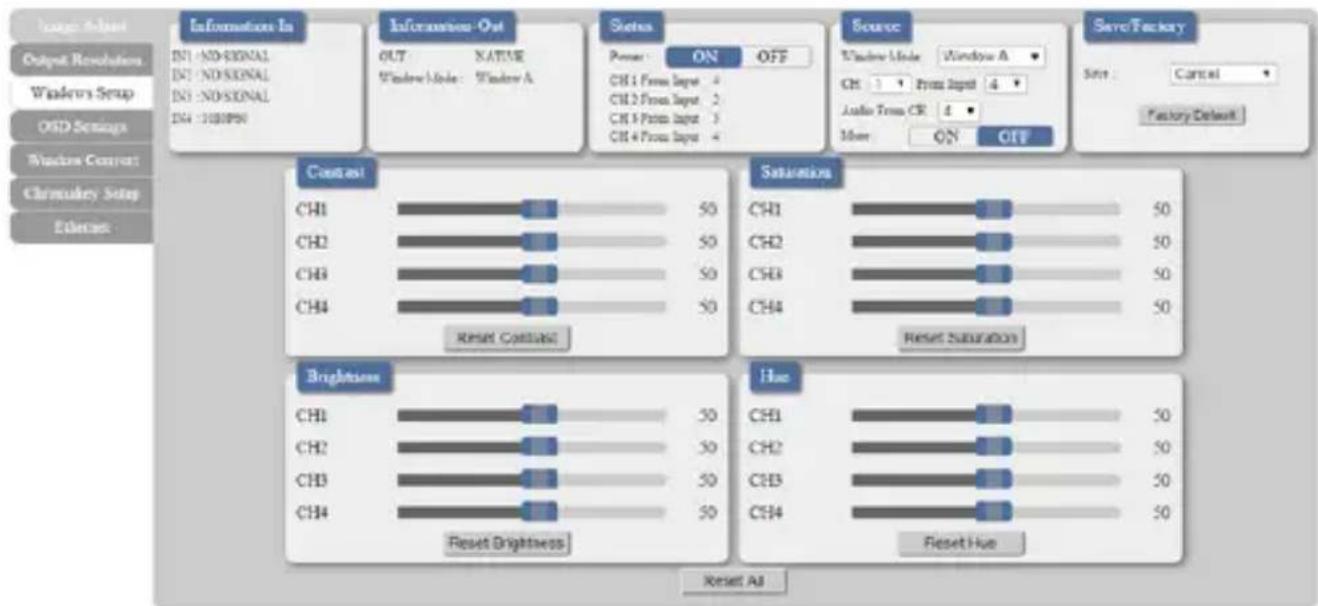
Note: In Matrix mode, all four pictures adjust simultaneously.
In Dual/TV Wall mode, each picture can adjust individual and support individual last memory feature.
Output Resolution
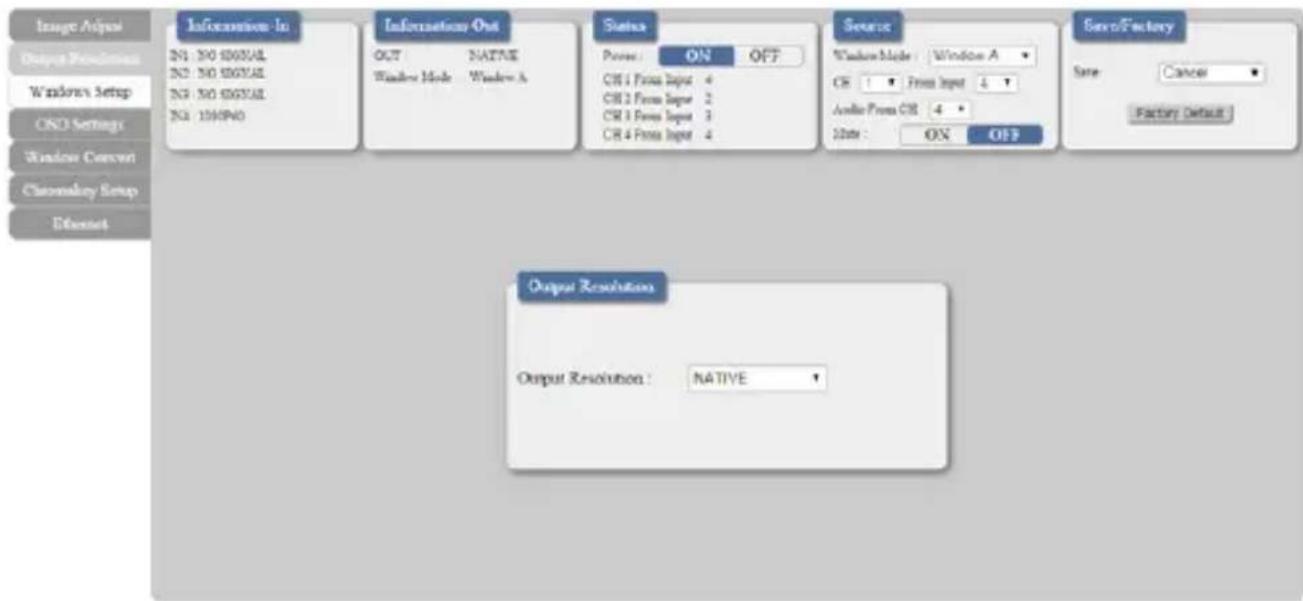
To access the Output Resolution tab, click Output Resolution on the side menu.
The Output Resolution tab enables you to set your desired output resolution from the available drop down menu.
Notes:
• 1080i@50/60 are supported in Matrix mode only.
- Selecting NATIVE enables the VS424HDPIP to use EDID to determine the best output resolution automatically.
OSD Settings
To access the OSD settings tab, click OSD Settings on the side menu.
The OSD settings tab enables you to adjust the specified attributes in relation to the On the Screen display positioning and operation.
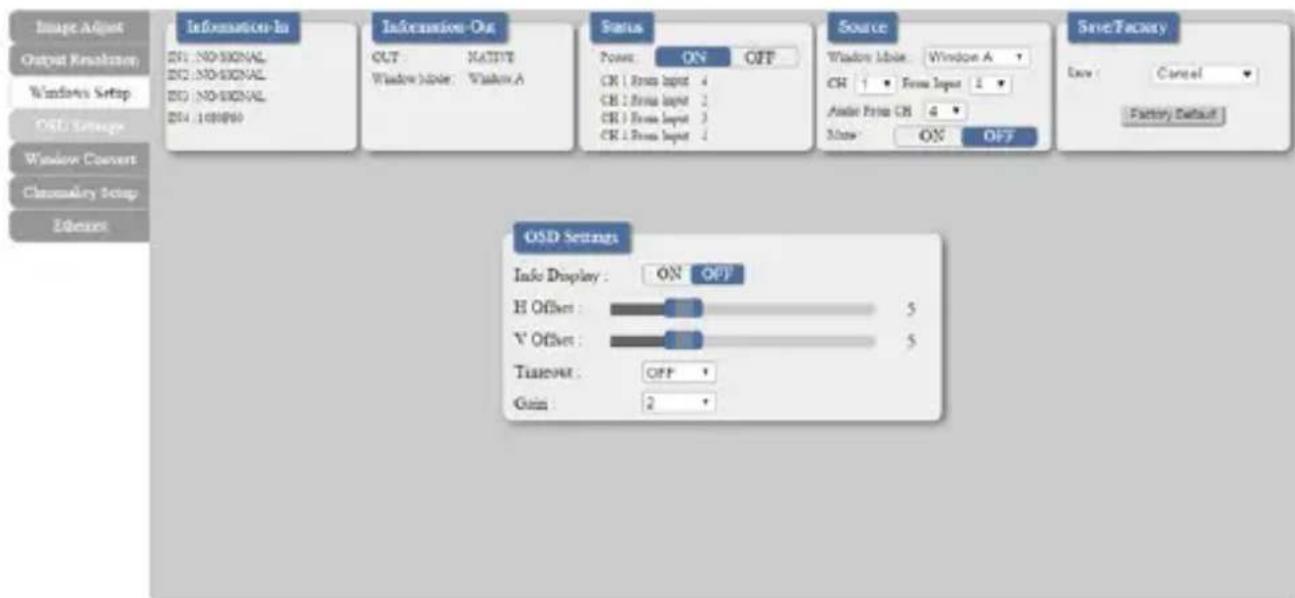
Note: TIMEOUT = OFF means MENU and INFO will continue showing on the Screen.
Window Convert
To access the Window Convert tab, click Window Convert on the side menu.
The Window Convert tab enables you to implement transition effects while switching between video sources.

Chromakey Setup
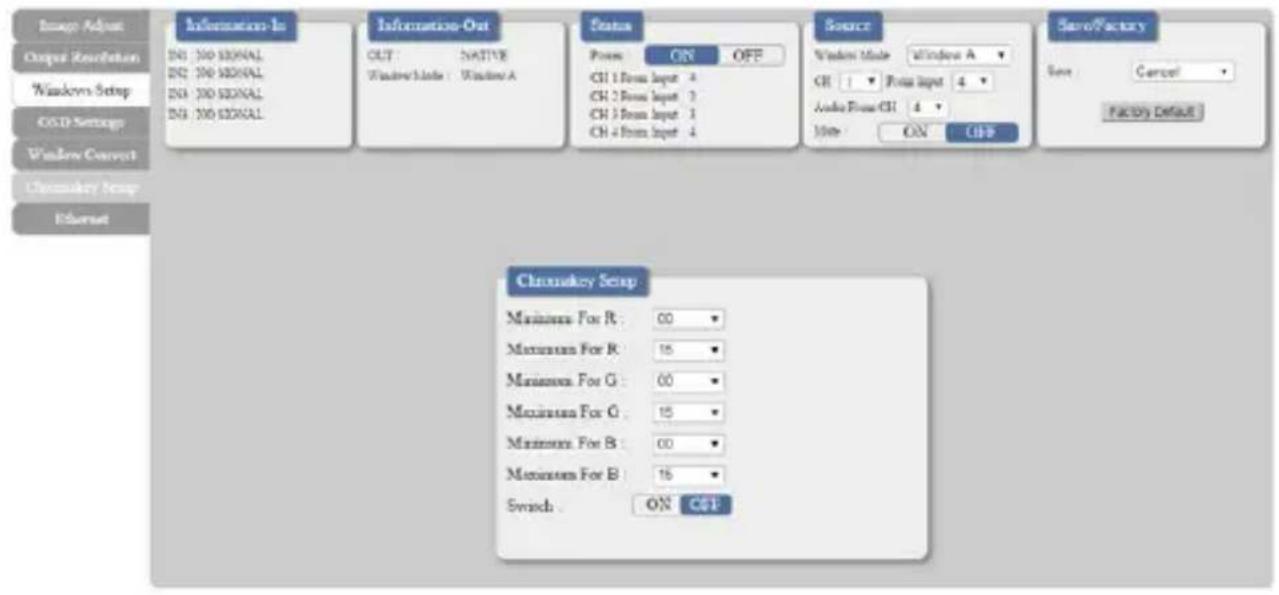
To access the Chromakey Setup tab, click Chromakey setup on the side menu.
The Chromakey Setup section enables you to isolate a particular color for chroma keying special effects.
Ethernet
To access the Ethernet tab, click Ethernet on the side menu.
The Ethernet section enables you to define Network communication protocols for remote operation.

Technical Support
StarTech.com's lifetime technical support is an integral part of our commitment to provide industry-leading solutions. If you ever need help with your product, visit www.startech.com/support and access our comprehensive selection of online tools, documentation, and downloads.
For the latest drivers/software, please visit www.startech.com/downloads
Warranty Information
This product is backed by a two year warranty.
In addition, StarTech.com warrants its products against defects in materials and workmanship for the periods noted, following the initial date of purchase. During this period, the products may be returned for repair, or replacement with equivalent products at our discretion. The warranty covers parts and labor costs only. StarTech.com does not warrant its products from defects or damages arising from misuse, abuse, alteration, or normal wear and tear.
Limitation of Liability
In no event shall the liability of StarTech.com Ltd. and StarTech.com USA LLP (or their officers, directors, employees or agents) for any damages (whether direct or indirect, special, punitive, incidental, consequential, or otherwise), loss of profits, loss of business, or any pecuniary loss, arising out of or related to the use of the product exceed the actual price paid for the product. Some states do not allow the exclusion or limitation of incidental or consequential damages. If such laws apply, the limitations or exclusions contained in this statement may not apply to you.
Hard-to-find made easy. At StarTech.com, that isn't a slogan. It's a promise.
StarTech.com is your one-stop source for every connectivity part you need. From the latest technology to legacy products — and all the parts that bridge the old and new — we can help you find the parts that connect your solutions.
We make it easy to locate the parts, and we quickly deliver them wherever they need to go. Just talk to one of our tech advisors or visit our website. You'll be connected to the products you need in no time.
Visit www.startech.com for complete information on all StarTech.com products and to access exclusive resources and time-saving tools.
StarTech.com is an ISO 9001 Registered manufacturer of connectivity and technology parts. StarTech.com was founded in 1985 and has operations in the United States, Canada, the United Kingdom and Taiwan servicing a worldwide market.


- 4X4 HDMI MATRIX SWITCH W/ PICTURE-AND-PICTURE – 1080P
- FCC COMPLIANCE STATEMENT
- INDUSTRY CANADA STATEMENT
- USE OF TRADEMARKS, REGISTERED TRADEMARKS, AND OTHER PROTECTED NAMES AND SYMBOLS
- TABLE OF CONTENTS
- INTRODUCTION......1
- PRODUCT DIAGRAM....2
- HARDWARE INSTALLATION....3
- HARDWARE OPERATION....3
- TECHNICAL SUPPORT 18
- WARRANTY INFORMATION....18
- INTRODUCTION
- PACKAGING CONTENTS
- SYSTEM REQUIREMENTS
- PRODUCT DIAGRAM
- FRONT VIEW
- REAR VIEW
- HARDWARE INSTALLATION
- HARDWARE OPERATION
- MATRIX OPERATION
- DUAL MODE OPERATION
- TV WALL MODE OPERATION
- ON SCREEN DISPLAY MENU
- IR REMOTE CONTROL OPERATION
- OTHERS -> IR ADDRESSING
- RS232 SERIAL OPERATION
- RS232 PIN ASSIGNMENT
- RS232 PROTOCOLS
- RS232 TELENT COMMANDS
- IP OPERATION USING WEB BROWSER
- BEFORE YOU BEGIN
- ACCESS IP OPERATION WEB GUI
- OPERATE YOUR VS424HDPIP USING THE WEB GUI
- OPERATION PANE
- ADVANCED MENU
- IMAGE ADJUST
- OUTPUT RESOLUTION
- NOTES
- OSD SETTINGS
- WINDOW CONVERT
- CHROMAKEY SETUP
- ETHERNET
- TECHNICAL SUPPORT
- WARRANTY INFORMATION
- LIMITATION OF LIABILITY
Brand : StarTech.com
Model : STVS424HDPIP
Category : Router