EM2045-01 - Barcode Reader Newland - Free user manual and instructions
Find the device manual for free EM2045-01 Newland in PDF.


User questions about EM2045-01 Newland
0 question about this device. Answer the ones you know or ask your own.
Ask a new question about this device
Download the instructions for your Barcode Reader in PDF format for free! Find your manual EM2045-01 - Newland and take your electronic device back in hand. On this page are published all the documents necessary for the use of your device. EM2045-01 by Newland.
USER MANUAL EM2045-01 Newland
Embedded 2D Barcode Scan Engine
User Guide
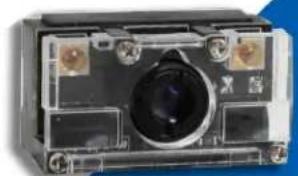
natural_image
Close-up of a mechanical device with a central lens and control buttons (no visible text or symbols)
natural_image
Close-up of a green printed circuit board with visible traces and components (no readable text or symbols)Disclaimer
© 2013 Fujian Newland Auto-ID Tech. Co., Ltd. All rights reserved.
Please read through the manual carefully before using the product and operate it according to the manual. It is advised that you should keep this manual for future reference.
Do not disassemble the device or remove the seal label from the device. Otherwise, Fujian Newland Auto-ID Tech. Co., Ltd. does not assume responsibility for the warranty or replacement.
All pictures in this manual are for reference only and actual product may differ. Regarding to the product modification and update, Fujian Newland Auto-ID Tech. Co., Ltd. reserves the right to make changes to any software or product to improve reliability, function, or design at any time without notice. Besides, the information contained herein is subject to change without prior notice.
The products depicted in this manual may include software copyrighted by Fujian Newland Auto-ID Tech. Co., Ltd or a third party. The user, corporation or individual, shall not duplicate, in whole or in part, distribute, modify, decompile, disassemble, decode, reverse engineer, rent, transfer or sublicense such software without prior written consent from the copyright holders.
This manual is copyrighted. No part of this publication may be reproduced, distributed or used in any form without written permission from Newland.
Fujian Newland Auto-ID Tech. Co., Ltd. reserves the right to make final interpretation of the statement above.
Fujian Newland Auto-ID Tech. Co., Ltd.
3F, Building A, No.1, Rujiang Xi Rd., Mawei, Fuzhou, Fujian, P.R. China. 350015.
http://www.nlscan.com
Revision History
| Version | Description | Date |
| V1.0.0 | Initial release. | July 12, 2013 |
Table of Contents
Revision History....- 3 -
Chapter 1 Getting Started....1
Introduction ...... 1
About This Guide .... 1
Connecting EVK to PC....1
Barcode Scanning....1
Barcode Programming 2
Factory Defaults....3
Custom Defaults....3
Product Information....4
Chapter 2 Communication Interfaces ....5
Introduction 5
Serial Communication Interface....5
Baud Rate....6
Parity Check....7
Data Bit 7
Stop Bit....8
Hardware Flow Control 8
USB Interface....9
USB-DataPipe....9
USB COM Port Emulation 9
USB HID-KBW 9
USB Country Keyboard Types 10
Beep on Unknown Character 12
Emulate ALT+Keypad....12
Function Key Mapping....13
Inter-Keystroke Delay....14
Caps Lock....14
Convert Case....15
Emulate Numeric Keypad....16
HID-POS 17
Acquire Scanned Data....18
VID/PID....18
Chapter 3 Scan Mode....19
Trigger Mode....19
Sense Mode....19
Decode Session Timeout....20
Timeout between Decodes (Same Barcode) 21
Continuous Mode 22
Timeout between Decodes (Same Barcode) 23
Chapter 4 Scanning Preferences....24
Introduction 24
Decode Area 24
Whole Area Decoding 24
Central Area Decoding....24
Specify Central Area 25
Chapter 5 Illumination & Aiming....26
Illumination....26
Aiming 27
Chapter 6 Beep & LED Indications....28
Introduction 28
Startup Beep 28
Good Read Beep 28
Good Read Beep Type 29
Good Read Beep Volume 29
Additional Settings for Type 1 30
Beep Duration....30
Beep Frequency 31
LED Notification 32
Good Read LED 32
Good Read LED Duration....32
Chapter 7 Data Formatting....33
Introduction 33
General Settings 34
Enable/Disable All Prefix/Suffix 34
Prefix Sequences....34
AIM ID Prefix 35
Code ID Prefix 35
Restore All Default Code IDs....36
Modify Code ID 36
Custom Prefix....40
Enable/Disable Custom Prefix....40
Set Custom Prefix....40
Custom Suffix....41
Enable/Disable Custom Suffix 41
Set Custom Suffix 41
Data Packing....42
Normal Pack 42
Terminating Character Suffix....43
Enable/Disable Terminating Character Suffix....43
Set Terminating Character Suffix....44
Chapter 8 Symbologies ....45
General Settings 45
Enable/Disable All Symbologies....45
Enable/Disable 1D Symbologies....45
Enable/Disable 2D Symbologies 45
1D Symbologies....46
Code 128 46
Restore Factory Defaults....46
Enable/Disable Code 128....46
Set Length Range for Code 128 46
GS1-128 (UCC/EAN-128) 47
Restore Factory Defaults....47
Enable/Disable GS1-128 47
EAN-8 48
Restore Factory Defaults....48
Enable/Disable EAN-8....48
Transmit Check Digit 48
Add-On Code....49
EAN-8 Extension 50
EAN-13 51
Restore Factory Defaults....51
Enable/Disable EAN-13....51
Transmit Check Digit 51
Add-On Code....52
ISBN....53
Restore Factory Defaults....53
Transmit System Character "0" 55
UPC-E Extension....56
UPC-A 57
Restore Factory Defaults....57
Enable/Disable UPC-A 57
Transmit Check Digit 57
Add-On Code....58
Transmit Preamble Character "0"....58
Interleaved 2 of 5....59
Restore Factory Defaults....59
Enable/Disable Interleaved 2 of 5....59
Set Length Range for Interleaved 2 of 5....59
Check Digit Verification 60
Set Discrete Lengths for Interleaved 2 of 5....61
ITF-14 62
ITF-6....63
Matrix 2 of 5....64
Restore Factory Defaults....64
Enable/Disable Matrix 2 of 5 64
Set Length Range for Matrix 2 of 5....64
Check Digit Verification 65
Code 39 66
Restore Factory Defaults....66
Enable/Disable Code 39....66
Set Length Range for Code 39....66
Check Digit Verification 67
Transmit Start/Stop Character....68
Enable/Disable Code 39 Full ASCII 68
Codabar 69
Restore Factory Defaults....69
Enable/Disable Codabar 69
Set Length Range for Codabar 69
Check Digit Verification 70
Transmit Start/Stop Character 71
Start/Stop Character Format....71
Code 93 72
Restore Factory Defaults....72
Enable/Disable Code 93....72
Set Length Range for Code 93 72
Check Digit Verification 73
GS1-Databar (RSS) 74
Restore Factory Defaults....74
Enable/Disable GS1 Databar 74
Transmit Application Identifier "01" 74
GS1 Composite Code....75
Restore Factory Defaults....75
Enable/Disable GS1 Composite Code....75
EAN/UPC Composite 75
Code 11....76
Restore Factory Defaults....76
Enable/Disable Code 11....76
Set Length Range for Code 11....76
Transmit Check Digit 77
Check Digit Verification 77
Industrial 2 of 5 78
Restore Factory Defaults....78
Enable/Disable Industrial 2 of 5 78
Set Length Range for Industrial 2 of 5 78
Check Digit Verification 79
Standard 25....80
Restore Factory Defaults....80
Enable/Disable Standard 25....80
Set Length Range for Standard 25....80
Check Digit Verification 81
Plessey 82
Restore Factory Defaults....82
Enable/Disable Plessey....82
Set Length Range for Plessey 82
Check Digit Verification 83
MSI-Plessey 84
Restore Factory Defaults....84
Enable/Disable MSI-Plessey 84
Set Length Range for MSI-Plessey 84
Transmit Check Digit 85
Check Digit Verification 85
2D Symbologies 86
PDF417 86
Restore Factory Defaults....86
Enable/Disable PDF417 86
Set Length Range for PDF417 86
PDF417 Inverse....87
PDF417 Twin Code 88
QR Code....89
Restore Factory Defaults....89
Enable/Disable QR Code 89
Set Length Range for QR Code 89
QR Twin Code 90
Aztec Code 91
Restore Factory Defaults....91
Enable/Disable Aztec Code 91
Set Length Range for Aztec Code....91
Read Multi-barcodes on an Image 92
Set the Number of Barcodes....93
Data Matrix....94
Restore Factory Defaults....94
Enable/Disable Data Matrix....94
Set Length Range for Data Matrix....94
Rectangular Barcode....95
Data Matrix Inverse 95
Data Matrix Twin Code 96
Maxicode....97
Restore Factory Defaults....97
Enable/Disable Maxicode....97
Set Length Range for Maxicode....97
Chinese Sensible Code 98
Restore Factory Defaults....98
Enable/Disable Chinese Sensible Code 98
Set Length Range for Chinese Sensible Code 98
Chinese Sensible Code Inverse 99
Chapter 9 Troubleshooting ....100
FAQ....100
Appendix 102
Appendix 1: Factory Defaults Table....102
Appendix 2: AIM ID Table....108
Appendix 3: Code ID Table 109
Appendix 4: ASCII Table 110
Appendix 5: Country Code Table ...... 114
Appendix 6: ASCII Function Key Mapping Table....115
Appendix 7: Symbology ID Number....117
Appendix 8: Parameter Programming Examples ...... 118
a. Program the Decode Session Timeout.... 118
b. Program the Timeout between Decodes (Same Barcode) 118
c. Program the Central Area.... 118
d. Program the Duration of Good Read Beep (Type 1).... 119
e. Program the Frequency of Good Read Beep (Type 1)....119
f. Program the Good Read LED Duration.... 119
g. Program the Custom Prefix/Suffix 120
h. Program the Terminating Character Suffix 120
i. Program the Code ID....120
j. Program the Length Range (Maximum/Minimum Lengths) for a Symbology 121
k. Program the Discrete Lengths for Interleaved 2 of 5 ....122
Appendix 9: F-Key Barcodes....123
Appendix 10: Digit Barcodes....125
Appendix 11: Save/Cancel Barcodes .... 127
Chapter 1 Getting Started
Introduction
The EM2045 series embedded 2D barcode scan engines, armed with CMOS imaging technology and the state-of-the-art Newland patented UIMG ^® , a computerized image recognition system, feature fast scanning and accurate decoding on barcodes printed on paper and magnetic cards. The EM2045s can be easily integrated into OEM equipments or systems, such as hand-held, portable, or stationary barcode scanners.
Moreover, the EM2045s' fully open image acquisition interface, data interface and I/O interface allow OEM developers to accommodate their special integration needs. EM2045 Software Development Kit is provided for easy and quick development of OEM applications.
About This Guide
This guide provides programming instructions for the EM2045. Users can configure the EM2045 by scanning the programming barcodes included in this manual.
The EM2045 has been properly configured for most applications and can be put into use without further configuration. Users may check the Appendix 1: Factory Defaults Table for reference. Throughout the manual, asterisks (**) indicate factory default values.
Connecting EVK to PC
The EVK tool is provided to assist users in application development for the EM2045. You can connect the EVK to PC via a USB connection or an RS-232 connection. In case of USB connection, a driver is required if the EVK wants to communicate with EM2045 and receive decoded data through virtual serial port.
Barcode Scanning
Powered by area-imaging technology and Newland patented UI/ME technology, the EM2045 features fast scanning and accurate decoding. Barcodes rotated at any angle can still be read with ease. When scanning a barcode, simply center the aiming beam projected by the EM2045 over the barcode.
Barcode Programming
Scanning the Enter Setup barcode can enable the engine to enter the setup mode. Then you can scan a number of programming barcodes to configure your engine. To exit the setup mode, scan the Exit Setup barcode.
If the engine has exited the setup mode, only some special programming barcodes, such as the Enter Setup barcode and Restore All Factory Defaults barcode, can be read.
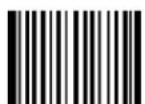
0006010
Enter Setup
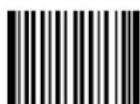
0006000
** Exit Setup
Programming barcode data (i.e. the characters under programming barcode) can be transmitted to the Host. Scan the appropriate barcode below to enable or disable the transmission of programming barcode data to the Host.

0002010
Transmit Programming Barcode Data

0002000
** Do Not Transmit Programming Barcode Data
Factory Defaults
Scanning the following barcode can restore the engine to the factory defaults. See the Appendix 1: Factory Defaults Table for more information.
Restoring the engine to factory defaults will not remove custom defaults stored on the engine.

Restore All Factory Defaults
Note: Use this feature with discretion.
Custom Defaults
Besides factory defaults, you can also create your custom defaults to cater for a specific application. Scanning the Restore All Custom Defaults barcode can reset all parameters to the custom defaults. Restoring the engine to custom defaults will not remove factory defaults stored on the engine.
Scanning the Save as Custom Defaults can set the current setting as custom default.
Custom defaults are stored in the non-volatile memory.
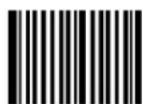
0001150
Save as Custom Defaults

0001160
Restore All Custom Defaults
Product Information
Obtain Product Information: Transmit the product information to the Host straight away via the communication interface.
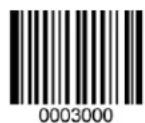
Obtain Product Information
Send Product Information at Startup: Transmit the product information to the Host when the engine is powered on. This feature only applies to engines using a serial communication interface.
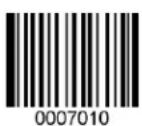
Send Product Information at Startup

Do Not Send Product Information at Startup
Chapter 2 Communication Interfaces
Introduction
The EM2045 engine provides a TTL-232 interface and a USB interface to communicate with the host device. The host device can receive scanned data and send commands to control the engine or to access/alter the configuration information of the engine via the TTL-232 or USB interface.
Serial Communication Interface
Serial communication interface is usually used when connecting the engine to a host device (like PC, POS). However, to ensure smooth communication and accuracy of data, you need to set communication parameters (including baud rate, parity check, data bit and stop bit) to match the host device.
The serial communication interface provided by the engine is usually based on TTL-level signals. TTL-232 can be used for most application architectures. For those requiring RS-232, an external conversion circuit is needed.
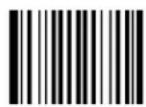
1100000
Serial Communication
Default serial communication parameters are listed below. Make sure all parameters match the host requirements.
| Parameter | Factory Default |
| Serial Communication | Standard TTL-232 |
| Baud Rate | 9600 |
| Parity Check | None |
| Number of Data Bits | 8 |
| Number of Stop Bits | 1 |
| Hardware Flow Control | None |
Baud Rate
Baud rate is the number of bits of data transmitted per second. Set the baud rate to match the Host requirements.

0100030
** Baud Rate 9600
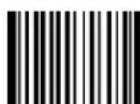
0100050
Baud Rate 19200

0100000
Baud Rate 1200

0100060
Baud Rate 38400

0100010
Baud Rate 2400
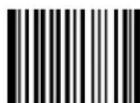
0100070
Baud Rate 57600
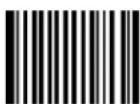
0100020
Baud Rate 4800
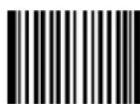
0100080
Baud Rate 115200

0100040
Baud Rate 14400
Parity Check

0101000
** None

0101010
Even Parity

0101020
Odd Parity
Data Bit

0103030
** 8 Data Bits

0103010
6 Data Bits

0103020
7 Data Bits
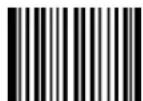
0103000
5 Data Bits
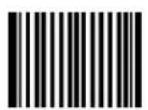
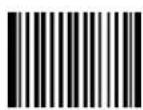
Stop Bit
0102000
** 1 Stop Bit
0102010
2 Stop Bits
Hardware Flow Control
If this feature is enabled, the engine determines whether to transmit data based on CTS signal level. When CTS signal is at low level which means the serial port's cache memory of receiving device (such as PC) is full, the engine will not send data through serial port until CTS signal is set to high level by receiving device. When the engine is not ready for receiving, it will set RTS signal to low level. When sending device (such as PC) detects it, it will not send data to the engine any more to prevent data loss.
If this feature is disabled, reception/transmission of serial data will not be influenced by RTS/CTS signal.

text_image
0104010 Enable Hardware Flow Control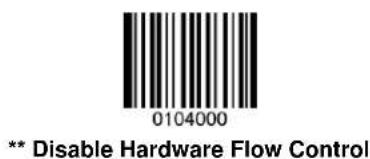
text_image
0104000 ** Disable Hardware Flow ControlNote: Before enabling this feature, make sure that RTS/CTS signal line is contained in RS-232 cable. Without the signal line, serial communication errors will occur.
USB Interface
USB-DataPipe
A driver is required when using this protocol to communicate with the engine. Its advantages include fast data transmissoin and easy to use.
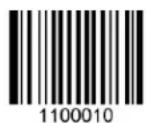
USB-DataPipe
USB COM Port Emulation
If you connect the engine to the Host via a USB connection, the USB COM Port Emulation feature allows the Host to receive data in the way as a serial port does. A driver is required for this feature.

USB COM Port Emulation
USB HID-KBW
When you connect the engine to the Host via a USB connection, you can enable the USB HID-KBW feature by scanning the barcode below. Then engine's transmission will be simulated as USB keyboard input. The Host receives keystrokes on the virtual keyboard. It works on a Plug and Play basis and no driver is required.

USB HID-KBW
USB Country Keyboard Types
Keyboard layouts and country codes vary from country to country. All supported keyboard types are listed in the Country Code Table. The default setting is US keyboard type.
To learn how to select a keyboard type, see the example below.
Select Country Code
Country Code Table (Appendix 5)
| Country/Language | Code | Country/Language | Code |
| U.S. | 0 | Netherlands(Dutch) | 14 |
| Belgium | 1 | Norway | 15 |
| Brazil | 2 | Poland | 16 |
| Canada(French) | 3 | Portugal | 17 |
| Czechoslovakia | 4 | Romania | 18 |
| Denmark | 5 | Russia | 19 |
| Finland(Swedish) | 6 | Slovakia | 21 |
| France | 7 | Spain | 22 |
| Germany/Austria | 8 | Sweden | 23 |
| Greece | 9 | Switzerland(German) | 24 |
| Hungary | 10 | Turkey F | 25 |
| Israel(Hebrew) | 11 | Turkey Q | 26 |
| Italy | 12 | U.K. | 27 |
| Latin-American | 13 | Japan | 28 |
Example: Program the engine to emulate Norwegian keyboard (Norway)
- Scan the Enter Setup barcode.
- Scan the Select Country Code barcode.
- Check the country code for Norway in the Country Code Table. (Norway: 15)
- Scan the numeric barcodes "1" and "5".
- Scan the Save barcode.
- Scan the Exit Setup barcode.
Beep on Unknown Character
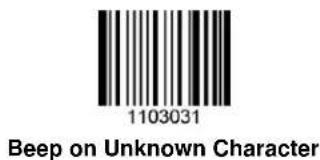
Due to the differences in keyboard layouts, some characters contained in barcode data may be unavailable on the selected keyboard. As a result, the engine fails to transmit the unknown characters.
Scan the appropriate barcode below to enable or disable the emission of beep when an unknown character is detected.
text_image
1103031 Beep on Unknown Character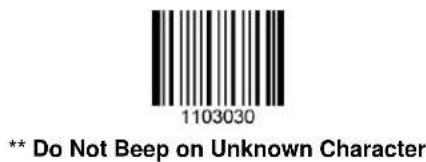
text_image
1103030 ** Do Not Beep on Unknown CharacterEmulate ALT+Keypad
When Emulate ALT+Keypad is turned on, any ASCII character (0x00 - 0xff) is sent over the numeric keypad no matter which keyboard type is selected. Since sending a character involves multiple keystroke emulations, this method appears less efficient.

text_image
1103061 Emulate ALT+Keypad ON
text_image
1103060 ** Emulate ALT+Keypad OFFWhen Function Key Mapping is enabled, function characters (0x00 - 0x1F) are sent as ASCII sequences over the numeric keypad. For more information, see the Appendix 6: ASCII Function Key Mapping Table.
A shortcut to send a function key (F1-F12) is to scan the corresponding barcode in Appendix 9: F-Key Barcodes.
Note: Emulate ALT+Keypad ON prevails over Enable Function Key Mapping.

1103140
Enable Function Key Mapping

1103130
** Disable Function Key Mapping
Example: Barcode data 0x16
 T T | Enable Function Key Mapping | Ctrl+V |
| Disable Function Key Mapping | F1 |
Inter-Keystroke Delay
This parameter specifies the delay between emulated keystrokes.

1103050
** No Delay

1103051
Short Delay (20ms)

1103052
Long Delay (40ms)
Caps Lock
The Caps Lock ON option can invert upper and lower case characters contained in barcode data. This inversion occurs regardless of the state of Caps Lock key on the Host's keyboard.

1103020
Caps Lock ON
1103010
** Caps Lock OFF
Note: Emulate ALT+Keypad ON/ Convert All to Upper Case/ Convert All to Lower Case prevails over Caps Lock ON.
Example: When the Caps Lock ON is selected, barcode data "AbC" is transmitted as "aBc".
Convert Case
Scan the appropriate barcode below to convert barcode data to your desired case.

1103040
** No Case Conversion

1103041
Convert All to Upper Case

1103042
Convert All to Lower Case
Example: When the Convert All to Lower Case feature is enabled, barcode data "AbC" is transmitted as "abc".
Emulate Numeric Keypad
When this feature is disabled, sending barcode data is emulated as keystroke(s) on main keyboard.
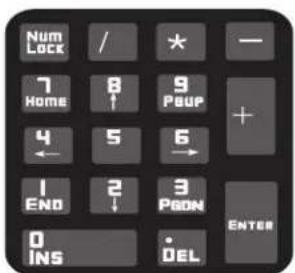
To enable this feature, scan the Emulate Numeric Keypad barcode. Sending a number (0-9) is emulated as keystroke(s) on numeric keypad, whereas sending other character like “+”, “_”, “*”, “/” and “.” is still emulated as keystrokes on main keyboard.
Numeric keypad is usually situated at the right of the main keyboard. The state of Num Lock on the simulated numeric keypad is determined by its equivalent on the Host. If Num Lock on the Host is turned off, the output of simulated numeric keypad is function key instead of number.

text_image
1103120 Emulate Numeric Keypad
text_image
1103110 ** Do Not Emulate Numeric KeypadNote: Make sure the Num Lock light of the Host is turned ON before enabling this feature.
Simulate ALT+Keypad ON prevails over Emulate Numeric Keypad.
Example: Supposing the Emulate Numeric Keypad feature is enabled:
if Num Lock on the Host is ON, "A4.5" is transmitted as "A4.5";
if Num Lock on the Host is OFF, "A4.5" is transmitted as follows:
- "A" is sent as is because it is not included in numeric keypad;
- "4" is sent as the function key "Cursor Move to Left";
- “.” is sent as the function key “Delete after the Cursor”;
- "5" is not sent as it does not correspond to any function key.
text_image
Num Lock / * — 7 Home 8 ↑ 9 P8UP + 4 ← 5 6 → 1 END 2 ↓ 3 PGDN ENTER 0 INS DELHID-POS
The HID-POS interface is recommended for new application programs. It can send up to 56 characters in a single USB report and appears more efficient than keyboard emulation.
Features:
✿ HID based, no custom driver required.
* Way more efficient in communication than keyboard emulation and traditional RS-232 interface.
Note: HID-POS does not require a custom driver. However, a HID interface on Windows 98 does. All HID interfaces employ standard driver provided by the operating system. Use defaults when installing the driver.
1100080
HID-POS
Access the engine with your program:
- Use CreateFile to access the engine as a HID device.
- Use ReadFile to deliver the scanned data to the application program.
- Use WriteFile to send data to the engine.
For detailed information about USB and HID interfaces, go to www.USB.org.
Acquire Scanned Data
After a barcode is decoded, the engine sends an input report as below:
| Bit | ||||||||
| Byte | 7 | 6 | 5 | 4 | 3 | 2 | 1 | 0 |
| 0 | Report ID = 0x02 | |||||||
| 1 | Barcode Length | |||||||
| 2-57 | Decoded Data (1-56) | |||||||
| 58-61 | Reserved (1-4) | |||||||
| 62 | Symbology ID Number (Appendix 7) or N/C: 0x00 | |||||||
| 63 | - | - | - | - | - | - | - | Decoded DataContinued |
VID/PID
USB uses VID (Vendor ID) and PID (Product ID) to identify and locate a device. The VID is assigned by USB Implementers Forum. Newland's vendor ID is 1EAB (Hex). A range of PIDs are used for each Newland product family. Every PID contains a base number and interface type.
| Product | Interface | PID (Hex) | PID (Dec) |
| EM2045 | Base | 0000 | 0 |
| HID-POS | 0001 | 1 |
Chapter 3 Scan Mode
Trigger Mode
If the Trigger Mode is enabled, receiving an active trigger signal activates a decode session. The session continues until the barcode is decoded or the active signal is no longer present. For good decode, the engine transmits decoded data via communication port. To activate another session, the Host needs to first terminate the trigger signal, wait 20ms or longer and then send an active signal.
Trigger Mode
Sense Mode
If the Sense Mode is enabled, the engine activates a decode session every time it detects a change in ambient illumination. The decode session continues until the barcode is decoded or the Decode Session Timeout expires.
Receiving a trigger signal can also activate a decode session. The decode session continues until the trigger signal becomes invalid or the barcode is decoded or the Decode Session Timeout expires. The trigger signal needs to be terminated before the engine is able to monitor ambient illumination again.

0302010
** Sense Mode
Decode Session Timeout
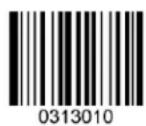
This parameter sets the maximum time decode session continues during a scan attempt in the Sense Mode. It is programmable in 1ms increments from 500ms to 3,600,000ms. The default timeout is 3,000ms. To learn how to program this parameter, see the a. Program the Decode Session Timeout in Appendix 8.

0313000
Decode Session Timeout
Timeout between Decodes (Same Barcode)
Timeout between Decodes (Same Barcode) can avoid undesired rereading of same barcode in a given period of time.
This parameter sets the timeout between decodes for same barcode in the Sense Mode. It is programmable in 1ms increments from 0ms to 3,600,000ms. The default timeout is 1,500ms.
To learn how to program this parameter, see the b. Program the Timeout between Decodes (Same Barcode) in Appendix 8.
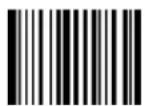
Timeout between Decodes (Same Barcode)
Disable Timeout between Decodes: Allow the engine to re-read same barcode.
Enable Timeout between Decodes: Do not allow the engine to re-read same barcode before the Timeout between Decodes (Same Barcode) expires.
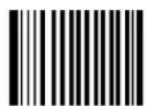
0313020
** Disable Timeout between Decodes

0313030
Enable Timeout between Decodes
Continuous Mode
This mode enables the engine to scan/capture, decode and transmit over and over again.
If the Continuous Mode is enabled, the engine suspends/resumes barcode reading through control over the trigger signal. When barcode reading is in progress, terminating the trigger signal after having kept it valid for 30ms or longer will suspend barcode reading; when barcode reading is suspended, performing the same control over the trigger signal will resume barcode reading.
0302020
Continuous Mode
Timeout between Decodes (Same Barcode)
Timeout between Decodes (Same Barcode) can avoid undesired rereading of same barcode in a given period of time.
This parameter sets the timeout between decodes for same barcode in the Continuous Mode. It is programmable in 1ms increments from 0ms to 3,600,000ms. The default timeout is 1,500ms.
To learn how to program this parameter, see the b. Program the Timeout between Decodes (Same Barcode) in Appendix 8.
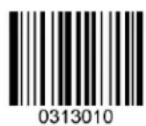
Timeout between Decodes (Same Barcode)
Disable Timeout between Decodes: Allow the engine to re-read same barcode.
Enable Timeout between Decodes: Do not allow the engine to re-read same barcode before the Timeout between Decodes (Same Barcode) expires.
0313020
** Disable Timeout between Decodes

0313030
Enable Timeout between Decodes
Chapter 4 Scanning Preferences
Introduction
This chapter contains information as to how to adapt your engine to various applications with preference setting. For instance, to narrow the field of view of the engine to make sure it reads barcodes intended by the user only.
Decode Area
Whole Area Decoding
When this option is enabled, the engine attempts to decode barcode(s) within its field of view, from the center to the periphery, and transmits the barcode that has been first decoded.
** Whole Area Decoding
Central Area Decoding
The engine attempts to decode barcode(s) within a specified central area and transmits the barcode that has been first decoded. This option allows the engine to narrow its field of view to make sure it reads only those barcodes intended by the user. For instance, if multiple barcodes are placed closely together, central area decoding in conjunction with appropriate pre-defined central area will insure that only the desired barcode is read.

Central Area Decoding

0006000
** Exit Setup
Specify Central Area
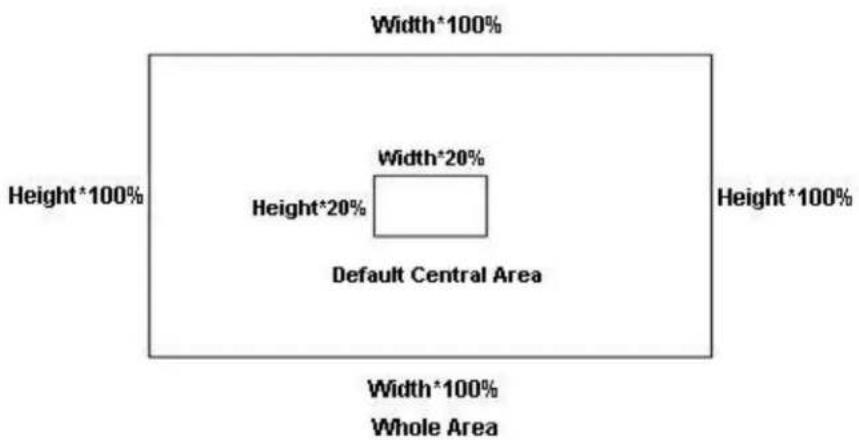
The default central area is a (Width*20%) by (Height*20%) area in the center of the engine's field of view, as shown in the figure below. You can define the central area by scanning the Specify Central Area barcode and numeric barcode(s) corresponding to a desired percentage (1-100). If Central Area Decoding is enabled by scanning the Central Area Decoding barcode, the engine only reads barcodes that intersect the predefined central area.
text_image
Width*100% Height*100% Width*20% Height*20% Default Central Area Width*100% Whole Area Height*100%To learn how to program this parameter, see the c. Program the Central Area in Appendix 8.

Specify Central Area
Chapter 5 Illumination & Aiming
Illumination
A couple of illumination options are provided to improve the lighting conditions during every image capture:
Normal: Illumination LEDs are turned on during image capture.
Always ON: Illumination LEDs keep ON after the engine is powered on.
OFF: Illumination LEDs are OFF all the time.

0200000
** Normal

0200010
Always ON
0200020
OFF
Aiming
When scanning/capturing image, the engine projects an aiming pattern which allows positioning the target barcode within its field of view and thus makes decoding easier.
Normal: The engine projects an aiming pattern only during barcode scanning/capture.
Always ON: Aiming pattern is constantly ON after the engine is powered on.
OFF: Aiming pattern is OFF all the time.
0201000
** Normal

0201010
Always ON
0201020
OFF
Chapter 6 Beep & LED Indications
Introduction
Besides communication output, the engine can also generate a PWM signal and a pulse signal. Those outputs in conjunction with external circuits are able to drive the beeper/LED indicator.
This chapter describes how to program the beep/LED notification feature.
Startup Beep
If startup beep is enabled, the engine will beep after being turned on.
0204001
** Enable Startup Beep
0204000
Disable Startup Beep
Good Read Beep
The engine can be configured to beep after good decode. Beep type (frequency) and volume (duty circle of PWM) are also user programmable.

0203010
** Good Read Beep On
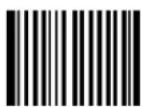
0203000
Good Read Beep Off

0006000
** Exit Setup
Good Read Beep Type
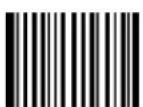
0203020
** Type 1

0203021
Type 2

0203022
Type 3
Good Read Beep Volume
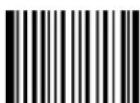
0203030
** Loud
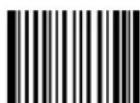
0203032
Low

0203031
Medium
Additional Settings for Type 1
Beep duration and frequency settings are designed only for Type 1 (which is a single tone) to serve specific applications.
Beep Duration
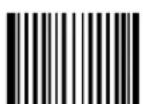
0203050
** 80ms
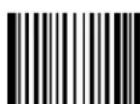
0203051
40ms
To learn how to program custom duration, see the d. Program the Duration of Good Read Beep (Type 1) in Appendix 8.

0203052
Custom (20\~300ms)
Beep Frequency
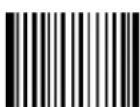
0203060
800Hz
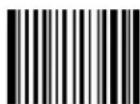
0203061
1600Hz

0203062
**2730Hz
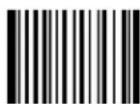
0203063
4200Hz
You may select the frequency same as the center frequency of your buzzer. To learn how to program custom frequency, see the e. Program the Frequency of Good Read Beep (Type 1) in Appendix 8.
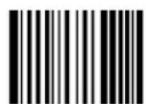
0203064
Custom (20\~20000 Hz)
LED Notification
Good Read LED
Note: This feature is available to all scan modes.
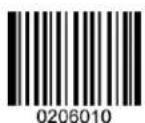
Good Read LED Off
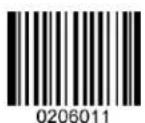
** Good Read LED On
Good Read LED Duration
The user can set the LED notification duration for good read.
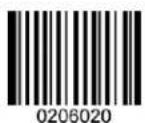
** Short (20ms)
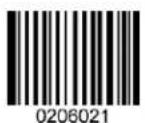
Medium (120ms)

Long (220ms)
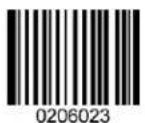
Prolonged (320ms)
To learn how to program custom duration, see the f. Program the Good Read LED Duration in Appendix 8.
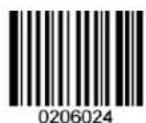
Custom (1 - 10000ms)
Chapter 7 Data Formatting
Introduction
In many applications, barcode data needs to be edited and distinguished from one another.
Usually AIM ID and Code ID can be used as identifiers, but in some special cases customized prefix and terminating character suffix like Carriage Return (CR) or Line Feed (LF) can also be the alternatives.
Data formatting often refers to appending prefix/suffix to original data, data packing, etc.
Data formatting procedure:
Append AIM ID/Code ID/custom prefix before the decoded data
✧ Append custom suffix after the decoded data
✨ Pack data
✧ Append terminating character to the end of the data
General Settings
Enable/Disable All Prefix/Suffix
Disable All Prefix/Suffix: Transmit barcode data with no prefix/suffix.
Enable All Prefix/Suffix: Allow user to append Code ID prefix, AIM ID prefix, custom prefix/suffix and terminating character to the barcode data before the transmission.

0311010
Enable All Prefix/Suffix

0311000
** Disable All Prefix/Suffix
Prefix Sequences

0317010
** Code ID+Custom Prefix+AIM ID

0317040
Custom Prefix+Code ID+AIM ID
AIM ID Prefix
AIM (Automatic Identification Manufacturers) IDs and ISO/IEC 15424 standards define symbology identifiers and data carrier identifiers. (For the details, see the Appendix 2: AIM ID Table). If AIM ID prefix is enabled, the engine will add the symbology identifier before the scanned data after decoding.
Enable AIM ID Prefix

** Disable AIM ID Prefix
Code ID Prefix
Code ID can also be used to identify barcode type. Unlike AIM ID, Code ID is user programmable. Code ID can only consist of one or two English letters.

Enable Code ID Prefix
** Disable Code ID Prefix
Restore All Default Code IDs
For the information of default Code IDs, see the Appendix 3: Code ID Table.
0307020
Restore All Default Code IDs
Modify Code ID
Code ID of each symbology can be programmed separately. See the following example to learn how to program a Code ID.
Example: Set the Code ID of PDF417 to "p"
- Check the hex value of "p" in the Appendix 4: ASCII Table. ("p": 70)
- Scan the Enter Setup barcode.
- Scan the Modify PDF417 Code ID barcode.
- Scan the numeric barcodes "7" and "0". (See the Appendix 10: Digit Barcodes)
- Scan the Save barcode. (See the Appendix 11: Save/Cancel Barcodes)
- Scan the Exit Setup barcode.
Modify Code ID Barcodes

0005000
Modify PDF417 Code ID

0005030
Modify Data Matrix Code ID

0005010
Modify QR Code ID

0005040
Modify Maxicode Code ID
0005020
Modify Aztec Code ID
0005070
Modify Chinese Sensible Code ID

0004040
Modify EAN-8 Code ID
0004050
Modify EAN-13 Code ID
0004060
Modify UPC-E Code ID
0004070
Modify UPC-A Code ID
Modify Code ID Barcodes (continued)

0004020
Modify Code 128 Code ID

0004030
Modify UCC/EAN-128 Code ID

0004130
Modify Code 39 Code ID

0004170
Modify Code 93 Code ID
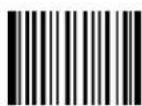
0004080
Modify Interleaved 2 of 5 Code ID
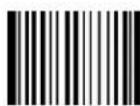
0004090
Modify ITF-14 Code ID

0004100
Modify ITF-6 Code ID
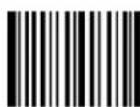
0004150
Modify Codabar Code ID

0004250
Modify Industrial 25 Code ID

0004260
Modify Standard 25 Code ID
Modify Code ID Barcodes (continued)
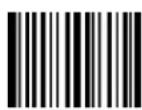
0004280
Modify Code 11 Code ID

0004270
Modify Plessey Code ID
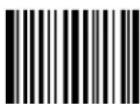
0004290
Modify MSI-Plessey Code ID
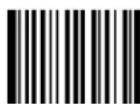
0004310
Modify GS1 Databar Code ID
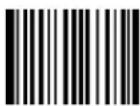
0004300
Modify Composite Code ID
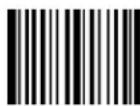
0004240
Modify ISBN Code ID

0004110
Modify Matrix 2 of 5 Code ID
Custom Prefix
Enable/Disable Custom Prefix
If custom prefix is enabled, you are allowed to append to the data a user-defined prefix that cannot exceed 10 characters.
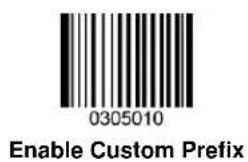
text_image
0305010 Enable Custom Prefix
text_image
0305000 ** Disable Custom PrefixSet Custom Prefix
To set this parameter, scan the Set Custom Prefix barcode, the numeric barcodes corresponding to the hexadecimal value of a desired prefix, and the Save barcode.
Note: A custom prefix cannot exceed 10 characters.

Set Custom Prefix
Example: Set the custom prefix to "CODE"
- Check the hex values of "CODE" in the ASCII Table. ("CODE": 43, 4F, 44, 45)
- Scan the Enter Setup barcode.
- Scan the Set Custom Prefix barcode.
- Scan the numeric barcodes "4", "3", "4", "F", "4", "4", "4" and "5". (See the Digit Barcodes)
- Scan the Save barcode. (See the Save/Cancel Barcodes)
- Scan the Exit Setup barcode.
Custom Suffix
Enable/Disable Custom Suffix
If custom suffix is enabled, you are allowed to append to the data a user-defined suffix that cannot exceed 10 characters.

Enable Custom Suffix

** Disable Custom Suffix
Set Custom Suffix
To set this parameter, scan the Set Custom Suffix barcode, the numeric barcodes corresponding to the hexadecimal value of a desired prefix, and the Save barcode.
Note: A custom suffix cannot exceed 10 characters.

Set Custom Suffix
Example: Set the custom suffix to "CODE"
- Check the hex values of "CODE" in the ASCII Table. ("CODE": 43, 4F, 44, 45)
- Scan the Enter Setup barcode.
- Scan the Set Custom Suffix barcode.
- Scan the numeric barcodes "4", "3", "4", "F", "4", "4", "4" and "5". (See the Digit Barcodes)
- Scan the Save barcode. (See the Save/Cancel Barcodes)
- Scan the Exit Setup barcode.
Data Packing
For some applications that require high data integrity and reliability, data packing can help you accomplish that.
Transmission of packed data needs to work with certain software on the Host.
Data packing influences data format and is not recommended for general applications.
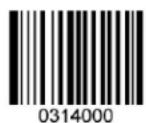
** Disable Data Packing
Normal Pack
Normal Pack format: [STX + ATTR + LEN] + [AL_TYPE + DATA] + [LRC]
STX: 0x02
ATTR: 0x00
LEN: Barcode data length is expressed in 2 bytes, ranging from 0 to 65535.
AL_TYPE: 0x36
✿ DATA: Raw barcode data.
✨ LRC: Checksum.
LRC calculation algorithm: computation sequence: 0xFF+LEN+AL_TYPE+DATA; computation method is XOR, byte by byte.
To enable normal pack, scan the following barcode.
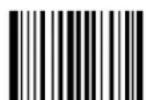
0314010
Normal Pack
Terminating Character Suffix
A terminating character, such as carriage return (CR) and line feed (LF), can be used to mark the end of data, which means nothing can be added after it.
A terminating character suffix can contain one or two characters.
Enable/Disable Terminating Character Suffix
To enable/disable terminating character suffix, scan the appropriate barcode below.
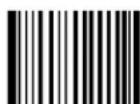
0309010
Enable Terminating Character Suffix
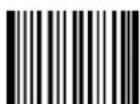
0309000
** Disable Terminating Character Suffix
Set Terminating Character Suffix
The engine provides a shortcut for setting the terminating character suffix to 0x0D (CR) or 0x0D,0x0A (CRLF) by scanning the following barcode.
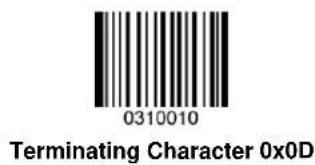
text_image
0310010 Terminating Character 0x0D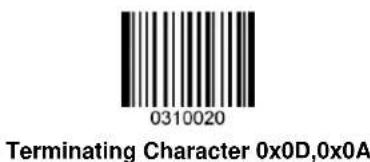
text_image
0310020 Terminating Character 0x0D,0x0ATo set a terminating character suffix, scan the Set Terminating Character Suffix barcode, the numeric barcodes corresponding to the hexadecimal value of a desired terminating character, and the Save barcode.
Note: A terminating character suffix cannot exceed 2 characters.

text_image
0310000 Set Terminating Character SuffixExample: Set the terminating character suffix to 0x0A
- Scan the Enter Setup barcode.
- Scan the Set Terminating Character Suffix barcode.
- Scan the numeric barcodes "0" and "A".
- Scan the Save barcode.
- Scan the Exit Setup barcode.
Chapter 8 Symbologies
General Settings
Enable/Disable All Symbologies
If the Disable All Symbologies feature is enabled, the engine can only identify the programming barcodes.
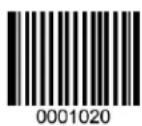
Enable All Symbologies
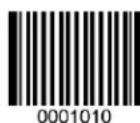
Disable All Symbologies
Enable/Disable 1D Symbologies

Enable 1D Symbologies
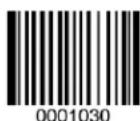
Disable 1D Symbologies
Enable/Disable 2D Symbologies
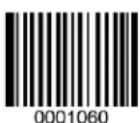
Enable 2D Symbologies
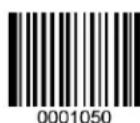
Disable 2D Symbologies
1D Symbologies
Code 128
Set Length Range for Code 128
The engine can be configured to only decode Code 128 barcodes with lengths that fall between (inclusive) the minimum and maximum lengths. To accomplish it, you need to set the minimum and maximum lengths.
For more information, see the j. Program the Length Range (Maximum/Minimum Lengths) for a Symbology in Appendix 8.
Set the Minimum Length (Default: 1)

Set the Maximum Length (Default: 48)
GS1-128 (UCC/EAN-128)
EAN-8 is 8 digits in length with the last one as its check digit used to verify the integrity of the data.

0401040
** Transmit EAN-8 Check Digit

0401030
Do Not Transmit EAN-8 Check Digit
Add-On Code
An EAN-8 barcode can be augmented with a two-digit or five-digit add-on code to form a new one. In the examples below, the part surrounded by blue dotted line is an EAN-8 barcode while the part circled by red dotted line is add-on code.

text_image
1234 567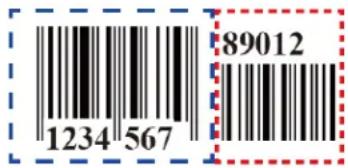
text_image
1234 567 89012
text_image
0401060 Enable 2-Digit Add-On Code
text_image
0401050 ** Disable 2-Digit Add-On Code
text_image
0401080 Enable 5-Digit Add-On Code
text_image
0401070 ** Disable 5-Digit Add-On CodeEnable 2-Digit Add-On Code/ Enable 5-Digit Add-On Code: The engine decodes a mix of EAN-8 barcodes with and without 2-digit/5-digit add-on codes.
Disable 2-Digit Add-On Code/ Disable 5-Digit Add-On Code: The engine decodes EAN-8 and ignores the add-on code when presented with an EAN-8 plus add-on barcode. It can also decode EAN-8 barcodes without add-on codes.
EAN-8 Extension
Disable EAN-8 Zero Extend: Transmit EAN-8 barcodes as is.
Enable EAN-8 Zero Extend: Add five leading zeros to decoded EAN-8 barcodes to extend to 13 digits.
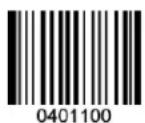
Enable EAN-8 Zero Extend
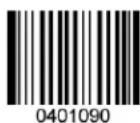
** Disable EAN-8 Zero Extend
EAN-13
Enable/Disable EAN-13
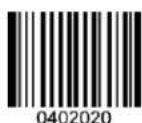
** Enable EAN-13
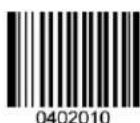
Disable EAN-13
Transmit Check Digit
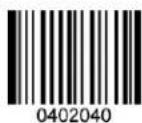
** Transmit EAN-13 Check Digit
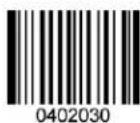
Do Not Transmit EAN-13 Check Digit
Add-On Code
An EAN-13 barcode can be augmented with a two-digit or five-digit add-on code to form a new one.
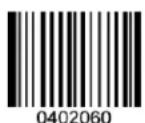
Enable 2-Digit Add-On Code
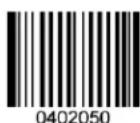
** Disable 2-Digit Add-On Code
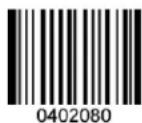
Enable 5-Digit Add-On Code
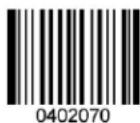
** Disable 5-Digit Add-On Code
Enable 2-Digit Add-On Code/ Enable 5-Digit Add-On Code: The engine decodes a mix of EAN-13 barcodes with and without 2-digit/5-digit add-on codes.
Disable 2-Digit Add-On Code/ Disable 5-Digit Add-On Code: The engine decodes EAN-13 and ignores the add-on code when presented with an EAN-13 plus add-on barcode. It can also decode EAN-13 barcodes without add-on codes.
ISBN
A UPC-E barcode can be augmented with a two-digit or five-digit add-on code to form a new one.

0403060
Enable 2-Digit Add-On Code

0403050
** Disable 2-Digit Add-On Code

0403080
Enable 5-Digit Add-On Code

0403070
** Disable 5-Digit Add-On Code
Enable 2-Digit Add-On Code/ Enable 5-Digit Add-On Code: The engine decodes a mix of UPC-E barcodes with and without 2-digit/5-digit add-on codes.
Disable 2-Digit Add-On Code/ Disable 5-Digit Add-On Code: The engine decodes UPC-E and ignores the add-on code when presented with a UPC-E plus add-on barcode. It can also decode UPC-E barcodes without add-on codes.
Transmit System Character "0"
The first character of UPC-E barcode is the system character "0".

0403100
Transmit System Character "0"
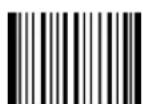
0403090
** Do Not Transmit System Character "0"
UPC-E Extension
Disable UPC-E Extend: Transmit UPC-E barcodes as is.
Enable UPC-E Extend: Extend UPC-E barcodes to make them compatible in length to UPC-A.

0403120
Enable UPC-E Extend

0403110
** Disable UPC-E Extend
UPC-A
A UPC-A barcode can be augmented with a two-digit or five-digit add-on code to form a new one.

Enable 2-Digit Add-On Code/ Enable 5-Digit Add-On Code: The engine decodes a mix of UPC-A barcodes with and without 2-digit/5-digit add-on codes.
Disable 2-Digit Add-On Code/ Disable 5-Digit Add-On Code: The engine decodes UPC-A and ignores the add-on code when presented with a UPC-A plus add-on barcode. It can also decode UPC-A barcodes without add-on codes.
Transmit Preamble Character "0"
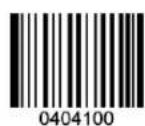
Transmit Preamble Character "0"

** Do not Transmit Preamble Character "0"
Note: The preamble character "0" usually does not appear in printed UPC-A barcodes.
Interleaved 2 of 5

Restore the Factory Defaults of Interleaved 2 of 5
Enable/Disable Interleaved 2 of 5

** Enable Interleaved 2 of 5
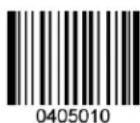
Disable Interleaved 2 of 5
Set Length Range for Interleaved 2 of 5
The engine can be configured to only decode Interleaved 2 of 5 barcodes with lengths that fall between (inclusive) the minimum and maximum lengths. To accomplish it, you need to set the minimum and maximum lengths.
For more information, see the j. Program the Length Range (Maximum/Minimum Lengths) for a Symbology in Appendix 8.
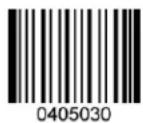
Set the Minimum Length (Default: 6)
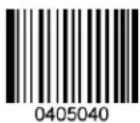
Set the Maximum Length (Default: 80)
Check Digit Verification
A check digit is optional for Interleaved 2 o 5 and can be added as the last digit. It is a calculated value used to verify the integrity of the data.
Disable: The engine transmits Interleaved 2 of 5 barcodes as is.
Do Not Transmit Check Digit After Verification: The engine checks the integrity of all Interleaved 2 of 5 barcodes to verify that the data complies with the check digit algorithm. Barcodes passing the check will be transmitted except the last digit, whereas those failing it will not be transmitted.
Transmit Check Digit After Verification: The engine checks the integrity of all Interleaved 2 of 5 barcodes to verify that the data complies with the check digit algorithm. Barcodes passing the check will be transmitted, whereas those failing it will not be transmitted.
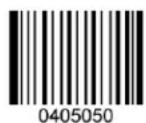
** Disable

Do Not Transmit Check Digit After Verification
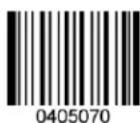
Transmit Check Digit After Verification
Note: If the Do Not Transmit Check Digit After Verification option is enabled, Interleaved 2 of 5 barcodes with a length that is less than the configured minimum length after having the check digit excluded will not be decoded. (For example, when the Do Not Transmit Check Digit After Verification option is enabled and the minimum length is set to 4, Interleaved 2 of 5 barcodes with a total length of 4 characters including the check digit cannot be read.)
Set Discrete Lengths for Interleaved 2 of 5
The engine can be configured to only decode Interleaved 2 of 5 barcodes within a specific length range or with a couple of discrete lengths.
The length must be an even number not greater than 64 and consist of three digits (a leading zero or zeros may need to be added to meet the length requirement). For more information, see the k. Program the Discrete Lengths for Interleaved 2 of 5 in Appendix 8.
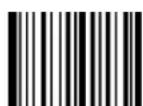
0405150
Enable the Discrete Lengths

0405140
** Disable the Discrete Lengths
The discrete lengths become valid only when the Enable the Discrete Lengths option is enabled.
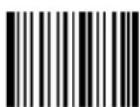
0405160
Set the Discrete Length
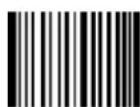
0405170
Delete the Discrete Length
ITF-14
ITF-14 is a special kind of Interleaved 2 of 5 with a length of 14 characters and the last character as the check character.

0405080
** Disable ITF-14
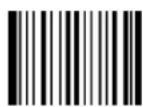
0405090
Enable ITF-14 But Do Not Transmit Check Digit
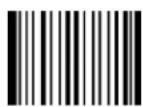
0405100
Enable ITF-14 and Transmit Check Digit
Note: It is advisable not to enable ITF-14 and Interleaved 2 of 5 at the same time.
ITF-6
ITF-6 is a special kind of Interleaved 2 of 5 with a length of 6 characters and the last character as the check character.

0405110
** Disable ITF-6
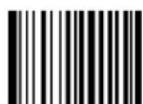
0405120
Enable ITF-6 But Do Not Transmit Check Digit
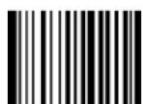
0405130
Enable ITF-6 and Transmit Check Digit
Note: It is advisable not to enable ITF-6 and Interleaved 2 of 5 at the same time.
Matrix 2 of 5
Restore the Factory Defaults of Matrix 2 of 5
Enable/Disable Matrix 2 of 5
0406020
Enable Matrix 2 of 5
0406010
** Disable Matrix 2 of 5
Set Length Range for Matrix 2 of 5
The engine can be configured to only decode Matrix 2 of 5 barcodes with lengths that fall between (inclusive) the minimum and maximum lengths. To accomplish it, you need to set the minimum and maximum lengths.
For more information, see the j. Program the Length Range (Maximum/Minimum Lengths) for a Symbology in Appendix 8.

0406030
Set the Minimum Length (Default: 4)
0406040
Set the Maximum Length (Default: 80)
Check Digit Verification
A check digit is optional for Matrix 2 of 5 and can be added as the last digit. It is a calculated value used to verify the integrity of the data.
Disable: The engine transmits Matrix 2 of 5 barcodes as is.
Do Not Transmit Check Digit After Verification: The engine checks the integrity of all Matrix 2 of 5 barcodes to verify that the data complies with the check digit algorithm. Barcodes passing the check will be transmitted except the last digit, whereas those failing it will not be transmitted.
Transmit Check Digit After Verification: The engine checks the integrity of all Matrix 2 of 5 barcodes to verify that the data complies with the check digit algorithm. Barcodes passing the check will be transmitted, whereas those failing it will not be transmitted.

** Disable

0406060
Do Not Transmit Check Digit After Verification

0406070
Transmit Check Digit After Verification
Code 39
Set Length Range for Code 39
The engine can be configured to only decode Code 39 barcodes with lengths that fall between (inclusive) the minimum and maximum lengths. To accomplish it, you need to set the minimum and maximum lengths.
For more information, see the j. Program the Length Range (Maximum/Minimum Lengths) for a Symbology in Appendix 8.

0408030
Set the Minimum Length (Default: 4)
0408040
Set the Maximum Length (Default: 48)
Check Digit Verification
A check digit is optional for Code 39 and can be added as the last digit. It is a calculated value used to verify the integrity of the data.
Disable: The engine transmits Code 39 barcodes as is.
Do Not Transmit Check Digit After Verification: The engine checks the integrity of all Code 39 barcodes to verify that the data complies with the check digit algorithm. Barcodes passing the check will be transmitted except the last digit, whereas those failing it will not be transmitted.
Transmit Check Digit After Verification: The engine checks the integrity of all Code 39 barcodes to verify that the data complies with the check digit algorithm. Barcodes passing the check will be transmitted, whereas those failing it will not be transmitted.

** Disable
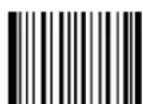
0408060
Do Not Transmit Check Digit After Verification

0408070
Transmit Check Digit After Verification
Transmit Start/Stop Character
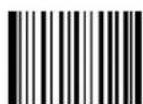
0408090
** Transmit Start/Stop Character
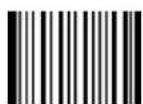
0408080
Do Not Transmit Start/Stop Character
Enable/Disable Code 39 Full ASCII
By default, the engine is only able to read some ASCII characters. You can configure your engine to identify all ASCII characters by scanning the appropriate barcode below.

0408110
Enable Code 39 Full ASCII

0408100
** Disable Code 39 Full ASCII
Codabar
Set Length Range for Codabar
The engine can be configured to only decode Codabar barcodes with lengths that fall between (inclusive) the minimum and maximum lengths. To accomplish it, you need to set the minimum and maximum lengths.
For more information, see the j. Program the Length Range (Maximum/Minimum Lengths) for a Symbology in Appendix 8.

Set the Minimum Length (Default: 2)

Set the Maximum Length (Default: 60)
Check Digit Verification
A check digit is optional for Codabar and can be added as the last digit. It is a calculated value used to verify the integrity of the data.
Disable: The engine transmits Codabar barcodes as is.
Do Not Transmit Check Digit After Verification: The engine checks the integrity of all Codabar barcodes to verify that the data complies with the check digit algorithm. Barcodes passing the check will be transmitted except the last digit, whereas those failing it will not be transmitted.
Transmit Check Digit After Verification: The engine checks the integrity of all Codabar barcodes to verify that the data complies with the check digit algorithm. Barcodes passing the check will be transmitted, whereas those failing it will not be transmitted.
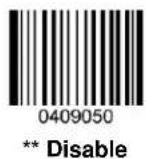
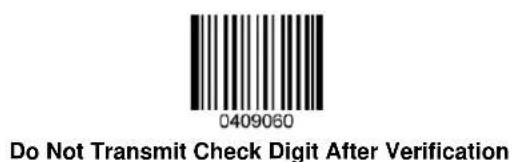
text_image
0409060 Do Not Transmit Check Digit After Verification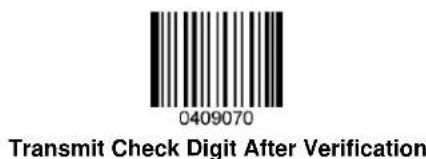
text_image
0409070 Transmit Check Digit After VerificationTransmit Start/Stop Character
** Transmit Start/Stop Character

Do Not Transmit Start/Stop Character
Start/Stop Character Format
You can choose your desired start/stop characters format by scanning the appropriate barcode below.
** ABCD/ABCD as the Start/Stop Character
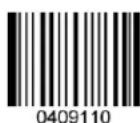
ABCD/TN*E as the Start/Stop Character

** Start/Stop Character in Uppercase
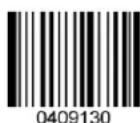
Start/Stop Character in Lowercase
Code 93
Set Length Range for Code 93
The engine can be configured to only decode Code 93 barcodes with lengths that fall between (inclusive) the minimum and maximum lengths. To accomplish it, you need to set the minimum and maximum lengths.
For more information, see the j. Program the Length Range (Maximum/Minimum Lengths) for a Symbology in Appendix 8.

0410030
Set the Minimum Length (Default: 1)
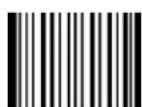
0410040
Set the Maximum Length (Default: 48)
Check Digit Verification
Check digits are optional for Code 93 and can be added as the last two digits, which are calculated values used to verify the integrity of the data.
Disable: The engine transmits Code 93 barcodes as is.
Do Not Transmit Check Digit After Verification: The engine checks the integrity of all Code 93 barcodes to verify that the data complies with the check digit algorithm. Barcodes passing the checks will be transmitted except the last two digits, whereas those failing them will not be transmitted.
Transmit Check Digit After Verification: The engine checks the integrity of all Code 93 barcodes to verify that the data complies with the check digit algorithm. Barcodes passing the checks will be transmitted, whereas those failing them will not be transmitted.
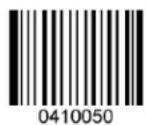
** Disable

Do Not Transmit Check Digit After Verification
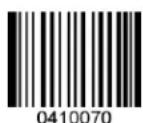
Transmit Check Digit After Verification
GS1-Databar (RSS)
Transmit Application Identifier "01"

** Transmit Application Identifier "01"
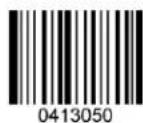
Do Not Transmit Application Identifier "01"
GS1 Composite Code
When EAN/UPC Composite is enabled, the engine will not be able to read standard EAN/UPC barcodes.

Enable EAN/UPC Composite
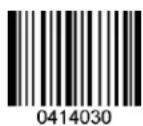
** Disable EAN/UPC Composite
Code 11
Set Length Range for Code 11
The engine can be configured to only decode Code 11 barcodes with lengths that fall between (inclusive) the minimum and maximum lengths. To accomplish it, you need to set the minimum and maximum lengths.
For more information, see the j. Program the Length Range (Maximum/Minimum Lengths) for a Symbology in Appendix 8.

0415030
Set the Minimum Length (Default: 4)
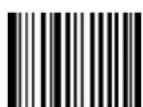
0415040
Set the Maximum Length (Default: 48)
Transmit Check Digit
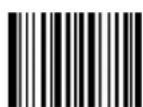
0415120
** Transmit Check Digit
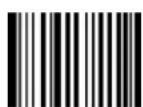
0415110
Do Not Transmit Check Digit
Check Digit Verification
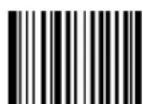
0415050
Disable

0415060
** One Check Digit, MOD11

0415070
Two Check Digits, MOD11/MOD11
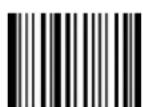
0415080
Two Check Digits, MOD11/MOD9

0415090
One Check Digit, MOD11 (Len<=10)
Two Check Digits, MOD11/MOD11 (Len>10)
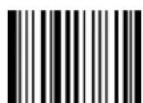
0415100
One Check Digit, MOD11 (Len<=10)
Two Check Digits, MOD11/MOD9 (Len>10)
Industrial 2 of 5
Restore the Factory Defaults of Industrial 2 of 5
Enable/Disable Industrial 2 of 5
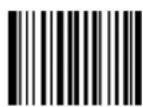
0417020
Enable Industrial 2 of 5
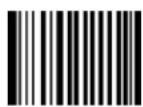
0417010
** Disable Industrial 2 of 5
Set Length Range for Industrial 2 of 5
The engine can be configured to only decode Industrial 2 of 5 barcodes with lengths that fall between (inclusive) the minimum and maximum lengths. To accomplish it, you need to set the minimum and maximum lengths.
For more information, see the j. Program the Length Range (Maximum/Minimum Lengths) for a Symbology in Appendix 8.

0417030
Set the Minimum Length (Default: 6)

0417040
Set the Maximum Length (Default: 48)
Check Digit Verification
A check digit is optional for Industrial 2 of 5 and can be added as the last digit. It is a calculated value used to verify the integrity of the data.
Disable: The engine transmits Industrial 2 of 5 barcodes as is.
Do Not Transmit Check Digit After Verification: The engine checks the integrity of all Industrial 2 of 5 barcodes to verify that the data complies with the check digit algorithm. Barcodes passing the check will be transmitted except the last digit, whereas those failing it will not be transmitted.
Transmit Check Digit After Verification: The engine checks the integrity of all Industrial 2 of 5 barcodes to verify that the data complies with the check digit algorithm. Barcodes passing the check will be transmitted, whereas those failing it will not be transmitted.
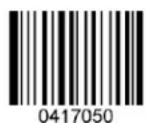
** Disable
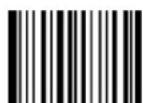
0417060
Do Not Transmit Check Digit After Verification

0417070
Transmit Check Digit After Verification
Standard 25
Set Length Range for Standard 25
The engine can be configured to only decode Standard 25 barcodes with lengths that fall between (inclusive) the minimum and maximum lengths. To accomplish it, you need to set the minimum and maximum lengths.
For more information, see the j. Program the Length Range (Maximum/Minimum Lengths) for a Symbology in Appendix 8.
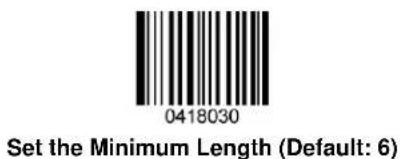
text_image
0418030 Set the Minimum Length (Default: 6)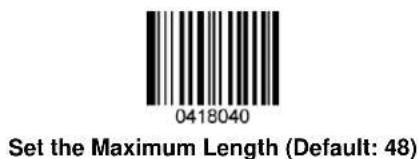
text_image
0418040 Set the Maximum Length (Default: 48)Check Digit Verification
A check digit is optional for Standard 25 and can be added as the last digit. It is a calculated value used to verify the integrity of the data.
Disable: The engine transmits Standard 25 barcodes as is.
Do Not Transmit Check Digit After Verification: The engine checks the integrity of all Standard 25 barcodes to verify that the data complies with the check digit algorithm. Barcodes passing the check will be transmitted except the last digit, whereas those failing it will not be transmitted.
Transmit Check Digit After Verification: The engine checks the integrity of all Standard 25 barcodes to verify that the data complies with the check digit algorithm. Barcodes passing the check will be transmitted, whereas those failing it will not be transmitted.

** Disable
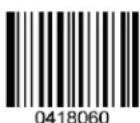
Do Not Transmit Check Digit After Verification

Transmit Check Digit After Verification
Plessey
Set Length Range for Plessey
The engine can be configured to only decode Plessey barcodes with lengths that fall between (inclusive) the minimum and maximum lengths. To accomplish it, you need to set the minimum and maximum lengths.
For more information, see the j. Program the Length Range (Maximum/Minimum Lengths) for a Symbology in Appendix 8.

0419030
Set the Minimum Length (Default: 4)
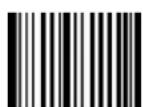
0419040
Set the Maximum Length (Default: 48)
Check Digit Verification
Check digits are optional for Plessey and can be added as the last two digits, which are calculated values used to verify the integrity of the data.
Disable: The engine transmits Plessey barcodes as is.
Do Not Transmit Check Digit After Verification: The engine checks the integrity of all Plessey barcodes to verify that the data complies with the check digit algorithm. Barcodes passing the checks will be transmitted except the last two digits, whereas those failing them will not be transmitted.
Transmit Check Digit After Verification: The engine checks the integrity of all Plessey barcodes to verify that the data complies with the check digit algorithm. Barcodes passing the checks will be transmitted, whereas those failing them will not be transmitted.

0419050
Disable
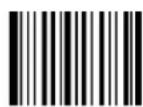
0419060
Do Not Transmit Check Digit After Verification

0419070
** Transmit Check Digit After Verification
MSI-Plessey
Set Length Range for MSI-Plessey
The engine can be configured to only decode MSI-Plessey barcodes with lengths that fall between (inclusive) the minimum and maximum lengths. To accomplish it, you need to set the minimum and maximum lengths.
For more information, see the j. Program the Length Range (Maximum/Minimum Lengths) for a Symbology in Appendix 8.

0420030
Set the Minimum Length (Default: 4)
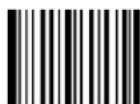
0420040
Set the Maximum Length (Default: 48)
Transmit Check Digit
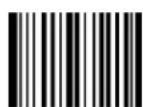
0420100
** Transmit Check Digit

0420090
Do Not Transmit Check Digit
Check Digit Verification

0420050
Disable

0420060
** One Check Digit, MOD10

0420070
Two Check Digits, MOD10/MOD10

0420080
Two Check Digits, MOD10/MOD11
2D Symbologies
PDF417
Set Length Range for PDF417
The engine can be configured to only decode PDF417 barcodes with lengths that fall between (inclusive) the minimum and maximum lengths. To accomplish it, you need to set the minimum and maximum lengths.
For more information, see the j. Program the Length Range (Maximum/Minimum Lengths) for a Symbology in Appendix 8.

Set the Minimum Length (Default: 1)

Set the Maximum Length (Default: 2710)
PDF417 Inverse
Regular Barcode: Dark bars on a bright background.
Inverse Barcode: Bright bars on a dark background.
0501320
** Decode Regular PDF417 Barcodes Only

0501321
Decode Inverse PDF417 Barcodes Only

0501322
Decode Both
PDF417 Twin Code
PDF417 twin code is 2 PDF417 barcodes paralleled vertically or horizontally. Two of them must have the same direction and similar specifications and be placed closely together.
There are 3 options for reading PDF417 twin codes:
Single PDF417 Only: Read either PDF417 code.
Twin PDF417 Only: Read both PDF417 codes. Transmission sequence: left (upper) PDF417 code followed by right (lower) PDF417 code.
Both: Read both PDF417 codes. If successful, transmit as twin PDF417 only. Otherwise, try single PDF417 only.

text_image
0501070 ** Single PDF417 Only
QR Code
Set Length Range for QR Code
The engine can be configured to only decode QR Code barcodes with lengths that fall between (inclusive) the minimum and maximum lengths. To accomplish it, you need to set the minimum and maximum lengths.
For more information, see the j. Program the Length Range (Maximum/Minimum Lengths) for a Symbology in Appendix 8.
Set the Minimum Length (Default: 1)
Set the Maximum Length (Default: 7089)
QR Twin Code
QR twin code is 2 QR barcodes paralleled vertically or horizontally. Two of them must have the same direction and similar specifications and be placed closely together.
There are 3 options for reading QR twin codes:
Single QR Only: Read either QR code.
Twin QR Only: Read both QR codes. Transmission sequence: left (upper) QR code followed by right (lower) QR code.
Both: Read both QR codes. If successful, transmit as twin QR only. Otherwise, try single QR only.
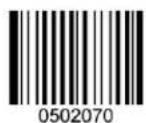
** Single QR Only

Twin QR Only
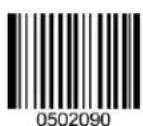
Both
Aztec Code
Set Length Range for Aztec Code
The engine can be configured to only decode Aztec Code barcodes with lengths that fall between (inclusive) the minimum and maximum lengths. To accomplish it, you need to set the minimum and maximum lengths.
For more information, see the j. Program the Length Range (Maximum/Minimum Lengths) for a Symbology in Appendix 8.

Set the Minimum Length (Default: 1)

Set the Maximum Length (Default: 3832)
Read Multi-barcodes on an Image
There are three modes:
Mode 1: Read one barcode only.
Mode 2: Read fixed number of barcodes only.
Mode 3: Composite Reading. Read fixed number of barcodes first. If unsuccessful, read one barcode only.
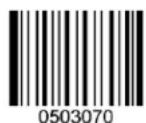
** Mode 1
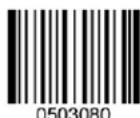
Mode 2
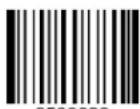
0503090
Mode 2
Set the Number of Barcodes

** 1

2
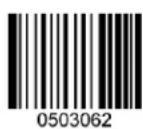
3
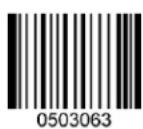
4
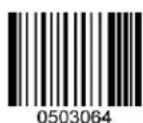
5

6

7
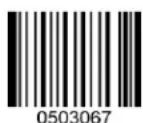
8
Data Matrix
Set Length Range for Data Matrix
The engine can be configured to only decode Data Matrix barcodes with lengths that fall between (inclusive) the minimum and maximum lengths. To accomplish it, you need to set the minimum and maximum lengths.
For more information, see the j. Program the Length Range (Maximum/Minimum Lengths) for a Symbology in Appendix 8.
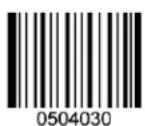
Set the Minimum Length (Default: 1)

Set the Maximum Length (Default: 3116)
Rectangular Barcode
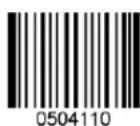
* Enable Rectangular Barcode

Disable Rectangular Barcode
Data Matrix Inverse
Regular Barcode: Dark bars on a bright background.
Inverse Barcode: Bright bars on a dark background.
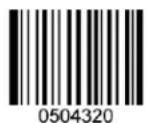
** Decode Regular Data Matrix Barcodes Only

Decode Inverse Data Matrix Barcodes Only

Decode Both
Data Matrix Twin Code
Data Matrix twin code is 2 Data Matrix barcodes paralleled vertically or horizontally. Two of them must have the same direction and similar specifications and be placed closely together.
There are 3 options for reading Data Matrix twin codes:
Single Data Matrix Only: Read either Data Matrix code.
Twin Data Matrix Only: Read both Data Matrix codes. Transmission sequence: left (upper) Data Matrix code followed by right (lower) Data Matrix code.
Both: Read both Data Matrix codes. If successful, transmit as twin Data Matrix only. Otherwise, try single Data Matrix only.
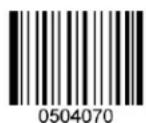
** Single Data Matrix Only

Twin Data Matrix Only
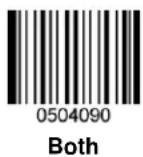
Maxicode
Set Length Range for Maxicode
The engine can be configured to only decode Maxicode barcodes with lengths that fall between (inclusive) the minimum and maximum lengths. To accomplish it, you need to set the minimum and maximum lengths.
For more information, see the j. Program the Length Range (Maximum/Minimum Lengths) for a Symbology in Appendix 8.
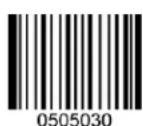
Set the Minimum Length (Default: 1)

Set the Maximum Length (Default: 150)
Chinese Sensible Code
Restore the Factory Defaults of Chinese Sensible Code
Enable/Disable Chinese Sensible Code

0508020
Enable Chinese Sensible Code
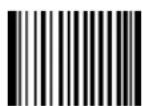
0508010
** Disable Chinese Sensible Code
Set Length Range for Chinese Sensible Code
The engine can be configured to only decode Chinese Sensible barcodes with lengths that fall between (inclusive) the minimum and maximum lengths. To accomplish it, you need to set the minimum and maximum lengths.
For more information, see the j. Program the Length Range (Maximum/Minimum Lengths) for a Symbology in Appendix 8.

0508030
Set the Minimum Length (Default: 1)

0508040
Set the Maximum Length (Default: 7827)
Chinese Sensible Code Inverse
Regular Barcode: Dark bars on a bright background.
Inverse Barcode: Bright bars on a dark background.

0508080
** Decode Regular Chinese Sensible Barcodes Only

0508081
Decode Inverse Chinese Sensible Barcodes Only

0508082
Decode Both
Chapter 9 Troubleshooting
FAQ
Q: How to show barcode data in a text file (output data in a cursor)?
A: Enable the USB HID-KBW feature. But only characters and digits available on the keyboard can be sent.
Q: What are compatible/supported barcode types?
A: See the User Guide.
Q: How to change the format from ISBN-13 into ISBN-10?
A: Disable EAN-13 and then enable ISBN and ISBN-10.
Q: Some barcodes can't be read.
a) Find out the barcode type and check if the barcode type is enabled. See Appendix 1: Factory Defaults Table for default barcode types.
b) If the barcode type is enabled, check whether the check digit verification and length range settings match the barcodes.
c) If the barcodes are stained, defaced, torn, distorted or poorly printed, try barcodes of good print quality. If you need to scan barcodes off mobile phones, enable the Mobile Phone Mode.
d) Provide such information as model number, firmware version and barcode type when contacting our technical support.
Q: Some barcodes are decoded incorrectly.
a) Check whether the check digit verification and length range settings match the barcodes.
b) Provide such information as model number, firmware version and barcode type when contacting our technical support.
Q: Barcodes can be read, but cannot be displayed.
A: If barcodes contain non-alphanumeric character(s), change the communication mode (USB COM Port Emulation recommended).
Q: The device is frozen or unresponsive.
a) Check if the device is properly connected and powered up.
b) Send the Restore All Factory Defaults command to the device via a serial cable or USB cable.
Q: How to enable/disable terminating character (Carriage Return or Line Feed)?
A: See the User Guide.
Q: The device fails to communicate with QuickSet or UExpress.
A: Enable the USB Datapipe or USB COM Port Emulation feature.
Appendix
Appendix 1: Factory Defaults Table
| Parameter | Factory Default | Remark |
| System Settings | ||
| Barcode Programming | Disabled | |
| Programming Barcode Data | Do not send | |
| Illumination | Normal | |
| Aiming | Normal | |
| Good Read Beep | EnabledType 1, 80ms (Duration),2730Hz (Frequency), Loud (Volume) | |
| Startup Beep | Enabled | |
| Good Read LED | Enabled, 20ms (Duration) | |
| Scan Mode | Sense Mode | |
| Decode Session Timeout | 3000ms | Range: 500-3600000ms |
| Timeout between Decodes (Same Barcode) | Disabled, 1500ms | Range: 0-3600000ms |
| Decode Area | Whole Area Decoding | |
| Central Area | 20% | |
| Send Product Information upon Startup | Disabled | |
| Communication Interfaces | ||
| Baud Rate | 9600 | Serial Communication Interface |
| Parity Check | None | Serial Communication Interface |
| Number of Data Bits | 8 | Serial Communication Interface |
| Number of Stop Bits | 1 | Serial Communication Interface |
| Hardware Flow Control | Disabled | Serial Communication Interface |
| USB Country Keyboard Type | US | USB HID-KBW |
| Beep on Unknown Character | Disabled | USB HID-KBW |
| Emulate ALT+Keypad | Disabled | USB HID-KBW |
| Function Key Mapping | Disabled | USB HID-KBW |
| Inter-Keystroke Delay | No Delay | USB HID-KBW |
| Caps Lock | Off | USB HID-KBW |
| Convert Case | No Case Conversion | USB HID-KBW |
| Emulate Numeric Keypad | Disabled | USB HID-KBW |
| Data Formatting | ||
| All Prefix/Suffix | Disabled | |
| Prefix Sequence | Code ID+Custom Prefix+AIM ID | Code ID+Custom Prefix+AIM ID+Data+Custom Suffix + Terminating Character |
| AIM ID Prefix | Disabled | |
| Code ID Prefix | Disabled | 1 or 2 English letters |
| Custom Prefix | Disabled | Max. 10 characters |
| Custom Suffix | Disabled | Max. 10 characters |
| Terminating Character Suffix | Disabled | Max. 2 characters |
| Data Packing | Disabled | |
| Symbologies | ||
| Code 128 | ||
| Code 128 | Enabled | |
| Maximum Length | 48 | |
| Minimum Length | 1 | |
| EAN-8 | ||
| EAN-8 | Enabled | |
| Check Digit | Transmit | |
| 2-Digit Add-On Code | Disabled | |
| 5-Digit Add-On Code | Disabled | |
| Extend to EAN-13 | Disabled | |
| EAN-13 | ||
| EAN-13 | Enabled | |
| Check Digit | Transmit | |
| 2-Digit Add-On Code | Disabled | |
| 5-Digit Add-On Code | Disabled | |
| UPC-E | ||
| UPC-E | Enabled | |
| Check Digit | Transmit | |
| 2-Digit Add-On Code | Disabled | |
| 5-Digit Add-On Code | Disabled | |
| Extend to UPC-A | Disabled | |
| System Character “0” | Do not transmit | |
| UPC-A | ||
| UPC-A | Enabled | |
| Check Digit | Transmit | |
| 2-Digit Add-On Code | Disabled | |
| 5-Digit Add-On Code | Disabled | |
| Preamble Character “0” | Do not transmit | |
| Interleaved 2 of 5 | ||
| Interleaved 2 of 5 | Enabled | |
| Check Digit Verification | Disabled | |
| Check Digit | Do not transmit | |
| Maximum Length | 80 | |
| Minimum Length | 6 | Minimum length supported: 4 |
| Discrete Length | Disabled | |
| ITF-6 | ||
| ITF-6 | Disabled | |
| ITF-14 | ||
| ITF-14 | Disabled | |
| Code 39 | ||
| Code 39 | Enabled | |
| Check Digit Verification | Disabled | |
| Start/Stop Character | Transmit | |
| Code 39 Full ASCII | Disabled | |
| Maximum Length | 48 | |
| Minimum Length | 4 | Minimum length supported: 4 (including start/stop characters and check digit) |
| Codabar | ||
| Codebar | Enabled | |
| Check Digit Verification | Disabled | |
| Start/Stop Character | ABCD/ABCD formatUppercaseTransmit | |
| Maximum Length | 60 | |
| Minimum Length | 2 | |
| Code 93 | ||
| Code 93 | Disabled | |
| Check Digit Verification | Enabled | |
| Check Digit | Do not transmit | |
| Maximum Length | 48 | |
| Minimum Length | 1 | Minimum length supported: 1 |
| GS1-128 (UCC/EAN-128) | ||
| GS1-128 (UCC/EAN-128) | Enabled | |
| GS1 Databar(RSS) | ||
| GS1 Databar(RSS) | Enabled | |
| Application Identifier “01” | Transmit | |
| GS1 Composite (EAN•UCC Composite) | ||
| GS1 Composite | Disabled | |
| UPC/EAN Composite | Disabled | |
| Code 11 | ||
| Code 11 | Disabled | |
| Check Digit | Transmit | |
| Check Digit Verification | 1 Check Digit, MOD11 | |
| Maximum Length | 48 | |
| Minimum Length | 4 | Minimum length supported: 4 |
| ISBN | ||
| ISBN | Disabled | |
| ISBN Format | ISBN-13 | |
| Matrix 2 of 5(European Matrix 2 of 5) | ||
| Maxtrix 2 of 5 | Disabled | |
| Check Digit Verification | Disabled | |
| Maximum Length | 80 | |
| Minimum Length | 4 | Minimum length supported: 4 |
| Industrial 25 | ||
| Industrial 25 | Disabled | |
| Check Digit Verification | Disabled | |
| Maximum Length | 48 | |
| Minimum Length | 6 | Minimum length supported: 4 |
| Standard 25 | ||
| Standard 25 | Disabled | |
| Check Digit Verification | Disabled | |
| Maximum Length | 48 | |
| Minimum Length | 6 | Minimum length supported: 4 |
| Plessey | ||
| Plessey | Disabled | |
| Check Digit Verification | Enabled | |
| Check Digit | Transmit | |
| Maximum Length | 48 | |
| Minimum Length | 4 | Minimum length supported: 4 |
| MSI-Plessey | ||
| MSI-Plessey | Disabled | |
| Check Digit Verification | 1 Check Digit, MOD10 | |
| Check Digit | Transmit | |
| Maximum Length | 48 | |
| Minimum Length | 4 | Minimum length supported: 4 |
| PDF417 | ||
| PDF417 | Enabled | |
| Read Single PDF417 Only | Enabled | |
| Maximum Length | 2710 | |
| Minimum Length | 1 | |
| PDF417 Inverse | Decode regular PDF417 barcodes only | |
| QR Code | ||
| QR Code | Enabled | |
| QR Twin Code | Read Single QR Only | |
| Maximum Length | 7089 | |
| Minimum Length | 1 | |
| Aztec | ||
| Aztec | Disabled | |
| Read Multi-barcodes on an Image | Disabled | |
| Number of Barcodes | 1 | |
| Maximum Length | 3832 | |
| Minimum Length | 1 | |
| Data Matrix | ||
| Data Matrix | Enabled | |
| DM Twin Code | Read Single Data Matrix Only | |
| Read Rectangular Barcode | Enabled | |
| Data Matrix Inverse | Decode regular Data Matrix barcodes only | |
| Maximum Length | 3116 | |
| Minimum Length | 1 | |
| Maxicode | ||
| Maxicode | Disabled | |
| Maximum Length | 150 | |
| Minimum Length | 1 | |
| Chinese Sensible Code | ||
| Chinese Sensible Code | Disabled | |
| Chinese Sensible Code Inverse | Decode regular Chinese Sensible barcodes only | |
| Maximum Length | 7827 | |
| Minimum Length | 1 | |
Appendix 2: AIM ID Table
| Symbology | AIM ID | Possible AIM ID Modifiers (m) |
| Code 128 | ]C0 | |
| GS1-128 (UCC/EAN-128) | ]C1 | |
| EAN-8 | ]E4 | |
| EAN-13 | ]E0 | |
| EAN-13 with Addon | ]E3 | |
| UPC-E | ]E0 | |
| UPC-E with Addon | ]E3 | |
| UPC-A | ]E0 | |
| UPC-A with Addon | ]E3 | |
| Interleaved 2 of 5 | ]Im | 0,1,3 |
| ITF-6 | ]Im | 1,3 |
| ITF-14 | ]Im | 1,3 |
| Matrix 2 of 5 | ]X0 | |
| Code 39 | ]Am | 0,1,3,4,5,7 |
| Codabar | ]Fm | 0,2,4 |
| Code 93 | ]G0 | |
| Code 11 | ]Hm | 0,1,3 |
| ISBN | ]X0 | |
| Industrial 25 | ]S0 | |
| Standard 25 | ]R0 | |
| Plessey | ]P0 | |
| MSI-Plessey | ]Mm | 0,1 |
| GS1 Databar(RSS) | ]e0 | |
| GS1Composite Code | ]em | 0-3 |
| PDF417 | ]Lm | 0-2 |
| QR Code | ]Qm | 0-6 |
| Aztec | ]zm | 0-9, A-C |
| Data Matrix | ]dm | 0-6 |
| Maxicode | ]Um | 0-3 |
| Chinese Sensible Code | ]X0 |
Note: “m” represents the AIM modifier character. Refer to ISO/IEC 15424:2008 Information technology – Automatic identification and data capture techniques – Data Carrier Identifiers (including Symbology Identifiers) for AIM modifier character details.
Appendix 3: Code ID Table
| Symbology | Code ID |
| Code 128 | j |
| GS1-128 (UCC/EAN-128) | j |
| EAN-8 | d |
| EAN-13 | d |
| UPC-E | c |
| UPC-A | c |
| Interleaved 2 of 5 | e |
| ITF-6 | e |
| ITF-14 | e |
| Code 39 | b |
| Codabar | a |
| Code 93 | i |
| Code 11 | H |
| GS1 Databar(RSS) | R |
| GS1Composite Code(EAN•UCC Composite) | y |
| ISBN | B |
| Matrix 2 of 5(European Matrix 2 of 5) | v |
| Industrial 25 | l |
| Standard 25 | f |
| Plessey | n |
| MSI-Plessey | m |
| PDF417 | r |
| QR Code | s |
| Aztec | z |
| Data Matrix | u |
| Maxicode | x |
| Chinese Sensible Code | h |
Appendix 4: ASCII Table
| Hex | Dec | Char | |
| 00 | 0 | NUL | (Null char.) |
| 01 | 1 | SOH | (Start of Header) |
| 02 | 2 | STX | (Start of Text) |
| 03 | 3 | ETX | (End of Text) |
| 04 | 4 | EOT | (End of Transmission) |
| 05 | 5 | ENQ | (Enquiry) |
| 06 | 6 | ACK | (Acknowledgment) |
| 07 | 7 | BEL | (Bell) |
| 08 | 8 | BS | (Backspace) |
| 09 | 9 | HT | (Horizontal Tab) |
| 0a | 10 | LF | (Line Feed) |
| 0b | 11 | VT | (Vertical Tab) |
| 0c | 12 | FF | (Form Feed) |
| 0d | 13 | CR | (Carriage Return) |
| 0e | 14 | SO | (Shift Out) |
| 0f | 15 | SI | (Shift In) |
| 10 | 16 | DLE | (Data Link Escape) |
| 11 | 17 | DC1 | (XON) (Device Control 1) |
| 12 | 18 | DC2 | (Device Control 2) |
| 13 | 19 | DC3 | (XOFF) (Device Control 3) |
| 14 | 20 | DC4 | (Device Control 4) |
| 15 | 21 | NAK | (Negative Acknowledgement) |
| 16 | 22 | SYN | (Synchronous Idle) |
| 17 | 23 | ETB | (End of Trans. Block) |
| 18 | 24 | CAN | (Cancel) |
| 19 | 25 | EM | (End of Medium) |
| 1a | 26 | SUB | (Substitute) |
| 1b | 27 | ESC | (Escape) |
| 1c | 28 | FS | (File Separator) |
| 1d | 29 | GS | (Group Separator) |
| 1e | 30 | RS | (Request to Send) |
| 1f | 31 | US | (Unit Separator) |
| 20 | 32 | SP | (Space) |
| 21 | 33 | ! | (Exclamation Mark) |
| 22 | 34 | " | (Double Quote) |
| 23 | 35 | # | (Number Sign) |
| 24 | 36 | $ | (Dollar Sign) |
| 25 | 37 | % | (Percent) |
| 26 | 38 | & | (Ampersand) |
| 27 | 39 | ` | (Single Quote) |
| 28 | 40 | ( | (Right / Closing Parenthesis) |
| 29 | 41 | ) | (Right / Closing Parenthesis) |
| 2a | 42 | * | (Asterisk) |
| 2b | 43 | + | (Plus) |
| 2c | 44 | , | (Comma) |
| 2d | 45 | - | (Minus / Dash) |
| 2e | 46 | . | (Dot) |
| 2f | 47 | / | (Forward Slash) |
| 30 | 48 | 0 | |
| 31 | 49 | 1 | |
| 32 | 50 | 2 | |
| 33 | 51 | 3 | |
| 34 | 52 | 4 | |
| 35 | 53 | 5 | |
| 36 | 54 | 6 | |
| 37 | 55 | 7 | |
| 38 | 56 | 8 | |
| 39 | 57 | 9 | |
| 3a | 58 | : | (Colon) |
| 3b | 59 | ; | (Semi-colon) |
| 3c | 60 | < | (Less Than) |
| 3d | 61 | = | (Equal Sign) |
| 3e | 62 | > (Greater Than) |
| 3f | 63 | ? (Question Mark) |
| 40 | 64 | @ (AT Symbol) |
| 41 | 65 | A |
| 42 | 66 | B |
| 43 | 67 | C |
| 44 | 68 | D |
| 45 | 69 | E |
| 46 | 70 | F |
| 47 | 71 | G |
| 48 | 72 | H |
| 49 | 73 | I |
| 4a | 74 | J |
| 4b | 75 | K |
| 4c | 76 | L |
| 4d | 77 | M |
| 4e | 78 | N |
| 4f | 79 | O |
| 50 | 80 | P |
| 51 | 81 | Q |
| 52 | 82 | R |
| 53 | 83 | S |
| 54 | 84 | T |
| 55 | 85 | U |
| 56 | 86 | V |
| 57 | 87 | W |
| 58 | 88 | X |
| 59 | 89 | Y |
| 5a | 90 | Z |
| 5b | 91 | [ (Left / Opening Bracket) |
| 5c | 92 | \ (Back Slash) |
| 5d | 93 | ] (Right / Closing Bracket) |
| 5e | 94 | ^ (Caret / Circumflex) |
| 5f | 95 | _(Underscore) |
| 60 | 96 | '(Grave Accent) |
| 61 | 97 | a |
| 62 | 98 | b |
| 63 | 99 | c |
| 64 | 100 | d |
| 65 | 101 | e |
| 66 | 102 | f |
| 67 | 103 | g |
| 68 | 104 | h |
| 69 | 105 | i |
| 6a | 106 | j |
| 6b | 107 | k |
| 6c | 108 | l |
| 6d | 109 | m |
| 6e | 110 | n |
| 6f | 111 | o |
| 70 | 112 | p |
| 71 | 113 | q |
| 72 | 114 | r |
| 73 | 115 | s |
| 74 | 116 | t |
| 75 | 117 | u |
| 76 | 118 | v |
| 77 | 119 | w |
| 78 | 120 | x |
| 79 | 121 | y |
| 7a | 122 | z |
| 7b | 123 | { (Left/ Opening Brace) |
| 7c | 124 | | (Vertical Bar) |
| 7d | 125 | } (Right/Closing Brace) |
| 7e | 126 | ~ (Tilde) |
| 7f | 127 | DEL (Delete) |
Appendix 5: Country Code Table
| Country/Language | Code | Country/Language | Code |
| U.S. | 0 | Netherlands(Dutch) | 14 |
| Belgium | 1 | Norway | 15 |
| Brazil | 2 | Poland | 16 |
| Canada(French) | 3 | Portugal | 17 |
| Czechoslovakia | 4 | Romania | 18 |
| Denmark | 5 | Russia | 19 |
| Finland(Swedish) | 6 | Slovakia | 21 |
| France | 7 | Spain | 22 |
| Germany/Austria | 8 | Sweden | 23 |
| Greece | 9 | Switzerland(German) | 24 |
| Hungary | 10 | Turkey F | 25 |
| Israel(Hebrew) | 11 | Turkey Q | 26 |
| Italy | 12 | U.K. | 27 |
| Latin-American | 13 | Japan | 28 |
Appendix 6: ASCII Function Key Mapping Table
| ASCII Function | ASCII Value (HEX) | No Function Key Mapping | Function Key Mapping | |
| NUL | (Null char.) | 00 | Null | Ctrl+2 |
| SOH | (Start of Header) | 01 | Keypad Enter | Ctrl+A |
| STX | (Start of Text) | 02 | Caps Lock | Ctrl+B |
| ETX | (End of Text) | 03 | Null | Ctrl+C |
| EOT | (End of Transmission) | 04 | Null | Ctrl+D |
| ENQ | (Enquiry) | 05 | Null | Ctrl+E |
| ACK | (Acknowledgment) | 06 | Null | Ctrl+F |
| BEL | (Bell) | 07 | Enter | Ctrl+G |
| BS | (Backspace) | 08 | Left Arrow | Ctrl+H |
| HT | (Horizontal Tab) | 09 | Horizontal Tab | Ctrl+I |
| LF | (Line Feed) | 0A | Down Arrow | Ctrl+J |
| VT | (Vertical Tab) | 0B | Vertical Tab | Ctrl+K |
| FF | (Form Feed) | 0C | Backspace | Ctrl+L |
| CR | (Carriage Return) | 0D | Enter | Ctrl+M |
| SO | (Shift Out) | 0E | Insert | Ctrl+N |
| SI | (Shift In) | 0F | Esc | Ctrl+O |
| DLE | (Data Link Escape) | 10 | F11 | Ctrl+P |
| DC1 | (XON) (Device Control 1) | 11 | Home | Ctrl+Q |
| DC2 | (Device Control 2) | 12 | Print Screen | Ctrl+R |
| DC3 | (XOFF) (Device Control 3) | 13 | Delete | Ctrl+S |
| DC4 | (Device Control 4) | 14 | tab+shift | Ctrl+T |
| NAK | (Negative Acknowledgement) | 15 | F12 | Ctrl+U |
| SYN | (Synchronous Idle) | 16 | F1 | Ctrl+V |
| ETB | (End of Trans. Block) | 17 | F2 | Ctrl+W |
| CAN | (Cancel) | 18 | F3 | Ctrl+X |
| EM | (End of Medium) | 19 | F4 | Ctrl+Y |
| SUB | (Substitute) | 1A | F5 | Ctrl+Z |
| ESC | (Escape) | 1B | F6 | See the following table |
| FS | (File Separator) | 1C | F7 | |
| GS | (Group Separator) | 1D | F8 | |
| RS | (Request to Send) | 1E | F9 | |
| US | (Unit Separator) | 1F | F10 | |
ASCII Function Key Mapping Table (Continued)
The function key mappings of the last five characters in the table above differ from one keyboard layout to another.
| Country/Keyboard Layout | Function Key Mapping | ||||
| 1B | 1C | 1D | 1E | 1F | |
| United States | Ctrl+[ | Ctrl+\ | Ctrl+] | Ctrl+6 | Ctrl+- |
| Belgium | Ctrl+[ | Ctrl+< | Ctrl+] | Ctrl+6 | Ctrl+- |
| Scandinavia | Ctrl+8 | Ctrl+< | Ctrl+9 | Ctrl+6 | Ctrl+- |
| France | Ctrl+^ | Ctrl+8 | Ctrl+$ | Ctrl+6 | Ctrl+= |
| Germany | Ctrl+Ã | Ctrl++ | Ctrl+6 | Ctrl+- | |
| Italy | Ctrl+\ | Ctrl++ | Ctrl+6 | Ctrl+- | |
| Switzerland | Ctrl+< | Ctrl+. | Ctrl+6 | Ctrl+- | |
| United Kingdom | Ctrl+[ | Ctrl+ ¢ | Ctrl+] | Ctrl+6 | Ctrl+- |
| Denmark | Ctrl+8 | Ctrl+\ | Ctrl+9 | Ctrl+6 | Ctrl+- |
| Norway | Ctrl+8 | Ctrl+\ | Ctrl+9 | Ctrl+6 | Ctrl+- |
| Spain | Ctrl+[ | Ctrl+\ | Ctrl+] | Ctrl+6 | Ctrl+- |
Appendix 7: Symbology ID Number
| Symbology | ID Number | Symbology | ID Number |
| Code 128 | 002 | Standard 2 of 5 | 026 |
| GS1-128 (UCC/EAN128) | 003 | Plessey | 027 |
| EAN-8 | 004 | Code11 | 028 |
| EAN-13 | 005 | MSI/Plessey | 029 |
| UPC-E | 006 | Composite Code | 030 |
| UPC-A | 007 | GS1-Databar | 031 |
| Interleaved 2 of 5 | 008 | PDF417 | 032 |
| ITF-14 | 009 | QR Code | 033 |
| ITF-6 | 010 | Aztec Code | 034 |
| Matrix 2 of 5 | 011 | Data Matrix | 035 |
| Code 39 | 013 | Maxicode | 036 |
| Codabar | 015 | Chinese Sensible Code | 039 |
| Code 93 | 017 | ||
| ISBN | 024 | ||
| Industrial 2 of 5 | 025 |
Appendix 8: Parameter Programming Examples
The following examples show you how to program parameters by scanning programming barcodes.
a. Program the Decode Session Timeout
Example: Set the decode session timeout to 1500ms
- Scan the Enter Setup barcode.
- Scan the Decode Session Timeout barcode.
- Scan the numeric barcodes "1", "5", "0" and "0".
- Scan the Save barcode.
- Scan the Exit Setup barcode. (If you still need to program other parameter/feature, skip this step.)
b. Program the Timeout between Decodes (Same Barcode)
Example: Set the timeout between decodes (same barcode) to 1000ms
- Scan the Enter Setup barcode.
- Scan the Timeout between Decodes (Same Barcode) barcode.
- Scan the numeric barcodes "1", "0", "0" and "0".
- Scan the Save barcode.
- Scan the Exit Setup barcode. (If you still need to program other parameter/feature, skip this step.)
c. Program the Central Area
Example: Set the percentage of central area to 20%
- Scan the Enter Setup barcode.
- Scan the Specify Central Area barcode.
- Scan the numeric barcodes "2" and "0".
- Scan the Save barcode.
- Scan the Exit Setup barcode. (If you still need to program other parameter/feature, skip this step.)
d. Program the Duration of Good Read Beep (Type 1)
Example: Set the good read beep duration to 100ms
- Scan the Enter Setup barcode.
- Scan the Custom (20\~300ms) barcode.
- Scan the numeric barcodes "1", "0" and "0".
- Scan the Save barcode.
- Scan the Exit Setup barcode. (If you still need to program other parameter/feature, skip this step.)
e. Program the Frequency of Good Read Beep (Type 1)
Example: Set the good read beep frequency to 3000Hz
- Scan the Enter Setup barcode.
- Scan the Custom (20\~20000 Hz) barcode.
- Scan the numeric barcodes "3", "0", "0" and "0".
- Scan the Save barcode.
- Scan the Exit Setup barcode. (If you still need to program other parameter/feature, skip this step.)
f. Program the Good Read LED Duration
Example: Set the good read LED duration to 2000ms
- Scan the Enter Setup barcode.
- Scan the Custom (1\~10000ms) barcode.
- Scan the numeric barcodes "2", "0", "0" and "0".
- Scan the Save barcode.
- Scan the Exit Setup barcode. (If you still need to program other parameter/feature, skip this step.)
g. Program the Custom Prefix/Suffix
Example: Set the custom prefix to "CODE"
- Check the hex values of "CODE" in the ASCII Table. ("CODE": 43, 4F, 44, 45)
- Scan the Enter Setup barcode.
- Scan the Set Custom Prefix barcode.
- Scan the numeric barcodes "4", "3", "4", "F", "4", "4", "4" and "5".
- Scan the Save barcode.
- Scan the Exit Setup barcode. (If you still need to program other parameter/feature, skip this step.)
h. Program the Terminating Character Suffix
Example: Set the terminating character suffix to 0x0A
- Scan the Enter Setup barcode.
- Scan the Set Terminating Character Suffix barcode.
- Scan the numeric barcodes "0" and "A".
- Scan the Save barcode.
- Scan the Exit Setup barcode. (If you still need to program other parameter/feature, skip this step.)
i. Program the Code ID
Example: Set the Code ID of PDF417 to "p"
- Check the hex value of "p" in the ASCII Table. ("p": 70)
- Scan the Enter Setup barcode.
- Scan the Modify PDF417 Code ID barcode.
- Scan the numeric barcodes "7" and "0".
- Scan the Save barcode.
- Scan the Exit Setup barcode. (If you still need to program other parameter/feature, skip this step.)
j. Program the Length Range (Maximum/Minimum Lengths) for a Symbology
Note: For 1D symbologies, if minimum length is set to be greater than maximum length, the engine only decodes barcodes with either the minimum or maximum length. If you only want to read barcodes with a specific length, set both minimum and maximum lengths to be that desired length.
Example: Set the engine to decode Code 128 barcodes containing between 8 and 12 characters
- Scan the Enter Setup barcode.
- Scan the Set the Minimum Length barcode.
- Scan the numeric barcode "8".
- Scan the Save barcode.
- Scan the Set the Maximum Length barcode.
- Scan the numeric barcodes "1" and "2".
- Scan the Save barcode.
- Scan the Exit Setup barcode. (If you still need to program other parameter/feature, skip this step.)
k. Program the Discrete Lengths for Interleaved 2 of 5
Example 1: Set the engine to decode Interleaved 2 of 5 barcodes containing either 12 or 24 characters
- Scan the Enter Setup barcode.
- Scan the Enable the Discrete Lengths barcode.
- Scan the Set the Discrete Length barcode.
- Scan the numeric barcodes "0", "1" and "2".
- Scan the Save barcode.
- Scan the Set the Discrete Length barcode.
- can the numeric barcodes "0", "2" and "4".
- Scan the Save barcode.
- Scan the Exit Setup barcode. (If you still need to program other parameter/feature, skip this step.)
Example 2: Set the engine to decode Interleaved 2 of 5 barcodes containing between 12 and 24 characters
- Scan the Enter Setup barcode.
- Scan the Enable the Discrete Lengths barcode."
- Scan the Set the Discrete Length barcode.
- Scan the numeric barcodes "0", "1" and "2".
- Scan the numeric barcodes "0", "2" and "4".
- Scan the Save barcode.
- Scan the Exit Setup barcode. (If you still need to program other parameter/feature, skip this step.)
Appendix 9: F-Key Barcodes
When the HID-KBW feature is enabled, scanning one of the following barcodes will send the corresponding function key.
F1\~F6
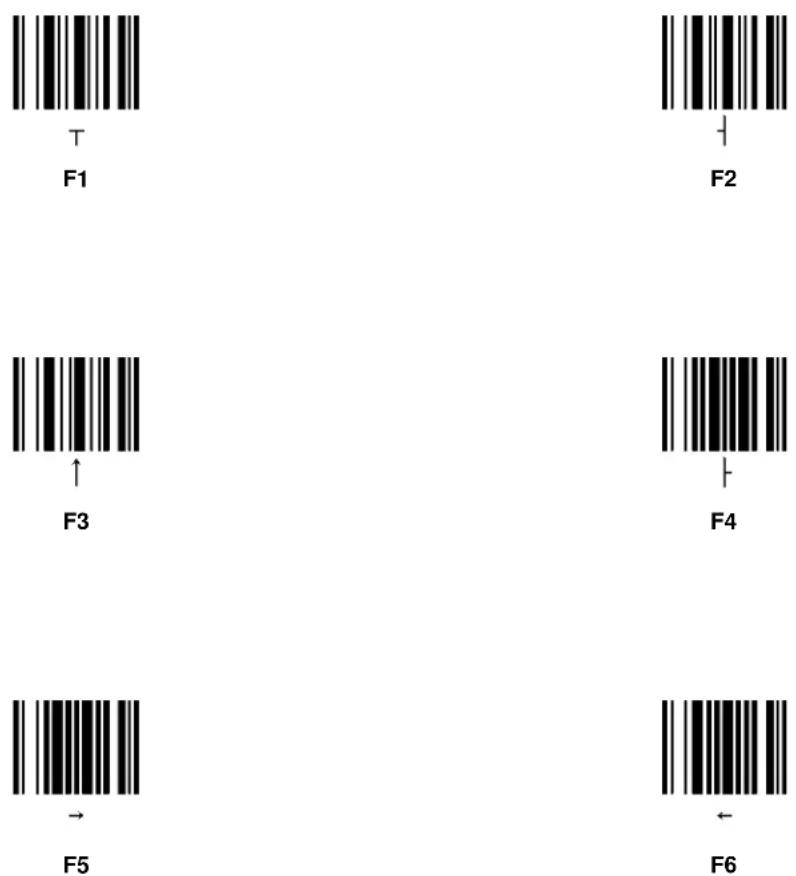
F7\~F12
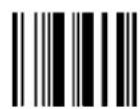
F7
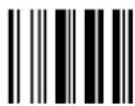
F8

F9

F10

F11

F12
Appendix 10: Digit Barcodes
0\~9

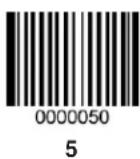
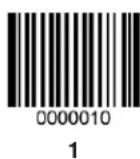
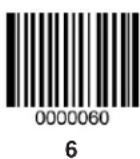


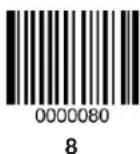
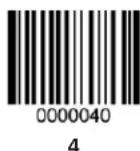
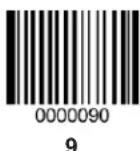
A\~F
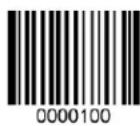
A

B
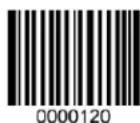
C

D
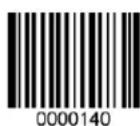
E

F
Appendix 11: Save/Cancel Barcodes
After reading numeric barcode(s), you need to scan the Save barcode to save the data. If you scan the wrong digit(s), you can either scan the Cancel barcode and then start the configuration all over again, or scan the Delete the Last Digit barcode and then the correct digit, or scan the Delete All Digits barcode and then the digits you want.
For instance, after reading the Maximum Length barcode and numeric barcodes "1", "2" and "3", you scan:
Delete the Last Digit: The last digit "3" will be removed.
Delete All Digits: All digits "123" will be removed.
✿ Cancel: The maximum length configuration will be cancelled. And the engine is still in the setup mode.

0000160
Save

0000170
Delete the Last Digit

0000180
Delete All Digits

0000190
Cancel

natural_image
Abstract geometric design with blue and white diagonal stripes forming a stylized 'L' shape (no text or symbols)Headquarters / 总部
福建新大陆自动识别技术有限公司
Rolweg 25, 4104 AV Culemborg, The Netherlands
TEL: +31 (0) 345 87 00 33
FAX: +31 (0) 345 87 00 39
Email: sales@newland-id.com
WEB: www.newland-id.com
Tech Support: tech-support@newland-id.com
Newland North America Inc. /北美新大陆有限公司
Address: 46559 Fremont Blvd., Fremont, CA 94538, USA
TEL: 510 490 3888
Fax: 510 490 3887
Email: info@newlandna.com
WEB: www.newlandna.com
7F-6, No. 268, Liancheng Rd., Jhonghe Dist. 235, New
Taipei City, Taiwan