Piranha BS8050-3V - Barcode Reader Newland - Free user manual and instructions
Find the device manual for free Piranha BS8050-3V Newland in PDF.


User questions about Piranha BS8050-3V Newland
0 question about this device. Answer the ones you know or ask your own.
Ask a new question about this device
Download the instructions for your Barcode Reader in PDF format for free! Find your manual Piranha BS8050-3V - Newland and take your electronic device back in hand. On this page are published all the documents necessary for the use of your device. Piranha BS8050-3V by Newland.
USER MANUAL Piranha BS8050-3V Newland
text_image
SCAN Delete Newland N.D.CBS8050-3V Piranha (1D)
Barcode Scanner
User Guide
Disclaimer
© 2015 Fujian Newland Auto-ID Tech. Co., Ltd. All rights reserved.
Please read through the manual carefully before using the product and operate it according to the manual. It is advised that you should keep this manual for future reference.
Do not disassemble the device or remove the seal label from the device. Otherwise, Fujian Newland Auto-ID Tech. Co., Ltd. does not assume responsibility for the warranty or replacement.
All pictures in this manual are for reference only and actual product may differ. Regarding to the product modification and update, Fujian Newland Auto-ID Tech. Co., Ltd. reserves the right to make changes to any software or product to improve reliability, function, or design at any time without notice. Besides, the information contained herein is subject to change without prior notice.
The products depicted in this manual may include software copyrighted by Fujian Newland Auto-ID Tech. Co., Ltd or a third party. The user, corporation or individual, shall not duplicate, in whole or in part, distribute, modify, decompile, disassemble, decode, reverse engineer, rent, transfer or sublicense such software without prior written consent from the copyright holders.
This manual is copyrighted. No part of this publication may be reproduced, distributed or used in any form without written permission from Newland.
Fujian Newland Auto-ID Tech. Co., Ltd. reserves the right to make final interpretation of the statement above.
Fujian Newland Auto-ID Tech. Co., Ltd.
3F, Building A, No.1, Rujiang Xi Rd., Mawei, Fuzhou, Fujian, China 350015
http://www.nlscan.com
Revision History
| Version | Description | Date |
| V1.0 | Initial release. | March 18, 2015 |
Table of Contents
Revision History.... - 3 -
Preface....1
Introduction....1
Chapter Descriptions....1
Safety Instructions....1
Chapter 1 Getting Started....2
Introduction....2
Unpacking 2
Piranha Scanner 3
Functions of the Buttons 4
Charging the Battery 5
Connecting the Piranha to Smartphone/Tablet 6
LED Notifications....8
Turning the Piranha On/Off....9
Scanning Instructions....10
Scanning 1D Barcode....10
Chapter 2 System Settings....11
Introduction....11
Restore Factory Defaults 11
Operating Modes....11
Query Scanner Information....13
Query/Delete the Data in FLASH....13
Sound Notifications 14
Vibration Notifications 15
Terminating Character Suffix.... 16
Inter-Character Delay for Bluetooth HID....17
Delete Bluetooth Pairing 17
Automatic/Manual Power-Off 18
Time Stamp 20
Set Date Format....20
Set Date & Time....21
Parameters of USB HID-KBW 22
USB Country Keyboard Types....22
Convert Case 23
Inter-Keystroke Delay for KBW 23
Upgrade the Firmware 24
Chapter 3 Symbologies ......27
Introduction......27
1D Symbologies....27
Code 39....27
Transmit Code 39 Start/Stop Character 27
Code 39 FULL ASCII ....27
Code 128 28
UCC/EAN-128....28
EAN-8....28
EAN-13....28
ISSN 29
ISBN 29
UPC-E 29
UPC-A....29
Interleaved 2 of 5....30
Matrix 25 30
Industrial 25 30
Codabar 30
Code 93....31
GS1 Databar (RSS) 31
Code 11....31
Plessey....31
MSI-Plessey 32
Appendix 33
Factory Defaults Table 33
Digit Barcodes....36
Preface
Introduction
This manual provides detailed instructions for setting up and using the NLS-BS80 barcode scanner (hereinafter referred to as “the BS80” or “the scanner”).
Chapter Descriptions
◇ Chapter 1, Getting Started : This chapter provides information on getting the scanner up and running for the first time.
◇ Chapter 2, System Settings : This chapter describes the barcode programming procedure and shows you how to configure system parameters.
◇ Chapter 3, Symbologies : This chapter lists all compatible symbologies and describes how to configure the relevant parameters.
Appendix : This chapter offers factory defaults table and a bunch of frequently used programming barcodes.
Safety Instructions
Read the operating instructions carefully and especially observe the safety information. If you do not follow the safety instructions on proper handling in this manual, we assume no liability for any resulting personal injury or damage to property.
Don't put the scanner in places with excessively high temperatures, such as exposure to direct sunlight.
Don't use the scanner in extremely humid area or drastic temperature change.
The rechargeable battery is permanently built into the scanner and cannot be replaced.
✿ Never damage the rechargeable battery. Damaging the casing of the rechargeable battery might cause an explosion or a fire!
Chapter 1 Getting Started
Introduction
The Piranha is a wireless pocket barcode scanner equipped with 1D or 2D scan engine to meet different needs. It is a great space-saver for busy or limited workspaces. It also supports iOS, Android, and Windows devices through Bluetooth HID or SPP communication.
An illustrated introduction to the Piranha is included in this chapter. If you have the scanner at hand, make good use of it to develop a better understanding of this manual. This chapter is written for normal users, maintenance staff and software developers.
Unpacking
Open the package and take out the scanner and its accessories. Check to make sure everything on the packing list is present and intact. If any contents are damaged or missing, please keep the original package and contact your dealer immediately for after-sale service.
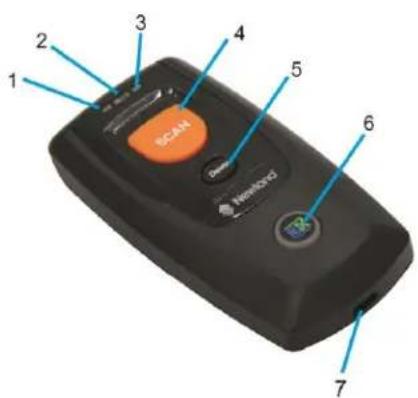
BS80 Scanner
text_image
1 2 3 4 5 SCAN 6 7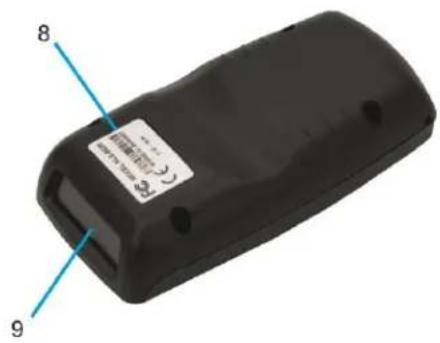
text_image
8 9| 1 | Charging/Battery LED | 2 | Good Read LED |
| 3 | Data LED | 4 | Scan/Power Button |
| 5 | Delete/Reset Button | 6 | Function Button/Function LED |
| 7 | Micro USB Port | 8 | Product Label |
| 9 | Scan Window: Please remove the protective sticker from the window before use. |
Functions of the Buttons
| Scan/Power Button |
| *Press the button to scan barcode when the scanner is on.*Hold down the button for 3 seconds to power it on when the scanner is off. |
| Delete/Reset Button |
| *Press the button to remove the corresponding data from the USB storage area of FLASH memory in the USB mode before scanning the barcode to be deleted.*Hold down the button for 7 seconds to reset it when the scanner is on. |
| Function Button |
| *Press the button to turn on the HID keyboard of the connected iOS device in the Wireless mode.*Hold down the button for 5 seconds to unpair paired Bluetooth device from the scanner in the Wireless mode, to make the scanner discoverable by other Bluetooth device.*Hold down the button for 3 seconds to start data transmission via USB in the USB mode (Make sure that the scanner is connected to PC first.) |
| Scan/Power Button + Function Button |
| *Hold down the two buttons at the same time for 3 seconds to toggle between the Wireless mode and USB mode when the scanner is on. |
| Delete/Reset Button + Function Button |
| *Hold down the two buttons at the same time for 7 seconds to upgrade the firmware via USB after clicking the “Start” button of the firmware upgrade utility on PC that the scanner connected to. |
| Scan/Power Button + Delete/Reset Button |
| *Press the two buttons at the same time to check the battery level with the Charging/Battery LED when the scanner is on. |
Charging the Battery
Charge the scanner by connecting it to a host device with USB cable, as shown below.

text_image
Diagram showing connections between a device with a scan and a USB port, with directional arrows indicating signal flow.Note: Low battery may result in failure or misoperation of the scanner. Before your first use, charge the battery for 3-4 hours.
Connecting the BS80 to Smartphone/Tablet
- Make sure your device has HID or SPP profile.
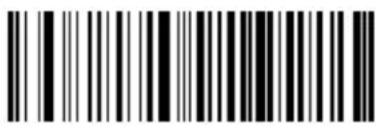
- Turn off the Power-Saving mode of your smartphone/tablet first. If the red Function LED on the scanner illuminates, hold down the Scan/Power button and Function button at the same time for 3 seconds or scan the barcode below to switch to the Wireless mode.
text_image
Black and white barcode image with vertical lines and patternsWireless Mode (Default)
- Scan the appropriate barcode below to choose HID or SPP profile before connecting to smartphone/tablet. If you don't know what profile your device is, please try HID profile first, then SPP profile.

text_image
Black and white barcode image with vertical lines and a small number 'n' in the center.HID (Default)

text_image
Black and white barcode image with vertical lines and a horizontal bar at the bottomSPP
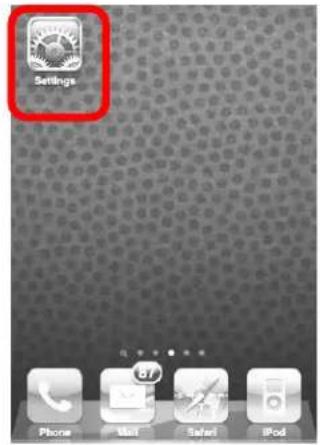
- Complete the following connection procedure (example: pairing with iPhone). If the Piranha does not appear in the search results in step (5), you might need to delete existing pairing information on the scanner by holding down the Function button on the scanner for 5 seconds (see Functions of the Buttons in this chapter) or by scanning the Delete Bluetooth Pairing barcode (see Delete Bluetooth Pairing in Chapter 2).
(1) Click "Settings".
text_image
Settings Phone Mail Safari iPod(2) Click "General".

text_image
Settings Airplane Mode OFF Wi-Fi Off > Notifications On > Sounds > Brightness > Wallpaper > General > Mail, Contacts, Calendars >(3) Click "Bluetooth".

text_image
Settings General About > Usage 46m > Network > Bluetooth Off > Location Services On > Spotlight Search > Auto-Lock 1 Minute > Passcode Lock Off >(4) Turn it on and search the devices.
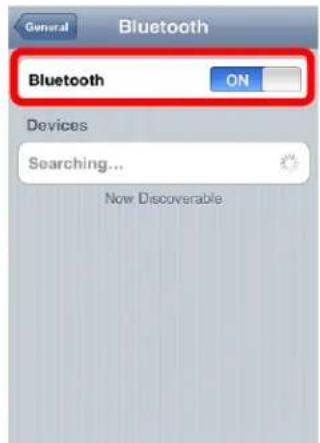
text_image
General Bluetooth Bluetooth ON Devices Searching... Now Discoverable(5) Select "BS80XXXX" to connect.
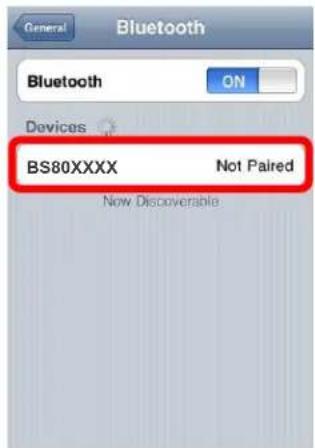
text_image
General Bluetooth ON Devices BS80XXXX Not Paired Now Discoverable(6) The "Connected" message means the connection is OK.

text_image
General Bluetooth Bluetooth ON Devices BS80XXXX Connected Now Discoverable- After the connection is completed, the blue Function LED on the scanner will illuminate.
- Before using WordPad file or relative APP, please set keyboard language of the device to USA language. Then, scan the barcodes and the barcode data will show on the cursor side. If the data cannot send to smartphone/tablet, please scan the Restore Factory Defaults barcode.
Note: This product complies with Bluetooth standards. The device that communicate with this product must support the same SPP or HID. For other Bluetooth devices with other profiles, we cannot guarantee a connection before the product has been tested.
The communication speed and range of the product may vary due to obstacles and radio wave condition between the product and device to which it is connected. Condition on the host device may also affect the communication speed and range of the scanner.
LED Notifications
| Charging/Battery LED | |
| Red LED on | Charging in progress. |
| Green LED on | Fully charged. |
| Red and green LEDs flash alternately | Battery not found. |
| Red LED flashes | Low battery alert. |
| If the scanner is on and it is not connected to PC via USB cable, pressing the Scan/Power button and Delete/Reset button at the same time can display the battery level with the Charging/Battery LED. | |
| Green LED on | Battery level is high. |
| Red and green LEDs on | Battery level is medium. |
| Red LED on | Battery level is low. |
When the battery voltage is too low, the scanner will beep with flashing red Charging/Battery LED. Please charge it immediately before the scanner shuts down mandatorily. When it shuts down, please charge it fully before turning it back on.
| Good Read LED | |
| Green LED flashes | Good read. |
| Data LED | |
| Red LED flashes | There is data in FLASH memory. |
| Red LED on | FLASH memory depleted. |
| Function LED | |
| Blue LED flashes slowly with long off state | Bluetooth turned on, but no Bluetooth connection established and the Piranha not found. |
| Blue LED flashes slowly with long on state | Bluetooth turned on, but no Bluetooth connection established and the Piranha found. |
| Blue LED on | Bluetooth connection established. |
| Blue LED flashes quickly | Data transmission via Bluetooth in progress. |
| Red LED on | USB mode enabled. |
| Red LED flashes quickly | Batch data transmission via USB in progress. |
Turning the Piranha On/Off
Turn the scanner on: Press the Scan/Power button.
Turn the scanner off: By default, the scanner automatically powers off if no operation is performed on the scanner for 30 minutes. You can adjust the auto power-off time. You can also turn off the scanner by scanning the Power Off barcode. For more information, see Automatic/Manual Power-Off section in Chapter 2.
Scanning Instructions
Scanning 1D Barcode
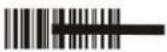
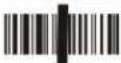
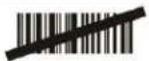
Adjust the scan angle (Do not read barcode at vertical degree) or the distance between barcode and the scanner to ensure that the length of the scan line is roughly 8mm greater than that of the barcode, as shown below.
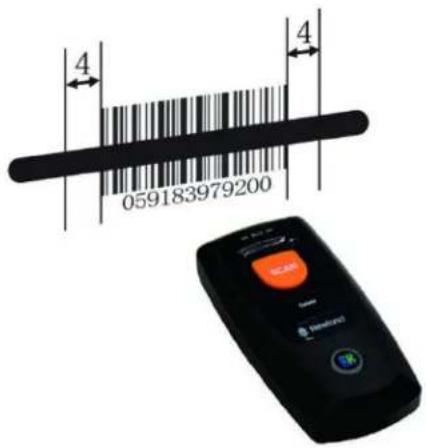
text_image
4 059183979200 4| Right | Wrong |
 |  |
 |  |
 |  |
Chapter 2 System Settings
Introduction
This chapter describes how to configure the basic system parameters on the scanner.
text_image
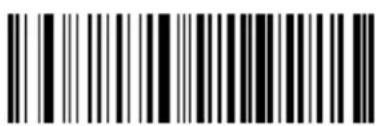
Black and white barcode image with vertical lines and a small number 'n' in the bottom right corner.The scanner provides two operating modes: Wireless mode (Bluetooth mode) and USB mode.
1. Wireless mode
text_image
Barcode image with black and white vertical bars on both sidesWireless Mode (default)
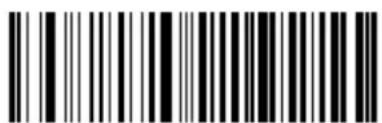
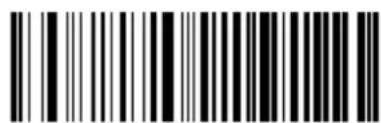
When the scanner is in the Wireless mode, scanning the following barcodes can switch between Bluetooth HID and SPP profiles. When the scanner is in the USB mode, scanning the following barcodes can switch between USB HID-KBW and USB COM Port Emulation.
text_image
Black and white barcode image with vertical lines and a central dotWireless Mode: HID (default)
USB Mode: USB HID-KBW (default)
text_image
Black and white barcode image with vertical lines and a small number '1' at the bottomWireless Mode: SPP
USB Mode: USB COM Port Emulation
There are two data transmission modes: Synchronous mode and Asynchronous mode.
(1) Synchronous mode: When you scan barcodes, the data will be sent to smartphone/tablet directly. If you are out of Bluetooth service range, scanned data will be lost.
(2) Asynchronous mode: When you are out of Bluetooth service range, scanned data will be saved in the FLASH memory. Once you are back to service range, the data will be sent to smartphone/tablet automatically. The scanner will automatically remove it from the FLASH memory after smartphone/tablet receives the data.

text_image
Black and white barcode image with vertical lines and a horizontal bar at the bottomSynchronous Mode

text_image
Barcode image with black and white vertical bars on white backgroundAsynchronous Mode (default)
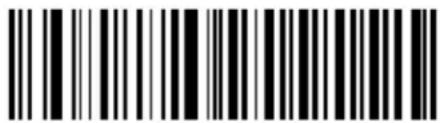
2. USB mode
When you scan barcodes, the data will be saved in the FLASH memory. You can sync the data acquired in USB mode from the FLASH memory to your PC by following the procedure described below.
Data transmission from FLASH to PC via USB:
Step 1: Install the required driver on your PC.
Step 2: Connect the scanner to your PC with USB cable. The scanner beeps when the connection between them is established.
Step 3: Open Notepad or Office Word on your PC and make sure that your cursor is always positioned in it. Hold down the Function button on the scanner for 3 seconds or longer to start data transmission from the FLASH memory to your PC. To suspend or resume the transmission, press the Function button briefly. The scanner beeps when the transmission is completed.
text_image
Black and white barcode image with vertical lines on both sidesUSB Mode
Note:
- When the scanner switches from one operating mode to the other, it beeps along with corresponding LED notification (For more information, see LED Notifications in Chapter 1)
- Besides the method mentioned above, you can also hold down the Scan/Power button and Function button at the same time for 3 seconds to toggle the Wireless mode and USB mode.
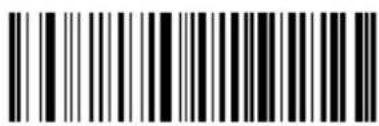
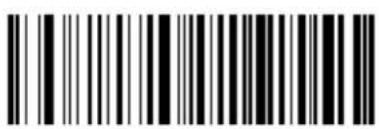
Query Scanner Information
text_image
Black and white barcode image with vertical lines and a central dotQuery the Firmware & Hardware Versions of Scanner

text_image
Black and white barcode image with vertical lines and a small number '1' at the bottom right.Query the Firmware Version of Scan Engine
text_image
Black and white barcode image with vertical lines and a central dotQuery the Manufacture Date of Scanner
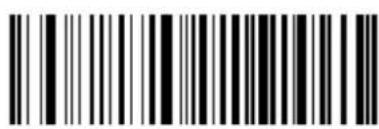
text_image
Black and white barcode image with vertical lines and dots, no readable text or symbolsQuery the Serial Number of Scanner
Query/Delete the Data in FLASH
The FLASH memory is divided into a USB storage area (used to save the data acquired in the USB mode) and a Bluetooth storage area (used to save the data acquired in Bluetooth asynchronous mode). You should note that removing data from the USB storage area may take a longer time.

text_image
Black and white barcode image with vertical stripesDelete All Barcodes in FLASH

text_image
Black and white barcode image with vertical lines and a central dotQuery the Number of Barcodes in USB Storage Area

text_image
Barcode image with black and white vertical bars, no visible text or symbols beyond the patternOnly Delete Barcodes in USB Storage Area
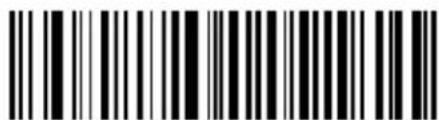
text_image
Black and white barcode image with vertical lines and a central dotQuery the Number of Barcodes in Bluetooth Storage Area

text_image
Black and white barcode image with vertical lines and a central dotOnly Delete Barcodes in Bluetooth Storage Area
Sound Notifications
Turn sound notifications on or off by scanning the appropriate barcode below. After this feature is enabled, the scanner beeps when one of the following events occurs:
- The scanner is turned on.
- The scanner resets.
- A barcode is decoded (including good read for removing barcode data from the FLASH memory).
- The scanner switched to the Wireless mode or USB mode.
- Transmitting data via Bluetooth failed.
- iOS soft keyboard is turned on or off.
- Data transmission via USB starts.
- Data transmission via USB is interrupted.
- Data transmission via USB is completed.
- The paired Bluetooth device is unpaired from the scanner.
- The scanner is turned off.
- USB connection between the scanner and the host established.
- USB connection between the scanner and the host lost.
- Bluetooth connection between the scanner and the host established or lost.
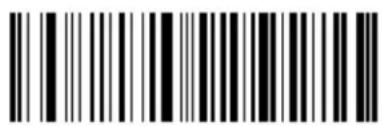
text_image
Black and white barcode image with vertical lines and a horizontal bar at the bottomSound Notifications On (default)

text_image
Black and white barcode image with vertical lines and a horizontal bar at the bottomSound Notifications Off
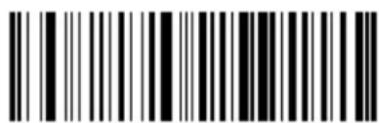
Vibration Notifications
Turn vibration notifications on or off by scanning the appropriate barcode below. After this feature is enabled, the scanner vibrates when one of the following events occurs:
- The scanner switched to the Wireless mode or USB mode.
- iOS soft keyboard is turned on or off.
- The paired Bluetooth device is unpaired from the scanner.
- Data transmission via USB starts.
-
The scanner is turned off.
-
A barcode is decoded (including good read for removing barcode data from the FLASH memory).
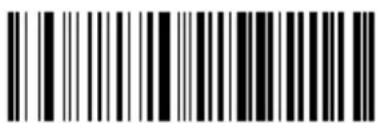
text_image
Barcode image with black and white vertical bars, no visible text or symbolsVibration Notifications On
text_image
Black and white barcode image with vertical lines and a horizontal bar at the bottomVibration Notifications Off (default)
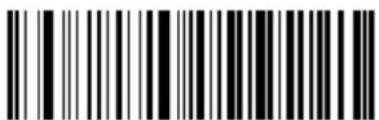
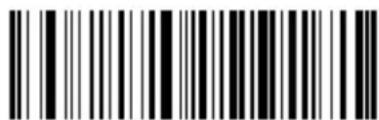
Terminating Character Suffix
text_image
Black and white barcode image with vertical lines and a central dotAppend CRLF as Terminating Character Suffix (default)
text_image
Black and white barcode image with vertical lines and a central dotDisable Terminating Character Suffix
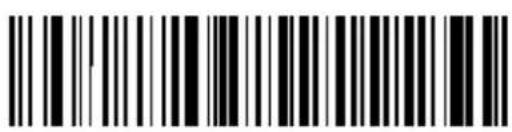
Inter-Character Delay for Bluetooth HID
Select an appropriate inter-character delay to avoid data loss during transmission. This parameter is only valid in the Bluetooth HID mode.
text_image
Black and white barcode image with vertical lines and a small white dot at the bottom center.5ms

text_image
Barcode image containing encoded digital information15ms (default)
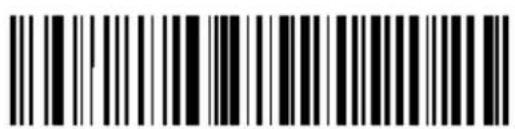
text_image
Black and white barcode image with vertical lines and a central 'B' symbol25ms
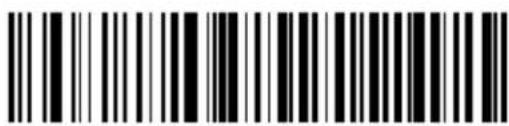
text_image
Black and white barcode image with vertical lines above and below the bars35ms
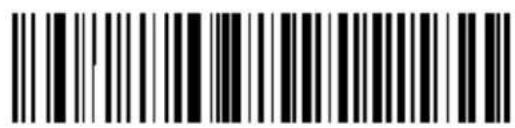
text_image
Barcode image with black and white vertical bars, no visible text or symbols beyond the pattern45ms
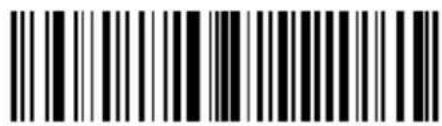
text_image
Black and white barcode image with vertical lines and a central barQuery Inter-Character Delay
Delete Bluetooth Pairing

text_image
Barcode image containing encoded digital informationDelete Bluetooth Pairing
Automatic/Manual Power-Off
By default, the scanner automatically powers off if no operation is performed on the scanner for 30 minutes. This feature can help to extend battery life.

text_image
Barcode image containing encoded digital informationQuery Auto Power-Off Timer
Set the auto power-off timer: Scan the Set Auto Power-Off Timer barcode then one of the timers listed below.
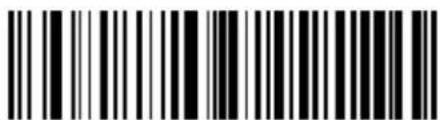
text_image
Black and white barcode image with vertical lines and a small number 'n' in the bottom right corner.Set Auto Power-Off Timer

text_image
Black and white barcode image with vertical lines and a central bar5 Minutes
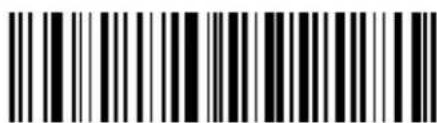
text_image
Black and white barcode image with vertical lines and a central dot10 Minutes
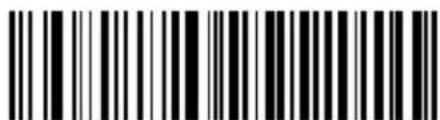
text_image
Black and white barcode image with vertical lines and a central dot20 Minutes
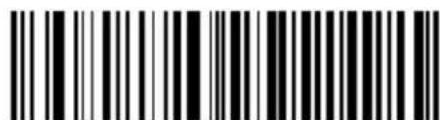
text_image
Black and white barcode image with vertical lines and a small number 'n' in the bottom right corner.30 Minutes (default)
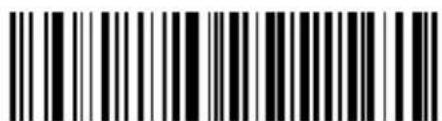
text_image
Black and white barcode image with vertical lines and a small number '1' at the bottom right.60 Minutes
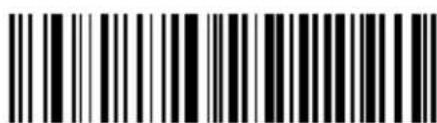
text_image
Black and white barcode image with vertical lines and a central dotPermanent
You can power off your scanner manually by scanning the barcode below.
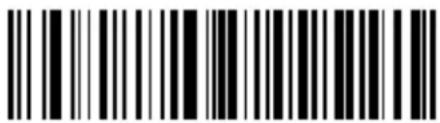
text_image
Barcode image containing encoded digital informationPower Off
Note: After the Power Off barcode is scanned, the scanner emits a long beep and then turns off.
Time Stamp
You can decide whether to send date and time or not by enabling or disabling time stamp.
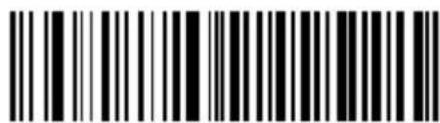
text_image
Black and white barcode image with vertical lines and a central dotEnable Time Stamp (default)
text_image
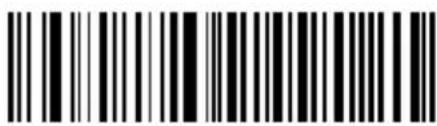
Barcode image containing encoded digital informationDisable Time Stamp
Set Date Format

text_image
Black and white barcode image with vertical lines and a central dotFormat 1: mm/dd/yyyy (example: 01/23/2011)
text_image
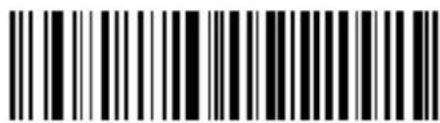
Black and white barcode image with vertical lines on both sidesFormat 2: dd/mm/yyyy (example: 23/01/2011)

text_image
Black and white barcode image with vertical lines and a horizontal bar at the bottomFormat 3: yyyy/mm/dd (default) (example: 2011/01/23)
Set Date & Time
Step 1: Double click on BS80Setting.exe to Piranha Date&Time Setting Tool. Then check the "Auto-sync dateand time with the host" item on it.
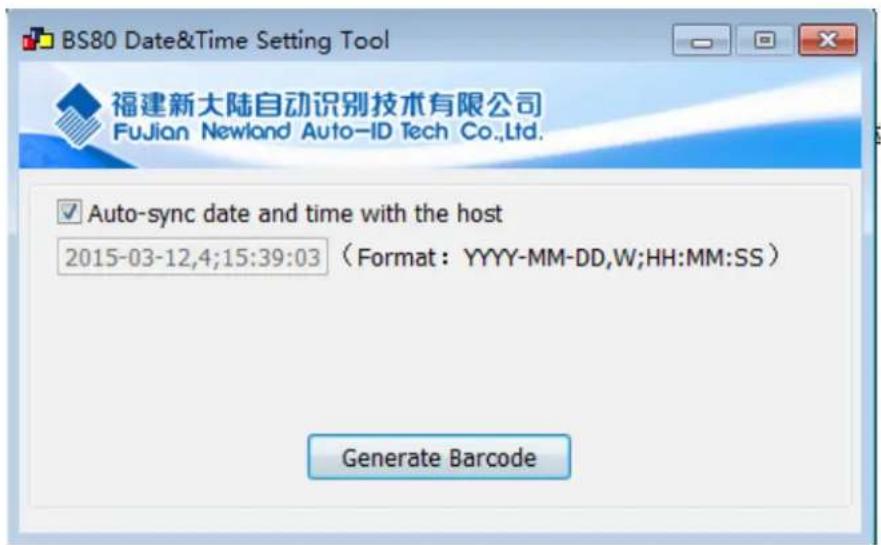
text_image
BS80 Date&Time Setting Tool 福建新大陆自动识别技术有限公司 FuJian Newland Auto-ID Tech Co.,Ltd. ✓ Auto-sync date and time with the host 2015-03-12,4;15:39:03 (Format: YYYY-MM-DD,W;HH:MM:SS) Generate BarcodeStep 2: After the time in the box is in sync with the system clock, click the "Generate Barcode" button.
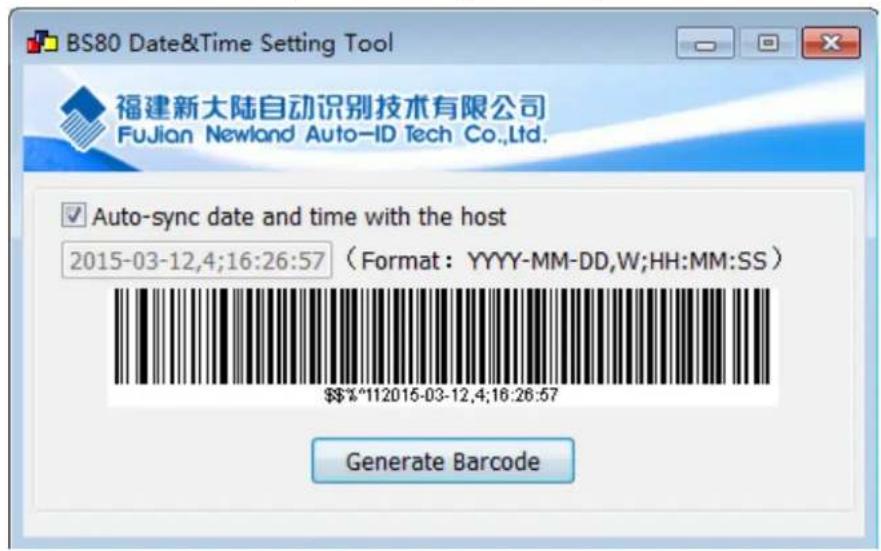
text_image
BS80 Date&Time Setting Tool 福建新大陆自动识别技术有限公司 Fujian Newland Auto-ID Tech Co.,Ltd. ✓ Auto-sync date and time with the host 2015-03-12,4;16:26:57 (Format: YYYY-MM-DD,W;HH:MM:SS) $*112015-03-12,4;16:26:57 Generate BarcodeStep 3: Scan the barcode generated to set the date and time on the scanner.
Note: You need to run this tool on the Windows XP or WIN7 operating system.
Parameters of USB HID-KBW
USB Country Keyboard Types
US English (default)
Japan
Denmark
Finland
France

Turkey_F
Italy
Norway

Spain

Turkey_Q

text_image
Barcode image with black and white vertical bars, no visible text or symbolsNo Case Conversion (default)

text_image
Black and white barcode image with vertical lines and a central barConvert All to Upper Case

text_image
Black and white barcode image with vertical lines above and below the barsConvert All to Lower Case
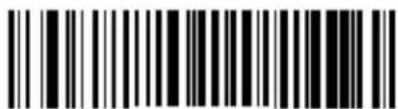
text_image
Black and white barcode image with vertical lines above and below the barsInvert Upper and Lower Case Characters
Inter-Keystroke Delay for KBW
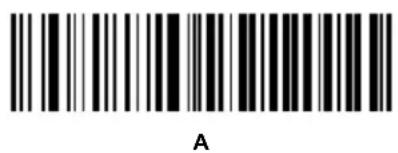
To set the inter-keystroke delay, scan the following barcode and a digit barcode (0\~F).
Note: 0\~F corresponds to 3ms (default), 8ms, 13ms, 18ms, 23ms, 28ms, 33ms, 38ms, 43ms, 48ms, 53ms, 58ms, 63ms, 68ms, 73ms and 78ms respectively.
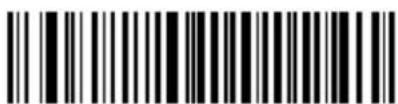
text_image
Black and white barcode image with vertical lines and a small number '1' at the bottom right.Inter-Keystroke Delay for KBW
Upgrade the Firmware
Step 1: Install the driver: Run the CDC - Virtual COM Driver v1.1.0 program and then follow the on-screen instructions to complete the installation process. (Skip this step if it is already installed on your PC.) Make sure that the driver is properly installed. You cannot upgrade the firmware without it.
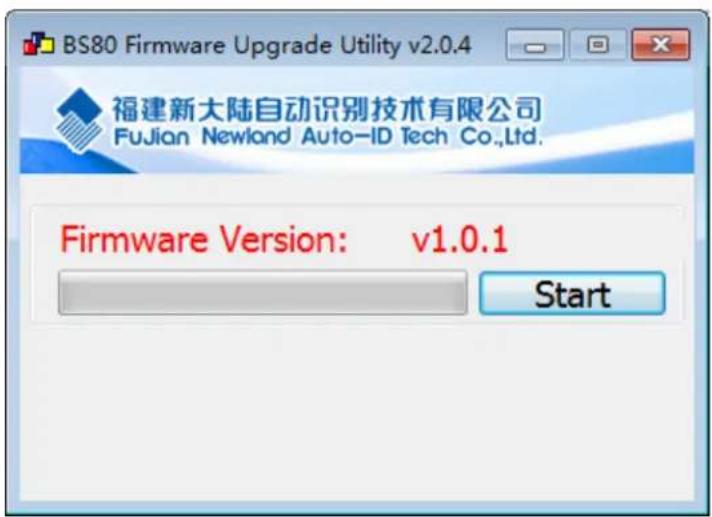
Step 2: Run the BS80Update program. Then click "Start".
text_image
BS80 Firmware Upgrade Utility v2.0.4 福建新大陆自动识别技术有限公司 Fujian Newland Auto-ID Tech Co.,Ltd. Firmware Version: v1.0.1 Start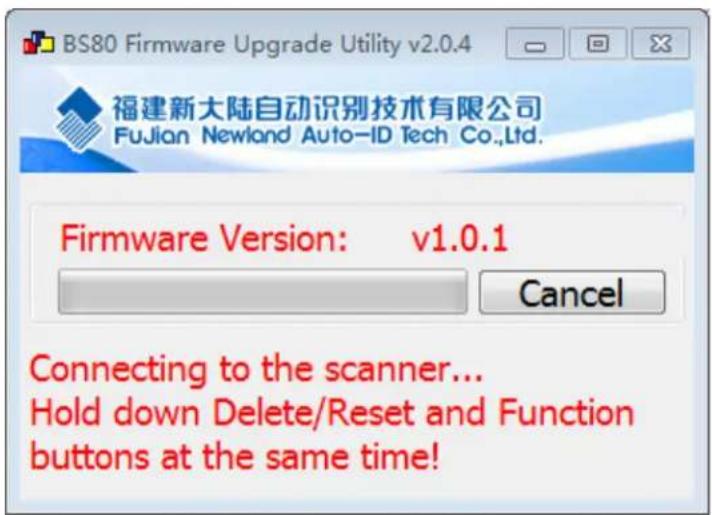
text_image
BS80 Firmware Upgrade Utility v2.0.4 福建新大陆自动识别技术有限公司 Fujian Newland Auto-ID Tech Co.,Ltd. Firmware Version: v1.0.1 Cancel Connecting to the scanner... Hold down Delete/Reset and Function buttons at the same time!Step 3: Turn on the scanner and connect it to your PC with the USB cable.
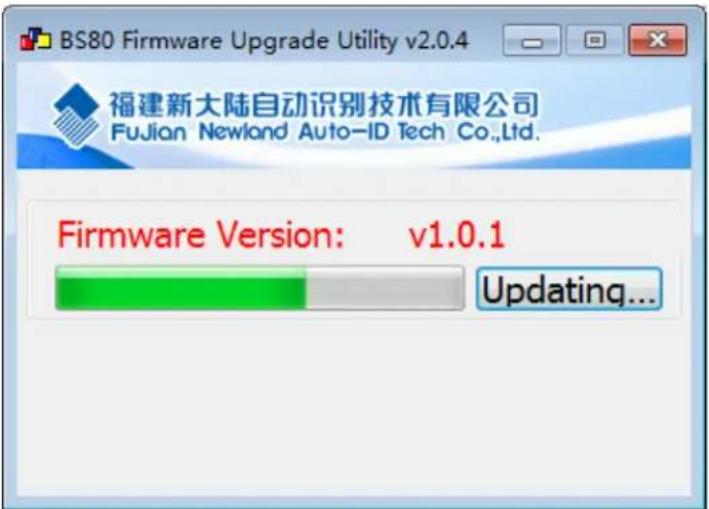
Step 4: Hold down the Function button and the Delete/Reset button on the scanner at the same time for 7 seconds to upgrade the firmware. The red and blue Function LEDs flash alternately during the updating process.
text_image
BS80 Firmware Upgrade Utility v2.0.4 福建新大陆自动识别技术有限公司 Fujian Newland Auto-ID Tech Co.,Ltd. Firmware Version: v1.0.1 Updating...Step 5: Wait for the "Firmware upgraded!" window to pop up and click "OK" to exit the program.

text_image
BS80 Firmware Upgrade Utility v2.0.4 福建新大陆自动识别技术有限公司 Fujian Newland Auto-ID Tech Co Ltd. Message Firmware Upgraded! OKNote: If this utility does not operate normally, check to see if the FirmwarePath in the UpdataTool.ini file is correct (its value should be identical with the name of the .bin file). If there is a higher version of firmware, replace the .bin file.

text_image
Name BS80+Update_EN.exe BS80Firmware_em1300_V1.0.1_20150312.bin HR32UpdateProtocol.dll msg.log UpdataTool.ini USB_DETECT_DLL.dll [Glabal] Corporation = Newland Auto-ID Hyperlink = http://www.nlscan.com/ Caption_Ch = "BS80 Firmware Upgrade Utility" Versions = " v2.0.4" UpdataFirmware=1 MaxDelayMs=8000 FirmwarePath = "\BS80Firmware_em1300_V1.0.1_20150312.bin" ConfigPath = "\HR32WZConfig.bin" CradleFileVer = " v0.2.0" ScannerFileVer = " v0.2.0" RFFileVer = "" EM2039FileVer = " v1.03.059" ComType=0 EditConfig=0Chapter 3 Symbologies
Introduction
Every symbology (barcode type) has its own unique attributes. This chapter provides programming barcodes for configuring the scanner so that it can identify various barcode symbologies. It is recommended to disable those that are rarely used to increase the efficiency of the scanner.
1D Symbologies
Code 39

text_image
Black and white barcode image with vertical lines and a small number '1' at the bottomEnable (default)

text_image
Black and white barcode image with vertical lines and a small number 'n' in the bottom right corner.Disable
Transmit Code 39 Start/Stop Character

text_image
Black and white barcode image with vertical lines and a central dotEnable (default)
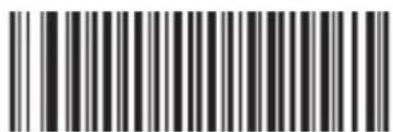
text_image
Black and white barcode image with vertical lines and a central dotDisable
Code 39 FULL ASCII

text_image
Black and white barcode image with vertical lines and a small number '1' at the bottomEnable (default)

text_image
Black and white barcode image with vertical lines and a small number 'n' in the bottom right corner.Disable
Code 128
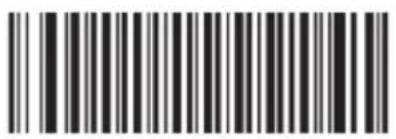
text_image
Black and white barcode image with vertical lines and a small number 'n' in the center.Enable (default)
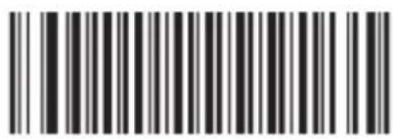
text_image
Black and white barcode image with vertical lines and a small number 'n' in the center.Disable
UCC/EAN-128

text_image
Barcode image containing encoded digital informationEnable (default)

text_image
Black and white barcode image with vertical lines and patternsDisable
EAN-8
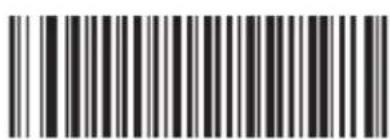
text_image
Black and white barcode image with vertical bars of varying widthsEnable (default)
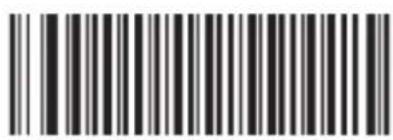
text_image
Black and white barcode image with vertical lines and a small number 'n' in the bottom right corner.Disable
EAN-13

text_image
Black and white barcode image with vertical lines and a central dotEnable (default)

text_image
Black and white barcode image with vertical lines and patternsDisable
ISSN
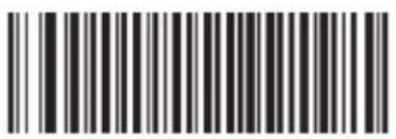
text_image
Barcode image containing encoded digital informationEnable (default)
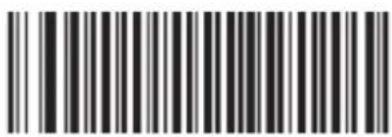
text_image
Barcode image with black and white vertical bars, no visible text or symbolsDisable
ISBN
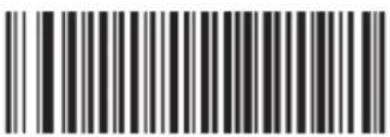
text_image
Black and white barcode image with vertical lines and a small number 'n' in the bottom right corner.Enable (default)
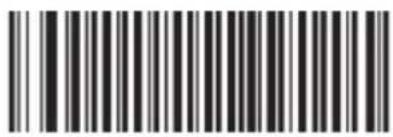
text_image
Barcode image containing encoded digital informationDisable
UPC-E

text_image
Black and white barcode image with vertical lines and a small number 'n' in the bottom right corner.Enable (default)

text_image
Black and white barcode image with vertical lines and a small number 'n' in the center.Disable
UPC-A
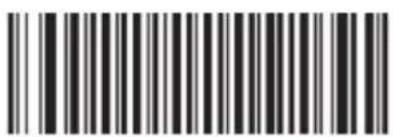
text_image
Black and white barcode image with vertical lines and a small number 'n' in the bottom right corner.Enable (default)

text_image
Black and white barcode image with vertical lines and a small number 'n' in the bottom right corner.Disable
Interleaved 2 of 5

text_image
Black and white barcode image with vertical lines and a small number 'n' in the bottom right corner.Enable (default)

text_image
Black and white barcode image with vertical lines and patternsDisable
Matrix 25

Enable (default)
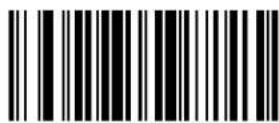
Disable
Industrial 25

text_image
Black and white barcode image with vertical lines and a small number 'n' in the bottom right corner.Enable (default)
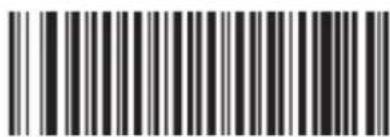
text_image
Black and white barcode image with vertical lines and a small number '1' at the bottom right.Disable
Codabar

text_image
Black and white barcode image with vertical lines and a small number 'n' in the bottom right corner.Enable (default)

text_image
Black and white barcode image with vertical lines and a small number '1' at the bottomDisable
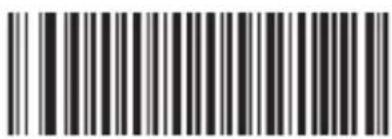
Code 93

text_image
Barcode image containing encoded digital informationEnable (default)
text_image
Barcode image containing encoded digital informationDisable
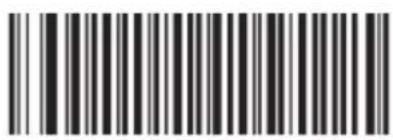
GS1 Databar (RSS)

text_image
Black and white barcode image with vertical lines and a central dotEnable (default)
text_image
Black and white barcode image with vertical lines and a small number 'n' in the bottom right corner.Disable
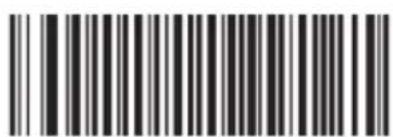
Code 11

text_image
Black and white barcode image with vertical lines and a small number 'n' in the center.Enable (default)
text_image
Barcode image with black and white vertical bars, no visible text or symbolsDisable
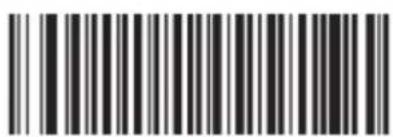
Plessey

text_image
Black and white barcode image with vertical lines and a small number 'n' in the bottom right corner.Enable (default)
text_image
Black and white barcode image with vertical lines and a central dotDisable
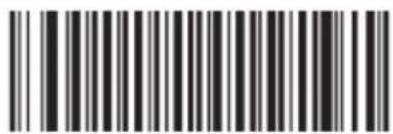
MSI-Plessey

text_image
Black and white barcode image with vertical lines and a small number 'n' in the center.Enable (default)
text_image
Black and white barcode image with vertical lines and a central dotDisable
Appendix
Factory Defaults Table
| Parameter | Factory Default | Remark |
| System Settings | ||
| Operating Mode | Wireless mode (Bluetooth mode) | |
| Bluetooth Profile | HID | |
| USB Interface Type | USB HID-KBW | |
| Data Transmission Mode for Bluetooth | Asynchronous mode | |
| Sound Notifications | Enabled | |
| Vibration Notifications | Disabled | |
| Terminating Character Suffix | Append CRLF as Terminating Character Suffix | |
| Inter-Character Delay for Bluetooth HID | 15ms | |
| Auto Power-Off Timer | 30 minutes | |
| Time Stamp | Enabled | |
| Date Format | Format 3: yyyy/mm/dd | |
| USB Country Keyboard Types | US English | USB HID-KBW |
| Convert Case | No Case Conversion | USB HID-KBW |
| Inter-Keystroke Delay for KBW | 3ms | USB HID-KBW |
| Symbologies | ||
| Code 39 | ||
| Code 39 | Enabled | |
| Transmit Start/Stop Character | Enabled | |
| Code 39 Full ASCII | Enabled | |
| Code 128 | ||
| Code 128 | Enabled | |
| UCC/EAN-128 | ||
| UCC/EAN-128 | Enabled | |
| EAN-8 | ||
| EAN-8 | Enabled | |
| EAN-13 | ||
| EAN-13 | Enabled | |
| ISSN | ||
| ISSN | Enabled | |
| ISBN | ||
| ISBN | Enabled | |
| UPC-E | ||
| UPC-E | Enabled | |
| UPC-A | ||
| UPC-A | Enabled | |
| Interleaved 2 of 5 | ||
| Interleaved 2 of 5 | Enabled | |
| Matrix 25 | ||
| Matrix 25 | Enabled | |
| Industrial 25 | ||
| Industrial 25 | Enabled | |
| Codabar | ||
| Codabar | Enabled | |
| Code 93 | ||
| Code 93 | Enabled | |
| GS1 Databar (RSS) | ||
| GS1 Databar (RSS) | Enabled | |
| Code 11 | ||
| Code 11 | Enabled | |
| Plessey | ||
| Plessey | Enabled | |
| MSI-Plessey | ||
| MSI-Plessey | Enabled | |
Digit Barcodes
0\~9

text_image
0
text_image
1
text_image
2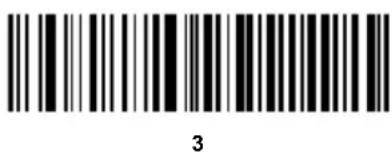
text_image
3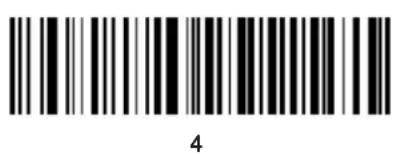
text_image
4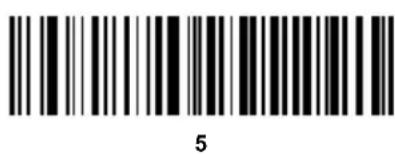
text_image
5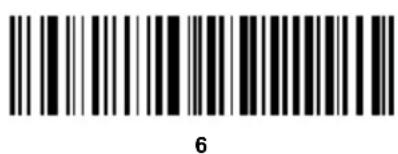
text_image
6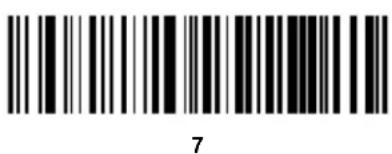
text_image
7
text_image
8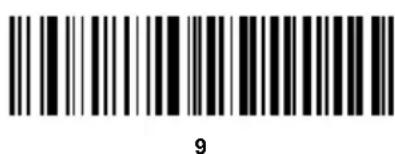
text_image
9A \~ F
text_image
A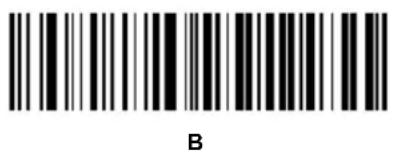
text_image
B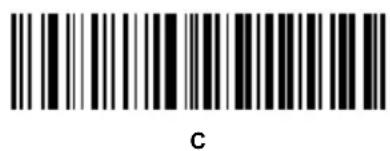
text_image
C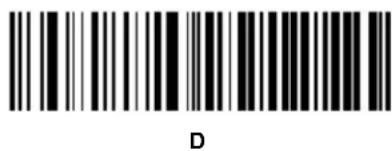
text_image
D
text_image
E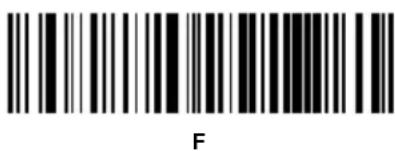
text_image
F
natural_image
Abstract geometric design with blue and white diagonal stripes forming a stylized shape (no text or symbols)Newland EMEA
+31 (0) 345 87 00 33
info@newland-id.com
Newland Nordic Branch
+46 (0) 708 847 767
goeran.jernberg@newland-id.com
Newland South Africa Division
+27 (0)11 553 8010
info@newland-id.co.za
Newland UK Branch
+44 (0) 1442 212 020
david.craggs@newland-id.co-uk
Newland France Branch
+33 (0) 160 707 974
info@newland-id.fr
Newland Middle East Branch
+96 (0) 655 500 9610
shuja.rahman@newland-id.com
Newland D-A-CH
Newland Italy Branch
+39 (0) 335 773 0521
cristiano.dibattista@newland-id.com
Newland Ibérica Branch
+34 93 303 74 66
info@newland-id.es