32VZC5200 - TV HITACHI - Free user manual and instructions
Find the device manual for free 32VZC5200 HITACHI in PDF.


User questions about 32VZC5200 HITACHI
0 question about this device. Answer the ones you know or ask your own.
Ask a new question about this device
Download the instructions for your TV in PDF format for free! Find your manual 32VZC5200 - HITACHI and take your electronic device back in hand. On this page are published all the documents necessary for the use of your device. 32VZC5200 by HITACHI.
USER MANUAL 32VZC5200 HITACHI
natural_image
Black-and-white photo of a retro television displaying mountain peaks and a CD, with no visible text or symbols on the screen.OWNER'S GUIDE
For Model: 32VZC5200
Welcome
Congratulations on choosing to buy a HITACHI product. All products brought to you by HITACHI are manufactured to the highest standards of performance and safety and, as part of our philosophy of customer service and satisfaction, are backed by our comprehensive 2 Year Warranty.
We hope you will enjoy using your purchase for many years to come.
Contents
| Welcome 3 |
| Remote Control 5 |
| Important Safety Instructions 9 |
| Installation 14 |
| Controls and Connections 17 |
| Getting Started 23 |
| Basic Operations 24 |
| Electronic Program Guide (EPG) 26 |
| Recording 27 |
| Menu Settings 30 |
| DVD Mode 41 |
| USB Multimedia Playback 50 |
| FAQs 53 |
| Other Useful Information 55 |
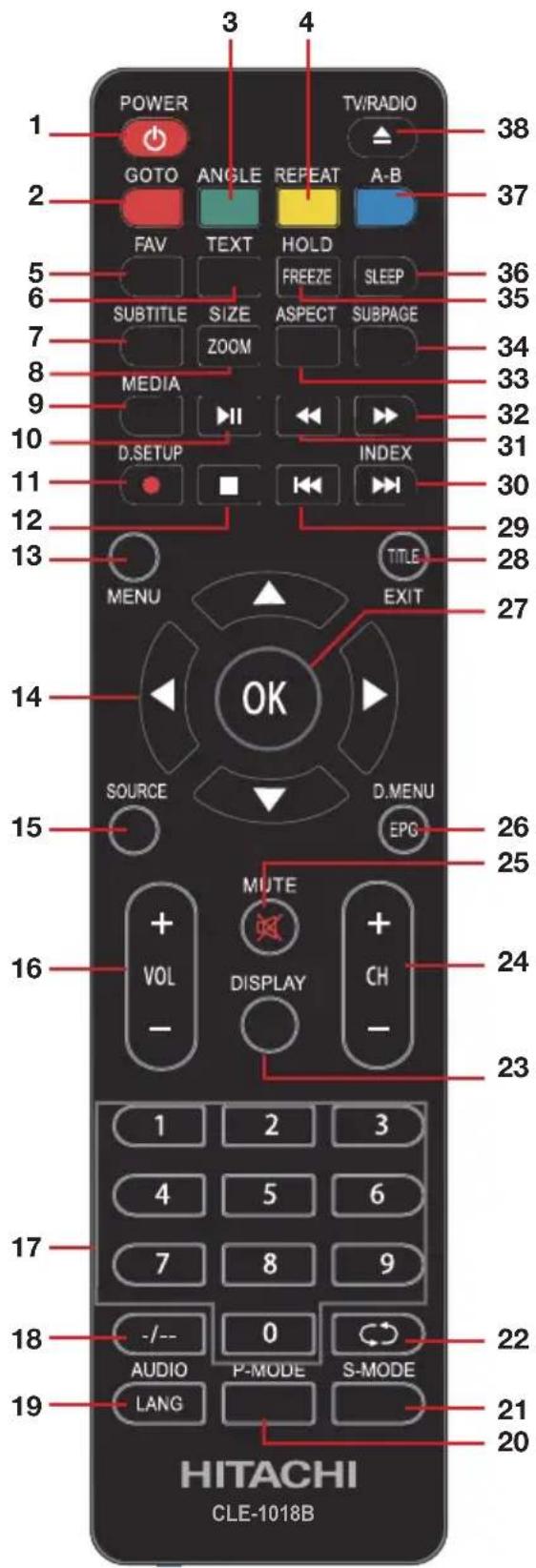
Remote Control
1 POWER: Set the unit in standby mode; press it again to switch it on.
2 GOTO: Jump to a different chapter of the DVD.
3 ANGLE: View DVD playback from different angles, if the DVD has this feature.
4 REPEAT: Repeat a different chapter/title or the entire DVD.
5 FAV: Press to display your favourite program in DTV mode.
6 TEXT: Switch between TV and Teletext mode.*
7 SUBTITLE: Enable/disable subtitles.
8 SIZE / ZOOM: Change the picture size.
9 MEDIA: Select USB mode.
10 PLAY/PAUSE in TIMESHIFT and USB mode.
11 Record: Record programs in DTV mode. D-SETUP: Display the main disc menu.
12 ■Stop playing.
13 MENU: Display the main TV menu.
14 ✦ ↗ / ▲: Press the UP/DOWN/RIGHT/LEFT buttons to navigate the on-screen menus and adjust the system settings to your preference. Press OK to confirm your selection.
15 SOURCE: Switch the input source.
16 VOL +/-: Turn the volume up/down.
17 NUMBER BUTTONS (0-9): Press to select a TV channel directly when watching TV. The channel changes after 2 seconds.
18 -/--: Switch the digits.
19 LANG/AUDIO: Switch the available sound-track language (DTV/DVD).
20 P-MODE: Cycle through the different picture modes.
21 S-MODE: Cycle through the different sound modes.

text_image
1 POWER GOTO ANGLE REPEAT A-B 3 4 TV/RADIO 38 2 5 FAV TEXT HOLD FREEZE SLEEP 36 35 7 SUBTITLE SIZE ASPECT SUBPAGE 34 8 MEDIA ZOOM INDEX 33 9 10 D.SETUP TITLE 32 31 11 12 13 MENU EXIT 27 14 OK SOURCE D MENU EPO 26 25 15 MUTE + VOL DISPLAY + CH - 24 16 - - - 23 1 2 3 4 5 6 7 8 9 -/- 0 AUDIO P-MODE S-MODE LANG 22 21 20 HITACHI CLE-1018BRemote Control (Cont.)
text_image
POWER GOTO FAV SUBTITLE MEDIA D.SETUP SOURCE 3 4 TV/RADIO ANGLE SIZE REPEAT TEXT ASPECT FREEZE HOLD A-B SLEEP SUBPAGE INDEX TITLE EXIT 27 28 29 30 31 32 33 34 35 36 37 38 20 21 22 23 24 25 26 27 28 29 30 31 32 33 34 35 36 37 38 39 40 41 42 43 44 45 46 47 48 49 50 51 52 53 54 55 56 57 58 59 60 61 62 63 64 65 66 67 68 69 70 71 72 73 74 75 76 77 78 79 80 81 82 83 84 85 86 87 88 89 90 91 92 93 94 95 96 97 98 99 10022 Return to the previous channel.
23 DISPLAY: Display information of the current program.
24 CH+/-: Press to play the next or previous channel; press repeatedly to scan through the channels.
25 MUTE: Mute the sound. Press again or press V+ to restore the sound.
26 EPG: Launch the Electronic Program Guide (DTV)
D.MENU: Display the main disc menu.
27 OK: Confirm selection.
28 EXIT: Exit from the main TV menu displayed on the screen.
TITLE: Display the DVD title menu (DVD).
29 Play the previous file.
30 ▶Play next file.
31 Move fast backward.
32 ▶Move fast forward.
33 ASPECT: Press to zoom in and out of the picture.
34 SUBPAGE: Manually jump to the previous or next subpage of Teletext.
35 FREEZE: Hold the picture.
36 SLEEP: Set the TV sleep timer.
37 A-B: Repeat DVD scenes of your preference.
38 TV / RADIO: Switch the unit between TV and radio.
▲: Open or close the disc compartment (DVD).
* Teletext or Austext is no longer available, nor is there any plan for a replacement teletext service in Australia. For more information, please visit the websites of the Australian channel providers.
However, one teletext option, “closed captions”, is still working on most Australian television channels. This service allows you to activate subtitles while watching normal television programs that provide it.
Remote Control (Cont.)
Using the Remote Control
Inserting Batteries
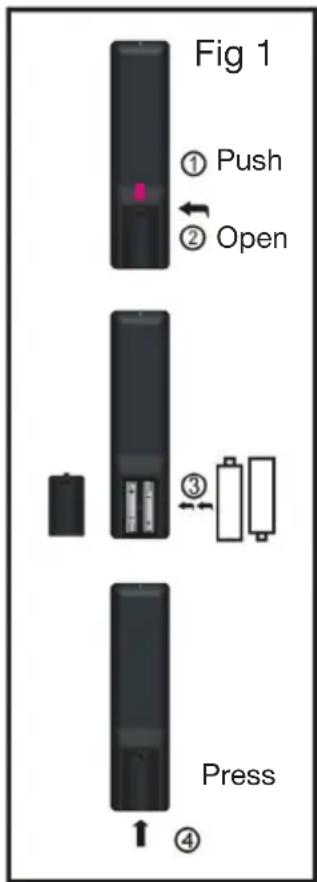
Install the batteries as illustrated in Fig 1, right.
- Open the cover at the back of the remote control unit completely.
- Insert two AAA size batteries according to the polarity markings (+ / -) inside the compartment. Make sure the batteries are correctly aligned and properly pushed into place so they can power the remote control unit.
- Slide the cover back into position.
NOTE: When testing the remote control unit after replacing the batteries, make sure the TV is properly connected to the mains power supply.
Battery Service Life
- The service life of batteries depends on usage and environmental conditions. They should normally last for about one year.
- If the remote control fails to work even when it is operated near the TV, replace the batteries.
Precautions When Using Batteries
- Do not use old and new batteries together.
- Do not use different types of batteries (for example, Manganese and Alkaline batteries) together.
- Note that there are chargeable and non-chargeable batteries. Do not attempt to charge non-chargeable batteries.
- Remove the batteries from the remote control unit if you do not intend to use the unit for a long time.
- When discarding used batteries, follow any guidelines for recycling and disposal of batteries that apply in your local area.
- Keep batteries away from children and pets.
- Never throw batteries into a fire or expose them to fire or other sources of extreme heat.
text_image
Fig 1 ① Push ② Open ③ Press ④Remote Control (Cont.)
Using the Remote Control
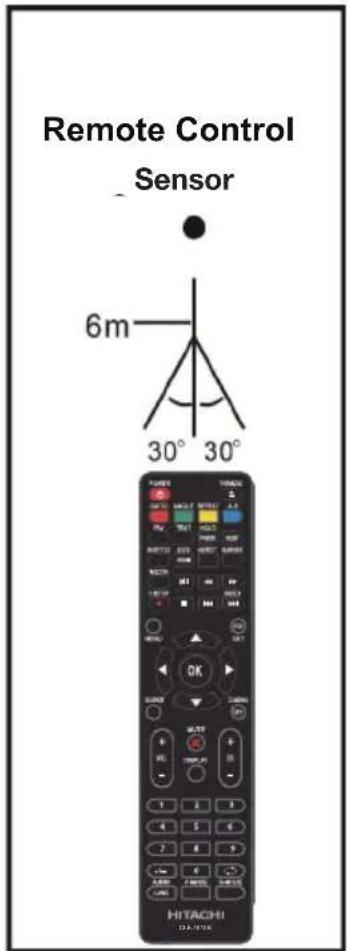
To use the remote control, point it towards the remote sensor at the front of the television.
The remote control has a range of up to approximately six metres (6m) from the TV at an angle of up to 30 degrees each to the right and left of the sensor, as illustrated on the right.
The remote control will not operate if its path is blocked.
NOTES:
- Do not drop, step on or otherwise impact the remote control. This may damage the parts or lead to malfunction.
- The operating distance may vary according to the brightness of the room.
- Do not point bright lights at the remote control sensor.
- Do not place objects between the remote control and the remote control sensor.
- Do not use this remote control while simultaneously operating a remote control of other devices.
text_image
Remote Control Sensor 6m 30° 30° HITACHI HITACHI HITACHI HITACHI HITACHI HITACHI HITACHI HITACHI HITACHI HITACHI HITACHI HITACHI HITACHI HITACHI HITACHI HITACHI HITACHI HITACHI HITACHI HITACHI HITACHI HITACHI HITACHI HITACHI HITACHI HITachi HITachi HITachi HITachi HITachi HITachi HITachi HITachi HITachi HITachi HITachi HITachi HITachi HITachi HITachi HITachi HITachi HITachi HITachi HITachi HITachi HITachi HITachi HITachi HITachi HITACHIImportant Safety Instructions
Read this manual thoroughly before first use and keep it in a safe place for future reference, along with purchase receipt and carton. The safety precautions enclosed herein reduce the risk of fire, electric shock and injury when correctly adhered to. Follow all instructions and take notice of all the warnings.
IMPORTANT WARNINGS AND CAUTIONS!

text_image
Two triangular warning symbols: a lightning bolt and an exclamation mark, commonly used in safety or hazard prevention contexts.CAUTION
RISK OF ELECTRIC SHOCK DO NOT OPEN
To reduce the risk of electric shock, do not remove the cover (or back).
This unit contains no user-serviceable parts inside. Refer all servicing to qualified service personnel only.


The lightning flash with an arrowhead symbol within an equilateral triangle is intended to alert you to the presence of non-insulated dangerous voltage within the product's enclosure that may be of sufficient magnitude to constitute a risk of electric shock to persons.
The exclamation point within an equilateral triangle is intended to alert you to the presence of important operating and maintenance (servicing) instructions in the literature accompanying the product.
IMPORTANT WARNINGS AND CAUTIONS!
- Only connect this TV to a mains socket with a protective earthing connection.
- To prevent damage which may result in fire or an electric shock hazard, do not expose this appliance to rain or moisture.
- Do not change or modify the appliance in any way.
- Only use the attachments/accessories specified by the manufacturer.
- Where the mains plug or an appliance coupler is used as the disconnect device, the disconnect device shall remian readily operable.
LASER SAFETY

This set employs an optical laser beam system in the disc mechanism designed with built-in safeguards. Do not attempt to disassemble. Exposure to this invisible laser light beam may be harmful to the human eye.
This is a Class-1 laser product. Use of controls, adjustments or procedures other than those specified herein may result in hazardous laser light beam exposure.
This TV set with DVD player should not be adjusted or repaired by anyone except qualified service personnel. The laser mechanism in the set corresponds to the stylus (needle) of a record player. Although this product uses a laser pick-up lens, it is completely safe when operated according to directions.
Important Safety Instructions (Cont.)
Electrical Safety and Cord Handling
- Voltage: Before installing this TV set, make sure your outlet voltage corresponds to the voltage stated on the TV's rating label.
- Protect from moisture: To reduce the risk of fire or electric shock, do not expose this TV to rain or moisture; do not use it anywhere near water; do not touch the power plug with wet hands.
- Damage: Do not use a damaged power cord, plug or loose outlet. Doing so may cause an electric shock.
- Power outlet: Do not plug several devices into the same outlet. Doing so may cause the outlet to overheat and start a fire. Make sure the outlet is properly earthed and readily accessible during operation of the equipment.
- Power plug: Make sure the plug is properly installed before inserting it fully into the outlet. A loose or improperly inserted power plug may cause a fire. The mains plug is used as the power disconnect device and shall remain readily accessible and operable.
- Protect the cord: Do not bend, twist or kink the power cord excessively. Do not allow anything to rest on or roll over the power cord and antenna cable. Doing so may cause a fire or an electric shock. Do not run the power cord near heat-producing appliances such as radiators, stoves or irons. The excessive heat could melt the insulation and expose live wires, resulting in fire or electric shock.
- Disconnect: Always grasp the plug when disconnecting the power cord. Pulling the cord can damage the internal wire and may cause a fire.
- Disconnect device: Where the mains plug or an appliance coupler is used as the disconnect device, the disconnect device shall remain readily operable.
- Lightning storms: Unplug the power cord and antenna cord during lightning storms or when unused for long periods of time. Not doing so may result in fire or electric shock. Before thunder and lightning storm events arrive, unplug to minimise the risk of damage to your TV.
Important Safety Instructions (Cont.)
Installation
- Follow instructions: Only install this TV set in accordance with these instructions.
- Location: This TV is designed for indoor, fixed location use only. It must not be used in portable or mobile applications as vibration or excessive forces may damage the unit.
- When deciding on where to put the TV set, make sure the place is:
• Well ventilated, and away from damp and cold.
- Protected from overheating and away from direct sunlight. (Total darkness or a reflection on the picture screen can cause eyestrain. Soft and indirect lighting is recommended for comfortable viewing.)
- Away from moisture drips or splashes.
- Protected from excessive dust or grease.
- This TV is equipped with standard wall-mounting points, and we recommend that a wall bracket should be installed between the TV and the wall to prevent the TV from falling from a cabinet. (The bracket is not included.)
- If a television is not positioned in a sufficiently stable location, it can be potentially hazardous due to falling and causing injury, particularly to children. To prevent injuries from your television falling, take a few simple precautions:
- Do not place the TV on tall furniture (e.g., on a cupboard or bookcase) without anchoring both the furniture and the TV to a suitable support.
- Only use furniture that can safely support the television.
- Ensure the TV is not overhanging the edge of the supporting furniture.
- Educate children about the dangers of climbing on furniture to reach TV controls.
- Do not place the TV on cloth or other materials.
- Bookcase: Do not install this equipment in a confined space such as a bookcase or similar unit.
- Heat: Do not install the TV set near heat sources such as radiators, stoves or other audio visual equipment (including amplifiers) that produce heat.
- Environments: This TV is not warranted for use in unreasonably hot, cold or humid environments.
- Antenna: Install the antenna away from high-voltage power lines and communication cables. Make sure it is installed securely. If the antenna touches a power line, contact with the antenna could result in fire, electric shock or serious injury.
- Vibration: Do not expose the TV to vibration or shock.
- Ventilation: Install the unit at an adequate distance from the wall to ensure sufficient ventilation. Leave at least 10cm clear space around the TV, and 30cm from the top of the TV. If the temperature inside the unit rises, it may result in fire. Do not cover the ventilation openings with items such as newspapers, tablecloths, curtains etc. as this could impede ventilation.
Important Safety Instructions (Cont.)
Usage Conditions and Restrictions
- Adjustments: Follow the instructions in this manual when installing and adjusting the TV set. Only adjust those controls that are covered in this manual, as improper adjustment of other controls may result in damage.
- Do not modify: Do not change or modify the appliance in any way.
- Attachments: Only use the attachments/accessories specified in this manual.
- Cabinet slots: Do not insert objects of any kind into this unit through the cabinet slots, as they could touch the current-carrying parts or short-circuit parts, resulting in fire, electric shock or damage to the unit.
- Smoke or odour: If you notice any unusual odours or smoke around the unit, immediately disconnect the unit from the outlet and contact the service centre. Failure to do so may result in fire or electric shock.
- Water: Do not place containers with liquids (such as vases) or with small metallic objects on top of the unit. If liquid enters the unit or any metal object falls into the unit, it may result in short-circuit, fire or electric shock.
- Fire or explosion: Do not use or store flammable or combustible materials near the TV. Doing so may result in fire or explosion. Do not place any naked flame sources, such as lit candles, cigarettes or incense sticks on top of the TV set.
- When not in use: When not using the TV for long periods of time, disconnect the power cord from the wall outlet.
- Batteries: When removing batteries from the remote control, make sure to keep them out of reach of infants, children and pets. Seek medical attention immediately if a child has swallowed a battery. Never throw used batteries in a fire.
- Usage restriction: This product is not intended for use by persons (including children) with reduced physical, sensory or mental capabilities, or lack of experience and knowledge, unless they have been given supervision or instructions concerning use of the product by a person responsible for their safety.
- Children: Supervise children to ensure they do not play with the TV.
- Turning: When you are turning the TV, do not hold and push on the top section of the TV, always turn at the bottom corner of the TV.
Cleaning and Maintenance
- Unplug: To reduce the risk of fire and electric shock, always unplug the TV before cleaning.
- Cleaning: Only use a soft, dry cloth when cleaning the TV. Do not use a damp cloth. Never clean with industrial strength polish, wax, benzene, paint thinner, air freshener, lubricant, detergent or other chemicals. Wipe off any moisture, dirt or dust on the power plug pins with a clean, dry cloth.
- Cleaning the screen: When you clean up dust or water drops on the LCD panel or cabinet, the power cord should be physically removed from the mains outlet. You may then wipe the TV with a dry soft cloth.
Important Safety Instructions (Cont.)
- Repair: If the TV requires repair, contact the after sales support line; never disassemble or modify the TV or attempt to service it yourself.
- Service: Refer all servicing to qualified service personnel. Servicing is required when the TV has been damaged in any way, such as when the power supply cord or plug is damaged, liquid has been spilled or objects have fallen into the TV, when the TV has been exposed to rain or moisture, does not operate normally, or has been dropped.
Moving, Installing and Wall-Mounting the TV
When removing the TV from its original packaging, moving the TV to a different location, cleaning, installing and wall mounting the TV, make sure you take blow precautions:
- Always move the TV by two people holding it with both hands on either side of the TV.
- Do not apply any pressure directly on the front screen of the TV, the LCD screen may be damaged if not handled carefully.
- Beware of the TV stand if attached to the TV.
• Always place TV on a stable, flat and clean surface.
WARNING!
- Never tamper with any components inside the TV, or any other adjustment controls not mentioned in this manual. All LED LCD TVs are high voltage instruments.
- All repairs to this TV must only be performed by qualified TV service personnel. There are no user-serviceable components within this TV. Changes or modifications to this TV, including changes to parts, components and constructional attributes that are responsible for safety and regulatory compliance, may result in non-compliant and unsafe operation of this equipment.
- Children should never be allowed to move and play with the TV.
Disc Protection
- Store your discs in a cool area to avoid damage from heat.
- Do not touch the playback side of the disc.
- Do not attach tape or paper to the disc. To clean off dust, slightly moisten a soft cloth and finish with a dry cloth.
- Do not use any type of solvent, commercially available benzene or antistatic spray for vinyl LPs, as these may damage the discs.
- See the DVD Mode section for more disc cleaning and handling tips.
Installation
Unpacking and Preparing the TV
Remove the TV carefully from its packaging, be careful not to apply any pressure to the front of the LCD screen. Some accessory items may be located in cut-out sections of the internal packaging, so make sure you check the entire packaging to not miss any items. Once all items are removed from the packaging, use the list below to check there are no items missing.
1 x 32" (81.28 cm) FHD LED LCD TV
2 x Base stands
1 x Remote control
2 x "AAA" size batteries
1 x Composite AV cable
4 x Screws (for assembling the base stands to the TV)
1 x Instruction manual
1 x Warranty Card
Once all the accessory items have been accounted for, prepare your TV for installation – you can either use it standing up on the supplied base stands on suitable furniture, or mounted to a wall. You will find installation instructions for both options on the following pages.
IMPORTANT!
The TV panel may be awkward to install on your own. We recommend you ask someone to help with installation and/or removal of the stands, or with wall-mounting the TV set.
After having installed the base stands (or wall-mounted the TV), follow the instructions in the “Controls and Connections” section to ensure that you TV is correctly connected to your TV antenna and related AV equipment (e.g., Blu-ray player, amplifier, sound bar, etc.).
Installation (Cont.)
Assembling the Base Stands
If you want to use the TV standing on appropriate furniture, first find a suitable location where you can attach the TV base stands to the body of the TV. You will need to arrange a soft cloth that is large enough to cover the entire front panel of the TV (for protection of the LCD screen), as well as a screwdriver to attach the base stands.
Before using the TV, install the stands as described below, or if you want to mount it to a wall, see page 16 for mounting advice; the wall mount (bracket) itself is not supplied.
IMPORTANT!
Make sure the TV is unplugged from the power supply before installing or removing the base stands.
Attaching the Stand
Step 1
Place a soft cushioned material on top of a flat surface to prevent damaging the screen panel. Then place the TV screen flat on top, with the screen side facing down, as illustrated on the right (Fig 1).
Step 2
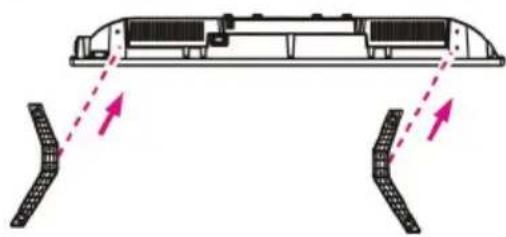
Align the stand base to the installation point, as illustrated on the right (Fig 2).
Step 3
Tighten the screws (supplied) with a screwdriver to affix the stand to the panel, as illustrated on the right (Fig 3).
CAUTION!
- Do not apply excessive force as this may damage the screw holes.
- Unplug the power plug first when installing or removing the TV Stand.
- To avoid any damage to this TV, we recommend you ask someone to help with installation and/or removal of the stand.
Fig 1
natural_image
Technical line drawing of a mechanical assembly with no visible text or symbolsFig 2
natural_image
Diagram of a mechanical component with two curved supports and directional arrows indicating movement or force (no text or symbols)Fig 3

natural_image
Mechanical assembly diagram showing a frame with supports and mounting points (no text or symbols)Installation (Cont.)
Wall-Mounting the TV
IMPORTANT!
- Make sure the TV is unplugged from the power supply before mounting it to a wall or taking it off the wall mount.
- We recommend you contact a professional for assistance when wall-mounting the TV. We assume no liability for any eventual damage to the product or injury to yourself if you mount the TV on your own.
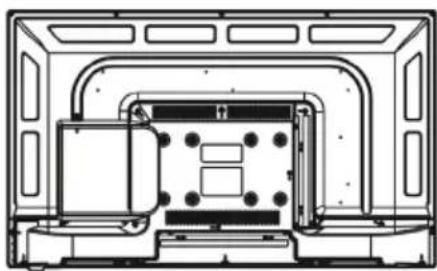
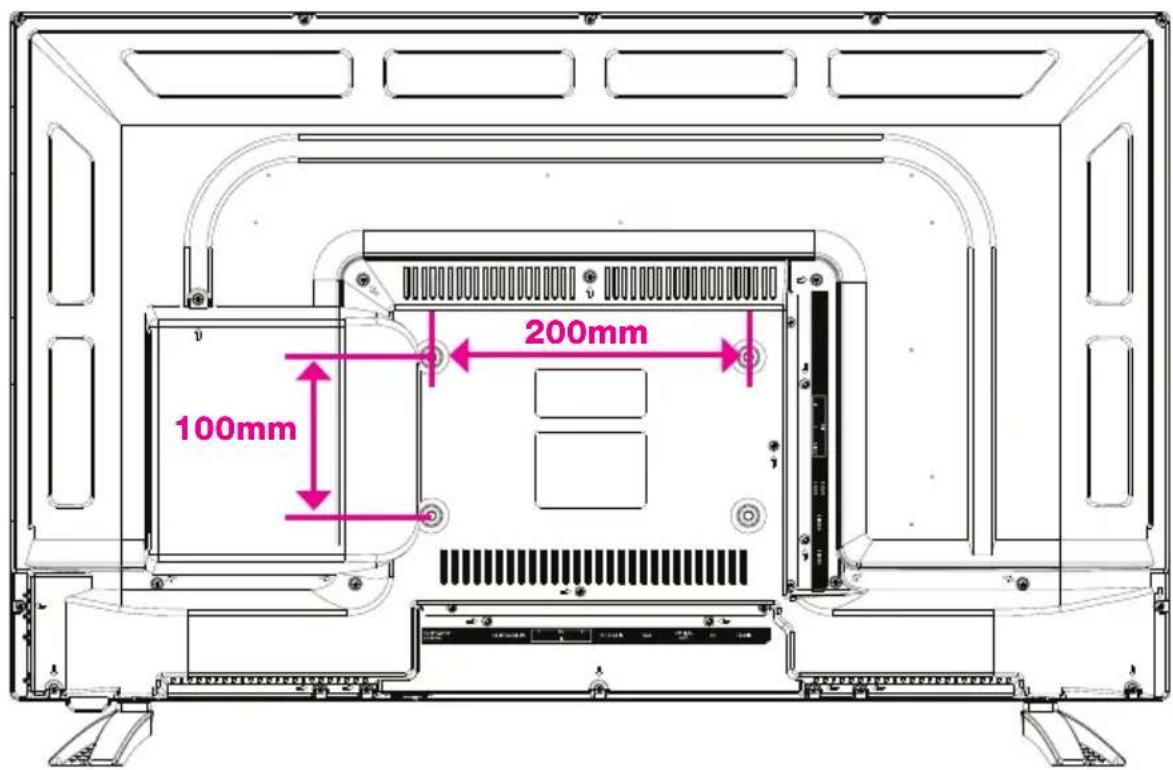
- The TV set is equipped with holes on the back panel for use with wall-mounting brackets (not included). Please use the illustration below as a reference when buying wall-mounting brackets.
- Use four (4) standard M6*10mm screws (or longer, depending on the mounting bracket) to mount this TV.
NOTE: The screws in the package are for securing the TV stands only. If you are wall-mounting the TV, please consult a qualified installer for further instructions on bracket support and wall support.
Back of the TV
text_image
100mm 200mmControls and Connections
Front and Side Button Controls
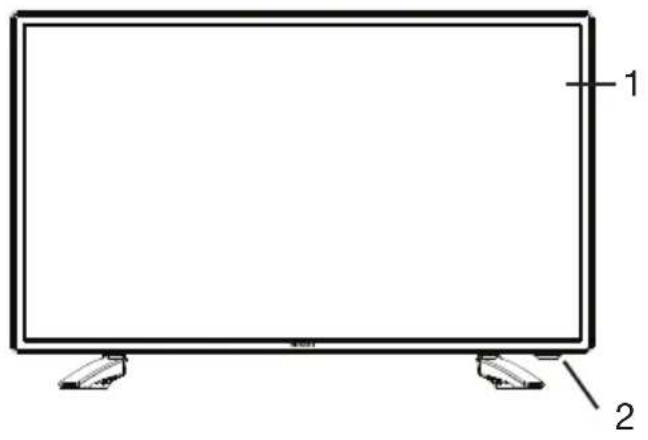
Front View Side View
text_image
1 2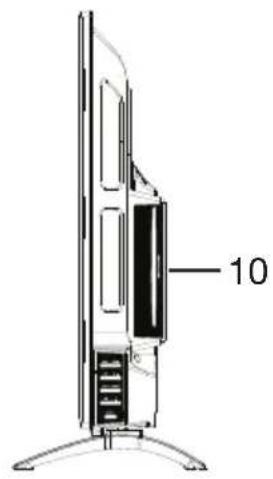
text_image
10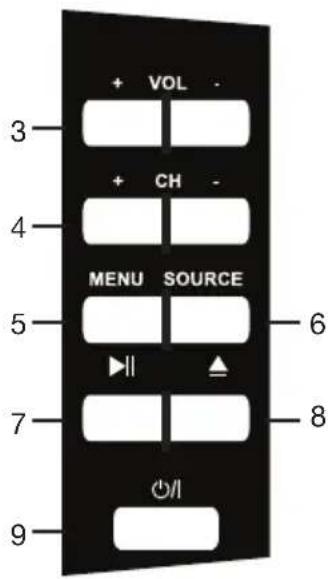
text_image
+ VOL - 3 + CH - 4 MENU SOURCE 5 6 7 8 9 +/I1 LED LCD Display screen
2 IR (infra-red) Sensor for remote control.
Power Indicator: In standby mode the indicator light is red; when switching on the unit the indicator light will illuminate blue.
3 VOL + / - : Decrease/increase the volume level or move left/right.
4 CH + / - : Select the previous/next channel or move up/down.
5 MENU: Enter the settings menu.
6 SOURCE: Select the input source.
7 Play/Pause: To Play and Pause a DVD.
8 Eject: To remove a DVD
9 POWER: Turn the TV on/off.
10 DVD: DVD player
Controls and Connections (Cont.)
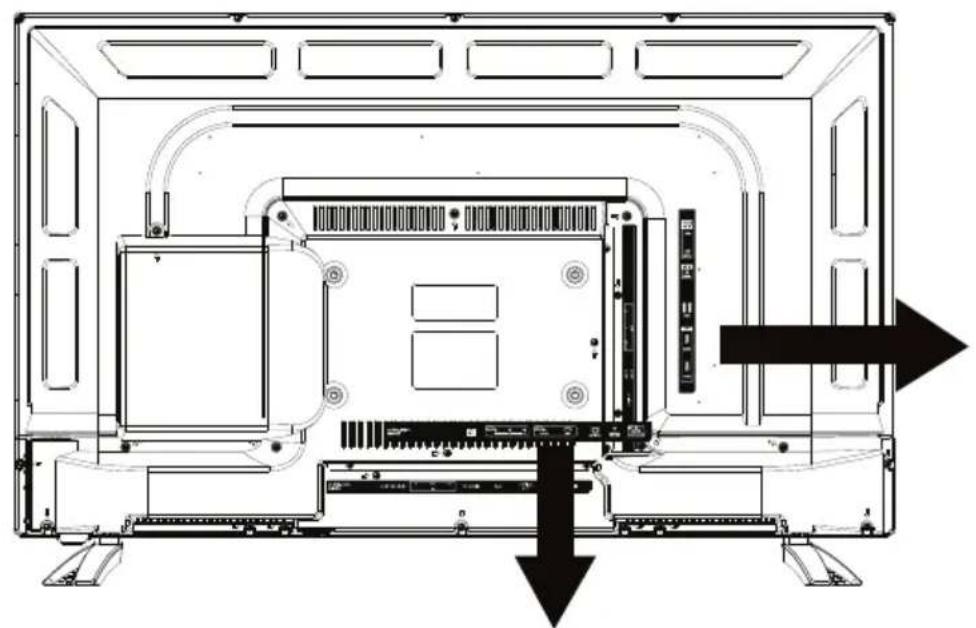
Back Panel Connections
natural_image
Technical diagram of an internal device layout showing a monitor, tower, and drive unit with directional arrows indicating movement (no text or symbols present)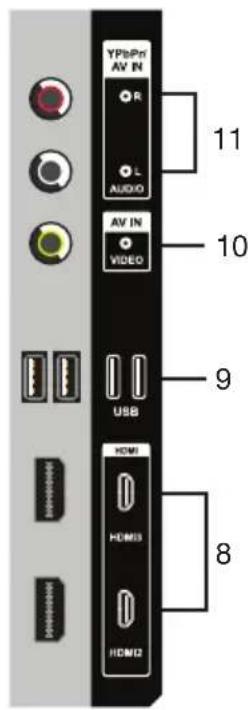
text_image
YPBnP AV IN R L AUDIO AV IN VIDEO USB HDMI HDMI3 HDMI2 11 10 9 8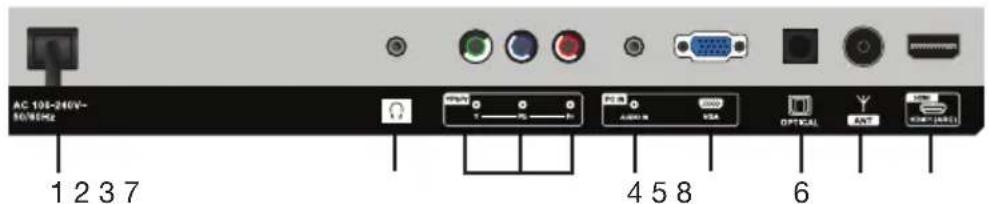
text_image
AC 10E-346V- M0/8MHz 1 2 3 7 4 5 8 61 POWER: Power Input
2 EARPHONES output
3 YPBPR input (Component): supports both SD (Standard Definition) and HD (High Definition) picture quality.
4 PC AUDIO input
5 PC (VGA) input: Connect to a PC or other device with a VGA interface.
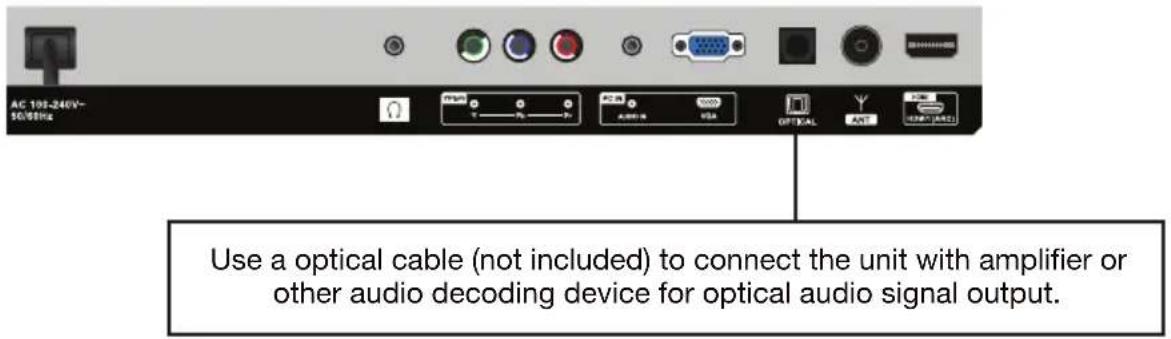
6 OPTICAL output: Connect the unit with amplifier or other audio decoding devices for optical audio signal output.
7 ANTENNA input: For connection of the external antenna.
8 HDMI inputs: Provides an all digital video/audio connection between the TV and any HDMI device, such as a DVD player, gaming console or A/V receiver.
9 USB input: Connect a USB storage device for PVR recording and multimedia file playback.
10 VIDEO input (Composite): Supports SD picture quality connections.
11 AUDIO R/L input: Shared between Composite and Component video.
Controls and Connections (Cont.)
IMPORTANT!
- Ensure all cables are disconnected from the main unit before connecting the TV to an AC power source.
- Read through the instructions before connecting the TV to other equipment.
Connecting to an AC Power Source

text_image
Main Unit To power outletConnecting to an External Antenna
For best picture quality, we recommend connecting the TV set to an external antenna.

text_image
Antenna Outdoor antenna amplifier Indoor antenna amplifier Power plug of antenna amplifier 75 Ohm antenna plugControls and Connections (Cont.)
Earphone Connection
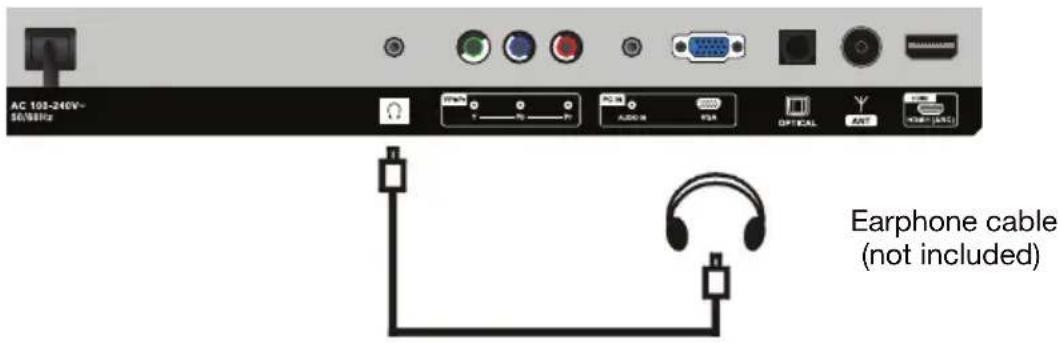
text_image
AC 103-246V~ 50/68Hz Earphone cable (not included)USB Connection
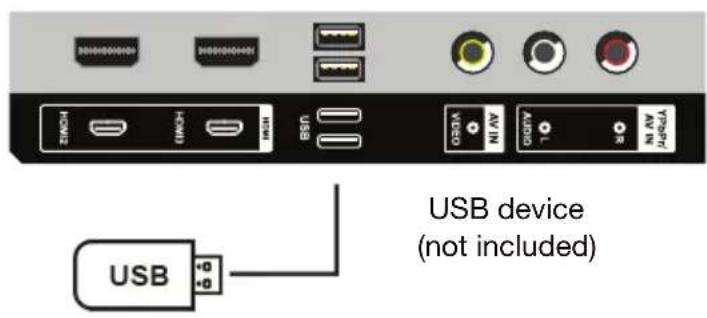
text_image
USB device (not included)Composite Video (CVBS) Connection

text_image
For a non high-definition connection, use the composite Audio L/R (white/ed) and CVBS (yellow) cable to connect the unit with other devices. AV Cable (included) External Video / Media PlayerControls and Connections (Cont.)
HDMI Connection
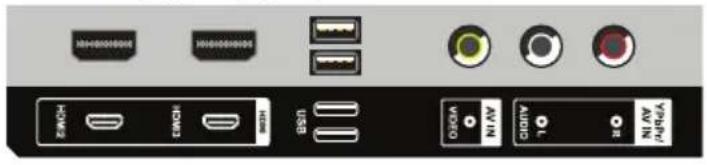
Use an HDMI cable to connect the unit with other devices to receive high-definition multimedia signal.
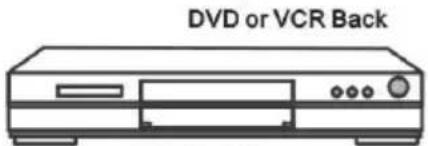
text_image
DVD or VCR BackDVD or VCR
PC / VGA Connection

text_image
AC 108-246V~ 50/98Hz
text_image
Audio cable (not included) AUDIO RGB/PC OUTPUTVGA Cable (not included)
Use VGA and Audio cables to connect the unit with a PC and use this product as a monitor.
Controls and Connections (Cont.)
Optical Connection
text_image
AC 190-246V~ 50/88Hz Use a optical cable (not included) to connect the unit with amplifier or other audio decoding device for optical audio signal output.Component (YPbPr) Connection

text_image
AC 135-240V- 50/50Hz YPbPr Cable (Not included) Audio L/R of AV Cable (Included) L R Y Pb Pr External Video / Media PlayerGetting Started
Getting Started
Once you have connected your TV antenna and other AV playback equipment (ie. CD player, amplifier, Blu-ray player) to the appropriate input sockets on the back of the TV, you will need to be comfortable with selecting several basic operations before setting up your TV using the Menu system.
Powering the TV
To turn the power ON or OFF:
- Plug the power cord into a suitable power point and turn on power at the outlet.
- Press the POWER button, on the right lower side of the back panel (or on the remote control, making sure to aim it at the sensor at the front of the TV); the indicator will glow blue. Press it again to power off (standby mode); the indicator will glow red.
NOTE:
- Switching off and on again: After you have switched off the TV, do not immediately try to power it on again. If you want it back on, wait for at least 30 seconds, until the indicator light has gone out, before switching on the TV again.
- Standby mode: If you are not going to use your TV for a long period of time, switch it off and then unplug it from the power supply. Do not leave it in standby mode for a long period of time.
First Time Use
When you switch on the TV for the first time, the First Time Setup menu will be displayed on the screen, as illustrated below.

text_image
First Time Setup OSD Language Country Auto Scan English Australia DTV Start Move ENTER: Select MENU: Return EXIT: Exit- Use the ▲/▼/▲buttons to select your OSD language.
- Use the ▲/▼ /▲buttons to select the country you are living in.
- Use the ▲/▼ /▲buttons to select the type of scan (DTV+ATV, DTV, ATV).
NOTE: Auto scanning for channels will take some time; please be patient. When auto scanning is complete, the TV will show the first channel found.
Basic Operations
Selecting an Input Source
- Press the SOURCE button on the remote control (or on the lower side of the back panel) to display the input source list.
- Use the ▲ Navigation buttons to select the desired input source, then press OK to confirm your selection from the following options: DTV, ATV, AV, YPbPr, HDMI 1/2/3, PC, USB (MEDIA).
NOTE: When you switch on this TV for the first time, you need to select the language and the country to auto-search for all the DTV channels in your area. See opposite for instructions.
Channel Selection
- Press the CH+/- button to select the next/previous channel.
- Alternatively, press the number buttons to select a channel directly (press the -/-- button repeatedly to select the first or second digit).
Volume Control
- Press the VOL+/- button to adjust the volume level.
- Press the MUTE button to mute the sound, press it again to restore sound.
Picture and Sound Mode
- Press the P-MODE button on the remote control repeatedly to select the picture mode directly (available options: Standard, Mild, Personal, Dynamic).
- Press the S-MODE button on remote control repeatedly to select the sound mode directly (available options: Standard, Music, Movie, Personal).
Video and Audio Settings
- Press the ASPECT button repeatedly to select the desired video size directly from the following options: Auto, 4:3, Just scan, 16:9, Zoom1, Zoom2 (Available sizes may vary for different input sources.)
NOTE: If there is no signal, pressing this button will be ineffective and the available video size may be different for different input sources.
- Press the AUDIO button to enter the audio language menu, then press the AUDIO button again to select the desired audio language.
Information Display
- Press the INFO button on the remote control to display information of the current program.
Sleep Time Setting
- Press the SLEEP button on the remote control repeatedly to select the desired sleep time directly (available options: Off, 5min, 15min, 30min, 60min, 90min, 120min, 240min).
Basic Operations (Cont.)
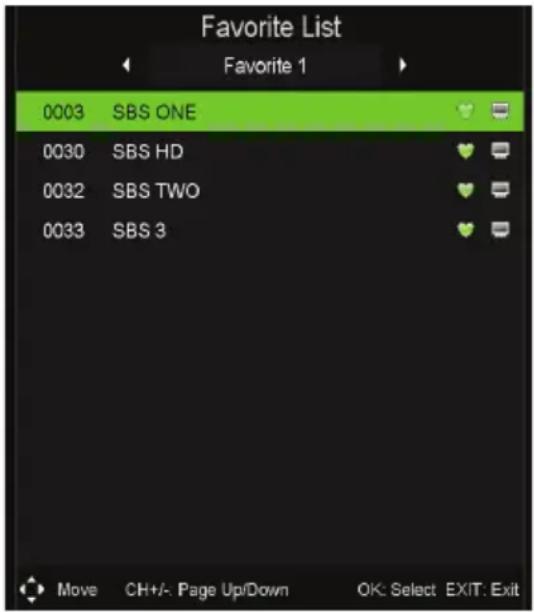
Favourites List
- While viewing a channel, press the FAV button on the remote control to enter the Favourites List menu.
-
Use the ▶ buttons to select the favourite category and the ▶ buttons to select the channel. Then press OK to watch it.
• To add a channel to Favourites list: -
Navigate to Menu > Channel > Favourite Manager and click OK.
- Press the / / / / buttons to add channels to favourite category 1/2/3/4 respectively.
- Press the EXIT button to save and exit.
Quick Select: Channels List
- While viewing a channel, press the OK button to enter the Channels List directly.
- Press the ▲/▼ buttons to select the channel and press OK to watch it.
Teletext
- Press the TEXT button to view the available teletext information. Press OK to hide the information.
NOTE: See the note (*) on page 6 for important information about teletext services in Australia.
TV/Radio (for DTV Mode Only)
- Press the TV/RADIO button to switch the unit between TV and radio mode.
Subtitles
- Press the SUBTITLE button repeatedly to set subtitle options.
NOTE: The channel you are watching must support multi-subtitles.
text_image
Favorite List Favorite 1 0003 SBS ONE 0030 SBS HD 0032 SBS TWO 0033 SBS 3 Move CH+/- Page Up/Down OK: Select EXIT: Exit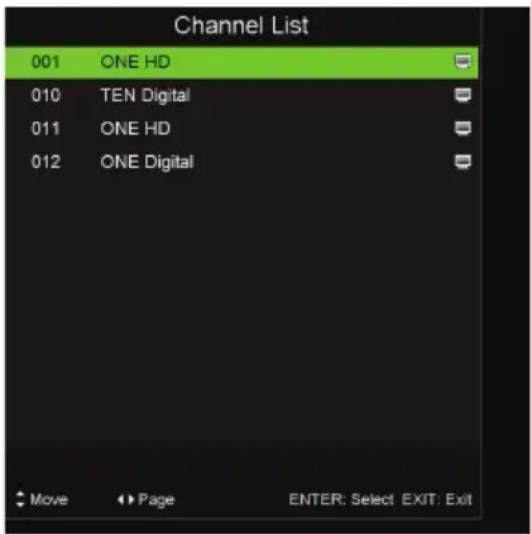
text_image
Channel List 001 ONE HD 010 TEN Digital 011 ONE HD 012 ONE Digital Move Page ENTER: Select EXIT: Exit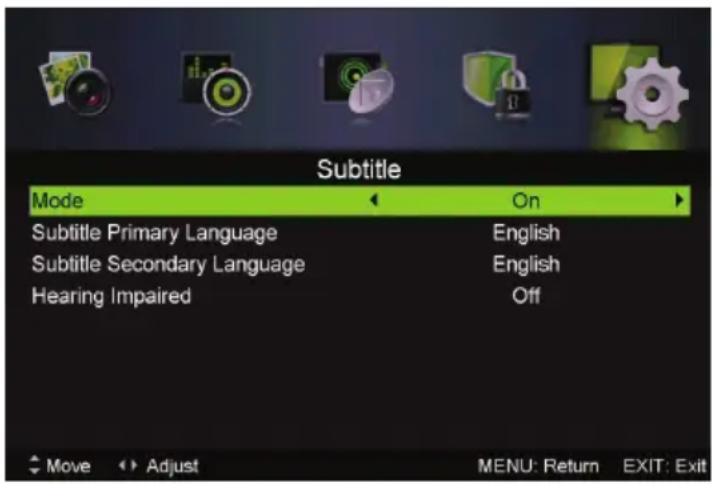
text_image
Subtitle Mode On Subtitle Primary Language English Subtitle Secondary Language English Hearing Impaired Off Move Adjust MENU: Return EXIT: ExitElectronic Program Guide (EPG)
EPG stands for Electronic Program Guide. It is supplied by the program providers and offers information about the programs to be broadcast. You can access it in digital (DTV) mode by pressing the EPG button on the remote control.
- Press the EPG button to display the EPG interface (above). The area at the top will display information about the selected program or channel, and the columns below

text_image
PROGRAM GUIDE 14 Jan 2011 20:30 - 14 Jan 2011 21:30 Apocalypse: The Second World War [M] Crushing Defeat - Tonight, the story of Hitler's lightning invasion of France and its rapid collapse, of the evacuation from Dunkirk, and of the summer of 1940 when Britain fought on alone. 003 SBS ONE 20:30 Apocalypse: The Second World War 007 SBS NO. 21:30 World News Australia 002 SBS TWO 22:05 Dateline (Rpt) 003 SBS 3 22:40 Letters and Numbers 004 SBS 4 23:10 Close 038 SBS Radio | PrevDate NextDate Schedule Reminder Move Rec: Record ENTER: Display EXIT: Exitwill display the list of available channels and their programs at various timeslots.
- Before you can view any EPG information, you have to ‘activate’ every channel for which you want to view program information. To do this, use the ▲ / ▼ buttons to select a channel in the left column, then press OK to confirm.
- Press the ◀/▶ buttons to switch between columns.
- Press the ▲ /▼ buttons to select a different channel/program in the list.
- Press the RECORD button to schedule a recording for the selected program.
- Press the button to display the TV guide for the previous day.
- Press the GREEN button to display the TV guide for the next day.
- Press the YELLOW button to enter the schedule list page.
- Press the BLUE button to schedule a reminder for the selected program.
- Press the ▲ /▼ buttons to select “CH”, then press the ◀ /▶ buttons to select the channel number and view the channel’s program forecast.
- Press EXIT to exit the EPG menu.
Recording
One-Touch Recording (in DTV mode only)
IMPORTANT!
Before you can record with this TV set (including time-shift recording), you must have inserted a FAT32 formatted USB storage device into the USB port.
First, insert your USB memory device into the USB port.
When Watching a Program in DTV Mode:
- Press the RECORD button on the remote control to start recording directly. Press it again to display information about the current recording.
- Press the ■ STOP button to display a dialogue box: select Yes to stop recording, select No to dismiss the dialogue box.
- When a program is being recorded in the background (while the TV is in standby mode), the LED light will flash blue and red.
To Watch a Recorded Program:
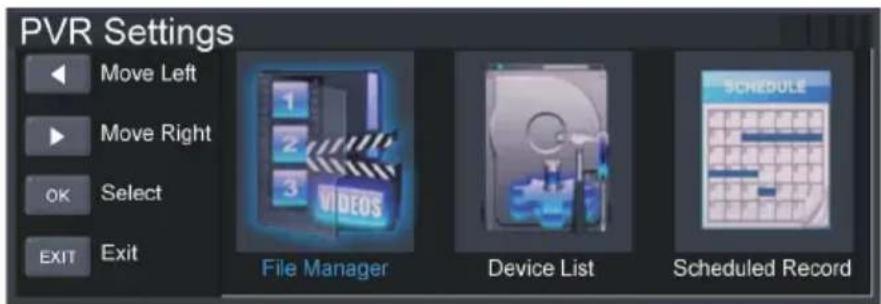
- Press the INDEX button on the remote control to display the PVR Settings page. (Alternatively, go to the Setup Menu and select PVR Settings.)
text_image
PVR Settings Move Left Move Right OK Select EXIT Exit File Manager Device List Scheduled Record- Highlight File Manager and press OK to enter it (see page 39).
- Use the ▲ / ▼ buttons to select a recorded file and press OK to start playback in full screen mode.
Scheduled Recording (in DTV mode only)
See instructions under EPG on the previous page or press the INDEX button, select Schedule Recording and follow the instructions on page 39.
Recording (Cont.)
Time-Shift Recording and Playback (in DTV mode only)
IMPORTANT!
Before you can record with this TV set (including time-shift recording), you must have inserted a FAT32 formatted USB storage device into the USB port.
The Time-Shift function allows you to pause the live TV signal, then resume playback at your convenience.
First, insert your USB memory device into the USB port.
When Watching a Program in DTV Mode:
- Press the ▶ button on the remote control to initiate Time-Shift mode and pause the program.
- Press the ▶button again to resume playback; the tool bar pictured below will appear on the screen.

text_image
00:00:00 00:02:14 Play FB FF Prev Next Stop Available Time 01:07:22 / 01:09:36 18:32- Use the ◀/▶ buttons to select Play, then and press OK to play the program in time-shift mode.
- Use the ◀/▶ buttons, then press OK to select a function such as Fast Forward from the on-screen toolbar.
- To stop time-shift, press the STOP button on the remote control to display a dialogue box, then select Yes to exit time-shift mode and return to live TV signal, or select No to dismiss the dialogue box.
NOTE: The USB storage device will not retain recorded data after exiting the time-shift function.
Recording (Cont.)
Important Notes
When using the USB/Media function, remember the following important points:
- We strongly recommend you back up all data in the USB storage device to another storage device so you do not risk losing any data in case of an unexpected device failure or accident. We do not assume liability for any loss of data due to misuse or malfunction. Data backup is your personal responsibility.
- You cannot change to a channel from another broadcaster or select another function while in recording mode.
- If the signal is interrupted or removed while in recording mode, the recording will stop until the signal is established. This may cause you to lose program content.
- Do not turn the TV off during timeshift recording, otherwise the TV will exit the time-shift function and turn to standby mode.
- The file recorded can only be used in this TV. Do not copy it to any other device.
- When you are in time-shift recording mode, you may experience some difficulty with a scheduled recording at different times without removing the USB recording device. You will need to remove the USB device as it is required to reset after each recording to protect the device from damage. If you see the message ‘DISK NOT READY’ displayed, remove the device, reconnect and proceed with your recording.
- Some USB storage devices may not be compatible for smooth operation with this TV.
- For large file sizes and large capacity storage devices, the loading speed may be longer. The recognition speed of a USB storage device may vary depending on the device.
- When connecting or disconnecting the USB storage device, ensure the TV is not in USB mode, otherwise the USB device or the files stored in it may be damaged.
- Only use a USB storage device formatted in a FAT32 file system provided with the Windows operating system. If it is formatted by a different utility program that is not supported by Windows, it may not be recognised.
- Ensure any USB devices connected to the TV do not use/exceed 500mA power rating.
- If an “Unsupported File” message is displayed, the file format or codec is unsupported or corrupted.
WARNING!
When using the recording function on you TV (PVR and Time-Shift), please note that all rights of the producers and owners of the recorded work are reserved. All recorded materials are protected by Copyright and use of the recordings are restricted to private use only. Any other use of the whole or any part of the recorded material including commercial use, advertising, adapting, copying, exhibiting, issuing copies, unauthorised lending, public performance, diffusion, re-setting, hiring and editing, broadcasting, making the same available to or via the Internet or wireless technology or authorising any of the foregoing is strictly prohibited and illegal, unless previous written consent of the owner thereto has been obtained.
Menu Settings
This TV set contains different settings menus where you can program your preferred settings. Once you have programmed any settings, the unit will retain them in its memory until you change them, even when switching the unit to standby mode. This means you can always operate the system under the same conditions.

natural_image
Five digital security icons including camera, monitor, gear, lock, and gear gate on a dark background (no text or symbols)PICTURE
SOUND
CHANNEL

LOCK

SETUP
Menu Navigation
- Press the MENU button to display the main menu screen (above).
- Press the ◀ buttons to select different submenus.
- Press OK or▶to enter the submenu page.
- Press the ▲/▼ buttons to select the preferred option.
- Press the ◀/ ▶buttons to adjust the value.
- Press the MENU button to save the current setting and return to the previous menu page.
- Press the EXIT button to exit the menu page.
- Press the SOURCE button on the back panel, or on the remote control, to display the input source list.
- Press the ▲/▼ buttons to select the desired input source from the options available.
NOTE: When you switch on this TV for the first time, you need to select the language and the country to auto-search for all the available channels in your area. See page 23 for first time installation instructions.
Menu Settings (Cont.)
Channel Scanning
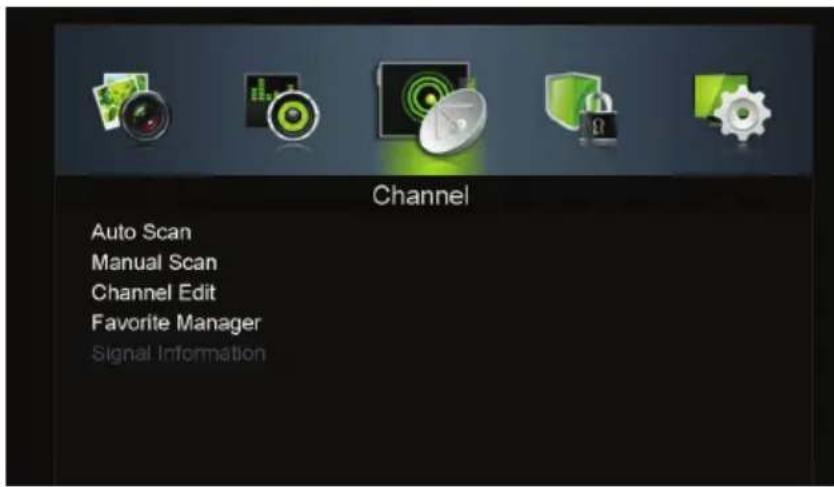
- Press the MENU button on your remote control to display the main menu.
text_image
Channel Auto Scan Manual Scan Channel Edit Favorite Manager Signal Information- Use the ◀ buttons to select the Channel menu, then press to enter.
- Use the ▲/▼ buttons to select the desired submenu and, with the highlighted menu selected, press or▶to enter it.
- Using the ▲/▼ buttons, select "Auto Scan", then "Country" and then the appropriate mode. Press the ▶button to start scanning.

text_image
Auto Scan Country Australia Mode DTV StartNOTE: Auto scanning for channels will take some time; please be patient. When auto scanning is complete, the TV will show the first channel found.
- Press to return to the previous menu, or to exit the menu.
Menu Settings (Cont.)
Channel Edit
- Using the ▲ / ▼ buttons, select "Channel Edit", then press OK to enter.

text_image
Channel Edit 003 SBS ONE 030 SBS HD 032 SBS TWO 033 SBS 3 034 SBS 4 038 SBS Radio 1 039 SBS Radio 2 Delete Skip Move Move Page MENU: Return EXIT: Exit- If you want to delete, skip or move a channel, use the ▲/▼ buttons to select the channel, and then:
- Press the RED button on the remote control to delete the highlighted channel.
- Press the GREEN button on the remote control to skip the highlighted channel. Press the button again to cancel the setting.
- Press the BLUE button on the remote control to move the highlighted channel. Then use the ▲√ buttons to select the preferred position, then press the BLUE button again to move the channel.
- Press MENU to return to the previous menu, or EXIT to exit the menu.
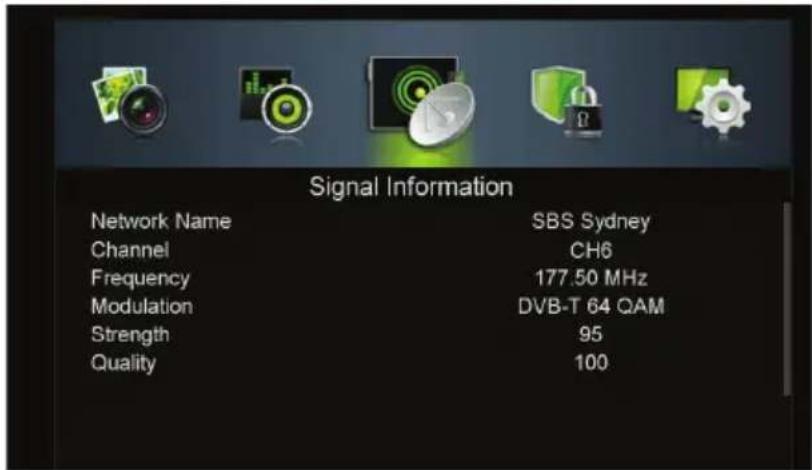
Signal Information
text_image
Signal Information Network Name SBS Sydney Channel CH6 Frequency 177.50 MHz Modulation DVB-T 64 QAM Strength 95 Quality 100This setting is used to display signal details, such as Channel Number, Frequency, Quality, Strength, etc.
Menu Settings (Cont.)
Picture Menu (DTV & ATV Mode)
text_image
Picture Picture Mode Standard Brightness 50 Contrast 50 Sharpness 50 Saturation 50 Hue 0 Color Temp Standard Aspect Ratio Full Move Adjust MENU: Return EXIT: Exit- Press the MENU button on your remote control to display the main menu.
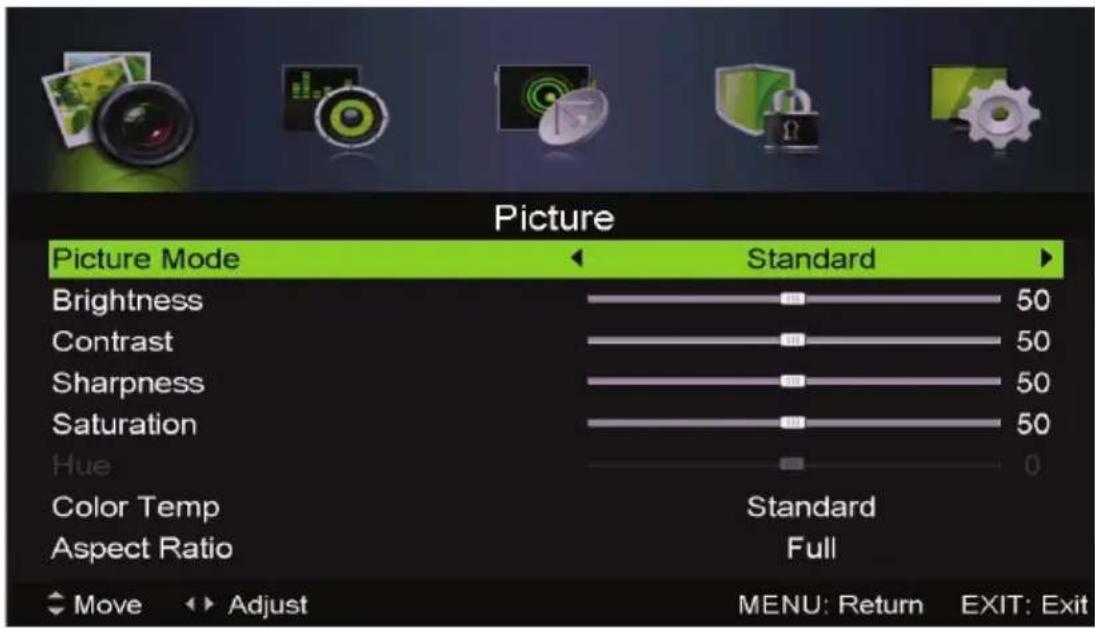
- Use the ◀/▶ buttons to select the Picture menu, then press OK to enter.
- Use the ▲/▼ buttons to select the desired submenu.
Picture Mode: Use the ◀ buttons to select from Standard, Mild, User, Dynamic.
Brightness / Contrast / Sharpness / Saturation: Use the ◀ buttons to adjust the values.
Hue: Use the ◀/▶ buttons to adjust the value (only adjustable in NTSC systems).
Color Temp: Use the ◀ buttons to select from Standard, Cool, Warm.
Aspect Ratio: Use the ◀ buttons to select the preferred aspect ratio.
Screen Mode: Use the ◀/▶ buttons to select the preferred screen mode (in HDMI mode only).
Advanced Settings: Use the ◀ buttons to enter the advanced settings adjustment menu.
NR (Noise Reduction): Available options: Off, Weak, Medium, Strong.
MPEG NR (MPEG Noise Reduction): Available options: Off, Weak, Medium, Strong.
Dynamic Contrast: Available options: Off, Weak, Medium, Strong.
Menu Settings (Cont.)
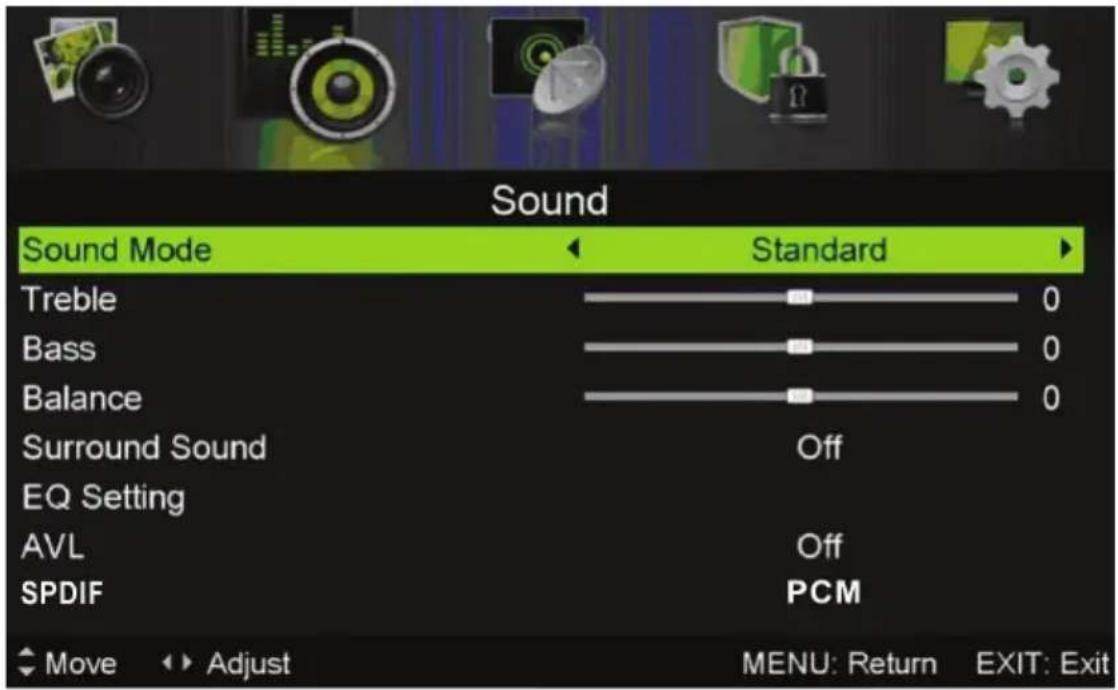
- Press the button on your remote control to display the main menu.
text_image
Sound Sound Mode Standard Treble 0 Bass 0 Balance 0 Surround Sound Off EQ Setting AVL Off SPDIF PCM Move Adjust MENU: Return EXIT: Exit- Use the ◀▶buttons to select the Sound menu, then press to enter.
- Use the ▲/▼ buttons to select the desired submenu.
- Use the ◀ buttons to select from Standard, Music, Personal, Movie.
- Use the ◀ buttons to adjust the values.
- Use the ◀ buttons to sync video and audio. Use the 🔊 buttons to select "ON" or "OFF".
- Use the ◀ buttons to enter the EQ setting adjustment menu.
- Use the ◀/ ▶buttons to select "ON" or "OFF".
- Use the ◀ buttons to select the SPDIF audio output.
- Use the button to enter the submenu to select "ON" or "OFF".
- Use the button to select the sound type.
Menu Settings (Cont.)
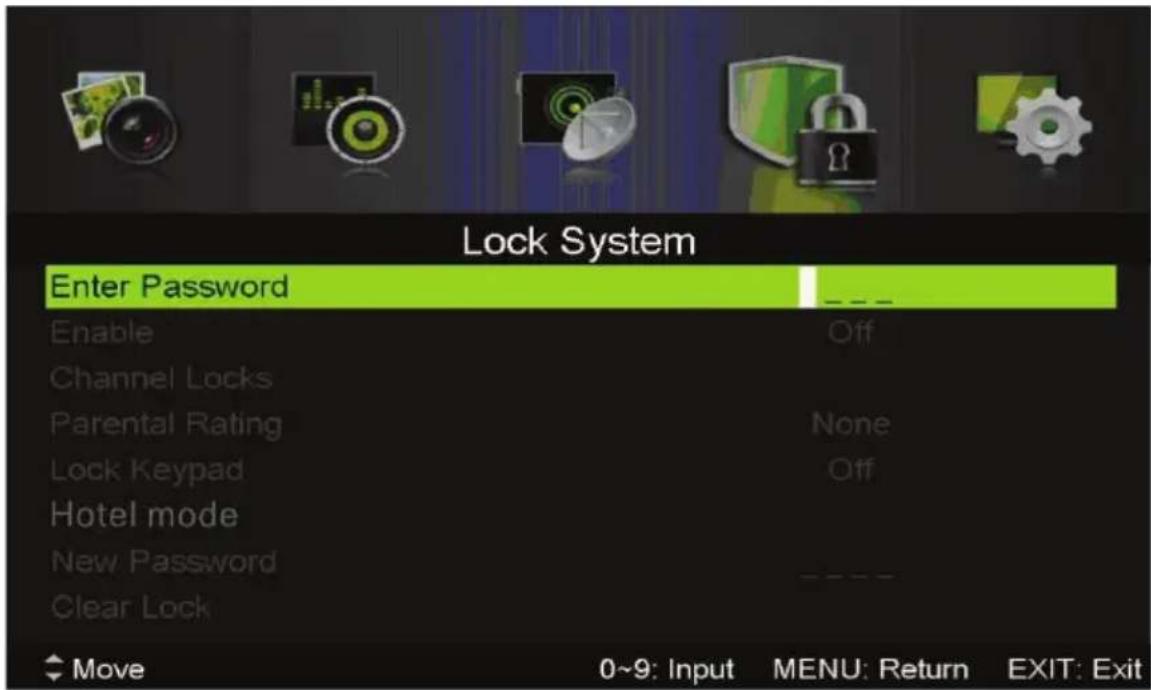
- Press the button on your remote control to display the main menu.
text_image
Lock System Enter Password Enable Off Channel Locks Parental Rating None Lock Keypad Off Hotel mode New Password ---- Clear Lock Move 0~9: Input MENU: Return EXIT: Exit- Use the ◀▶buttons to select the Lock System menu, the default password is "0000".
- Use the ▲/▼ buttons to select the desired submenu.
- Use the ◀ buttons to select "ON" or "OFF".
- Use the button to select the channel(s) you want to lock.
- Use the ◀ buttons to set the desired parental rating.
- Use the ◀ buttons to select "ON" or "OFF". The keys on the left lower side of the back panel will be inactive if you set the Lock Keypad to "ON".
- Use the ◀/ ▶ buttons to set your new password.
- Use the▶button to clear the lock.
Menu Settings (Cont.)
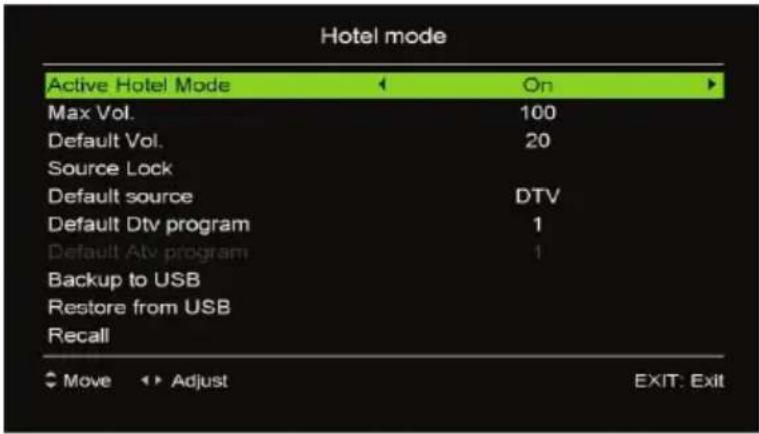
Hotel Mode
- Press the ▶button to enter.
text_image
Hotel mode Active Hotel Mode On Max Vol. 100 Default Vol. 20 Source Lock Default source DTV Default Dtv program 1 Default Atv program 1 Backup to USB Restore from USB Recall Move Adjust EXIT: Exit- Press the ▲/ buttons to select the desired item.
- Press the ◀/ ▶buttons to adjust the value.
- Press OK or▶to enter the submenu.
- Press the MENU button to return to the previous page.
Active Hotel Mode: Turn on/off Hotel Mode.
Max Vol: Set the maximum volume level.
Default Vol: Set the default volume level.
Source Lock: Turn on/off the lock on available sources.
Default Source: Set the default source.
Default DTV Program: Set the default digital program.
Default ATV Program: Set the default analog program.
Backup to USB: Backup the data to USB memory device.
Restore from USB: Restore data from USB memory device and then your TV will switch to STANDBY mode.
Recall: Recall the default settings of Hotel Mode.
Menu Settings (Cont.)
Setup Menu (DTV & ATV mode)

text_image
Setup OSD Language Audio Languages Subtitle Teletext Blue Screen Mode Setting Time Settings HDMI CEC Control English Off Home Mode Move Adjust MENU: Return EXIT: Exit- Press the MENU button on your remote control to display the main menu.
- Use the ◀ buttons to select the Setup menu, then use the ▲ buttons to select the desired submenu.
OSD Language: Use this item to select the desired on-screen display language.
Audio Languages: Press OK or ▶ to enter. Then you can select the desired primary and secondary audio language (only adjustable if there is a signal).
Subtitle: Press OK or ▶ to enter. Then you can select the desired primary and secondary subtitle language and turn on/off the Hearing Impaired function when this mode is on (only adjustable if there is a signal).
Teletext: Press OK or ▶ to enter. Then you can select the desired digital Teletext language and decoding page language. (See the note on page 6 for more information about Teletext in Australia.)
Blue Screen: Turn ON/OFF blue screen.
Time Settings: Press OK or ▶ to enter. Use the ▲ / ▼ buttons to select the desired item, then use the ◀ buttons to adjust the value.
- OSD Time: This item is used to select the desired OSD menu duration. Available options: Off, 10/20/30/60 seconds.
- Sleep Timer: This item is used to adjust the Sleep Timer. Available options: Off, 5/15/30/60/90/120/240 minutes.
Menu Settings (Cont.)
- Auto Sleep: This item is used to select the desired Auto Sleep (standby) duration. Available options: Off, 3/4/5 hours.
- Time Zone: This item is used to select your desired time zone.
- Time: Press OK or ▶ to enter. Use the ▲ / ▼ buttons to select the desired item, then use the ◀/ ▶ buttons to adjust the value.
- Auto Sync: Synchronise the time with your channel if Auto Sync is on. When Auto Sync is off, you can adjust the Date and Time manually.
To Adjust the Date and (or) Time:
- Highlight the date and (or) time and press OK to enter the adjusting page.
- Use the▲/▼buttons to adjust it.
- Press OK to confirm the setting; press EXIT to cancel it.
HDMI CEC Control: To use the HDMI CEC function, make sure the HDMI device (amplifier, etc.) is connected correctly. Press the SOURCE button on the unit or remote control to select HDMI input source.
- HDMI CEC Control: This item is used to turn on/off HDMI CEC (Consumer Electronic Control).
- ARC: This item is used to turn on/off Audio Return Channel. When ARC is on, the TV can return the audio to the connected HDMI device (amplifier, etc.).
- CEC Menu Control: Press OK or ▶ to enter it.
- Home Menu: Display the Home menu of the connected CEC device.
- Option: Display the Option menu of the connected CEC device.
- Content: Display the Content menu of the connected CEC device.
- Device List: This item is used to display the available device that connected.
Menu Settings (Cont.)
PVR Settings
File Manager
- Use the ▲/▼ buttons to select a recorded file.
- Press the RED button on the remote control to play the highlighted file from the beginning.
- Press the GREEN button to delete the highlighted file.
- Press the YELLOW button to delete all recorded files.
- Press the BLUE button to zoom in/out.
Device List
- In this item you can check the available space and file system of your memory device connected to the USB port.
- Press the RED button on the remote control to format your USB memory device.
Scheduled Record
- Press the GREEN button to delete the highlighted option.
- Press the YELLOW button to delete all.
- Use the ▲/▼ buttons to select a schedule.
- Press OK to edit the highlighted Scheduled Recording.
- Frequency: Press the ◀/▶ buttons to select the desired mode: Off, Once, Daily, Weekly, Weekday.
- Channel: Press the ◀/▶ buttons to select the desired channel.
- Start Time: Press the ▲/▼/◄/► buttons to select the desired start date and time of the recording.
- End Time: Press the ▲/▼/◄/► buttons to select the desired end date and time of your scheduled recording.
NOTE: After successful completion, select Save to save the settings.
First Time Setup
This item is used to recall the First Time Setup page (see page 23 for details).
Reset
This item is used to reset to factory default settings.
Software Update (USB)
This item is used to update software through a USB memory device.
Menu Settings (Cont.)
PC Settings
- Connect a personal computer to this unit and power on both the computer and this unit.
- Press the SOURCE button on the back panel, or on the remote control, to select PC input source.
- Press the MENU button to display the main menu, then select Picture using the ◀/▶buttons.
- Use the ▲√ buttons to highlight PC Setting, then press OK or ▶ enter.
- Use the ▲/▼ buttons to select the preferred item.
- Press OK or to enter the submenu, press the ◀ buttons to adjust the value.
Auto Adjust: Use this item to adjust the PC screen automatically.
H Position: Use this item to adjust the horizontal position value from -30 to 30.
V Position: Use this item to adjust the vertical position value from -30 to 30.
Phase: Use this item to adjust the phase value from 0 to 31.
Clock: Use this item to adjust the signal transfer speed from -30 to +30.
NOTE: For other menu operations in PC mode, please refer to the menu operations of DTV mode.
NOTE: A signal must be connected in order to change these settings.
DVD Mode
Press the SOURCE button on the back panel, or on the remote control, to switch the unit to DVD mode.
Basic DVD Movie Playback
- Before placing a disc into the disc compartment, make sure there is no disc inside. Hold the disc without touching either of its surfaces, position it with the readable (mirror) side facing towards you, then the disc will automatically enter into the disc compartment; or you can press the OPEN button on the remote control to put the disc into the disc compartment.
- Once the disc is in the disc compartment, the player starts reading the disc immediately.
- When a menu screen appears on the unit, press the ▲/▼/ ↗ buttons, or the number buttons, to select the chapter/track number, then press OK to confirm.
- To stop playing and return to the menu screen, press the TITLE or D.MENU button on the remote control.
Stopping Play
- Press the STOP button to stop playback.
NOTE: When the player is stopped, it records the point on the DVD where STOP was pressed (RESUME function). Press the ▶PLAY button again to resume playback from this point. When the disc is ejected or ■STOP is pressed again, the RESUME function will be cleared.
Skipping Ahead or Backward
Skipping ahead: During playback, press the ▶ button to skip the next chapter (DVD) or track (Video CD/CD).
Skipping backward: During playback, press the ◀ button to skip the previous chapter (DVD) or track (Video CD/CD).
flowchart
graph LR
    A["Input Icon"] --> B["Output Icon"]
DVD Mode (Cont.)
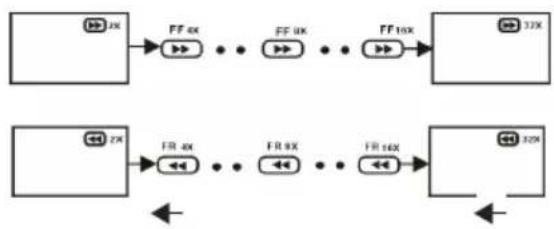
Fast Forward/Fast Backward
- During playback, press the ◀r buttons to fast backward/forward.
- Press ▶ button to resume normal play.
flowchart
graph LR
    A["2X"] --> B["FF 4X"]
    B --> C["..."]
    C --> D["FF 6X"]
    D --> E["..."]
    E --> F["FF 16X"]
    F --> G["32X"]
    H["2X"] --> I["FR 4X"]
    I --> J["..."]
    J --> K["FR 6X"]
    K --> L["..."]
    L --> M["FR 16X"]
    M --> N["32X"]
Pause/Play
- During playback, press the ▶ button to pause playback, press it again to resume normal playback.

flowchart
graph LR
    A[" "] --> B["▶"]
Viewing From Different Angles
Some DVDs may contain scenes which have been shot simultaneously from a number of different angles.
- For discs that support multiple angles, press the ANGLE button to view the same scene from a different angle.
Go To
- Press the GOTO button repeatedly to select the item you want to set and enter a time number, chapter number, track number, etc., then press OK. Accordingly, the disc will be played from the selected point.
Display
- Press the DISPLAY button to display the playing status of your disc.
Change Subtitle Language
Some DVDs have multiple subtitle languages recorded. To change the subtitle language to a different language from the one selected:
- Press the SUBTITLE button during playback: the screen will display the current language. Press the SUBTITLE button again to change the language or turn subtitles off.
NOTE: When no subtitles are recorded, pressing this button will have no effect.
DVD Mode (Cont.)
Repeat Play
- Press the REPEAT button during playback, it will repeat play one chapter or one title (for DVD disc), or repeat play the track (for VCD/CD).
DVD DISC

text_image
CHAPTER REPEAT CHAPTER TITLE REPEAT TITLE ALL REPEAT ALLVCD/CD DISC (In the PBC OFF mode)

text_image
TRACK REPEAT TRACK ALL REPEAT DISCA-B Repeat Play
This button lets you repeat sections between two specific points (A-B repeat).
- Press the A-B button during playback at the point where repeat play is to be started (A).
- Press the A-B button at the point where repeat play is to be ended (B). Repeat play of the selection between points A and B starts.
- Press the A-B button again to return to normal play.
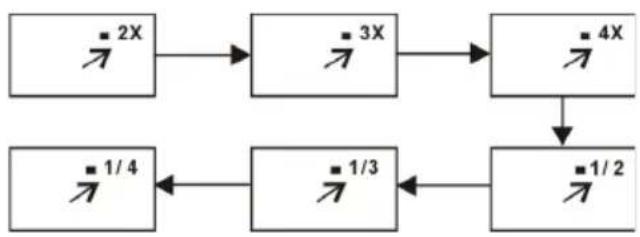
Zoom Play
This function allows you to zoom into the picture to enlarge it, or zoom out.
- Press the ZOOM button when playing, the screen shows:
- Use the navigation buttons to scroll across the enlarged picture.
flowchart
graph TD
    A["2X"] --> B["3X"]
    B --> C["4X"]
    C --> D["1/2"]
    D --> E["1/3"]
    E --> F["1/4"]
    F --> A
Changing the Audio Soundtrack
Language (on DVD/VCD discs)
It is possible to change the audio soundtrack language to a different language from the one selected at the initial settings. (This function works only with discs on which multiple audio soundtrack languages are recorded.)
- When playing a disc, press the LANG button to select the desired soundtrack language, if available.
NOTE: When no soundtrack languages are recorded, pressing this button will have no effect.
DVD Mode (Cont.)
Media File Playback
Music File Playback
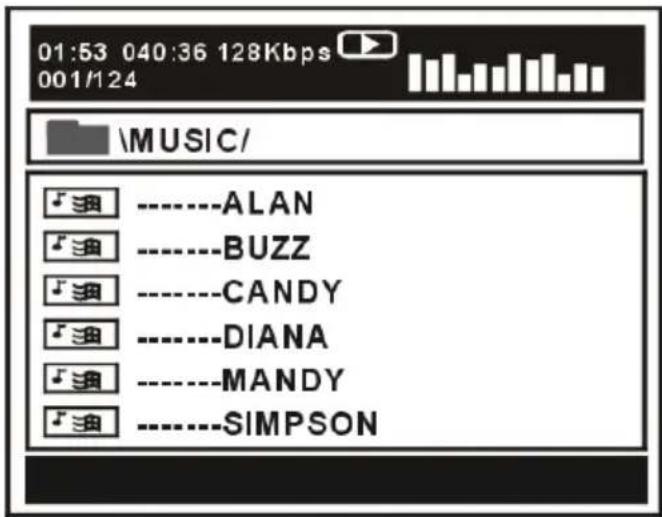
- Insert a disc which contains music files and after a few seconds, the screen will show all the folders on the disc.
text_image
01:53 040:36 128Kbps 001/124 \MUSIC/ ----ALAN ----BUZZ ----CANDY ----DIANA ----MANDY ----SIMPSON- Use the ▲ / ▼/ → buttons to select the folder you want to play, then press OK to confirm.
- Use the ▲/▼/ ↗ buttons to select the desired song from the files displayed in this folder, then press the ▶ or OK button to start playback.
- On the file selection page, press the or buttons to turn to the previous or next page.
- Press the REPEAT button on the remote control to change the play mode.
- SINGLE: play one file only.
- REPEAT ONE: repeat one file.
- REPEAT FOLDER: all the files in the folder will be played repeatedly.
- FOLDER: all the files in the folder will be played.
NOTE: The available repeat modes may vary for different discs.
DVD Mode (Cont.)
Movie File Playback (movie files stored on a data CD)
- Insert a disc which contains movie files and after a few seconds, the screen will show all the folders on the disc.
- Use the ▲/▼/ ★ buttons to select the folder you want to play, then press the OK button to confirm.
- Use the ▲/▼/ ★ buttons to select the desired movie file from the files displayed in this folder, then press the ▶br OK button to start playback.
- During normal playback, press the ◀◀ or ▶◀ button to play the previous or next file.
-
Press the REPEAT button on the remote control to change the play mode.
-
SINGLE: Play one file only.
- REPEAT ONE: Repeat one file.
- REPEAT FOLDER: All the files in the folder will be played repeatedly.
- FOLDER: All the files in the folder will be played.
NOTE: The available repeat modes may vary for different discs.
- Press the D.MENU button to return to the play list page.

text_image
00:00 00:00 001/124 AV ----ALAN AV ----BUZZ AV ----CANDY AV ----DIANA AV ----MANDY AV ----SIMPSONDVD Mode (Cont.)
JPEG File Playback
- Insert a picture CD which contains JPEG picture files and after a few seconds, the screen will show all the folders on the disc.
- Use the ▲/▼/ * buttons to select the folder you want to play, then press OK to confirm.
- Use the ▲/▼/ ★ buttons to select the desired picture file from the files displayed in this folder, then press OK to start playback. A thumbnail of the picture will be displayed while you are scrolling across the file name.
- Press the ▶ or OK button to start playback.
NOTE: The time of loading and displaying a picture depends on its size.
- During playback, press D.MENU to return to the file selection page.
-
Press the REPEAT button on the remote control to change the play mode.
-
SINGLE: play one file only.
- REPEAT ONE: repeat one file.
- REPEAT FOLDER: all the files in the folder will be played repeatedly.
- FOLDER: all the files in the folder will be played.
NOTE: The available repeat modes may vary for different discs.
Skip to the Next/Previous Picture
- Press button to skip to the next picture or button to skip to the previous picture. If no key is pressed for three seconds, it will skip to next picture automatically.
Rotating and Flipping Pictures
- Press▶to rotate the picture clockwise; press ▶to rotate it anti-clockwise.
- Press▲to flip the picture vertically; press▼to flip it horizontally.
Picture Shrink/Zoom
- Press the ZOOM button repeatedly to enlarge or shrink the picture to 50%, 75%, 100%, 125%, 150% and 200%.
NOTE: If the picture is enlarged, use the ▲/▼/◄/► buttons to pan across other portions of the picture.

text_image
00:00 00:00 002/124 \Belle\ .. BOAT DOG FLOWER SHUTTLE LOVESDVD Mode (Cont.)
Video CD Playback
When playing a VCD 2.0 with playback control (PBC), the player will show the VCD version.
- Press the number buttons to select a corresponding track.
VCD 2.0
Example:
To play track 9, press 0 and 9, several seconds
later, it will automatically switch to track 9. To play track 15, press 1 and 5, several seconds later, it will automatically switch to track 15.
- Press the or button to play the previous or next track.
Disc Handling and Maintenance Tips
- Hold the disc by the edges so the surface will not be soiled with fingerprints. Fingerprints, dirt and scratches can cause skipping and distortion.
- Do not write on the label side with a ball-point pen or other writing utensils.
- Do not use record cleaning sprays, benzene, thinner or static electricity prevention liquids.
- Be careful not to drop or bend the disc.
- Do not insert more than one disc in the disc compartment.
- Do not try to close the disc cover when the disc is not inserted properly.
- Be sure to store the disc in its exclusive case when not in use.
- DO NOT store discs in humid or dusty areas, or where they are exposed to direct sunlight or sources of heat (such as a heating appliance).
Cleaning Dirty Discs
- If a disc is dirty, wipe the surface gently with a soft cloth, dampened with a little water (no other liquids).
- When wiping discs, always move the cloth from the centre hole towards the outside, which will not cause distortion. (If you wipe the disc using a circular motion, circular scratches are likely to occur, which will cause distortion.)
- If the disc is brought from a cold to a warm environment, moisture may form on the disc. Wipe this moisture off with a soft, dry, lint-free cloth before using the disc.
DVD Mode (Cont.)
DVD Menus
The DVD player function of this TV set contains different settings menus where you can program your preferred settings. Once you have programmed any settings, the unit will retain them in its memory until you change them, even when switching the unit to standby mode. This means you can always operate the system under the same conditions.
Menu Navigation
- Press the D.SETUP button on the remote control.
- Use the ▲/▼ ↕ buttons to select the preferred item, then press OK to display the setup page where you can adjust values.
- Use the ▲/▼/◄/► buttons to adjust the item, then press OK to confirm the setting.
- Press the D.SETUP button again to close the setup menu.
- Use the ↗ buttons to switch to another main setup item. Then press the or OK button to enter the submenu page.
- Press the ◀button to return to the previous menu page.
General Setup Page
TV Display: This setting is for selecting the TV output mode. Available options: Normal/PS (Pan & Scan mode), Normal/LB (Letter Box mode),
Wide: 16:9 (Wide Screen mode).
OSD Language: This is for choosing your desired OSD language.

text_image
-- GENERAL SETUP PAGE -- TV DISPLAY WIDE OSD LANG ENG SCREEN SAVER ON LAST MEMORY OFF GOTO GENERAL SETUP PAGEScreen Saver: Set to ON, a screen saver
will appear if the unit is left idle and no operation is carried out for five minutes.
Last Memory: Enter another input source (except USB) during disc playback, and then back to DVD input source again, this unit will resume playback from the point where last playback was stopped, if Last Memory is set to ON.
DVD Mode (Cont.)
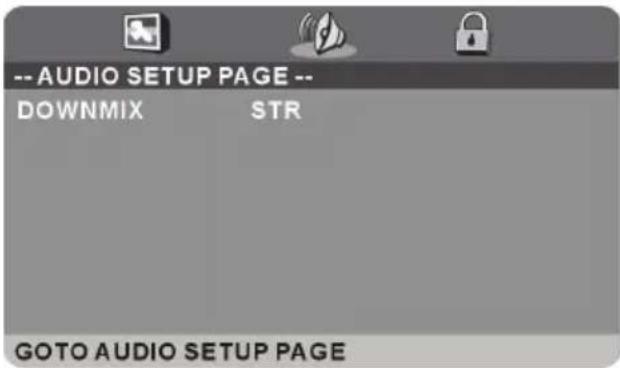
Audio Setup Page
Downmix: Use this item to select the desired audio output mode.
Available options:
LT/RT: Left/Right mix mode
Stereo mode.
text_image
-- AUDIO SETUP PAGE -- DOWNMIX STR GOTO AUDIO SETUP PAGEPreference Setup Page
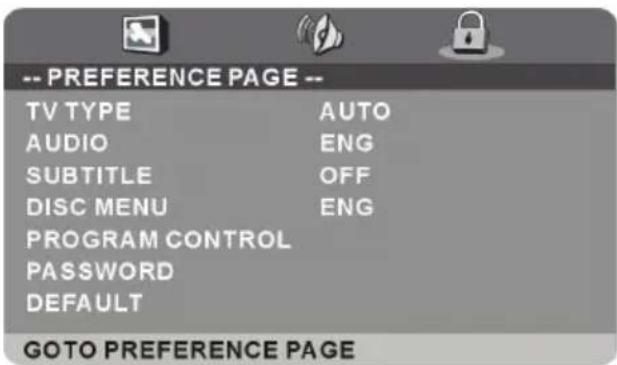
TV Type: Select the TV system.
Audio: Use this item to select the desired audio language, if your disc contains multiple audio languages.
Subtitle: Use this item to select the desired subtitle language, if your disc contains multiple subtitle languages.
Disc Menu: Use this item to select the desired language of your disc menu, if your disc menu contains multiple menu languages.
text_image
-- PREFERENCE PAGE -- TV TYPE AUTO AUDIO ENG SUBTITLE OFF DISC MENU ENG PROGRAM CONTROL PASSWORD DEFAULT GOTO PREFERENCE PAGEProgram Control: Use this item to select the desired program rating.
Password: Use this item to change the password. Input the password using the number buttons on the remote control. The default password is "0000".
NOTE: If you forget the password, please use the master password "4711".
Default: Use this item to reset to factory settings.
USB Multimedia Playback
Multimedia Playback
- First, insert a USB memory device into one of the USB ports.
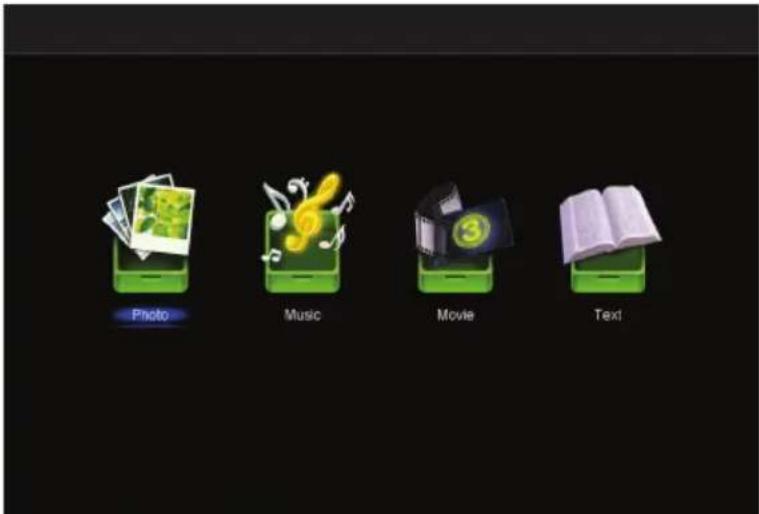
- Press the SOURCE button on the back panel or the remote control to switch the unit to USB mode. (Alternatively, press the MEDIA button on the remote control to enter USB mode directly.)
- Press the ◀ buttons to move the cursor.
- Press the EXIT button to return to the previous menu page.
text_image
Photo Music Movie TextPhoto
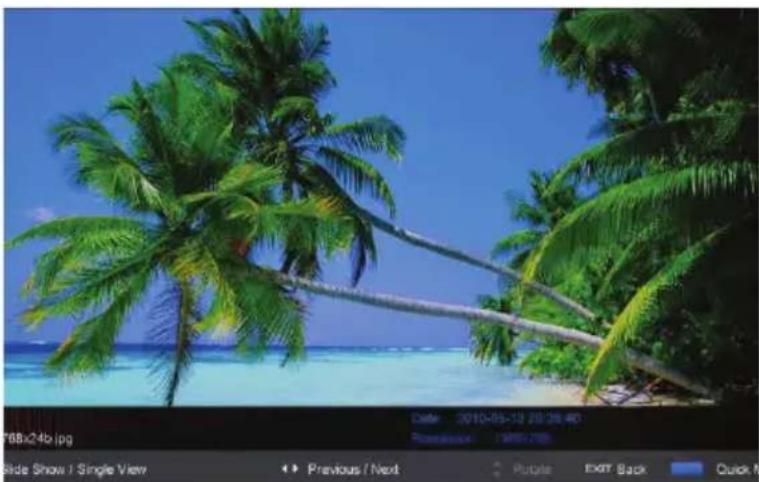
- Press the ◀/▶ buttons to select Photo in the main menu, then press OK to enter it. Photos files can only be played in this menu category.
- Use the ◀/▶ buttons to select the desired folder or file, then press OK to open the folder or start playing the file.
- Press the BLUE button to enter the submenu functions.
- Press the EXIT button to return to the previous menu.
natural_image
Tropical beach scene with lush green palm trees and turquoise water under a clear blue sky (no text or symbols visible)USB Multimedia Playback (Cont.)
Music
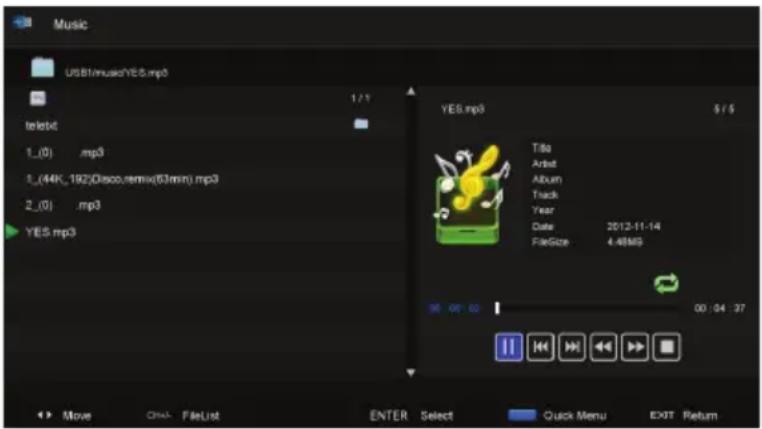
- Press the ◀/ ▶buttons to select Music in the main menu, then press to enter it. Music files can only be played in this menu category.
- Use the ◀/▶buttons to select the desired folder or file, then press to open the folder or start playing the file.
- Press the BLUE button to enter the submenu functions.
- Press the button to return to the previous menu.
text_image
Music USB1/musicYES.mp3 telebit 1_(0) .mp3 1_(44K_192)Disco,remix(63min).mp3 2_(0) .mp3 YES.mp3 YES.mp3 Tila Artist Album Track Year Date 2012-11-14 FileSize 4.48M5 00:04:37 Move Ctrl FileList ENTER Select Quick Menu EXIT Return- Press the ◀/ ▶buttons to select Movie in the main menu, then press to enter it. Music files can only be played in this menu category.
- Use the ◀/ ▶buttons to select the desired folder or file, then press to open the folder or start playing the file.
- Press the BLUE button to enter the submenu functions.
- Press the EXIT button to return to the previous menu.
USB Multimedia Playback (Cont.)
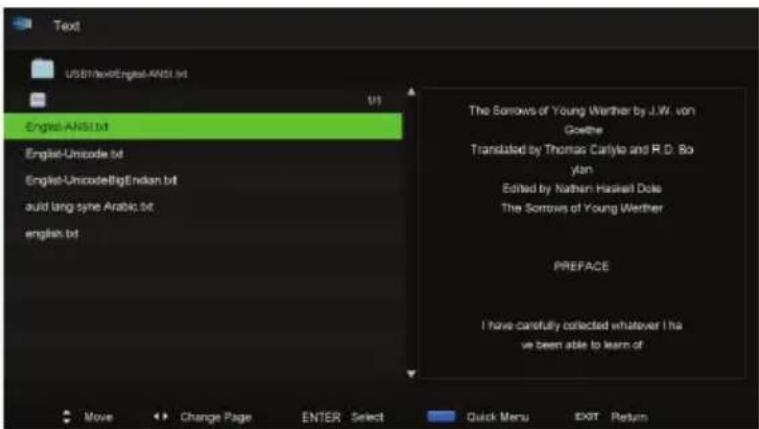
Text
- Press the ◀/▶ buttons to select Movie in the main menu, then press OK to enter it. Music files can only be played in this menu category.
- Use the ◀/▶ buttons to select the desired folder or file, then press OK to open the folder or start playing the file.
- Press the BLUE button to enter the submenu functions.
- Press the EXIT button to return to the previous menu.
text_image
Text USBIT/low/English-ANSI.txt U1 English-ANSI.txt Englist-Umscode.txt Englist-Umscode@Indian.txt auld lang-syne Arabic.txt english.txt The Sorrows of Young Werther by J.W. von Goethe Translated by Thomas Carlyle and R.D. Boyan Edited by Nathem Haskell Dole The Sorrows of Young Werther PREFACE I have carefully collected whatever I have been able to learn of Move Change Page ENTER Select Quick Menu EDIT ReturnFAQs
If you experience any problems with your TV, check the list below and take any necessary steps before calling for service. If none of the solutions help you solve the problem, turn the power off and contact the after sales support line for advice.
| Problem SolutionGeneral Problems with the TV Set | |
| No power. Insert the power plug securely into the power outlet. | |
| No picture. Ensure that the equipment is connected properly.Adjust the antenna or use an external antenna.Relocate the unit near a window (if inside a building).Move the TV set away from any product that causes interference.Auto-tune the unit again.Try another channel. | |
| No sound or distorted sound. | Ensure that the equipment is connected properly.Ensure that the input setting for the TV is correct.Ensure the audio settings are properly set.Ensure the volume is not muted. If it is, press the MUTE button to restore the sound.If earphones are connected, unplug them.Adjust the volume to a suitable level by pressing the VOL+/VOL- button. |
| No operations can be performed with the remote control unit. | Check the batteries are correctly installed.The batteries may be exhausted: replace them.Make sure to point the remote control at the remote control sensor and try it again.Make sure to use the remote control at a distance of no more than 6m from the sensor.Remove any obstacles between the remote control and remote control sensor. |
| No button works (on the main unit and/or remote control). | Disconnect the power plug and then reconnect it. (The unit may not be operating properly due to lightning, static electricity or some other factors.) |
| Noise or other interface Electronic equipment near the unit is causing interface.Relocate the unit or move the equipment. | |
| Problems Relating to the USB Device | |
| My TV does not recognise my USB device or my external hard disk. | Please refer first to the instructions describing how to use USB devices with this unit. If the problem still occurs, your device may not be compatible. This machine has been tested with the majority of Flash memory-based devices and hard disks on the market; however, it may not be compatible with certain devices. |
| Problem SolutionProblems relating to the built-in DVD player | |
| No subtitles are displayed. | Subtitles appear only with discs that contain them.Check whether your DVD has subtitles.Make sure to select Subtitles ON in the settings, otherwise they will not be displayed. |
| Audio soundtrack and/or subtitle language is not as per the initial settings. | If the audio soundtrack and/or subtitle language does not exist on the disc, the language selected at the initial settings will not be seen/heard. |
| Alternative audio soundtrack (or subtitle) languages cannot be selected. | Alternative languages can only be selected on discs that contain more than one language. Check and ensure your disc has more than one language.With some DVDs, an alternative language cannot be selected with the LANG or SUBTITLE button.Try selecting it from the DVD menu, if an alternative language is available. |
| Angle cannot be changed. | This function is dependent on software availability.Even if a disc has a number of angles recorded, they may be recorded for specific scenes only. |
| No menu play (with video CDs) | This function works only for video CDs with playback control. |
Other Useful Information
Technical Specifications
| Display Device | 32" (81.28cm) HD LED LCD TV | |
| Resolution | 1366 x 768 | |
| Luminance | 220 cd/m2 | |
| Contrast Ratio | 1400 : 1 | |
| Aspect Ratio | 16:9 | |
| Viewing Angle | 176 (H) / 176 (V) | |
| USB Multimedia Playback Format | Movie: AVI, MPEG, MPEG-4, TS, MKV, Music: MP3, WAV, AAC Photo: JPG/JPEG Text: TXT | |
| Power Source | 100-240V~ 50/60Hz | |
| Power Consumption | <60 W | |
| USB Output | 5V == 500mA | |
| Dimensions (mm) | With Stand 732 x | 200 x 475 mm |
| Weight | Gross 6.47 kg (incl. accessories and box) | |
| Net 4.54 kg (product with stand only) | ||
Region code setting
All DVD discs are coded by the sales territory. Please note the built-in DVD player is set to Region 4 coding by the factory, which cannot be changed. This is in compliance with DVD patent requirements.

The region number for the built-in DVD player is 4
Other Useful Information (Cont.)
Responsible Disposal
Packaging: The packaging of your TV has been selected from environmentally friendly materials and can usually be recycled. Please ensure these are disposed of correctly. Plastic wrapping can be a suffocation hazard for babies and young children, please ensure all packaging materials are out of reach and are safely disposed of. Please ensure they are offered for recycling rather than throwing these materials away.
TV: At the end of its working life, do not throw this TV out with your household rubbish. An environmentally friendly method of disposal will ensure that valuable raw materials can be recycled and used again. Electrical and electronic items contain materials and substances which, if handled or disposed of incorrectly, could potentially be hazardous to the environment and human health.
This page has been left blank intentionally.
This page has been left blank intentionally.
This page has been left blank intentionally.